

See which customers are upset before you open a single ticket
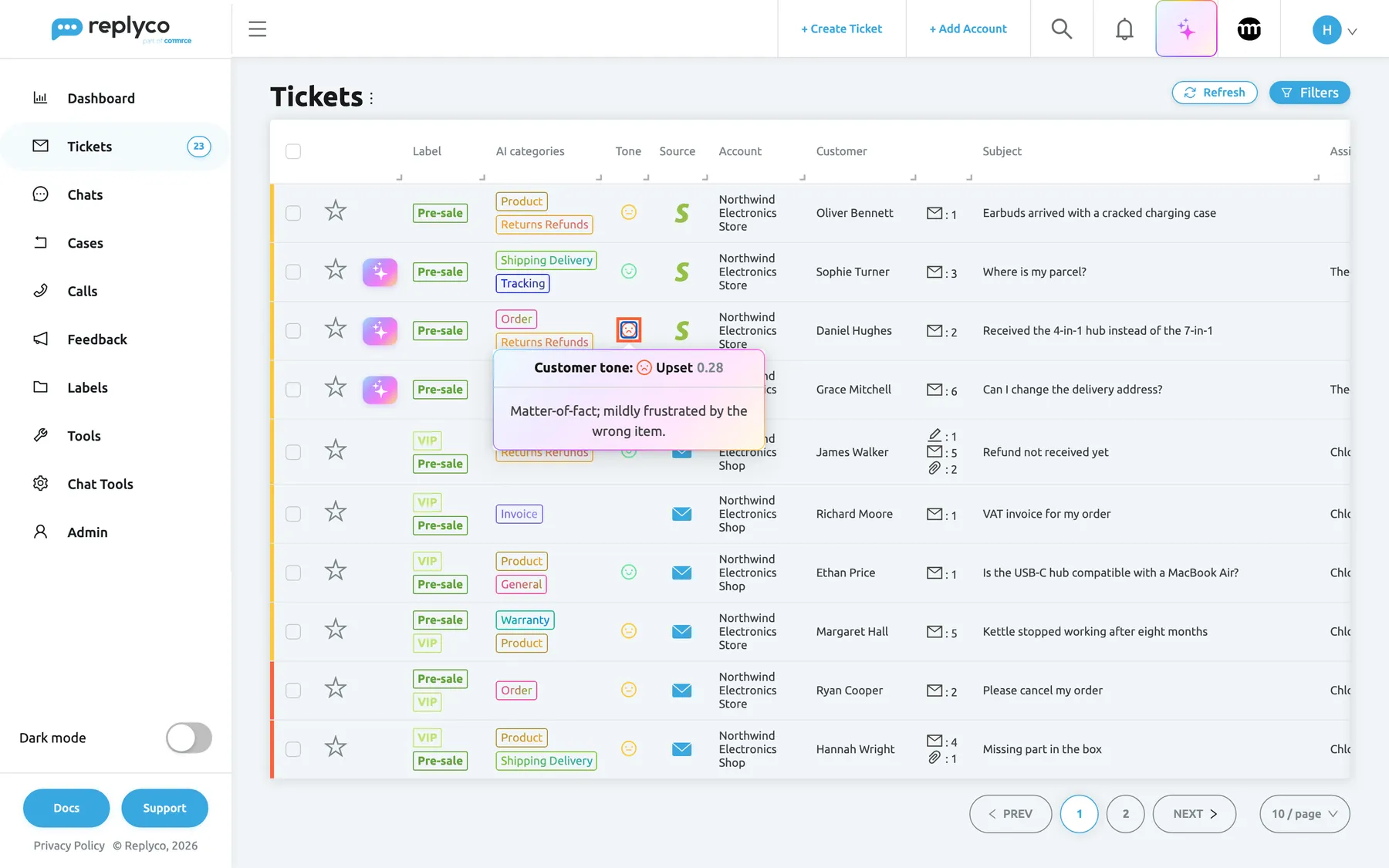
In a ticket list, a customer chasing a refund for the third time looks exactly like one asking a calm first question. Replyco now reads the tone of every incoming customer message, scores it from 0 (furious) to 1 (delighted), and shows your team the mood before anyone opens the ticket.
What’s new
Section titled “What’s new”- A face on every ticket. The new Tone column in the ticket list shows a red, yellow or green face for each ticket’s latest scored customer message, so your team spots upset customers at a glance.
- The reason, not just the score. Hover a face for the score and a one-line reason from the AI, such as Frustrated about late delivery and broken item; demands replacement., so you know what went wrong before you read the thread.
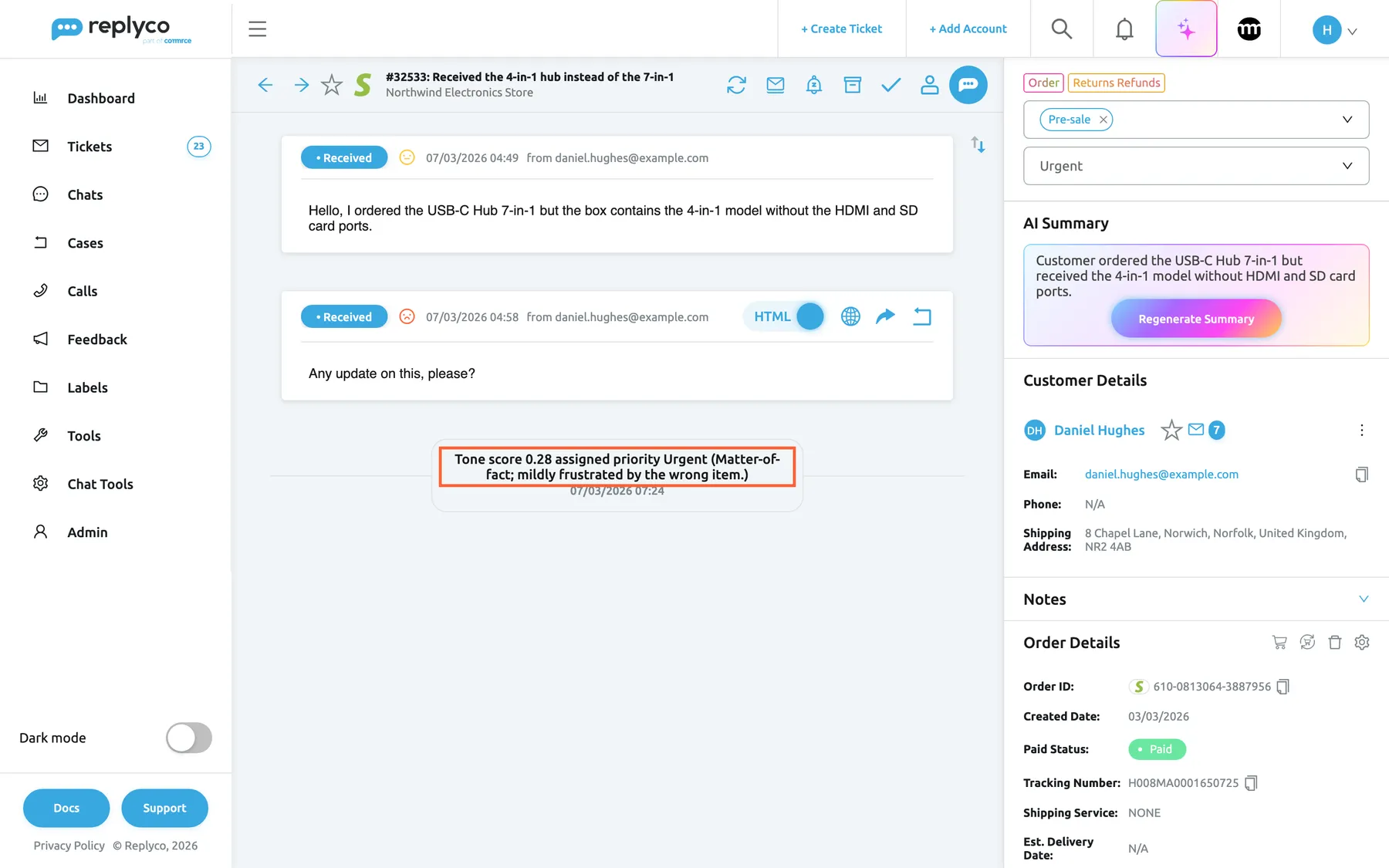
- Upset customers move up the queue. Tone rules turn score ranges into your SLA priorities, so a furious message can make its ticket your most urgent one, with that priority’s response deadline. You decide whether tone may also replace a priority someone already set.
- Your rules can react. Tone score (0 = furious, 1 = delighted) is a new condition in message rules, so an angry message can go straight to a senior agent or get a label.
- See which products upset customers. The Average tone by product widget on the Overview dashboard ranks products by the average tone of their tickets, worst first.
What this screenshot shows
- Screen
- Not Resolved (/tickets/notresolved)
- Highlighted
- img “Upset”, tone-column, focused. shows the tone card: band, score, reason
- Also visible
- Tone column with red, yellow and green faces; card: Customer tone: Upset 0.28; reason: Matter-of-fact; mildly frustrated by the wrong item.
- Purpose
- tone detection in the ticket list
Why it matters
Section titled “Why it matters”The customers who wait angry are the ones who open disputes and leave one-star reviews, and nothing in a subject line gives them away. Tone detection finds them for you, so they are answered first without anyone reading every message to look for them. Every priority tone assigns leaves a row in the ticket’s history with the score and the AI’s reason, so a surprising Urgent can always be explained.
What this screenshot shows
- Screen
- Respond (/ticket/:threadId)
- Highlighted
- paragraph “Tone score {{score}} assigned priority {{priority}} ({{reason}})”, conversation, visible. records the tone-assigned priority with score and reason
- Also visible
- history row: Tone score 0.28 assigned priority Urgent (reason); priority field: Urgent; two customer messages with yellow and red faces
- Purpose
- tone-driven SLA priority, with its audit row
Get started in three steps
Section titled “Get started in three steps”-
Go to ToolsAI Settings, switch on Message Tone Analysis on the General tab and select Save. New customer messages are scored from now on; nothing is prioritised yet.
-
Watch the Tone column for a week and hover a few faces to read the reasons. If your customers write in a way the AI misreads, add a few examples of your own on the Tone tab.
-
When the scores look right, tick Let tone set the SLA priority on the Tone tab and add tone rules, for example 0.00–0.30 → Urgent. Tone then gives a priority to tickets that have none.
Every step and every switch is explained in Setting it up in five steps.
Availability
Section titled “Availability”Tone detection is part of Replyco AI, which every plan includes; during a trial every feature is on. It stays off until someone with the Admin permission with Edit rights switches it on. Letting tone set priorities uses your priorities under AdminCompany Settings › Priorities & SLA, which every current plan includes. Messages are scored in the language the customer wrote, without translation; conversations under Chats are not scored. Each scored message is one AI action, listed as Tone Analysis under AdminBilling › AI Usage.
Learn more
Section titled “Learn more”- Message tone analysis: the full guide to tone detection.
- Setting it up in five steps: switch it on, calibrate it and let it set priorities.
- Every setting, explained: the override switches and tone rules, with worked examples.
- Frequently asked questions: cost, accuracy, privacy and why a ticket has no face.