

Ask Copilot, and your helpdesk does the legwork
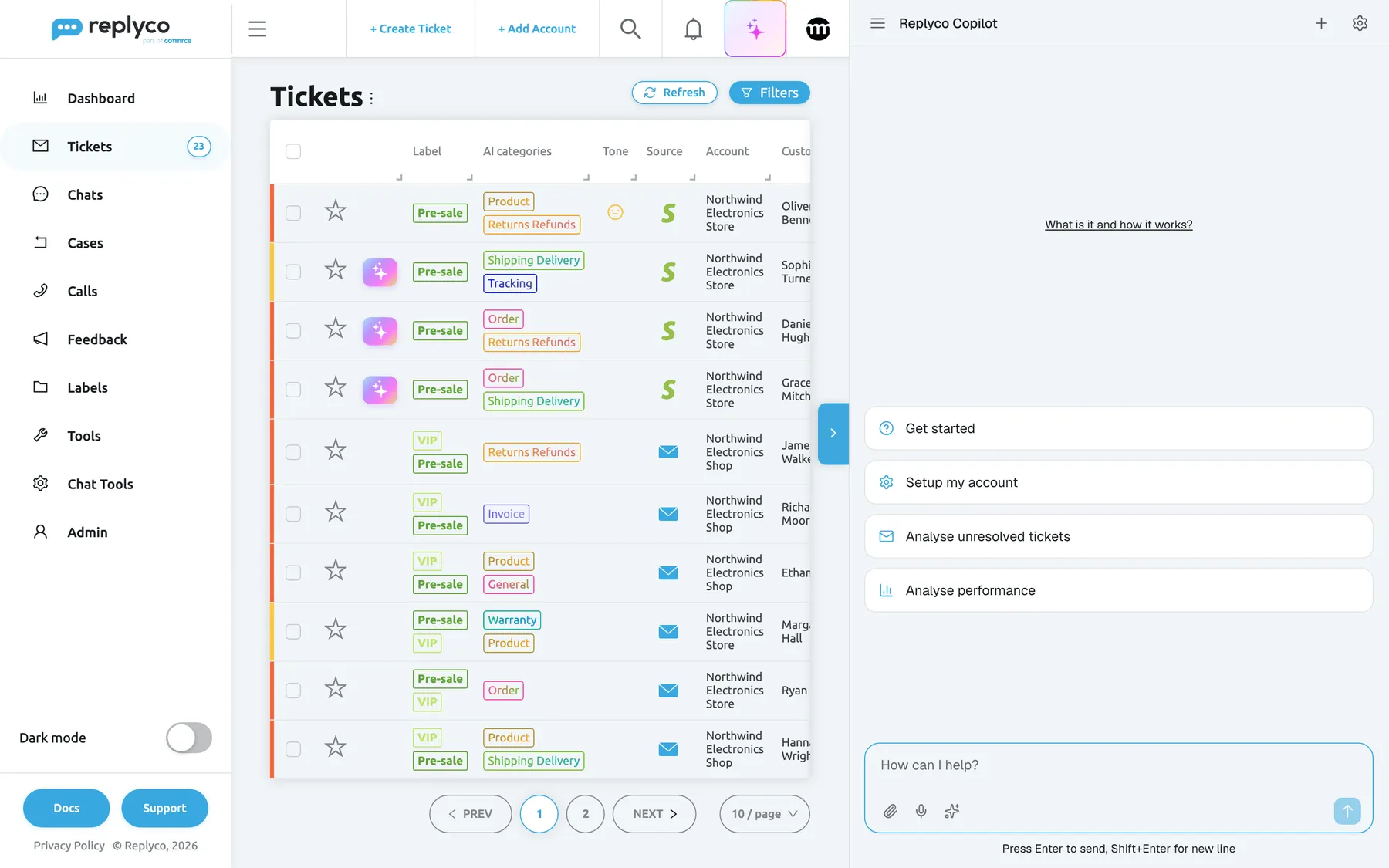
A support day is full of small lookups: which tickets are waiting, who has too many, what the customer ordered, how the team did last month. Replyco Copilot is an AI assistant in a panel beside every screen. You ask in plain words, and it does the looking up, the drafting and the routine changes for you.
What’s new
Section titled “What’s new”- Ask about what is on your screen. Copilot knows the ticket, list, chat or order you have open, so “summarise this ticket” or “which of these are overdue?” just work.
- Replies drafted from the conversation and the order. Ask for a reply in the tone you want, in any language, from one of your templates if you like, and send it once you have checked it.
- Routine changes in one sentence. Assign, prioritise, resolve, snooze, star and file tickets, or answer and close chats, several at a time. Every change waits on an approval card until you say yes.
- Reports on request. Ticket volume, response times and per-person figures for any period, as a table or chart, or emailed to you as a spreadsheet.
- Your account set up for you. Copilot reviews your templates, signatures, rules and autoresponders and creates what is missing after you approve.
Why it matters
Section titled “Why it matters”Each lookup in a helpdesk takes a few clicks, a filter and a report, and they add up over a day. With Copilot, “show unassigned tickets from the last 24 hours and suggest who should take each” is one question instead of a search and a spreadsheet. Copilot works with your own sign-in and asks before it changes anything, so it reaches only what you can see, and nothing reaches a customer or your account without your approval. Customer names and email addresses are masked before they reach the AI, and neither your data nor your conversations are used to train AI models.
Get started in three steps
Section titled “Get started in three steps”-
A few seconds after a Replyco screen has loaded, select the sparkle button in the top bar, between the notifications bell and the comrce icon. The Copilot panel opens at the right.
-
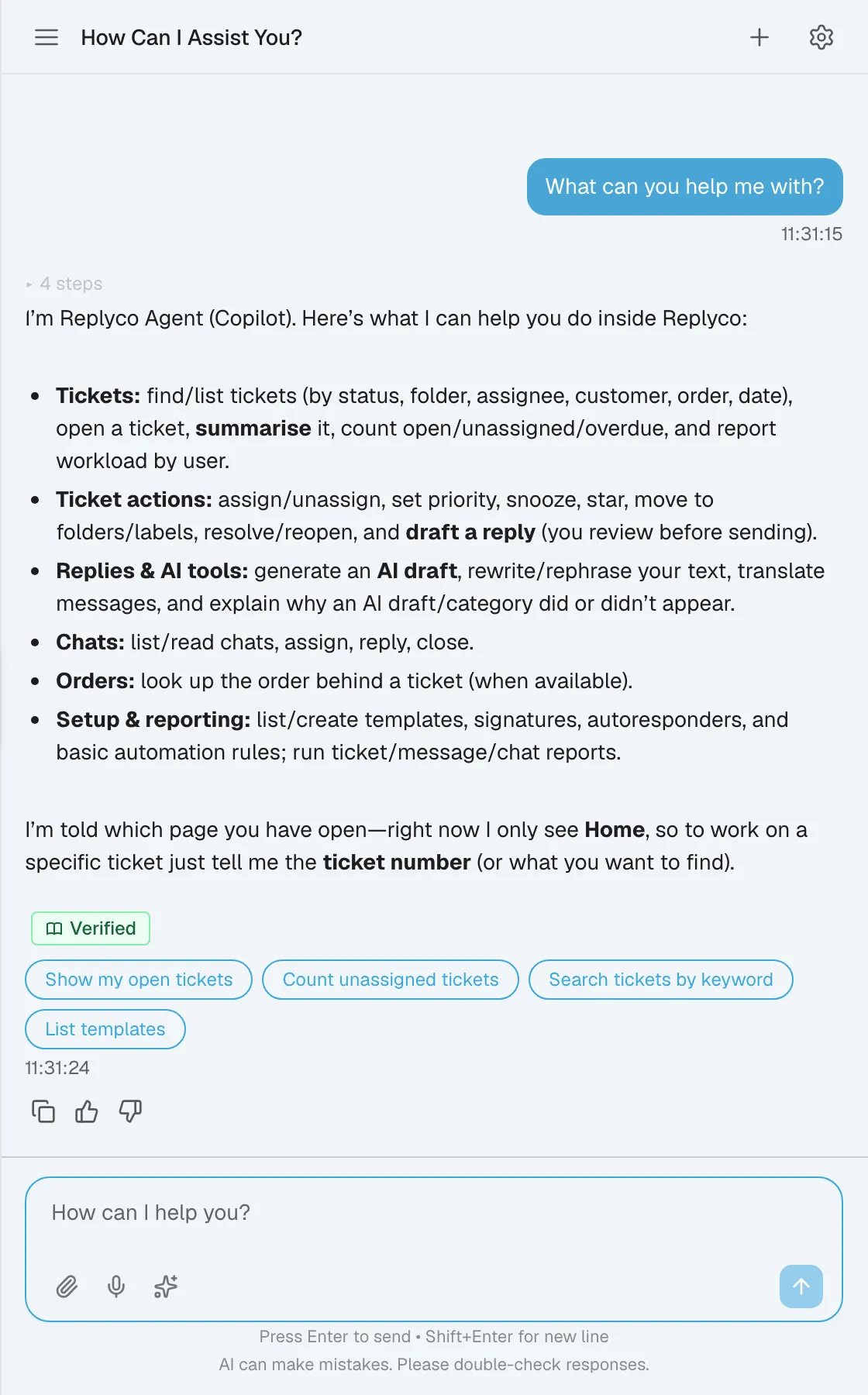
Select a starter card such as Analyse unresolved tickets, or type your own question and press Enter.
-
When Copilot proposes a change, check the tickets, people and text on the approval card and approve it.
Every control of the panel, what Copilot can and cannot do, and how it handles your data are in Replyco Copilot.
Availability
Section titled “Availability”Copilot is a separate feature in a pilot phase and not part of a plan. Replyco switches it on per company, and during a trial it is available to companies outside the German region. If you do not see the sparkle button in the top bar, ask Replyco’s support team with Support at the foot of the sidebar to switch it on. Copilot works on every Replyco screen for every user in a company that has it, with each user’s own permissions.
Learn more
Section titled “Learn more”- Replyco Copilot: the full guide, with every control, example prompts, the FAQ and troubleshooting.
- Data and privacy: what Copilot reads, what is masked and what is stored.
- AI drafts and AI summaries: Replyco’s automatic AI in every ticket.