

AI summaries
A ticket that has gone back and forth six times takes minutes to read before anyone can answer it, and a colleague picking it up from the queue has to read it all again. AI summaries sum up each ticket and chat in a few sentences, so your team knows what the customer wants and what has happened so far before opening the conversation.
What it does
Section titled “What it does”The longer a conversation runs, the more of an agent’s time goes into reading instead of answering. A customer who has already explained the problem twice does not want to explain it a third time because the ticket changed hands.
When AI summaries are on, Replyco sends the 15 most recent messages of a ticket or chat to its AI and stores what comes back: a few short sentences in the order things happened, such as Customer has just ordered a Bluetooth Speaker Mini to an old address and asks whether the delivery address can still be changed. From there:
- Replyco can keep the summary current for you. With automatic renewal on, a new summary is written as the conversation grows. See when a summary is written.
- You choose the language. Summaries follow each conversation’s language, or all come in the one language your team reads. See how the settings combine.
- Your team reads it wherever they decide what to do next: when hovering a ticket in the list, at the top of the ticket’s right panel, next to an AI draft under review, and in a chat. See AI summaries in your tickets and chats.
- Replyco’s other AI features read it too. AI categories, tone analysis and AI drafts use a ticket’s summary as background. See summaries as background for other AI features.
Every summary is counted as an AI action under AI Usage, and the list shows how many messages a summary does not cover yet, so you can always tell how current it is and what it costs.
Before you start
Section titled “Before you start”| Requirement | Details |
|---|---|
| Replyco AI | AI summaries are part of Replyco AI, which every plan includes, and every feature is on during a trial. Without it, AI Settings does not appear under Tools and no summary panel is shown. See What each plan includes. |
| Who can configure it | The three summary settings are on the General tab of ToolsAI Settings, which is shown only to users with the Admin permission with Edit rights; for anyone else, a bookmarked link to it opens the start screen. Saving the settings needs the same rights. See User permissions and roles. Everyone who can open a ticket or chat sees its summary and can generate a new one. |
| Channels | Tickets from every connected account get summaries; there is no per-account choice. Chats under Chats are summarised when someone asks for it. |
| AI usage | Each summary is one AI action, listed as Summary under AdminBilling › AI Usage. See Billing. |
Understanding when a summary is written
Section titled “Understanding when a summary is written”A ticket or chat has one summary at a time. Replyco writes a new one in three situations and replaces the old one each time; nothing else changes it.
| What happens | Result | Example |
|---|---|---|
| A ticket receives a customer message, with New Summary for every message on | Replyco writes a new summary automatically | Grace Mitchell sends her new address in a second message: the summary is renewed |
| Someone selects Generate Summary or Regenerate Summary in a ticket | A new summary replaces the old one straight away | An agent takes over a ticket on Monday morning and renews its summary first |
| Someone selects the same button in a chat | A new chat summary | A long live chat is handed to a colleague |
| Anything else: your reply, a note, a status or label change | Nothing is written; the old summary stays | The list card then shows how many messages it does not cover |
How Replyco decides
Section titled “How Replyco decides”- The latest 15 messages, from both sides. Replyco sends the 15 most recent messages of the ticket or chat, oldest first, each marked as coming from the buyer or from your side. Messages before those 15 are not read, so on a very long ticket the summary describes its latest part.
- Message text only. The AI never receives the subject line, your internal notes, the order, the customer’s details or the contents of attachments. A message that only carries an attachment gives it nothing to summarise.
- What the conversation says, nothing more. The AI is told to summarise only what the messages say and to ignore greetings, signatures, legal disclaimers and automated footers.
- Short sentences in order. The AI writes a few complete sentences in the order things happened, without headings. The ticket panel shows each sentence on its own line.
- The language you chose. With AI Summary Language on Default, the summary is written in the language the buyer and seller write in, not the language of a signature or footer. With a language chosen, every summary is written in that language, whatever the conversation’s language.
- Message content is data, never instructions. A customer who writes “ignore your instructions” into an email is summarised like any other customer; the AI is told never to follow instructions inside the conversation.
- Wording can vary. Renewing a summary of an unchanged conversation can produce slightly different wording with the same facts.
What does not get summarised
Section titled “What does not get summarised”- Tickets while Thread Summary is off, and every conversation from before you switched it on, until someone asks for a summary or, with automatic renewal on, it receives its next customer message.
- Tickets of customers you have blocked, automatically; see Blocked tickets.
- Chats, automatically. A chat gets a summary only when someone selects the button in it.
- Replies you send from Replyco. They are part of the next summary, but they never trigger one.
- Messages older than the 15 most recent, internal notes, order details and attachments.
Customers on your AI Customers Blacklist are summarised like everyone else. The blacklist keeps customers out of AI categories, automatic AI drafts, tone scores and auto-responses only; see AI Customers Blacklist.
Setting it up in three steps
Section titled “Setting it up in three steps”-
Switch on summaries. Go to ToolsAI Settings, stay on the General tab, switch on Thread Summary and select the Save button that appears. The AI Summary panel now appears in every ticket and chat, and AI Summary Language appears at the top of the tab.
-
Choose the language. Open AI Summary Language. Keep Default to summarise each conversation in its own language, or pick the language your team reads, such as English, then select Save.
-
Decide on automatic renewal (optional). Leave New Summary for every message on to have Replyco renew summaries as tickets grow, or switch it off to write them only when someone asks, then select Save. With it off, the list card also shows each ticket’s latest message under the summary.
Every setting, explained
Section titled “Every setting, explained”The three summary settings sit on the General tab of ToolsAI Settings, together with the switches for AI categories and tone analysis. They apply to the whole company.
Thread Summary, the master switch
Section titled “Thread Summary, the master switch”ToolsAI Settings › General, the switch below the three AI category switches. Change it, then select Save; the button only appears once something on the tab has changed.
On: the AI Summary panel appears in tickets and chats, the list shows the summary card when you hover a subject, the AI draft review shows the summary, and Replyco writes summaries automatically if New Summary for every message is also on. Off: nothing new is written, every one of those places hides the summary, and hovering a subject shows the latest message instead. Summaries already written are kept, not deleted, and come back when you switch it on again. The helper text reads Generate concise AI summaries of ongoing customer conversation threads. Companies that sign up for Replyco start with it on.
Summaries cost an AI action each, so each company decides whether it wants them. One switch hides them everywhere at once, which is simpler than training a team to ignore them.
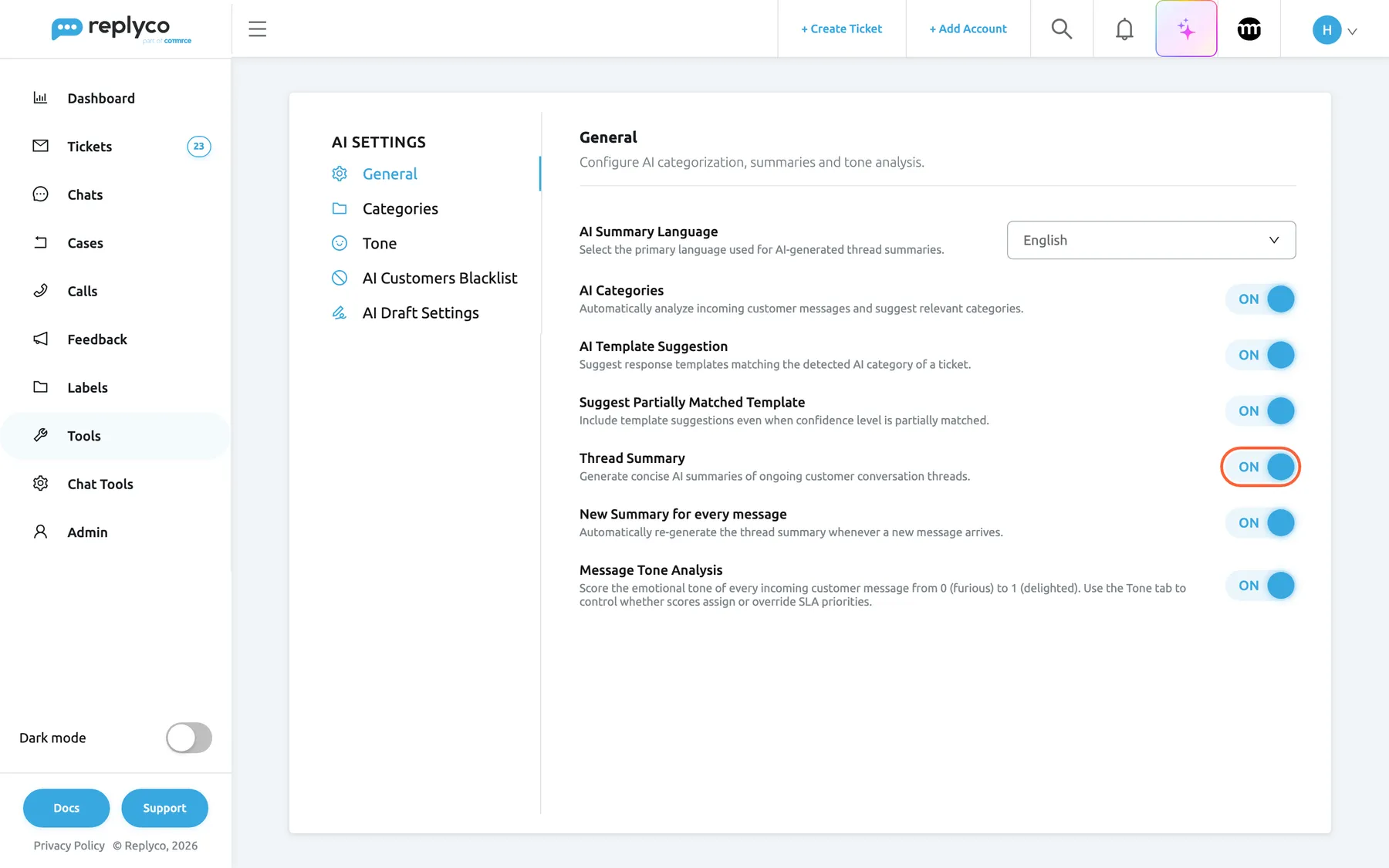
What this screenshot shows
- Screen
- General (/aiSettings?tab=general)
- Highlighted
- switch “Thread Summary”, settings-list, on. switches AI summaries on or off for the whole company; saved with the Save button that appears
- Also visible
- AI Summary Language drop-down: English; AI Categories, AI Template Suggestion, Suggest Partially Matched Template: on; New Summary for every message: on; Message Tone Analysis: on
- Purpose
- the master switch of AI summaries and the two settings that shape them
New Summary for every message, automatic renewal
Section titled “New Summary for every message, automatic renewal”ToolsAI Settings › General, the switch directly under Thread Summary. It is shown even while summaries are off, but only has an effect when Thread Summary is on. Select Save after changing it.
On: Replyco writes a new summary for a ticket each time it receives a customer message. Off: summaries are written only when someone selects Generate Summary or Regenerate Summary, and the list card adds Last Message under the summary so you still see what is new. Chats are never renewed automatically, whatever this switch says. Companies that signed up with a country of Germany, Austria, Switzerland or Liechtenstein start with it off; all others start with it on.
Renewing at every customer message keeps the summary current whenever the customer adds something, so whoever opens the ticket next reads the latest state. Switching it off suits teams with high volume and short tickets, where most tickets are answered before a summary would help.
For a ticket with automatic renewal on:
| Event on the ticket | Customer messages so far | New summary? | What the panel shows afterwards |
|---|---|---|---|
| First customer message arrives | 1 | Yes | The summary |
| Your reply is sent from Replyco | 1 | No | The summary and Regenerate Summary |
| Second customer message arrives | 2 | Yes | The new summary |
| Third customer message arrives | 3 | Yes | The new summary |
AI Summary Language, the output language
Section titled “AI Summary Language, the output language”ToolsAI Settings › General, the drop-down at the top of the tab. It is shown only while Thread Summary is on. You can type into it to find a language. Select Save after changing it.
Default, then the languages Replyco can translate, from English, French, German, Spanish and Italian to Vietnamese and Hindi, named in your interface language. Default writes each summary in the language of its conversation; any other choice writes every summary, of tickets and chats, in that language. The helper text reads Select the primary language used for AI-generated thread summaries. The setting applies to summaries written after you save it; existing summaries keep their language until they are renewed. Neither your company’s Replyco language nor anyone’s interface language changes it. Companies that signed up with a country of Germany, Austria, Switzerland or Liechtenstein start with German; all others start with English.
Default suits a team that reads every language its customers write in. A fixed language suits a team that sells across Europe but works in one language: a French complaint is summarised in English, so anyone on the team can pick it up.
| AI Summary Language | The conversation | The summary is written in |
|---|---|---|
| Default | Customer and agent write in German | German |
| Default | Customer writes in French; the email footer is in English | French; footers do not count |
| English | Customer and agent write in German | English |
| German | Customer and agent write in English | German |
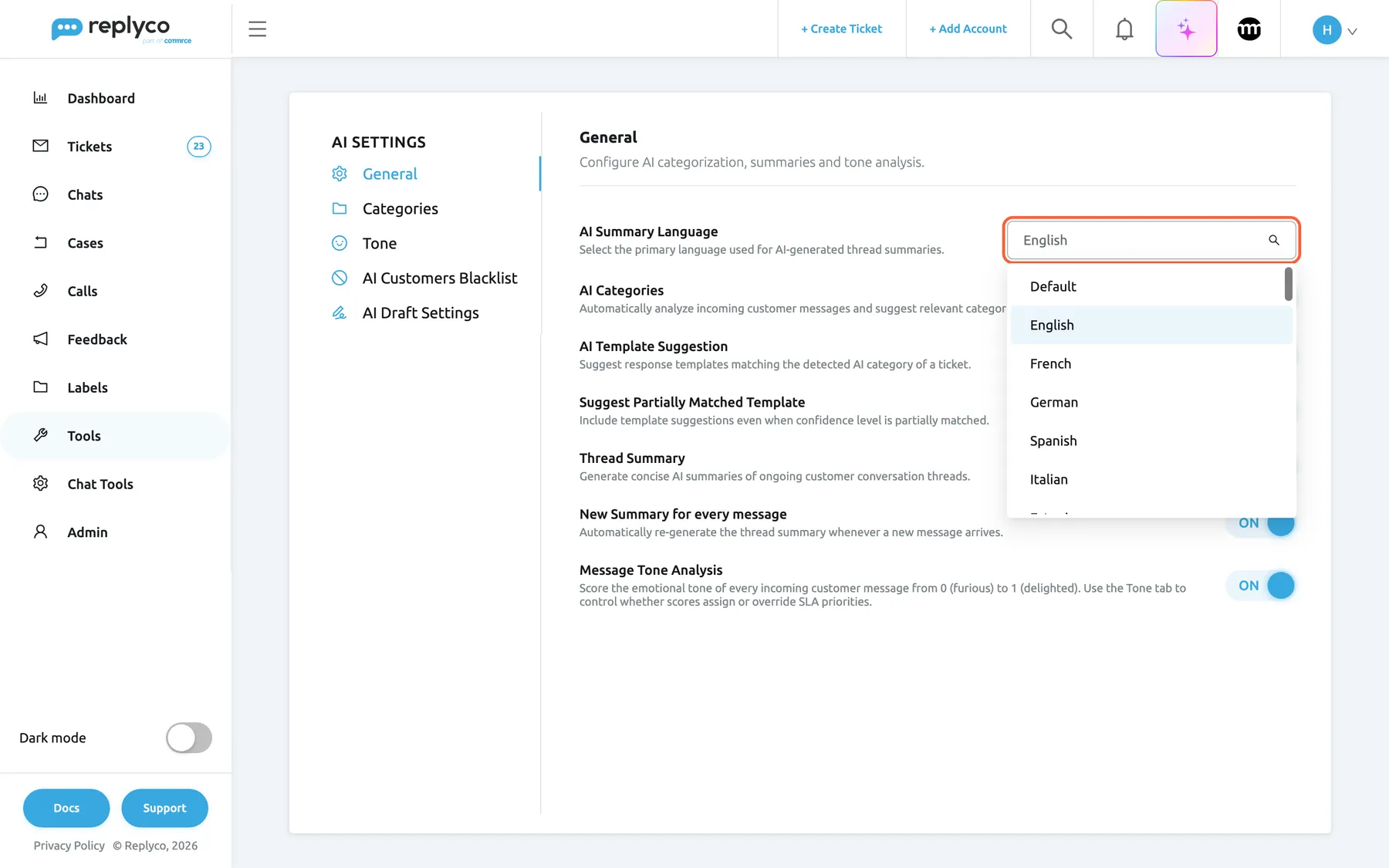
What this screenshot shows
- Screen
- General (/aiSettings?tab=general)
- Highlighted
- combobox “AI Summary Language”, settings-list-top, expanded. sets the language every new summary is written in; Default follows the conversation
- Also visible
- options: Default, English (selected), French, German, Spanish, Italian, more below; search icon in the field; AI switches below the open list
- Purpose
- choosing the language of summaries
How the settings combine
Section titled “How the settings combine”| Thread Summary | New Summary for every message | Written automatically | Generate and Regenerate buttons | The list card |
|---|---|---|---|---|
| off | any | never | hidden | not shown; hovering a subject shows the latest message |
| on | off | never | shown | summary, messages it does not cover, and the latest message |
| on | on | at every customer message of a ticket | shown | summary and messages it does not cover |
AI Summary Language applies in every row where summaries are written, to tickets and chats alike.
AI summaries in your tickets and chats
Section titled “AI summaries in your tickets and chats”A summary shows in four places. Everywhere it is the one summary stored for that ticket or chat, the latest written, not a history of summaries.
| What you see | Meaning | When it shows |
|---|---|---|
| A card or panel titled AI Summary with a coloured gradient border | The stored summary | The ticket or chat has a summary |
| Messages Uncovered: 2 | Messages in the ticket that arrived after the summary was written, from either side | The count is above 0 |
| Last Message | The ticket’s newest message, up to its first 250 characters | New Summary for every message is off |
| Generate Summary | No summary yet | The ticket or chat has never been summarised |
| Regenerate Summary | The summary is older than the newest message | In a ticket: any newer message. In a chat: five or more newer messages |
Ticket list, the summary card
Section titled “Ticket list, the summary card”Hover a ticket’s subject in any ticket list. When your company uses AI summaries and the ticket has one, a card opens under the subject with the summary, then, when newer messages exist, Messages Uncovered: 2, and, while automatic renewal is off, Last Message with the newest message. A ticket without a summary shows a plain tooltip with the first 250 characters of its latest message instead. The card closes when the pointer leaves the subject. For every column and filter of the list, see Ticket lists.
Why: you can triage a queue from the list, opening only the tickets that need you.
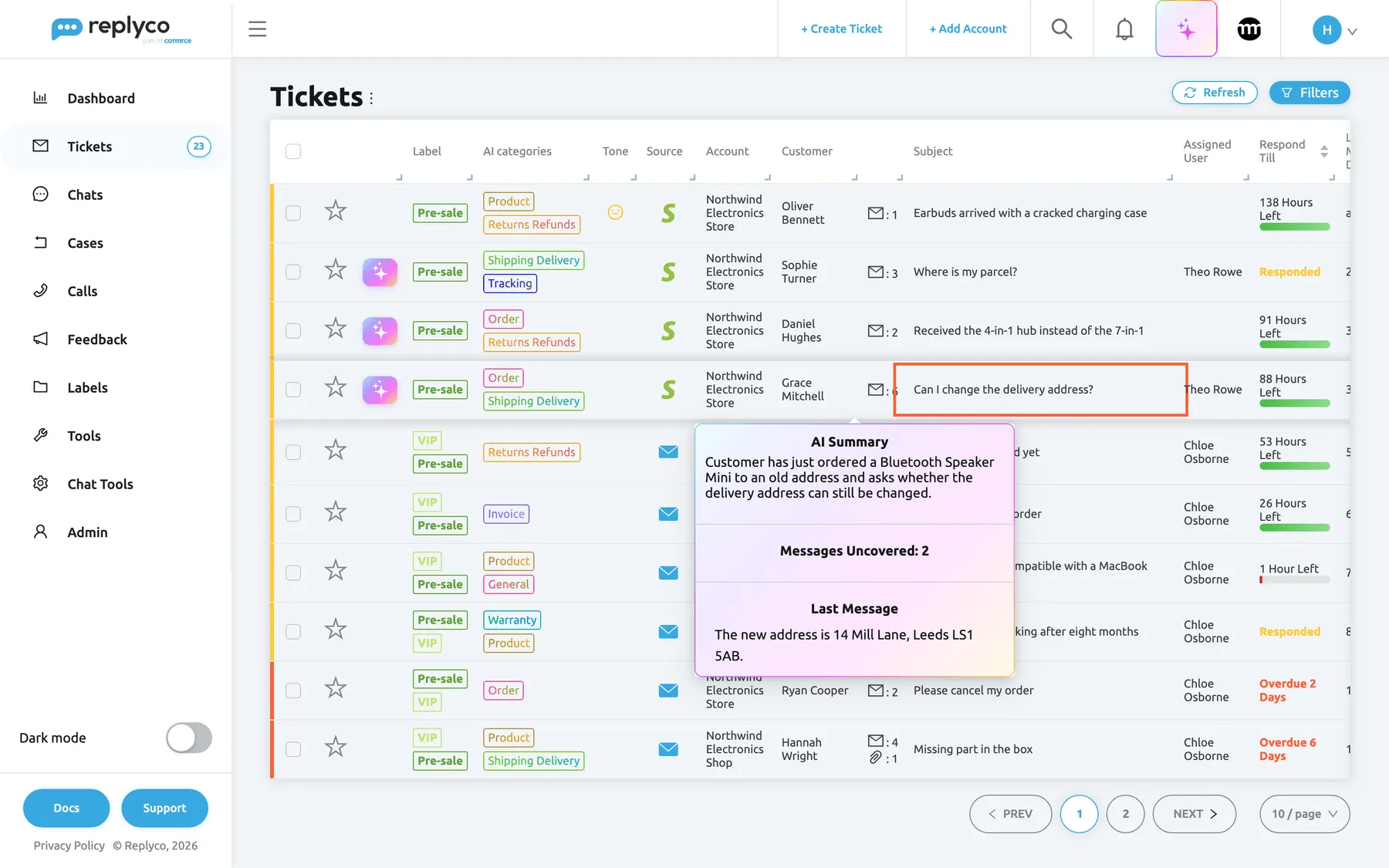
What this screenshot shows
- Screen
- Not Resolved (/tickets/notresolved)
- Highlighted
- cell “Subject”, table-subject-column, hovered. shows the ticket's AI summary card
- Also visible
- card title AI Summary with the summary text; Messages Uncovered: 2; Last Message with the customer's newest message
- Purpose
- reading a summary from the ticket list, and what the card adds when summaries are not renewed automatically
The ticket, the AI Summary panel
Section titled “The ticket, the AI Summary panel”The AI Summary panel is the first block of the ticket’s right panel, under the priority. It shows the summary one sentence per line. Without a summary it shows only Generate Summary; once any message is newer than the summary, Regenerate Summary appears under the text. Selecting either button writes a new summary from the ticket’s latest 15 messages and replaces the old one; the button then disappears until the next message. For everything else on this screen, see The ticket screen.
Why: whoever opens the ticket next reads three lines instead of fifteen messages, and can renew the summary before answering.
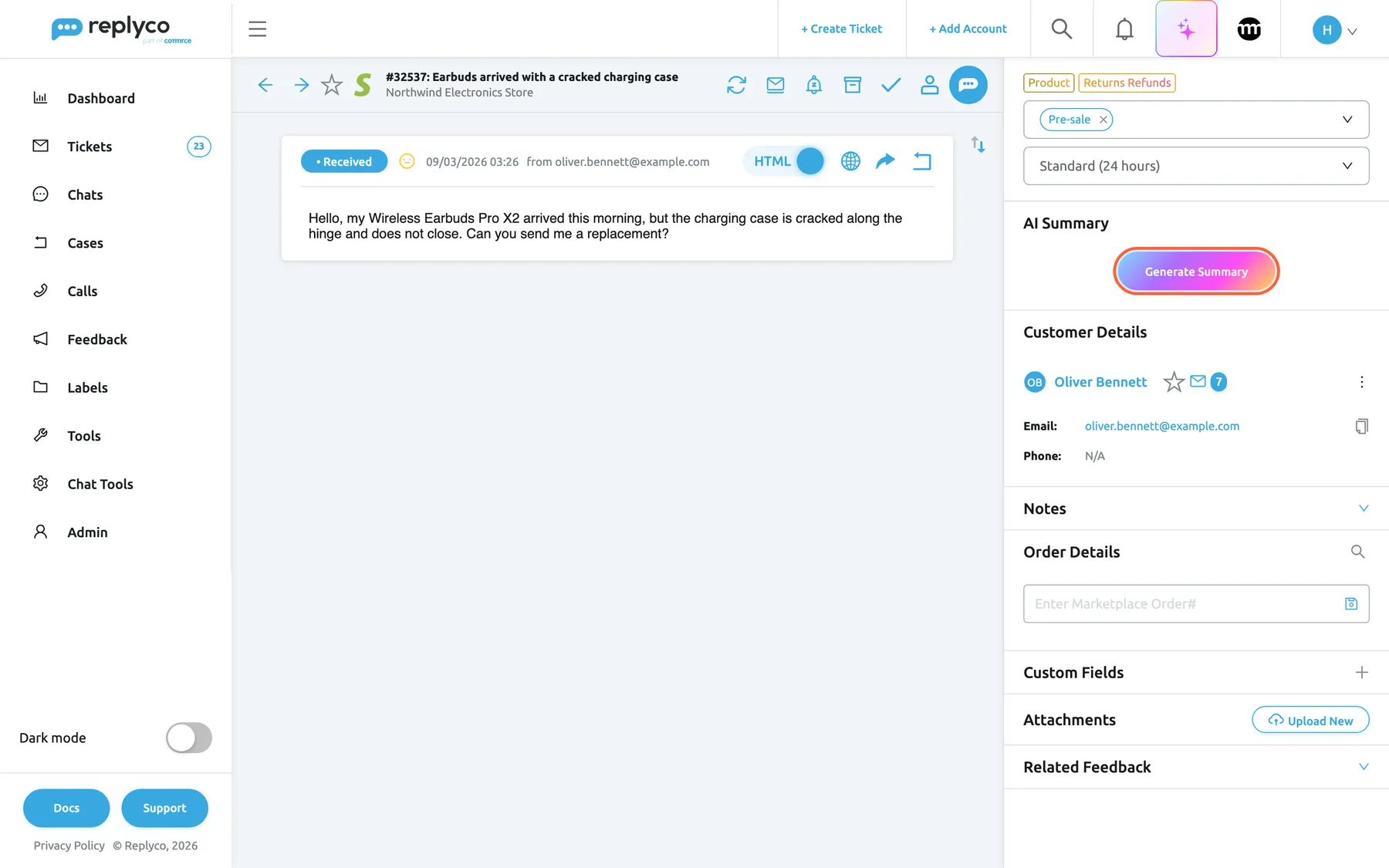
What this screenshot shows
- Screen
- AI Summary (/ticket/:threadId)
- Highlighted
- button “Generate Summary”, right-panel, enabled. writes the ticket's first AI summary from its latest messages
- Also visible
- ticket #32537 with one Received message; right panel: AI categories, label, priority, AI Summary without text; Customer Details, Notes, Order Details below
- Purpose
- the summary panel before a summary exists
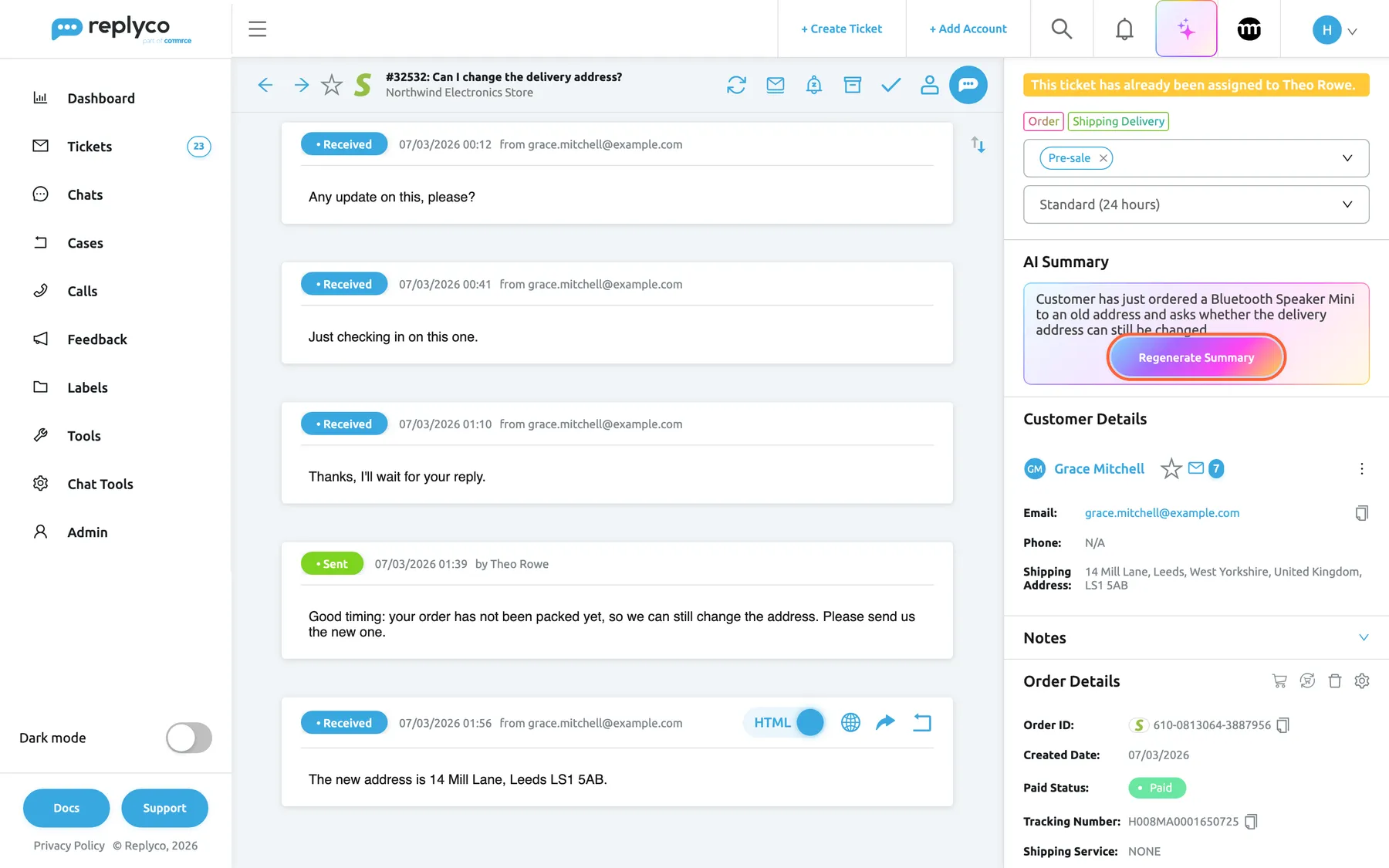
What this screenshot shows
- Screen
- AI Summary (/ticket/:threadId)
- Highlighted
- button “Regenerate Summary”, right-panel, enabled. replaces the summary with a new one written from the ticket's latest messages
- Also visible
- ticket #32532 with Received and Sent messages; AI Summary text about changing the delivery address; Customer Details, Notes, Order Details below
- Purpose
- an out-of-date summary and how to renew it
Reviewing an AI draft
Section titled “Reviewing an AI draft”When you open an AI draft from the ticket list, the AI Draft Response window shows the ticket’s summary at the top of its right column, marked with a sparkle, above the order and the products. The sentences run together as one paragraph. Without a summary the card is left out. The window has no button to renew it; open the ticket for that. How drafts are written and reviewed is in AI drafts.
Why: you check the draft against the story so far without reading the earlier messages, which the window folds away.
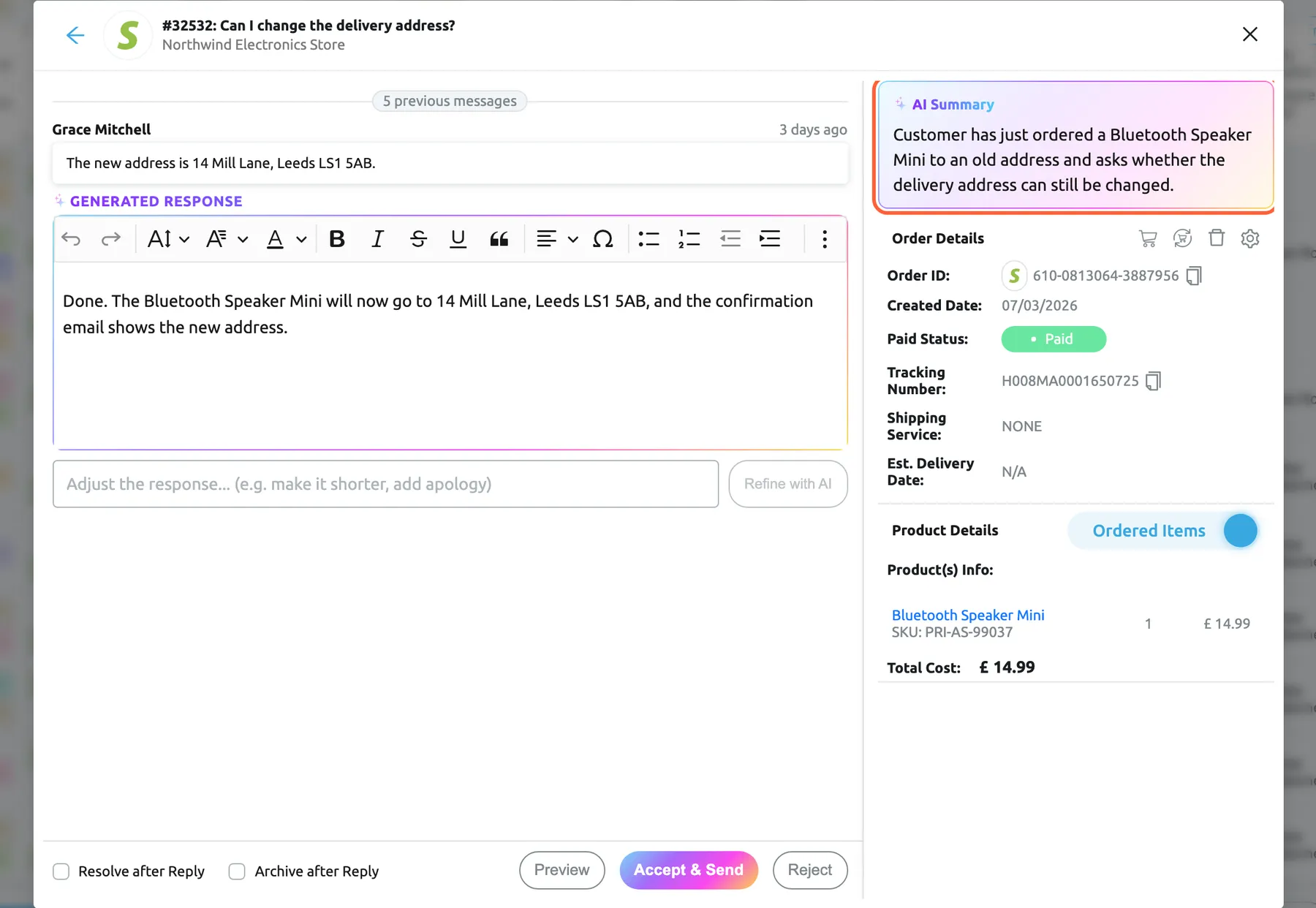
What this screenshot shows
- Screen
- AI Draft Response (/tickets/notresolved)
- Highlighted
- region “AI Summary”, dialog-right-column, visible. shows the ticket's AI summary next to the draft
- Also visible
- title #32532 and account; 5 previous messages; customer's latest message; Generated Response editor; Order Details, Product Details; Accept & Send, Reject
- Purpose
- the summary as context when reviewing an AI draft
In a conversation under Chats, the AI Summary panel sits in the chat’s side panel, under the chat’s title, assignees and status. It lists the summary’s sentences as bullet points. Next to the title, a number badge counts the chat messages the summary does not cover; its tooltip reads Uncovered Messages. Generate Summary shows until the chat has a summary, and Regenerate Summary once five or more messages are newer than it. Chats are never summarised automatically. To learn the rest of the chat screen, see Chat list and conversations.
Why: a long live chat handed to a colleague can be caught up on in seconds.
Summaries as background for other AI features
Section titled “Summaries as background for other AI features”Nothing to set. It applies whenever a ticket has a stored summary.
When a new customer message arrives, AI categories, tone analysis and the check that decides whether an AI draft can be written read the ticket’s summary to understand the message in context. A ticket without a summary gives them its 10 most recent messages instead. When you ask for a draft in the reply editor, it reads the summary and the last 10 messages. These features read the summary exactly as stored: they do not check whether it covers the newest messages, and they keep reading it after you switch Thread Summary off. On an incoming message, categories, drafts and tone run before the summary is renewed, so they read the summary as it was before that message.
A short reply such as still nothing means little on its own. The summary tells the other AI features what the customer has been waiting for, in fewer words than the messages themselves.
Three things this changes:
- A customer’s any update? is categorised as a delivery question because the summary says the parcel is late.
- Tone analysis reads a curt thanks as the end of a resolved complaint rather than as sarcasm, because the summary says a replacement was sent. See Message tone analysis.
- A draft you ask for in the editor refers to the replacement already agreed, because the summary mentions it. See AI drafts and AI categories.
Summaries under AI Usage
Section titled “Summaries under AI Usage”AdminBilling › AI Usage, the chart AI Usage by Types and, below it, AI Usage by Users. Both have their own date range. See Billing.
Every summary is one AI action of the type Summary: automatic ones, ones someone asked for in a ticket or chat, and those whose result could not be used. When the AI fails to answer, Replyco tries once more, and each attempt counts. In AI Usage by Users, summaries someone asked for count under that person, and automatic ones under System.
Automatic summaries run on every customer message of every ticket, so this is where you see what that costs and who asks for them.
Three ways to use it:
- After switching automatic renewal on, compare Summary with your ticket count for the same week: expect roughly one summary for every customer message.
- If System accounts for almost all summaries, your team rarely renews them by hand, and automatic renewal is doing the work.
- If one person’s count stands out in AI Usage by Users, they may be renewing summaries on every visit; the button only needs selecting when a ticket has changed.
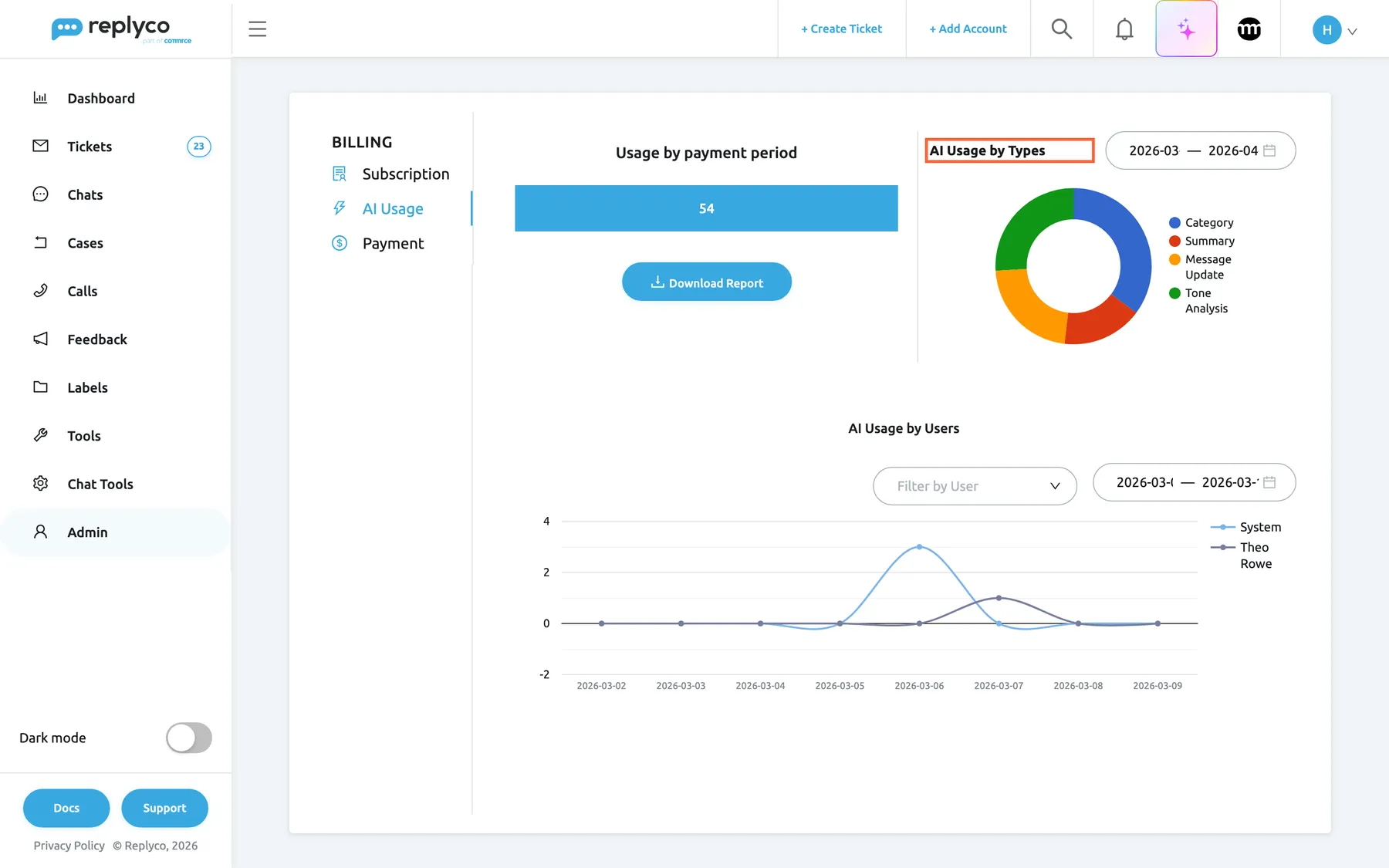
What this screenshot shows
- Screen
- AI Usage (/billing?tab=aiUsage)
- Highlighted
- heading “AI Usage by Types”, usage-by-types, visible. shows AI actions by type for the chosen dates
- Also visible
- Usage by payment period: 54; ring chart: Category, Summary, Message Update, Tone Analysis; AI Usage by Users: System and Theo Rowe
- Purpose
- where the cost of summaries shows
What you need to know
Section titled “What you need to know”| Topic | Fact |
|---|---|
| One summary per ticket or chat | A new summary replaces the old one. Earlier summaries are not kept. |
| What it covers | The 15 most recent messages from both sides, as text. Not notes, orders, customer details or attachments. |
| When it renews | Automatically at every customer message of a ticket, with New Summary for every message on; on request at any time. Never automatically in chats. |
| Nothing retroactive | Switching on does not summarise existing tickets. Each gets a summary at its next customer message or on request. |
| How current it is | The list card counts the messages a summary does not cover. In a ticket, Regenerate Summary appears as soon as any message is newer. |
| Language | AI Summary Language: Default follows each conversation, any other choice fixes the language. New settings apply to new summaries only. The company language and the interface language play no part. |
| Accounts | Every connected account; there is no per-account choice. |
| Blacklist | Customers on the AI Customers Blacklist are summarised; the blacklist covers categories, automatic drafts, tone scores and auto-responses only. |
| Failures | If the AI cannot write a summary, an error message appears and the ticket keeps the summary it had. An automatic renewal that fails leaves the old summary in place until the next one. |
| Merged tickets | The ticket you keep keeps its summary. Until it is renewed, the list card counts the merged messages as not covered. See Assign, label and merge tickets. |
| Switching off | Hides summaries everywhere and stops new ones. Stored summaries are kept and still read by AI categories, tone analysis and AI drafts. |
| Who sees it | Everyone who can open the ticket or chat. Customers never see it; nothing is added to replies. |
| Cost | One AI action per summary, listed as Summary in AI Usage. |
Frequently asked questions
Section titled “Frequently asked questions”General
Section titled “General”What does an AI summary contain?
Section titled “What does an AI summary contain?”A few short sentences, in the order things happened, that say what the customer wants and what has been done so far, written by AI from the ticket’s or chat’s 15 most recent messages. It covers both the customer’s messages and your team’s replies, and ignores greetings, signatures and email footers.
Do I need a special plan or add-on for AI summaries?
Section titled “Do I need a special plan or add-on for AI summaries?”No. AI summaries are part of Replyco AI, which every plan includes, and every feature is on during a trial. You switch them on under ToolsAI Settings › General with Thread Summary.
Do AI summaries cost anything?
Section titled “Do AI summaries cost anything?”Each summary is one AI action, whether Replyco wrote it automatically or someone selected Generate Summary or Regenerate Summary. You find the count as Summary under AdminBilling › AI Usage.
Do I need AI categories or tone analysis switched on for summaries?
Section titled “Do I need AI categories or tone analysis switched on for summaries?”No. AI summaries work on their own. The other features also work without summaries, but when a ticket has one, AI categories, tone analysis and AI drafts read it as background to understand short or unclear messages.
Is the summary the same thing as an AI draft?
Section titled “Is the summary the same thing as an AI draft?”No. A summary describes the conversation for your team and is never sent anywhere. An AI draft is a reply to the customer that your team reviews and sends. When you review a draft in the AI Draft Response window, the summary is shown next to it as context.
Where do I switch AI summaries on?
Section titled “Where do I switch AI summaries on?”Go to ToolsAI Settings, stay on the General tab, switch on Thread Summary and select Save. The AI Summary panel then appears in tickets and chats for everyone in your company.
Who can change the summary settings?
Section titled “Who can change the summary settings?”Users with the Admin permission with Edit rights: ToolsAI Settings appears only for them, in a company with Replyco AI, and only they can save its settings. The three summary settings on its General tab apply to the whole company.
Can I switch summaries on for some accounts only?
Section titled “Can I switch summaries on for some accounts only?”No. The settings on the General tab of ToolsAI Settings apply to tickets from every connected account. If you do not want summaries for one channel, the only choice is to leave automatic renewal off and generate summaries only where you need them.
I switched summaries on, but my old tickets have no summary. Why?
Section titled “I switched summaries on, but my old tickets have no summary. Why?”Replyco does not summarise existing tickets when you switch Thread Summary on. An old ticket gets a summary at its next customer message, if New Summary for every message is on, or when someone selects Generate Summary in the ticket’s right panel.
When summaries are written
Section titled “When summaries are written”How often does Replyco write a new summary on its own?
Section titled “How often does Replyco write a new summary on its own?”With New Summary for every message on, Replyco writes a new summary each time a ticket receives a customer message, the first one included. Your replies, notes and status changes leave the summary as it is.
Why does a new ticket have no summary?
Section titled “Why does a new ticket have no summary?”With New Summary for every message on, a new ticket gets its summary as soon as its first customer message arrives. A ticket without one arrived while automatic renewal or Thread Summary was off, or the AI could not answer at that moment. The AI Summary panel then shows Generate Summary; select it to write one straight away.
Why does the ticket offer to regenerate the summary?
Section titled “Why does the ticket offer to regenerate the summary?”Regenerate Summary appears in the ticket’s AI Summary panel as soon as any message, from the customer or your team, is newer than the summary. Select it to write a new summary from the latest 15 messages; the button disappears until the next message arrives.
Are chats summarised automatically?
Section titled “Are chats summarised automatically?”No. Chats under Chats are summarised only when someone selects Generate Summary or Regenerate Summary in the chat’s side panel. The renew button appears once five or more messages are newer than the summary.
How far back does a summary go?
Section titled “How far back does a summary go?”A summary is written from the 15 most recent messages of the ticket or chat, from both sides. On a longer ticket, earlier messages are not read, so the summary describes the latest part of the conversation. Internal notes, order details and attachments are never included.
Can the AI invent things that are not in the conversation?
Section titled “Can the AI invent things that are not in the conversation?”The AI is told to summarise only what the messages say and to treat the conversation as data, never following instructions inside it. It can still misread a message, especially one with unusual phrasing, so check the conversation before acting on a detail that surprises you, and renew the summary with Regenerate Summary if it looks wrong.
Languages
Section titled “Languages”Why is the AI summary in the wrong language?
Section titled “Why is the AI summary in the wrong language?”The language comes from AI Summary Language under ToolsAI Settings › General. Default writes each summary in the conversation’s language; any other entry writes every summary in that language. Companies that signed up with a country of Germany, Austria, Switzerland or Liechtenstein start with German, so change it and select Save.
I changed the summary language, but summaries are still in the old one. Why?
Section titled “I changed the summary language, but summaries are still in the old one. Why?”The new language applies only to summaries written after you saved it. Existing summaries keep their language until they are renewed, automatically at the next customer message or when someone selects Regenerate Summary in the ticket’s AI Summary panel.
Does the summary follow my interface language or the company language?
Section titled “Does the summary follow my interface language or the company language?”Neither. Only AI Summary Language on the General tab of ToolsAI Settings decides. On Default, the summary follows the language the customer and your team write in, ignoring the language of signatures and footers.
Where summaries are shown
Section titled “Where summaries are shown”Where do I see a ticket’s summary?
Section titled “Where do I see a ticket’s summary?”In three places: when you hover the ticket’s subject in any ticket list, in the AI Summary panel at the top of the ticket’s right panel, and in the AI Draft Response window when you review an AI draft. Chats show their own summary in the chat’s side panel.
What does the count of uncovered messages on the list card mean?
Section titled “What does the count of uncovered messages on the list card mean?”Messages Uncovered: 2 on the summary card in the ticket list counts the messages, from either side, that arrived after the summary was written. The summary does not know about them yet. Select Regenerate Summary in the ticket to include them.
Why does the list card show the last message under the summary?
Section titled “Why does the list card show the last message under the summary?”The card shows Last Message while New Summary for every message is off under ToolsAI Settings, because summaries are then not renewed and the newest message tells you what has changed. With automatic renewal on, the card shows only the summary and the count of messages it does not cover.
Hovering a subject shows the message instead of the summary. Why?
Section titled “Hovering a subject shows the message instead of the summary. Why?”The ticket has no summary yet, or Thread Summary is off under ToolsAI Settings. The list then shows a plain tooltip with the first 250 characters of the latest message. Open the ticket and select Generate Summary to write a summary.
Data and privacy
Section titled “Data and privacy”Can customers see the summary?
Section titled “Can customers see the summary?”No. Summaries appear only inside Replyco, to your team. Nothing from the summary is added to replies or sent to the customer’s channel, and it is never shared with the marketplace or shop the ticket came from.
What does Replyco send to the AI for a summary?
Section titled “What does Replyco send to the AI for a summary?”The text of the ticket’s or chat’s 15 most recent messages, each marked as coming from the buyer or from your side. The subject, internal notes, order details, customer details and attachments are not sent. Each request and its answer are recorded as an AI action in AI Usage.
What happens to summaries when I switch the feature off?
Section titled “What happens to summaries when I switch the feature off?”Nothing is deleted. Switching Thread Summary off under ToolsAI Settings hides summaries everywhere and stops new ones. The stored summaries come back when you switch it on again, and AI categories, tone analysis and AI drafts keep reading them in the meantime.
Troubleshooting
Section titled “Troubleshooting”| Symptom | What to check |
|---|---|
| AI Settings is not under Tools, or its link opens the start screen | Your user lacks the Admin permission with Edit rights, or the company does not have Replyco AI, which every plan includes; companies on an older plan may not have it. Ask an administrator, or see What each plan includes. |
| No AI Summary panel in tickets or chats | Thread Summary is off or was not saved: switch it on on the General tab and select Save. If a colleague who already had Replyco open still does not see it, have them reload the page. |
| AI Summary Language is missing from the General tab | It is shown only while Thread Summary is on. Switch that on first. |
| A ticket has no summary | In order: is New Summary for every message off? Is the customer blocked? Did the ticket’s last customer message arrive before summaries were switched on? Select Generate Summary in the ticket. |
| Summaries are not renewed as tickets grow | New Summary for every message is off. With it on, every customer message renews the summary; with it off, renew by hand with Regenerate Summary. |
| A chat has no summary | Chats are never summarised automatically. Select Generate Summary in the chat’s side panel. |
| Summaries are in the wrong language | Check AI Summary Language: Default follows the conversation, any other entry fixes the language. Older summaries change only when they are renewed. |
| The summary misses something the customer said early on | Only the 15 most recent messages are read. Earlier details, notes and attachments are not in the summary; read the conversation for them. |
| The summary is out of date | Look for Messages Uncovered: 2 on the list card or Regenerate Summary in the ticket, and select the button to renew it. |
| Selecting Generate Summary or Regenerate Summary shows an error message | The AI could not write a summary at that moment; the ticket keeps the summary it had. Try again later. |
| The list card shows no Last Message | That part appears only while New Summary for every message is off. |
| AI Usage shows more Summary actions than expected | Automatic renewal writes one summary for every customer message, each button press is one more, and a failed attempt and its retry count separately. Switch automatic renewal off to write summaries only on request. |
| Summaries still influence categories or drafts after switching the feature off | Stored summaries are kept and still read by AI categories, tone analysis and AI drafts. Nothing new is written while the switch is off. |