

Ticket lists
The ticket lists are where your team works through customer messages: every conversation from every connected marketplace, mailbox and messenger is one row, with its label, deadline, customer’s mood and assignee in view. Open them from Tickets in the sidebar, where views such as Not Resolved, My Tickets and Unassigned each show one slice of your tickets, and from Labels, which has one list per label. Every view is the same screen with the same columns, filters and actions; only the tickets in it differ. Which views you see is set for your user by an admin, so a colleague’s sidebar can look different from yours.
What you can do here
Section titled “What you can do here”- Switch between views of your tickets. Each view in the sidebar, such as Not Resolved or Snoozed, is a fixed selection with a counter beside it, and each label has its own list under Labels. The Delayed view holds the tickets with a reply waiting to be sent later. Choose a view · Delayed sending · User permissions and roles
- Find tickets with search and filters. Search covers customers, subjects, message text, order and tracking numbers, and nine filters narrow the list by channel, account, language, assignee, state, deadline, date, label and AI category. Search and filter the list
- Put the most urgent tickets on top. Sort by the respond-by or resolve-by deadline, the ticket number or a date, and show up to 100 tickets per page. Sort and page through the list
- Read each ticket’s state without opening it. A coloured stripe and a countdown show the response deadline of the ticket’s priority, bold rows are unread, and counters show notes, messages and attachments. Read a row · Ticket priorities and SLA
- See the customer’s mood, the AI summary and the AI’s categories in the list. A face shows the tone of the customer’s latest scored message, hovering a subject shows the AI summary, and coloured tags show the categories the AI chose. Read a row · Message tone analysis · AI summaries · AI categories
- Check the customer’s language. The optional Language column shows a flag for the language of the customer’s latest message, which helps when you decide who answers or whether to translate. Choose the columns · Translations
- Review and send AI drafts from the list. A sparkle marks tickets with a reply the AI has written; open it, edit it and send it, then move to the next draft without leaving the list. Review AI drafts from the list · AI drafts
- Act on many tickets at once. Tick rows to assign, label, snooze, archive, resolve, merge or block them together, or run your rules on them again. Act on several tickets at once · Ticket merging · Rules for incoming tickets
- Open a ticket, or act on one with a right-click. Open a ticket or act on it with a right-click
- Star the tickets you want to find again. Star a ticket
- Choose, order and size the columns. Choose the columns
- Export the page you are looking at to a CSV file, including the text of every message. Export the list · Export tickets and reports
The screen at a glance
Section titled “The screen at a glance”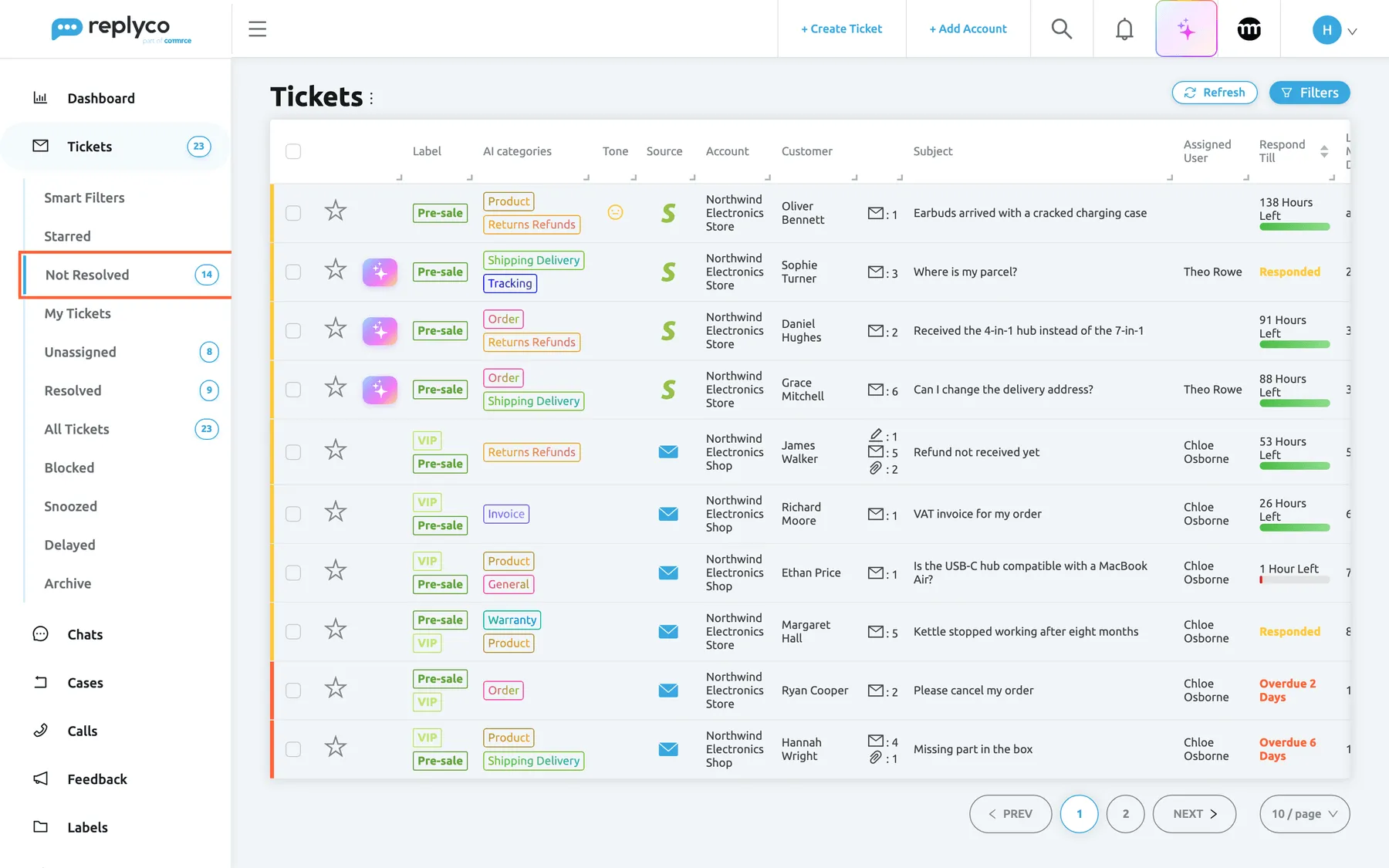
What this screenshot shows
- Screen
- Not Resolved (/tickets/notresolved)
- Highlighted
- menuitem “Not Resolved”, sidebar-left, selected. shows the tickets that are not resolved
- Also visible
- Tickets menu expanded with eleven views and counters; Refresh and Filters buttons top right; ten ticket rows with label, AI category, tone, source, customer, subject, assignee and respond-by columns; yellow and red deadline stripes at the left edge of the rows; paging at the bottom: PREV, 1, 2, NEXT, 10 / page
- Purpose
- the ticket list as it opens, and where the views live
| Region | What it shows | What you do there |
|---|---|---|
| Views, in the sidebar under Tickets | Smart Filters, Starred, Not Resolved, My Tickets, Unassigned, Resolved, All Tickets, Blocked, Snoozed, Delayed, Archive, with a counter beside most of them | Switch views; the selected view has a blue bar |
| Labels, in the sidebar under Labels | One entry per label you may see, in the label’s colour, with a counter | Open a label’s list |
| Heading, top left | Tickets and the ⋮ menu with Edit Columns and Export | Choose columns, export the page |
| Buttons, top right | Refresh and Filters | Reload the list; open the search and filters |
| Bulk action bar, top centre | Appears only when rows are ticked: the count and the actions for the selected tickets | Act on several tickets at once |
| The table | One row per ticket, with a stripe at the left edge | Open, star, tick, sort, right-click, hover for details |
| Paging, bottom right | PREV, the page numbers, NEXT and the page size | Move through pages; show 10, 20, 50 or 100 per page |
The heading reads Tickets on every view; the view you are on is the one highlighted in the sidebar.
Choose a view
Section titled “Choose a view”Select a view under Tickets in the sidebar. The list loads at once, with the latest message first unless you sorted this view differently. Each view is a fixed rule on the server, so the same ticket can appear in several views at the same time: an open ticket assigned to you is in Not Resolved, My Tickets and All Tickets.
| View | Which tickets it holds | Counter |
|---|---|---|
| Starred | Tickets with a star, in any status. Starring is shared by the whole company. | Starred tickets |
| Not Resolved | Every ticket that is not resolved | Tickets in the view |
| My Tickets | Tickets assigned to you, resolved ones included | Tickets in the view |
| Unassigned | Tickets assigned to nobody, resolved ones included | Tickets in the view |
| Resolved | Resolved tickets | Tickets in the view |
| All Tickets | Every ticket, open and resolved, including those with a delayed reply | Tickets in the view |
| Snoozed | Tickets snoozed until a time that has not come yet; an extra column can show the time | Tickets in the view |
| Delayed | Tickets with a reply scheduled to be sent later, including auto-responses set to go out after a delay | Tickets in the view |
| A label under Labels | Every ticket that carries the label, open and resolved | Tickets with the label |
Archived tickets, tickets of blocked customers and snoozed tickets appear in none of these views except Snoozed: they have Archive and Blocked of their own. To see what those two views add, see Archived tickets and Blocked tickets. Smart Filters at the top of the menu opens saved searches of your own, described in Smart Filters.
The counter beside a view shows, by default, how many tickets the view holds. In Account Settings, on the Settings tab, Ticket badge in the menu switches it to the number of unread or unresolved tickets, or shows several numbers side by side; see Account Settings. Archive never has a counter, and a view with nothing to count shows none.
A label’s list works the same way. Select a label under Labels and the list shows the tickets that carry it, with the same columns and actions; only the filter for labels is missing, because the list already is one label. To create labels or change their colour, see Labels.
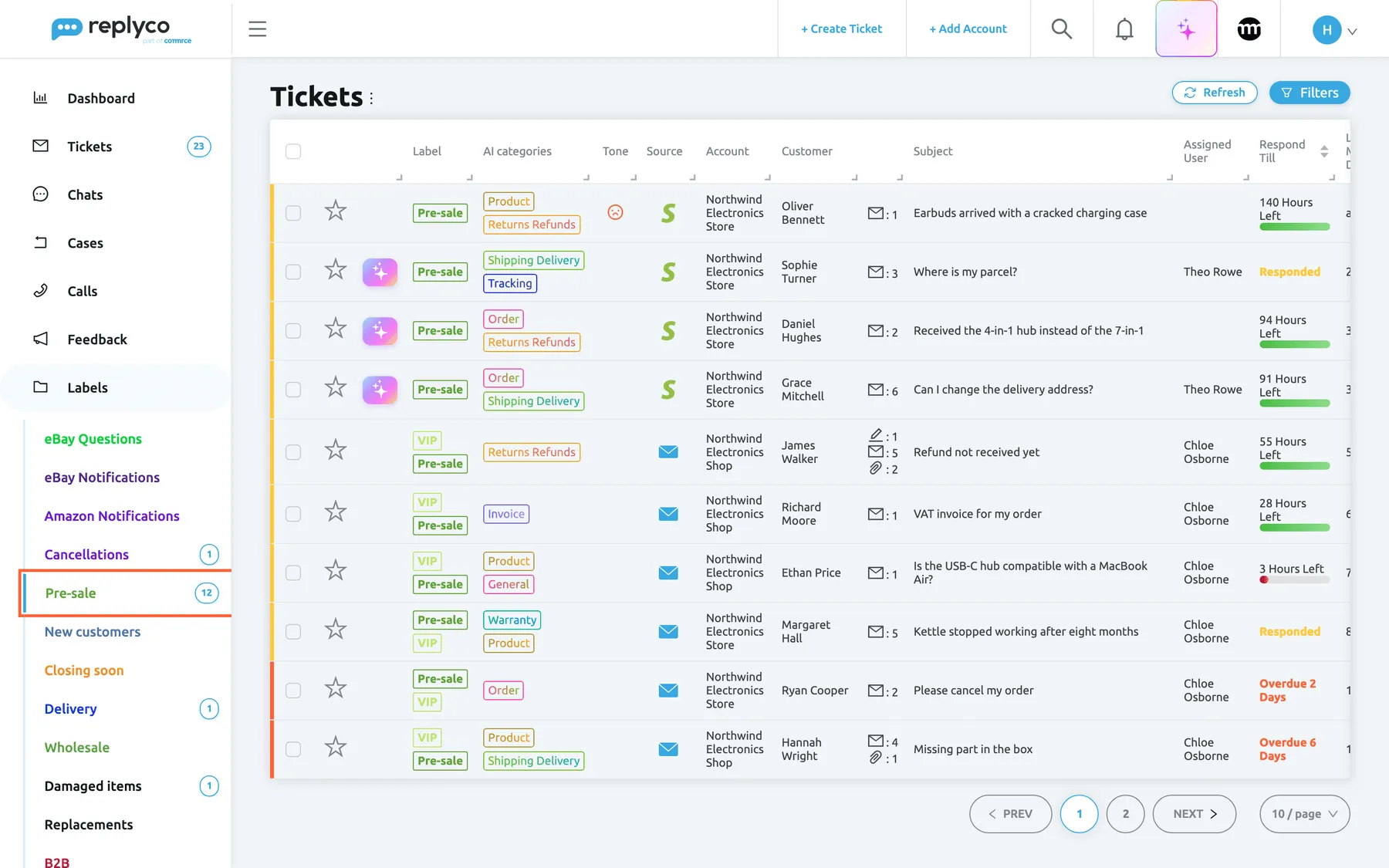
What this screenshot shows
- Screen
- Labels (/folder/:id)
- Highlighted
- menuitem “”, sidebar-left, selected. shows the tickets with this label
- Also visible
- Labels menu expanded with coloured labels and counters; ten tickets, each with the Pre-sale label; Refresh and Filters buttons
- Purpose
- a label's list
Which views you see is set by an admin, per user, on the user’s Access Rights in AdminUsers. My Tickets is always included. A user added under AdminUsers starts with every view except Starred, whatever their role; the admin adds Starred on the user’s Access Rights. The person who signed your company up has it from the start. If you open the address of a view you may not use, Replyco shows My Tickets instead. The same settings decide which accounts and labels you may see, and every list leaves out the tickets of the others. See User permissions and roles.
A view with no tickets, or a view whose filters match nothing, shows No data... in place of rows. Before you conclude that tickets are missing, check the other views and the filters you left set on this one.
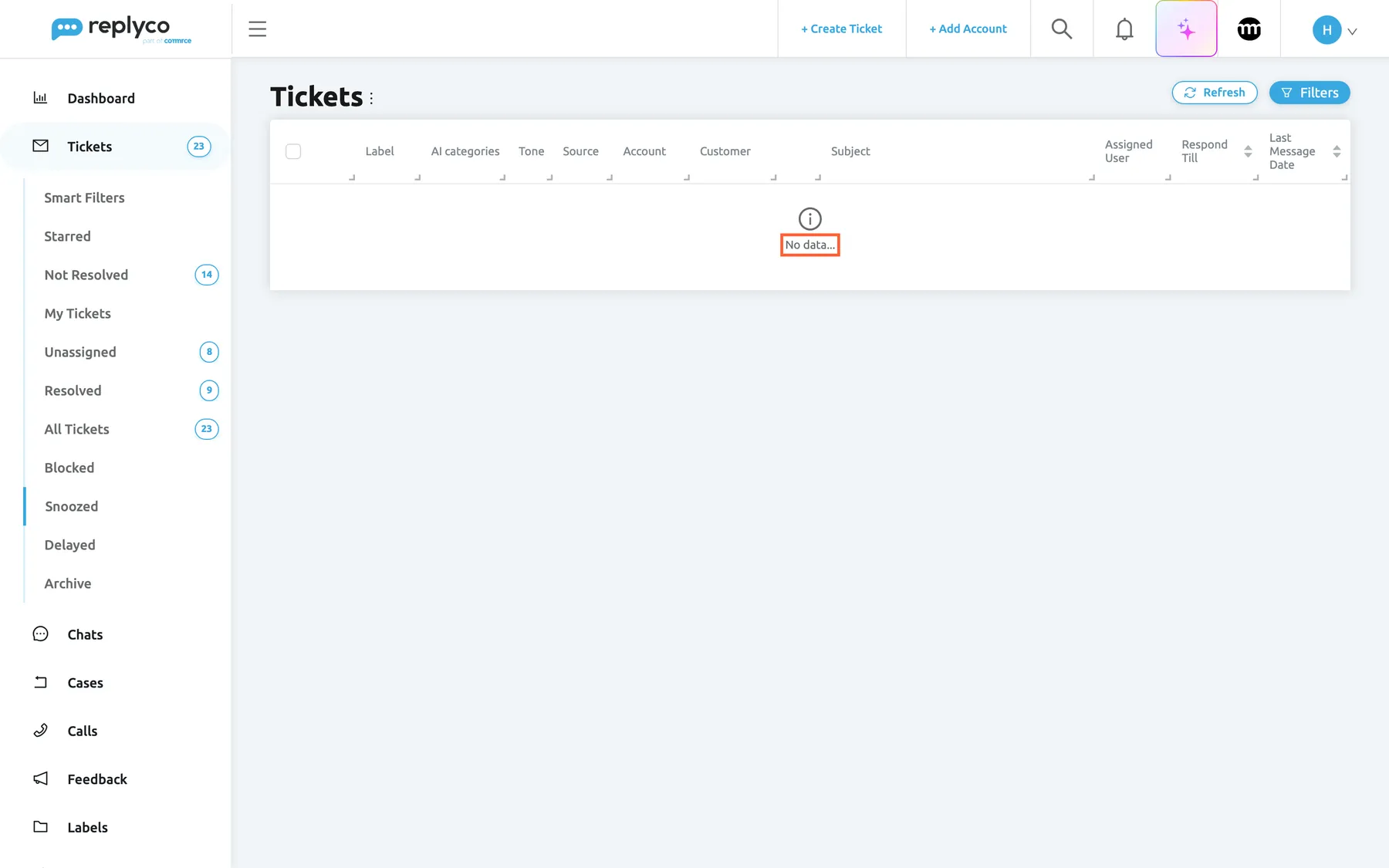
What this screenshot shows
- Screen
- Snoozed (/tickets/snoozed)
- Highlighted
- status “No data...”, table-body, shown. none
- Also visible
- Tickets menu expanded, Snoozed selected; column headings with no rows; Refresh and Filters buttons
- Purpose
- the empty state
The list does not refresh by itself. When new tickets arrive for you, a banner reads New tickets have arrived. Click refresh button to update the list. on All Tickets, Not Resolved and My Tickets; select Refresh to load them. On other screens the banner reads New tickets have arrived. Click here to check them. and opens All Tickets.
Search and filter the list
Section titled “Search and filter the list”-
Select Filters at the top right of the list.
The filters panel opens above the table.
-
To search, type in Search and press Enter or select the magnifier.
The search looks in the customer’s name and email address, the subject and the text of every message, and, for a single word without spaces, the ticket number, the order number and the marketplace’s customer ID. It also finds exact tracking numbers and postcodes. Words match from their beginning, so earb finds earbuds.
-
Choose values in any of the other filters.
The list changes as soon as you pick a value. Each filter you set appears as a tag under the heading, with a cross to remove it.
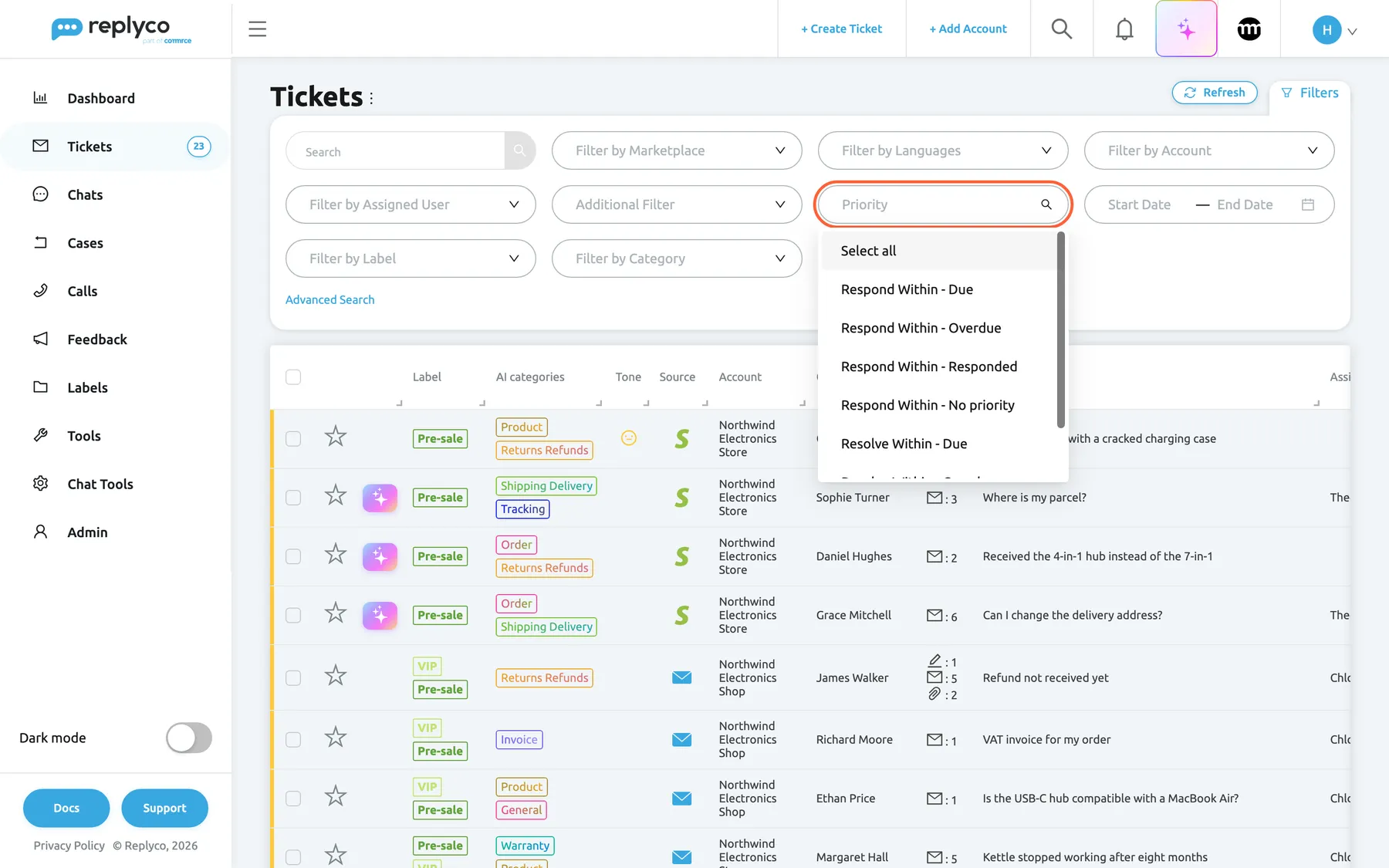
Filters opens every filter for the list; the Priority filter narrows it to tickets by respond-by and resolve-by state. What this screenshot shows
- Screen
- Not Resolved (/tickets/notresolved)
- Highlighted
- combobox “Priority”, filters-panel, expanded. filters the list by respond-by or resolve-by state
- Also visible
- Search box with magnifier; ten filter drop-downs and a date range; Advanced Search link; Priority options: Respond Within - Due, Overdue, Responded, No priority; Resolve Within - Due
- Purpose
- filter the list
-
To start again, select Clear Filters, which appears in the panel once a filter is set.
Example. To see which open eBay tickets are already late, open Not Resolved, choose eBay in Filter by Marketplace and Respond Within - Overdue in Priority. The list keeps only the eBay tickets whose respond-by time has passed without a reply from you.
Advanced search builds a search from several conditions. Select Advanced Search under the filters; each condition is a text and the field it searches: All, Customer (name, email address or marketplace customer ID), Order (order number, tracking number or postcode), Thread (subject or ticket number) or Messages (message text). Conditions in one box must all match (AND); separate boxes are alternatives (OR). You can add up to 10 conditions; Replyco warns You cannot add more search fields. at the eleventh, and Please enter values into search fields. when you search with an empty field. Hide Advanced Search goes back to the single search box.
Sort and page through the list
Section titled “Sort and page through the list”A list opens with the ticket that has the most recent message at the top. To sort by something else, select the arrows in the heading of Ticket ID, Respond Till, Resolve Till, Created Date or Last Message Date; select again to reverse the order, and a third time to return to the standard order. Other columns cannot be sorted.
Sorting by Respond Till puts the tickets whose deadline is still running first, the most urgent at the top when the order is ascending, then tickets without a deadline, then tickets you have already answered, and resolved tickets last. This is the quickest way to work through a queue in deadline order.
At the bottom right, PREV, the page numbers and NEXT move through the pages, and the page size shows 10, 20, 50 or 100 tickets per page. A new list shows 10. Your sort order, page and page size are remembered for each view in this browser.
Read a row
Section titled “Read a row”Every row is one ticket. The colours and small icons tell you where the ticket stands before you open it.
| Indicator | Meaning | When it shows |
|---|---|---|
| Green stripe at the left edge | The ticket is resolved | Status resolved |
| Yellow stripe | The ticket has a priority and its response deadline is still running, or you replied last | Priority set, deadline not passed or last message from you |
| Red stripe | The ticket has a priority and its response deadline has passed without a reply | Priority set, respond-by time in the past |
| No stripe | The ticket has no respond-by deadline: it has no priority, or its priority has no respond target while it waits for your reply | Ticket without a priority, or a priority without a respond target |
| Bold text on a white background; read rows are light grey | The ticket is unread | Unread |
| Sparkle on a coloured tile | The AI has written a reply you can review | Company uses AI auto-drafts and the ticket has a draft |
| Red, yellow or green face in Tone | The tone of the customer’s latest scored message | Below 0.40, 0.40–0.60, above 0.60 |
| Pencil, envelope and paper clip with numbers | Notes, messages and attachments in the ticket | When there is at least one |
| Colleagues’ avatars in place of the counters | Someone else has the ticket open or is replying | Agent collision detection |
| Red text above the subject | The ticket came back from snoozing; it says how long ago | Snooze time passed |
| Filled yellow star | The ticket is starred | Starred |
The respond-by column (Respond Till) shows the ticket’s response deadline in words: Hours Left with a number and a bar while it runs, Overdue with the days or hours once it has passed, Responded when you replied last, No priority without a priority, Not Set when the priority has no response time, and Resolved for resolved tickets. The bar is full while more than 24 hours are left and shrinks over the last 24: green from 20 hours, yellow from 10 hours, red below that. Resolve Till works the same way for the resolve-by deadline. Priorities and their deadlines are set up by an admin; see Ticket priorities and SLA.
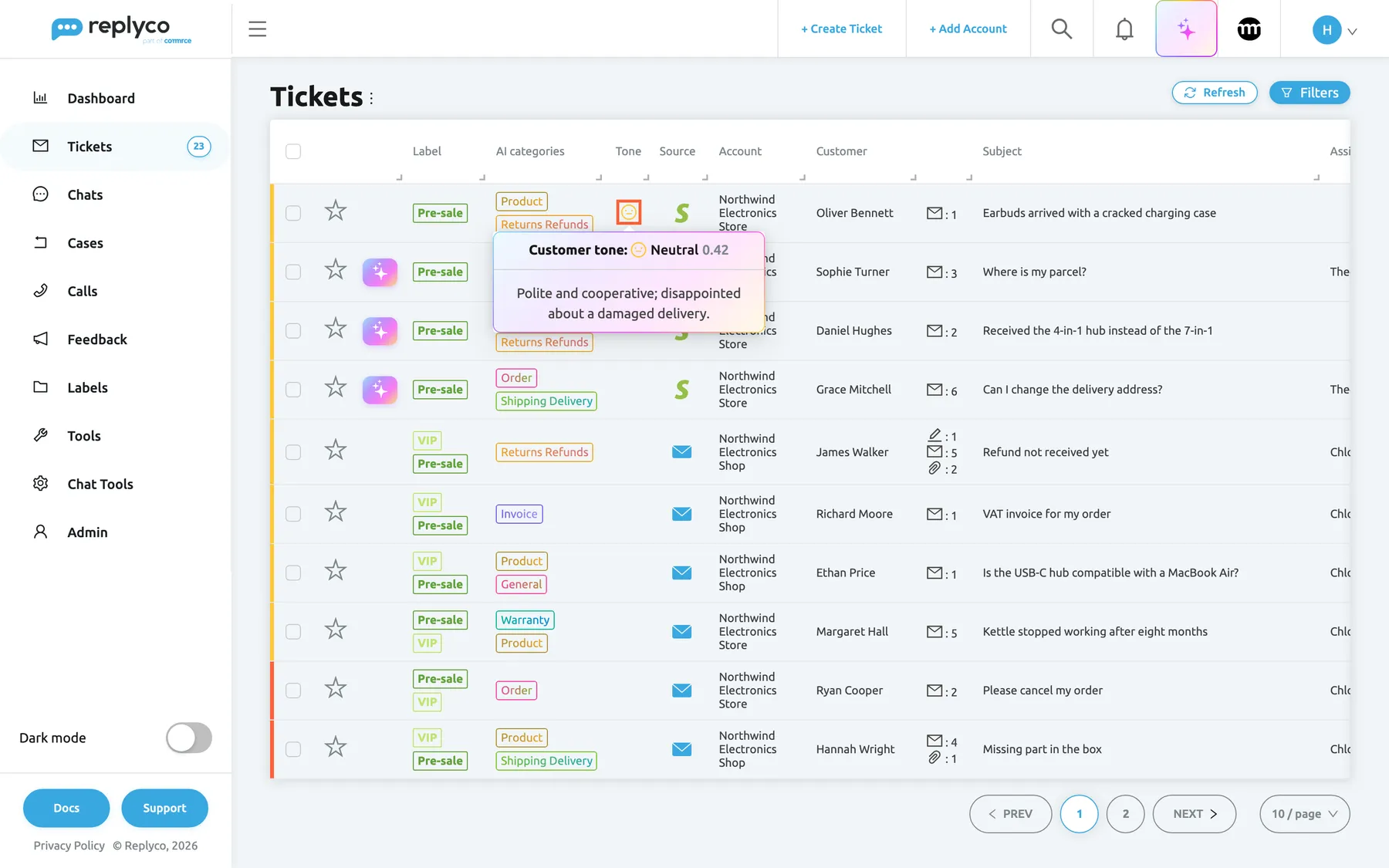
What this screenshot shows
- Screen
- Not Resolved (/tickets/notresolved)
- Highlighted
- img “Tone”, table-tone-column, hovered. shows the tone band
- Also visible
- hover card: Customer tone: Neutral 0.42; reason: Polite and cooperative; disappointed about a damaged delivery.
- Purpose
- read the customer's tone from the list
The tone face in Tone is the AI’s reading of the customer’s latest scored message. Hover it to see Customer tone:, the band (Upset, Neutral or Happy), the score from 0.00 to 1.00 and the AI’s one-line reason. A row without a face has no scored message. The column is there when your company has switched tone analysis on; see Message tone analysis.
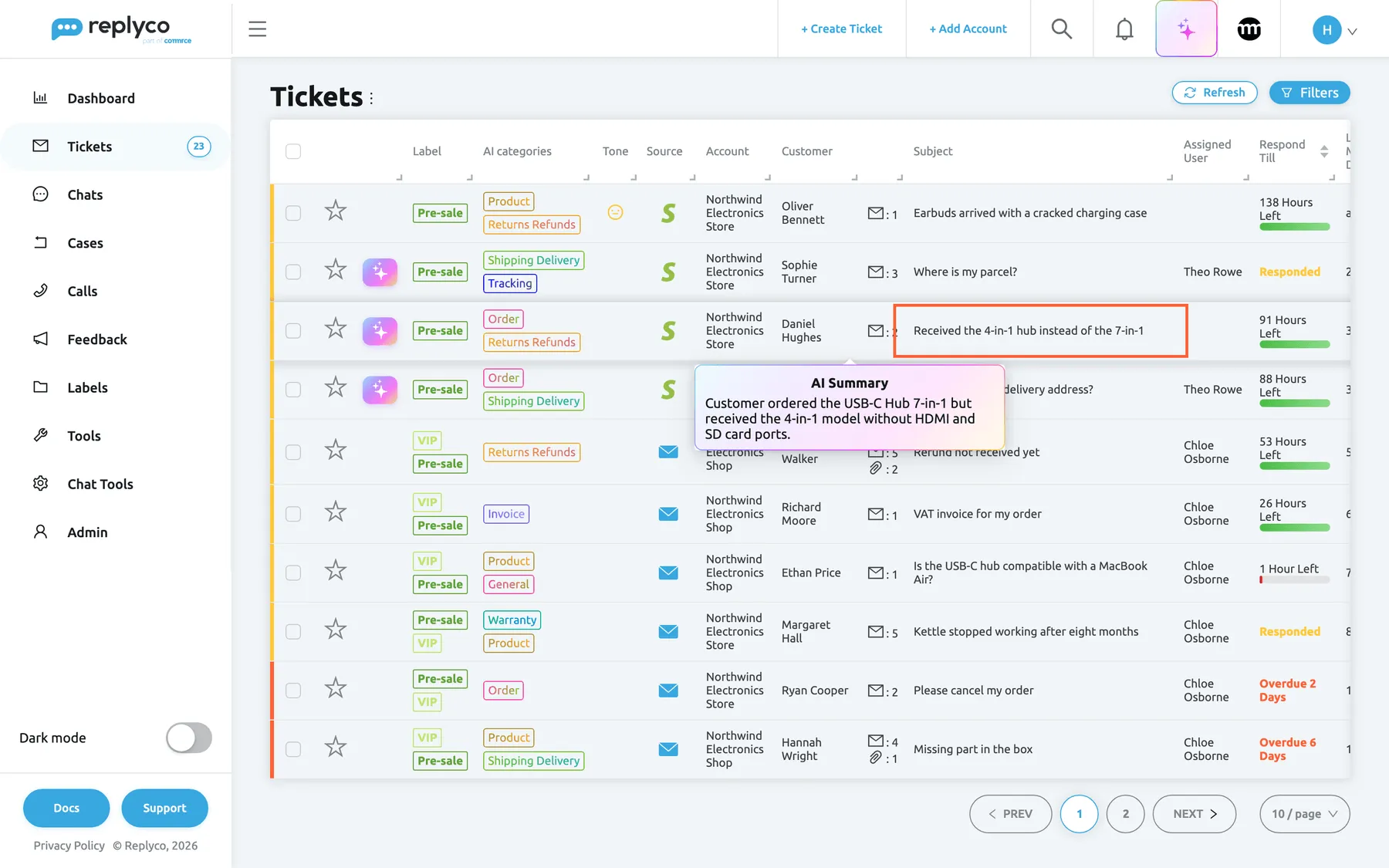
What this screenshot shows
- Screen
- Not Resolved (/tickets/notresolved)
- Highlighted
- cell “Subject”, table-subject-column, hovered. shows the AI summary
- Also visible
- hover card titled AI Summary with the summary text; count of messages the summary does not cover
- Purpose
- read a ticket's summary from the list
Hover a subject to read more without opening the ticket. When your company uses AI summaries and the ticket has one, a card titled AI Summary shows it, followed by the number of newer messages it does not cover yet and, when summaries are not renewed automatically, the latest message. Otherwise a tooltip shows the first 250 characters of the latest message. To switch summaries on, see AI summaries.
The coloured tags in Label are the ticket’s labels, and the gradient tags in AI categories are the categories the AI chose for it, shown by their short names. See AI categories and Labels.
Open a ticket or act on it with a right-click
Section titled “Open a ticket or act on it with a right-click”Select a row to open the ticket. Hold Ctrl (Cmd on a Mac) while you select it to open the ticket in a new browser tab and keep the list where it is. Opening an unread ticket marks it read, unless Leave Tickets Unread is on in your Account Settings. For what you can do inside a ticket, see The ticket screen.
Right-click a row to act on that one ticket without opening it. The menu offers Mark Resolved (or Mark Unresolved for a resolved ticket), Archive, Mark Unread (or Mark Read), Assign User, Assign Labels, Snooze and Open in new tab. A snoozed ticket also offers Continue snoozing and Stop snoozing. Each entry does the same as the button of the same name in the bulk action bar, for one ticket.
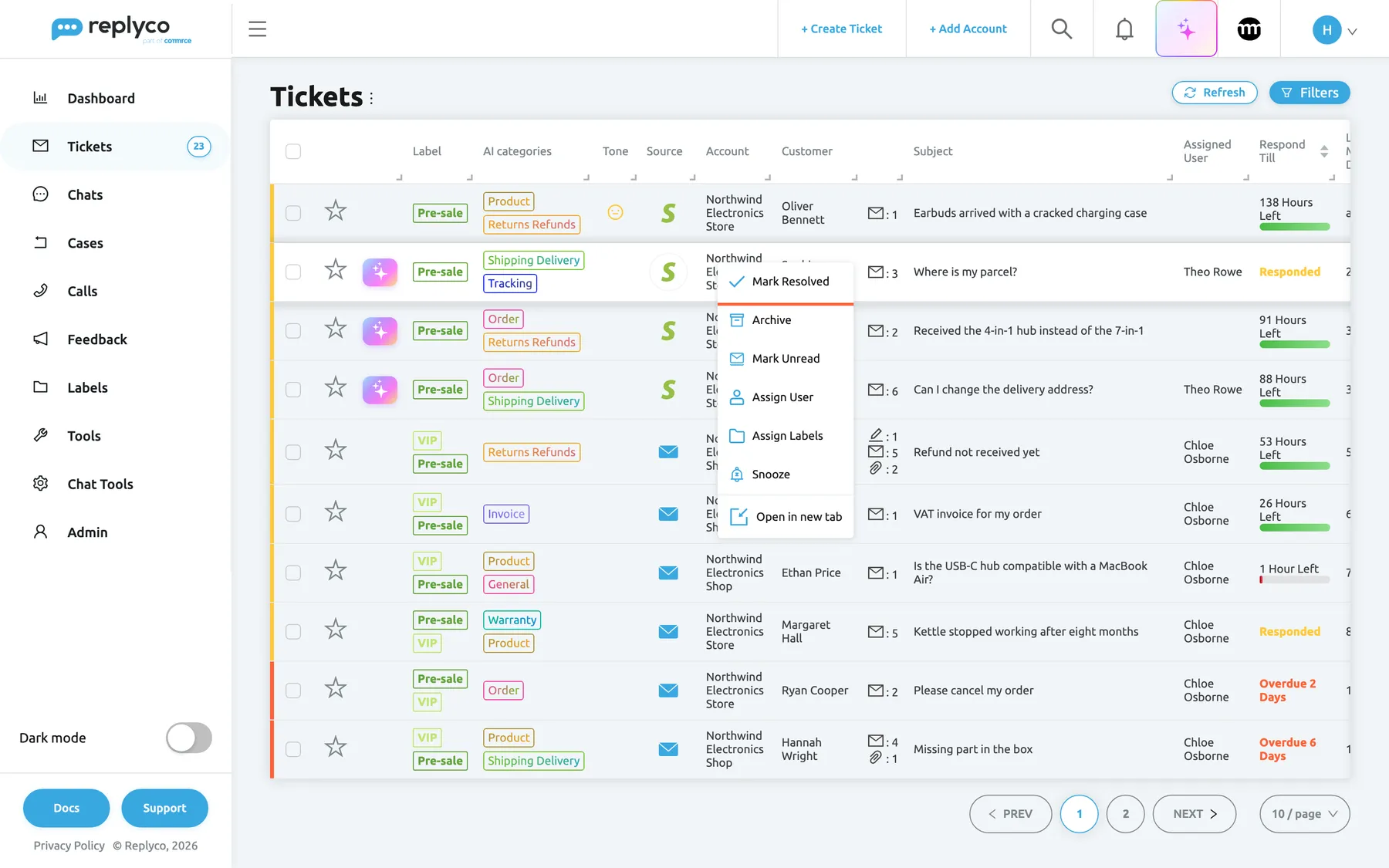
What this screenshot shows
- Screen
- Not Resolved (/tickets/notresolved)
- Highlighted
- menuitem “Mark Resolved”, table-row-menu, enabled. resolves the ticket
- Also visible
- context menu: Mark Resolved, Archive, Mark Unread, Assign User, Assign Labels, Snooze, Open in new tab; the right-clicked row lifted with a shadow
- Purpose
- act on one ticket from the list
Star a ticket
Section titled “Star a ticket”Select the star at the start of a row. It turns yellow, a short Success confirms it, and the ticket appears in Starred. Select it again to remove the star. A star is shared by your whole team: everyone sees the ticket as starred and finds it in their Starred view. Use stars for tickets the team should keep an eye on, not as a personal reminder.
Act on several tickets at once
Section titled “Act on several tickets at once”-
Tick the box at the start of each row you want. The box in the table heading ticks every row on the page.
The rows turn blue and a bar of icons appears at the top of the page. Its first element counts the selected tickets out of all tickets in the view, for example 2/14.
-
Hover an icon to see its name, then select it.
Some icons open a small window first: Snooze offers the snooze times, Assign User a user, Assign Labels the labels, and Merge Tickets asks you to confirm.
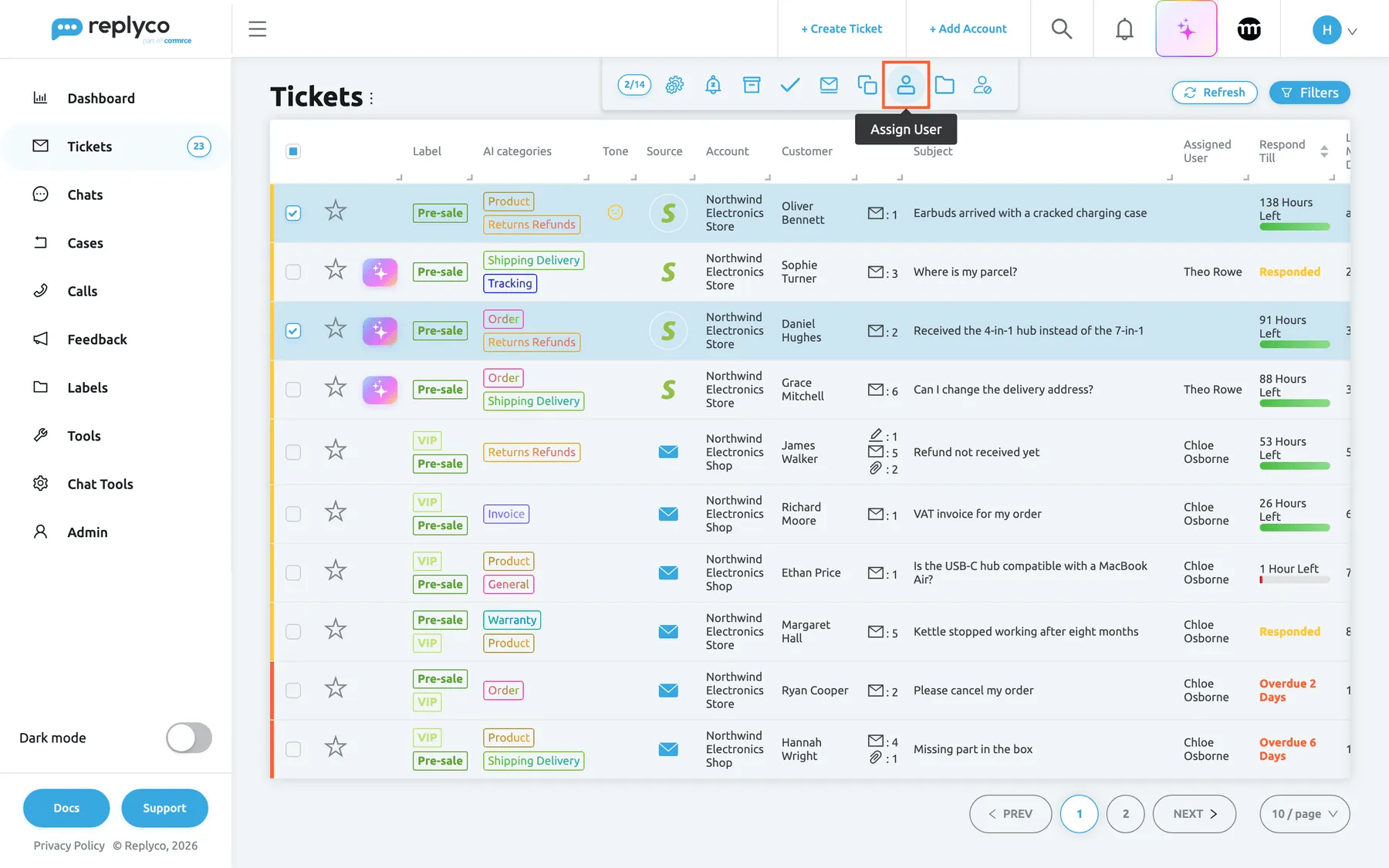
Tick rows to open the bulk action bar; each icon acts on every selected ticket at once. What this screenshot shows
- Screen
- Not Resolved (/tickets/notresolved)
- Highlighted
- button “Assign User”, top-center, hovered. opens the user picker for the selected tickets
- Also visible
- two rows ticked and shaded; counter 2/14; icons: Run Rules, Snooze, Archive, Mark Resolved, Mark Unread, Merge Tickets, Assign User, Assign Labels, Block Customer
- Purpose
- act on several tickets at once
-
The action runs on every selected ticket, a short confirmation appears and the list reloads.
| Action | What it does |
|---|---|
| Run Rules | Runs every active rule, in the rules’ order, on each ticket’s latest message, including when that message is your own reply. Each rule that acts is written to the ticket’s history with your name, for example Theo Rowe ran rule Escalations. Use it after you create or change a rule. See Rules for incoming tickets. |
| Snooze | Hides the tickets until the time you pick: Later today (in 3 hours), Tomorrow, Tomorrow to 8am, This weekend (Saturday), Next week or Pick date & time. A new message from the customer brings a ticket back early. |
| Continue snoozing and Stop snoozing | Shown when a selected ticket is snoozed: pick a new time, or bring the tickets back now |
| Archive | Moves the tickets to Archive; see Archived tickets. On the archive view the icon is Restore. |
| Mark Resolved and Mark Unresolved | Resolves the tickets or opens them again. With a mix of both selected, both icons are shown. |
| Mark Unread and Mark Read | Changes the read state; for mailboxes and eBay the state is also sent to the channel |
| Merge Tickets | Shown with two or more tickets selected. Joins them into the oldest ticket; they must have the same customer and the same account. See Ticket merging. |
| Assign User | Assigns all selected tickets to one user, or to nobody with Unassigned. The user gets a notification when it is not you. |
| Assign Labels | Adds the labels you pick and keeps the ones the tickets already have. No Label removes every label. |
| Block Customer | Blocks the customers of the selected tickets: their tickets on that account, now and in future, go to Blocked. See Blocked tickets. |
Merging cannot be undone. Replyco asks Are you sure you want to merge tickets? This action CANNOT be undone. before it merges. The oldest ticket keeps its number and receives the messages, notes, files and history of the others, and the others are deleted; their labels, AI categories and custom field values are not carried over. See Ticket merging. If the tickets come from different customers or accounts, nothing is merged and Replyco shows You cannot merge Tickets from different Customers or Accounts..
The selection covers one page. When you move to another page, the ticks are cleared. To act on more tickets at once, show 100 per page first.
Review AI drafts from the list
Section titled “Review AI drafts from the list”When your company uses AI auto-drafts, a sparkle on a coloured tile appears in the second column of every ticket for which the AI has written a reply. It is a quick way to work through the simple questions of a day.
-
Select the sparkle in a row.
The AI Draft Response window opens with the ticket’s number and subject at the top, the customer’s latest message (when the ticket has earlier messages, a line above it counts them, for example 3 previous messages), the Generated response in an editor with your signature for that account at the end, and on the right the AI summary, the order and the products.
-
Edit the reply if needed. To have the AI change it, describe the change in the field next to Refine with AI, for example make it shorter, and select Refine with AI.
-
Tick Resolve after Reply or Archive after Reply if the ticket should be closed with the reply; they start as set in your account settings. Preview shows the reply as the customer will receive it.
-
Select Accept & Send to send the reply, or Reject to throw the draft away.
When another ticket on the page has a draft, the buttons read Accept, Send & Next and Reject & Next and the window moves on to it. Rejecting asks Why are you rejecting this draft?: pick a reason, add a comment if you like and select Confirm Rejection.
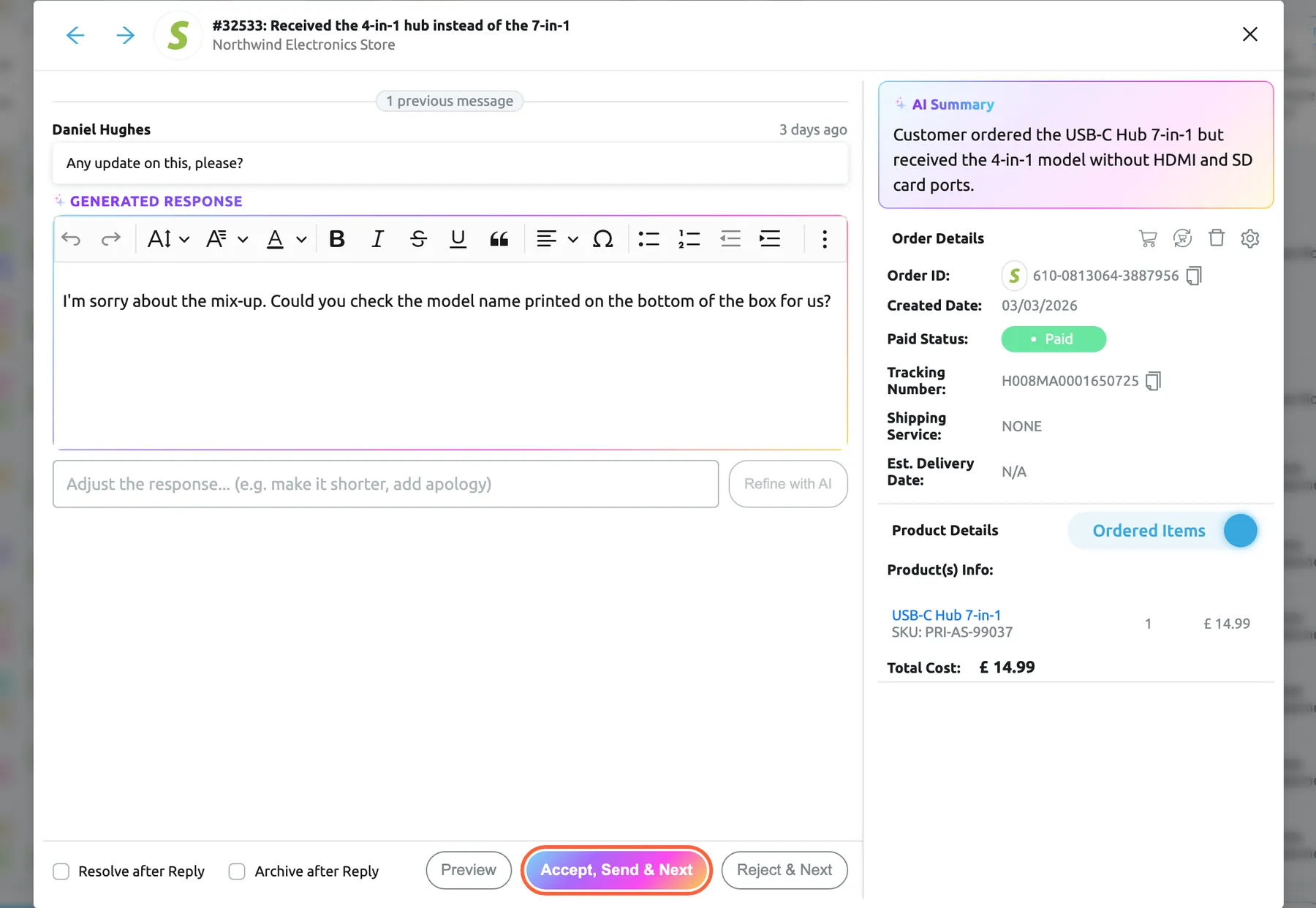
What this screenshot shows
- Screen
- Not Resolved (/tickets/notresolved)
- Highlighted
- button “Accept, Send & Next”, dialog-footer, enabled. sends the draft and opens the next ticket's draft
- Also visible
- title: #32533 and the subject, account name; customer's latest message; Generated response in an editor; Refine with AI field; AI Summary, Order Details, Product Details; Resolve after Reply, Archive after Reply, Preview, Accept Send & Next, Reject & Next
- Purpose
- review AI drafts from the list
The reply goes out through the ticket’s channel exactly like a reply written in the ticket. The arrows at the top move between the tickets with a draft on the current page. Replyco switches auto-drafts on for your company; to tell the AI how to write, see AI drafts.
Choose the columns
Section titled “Choose the columns”-
Select the ⋮ next to the heading Tickets, then Edit Columns.
The Select Columns to Display window lists every column with a tick box.
-
Tick the columns you want and clear the others, then select Save.
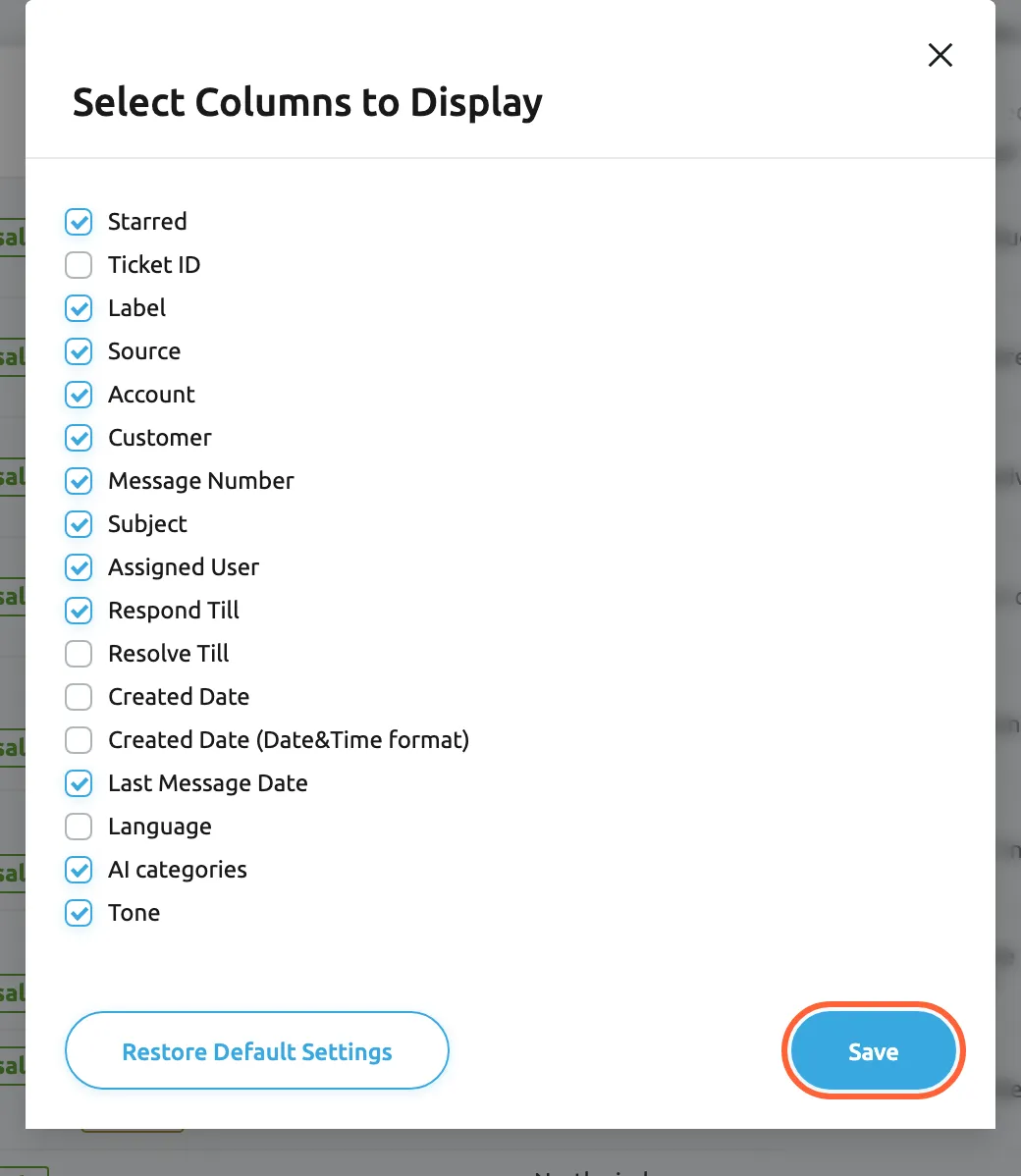
Edit Columns chooses which columns your lists show; Save keeps the choice for you on every list. What this screenshot shows
- Screen
- Not Resolved (/tickets/notresolved)
- Highlighted
- button “Save”, dialog-footer-right, enabled. saves the column choice to your profile
- Also visible
- 17 column check boxes, 12 ticked; Restore Default Settings button; Save button
- Purpose
- choose the list's columns
-
To change the order, drag a column heading sideways. To change its width, drag the small handle at the right edge of the heading.
The columns you tick are saved to your user and apply to every view on any computer; the order and widths are kept in this browser. Restore Default Settings brings back the standard set, order and widths. The Snooze till column is offered only while you are on Snoozed, Tone only when tone analysis is on, and AI categories only with AI. The AI draft column is not in the list: it is always second when your company uses auto-drafts. The Delayed until column belongs to Delayed only.
Export the list
Section titled “Export the list”-
Set the view, the filters and the sort order so the list shows the tickets you want. Only the page you are looking at is exported, so choose 100 per page at the bottom right if you need more than 10 rows.
-
Select the ⋮ next to the heading Tickets, then Export.
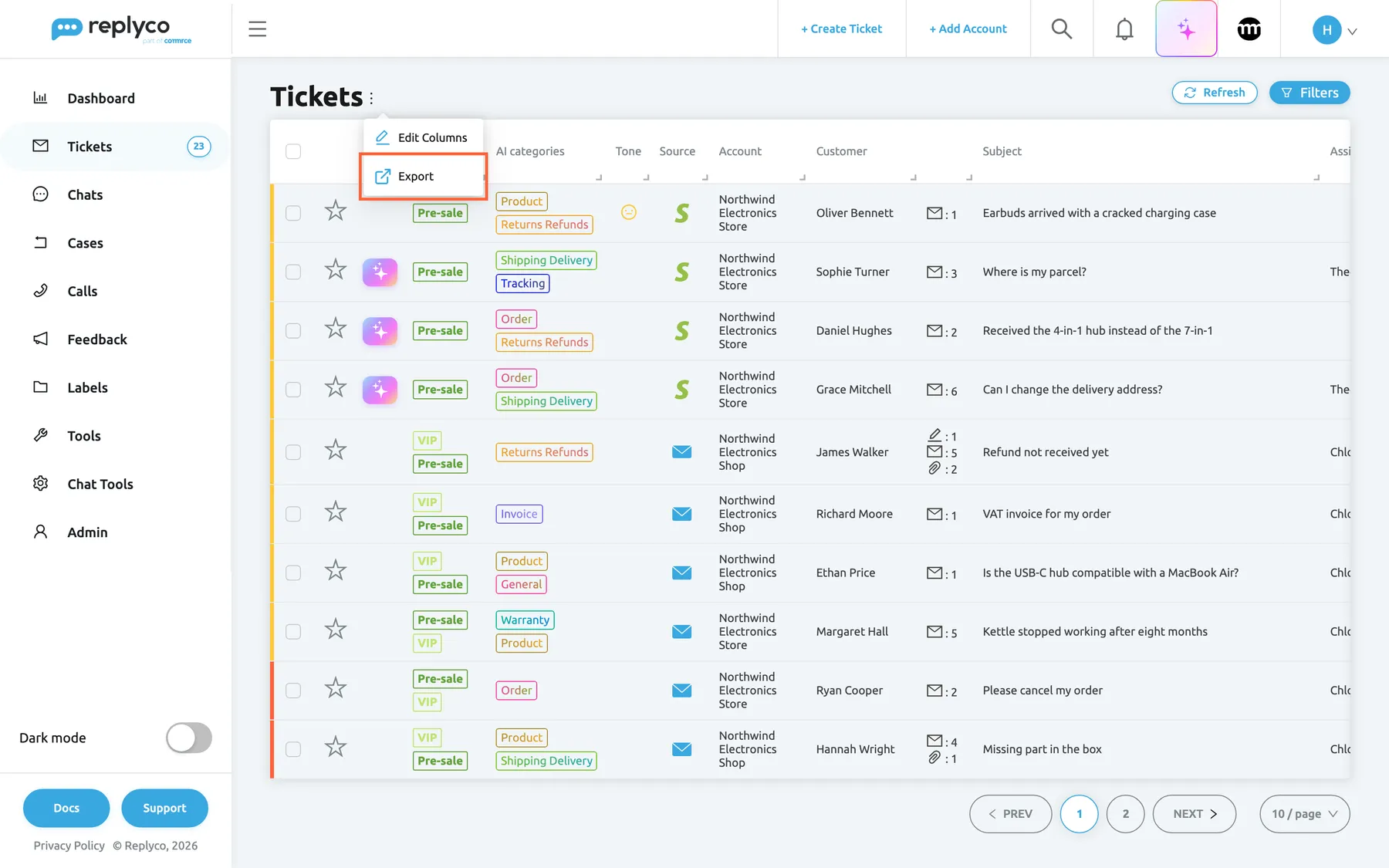
The three-dot menu next to the heading holds Edit Columns and Export. What this screenshot shows
- Screen
- Not Resolved (/tickets/notresolved)
- Highlighted
- menuitem “Export”, header-left, enabled. downloads the current page as a CSV file
- Also visible
- three-dot menu: Edit Columns, Export; ten ticket rows; paging 10 / page
- Purpose
- export the list
-
Your browser downloads a CSV file whose name starts with threads_data_.
The file has one row per ticket with these columns: TicketID, Source, Account, Customer, CustomerEmail, Subject, MessagesCount, NotesCount, RespondTill (the respond-by state in words), CreatedDate, LastMessageDate and Messages. Messages holds the text of every message, each with its date and a + for your replies or a − for the customer’s. Dates are written as month-day-year with the time, in UTC. When the page is empty, Replyco shows No data found for selected filters and no file is created. To export more than one page or build a report, see Export tickets and reports.
Every control, explained
Section titled “Every control, explained”Each control of the ticket list, from the heading to the paging, in the order you meet it.
Refresh
Section titled “Refresh”Top right of every ticket list, left of Filters.
Loads the current page again with the same view, filters, sort order and page. It does not change anything else.
The list does not update itself when tickets arrive or colleagues change them; Refresh shows the current state.
Filters
Section titled “Filters”Top right, the blue button. Selecting it again closes the panel; the filters stay set.
Opens the search box, the filters, the Advanced Search link and, once a filter is set, Clear Filters. The drop-down filters take several values; a ticket must match all filters you set, and any of the values within one filter. Search runs when you press Enter; every other filter applies as soon as you pick a value.
A busy view holds hundreds of tickets; the filters get you to the ones you can act on now.
The filters
Section titled “The filters”| Filter | What it keeps | Why |
|---|---|---|
| Search | Tickets whose customer, subject or messages contain the words, or whose ticket number, order number, tracking number or postcode is the text | Find one conversation |
| Filter by Marketplace | Tickets from the chosen marketplaces, shops, mailboxes or messengers | Work one channel at a time |
| Filter by Languages | Tickets whose latest message is from the customer and in one of the chosen languages | Hand tickets to colleagues who speak the language |
| Filter by Account | Tickets of the chosen connected accounts | Separate shops or regions |
| Filter by Assigned User | Tickets assigned to any of the chosen users; Me (account user) is you and Unassigned is nobody. The list offers the users who have open tickets assigned. Not shown on My Tickets. | See one person’s queue |
| Additional Filter | New (unread and never answered), Starred, Not Resolved, Resolved, Unread, Only Sent Messages (no customer message), With processing messages and With failed messages (replies still being sent or that failed). Not Resolved and Resolved are not offered on the views that already are one of them. | Find new tickets, or replies that did not go out |
| Priority | Open tickets by deadline state: Respond Within - Due, Respond Within - Overdue, Respond Within - Responded, Respond Within - No priority, Resolve Within - Due, Resolve Within - Overdue, Resolve Within - No priority. Resolved tickets never match. | Deal with late tickets first; see Ticket priorities and SLA |
| Start Date and End Date | Tickets created on or between the two days, both days included | Look at one day’s or one week’s arrivals |
| Filter by Label | Tickets with any of the chosen labels; No Label finds tickets without one. Not shown in a label’s list. | Combine a view with a label |
| Filter by Category | Tickets the AI put in any of the chosen categories; No Category finds tickets without one. Shown with AI. | Sort work by topic; see AI categories |
Advanced Search
Section titled “Advanced Search”The link at the bottom left of the filters panel; Hide Advanced Search closes it.
Replaces the search box with boxes of conditions. Each condition has a text and a field: All, Customer, Order, Thread or Messages. AND adds a condition to a box, OR adds a new box. Up to 10 conditions; Search runs it.
Searching one field avoids false matches, for example an order number that also appears in another customer’s message.
The ⋮ menu
Section titled “The ⋮ menu”Next to the heading Tickets, top left.
Edit Columns opens the Select Columns to Display window. Export downloads the current page as a CSV file; with no tickets loaded Replyco shows There are NO tickets to export..
Columns and export are about the list itself, not about one ticket, so they sit by its heading.
Select Columns to Display
Section titled “Select Columns to Display”The ⋮ menu › Edit Columns. Save saves and closes; the cross closes without saving.
One tick box per column. Saved to your user for every view. Restore Default Settings restores the standard columns, order and widths at once. Standard columns: Starred, Label, Source, Account, Customer, Message Number, Subject, Assigned User, Respond Till, Last Message Date, and with AI AI categories and Tone.
Each role needs different facts: a team lead watches deadlines and assignees, an agent the subject and the customer.
The columns
Section titled “The columns”| Column | What it shows | Why |
|---|---|---|
| Starred | The star; select it to star or unstar the ticket for the whole team | Keep an eye on a ticket |
| AI draft (no heading) | The sparkle when the AI has written a reply; opens the review window | Send routine replies from the list; see AI drafts |
| Ticket ID | The ticket number | Refer to a ticket; sortable |
| Label | The ticket’s labels in their colours | See how a ticket was filed |
| AI categories | The AI’s categories for the ticket, by short name | See the topic at a glance |
| Tone | The face for the customer’s latest scored message | Find upset customers first |
| Source | The icon of the marketplace, shop, mailbox or messenger | Know the channel before you reply |
| Account | The connected account the ticket belongs to | Tell shops and regions apart |
| Customer | The customer’s name | Recognise returning customers |
| Message Number | Counters for notes, messages and attachments; hover a counter for the latest note or the totals. When a colleague has the ticket open, their avatar instead. | Spot long conversations and avoid double replies |
| Subject | The subject; hover for the AI summary or the latest message | Understand the ticket without opening it |
| Assigned User | Who the ticket is assigned to | See who handles it |
| Snooze till | When a snoozed ticket comes back; on Snoozed only | Plan your follow-ups |
| Respond Till | The response deadline in words, with a bar; sortable | Answer in time |
| Resolve Till | The resolution deadline in words, with a bar; sortable | Close tickets in time |
| Created Date | When the ticket was created, as 5 days ago; sortable | See how old a request is |
| Created Date (Date&Time format) | The same date as a date and time; sortable | Compare exact times |
| Last Message Date | When the latest message came, as 2 days ago; the default sort | See recent activity |
| Delayed until | When the scheduled reply will be sent; on Delayed only | Check replies waiting to go out; see Delayed sending |
| Language | A flag for the language of the customer’s latest message; hover for its name | Route tickets by language; see Translations |
The bulk action bar
Section titled “The bulk action bar”Top centre of the page, while at least one row is ticked. Hover an icon for its name.
The count of selected tickets out of the view’s total, then Run Rules, Snooze, Archive, Mark Resolved or Mark Unresolved, Mark Unread or Mark Read, Merge Tickets, Assign User, Assign Labels and Block Customer. Stop snoozing appears when a selected ticket is snoozed. Blocked and Archive add their own actions, described on their pages.
Morning triage, handing work over and cleaning up after a campaign are the same action on many tickets.
The right-click menu
Section titled “The right-click menu”Right-click any row. Select outside the menu to close it.
The actions for that one ticket: Mark Resolved or Mark Unresolved, Archive or Restore, Mark Unread or Mark Read, Assign User, Assign Labels, Snooze or Continue snoozing, Stop snoozing for a snoozed ticket, and Open in new tab.
Most tickets need one quick decision; the menu saves opening them.
Paging
Section titled “Paging”Bottom right of the table.
PREV, the page numbers and NEXT, and the page size: 10, 20, 50 or 100. A new list shows 10. The page and size are remembered per view in this browser.
A larger page lets you tick, export or scan more tickets at once; a smaller one loads faster.
Who sees what
Section titled “Who sees what”| Part of the screen | What decides whether you see it |
|---|---|
| Each view under Tickets | Your user’s ticket lists, set by an admin in AdminUsers; My Tickets always. See User permissions and roles. |
| Tickets of an account, and tickets with a label | Your user’s accounts and labels, set in the same place. Tickets without a label are shown when the user’s labels include No Label. |
| The labels under Labels | The labels you may see |
| Smart Filters in the menu | Manage Smart Filters or AI |
| AI draft sparkle | AI, with auto-drafts, which Replyco switches on for your company; see AI drafts |
| AI categories and Filter by Category | AI; the column also needs categorisation switched on in AI Settings |
| Tone | AI, with tone analysis switched on |
| The AI summary when you hover a subject | AI, with AI summaries switched on |
| Deadlines in Respond Till and Resolve Till, stripes, Priority results | Priorities & SLA and a priority on the ticket |
| Colleagues’ avatars in Message Number | Agent collision detection |
| Translating a customer’s message | Translations; the Language column is in every user’s column choice |
| Block Customer | The Customers permission with edit rights |
Every plan includes every feature in this table, AI included, and during a trial every feature is on. Companies on an older plan may not have some of them; see What each plan includes and AI Settings.
What you need to know
Section titled “What you need to know”| Topic | Fact |
|---|---|
| Default order | Latest message first |
| Page size | 10 by default; 20, 50 or 100 on request |
| Kept per user | The columns you tick in Select Columns to Display |
| Kept per browser | Column order and widths; and for each view separately the search, filters, sort order, page and page size |
| Shared by everyone | Stars, labels, assignments, read state and status |
| Refresh | The list does not update by itself; Refresh reloads it |
| Counters | Total tickets by default; unread or unresolved per Ticket badge in the menu; none on Archive |
| Selection | One page at a time; cleared when you change page |
| Search | Words match from their start; ticket, order and customer IDs only as a single word |
| Date filter | The creation date, both days included |
| Export | The current page only, as CSV, with the text of every message |
| Snoozed tickets | Hidden from every view except Snoozed until the time passes or the customer writes again |
Frequently asked questions
Section titled “Frequently asked questions”Views and counters
Section titled “Views and counters”Why is a ticket missing from my list?
Section titled “Why is a ticket missing from my list?”Check four things in this order. The view: Not Resolved leaves out resolved tickets, and every view except Snoozed leaves out snoozed, archived and blocked tickets. The filters: Replyco keeps the search and filters of each view in your browser, so look for filter tags under the heading and select Clear Filters. The page: the ticket may be on the next page. Your access: tickets of accounts or labels your user may not see never appear; an admin can check this in AdminUsers.
Why can a colleague see views that I cannot?
Section titled “Why can a colleague see views that I cannot?”An admin chooses for each user which ticket lists appear under Tickets, on the user’s Access Rights in AdminUsers. My Tickets is always included. If you open the address of a list you may not use, Replyco shows My Tickets instead. Ask your admin to add the list.
What does the number next to a view count?
Section titled “What does the number next to a view count?”By default the total number of tickets in the view. In Account Settings, on the Settings tab, Ticket badge in the menu lets you show the unread or the unresolved tickets instead, or several numbers side by side. Archive has no counter, and a view with nothing to count shows none.
Why does Unassigned show resolved tickets?
Section titled “Why does Unassigned show resolved tickets?”Unassigned lists every ticket that nobody is assigned to, whatever its status, and My Tickets likewise lists your resolved tickets too. To see only the open ones, open the filters and choose Not Resolved in Additional Filter, or sort by Respond Till, which puts resolved tickets last.
Why are some tickets missing from the list of all tickets?
Section titled “Why are some tickets missing from the list of all tickets?”All Tickets holds open and resolved tickets, but it leaves out archived tickets, snoozed tickets, tickets of blocked customers, and tickets from accounts or with labels your user may not see. Archived and blocked tickets have their own views, Archive and Blocked, and snoozed ones are in Snoozed.
Why doesn’t a new ticket appear until I refresh?
Section titled “Why doesn’t a new ticket appear until I refresh?”The ticket list does not reload by itself. When new tickets arrive for you, a banner reads New tickets have arrived. Click refresh button to update the list.; select Refresh at the top right of the list to load them.
What is the Delayed view for?
Section titled “What is the Delayed view for?”Delayed lists the tickets with a reply that is scheduled to be sent later: a reply you sent with a delay, a reply held back by a default delay in your account settings, or an auto-response set to go out after a delay. The ticket leaves the view once no scheduled reply is left. See Delayed sending for how to send such a reply at once or cancel it.
What is the difference between a view and a label’s list?
Section titled “What is the difference between a view and a label’s list?”A view under Tickets is a fixed rule, such as every ticket not yet resolved. A label’s list under Labels shows every ticket that carries that label, open and resolved, and only leaves out archived, snoozed and blocked ones. Both use the same columns, filters and actions.
Search and filters
Section titled “Search and filters”Why do my filters come back when I open the list again?
Section titled “Why do my filters come back when I open the list again?”Replyco remembers the search, the filters, the sort order and the page for each view separately in your browser, so you can pick up where you left off. To start fresh, open Filters and select Clear Filters, or remove a single filter with the cross on its tag under the heading.
Can I search for an order number or a tracking number?
Section titled “Can I search for an order number or a tracking number?”Yes. Type the order number or the tracking number in Search in the filters panel and press Enter. An order number is found when you type it as one word without spaces; tracking numbers and postcodes must be typed in full. To search only orders, use Advanced Search with the field Order.
Which date does the date filter use?
Section titled “Which date does the date filter use?”Start Date and End Date filter on the date the ticket was created, not on the date of its latest message. Both days are included, from the start of the first day to the end of the last. To find recent activity instead, sort by Last Message Date.
Why does the language filter miss some tickets?
Section titled “Why does the language filter miss some tickets?”Filter by Languages only matches tickets whose latest message is from the customer, because it uses the language of that message. A ticket where you replied last is left out even if the customer wrote in that language. Clear the filter or use Language as a column to see the flag instead.
How do I find the tickets that are about to miss their deadline?
Section titled “How do I find the tickets that are about to miss their deadline?”Open the filters and choose Respond Within - Due in Priority, then sort by Respond Till so the shortest time left is at the top. Respond Within - Overdue shows the ones already late. Only tickets with a priority have a deadline; see Ticket priorities and SLA.
Columns and badges
Section titled “Columns and badges”What do the coloured stripes on the rows mean?
Section titled “What do the coloured stripes on the rows mean?”The stripe at the left edge of a row shows the ticket’s response deadline. Green means resolved, yellow means a deadline is running or you replied last, red means the respond-by time has passed without a reply, and no stripe means the ticket has no respond-by deadline: it has no priority, or its priority has no respond target. Priorities and their deadlines are set up by an admin in Ticket priorities and SLA.
What does the face in the Tone column mean?
Section titled “What does the face in the Tone column mean?”The face is the AI’s reading of the tone of the customer’s latest scored message: red for Upset below 0.40, yellow for Neutral from 0.40 to 0.60, green for Happy above 0.60. Hover it for the score and the reason. The column appears when tone analysis is on; see Message tone analysis.
Why don’t I see the Tone or AI category columns?
Section titled “Why don’t I see the Tone or AI category columns?”Both need AI. Tone also needs tone analysis switched on for your company, and AI categories needs categorisation by AI switched on. If the feature is on and the column is still missing, select the ⋮ next to the heading, then Edit Columns, tick the column and select Save.
Can each person in my team have their own columns?
Section titled “Can each person in my team have their own columns?”Yes. The columns ticked in Select Columns to Display are saved to your user and follow you to any computer, so each colleague can choose their own. The order and widths you set by dragging are kept in the browser you used. Restore Default Settings brings back the standard set.
Is a star personal?
Section titled “Is a star personal?”No. A star is stored on the ticket, so the whole team sees it as starred and finds it in Starred. Use stars for tickets the team should watch. For your own queue, assign the ticket to yourself and use My Tickets.
Acting on tickets
Section titled “Acting on tickets”How do I assign many tickets at once?
Section titled “How do I assign many tickets at once?”Tick the tickets in the list, select Assign User in the bar at the top, choose a user and select Save. All selected tickets get that user, and the user is notified if it is not you. To have tickets assigned automatically as they arrive, create a rule; see Rules for incoming tickets.
Why can’t I merge the tickets I selected?
Section titled “Why can’t I merge the tickets I selected?”Tickets can be merged only when they belong to the same customer and the same connected account; otherwise Replyco shows You cannot merge Tickets from different Customers or Accounts.. Merge Tickets appears only with two or more tickets ticked. When the merge works, the oldest ticket keeps the conversation and the others are deleted. See Ticket merging.
Does adding labels in bulk replace the labels a ticket already has?
Section titled “Does adding labels in bulk replace the labels a ticket already has?”No. Assign Labels adds the labels you pick and keeps the ones the tickets already carry. To take all labels off, choose No Label and select Save. To remove a single label, open the ticket and remove it there.
What happens when I run the rules on selected tickets?
Section titled “What happens when I run the rules on selected tickets?”Run Rules runs every active rule, in the rules’ order, on the latest message of each selected ticket, as if that message had just arrived. The latest message can be your own reply, so a rule that looks at the customer’s words may not match. Use it after you create or change a rule; see Rules for incoming tickets.
When does a snoozed ticket come back?
Section titled “When does a snoozed ticket come back?”A snoozed ticket returns to its views when the time you picked has passed, and earlier when the customer sends a new message. It then shows red text above the subject saying how long ago the snooze ended. To bring it back at once, tick it in Snoozed and select Stop snoozing.
Export
Section titled “Export”Why does my export only contain ten tickets?
Section titled “Why does my export only contain ten tickets?”Export exports the page you are looking at, not the whole view. Set the page size at the bottom right to 100 before you export, and move through the pages to export the rest page by page. For larger exports and reports, see Export tickets and reports.
Does the export include the message text?
Section titled “Does the export include the message text?”Yes. The Messages column holds every message of the ticket with its date and a + for your replies or a − for the customer’s messages. Other columns hold the ticket number, channel, account, customer and email address, subject, the numbers of messages and notes, the respond-by state and the created and last message dates.
AI on the list
Section titled “AI on the list”What is the sparkle next to some tickets?
Section titled “What is the sparkle next to some tickets?”It marks a ticket with a reply the AI has written, when your company uses AI auto-drafts. Select it to open the AI Draft Response window, where you can edit the reply, send it with Accept & Send or reject it. Replyco switches auto-drafts on for your company; to shape how drafts are written, see AI drafts.
Is a draft sent without me?
Section titled “Is a draft sent without me?”No. A draft is only a suggestion until you select Accept & Send or Accept, Send & Next in the review window, or accept it inside the ticket. The reply then goes to the customer through the ticket’s channel, like any reply you write yourself.
Troubleshooting
Section titled “Troubleshooting”| Symptom | What to check |
|---|---|
| A ticket you expect is not in the list | The view (resolved, snoozed, archived and blocked tickets are left out of most views); filter tags under the heading, then Clear Filters; the next page; your access to the ticket’s account and labels in AdminUsers |
| A view is missing from the sidebar | Your user’s ticket lists on Access Rights in AdminUsers; ask an admin to add it |
| Opening a list’s address shows My Tickets | Your user may not open that list; an admin can add it |
| Selecting a view shows Before you can open the Tickets tab, you need to first add an account | No account is connected yet; connect one under Add Account |
| The list shows No data... | The view is empty, or your filters match nothing; clear them and check All Tickets |
| New tickets do not appear | Select Refresh; the list does not reload by itself |
| The Tone, AI category or AI draft column is missing | Tone and AI categories: AI and the matching switch in AI Settings, which a user with the Admin permission with Edit rights sets, then the column in Edit Columns. The AI draft sparkle has no setting in the app: it shows when Replyco has switched auto-drafts on for your company (AI drafts) |
| Respond Till reads No priority on every ticket | The tickets have no priority; priorities are assigned by rules, tone or by hand, see Ticket priorities and SLA |
| Merge Tickets fails with You cannot merge Tickets from different Customers or Accounts. | The selected tickets belong to different customers or accounts; select only tickets of one customer on one account |
| Merge Tickets is not in the bar | Only one ticket is ticked; tick at least two |
| The exported file has only 10 rows | The export covers the current page; set 100 per page and export each page |
| In the exported file, columns are shifted in some rows | A comma in the subject or customer name moves the rest of that row by one column; correct those rows in your spreadsheet |
| The exported respond-by text reads Overdue with a minus sign | That is how the export writes a running deadline: a negative number of hours is the time still left. Use Respond Till in the list for the live state; see Export tickets and reports |
| Your ticks disappear | Changing page clears the selection; choose a larger page size first |
Related
Section titled “Related”- The ticket screen
- Assign, label and merge tickets
- Resolve, snooze or archive a ticket
- Smart Filters
- Blocked tickets · Archived tickets
- Message tone analysis · AI drafts · AI categories · AI summaries
- Ticket priorities and SLA · Ticket merging · Delayed sending · Translations
- Rules for incoming tickets · User permissions and roles
- Export tickets and reports
- Troubleshooting tickets