

Transcripts
A transcript sends a live chat conversation to the customer by email, so they keep a written record of what you agreed: the new delivery address, the return you promised, the settings you explained. On this screen you set up the transcripts your team can choose from: a name, the account the email is sent from, a subject and a greeting. Agents then send one from a live chat with two clicks, and Replyco emails the whole conversation as a new ticket. Open the screen from Chat ToolsTranscripts.
The screen lists your transcript emails, not the ones sent; it has no search, filters or export. A transcript goes out when an agent sends it from a chat.
Availability: chats and the live chat widget are part of every plan (companies on an older plan may not have them), and transcripts work with live chats from your website widget. The menu item is shown to users with the Transcripts permission in the Chat Tools section of their permissions; creating, changing, switching and deleting transcripts needs its edit level. See User permissions and roles and What each plan includes.
What you can do here
Section titled “What you can do here”- See your transcripts and open one. Transcripts are listed in an Active and an Inactive group, sorted by name; a click opens one for editing. See your transcripts and open one
- Create a transcript. Give it a name, the account to send from, a subject and a greeting. Create a transcript
- Choose where the email comes from. Pick the mailbox your customers know. Choose the account to send from
- Know what the customer receives: the greeting, the text messages of the chat with names and times, and a link to the page the chat started on. What the customer receives
- Send a transcript from a live chat, or turn it into a ticket you can edit before sending. Send a transcript from a live chat · Chat list and conversations
- Change, copy, switch off or delete a transcript. Only transcripts that are switched on are offered in chats. Edit a transcript · Copy a transcript · Switch a transcript off or on · Delete a transcript
The screen at a glance
Section titled “The screen at a glance”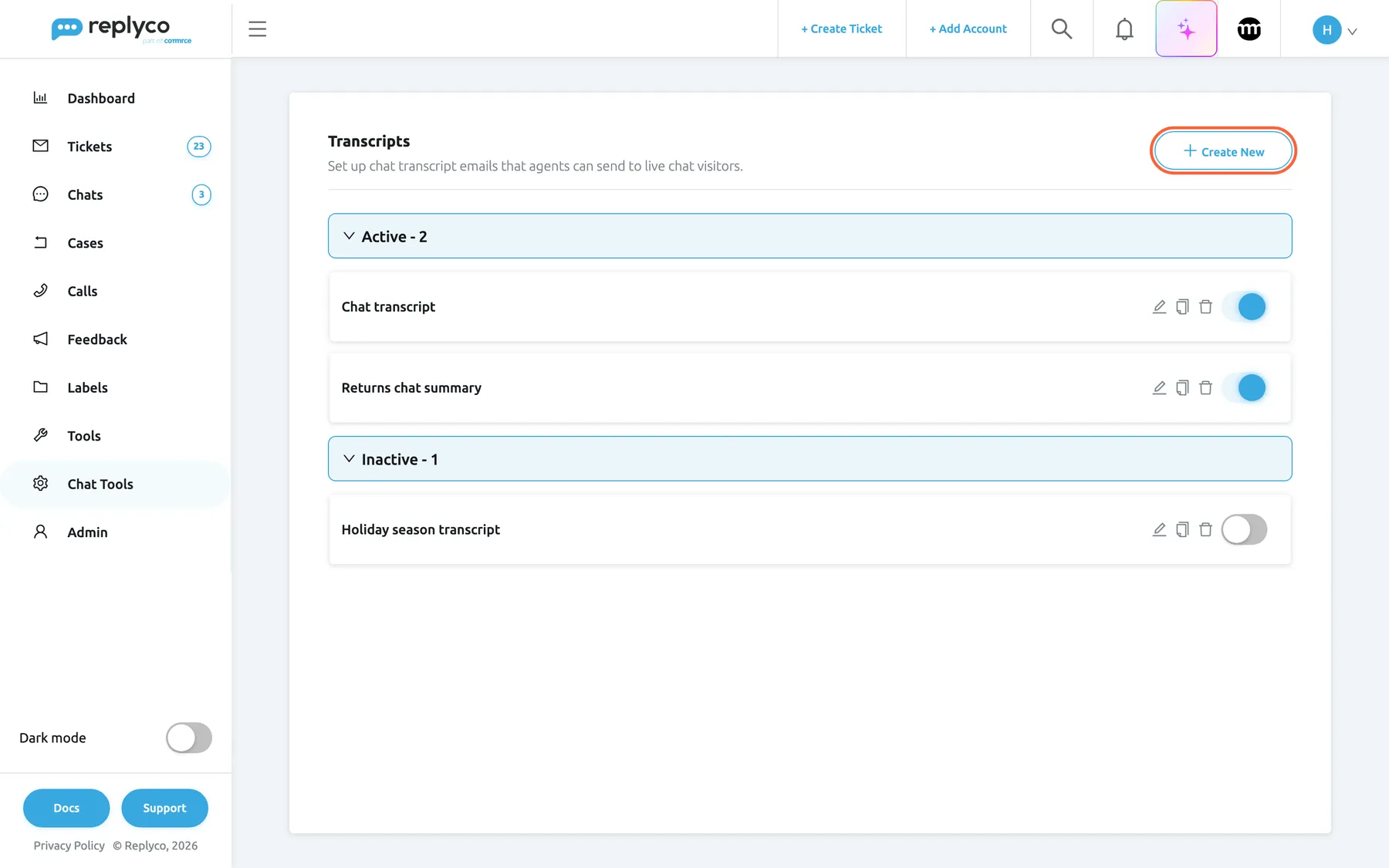
What this screenshot shows
- Screen
- Transcripts (/transcripts)
- Highlighted
- button “Create New”, header-right, enabled. opens the Create Transcript form
- Also visible
- Active - 2: Chat transcript, Returns chat summary; Inactive - 1: Holiday season transcript; edit, copy, delete and switch on each card
- Purpose
- the transcript list as it opens
| Region | What it shows | What you do there |
|---|---|---|
| Header, top | The heading Transcripts, a description and Create New | Start a new transcript |
| Active group | Every transcript that is switched on and offered in live chats, with the count | Open, edit, copy, delete, switch off |
| Inactive group | Every transcript that is switched off, with the count | Switch transcripts on or clean up |
| Edit panel, right (after a click) | The form Edit Transcript or Create Transcript | Change and save a transcript |
A group appears only when it has transcripts. With none at all, the list reads No Transcripts found..
See your transcripts and open one
Section titled “See your transcripts and open one”The list shows the transcript names, sorted by name when the screen opens, in the Active and Inactive groups. Each group header shows its count, for example Active - 2, and folds the group away when you select it.
Select a transcript’s name to open it: the list moves to the left and the edit panel opens on the right, with every field of the transcript ready to change. The cross in the panel’s corner, or Cancel, closes it without saving.
Create a transcript
Section titled “Create a transcript”- Select Create New in the top right corner. The panel Create Transcript opens on the right.
- Enter a Name. Agents choose transcripts by this name in the chat, so say what it is for, for example Returns chat summary.
- Choose the account under Account to send Transcripts from; see Choose the account to send from.
- Enter the Subject of the email, for example Your return with Northwind Electronics.
- Write the Greeting, the first thing the customer reads, as a heading above the conversation.
- (Optional) Switch on Include Conversation Page information.
- Select Save.
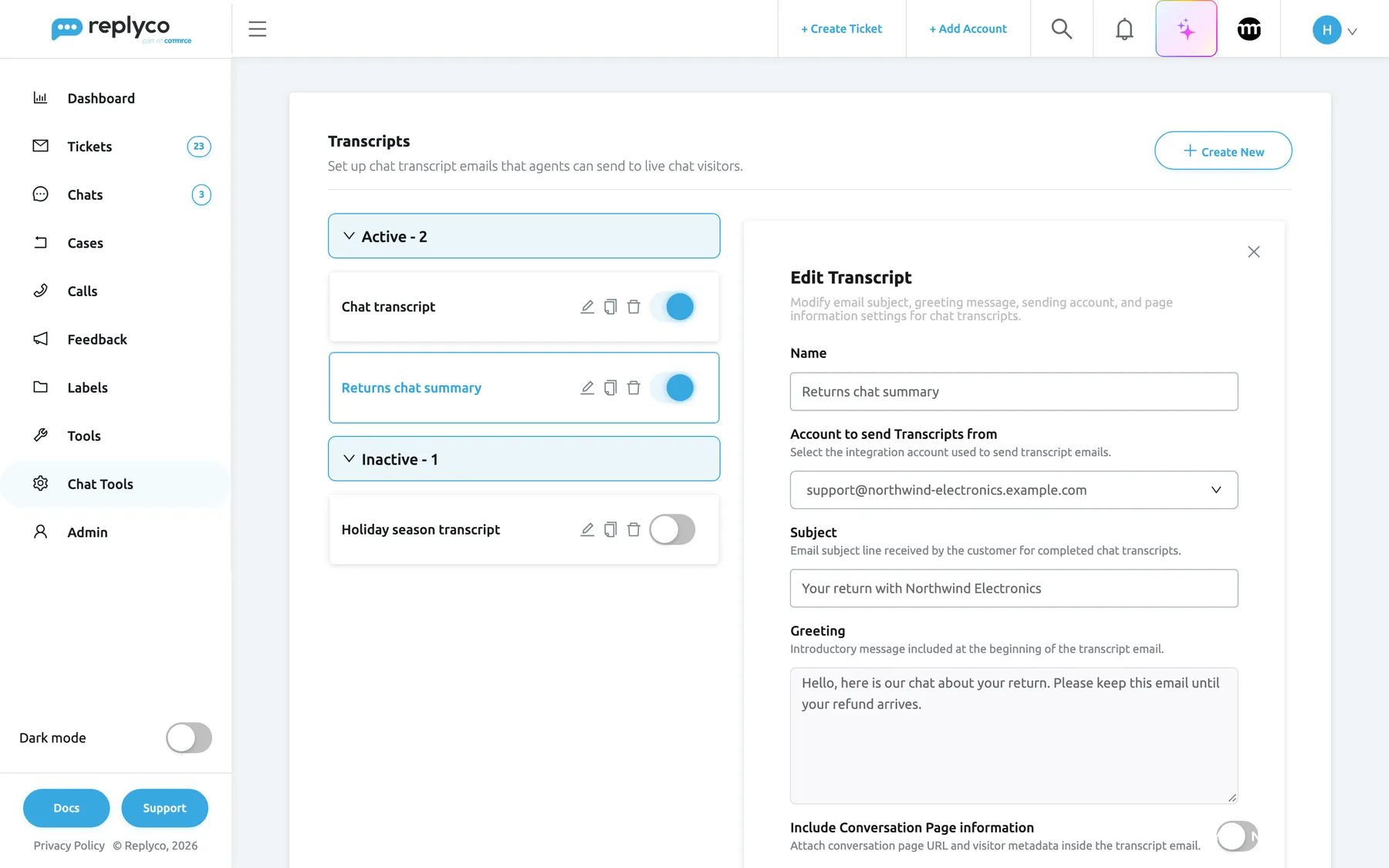
What this screenshot shows
- Screen
- Edit Transcript (/transcripts)
- Highlighted
- button “Save”, edit-panel, enabled. validates and saves the transcript
- Also visible
- Name; Account to send Transcripts from: the support mailbox; Subject; Greeting; Include Conversation Page information: off; Cancel
- Purpose
- create or change a transcript
The panel closes at once and Replyco saves the transcript switched on, showing Success. The new transcript is added at the end of the Active group, and agents can send it from live chats straight away.
Nothing is saved when a check fails, and a message appears in the top right corner:
| Message | Cause |
|---|---|
| All fields must be completed. | The name, the account, the subject or the greeting is empty or contains only spaces |
| The Transcript Name can't be more than 150 characters | The name is longer than 150 characters |
| The Transcript Subject can't be more than 300 characters | The subject is longer than 300 characters |
| The Transcript Greeting can't be more than 1000 characters | The greeting is longer than 1,000 characters |
Choose the account to send from
Section titled “Choose the account to send from”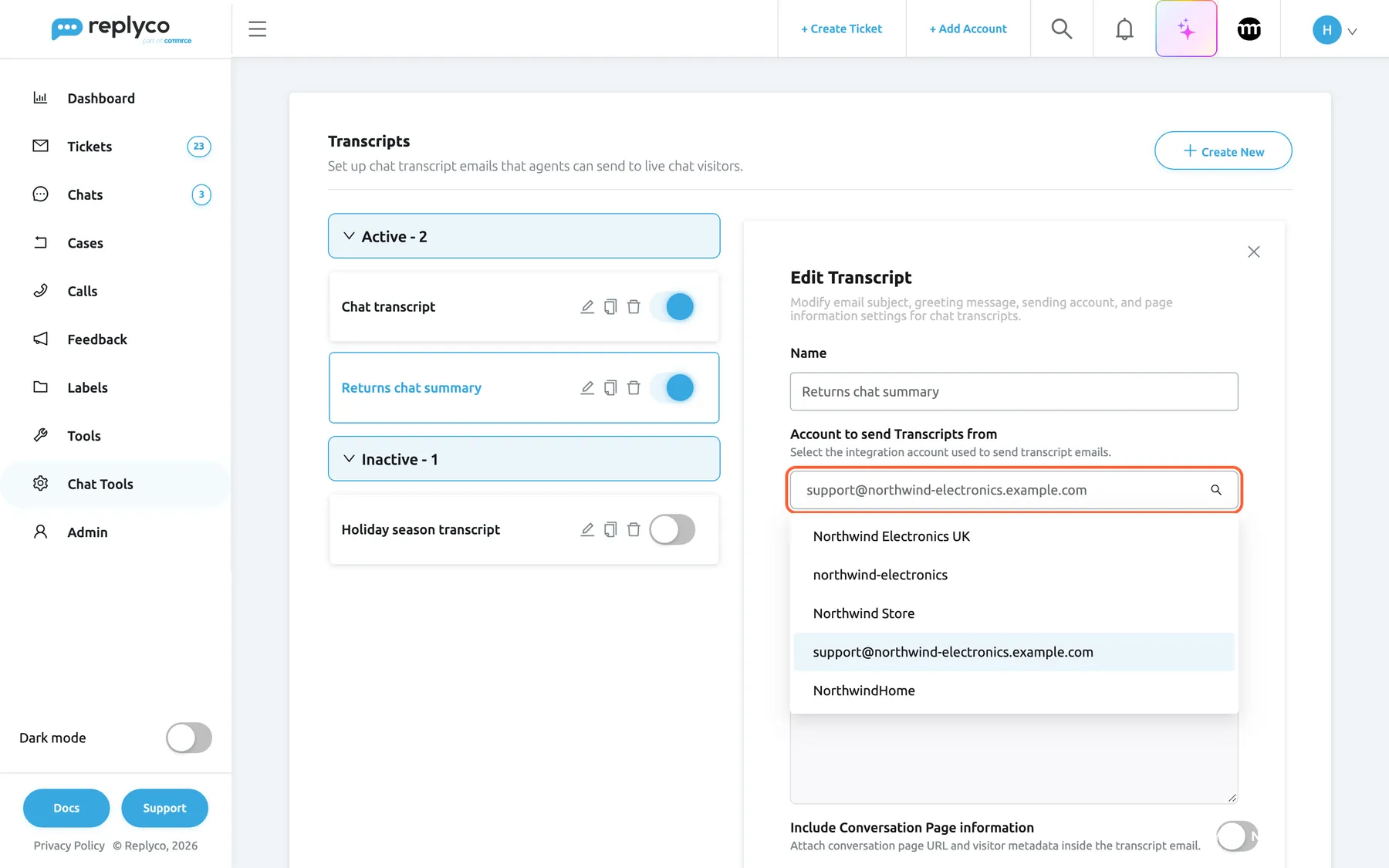
What this screenshot shows
- Screen
- Edit Transcript (/transcripts)
- Highlighted
- combobox “Account to send Transcripts from”, edit-panel, open. chooses the account the transcript is sent from
- Also visible
- Amazon, eBay, Shopify, mailbox and Etsy accounts; the support mailbox selected; no chat accounts
- Purpose
- choose the sending account
Account to send Transcripts from lists the accounts that can send replies in tickets: marketplaces, webstores and mailboxes. Chat accounts are not in the list. Replyco sends the transcript through the account you choose here, as a new ticket addressed to the chat’s customer.
Choose the mailbox your customers know, such as support@northwind-electronics.example.com. The transcript is an email to the address the visitor gave in the live chat, and a mailbox is the account that writes to an email address. Marketplace and shop accounts are offered too, but they are meant for their own buyers’ messages.
What the customer receives
Section titled “What the customer receives”When an agent sends a transcript, the customer receives an email from the chosen account with the transcript’s Subject. It contains, from top to bottom:
| Part | What it shows |
|---|---|
| Picture | The profile picture of the agent who answered the chat |
| Heading | The Greeting |
| Intro line | “Here’s your chat transcript”, followed by the address of the page the chat started on when Include Conversation Page information is on |
| Conversation | Every text message of the chat, oldest first, each with its date and time |
| Button | “Visit website”, linking to the page the chat started on, when Include Conversation Page information is on |
Pictures, files and voice messages are left out; only text messages are included.
Example: Grace Mitchell asks in the Northwind live chat whether she can still change her delivery address, and Laura Graf confirms the change. Laura sends Chat transcript: Grace receives Your chat with Northwind Electronics from the support mailbox, headed Hello, here is a copy of your chat with us., with the three messages and a link back to the shop page she chatted from.
Send a transcript from a live chat
Section titled “Send a transcript from a live chat”A transcript is sent from the chat itself, under Chats. The three-dot icon appears next to the chat’s title only on live chats, and only when at least one transcript is switched on.
- Open the live chat and select the three-dot icon next to the chat’s title. The dialog Transcript opens.
- Under Choose Transcript to Send, open Select a Transcript and pick a transcript.
- Select Send Transcript, or the arrow next to it and Transform Into a Ticket.
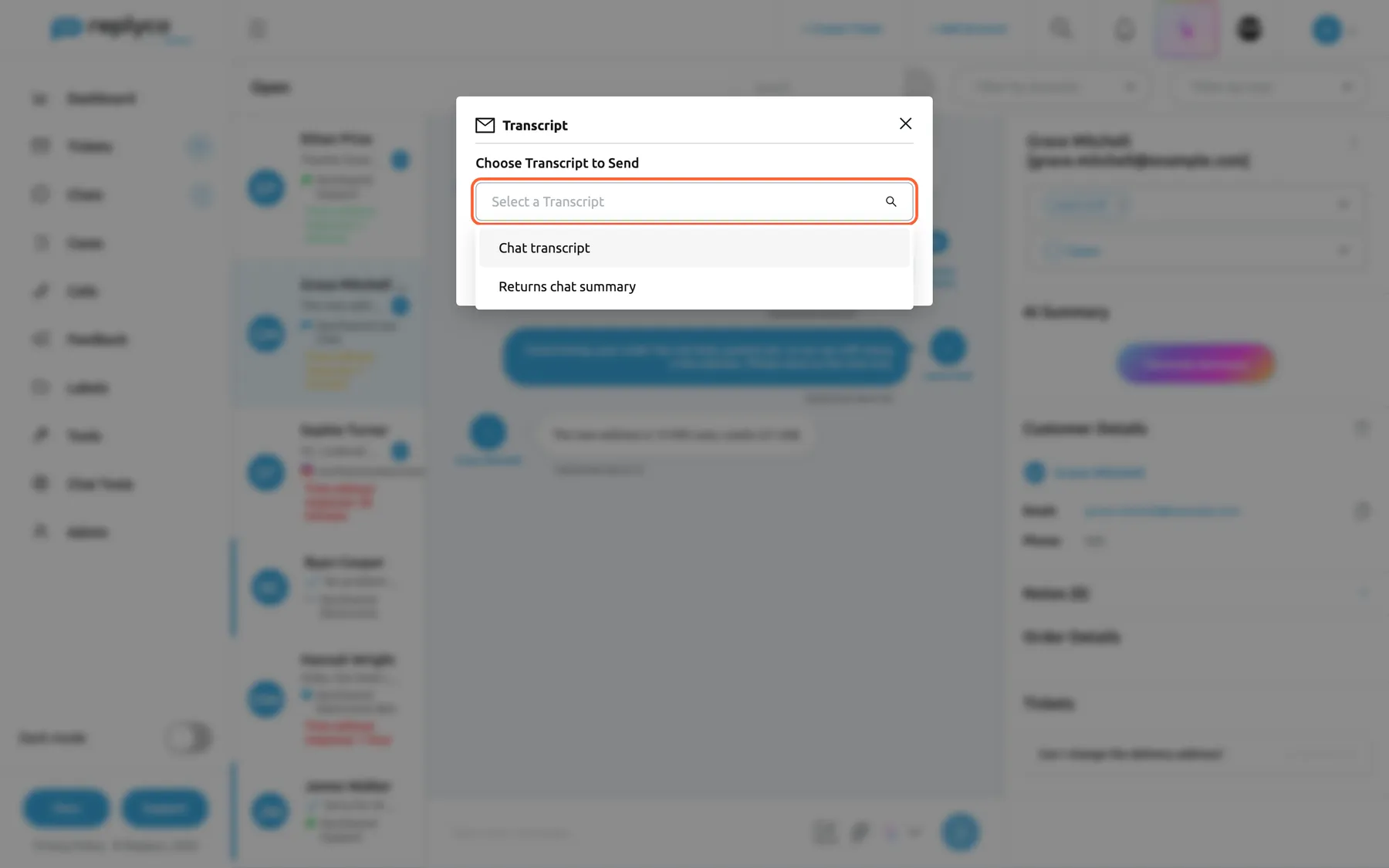
What this screenshot shows
- Screen
- Open (/chats/:type/:chatId)
- Highlighted
- combobox “Select a Transcript”, dialog, open. chooses the transcript to send
- Also visible
- dialog Transcript; Choose Transcript to Send; 2 active transcripts; the switched-off transcript is missing
- Purpose
- send a transcript from a live chat
- Send Transcript emails the conversation to the customer straight away as a new ticket on the transcript’s account, assigned to you. Replyco shows Success, closes the dialog and adds the internal note Chat Transcript was successfully sent to the chat.
- Transform Into a Ticket opens Create Ticket with the transcript’s account as the sender, its subject, and the conversation in the editor. You can change the text before you send it.
Without a transcript picked, both show Please select a Transcript.. The transcript contains the chat up to the moment you send it; messages that arrive later are not added.
Edit a transcript
Section titled “Edit a transcript”Select the transcript’s name, or the pencil icon on its card. Change the fields in the panel Edit Transcript and select Save. The change applies to the next transcript an agent sends; transcripts already sent stay as they were in their tickets. Editing keeps the transcript switched on or off as it was.
Copy a transcript
Section titled “Copy a transcript”Select the copy icon on a card. The panel Create Transcript opens filled with the original’s fields and account, with (copy) added to the end of the name. Save creates a new transcript, switched on like any new one, and leaves the original unchanged.
Switch a transcript off or on
Section titled “Switch a transcript off or on”The switch on each card turns a transcript off or on. It saves at once, shows Success and moves the card to the other group. A switched-off transcript keeps all its settings but is not offered in live chats. When every transcript is switched off, the three-dot icon disappears from live chats.
Delete a transcript
Section titled “Delete a transcript”Select the bin icon on a card and confirm Are you sure you want to delete this item? with Yes. The transcript is deleted for good. Tickets already created with it keep their email. Transcripts keep no history of who changed them.
Every control, explained
Section titled “Every control, explained”The screen has a list and an edit panel on the right; the dialog in the chat sends a transcript.
Create New
Section titled “Create New”Top right corner of Chat ToolsTranscripts, next to the heading Transcripts.
Opens the empty panel Create Transcript on the right. The header stays visible while the panel is open.
Start a transcript from scratch; to start from an existing one, use the copy icon.
Group headers
Section titled “Group headers”Above each group: Active and Inactive, each followed by the number of transcripts.
Selecting the header folds the group away or opens it. There are no check boxes and no bulk actions on this screen.
Fold away the switched-off transcripts while you work on the others.
Transcript card
Section titled “Transcript card”| Control | What it does | Why |
|---|---|---|
| Name | Opens the edit panel | Check or change a transcript |
| Pencil icon | Opens the edit panel | The same, from the icon |
| Copy icon | Opens a filled panel that saves as a new transcript, with (copy) added to the name | Write a variant, for example for a season |
| Bin icon | Asks Are you sure you want to delete this item? and deletes on Yes | Remove transcripts nobody sends |
| Switch | Switches the transcript on or off; saves at once | Offer or hide it in live chats |
First field of the edit panel.
The name agents see in the chat’s transcript dialog and that sorts the list. Required; at most 150 characters. The customer never sees it.
Agents pick by name in the chat; say what the email is for.
Account to send Transcripts from
Section titled “Account to send Transcripts from”Second field of the edit panel, a single select.
The account the transcript is sent through, as a new ticket. Lists the accounts that can send replies in tickets; chat accounts are not offered. Required.
The customer sees this sender; a known support address is trusted and gets replies back into Replyco.
Subject
Section titled “Subject”Third field of the edit panel.
The subject of the email and of the ticket Replyco creates. Required; at most 300 characters.
A clear subject, with your shop’s name, helps the customer find the email later.
Greeting
Section titled “Greeting”Fourth field of the edit panel, a text area.
The heading of the email, above the conversation. Required; at most 1,000 characters.
Say why the customer gets the email and what to keep it for, such as a refund.
Include Conversation Page information
Section titled “Include Conversation Page information”Last field of the edit panel, a switch with Yes and No. Off by default.
On: the email includes the address of the page the chat started on, with a “Visit website” button. Saved with the transcript.
The customer sees where the conversation took place and can go back to that page.
Cancel and Save
Section titled “Cancel and Save”At the bottom of the edit panel.
Save checks the fields, closes the panel and saves. Cancel closes the panel without saving and without asking.
Keep what you meant to change; leave when you opened the wrong transcript.
The transcript dialog in a live chat
Section titled “The transcript dialog in a live chat”| Control | What it does | Why |
|---|---|---|
| Three-dot icon next to the chat’s title | Opens the dialog Transcript; shown on live chats when a transcript is switched on | Start sending |
| Select a Transcript | Lists the transcripts that are switched on, with a search | Pick the right email |
| Send Transcript | Emails the conversation as a new ticket assigned to you and notes it in the chat | Send in one step |
| Transform Into a Ticket (arrow) | Opens Create Ticket filled with the transcript | Edit the email before sending |
Who sees what
Section titled “Who sees what”| Part | What shows it |
|---|---|
| Chat ToolsTranscripts in the sidebar | The Transcripts permission in the Chat Tools section of the user’s permissions |
| Saving, copying, switching and deleting transcripts | The edit level of that permission; otherwise You don't have enough rights |
| The three-dot icon in a chat | Live chats, when at least one transcript is switched on; every user who can open the chat |
The Admin and Moderator presets in Users do not include the Transcripts permission; an admin ticks it for each person who should manage transcripts.
What you need to know
Section titled “What you need to know”| Topic | Fact |
|---|---|
| What a transcript is | An email setup: name, sending account, subject, greeting |
| Channels | Live chats from your website widget only |
| Sending | Only by an agent, from the chat; nothing is sent automatically |
| Limits | Name 150, subject 300, greeting 1,000 characters |
| Email content | Greeting, text messages with their times, the chat’s page; files left out |
| Result | A new ticket on the sending account, assigned to the sender, and a note in the chat |
| Sorting | By name when the screen opens; no search, filters or export |
| History | None for transcripts |
Frequently asked questions
Section titled “Frequently asked questions”General
Section titled “General”What is a chat transcript in Replyco?
Section titled “What is a chat transcript in Replyco?”A transcript is an email that sends a live chat conversation to the customer. Under Chat ToolsTranscripts you set up its name, the account it is sent from, its subject and its greeting; an agent then sends it from the live chat with the three-dot icon next to the chat’s title.
Does Replyco send transcripts automatically when a chat ends?
Section titled “Does Replyco send transcripts automatically when a chat ends?”No. A transcript goes out only when an agent sends it from a live chat with Send Transcript, the three-dot icon next to the chat’s title. Closing a chat sends nothing.
Can I send a transcript of a WhatsApp or Messenger chat?
Section titled “Can I send a transcript of a WhatsApp or Messenger chat?”No. The three-dot icon that opens the Transcript dialog appears only on live chats from your website widget. For other chats, copy the important details into an email or a ticket by hand, for example with Create Ticket.
Setting up
Section titled “Setting up”Which account should I send transcripts from?
Section titled “Which account should I send transcripts from?”Choose the mailbox your customers know, such as your support address, under Account to send Transcripts from. The transcript is an email to the address the visitor gave in the live chat, sent through that account as a new ticket, so the customer’s answer comes back to the same mailbox in Replyco.
Why won’t Replyco save my transcript?
Section titled “Why won’t Replyco save my transcript?”All fields must be completed. means the name, the account, the subject or the greeting is empty. The other messages name the limit that was passed: 150 characters for the name, 300 for the subject and 1,000 for the greeting. Shorten the field and select Save again.
Sending
Section titled “Sending”Why is there no three-dot icon in my chat?
Section titled “Why is there no three-dot icon in my chat?”The icon next to the chat’s title appears only on live chats, and only when at least one transcript is switched on under Chat ToolsTranscripts. Switch one on, then reload the chat.
What is the difference between the two ways to send a transcript?
Section titled “What is the difference between the two ways to send a transcript?”Send Transcript emails the conversation at once, as a new ticket assigned to you, and notes it in the chat. Transform Into a Ticket opens Create Ticket with the transcript’s account, subject and conversation filled in, so you can change the text before you send it yourself.
Where do I find a transcript after sending it?
Section titled “Where do I find a transcript after sending it?”Replyco creates a new ticket on the transcript’s account, with the transcript’s subject, for the chat’s customer, and assigns it to you; it appears in your ticket lists like any other ticket. The chat itself gets the internal note Chat Transcript was successfully sent.
What the customer sees
Section titled “What the customer sees”Does the transcript include pictures and files from the chat?
Section titled “Does the transcript include pictures and files from the chat?”No. The transcript email contains only the text messages of the chat, oldest first, each with its date and time. Pictures, files and voice messages sent in the chat are left out, so send important files again as attachments if the customer needs them.
Can I write the transcript in German?
Section titled “Can I write the transcript in German?”Yes. You can write the Subject and the Greeting in any language, for example German for your German customers, and the chat messages appear as the customer and your team wrote them.
Troubleshooting
Section titled “Troubleshooting”| Symptom | What to check |
|---|---|
| No three-dot icon in a chat | 1. The chat is a live chat from your website widget. 2. At least one transcript is switched on. 3. Reload the chat after switching one on. |
| Please select a Transcript. in the chat | Pick a transcript under Select a Transcript before you select a button. |
| The customer did not receive the email | Check the ticket Replyco created on the transcript’s account for a sending error, and that Account to send Transcripts from is a mailbox. |
| You don't have enough rights when saving | Under Users, the user has the edit level of Transcripts in the Chat Tools section. |
| Pictures from the chat are missing in the email | Transcripts contain text messages only; send the files separately. |
Related
Section titled “Related”- Chat list and conversations: the transcript dialog in a chat
- Live chat widget: the widget whose chats you can send
- Live Chat: the screen where widgets are set up
- Create Ticket: where the ticket option of the transcript dialog takes you
- Chat templates · Chat tools