

Connect Instagram
Connect your Instagram account and every Instagram Direct message a customer sends it arrives in Replyco as a chat; your replies go back to the customer on Instagram. Instagram connects through the Facebook page it is linked to: you prepare the link between the two in Facebook and Instagram, then sign in with Facebook and allow Replyco’s access. Replyco adds one account for each chosen page that has an Instagram business account, named after that Facebook page.
Before you start
Section titled “Before you start”| You need | Where it lives |
|---|---|
| The Admin permission in Replyco | AdminUsers; see Invite users and set what they can do |
| An Instagram professional (business) account | The Instagram app, under your account settings |
| A public Facebook page linked to that Instagram account | The page’s settings in Facebook, on the Instagram tab |
| A Facebook login that manages the page, with full control of it | The page’s settings in Facebook, under Page access |
| A free account on your plan for each page | AdminBilling; see Billing |
Availability: every plan.
-
Select + Add Account in the top bar and scroll down to Social Media and Phone Accounts.
The Add Account page lists every channel Replyco connects; to connect another one, see Add Account.
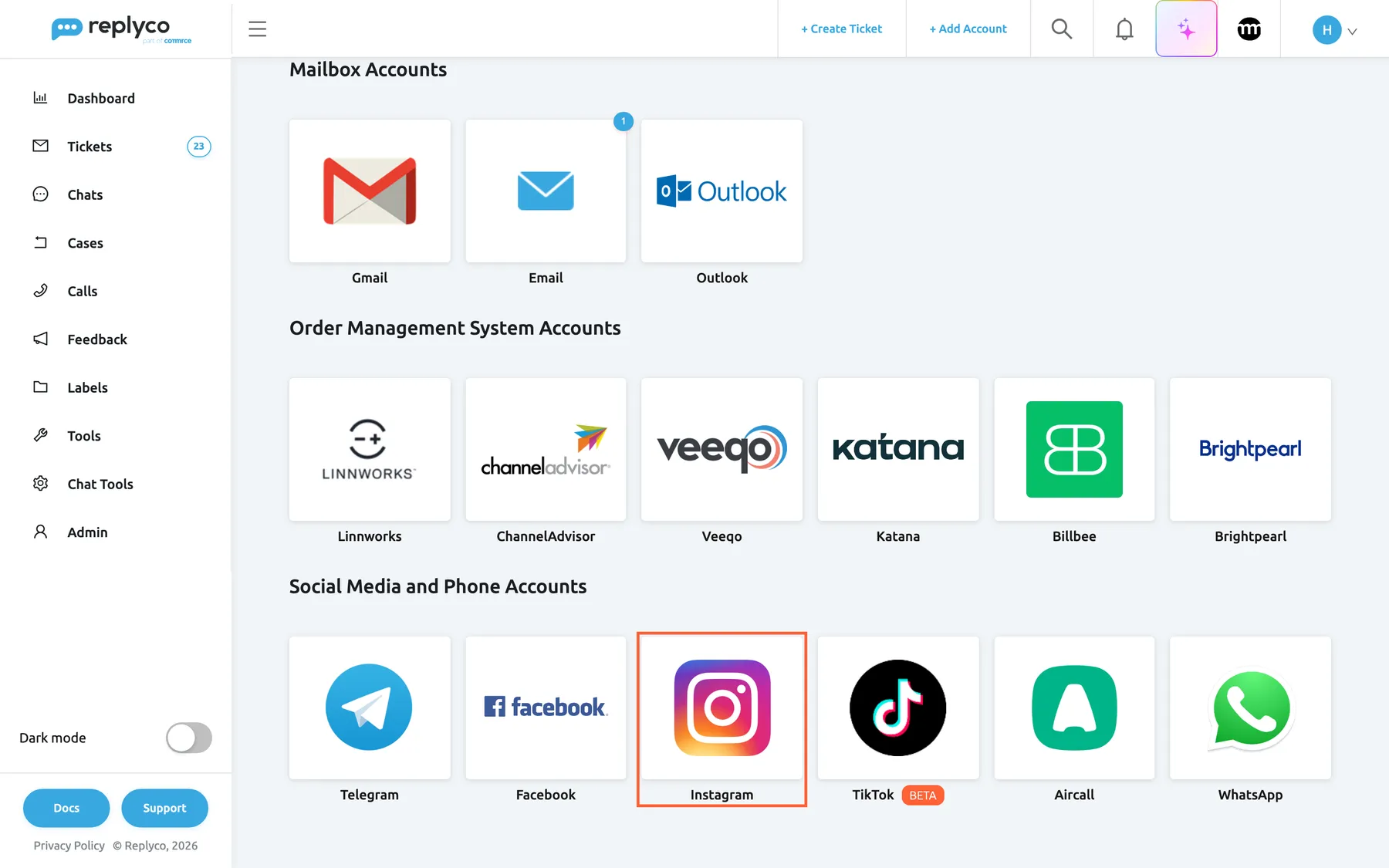
Instagram has its own tile under Social Media and Phone Accounts. What this screenshot shows
- Screen
- Add Account (/integrations/add)
- Highlighted
- button “”, social-media-and-phone-tiles, enabled. opens the Instagram connect dialog
- Also visible
- Mailbox Accounts and Order Management System Accounts above; Telegram, Facebook, Instagram, TikTok (BETA), Aircall, WhatsApp tiles
- Purpose
- start connecting Instagram
-
Select the Instagram tile. The dialog Authorize Replyco to sync with Instagram opens at its first step, AUTHORIZE, with How to connect your company's Instagram Direct to the Replyco app and pictures of each setting.
-
In Facebook, link the Instagram account to the page, if it is not linked yet. Open the page and select Settings at the bottom of its menu.
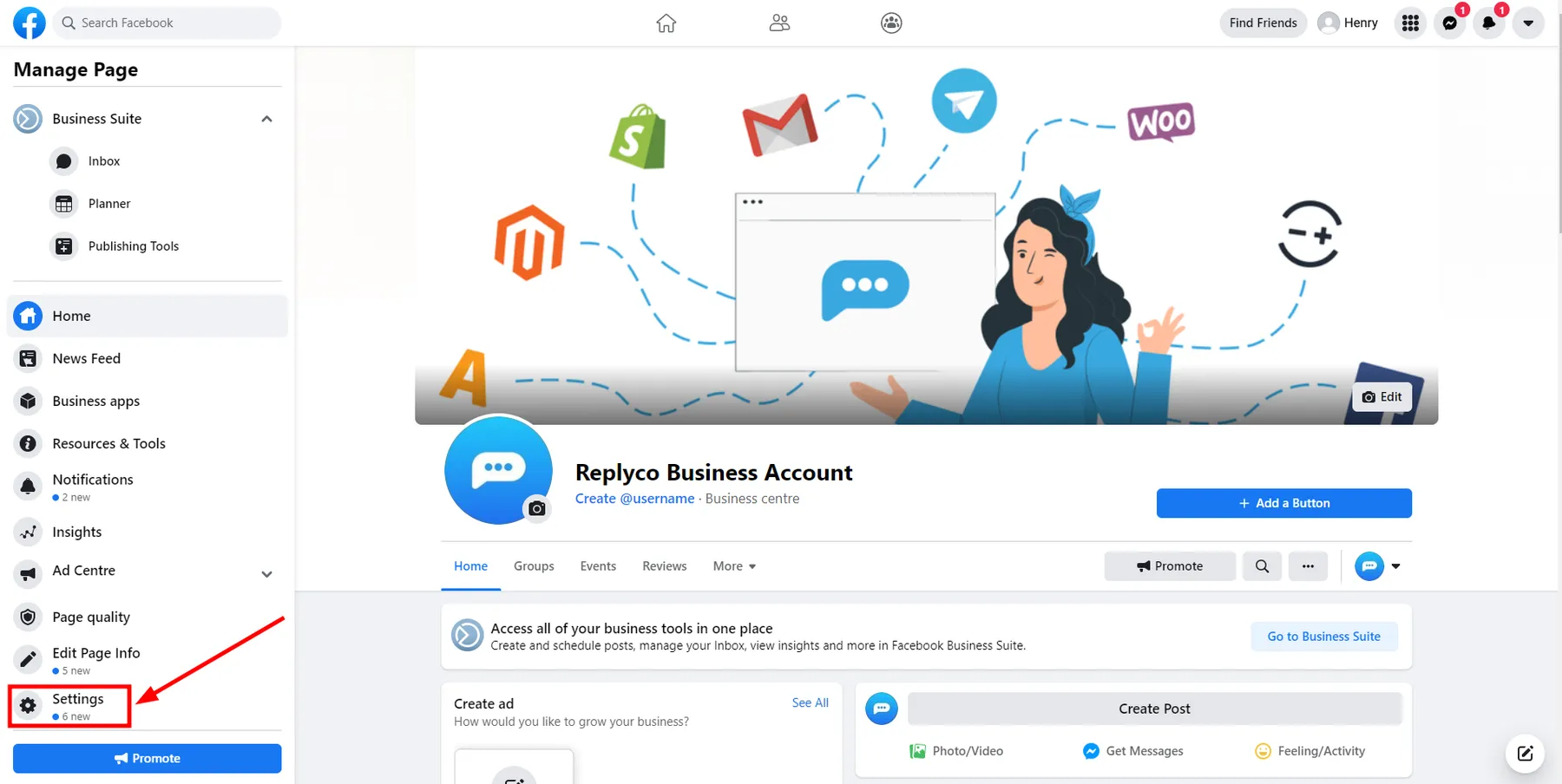
Open the page's settings from "Settings" at the bottom of the page's menu. What this screenshot shows
- Screen
- ()
- Highlighted
- “”, , .
- Also visible
- Manage Page menu; Settings, framed in red, with an arrow
- Purpose
On the Instagram tab of the page settings, select Connect Account.
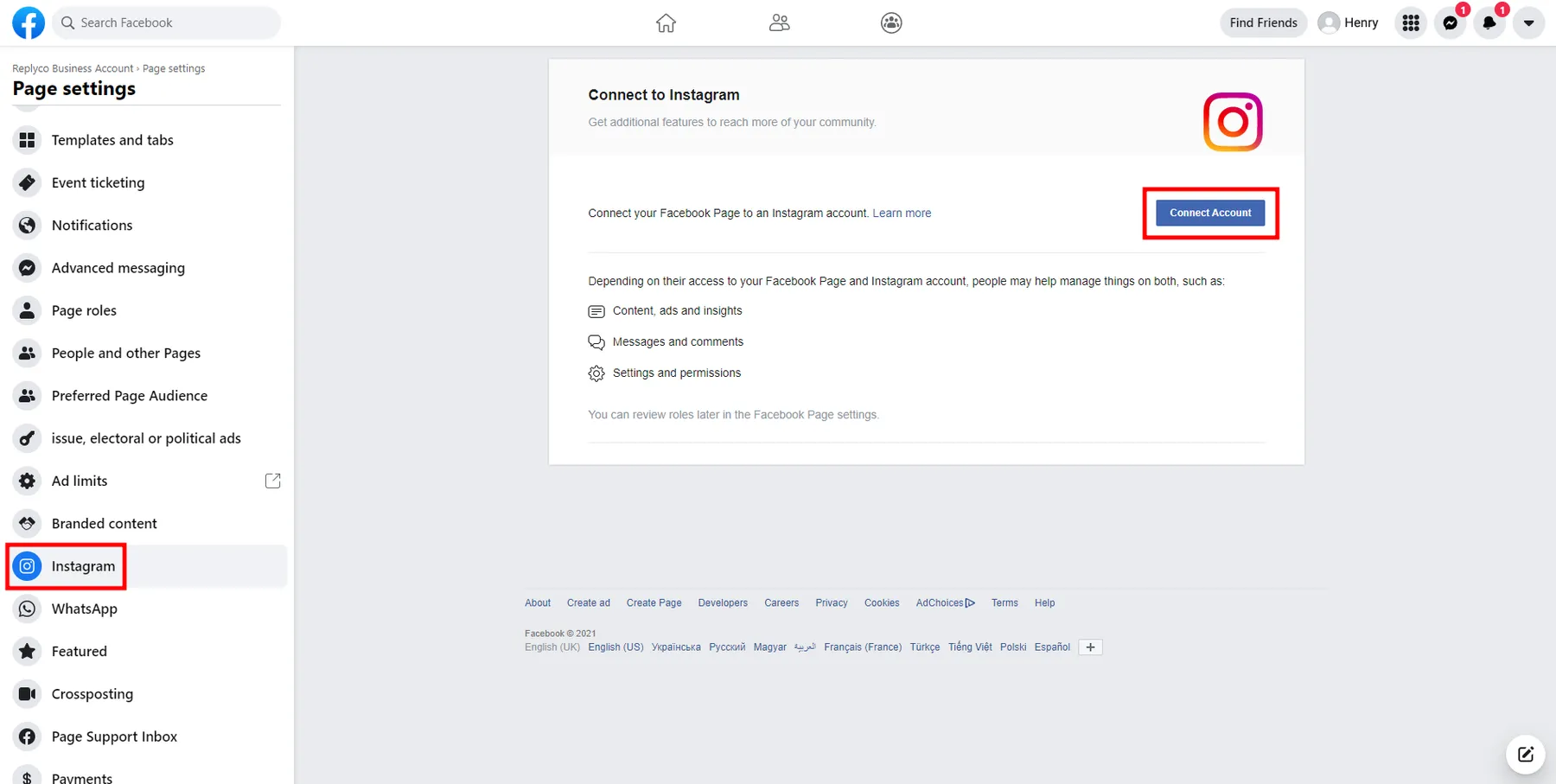
On the Instagram tab of the page settings, "Connect Account" links the Instagram account to the page. What this screenshot shows
- Screen
- ()
- Highlighted
- “”, , .
- Also visible
- Instagram tab, framed in red; Connect to Instagram; Connect Account button, framed in red
- Purpose
Switch on Allow access to Instagram messages in Inbox and select Continue.
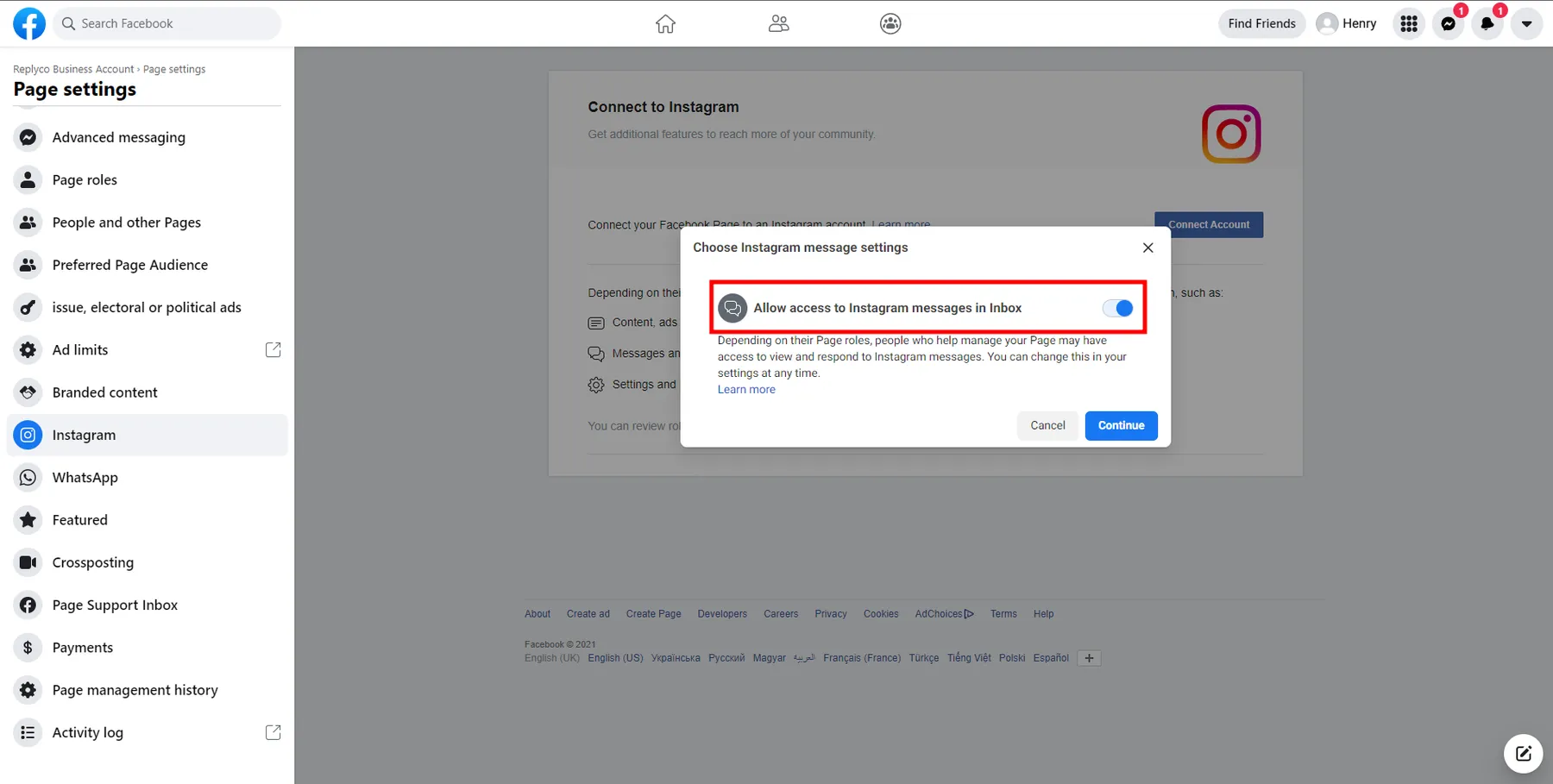
Keep "Allow access to Instagram messages in Inbox" switched on, then select "Continue". What this screenshot shows
- Screen
- ()
- Highlighted
- “”, , .
- Also visible
- Allow access to Instagram messages in Inbox, on, framed in red; Cancel; Continue
- Purpose
When the account is linked, select Review Connection and confirm with the Instagram account’s password. Once the link works, the page shows the details of your Instagram account.
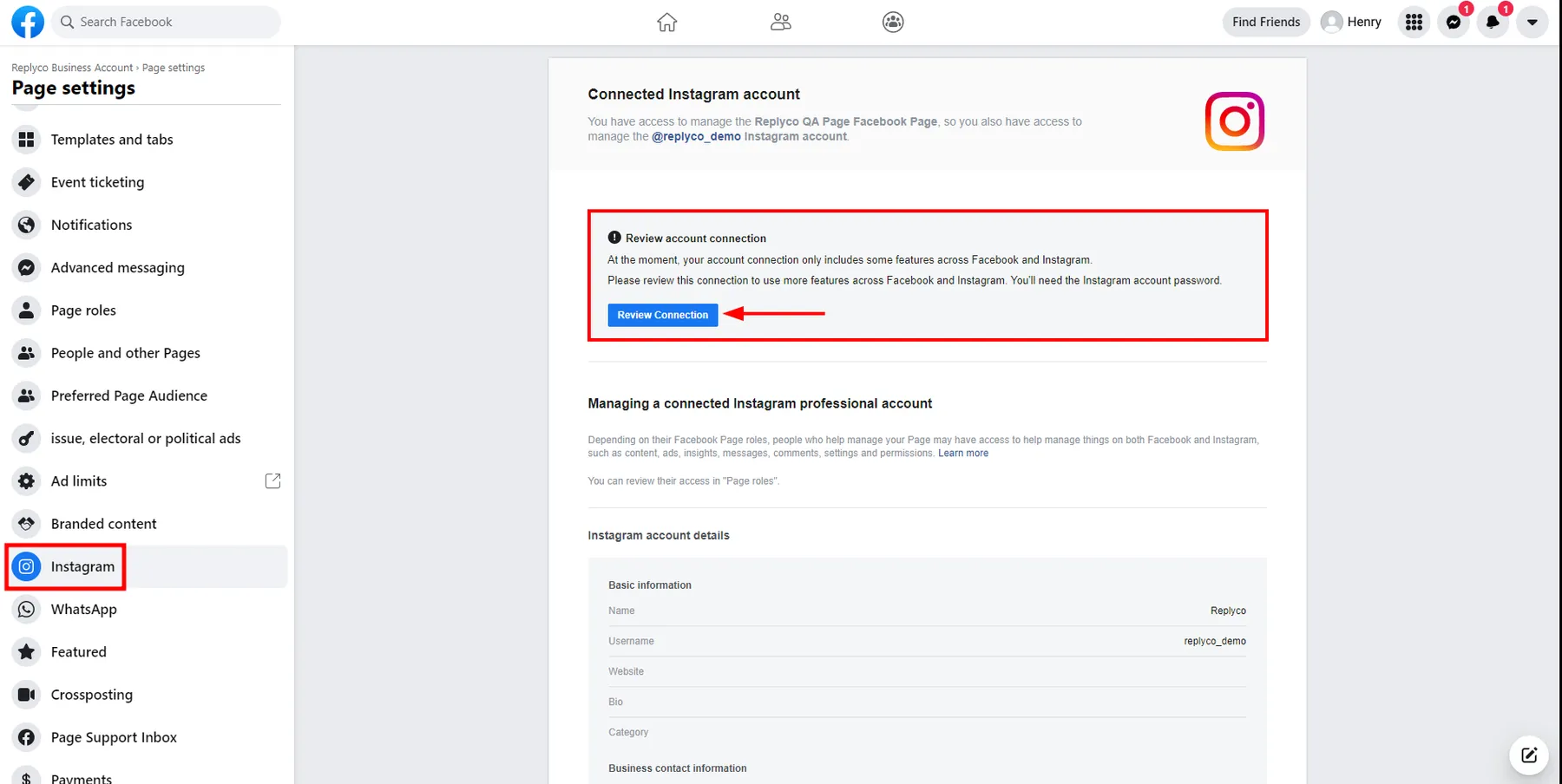
After linking, select "Review Connection" and confirm with the Instagram account's password. What this screenshot shows
- Screen
- ()
- Highlighted
- “”, , .
- Also visible
- Connected Instagram account; Review account connection, framed in red; Review Connection button with an arrow; Instagram account details
- Purpose
-
In the Instagram app on your phone, open Settings › Privacy › Messages and switch on Allow access to messages under connected tools.
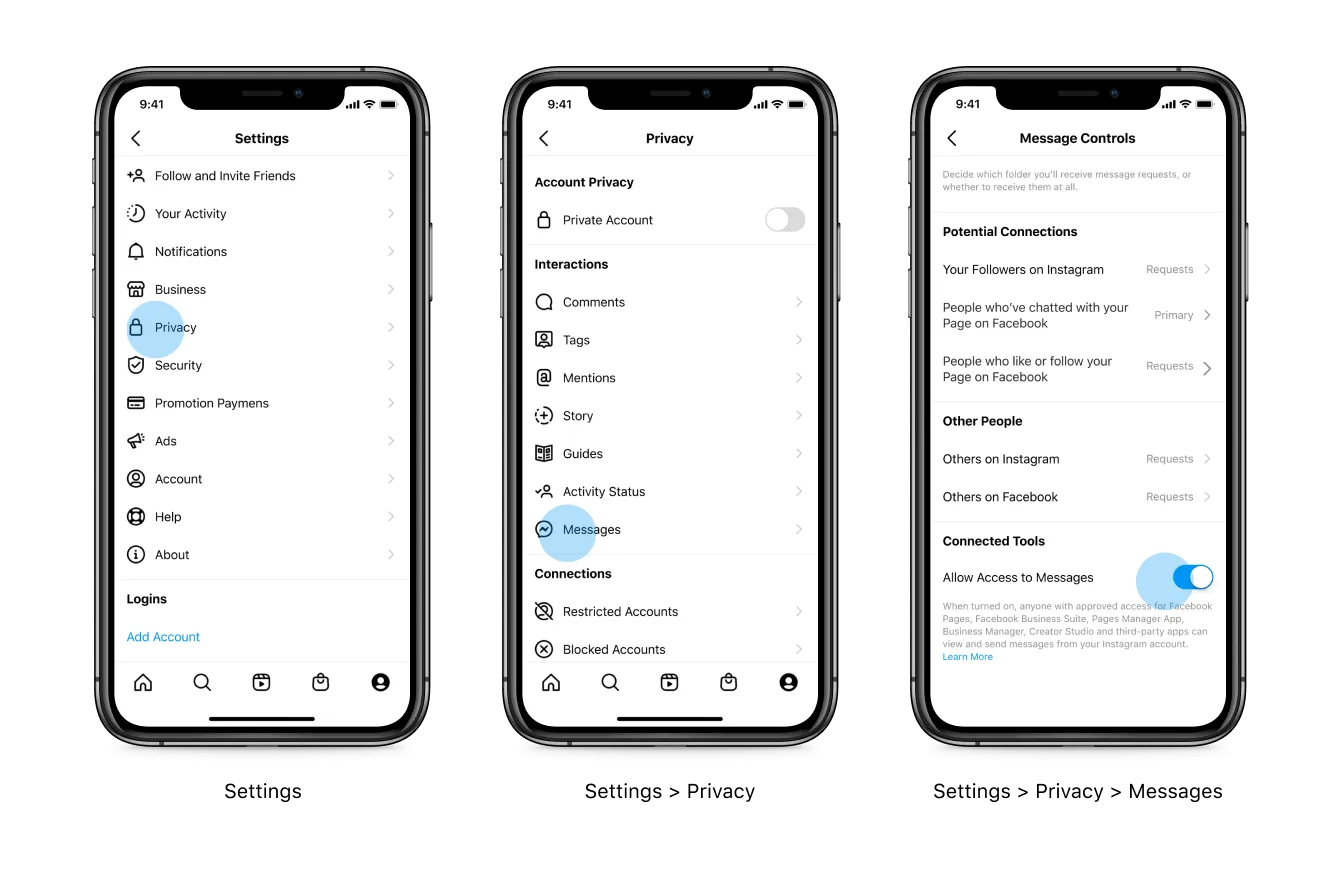
In the Instagram app, switch on "Allow Access to Messages" under Settings › Privacy › Messages. What this screenshot shows
- Screen
- ()
- Highlighted
- “”, , .
- Also visible
- Settings with Privacy marked; Privacy with Messages marked; Connected Tools › Allow Access to Messages, on
- Purpose
Without this setting, Instagram does not deliver Direct messages to Replyco, even when the connection itself succeeds.
-
Back in Replyco, select Authorize at the end of the dialog. Facebook opens in a new browser tab, and the dialog in the tab you started from moves on to FINISH.
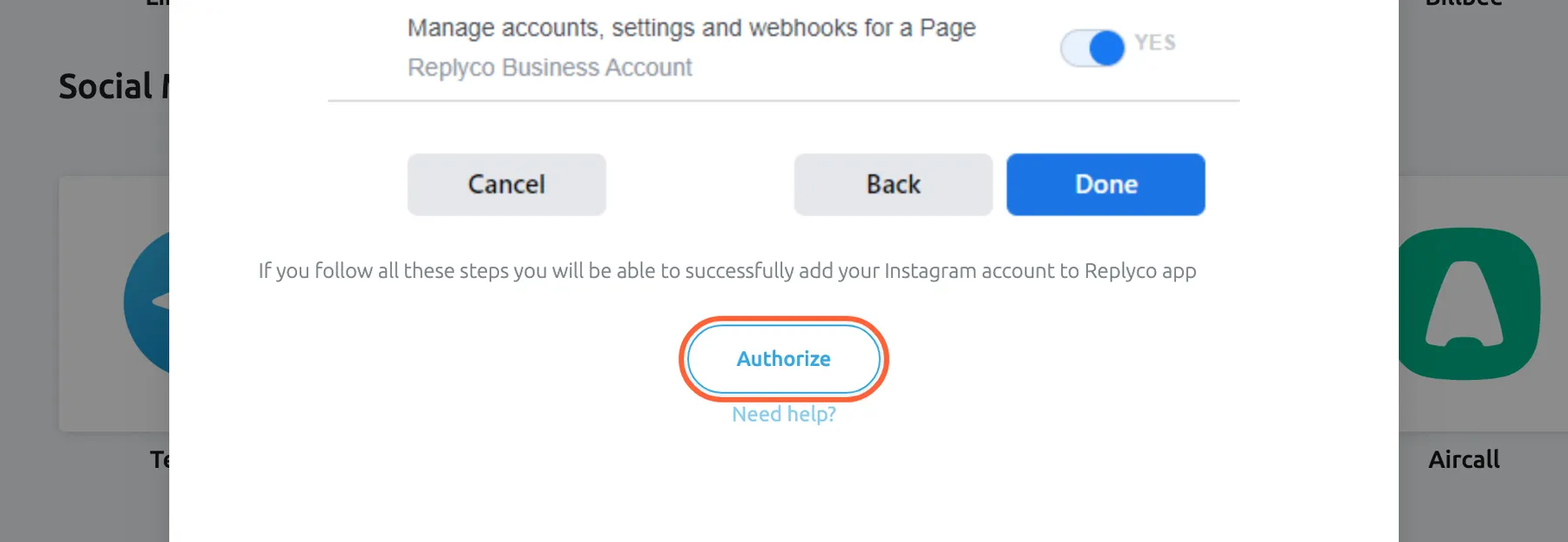
Authorize opens Facebook's sign-in; choose the page and its Instagram account and allow every permission. What this screenshot shows
- Screen
- Authorize Replyco to sync with {{name}} (/integrations/add)
- Highlighted
- button “Authorize”, dialog-bottom, enabled. opens Facebook's permission dialog for Instagram in a new tab
- Also visible
- bottom of an instruction picture: Cancel, Back, Done; If you follow all these steps you will be able to successfully add your Instagram account to Replyco app; Need help? link
- Purpose
- start Facebook's sign-in for Instagram
-
In the Facebook tab, continue as yourself, then tick the Instagram account and, in the next step, the Facebook page it is linked to.
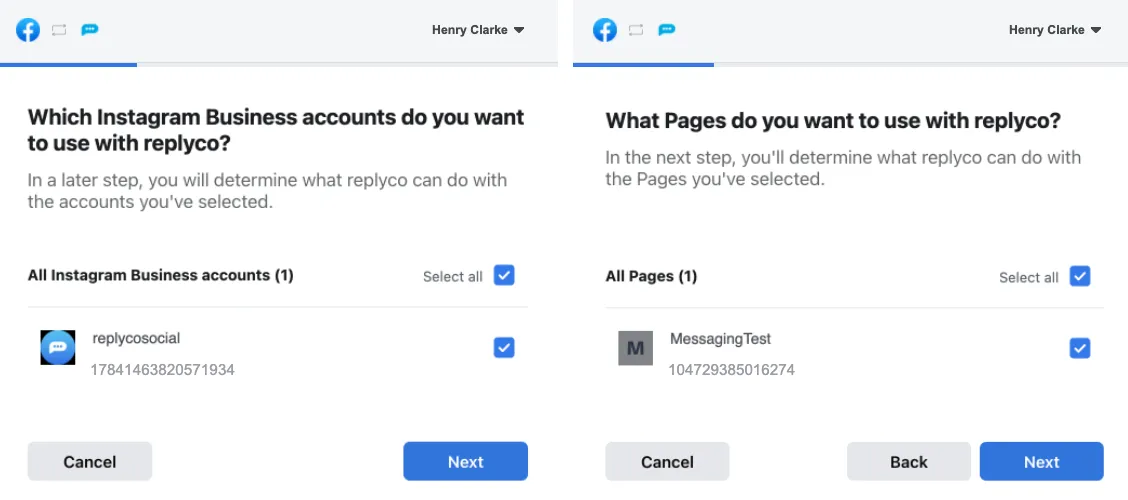
Tick the Instagram business account, then the Facebook page it is linked to. What this screenshot shows
- Screen
- ()
- Highlighted
- “”, , .
- Also visible
- Which Instagram Business accounts do you want to use with replyco?; What Pages do you want to use with replyco?; Select all, Cancel, Back, Next
- Purpose
Leave every permission switched on and select Done. Replyco asks for access to the Instagram account’s profile and messages, to the page’s Messenger conversations, to the list of pages you manage and to the page’s settings, which it needs to receive new messages.
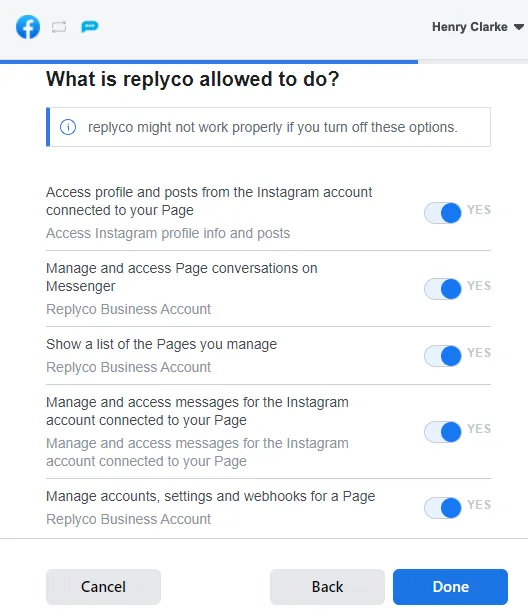
Leave all five permissions on YES and select "Done". What this screenshot shows
- Screen
- ()
- Highlighted
- “”, , .
- Also visible
- five permission switches, all YES; Cancel, Back, Done
- Purpose
-
Facebook returns you to Replyco in the same tab, which shows Validating Instagram account... and Please do not leave the page until the validation and data storage is complete...almost there. Replyco saves the account, confirms with Account successfully saved. and opens the home page. In the tab you started from, select Finish to close the dialog.
What happens next
Section titled “What happens next”The Instagram account appears on AdminAccounts under the name of its Facebook page. If you also connected that page for Messenger, the two accounts have the same name; the Account column tells them apart. To check or rename the account, see Accounts.
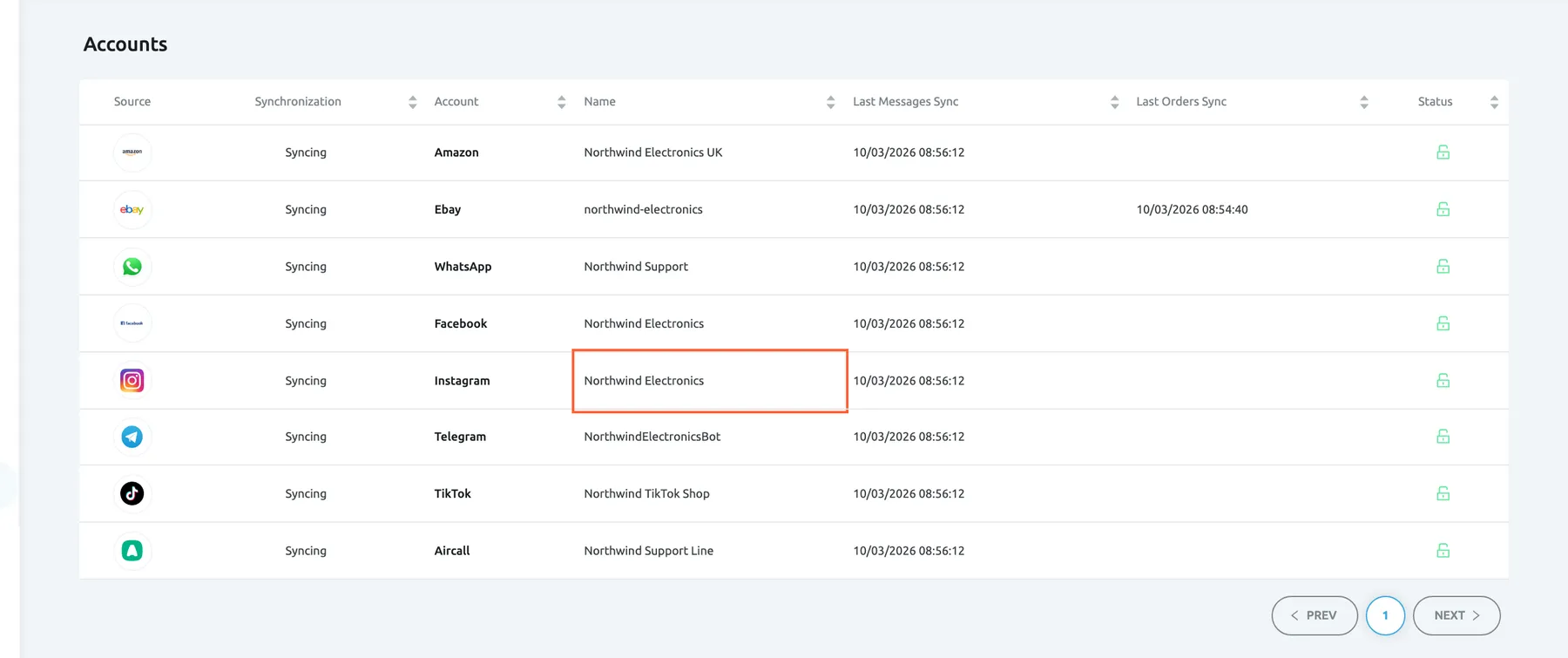
What this screenshot shows
- Screen
- Accounts (/integrations)
- Highlighted
- cell “”, table-fifth-row, enabled. opens the account's details
- Also visible
- 8 accounts, all Syncing, green open locks; Facebook and Instagram rows both named Northwind Electronics
- Purpose
- check that the Instagram account was connected
New Instagram Direct messages reach Replyco as they arrive and open or continue a chat under ChatsOpen; opening that list also fetches new conversations from Instagram. See Chat list and conversations. Every user of your company gets access to the new account, so its chats appear for everyone with the Chats permission; to decide who is responsible for them, see Invite users and set what they can do.
Instagram accepts an ordinary reply only within 24 hours of the customer’s last message, and it takes pictures as the only attachments; see Answer a chat. To greet Instagram customers automatically, see Auto-responses for chats.
If something goes wrong
Section titled “If something goes wrong”| Symptom | Check | Fix |
|---|---|---|
| “Didn’t find any connected Facebook page with Instagram business accounts” | None of the pages you chose has an Instagram business account linked to it. | Link the Instagram account to the page in the page’s settings, make sure it is a professional account, then start again from the Instagram tile. |
| Facebook returned you to the home page and no Instagram account was added | You cancelled in Facebook or refused the permissions. | Start again from the Instagram tile and leave every permission switched on. |
| The account is connected but no Instagram messages arrive | In the Instagram app, is Allow access to messages switched on? | Switch it on under Settings › Privacy › Messages. |
| The Instagram account is missing from AdminAccounts | Did you choose its page in Facebook? Does your own login have full control of the page? Is it already connected under the page’s name? | Add your login to the page with full control, then repeat the steps and choose the page. |
| “You reached your current plan maximum integrations count. Contact support for more info.” | Your plan has no free account; + Add Account is then also missing from the top bar. | Delete an account you no longer use, or change your plan on AdminBilling. |
| A reply to an Instagram chat is refused | Is the customer’s last message more than 24 hours old, or is the attachment not a picture? | See Answer a chat. |
| The Instagram account shows Blocked on AdminAccounts | Facebook no longer accepts Replyco’s access to the Instagram account’s page, for example after the access was removed in Facebook. Instagram accounts have no Re-login button, and connecting the same account again does not replace the existing one. | Contact support to restore the access; see Help and support. |