

The case screen
The case screen is where you answer one eBay case: a buyer’s return request, or an inquiry because an item has not arrived. It shows eBay’s history of the case, the actions eBay allows you right now, and beside them the buyer, the order, the refund amounts and your team’s notes, so you can settle the case without opening Seller Hub. Open it by selecting a row in Cases; see Case list. Everything you send from here goes to eBay and reaches the buyer there. How cases reach Replyco, how their deadlines work and what to do in which situation is in eBay cases.
What you can do here
Section titled “What you can do here”- Follow the case. A progress line shows the stages a return has passed, and one card per eBay history entry shows who did what and when, with the buyer’s comments. Follow the history of a case
- Answer a return with the actions eBay offers. The buttons are the ones eBay allows at this stage, such as approving the return, giving a label, refunding or writing to the buyer; hover one to read eBay’s description. Act on a return · eBay cases
- Give the buyer a return label from your company’s shipping-label library, or upload one for this case. Give the buyer a return label · Shipping Labels
- Refund the buyer, in full or in part. Refund the buyer
- Write to the buyer with your reply templates. Every comment and message box offers the eBay account’s templates and placeholders. Write to the buyer with a template · Reply templates
- Handle an item-not-received inquiry: close it, escalate it, refund in full, give tracking or write to the buyer. Act on an item-not-received inquiry
- See the case, the buyer and the order side by side in the right panel, including the related tickets of the same order. Read the case details
- Keep internal notes that the buyer never sees, and mention colleagues. Keep internal notes on a case
The screen at a glance
Section titled “The screen at a glance”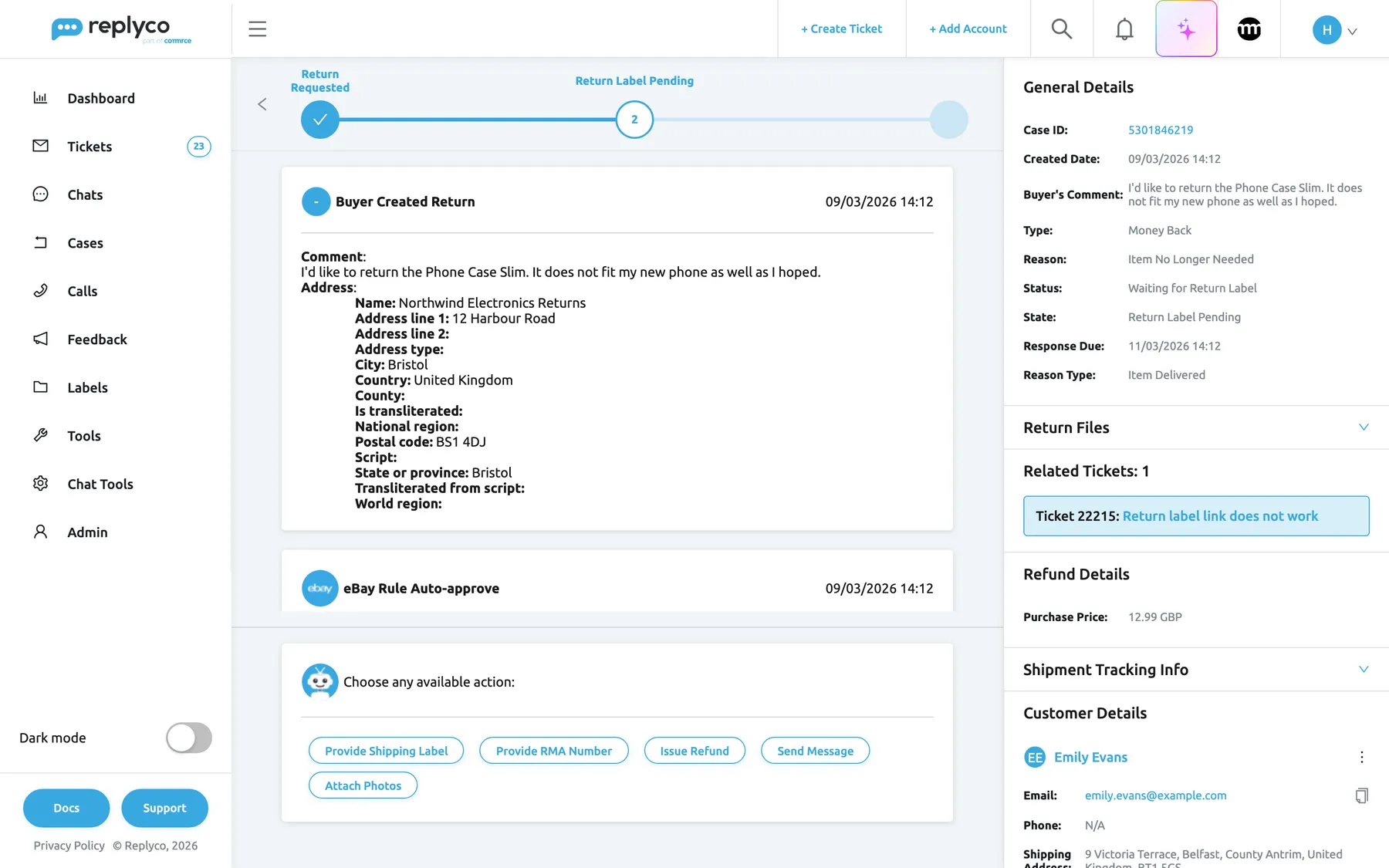
What this screenshot shows
- Screen
- Choose any available action: (/case/:caseId)
- Highlighted
- “”, whole-screen, loaded. none
- Also visible
- progress line Return Requested → Return Label Pending; history cards Buyer Created Return (comment and return address) and eBay Rule Auto-approve; actions Provide Shipping Label, Provide RMA Number, Issue Refund, Send Message, Attach Photos; right panel: General Details, Return Files, Related Tickets, Refund Details, Shipment Tracking Info, Customer Details
- Purpose
- the case screen at a glance
| Region | What it shows | What you do there |
|---|---|---|
| Top bar, returns only | The back arrow and a progress line of the return’s stages | Go back; see how far the return has come |
| History, middle | One card per eBay history entry: who, what, when, comment, return address | Read what happened |
| Actions card, bottom | Choose any available action: and one button per action | Act on the case |
| Right panel | General Details, files, Related Tickets, Refund Details, Shipment Tracking Info, customer, order, products and Notes | Check the facts, open the related ticket, keep notes |
Open a case
Section titled “Open a case”Select a row in the Case list. Replyco first asks eBay for the latest state of the case and shows Please wait... We are syncing most up to date details from your eBay... while it waits; then the screen appears. Opening a case marks it read for your whole team. If eBay cannot be reached, Replyco shows the case as it last stored it with For some reason, we couldn't update the case from Ebay.; if the case cannot be loaded at all, Replyco shows The case could not be synced..
The back arrow at the top left of a return goes back to where you came from. An item-not-received inquiry has no top bar; use your browser’s back button or Cases.
Follow the history of a case
Section titled “Follow the history of a case”The progress line at the top of a return lists each stage the return has reached, in order, with the current one numbered; a closed return ends on Closed.
Below it, each card is one entry of eBay’s history, newest last. The card names the activity, such as Buyer Created Return or eBay Rule Auto-approve, and shows the date and time. An icon marks who acted, such as the eBay logo for eBay, an arrow for you and a bell for eBay’s system. The card adds whatever eBay recorded: the buyer’s Comment, the return Address eBay gave the buyer, and for inquiries the money movements, each in a panel you can open.
Example. Emily Evans’s return of a Phone Case Slim shows Return Requested and then Return Label Pending: she opened the return with the comment “I’d like to return the Phone Case Slim. It does not fit my new phone as well as I hoped.”, eBay approved it by rule, and eBay now waits for your return label.
Act on a return
Section titled “Act on a return”-
Find the action in the card Choose any available action:. Hover a button to read eBay’s description of it.
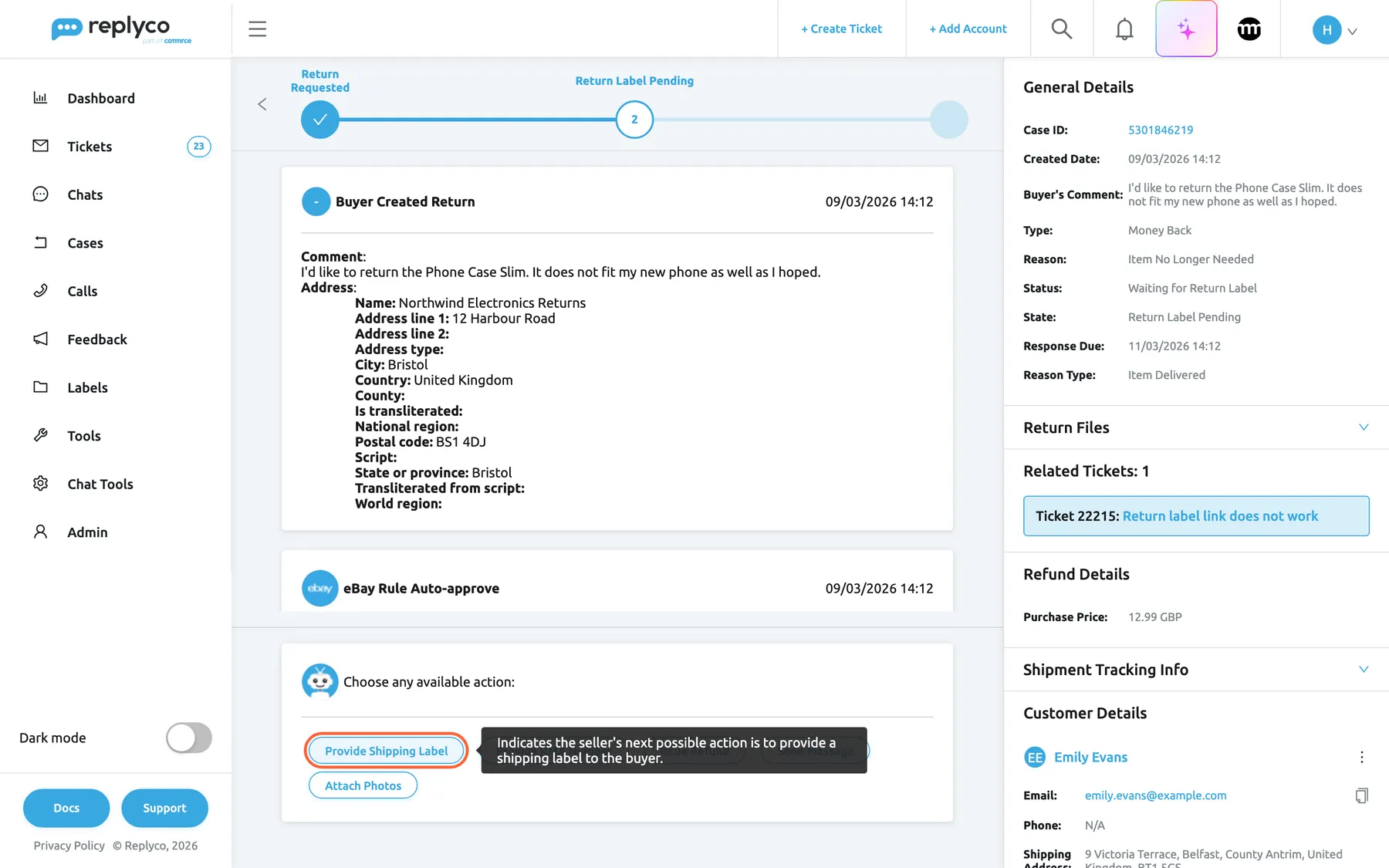
Hover an action to read what it does in eBay's words before you use it. What this screenshot shows
- Screen
- Choose any available action: (/case/:caseId)
- Highlighted
- button “Provide Shipping Label”, actions-card, hovered. opens the Provide Shipping Label form
- Also visible
- tooltip with eBay's description of the action
- Purpose
- find out what an action does
-
Select the button. A form opens with Required Fields at the top and Optional Fields below.
-
Fill the fields and select OK.
Replyco sends the action to eBay, shows Success, closes the form and loads the case from eBay again.
The buttons are eBay’s choice. eBay decides, for each return and stage, what the seller may do next, and Replyco shows exactly those actions in eBay’s order. After an action the list changes. The actions you may meet:
| Action | Required | Optional | What eBay does |
|---|---|---|---|
| Approve Request | – | Comment | Accepts the return request |
| Decline Request | – | Comment | Declines it; the buyer may escalate |
| Provide Shipping Label | Action, a label, Carrier | Carrier Name, Comment, Tracking Number | Gives the buyer your return label |
| Provide RMA Number | RMA Number | Comment | Gives the buyer your return authorisation number |
| Issue Refund | Refund Line Items, filled by eBay | Comment, Relist item? | Refunds the listed amounts in full |
| Offer Partial Refund | Partial Refund Amount and currency | Comment, Keep Original Item | Offers part of the money |
| Mark as Received | – | Comment | Confirms the item is back with you |
| Offer Replacement and Offer Returns | – | Comment | Offers a replacement, or a return |
| Mark Replacement as Shipped | Tracking Number | Carrier, Carrier Name, Carrier Used, Shipped Date, Comment | Tells the buyer the replacement is on its way |
| Provide Tracking Info | New Carrier, New Carrier Name, New Tracking Number | – | Adds tracking for the replacement |
| Escalate | Escalate Reason | Comment | Hands the return to eBay customer support |
| Send Message | Message | – | Writes to the buyer in the return |
| Attach Photos | File and File Purpose | – | Adds a photo or document to the return |
For Escalate, Replyco offers the seven reasons eBay accepts from a seller, with Other preselected.
Give the buyer a return label
Section titled “Give the buyer a return label”-
Select Provide Shipping Label.
-
Leave Action on Upload Your Own Label.
-
On Choose Label, pick a label from your library; the first one is preselected.
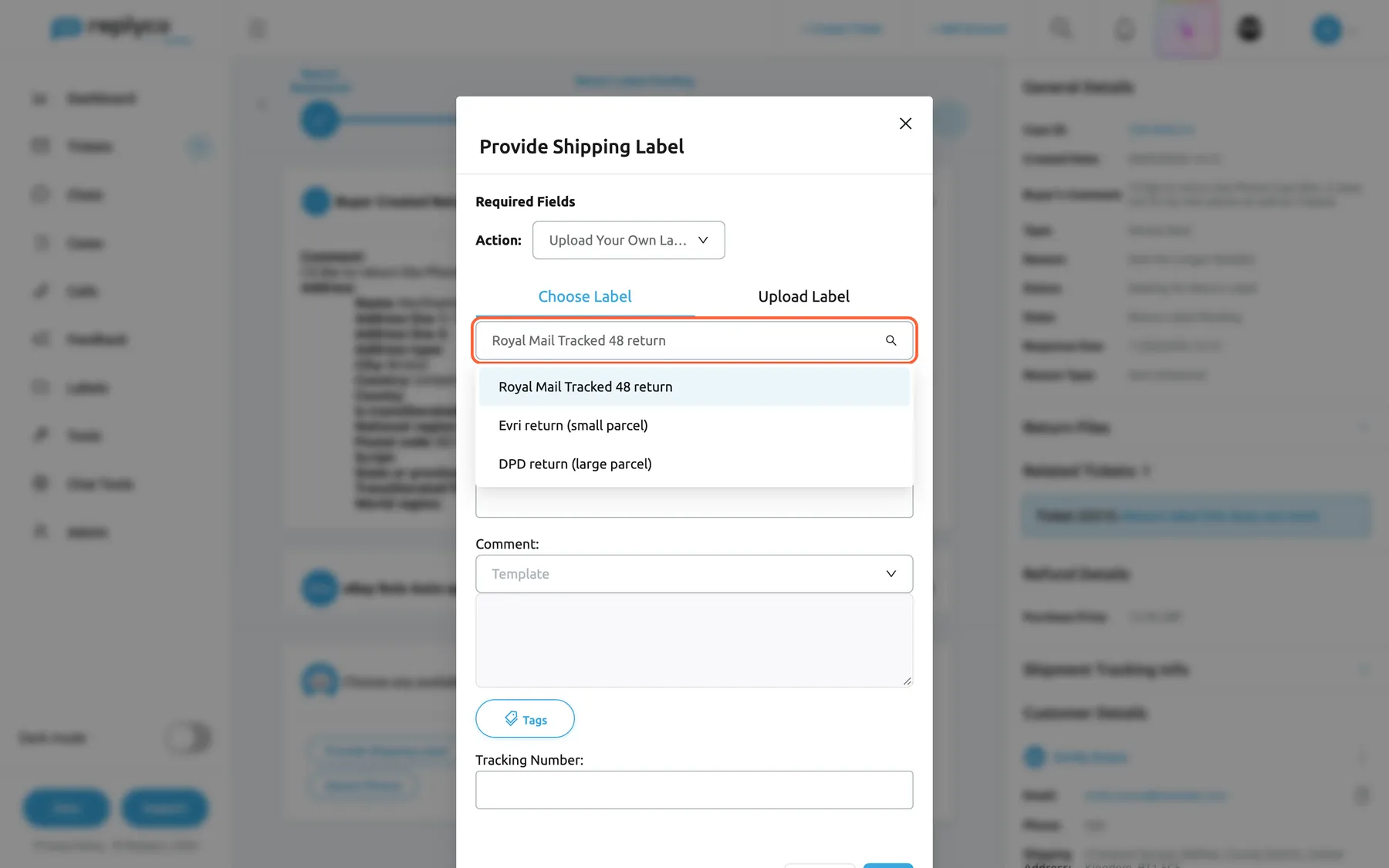
Provide Shipping Label offers the labels of your shipping-label library, or a file you upload. What this screenshot shows
- Screen
- Provide Shipping Label (/case/:caseId)
- Highlighted
- “Choose Label”, dialog, expanded. picks a label from the library
- Also visible
- Action Upload Your Own Label; tabs Choose Label and Upload Label; three library labels in the open select; Carrier OTHER; optional Carrier Name, Comment with Template and Tags, Tracking Number
- Purpose
- send eBay a return label from the library
To send a label that is not in the library, switch to Upload Label, select Add File and pick one BMP, GIF, JPG, JPEG, PNG or PDF file.
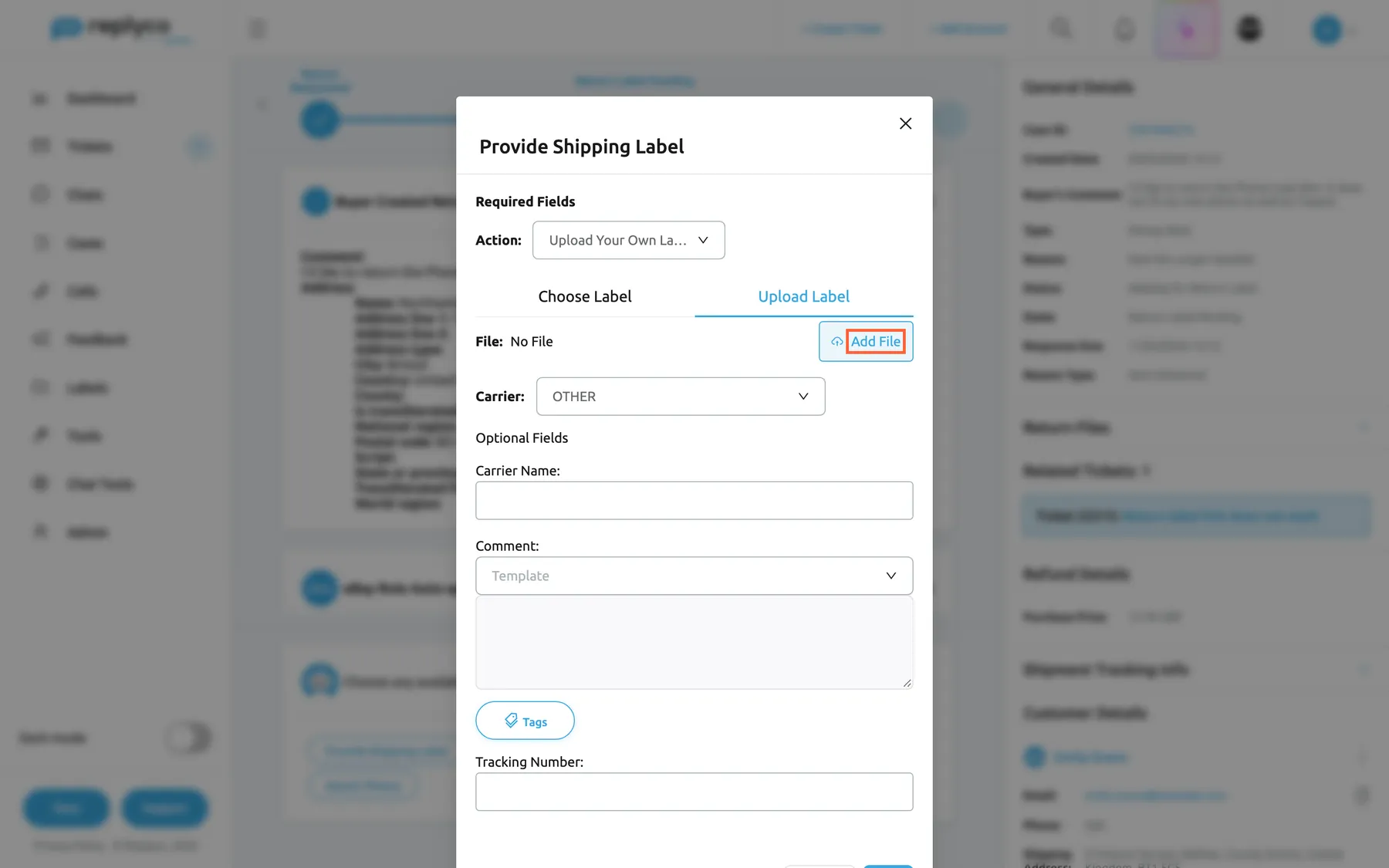
Upload Label sends one new label file with this case only. What this screenshot shows
- Screen
- Provide Shipping Label (/case/:caseId)
- Highlighted
- “Add File”, dialog, enabled. opens the file picker
- Also visible
- File: No File; Carrier OTHER and the optional fields
- Purpose
- upload a label that is not in the library
-
Set Carrier to eBay’s code for the carrier, such as ROYAL_MAIL. For a carrier that is not in the list, keep OTHER and type its name in Carrier Name.
-
Add a Comment or a Tracking Number if you like, and select OK.
The library is kept under ToolsShipping Labels by users with the Shipping Labels permission; everyone who works on cases can pick from it here. See Shipping Labels. Already Sent Label tells eBay the buyer already has a label from you, without uploading one.
Without a label, Replyco refuses with Please choose or upload a label on Choose Label, or Please upload a file on Upload Label. One file per action: a second one is refused with You can not upload more than one file
Refund the buyer
Section titled “Refund the buyer”In full. Issue Refund lists under Refund Line Items the amounts eBay has worked out, such as Purchase Price, and refunds all of them; you cannot change them here. Tick Relist item? to ask eBay to list the item again.
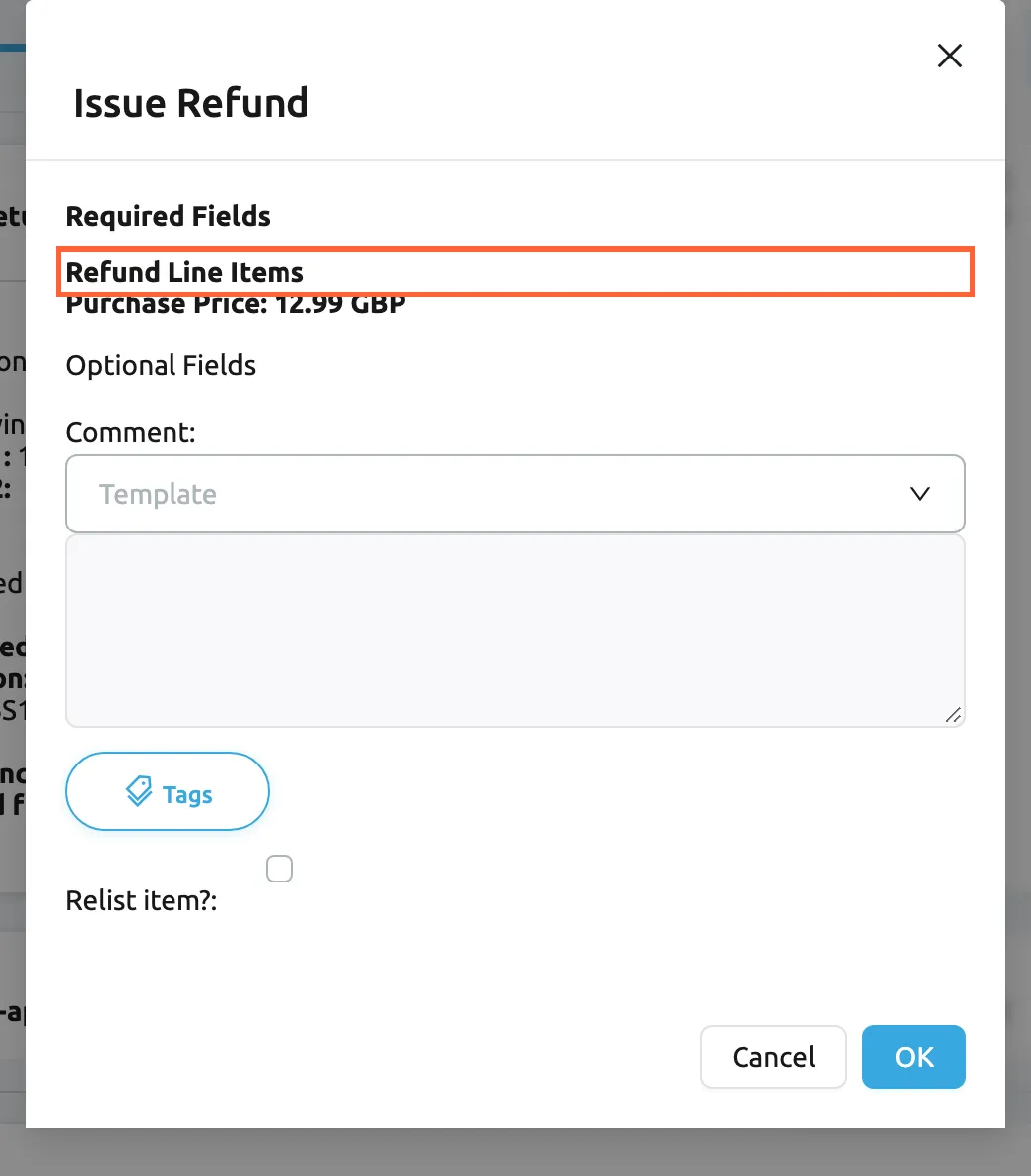
What this screenshot shows
- Screen
- Issue Refund (/case/:caseId)
- Highlighted
- “Refund Line Items”, dialog, read-only. none
- Also visible
- Purchase Price 12.99 GBP; optional Comment with Template and Tags; Relist item? check box; Cancel and OK
- Purpose
- refund the buyer in full
In part. Offer Partial Refund takes an amount from 0.01 up to the order total and a currency. Tick Keep Original Item when the buyer may keep the item. The buyer then accepts or declines your offer on eBay.
Example. Hannah Wright’s Desk Lamp Fold arrived without its USB-C cable. Rather than take the lamp back, offer 5.00 GBP towards a new cable with Keep Original Item ticked.
Write to the buyer with a template
Section titled “Write to the buyer with a template”Message and Comment boxes offer a Template list and a Tags button. The list holds the reply templates available for the case’s eBay account; picking one fills the box with its text, which you can then edit. Tags inserts placeholders such as the buyer’s first name, and Replyco fills them in from the case and your name before eBay receives the text. To create templates or limit them to eBay, see Reply templates.
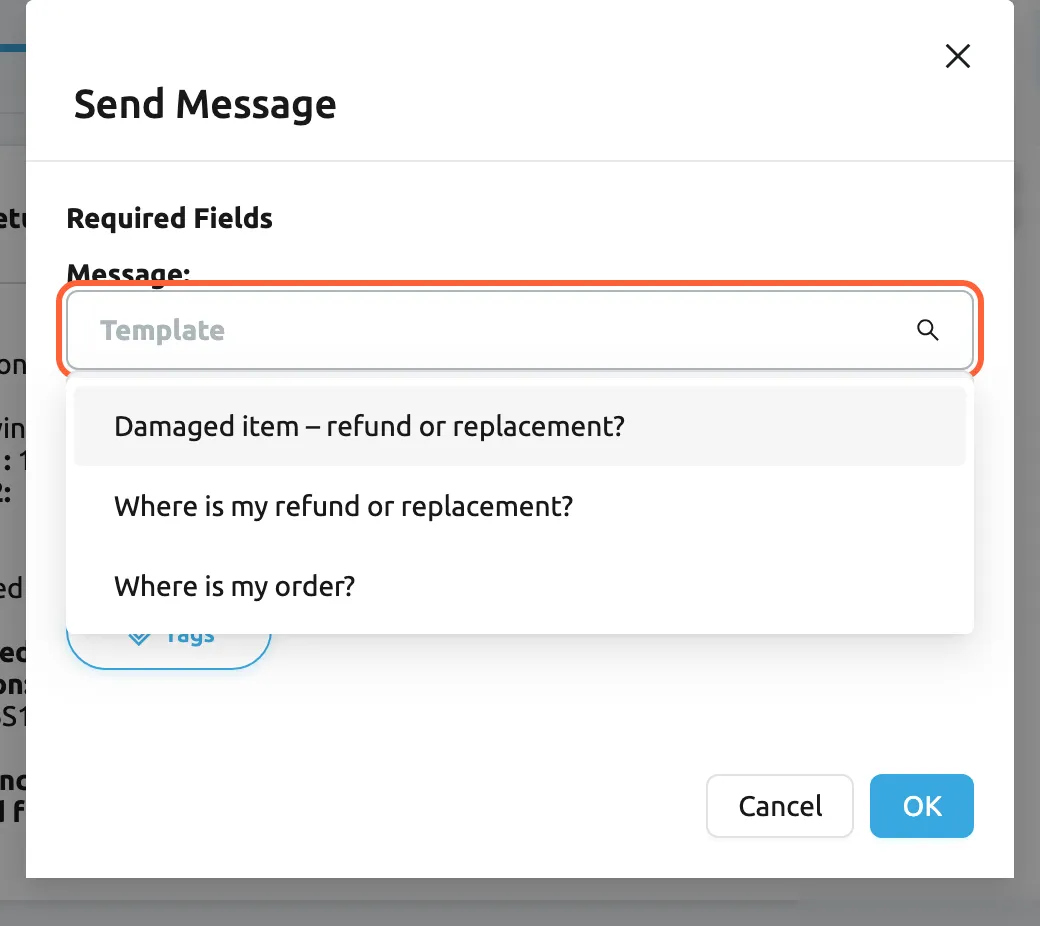
What this screenshot shows
- Screen
- Send Message (/case/:caseId)
- Highlighted
- “Template”, dialog, expanded. fills the message with a template
- Also visible
- three templates of the eBay account; Tags button; Cancel and OK
- Purpose
- write a case message from a template
What you write is sent to eBay and the buyer reads it there. For notes the buyer must not see, use Notes in the right panel instead.
When an action is not sent
Section titled “When an action is not sent”Replyco checks the form before it sends anything. A required field left empty gets a red border and Replyco shows Please fill out all required fields; an amount of 0 counts as empty. Fill it and select OK again.
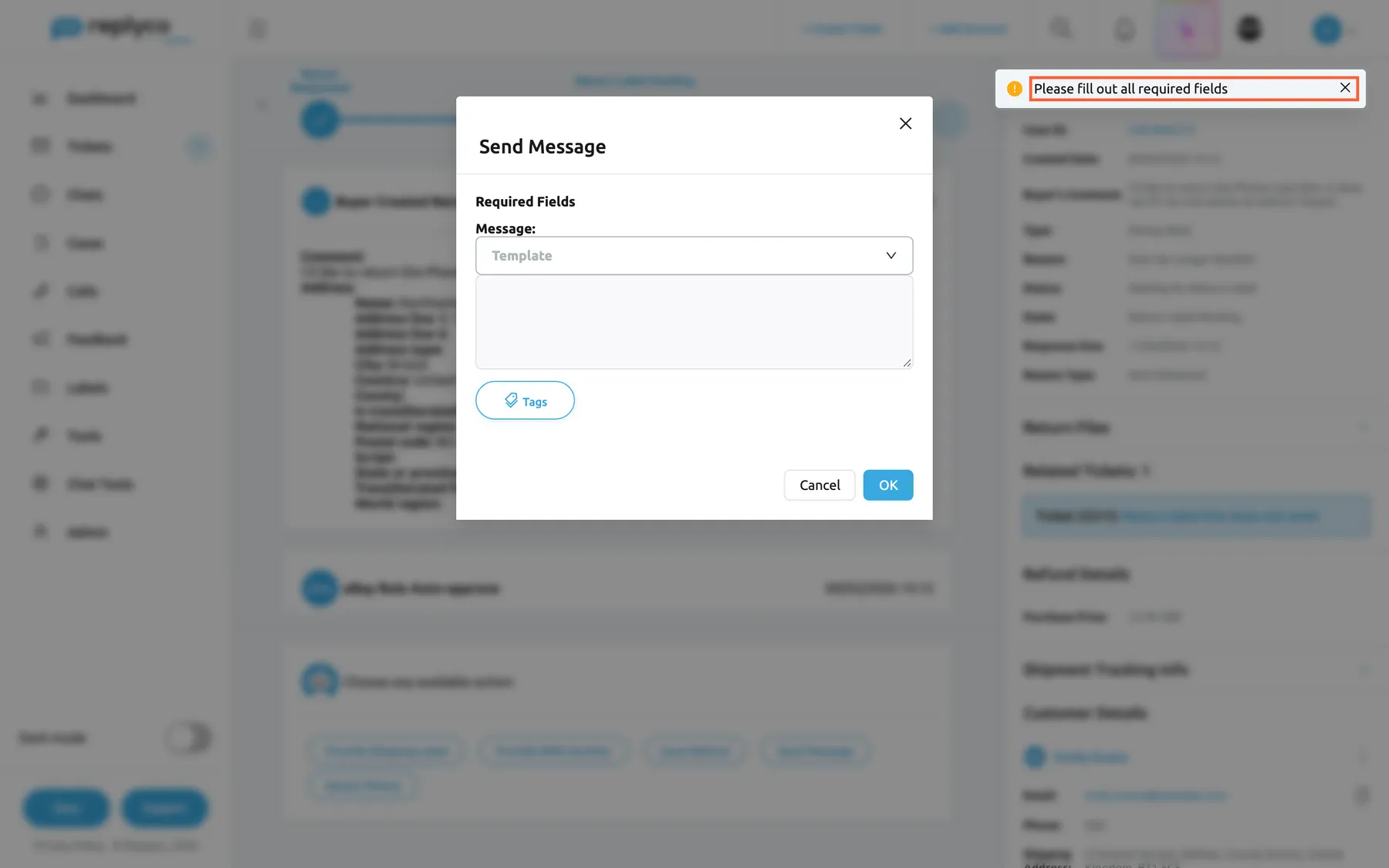
What this screenshot shows
- Screen
- Send Message (/case/:caseId)
- Highlighted
- “Please fill out all required fields”, top-right-toast, shown. none
- Also visible
- Send Message form still open with an empty Message box
- Purpose
- the validation message of case actions
With view-only access to cases, Replyco answers You don't have enough rights and nothing reaches eBay; an admin can allow editing. See User permissions and roles.
Act on an item-not-received inquiry
Section titled “Act on an item-not-received inquiry”An inquiry works differently from a return: Replyco works out the buttons from the inquiry’s state, and an inquiry has no progress line.
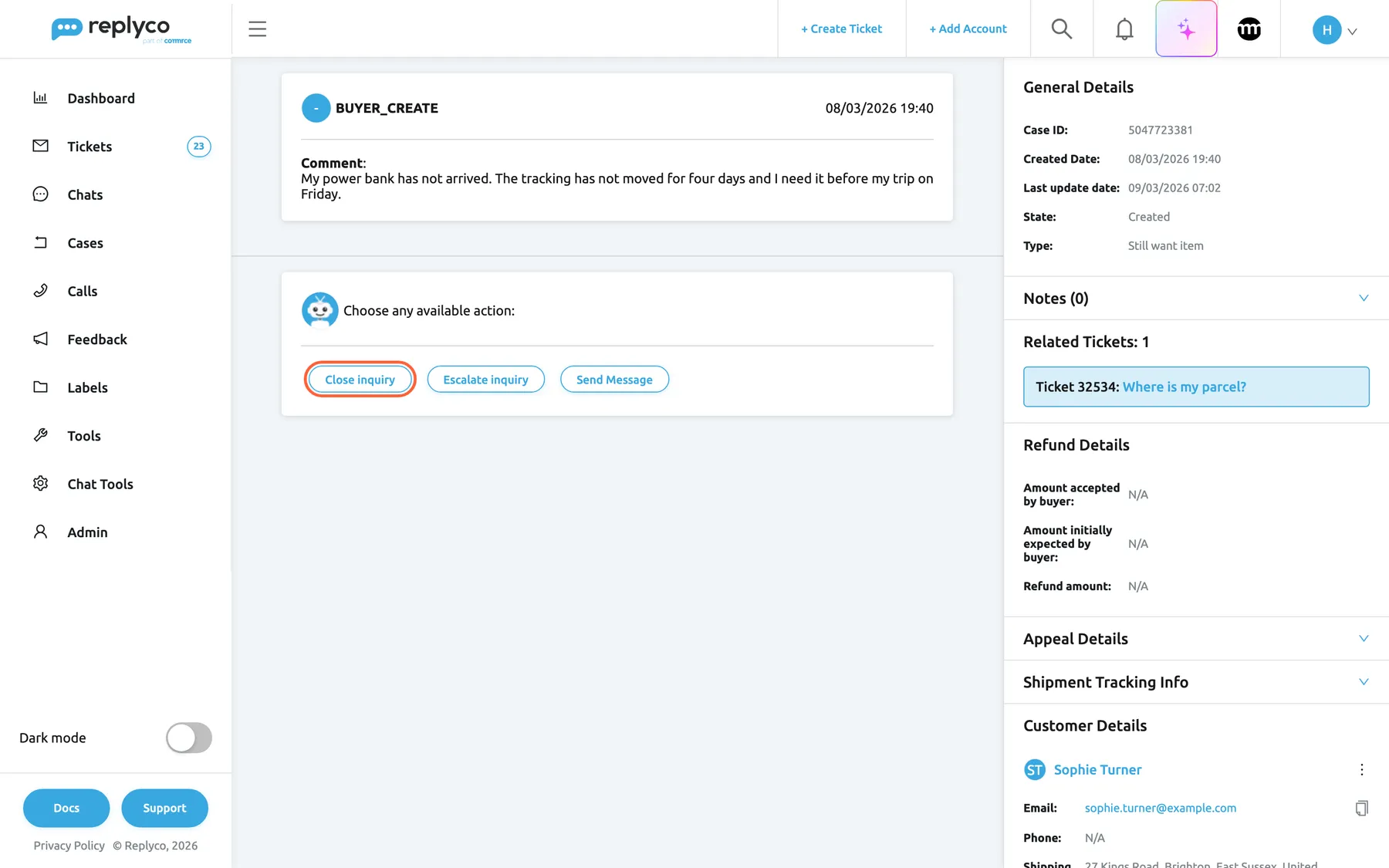
What this screenshot shows
- Screen
- Close inquiry (/case/:caseId)
- Highlighted
- button “Close inquiry”, actions-card, enabled. opens the Close inquiry form
- Also visible
- first history card with the buyer's comment; actions Close inquiry, Escalate inquiry, Send Message; right panel: General Details, Notes, Related Tickets, Refund Details, Appeal Details, Shipment Tracking Info, Customer Details
- Purpose
- the case screen for an item-not-received inquiry
| Button | Shown when | Required | Optional |
|---|---|---|---|
| Close inquiry | The inquiry is open | – | Comment, Close reason |
| Escalate inquiry | The inquiry is open | Escalate Reason | Comment |
| Issue a full refund | The buyer asked for a refund and none has been paid | – | Comment |
| Provide shipment info | eBay has no tracking details for the inquiry | Shipping date, Shipping carrier name, Tracking Number | Comment, Shipped with tracking |
| Send Message | In place of the previous one | Message | – |
A closed inquiry shows no buttons. Close inquiry takes one of four reasons, Item arrived, Other (preselected), Worked out with the seller(you) and Buyer has decided to keep the item; Escalate inquiry takes one of the four escalation reasons eBay accepts from a seller: Buyer trouble, Other, Shipped item and Trouble communication.
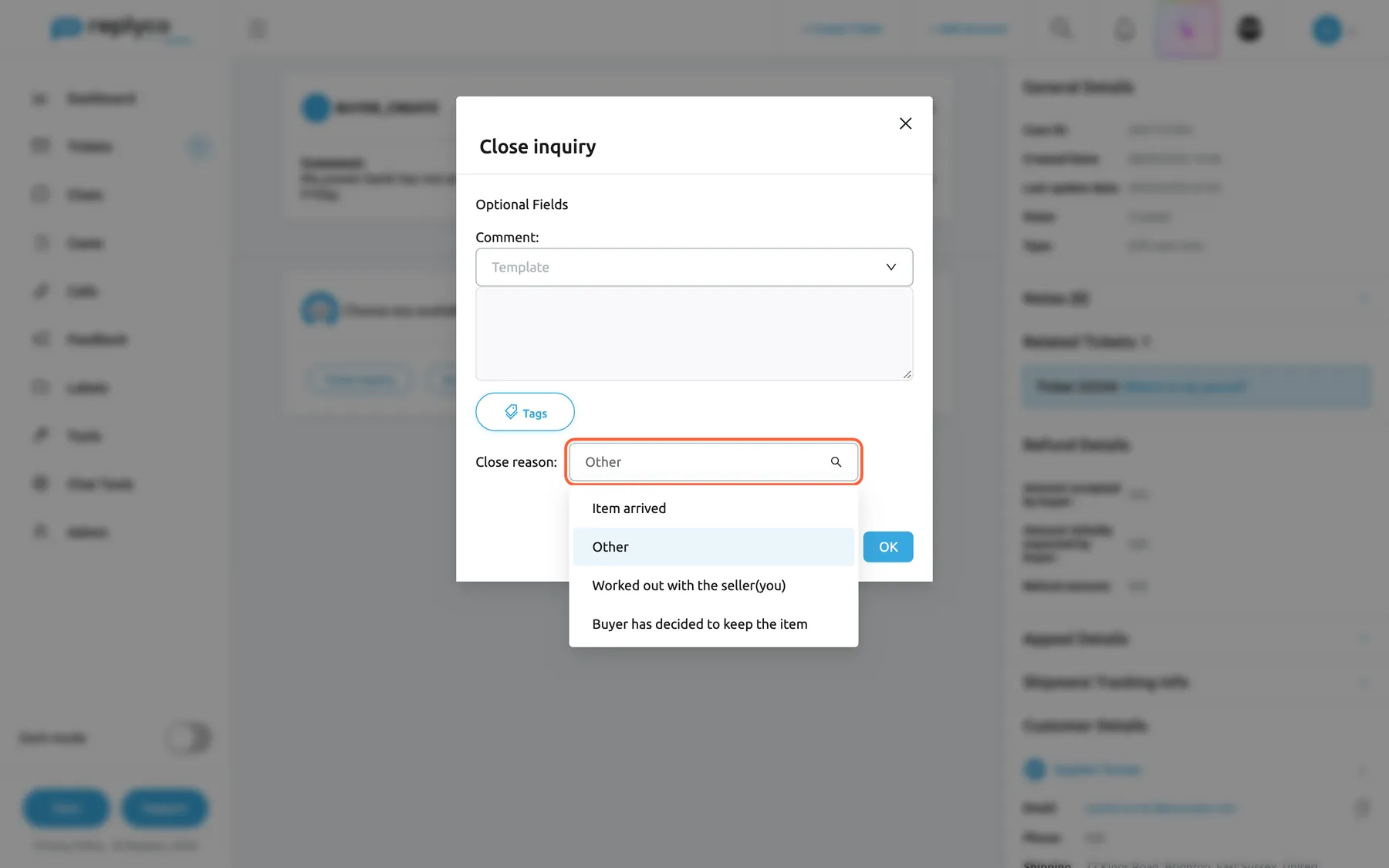
What this screenshot shows
- Screen
- Close inquiry (/case/:caseId)
- Highlighted
- “Close reason”, dialog, expanded. picks the close reason
- Also visible
- Comment with Template and Tags; close reasons Item arrived, Other, Worked out with the seller(you), Buyer has decided to keep the item
- Purpose
- close an item-not-received inquiry
Example. Sophie Turner’s Power Bank 20,000 mAh shows no tracking movement and she still wants it (Still want item). Write to her with Send Message and the carrier’s latest news; if the parcel turns up, she or you can close the inquiry with Item arrived.
Read the case details
Section titled “Read the case details”The right panel collects what you need to decide. For a return it shows, from the top:
| Block | What it shows |
|---|---|
| General Details | Case ID (links to the return on eBay), Created Date, Buyer's Comment (the buyer’s comment), Type, Reason, Status, State, Response Due and Reason Type; hover a value for eBay’s description |
| Return Files | Photos and files the buyer attached, by purpose |
| Related Tickets | The tickets of the same order; select one to open it |
| Refund Details | The refund amounts eBay has worked out, and the paid ones |
| Shipment Tracking Info | Tracking of the return parcel, Return Shipping Costs and Payable by |
| Customer Details | The buyer, with the ⋮ menu for customer actions |
| Order Details | The eBay order, its date, payment and tracking |
| Product Details | The ordered products, quantities and prices |
| Notes | Your team’s internal notes on the case |
Response Due is eBay’s current date for your answer, refreshed every time you open the case. For an inquiry, the panel shows Last update date in General Details, Notes near the top, Refund Details with the amount the buyer expects, and Appeal Details when an appeal is possible or under way.
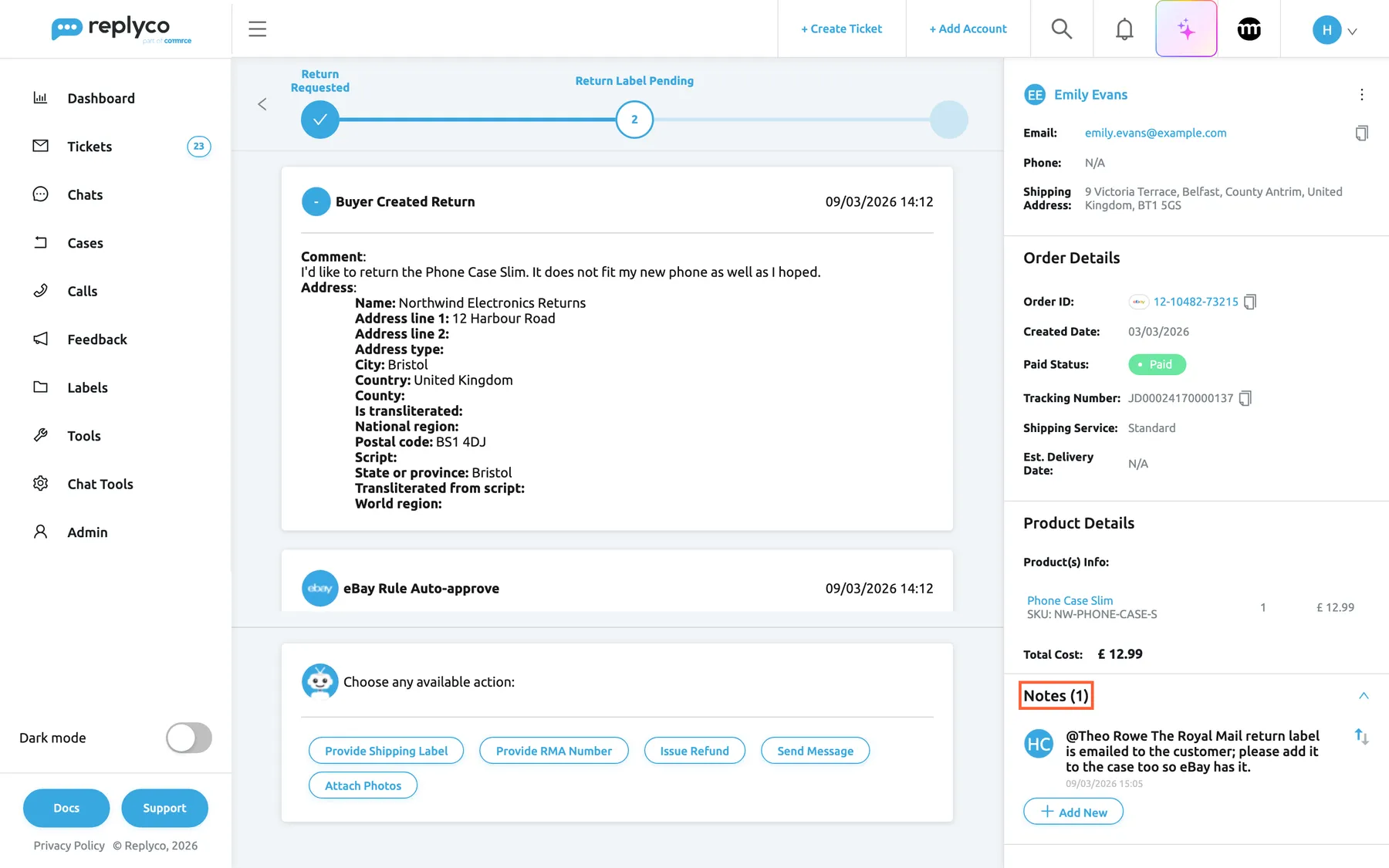
What this screenshot shows
- Screen
- Notes (/case/:caseId)
- Highlighted
- “Notes”, right-panel, expanded. opens and closes the notes
- Also visible
- Order Details of eBay order 12-10482-73215; Product Details: Phone Case Slim; one note with a mention
- Purpose
- order, products and notes of a case
The customer, order and product blocks work as in a ticket; see The ticket screen.
Keep internal notes on a case
Section titled “Keep internal notes on a case”Open Notes at the bottom of the right panel (near the top for an inquiry) and select Add New. Type @ and a name to mention a colleague; they get a notification that opens the case. The notification is written in your company’s language: in German for a company that uses Replyco in German, otherwise in English. Notes stay in Replyco: the buyer and eBay never see them. The number of notes, and the latest one on hover, also show in the case list. Notes work as in a ticket; see The ticket screen.
Every control, explained
Section titled “Every control, explained”The back arrow and the progress line
Section titled “The back arrow and the progress line”Top left of a return; inquiries have neither.
The arrow goes back one step in your browser. The line shows each state the return has reached, the current one numbered.
See at a glance whether a return is new, waiting for you or nearly done.
The history cards
Section titled “The history cards”The middle of the screen, oldest first.
One card per eBay history entry: activity, date and time, who acted, comment, return address and, for inquiries, money movements. Read-only.
eBay judges a case on its history; read it before you act.
The action buttons
Section titled “The action buttons”The card Choose any available action: below the history.
Returns: the actions eBay allows now, each with eBay’s description on hover. Inquiries: the buttons Replyco works out from the inquiry’s state. Each opens a form; OK sends it to eBay, the cross or Cancel closes it without sending.
Only actions eBay accepts at this stage can succeed, so Replyco offers no others.
The action forms
Section titled “The action forms”Opened by an action button.
Required Fields must be filled, Optional Fields may be. Text boxes offer Template and Tags. Empty required fields are refused with Please fill out all required fields Files: one per action.
eBay rejects incomplete actions; Replyco catches the gaps before sending.
Choose Label and Upload Label
Section titled “Choose Label and Upload Label”In Provide Shipping Label, with Upload Your Own Label chosen.
Choose Label lists your library’s labels by name, the first preselected. Upload Label takes one BMP, GIF, JPG, JPEG, PNG or PDF file for this case only.
Labels you send often live in the library; a one-off label is uploaded here.
The right panel
Section titled “The right panel”The right side of the screen; blocks with an arrow open and close.
General Details, files, related tickets, refund, tracking, appeal (inquiries), customer, order, products and notes, as described in Read the case details.
Decide with the order and the buyer in view, without switching screens.
Right panel; the count is in the heading.
Internal notes with mentions; Add New writes one. Never sent to eBay.
Hand a case over or record what you agreed with the buyer.
Who sees what
Section titled “Who sees what”| Part | Who sees or uses it |
|---|---|
| The case screen | Users with the Cases permission, for cases of eBay accounts they may see |
| Action buttons that send | Users whose Cases permission allows editing; others get You don't have enough rights |
| Labels under Choose Label | Everyone who works on cases |
| The label library under ToolsShipping Labels | Users with the Shipping Labels permission |
What you need to know
Section titled “What you need to know”| Topic | Fact |
|---|---|
| Refresh | Each time you open a case, Replyco loads it from eBay; after an action it loads it again |
| Read state | Opening a case marks it read for everyone |
| Deadlines | Response Due is current; Replyco sends no reminders and never acts on a deadline itself |
| Refund amounts | Issue Refund refunds eBay’s listed amounts in full; a partial refund goes from 0.01 to the order total |
| Files | One per action; labels as BMP, GIF, JPG, JPEG, PNG or PDF |
| Templates | The eBay account’s reply templates; placeholders filled before sending |
| Language | eBay’s texts appear as eBay sends them; what you write reaches the buyer unchanged |
Frequently asked questions
Section titled “Frequently asked questions”Actions
Section titled “Actions”Why can’t I find the action I need?
Section titled “Why can’t I find the action I need?”On a return, the case screen shows only the actions eBay allows at the current stage, and they change after each step. Hover a button under Choose any available action: to read what eBay means by it.
Does the buyer see what I type in Comment?
Section titled “Does the buyer see what I type in Comment?”Yes. Comment and Message in an action form are sent to eBay with the action, and the buyer reads them in eBay. For information only your team should see, write a note under Notes in the right panel.
Can I use my reply templates in a case?
Section titled “Can I use my reply templates in a case?”Yes. Every Comment and Message box has a Template list with the reply templates available for the case’s eBay account, and a Tags button for placeholders, which Replyco fills in before eBay receives the text.
Why can’t I change the refund amount?
Section titled “Why can’t I change the refund amount?”Issue Refund refunds the amounts eBay itself has worked out for the return, listed under Refund Line Items, in full. To refund less, use Offer Partial Refund if eBay offers it, and enter an amount from 0.01 up to the order total.
Labels
Section titled “Labels”Where do the labels in the label form come from?
Section titled “Where do the labels in the label form come from?”From your company’s shipping-label library under ToolsShipping Labels. Users with the Shipping Labels permission add and remove labels there; everyone who works on cases can pick them in Provide Shipping Label. See Shipping Labels.
Which files can I upload as a label?
Section titled “Which files can I upload as a label?”Upload Label in Provide Shipping Label takes one BMP, GIF, JPG, JPEG, PNG or PDF file. A second file is refused with You can not upload more than one file; remove the first to replace it.
How do I tell eBay the buyer already has a label?
Section titled “How do I tell eBay the buyer already has a label?”Already Sent Label in Action tells eBay that the buyer already has a return label from you, for example by e-mail, without uploading a file. eBay then moves the return on as if you had provided the label.
Inquiries
Section titled “Inquiries”Why does an item-not-received case look different?
Section titled “Why does an item-not-received case look different?”Item-not-received inquiries follow eBay’s inquiry process, not the return process. The case screen shows no progress line, and the buttons are worked out by Replyco from the inquiry’s state rather than sent by eBay.
Why is there no full-refund button on an inquiry?
Section titled “Why is there no full-refund button on an inquiry?”Issue a full refund appears only when the buyer asked for a refund (Full refund) and no refund has been paid yet. A buyer who still wants the item (Still want item) gets no refund button; write to them or give tracking instead.
Why are there no buttons on an inquiry?
Section titled “Why are there no buttons on an inquiry?”A closed inquiry shows no actions. Check State in General Details; if it reads Closed, eBay has finished the inquiry and nothing more can be sent.
Details and notes
Section titled “Details and notes”Which deadline is the right one?
Section titled “Which deadline is the right one?”Response Due on the case screen is eBay’s current respond-by date and is refreshed each time you open the case. The case list shows eBay’s date as Resolve By, so you can sort the list by it.
Can the buyer see our notes?
Section titled “Can the buyer see our notes?”No. Notes under Notes in the right panel of the case screen stay inside Replyco. Only what you send through an action form reaches eBay and the buyer.
How do I find the ticket that belongs to a case?
Section titled “How do I find the ticket that belongs to a case?”Related Tickets in the right panel lists the tickets of the same eBay order; select one to open it. The eBay ticket in turn shows a block for each case of its order.
Why does a field read N/A?
Section titled “Why does a field read N/A?”eBay has sent no value for it yet, for example tracking before the buyer posts the return. The field fills in when eBay reports the information and you open the case again.
Troubleshooting
Section titled “Troubleshooting”| Symptom | What to check |
|---|---|
| For some reason, we couldn't update the case from Ebay. | eBay could not be reached; the case shows its last stored state. Open it again later; check the eBay account’s login under AdminAccounts |
| The case could not be synced. and an empty screen | The case could not be loaded. Go back to the Case list and open it again |
| Please fill out all required fields | Fill the fields with a red border; 0 counts as empty |
| Please choose or upload a label or Please upload a file | Pick a library label or upload a file; add labels under ToolsShipping Labels |
| You don't have enough rights | Your Cases permission is view-only; ask an admin |
| The action you need is missing | eBay does not allow it at this stage; open the case again after eBay’s next step |
| The template list is empty | No reply template is available for this eBay account; see Reply templates |