

Custom Shipping Links
Every order Replyco imports can carry a shipping service and a tracking number. For the carriers it knows, such as Royal Mail, Evri, DPD, DHL or UPS, Replyco turns the tracking number into a link to the carrier’s tracking page: in the order panel of a ticket, on the Orders screen, and in replies that use the placeholder #tracking_url#. Custom Shipping Links is where you add the tracking address of a carrier Replyco does not know, such as GLS or a regional courier, or replace the address Replyco uses for one it knows. Each entry is a carrier name and a web address that ends where the tracking number goes. Open it from ToolsCustom Shipping Links.
Availability: every plan. The screen is shown to users with the Custom Shipping Links permission; creating, changing and deleting links needs its edit level. The person who created your Replyco account has it, and an admin gives it to others through their role or on the tab Access Rights under AdminUsers. See User permissions and roles.
What you can do here
Section titled “What you can do here”- Give a new carrier a tracking link. A link is a carrier name and a web address; Replyco adds the order’s tracking number at the end. Create a tracking link.
- Make the name match your orders. A link works only for orders whose shipping service has the same name, ignoring spaces and capital letters. Match the carrier name your orders use.
- Check, change or copy a link. See the full address a link produces, correct it, or start a similar one from a copy. See a link’s details · Edit a link · Copy a link.
- Delete a link you no longer need. Delete a link.
- Send customers a tracking link in replies. The placeholder
#tracking_url#in templates, auto-responses and replies turns into the tracking number, linked to the carrier’s page. Placeholders have their own guide. Use the tracking link in replies · Snippets and placeholders.
The screen at a glance
Section titled “The screen at a glance”![The Custom Shipping Links screen in Replyco, opened from Tools in the sidebar, with the description "Create and manage custom carrier tracking URLs for quick access to shipment statuses." The list on the left has three cards, "Harbour Express" (selected), "Severn Freight" and "Bristol Same Day", each with edit, copy and delete icons. The details panel on the right shows Harbour Express with its Link "https://track.harbourexpress.example/parcel/[Tracking Number]" and the buttons Delete, Copy and Edit. The Create New button at the top right is highlighted; it opens an empty form for a new tracking link.](/_astro/01-custom-shipping-links.en.BmLEpWVY_Z1R6hsr.webp)
What this screenshot shows
- Screen
- Custom Shipping Links (/custom-shipping-links)
- Highlighted
- button “Create New”, header-right, enabled. opens the Create Custom Shipping Link form
- Also visible
- 3 link cards with edit, copy and delete icons; details panel: name, Link with the tracking-number marker, Delete, Copy, Edit
- Purpose
- the list of tracking-link patterns and one link's details
| Region | What it shows | What you do there |
|---|---|---|
| Header, top | The heading Custom Shipping Links, the description Create and manage custom carrier tracking URLs for quick access to shipment statuses. and Create New | Start a new link |
| The list, left | One card per link with its name and three icons: edit, copy and delete | Open, edit, copy or delete a link |
| Details panel, right (after a click) | The name, Link with the full address, and Delete, Copy, Edit | Check the address a link produces, then act on it |
With no links, the list reads No custom shipping links found. That is the normal start: Replyco’s own carrier links work without any entry here.
See a link’s details
Section titled “See a link’s details”Select a link’s name in the list. The card is outlined in blue and the details panel opens with the link’s name and, under Link, the address as Replyco will build it: https://, the address you entered and [Tracking Number] at the end, where the tracking number goes. The cross in the panel’s corner closes it.
Example: Harbour Express shows https://track.harbourexpress.example/parcel/ followed by [Tracking Number]. An order shipped with Harbour Express under tracking number HX4471029385 gets the link https://track.harbourexpress.example/parcel/HX4471029385.
Create a tracking link
Section titled “Create a tracking link”- Open ToolsCustom Shipping Links and select Create New in the top right corner. The form Create Custom Shipping Link replaces the list.
- Under Name, type the carrier’s name exactly as your orders show it under Shipping Service; see Match the carrier name your orders use.
- Under Link, type the carrier’s tracking address without
https://, up to the point where the tracking number belongs. The form showshttps://before the field and [Tracking Number] after it. - Select Save in the top right corner.
![The form Create Custom Shipping Link, opened with Create New on the Custom Shipping Links screen. At the top are Back and, on the right, Save. The field Name, described as "Enter the carrier exactly as your orders show it under Shipping service.", holds "Coastal Parcels". Below, the Link field is highlighted: it starts with a fixed "https://" box, holds "track.coastalparcels.example/parcel/" and ends with the blue marker "[Tracking Number]", where Replyco adds the order's tracking number. Save stores the link and returns to the list.](/_astro/02-create-link.en.DQx0rNg6_lKIlw.webp)
What this screenshot shows
- Screen
- Create Custom Shipping Link (/custom-shipping-links)
- Highlighted
- textbox “”, form, filled. sets the tracking address; the tracking number is appended at the end
- Also visible
- Back and Save; Name: Coastal Parcels; Link: https:// + track.coastalparcels.example/parcel/ + [Tracking Number]
- Purpose
- create a tracking-link pattern
Replyco returns you to the list at once and stores the link. When the server confirms, Success appears and the new link is added at the end of the list.
Find the address: open the carrier’s tracking page for any parcel and look at the address bar. If it reads https://track.coastalparcels.example/parcel/CP20391847, the part before the number, track.coastalparcels.example/parcel/, is what goes into Link. The tracking number is always added at the very end; a carrier whose address needs the number in the middle, followed by more text, cannot be set up this way. Many carriers also accept the number as the last part of a search address, such as …/tracking?consignment=.
Replyco checks the form before it sends anything:
| You see | Because | Do this |
|---|---|---|
| All fields must be completed. | The name or the link is empty, or only spaces | Fill in both fields |
| The link must not contain spaces. | The link contains a space | Remove the space; web addresses have none |
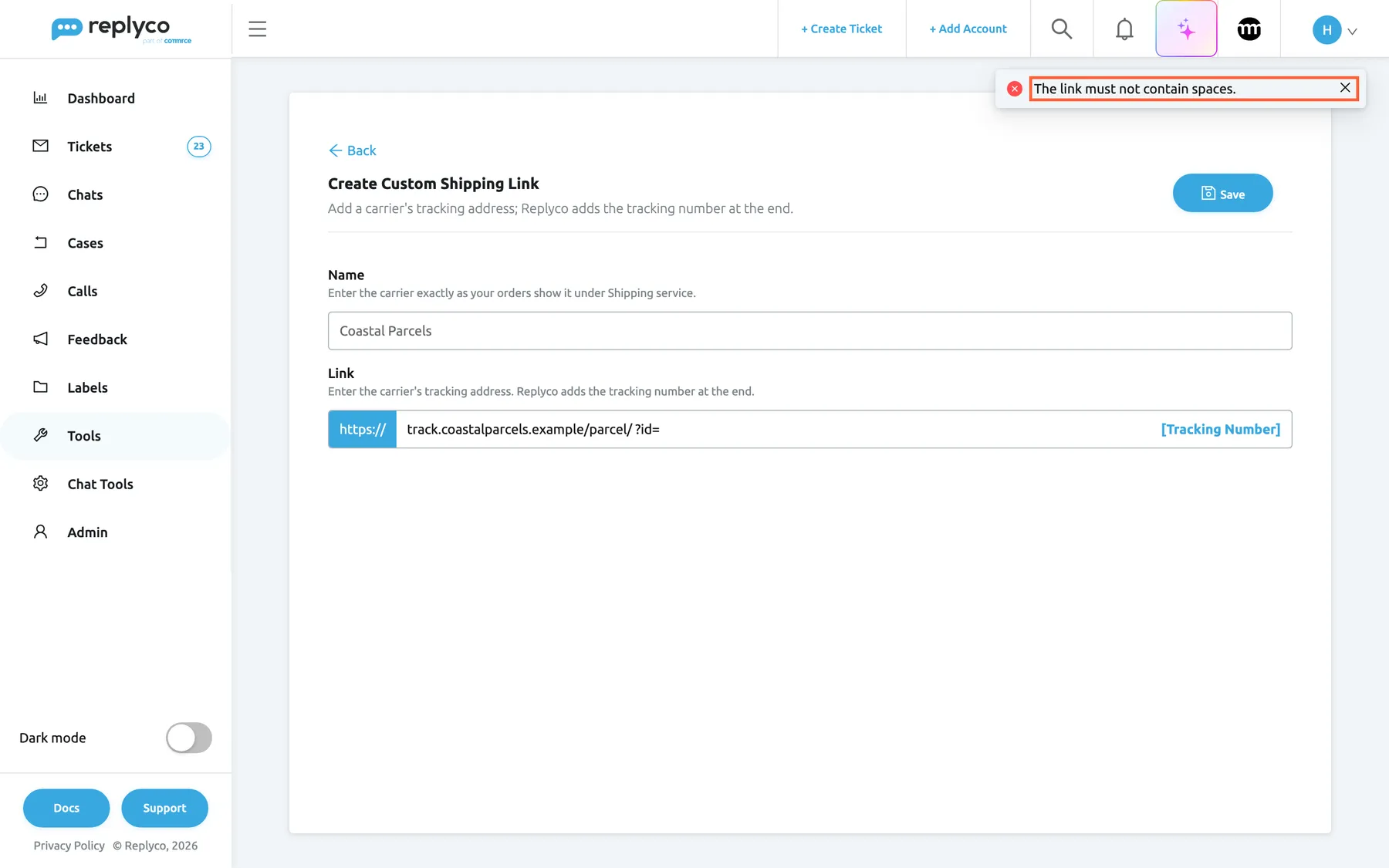
What this screenshot shows
- Screen
- Create Custom Shipping Link (/custom-shipping-links)
- Highlighted
- “The link must not contain spaces.”, top-right, shown. reports why the link was not saved
- Also visible
- Name: Coastal Parcels; Link with a space before ?id=
- Purpose
- the validation message for spaces in a link
Replyco removes spaces at the start and the end of both fields before it checks them. It does not check the address itself: a link with a typing mistake is saved and gives your customers a page that does not work, so open one of the resulting links once to test it.
Back at the top of the form leaves without saving.
Match the carrier name your orders use
Section titled “Match the carrier name your orders use”A custom link is used for an order only when its name equals the order’s shipping service. Replyco ignores spaces and capital letters when it compares them, and nothing else: a hyphen, a missing word or an extra service level makes it a different name. You find an order’s shipping service in a ticket’s order panel under Shipping Service, and on Orders under Shipping service. The description under the field asks for “a descriptive name”, but the name does a job: it is the carrier as your channel reports it.
When Replyco saves an order, it looks for a tracking link in this order:
- A custom link whose name matches the order’s shipping service.
- Replyco’s own address for that carrier, when it knows one (among them Royal Mail, Evri, Hermes, DPD, DHL, UPS, FedEx, USPS, Yodel, Parcelforce, Interlink Express and Australia Post).
- Otherwise, no link: the tracking number is shown as plain text.
An order without a shipping service or without a tracking number gets no link at all.
| Order’s shipping service | Custom link named | Result for tracking number HX4471029385 |
|---|---|---|
| Harbour Express | Harbour Express | https://track.harbourexpress.example/parcel/HX4471029385 |
| HARBOUR EXPRESS | Harbour Express | The same link: capital letters are ignored |
| HarbourExpress | Harbour Express | The same link: spaces are ignored |
| Harbour-Express | Harbour Express | No link: the hyphen makes it a different name |
| Harbour Express Next Day | Harbour Express | No link: the whole name must be equal |
| Evri | none | Replyco’s own Evri tracking link |
| Evri | Evri, with your own address | Your link: a custom link comes before Replyco’s own |
Example: Northwind Electronics ships bulky items with Severn Freight. Its eBay orders show Severn Freight as the shipping service, so the link is named Severn Freight. If one channel reports the carrier differently, for example Severn Freight 48, add a second link with that name.
Edit a link
Section titled “Edit a link”- Select the pencil icon on a link’s card, or select the link and then Edit in the details panel. The form Edit Custom Shipping Link opens.
- Change Name or Link. The Save button pulses while you have unsaved changes.
- Select Save.
The same checks apply as when you create a link. The change applies to orders from their next update; see Match the carrier name your orders use.
Copy a link
Section titled “Copy a link”Select the copy icon on a card, or Copy in the details panel. The form opens with the same address and the name followed by (copy). Save creates a new link and leaves the original unchanged.
A copy is the quickest way to cover a second spelling of the same carrier. Rename the copy to the exact second spelling before you save; a name that still ends in (copy) matches no order.
Delete a link
Section titled “Delete a link”Select the bin icon on a card and confirm with Yes, or select Delete in the details panel and confirm. Both ask you to confirm first, the panel with Are you sure you want to delete this item?, and both delete the link. There is no undo.
Orders already stored keep the tracking link they have. From their next update, Replyco falls back to its own address for that carrier, if it knows one, or shows the tracking number without a link.
Use the tracking link in replies
Section titled “Use the tracking link in replies”The placeholder #tracking_url# puts an order’s tracking into a reply. You insert it like any other placeholder: type # in a template, a snippet, an auto-response or the reply editor and pick it from the list. Replyco fills it in when the reply is sent:
| The ticket’s order has | The customer gets |
|---|---|
| A tracking number and a tracking link, on any channel but eBay | The tracking number, linked to the carrier’s tracking page |
| A tracking number and a tracking link, on eBay | The tracking number as plain text, because eBay messages carry no links |
| A tracking number without a tracking link | The tracking number as plain text |
| No tracking number, or no order | The text set for #tracking_url# under Fallbacks, which is empty unless you set one |
The link comes from the order, so it is the one Replyco worked out when it last saved the order, as described in Match the carrier name your orders use. In the order panel of a ticket and on Orders, the same link makes the tracking number clickable. For every placeholder, fallbacks and how they are filled in, see Snippets and placeholders; to put the placeholder into a reusable answer, see Templates.
Example: a template reads Your parcel is on its way with #shipping_service_name#. Track it here: #tracking_url#. For an order shipped with Harbour Express under HX4471029385, the customer reads Your parcel is on its way with Harbour Express. Track it here: HX4471029385, with the number linked to the Harbour Express tracking page.
Every control, explained
Section titled “Every control, explained”Create New
Section titled “Create New”Top right corner of the screen, next to the heading Custom Shipping Links.
Opens the empty form Create Custom Shipping Link. It shows a spinner and is disabled while a new link is being saved.
Add a carrier Replyco does not know. To start from an existing link, use the copy icon instead.
Link card
Section titled “Link card”Each card in the list holds the link’s name and three icons:
| Control | What it does | Why |
|---|---|---|
| Name | Opens the details panel | Check the full address before you change anything |
| Pencil icon | Opens the form Edit Custom Shipping Link | Correct the name or the address |
| Copy icon | Opens a filled form that saves as a new link | Cover a second spelling of the carrier |
| Bin icon | Asks you to confirm and deletes on Yes | Remove a link for a carrier you no longer use |
Details panel
Section titled “Details panel”Right of the list, after you select a link’s name.
Shows the name and, under Link, https://, the stored address and [Tracking Number]. At the bottom: Delete (asks Are you sure you want to delete this item?), Copy and Edit. The cross in the corner closes the panel.
The panel shows the address exactly as orders will get it, which is the quickest way to spot a missing slash.
First field of the form, with the description Enter the carrier exactly as your orders show it under Shipping service.
Required. Must equal the shipping service shown on your orders, ignoring spaces and capital letters; see Match the carrier name your orders use. Spaces at the start and end are removed when you save. Up to 150 characters. Replyco does not stop two links with the same name; which of them an order gets is not defined.
The name is the key Replyco uses to find the link for an order, so a descriptive name that differs from your orders’ shipping service does nothing.
Second field of the form, between the fixed https:// and the marker [Tracking Number].
Required, without spaces, up to 2,048 characters. Hovering [Tracking Number] shows Instead of this text, the tracking number from the order details will be automatically inserted in the custom link. Replyco builds the link as https:// + this field + the tracking number, with nothing after the number. It does not check that the address exists.
Most carriers’ tracking pages take the number as the last part of the address, so the part before it is all Replyco needs.
| Do | Don’t |
|---|---|
track.harbourexpress.example/parcel/ | https://track.harbourexpress.example/parcel/ (the form adds https://) |
www.severnfreight.example/tracking?consignment= | www.severnfreight.example/tracking?consignment=HX4471029385 (a real number stays in every link) |
| Test one link from an order after saving | Assume the address works because Replyco saved it |
Save and Back
Section titled “Save and Back”Save at the top right of the form, Back at the top left.
Save checks the fields, closes the form and stores the link; Success confirms it. When you edit an existing link, the button pulses while there are unsaved changes. Back returns to the list without saving.
Nothing in the form saves by itself, so Back is a safe way out of a change you do not want.
Who sees what
Section titled “Who sees what”| Part | What it needs |
|---|---|
| Custom Shipping Links under Tools and the list | The Custom Shipping Links permission |
| Creating, editing, copying and deleting links | The edit level of Custom Shipping Links; without it Replyco answers You don't have enough rights |
| Tracking links in order panels and replies | Everyone; the links belong to the orders |
An admin gives the permission to a user through the user’s role or on the tab Access Rights under AdminUsers. See Users.
What you need to know
Section titled “What you need to know”| Topic | Fact |
|---|---|
| Scope | Company-wide: one list for every account and channel |
| Matching | The link’s name must equal the order’s shipping service; spaces and capital letters are ignored |
| Priority | A custom link comes before Replyco’s own address for the same carrier |
| Address | https:// + your address + the tracking number; the number is always last |
| Limits | Name up to 150 characters, address up to 2,048, no spaces in the address |
| Timing | Applies to an order when Replyco next saves it; stored orders are not rewritten |
| eBay | eBay messages get the tracking number without the link |
| Order | The list is not sorted; a new link is added at the end |
| History | Changes to links are not recorded |
Frequently asked questions
Section titled “Frequently asked questions”General
Section titled “General”What are custom shipping links for?
Section titled “What are custom shipping links for?”They turn tracking numbers into links for carriers Replyco does not know, or replace the address Replyco uses for one it knows. Under ToolsCustom Shipping Links you give a carrier name and its tracking address; orders shipped with that carrier then show a clickable tracking number, and #tracking_url# in replies links to the carrier’s page.
Do I need a custom link for Royal Mail, Evri or DPD?
Section titled “Do I need a custom link for Royal Mail, Evri or DPD?”No. Replyco already knows the tracking pages of common carriers, among them Royal Mail, Evri, Hermes, DPD, DHL, UPS, FedEx, USPS, Yodel and Parcelforce. Add a custom link only for a carrier that is missing, or when you want a different tracking page for one of them.
Which carriers does Replyco not know?
Section titled “Which carriers does Replyco not know?”Any carrier that is not in its own list, for example GLS or a regional courier. Check an order from that carrier in a ticket’s order panel: if Tracking Number is plain text rather than a link, Replyco has no address for it, and a link under ToolsCustom Shipping Links fixes that.
Setting up links
Section titled “Setting up links”What do I type as the name?
Section titled “What do I type as the name?”The carrier exactly as your orders show it under Shipping Service in a ticket’s order panel or Shipping service on the Orders screen. Replyco ignores spaces and capital letters but nothing else, so Harbour Express matches HARBOUR EXPRESS and HarbourExpress, but not Harbour-Express.
What do I type as the link?
Section titled “What do I type as the link?”The carrier’s tracking address without https://, up to where the tracking number goes, for example track.harbourexpress.example/parcel/. Replyco adds https:// in front and the order’s tracking number at the end. Take the address from the carrier’s tracking page for any parcel and cut off the number.
Can I put the tracking number in the middle of the address?
Section titled “Can I put the tracking number in the middle of the address?”No. Replyco always adds the tracking number at the very end of the address, and [Tracking Number] is a marker, not a placeholder you can move. Use an address of the carrier that ends with the number, such as its search page with the number as the last parameter.
Why is my link refused because of a space?
Section titled “Why is my link refused because of a space?”The address in Link contains a space, which a web address cannot have. Replyco shows The link must not contain spaces. and saves nothing. Remove the space, often one pasted in the middle of the address, and select Save again.
My channel spells the carrier in two ways. What do I do?
Section titled “My channel spells the carrier in two ways. What do I do?”Create one link per spelling. Select the copy icon on the first link under ToolsCustom Shipping Links, change the name to the second spelling, removing (copy), and select Save. Both names then produce the same address.
Orders and replies
Section titled “Orders and replies”I added a link, but my orders still show plain tracking numbers. Why?
Section titled “I added a link, but my orders still show plain tracking numbers. Why?”Replyco works out an order’s tracking link when it saves the order, so stored orders are not rewritten when you add a link. They get it at their next update from your channel, for example when you sync the order in a ticket. Also check that the link’s name equals the order’s Shipping Service, ignoring only spaces and capital letters.
What does #tracking_url# put into a reply?
Section titled “What does #tracking_url# put into a reply?”The order’s tracking number, linked to its tracking page. On eBay, whose messages carry no links, the customer gets the tracking number as plain text. Without a tracking link the placeholder gives the plain tracking number, and without a tracking number the text set under Fallbacks, which is empty unless you set one.
Why does an eBay buyer get only the number and no link?
Section titled “Why does an eBay buyer get only the number and no link?”eBay messages are sent as plain text, so Replyco puts the tracking number into #tracking_url# without the link on eBay, for ticket replies and case messages alike.
Does deleting a link break links I already sent?
Section titled “Does deleting a link break links I already sent?”No. Replies already sent keep the address they had. Deleting a link under ToolsCustom Shipping Links only affects orders when Replyco next saves them: they fall back to Replyco’s own address for that carrier, or to the plain tracking number.
Access
Section titled “Access”Why is the tracking-links screen missing from my menu?
Section titled “Why is the tracking-links screen missing from my menu?”You need the Custom Shipping Links permission. The person who created the Replyco account has it; they or another admin can tick it for you on the tab Access Rights under AdminUsers.
Who can change the links?
Section titled “Who can change the links?”Users with the edit level of Custom Shipping Links. Users with only the view level see the list, but saving or deleting gives You don't have enough rights. The links apply to the whole company, so a mistake reaches every order from that carrier.
Troubleshooting
Section titled “Troubleshooting”| Symptom | What to check |
|---|---|
| Custom Shipping Links is missing under Tools | The user needs the Custom Shipping Links permission. An admin ticks it on the tab Access Rights. |
| You don't have enough rights when you open, save or delete | The user lacks the permission or has only its view level. An admin changes it under AdminUsers. |
| All fields must be completed. | The name or the link is empty. Fill in both. |
| The link must not contain spaces. | The link contains a space. Remove it. |
| An order still shows the tracking number as plain text | In order: does the order have a shipping service and a tracking number? Is the link’s name equal to Shipping Service, ignoring only spaces and capital letters? Has the order been updated since you saved the link? |
| The tracking link opens a page that does not exist | Open the link in the details panel: a missing slash before [Tracking Number] or a sample tracking number left in the address. Edit the link; affected orders get the new link at their next update. |
| Orders from one carrier get Replyco’s own tracking page instead of yours | The custom link’s name differs from the order’s shipping service, so Replyco uses its own address. Correct the name. |
#tracking_url# is empty in a reply | The order has no tracking number, or the ticket has no order, and no fallback is set. Set one under Fallbacks. |