

Case list
The case list is where you see the returns and item-not-received cases your eBay buyers open, before eBay’s deadline runs out. Each row is one eBay case of one of your eBay accounts: a return request, or an inquiry from a buyer whose item has not arrived. Open it from Cases in the sidebar. The list shows open cases only until you ask for more, and it is the same list for everyone who has the Cases permission, limited to the eBay accounts each person may see. To answer a case, select its row; what you can do inside a case is in The case screen, and how cases reach Replyco and what happens to them over time is in eBay cases.
What you can do here
Section titled “What you can do here”- See every open eBay case in one place. Returns and item-not-received inquiries from all your eBay accounts are listed together, with eBay’s type, state and status and the date by which eBay expects your answer. Read a row · eBay cases
- Find a case. Search by case number, buyer name, e-mail address or eBay user ID, and filter by account, by two case types, by status, and by read state. Search and filter the list
- See closed cases. Closed cases are hidden until you choose All in Additional Filter. Show closed cases
- Fetch a case straight from eBay. Marketplace search looks up one case by its eBay number, also a case Replyco has not imported yet. Look up a case on eBay
- Put the most urgent case on top. Sort by Resolve By, and show up to 100 cases per page. Sort and page through the list
- Keep track of what the team has seen. Bold rows are unread; mark cases read or unread one by one or several at a time. Mark cases read or unread
- Read the latest note without opening the case. Read the latest note
- Get fresh data from eBay now instead of waiting for the next automatic update. Update the list from eBay
- Choose the columns you see. Choose the columns
The screen at a glance
Section titled “The screen at a glance”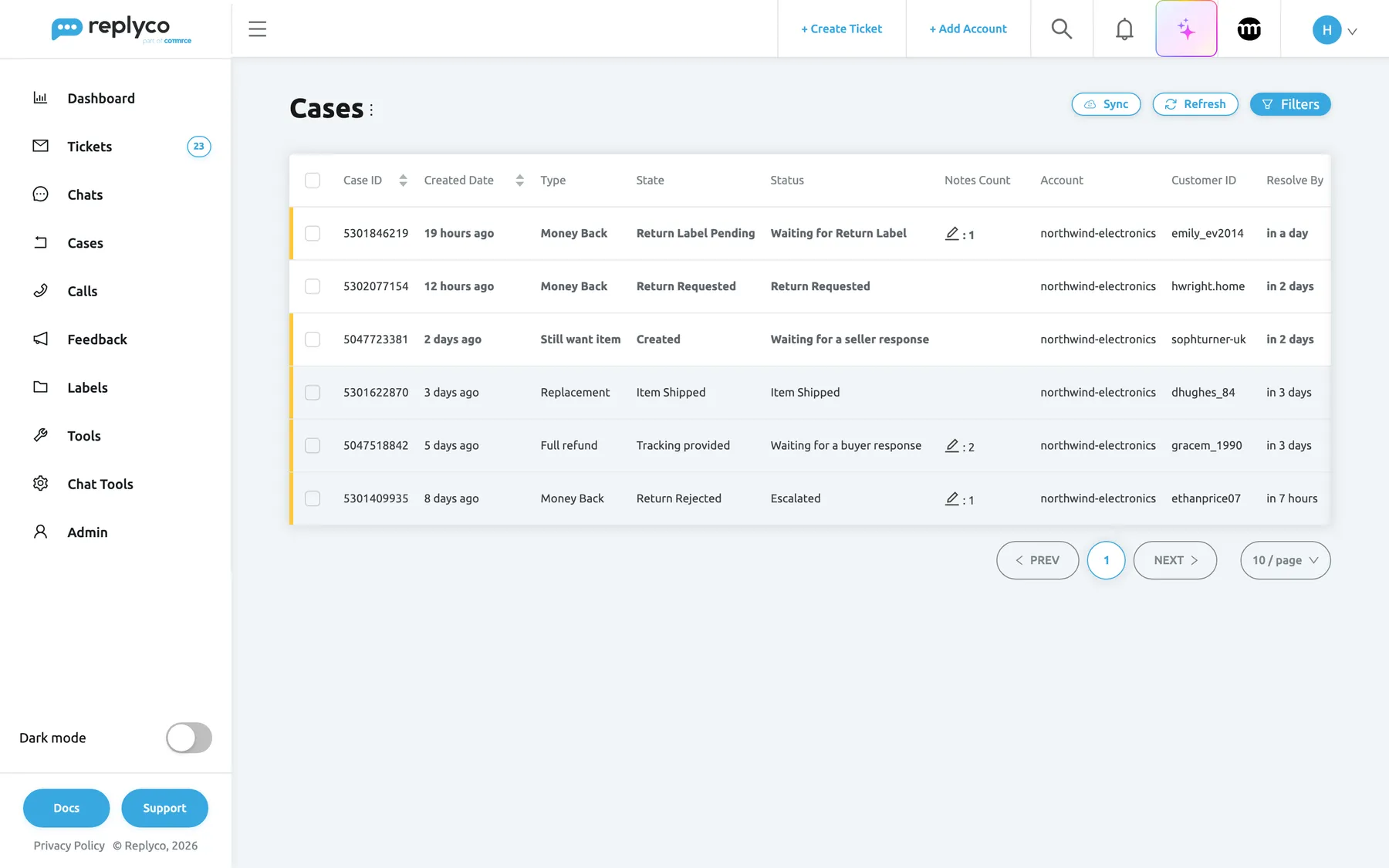
What this screenshot shows
- Screen
- Cases (/cases)
- Highlighted
- “”, whole-screen, loaded. none
- Also visible
- heading Cases with the ⋮ menu; Sync, Refresh and Filters top right; six open cases: four returns, two item-not-received inquiries, account northwind-electronics; columns Case ID, Created Date, Type, State, Status, Notes Count, Account, Customer ID, Resolve By; unread rows bold; yellow bar on cases in progress, none on a new return request
- Purpose
- the case list at a glance
| Region | What it shows | What you do there |
|---|---|---|
| Heading, top left | Cases and the ⋮ menu with Edit Columns | Choose the columns |
| Buttons, top right | Sync, Refresh and Filters | Ask eBay for fresh data, reload the list, open the search and filters |
| Filter tags, under the heading | One tag per filter you set, with a cross to remove it | See and remove active filters |
| Bulk bar, top centre | Appears only when rows are ticked: Mark Read and Mark Unread | Change the read state of the ticked cases |
| The table | One row per case, with a coloured bar at the left edge | Open, tick, sort, right-click, hover the notes counter |
| Paging, bottom right | PREV, the page numbers, NEXT and the page size | Move through pages; show 10, 20, 50 or 100 per page |
Open the case list
Section titled “Open the case list”Select Cases in the sidebar. The menu entry appears when three things are true: your company has switched on Enable eBay Cases in AdminCompany Settings, your user has the Cases permission, and your company’s plan includes cases, which every current plan does (companies on an older plan may not have it; see What each plan includes). The switch is offered only once an eBay account is connected; see Company Settings and, for the eBay connection itself, eBay.
Replyco then imports new eBay returns and inquiries every 25 minutes and refreshes each open case from eBay every 12 hours and whenever someone opens it, so the list fills without anything to do on your side. The list does not reload by itself while you look at it: select Refresh to see what has changed.
Read a row
Section titled “Read a row”Every row is one eBay case. The colour at the left edge and the weight of the text tell you where it stands before you open it.
| Indicator | Meaning |
|---|---|
| Bold text on a white background | Unread: nobody has opened the case since eBay last changed it |
| No bar at the left edge | A new case: a return with the status Return Requested, or an inquiry with the status Opened |
| Yellow bar | The case is in progress: any other status while it is open |
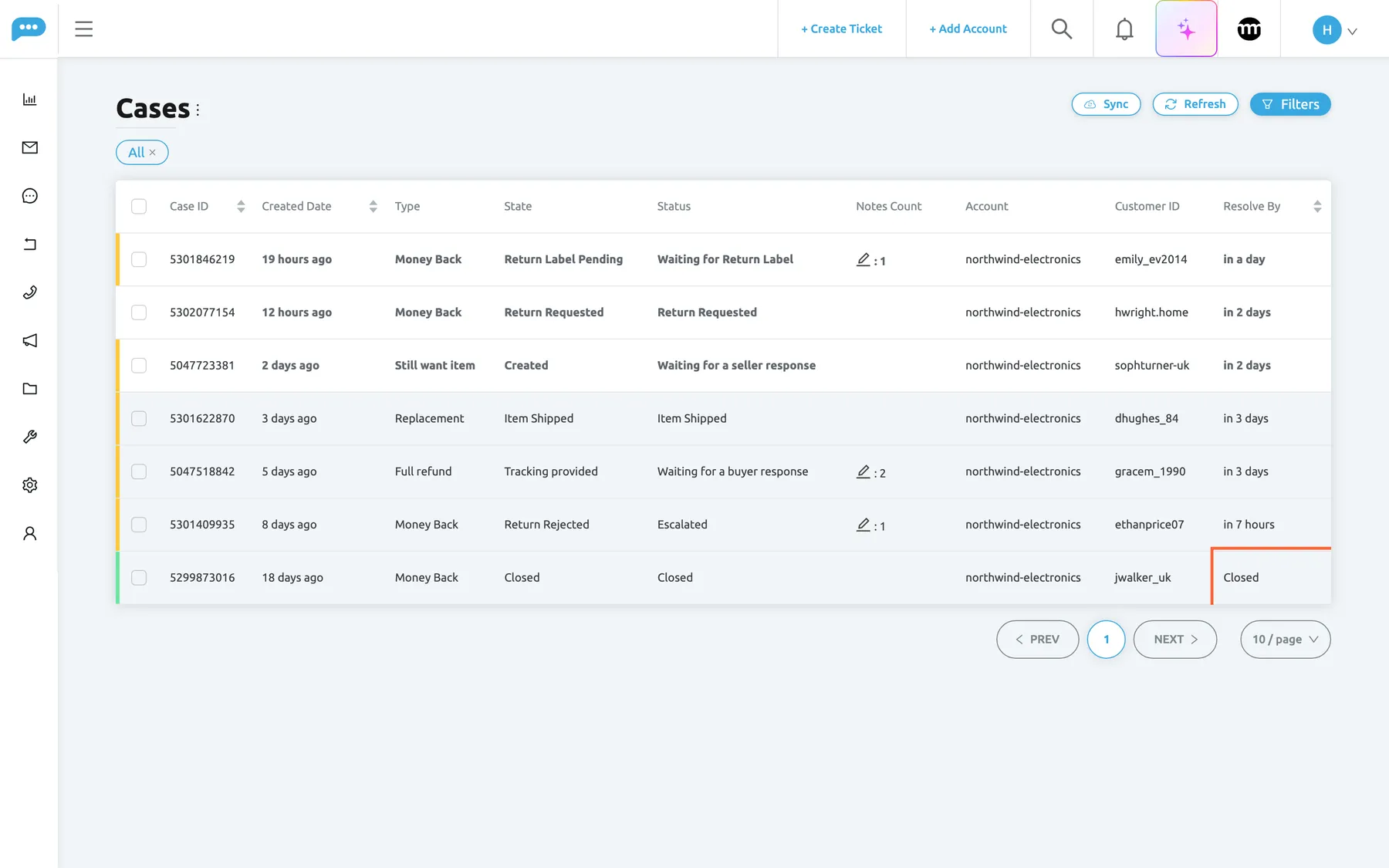
| Green bar | The case is closed; its Resolve By cell reads Closed |
Type tells you what the buyer wants. A return shows eBay’s return type, such as Money Back or Replacement. An item-not-received inquiry shows Full refund when the buyer asked for their money back, and Still want item when the buyer still wants the item.
State is the stage eBay reports for this return or inquiry, for example Return Label Pending while the buyer waits for a return label. Status is eBay’s overall status of the case, for example Waiting for Return Label or Escalated. The two often read alike; the state is the finer of the two. The words come from eBay; to see what eBay means by one, open the case and hover it in General Details.
Created Date and Resolve By are shown as relative times, such as 19 hours ago and in a day. Resolve By is eBay’s date for your answer: for a return, the date by which you should respond; for an inquiry, the date by which you should resolve it. Inside a return, the same deadline shows as Response Due; see The case screen.
What this screenshot shows
- Screen
- Cases (/cases)
- Highlighted
- “Closed”, table, closed. none; the row opens the closed case
- Also visible
- filter tag All under the heading; seven cases; the closed one with a green bar and Closed in Resolve By
- Purpose
- find closed cases and read the row colours
Search and filter the list
Section titled “Search and filter the list”-
Select Filters at the top right.
The filter panel opens above the table.
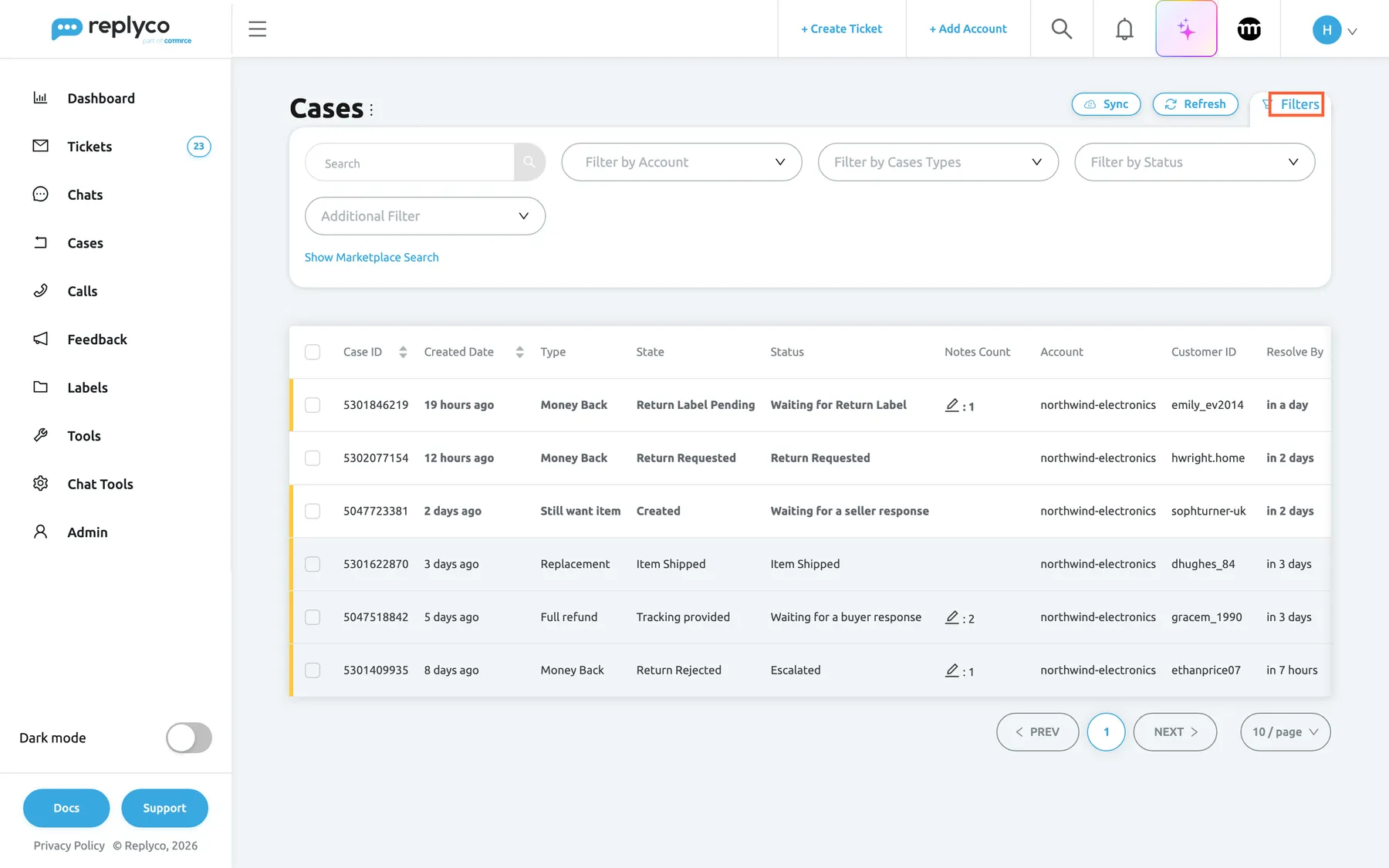
Filters opens search and four filters; Show Marketplace Search looks a case up on eBay instead. What this screenshot shows
- Screen
- Cases (/cases)
- Highlighted
- “”, top-bar-right, open. opens and closes the filter panel
- Also visible
- Search box; account filter (placeholder Filter by Account), Filter by Cases Types, Filter by Status, Additional Filter; link Show Marketplace Search
- Purpose
- where the case filters are
-
To search, type in Search and press Enter or select the magnifier.
The search finds cases whose case number, buyer name, buyer e-mail address or eBay user ID contains the text. Upper and lower case do not matter, and part of a word is enough: evans finds the return of Emily Evans.
-
Choose values in the other filters. The list changes as soon as you pick a value, and each filter appears as a tag under the heading.
-
To start again, select Clear Filters, which appears once a filter is set, or remove single tags with their cross.
| Filter | What it keeps |
|---|---|
| Search | Cases whose case number, buyer name, e-mail address or eBay user ID contains the text |
| The account filter, Filter by Account | Cases of the eBay accounts you pick; several at once |
| Filter by Cases Types | INR for item-not-received inquiries, or Return & Refunds for returns |
| Filter by Status | Cases with one eBay status, such as Escalated or Waiting for a seller response |
| Additional Filter | All: open and closed cases. Unread: unread cases only, open or closed. Empty: open cases only. |
Example. To see which item-not-received inquiries still need an answer from you, choose INR in Filter by Cases Types and Waiting for a seller response in Filter by Status, then sort by Resolve By.
Show closed cases
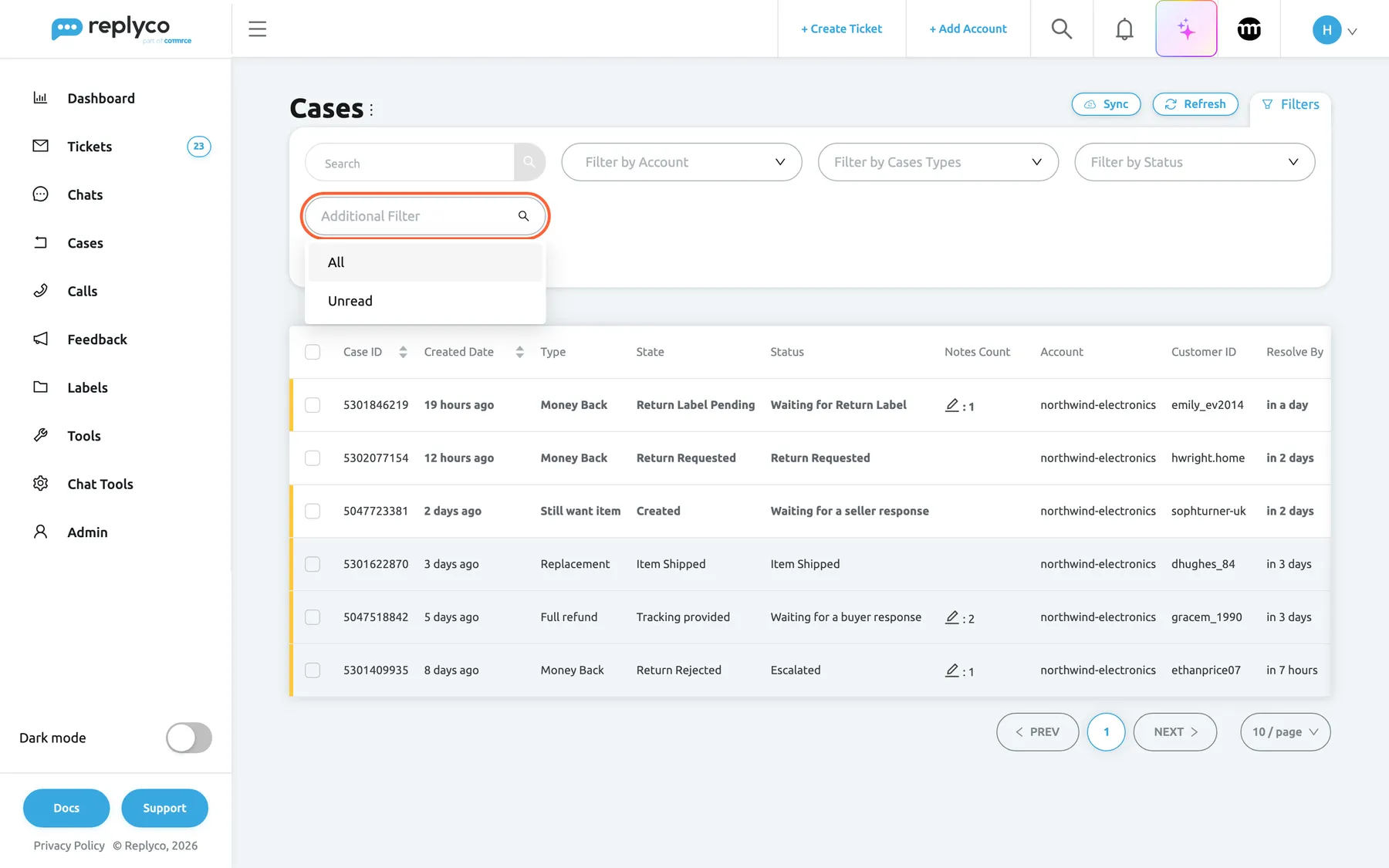
Section titled “Show closed cases”The list leaves closed cases out. To see them, open Filters, open Additional Filter and choose All. Closed cases then appear with a green bar and Closed in Resolve By. Unread in the same filter shows only unread cases, including closed ones that eBay changed after they closed.
What this screenshot shows
- Screen
- Cases (/cases)
- Highlighted
- “Additional Filter”, filter-panel, expanded. All shows closed cases too; Unread shows unread cases only
- Also visible
- options All and Unread; six open cases in the table
- Purpose
- why closed cases are missing from the list
Look up a case on eBay
Section titled “Look up a case on eBay”Marketplace search fetches one case from eBay by its number. Use it for a case the list does not show, for example one a buyer quotes in a message.
-
Select Filters, then Show Marketplace Search under the filters.
The filters give way to a single account select, Filter by Account.
-
Choose the eBay account the case belongs to.
-
Type the eBay case number in Search and press Enter.
Replyco asks eBay for the return or inquiry with that number. If Replyco has not imported it yet, it saves it now, and the list shows it. With only an account or only a number, Replyco shows Please select an account and enter a case ID.
-
Select Hide Marketplace Search to go back to the normal filters, which come back as you left them.
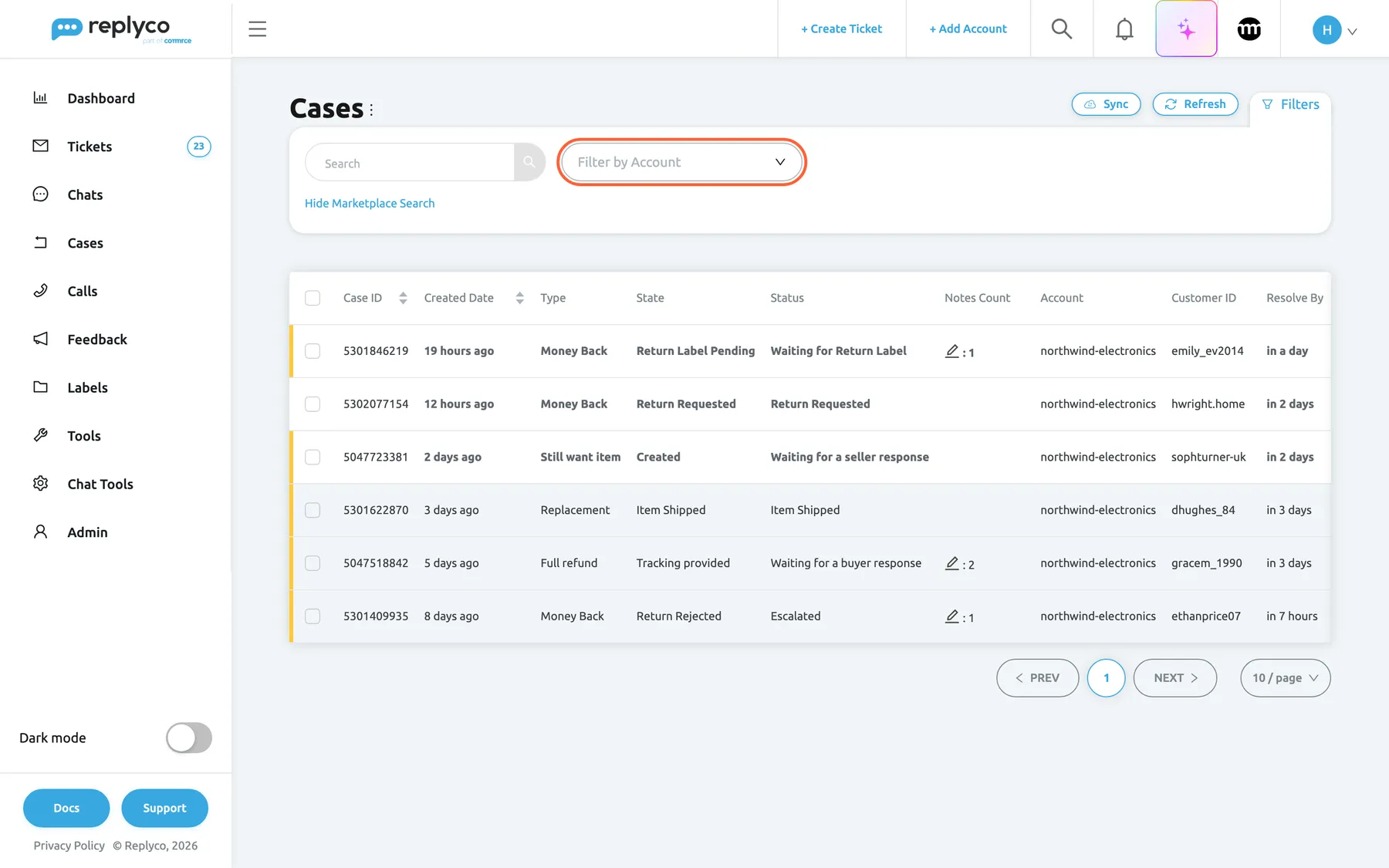
What this screenshot shows
- Screen
- Cases (/cases)
- Highlighted
- “Filter by Account”, filter-panel, empty. chooses the eBay account to search
- Also visible
- Search box; link Hide Marketplace Search
- Purpose
- look up a case on eBay by its number
Sort and page through the list
Section titled “Sort and page through the list”Select the arrows in the heading of Case ID, Created Date or Resolve By to sort; select again to reverse the order, and a third time to go back. Other columns cannot be sorted. Sort by Resolve By to put the case whose deadline comes first at the top.
At the bottom right, PREV, the page numbers and NEXT move through the pages, and the page size shows 10, 20, 50 or 100 cases. A new list shows 10. The sort order, page and page size are remembered in this browser.
Open a case
Section titled “Open a case”Select a row to open the case. Hold Ctrl (Cmd on a Mac) while you select it to open the case in a new browser tab. Opening a case asks eBay for its latest details, which takes a moment, and marks the case read for everyone. See The case screen.
Mark cases read or unread
Section titled “Mark cases read or unread”-
Tick the box at the start of each row. The box in the table heading ticks every row on the page.
The rows turn blue and a small bar appears at the top of the page.
-
Select Mark Read or Mark Unread in the bar. With a mix of read and unread cases ticked, both are there.
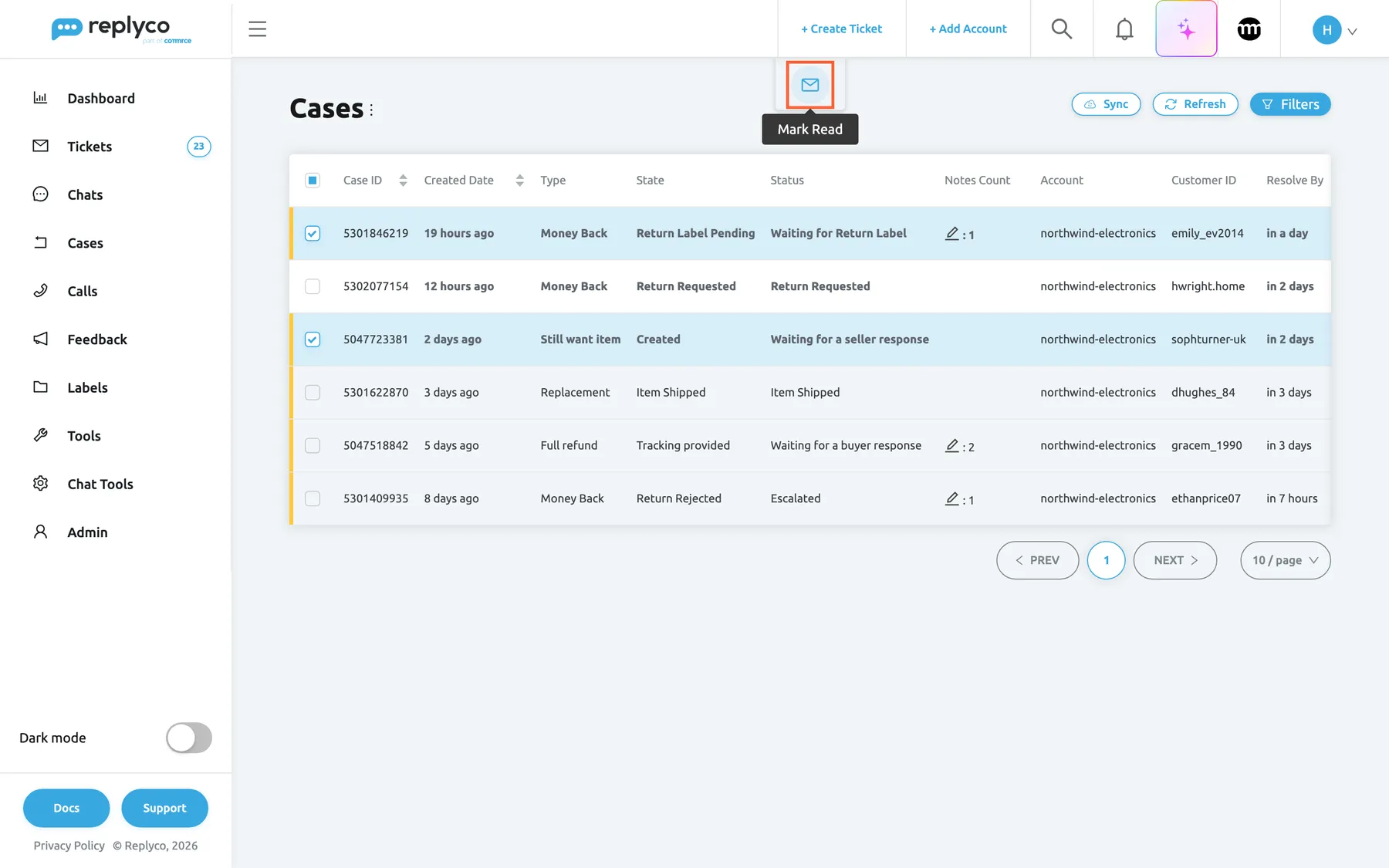
Tick cases to mark them read or unread together. What this screenshot shows
- Screen
- Cases (/cases)
- Highlighted
- “Mark Read”, top-centre, hovered. marks the selected cases read
- Also visible
- two rows ticked and shaded blue; tooltip Mark Read
- Purpose
- the only bulk action on cases
To change one case, right-click its row and choose Mark Read or Mark Unread; the same menu has Open in new tab. The read state is shared: a case you mark read is read for your colleagues too. Replyco marks a case unread again whenever eBay reports a change to it.
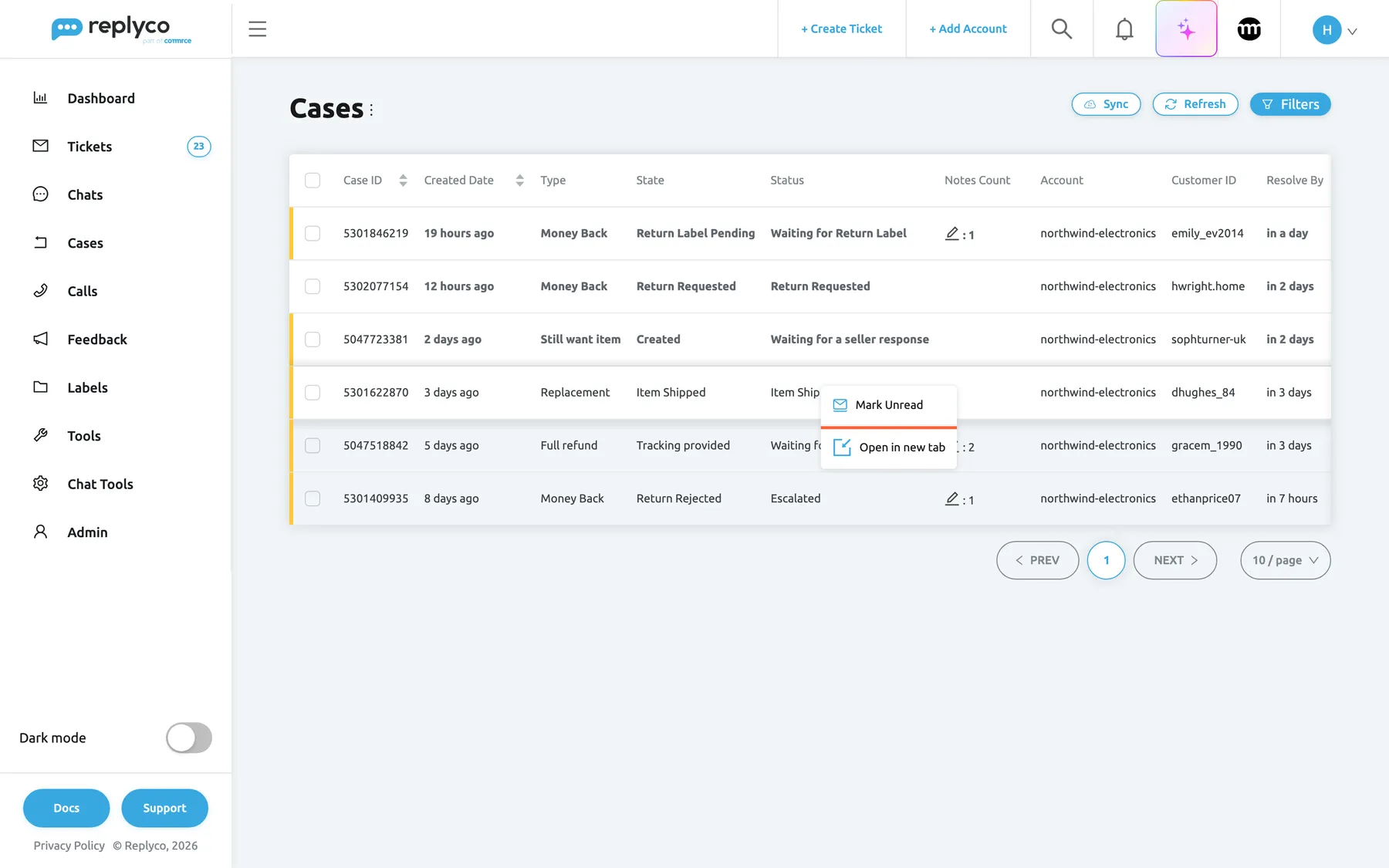
What this screenshot shows
- Screen
- Cases (/cases)
- Highlighted
- “Mark Unread”, table, open. marks this case unread
- Also visible
- menu entries Mark Unread and Open in new tab
- Purpose
- act on one case without opening it
Read the latest note
Section titled “Read the latest note”Notes Count shows a pencil and the number of internal notes on the case. Hover it to read the latest note; mentions show the colleague’s name. Notes are written inside the case and never reach the buyer; see The case screen.
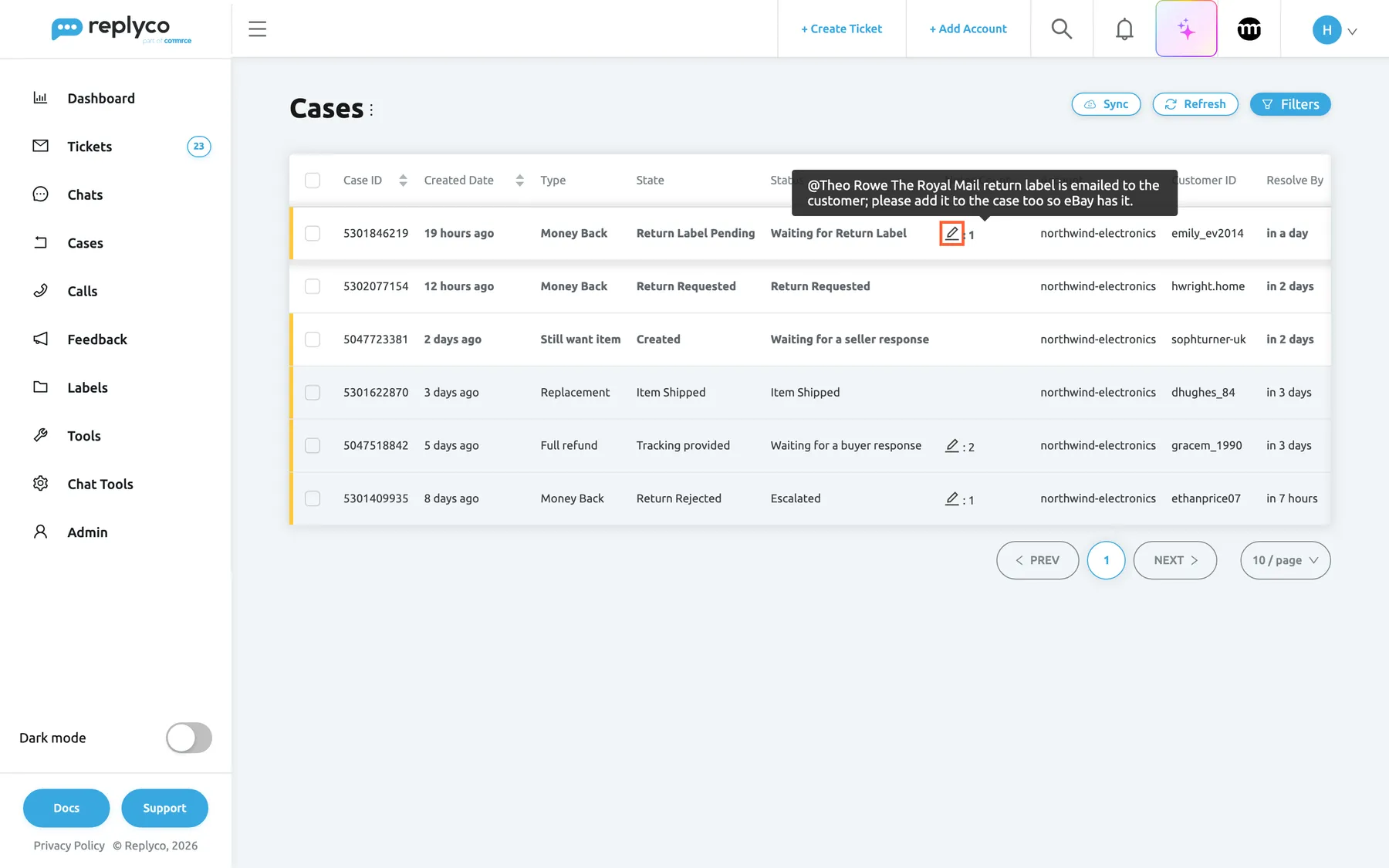
What this screenshot shows
- Screen
- Cases (/cases)
- Highlighted
- “Notes Count”, table, hovered. shows the latest note
- Also visible
- tooltip with the latest note and its mention
- Purpose
- read internal notes from the list
Update the list from eBay
Section titled “Update the list from eBay”Replyco imports new cases every 25 minutes and refreshes open cases every 12 hours. To refresh sooner, select Sync. Replyco confirms with Cases will be synced in a few minutes. Please wait. and, within minutes, refreshes the open cases it has not refreshed for 12 hours; select Refresh to load the result. Sync does not import new cases. Without a connected eBay account, Replyco answers “You don’t have accounts with cases”; see eBay. Sync works once an hour: when every eBay account was updated less than an hour ago, Replyco answers “The Sync button can be used only if Cases last sync time is more than 1 hour.” and nothing is queued.
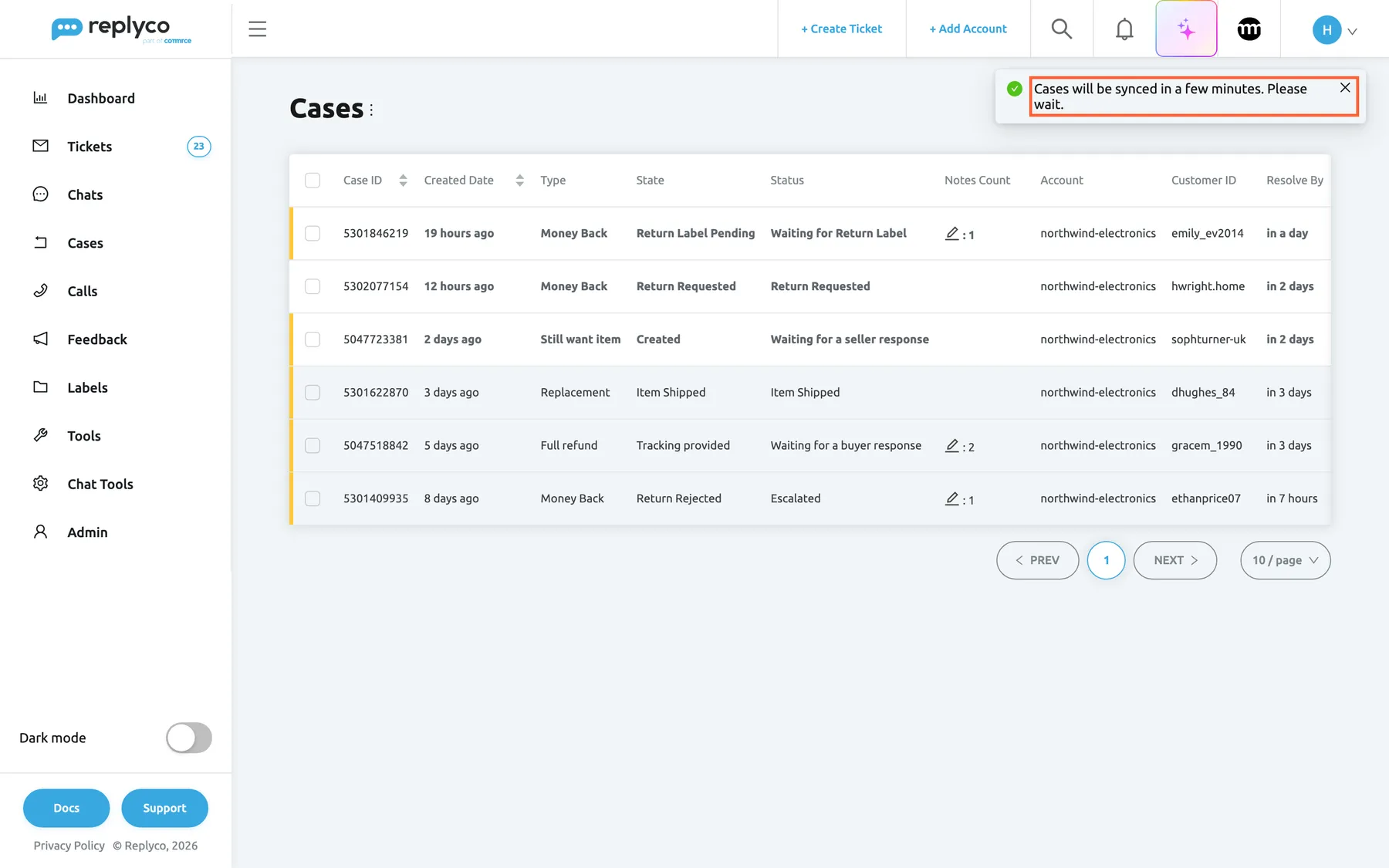
What this screenshot shows
- Screen
- Cases (/cases)
- Highlighted
- “Cases will be synced in a few minutes. Please wait.”, top-right-toast, shown. confirms the request made with Sync
- Also visible
- confirmation Cases will be synced in a few minutes. Please wait.
- Purpose
- update cases from eBay without waiting for the next automatic sync
Refresh only reloads the list from Replyco with your filters, sort and page; it does not contact eBay.
Choose the columns
Section titled “Choose the columns”-
Select the ⋮ next to the heading Cases, then Edit Columns.
-
In Select Columns to Display, tick the columns you want, clear the others and select Save.
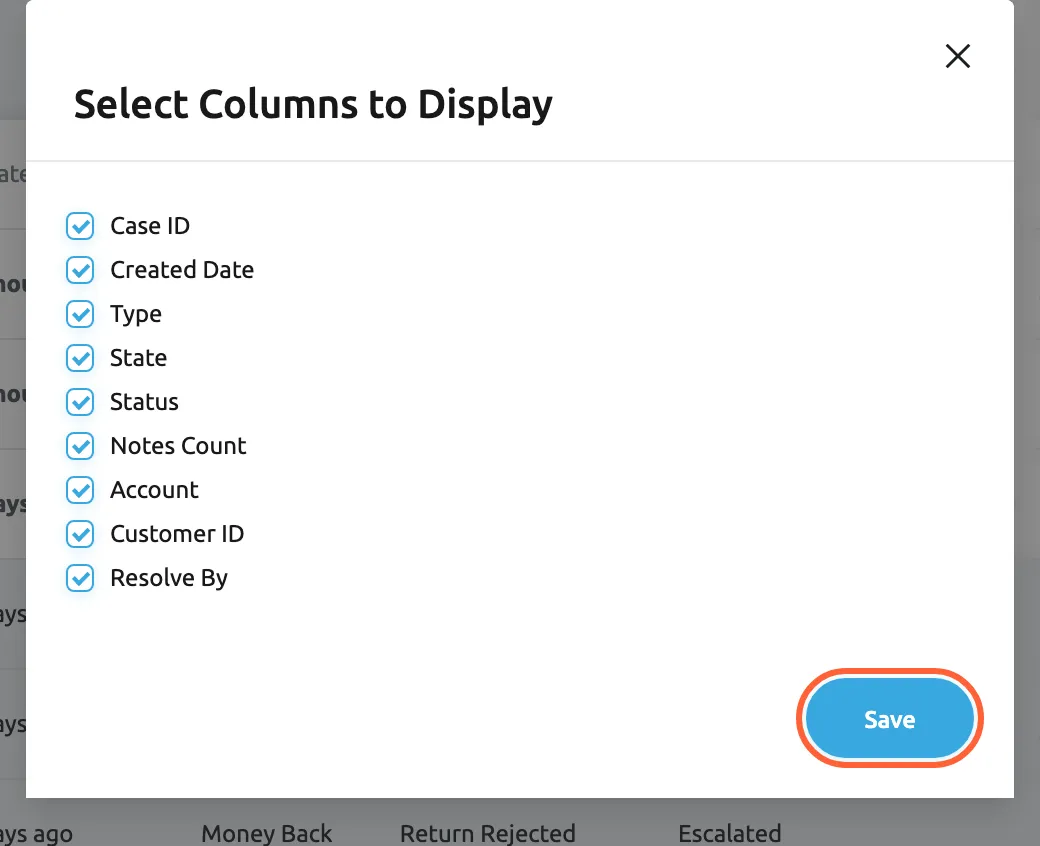
Edit Columns chooses which of the nine columns you see; the choice is saved to your user. What this screenshot shows
- Screen
- Select Columns to Display (/cases)
- Highlighted
- button “Save”, dialog-footer, enabled. saves the column choice for your user
- Also visible
- nine ticked check boxes, one per column
- Purpose
- choose the columns of the case list
Your choice is saved to your user, so it follows you to any browser; colleagues keep their own. The cross closes the window without saving.
Every control, explained
Section titled “Every control, explained”Top right, the first of the three buttons.
Asks Replyco to refresh, within minutes, the open cases of your company’s eBay accounts that it has not refreshed for 12 hours. Confirms with Cases will be synced in a few minutes. Please wait.. It imports no new cases. Refused, with nothing queued, when every account was updated in the last hour, and when the company has no eBay account.
Open cases are refreshed every 12 hours; after you have acted in Seller Hub, Sync brings the change into Replyco sooner. Opening one case refreshes that case at once.
Refresh
Section titled “Refresh”Top right, between Sync and Filters.
Loads the current page again with the same filters, sort order and page. It does not contact eBay.
The list does not update itself while it is open.
Filters
Section titled “Filters”Top right, the blue button. Selecting it again closes the panel; the filters stay set.
Opens Search, the account filter, Filter by Cases Types, Filter by Status, Additional Filter, the Show Marketplace Search link and, once a filter is set, Clear Filters. A case must match every filter you set. Search runs on Enter; the other filters apply as soon as you pick a value.
An account with many buyers collects cases fast; the filters narrow the list to the ones you can act on now.
The filters
Section titled “The filters”| Filter | What it keeps | Why |
|---|---|---|
| Search | Case number, buyer name, e-mail address or eBay user ID containing the text | Find the case a buyer writes about |
| The account filter | Cases of the chosen eBay accounts | Work one eBay account at a time |
| Filter by Cases Types | INR or Return & Refunds | Returns and missing items are handled differently |
| Filter by Status | One eBay status | Find, for example, every escalated case |
| Additional Filter | All or Unread; empty shows open cases | See closed cases, or only the unread ones |
Show Marketplace Search and Hide Marketplace Search
Section titled “Show Marketplace Search and Hide Marketplace Search”The link at the bottom of the filter panel.
Replaces the filters with Filter by Account. With an account chosen and a case number in Search, Enter fetches that case from eBay, imports it if Replyco does not have it and lists it. Hide Marketplace Search brings the normal filters back.
Replyco imports cases from a recent period; an older case, or one that has not been imported yet, can still be fetched by its number.
The ⋮ menu and Select Columns to Display
Section titled “The ⋮ menu and Select Columns to Display”Next to the heading Cases; its only entry is Edit Columns.
One tick box per column. Save stores the choice for your user; the cross closes without saving. All nine columns are shown until you change it.
A lean list is easier to scan; someone who handles one account can drop Account.
The columns
Section titled “The columns”| Column | What it shows | Why |
|---|---|---|
| Case ID | eBay’s number of the return or inquiry; sortable | The number eBay and the buyer use |
| Created Date | When the buyer opened the case, as a relative time; sortable | See how long it has been open |
| Type | Return: Money Back, Replacement, Exchange. Inquiry: Full refund or Still want item | Know what the buyer expects |
| State | eBay’s state of the return or inquiry | See the exact stage |
| Status | eBay’s overall status of the case | See whose move it is |
| Notes Count | Number of internal notes; hover for the latest | Spot cases a colleague has commented on |
| Account | The eBay account of the case | Tell your shops apart |
| Customer ID | The buyer’s eBay user ID | Match the case to the buyer in eBay |
| Resolve By | eBay’s date for your answer, as a relative time; Closed for closed cases; sortable | Answer before eBay decides for the buyer |
Row check boxes and the bulk bar
Section titled “Row check boxes and the bulk bar”The box at the start of each row; the box in the table heading ticks the whole page. The bar appears at the top centre.
Mark Read and Mark Unread change the read state of every ticked case; the ticks are then cleared. These are the only bulk actions on cases.
Clear a batch of cases you have checked, or flag some for a colleague by marking them unread.
The right-click menu
Section titled “The right-click menu”Right-click any row.
Mark Read or Mark Unread, whichever applies, and Open in new tab.
Change one case without ticking boxes, or keep the list open while you work on a case.
Paging
Section titled “Paging”Bottom right.
PREV, page numbers, NEXT, and 10, 20, 50 or 100 cases per page; remembered in this browser.
Show more cases per page when you work through a long list.
Who sees what
Section titled “Who sees what”| Part | Who sees it |
|---|---|
| Cases in the sidebar | Users with the Cases permission, once Enable eBay Cases is on; every current plan includes cases, and companies on an older plan may not have them (What each plan includes) |
| Cases in the list | Only cases of the eBay accounts your user may see |
| Marking read or unread, fetching a case from eBay | Users whose Cases permission allows editing; with view-only access Replyco answers You don't have enough rights |
The Cases permission and the accounts each user may see are set by an admin in AdminUsers; see User permissions and roles.
What you need to know
Section titled “What you need to know”| Topic | Fact |
|---|---|
| Open cases only | Without Additional Filter, closed cases are not listed |
| Read state | Shared by the whole team; eBay changes make a case unread again |
| The deadline column | Resolve By is eBay’s date for your answer; inside a return it shows as Response Due |
| Sort order | Case ID, Created Date and Resolve By can be sorted; a third click removes the sort |
| Remembered | Filters, sort, page and page size per browser; columns per user |
| Sync | Once an hour; refreshes open cases not refreshed for 12 hours; imports nothing new; Refresh loads the result |
| Timing | New cases every 25 minutes; open cases refreshed every 12 hours and each time one is opened |
| Other places | Cases also appear in the eBay ticket of the same order, in global search and on the Cases dashboard |
Frequently asked questions
Section titled “Frequently asked questions”The list
Section titled “The list”Why is a case missing from the list?
Section titled “Why is a case missing from the list?”Check four things. The case list shows open cases only; closed ones appear when you choose All in Additional Filter under Filters. Replyco remembers your filters, so look for filter tags under the heading. Your user sees only the eBay accounts an admin gave it in AdminUsers. And a case Replyco has not imported yet can be fetched with Show Marketplace Search.
Why don’t I see Cases in the sidebar?
Section titled “Why don’t I see Cases in the sidebar?”Cases appears only when Enable eBay Cases is on in AdminCompany Settings and your user has the Cases permission. The switch itself appears only after an eBay account is connected. Ask an admin to check both.
Which cases does the list show?
Section titled “Which cases does the list show?”eBay returns and eBay item-not-received inquiries of the eBay accounts your user may see, open ones unless you choose All in Additional Filter. Other marketplaces have no cases in Replyco, and eBay order cancellations are handled from the order in the eBay ticket, not here.
What is the difference between the State and Status columns?
Section titled “What is the difference between the State and Status columns?”Both come from eBay. State is the stage of the return or inquiry, for example Return Label Pending; Status is eBay’s overall status of the case, for example Escalated. Open the case and hover a value in General Details to read eBay’s description of it.
What do the coloured bars mean?
Section titled “What do the coloured bars mean?”In the case list, no bar marks a new case (a return with Return Requested or an inquiry with Opened), a yellow bar a case in progress, and a green bar a closed case. Bold rows on white are unread.
Search and filters
Section titled “Search and filters”Can I search by buyer name or eBay user ID?
Section titled “Can I search by buyer name or eBay user ID?”Yes. Search under Filters finds cases whose case number, buyer name, buyer e-mail address or eBay user ID contains the text you type. Press Enter to search; case does not matter and part of a name is enough.
Why do my filters come back when I open the list again?
Section titled “Why do my filters come back when I open the list again?”Replyco remembers the search, the filters, the sort order and the page of the case list in your browser. Remove the tags under the heading, or select Clear Filters in the filter panel, to start again. Another browser starts without them.
How do I find a case a buyer quotes that is not in the list?
Section titled “How do I find a case a buyer quotes that is not in the list?”Open Filters, select Show Marketplace Search, choose the eBay account in Filter by Account, type the case number in Search and press Enter. Replyco fetches the case from eBay, imports it if it is new and lists it.
How do I see only the inquiries that wait for me?
Section titled “How do I see only the inquiries that wait for me?”Open Filters in the case list, choose INR in Filter by Cases Types and Waiting for a seller response in Filter by Status. Then sort by Resolve By so the inquiry with the nearest deadline is on top.
Working with cases
Section titled “Working with cases”Does marking a case read affect my colleagues?
Section titled “Does marking a case read affect my colleagues?”Yes. The read state of an eBay case is shared by everyone in your company. Opening a case marks it read for everyone, and Replyco marks it unread again when eBay reports a change, so a bold row always means something new.
Can I answer several cases at once?
Section titled “Can I answer several cases at once?”No. The only bulk actions in the case list are Mark Read and Mark Unread. Refunds, labels and messages are sent one case at a time from the case screen, because each needs eBay’s own form for that case.
What does Sync do, and why must I wait an hour?
Section titled “What does Sync do, and why must I wait an hour?”Sync asks Replyco to refresh the open cases of your company’s eBay accounts that it has not refreshed for 12 hours; it does not import new cases, which arrive every 25 minutes. It works once an hour: when every account was updated in the last hour, Replyco refuses and queues nothing. After it confirms with Cases will be synced in a few minutes. Please wait., select Refresh a few minutes later.
Can each person have their own columns?
Section titled “Can each person have their own columns?”Yes. Edit Columns in the ⋮ menu next to the heading Cases saves the columns to your user, so they follow you to any browser, and colleagues keep theirs.
Can I delete a case?
Section titled “Can I delete a case?”No. Cases belong to eBay and stay in Replyco. Closed cases drop out of the default case list and appear again when you choose All in Additional Filter.
Troubleshooting
Section titled “Troubleshooting”| Symptom | What to check |
|---|---|
| Cases is not in the sidebar | Enable eBay Cases in Company Settings is on and saved; your user has the Cases permission in AdminUsers |
| The list is empty | An eBay account is connected and syncing (see eBay); filter tags under the heading; All in Additional Filter for closed cases; your user’s account access |
| A case you know about is missing | The filters; whether it is closed; your access to its eBay account; then fetch it with Show Marketplace Search |
| Please select an account and enter a case ID. | In marketplace search, choose an account and type a case number |
| Sync answers “The Sync button can be used only if Cases last sync time is more than 1 hour.” | Wait until an hour has passed since the last update, then try again |
| New cases do not appear | Select Refresh; the list does not reload by itself |
| Marking read shows You don't have enough rights | Your Cases permission is view-only; an admin can allow editing |