

Billing: Usage
The Usage tab of AdminBilling shows how much of your plan’s ticket allowance the current payment period has used, where those billable conversations came from and how each earlier period compared. Administrators use it to see extra-ticket charges coming and to decide whether a larger plan would pay off. It holds charts only: nothing you do here changes your plan or your bill.
Availability: needs the Admin and Billing permissions, like the rest of Billing; see User permissions and roles. The tab exists only for companies on a usage-based plan, Ticket-Based in the plan comparison; a company on a user-based plan has no Usage tab. See What each plan includes. For the other tabs, see Billing and Billing: Payment.
What you can do here
Section titled “What you can do here”- Know what counts. A ticket or chat counts once, when the first reply goes out, however long the conversation gets. Know what counts as a billable ticket.
- See this period at a glance. A bar compares the conversations answered so far with your plan’s allowance, next to how many you would expect by today. Check this period’s usage.
- Find out where the usage comes from. Switch the ring chart to tickets or chats to see each connected account’s share. See which accounts use your allowance.
- Compare periods. One card per payment period shows created, answered and over the allowance, with a chart for the year. Compare payment periods.
- Read the pricing FAQ. Five short answers about billable tickets, message volumes and sales tax. Read the pricing FAQ.
- Download the detail. A spreadsheet lists every billable ticket and chat of a period. Download the statistic.
The screen at a glance
Section titled “The screen at a glance”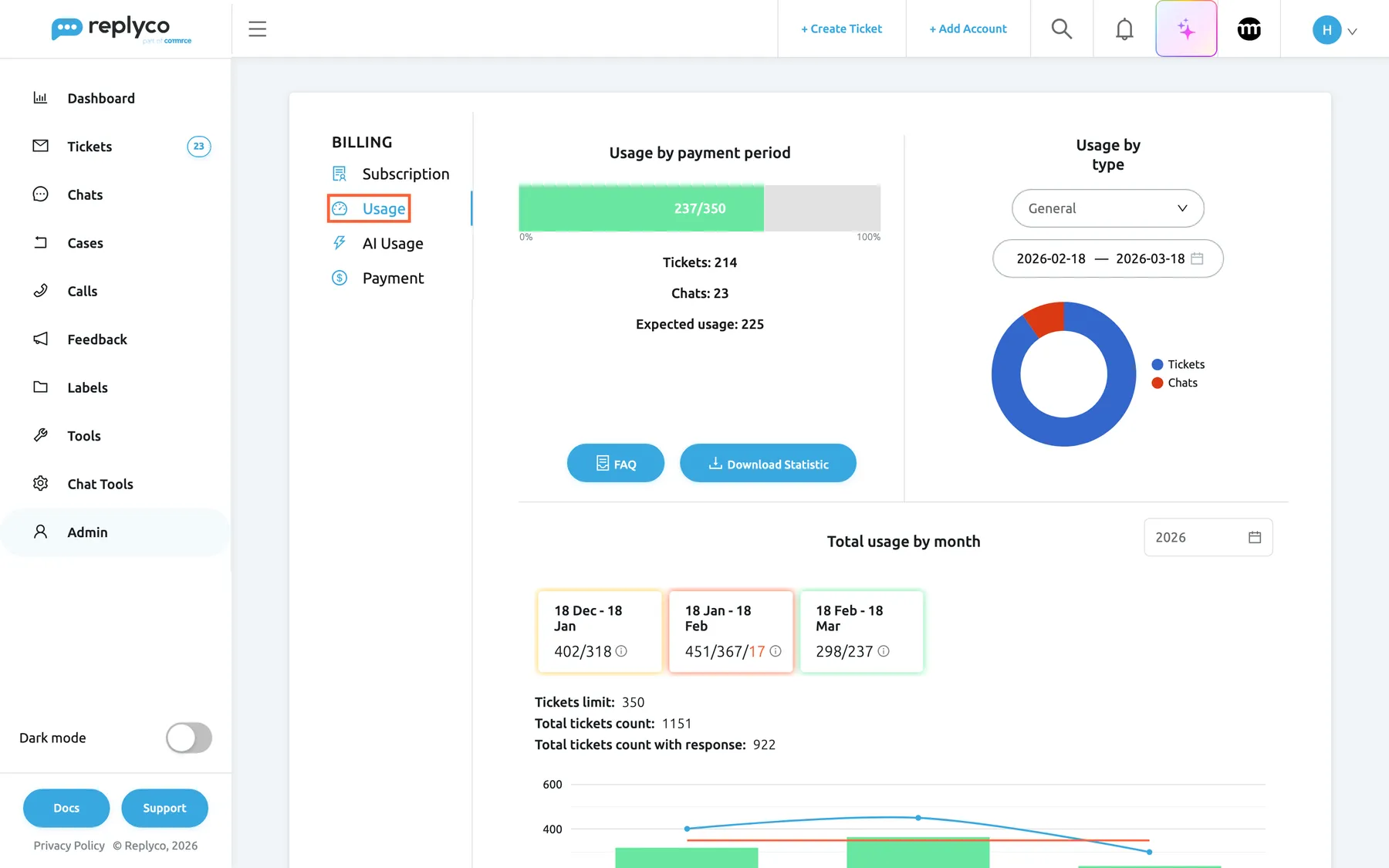
What this screenshot shows
- Screen
- Billing (/billing?tab=overview)
- Highlighted
- tab “Usage”, left-tab-list, selected. shows the usage of the ticket allowance
- Also visible
- Usage by payment period 237/350, Tickets 214, Chats 23, Expected usage 225; Usage by type: General, 2026-02-18 to 2026-03-18; monthly cards 402/318, 451/367/17, 298/237
- Purpose
- the screen at a glance
| Region | What it shows | What you do there |
|---|---|---|
| Usage by payment period, top left | A bar of used against included tickets, then Tickets, Chats and Expected usage | Check how far into the allowance you are |
| Buttons, top left | FAQ and Download Statistic | Read the pricing answers, export the detail |
| Usage by type, top right | A select, a date range and a ring chart | See the split between tickets and chats, or per account |
| Total usage by month, below | A year picker, one card per payment period, the year’s totals and a chart | Compare periods |
Know what counts as a billable ticket
Section titled “Know what counts as a billable ticket”A ticket becomes billable when Replyco sends the first message on it: a reply from your team or an auto-response. It counts once, in the payment period in which that first message went out, however many messages follow. A chat counts the same way, when your team sends its first answer. For example, a customer who writes six times about one late parcel and gets four replies is one billable ticket. Forwarding a message creates a new ticket, which counts once when the forward is sent; the ticket you forwarded from does not become billable through it. To forward a message, see Create Ticket.
What does not count:
- a ticket nobody replies to, for example spam you resolve or archive without answering;
- the Welcome ticket Replyco creates for a new company;
- conversations answered during your free trial.
Because auto-responses count as replies, an auto-response rule makes every ticket it answers billable, even if your team never writes back. To see which rules send automatic replies, see Auto-responses for tickets.
Check this period’s usage
Section titled “Check this period’s usage”Usage by payment period covers your current payment period, from your subscription day of the month to the same day of the next month. The bar reads used/included, for example 237/350 on the M plan, and its colour tells you how close you are:
| Share of the allowance used | Example on the M plan (350) | Bar |
|---|---|---|
| Below 75 % | 262 | Green |
| From 75 % | 263 | Yellow |
| From 95 % | 333 | Red |
| Over 100 % | 351 | Red, and Overage: 1 appears in red |
Under the bar, Tickets and Chats split the number. Expected usage is where you would be if you used the allowance evenly: the days since the period started, divided by the days in the month, times the allowance. On 21 March, 20 days into a period that began on 1 March, that is 20 ÷ 31 × 350, about 226. When the used number runs well ahead of the expected one, the period is likely to end over the allowance.
Tickets over the allowance are charged one by one at your plan’s extra ticket price, on the next invoice; see Check the upcoming invoice. When you have used 90 % or more, Change Plan on the Subscription tab is outlined in red; to compare plans, see Subscribe to a plan.
See which accounts use your allowance
Section titled “See which accounts use your allowance”-
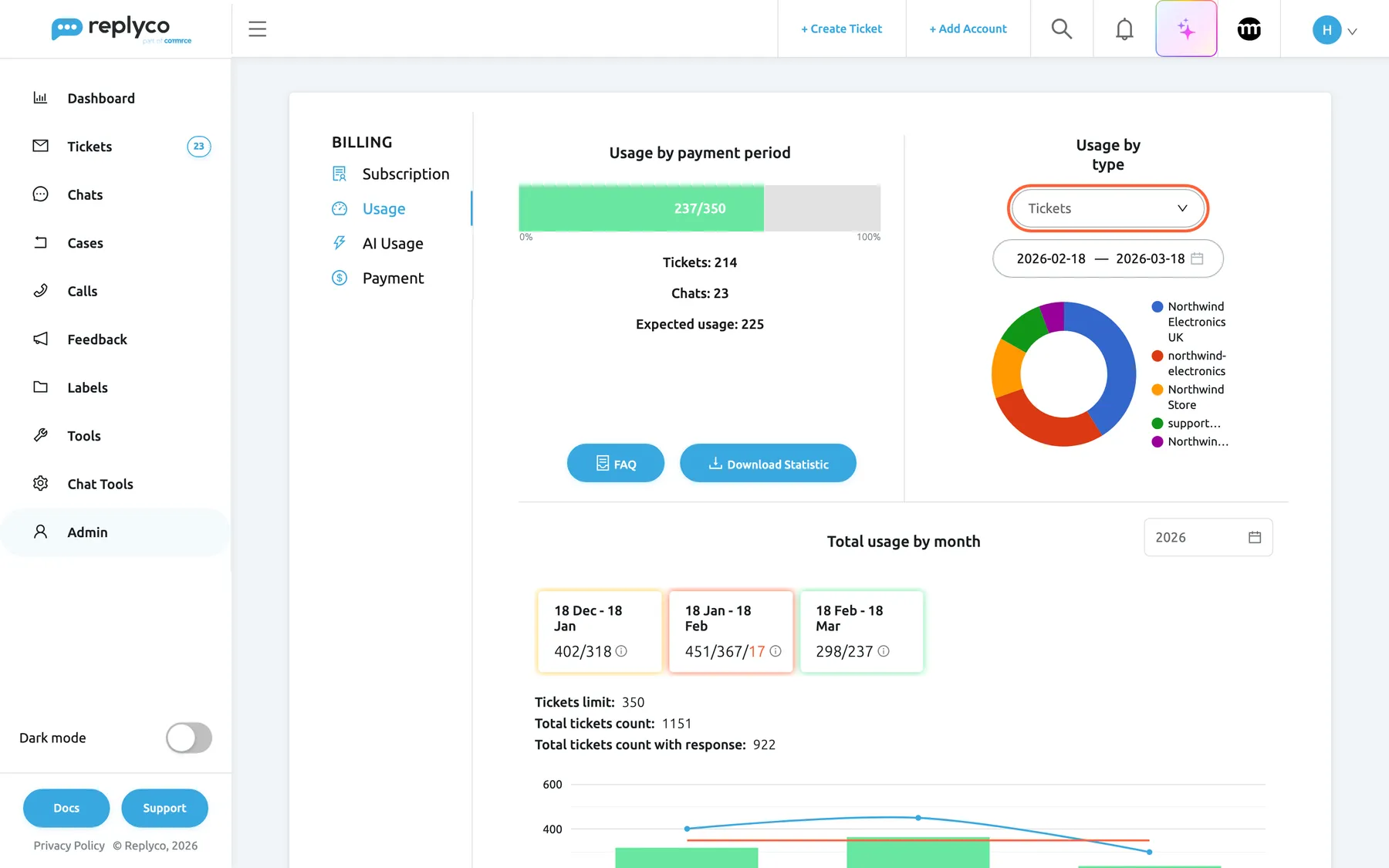
Under Usage by type, open the select, which starts at General.
-
Choose Tickets for billable tickets per connected account, or Chats for billable chats per chat account or Live Chat widget.
-
Change the date range if you want another period. It starts with the current payment period.
What this screenshot shows
- Screen
- Billing (/billing?tab=overview)
- Highlighted
- combobox “Tickets”, right-column, Tickets selected. shows billable tickets per account
- Also visible
- pie per account: Northwind Electronics UK, northwind-electronics, Northwind Store, support@northwind-electronics.example.com, NorthwindHome; date range 2026-02-18 to 2026-03-18
- Purpose
- where usage comes from
General splits the period into tickets and chats. Hover a part of the ring to see its number. In the example, Northwind’s Amazon account, Northwind Electronics UK, brings in the most billable tickets, followed by the eBay account; the names are the account names on Accounts. The general split always uses the English words Tickets and Chats.
Compare payment periods
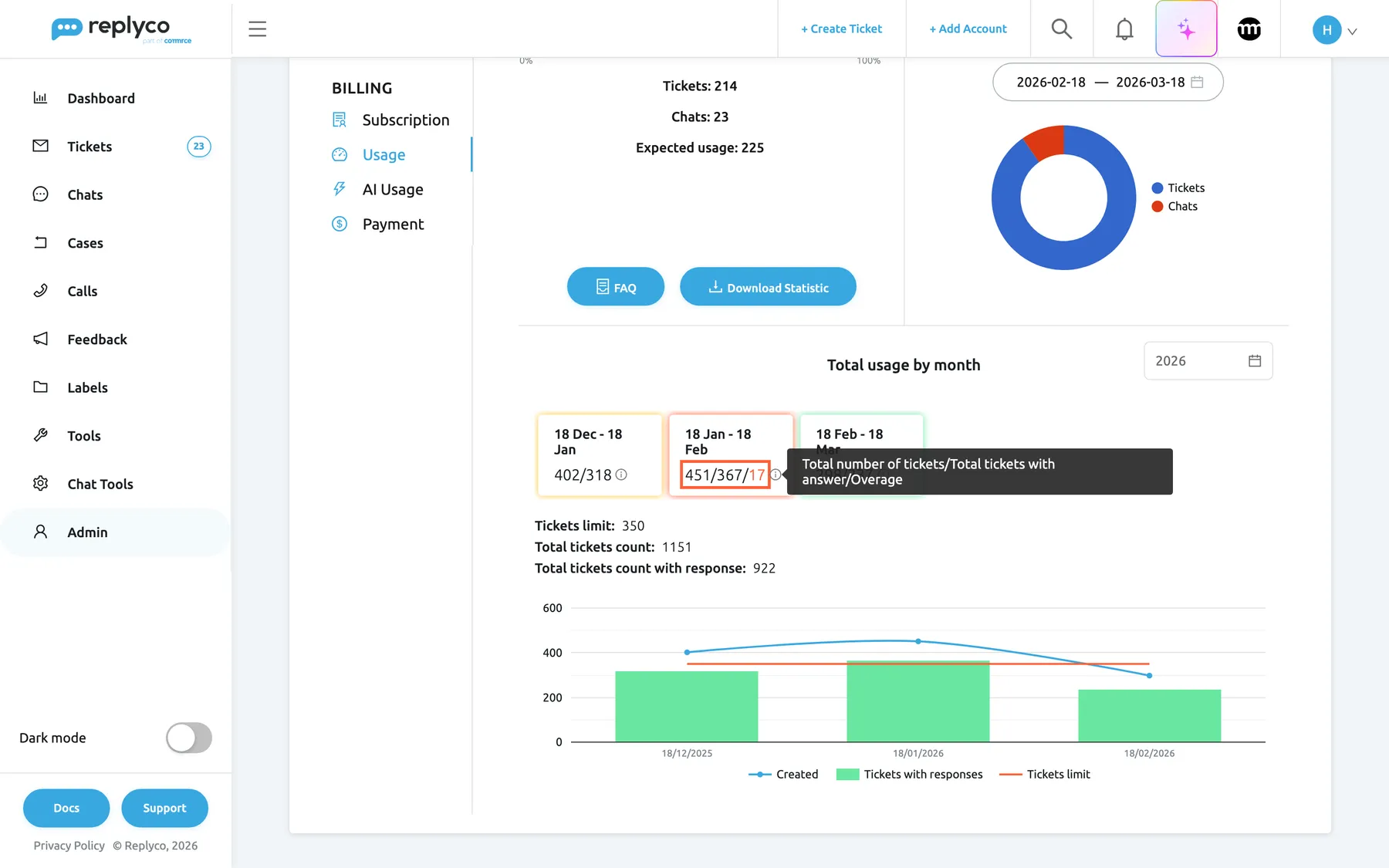
Section titled “Compare payment periods”Total usage by month shows one card per payment period of the chosen year, from the period that starts in December of the year before. Each card reads created/answered, and a third number in red when the period went over the allowance. Hover the info icon for the legend: Total number of tickets/Total tickets with answer/Overage.
What this screenshot shows
- Screen
- Billing (/billing?tab=overview)
- Highlighted
- text “”, monthly-cards, tooltip open. explains the three numbers
- Also visible
- cards 402/318, 451/367/17, 298/237; Tickets limit 350, Total tickets count 1151, with response 922; combo chart Created, Tickets with responses, Tickets limit
- Purpose
- compare payment periods
| Card edge | When |
|---|---|
| Green | Below 75 % of the allowance answered |
| Yellow | From 75 % up to 95 % |
| Red | Above 95 % |
Under the cards, Tickets limit shows your plan’s allowance, Total tickets count every ticket and chat created in the year’s periods, and Total tickets count with response the billable ones. The chart draws Created as a line, Tickets with responses as bars and Tickets limit as a red line; on a yearly plan it adds Total Tickets with responses, the running total. Created counts every conversation, answered or not, so the gap between the line and the bars is the work that never cost you anything.
In the example, the period from 18 January to 18 February ended at 367 answered conversations, 17 over the M plan’s 350, and those 17 were charged on the invoice of 18 February; see Billing: Payment.
Read the pricing FAQ
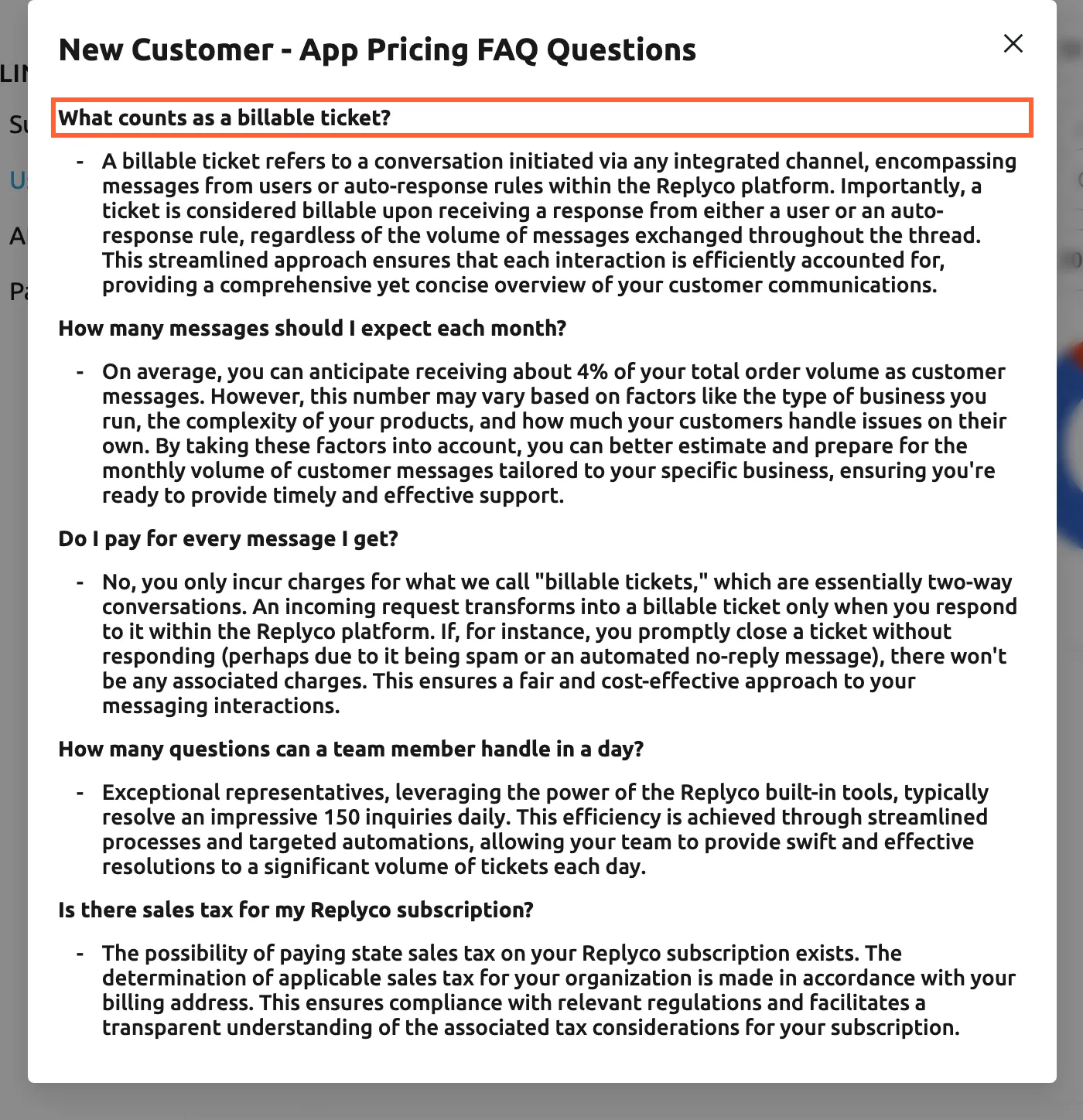
Section titled “Read the pricing FAQ”Select FAQ. A dialog titled New Customer - App Pricing FAQ Questions answers five questions: What counts as a billable ticket?, How many messages should I expect each month?, Do I pay for every message I get?, How many questions can a team member handle in a day? and Is there sales tax for my Replyco subscription?. Close it with the cross.
What this screenshot shows
- Screen
- Billing (/billing?tab=overview)
- Highlighted
- text “What counts as a billable ticket?”, dialog, shown. none
- Also visible
- five questions with answers
- Purpose
- what counts as a billable ticket
Download the statistic
Section titled “Download the statistic”-
Select Download Statistic.
-
Under Select period, choose the dates. The dialog starts with the current payment period.
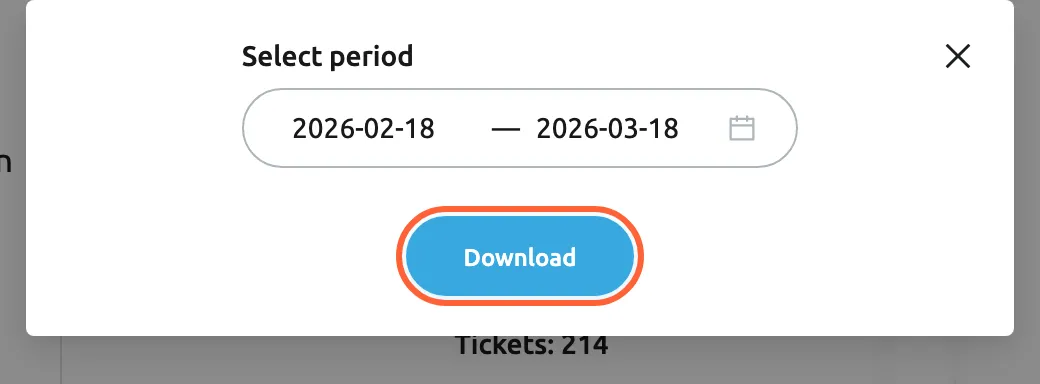
Download Statistic saves the billable tickets and chats of the chosen period as a spreadsheet. What this screenshot shows
- Screen
- Billing (/billing?tab=overview)
- Highlighted
- button “Download”, dialog-bottom, enabled. downloads tickets_<date>.xlsx
- Also visible
- Select period 2026-02-18 to 2026-03-18
- Purpose
- export the billable conversations
-
Select Download.
Your browser saves a spreadsheet named tickets_ followed by the date, with two sheets. tickets lists every ticket whose first reply went out in the period, with its ticket number, account, creation date, last message date, subject and number of messages. messages lists every chat first answered in the period, with its date, the customer’s email address and a link. When the period has nothing billable, Replyco shows No data found for selected filters instead. The file holds customers’ email addresses, so store and share it as you would other customer data.
Every control, explained
Section titled “Every control, explained”The Usage tab of AdminBilling, in the order the screen shows it. Nothing on the tab is saved; every date and select returns to the current payment period when you open the tab again.
Usage by payment period
Section titled “Usage by payment period”Top left.
A bar of used/included for the current payment period (on XL, the calendar month and your company’s agreed limit), green below 75 %, yellow from 75 %, red from 95 %. Below: Tickets, Chats, Expected usage, and Overage in red when used is over the allowance.
The one number to watch during the month.
Under the bar, left button.
Opens New Customer - App Pricing FAQ Questions with five questions and answers. Read-only.
The pricing rules in the product’s own words, at the point you need them.
Download Statistic
Section titled “Download Statistic”Under the bar, right button.
Opens a dialog with Select period (default: the current payment period, cannot be cleared) and Download, which saves the spreadsheet of billable tickets and chats.
Check a surprising number ticket by ticket, or hand the list to your accounts team.
Usage by type
Section titled “Usage by type”Top right: a select and a date range above a ring chart.
The select offers General (tickets against chats, the default), Tickets (per connected account) and Chats (per chat account or Live Chat widget). The date range starts with the current payment period and cannot be cleared. Both reload the chart at once.
Tells you which channel drives your bill.
Total usage by month
Section titled “Total usage by month”Below, with a year picker on the right.
The year picker (default: this year) chooses the periods shown. One card per payment period with created/answered and, when over, the overage in red; an info icon explains the numbers. Then Tickets limit (only when your plan has an allowance), Total tickets count, Total tickets count with response and a chart with Created, Tickets with responses and Tickets limit. Cards scroll sideways when a year has more than fit.
Seasonal peaks show up here, so you can move to a larger plan before the busy months.
Who sees what
Section titled “Who sees what”| Part | Shown when |
|---|---|
| The Usage tab | The Admin and Billing permissions, and a usage-based plan; see User permissions and roles |
| Overage | The period is over the plan’s allowance |
| Tickets limit | Your plan has a ticket allowance |
| Total Tickets with responses in the chart | A yearly plan |
| used/included Ticket(s) used at the bottom of the sidebar | Every user, once the period passes 80 % of the allowance, yellow up to 100 % and red beyond |
What you need to know
Section titled “What you need to know”| Topic | Fact |
|---|---|
| What counts | A ticket or chat, once, when Replyco sends its first message on it: a reply or an auto-response. |
| What does not | Unanswered tickets, the Welcome ticket, conversations answered during the trial. |
| Payment period | From your subscription day of the month to the same day of the next month; on XL the calendar month. |
| Allowances | S 50, M 350, L 2,500 tickets a period; over that, 0.32 each on S and M and 0.30 on L, in your plan’s currency. |
| Extra tickets | Charged on the next invoice, as a line of the upcoming invoice. |
| Freshness | The tab reads the counts each time you open it. |
| Language | Account names as connected; the general split reads Tickets and Chats in English. |
| Personal data | The downloaded spreadsheet contains customer email addresses. |
Frequently asked questions
Section titled “Frequently asked questions”Counting
Section titled “Counting”Which tickets do we pay for?
Section titled “Which tickets do we pay for?”A ticket becomes billable when Replyco sends the first message on it, a reply from your team or an auto-response. It counts once, in the payment period of that first message, however many messages follow. Forwarding a message creates a new ticket, which counts once when the forward is sent. You see the count on AdminBilling under the Usage tab.
Does an auto-response make a ticket billable?
Section titled “Does an auto-response make a ticket billable?”Yes. An auto-response is a message Replyco sends, so a ticket it answers counts once, even if your team never replies. If your usage is higher than expected, check which auto-response rules are active; see Auto-responses for tickets.
Does a ticket with ten messages count ten times?
Section titled “Does a ticket with ten messages count ten times?”No. A ticket counts once, when the first message from your side goes out, however long the conversation becomes afterwards. The Usage tab of AdminBilling counts tickets and chats, never messages.
Do tickets we resolve without replying count?
Section titled “Do tickets we resolve without replying count?”No. A ticket nobody replies to is never billable, so spam or notifications you resolve or archive without answering cost nothing. They still appear under Created in the Total usage by month chart, which counts every conversation.
Do chats count against the ticket allowance?
Section titled “Do chats count against the ticket allowance?”Yes. A chat counts once, when your team sends its first answer, and it is added to the same allowance as tickets. Usage by payment period on the Usage tab shows Tickets and Chats separately under the bar.
Did the tickets from our trial count?
Section titled “Did the tickets from our trial count?”No. Conversations answered during your free trial are not billed and are left out of Total usage by month on the Usage tab. Counting starts with your first payment period; see Subscribe to a plan.
The numbers
Section titled “The numbers”What is Expected usage?
Section titled “What is Expected usage?”Expected usage on the Usage tab is the number you would have reached by today if you used your allowance evenly: the days since the period started, divided by the days in the month, times the allowance. When the used number is well above it, the period is heading over the allowance.
Why is the bar red when we are still under the allowance?
Section titled “Why is the bar red when we are still under the allowance?”The bar in Usage by payment period turns red from 95 % of the allowance, before you go over, and yellow from 75 %. Tickets beyond 100 % are charged one by one. To compare larger plans, see Subscribe to a plan.
What do the three numbers on a monthly card mean?
Section titled “What do the three numbers on a monthly card mean?”Each card under Total usage by month reads created/answered, plus a third number in red when the period went over the allowance: the tickets charged extra. Hover the info icon on the card for the legend.
How much does a ticket over the allowance cost?
Section titled “How much does a ticket over the allowance cost?”The extra ticket price of your plan: 0.32 on S and M and 0.30 on L, in your plan’s currency, plus tax. Extra tickets appear as a line of the next invoice on the Subscription tab; see Check the upcoming invoice.
Tab and export
Section titled “Tab and export”Why can’t I see the Usage tab?
Section titled “Why can’t I see the Usage tab?”The Usage tab of AdminBilling exists only for companies on a usage-based plan, Ticket-Based in the plan comparison; a company on a user-based plan does not have it. You also need the Billing permission; see User permissions and roles.
Which tickets are in the downloaded statistic?
Section titled “Which tickets are in the downloaded statistic?”Every ticket whose first reply went out in the chosen period, on the sheet tickets, and every chat first answered in the period, on the sheet messages. Select Download Statistic on the Usage tab, choose the dates and select Download.
Troubleshooting
Section titled “Troubleshooting”| Symptom | What to check |
|---|---|
| The Usage tab is missing | Your company is on a usage-based plan, not a user-based one, and you have the Billing permission |
| Usage is higher than you expected | Auto-response rules that reply to every ticket; each such ticket counts once. Check Auto-responses for tickets, then compare Tickets per account under Usage by type |
| A month shows a red third number | That period went over the allowance; the number is the tickets charged extra, which appear on that period’s invoice on Billing: Payment |
| The ring chart is empty | The chosen date range has no billable tickets or chats; widen the range |
| Download shows No data found for selected filters | Nothing was answered in the chosen period; choose other dates |
| The numbers differ from a dashboard | Dashboards count activity; this tab counts only conversations with a first reply, once, in the period of that reply. See Dashboard |