

The Replyco screen
Every Replyco screen sits in the same frame: the sidebar on the left with the menu, the top bar across the top with the actions you need everywhere, and the foot of the sidebar with dark mode, help and support. This page explains that frame for everyone who works in Replyco, from the first sign-in onwards. After you sign in, Replyco opens your start screen, usually TicketsSmart Filters; the screens the menu opens each have their own guide, linked from the menu table below.
Availability: every plan includes the whole frame and every menu in it. Some menus and buttons appear only with a permission or a connected account; the table in Who sees what lists them. Companies on an older plan may not have every feature; see What each plan includes.
What you can do here
Section titled “What you can do here”- Move between screens. The sidebar menu groups every screen under ten menus, from Dashboard to Admin, with a counter of tickets beside Tickets. Move between screens · Ticket lists
- Make room on a small screen. The menu icon folds the sidebar down to icons. Collapse the sidebar
- Come back to where your day starts. The logo opens your start screen, which you choose yourself. Go back to your start screen · Smart Filters
- Start a conversation or connect a channel from anywhere. + Create Ticket and + Add Account sit in the top bar on every screen. Create a ticket or connect an account · Create Ticket · Add Account
- Find a ticket, customer or order. The magnifier opens one search box for all of them. Search Replyco · Search
- See who mentioned you. The bell collects mentions in notes and snoozed tickets that are due again. Read your notifications · Notifications
- Ask the AI assistant. Copilot opens a chat panel that knows which screen you are on. Ask Copilot
- Reach your own settings, help and the onboarding checklist. Your avatar opens the user menu. Open your user menu · Account Settings · Complete the onboarding checklist
- Work in the dark theme. One switch in the sidebar, remembered for your user on every device. Switch to dark mode
- Get help. Docs and Support at the foot of the sidebar open the documentation and the support chat. Get help and support · Help and support
- Understand the notices above the top bar. A coloured bar tells you about new tickets, a failed payment or an unverified e-mail address. Read the notices at the top of the screen
- Keep an eye on your trial. The foot of the sidebar counts the trial days left and the tickets used. Check your trial and ticket usage · Subscribe to a plan
- Work in English or German. The whole company works in one interface language. Change the language of Replyco
The screen at a glance
Section titled “The screen at a glance”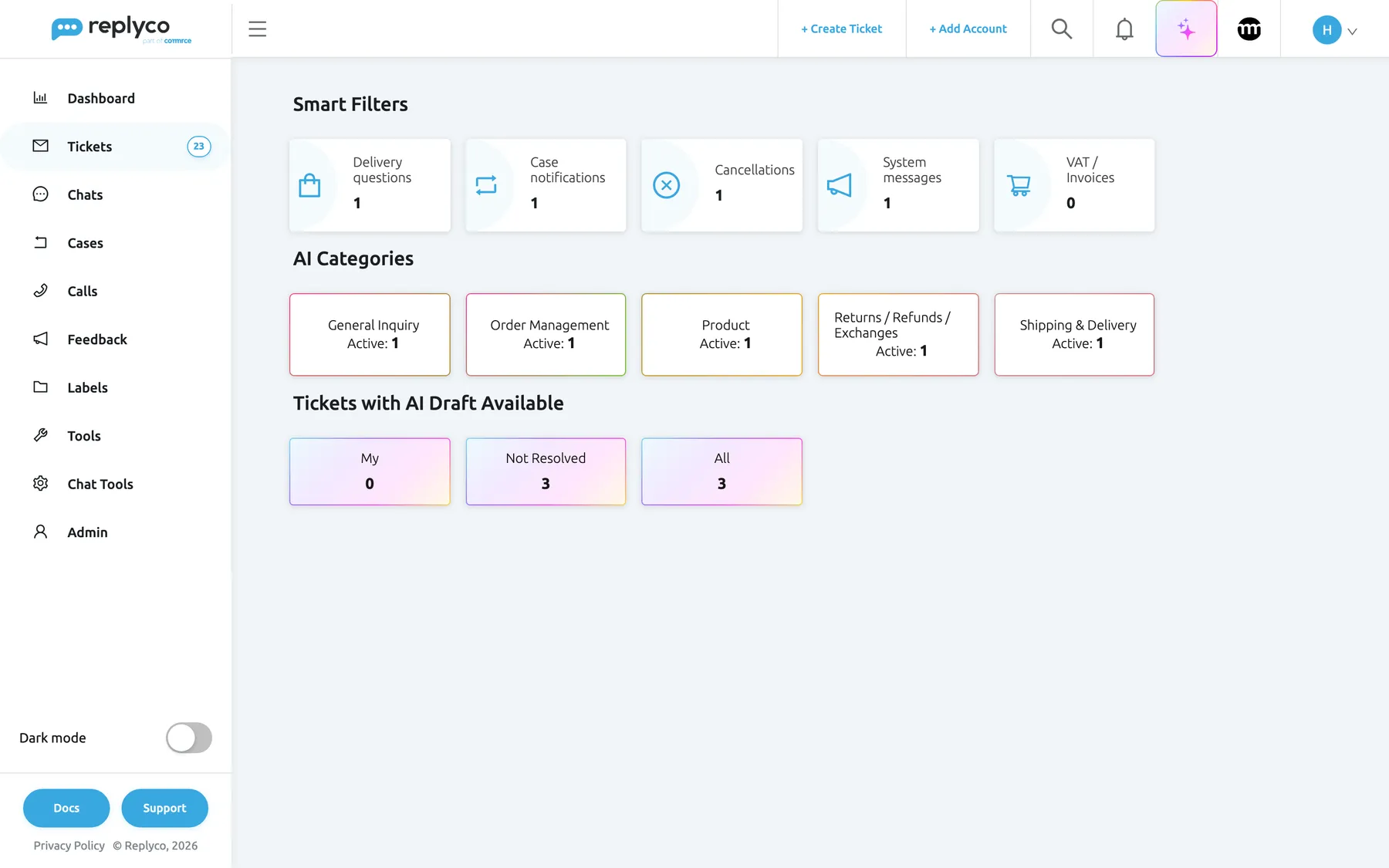
What this screenshot shows
- Screen
- Smart Filters (/)
- Highlighted
- complementary “”, whole-frame, expanded. none; the frame as it opens
- Also visible
- sidebar menu with ten groups and a ticket counter; top bar with Create Ticket, Add Account, search, notifications, Copilot, comrce and the user menu; Smart Filters start screen; Dark mode switch, Docs and Support buttons in the sidebar footer
- Purpose
- orientation in the Replyco frame
| Region | What it shows | What you do there |
|---|---|---|
| Logo, top left | The Replyco logo, or your company’s own logo if Replyco has set one up for you | Go back to your start screen |
| Sidebar menu, left | Up to ten menus with their screens; counters beside tickets, chats, feedback and labels | Open a screen |
| Theme switch and checklist, below the menu | The Dark mode switch; while onboarding is open, the ONBOARDING CHECKLIST progress bar | Switch the theme; open the checklist |
| Sidebar foot | Docs, Support, Privacy Policy, during a trial the days left and the tickets used | Open help or the support chat; subscribe |
| Notice bar, above the top bar | A coloured line only when there is something to tell you | Follow its link or close it |
| Top bar | The menu icon on the left; + Create Ticket, + Add Account, search, notifications, Copilot, the comrce icon and your avatar on the right | Start an action from any screen |
| Main area | The screen you opened | Work |
Move between screens
Section titled “Move between screens”The sidebar menu lists every screen you may open, grouped under menus in a fixed order. A menu with screens under it opens when you select it; Cases and Calls open their screen at once.
-
Select a menu in the sidebar, for example Tickets.
The menu opens below its name and any other open menu closes, so only one menu is open at a time.
-
Select a screen, for example Not Resolved.
The screen opens in the main area and its name is marked in the menu.
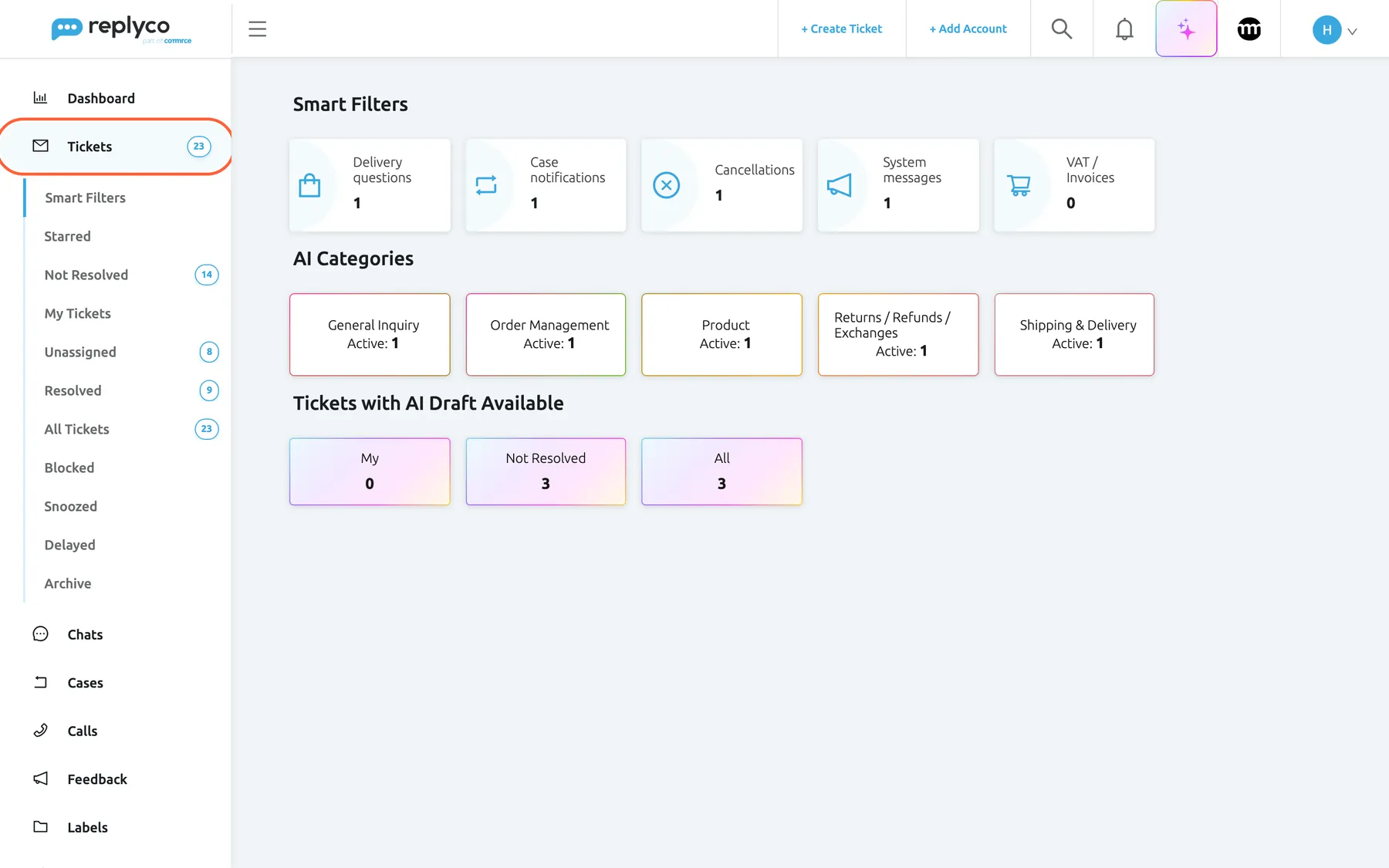
What this screenshot shows
- Screen
- Smart Filters (/)
- Highlighted
- menuitem “Tickets”, sidebar-left, expanded. opens and closes the list of ticket views
- Also visible
- eleven ticket views with counters; Smart Filters start screen on the right
- Purpose
- how the sidebar menu opens a group of screens
Numbers beside the ticket views count the tickets in each view. Beside Tickets itself the number is for All Tickets, or for My Tickets when you may only see your own tickets. You choose what the numbers count: unread, unresolved or all tickets, in Ticket badge in the menu in your Account Settings. Labels have their own menu with one entry and one counter per label; to create labels, see Labels.
A screen with a lock icon belongs to a feature your company’s plan does not include. Every plan includes every feature, so only companies on an older plan see a lock. Selecting it asks Your subscription plan doesn't include this feature. Do you want to go on the billing page to unlock this feature?; confirm, and Replyco opens Billing.
Which menus and screens you see depends on your permissions and what your company has connected; the table in Who sees what lists every condition. An admin sets permissions for each user; see Invite users and set what they can do.
Collapse the sidebar
Section titled “Collapse the sidebar”Select the menu icon with three lines at the left end of the top bar. The sidebar shrinks to a narrow column of icons, and a menu opens as a small list to its right when you select its icon. The dark mode switch, the onboarding progress and the sidebar foot are hidden while the sidebar is collapsed. Select the menu icon again to open it.
Replyco remembers the choice in this browser, so the sidebar stays collapsed the next time you open Replyco here.
Go back to your start screen
Section titled “Go back to your start screen”Select the logo at the top of the sidebar. Replyco opens your start screen:
| Situation | What opens |
|---|---|
| Your company has not connected an account yet and the checklist step for it is open | The page for adding an account; see Add Account |
| Start screen is set to List of tickets in your Account Settings | The Not Resolved ticket list; see Ticket lists |
| Every other case | Smart Filters, with a card per saved filter, AI category and AI draft list; see Smart Filters |
The start screen is a personal setting: to change yours, open Account Settings from the user menu and choose Start screen; see Account Settings. The same screen opens after you sign in; to sign in, see Sign in.
Create a ticket or connect an account
Section titled “Create a ticket or connect an account”The two blue links in the top bar start the two most common jobs from any screen.
- + Create Ticket opens a new ticket, for writing to a customer first or forwarding a message. It appears once your company may create tickets: always outside a trial, and during a trial once Replyco has verified your company. See Create Ticket.
- + Add Account opens the page for connecting a marketplace, webstore, mailbox, order management system or messenger. It appears for users with the Admin permission while your plan has room for another account; during a trial it always appears. See Add Account.

What this screenshot shows
- Screen
- Smart Filters (/)
- Highlighted
- link “+ Add Account”, top-bar, enabled. opens the Add Account page
- Also visible
- menu icon; Create Ticket; Add Account; search; notifications bell; Copilot sparkle; comrce icon; avatar with initial
- Purpose
- every control of the top bar in order
Search Replyco
Section titled “Search Replyco”Select the magnifier in the top bar. A large search box opens in the middle of the screen with the placeholder Enter Search Text. Type what you are looking for, such as a customer’s name, an order number or words from a message, and press Enter: Replyco opens the search results. Select anywhere outside the box to close it without searching.
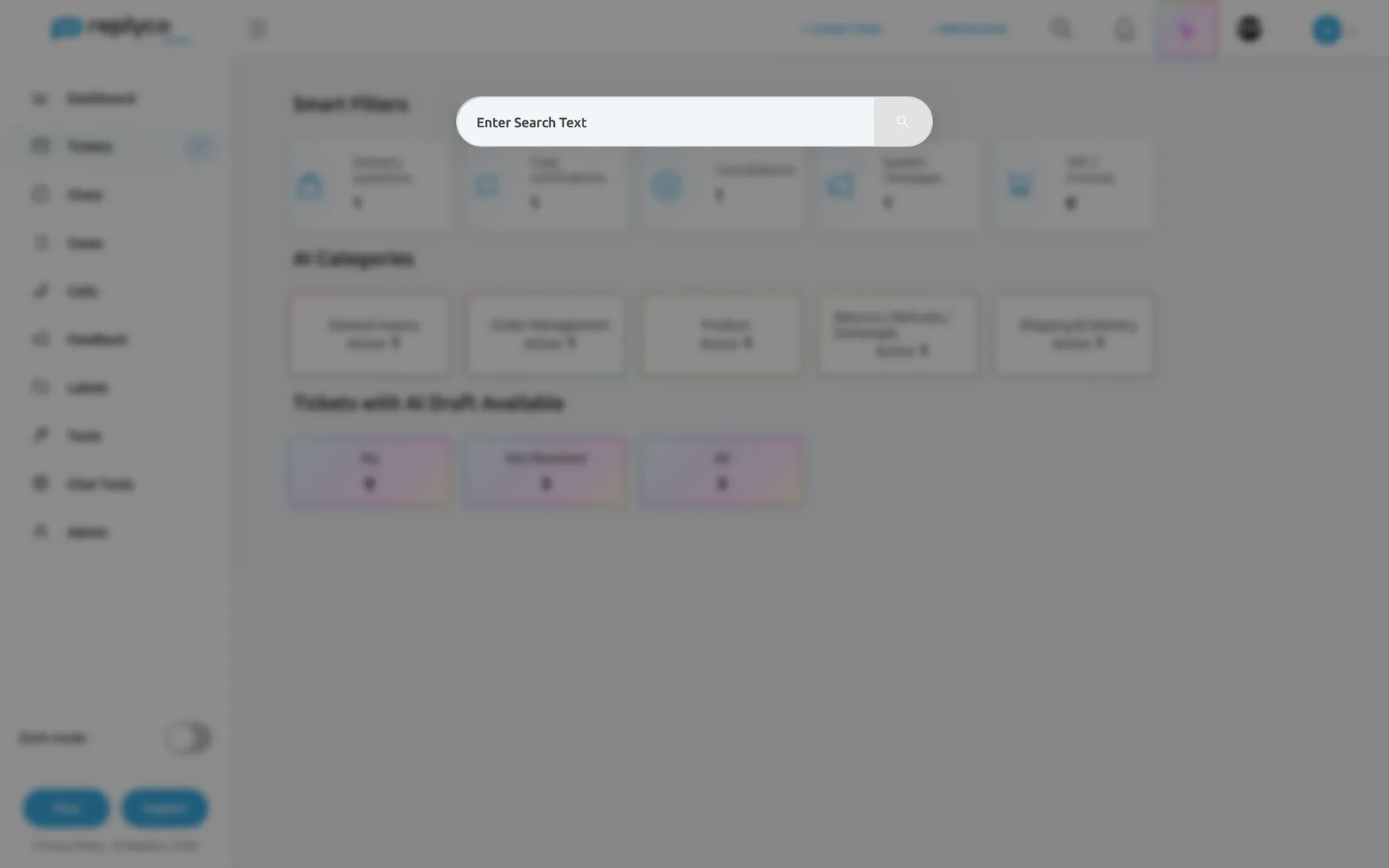
What this screenshot shows
- Screen
- Smart Filters (/)
- Highlighted
- textbox “Enter Search Text”, centre, empty. searches on Enter and opens /search/:term
- Also visible
- dimmed screen behind the box
- Purpose
- start a search from any screen
The magnifier appears only for users with the Global Search permission. What the results show and how to narrow them is explained in Search.
Read your notifications
Section titled “Read your notifications”The bell in the top bar collects notifications for you. A red number on the bell counts the unread ones.
-
Select the bell.
A panel opens with two tabs. App lists what happened in your work; System lists messages from Replyco, such as announcements and notices about an account that stopped syncing.
-
Select a notification.
Replyco marks it as read and opens what it is about: the ticket, order, customer, call, case or chat. A message from Replyco opens in a window.
-
(Optional) Select Mark all as Read to mark every notification on the tab as read.
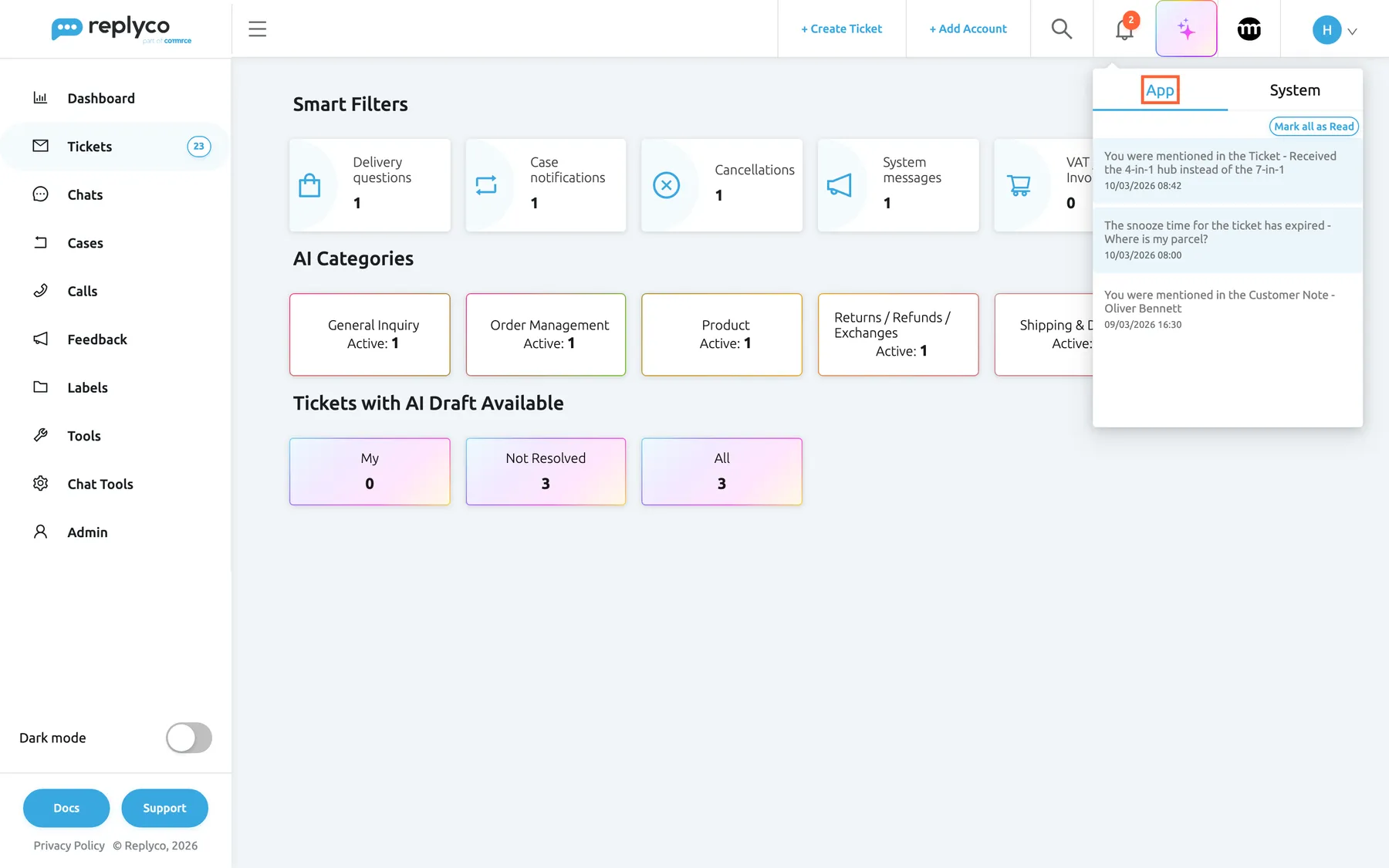
What this screenshot shows
- Screen
- Smart Filters (/)
- Highlighted
- tab “App”, top-bar-right, selected. lists in-app notifications
- Also visible
- red badge 2 on the bell; System tab; Mark all as Read; unread mention and unread expired snooze, read customer-note mention, texts in the company's language
- Purpose
- where mentions and reminders arrive
On the App tab you find:
| Notification | When it arrives |
|---|---|
| You were mentioned in the Ticket - … with the ticket’s subject | A colleague mentioned you in a note on a ticket; notes on orders, customers, calls, cases and chats notify you the same way |
| The snooze time for the ticket has expired - … with the ticket’s subject | A snoozed ticket assigned to you is due again |
Both texts appear in your company’s interface language, English or German. The panel shows ten notifications at a time and loads more as you scroll; an empty tab shows No Notifications.
Unread messages from Replyco also open by themselves as a window over the screen when you open Replyco, so you do not miss an announcement. Which events also reach you by e-mail, on your phone or as a browser notification is set in your account; see Notifications.
Ask Copilot
Section titled “Ask Copilot”The square icon with a sparkle and a coloured border in the top bar opens Copilot, Replyco’s AI assistant, as a chat panel. Select the icon again to close the panel.
What Copilot can do, how to resize it and how it handles your data is explained in Replyco Copilot.
Copilot is told who you are, which screen you are on and a summary of what that screen shows, so you can ask about the list or the record in front of you. It works with your own access in Replyco, so it sees only what your permissions let you see.
Copilot is not part of the plans. It appears when Replyco has switched it on for your company, and during a trial that has not ended for companies outside the German region. If the icon is missing, ask support; see Help and support.
The AI features inside tickets, such as summaries, drafts and the AI assistant in the reply editor, are separate and part of every plan; see AI drafts and AI summaries.
Open your user menu
Section titled “Open your user menu”Select your avatar, the circle with your initials at the right end of the top bar.
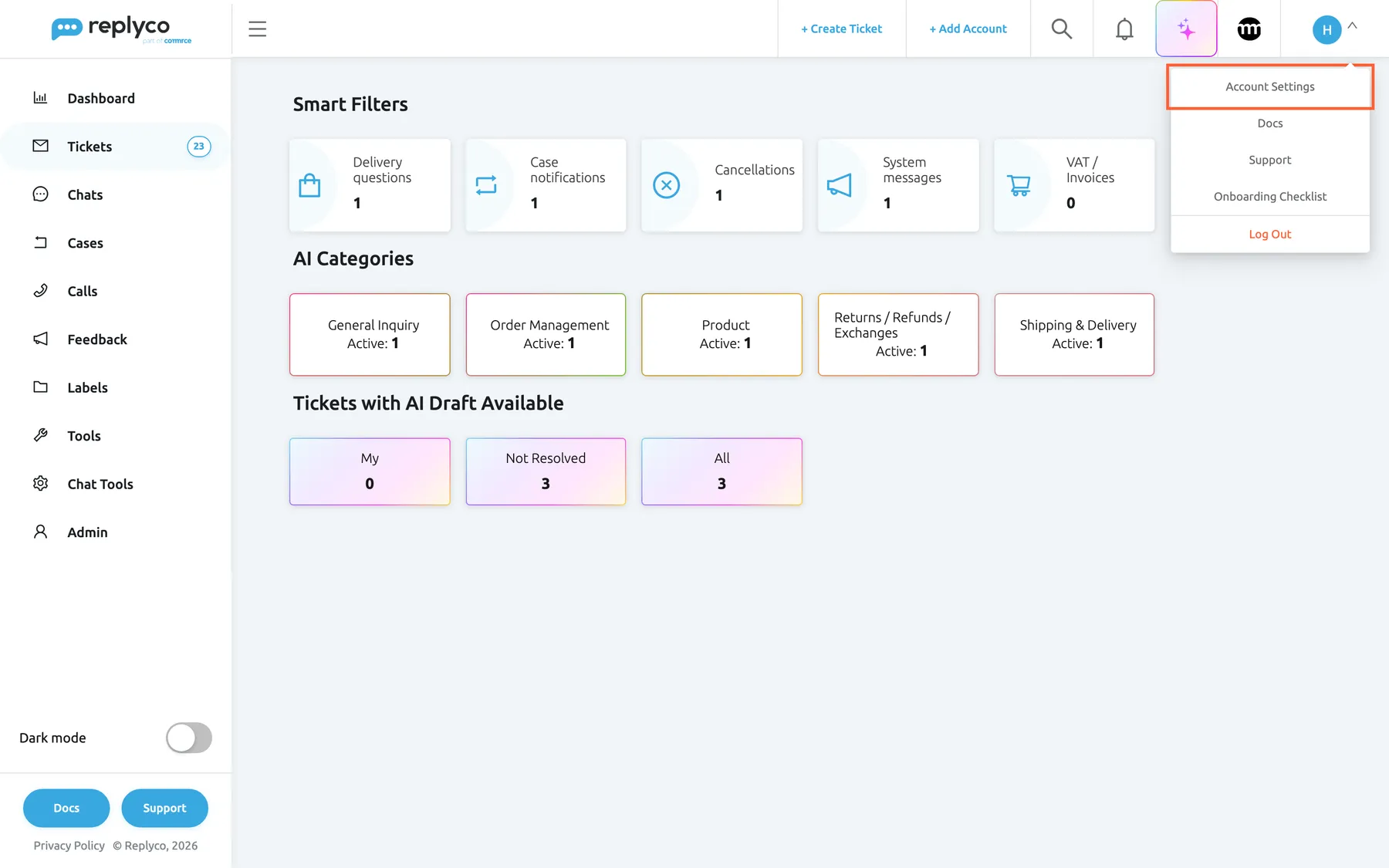
What this screenshot shows
- Screen
- Smart Filters (/)
- Highlighted
- menuitem “Account Settings”, top-bar-right, enabled. opens Account Settings
- Also visible
- Docs; Support; Onboarding Checklist; Log Out in red
- Purpose
- the personal menu
| Entry | What it does |
|---|---|
| Account Settings | Opens your personal settings: your details, start screen, counters, signatures, notifications, two-factor authentication and password; see Account Settings |
| Docs | Opens the Replyco documentation in a new browser tab |
| Support | Opens the support chat; see Help and support |
| ONBOARDING CHECKLIST | Opens the onboarding checklist, even after it is complete; see Complete the onboarding checklist |
| Log Out | Signs you out in this browser and returns to the sign-in page; see Sign in |
Switch to dark mode
Section titled “Switch to dark mode”Turn on Dark mode below the menu in the sidebar. Replyco switches to the dark theme at once and saves the choice to your user, so every browser and device you sign in on uses it too. Turn the switch off to go back to the light theme. Colleagues keep their own choice.
Get help and support
Section titled “Get help and support”The two buttons at the foot of the sidebar are always there while the sidebar is open.
- Docs opens the Help screen inside Replyco, which shows the Replyco documentation for your region. The menu and the top bar stay in place, so you can go back with one click.
- Support opens the support chat in a panel. Send your question; the support team answers there. For what to include, see Help and support.
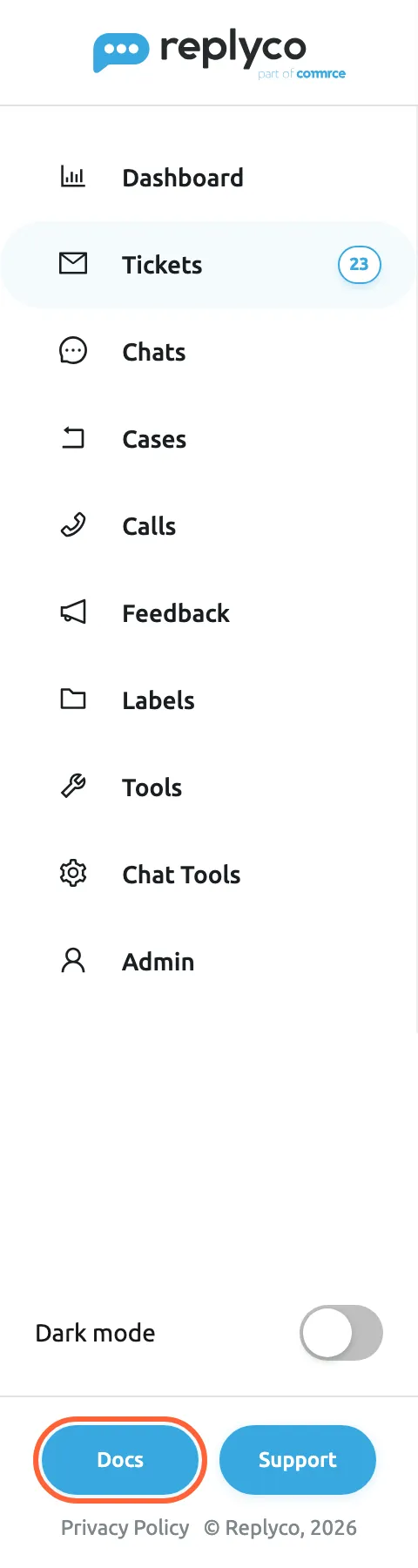
What this screenshot shows
- Screen
- Smart Filters (/)
- Highlighted
- button “Docs”, sidebar-bottom, enabled. opens the Help screen at /help
- Also visible
- Dark mode switch off; Support button; Privacy Policy link; copyright line
- Purpose
- help, support and theme from the sidebar
Below them, Privacy Policy opens Replyco’s privacy policy in a new tab.
Read the notices at the top of the screen
Section titled “Read the notices at the top of the screen”A coloured bar appears above the top bar when Replyco has something to tell everyone in your company. When several apply, the most important one decides the colour.
| Notice | Colour | When it appears | What to do |
|---|---|---|---|
| Replyco is currently experiencing some performance issues. We’re aware of the problem and working to resolve it as soon as possible. | Yellow | Replyco is dealing with a service problem | Nothing on your side. Reload the page later to see whether the notice has gone. See When Replyco is slow or unavailable |
| URGENT: Account synchronization has been suspended due to a Declined Subscription Payment. To reactivate, please update payment settings under the with the link Billing tab | Red | Your last subscription payment was declined; accounts stop syncing until it is paid | Follow the link and update your payment details; see Billing: Payment |
| New tickets have arrived. Click here to check them. | Blue | New tickets arrived while you were on another screen | Select the text to open All Tickets |
| New tickets have arrived. Click refresh button to update the list. | Blue | New tickets arrived while you have All Tickets, Not Resolved or My Tickets open | Refresh the list |
| Please verify your email. with the link Click here to resend the verification email. | Yellow | Your company’s e-mail address is not confirmed yet | Open the confirmation e-mail, or use the link to have it sent again |
The new-ticket notices play a short sound. You can close the notices about new tickets and the e-mail address with the cross; the notices about a service problem and a failed payment have no cross and stay until the cause is gone. Replyco checks for a service problem each time it loads, so that notice appears or goes away when Replyco is loaded again, for example when you reload the page.
Check your trial and ticket usage
Section titled “Check your trial and ticket usage”During a trial, the foot of the sidebar shows in red how many days are left, for example 12 Trial day(s) left, or Trial Expired once it has ended. The link Subscribe now below it opens the plans; see Subscribe to a plan.
The number of tickets used, followed by Ticket(s) used, appears during a trial and, on a plan with a ticket limit, once you have used more than 80 % of it. It turns yellow above 80 % and red once the limit is reached. It is not shown on the XL plan. When your company pays through Shopify, the foot shows Manage Your Subscription instead. To see your plan and usage in full, see Billing.
Change the language of Replyco
Section titled “Change the language of Replyco”Replyco shows its screens in English or German. The language is set for the whole company, from the country chosen when the company signed up: Germany, Austria, Switzerland and Liechtenstein get German, every other country English. Your browser’s language does not change it, and there is no language switch in Replyco itself.
To change the language for your company, contact support; see Help and support. Message language in your Account Settings is a different setting: it is the language Replyco translates messages into, not the language of the screens; see Translations.
Every control, explained
Section titled “Every control, explained”The frame’s controls in the order the screen shows them: the sidebar from top to bottom, then the top bar from left to right.
Top of the sidebar. When the sidebar is collapsed, a small version of the logo.
Opens your start screen. Shows your company’s own logo when Replyco has set one up for your company, in a light and a dark version for the two themes; otherwise the Replyco logo.
One click takes you back to where your working day starts, from any screen.
Sidebar menus
Section titled “Sidebar menus”| Menu | What it opens | Shown when |
|---|---|---|
| Dashboard | Eight dashboards from Overview to Reports; see Dashboard | The user may see at least one dashboard; each dashboard is set per user |
| Tickets | Smart Filters and the ticket views from Starred to Archive; see Tickets | The user may see at least one ticket view or has a Smart Filter |
| Chats | The chat lists; see Chats | The Chats permission |
| Cases | The eBay case list; see Cases | The Cases permission and eBay cases switched on for the company |
| Calls | The call list; see Calls | The Calls permission |
| Feedback | Feedback Requests and Feedback List; see Feedback | The Feedback permission |
| Labels | One entry per label with its tickets; see Labels | The user can see at least one label |
| Tools | AI Settings, Automation, Customers, Orders, Labels, Shipping Labels, Custom Shipping Links, Custom Fields, Smart Filters, Snippets and Fallbacks; see Tools | Each item needs its own permission; AI Settings needs Replyco AI and the Admin permission with Edit rights; see User permissions and roles |
| Chat Tools | Chat automation, Live Chat and transcripts; see Chat tools | At least one of its items is allowed for the user |
| Admin | Accounts, Linnworks settings, Billbee Configuration, Company Settings, Users and Billing; see Admin | The Admin permission; Company Settings also needs Edit rights on it, and some items need a connected system, for example Linnworks settings needs a Linnworks account |
Counters
Section titled “Counters”Beside Tickets and each ticket view, beside Chats, Feedback and each label.
The number of tickets, chats or feedback in the list. For tickets and labels you choose in your Account Settings whether it counts unread, unresolved or all tickets, or several of them side by side; with nothing chosen it counts all. Counts are loaded when you open Replyco and updated whenever a ticket list loads or you mark tickets as read or unread.
You see where work is waiting without opening every list; see Ticket lists.
Lock icon
Section titled “Lock icon”Beside a screen in the menu, for example a dashboard, Feedback Requests or Live Chat.
The feature is not in your company’s plan, which happens only on an older plan. Selecting the screen asks Your subscription plan doesn't include this feature. Do you want to go on the billing page to unlock this feature?; confirming opens Billing, cancelling leaves you where you are. During a trial nothing is locked.
You see which feature an older plan lacks, and confirming takes you to where the plan is changed; see What each plan includes.
Dark mode
Section titled “Dark mode”Sidebar, below the menu. Hidden while the sidebar is collapsed. Saves at once.
On: dark theme. Off (the default): light theme. Saved to your user, so it applies on every device you use; colleagues are not affected.
Easier on the eyes in a dim room or a long evening shift.
ONBOARDING CHECKLIST progress
Section titled “ONBOARDING CHECKLIST progress”Sidebar, below the dark mode switch, until every step of the checklist is done. Hidden while the sidebar is collapsed.
A bar and a percentage for the checklist, and the link View Progress, which opens the checklist. Disappears once every step is done; the user menu still opens the checklist afterwards.
New users see what is left to set up; see Complete the onboarding checklist.
Docs and Support buttons
Section titled “Docs and Support buttons”Foot of the sidebar. Hidden while the sidebar is collapsed.
Docs opens the Help screen, which shows the Replyco documentation for your region inside Replyco. Support opens the support chat for your region in a panel.
Help without leaving Replyco; see Help and support.
Trial and usage lines
Section titled “Trial and usage lines”Foot of the sidebar, above the buttons, only when they apply.
During a trial: the days left in red, or Trial Expired, and Subscribe now. The tickets used during a trial, or above 80 % of a ticket limit; yellow above 80 %, red once the limit is reached. Manage Your Subscription when your company pays through Shopify.
You subscribe before the trial ends and see a ticket limit coming; see Billing.
Menu icon
Section titled “Menu icon”Left end of the top bar, three lines.
Collapses the sidebar to icons, or opens it again. Closes any open menu. Remembered in this browser.
More room for the ticket list on a small screen.
+ Create Ticket
Section titled “+ Create Ticket”Top bar, right-hand group, first link.
Opens the Create Ticket screen. Shown when your company may create tickets: outside a trial, or in a trial once Replyco has verified the company.
You can write to a customer first or pass a message on; see Create Ticket.
+ Add Account
Section titled “+ Add Account”Top bar, after + Create Ticket.
Opens the page for connecting a new account. Shown to users with the Admin permission while the plan allows another account; in a trial or with unlimited accounts it is always shown.
New channels are one click away; see Add Account and Accounts and integrations.
Search
Section titled “Search”Top bar, the magnifier. Shown with the Global Search permission.
Opens a search box with Enter Search Text; Enter opens the results for what you typed. An empty search does nothing.
One place to find any ticket, customer or order; see Search.
Notifications
Section titled “Notifications”Top bar, the bell, with a red count of unread notifications.
A panel with the tabs App and System, ten notifications at a time, unread ones highlighted, and Mark all as Read for the open tab. Selecting a notification marks it read and opens its record or message.
Mentions and due tickets reach you on any screen; see Notifications.
Copilot
Section titled “Copilot”Top bar, the square sparkle icon with a coloured border. Shown when Copilot is switched on for the company, or in a trial outside the German region.
Opens or closes Copilot’s chat panel. Copilot receives your name, the screen you are on and a summary of what it shows, and works with your own access.
Ask about what is in front of you without leaving the screen.
comrce icon
Section titled “comrce icon”Top bar, the round black icon after Copilot.
Opens comrce’s page about Replyco in a new browser tab. Replyco is part of comrce, as the logo also says.
Learn about the other comrce products your shop can use.
User menu
Section titled “User menu”Right end of the top bar, the circle with your initials, or your photo.
Opens Account Settings, Docs, Support, ONBOARDING CHECKLIST and Log Out. Here Docs opens the documentation in a new browser tab.
Everything that is about you, not the company, in one place; see Your user account.
Who sees what
Section titled “Who sees what”| Part | Shown when |
|---|---|
| Admin menu and + Add Account | The Admin permission; see User permissions and roles |
| AdminCompany Settings and ToolsAI Settings | The Admin permission with Edit rights; AI Settings also needs Replyco AI. Without them, a saved link to either screen opens your start screen |
| The magnifier | The Global Search permission |
| + Create Ticket | Your company may create tickets: outside a trial, or a verified company in a trial |
| Copilot | Switched on for your company, or a running trial outside the German region |
| Dashboards other than Overview | Every plan includes them; each dashboard is set per user by an admin |
| Chats menu | The Chats permission |
| Cases menu | The Cases permission and eBay cases switched on in Company Settings |
| Calls menu | The Calls permission |
| Smart Filters under Tickets | A Smart Filter assigned to you, or Replyco AI |
| Each ticket view | Set for each user by an admin; see Invite users and set what they can do |
| Trial days and Subscribe now | A trial |
Every plan includes the features in this table, except Copilot, which Replyco switches on separately; companies on an older plan may not have some of them. See What each plan includes.
What you need to know
Section titled “What you need to know”| Topic | Fact |
|---|---|
| Per user | The theme, the start screen and what the counters count belong to your user and follow you to every device. |
| Per browser | Whether the sidebar is collapsed is remembered only in the browser you use. |
| Company-wide | The interface language and your company logo apply to everyone in the company. |
| One menu at a time | Opening a menu closes the one that was open. |
| Rating question | Now and then Replyco asks How likely are you to recommend Replyco to a friend or colleague? in a window; answer it or close it. |
Frequently asked questions
Section titled “Frequently asked questions”Finding your way
Section titled “Finding your way”Why don’t I see the same menus as my colleague?
Section titled “Why don’t I see the same menus as my colleague?”The sidebar shows only what your user may open. The Admin menu needs the Admin permission, and its Company Settings screen, like ToolsAI Settings, needs that permission with Edit rights. Chats, Cases, Calls and Feedback each need their own permission, and each dashboard and ticket view is switched on per user by an admin. Ask an admin to compare your permissions in AdminUsers; see Invite users and set what they can do.
How do I choose the screen Replyco opens after I sign in?
Section titled “How do I choose the screen Replyco opens after I sign in?”Open Account Settings from your avatar in the top bar and choose Start screen: Smart Filters or List of tickets. The ticket list option opens Not Resolved. Selecting the logo at the top of the sidebar opens the same screen. See Account Settings.
The sidebar only shows icons. How do I get the names back?
Section titled “The sidebar only shows icons. How do I get the names back?”The sidebar is collapsed. Select the menu icon with three lines at the left end of the top bar and the sidebar opens with names again. Replyco remembers the choice in this browser, so it stays that way when you come back.
What do the numbers beside Tickets mean?
Section titled “What do the numbers beside Tickets mean?”They count tickets in each view: beside Tickets the count is for All Tickets, or for My Tickets if you may only see your own tickets. Whether they count unread, unresolved or all tickets is your choice in Ticket badge in the menu in your Account Settings.
Why does a menu item have a lock?
Section titled “Why does a menu item have a lock?”The feature behind it is not part of your company’s plan. Every plan includes every feature, so only companies on an older plan see a lock. Selecting it asks whether you want to go to the billing page; confirm to change the plan in Billing. During a trial every feature is unlocked. See What each plan includes.
Top bar
Section titled “Top bar”Why is there no Add Account link in my top bar?
Section titled “Why is there no Add Account link in my top bar?”+ Add Account is shown only to users with the Admin permission, and only while your plan allows another account. If you are an admin and it is missing, your company has connected as many accounts as the plan includes; see Billing. Everyone else asks an admin to connect the account.
Why is there no Create Ticket link?
Section titled “Why is there no Create Ticket link?”+ Create Ticket appears once your company may create tickets. During a trial this stays off until Replyco has verified your company; contact support through Help and support to have it verified. See Create Ticket.
What is the sparkle icon in the top bar?
Section titled “What is the sparkle icon in the top bar?”It opens Copilot, Replyco’s AI assistant, as a chat panel next to the screen you are on. Copilot knows your name, the screen and what it shows, and works with your own access. It appears when Replyco has switched it on for your company, or during a running trial outside the German region.
What is the round black icon next to my avatar?
Section titled “What is the round black icon next to my avatar?”It is the comrce icon. Replyco is part of comrce, and the icon opens comrce’s page about Replyco in a new browser tab. It does not change anything in Replyco.
Notifications and help
Section titled “Notifications and help”Where do I see that someone mentioned me in a note?
Section titled “Where do I see that someone mentioned me in a note?”Select the bell in the top bar; a red number shows how many notifications are unread. The App tab lists mentions in notes on tickets, orders, customers, calls, cases and chats, and tickets whose snooze has ended. Select one to open it. To also get e-mails or browser notifications, see Notifications.
What is the difference between the Docs button and Docs in the user menu?
Section titled “What is the difference between the Docs button and Docs in the user menu?”Both open the Replyco documentation. Docs at the foot of the sidebar shows it on the Help screen inside Replyco, with the menu still beside it. Docs in the user menu under your avatar opens it in a new browser tab.
Language and theme
Section titled “Language and theme”How do I change the language of Replyco?
Section titled “How do I change the language of Replyco?”The interface language is set for your whole company, from the country chosen at sign-up: German for Germany, Austria, Switzerland and Liechtenstein, English for every other country. Your browser language does not change it, and there is no switch in Replyco. Contact support through Help and support to change it for your company.
Is the message language in my account settings the interface language?
Section titled “Is the message language in my account settings the interface language?”No. Message language in your Account Settings is the language Replyco translates messages into for you. The language of the screens is set for the whole company from the country chosen at sign-up, and support changes it. See Translations.
Does dark mode apply to my colleagues?
Section titled “Does dark mode apply to my colleagues?”No. Dark mode in the sidebar is saved to your own user. It follows you to every browser and device you sign in on, and each colleague keeps the theme they chose.
Troubleshooting
Section titled “Troubleshooting”| Symptom | What to check |
|---|---|
| A menu a colleague has is missing | Your permissions in AdminUsers, for Company Settings and AI Settings whether you have Edit rights on the Admin permission, and for Cases whether eBay cases are on; on an older plan, also the plan; see Who sees what |
| Before you can open the Tickets tab, you need to first add an account | Your company has no connected account yet; connect an account in Add Account |
| + Add Account is missing | You have the Admin permission and the plan has room for another account; see Billing |
| The magnifier is missing | You have the Global Search permission; ask an admin |
| The sidebar shows only icons | Select the menu icon with three lines at the left of the top bar |
| The red number on the bell stays after reading | Open the System tab as well; the number counts both tabs |
| A red bar says account synchronisation has been suspended | The last subscription payment was declined; update your payment details in Billing: Payment |