

Account Signatures
A signature is the closing text Replyco adds to your replies for you: your greeting, your name, your company. The Account Signatures tab of Account Settings holds your signatures and the accounts each one belongs to, so a reply from your Shopify store can close differently from a reply to an Amazon buyer. Every user has their own signatures; nobody else’s replies use yours. Open it from the user menu at the right end of the top bar: Account Settings, then Account Signatures.
Availability: every user can write signatures, on every plan. Every plan also includes linking a signature to particular accounts, the channel-specific signatures feature. Companies on an older plan may not have it; there, every signature you write is added to replies from every account. See What each plan includes.
What you can do here
Section titled “What you can do here”- See your signatures and where they go. One card per signature, each naming the accounts it is added to. The screen at a glance.
- Write a signature with formatting, placeholders and snippets. One text, as many accounts as you like. Write a signature.
- Close each channel in its own voice. Link a signature to the accounts it is for, so marketplaces and your store sign off differently. Give each account its own signature.
- Keep signatures current. Edit the text or the accounts, or delete a signature you no longer use. Change or delete a signature.
- Put your name in once for the whole team’s wording.
#username#and other placeholders are filled when the reply is sent. Use placeholders and snippets in a signature · Snippets and placeholders. - Know where it shows up. Replies, AI drafts, Create Ticket and forwarded messages start with your signature; chats do not. Where your signature appears · Answer a ticket.
The screen at a glance
Section titled “The screen at a glance”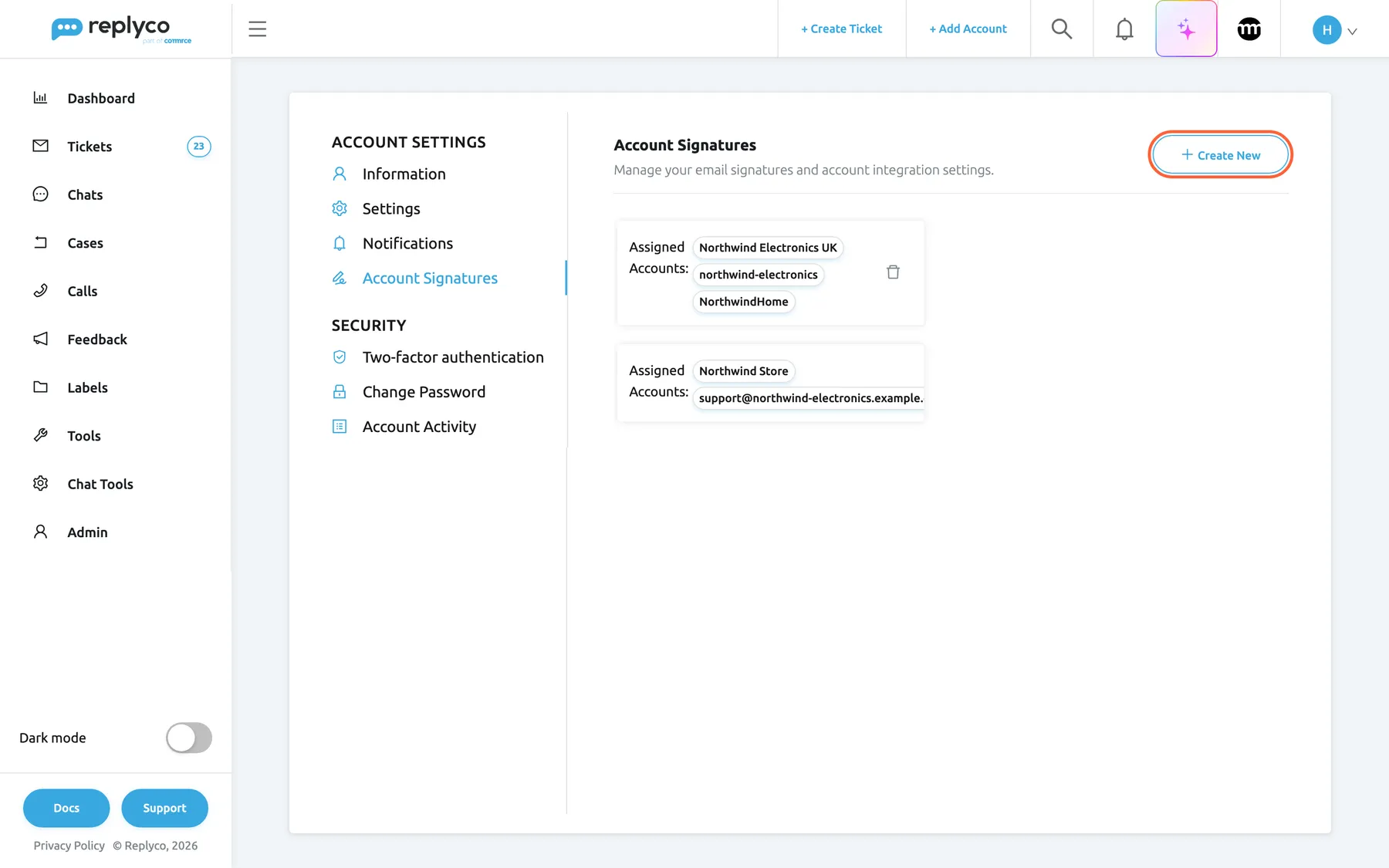
What this screenshot shows
- Screen
- Account Signatures (/user-settings?tab=integrationsSignatures)
- Highlighted
- button “Create New”, header-right, enabled. opens an empty signature editor
- Also visible
- signature 1: Northwind Electronics UK, northwind-electronics, NorthwindHome; signature 2: Northwind Store, support@northwind-electronics.example.com; bin icon on the first card
- Purpose
- the screen at a glance
| Region | What it shows | What you do there |
|---|---|---|
| Header, top | Account Signatures, a one-line description and Create New | Start a new signature |
| Signature cards, left | One card per signature: Assigned Accounts: and the accounts, or All Accounts; a bin icon | Open a signature, delete it |
| Editor panel, right | Linked Accounts, Signature Text, Cancel and Save; shown after you select a card or Create New | Write and link the signature |
| Empty list | No signatures found. | Nothing yet; select Create New |
Write a signature
Section titled “Write a signature”-
Open Account Settings and select the Account Signatures tab.
-
Select Create New at the top right. An empty editor opens on the right.
-
In Linked Accounts, pick the accounts whose replies get this signature. The list holds every account your company has connected.
-
Write the text in Signature Text. The toolbar offers font size, font, colour, bold, italic, strikethrough and underline; type
#for a placeholder and/for a snippet.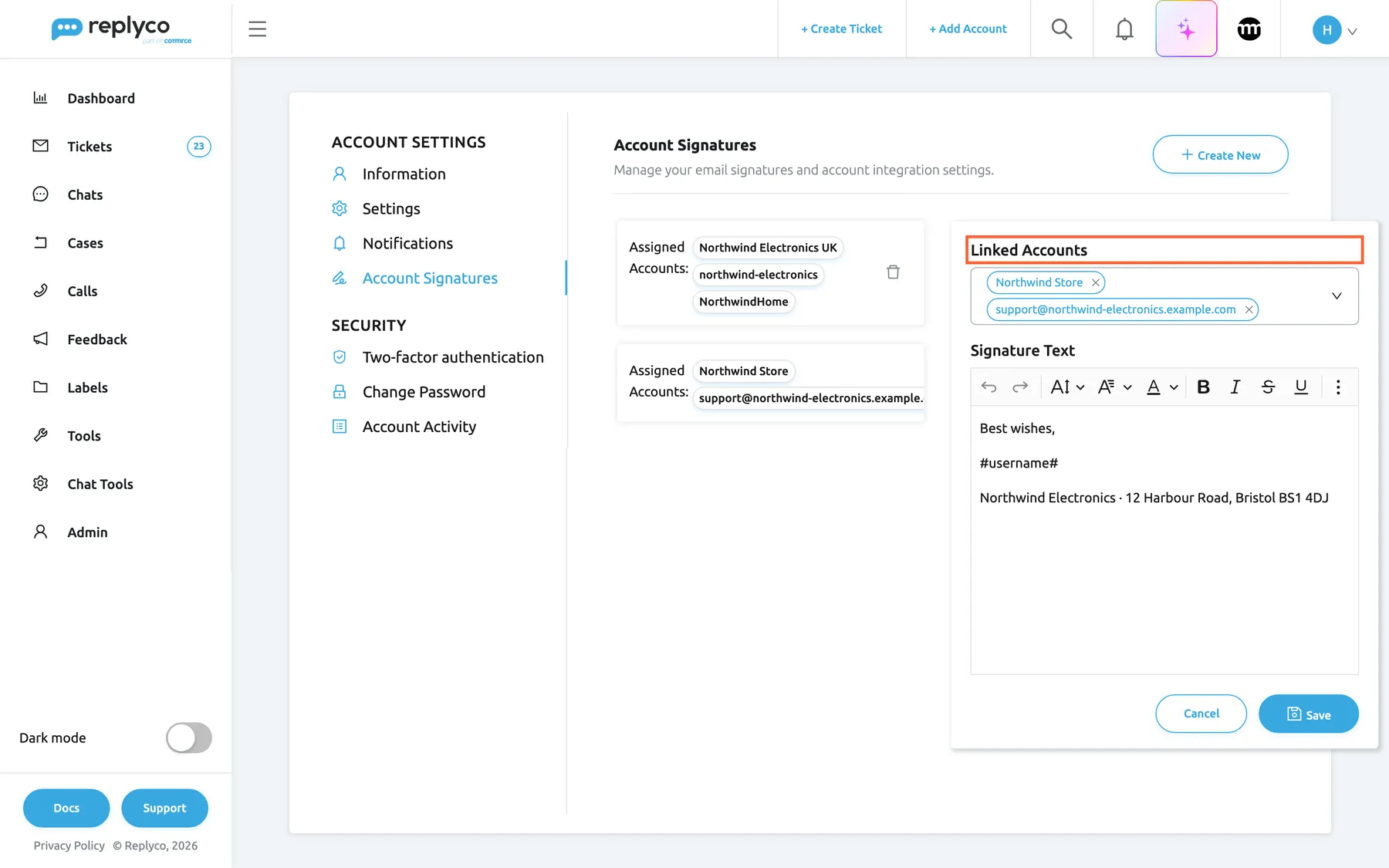
Linked Accounts decides where a signature is added; Signature Text is what customers read. What this screenshot shows
- Screen
- Account Signatures (/user-settings?tab=integrationsSignatures)
- Highlighted
- combobox “Linked Accounts”, editor-panel-top, two accounts. chooses the accounts whose replies get this signature
- Also visible
- Linked Accounts: Northwind Store, support@northwind-electronics.example.com; Signature Text with #username#; Cancel and Save
- Purpose
- edit a signature and its accounts
-
Select Save. Replyco shows Success, closes the editor and lists the new card.
Replyco refuses to save a signature with You must include signature text. when the text is empty, and with You must include linked accounts when no account is picked. Formatting alone does not count as text. There is no length limit.
Example: Henry Clarke of Northwind Electronics writes Best wishes, #username#, Northwind Electronics · 12 Harbour Road, Bristol BS1 4DJ and links it to the Shopify store Northwind Store and the mailbox support@northwind-electronics.example.com, where customers expect an address.
Give each account its own signature
Section titled “Give each account its own signature”Every signature has its own Linked Accounts, and a reply gets the signatures linked to the account the ticket belongs to. This lets you sign off briefly on marketplaces and fully on your own shop and mailbox.
| The ticket’s account | Your signatures linked to it | What the reply editor starts with |
|---|---|---|
| Northwind Store (Shopify) | Best wishes … | That signature |
| Northwind Electronics UK (Amazon) | Kind regards … | That signature |
| NorthwindHome (Etsy), if you also link it to a second signature | Kind regards … and the second one | Both, one after the other |
| A Kaufland account connected last week | None | No signature |
Several signatures on one account are all added, one under the other. Link each account to one signature if you want a single closing. An account without a signature gets none. An account connected after you wrote your signatures is linked to none of them until you add it to one.
Without the channel-specific signatures feature, the editor has no Linked Accounts field, every card reads All Accounts, and every signature you have is added to every reply. Keep one signature on those plans.
Change or delete a signature
Section titled “Change or delete a signature”To change a signature, select its card. The editor opens with its accounts and text; change them and select Save. Cancel closes the editor without saving. A change applies to replies you start afterwards; replies already sent keep the text they went out with.
To delete a signature, select the bin icon on its card and confirm Are you sure you want to delete this signature? with Yes. The signature and its links to the accounts are gone; No keeps it.
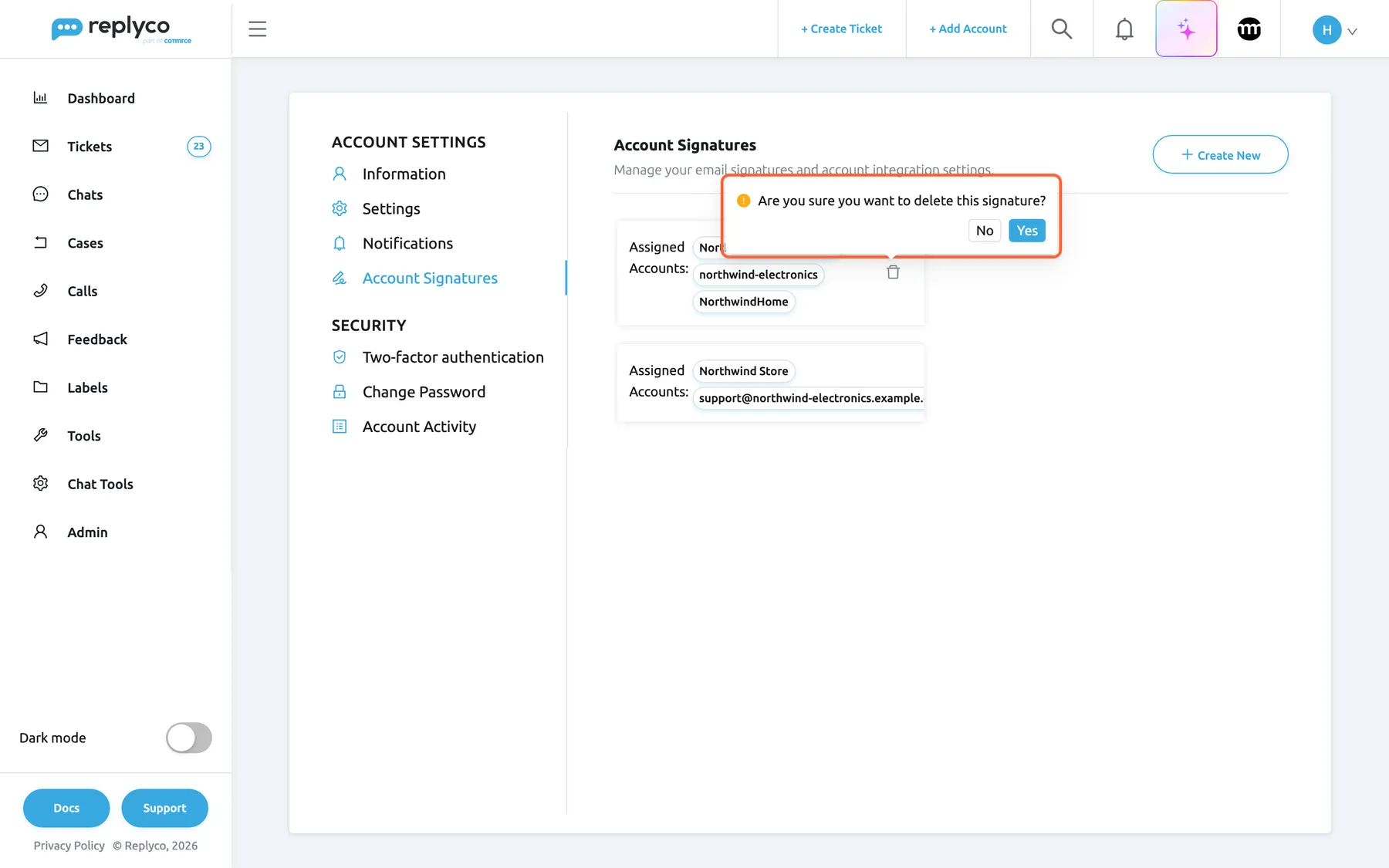
What this screenshot shows
- Screen
- Account Signatures (/user-settings?tab=integrationsSignatures)
- Highlighted
- dialog “Are you sure you want to delete this signature?”, first-card, open. Yes deletes the signature
- Also visible
- pop-up with No and Yes; second signature card below
- Purpose
- delete a signature
Deleting cannot be undone. Replies already sent are not affected.
Use placeholders and snippets in a signature
Section titled “Use placeholders and snippets in a signature”Signature Text works like the reply editor: type # at the start of a line or after a space to insert a placeholder, and / to insert a snippet. The signature goes into the reply as text, so its placeholders are filled when the reply is sent, like the rest of the reply. #username# becomes your name as set on the Information tab of Account Settings; in the editor you still see #username#.
Example: the line #username#, Northwind Electronics reaches the customer as Henry Clarke, Northwind Electronics. If Henry changes his last name in his account settings, his next reply carries the new one without any change to the signature.
A snippet’s text is copied into the signature when you insert it, so later changes to the snippet do not change the signature. For every placeholder and how snippets work, see Snippets and placeholders.
Where your signature appears
Section titled “Where your signature appears”Replyco adds your signature at the end of the text in the editors you write to customers with:
- A reply in a ticket. Select Respond and the text box already holds your signature for the ticket’s account; you type above it. See Answer a ticket.
- A template. Picking a template in Template replaces the text box with the template’s text followed by your signature.
- An AI draft. A suggested reply is placed in the editor with your signature under it.
- Create Ticket. Picking the sending account loads your signature for that account. See Create Ticket.
- Forwarding a message. The text box holds your signature and, below it, the forwarded message.
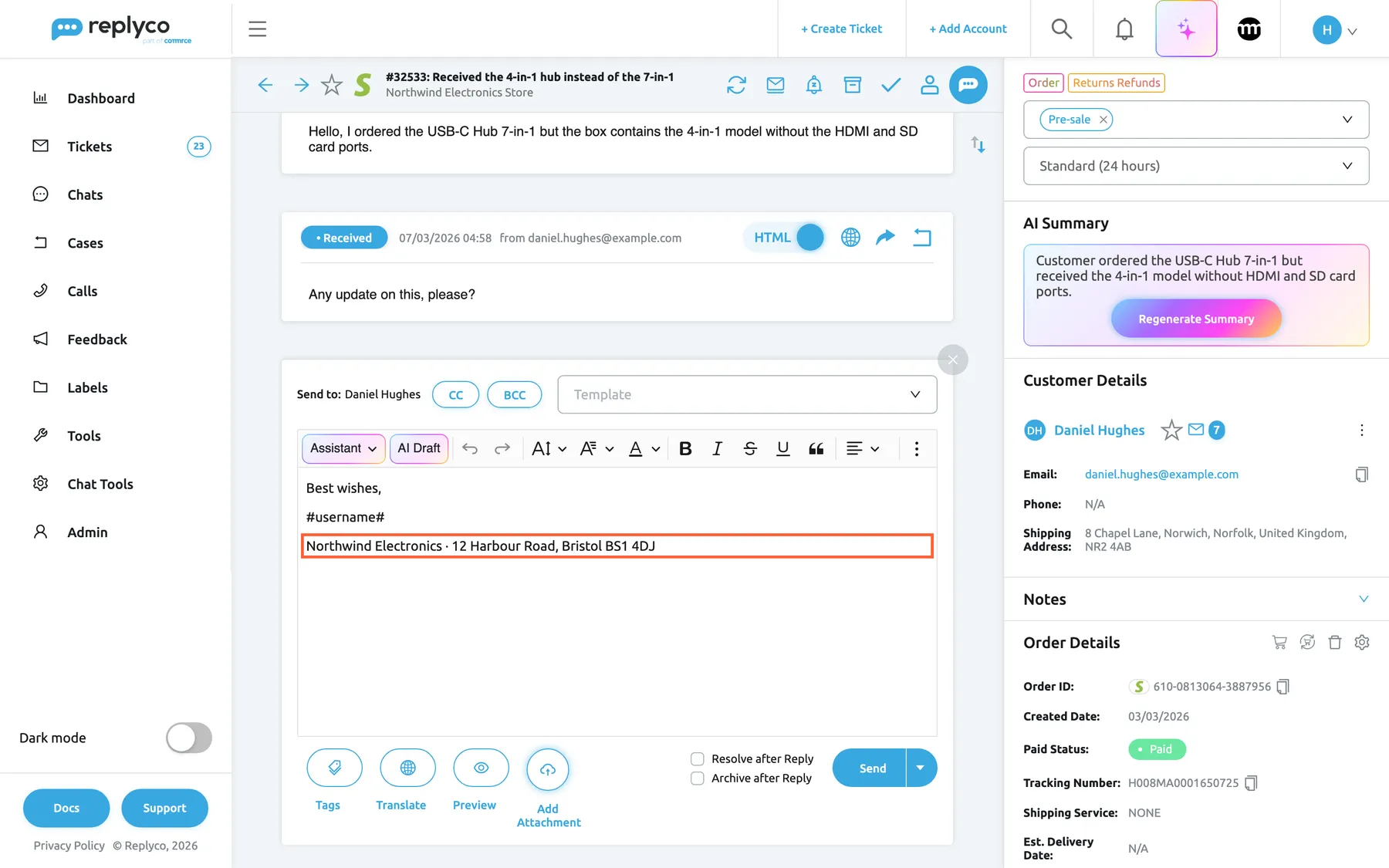
What this screenshot shows
- Screen
- Respond (/ticket/:threadId)
- Highlighted
- textbox “”, reply-editor-text, filled. the signature for the ticket's account
- Also visible
- Send to Daniel Hughes, CC, BCC, Template; signature text with #username#; Send button
- Purpose
- where the signature is used
The signature is ordinary text in the editor: you can change or remove it for one reply without changing the saved signature. When a reply draft was saved earlier, reopening the editor brings back the draft as it was, and no second signature is added. Save Reply as a Template saves the text without your signature, so your templates stay free of personal closings.
Chat replies, auto-responses and replies sent by rules carry no signature.
Every control, explained
Section titled “Every control, explained”The Account Signatures tab, from top to bottom.
Create New
Section titled “Create New”Top right of the tab.
Opens an empty editor on the right. Nothing is saved until you select Save there.
Start a signature for a channel that does not have one yet.
Signature cards
Section titled “Signature cards”The list on the left, one card per signature.
Each card shows Assigned Accounts: and the display names of the linked accounts, or All Accounts without the channel-specific signatures feature. Selecting a card opens it in the editor. When you have none, the list says No signatures found..
See at a glance which accounts are covered, and by which signature.
Bin icon
Section titled “Bin icon”On each card, at the right.
Asks Are you sure you want to delete this signature?; Yes deletes the signature and its account links, No keeps it.
Remove a signature for an account you have disconnected or a closing you no longer use.
Linked Accounts
Section titled “Linked Accounts”Top of the editor panel; a multi-select of all connected accounts. Shown with the channel-specific signatures feature, which every current plan includes.
The accounts whose replies get this signature. At least one is required to save. Remove an account with the cross on its chip.
Different channels expect different closings; see Give each account its own signature.
Signature Text
Section titled “Signature Text”Under Linked Accounts in the editor panel.
A formatted text editor with the same # placeholder list and / snippet list as the reply editor. It must contain text to save.
The words your customers read at the end of every reply.
Cancel and Save
Section titled “Cancel and Save”Bottom of the editor panel.
Save checks the text and the accounts, saves, shows Success and closes the panel. Cancel closes it and discards your changes.
Nothing changes in your replies until you save.
Who sees what
Section titled “Who sees what”| Part | Shown when |
|---|---|
| The Account Signatures tab | Always, for every user; each user sees only their own signatures |
| Linked Accounts in the editor and the account names on the cards | The channel-specific signatures feature, which every current plan includes |
| All Accounts on every card | Plans without that feature |
What you need to know
Section titled “What you need to know”| Topic | Fact |
|---|---|
| Personal | Signatures belong to the user who wrote them; each colleague writes their own. |
| Per account | A reply gets the signatures linked to the ticket’s account; several are added one after another, none when none is linked. |
| Without the feature | Every signature is added to every reply; keep one. |
| New accounts | A newly connected account has no signature until you add it to one. |
| Placeholders | Filled when the reply is sent; #username# follows the name on your Information tab. |
| Editing | Changes apply to replies started afterwards; sent replies keep their text. |
| Where added | Ticket replies, templates, AI drafts, Create Ticket, forwarding. Not in chats, auto-responses or rule replies. |
| Templates | Save Reply as a Template leaves your signature out. |
| Limits | No length limit; text and at least one account are required. |
Frequently asked questions
Section titled “Frequently asked questions”General
Section titled “General”Where do I set up my email signature?
Section titled “Where do I set up my email signature?”Open Account Settings from the user menu at the right end of the top bar and select the Account Signatures tab. Select Create New, write the text, pick the accounts in Linked Accounts, and select Save.
Can I set one signature for the whole team?
Section titled “Can I set one signature for the whole team?”No. Each user’s signatures are their own, and a reply uses the signatures of the person who writes it. For a shared wording, give every colleague the same text to paste into their own Account Signatures tab, with #username# where the name goes, so each reply carries the right name.
Does a signature work in chats?
Section titled “Does a signature work in chats?”No. Signatures are added in ticket replies, templates, AI drafts, Create Ticket and forwarded messages. Chat replies, auto-responses and replies sent by rules go out without a signature; for chat answers you use saved chat templates instead.
Accounts
Section titled “Accounts”How do I use different signatures for Amazon and my Shopify store?
Section titled “How do I use different signatures for Amazon and my Shopify store?”Write two signatures on the Account Signatures tab of Account Settings and link each one in Linked Accounts to its accounts: the Amazon account to one, the Shopify store to the other. A reply gets the signature linked to the ticket’s account.
Why does my reply have two signatures?
Section titled “Why does my reply have two signatures?”Two of your signatures are linked to the same account, and Replyco adds every signature linked to the ticket’s account, one after the other. On an older plan without the channel-specific signatures feature, every signature is added to every reply. Open the cards on the Account Signatures tab and remove the account from one of them, or delete the extra signature.
Why does my reply have no signature?
Section titled “Why does my reply have no signature?”None of your signatures is linked to the ticket’s account, or you have none. On the Account Signatures tab of Account Settings, check that the account’s name appears on a card; add it in Linked Accounts and select Save. A reply draft saved earlier also opens without adding the signature again.
We connected a new account. Does it get my signature?
Section titled “We connected a new account. Does it get my signature?”Not until you link it: open the signature on the Account Signatures tab, add the account in Linked Accounts and select Save. On an older plan without the channel-specific signatures feature, every signature is added to replies from every account, the new one included.
What happens to my signatures if we move to a plan without channel-specific signatures?
Section titled “What happens to my signatures if we move to a plan without channel-specific signatures?”The signatures stay, but the account links no longer decide anything: every signature you have is added to every reply, and the cards show All Accounts. Delete the signatures you do not want in every reply, so that one remains.
Writing and editing
Section titled “Writing and editing”Can I put my name in a signature without typing it?
Section titled “Can I put my name in a signature without typing it?”Yes. Type # in Signature Text and pick the username placeholder, #username#. It stays as #username# in the editor and becomes your name, as set on the Information tab of Account Settings, when the reply is sent. See Snippets and placeholders.
Why can I not save my signature?
Section titled “Why can I not save my signature?”You must include signature text. means Signature Text has no text; formatting alone does not count. You must include linked accounts means no account is picked in Linked Accounts; every signature needs at least one account.
Can I change the signature in a single reply?
Section titled “Can I change the signature in a single reply?”Yes. The signature is ordinary text in the reply editor, so you can edit or delete it before you send. The saved signature on the Account Signatures tab stays as it is and is added again next time.
Does editing a signature change replies I have already sent?
Section titled “Does editing a signature change replies I have already sent?”No. A reply goes out with the text it had when you sent it, and a delayed reply keeps the text it had when you scheduled it. Your change applies to replies you start after saving it on the Account Signatures tab.
Will my signature end up in templates I save from a reply?
Section titled “Will my signature end up in templates I save from a reply?”No. Save Reply as a Template cuts your signature off before it saves the template, so the template holds only the reply text. When you later pick the template, the reply editor adds the signature of whoever uses it. See Templates.
Can I get a deleted signature back?
Section titled “Can I get a deleted signature back?”No. Deleting with the bin icon and Yes removes the signature and its account links for good. Write it again with Create New; replies already sent keep their text.
Troubleshooting
Section titled “Troubleshooting”| Symptom | What to check |
|---|---|
| No signature in a reply | An account on one of your cards matches the ticket’s account; the reply was not a draft saved earlier; it is a ticket, not a chat |
| Two signatures in a reply | Two cards list the same account; without channel-specific signatures, every signature is added |
| You must include linked accounts | Pick at least one account in Linked Accounts |
| You must include signature text. | Signature Text contains text, not only formatting |
| No Linked Accounts field, cards read All Accounts | Your plan has no channel-specific signatures; see What each plan includes |
| The customer sees an old name | Your name on the Information tab of Account Settings; the signature uses #username#, not a typed name |
| A colleague’s reply has no signature | Signatures are personal; the colleague writes their own on their Account Signatures tab |