

Export tickets and reports
Replyco gives you two ways to take ticket data into a spreadsheet. From a ticket list, Export writes the tickets on the page you are looking at to a CSV file, with the text of every message, which is what you need to archive conversations or read them outside Replyco. From DashboardReports, two reports cover a whole period at once: one with ticket, order and custom-field values, and one with every action your team took on tickets. Both take a minute; each ends with a file download.
Before you start
Section titled “Before you start”| You need | Where it lives |
|---|---|
| A ticket list you can open, for the ticket export | TicketsNot Resolved or any other view under Tickets |
| The Reports dashboard in your user’s dashboard access, for the reports | Access Rights in AdminUsers, set by an admin |
| Your custom fields, if you want their values in the report | ToolsCustom Fields; see Custom fields |
| A spreadsheet program that opens CSV files | Your computer |
Availability: the ticket export works on every plan, for every user who can open the list. The reports need the Reports dashboard in your user’s access and Advanced Reporting, which every plan includes. See What each plan includes.
Export tickets from a ticket list
Section titled “Export tickets from a ticket list”-
Open the ticket list you want, for example TicketsNot Resolved, and set the filters and the sort order so it shows the tickets you need.
Every view, label list and filter works; see Ticket lists for what each one holds.
-
At the bottom right, open the page-size changer and choose 100 per page.
The export covers only the page you are looking at, so at the standard 10 per page a file holds 10 tickets. At 100 per page it holds up to 100.
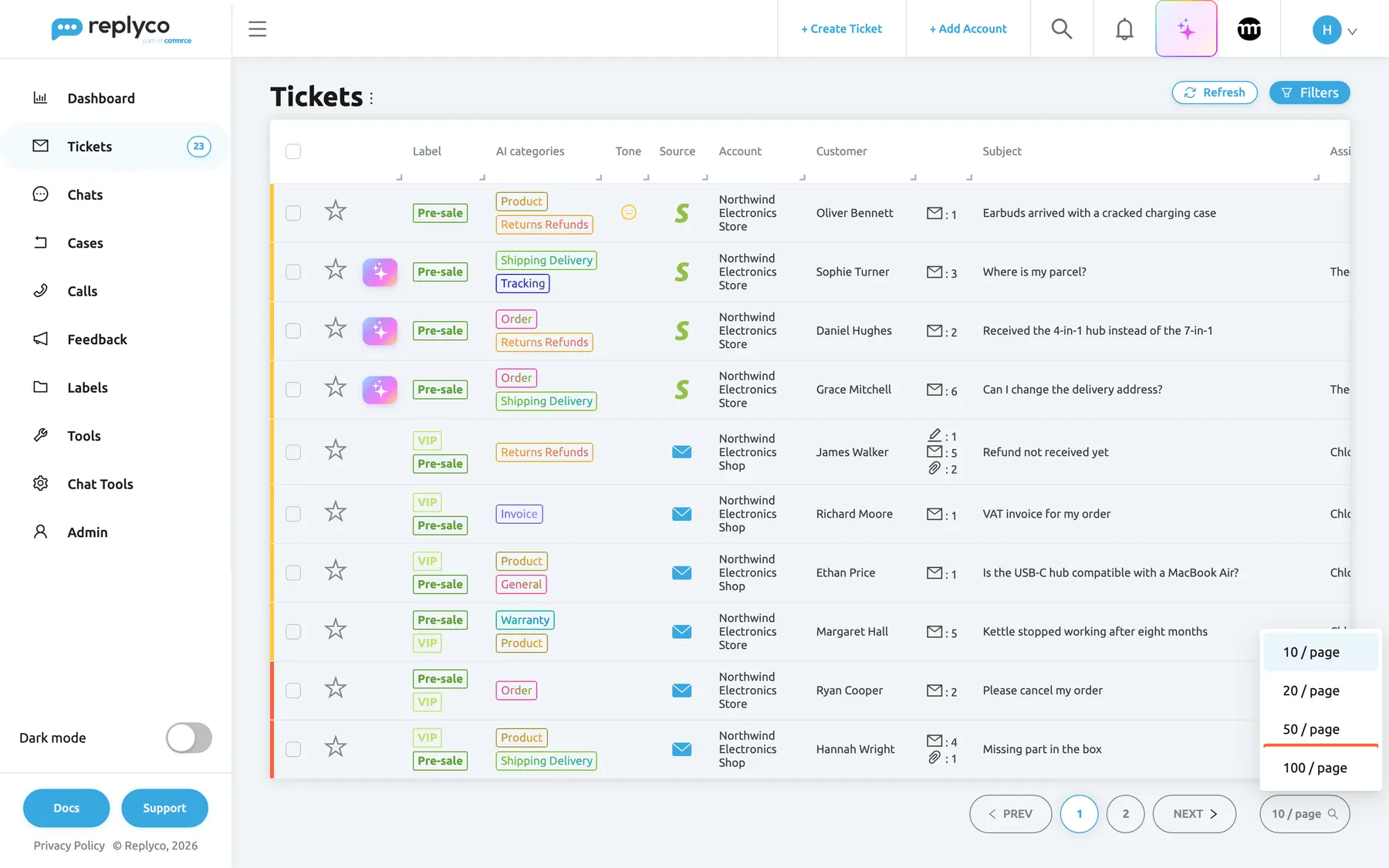
Set the page size to 100 before you export; the export covers only the page you are looking at. What this screenshot shows
- Screen
- Not Resolved (/tickets/notresolved)
- Highlighted
- option “”, bottom-right, shown. shows up to 100 tickets per page
- Also visible
- ten ticket rows; paging PREV, 1, 2, NEXT; page-size options 10, 20, 50 and 100 per page
- Purpose
- prepare the page before exporting tickets
-
Select the ⋮ next to the heading Tickets, then Export.
Your browser downloads a CSV file whose name starts with
threads_data_.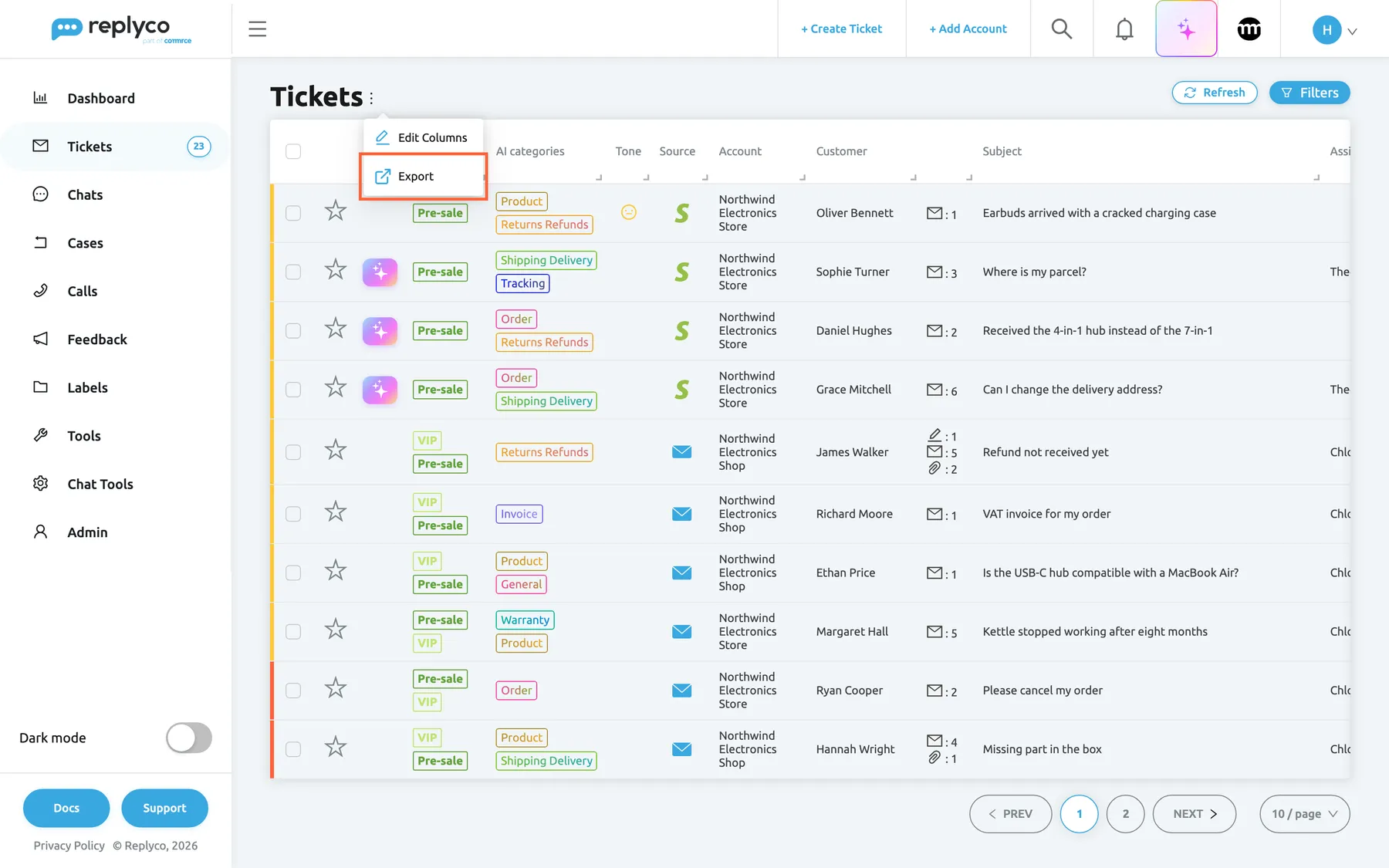
Export sits in the three-dot menu next to the heading Tickets, on every ticket list. What this screenshot shows
- Screen
- Not Resolved (/tickets/notresolved)
- Highlighted
- menuitem “Export”, header-left, enabled. downloads the current page as a CSV file
- Also visible
- three-dot menu: Edit Columns, Export; ten ticket rows
- Purpose
- export tickets from a list
-
(Optional) Select the next page at the bottom right and repeat step 3 for each page.
Each page is its own file. Copy the files one below the other in your spreadsheet to get the whole list.
Export a report from Dashboard › Reports
Section titled “Export a report from Dashboard › Reports”-
Open DashboardReports and select Generate on the report you need: Ticket Fields for ticket, order and custom-field values, User Actions List for what your team did.
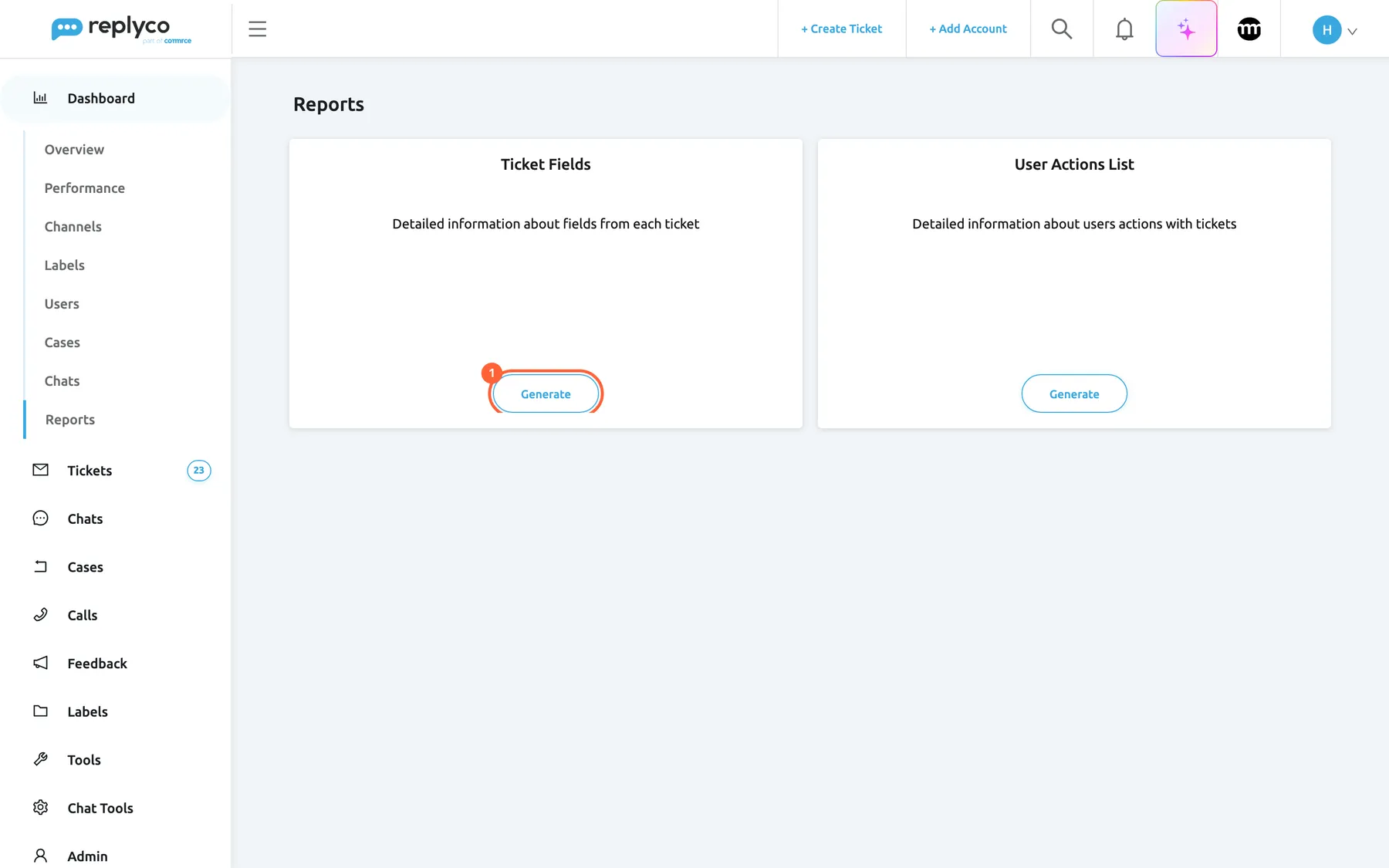
On Dashboard › Reports, Generate opens a report's form; nothing is created until you download. What this screenshot shows
- Screen
- Reports (/dashboard/reports)
- Highlighted
- button “Generate”, main-left-card, enabled. opens the form of the Ticket Fields report
- Also visible
- Dashboard menu expanded, Reports last; cards Ticket Fields and User Actions List, each with Generate
- Purpose
- start a report export
-
Choose what goes in the file: fields in Select Fields and Select Custom Fields, or people in Filter by User.
-
(Optional) Choose the period in Start Date – End Date. Leave it empty for everything your company has.
-
Select Download.
Your browser downloads a CSV file whose name starts with
customFields_oruserActionsList_.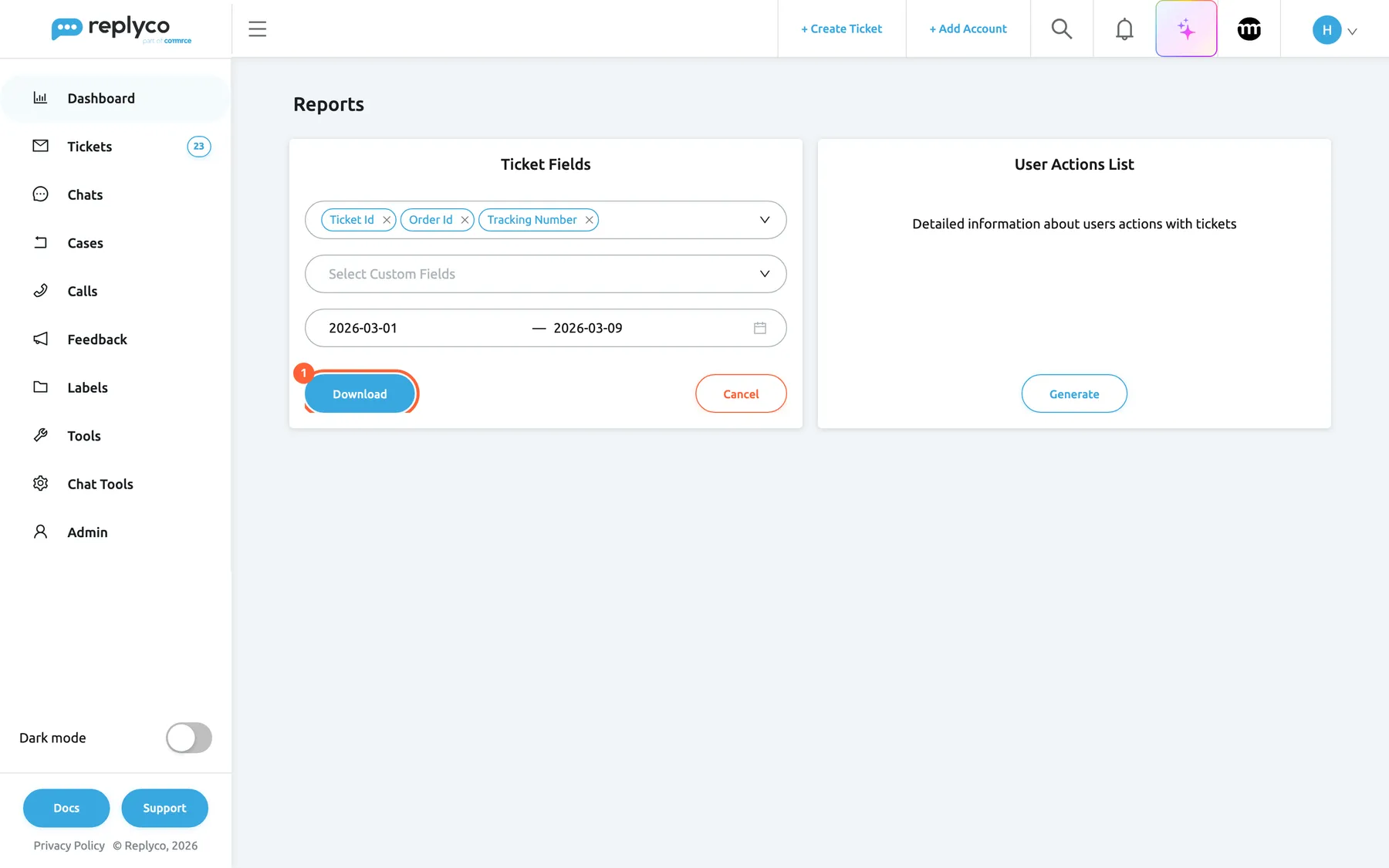
Pick the fields and the period, then Download; the file covers every ticket created in the period. What this screenshot shows
- Screen
- Reports (/dashboard/reports)
- Highlighted
- button “Download”, main-left-card, enabled. downloads the Ticket Fields report as a CSV file
- Also visible
- fields Ticket Id, Order Id, Tracking Number; custom fields empty; period 2026-03-01 to 2026-03-09; Cancel button
- Purpose
- download a report for a period
What happens next
Section titled “What happens next”You have a CSV file in your browser’s download folder. Open it in your spreadsheet program. Nothing changes in Replyco: exporting marks nothing as read and is not logged.
The ticket export has one row per ticket and these columns, with English names:
| Column | What it holds |
|---|---|
TicketID | The ticket number |
Source | The channel, with Replyco’s internal name, such as AmazonSP, Ebay or Mail |
Account | The name of the connected account |
Customer, CustomerEmail | The customer’s name and e-mail address |
Subject | The ticket’s subject |
MessagesCount, NotesCount | How many messages and notes the ticket has |
RespondTill | The respond-by state in words, explained below |
CreatedDate, LastMessageDate | Month-day-year and time, in UTC |
Messages | Every message’s text with its date, marked + for your team’s messages and - for the customer’s |
Values are written without quotation marks, and in the Messages column every comma becomes a full stop, so the messages stay in one column. A comma in a subject, a customer name or an account name moves the rest of that row one column to the right. Attachments and the text of notes are not in the file.
RespondTill holds the respond-by state as Replyco computes it at the moment of the export, in your company’s language. For a deadline that is still running, it writes Overdue followed by minus the hours left, rounded up; for a deadline that has passed, minus the hours since the deadline, rounded up, followed by hour left:
| The ticket | RespondTill in the file |
|---|---|
| Resolved | Resolved |
| Has no priority | No Priority |
| Your team wrote the last message | Completed |
| Has a priority but no deadline | Not Set |
| Deadline in 4 hours 20 minutes | Overdue -5 hour |
| Deadline passed 2 hours 15 minutes ago | -3 hour left |
Read the number as the hours to or since the deadline. To see the live state at a glance, look at Respond Till in the ticket list; how deadlines work is explained in Ticket priorities and SLA.
The reports cover every ticket created in the period, or every action taken in it, in one file; the ticket fields report puts every value in quotation marks. Each field, action and column is described on the Reports page.
Options
Section titled “Options”| Choice | When to pick it | Effect |
|---|---|---|
| Export in a ticket list | You need the text of the messages, or exactly the tickets a view or filter shows | The current page, up to 100 tickets per file, with every message |
| Ticket Fields report | You need order data, custom-field values or every ticket of a month in one file | All tickets created in the period, one column per chosen field, no messages |
| User Actions List report | You want to see who opened, resolved, assigned or labelled which ticket | One row per action, for the people and period you choose |
| No period in a report | You want the full history, for example before you stop using an account | Every ticket or action your company has |
If something goes wrong
Section titled “If something goes wrong”| Symptom | Check | Fix |
|---|---|---|
| The ticket export has only 10 rows | The export covers the current page, and the list shows 10 per page | Choose 100 per page at the bottom right and export each page |
| There are NO tickets to export. | The list had not finished loading | Wait for the rows to appear, then select Export again |
| No data found for selected filters | The ticket list page is empty, or no ticket was created in the report’s period | Change the view or filters, or widen the period |
| Columns are shifted in some rows of the ticket export | A comma in the subject, customer name or account name of those rows | Correct those rows in your spreadsheet, or take these fields from the Ticket Fields report, which quotes every value |
| Everything is in one column when you open the file | Your spreadsheet expects a separator other than the comma | Import the file and choose comma as the separator |
| Day and month look swapped | The ticket export and the list of user actions write dates as month-day-year | Import the date columns as month-day-year, or as text |
RespondTill reads Overdue for a ticket that still has time | That is how the file writes a running deadline: Overdue -5 hour means about 5 hours left | Read the number; use Respond Till in the list for the live state |
| Reports is missing under Dashboard | Your user’s dashboard access | Ask an admin to tick Reports on your Access Rights; see User permissions and roles |