This page covers ticket problems that belong to no single screen: tickets that are missing or appear twice, messages that do not reach Replyco, replies that do not reach the customer, and counters that do not match the lists under Tickets. Each row says what to check, in the order support checks it, and links to the page that explains the behaviour. Most missing tickets are not lost: they are in a view you did not open, behind a filter, or on an account or label your user may not see. A problem that belongs to one screen is in that screen’s own troubleshooting section, for example in Ticket lists or The ticket screen.
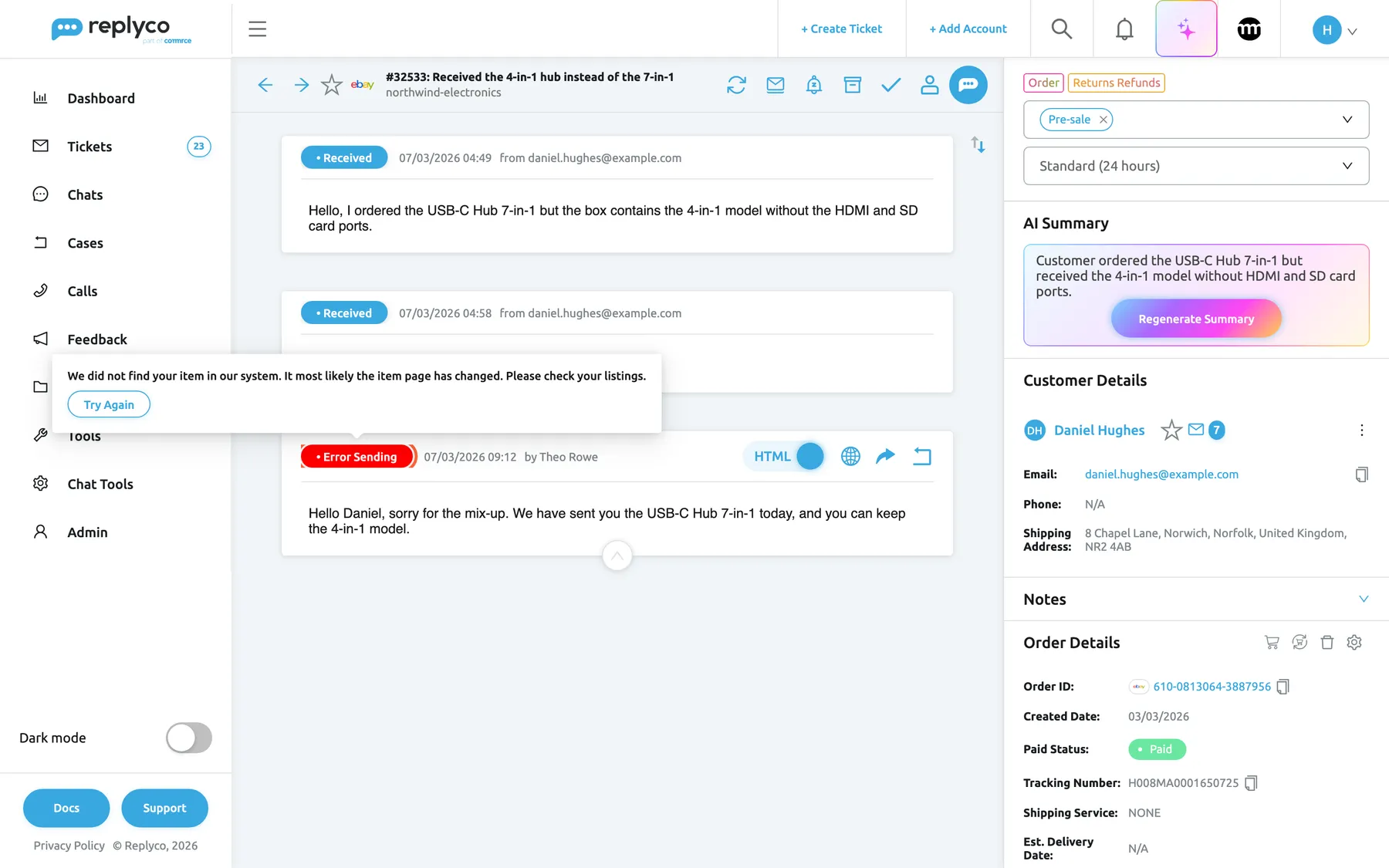
A reply the channel refused shows Error Sending; hover the badge for the reason and Try Again.What this screenshot shows
Screen
Error Sending (/ticket/:threadId)
Highlighted
status “Error Sending”, conversation, hovered. shows the channel's reason and Try Again
Also visible
two received customer messages; reply by Theo Rowe with the red badge; hover box with the reason and Try Again
Purpose
the symptom of a reply that did not reach the customer
The view: Not Resolved leaves out resolved tickets, and every view except its own leaves out snoozed, archived and blocked tickets. Then the filter tags under the heading, the next page, and the ticket’s account and labels.
Select Filters, then Clear Filters, and check All Tickets. See Ticket lists.
A ticket is in none of your lists
Tickets›Archive, Tickets›Snoozed and Tickets›Blocked. The search in the top bar finds tickets in all of them.
A ticket you worked on is gone, or its address shows a page that cannot be found
Whether it was merged: the kept ticket’s subject starts with MERGED:. Otherwise it was deleted: with Delete forever, after its days in the archive, or after your plan’s data retention.
A colleague sees far fewer tickets than you, or none
Their user in Admin›Users, tab Access Rights: the accounts they may see, their labels and Show Unlabelled Tickets, and their ticket lists. Unlabelled tickets are hidden without Show Unlabelled Tickets.
Admin›Accounts: a Blocked status, and the time under Last Messages Sync. Replyco fetches new messages about every five minutes and skips accounts that are blocked or need a new login.
The account’s details on Admin›Accounts: Sync Messages from Folders: must include the folder the email is in. For a mailbox connected by forwarding, the forwarding rule in your mailbox.
An Amazon account is connected, but buyer messages never arrive
Whether the address Replyco created for the account is entered in Seller Central. Amazon sends buyer messages only to that address, and only from then on.
The account of each copy. Replyco recognises a message it already has only within one account, so a mailbox connected twice, or connected directly and also forwarded to a second account, brings every message in twice.
Sync Messages from Folders: in the account’s details: a folder that holds your sent mail is being synced.
Remove that folder from the list and save.
A customer’s follow-up opens a new ticket instead of joining the old one
A message joins a ticket when it answers a message of that ticket on the same account. A new email instead of a reply, or an email from another address, starts a new ticket.
Merge the tickets by hand, or turn on Merge Tickets from the Same Customer for the account in Specific Account Settings, which needs the Admin permission with Edit rights; see Ticket merging.
A customer’s reply to your email arrives as a separate conversation
Email threading depends on the mailbox’s message ids and threading headers: a reply joins its ticket when its headers name an email of that ticket. When the customer’s reply carries no id of an email in that ticket, Replyco cannot tell that it belongs there and opens a new ticket.
Merge the two tickets by hand. If it happens often on one mailbox, a user with the Admin permission with Edit rights turns on Merge Tickets from the Same Customer for that account, so new emails from the same address join the customer’s latest ticket; see Ticket merging.
The account’s status on Admin›Accounts: Replyco sends only through accounts that are not blocked and need no new login. Then a bar at the top of Replyco reading Please verify your email.: replies wait until the company’s email address is verified. Then your billing.
Log in to the account again, or verify the email address from the bar. The waiting replies go out on the next sending run. See Fix a blocked or silent account.
A reply shows Delayed
It was sent with a delay, or your personal default delay is on; the card shows when it goes out.
Select Send now, or change the default; see Delayed sending.
Sending fails with “We can’t find your ticket in our system, maybe it was merged before you sent message by other user;”
A colleague merged the ticket while you were writing.
Search for the customer, open the ticket whose subject starts with MERGED: and send the reply there.
The customer says a reply never arrived, although it shows Sent
Sent means the channel accepted the reply. For a mailbox, the customer’s junk folder; for a mailbox on your own domain, Domain authentication (DKIM) in the account’s details.
Set up the DKIM record when it shows Limited; see Accounts.
The number beside a view differs from the tickets in it
Ticket badge in the menu in your Account Settings: the counter may show unread or unresolved tickets rather than all. Then the filter tags on the view.
Choose what the counters show under Ticket badge in the menu, or clear the filter tags. See Ticket lists.
The dashboard shows more tickets than the list you open from it
Dashboard totals include archived and snoozed tickets; the list you open does not show them.
The search of a list looks only in that view, so archived, snoozed and blocked tickets are left out. Ticket and order numbers are found only as one word without spaces. Internal notes are not searched.
Use the search in the top bar, which covers every ticket; it needs the Global Search permission. See Search.
Marketplace notifications or spam fill your lists
Whether the messages come from one sender or are one kind of notice.
Block a single sender with Block Customer; for a kind of notice, create a rule with Archive Ticket or Update Ticket Status. See Blocked tickets and Rules for incoming tickets.
Contact support through Support in the user menu at the top right, and include:
the ticket number from the ticket’s header (# and digits), or the customer’s email address or order number when you cannot find the ticket;
the account’s name as it appears on Admin›Accounts;
the time of the problem, and the full text of any message, such as the reason in an Error Sending box;
a screenshot of the list or ticket, with the filter tags visible.
Support can look up each account’s sync history, a reply’s sending status and the channel’s answer, the ticket’s history, and whether a ticket was merged, archived, blocked or deleted.