

Chat templates
The Templates tab of the chat automation screen is where your team keeps the replies it types again and again in chats: a delivery estimate, the returns policy, a friendly “anything else?”. A chat template is a name and a plain text, nothing more. Agents insert one in the chat reply box with a click, and chat auto-response rules send one on their own. Open it from Chat ToolsAutomation; the tab Templates opens first. Chat templates are separate from the reply templates for tickets, which have accounts, placeholders and files; for those, see Templates.
Availability: chats and the live chat widget are part of every plan; companies on an older plan may not have them. The Chat ToolsAutomation menu item is shown to users with the Automation permission in the Chat Tools section of their permissions; creating, changing and deleting chat templates needs its edit level. See User permissions and roles and What each plan includes.
What you can do here
Section titled “What you can do here”- Keep one list of chat answers for the whole team. Every chat template of your company is on this tab, sorted by name when the tab opens; a click shows the text. Find a template and read it
- Write a new chat template. Give it a name agents recognise and the text customers should read; that is all a chat template has. Create a chat template
- Change, copy or delete a template. Correct the text, start a variant from a copy, or remove a template, knowing that deleting it also deletes the auto-response rules that send it. Edit a chat template · Copy a chat template · Delete a chat template
- See who changed a template. Each template keeps a history of who created and changed it, with the earlier text. See who changed a template
- Answer chats faster with templates. In any chat, the form icon next to the reply box offers every chat template; the chosen text replaces what is in the box. Use a chat template in a chat · Answer a chat
- Send a template automatically. A chat auto-response rule sends one chat template when a customer writes. Where chat templates are used · Auto-responses for chats
The screen at a glance
Section titled “The screen at a glance”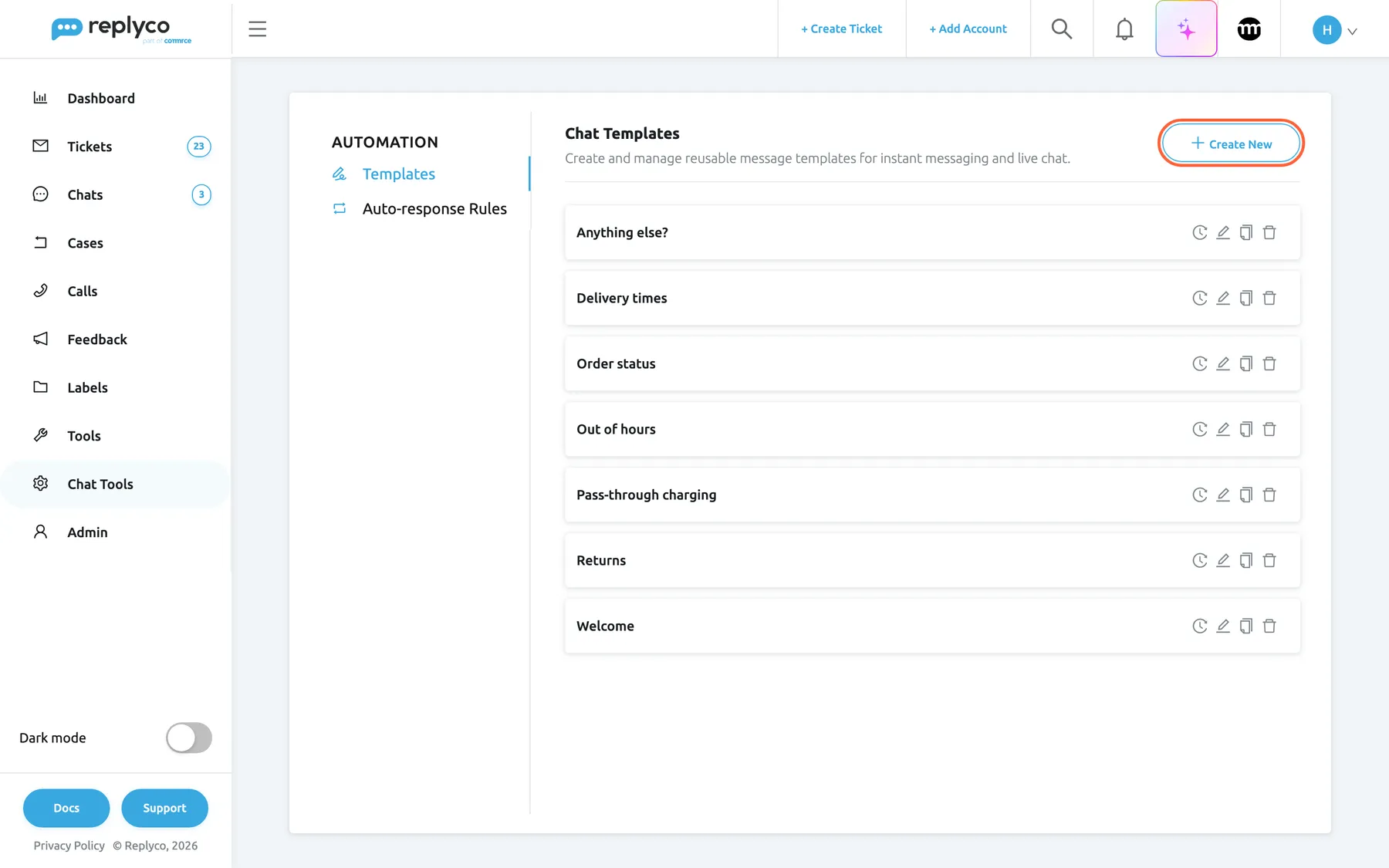
What this screenshot shows
- Screen
- Chat Templates (/instant-messages-automation?tab=templates)
- Highlighted
- button “Create New”, header-right, enabled. opens the Create Chat Template form
- Also visible
- tabs Templates and Auto-response Rules; 7 chat templates sorted by name; history, edit, copy and delete icons on each card
- Purpose
- the chat template list as it opens
| Region | What it shows | What you do there |
|---|---|---|
| Tabs, left | Automation with the tabs Templates and Auto-response Rules | Switch between chat templates and chat auto-response rules |
| Header, top | The heading Chat Templates, a short description and Create New | Start a new chat template |
| The list | One card per chat template, sorted by name, each with a clock, pencil, copy and bin icon | Open, edit, copy, delete, see the history |
| Details panel, right (after a click) | The template’s name, its Text, and Delete, Copy, Edit | Read a template, then act on it |
With no chat templates at all, the list reads No templates found. Unlike the ticket templates, chat templates have no Active and Inactive groups, no switch and no check boxes: a chat template is always available.
Find a template and read it
Section titled “Find a template and read it”The list has no search box and no columns. It shows the template names, sorted alphabetically by Replyco when the tab loads.
- Open Chat ToolsAutomation. The Templates tab is selected.
- Select a template’s name. The card is outlined in blue, the list moves to the left and the details panel opens on the right.
- Read the text as customers will receive it, with its line breaks.
- Select Edit, Copy or Delete at the bottom of the panel, or the cross in its corner to close it.
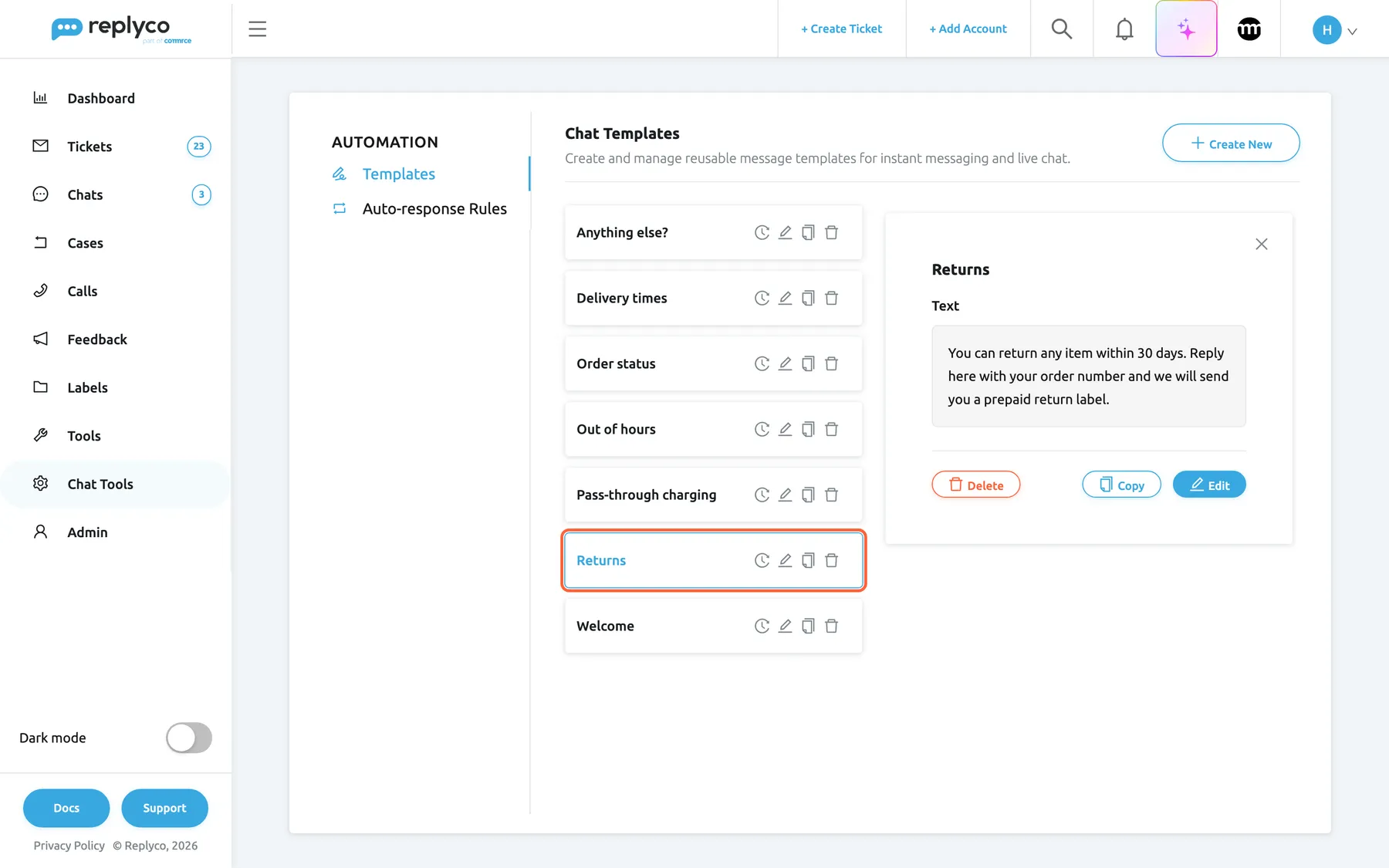
What this screenshot shows
- Screen
- Chat Templates (/instant-messages-automation?tab=templates)
- Highlighted
- button “”, list, selected. shows the template's details
- Also visible
- details panel with the name and the Text; Delete, Copy, Edit buttons; the other six templates on the left
- Purpose
- read a chat template
Example: Northwind Electronics keeps a template named Returns with the text You can return any item within 30 days. Reply here with your order number and we will send you a prepaid return label. An agent who is asked about returns in a live chat picks it instead of typing the policy again.
A template you create is added at the end of the list; it moves to its alphabetical place the next time you open the tab. A renamed template also keeps its place until then.
Create a chat template
Section titled “Create a chat template”- On the Templates tab, select Create New in the top right corner. The form Create Chat Template replaces the list.
- Enter a name under Template Name. Agents choose templates by this name in the chat, so name the question it answers, for example Opening hours.
- Write the reply under Text. Press Enter for a new line; the text is sent with its line breaks.
- Select Save in the top right corner.
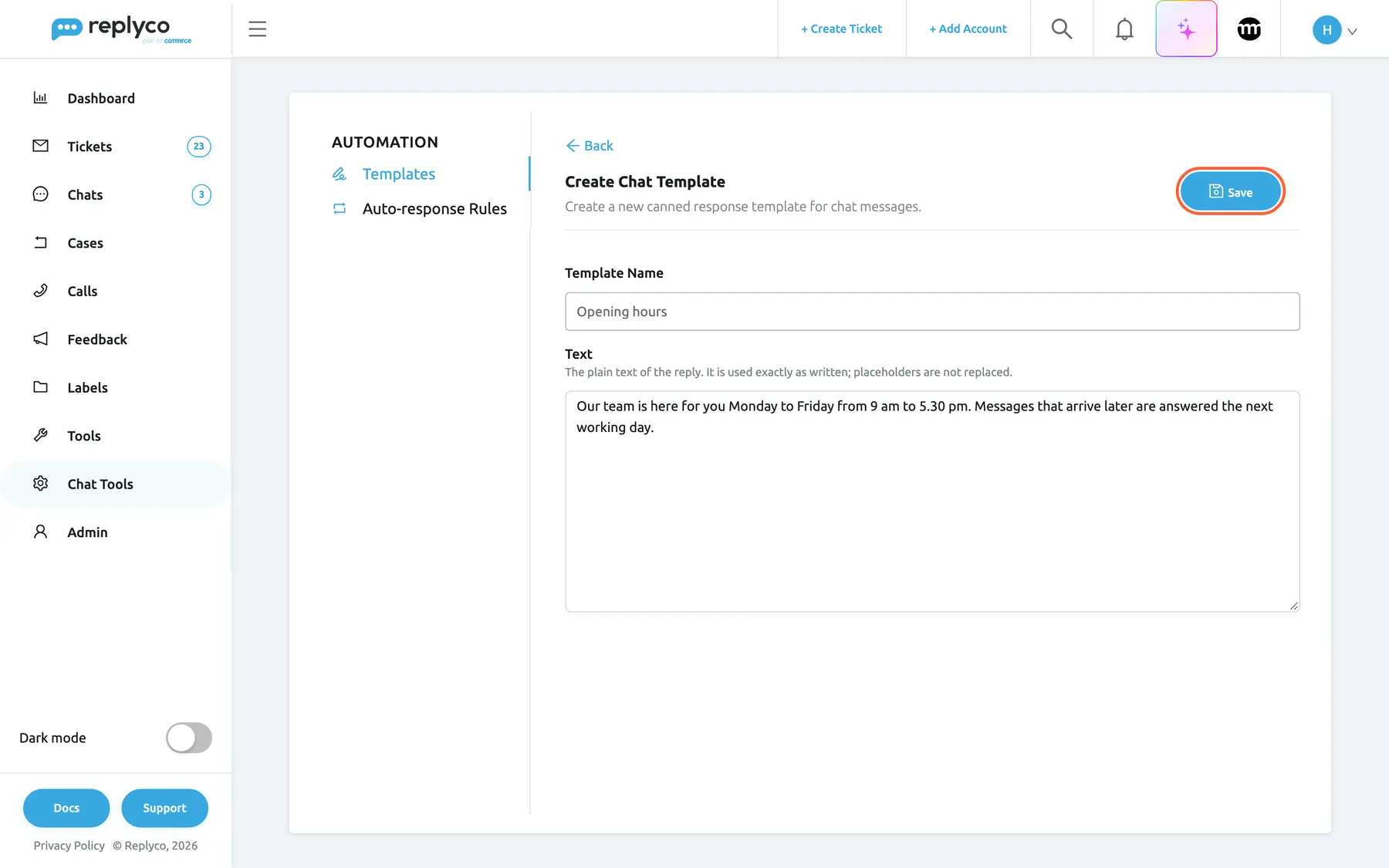
What this screenshot shows
- Screen
- Create Chat Template (/instant-messages-automation?tab=templates)
- Highlighted
- button “Save”, form-header-right, enabled. validates and saves the template
- Also visible
- Back; Template Name: Opening hours; Text with a sample message; no account, file or placeholder fields
- Purpose
- create a chat template
Replyco returns you to the list at once and saves the template. When it is saved, a short Success message appears and the template is added to the list, where every colleague can use it straight away.
If the name or the text is empty, or contains only spaces, nothing is saved and All fields must be completed. appears in the top right corner. A name can have at most 150 characters. The text has no length limit, but chat channels have their own limits on long messages, so keep it to what fits on a phone screen.
The Text field is plain text, as its description in the form says: The plain text of the reply. It is used exactly as written; placeholders are not replaced. There is no toolbar, and words such as #customer_first_name# are sent exactly as typed, because chat templates have no placeholders. Write the text so it works for every customer, and let the agent add the name or order number in the reply box.
Back at the top of the form leaves without saving and does not ask first.
Edit a chat template
Section titled “Edit a chat template”- Select the template, then Edit in the details panel; or select the pencil icon on its card.
- Change the name or the text in the form Edit Chat Template. The Save button pulses while you have unsaved changes.
- Select Save.
The change applies to the next time someone uses the template. Messages already sent keep the text they had, and so does an automatic reply that is already scheduled in a chat, because Replyco copies the template’s text into the reply when the rule answers.
Copy a chat template
Section titled “Copy a chat template”Select the copy icon on a card, or Copy in the details panel. The form Create Chat Template opens with the original’s name followed by (copy) and the same text. Save creates a new template and leaves the original unchanged. Rename the copy before you save, so agents can tell the two apart.
Example: copy Delivery times, rename it Delivery times – Easter and add the holiday delay; the auto-response rule for the Easter weekend can send the copy while agents keep the normal version.
Delete a chat template
Section titled “Delete a chat template”Select the bin icon on a card, or Delete in the details panel, and confirm Are you sure you want to delete this item? with Yes. Replyco deletes the template and shows Success. There is no undo.
Messages already sent with the template stay in their chats unchanged.
See who changed a template
Section titled “See who changed a template”Select the clock icon on a card. The details panel shows the template’s history, one line per change with the person and the date:
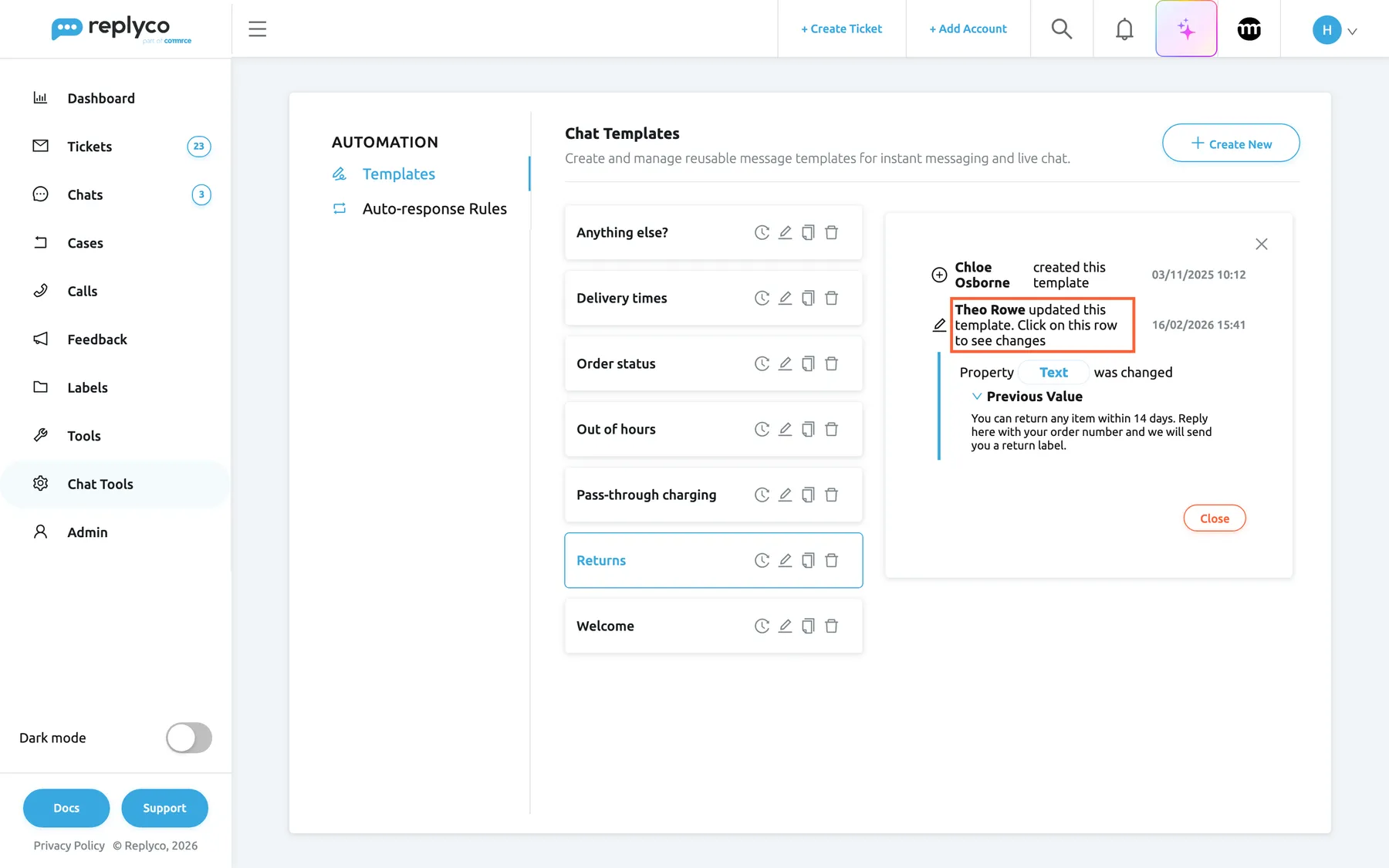
What this screenshot shows
- Screen
- Chat Templates (/instant-messages-automation?tab=templates)
- Highlighted
- row “ updated this template. Click on this row to see changes”, details-panel, expanded. shows which property changed and its previous value
- Also visible
- created row: Chloe Osborne, 03/11/2025; updated row: Theo Rowe, 16/02/2026; Property Text was changed, Previous Value opened; Close
- Purpose
- see who changed a chat template
| Line | When it is written |
|---|---|
| [name] created this template | The template was created |
| [name] updated this template. Click on this row to see changes | Someone saved changes; select the line to see which property changed, and open Previous Value for the earlier text |
| [name] deleted this template | The template was deleted |
A template with no recorded changes shows No changes were made to this item yet. Close returns to the details.
Use a chat template in a chat
Section titled “Use a chat template in a chat”Chat templates are for the chat reply box under Chats. Every agent who can answer chats can use them; no permission from the Chat Tools section is needed.
- Open a chat and select the form icon right of the reply box; its tooltip reads Select template.
- In the popover Select Template, open the list, or type part of a name to search it, and pick a template.
- The template’s text replaces whatever is in the box. Add the customer’s name or order details, then press Enter or the blue arrow to send.
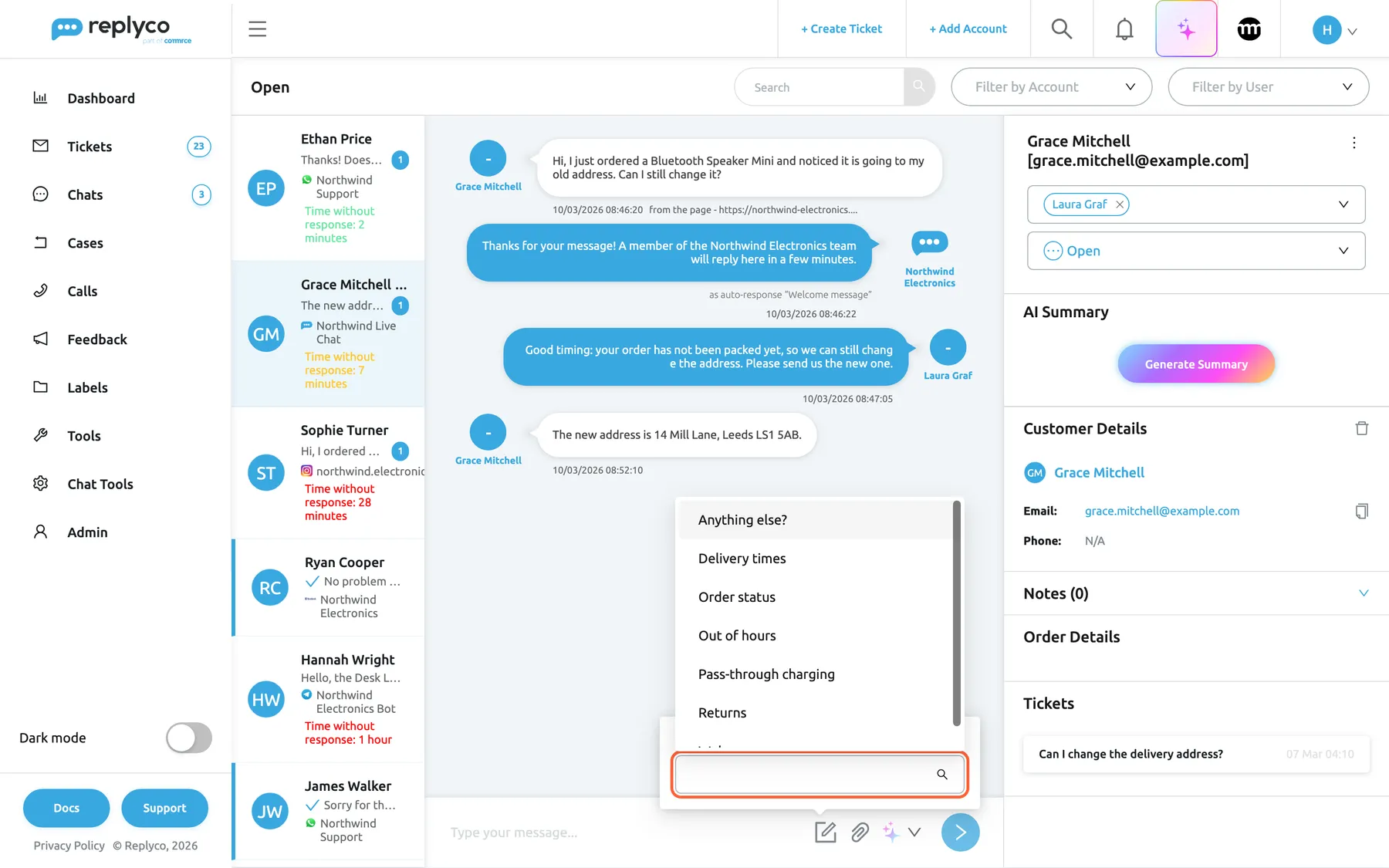
What this screenshot shows
- Screen
- Open (/chats/:type/:chatId)
- Highlighted
- combobox “”, composer, open. fills the reply box with the template's text
- Also visible
- live chat conversation with Grace Mitchell; 7 chat templates in the drop-down; search field; reply box, paper clip, AI Help, send arrow
- Purpose
- use a chat template while answering
The list offers every chat template of your company, in every chat: chat templates are not limited to channels or accounts, so one template serves WhatsApp, Messenger, Instagram, Telegram, TikTok Shop and live chat alike. The chat reply box has no snippets, no placeholders and no emoji picker. The whole reply routine, with the channels’ reply windows, is in Answer a chat.
Where chat templates are used
Section titled “Where chat templates are used”| Where | Which templates it offers | What happens |
|---|---|---|
| The form icon next to the chat reply box | Every chat template | The text replaces the content of the reply box; the agent sends it |
| Template to Send in a chat auto-response rule | Every chat template | The rule sends the text by itself when a customer writes; see Chat auto-response rules |
Ticket templates never appear in chats, and chat templates never appear in tickets.
Every control, explained
Section titled “Every control, explained”The tab has a list with a details panel, and a full-width form for creating and editing.
Templates tab
Section titled “Templates tab”Chat ToolsAutomation, first tab under Automation. The address ends in ?tab=templates.
Opens the list of chat templates. It is the tab that opens when you select Automation under Chat Tools.
Templates and the auto-response rules that send them sit side by side.
Create New
Section titled “Create New”Top right corner of the tab, next to the heading Chat Templates.
Opens the empty form Create Chat Template. It shows a spinner while a new template is being saved.
Start a template from scratch; to start from an existing one, use Copy.
Template card
Section titled “Template card”Each card holds the template’s name and these controls, from left to right:
| Control | What it does | Why |
|---|---|---|
| Name | Opens the details panel | Read before you change |
| Clock icon | Opens the template’s history in the details panel | Find out who changed a reply and when |
| Pencil icon | Opens the form Edit Chat Template | Change the name or text |
| Copy icon | Opens a filled form that saves as a new template | Write a variant without retyping |
| Bin icon | Asks Are you sure you want to delete this item? and deletes on Yes | Remove templates nobody uses; it also deletes the rules that send them |
Details panel
Section titled “Details panel”Right of the list, after you select a template’s name.
Shows the name and the Text with its line breaks. At the bottom: Delete (asks Are you sure you want to delete this item?), Copy and Edit. The cross in the corner closes the panel.
Check what customers will read before you change or delete a template.
Template Name
Section titled “Template Name”First field of the form.
The name agents see in the chat reply box and in the rule form, and that sorts the list. Required; spaces alone do not count. At most 150 characters. Names do not have to be unique.
Agents pick by name while a customer waits; Returns is found faster than Template 3.
Second field of the form, a text area with the placeholder Enter text here....
The reply itself, as plain text with line breaks; the field’s description reads The plain text of the reply. It is used exactly as written; placeholders are not replaced. Required. No formatting, no placeholders, no attachments. Replyco removes HTML code it does not allow when it saves.
Write the answer once, in your company’s voice, and let agents personalise it in the chat.
Save and Back
Section titled “Save and Back”At the top of the form: Back on the left, Save on the right.
Save checks that the name and the text are filled in, closes the form and saves. Back returns to the list without saving and without asking.
Keep changes you meant; leave quickly when you opened the wrong template.
Who sees what
Section titled “Who sees what”| Part | What shows it |
|---|---|
| Chat ToolsAutomation in the sidebar | The Automation permission in the Chat Tools section of the user’s permissions |
| Saving, copying and deleting templates | The edit level of that permission; otherwise You don't have enough rights |
| Chat templates in the chat reply box | Every user who can open chats |
The Admin and Moderator presets in Users include Widgets but not Automation or Transcripts of the Chat Tools section; an admin ticks them for each person who should manage chat templates.
What you need to know
Section titled “What you need to know”| Topic | Fact |
|---|---|
| Fields | A name (up to 150 characters) and a plain text; both required |
| Sorting | By name when the tab loads; no search, no manual order |
| Scope | Company-wide: every chat template is offered in every chat, on every channel |
| Placeholders and files | None; the text is sent as written |
| Switching off | Not possible; delete a template or give its rules another one |
| Copy | Name plus (copy) and the same text; saves as a new template |
| Delete | Permanent; also deletes the chat auto-response rules that send the template |
| History | Created, updated with the earlier text, deleted |
Frequently asked questions
Section titled “Frequently asked questions”General
Section titled “General”What is a chat template in Replyco?
Section titled “What is a chat template in Replyco?”A chat template is a saved reply with a name and a plain text, kept under Chat ToolsAutomation on the Templates tab. Agents insert it in a chat with the form icon next to the reply box, and chat auto-response rules send it automatically. It has no placeholders, accounts or attachments.
What is the difference between chat templates and ticket templates?
Section titled “What is the difference between chat templates and ticket templates?”Ticket templates under the Tools menu have accounts, AI categories, placeholders such as the customer’s first name, formatting and files, and they are offered in the ticket reply editor. Chat templates under Chat Tools are only a name and a plain text, and they are offered in every chat. Neither kind appears in the other’s editor; see Templates for the ticket kind.
Can every agent use chat templates?
Section titled “Can every agent use chat templates?”Yes. Every user who can open chats can pick a chat template with the form icon next to the chat reply box. Creating, changing and deleting them on the Templates tab needs the Automation permission of the Chat Tools section with its edit level.
Writing templates
Section titled “Writing templates”Why won’t Replyco save my chat template?
Section titled “Why won’t Replyco save my chat template?”The message All fields must be completed. means the Template Name or the Text is empty or contains only spaces; both are required. A name can have at most 150 characters, so shorten a longer one before you select Save.
Can I use the customer’s name in a chat template?
Section titled “Can I use the customer’s name in a chat template?”No. Chat templates have no placeholders, so a word such as #customer_first_name# reaches the customer exactly as typed. Write the text so that it works for everyone, and add the name in the chat reply box before you send, where the template’s text can be changed freely.
Can I format the text or attach a file to a chat template?
Section titled “Can I format the text or attach a file to a chat template?”No. The Text field of a chat template is plain text with line breaks. To send a file in a chat, pick the template and then attach the file with the paper clip in the chat reply box, which sends the file at once with the text.
Can I limit a chat template to WhatsApp or to the live chat?
Section titled “Can I limit a chat template to WhatsApp or to the live chat?”No. A chat template has no account or channel setting, so the form icon in the chat reply box offers every chat template in every chat. Give templates names that make their channel clear, for example Returns – live chat, when the wording differs by channel.
Using templates
Section titled “Using templates”What happens to the text I already typed when I pick a template?
Section titled “What happens to the text I already typed when I pick a template?”The template’s text replaces everything in the chat reply box, so pick the template first and then add your own words. Nothing is sent until you press Enter or select the blue arrow.
Changing and deleting
Section titled “Changing and deleting”Does editing a chat template change messages already sent?
Section titled “Does editing a chat template change messages already sent?”No. A change applies to the next time an agent or an auto-response rule uses the template. Sent messages keep their text, and an automatic reply that is already scheduled in a chat keeps the text it had when the rule answered.
What happens to auto-responses when I delete a chat template?
Section titled “What happens to auto-responses when I delete a chat template?”Every chat auto-response rule that sends the template is deleted together with it. Before deleting, open Chat ToolsAutomation, tab Auto-response Rules, and give those rules another template under Template to Send.
Can I get a deleted chat template back?
Section titled “Can I get a deleted chat template back?”No. Deleting a chat template is permanent and also deletes the rules that send it. The template’s history lists who deleted it, but the text cannot be restored from there; write it again with Create New.
Troubleshooting
Section titled “Troubleshooting”| Symptom | What to check |
|---|---|
| All fields must be completed. when saving | The Template Name and the Text both contain more than spaces. |
| You don't have enough rights when saving or deleting | Under Users, the user has the edit level of Automation in the Chat Tools section. |
| Chat ToolsAutomation is missing from the sidebar | The user lacks the Automation permission of the Chat Tools section; the role presets do not include it. |
The customer received #customer_first_name# as written | Chat templates have no placeholders; remove the word from the template and type the name in the chat. |
| An auto-response stopped and its rule is gone | The rule’s template was deleted, which deletes the rule; create the template and the rule again. |
| A renamed or new template is out of alphabetical order | The list sorts when it loads; open the tab again. |
Related
Section titled “Related”- Chat auto-response rules: rules that send a chat template by themselves
- Auto-responses for chats: how automatic chat replies are decided
- Answer a chat: using a template while replying
- Chat list and conversations: the chat reply box and everything around it
- Templates: reply templates for tickets
- Chat tools