

Labels
The Labels screen is where you keep your team’s labels: a name and a colour for each way you sort tickets, such as Delivery, Damaged items or Escalations. Every label gets its own ticket list in the sidebar, so labelling a ticket also files it where the team can find it. Administrators and team leads use this screen to create, rename, recolour, order and delete labels. Open it from ToolsLabels.
Availability: labels are part of every plan. The screen is in the menu for users with the Labels permission; saving a change needs that permission with Edit. Every plan also includes deciding which labels each user sees, and during a trial every feature is on; companies on an older plan may not have that per-user choice. See What each plan includes and User permissions and roles.
What you can do here
Section titled “What you can do here”- See every label of your company in one place. The list shows all labels, including labels your own user may not see in the sidebar, in the order the sidebar uses. The screen at a glance
- Create a label. A label needs a name; the colour is optional, and without one Replyco picks a random colour. Create a label
- Rename a label or change its colour. Select the card and change the form on the right. Change a label’s name or colour
- Copy a label to start a new one from the same name and colour. Copy a label
- Put the labels in order. Drag a card; the sidebar’s label lists follow the same order. Put the labels in order
- Delete a label. Replyco takes it off every ticket in the background, then removes it; a label that a rule still adds cannot be deleted. Delete a label
- Decide who sees which label (admins). Per user, on the Access Rights of AdminUsers. Decide who sees which label · User permissions and roles
- Label tickets, by hand, in bulk or with rules. That happens on the ticket screens, not here. Where labels are used · Assign, label and merge tickets
The screen at a glance
Section titled “The screen at a glance”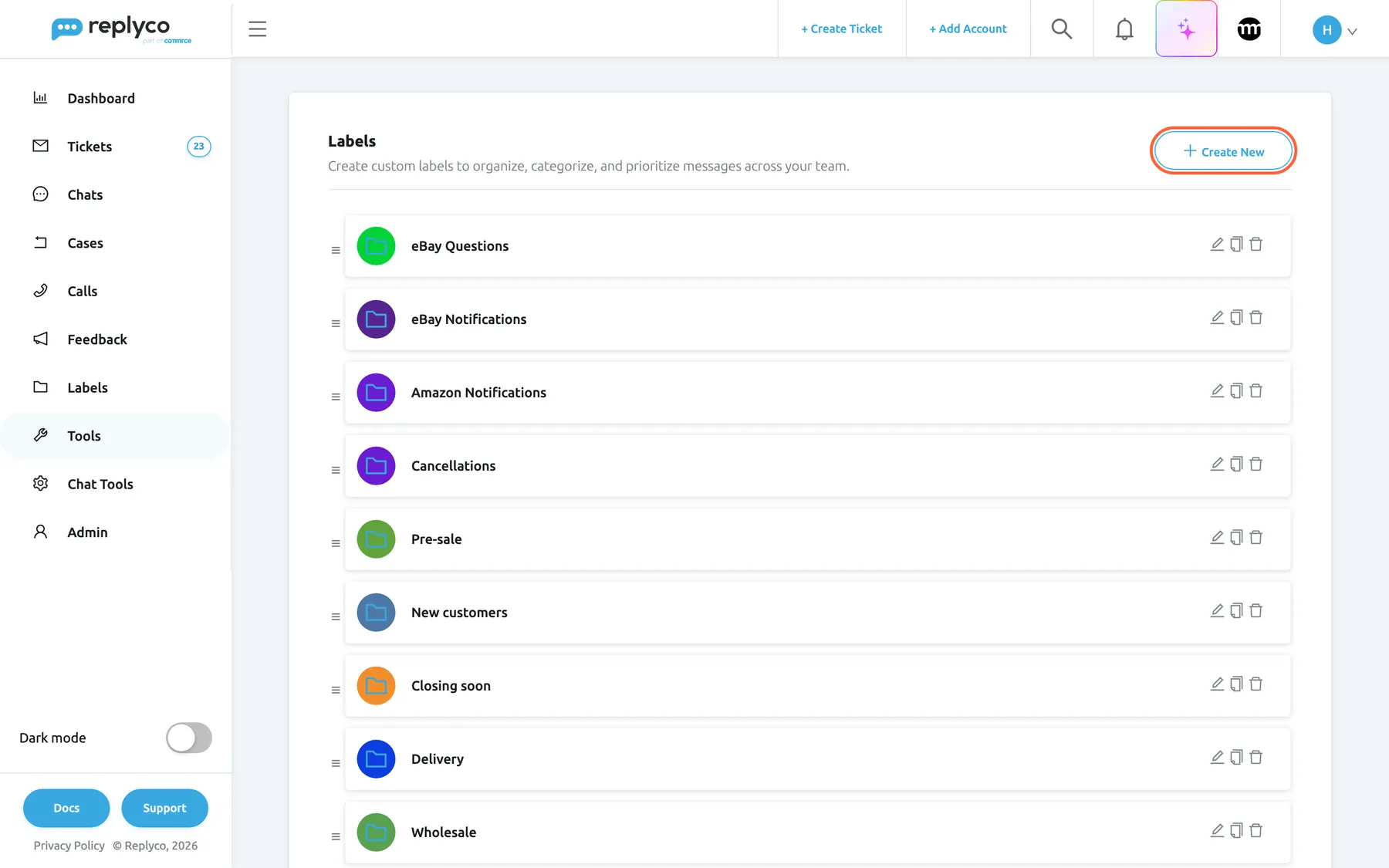
What this screenshot shows
- Screen
- Labels (/folders)
- Highlighted
- button “Create New”, header-right, enabled. opens the Create Label form on the right
- Also visible
- label cards with drag handle, colour circle, name, pencil, copy and bin icons; labels in their set order: eBay Questions, eBay Notifications, Amazon Notifications, Cancellations, Pre-sale, New customers, Closing soon, Delivery, Wholesale
- Purpose
- the Labels screen as it opens
| Region | What it shows | What you do there |
|---|---|---|
| Header, top | The heading Labels, the description Create custom labels to organize, categorize, and prioritize messages across your team. and Create New | Start a new label |
| The list | One card per label: a drag handle ☰, a round folder icon in the label’s colour, the name, and the pencil, copy and bin icons | Open, copy, reorder or delete a label |
| Form, right (after a click) | Create Label or Edit Label: the colour circle, Label Name, Cancel and Save | Name the label and pick its colour |
When your company has no labels yet, the list reads No labels found.
Create a label
Section titled “Create a label”-
Open ToolsLabels and select Create New at the top right.
The form Create Label opens on the right with the description Create a new label and choose a distinct color.
-
Type the name in Label Name, for example Price match requests.
-
(Optional) Select the round folder icon above the name to open the colour picker, and choose a colour: a preset swatch, the colour area, or a value in Hex or R, G and B. Select anywhere outside the picker to close it.
-
Select Save.
The form closes, Replyco confirms with Success, and the new label is added at the end of the list. If you did not choose a colour, Replyco gives the label a random one; you can change it later. An empty name is refused with Please enter Label Name.
A new label is given to every user of your company at that moment, so everyone can use it and sees its list in the sidebar after reloading Replyco in the browser. To keep it from some colleagues, change their label access; see Decide who sees which label.
Replyco does not stop two labels with the same name. Give each label a name that says what it is for, because agents pick labels by name in tickets, filters and rules.
Change a label’s name or colour
Section titled “Change a label’s name or colour”-
Select the label’s card, or its pencil icon.
The form Edit Label opens on the right with the description Update label name and color tag. and the label’s current name and colour.
-
Change the name in Label Name, or select the round icon and pick another colour.
-
Select Save, or Cancel or the cross to close the form without saving.
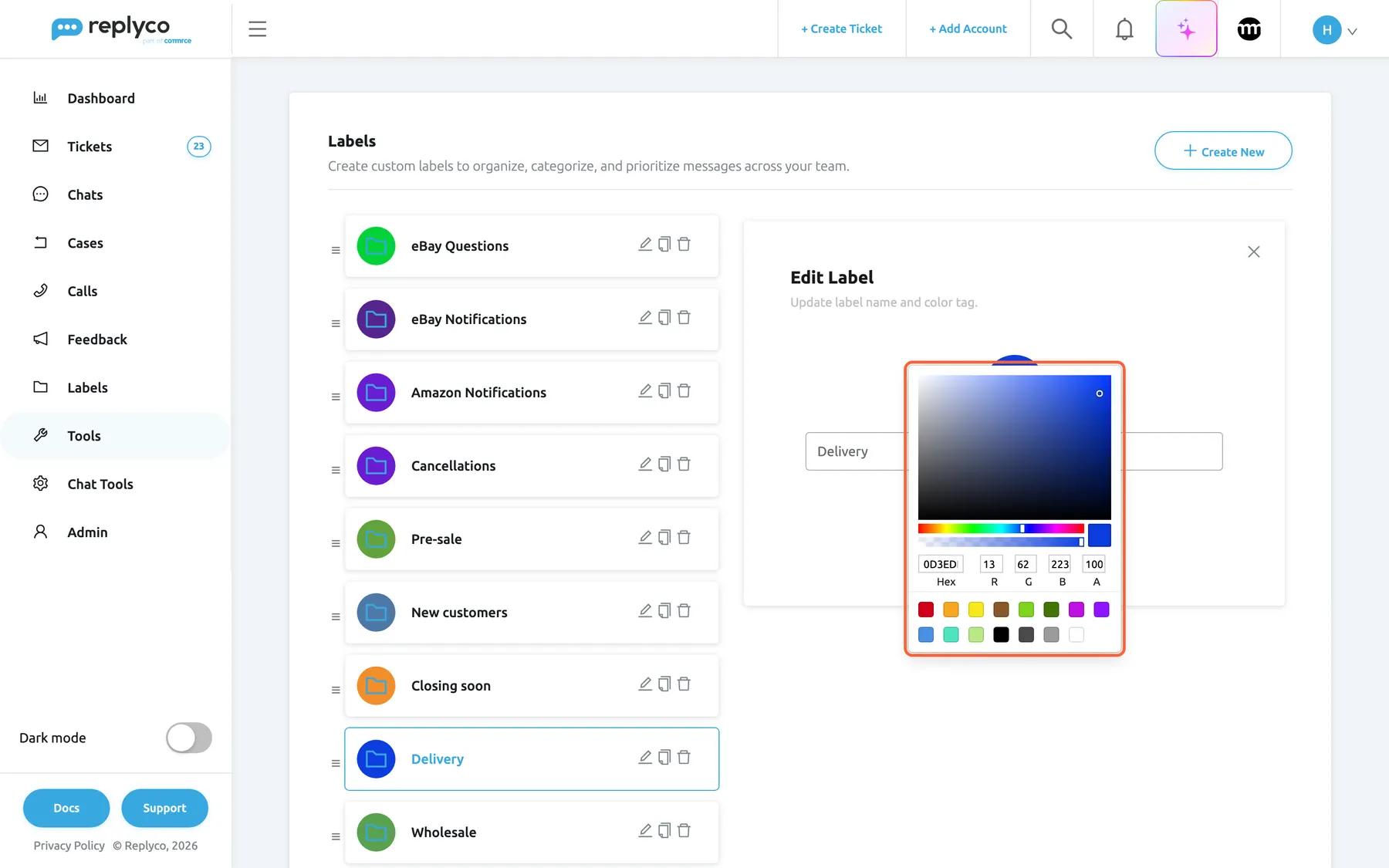
What this screenshot shows
- Screen
- Edit Label (/folders)
- Highlighted
- “”, form-right, open. sets the label's colour; Save stores it
- Also visible
- Edit Label heading and description; Label Name: Delivery; Delivery marked in the list; Cancel and Save
- Purpose
- change a label's name and colour
The sidebar, the label selects in tickets and the filters use the new name and colour once Replyco has reloaded them, and so does the column Label of the ticket lists. For the column, see Ticket lists.
Copy a label
Section titled “Copy a label”Select the copy icon on a card. The form opens with the same name and colour; change the name and select Save. Saving adds a new label; the original stays as it was, and the copy is added at the end of the list. Nothing else is copied: the new label has no tickets, and colleagues get it like any new label.
Put the labels in order
Section titled “Put the labels in order”Drag a card by its handle ☰ on the left and drop it where you want it. Replyco saves the new order straight away, for the whole company. The label lists in the sidebar follow this order. Label selects in a ticket, in the filters and in the bulk action window list labels alphabetically instead, so the order here does not change them.
Delete a label
Section titled “Delete a label”-
Select the bin icon on the label’s card.
Replyco asks you to confirm. Select Yes, or No to keep the label.
-
If tickets carry the label, the window Remove Label opens. It says how many tickets carry the label and that Replyco takes the label off them in the background first, and asks Do you want to proceed? Select Yes to delete it, or Cancel.
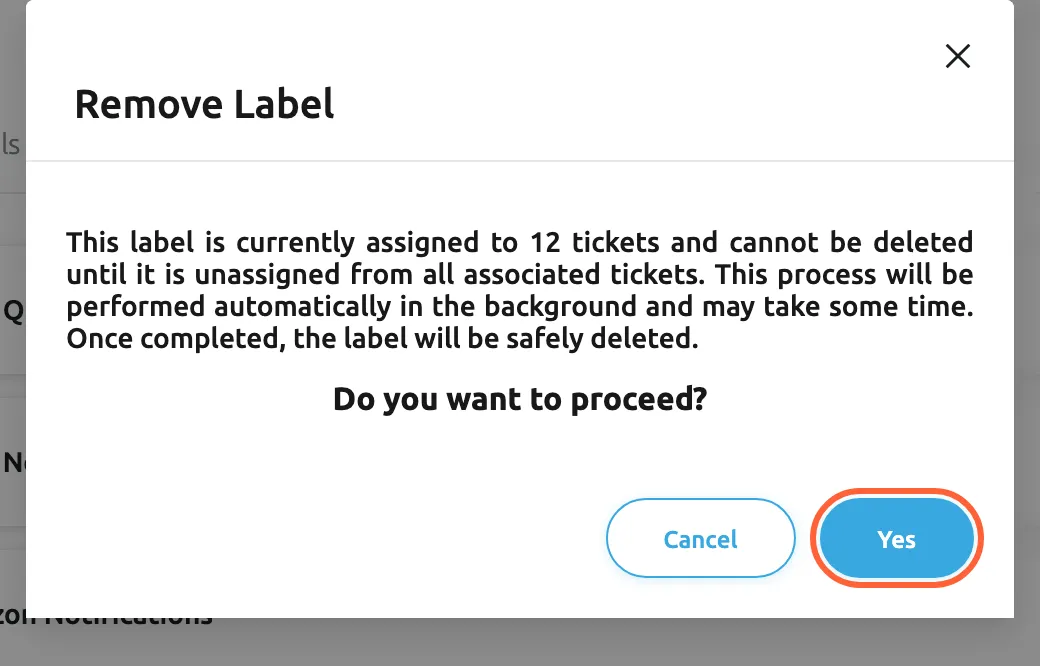
A label that tickets carry is taken off every ticket in the background before it is deleted. What this screenshot shows
- Screen
- Remove Label (/folders)
- Highlighted
- button “Yes”, dialog-footer, enabled. marks the label for deletion; Replyco removes it from its tickets in the background
- Also visible
- the number of tickets that carry the label (12); Do you want to proceed?; Cancel and Yes
- Purpose
- the second confirmation when a label is on tickets
-
The card turns grey with a red bin and reads (Deleting) after the name. It has no pencil, copy or bin icons any more.
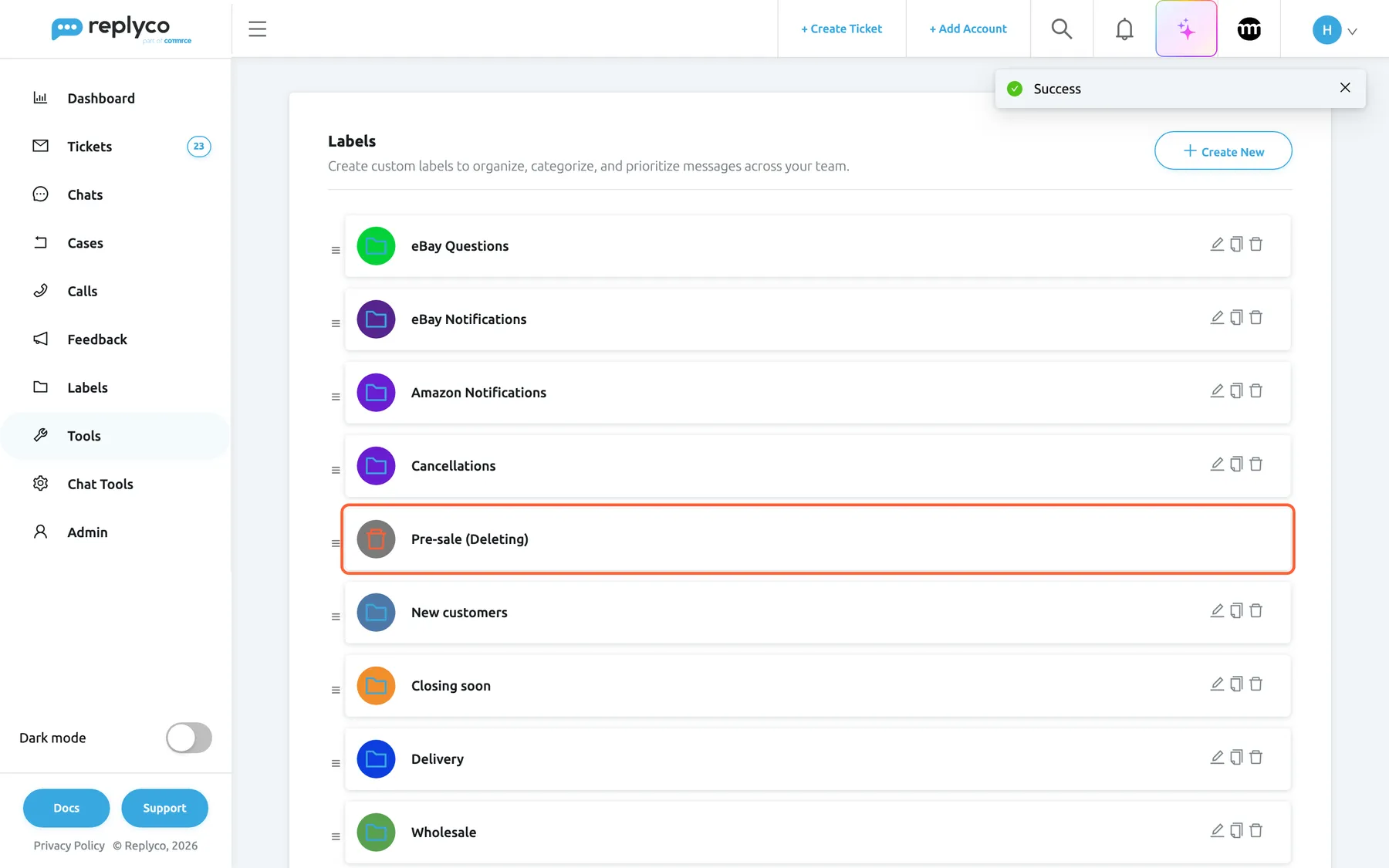
A label being removed shows Deleting and can no longer be changed. What this screenshot shows
- Screen
- Labels (/folders)
- Highlighted
- button “”, list, deleting. none; the label is removed from its tickets in the background, then from the list
- Also visible
- Success message at the top right; grey circle with a red bin; no edit, copy or delete icons on that card
- Purpose
- what a label looks like while Replyco removes it
What deleting does to tickets. Replyco removes the label in the background, not at the moment you confirm:
| What | What happens |
|---|---|
| The tickets that carry the label | The label is taken off every one of them, open, resolved, snoozed and archived alike. The tickets themselves stay, with their other labels. |
| The label’s list in the sidebar | Disappears for everyone once the label is removed. |
| Colleagues who could see the label | Each gets a notification under the bell, on the System tab: Label Pre-sale was unassigned from all tickets and removed, with the label’s name. |
| The card on this screen | Shows (Deleting) until the removal is finished, then disappears. |
A label that a rule adds cannot be deleted. Replyco refuses with the message This Label is used in rules followed by the names of up to three of those rules and Please replace it in the rule before deleting it. Change those rules first; see Rules. A Smart Filter that filters by the label keeps that condition, so remove the label from it in Manage Smart Filters.
The ticket count in the window counts the tickets you can see in the label’s list: open and resolved ones, but not snoozed, archived or blocked ones. When that count is 0, for example because the label is only on archived tickets, the window does not appear and the label is deleted after the first question. Replyco still takes it off those tickets.
Example. Northwind Electronics merges its labels Pre-sale and Pre-sale questions. First, a rule that adds Pre-sale is changed to add Pre-sale questions. Then an admin selects the bin on Pre-sale, answers Yes, and the window says 12 tickets carry the label. After Yes, the card reads Pre-sale (Deleting); a while later the label has gone from all 12 tickets and from the sidebar, and every colleague who could see it has a notification. The tickets still carry Pre-sale questions where they had it.
Decide who sees which label
Section titled “Decide who sees which label”Labels also decide which tickets a user sees. By default everyone sees every label:
- A new label is given to every user who exists when it is created.
- A colleague invited later gets every label that exists at that moment and also sees tickets without a label.
An admin can limit this per user:
-
Open AdminUsers, select the user and open the tab Access Rights.
-
Expand the section Labels. Its table lists No Label and every label of the company, with a tick box in the column View.
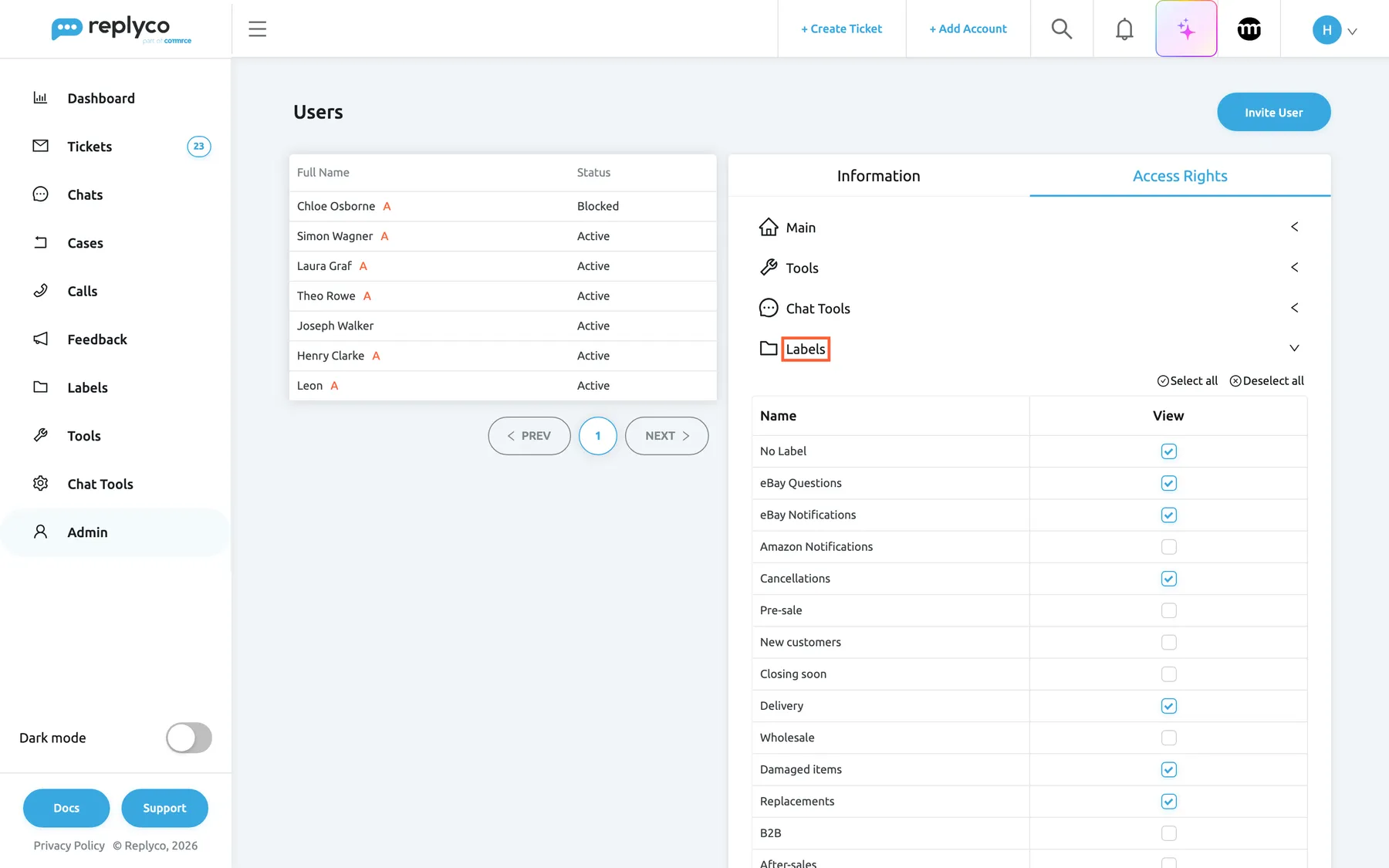
An admin decides per user which labels, and whether tickets without a label, the user sees. What this screenshot shows
- Screen
- Access Rights (/users)
- Highlighted
- “”, access-rights-labels, expanded. shows the labels this user may see; ticking and Save change them
- Also visible
- user Simon Wagner selected; No Label ticked; six labels ticked, the rest not; Select all and Deselect all; Cancel and Save at the bottom of the tab
- Purpose
- who sees which label
-
Tick the labels the user may see, and No Label if they should see tickets that carry no label. Select all and Deselect all tick or clear the whole section.
-
Select Save at the bottom of the tab.
What the user then sees:
| Ticket | Shown to the user? |
|---|---|
| Carries at least one label the user may see | Yes, in every ticket list the user may open |
| Carries only labels the user may not see | No, in no ticket list |
| Carries no label | Only when No Label is ticked |
The user’s sidebar lists only the labels they may see, with their counters. The ticket lists apply a change at once; the user’s sidebar shows it after they reload Replyco. This screen, ToolsLabels, still lists every label. The same tab also decides which ticket lists, accounts and Smart Filters the user sees; see User permissions and roles and Users.
Example. Simon Wagner answers Northwind’s eBay queue. His admin ticks eBay Questions, eBay Notifications, Cancellations, Delivery, Damaged items, Replacements and No Label. Simon now sees new, unlabelled tickets and everything filed under those six labels, but not tickets that carry only Amazon Questions or Wholesale.
Where labels are used
Section titled “Where labels are used”Labels are managed here and used everywhere tickets are:
- In a ticket, in the first select of the right panel, Select Label to assign. A label that was deleted but is still on the ticket shows as REMOVED with its old name. See The ticket screen.
- On many tickets at once, with Assign Labels in a ticket list, and automatically, with the rule action Allocate into Label. See Assign, label and merge tickets and Rules for incoming tickets.
- In the sidebar, as one list per label with a counter, and in the ticket lists as the column Label and the filter Filter by Label. See Ticket lists.
- In Smart Filters, as a condition; see Manage Smart Filters.
- In the reports, on the Labels dashboard.
- When tickets are merged, the kept ticket keeps its own labels; the labels of the other tickets are not carried over. See Ticket merging.
Every control, explained
Section titled “Every control, explained”Create New
Section titled “Create New”Top right of ToolsLabels.
Opens the form Create Label on the right. It shows a spinner and cannot be selected while a new label is being saved.
Every way your team sorts tickets starts as a label here.
Label card
Section titled “Label card”One per label in the list, in the saved order.
Shows the label’s colour as a round folder icon and its name. Selecting the card, or its pencil, opens Edit Label; the copy icon opens the same form to add a copy; the bin starts the deletion. A label that is being removed shows a grey circle with a red bin, (Deleting) after the name, and no icons.
Every change to a label starts from its card.
Drag handle ☰
Section titled “Drag handle ☰”To the left of each card.
Drag a card up or down to change the order. The new order is saved at once, for everyone, and the sidebar’s label lists follow it.
Put the labels your team opens most at the top of the sidebar.
Colour circle and colour picker
Section titled “Colour circle and colour picker”At the top of the form on the right. Selecting it opens the picker; selecting outside the picker closes it.
Shows the label’s colour. The picker offers a colour area, sliders for hue and transparency, fields for Hex, R, G, B and A, and preset swatches. Without a choice, a new label gets a random colour when it is saved.
Colours make labels easy to tell apart in the sidebar, in the column Label and in the ticket.
Label Name
Section titled “Label Name”In the form, under the colour circle.
The label’s name, up to 250 characters. It is required: an empty name is refused with Please enter Label Name. Names are shown as typed in every language; they are not translated.
Agents pick labels by name in tickets, filters, Smart Filters and rules.
Save, Cancel and the cross
Section titled “Save, Cancel and the cross”Under the name field; the cross is at the top right of the form.
Save sends the label and closes the form; Replyco confirms with Success. Cancel and the cross close the form without saving.
The form sits next to the list, so you can check the other labels while you type.
Remove Label
Section titled “Remove Label”Opens after the bin icon and Yes, when tickets carry the label.
Says how many tickets carry the label and that it is removed from them in the background, then asks Do you want to proceed? Yes deletes the label; Cancel or the cross keeps it.
Deleting a label changes many tickets at once; the count shows how many before you decide.
Who sees what
Section titled “Who sees what”| Part | What decides whether you see it or can use it |
|---|---|
| Labels in Tools | The Labels permission, with View or Edit |
| Saving, copying, deleting labels and saving label access | The Labels permission with Edit |
| The list of labels on this screen | Everyone who can open the screen sees every label |
| The Labels section on Access Rights | Every plan; the tab is on AdminUsers, and companies on an older plan may not have the section |
| A label’s list in the sidebar and its tickets | The labels ticked for your user; on an older plan without per-user label access, every label |
During a trial every feature is on. See What each plan includes.
What you need to know
Section titled “What you need to know”| Topic | Fact |
|---|---|
| Plans | Every plan includes labels and limiting label access per user; companies on an older plan may not have the per-user limit |
| Scope | Labels belong to the company; every user can be given any label |
| New labels | Added at the end of the list and given to every existing user |
| New users | Get every label and see tickets without a label |
| Order | Set by dragging; used by this list and the sidebar; label selects are alphabetical |
| Name | Required, up to 250 characters, duplicates allowed, not translated |
| Colour | Optional; a random colour when none is chosen |
| Renaming | Old tickets can keep the previous name and colour in the column Label |
| Deleting | In the background: off every ticket, then gone; not possible while a rule adds the label; cannot be undone |
| Customers | Never see your labels |
| History | Label changes are not recorded; a deletion sends each affected user a notification |
Frequently asked questions
Section titled “Frequently asked questions”Creating and changing labels
Section titled “Creating and changing labels”How do I create a new label?
Section titled “How do I create a new label?”Open ToolsLabels, select Create New, type the name in Label Name, pick a colour with the round icon if you like and select Save. The label is added at the end of the list and given to every user of your company.
Why did my new label get a colour I did not choose?
Section titled “Why did my new label get a colour I did not choose?”When you save a label without picking a colour, Replyco gives it a random one. Select the label’s card in ToolsLabels, select the round icon, choose a colour in the picker and select Save.
Can two labels have the same name?
Section titled “Can two labels have the same name?”Yes. Replyco does not stop duplicate names on ToolsLabels, and copying a label creates a second label with the same name. Rename one of them, because agents choose labels by name in tickets, filters, Smart Filters and rules and cannot tell them apart.
How do I change the order of the labels in the sidebar?
Section titled “How do I change the order of the labels in the sidebar?”Drag the cards on ToolsLabels by their handle ☰. The order is saved at once for the whole company, and the label lists in the sidebar follow it. The label selects in tickets and filters stay alphabetical.
Deleting labels
Section titled “Deleting labels”What happens to my tickets when I delete a label?
Section titled “What happens to my tickets when I delete a label?”Nothing happens to the tickets themselves. Replyco takes the deleted label off every ticket that carries it, open, resolved, snoozed or archived, in the background, then removes the label and its sidebar list. The tickets keep their other labels, and each colleague who could see the label gets a notification.
Why does a deleted label still show “Deleting”?
Section titled “Why does a deleted label still show “Deleting”?”Replyco removes a label from its tickets in the background after you confirm, and the card on ToolsLabels shows (Deleting) until that is finished. With many tickets it can take a while. The card then disappears; you cannot change the label in the meantime.
Why can’t I delete a label?
Section titled “Why can’t I delete a label?”A label that a rule adds cannot be deleted. Replyco then shows This Label is used in rules, the names of up to three of those rules, and Please replace it in the rule before deleting it. Change the action Allocate into Label in those rules on the Rules tab of Automation, then delete the label again.
Can I undo deleting a label?
Section titled “Can I undo deleting a label?”No. Once you confirm, Replyco takes the label off every ticket and removes it. A new label with the same name is a different label and is not added back to those tickets. Open the label’s list in the sidebar first to see which tickets carry it.
Who sees labels
Section titled “Who sees labels”Why can’t my colleague see a label?
Section titled “Why can’t my colleague see a label?”Which labels a user sees is set per user by an admin. Open AdminUsers, select the colleague, open Access Rights, expand Labels, tick the label and select Save. The colleague sees the label in the sidebar after reloading Replyco.
Do my colleagues see a new label straight away?
Section titled “Do my colleagues see a new label straight away?”Yes. A new label is given to every user of your company at the moment it is created, including users whose label access was limited before. Their sidebar shows it after they reload Replyco in the browser. Clear it on the Access Rights of anyone who should not see it.
Why does a colleague not see tickets without a label?
Section titled “Why does a colleague not see tickets without a label?”Tickets that carry no label are shown to a user only when No Label is ticked in the Labels section of their Access Rights on AdminUsers. Tick it and select Save; invited users have it ticked from the start.
Can customers see our labels?
Section titled “Can customers see our labels?”No. Labels are internal: they appear only in Replyco, in the sidebar, the ticket lists, the ticket’s right panel, filters, rules, Smart Filters and reports. Nothing you send to a customer contains a label.
Troubleshooting
Section titled “Troubleshooting”| Symptom | What to check |
|---|---|
| Labels is missing from Tools | Your user has no Labels permission; an admin adds it on your Access Rights |
| You don't have enough rights after Save or deleting | Your Labels permission is View only; changes need Edit |
| This Label is used in rules when deleting | A rule adds the label; change the rules named in the message, then delete again. See Rules |
| Please enter Label Name. | The name is empty; type a name in Label Name |
| A card stays at (Deleting) | Replyco is still taking the label off its tickets; open the screen again later. If it does not go away, contact support |
| A colleague does not see a label or its tickets | The label is not ticked on their Access Rights, or they have not reloaded Replyco |
| A colleague sees no tickets without a label | No Label is not ticked for them |
| The label was deleted without the Remove Label window | No ticket in its list carried it (for example, only archived or snoozed tickets did); Replyco still takes it off those tickets |