

Feedback Rules
The Feedback Rules tab is where you decide which Amazon orders get an automatic review request and when. Each rule names the Amazon accounts it covers, how many days after the order’s delivery date the request goes out, whether to hold back orders that still have an open ticket or case, and optional conditions such as the product SKU or the order total. Replyco then asks Amazon to send its own review and seller feedback request to the buyer, and lists every request under FeedbackFeedback Requests. Open the tab from ToolsAutomation and select Feedback Rules.
Availability: every plan includes feedback requests, and every feature is on during a trial; see What each plan includes. The tab is shown to users with the Automation permission; creating, changing and switching rules needs the edit level of that permission (see User permissions and roles). Rules work for Amazon accounts only. Replyco schedules a request when it saves or updates an Amazon order: mainly during the order sync, and also when it fetches an order for a ticket or you use Sync Order from Market. Keep order sync on so every order is checked; every plan includes it, though companies on an older plan may not have it.
What you can do here
Section titled “What you can do here”- See every rule and what it does. The tab lists your rules by name in an Active and an Inactive group, and a click shows a rule’s accounts, schedule, exclusions and conditions. Find a rule and see its details.
- Ask buyers for a review automatically. A rule needs only a name and one Amazon account; Replyco then schedules a request for every matching order. For the whole journey from rule to buyer, see the feature guide. Create a feedback rule · Automatic feedback requests.
- Choose when the request goes out. Set 5 to 30 days after the order’s delivery date, the window in which Amazon accepts review requests. Set the schedule.
- Keep unhappy buyers out. Two switches hold back the request when the order still has an unresolved ticket or an open case. Exclude orders with open tickets or cases.
- Target some orders only. Seven order matching conditions, such as the product SKU, the Amazon marketplace or the order total, narrow a rule to the orders you want. Limit a rule with order matching conditions.
- Decide which rule applies when several match. Rules are checked in alphabetical order and the first match wins. Decide which rule applies first.
- Change, copy or pause a rule. Edit a rule, start a new one from a copy, or switch a rule off without losing it. Edit a rule · Copy a rule · Switch a rule off or on.
- Remove a rule you no longer need. Delete a rule.
- Follow up the requests. Every request a rule schedules shows under FeedbackFeedback Requests, where you can also send one at once or cancel it. Feedback Requests.
The screen at a glance
Section titled “The screen at a glance”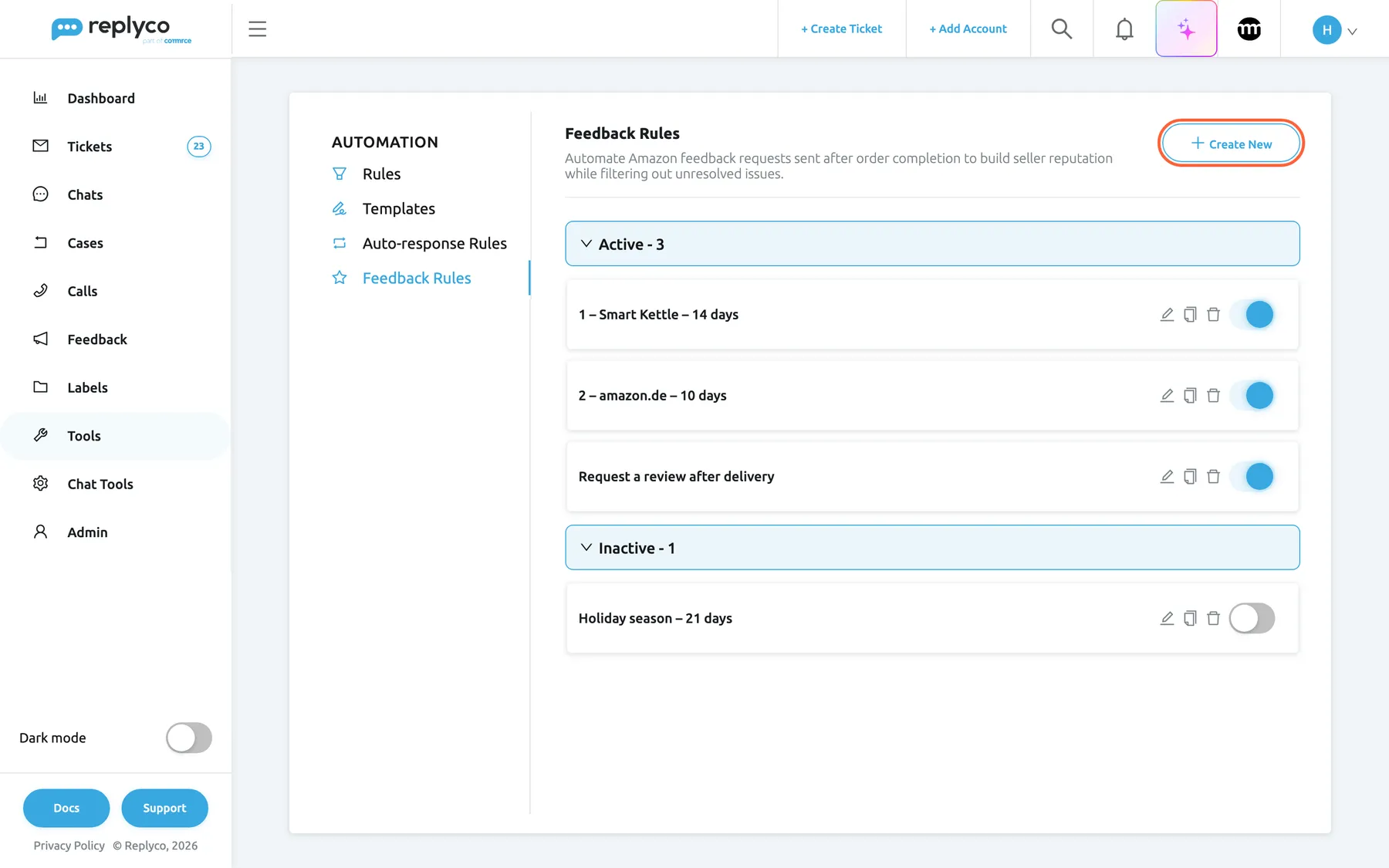
What this screenshot shows
- Screen
- Feedback Rules (/tickets-automation?tab=feedbackRules)
- Highlighted
- button “Create New”, header-right, enabled. opens the Create Feedback Rule form
- Also visible
- Automation tabs: Rules, Templates, Auto-response Rules, Feedback Rules (selected); group Active - 3 with three rule cards, switches on; group Inactive - 1 with one rule card, switch off; edit, copy and delete icons on every card
- Purpose
- the Feedback Rules tab as it opens
| Region | What it shows | What you do there |
|---|---|---|
| Automation tabs, left | Rules, Templates, Auto-response Rules, Feedback Rules | Switch between the automation lists |
| Header, top | The heading Feedback Rules, a short description and Create New | Start a new rule |
| Active group | Every rule that is switched on, with the count, sorted by name | Open, edit, copy, delete or switch off a rule |
| Inactive group | Every rule that is switched off, with the count | Switch rules back on or clean up |
| Details panel, right (after a click) | Name, Affected Channels, Schedule (days), the two exclusions, the conditions in use, and Delete, Copy, Edit | Read a rule, then act on it |
A group appears only when it has rules. With no rules at all, the list reads No rules found.
Find a rule and see its details
Section titled “Find a rule and see its details”The list has no search box and no columns. It shows rule names, sorted by name when the tab loads, in the Active group and the Inactive group. Each group header shows its count, for example Active - 3, and a click on the header folds the group away or opens it again.
- Open ToolsAutomation and select the Feedback Rules tab.
- Select a rule’s name. The card turns blue, the list moves to the left and the details panel opens on the right.
- Read the panel: the Amazon accounts under Affected Channels, the Schedule (days), Yes or No for each exclusion, and one line for every condition in use, with its operator and value.
- Select Edit, Copy or Delete at the bottom of the panel, or the cross in its corner to close it.
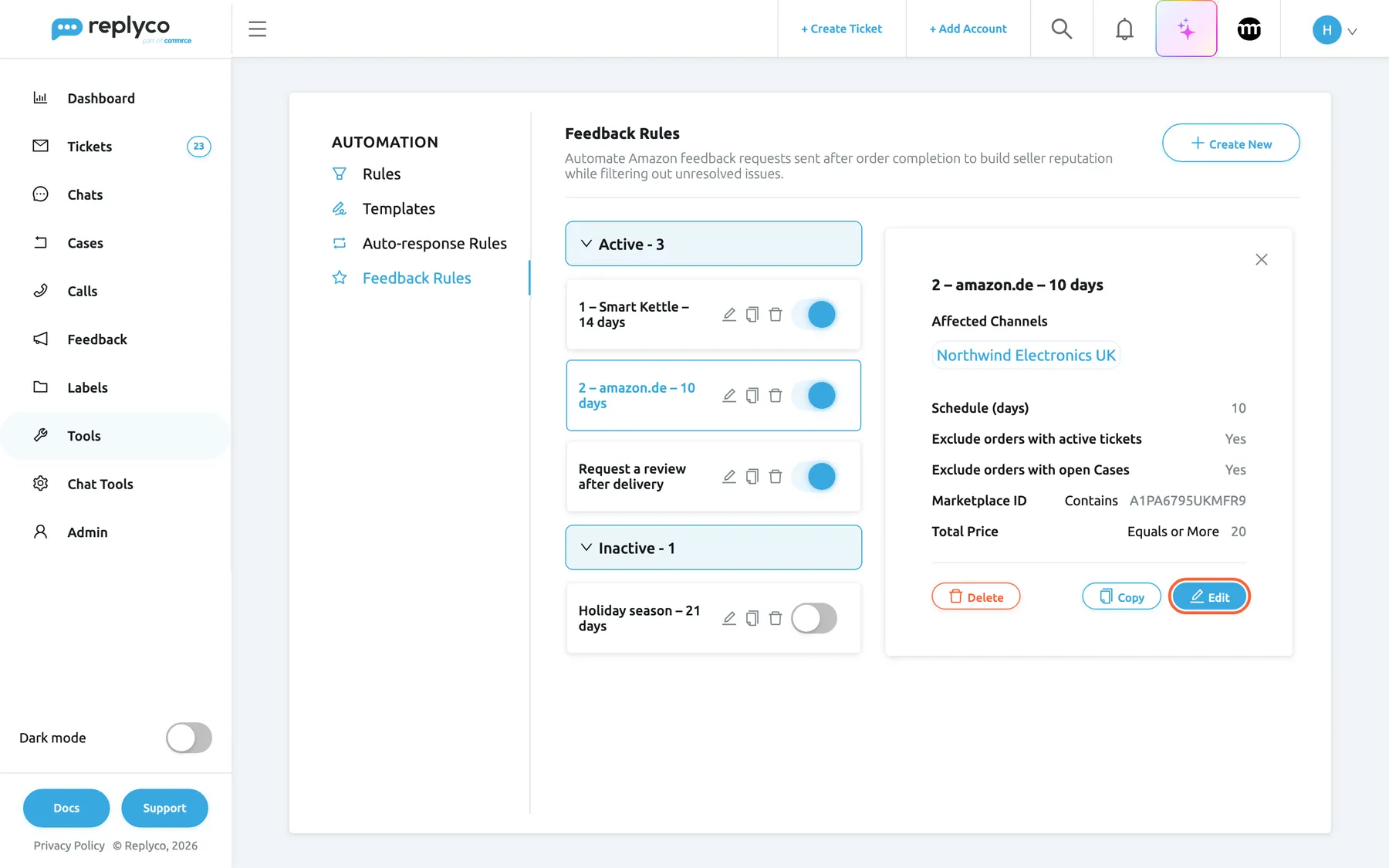
What this screenshot shows
- Screen
- Feedback Rules (/tickets-automation?tab=feedbackRules)
- Highlighted
- button “Edit”, details-panel-bottom-right, enabled. opens the Edit Feedback Rule form
- Also visible
- panel title 2 – amazon.de – 10 days; Affected Channels: Northwind Electronics UK; Schedule (days) 10; both exclusions Yes; Marketplace ID Contains A1PA6795UKMFR9; Total Price Equals or More 20; Delete, Copy and Edit buttons
- Purpose
- read a rule before changing it
Example: Northwind Electronics keeps 2 – amazon.de – 10 days for its German customers. The panel shows the account Northwind Electronics UK, a schedule of 10 days, both exclusions on, and two conditions: Marketplace ID Contains A1PA6795UKMFR9, the Amazon marketplace ID of amazon.de, and Total Price Equals or More 20. Conditions left empty are not listed.
The order of the list is also the order in which Replyco checks the rules, so the list tells you which rule wins; see Decide which rule applies first. A rule you create is added at the end of the Active group and takes its alphabetical place the next time you open the tab.
Create a feedback rule
Section titled “Create a feedback rule”A rule needs a name and at least one Amazon account; everything else has a default or is optional.
- On the Feedback Rules tab, select Create New in the top right corner. The form Create Feedback Rule replaces the list.
- Enter a Name. The name decides the rule’s place in the list and which rule Replyco checks first, so a name such as 1 – Smart Kettle – 14 days does two jobs.
- Set Schedule (days): the number of days after the order’s delivery date, from 5 to 30. It starts at 5.
- Leave Exclude orders with active tickets and Exclude orders with open Cases on, unless you want requests to go out whatever happens in your inbox.
- Under Affected Channels, pick the Amazon accounts the rule covers. Select all picks them all.
- (Optional) Under Order Matching Conditions, fill in only the conditions you need, each with an operator and a value.
- Select Save in the top right corner, or in the column on the right once you have scrolled down.
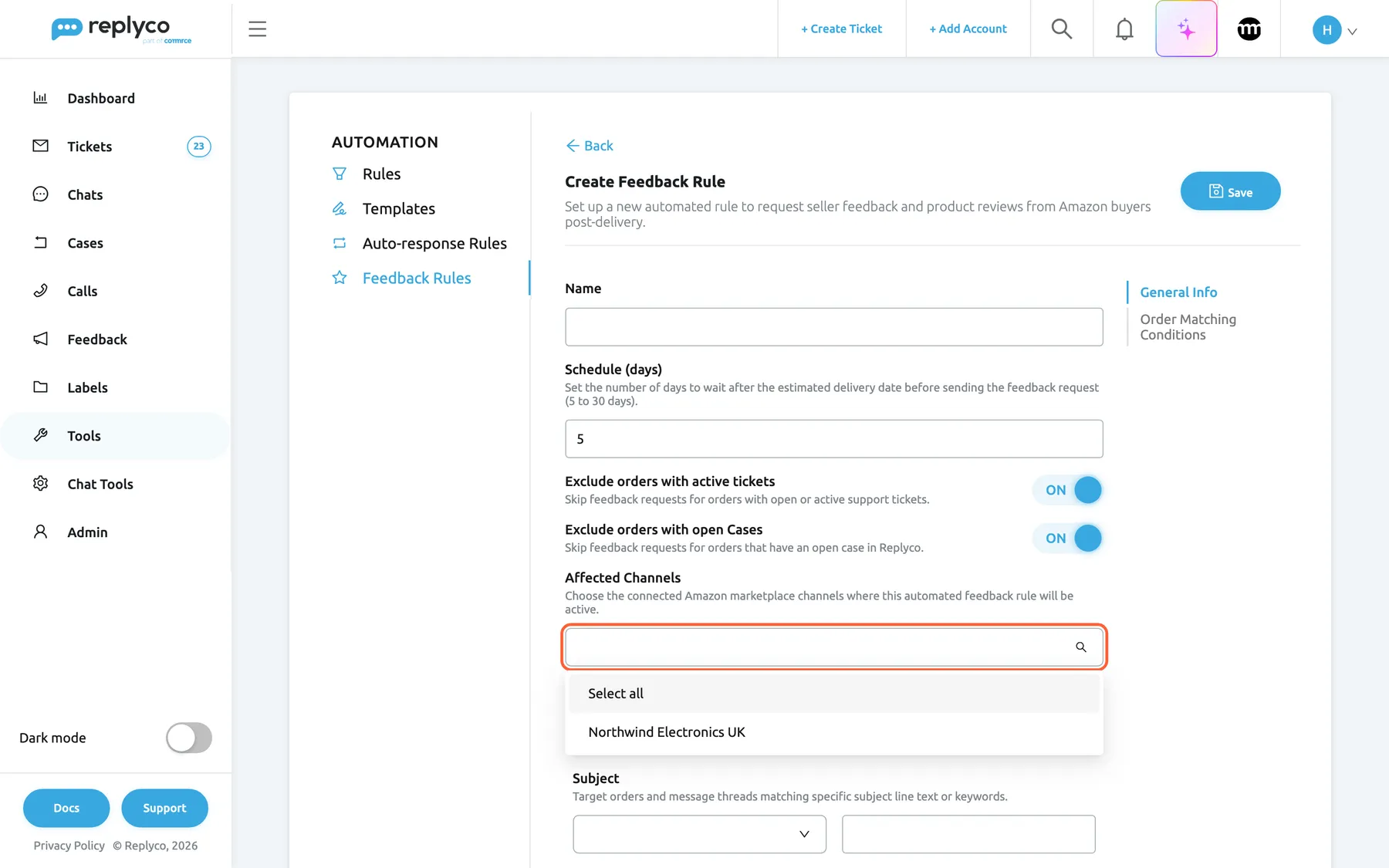
What this screenshot shows
- Screen
- Create Feedback Rule (/tickets-automation?tab=feedbackRules)
- Highlighted
- combobox “Affected Channels”, form-general-info, open. picks the Amazon accounts the rule applies to
- Also visible
- Name empty; Schedule (days) 5; Exclude orders with active tickets ON; Exclude orders with open Cases ON; dropdown: Select all, Northwind Electronics UK; contents list: General Info, Order Matching Conditions; Back and Save
- Purpose
- create a feedback rule
Replyco returns you to the list at once and sends the rule to the server. When the server confirms, a short Success message appears and the rule is in the Active group, switched on. From then on, every Amazon order that Replyco syncs and that matches the rule gets a request scheduled; orders that already have a request are left as they are. The new request shows under Feedback Requests with the rule’s name in its Rule column.
If the name is empty, no account is picked, or a condition has an operator without a value or a value without an operator, nothing is saved and All fields must be completed. appears in the top right corner.
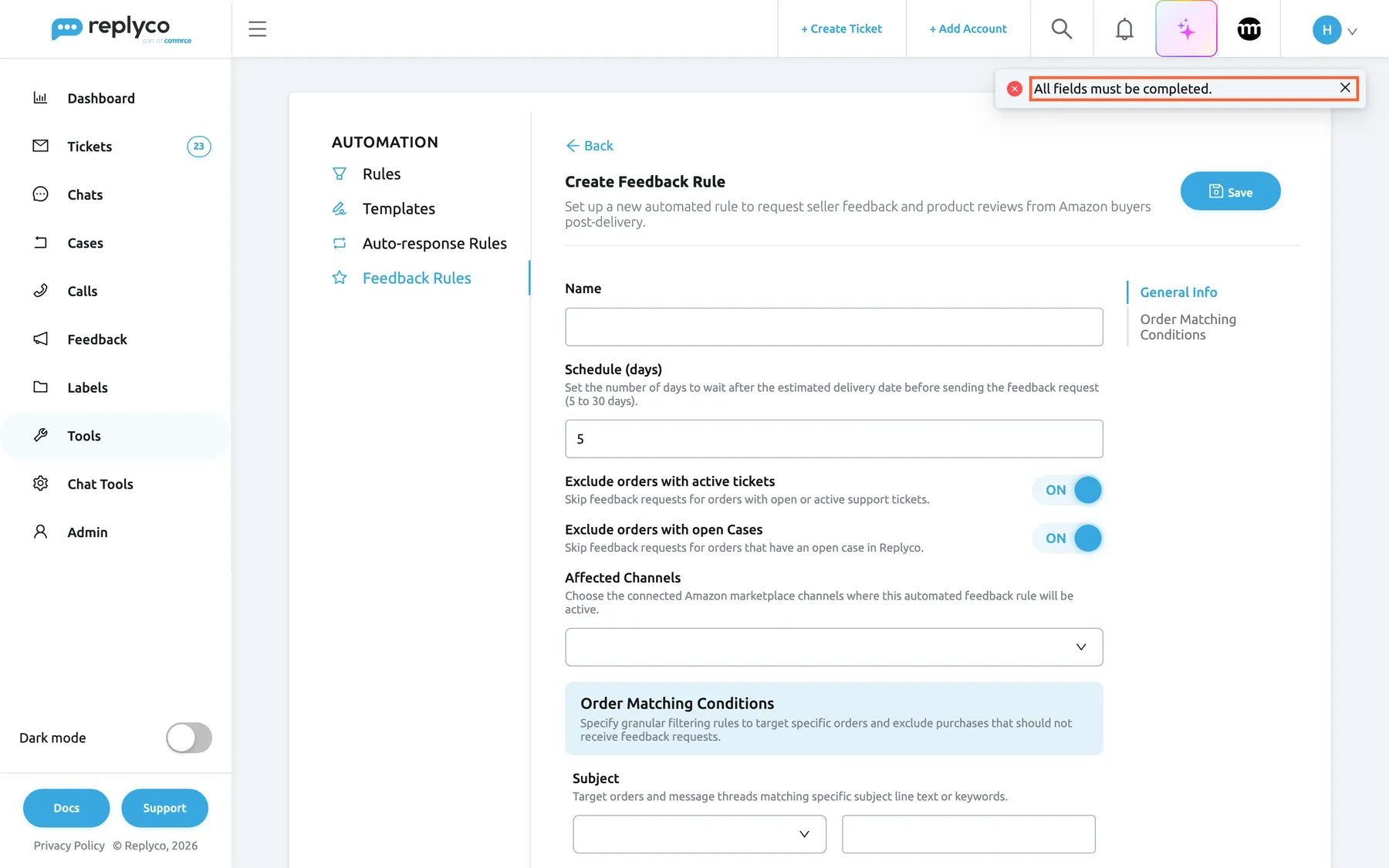
What this screenshot shows
- Screen
- Create Feedback Rule (/tickets-automation?tab=feedbackRules)
- Highlighted
- alert “All fields must be completed.”, top-right, shown. reports the missing fields
- Also visible
- error message All fields must be completed.; Name empty; Schedule (days) 5; both exclusions ON; Affected Channels empty
- Purpose
- what happens when required fields are missing
The form has no message, template or language field. A feedback request carries no text from Replyco: Replyco asks Amazon to send its standard review and seller feedback request for the order, and Amazon writes and sends the email. For what the buyer receives and what Amazon allows, see Automatic feedback requests.
Back at the top of the form leaves without saving: everything you entered is lost.
Set the schedule
Section titled “Set the schedule”Schedule (days) is the number of days between the order’s delivery date and the request. Replyco uses the latest delivery date Amazon gives for the order; if Amazon gives none, the latest ship date; if the order has neither, the moment Replyco sees the order change to Shipped. That date is shown as Est. Delivery Date in the request log.
The box accepts 5 to 30. A number outside the range is corrected when you leave the box: 45 becomes 30, and 2 becomes 5. The range matches Amazon’s: Amazon only accepts a review request between 5 and 30 days after the order’s delivery date. Replyco shifts each send time by up to 30 minutes.
| Schedule (days) | Delivery date | Request scheduled for |
|---|---|---|
| 5 | 6 March, 18:00 | 11 March, around 18:00 |
| 7 | 6 March, 18:00 | 13 March, around 18:00 |
| 30 | 6 March, 18:00 | 5 April, around 18:00 |
Example: most Northwind orders arrive within three days, and buyers need a few days with a kettle or a power bank before they can judge it, so Request a review after delivery uses 7 days. A shorter schedule reaches buyers before they have used the product; a long one reaches them after they have moved on.
Exclude orders with open tickets or cases
Section titled “Exclude orders with open tickets or cases”The two switches protect you from asking an unhappy buyer for a review. Replyco checks them when the request is due, not when it is scheduled, so a complaint that arrives after the order shipped still stops the request.
- Exclude orders with active tickets: the request is not sent when any ticket linked to the order is not resolved. Tickets that are open, waiting for the customer or archived without being resolved all count. See Resolve, snooze or archive a ticket.
- Exclude orders with open Cases: the request is not sent when a case that Replyco holds for the order is not closed. See Cases.
Both are on for a new rule. A request stopped by a switch gets the status Cancelled in the request log and is not tried again on its own. You can still send it by hand with Send now once the problem is solved; see Automatic feedback requests.
Limit a rule with order matching conditions
Section titled “Limit a rule with order matching conditions”Without conditions, a rule covers every order of its accounts. Each condition you fill in narrows it: an order must meet every filled-in condition, and a condition left empty is ignored. Text is compared without regard to capital letters.
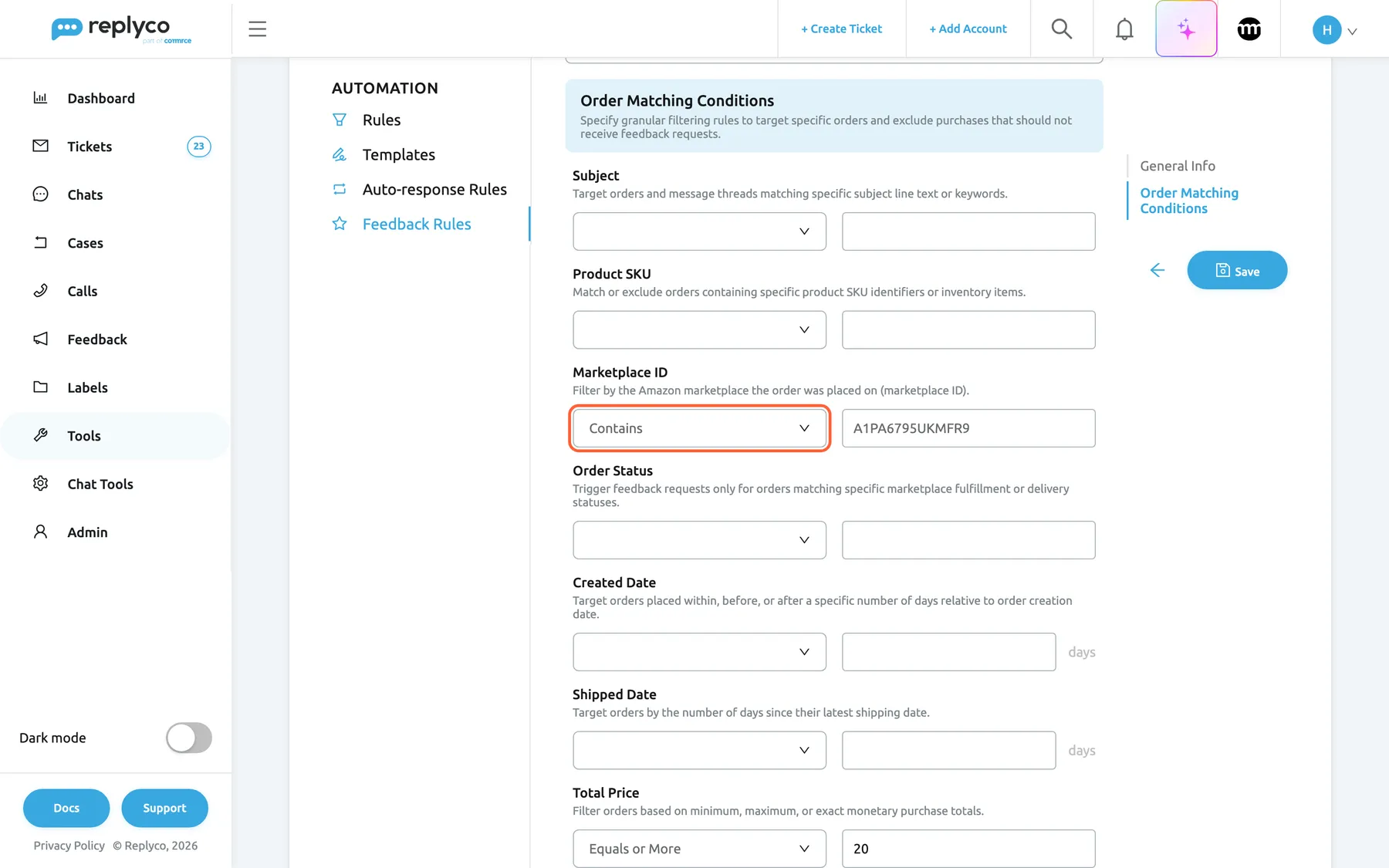
What this screenshot shows
- Screen
- Edit Feedback Rule (/tickets-automation?tab=feedbackRules)
- Highlighted
- combobox “Marketplace ID”, form-conditions, Contains, A1PA6795UKMFR9. limits the rule to orders from amazon.de
- Also visible
- Subject and Product SKU empty; Marketplace ID Contains A1PA6795UKMFR9; Order Status, Created Date, Shipped Date empty; Total Price Equals or More 20; contents list with Order Matching Conditions selected; Save and back arrow
- Purpose
- narrow a rule to some orders
| Condition | Operators | Compares with |
|---|---|---|
| Subject | Contains, Not Contains | The order’s subject |
| Product SKU | Contains, Not Contains, Starts With, Ends With | The SKUs of the products in the order. One matching product is enough; Not Contains needs every product to lack the text |
| Marketplace ID | Contains, Not Contains | The Amazon marketplace ID of the order, such as A1F83G8C2ARO7P for amazon.co.uk or A1PA6795UKMFR9 for amazon.de |
| Order Status | Contains, Not Contains, Starts With, Ends With | Amazon’s order status, such as Shipped, Unshipped or PartiallyShipped |
| Created Date | More Than, Less Than + days | How many days ago the order was placed, counted when Replyco checks the order |
| Shipped Date | More Than, Less Than + days | How many days ago the order’s latest ship date was, counted when Replyco checks the order |
| Total Price | Equals, Equals or More, Equals or Less | The order total, in the order’s own currency |
A few edges matter:
- Dates are strict. More Than 3 matches an order placed more than 72 hours before the check, not one placed exactly 72 hours before. An order with no date never matches a date condition.
- Dates count from the check, not from the send date. Replyco checks an order each time it syncs a new or changed order from Amazon, until the order has a request. A Created Date condition of More Than 3 therefore only matches when Amazon reports a change to the order at least three days after it was placed.
- Prices ignore the currency. Total Price Equals or More 20 means 20 pounds on a GBP order and 20 euros on a EUR order.
- A condition needs both halves. An operator without a value, or a value without an operator, stops the save with All fields must be completed.. Clear the operator with its cross to drop a condition.
Three rules you could write:
- Product SKU Starts With NW-KETTLE, schedule 14 days: kettle buyers get two weeks of use before Amazon asks them.
- Marketplace ID Contains A1PA6795UKMFR9 and Total Price Equals or More 20, schedule 10 days: amazon.de orders of 20 euros and more.
- Order Status Contains Shipped: only orders Amazon reports as shipped when Replyco checks them.
Decide which rule applies first
Section titled “Decide which rule applies first”An order gets one request, from one rule. Replyco checks the switched-on rules in alphabetical order of their names, the order of the Active group, and the first rule that covers the order’s account and whose conditions all match wins. Rules further down are not considered for that order.
With Northwind’s three active rules:
| Order | 1 – Smart Kettle – 14 days | 2 – amazon.de – 10 days | Request a review after delivery | Request |
|---|---|---|---|---|
| Smart Kettle, amazon.co.uk, £89 | matches | – | – | after 14 days |
| Smart Kettle, amazon.de, €79 | matches | not checked | – | after 14 days |
| Power bank, amazon.de, €39.90 | no | matches | – | after 10 days |
| Phone case, amazon.de, €12.99 | no | no (under 20) | matches | after 7 days |
| Travel adapter, amazon.co.uk, £24.99 | no | no | matches | after 7 days |
There is no drag handle or priority field. To put a rule first, give it a name that sorts first, for example by starting names with 1 –, 2 –, and keep a catch-all rule without conditions at the end.
Edit a rule
Section titled “Edit a rule”- Select the rule, then Edit in the details panel; or select the pencil icon on its card.
- Change the name, schedule, exclusions, accounts or conditions. On an existing rule the Save button pulses while you have unsaved changes.
- Select Save.
The form Edit Feedback Rule has a contents list on the right: General Info and Order Matching Conditions jump to that part of the form. A change applies to orders Replyco checks from now on. Requests already scheduled keep their send date and their rule; only the two exclusion switches are read again when each request is due. A renamed rule keeps its place in the list until you open the tab again, but Replyco checks rules by their new name straight away.
Copy a rule
Section titled “Copy a rule”Select the copy icon on a card, or Copy in the details panel. The form opens filled with everything the original has: the name followed by (copy), the schedule, both switches, the accounts and every condition. Save creates a new switched-on rule and leaves the original unchanged. Rename the copy before you save: the name decides where it sorts and which of the two Replyco checks first.
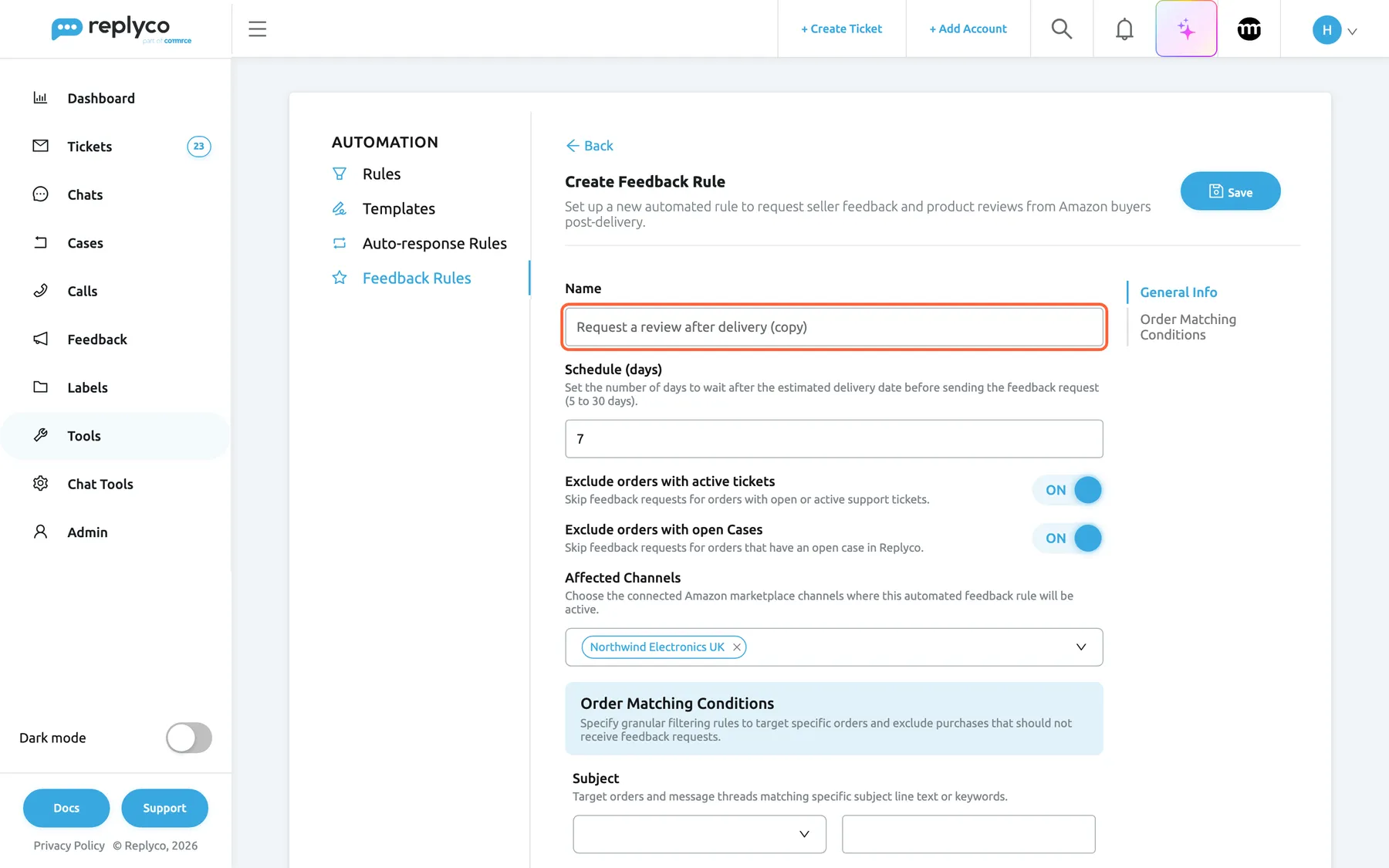
What this screenshot shows
- Screen
- Create Feedback Rule (/tickets-automation?tab=feedbackRules)
- Highlighted
- textbox “Name”, form-general-info, name with the copy suffix. names the new rule
- Also visible
- Schedule (days) 7; both exclusions ON; Affected Channels: Northwind Electronics UK; Back and Save
- Purpose
- start a new rule from an existing one
A copy is the quickest way to make a variant, for example the same rule with a longer schedule for one product line.
Switch a rule off or on
Section titled “Switch a rule off or on”The switch on each card turns a rule off or on. It saves at once, shows Success, and moves the card to the other group. A switched-off rule keeps all its settings and schedules no new requests; switch it on again and Replyco uses it for the orders it checks from then on.
Delete a rule
Section titled “Delete a rule”Select the bin icon on a card, or Delete in the details panel, and confirm with Yes. The card’s confirmation asks Are you sure you want to delete this rule?, the panel’s asks Are you sure you want to delete this item?.
The rule disappears from the list, and Replyco confirms with Success. There is no undo; to keep a rule for later, switch it off instead, and it waits in the Inactive group.
Every control, explained
Section titled “Every control, explained”The tab has a list with a header and a details panel, and a full-width form for creating and editing.
Feedback Rules tab
Section titled “Feedback Rules tab”ToolsAutomation, the last tab in the left column under Automation. The address ends in ?tab=feedbackRules, so you can bookmark it.
Opens the list of feedback rules. The tab is visible to everyone with the Automation permission; without its edit level, saving and switching are refused with You don't have enough rights.
Feedback rules sit with the other automation lists because, like them, they act on your orders and tickets without anyone pressing a button.
Create New
Section titled “Create New”Top right corner of the tab, next to the heading.
Opens the empty form Create Feedback Rule, with a schedule of 5 days and both exclusions on. It shows a spinner and is disabled while a new rule is being saved.
Start a rule from scratch. To start from an existing rule, use Copy instead.
Group headers
Section titled “Group headers”Above each group of cards: Active and Inactive, each followed by the number of rules.
Selecting the header folds the group away or opens it again. The groups have no check boxes; feedback rules have no bulk actions.
Fold away the switched-off rules while you work on the active ones.
Rule card
Section titled “Rule card”Each card holds the rule’s name and these controls, from left to right:
| Control | What it does | Why |
|---|---|---|
| Name | Opens the details panel | Read before you change |
| Pencil icon | Opens the form Edit Feedback Rule | Change the rule |
| Copy icon | Opens a filled form that saves as a new rule | Make a variant without retyping |
| Bin icon | Asks Are you sure you want to delete this rule? and deletes the rule on Yes | Remove a rule you no longer need |
| Switch | Switches the rule on or off; saves at once | Pause a rule without losing it |
Details panel
Section titled “Details panel”Right of the list, after you select a rule’s name.
Shows the name, Affected Channels, Schedule (days), Exclude orders with active tickets and Exclude orders with open Cases with Yes or No, and every condition in use with its operator and value; dates end in days. At the bottom: Delete (asks Are you sure you want to delete this item?), Copy and Edit. The cross in the corner closes the panel.
Check which orders a rule covers before you change it or write another one.
First field of the form, under General Info.
The name shown on the card, in the details panel and in the Rule column of the request log. Required: saving without a name gives All fields must be completed.. Up to 150 characters. Names do not have to be unique, and they decide the order in which Replyco checks rules.
A name that says what the rule covers and sorts in the right place, such as 1 – Smart Kettle – 14 days, tells your team at a glance which rule wins.
Schedule (days)
Section titled “Schedule (days)”Second field of the form, a number box with arrows.
Days between the order’s delivery date and the request, from 5 to 30; 5 for a new rule. Numbers outside the range are corrected when you leave the box. Replyco shifts each send time by up to 30 minutes.
Amazon accepts review requests only 5 to 30 days after delivery. Within that window, pick the moment your buyers have used the product long enough to judge it.
Exclude orders with active tickets
Section titled “Exclude orders with active tickets”Switch under the schedule. Saved with the form.
On (the default): when the request is due, Replyco cancels it if any ticket linked to the order is not resolved. Off: tickets are ignored.
A buyer who is still waiting for your answer is the last person to ask for a review.
Exclude orders with open Cases
Section titled “Exclude orders with open Cases”Switch under the ticket switch. Saved with the form.
On (the default): when the request is due, Replyco cancels it if a case it holds for the order is not closed. Off: cases are ignored. Replyco creates no cases from Amazon, so for Amazon orders this switch rarely finds anything.
An open return or dispute means the buyer’s experience is not settled yet.
Affected Channels
Section titled “Affected Channels”Last field of General Info, a multi-select with Select all at the top.
The Amazon accounts whose orders the rule covers. Only Amazon accounts are offered. Required: saving with no account gives All fields must be completed..
Sellers with several Amazon accounts, for example one per region, can give each account its own timing.
Order Matching Conditions
Section titled “Order Matching Conditions”Seven optional conditions, each an operator list and a value box. The operator list has a cross to clear it.
| Condition | What it does | Why |
|---|---|---|
| Subject | Compares the order’s subject | Target orders by their subject text |
| Product SKU | Matches the SKUs of the order’s products | Give a product line its own schedule, or leave out spare parts |
| Marketplace ID | Matches the Amazon marketplace ID of the order | Treat amazon.de, amazon.fr or amazon.co.uk orders differently |
| Order Status | Matches Amazon’s order status text | Only ask for orders Amazon reports as shipped |
| Created Date | Days since the order was placed, at the check | Leave out orders that were already old when they reached Replyco |
| Shipped Date | Days since the order’s latest ship date, at the check | Leave out orders that shipped long ago |
| Total Price | Compares the order total, without the currency | Ask for reviews on your bigger orders only, or leave out small ones |
Save, Back and the contents list
Section titled “Save, Back and the contents list”Back and Save at the top of the form; once you scroll down, a back arrow and Save stay in the right column under the contents list General Info · Order Matching Conditions.
Save checks the name, the accounts and the conditions, saves and returns to the list. Back returns without saving. The contents list jumps to that part of the form.
The conditions are further down the form than the settings most rules need; the contents list gets you there in one click.
Who sees what
Section titled “Who sees what”| Part of the tab | What shows it |
|---|---|
| The tab itself, under ToolsAutomation | The Automation permission |
| Creating, editing, copying and switching rules | The edit level of Automation; otherwise You don't have enough rights |
| Accounts in Affected Channels | Connected Amazon accounts; other channels are never offered |
| The requests the rules create | The Feedback permission, under FeedbackFeedback Requests |
What you need to know
Section titled “What you need to know”| Topic | Fact |
|---|---|
| Channels | Amazon accounts only. Replyco sends no feedback requests on eBay or other channels. |
| Required fields | A name and at least one Amazon account. |
| Schedule | 5 to 30 days after the order’s delivery date; 5 for a new rule. |
| Rule order | By name. The first switched-on rule that covers the order’s account and matches wins. |
| One request per order | An order that already has a request is never given another, by any rule. |
| Exclusions | Checked when the request is due. Both are on for a new rule. |
| Conditions | All filled-in conditions must match; empty ones are ignored. |
| Message | Amazon writes the request; there is no text, template or language to set. |
| Editing | Applies to orders checked from now on; scheduled requests keep their date. |
| Switching off | Stops new requests; the rule keeps its settings. |
| Deleting | Permanent; switch a rule off to keep it for later. |
| Scope | Rules belong to the company: everyone sees the same list. |
Frequently asked questions
Section titled “Frequently asked questions”General
Section titled “General”What does a feedback rule do?
Section titled “What does a feedback rule do?”A feedback rule on the Feedback Rules tab under ToolsAutomation tells Replyco which Amazon orders should get Amazon’s review and seller feedback request, and how many days after delivery. Replyco schedules one request per matching order and lists it under FeedbackFeedback Requests.
Can I write my own request message?
Section titled “Can I write my own request message?”No. The rule form has no message, template or language field, because Replyco asks Amazon to send its own standard review and seller feedback request. Amazon writes and sends the email; Replyco only decides which orders and when. For what buyers receive, see Automatic feedback requests.
Do feedback rules work for eBay or my webstore?
Section titled “Do feedback rules work for eBay or my webstore?”No. Affected Channels on the Feedback Rules tab offers Amazon accounts only, and Replyco sends feedback requests through Amazon only. Feedback that eBay and Amazon buyers leave still arrives in the Feedback List.
Who can create feedback rules?
Section titled “Who can create feedback rules?”Users with the edit level of the Automation permission can create, edit, copy and switch rules on the Feedback Rules tab. Users with only the view level see the list, and saving shows You don't have enough rights. See User permissions and roles.
Creating and editing
Section titled “Creating and editing”Why won’t Replyco save my feedback rule?
Section titled “Why won’t Replyco save my feedback rule?”The message All fields must be completed. means the Name is empty, no account is picked under Affected Channels, or a condition has an operator without a value or a value without an operator. Fill in or clear the half-filled condition and select Save again. A name over 150 characters is refused with Error.
Why can’t I set the schedule to 3 or 45 days?
Section titled “Why can’t I set the schedule to 3 or 45 days?”Schedule (days) accepts 5 to 30 days and corrects any other number when you leave the box. Amazon only accepts a review request between 5 and 30 days after the order’s delivery date, so a request outside that window would be refused by Amazon.
Does editing a rule change requests that are already scheduled?
Section titled “Does editing a rule change requests that are already scheduled?”No. A change on the Feedback Rules tab applies to the orders Replyco checks from then on. Requests already scheduled keep their send date and their rule. Only the two exclusion switches are read again when each request is due.
Which rule applies
Section titled “Which rule applies”Two of my rules match the same order. Which one is used?
Section titled “Two of my rules match the same order. Which one is used?”The first one in alphabetical order of the names, which is also the order of the Active group on the Feedback Rules tab. The order gets one request from that rule, and the other rule is not used for it. Rename a rule, for example with a leading 1 –, to put it first.
Can I change the order of my rules?
Section titled “Can I change the order of my rules?”Only through their names. The Feedback Rules tab has no drag handle or priority field; Replyco checks switched-on rules in alphabetical order. Start the names of specific rules with 1 –, 2 – and keep a catch-all rule without conditions last.
Switching off and deleting
Section titled “Switching off and deleting”What happens when I switch a rule off?
Section titled “What happens when I switch a rule off?”The switch on the rule’s card saves at once, shows Success and moves the rule to the Inactive group. The rule keeps all its settings and schedules no new requests; switch it on again and Replyco uses it for the orders it checks from then on.
Can I get a deleted feedback rule back?
Section titled “Can I get a deleted feedback rule back?”No. Deleting a rule on the Feedback Rules tab is permanent, and there is no undo. To keep a rule for later, switch it off instead: it waits in the Inactive group with all its settings.
Data and privacy
Section titled “Data and privacy”Do buyers see the name of my rule?
Section titled “Do buyers see the name of my rule?”No. Rule names, schedules and conditions stay inside Replyco. The buyer receives only Amazon’s own review and seller feedback request for the order, sent by Amazon.
Troubleshooting
Section titled “Troubleshooting”| Symptom | What to check |
|---|---|
| All fields must be completed. when saving | The Name is filled in, an account is picked under Affected Channels, and every condition has both an operator and a value, or neither. |
| You don't have enough rights when saving or switching | Under AdminUsers, the user has the edit level of Automation. |
| Affected Channels offers no account | No Amazon account is connected; see Connect Amazon. |
| A rule creates no requests | 1. The rule is in the Active group. 2. The order’s Amazon account is in Affected Channels. 3. A rule earlier in the alphabet did not match the order first. 4. Every filled-in condition matches. 5. The order has no request yet. 6. Order sync is on for your company. |
| Requests go out through the wrong rule | Rules are checked by name; rename the specific rule so it sorts before the general one. |
| A request was sent although the buyer had complained | The complaint ticket was not linked to the order, was already resolved, or Exclude orders with active tickets was off when the request was due. |
| A renamed or new rule is out of alphabetical order | The list sorts when it loads; open the tab again. |
Related
Section titled “Related”- Automatic feedback requests: the whole feature, from rule to buyer
- Feedback Requests: the log of every request, with send now and cancel
- Feedback List · Feedback details: the feedback buyers leave
- Rules · Templates · Auto-response Rules: the other Automation tabs
- Connect Amazon
- Orders