

Reports
The Reports screen is where you take ticket data out of Replyco. It holds two reports, each downloaded as a CSV file you open in a spreadsheet: Ticket Fields, one row per ticket with the ticket, order and custom-field values you choose, and User Actions List, one row per thing a person on your team did to a ticket. Team leads use it to audit the team’s work, to count returns by reason or to hand order data to another system. Open it from DashboardReports. Nothing is shown on the screen itself: every report ends in a file download.
What you can do here
Section titled “What you can do here”- Export ticket and order fields for a period. Pick from 31 fields, such as the ticket number, status, assignee, order ID, tracking number and products, add any custom fields, and download them for the tickets created in the period. Download the ticket fields report · Custom fields
- Count answers such as return reasons. The custom fields your team fills in on tickets become columns, so a spreadsheet filter tells you how many returns each reason caused. Choose custom fields · Custom fields
- See who did what to which ticket. The actions list writes one row per action, with the user, the date and time, what they did and the ticket, for one user, several or everyone. Download the list of user actions
- Export the ticket list or a report? To export the page of tickets you are looking at, with the text of every message, use the ticket list instead; the task guide compares both. Export tickets and reports
The screen at a glance
Section titled “The screen at a glance”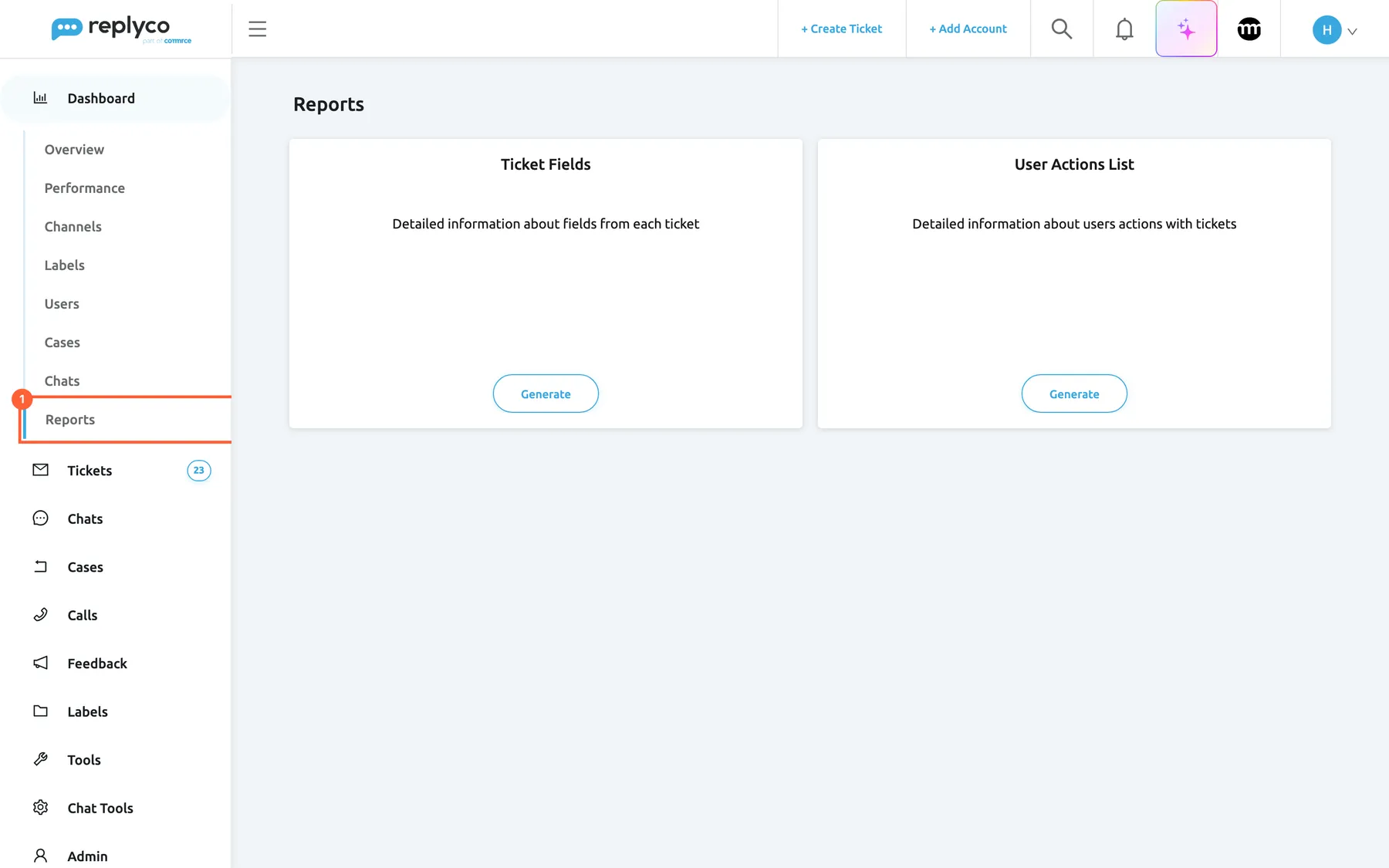
What this screenshot shows
- Screen
- Reports (/dashboard/reports)
- Highlighted
- menuitem “Reports”, sidebar-left, selected. opens the Reports screen
- Also visible
- Dashboard menu expanded with eight entries; card Ticket Fields with its description and Generate; card User Actions List with its description and Generate
- Purpose
- the Reports screen as it opens
| Region | What it shows | What you do there |
|---|---|---|
| Reports, the last entry under Dashboard in the sidebar | The screen’s menu entry | Open the screen; it has no counters or filters of its own |
| Heading, top left | Reports | Nothing; the screen has no period filter, working-hours selector or gear icon like the other dashboards |
| Left card | Ticket Fields with its description and Generate | Open the form, choose fields, custom fields and a period, download |
| Right card | User Actions List with its description and Generate | Open the form, choose users and a period, download |
Generate does not create anything yet: it slides the card’s form into view. The file is only produced when you select Download in the form. Each card keeps its choices until you leave the screen, even when you close the form with Cancel.
Download the ticket fields report
Section titled “Download the ticket fields report”The Ticket Fields report writes one row per ticket with the columns you pick. It covers the tickets created in the period, whatever their status: open, resolved, snoozed or archived, and also the tickets of customers you have blocked.
-
Open DashboardReports and select Generate on the Ticket Fields card.
The card shows Select Fields, Select Custom Fields, the Start Date – End Date range and the buttons Download and Cancel. Download stays greyed out until you choose at least one field or one custom field.
-
Open Select Fields and pick the fields you need. Type part of a name to shorten the list.
Each field becomes a column. All at the top of the list takes every field and replaces the fields you picked before; picking another field after All replaces All.
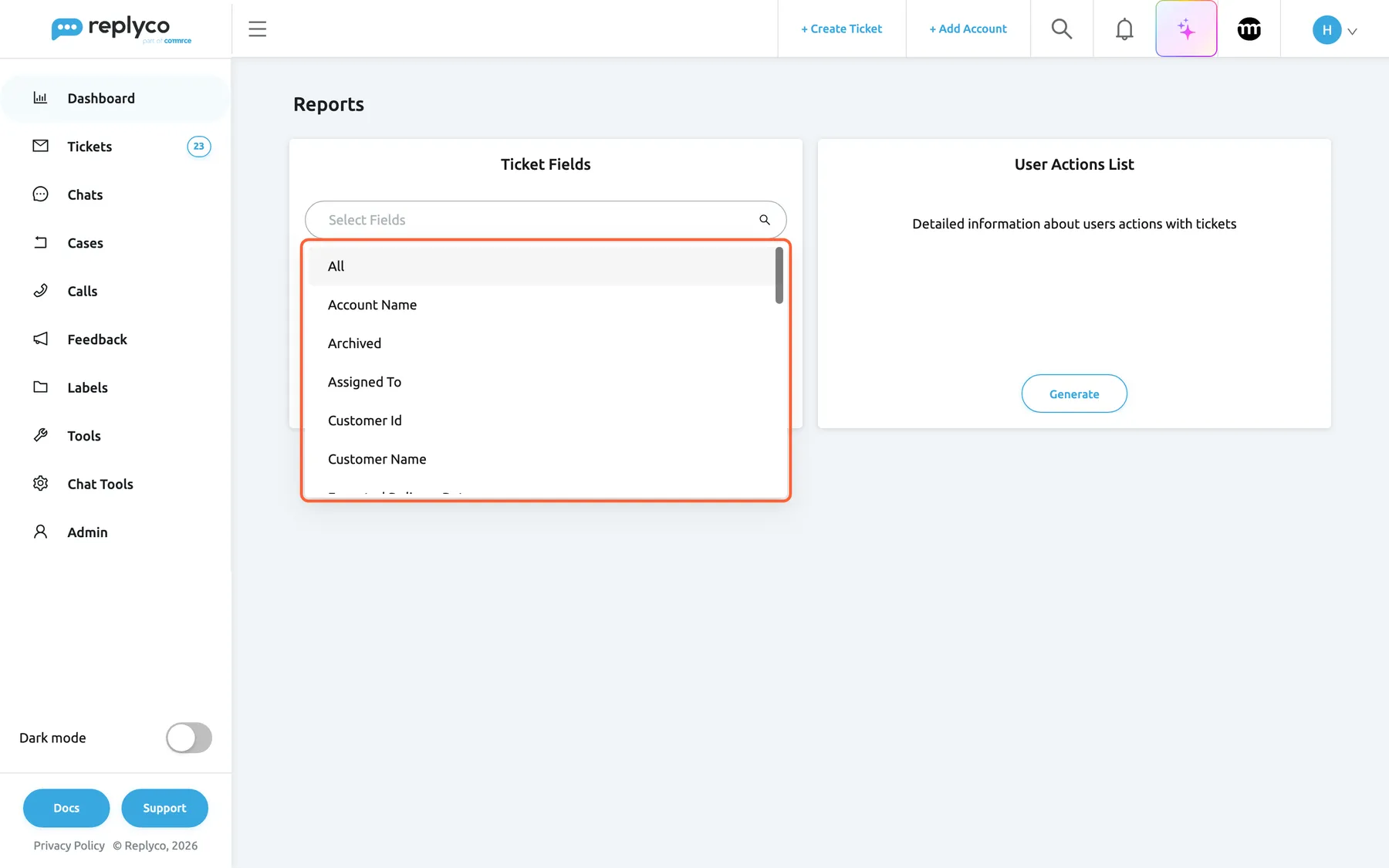
Select Fields lists the ticket and order fields the report can export; each one you pick becomes a column. What this screenshot shows
- Screen
- Reports (/dashboard/reports)
- Highlighted
- listbox “Select Fields”, main-left-card, expanded. adds the chosen field as a column of the report
- Also visible
- options All, Account Name, Archived, Assigned To, Customer Id, Customer Name; User Actions List card closed with Generate
- Purpose
- choose the columns of the Ticket Fields report
-
(Optional) Open Select Custom Fields and pick the custom fields whose values you want. All takes every custom field your company has.
-
(Optional) Choose the period in Start Date – End Date: select the calendar icon, or type the dates as year-month-day and press Enter.
The period runs from the start of the first day to the end of the last day, in your local days: Replyco stores data in UTC and converts the dates you choose into UTC for the search. Leave it empty to include every ticket your company has.
-
Select Download.
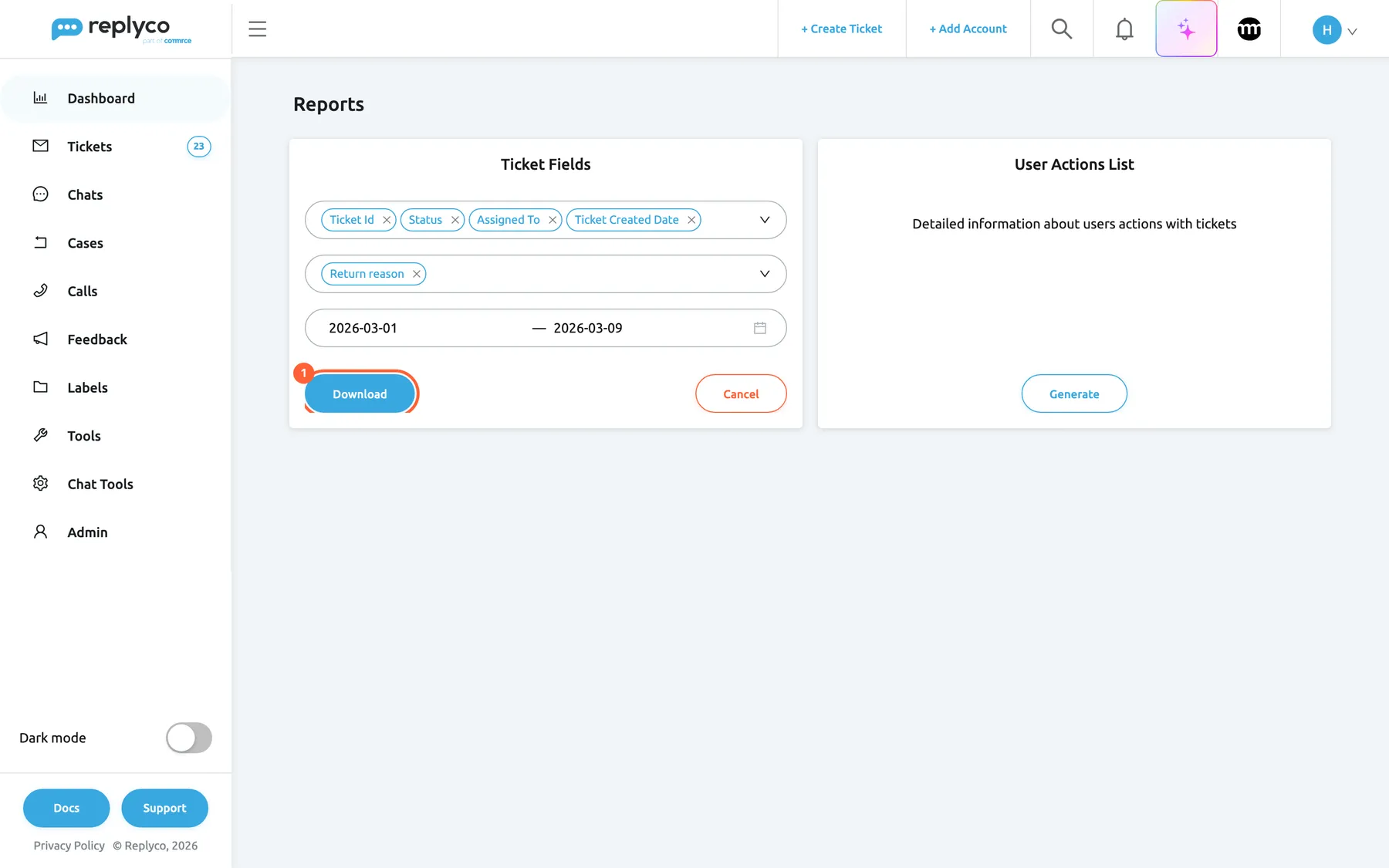
Choose the fields, any custom fields and the period, then select Download to get the CSV file. What this screenshot shows
- Screen
- Reports (/dashboard/reports)
- Highlighted
- button “Download”, main-left-card, enabled. downloads the Ticket Fields report as a CSV file
- Also visible
- fields Ticket Id, Status, Assigned To, Ticket Created Date; custom field Return reason; period 2026-03-01 to 2026-03-09; Cancel button
- Purpose
- the Ticket Fields report ready to download
The button shows a spinner while Replyco builds the file; then your browser downloads a CSV file whose name starts with
customFields_.
Example. Northwind Electronics asks every agent to fill the custom field Return reason when a customer sends something back. To see which reasons cost the most in March, pick Ticket Id, Status, Assigned To and Ticket Created Date, the custom field Return reason, and the period 1–31 March. In the spreadsheet, filter the Return reason column and count the rows per reason.
When no ticket was created in the period, Replyco shows No data found for selected filters and downloads nothing.
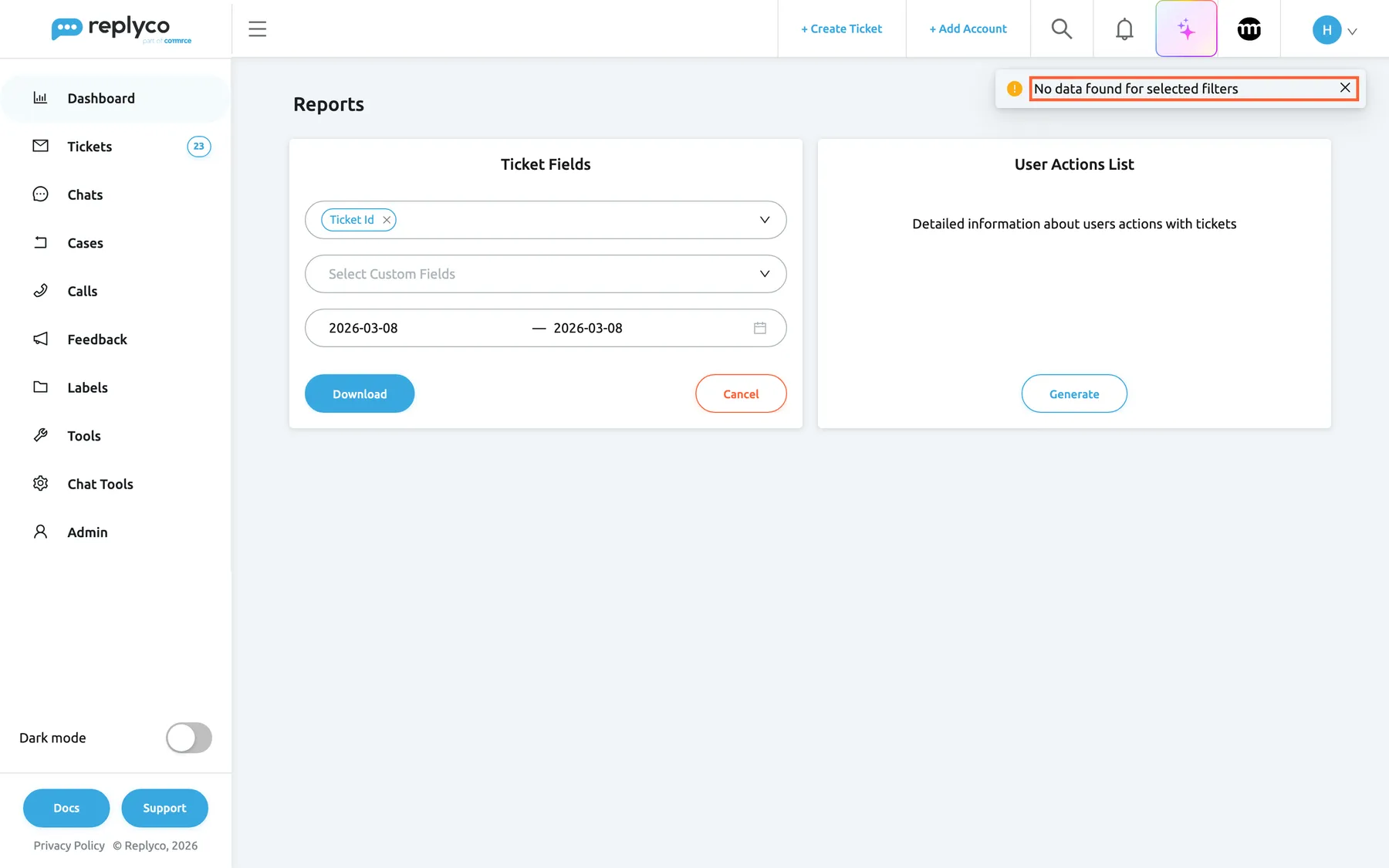
What this screenshot shows
- Screen
- Reports (/dashboard/reports)
- Highlighted
- alert “No data found for selected filters”, toast, shown. tells you the report found no tickets
- Also visible
- Ticket Fields card with Ticket Id and a one-day period; Download and Cancel buttons
- Purpose
- what an empty Ticket Fields report looks like
What the ticket fields file contains
Section titled “What the ticket fields file contains”The first row holds the column names. Every value is in double quotes; a double quote inside a value is written as a single quote, so commas in subjects and addresses do not move the columns. The fields and what their columns hold are listed under the field list.
- Dates of tickets and orders show the date and the time, as Replyco stores them in UTC.
- Channels in the Marketplace column appear with Replyco’s internal channel names, for example
AmazonSPfor Amazon,Ebayfor eBay andMailfor a mailbox. - Yes/No custom fields show
YesorNo; a list that allows several choices shows them separated by commas; an empty field is an empty cell. - Values are today’s values. A ticket resolved after the period still shows
Resolved; an order that was shipped yesterday shows yesterday’s shipping time.
Download the list of user actions
Section titled “Download the list of user actions”The User Actions List report writes one row per action a person on your team took on a ticket: opening it, resolving it, assigning it, labelling it, adding a note and more. It is the same activity that the action widgets of the Users dashboard count, as a list you can filter.
-
Open DashboardReports and select Generate on the User Actions List card.
-
(Optional) In Filter by User, pick one or more users. Leave it empty, or pick All Users, for everyone.
-
(Optional) Choose the period in Start Date – End Date. Leave it empty for every action ever logged.
-
Select Download.
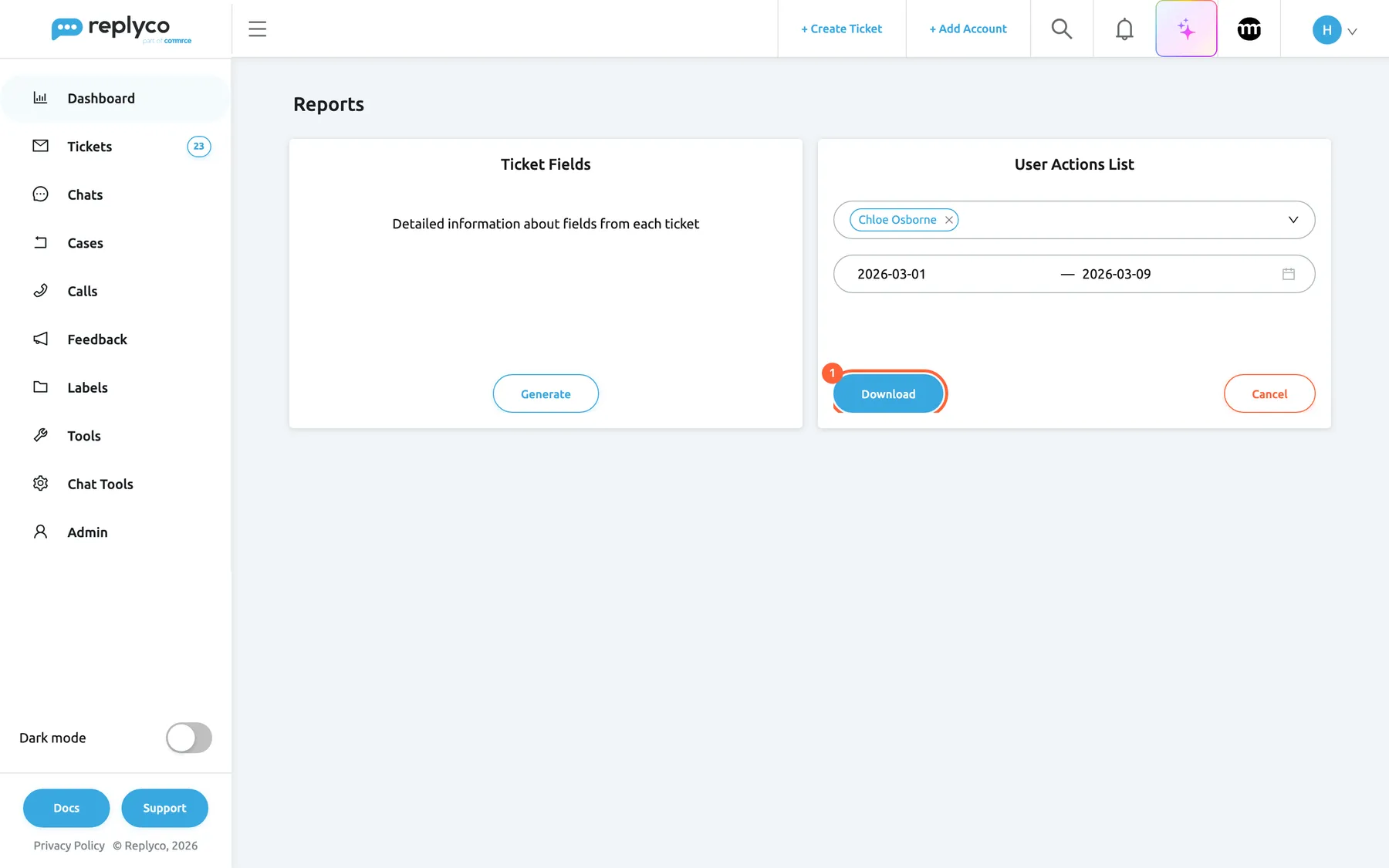
Pick one or more users and a period; leave the user filter empty to include everyone. What this screenshot shows
- Screen
- Reports (/dashboard/reports)
- Highlighted
- button “Download”, main-right-card, enabled. downloads the User Actions List as a CSV file
- Also visible
- Filter by User with Chloe Osborne; period 2026-03-01 to 2026-03-09; Cancel button; Ticket Fields card closed
- Purpose
- the User Actions List ready to download
Your browser downloads a CSV file whose name starts with
userActionsList_.
The file has five columns: User Name, Action date, Action, Object and Ticket ID. Rows are grouped by user and sorted oldest first within each user. The date is written as month-day-year with the time, in UTC. Ticket ID holds a spreadsheet link formula that shows the ticket number and opens the ticket in Replyco.
Action in the file | What the person did | Object |
|---|---|---|
Viewed ticket | Marked the ticket read, usually by opening it while it was unread | – |
Marked as unread | Marked the ticket unread | – |
Resolved ticket, Marked as unresolved | Resolved the ticket or opened it again | – |
Archived ticket | Archived the ticket | – |
Snoozed ticket, Stopped snoozing | Snoozed the ticket or ended the snooze | till and the date |
Assigned user | Assigned the ticket | The user’s name |
Assigned label | Added a label | The label’s name |
Assigned Priority, Unassigned Priority | Set or removed a priority | The priority’s name |
Added note | Wrote a note | The note’s text |
Added attachment, Deleted attachment | Added or removed a file | The file name |
Added Order, Removed Order | Linked or unlinked an order | – |
Merged tickets | Merged the ticket with another | – |
Blocked customer, Unblocked customer | Blocked or unblocked the customer | The customer’s name |
Ran rule | Ran a rule on the ticket | The rule’s name |
What the list leaves out. Replies sent to customers are not in it; for the number of messages each person sent, use the Users dashboard. Case actions, resent messages and actions that belong to no ticket, such as signing in, are left out too. When there is no action for the users and period you chose, the file has only its header row.
Example. A customer of Northwind Electronics complains that nobody reacted to her message about a damaged kettle. Pick the two agents on duty that week and the dates of the week, download the list and filter Ticket ID for her ticket number: you see who first opened the unread ticket, when, and whether anyone assigned or resolved it.
Every control, explained
Section titled “Every control, explained”The controls of both cards, from the sidebar to the buttons, in the order you meet them.
Reports in the sidebar
Section titled “Reports in the sidebar”The last entry under Dashboard in the sidebar; select Dashboard to show its entries.
Opens the Reports screen. The entry is hidden when your user’s dashboard access does not include Reports, and it shows a lock when your company’s plan lacks Advanced Reporting; selecting a locked entry asks Your subscription plan doesn't include this feature. Do you want to go on the billing page to unlock this feature? Every current plan includes Advanced Reporting.
Reports contain ticket and customer data, names and addresses included, so admins can keep the entry away from users who should not export data.
Generate
Section titled “Generate”At the bottom of each card, below its description.
Slides the card’s form into view. It creates nothing and sends nothing; the form stays open until you select Cancel or leave the screen.
Keeps the screen short until you need a report.
Select Fields
Section titled “Select Fields”The first drop-down of the Ticket Fields card. You can pick several fields and type to search.
Chooses the columns of the ticket fields report. Each field you pick is one column.
You export only what you need, which keeps the file readable.
| Field | What the column holds |
|---|---|
| All | Every field below; picking it replaces the fields you picked before |
| Account Name | The name of the connected account the ticket came through |
| Archived | Yes or No |
| Assigned To | The name of the assigned user; empty when nobody is assigned, or the user was deleted |
| Customer Id | The customer’s ID on the marketplace |
| Customer Name | The customer’s name |
| Expected Delivery Date | The latest delivery date of the linked order |
| Linnworks Order Id, Channel Advisor Order Id, Veeqo Order Id, Katana Order Id, Billbee Order Id | The linked order’s number in that order-management system |
| Brightpearl Order Id | The linked order’s number in Brightpearl |
| Marketplace | The channel, with Replyco’s internal name such as AmazonSP or Ebay |
| Order Created Date | When the linked order was created |
| Order Id | The order number on the marketplace or shop |
| Order Shipped Time | When the linked order was shipped |
| Payment Method | The payment method of the linked order |
| Related Product Id, Related Product Name, Related Product SKU | ID, name and SKU of the product the ticket is about |
| Ordered Product SKU, Ordered Product Id, Ordered Product Name | SKU, ID and name of every product in the linked order, separated by semicolons |
| Shipping Address | The first line of the order’s shipping address |
| Shipping Service | The shipping service of the linked order |
| Status | Resolved or Not Resolved |
| Ticket Created Date | When the ticket was created |
| Ticket Id | The ticket number you see in the ticket list |
| Ticket Name | The ticket’s subject |
| Tracking Number | The tracking number of the linked order |
| Tracking Url | The tracking link of the linked order |
Order fields stay empty for tickets without a linked order.
Select Custom Fields
Section titled “Select Custom Fields”The second drop-down of the Ticket Fields card.
Adds one column per custom field, named after the field, with the value filled in on each ticket. All takes every custom field your company has, including fields added later the next time you open the screen. You define the fields in ToolsCustom Fields; see Custom fields.
The custom fields hold what your team records on tickets and Replyco cannot know, such as a return reason or a complaint type; this is the only place to export them.
Start Date – End Date
Section titled “Start Date – End Date”The date range on both cards, below the drop-downs. Select a date in the calendar or type it as year-month-day and press Enter; the cross clears it.
Limits the report to a period, from the start of the first day to the end of the last day. The ticket fields report uses the date each ticket was created; the list of user actions uses the date of each action. Empty means no limit.
A month or a week at a time keeps files small and matches how you report.
Filter by User
Section titled “Filter by User”The first drop-down of the User Actions List card. You can pick several users.
Limits the list to the actions of the users you pick. All Users replaces the users you picked; picking a user after it replaces All Users. Empty means everyone. Only current users of your company are listed and exported.
Reviewing one person’s work, or a shift, is easier without everyone else’s rows.
Download
Section titled “Download”Bottom left of each open form.
Builds the report on the server and downloads it as a CSV file. It shows a spinner while it works. On the ticket fields card it stays greyed out until you pick at least one field or custom field.
The report is built from the data as it is at that moment, so you download the current state every time.
Cancel
Section titled “Cancel”Bottom right of each open form.
Slides the form away again. Your choices stay, so Generate brings them back until you leave the screen.
Lets you switch between the two cards without starting over.
Who sees what
Section titled “Who sees what”| Part | What shows it |
|---|---|
| Reports in the sidebar | Reports ticked in the user’s dashboard access on Access Rights in AdminUsers; the Admin and Moderator roles have it, the User role does not |
| The entry without a lock | Advanced Reporting on your company’s plan; every plan includes it |
Which dashboards each user sees is explained in User permissions and roles.
Availability: every plan, because every plan includes Advanced Reporting. See What each plan includes.
What you need to know
Section titled “What you need to know”| Topic | Fact |
|---|---|
| Output | Two CSV files; nothing is shown on screen and nothing is saved in Replyco |
| Period | Optional; from the start of the first day to the end of the last day |
| Ticket fields report | Tickets created in the period, open or resolved, archived and blocked customers’ tickets included |
| Quoting | Every value of the ticket fields report is quoted; the list of user actions quotes names, notes and labels |
| Current values | Status, assignee and order data are today’s values, not the values on the day in the period |
| No schedule | Reports are downloaded by hand; there is no scheduled or e-mailed report |
| Deleted users | Their actions are missing from the list; tickets assigned to them show an empty assignee |
Frequently asked questions
Section titled “Frequently asked questions”Reports
Section titled “Reports”Which tickets are in the ticket fields report?
Section titled “Which tickets are in the ticket fields report?”Every ticket created in the period you chose, whatever its status: open, resolved, snoozed or archived, and the tickets of blocked customers too. Without a period it covers every ticket your company has. The report does not follow your ticket list filters.
Can I export the text of the messages?
Section titled “Can I export the text of the messages?”Not from DashboardReports. The ticket fields report holds fields, not messages. The ticket list’s Export writes the text of every message of the tickets on the page you are looking at; see Export tickets and reports.
Can Replyco send me a report every week?
Section titled “Can Replyco send me a report every week?”No. Both reports on DashboardReports are built when you select Download, from the data as it is at that moment. Replyco has no scheduled or e-mailed report; download the file again whenever you need it.
Fields and custom fields
Section titled “Fields and custom fields”Can I export only the custom fields?
Section titled “Can I export only the custom fields?”Yes. Leave Select Fields empty and pick custom fields in Select Custom Fields. Download is available as soon as one field or one custom field is chosen. Each custom field becomes one column, named after the field.
The list of user actions
Section titled “The list of user actions”Why are the replies my agents sent not in the list of user actions?
Section titled “Why are the replies my agents sent not in the list of user actions?”The list of user actions on DashboardReports leaves out sent messages, resent messages and case actions. It lists what people did to tickets: opening, resolving, archiving, assigning, labelling, notes and more. For the number of messages each person sent, use the Users dashboard.
Why is the file of user actions empty apart from the first row?
Section titled “Why is the file of user actions empty apart from the first row?”No user you chose took an action on a ticket in the period. The list of user actions always downloads a file, with only the header row when there is nothing to list. Widen the period or leave Filter by User empty to include everyone.
A colleague has left the company. Are their actions in the list?
Section titled “A colleague has left the company. Are their actions in the list?”No. The list of user actions only exports actions of current users of your company, so the actions of a deleted user are missing. In the ticket fields report, tickets still assigned to a deleted user show an empty Assigned To column.
Access
Section titled “Access”Why can’t I see Reports under Dashboard?
Section titled “Why can’t I see Reports under Dashboard?”Reports appears only when it is ticked in your user’s dashboard access. An admin sets it on your Access Rights in AdminUsers. New users with the User role see only the Overview dashboard. See User permissions and roles.
Troubleshooting
Section titled “Troubleshooting”| Symptom | What to check |
|---|---|
| Download is greyed out on the ticket fields card | Pick at least one field in Select Fields or one custom field in Select Custom Fields |
| No data found for selected filters after Download | No ticket was created in the period; widen Start Date – End Date or clear it |
| The file of user actions has only the header row | No chosen user acted on a ticket in the period; widen the period or clear Filter by User |
| Reports is missing under Dashboard | Your user’s dashboard access on Access Rights in AdminUsers |
| You don't have enough rights | Your company’s subscription or trial has ended, or it is on an older plan without Advanced Reporting; open AdminBilling |