

Company Settings
AdminCompany Settings holds the defaults your whole company works with: the company name, what happens when an agent replies, how incoming messages are translated, your working time and the address Replyco bills. Administrators use it once when they set Replyco up and again whenever the business changes, and every change applies to every user. This page covers the General and Address tabs; settings that apply only to you are in Account Settings.
Availability: needs the Admin permission with Edit rights. The Admin permission shows the Admin menu, and Edit rights add Company Settings to it; see User permissions and roles. Without Edit rights, a bookmarked link to the screen opens your start screen instead. The General and Address tabs are part of every plan.
What you can do here
Section titled “What you can do here”- Save changes tab by tab. Each tab has its own Save button, and nothing on a tab takes effect until you select it. Save your changes.
- Name your company. The name completes a step of the onboarding checklist and appears in chats on messages that no agent wrote; the dashboards currency is saved here too. Set your company name and dashboard currency.
- Give each new conversation an owner automatically. With Auto-assign on Reply, an unassigned ticket goes to the first agent who replies to it. Assign tickets to whoever replies first · Assign, label and merge tickets.
- Keep order notes in step with your order management system. When you use Linnworks, Billbee or Brightpearl, Replyco brings in the system’s notes on an order each time you open them; Linnworks and Brightpearl also receive your team’s notes. Sync order notes with your order management system.
- Read every customer in one language. Auto-translation translates incoming customer messages into one of 20 languages as they arrive. Translate incoming messages automatically · Translations.
- Handle eBay returns and cases next to your tickets. One switch imports eBay cases into Cases. Import eBay cases · eBay cases · eBay.
- Tell Replyco when you are at work. Your working days, one daily time span and holidays drive response deadlines, out-of-hours auto-responses and live chat availability. Set your working days, hours and holidays · Working time.
- Keep your address and billing address right. The billing address, or your company address when you tick one box, is passed to the payment provider. Enter your address and billing address · Billing.
- Give tickets priorities and response deadlines. The Priorities & SLA tab under System has its own page guide. Priorities & SLA · Ticket priorities and SLA.
- Merge tickets and link orders per account. The Specific Account Settings tab, also under System, has its own page guide. Specific Account Settings · Ticket merging.
The screen at a glance
Section titled “The screen at a glance”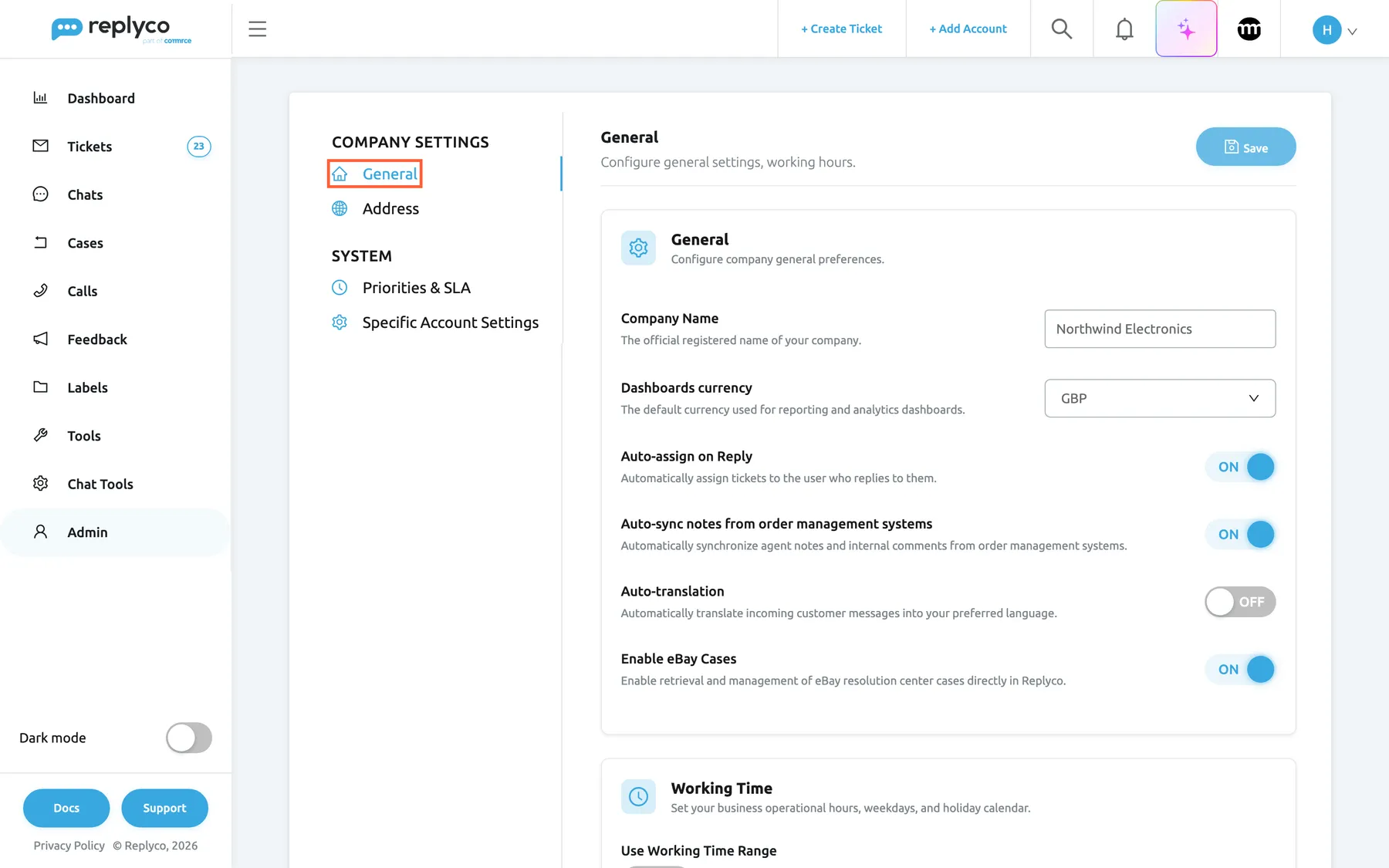
What this screenshot shows
- Screen
- Company Settings (/company)
- Highlighted
- tab “General”, left-tab-list, selected. shows the General card and the Working Time card
- Also visible
- tabs General, Address, Priorities & SLA, Specific Account Settings; Company Name Northwind Electronics, Dashboards currency GBP; switches Auto-assign on Reply ON, Auto-sync notes from order management systems ON, Auto-translation OFF, Enable eBay Cases ON; Save disabled
- Purpose
- the screen at a glance
| Region | What it shows | What you do there |
|---|---|---|
| Tab list, left | General and Address under the screen title; Priorities & SLA and Specific Account Settings under System | Switch between tabs; each tab also opens from its own web address, so you can bookmark it |
| Tab header, top | The tab’s name, a one-line description and the tab’s Save button, pale until you change something | Save the changes on this tab |
| General card | Company Name, Dashboards currency and the switches for replies, order notes, translation and eBay cases; a switch appears only when it applies to you | Change company-wide defaults |
| Working Time card, below | Use Working Time Range, the working days, the daily time span and Holidays | Set when your team works |
| Address tab, left column | Your company address and the Use as Billing Address box | Enter where your company is |
| Address tab, right column | Billing Address, locked while the box is ticked | Enter a separate billing address |
Save your changes
Section titled “Save your changes”Company Settings saves nothing on its own: switches, fields and dates stay local to your screen until you select Save on the tab you changed. The General tab and the Address tab each have their own Save button, and each one saves only its own tab.
-
Open AdminCompany Settings and select the tab, for example General.
-
Change what you need: type a new value, turn a switch on or off, add a holiday.
The Save button in the tab’s header turns bright blue as soon as something differs from what is saved.
-
Select Save in the tab’s header.
-
Wait for the message Success in the top right corner of the screen.
The Save button turns pale again. If the save fails, Replyco shows an error message instead and keeps your changes on screen, so you can correct them and try again.
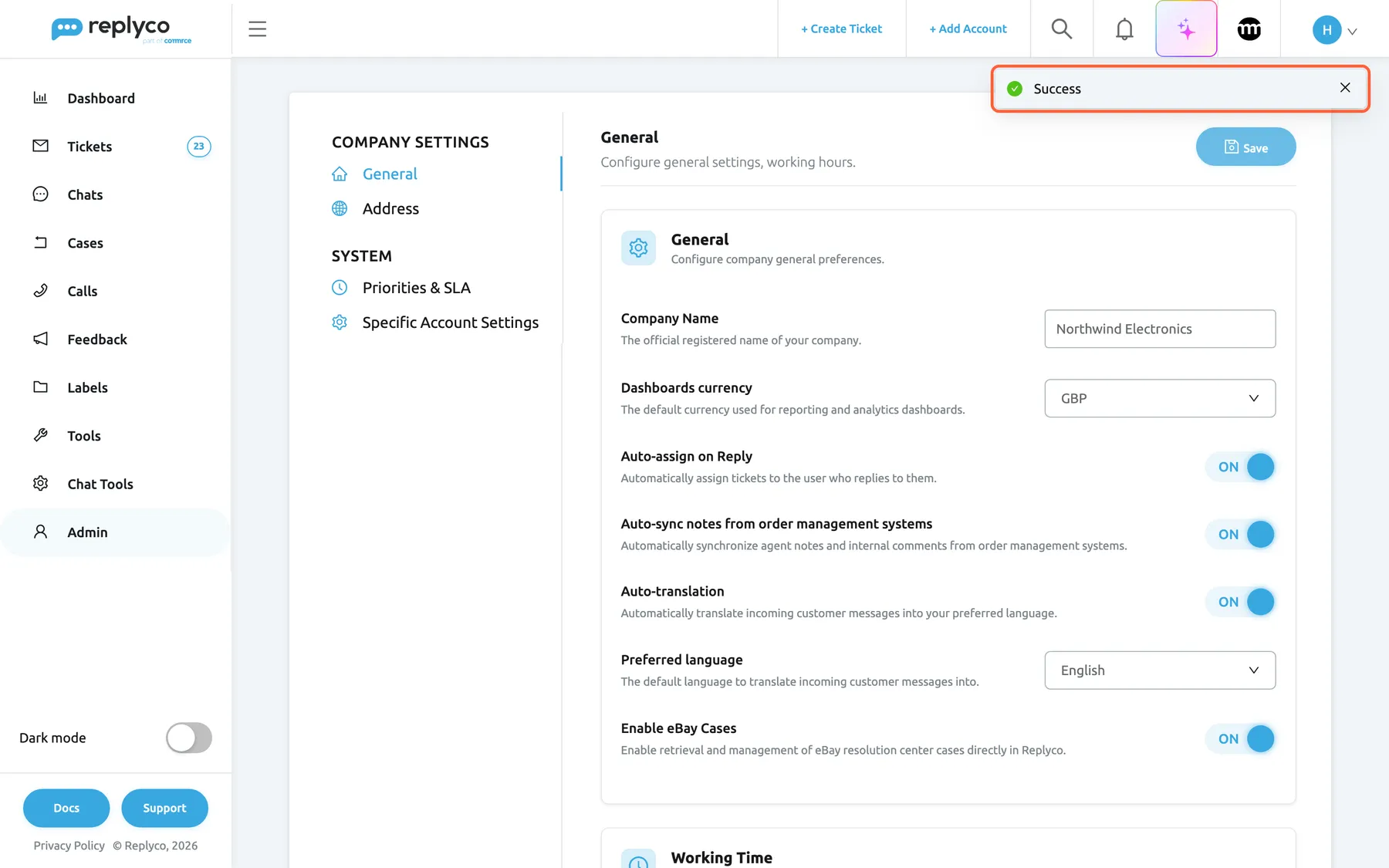
What this screenshot shows
- Screen
- Company Settings (/company)
- Highlighted
- alert “Success”, top-right, shown. confirms the save; closes by itself or with its cross
- Also visible
- Save disabled again; Auto-translation ON, Preferred language English
- Purpose
- what a successful save looks like
For example, turn on Auto-assign on Reply, select Save and wait for Success: the next reply in an unassigned ticket assigns it to the person who sent it.
Set your company name and dashboard currency
Section titled “Set your company name and dashboard currency”The name and the dashboards currency are the first two fields of the General card on the General tab.
- Company Name starts as the name you gave when you signed up. Type the name your company trades under, up to 100 characters, and select Save. The name is one of the things the onboarding checklist step Complete company profile waits for; to finish the checklist, see Complete the onboarding checklist.
- Dashboards currency offers GBP, EUR and USD: the default currency for money amounts in reporting and the dashboards. To learn what the dashboards count, see How the dashboards count.
Saving the company name does not change your invoices: Replyco passes only your address to the payment provider. To find your invoices, see Billing: Payment; to change the company details printed on them, contact support through Help and support.
Assign tickets to whoever replies first
Section titled “Assign tickets to whoever replies first”Auto-assign on Reply gives an unassigned ticket to the agent who answers it. When someone sends a reply in a ticket that nobody is assigned to, Replyco assigns the ticket to that person, and it appears in their My Tickets list. A ticket that already has an assignee keeps it. The switch is off for a new company.
To turn it on, open AdminCompany Settings, turn on Auto-assign on Reply in the General card and select Save.
Example: a customer asks Northwind Electronics whether the Power Bank 20,000 mAh ships to Ireland, and nobody has taken the ticket yet. Hannah answers. The ticket is now assigned to Hannah, and the customer’s follow-up question lands in her list. A delayed reply assigns the ticket at the moment Hannah schedules it, not when it goes out.
A rule that allocates tickets on arrival runs before anyone replies, so those tickets already have an assignee and keep it. To assign tickets as they arrive, use a rule with Allocate User; see Rules for incoming tickets. To assign a ticket by hand, see Assign, label and merge tickets.
Sync order notes with your order management system
Section titled “Sync order notes with your order management system”Auto-sync notes from order management systems appears in the General card only when you have connected an order management system: ChannelAdvisor, Linnworks, Veeqo, Katana, Billbee or Brightpearl. It is on by default. While it is on, every time someone opens an order’s notes in a ticket, Replyco brings in the notes from Linnworks, Billbee or Brightpearl, and they appear next to the order in Replyco. Linnworks and Brightpearl also receive the notes your team writes in Replyco. From Billbee, Replyco reads the order’s seller comment; notes written in Replyco stay in Replyco. Turn it off, and the notes in Replyco are left as they are. To connect one of these systems, see Order management systems.
Translate incoming messages automatically
Section titled “Translate incoming messages automatically”Auto-translation translates every new customer message into the language your team reads, and keeps the translation with the message. It is off by default, and it is part of the Translations feature, which every plan includes; see What each plan includes.
-
On the General tab, turn on Auto-translation.
The Preferred language row appears below it.
-
In Preferred language, choose the language your team reads. Twenty languages are listed, from Arabic to Ukrainian.
-
Select Save.
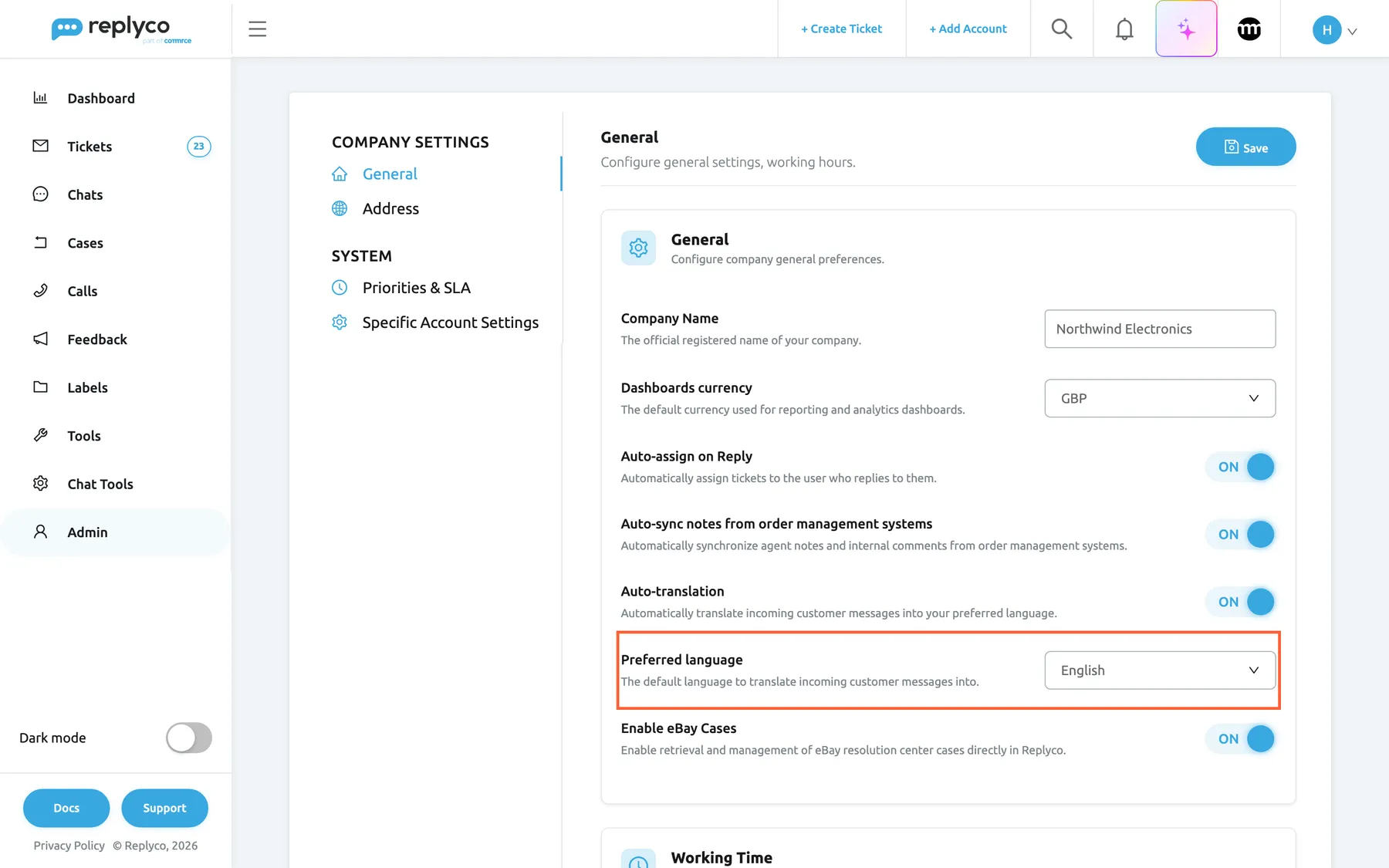
What this screenshot shows
- Screen
- Company Settings (/company)
- Highlighted
- combobox “Preferred language”, general-card, English. chooses the language incoming customer messages are translated into
- Also visible
- Auto-translation ON; Preferred language English; Save enabled
- Purpose
- turn on auto-translation
From then on, the ticket shows a translated message in the preferred language first, and Show original text shows the customer’s own words. Example: with English as the preferred language, the German message Ich habe den 4-in-1-Hub statt des 7-in-1 erhalten reads as I received the 4-in-1 hub instead of the 7-in-1 when an agent opens the ticket.
Replyco does not translate your own replies, messages already in the preferred language, messages without text, and messages whose language it could not detect. Messages that arrived before you saved stay untranslated. To translate your reply into the customer’s language before you send it, see Answer a ticket; for everything about translation, see Translations.
Import eBay cases
Section titled “Import eBay cases”Enable eBay Cases appears only when you have connected an eBay account, and it is off by default. Turn it on and select Save: Replyco starts importing your eBay returns and resolution centre cases, and the Cases menu appears in the sidebar for users who have the Cases permission. The import needs the Cases feature, which every plan includes; see What each plan includes. To handle a case once it is imported, see eBay cases; for everything else eBay does in Replyco, see eBay.
Set your working days, hours and holidays
Section titled “Set your working days, hours and holidays”The Working Time card below the General card tells Replyco when your team works. A new company works Monday to Friday, 09:00–18:00, with no holidays.
-
Under Working days, select the days to switch them on or off; selected days are blue.
-
Under Active between, pick the start and end time. The same span applies to every working day.
-
Under Holidays, pick a date to add it, then select Save.
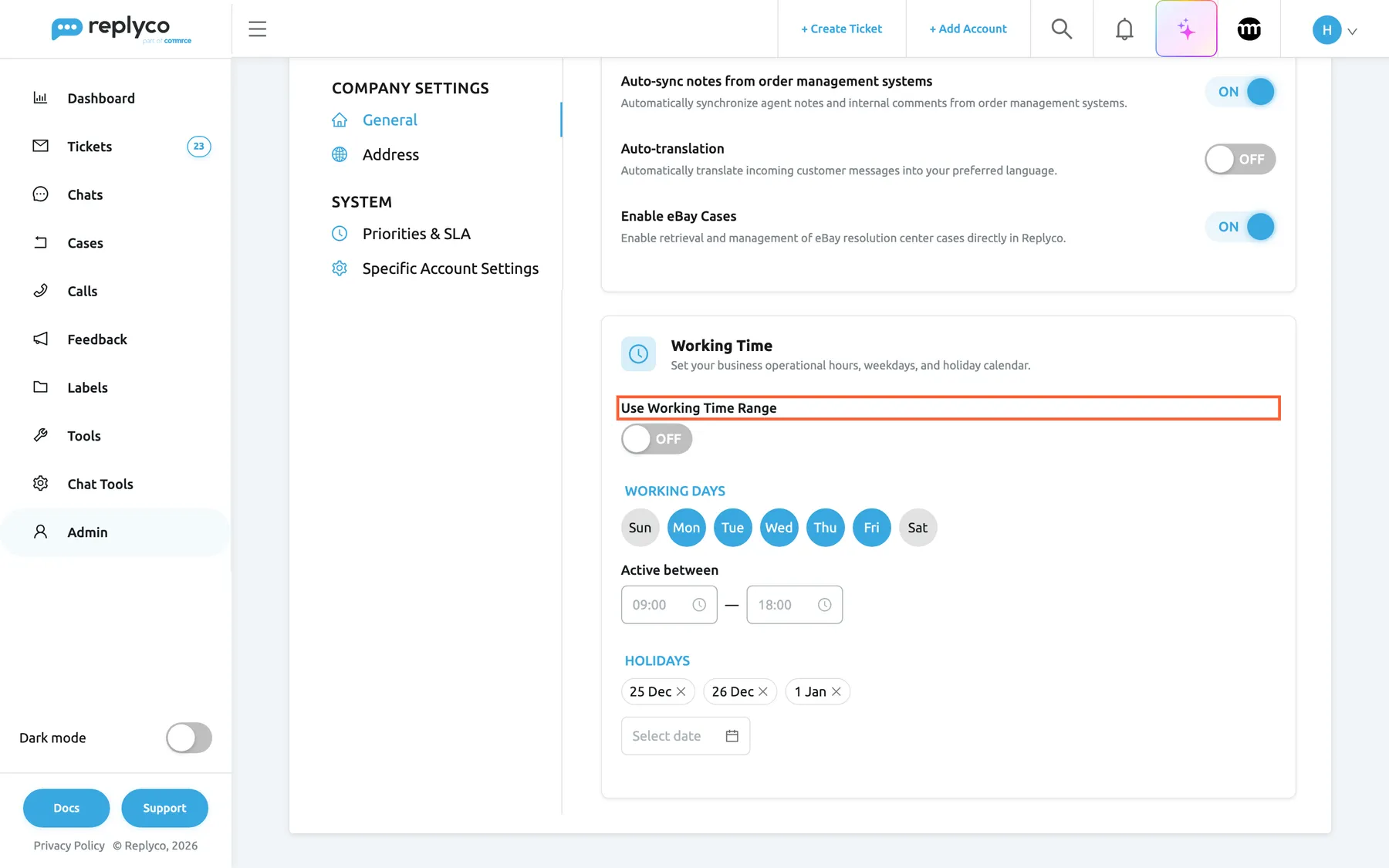
What this screenshot shows
- Screen
- Company Settings (/company)
- Highlighted
- switch “Use Working Time Range”, working-time-card, off. switches between one daily span and a start-to-end range
- Also visible
- Working days Sun to Sat, Mon to Fri selected; Active between 09:00 and 18:00; Holidays 25 Dec, 26 Dec, 1 Jan
- Purpose
- set working days, hours and holidays
Working time decides:
- when response deadlines run for priorities counted in Working Hours; see Ticket priorities and SLA;
- when auto-responses set to Send Outside Working hours of Company are sent; see Auto-responses for tickets;
- when a live chat widget that uses your company working time shows you as available; see Live chat widget;
- which hours the dashboards count when you look at response times in working hours only; see How the dashboards count.
When you change the start or end time, Replyco recalculates the deadlines of tickets that have a priority and are waiting for your reply.
Turn on Use Working Time Range when your team works one continuous stretch across days, such as a shift from Monday 07:30 to Friday 15:50. The card then shows Active From and Active To, each with a day and a time, and the whole stretch counts as working time. A holiday repeats every year on the same day and month; select the cross on a date to remove it. For every rule working time follows, see Working time.
Enter your address and billing address
Section titled “Enter your address and billing address”The Address tab has two columns: your company address on the left and the billing address on the right, six fields each: Address 1, Address 2, Country, State, City and Zip Code. You choose the country from a list; the other fields are free text.
-
Open AdminCompany Settings and select the Address tab.
-
Fill in your company address in the left column.
-
Tick Use as Billing Address if you are billed at the same address, or fill in the right column.
-
Select Save in the header of the Address tab.
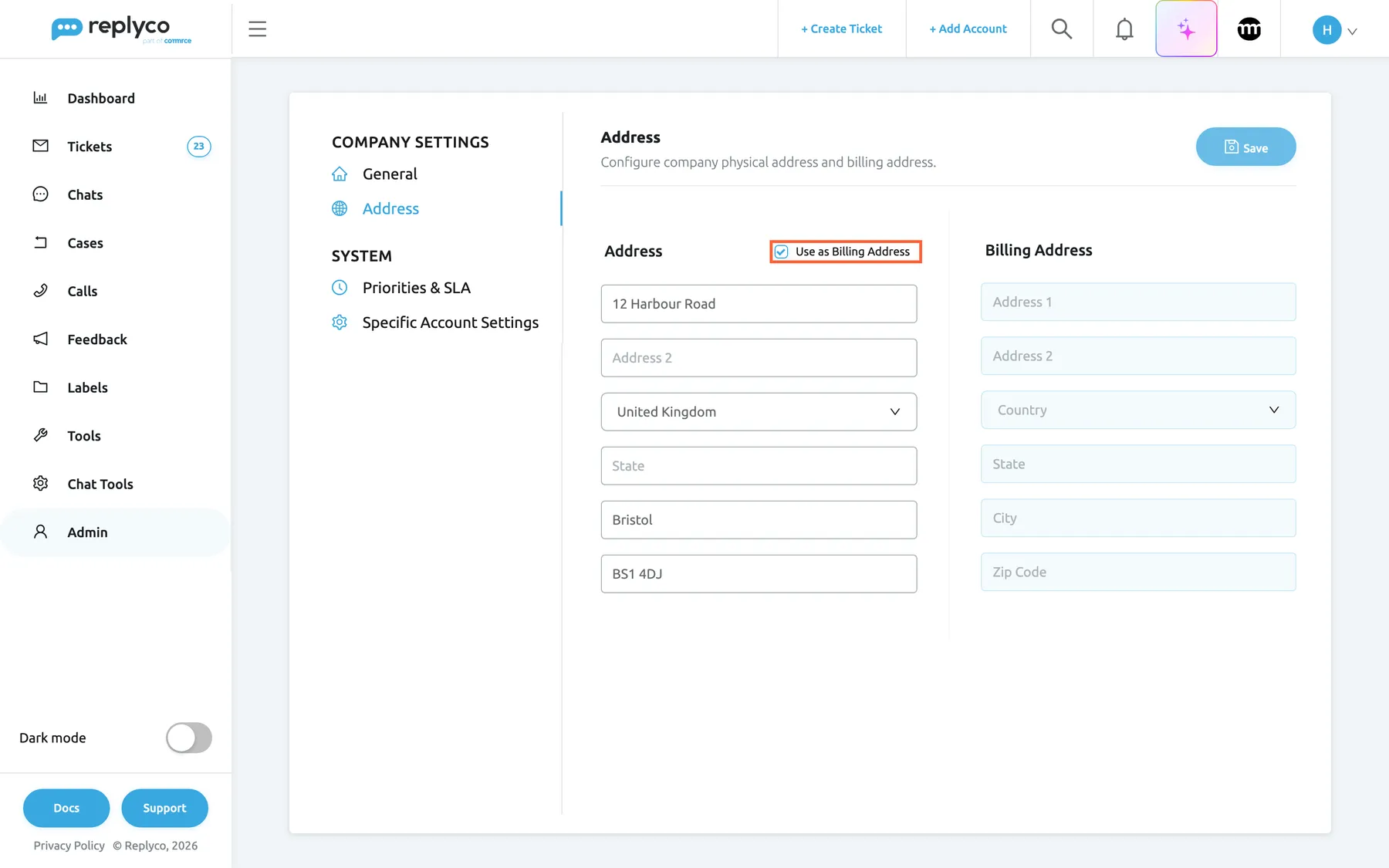
What this screenshot shows
- Screen
- Address (/company?tab=companyAddress)
- Highlighted
- checkbox “Use as Billing Address”, address-column-header, ticked. uses the company address for billing and locks the billing fields
- Also visible
- Address 12 Harbour Road, United Kingdom, Bristol, BS1 4DJ; Billing Address fields empty and locked; Save disabled
- Purpose
- enter the company and billing address
When you save, Replyco passes the billing address to the payment provider, or your company address when Use as Billing Address is ticked. While the box is ticked, the billing fields are locked and keep whatever they held before. The address you enter when you subscribe to a plan is written into the billing fields; to subscribe, see Subscribe to a plan.
Example: Northwind Electronics is at 12 Harbour Road, Bristol BS1 4DJ, United Kingdom, and is billed there too, so the box is ticked and the billing column stays empty.
Every control, explained
Section titled “Every control, explained”The General and Address tabs of Company Settings, in the order the screen shows them.
| Tab | What it holds | Why |
|---|---|---|
| General | The General and Working Time cards | The defaults every user and every automation works with |
| Address | Company address and billing address | What the payment provider receives |
| Priorities & SLA | Ticket priorities with response and resolution deadlines | See Priorities & SLA |
| Specific Account Settings | Merge rules and an order link for each connected account | See Specific Account Settings |
The header of the General tab and the header of the Address tab, top right. Each tab has its own.
Pale and disabled until something on the tab differs from what is saved, then bright blue. Saves only its own tab. On success Replyco shows Success; on failure it shows an error message and keeps your changes on screen.
You can change several settings and check them before anyone else is affected.
Company Name
Section titled “Company Name”General tab, first field of the General card. Saved with Save.
Your company’s name, up to 100 characters. It starts as the name given at sign-up. It counts towards the onboarding step Complete company profile, and in chats it appears on messages from your side that no agent wrote. It is not sent to the payment provider.
Your team sees your trading name in chats, and the onboarding checklist can finish.
Dashboards currency
Section titled “Dashboards currency”General tab, General card, a drop-down. Saved with Save.
GBP (the default), EUR or USD: the default currency for money amounts in reporting and the dashboards.
Money figures in reports are shown in the currency your business works in; for what the dashboards count, see How the dashboards count.
Auto-assign on Reply
Section titled “Auto-assign on Reply”General tab, General card, a switch. Off for a new company. Saved with Save.
On: a reply in a ticket that nobody is assigned to assigns the ticket to the person who sent it, including a delayed reply at the moment it is scheduled. Tickets with an assignee keep it. Off: replying never changes the assignment.
The person who answered first usually handles the follow-up, and nobody has to assign the ticket by hand.
Auto-sync notes from order management systems
Section titled “Auto-sync notes from order management systems”General tab, General card, a switch shown only when an order management system is connected. On by default. Saved with Save.
On: each time an order’s notes are opened in a ticket, Replyco updates them from the order management system; with Linnworks and Brightpearl in both directions, with Billbee by reading the order’s seller comment. Off: Replyco shows only the notes it already has.
Notes your warehouse writes in the order management system appear next to the customer’s message, so agents do not have to look them up.
Auto-translation and Preferred language
Section titled “Auto-translation and Preferred language”General tab, General card: a switch, off by default, and below it Preferred language, shown while the switch is on. Saved with Save.
Replyco translates each new incoming customer message into the preferred language and keeps the translation with the message. Your own replies, messages already in that language, messages without text and messages whose language cannot be detected are not translated; with no language chosen, nothing is. There are twenty languages to choose from. The switch shows with the Translations feature, which every current plan includes.
Agents read every customer in one language, whichever marketplace the message came from; see Translations.
Enable eBay Cases
Section titled “Enable eBay Cases”General tab, General card, a switch shown only when an eBay account is connected. Off by default. Saved with Save.
On: Replyco imports eBay returns and cases, and the Cases menu appears for users with the Cases permission. The import needs the Cases feature, included in every plan and on during a trial. Off: no cases are imported and the menu is hidden.
Handle eBay returns and cases next to your tickets instead of in eBay; see eBay cases.
Working Time
Section titled “Working Time”General tab, the card below General. Saved with Save.
Your working days, one daily time span and your holidays; by default Monday to Friday, 09:00–18:00, no holidays. Times are shown in your browser’s time zone. The controls:
| Control | What it does |
|---|---|
| Use Working Time Range | Off: working days plus one daily span. On: one continuous stretch from a start day and time to an end day and time; the selected days become a run from the first to the last one |
| Working days | Round buttons from Sunday to Saturday; selected days are blue |
| Active between | Start and end time, the same for every working day |
| Active From and Active To | Day and time where the stretch starts and ends, shown while Use Working Time Range is on |
| Holidays | Dates that do not count as working time, every year on the same day and month; the same date cannot be added twice |
Response deadlines in working hours, out-of-hours auto-responses, live chat availability and working-hours dashboard figures all follow it; see Working time.
Address and Billing Address
Section titled “Address and Billing Address”Address tab: your address on the left, the billing address on the right. Saved with the Save button of the Address tab.
Six fields each: Address 1 and Address 2 (up to 1,000 characters each), Country (chosen from a list), State and City (up to 100 characters each) and Zip Code (up to 50). Your address with Address 1, City and Country filled in, plus a billing address or the box below ticked, completes the onboarding step Complete company profile.
The billing address is what the payment provider receives for your subscription; see Billing.
Use as Billing Address
Section titled “Use as Billing Address”Address tab, a check box next to the heading of the left column. Saved with Save.
Ticked: your company address is sent to the payment provider as the billing address, and the billing fields are locked with whatever they held before. Unticked: the billing fields are editable and are sent instead.
Most companies are billed where they are based, and one address is one thing to keep up to date.
Who sees what
Section titled “Who sees what”| Part | Shown when |
|---|---|
| The Admin menu | The user has the Admin permission; see User permissions and roles |
| Company Settings in the Admin menu, and the screen itself | The Admin permission with Edit rights |
| The Priorities & SLA tab | The company has Priorities and SLA, which every current plan includes; see What each plan includes |
| Auto-sync notes from order management systems | An order management system is connected |
| Auto-translation | The Translations feature, which every current plan includes |
| Preferred language | Auto-translation is on |
| Enable eBay Cases | An eBay account is connected, and the company has Cases, which every current plan includes |
| Active From and Active To instead of Working days and Active between | Use Working Time Range is on |
| Editable billing fields | Use as Billing Address is not ticked |
What you need to know
Section titled “What you need to know”| Topic | Fact |
|---|---|
| Company-wide | Every setting on these tabs applies to every user. Personal preferences, such as resolving after a reply, are in Account Settings. |
| Saving | Each tab saves only its own changes with its own Save button; leaving the screen discards unsaved changes. |
| Limits | Company name up to 100 characters; address lines up to 1,000; state, city and country up to 100; zip code up to 50. |
| Time zone | Working time is shown in the time zone of your browser, so a colleague in another time zone sees the same hours on their own clock. |
| Deadlines | A new start or end time recalculates the deadlines of tickets with a priority that are waiting for your reply. |
| Holidays | A holiday counts every year on the same day and month. |
| Translation | Only customer messages that arrive after you save are translated automatically. |
| Billing address | Saved addresses go to the payment provider; the company name does not. The address you enter when subscribing is written into the billing fields. |
| Billing country | The billing country decides which tax rate applies when your subscription is set up or changed: one rate for the United Kingdom, another for every other country. |
Frequently asked questions
Section titled “Frequently asked questions”General
Section titled “General”Who can change the company settings?
Section titled “Who can change the company settings?”Anyone with the Admin permission with Edit rights sees Company Settings in the Admin menu and can open AdminCompany Settings. Everything on the General and Address tabs applies to the whole company, so every user is affected by a change. To give a colleague that permission, see User permissions and roles.
I changed a setting, but it is back to the old value. Why?
Section titled “I changed a setting, but it is back to the old value. Why?”The change was not saved. Each tab of AdminCompany Settings has its own Save button in its header, and nothing is saved until you select it and see Success in the top right corner. Leaving the screen before that discards the change.
Does the Save button on the General tab also save my address?
Section titled “Does the Save button on the General tab also save my address?”No. The General tab and the Address tab each save only their own fields. If you changed both, select Save on each tab; your unsaved changes on one tab wait while you work on the other, as long as you stay on Company Settings.
Where did ticket priorities and merge settings go?
Section titled “Where did ticket priorities and merge settings go?”They are on the other two tabs of AdminCompany Settings, under System, and each has its own guide. For priorities and response deadlines see Priorities & SLA; for merging tickets and order links per account see Specific Account Settings.
What does the dashboards currency change?
Section titled “What does the dashboards currency change?”Dashboards currency on the General tab offers GBP, EUR and USD and is saved with the tab. It sets the default currency in which reporting and the dashboards show money amounts, for the whole company. For what the dashboards count, see How the dashboards count.
Tickets and replies
Section titled “Tickets and replies”How do I make tickets go to the agent who answers them?
Section titled “How do I make tickets go to the agent who answers them?”Open AdminCompany Settings, turn on Auto-assign on Reply in the General card and select Save. From then on, a reply in a ticket that nobody is assigned to assigns the ticket to the person who sent the reply, and the ticket appears in their My Tickets list.
Auto-assign is on, but a ticket was not assigned to me when I replied. Why?
Section titled “Auto-assign is on, but a ticket was not assigned to me when I replied. Why?”Auto-assign on Reply only assigns tickets that nobody is assigned to; a ticket that a colleague or a rule already took keeps its assignee. If you ticked Resolve after Reply and have Unassign a ticket upon resolution on in your Account Settings, resolving the ticket removes the assignment again in the same step.
Can Replyco assign tickets before anyone replies?
Section titled “Can Replyco assign tickets before anyone replies?”Not with Auto-assign on Reply, which acts only when someone replies. To assign incoming tickets as they arrive, create a rule with the action Allocate User; see Rules for incoming tickets. To assign several tickets by hand, see Assign, label and merge tickets.
Translation
Section titled “Translation”Why was a customer message not translated?
Section titled “Why was a customer message not translated?”Auto-translation must be on with a Preferred language chosen, and the tab saved, before the message arrives. Replyco then skips messages already in the preferred language, messages without text, messages whose language it could not detect and your own replies. Messages that arrived before you saved are not translated afterwards.
Are my replies translated into the customer’s language automatically?
Section titled “Are my replies translated into the customer’s language automatically?”No. Auto-translation in AdminCompany Settings only translates incoming customer messages into your preferred language. To translate your own reply before you send it, use Translate in the reply editor; see Answer a ticket and Translations.
Can I still see what the customer wrote?
Section titled “Can I still see what the customer wrote?”Yes. With Auto-translation on, a translated message shows the translation first, and Show original text in the ticket shows the customer’s own words. The translation is kept with the message, so it is there whenever someone opens the ticket.
Working time
Section titled “Working time”Can each weekday have different working hours?
Section titled “Can each weekday have different working hours?”No. The Working Time card on the General tab has one start and one end time for all working days. For one continuous stretch across days, such as Monday 07:30 to Friday 15:50, turn on Use Working Time Range. For auto-responses with their own schedules, see Auto-responses for tickets.
Do I have to add holidays again every year?
Section titled “Do I have to add holidays again every year?”No. A date under Holidays in the Working Time card counts every year on the same day and month, so 25 December stays a holiday. Holidays that move, such as Easter Monday, need a new date each year; remove the old one with the cross on its date.
Why do my working hours look different on a colleague’s screen?
Section titled “Why do my working hours look different on a colleague’s screen?”Working time in AdminCompany Settings is shown in the time zone of the browser you use. A colleague whose computer is set to another time zone sees the same working time converted to their own clock, so 09:00 in London shows as 10:00 in Berlin.
Address and billing
Section titled “Address and billing”Does changing the company name change my invoices?
Section titled “Does changing the company name change my invoices?”No. When you save the General tab, Company Name stays in Replyco; only the address on the Address tab is passed to the payment provider. To change the company details printed on your invoices, contact support through Help and support; your invoices are listed in Billing: Payment.
Why is my billing address already filled in?
Section titled “Why is my billing address already filled in?”The address you entered when you subscribed to a plan is written into the billing fields on the Address tab of AdminCompany Settings. Change it there and select Save, or tick Use as Billing Address to use your company address instead.
Does the billing country affect what I pay?
Section titled “Does the billing country affect what I pay?”It decides the tax rate. When your subscription is set up or changed, Replyco applies one tax rate for a billing country of United Kingdom and another for every other country. The billing country is the one on the Address tab of AdminCompany Settings; for your plan and charges, see Billing.
Troubleshooting
Section titled “Troubleshooting”| Symptom | What to check |
|---|---|
| Company Settings is missing from the Admin menu, or its link opens your start screen | Your user has the Admin permission with Edit rights; with View rights only, the menu item is hidden and the screen does not open; see User permissions and roles |
| A change is back to the old value | You selected Save on the tab you changed and saw Success; each tab saves only its own fields, and leaving the screen discards unsaved changes |
| There is no Auto-sync notes from order management systems switch | An order management system is connected on AdminAccounts; see Order management systems |
| There is no Enable eBay Cases switch | An eBay account is connected on AdminAccounts; see eBay |
| Cases is missing after you turned on eBay cases | The tab was saved; the user has the Cases permission; see User permissions and roles |
| Customer messages are not translated | Auto-translation is on, a Preferred language is chosen and the tab is saved; only messages that arrive afterwards are translated, and not those already in that language |
| Replying does not assign the ticket | Auto-assign on Reply is on and saved; the ticket had no assignee; the agent does not resolve and unassign in the same step |
| The Priorities & SLA tab is missing | Every current plan includes priorities; a company on an older plan may not have them, see What each plan includes |