

Channels dashboard
The Channels dashboard shows where your tickets come from: for every connected account and every marketplace, how many tickets were created in a period and how many of them are new, waiting within or past their deadline, still open or resolved. Managers use it to see which shop or mailbox carries the load and where replies are falling behind. Open it from DashboardChannels in the sidebar. Every number counts tickets created in the chosen period, 7 days by default, in their state right now.
What you can do here
Section titled “What you can do here”- See the ticket load per account. The Accounts widget has one row per connected account with six counts and a doughnut chart of the totals. Read the ticket load per account
- Compare marketplaces. The Marketplaces widget adds up the same counts per marketplace, so two eBay accounts appear as one Ebay row. Compare marketplaces
- Look at another period. Today, yesterday, the last 7, 30 or 90 days, or dates you pick. Choose the period
- Open the tickets behind a number. Every count is a link to the ticket list, filtered to that account or marketplace and the period. Open the tickets behind a number · Ticket lists
- Check what a widget counts. The info icon beside each widget title explains it in one sentence. Read what a widget counts
- Arrange the dashboard for yourself. Move, resize, hide and bring back the two widgets; the layout is yours alone. Arrange the widgets · How the dashboards count
The screen at a glance
Section titled “The screen at a glance”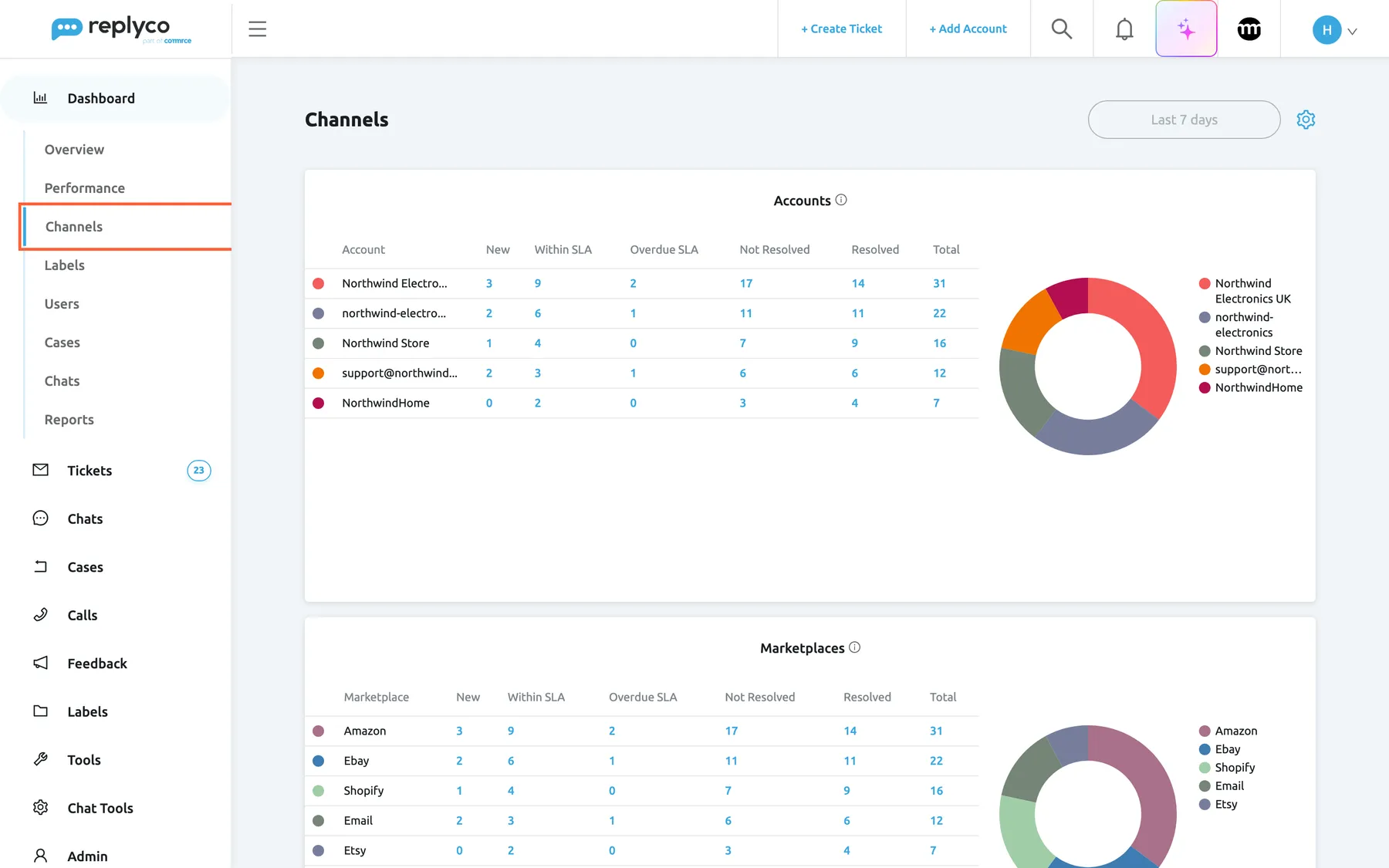
What this screenshot shows
- Screen
- Channels (/dashboard/integrations)
- Highlighted
- menuitem “Channels”, sidebar-left, selected. opens the Channels dashboard
- Also visible
- Dashboard menu open with Overview, Performance, Channels, Labels, Users, Cases, Chats, Reports; period button Last 7 days and the gear icon; Accounts widget: five accounts, six count columns, doughnut chart; Marketplaces widget: Amazon, Ebay, Shopify, Email, Etsy
- Purpose
- the Channels dashboard as it opens
| Region | What it shows | What you do there |
|---|---|---|
| Channels, in the sidebar under Dashboard | The third dashboard of the menu | Open the dashboard |
| Title, top left | Channels | Know where you are |
| Period button, top right | Last 7 days or the period you chose | Change the period |
| Gear icon, top right | Turn ON Edit Mode and Manage Widgets | Arrange the widgets |
| Accounts widget | A table of accounts and a doughnut chart | Compare accounts, open their tickets |
| Marketplaces widget | The same table and chart per marketplace | Compare marketplaces, open their tickets |
The Channels dashboard has no account, marketplace, user or hours filter; the period is its only filter. For what every dashboard shares, such as periods, the comparison with the previous period and the layout, see How the dashboards count.
Read the ticket load per account
Section titled “Read the ticket load per account”The Accounts widget lists every connected account that received at least one ticket in the period, five rows to a page. Each row has a coloured dot that matches its slice of the doughnut chart, which splits the totals between the accounts.
| Column | What it counts, for tickets created in the period |
|---|---|
| Account | The account’s name, shortened when it is long |
| New | Tickets nobody has replied to yet and nobody has read |
| Within SLA | Open tickets with a priority, waiting for your reply, whose respond-by deadline has not passed |
| Overdue SLA | The same tickets whose respond-by deadline has passed |
| Not Resolved | Total minus Resolved |
| Resolved | Tickets that are resolved now |
| Total | All tickets created in the period |
What is left out. Tickets of blocked customers and Replyco’s own welcome ticket are not counted. Archived tickets are counted like any other ticket, by their status. An account without tickets in the period has no row.
Example. For the last 7 days, the row of Northwind Electronics UK reads 3, 9, 2, 17, 14, 31: 31 tickets arrived on that Amazon account, 14 are resolved and 17 are still open. Of the open ones, 9 wait for a reply within their deadline and 2 are past it; 3 have been neither read nor answered.
The SLA columns look at the deadline as it stands now, not at the end of the period. A ticket created last Monday that is overdue this morning counts under Overdue SLA, even if the period ended before its deadline. Tickets without a priority have no deadline and appear in neither SLA column; to give tickets priorities and deadlines, see Ticket priorities and SLA.
Point at a row and its slice stands out in the chart; point at a slice and its row is highlighted. The chart’s own tooltip names the account, its total and its share.
Compare marketplaces
Section titled “Compare marketplaces”The Marketplaces widget below counts the same tickets by marketplace instead of by account: one row for Amazon, one for Ebay, one for Email and so on, with the same columns as the accounts table. Accounts of one marketplace are added up, so three eBay accounts make one Ebay row. The names are the marketplace names Replyco uses, such as Amazon, Ebay, Shopify or Email.
Use it to see which channel type brings the most work, for example whether marketplace messages or shop e-mails fill your team’s week.
Choose the period
Section titled “Choose the period”-
Select the period button at the top right, which reads Last 7 days when you open the dashboard.
-
Under Select period, choose Today, Yesterday, Last 7 days, Last 30 days or Last 90 days. Or, under Or select custom dates, pick a first and a last day.
-
The menu closes, the button shows your choice, and both widgets reload.
A period runs from the start of its first day to the end of its last day. The days are your local days: Replyco stores data in UTC and converts the dates you choose into UTC for the search. Last 7 days starts seven days before today and includes today, so it covers eight calendar days; Last 30 days and Last 90 days work the same way. The dashboard does not remember your choice: it opens with Last 7 days every time.
When no ticket was created in the period, both widgets show No data...: the table shows an info icon, the chart a sad face.
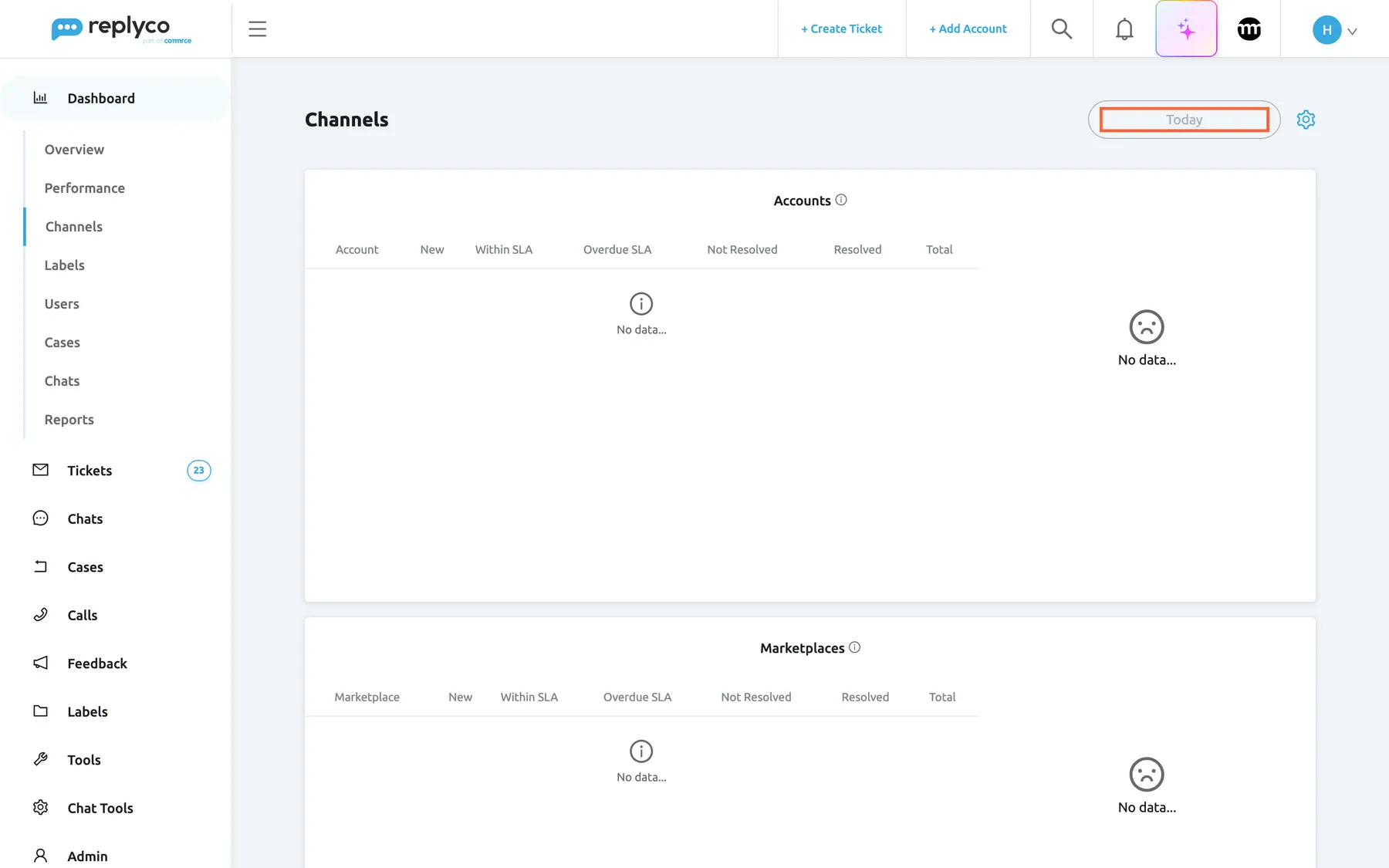
What this screenshot shows
- Screen
- Channels (/dashboard/integrations)
- Highlighted
- button “Today”, top-bar-right, selected. sets the period to today
- Also visible
- Accounts table: No data...; Accounts chart: sad face and No data...; Marketplaces widget empty
- Purpose
- the empty state of the Channels dashboard
Open the tickets behind a number
Section titled “Open the tickets behind a number”Every number in both tables is a link. Select it and Replyco opens All Tickets filtered to the period of the dashboard, to that account or that marketplace, and to the column: new tickets, tickets within or past their respond-by deadline, or tickets not resolved. A number in the Resolved column opens the Resolved list instead, and a number under Total opens every ticket of that row in the period.
Example. Select 17 under Not Resolved in the row of Northwind Electronics UK: the ticket list opens with the dates of the period as a filter, the Northwind Electronics UK account selected and only the tickets that are not resolved.
Read what a widget counts
Section titled “Read what a widget counts”Point at the info icon beside a widget title. A tooltip describes what the widget counts; for Accounts it reads Table and chart of tickets per account, by status: New, Within SLA, Overdue SLA, Not Resolved, Resolved and Total.
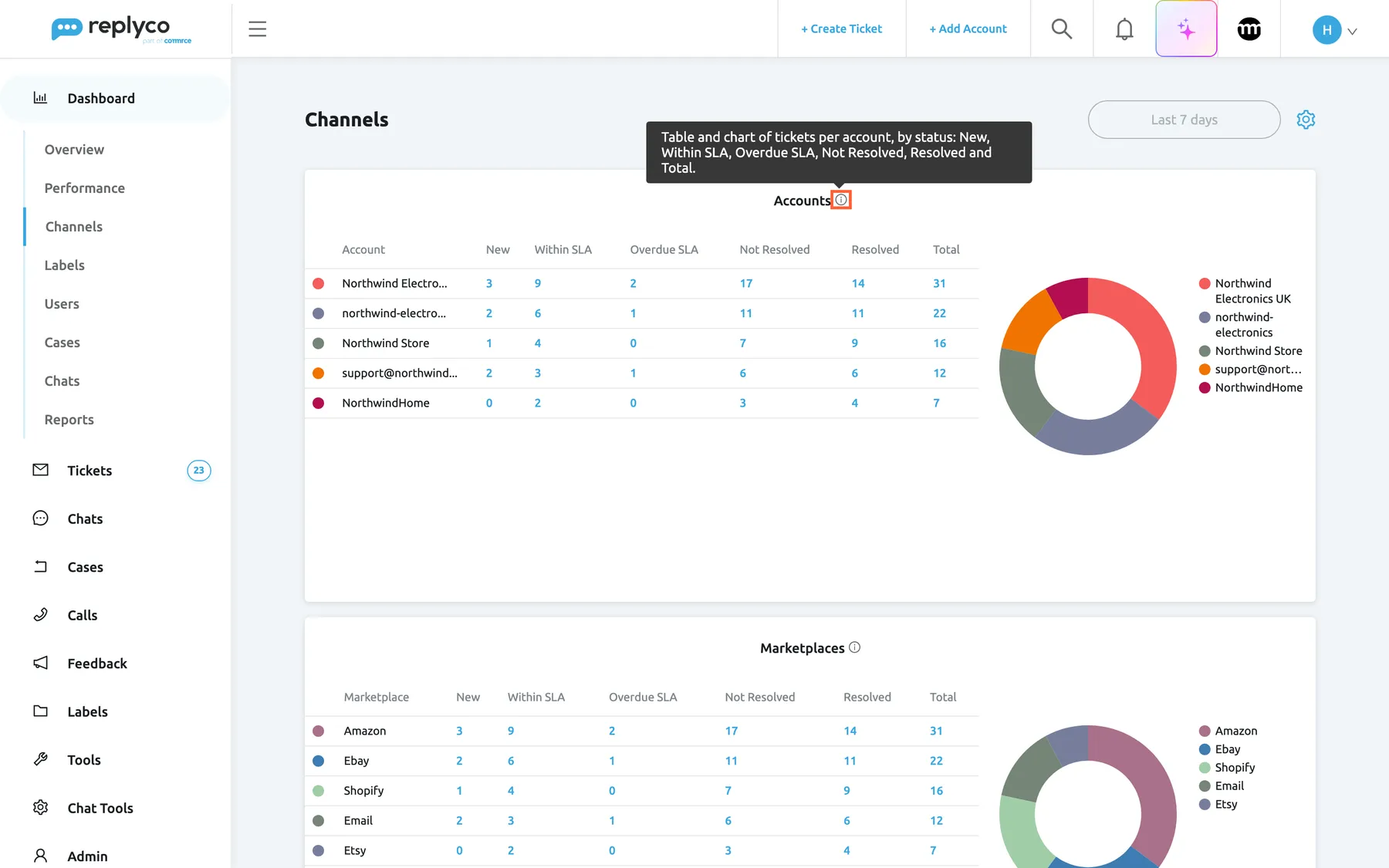
What this screenshot shows
- Screen
- Channels (/dashboard/integrations)
- Highlighted
- img “”, widget-title, hovered. shows the widget description
- Also visible
- tooltip with the Accounts widget description; Accounts table with five accounts
- Purpose
- read what a widget counts
Arrange the widgets
Section titled “Arrange the widgets”Select the gear icon at the top right.
- Turn ON Edit Mode lets you drag a widget to another place, resize it from its lower right corner and remove it with the cross at its top right, after confirming Are you sure you want to delete this Widget? Select the gear again and Turn OFF Edit Mode to stop.
- Manage Widgets opens a list with a tick box for each widget: Accounts and Marketplaces. Clear a box to hide the widget; tick it to add it again at the bottom.
Replyco saves the layout at once, showing Saving... while it does, and keeps it for your user only; colleagues keep their own. When you remove the last widget, the dashboard returns to its default layout with both widgets.
Every control, explained
Section titled “Every control, explained”Channels in the sidebar
Section titled “Channels in the sidebar”The sidebar, under Dashboard, between Performance and Labels.
Opens the Channels dashboard. It is shown only when an admin has ticked Channels among your dashboards. When your plan does not include Advanced Reporting, the item shows a lock; selecting it asks Your subscription plan doesn't include this feature. Do you want to go on the billing page to unlock this feature? and the confirmation takes you to Billing.
Admins decide per user who sees these figures; see User permissions and roles.
The period button
Section titled “The period button”Top right of the dashboard, left of the gear icon.
Opens the period menu: five fixed periods and a custom date range. Starts at Last 7 days on every visit; a change reloads both widgets at once.
The same counts over a day, a week or a quarter answer different questions: today’s backlog, a normal week, a seasonal peak.
The gear icon
Section titled “The gear icon”Top right, at the end of the header.
Offers Turn ON Edit Mode (or Turn OFF Edit Mode while editing) and Manage Widgets. Changes are saved at once for your user.
Put the widget you check most at the top, or hide the one you never read.
The widget tables and charts
Section titled “The widget tables and charts”| Part | What it shows or does | Why |
|---|---|---|
| Info icon beside the title | A tooltip describing the widget | Know what a number means before you act on it |
| Coloured dot | The colour of the row’s slice in the chart | Match rows and slices |
| A count | A link to the tickets of that row and period | Go from a number to the tickets |
| Paging | Appears when a table has more than five rows | Reach the rest of your accounts |
| Doughnut chart | The share of each row in the total | See at a glance which account or marketplace dominates |
| Chart legend | The names of the rows, with arrows when they do not fit | Identify slices |
Who sees what
Section titled “Who sees what”| Part of the screen | What decides whether you see it |
|---|---|
| Channels in the sidebar | The dashboards ticked for your user on Access Rights in AdminUsers |
| The data, or a lock on the menu item | Advanced Reporting in your plan; every plan includes it, see What each plan includes |
| Your layout | Only you |
What you need to know
Section titled “What you need to know”| Topic | Fact |
|---|---|
| What is counted | Tickets created in the period, in their state now |
| Left out | Blocked customers’ tickets and the welcome ticket; archived tickets are counted |
| Default period | Last 7 days: seven days back to the end of today; not remembered |
| SLA columns | Only tickets with a priority, waiting for a reply; measured against the current time |
| Not resolved | Total minus resolved |
| Rows | Only accounts or marketplaces with tickets in the period; five per page |
| Links | Open the ticket list with the account or marketplace, the dates and the column’s status |
| Layout | Per user; removing the last widget restores the default |
Frequently asked questions
Section titled “Frequently asked questions”Counting
Section titled “Counting”Which tickets does the Channels dashboard count?
Section titled “Which tickets does the Channels dashboard count?”The tickets created in the chosen period, grouped by the account that received them and, in the second widget, by marketplace. Archived tickets are included; tickets of blocked customers and the welcome ticket are left out. Each ticket is counted in the state it has now, so a ticket created in the period and resolved later counts as resolved.
Why do the numbers on the dashboard not match my ticket list?
Section titled “Why do the numbers on the dashboard not match my ticket list?”The dashboard counts only tickets created in the period, archived tickets included, and leaves tickets of blocked customers and the welcome ticket out. The ticket list does not show archived tickets; you find them in Archive. A ticket list you open yourself also applies its own filters. Open a number from the dashboard to get the ticket list with the same account or marketplace, the same dates and the column’s status.
Why is a ticket without a deadline in neither SLA column?
Section titled “Why is a ticket without a deadline in neither SLA column?”The SLA columns only count open tickets that have a priority and are waiting for your reply. A ticket without a priority has no respond-by deadline, so it cannot be within or past it. It still counts under the total and, while open, under the not resolved column. See Ticket priorities and SLA.
Why does an account not appear in the table?
Section titled “Why does an account not appear in the table?”An account appears only when at least one ticket arrived on it in the period and that ticket is not from a blocked customer. Choose a longer period, for example the last 30 days, and the account appears as soon as it has a ticket in that time.
Using the dashboard
Section titled “Using the dashboard”How do I see the numbers for last month?
Section titled “How do I see the numbers for last month?”Select the period button at the top right of DashboardChannels and pick the first and last day of the month under the custom dates. Both widgets reload for that range, counting the tickets created from the start of the first day to the end of the last.
Can I filter the Channels dashboard by account or user?
Section titled “Can I filter the Channels dashboard by account or user?”No. The period is the only filter on the Channels dashboard; the accounts widget already splits the tickets by account. For figures per user, open the Users dashboard, which has user, account and marketplace filters; see Users dashboard.
Which list opens when I select a number?
Section titled “Which list opens when I select a number?”A number under Resolved opens the Resolved list. Every other number opens All Tickets, filtered to the period, the row’s account or marketplace and the column’s status, such as new or overdue tickets. How to work with those lists is explained in Ticket lists.
Access and layout
Section titled “Access and layout”Who can see the Channels dashboard?
Section titled “Who can see the Channels dashboard?”Every user for whom an admin has ticked Channels among the dashboards, on the Access Rights tab of the user in AdminUsers. See User permissions and roles.
If I remove a widget, does it disappear for my colleagues too?
Section titled “If I remove a widget, does it disappear for my colleagues too?”No. Edit mode and Manage Widgets change only your own layout of the Channels dashboard. Your colleagues keep theirs. Bring a removed widget back by ticking it again in Manage Widgets under the gear icon.
Troubleshooting
Section titled “Troubleshooting”| Symptom | What to check |
|---|---|
| Channels is missing from the Dashboard menu | The dashboards ticked for your user on Access Rights in AdminUsers; ask an admin |
| Channels shows a lock and asks Your subscription plan doesn't include this feature. Do you want to go on the billing page to unlock this feature? | Your subscription on Billing; the Advanced Reporting feature is missing from it |
| Both widgets show No data... | The period: no ticket was created in it, or all of them are from blocked customers; choose a longer period |
| Every ticket sits outside both SLA columns | Priorities: tickets without a priority have no deadline; see Ticket priorities and SLA |