

Mailboxes
Connect the mailbox your customers write to and every customer email arrives in Replyco as a ticket, next to your marketplace messages and chats, and your replies go back by email. Each connected mailbox is one account in Replyco: it labels every ticket it brings in, and your team works the conversation there instead of in a shared inbox.
Replyco connects a mailbox in four ways. Gmail and Outlook sign in with Google or Microsoft and read and send through the provider itself, with no server settings. Any other mailbox connects through the Email tile, either by forwarding its mail to an address Replyco creates, or with IMAP and SMTP, where Replyco collects and sends mail through your own mail server. Every way starts from + Add Account in the top bar, in the group Mailbox Accounts. For marketplaces and webstores, see Marketplaces and Webstores.
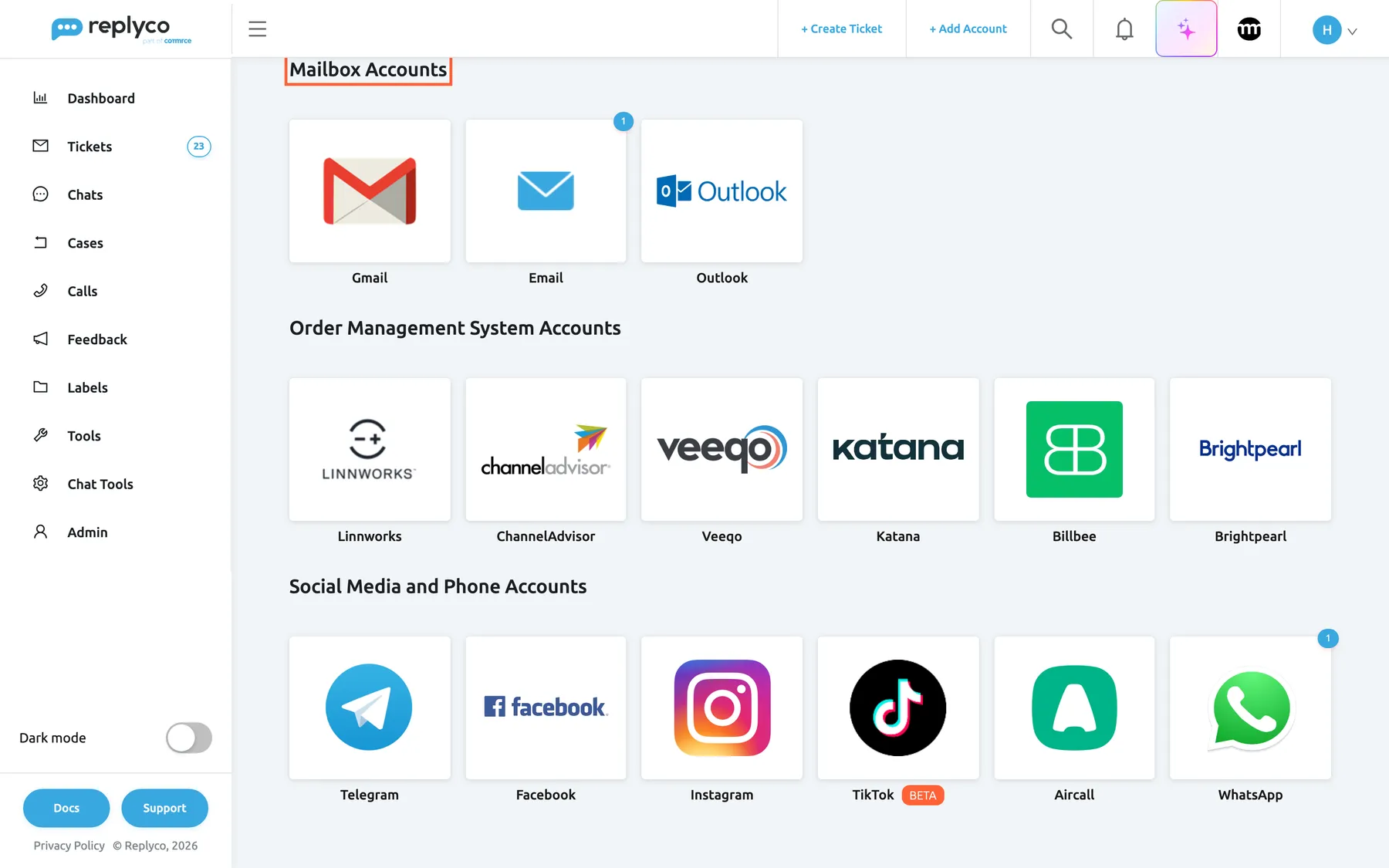
What this screenshot shows
- Screen
- Add Account (/integrations/add)
- Highlighted
- heading “Mailbox Accounts”, mailbox-group, shown. none; the tiles below start each connection
- Also visible
- tiles Gmail, Email (badge 1) and Outlook; Order Management System Accounts below
- Purpose
- choose how to connect a mailbox
The screens in this area
Section titled “The screens in this area”| Screen | What it is for |
|---|---|
| Add Account | The tiles Gmail, Email and Outlook under Mailbox Accounts, and the connect steps each one starts |
| Accounts | Every connected mailbox with its last sync; open one to rename it, choose its folders, copy its Replyco address or sign in again |
The four ways to connect a mailbox
Section titled “The four ways to connect a mailbox”| Way | Tile | How mail arrives | How replies leave | Folders to choose | Guide |
|---|---|---|---|---|---|
| Gmail | Gmail | Replyco reads the mailbox after you sign in with Google | Through Gmail, from your address | Gmail labels | Gmail |
| Outlook | Outlook | Replyco reads the mailbox after you sign in with Microsoft | Through Microsoft, from your address | Top-level Outlook folders | Outlook and Microsoft 365 |
| Forwarding | Email, then 📬 E-Mail Forwarding | Your mailbox forwards mail to an address Replyco creates for the account | Replyco sends from your address; domain authentication lets strict recipients accept it | None: what you forward arrives | Mailbox by forwarding |
| IMAP and SMTP | Email, then ⚙️ Custom SMTP | Replyco collects mail from your mail server over IMAP or POP | Through your own SMTP server | Folders of an IMAP mailbox | Mailbox with IMAP and SMTP |
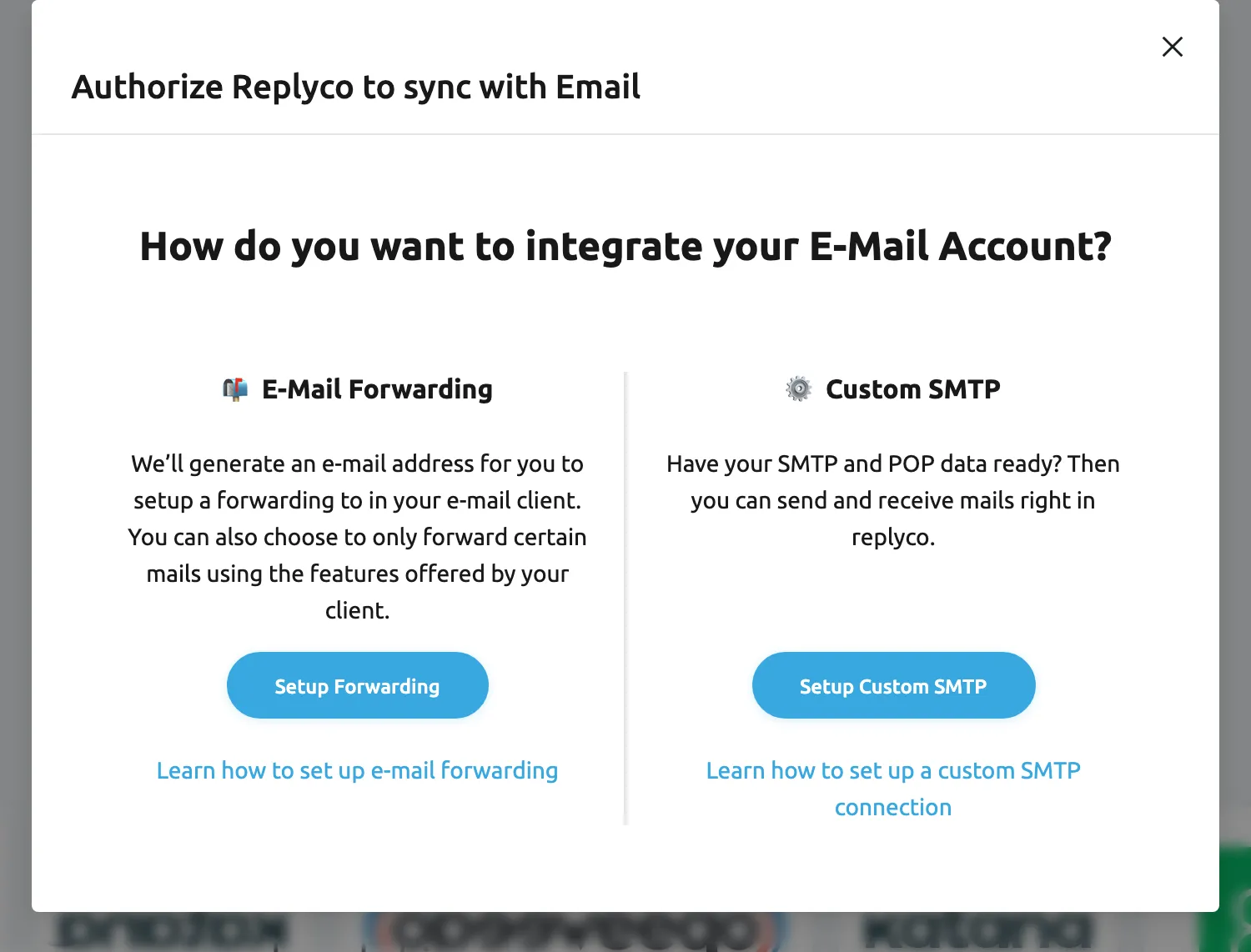
What this screenshot shows
- Screen
- Authorize Replyco to sync with {{name}} (/integrations/add)
- Highlighted
- dialog “How do you want to integrate your E-Mail Account?”, dialog, shown. none; the two buttons choose the way
- Also visible
- option E-Mail Forwarding with Setup Forwarding; option Custom SMTP with Setup Custom SMTP
- Purpose
- choose between forwarding and your own mail server
Which way fits: a Gmail or Google Workspace address connects best as Gmail, and a Microsoft 365, Outlook.com or Hotmail mailbox as Outlook, because both keep working without passwords or server settings. A mailbox at any other provider connects with IMAP and SMTP when the provider offers them. Forwarding works with every mailbox, including a shared Microsoft 365 mailbox that has no sign-in of its own.
What you can do here
Section titled “What you can do here”- Connect a Gmail or Google Workspace mailbox with Google sign-in and choose the labels that become tickets. Gmail.
- Connect a Microsoft 365 or Outlook.com mailbox with Microsoft sign-in and choose the folders that become tickets. Outlook and Microsoft 365.
- Forward any mailbox to a Replyco address and authenticate your domain so replies are delivered. Mailbox by forwarding.
- Connect a mailbox on your own mail server with its IMAP and SMTP settings. Mailbox with IMAP and SMTP.
- Check that a mailbox syncs, rename it or change its folders under AdminAccounts. Accounts.
- Bring a blocked mailbox back with Re-login or new server details. Fix a blocked or silent account.
Concepts
Section titled “Concepts”- Signing in with the provider. Gmail and Outlook never see or store your mailbox password: Google or Microsoft grant Replyco access, and a block appears when they stop accepting it. Gmail and Outlook and Microsoft 365 explain the sign-in and the re-login.
- The Replyco address. A forwarded mailbox gets its own address from Replyco; every email that reaches it becomes a ticket of that account. Mailbox by forwarding.
- Domain authentication. When Replyco sends from your address on your own domain, DKIM lets strict recipients such as Gmail and Microsoft accept the mail. A forwarded mailbox sets it up in the step DOMAIN AUTH, a mailbox with IMAP and SMTP in the account’s details. Mailbox by forwarding · Mailbox with IMAP and SMTP.
- Folders to sync. Gmail, Outlook and IMAP mailboxes can limit Replyco to chosen folders in Sync Messages from Folders:. With nothing chosen, each type has its own default: Gmail imports all mail except spam and bin, Outlook every folder except Junk Email and drafts, and an IMAP mailbox its inbox and Sent folder. Each guide lists what a choice includes: Gmail, Outlook and Microsoft 365 and Mailbox with IMAP and SMTP.
Availability: every plan includes all four ways; connecting a mailbox needs the Admin permission, and each connected mailbox counts towards your plan’s number of accounts. See What each plan includes.