

The call screen
The call screen shows one phone call from Aircall: when it started, was answered and ended, who took it, why it was missed, and its Aircall tags. From here you play the recording or voicemail, keep notes for your team, and see the customer behind the number with their tickets and an order. It is where you pick up a call afterwards: to read what a colleague noted, to call back, or to answer the ticket the caller rang about. Open it by selecting a call in Calls; see Call list.
What you can do here
Section titled “What you can do here”- Read what happened on the call. Start, answer and end times, the duration, the direction, the agent and, for a missed call, one of six reasons Aircall gives. Read the call details
- Listen to the call. Load recording fetches the recording, or the voicemail the caller left, from Aircall and plays it in your browser. Listen to the recording or voicemail
- Keep notes on the call. Comments made in Aircall appear as notes; add your own, mention a colleague, edit, lock or delete them. Keep notes on the call
- See who called. Replyco links each call to a customer by phone number or e-mail; check the link, choose another customer or remove it. Check or change the customer · Customers
- Go to the customer’s tickets. The right panel lists the customer’s tickets, so you can answer the one the caller rang about. Go to the customer’s tickets
- Link an order. Enter the order number the call was about, and its details appear beside the call. Link an order
The screen at a glance
Section titled “The screen at a glance”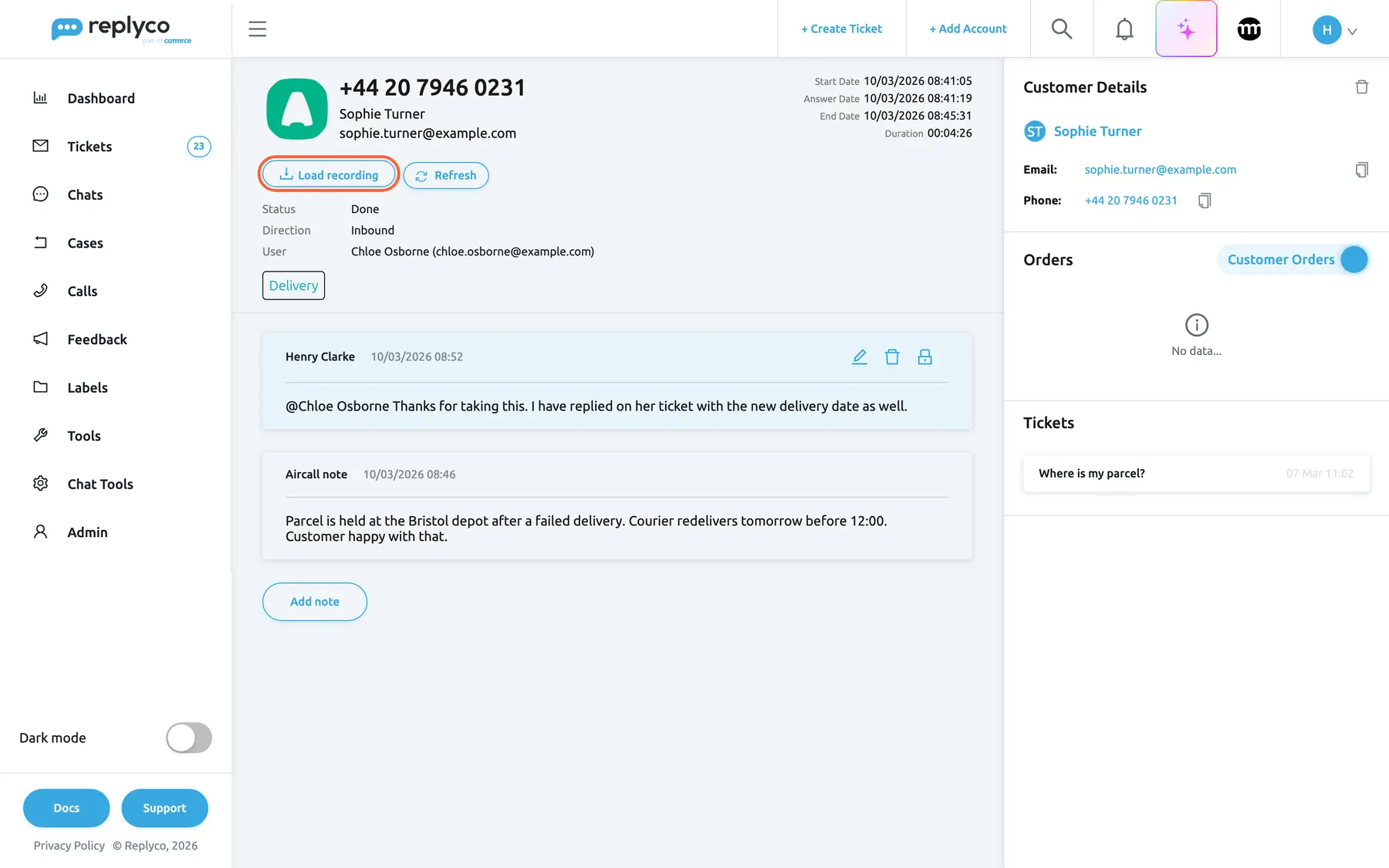
What this screenshot shows
- Screen
- Calls (/call/:callId)
- Highlighted
- button “Load recording”, call-header, enabled. fetches the recording or voicemail from Aircall
- Also visible
- phone number, contact name and e-mail; Start Date, Answer Date, End Date, Duration; Status Done, Direction Inbound, User; Aircall tag Delivery; a team note with a mention and an Aircall note; Customer Details, Orders, Tickets in the right panel
- Purpose
- the call screen as it opens
| Region | What it shows | What you do there |
|---|---|---|
| Header, left | The Aircall icon, the phone number, the contact’s name and e-mail | See who it was |
| Header, right | Start Date, Answer Date, End Date, Duration | See when and how long |
| Buttons under the number | Load recording and Refresh | Play the call, reload it |
| Details | Status, Direction, Missed reason, User, then the Aircall tags | Read the outcome |
| Notes | Aircall notes and your team’s notes, newest first, then Add note | Read and add notes |
| Customer Details, right panel | The linked customer with e-mail and phone | Check, change or remove the customer |
| Orders, right panel | Customer Orders or Manual Order | Link an order |
| Tickets, right panel | The customer’s tickets, five at a time | Open a ticket |
Read the call details
Section titled “Read the call details”The header gives the number and, when the number is an Aircall contact, the contact’s name and e-mail address. The times at the right are shown to the second in your time zone; a line without a value is left out, so a missed call has no Answer Date and a call still going on has no End Date or Duration.
Under the buttons:
- Status: Initial while the call rings, Answered while it is going on, Done once it has ended, answered or not.
- Direction: Inbound when the customer called you, Outbound when your team called out from Aircall.
- Missed reason: only on a missed call, with the reason Aircall reports (table below).
- User: the Aircall user who took or made the call, with their e-mail address; N/A when nobody took it.
- Tags: the tags your team set on the call in Aircall, in their Aircall colours. You change them in Aircall, not in Replyco.
| Missed reason | What happened |
|---|---|
| Out of opening hours | The call came in outside the opening hours set for the number in Aircall |
| Short abandoned | The caller hung up very soon after the call started |
| Abandoned in IVR | The caller hung up in the phone menu (IVR) before reaching anyone |
| Abandoned in classic | The caller hung up while waiting on a number without a phone menu |
| No available agent | Nobody was available to take the call |
| Agents did not answer | The call rang your team, but nobody answered |
Example. Ethan Price rang at 07:12 and hung up after 41 seconds. The call shows Done, no Answer Date, Missed reason Out of opening hours and User N/A: nobody was there yet, and he left a voicemail.
Status, end time, duration, tags and new Aircall comments change as Aircall reports them. The screen does not update by itself; see the Refresh control under Every control, explained.
Listen to the recording or voicemail
Section titled “Listen to the recording or voicemail”-
Select Load recording under the phone number. Replyco asks Aircall for the call’s recording and voicemail.
-
When Aircall has them, a player titled Recording appears for the recorded conversation, and one titled Voicemail for a message the caller left. When Aircall has neither, the screen reads No recording....
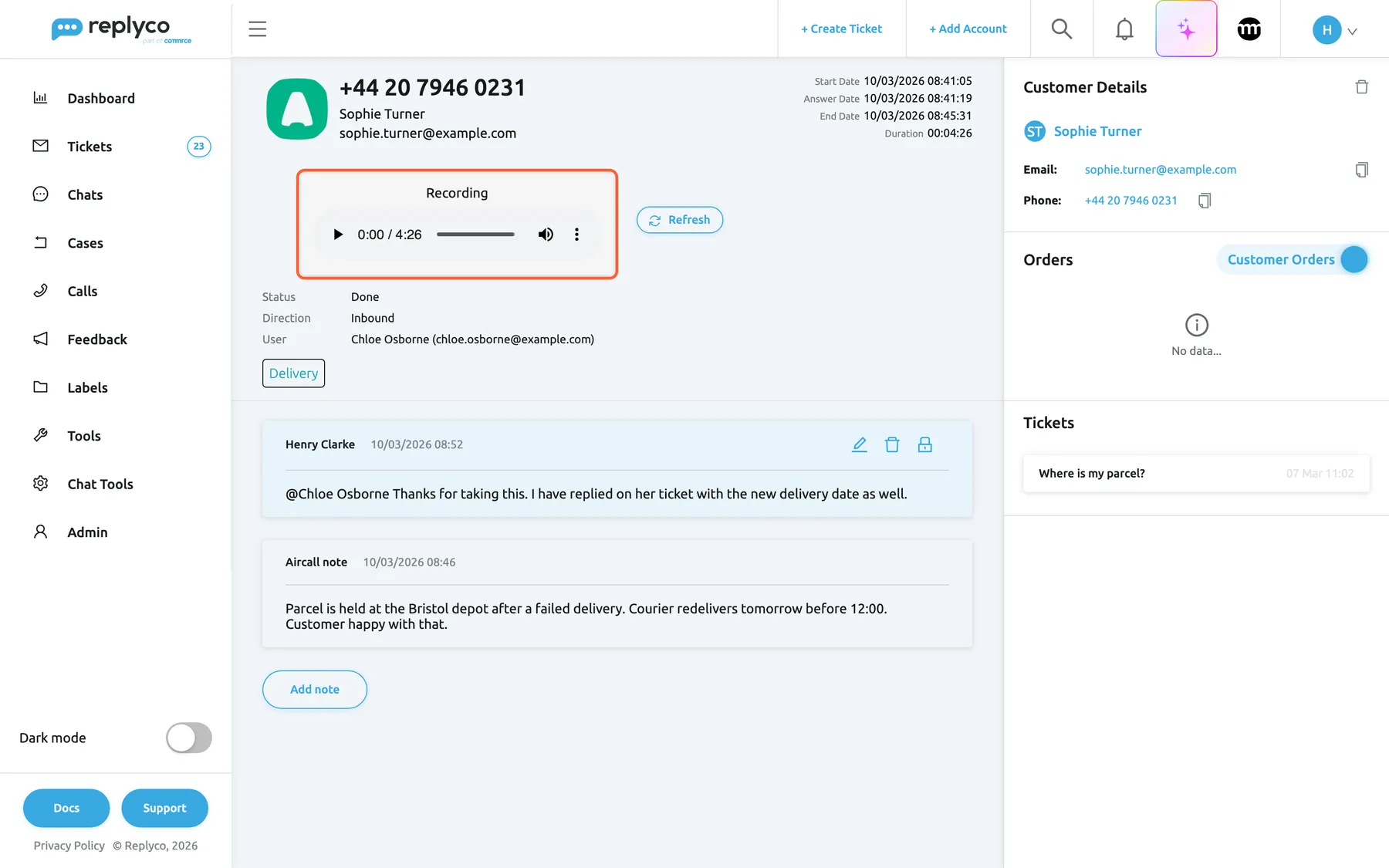
Load recording asks Aircall for the call's recording and plays it in the browser; Replyco does not store it. What this screenshot shows
- Screen
- Calls (/call/:callId)
- Highlighted
- “Recording”, call-header, loaded. plays the Aircall recording
- Also visible
- audio player 0:00 / 4:26; Refresh button; Status, Direction, User unchanged
- Purpose
- listen to a call recording
-
Select the play button. The player’s ⋮ menu is your browser’s own and offers what your browser offers, such as the playback speed.
A missed call where the caller left a message shows the voicemail instead of a recording:
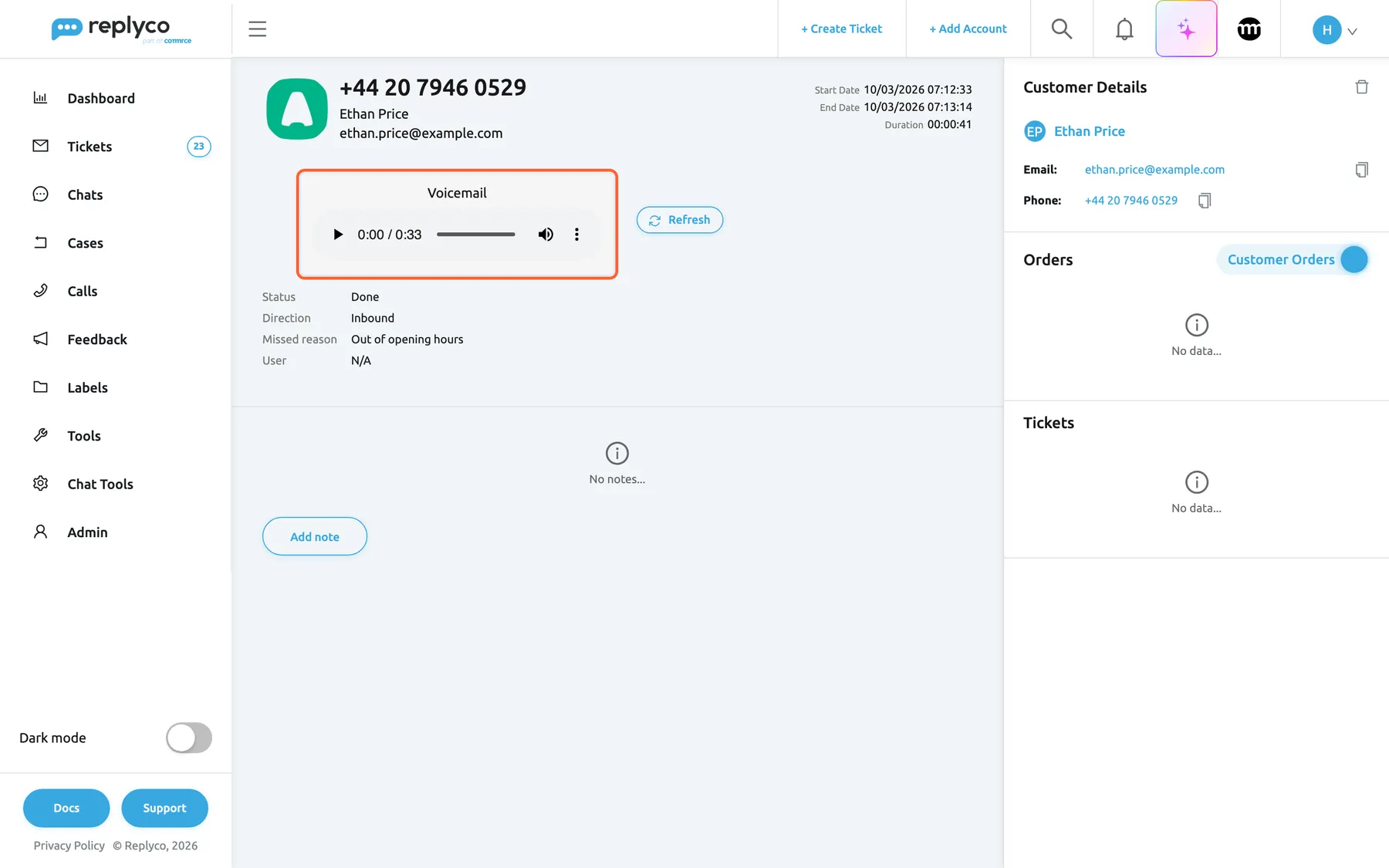
What this screenshot shows
- Screen
- Calls (/call/:callId)
- Highlighted
- “Voicemail”, call-header, loaded. plays the voicemail from Aircall
- Also visible
- no Answer Date; Missed reason Out of opening hours; User N/A; No notes...; customer created from the call, no tickets
- Purpose
- a missed call with a voicemail
Replyco does not store recordings. Each time you open the call and select Load recording, Replyco fetches the files from Aircall again. What Aircall records, and for how long it keeps it, is set in Aircall. If Aircall has deleted a recording, Replyco cannot play it either.
Keep notes on the call
Section titled “Keep notes on the call”Notes on a call are internal: the caller never sees them. They are listed newest first under the call details.
- Aircall notes. A comment your team writes on the call in Aircall appears here as a grey note named Aircall note, with the time it was written. It cannot be edited or deleted in Replyco; change it in Aircall.
- Your team’s notes carry the author’s name and the time, and the icons to edit, delete and lock them.
-
Select Add note under the notes. An editor opens with the placeholder Add Note.
-
Type the note. To mention a colleague, type @ and pick their name; they get a notification that links to this call.
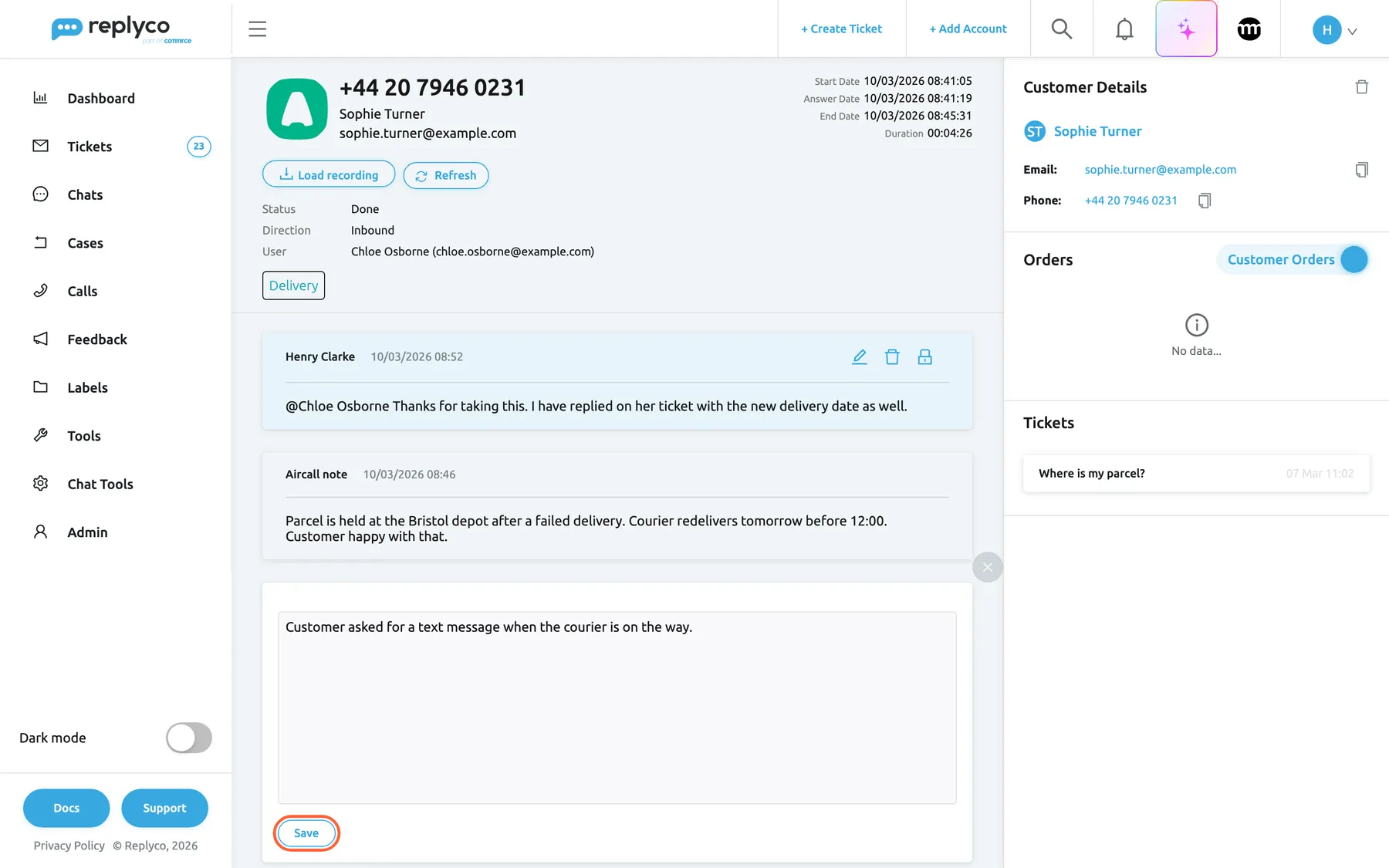
Add note writes an internal note on the call; it is never sent to the caller. What this screenshot shows
- Screen
- Calls (/call/:callId)
- Highlighted
- button “Save”, notes, enabled. saves the note on the call
- Also visible
- note editor with typed text; close ×; existing team note and Aircall note above
- Purpose
- add a note to a call
-
Select Save. The note appears at the top of the notes. To close the editor without saving, select the round × at its top right. An empty note is not saved.
To change your note, select the pencil, edit the text and select Save or Cancel; the note then shows the time of the change, such as edited 10/03/2026 09:12. To delete it, select the bin and confirm Are you sure you want to delete this note? with Yes. Lock a note with the padlock so that only you can edit or delete it: This note is locked. It can be edited only by the author Only the author can lock or unlock a note.
Notes work the same way on tickets, orders and customers; see The ticket screen.
Check or change the customer
Section titled “Check or change the customer”Replyco links each call to a customer when it receives the call:
| Customers with the call’s phone number or the contact’s e-mail address | What Replyco does |
|---|---|
| None | Creates a customer from the Aircall contact, with its name, e-mail and number |
| Exactly one | Links that customer, for example the one who wrote to you from your shop |
| More than one | Links none; the panel offers the matches in Select customer |
The match is exact: the customer’s saved phone number must be the same as the call’s, or their e-mail address the same as the Aircall contact’s.
Customer Details shows the linked customer: the name, which opens the customer’s page; Email, which starts a new ticket to that address, with a copy icon; and Phone, which calls the number from your computer’s phone app, with a copy icon. Badges next to the name count the customer’s tickets and orders when there is more than one.
To choose another customer, remove the linked one first: select the bin at the top right of the block and confirm Remove this customer from the call? with Yes. This removes the link; the customer and their tickets stay in Replyco. Then pick the customer in Select customer. When several customers matched the call, the list offers those; otherwise type part of a name or e-mail address to search all your customers, ten at a time.
Linking and removing a customer need the Calls permission with Edit rights. Without them Replyco shows You don't have enough rights.
Go to the customer’s tickets
Section titled “Go to the customer’s tickets”With a customer linked, Tickets in the right panel lists their tickets, newest first, five at a time, with each ticket’s subject and date; Load More shows five more. Select a ticket to open it and answer the customer in writing.
Example. Sophie Turner calls about her parcel. The call is linked to her customer from your shop by her e-mail address, and Tickets shows her ticket Where is my parcel? from 7 March. Open it to send her the new delivery date in writing.
A customer that Replyco created from the call has no tickets yet; the block then reads No data.... The block is missing while no customer is linked.
Link an order
Section titled “Link an order”-
In Orders in the right panel, switch from Customer Orders to Manual Order. When no customer is linked, the block shows the order field straight away.
-
Type the order number in Enter Marketplace Order#, exactly as the marketplace or shop shows it.
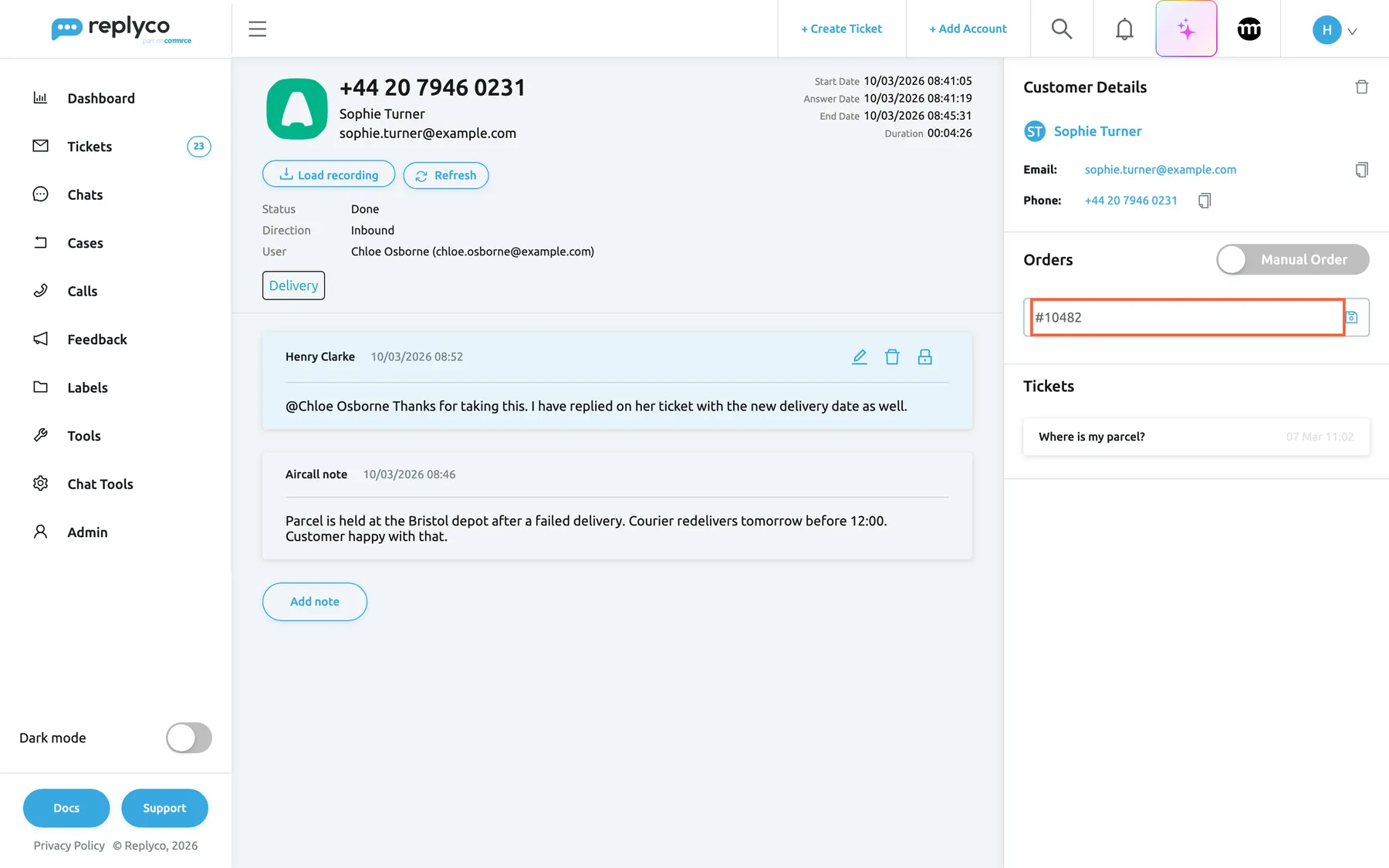
Switch Orders to Manual Order and enter an order number to link the order the call was about. What this screenshot shows
- Screen
- Calls (/call/:callId)
- Highlighted
- textbox “Enter Marketplace Order#”, right-panel-orders, filled. links the order with this number when the save icon is selected
- Also visible
- switch on Manual Order; save icon in the field; Customer Details and Tickets
- Purpose
- link an order to a call
-
Select the save icon at the right end of the field. When Replyco finds an order with that number, the block shows its details: order ID, status, dates, total and the other order fields you know from tickets.
Replyco looks for an order with exactly that number among the orders it has imported from your accounts. Check the number in ToolsOrders first.
To remove a linked order, keep the switch on Manual Order, select the bin next to it and confirm Are you sure you want to remove an order?.
Customer Orders lists the linked customer’s orders.
Every control, explained
Section titled “Every control, explained”Header: number, contact and times
Section titled “Header: number, contact and times”The top of the call, left and right.
The phone number as Aircall sent it, without spaces or dashes; the Aircall contact’s name and e-mail when there is one; Start Date, Answer Date, End Date to the second and Duration as hours:minutes:seconds. Lines without a value are left out.
The times tell whether the call was answered and how long the customer spoke to you.
Load recording
Section titled “Load recording”Under the phone number, on the left.
Fetches the recording and the voicemail from Aircall and shows a player for each: Recording, Voicemail, or No recording.... Nothing is stored in Replyco; the button is back when you open the call again.
Listen to what was said before you call back or answer the customer’s ticket.
Refresh
Section titled “Refresh”Next to Load recording.
Asks Replyco for the latest details of the call, such as a new status, end time or tag.
The call screen does not update by itself while a call is still going on.
Status, Direction, Missed reason, User and tags
Section titled “Status, Direction, Missed reason, User and tags”| Line | What it shows | Why |
|---|---|---|
| Status | Initial, Answered or Done, as Aircall reports it | See whether the call is over |
| Direction | Inbound or Outbound | Tell a customer’s call from your team’s call-back |
| Missed reason | One of the six reasons, only on missed calls | Find out why a customer did not get through |
| User | The Aircall user’s name and e-mail, or N/A | Know whom to ask about the call |
| Tags | The call’s Aircall tags in their colours | See how your team classified the call in Aircall |
Add note and the note icons
Section titled “Add note and the note icons”Under the notes; the pencil, bin and padlock sit at the top right of each of your team’s notes.
Add note opens the editor with @mentions, Save and a close ×. The pencil edits, the bin deletes after Are you sure you want to delete this note?, the padlock locks the note to its author. Aircall notes have no icons.
Leave context for whoever picks up the customer next.
Customer Details
Section titled “Customer Details”The top of the right panel; the bin at its top right.
The linked customer’s name (opens the customer page), Email (starts a new ticket), Phone (a phone link) and copy icons. Without a customer: Select customer. The bin removes only the link, after Remove this customer from the call?. Needs Edit rights for changes.
Connects the phone call with everything else the customer has done with you.
Orders: Customer Orders, Manual Order and Enter Marketplace Order#
Section titled “Orders: Customer Orders, Manual Order and Enter Marketplace Order#”The right panel, under Customer Details; the switch at the block’s top right.
The switch shows only with a linked customer and starts on Customer Orders. Manual Order shows the linked order or the field Enter Marketplace Order# with a save icon; the bin removes a linked order after Are you sure you want to remove an order?.
Keep the order the customer called about next to the call.
Tickets
Section titled “Tickets”The right panel, at the bottom; only with a linked customer.
The customer’s tickets, newest first, five at a time, with Load More. Each opens the ticket.
Answer in writing what the customer asked on the phone.
Who sees what
Section titled “Who sees what”| Part of the screen | What decides whether you see or can use it |
|---|---|
| The call screen | The Calls permission of your user and Calls, which every plan includes; see User permissions and roles |
| Linking or removing a customer or an order | Calls with Edit rights |
| Recording and voicemail | What Aircall recorded and still keeps |
| Editing or deleting a locked note | Only its author |
| Notes | Everyone who can open the call; never the caller |
What you need to know
Section titled “What you need to know”| Topic | Fact |
|---|---|
| Recordings | Fetched from Aircall each time; not stored in Replyco |
| Aircall notes | Comments from Aircall; read-only in Replyco |
| Customer link | Made when the call arrives: one match by phone or e-mail is linked, none creates a customer, several link none |
| Removing the customer | Removes only the link; with exactly one match Replyco links it again on the next opening |
| Order link | By exact order number among imported orders |
| Tickets block | Five at a time, only with a linked customer |
| Updates | Status, times, tags and Aircall comments follow Aircall; the screen does not refresh by itself |
| Mentions | @mentions in notes notify the colleague and link to the call |
Frequently asked questions
Section titled “Frequently asked questions”Details and recordings
Section titled “Details and recordings”How do I know whether a call was answered?
Section titled “How do I know whether a call was answered?”Open the call from Calls. An answered call has an Answer Date in the header and a User, the Aircall user who took it. A missed call has no Answer Date, shows User N/A and has a Missed reason, such as Out of opening hours.
Why does the call show Done although nobody answered?
Section titled “Why does the call show Done although nobody answered?”Done means the call has ended, whatever the outcome. Aircall has no separate status for missed calls. The call screen shows that it was missed by the missing Answer Date and the Missed reason line.
Why can’t I play the recording?
Section titled “Why can’t I play the recording?”Select Load recording first; the recording is fetched from Aircall only when you ask. If the screen reads No recording..., Aircall has no recording or voicemail for the call, for example because call recording is switched off for that number in Aircall or the caller hung up. If Aircall has deleted an old recording, Replyco cannot play it either.
Does Replyco keep a copy of the recording?
Section titled “Does Replyco keep a copy of the recording?”No. Replyco fetches the recording and the voicemail from Aircall each time you select Load recording and plays them in your browser. How long recordings are kept is set in Aircall.
Where do the tags on a call come from, and can I change them?
Section titled “Where do the tags on a call come from, and can I change them?”They are the tags your team set on the call in Aircall, shown in their Aircall colours. Replyco updates them when they change in Aircall. You cannot add or remove them on the call screen; change them in Aircall.
Can the caller see our notes?
Section titled “Can the caller see our notes?”No. Notes on a call are internal and visible only to your team members who can open the call. Nothing from the call screen is sent to the customer.
Why can’t I edit or delete a note?
Section titled “Why can’t I edit or delete a note?”A grey note named Aircall note came from a comment in Aircall and can only be changed there. A note by a colleague that shows a red padlock is locked: This note is locked. It can be edited only by the author Ask its author to unlock it.
How do I get a colleague to look at a call?
Section titled “How do I get a colleague to look at a call?”Select Add note, type @ and pick your colleague’s name, write the note and select Save. Your colleague gets a notification in Replyco that links to the call, and the note stays on the call for everyone who opens it.
Customer, tickets and orders
Section titled “Customer, tickets and orders”Why is the call linked to the wrong customer?
Section titled “Why is the call linked to the wrong customer?”Replyco links the customer whose saved phone number equals the call’s number, or whose e-mail address equals the Aircall contact’s. When exactly one customer matches, that one is linked. Remove the link with the bin in Customer Details, then pick the right customer in Select customer.
I removed the customer, and it came back. Why?
Section titled “I removed the customer, and it came back. Why?”When you open a call without a linked customer, Replyco looks for a match by phone number and e-mail again, and links it at once when there is exactly one. To keep a different customer, pick that customer in Select customer straight after removing the link.
Does removing the customer from a call delete the customer?
Section titled “Does removing the customer from a call delete the customer?”No. The bin in Customer Details removes only the link between the call and the customer, after you confirm Remove this customer from the call?. The customer, their tickets and their orders stay in Replyco.
Why does the call show a customer I don’t know?
Section titled “Why does the call show a customer I don’t know?”When no customer matches the call’s number or e-mail, Replyco creates one from the Aircall contact, with its name, e-mail and number. A caller who is not an Aircall contact gets a customer with just the number. You find these customers under Customers.
Why doesn’t the customer’s ticket appear under Tickets?
Section titled “Why doesn’t the customer’s ticket appear under Tickets?”Tickets lists the tickets of the customer linked to the call. If the caller wrote to you as a different customer, for example with another e-mail address, their tickets belong to that customer. Link that customer instead: remove the current link and pick them in Select customer.
Why doesn’t my order number link an order?
Section titled “Why doesn’t my order number link an order?”Replyco links an order only when an order with exactly that number has been imported from one of your accounts. Check the number in ToolsOrders, copy it as shown there and save it again.
Access
Section titled “Access”Why does Replyco say I don’t have enough rights when I link a customer?
Section titled “Why does Replyco say I don’t have enough rights when I link a customer?”Linking or removing a customer or an order needs the Calls permission with Edit rights; with view rights alone, Replyco shows You don't have enough rights. Ask an admin to tick Edit for Calls on your user in AdminUsers.
Troubleshooting
Section titled “Troubleshooting”| Symptom | What to check |
|---|---|
| No recording... after Load recording | Whether Aircall recorded the call: recording settings of the number in Aircall; whether the caller left a message |
| An error message after Load recording | The Aircall account in AdminAccounts: a login problem stops Replyco from reaching Aircall |
| You don't have enough rights when linking | Edit rights for Calls on your user |
| The wrong customer is linked | Remove the link, then pick the customer in Select customer |
| The removed customer is linked again | Exactly one customer matches; pick another in Select customer |
| An order number links nothing | The exact number in ToolsOrders; whether that account’s orders are imported |
| Status or duration looks out of date | Select Refresh on the call screen; the screen does not update by itself |