

Rules
The Rules tab is where you tell Replyco what to do with incoming customer messages without anyone reading them first: label every cancellation request, give orders above a certain value your fastest priority, hand angry customers to a senior colleague, file marketplace notifications away. Each rule has a name, conditions and actions, and the list shows the rules in the order they run. Open it from ToolsAutomation; it is the first tab, so the menu item lands on it.
Availability: the tab is shown to users with the Automation permission; creating, changing, reordering and deleting rules needs the edit level of that permission (see User permissions and roles). Rules are part of every plan. The tone score condition needs Replyco AI, which every plan includes; the Linnworks actions appear once a Linnworks account is connected.
What you can do here
Section titled “What you can do here”- See every rule in the order it runs. Replyco runs every switched-on rule, from the top of the list down, on each new customer message, so the list is also the run order. The screen at a glance · Rules for incoming tickets
- Read what a rule does. A click on a rule spells out its conditions and actions in plain words. Read what a rule does
- Create a rule. A rule needs a name, at least one condition with a value and at least one action. Create a rule
- Combine conditions. Conditions in one group must all match; groups are alternatives. Combine conditions with AND and OR
- Choose what the rule does. Set the status or priority, add labels, assign a colleague, archive or mark as read. Choose what the rule does · Ticket priorities and SLA
- React to the customer’s mood. The tone score from AI is a condition like any other. Choose what the rule looks at · Message tone analysis
- Change, copy, reorder, switch off or delete a rule. Edit a rule · Copy a rule · Change the order · Switch a rule off or on · Delete a rule
- See who changed a rule. Each rule keeps its own history. See who changed a rule
- Apply rules to tickets you already have. Run Rules in a ticket list runs your rules on selected tickets. Run rules on tickets you already have · Ticket lists
The screen at a glance
Section titled “The screen at a glance”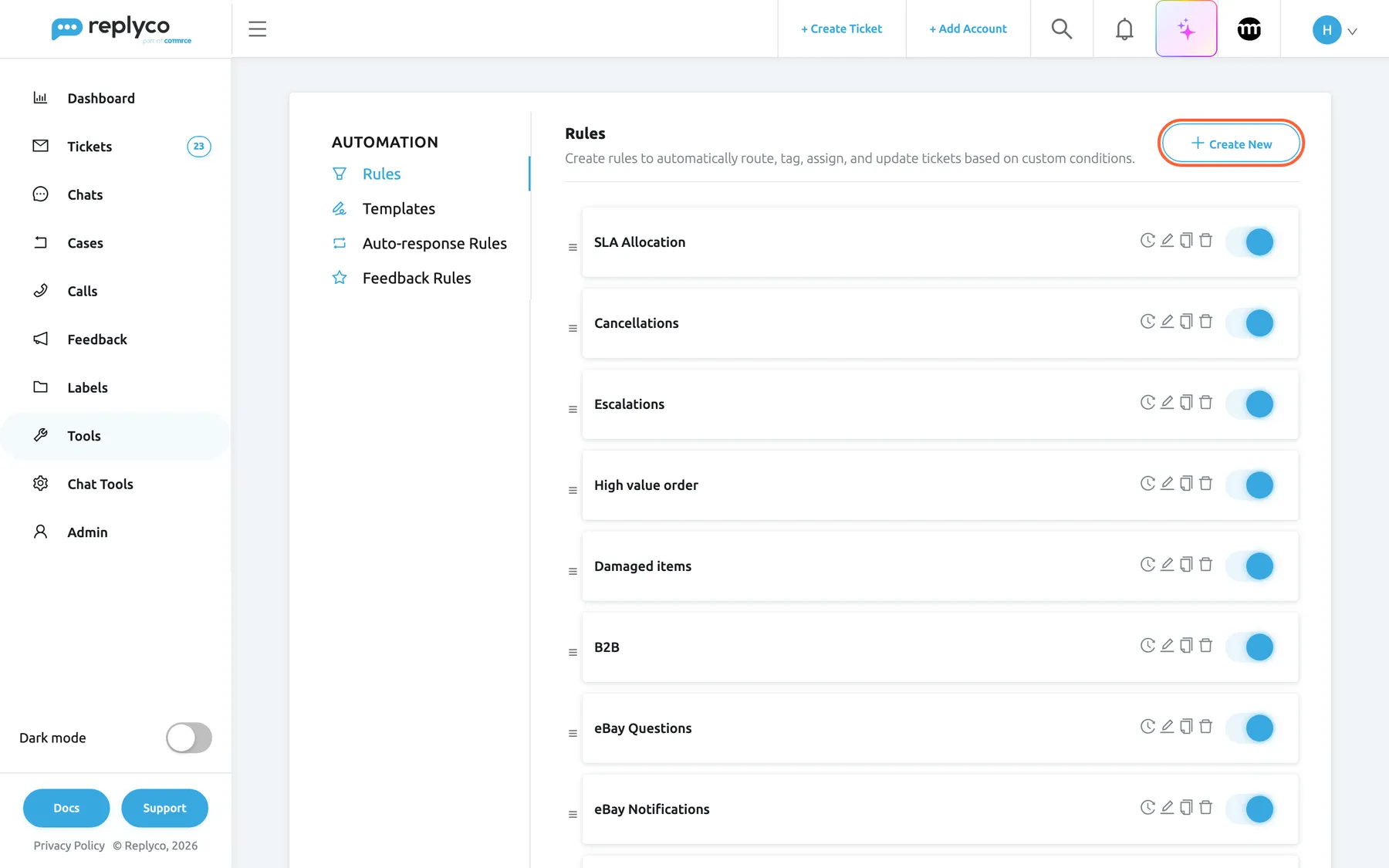
What this screenshot shows
- Screen
- Rules (/tickets-automation?tab=rules)
- Highlighted
- button “Create New”, header-right, enabled. opens the Create Rule form
- Also visible
- Automation tabs: Rules, Templates, Auto-response Rules, Feedback Rules; rule cards in run order with drag handle, history, edit, copy and delete icons and a switch; all visible rules switched on
- Purpose
- the Rules tab as it opens
| Region | What it shows | What you do there |
|---|---|---|
| Automation tabs, left | Rules, Templates, Auto-response Rules, Feedback Rules | Switch between the automation lists |
| Header, top | The heading Rules, a short description and Create New | Start a new rule |
| The list | One card per rule, in run order: drag handle, name, clock, pencil, copy and bin icons, and a switch | Reorder, open, edit, copy, delete, switch on or off |
| Details panel, right (after a click) | The rule’s name, Conditions, Actions, and Delete, Copy, Edit | Read a rule, then act on it |
The list has no search box and no grouping: switched-off rules stay in their place with the switch off. With no rules at all, the list reads No rules found..
A new company starts with three switched-on rules: SLA Allocation, which gives every incoming message the priority 24 standard hours; Cancellations, which labels messages that mention a cancellation and gives them the same priority; and Post-Sale, which labels tickets that have an order. In the German region their names are SLA-Zuweisung, Stornierungen and Nachverkauf. They are ordinary rules: change, reorder, switch off or delete them.
Read what a rule does
Section titled “Read what a rule does”- Open ToolsAutomation, tab Rules.
- Select a rule’s name. The card is outlined in blue and the details panel opens on the right.
- Read the panel. Under Conditions, each condition reads Where, the source, the comparison (or Is for a pick from a list) and the value; conditions in one dashed box are joined by AND, boxes by OR. Under Actions, each action the rule takes is listed with its value.
- Select Edit, Copy or Delete at the bottom, or the cross to close the panel.
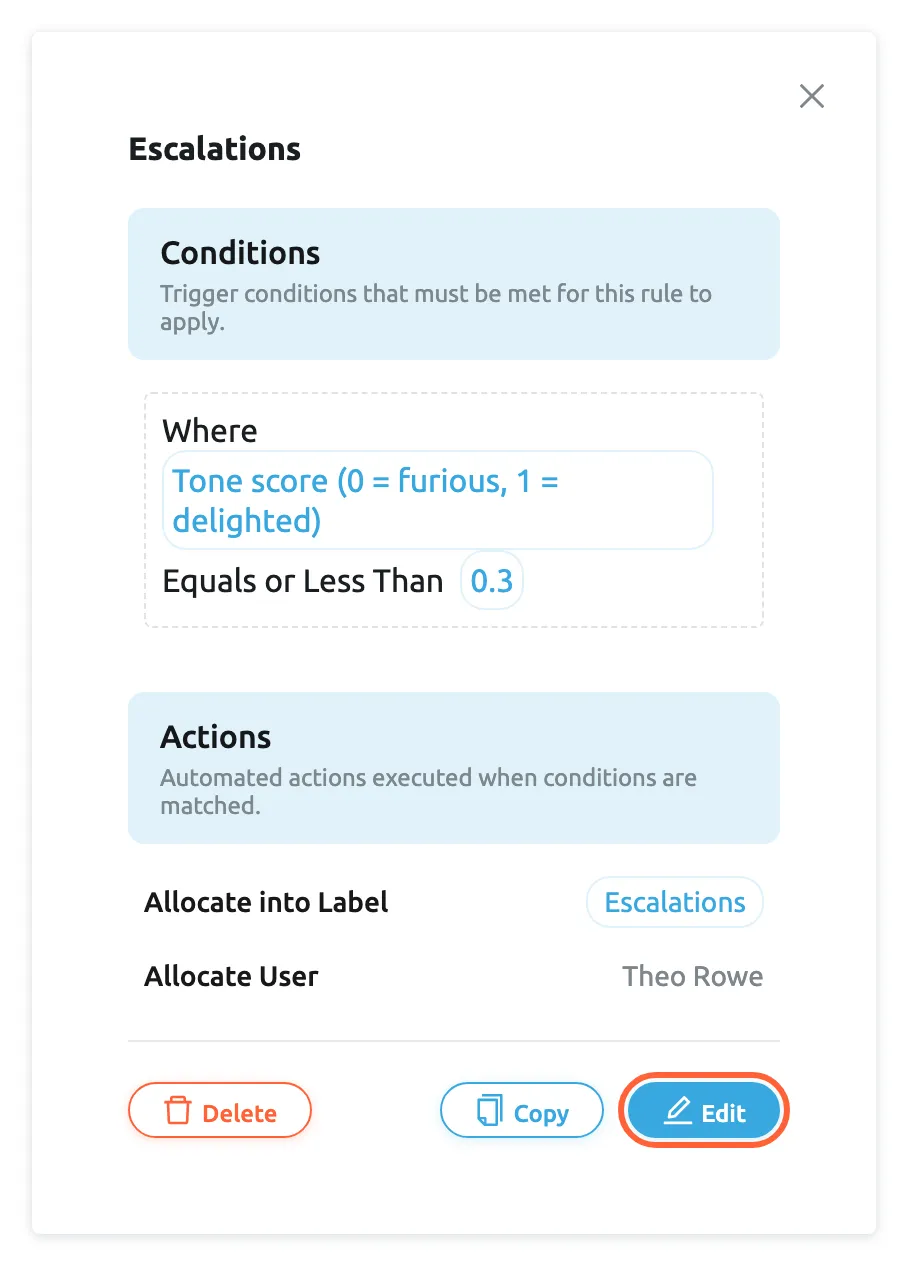
What this screenshot shows
- Screen
- Rules (/tickets-automation?tab=rules)
- Highlighted
- button “Edit”, details-panel-bottom-right, enabled. opens the Edit Rule form
- Also visible
- panel title Escalations; Conditions: Where Tone score Equals or Less Than 0.3; Actions: Allocate into Label Escalations, Allocate User Theo Rowe; Delete, Copy and Edit buttons
- Purpose
- read a rule before changing it
Example: the Northwind rule Escalations reads Where Tone score (0 = furious, 1 = delighted) Equals or Less Than 0.3, with the actions Allocate into Label Escalations and Allocate User Theo Rowe.
When a rule points at something that no longer exists, the panel says so instead of a name: [priority deleted] for a deleted priority, [user deleted] for a removed user, [account deleted] for a removed account, and [not available] for a value Replyco cannot show. Edit the rule and choose a new value.
Create a rule
Section titled “Create a rule”- On the Rules tab, select Create New in the top right corner. The form Create Rule replaces the list.
- Enter a name under Name. It appears in the list, in the ticket history and in the rule’s own history, so name what the rule is for, for example Weekend orders.
- Decide on Active. A new rule starts with the switch at OFF, so it is saved but does not run. Turn it on now if the rule should act on the next message.
- Under Conditions, open Select Source and pick what to look at, then the comparison and the value. Add more conditions with Add New Condition or an alternative group with Add New Group.
- Under Actions, fill in at least one action.
- Select Save in the top right corner, or in the column on the right once you have scrolled down.
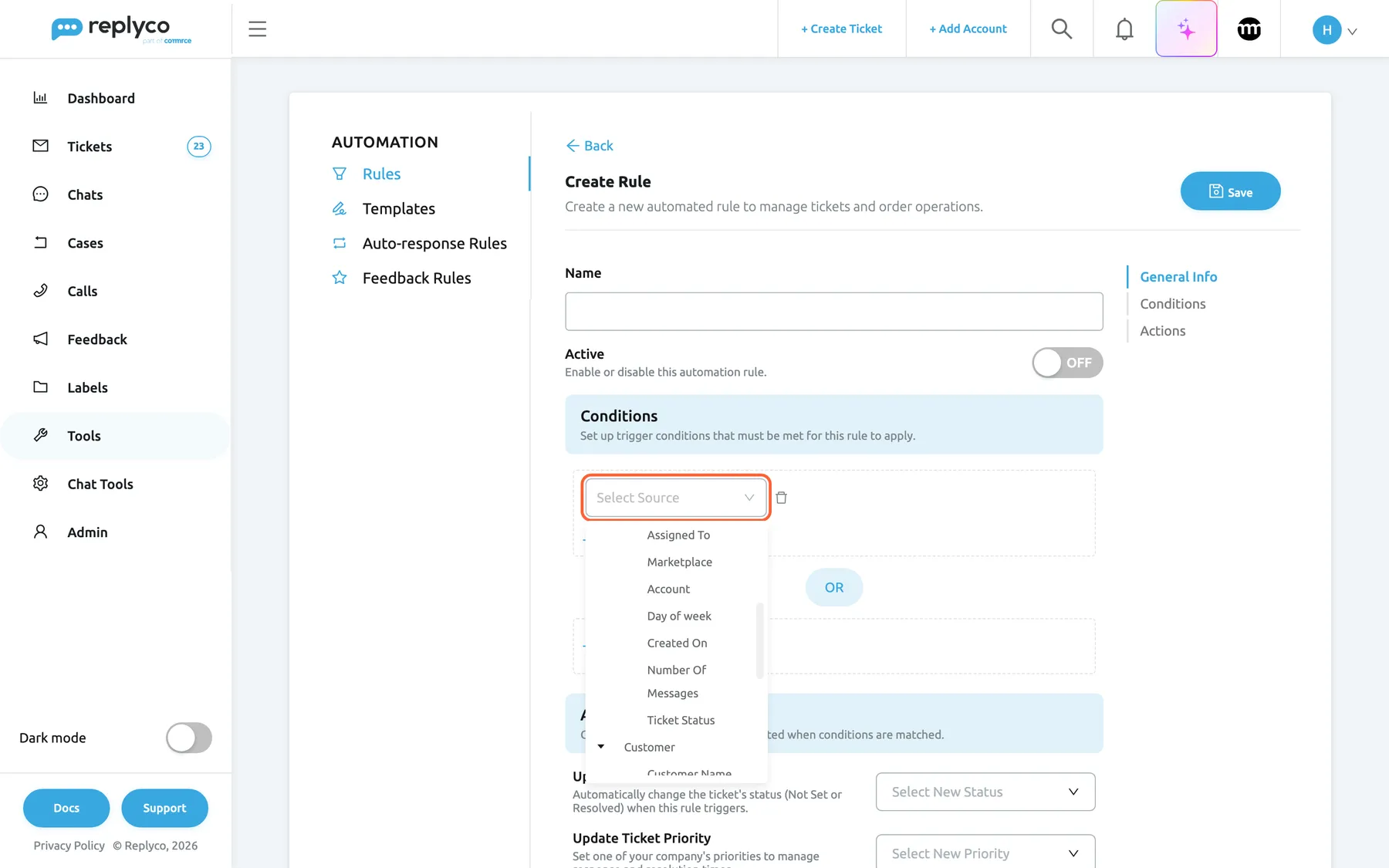
What this screenshot shows
- Screen
- Create Rule (/tickets-automation?tab=rules)
- Highlighted
- combobox “Select Source”, conditions, expanded. chooses what the condition compares
- Also visible
- Ticket group: Assigned To, Marketplace, Account, Day of week, Created On and more; Name empty, Active OFF
- Purpose
- the condition sources a rule can use
Replyco returns you to the list, shows Success and reloads the list. A new rule is added at the bottom, so it runs after all the others; drag it higher if it should run earlier. Creating a rule also ticks the matching item of the onboarding checklist.
The rule acts on customer messages that arrive from now on. To apply it to tickets that are already there, use Run Rules; see Run rules on tickets you already have.
Back at the top of the form leaves without saving: everything you entered is lost.
Combine conditions with AND and OR
Section titled “Combine conditions with AND and OR”A rule has one or more groups of conditions, each in its own dashed box. All conditions in a group must match (they are joined by AND), and one matching group is enough (groups are joined by OR).
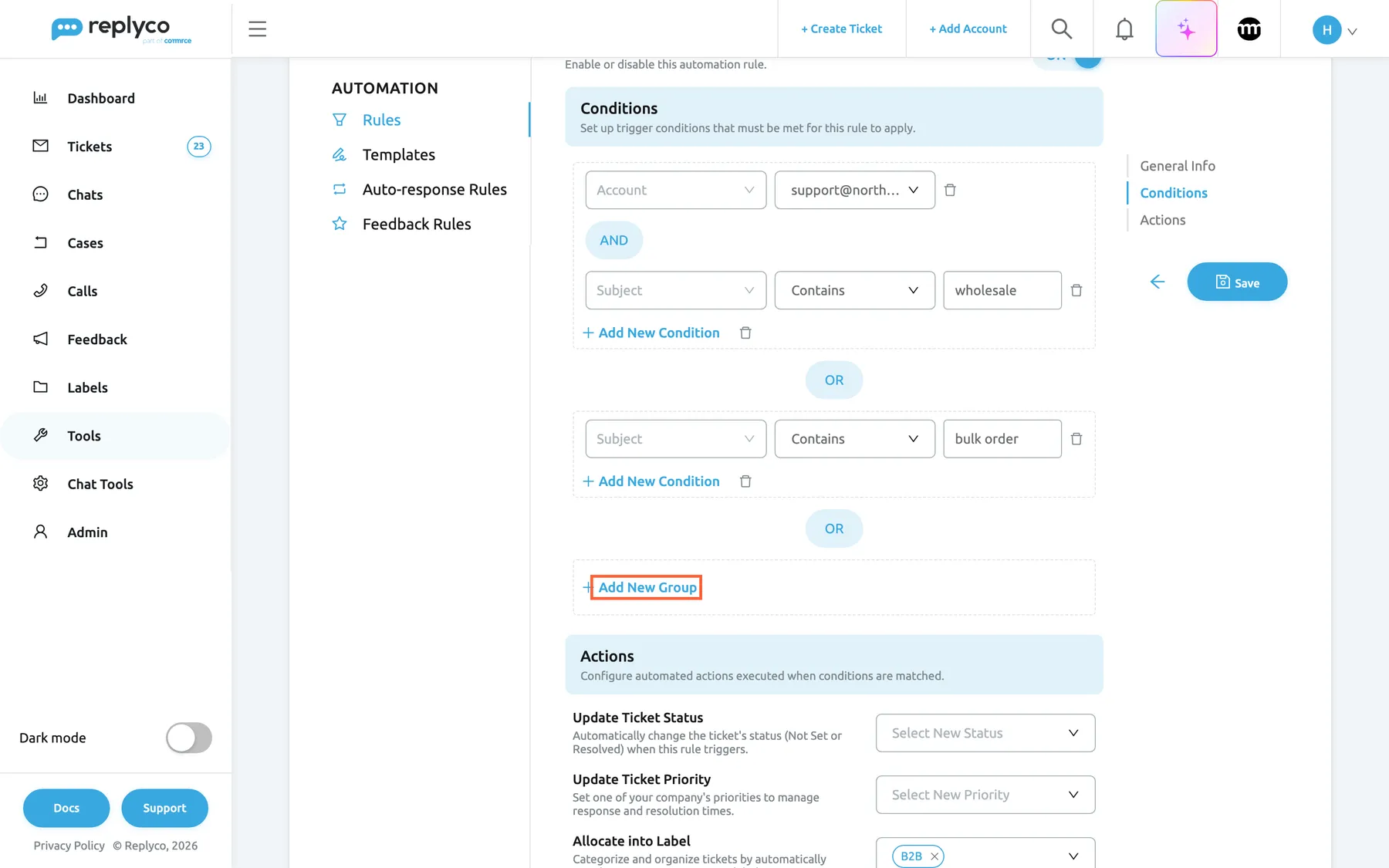
What this screenshot shows
- Screen
- Edit Rule (/tickets-automation?tab=rules)
- Highlighted
- button “Add New Group”, conditions-bottom, enabled. adds an empty alternative group
- Also visible
- group 1: Account support@northwind-electronics.example.com AND Subject Contains wholesale; OR; group 2: Subject Contains bulk order; Add New Condition per group; Save button
- Purpose
- combine conditions with AND and OR
| You want | Build it as |
|---|---|
| A message that meets two facts at once | One group with two conditions |
| A message that meets either of two facts | Two groups with one condition each |
| (Fact A and fact B) or fact C | One group with A and B, a second group with C |
Example: Northwind’s B2B rule has two groups. The first matches a message to the account support@northwind-electronics.example.com whose subject contains wholesale; the second matches any message whose subject contains bulk order. A message to that account about bulk order pricing matches through the second group.
The bin icon at the end of a row removes that condition; the bin icon next to Add New Condition removes the whole group. Removing the last condition leaves a new empty row, because a rule always has one. Add New Group refuses to add a group while the last one is empty, with Please finish creating the last Group before adding another.
Choose what the rule looks at
Section titled “Choose what the rule looks at”Select Source groups every condition by what it looks at. Choosing a source shows the fields that belong to it: a comparison and a value box, or a list to pick from.
| Group | Sources |
|---|---|
| Message | Text, Subject, Language, Sent To, Tone score (0 = furious, 1 = delighted) |
| Ticket | Assigned To, Marketplace, Account, Day of week, Created On, Number Of Messages, Ticket Status |
| Customer | Customer Name, Customer Email |
| Order | Order Status, Payment Status, Created Date, Shipped Date, Total Price |
| Product | Marketplace ID, Subject, SKU |
What each source compares, which comparisons it offers and how empty fields behave is explained in Rules for incoming tickets. The tone score, the only AI condition, is described in Message tone analysis. There is no condition on AI categories.
Choose what the rule does
Section titled “Choose what the rule does”Under Actions, fill in only what the rule should change; an empty select or a switch at OFF leaves that part of the ticket as it is.
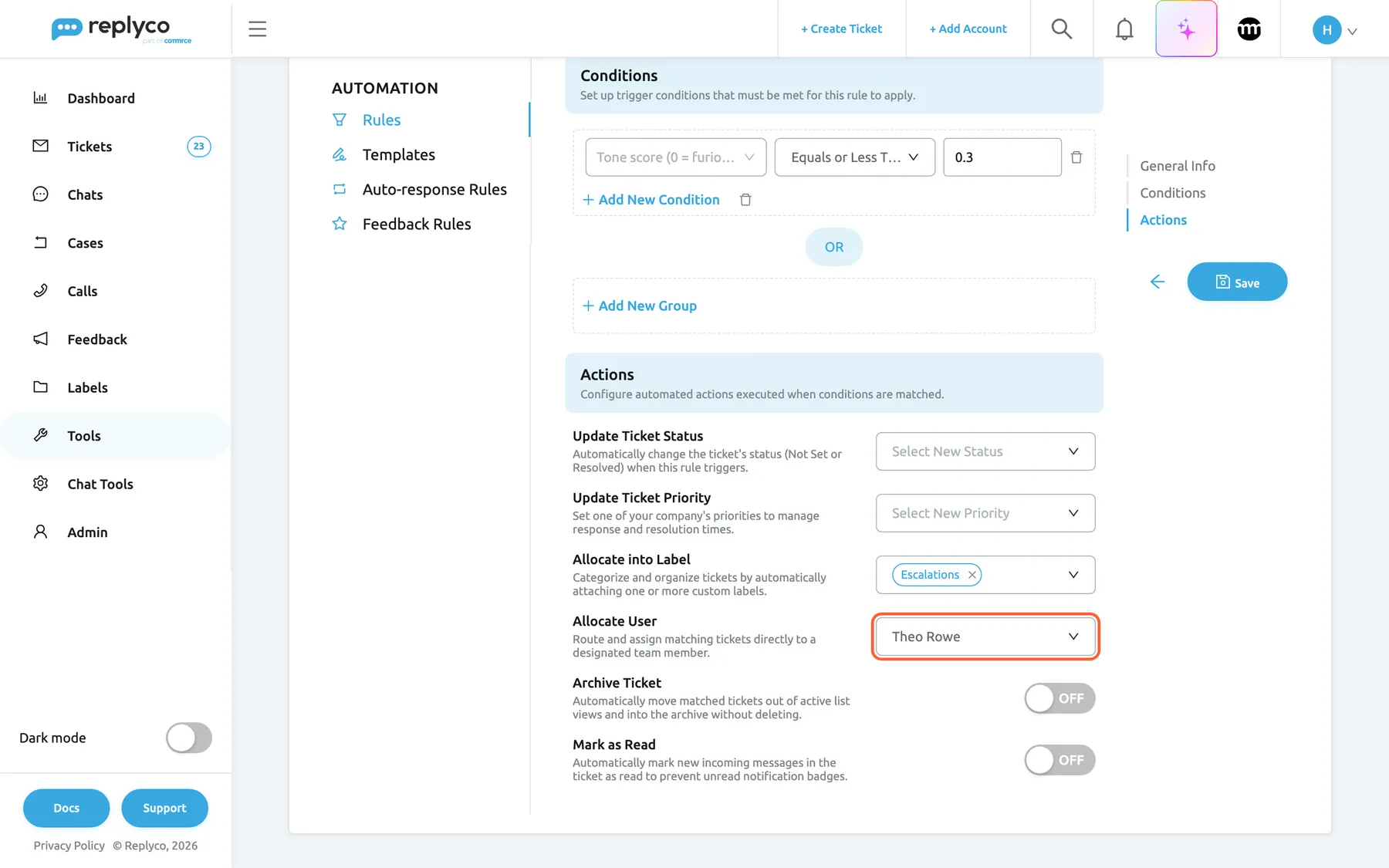
What this screenshot shows
- Screen
- Edit Rule (/tickets-automation?tab=rules)
- Highlighted
- combobox “Allocate User”, actions, Theo Rowe selected. assigns every matching ticket to that user
- Also visible
- Update Ticket Status: empty; Update Ticket Priority: empty; Allocate into Label: Escalations; Archive Ticket OFF; Mark as Read OFF
- Purpose
- the actions a rule can take
| Action | What it does to a matching ticket |
|---|---|
| Update Ticket Status | Sets the status: Resolved resolves the ticket, Not Set reopens it |
| Update Ticket Priority | Gives the ticket one of your priorities, with its respond and resolve deadlines |
| Allocate into Label | Adds one or more labels; labels the ticket already has are kept |
| Allocate User | Assigns the ticket to one colleague, replacing any assignee |
| Archive Ticket | Archives the ticket |
| Mark as Read | Marks the new message, and so the ticket, as read |
| Change Order Tag, Change Order Lock State, Change Order Park State | Tag, lock or park the ticket’s order in Linnworks; shown only with a Linnworks account connected |
For what each action does on every message and how rules that set the same thing interact, see Rules for incoming tickets. For priorities and their deadlines, see Ticket priorities and SLA.
Fix a rule that will not save
Section titled “Fix a rule that will not save”Save checks the form in this order and stops at the first problem, with a red message in the top right corner:
| Message | What is missing |
|---|---|
| You cannot save a Rule without name. | The name is empty |
| You must set an Action for each rule in order to save. | No action is filled in |
| Every group must contain at least one condition. | A group has no condition left |
| You must set a value for each condition. | A condition has no source or no value |
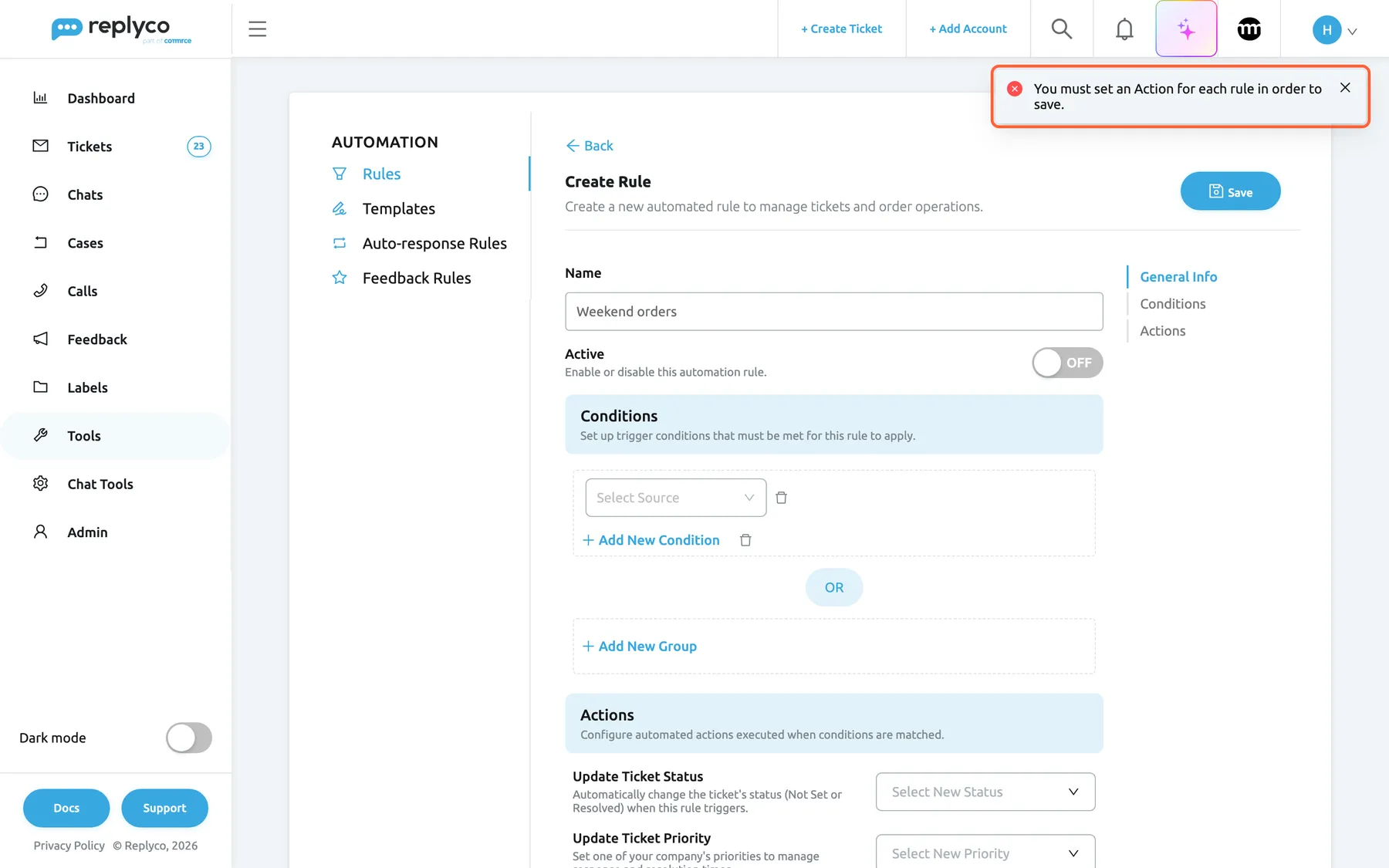
What this screenshot shows
- Screen
- Create Rule (/tickets-automation?tab=rules)
- Highlighted
- alert “You must set an Action for each rule in order to save.”, top-right, shown. reports that the rule has no action
- Also visible
- Name: Weekend orders; Active OFF; first condition: Select Source; Save button
- Purpose
- the validation messages of the rule form
Replyco refuses to create a rule whose label was deleted in the meantime, with “The label that is used in the rule doesn’t exist.”
Edit a rule
Section titled “Edit a rule”- Select the pencil icon on the rule’s card, or the rule’s name and then Edit in the details panel.
- Change the name, the switch, the conditions or the actions. The Save button pulses while you have unsaved changes.
- Select Save.
The form Edit Rule has a small contents list on the right: General Info, Conditions and Actions jump to that part. A saved change applies to the next customer message; tickets the rule already acted on keep what it did. The rule keeps its place in the list.
Copy a rule
Section titled “Copy a rule”Select the copy icon on a card, or Copy in the details panel. The form opens with everything the original has: its name followed by (copy), its switch position, its conditions and its actions. Save creates a new rule at the bottom of the list and leaves the original unchanged.
A copy is the quickest way to write a variant, for example the same routing for a second eBay account. Rename it before you save, so the ticket history tells the two apart. A copy of a switched-on rule is saved switched on, so check its conditions first: until you change them, both rules act on the same messages.
Change the order
Section titled “Change the order”Drag a card by its handle on the left and drop it where it should run. Replyco saves the new order when you drop it and reloads the list.
The order decides which rule has the last word. Every switched-on rule runs on each new message, top to bottom, and a later rule that sets the same status, priority or assignee replaces what an earlier one set. Labels add up instead. Example: Northwind’s SLA Allocation at the top gives every message Standard (24 hours), and High value order further down gives orders of 250 or more VIP customers; because it runs later, VIP customers stays. Drag SLA Allocation to the bottom and every ticket ends up with Standard (24 hours) again. For more worked examples, see Rules for incoming tickets.
Switch a rule off or on
Section titled “Switch a rule off or on”The switch on each card turns a rule off or on. It saves at once and shows Success; the card stays where it is.
A switched-off rule keeps its conditions, actions and place in the list, but it does not run on new messages and Run Rules skips it too. Switch it on again and it acts on the next message. The Active switch inside the form does the same, when you save.
Delete a rule
Section titled “Delete a rule”Select the bin icon on a card, or Delete in the details panel, and confirm with Yes. The card’s confirmation asks Are you sure you want to delete this rule?, the panel’s asks Are you sure you want to delete this item?; both delete the rule.
Deleting is permanent. What the rule already did to tickets stays, and so do the history rows it left in them. To stop a rule for a while, switch it off instead.
See who changed a rule
Section titled “See who changed a rule”Select the clock icon on a rule’s card. The details panel shows the rule’s history, one line per change with the person and the date:
| Line | When it is written |
|---|---|
| [name] created this message rule | The rule was created |
| [name] updated this message rule. Click on this row to see changes | Someone saved changes; select the line to see which of the name, conditions or actions changed, with their previous values |
| [name] turned on this message rule or turned off this message rule | Someone used the switch on the card |
| [name] changed the priority of this message rule | Someone dragged a card to change the order |
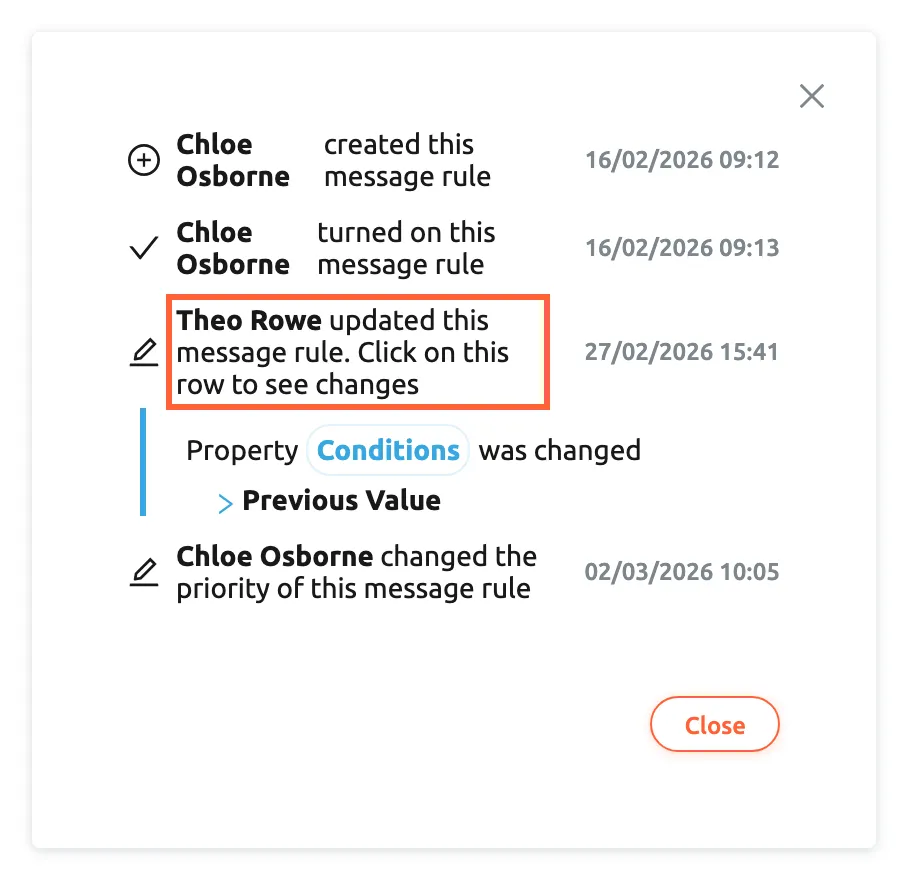
What this screenshot shows
- Screen
- Rules (/tickets-automation?tab=rules)
- Highlighted
- row “ updated this message rule. Click on this row to see changes”, details-panel, expanded. shows which properties changed
- Also visible
- created this message rule; turned on this message rule; updated … Property Conditions was changed, Previous Value; changed the priority of this message rule; Close button
- Purpose
- audit changes to a rule
A rule with no recorded changes shows No changes were made to this item yet. Lines of users who have since been removed are not shown. Close returns to the list.
Run rules on tickets you already have
Section titled “Run rules on tickets you already have”Rules act on messages as they arrive. For tickets that are already in a list, for example after you created or corrected a rule, run the rules by hand:
- Open a ticket list under Tickets and tick the tickets.
- Select Run Rules, the first icon of the bar that appears at the top.
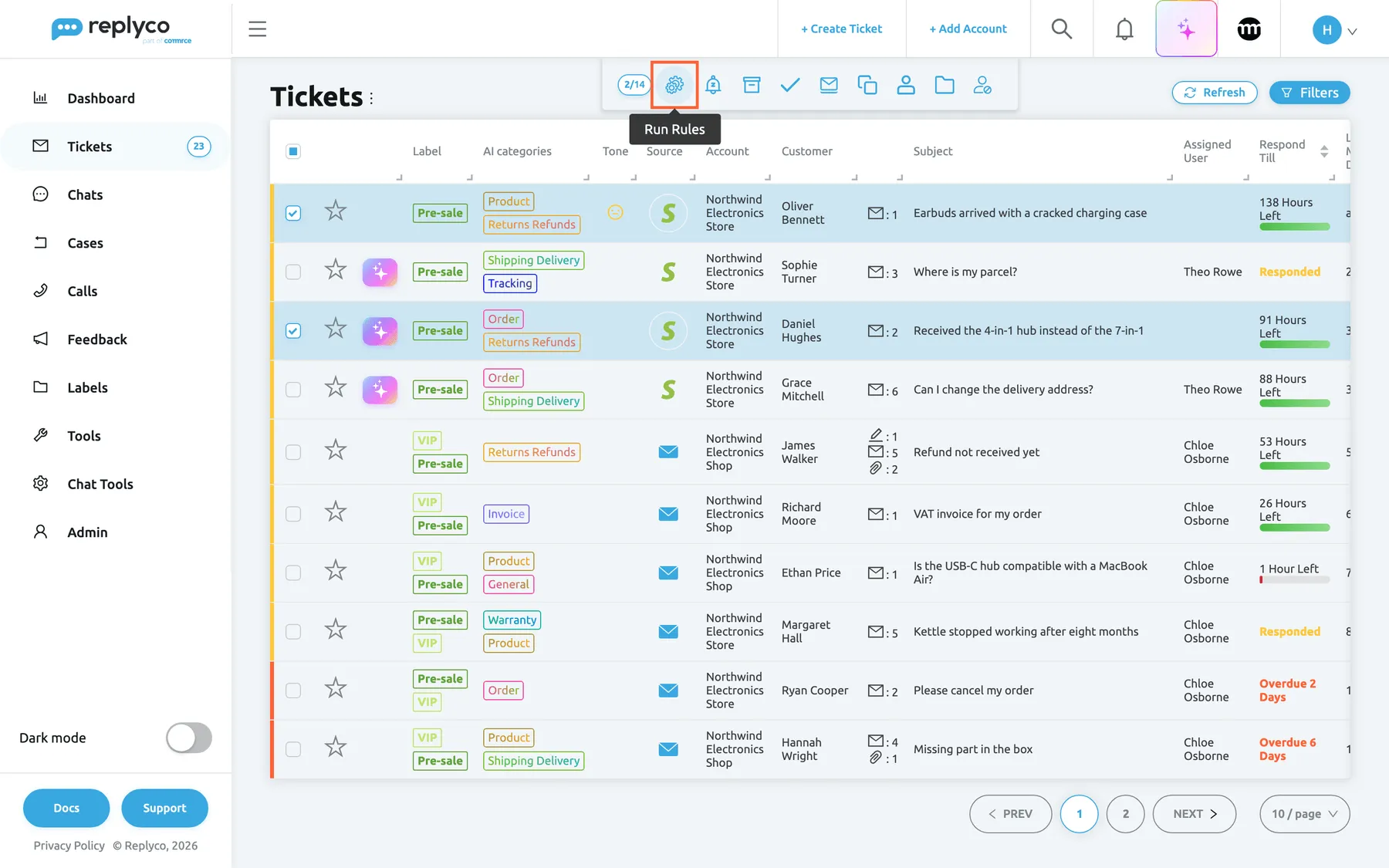
What this screenshot shows
- Screen
- Not Resolved (/tickets/notresolved)
- Highlighted
- button “Run Rules”, top-center, hovered. runs every active rule on the latest message of each selected ticket
- Also visible
- two rows ticked; counter 2/14; tooltip Run Rules
- Purpose
- run rules on existing tickets
Replyco runs every switched-on rule, in the order of the Rules tab, on the latest message of each ticked ticket, shows Success and reloads the list. The latest message can be your own reply, so a rule that looks at the customer’s words or tone may not match. Auto-responses are not sent this way, and tickets of blocked customers are included. For the whole bar, see Ticket lists.
Every control, explained
Section titled “Every control, explained”The Rules tab has a list with a header and a details panel, and a full-width form for creating and editing.
Rules tab
Section titled “Rules tab”ToolsAutomation, first tab in the left column under Automation. The address ends in ?tab=rules, and opening the menu item without a tab lands here too.
Opens the list of message rules for tickets. The tab is visible to everyone with the Automation permission; without its edit level, saving, reordering and deleting are refused with You don't have enough rights.
Rules, templates and auto-responses sit side by side because they work on the same incoming messages.
Create New
Section titled “Create New”Top right corner of the tab, next to the heading.
Opens the empty form Create Rule with one empty condition, Active at OFF and no actions. It shows a spinner while a new rule is being saved.
Start a rule from scratch. To start from an existing one, use Copy instead.
Rule card
Section titled “Rule card”Each card holds the rule’s name and these controls, from left to right:
| Control | What it does | Why |
|---|---|---|
| Drag handle | Moves the rule up or down; saves on drop | The order decides which rule has the last word |
| Name | Opens the details panel | Read before you change |
| Clock icon | Opens the rule’s history in the details panel | Find out who changed a rule and when |
| Pencil icon | Opens the form Edit Rule | Change the rule |
| Copy icon | Opens a filled form that saves as a new rule | Write a variant without starting again |
| Bin icon | Asks Are you sure you want to delete this rule? and deletes on Yes | Remove rules you no longer need |
| Switch | Switches the rule on or off; saves at once | Pause a rule without losing it |
Details panel
Section titled “Details panel”Right of the list, after you select a rule’s name.
Shows the name, Conditions with each condition written out and joined by AND and OR, and Actions with each action’s value. At the bottom: Delete (asks Are you sure you want to delete this item?), Copy and Edit. The cross closes the panel.
Check exactly what a rule matches and does before you change, move or delete it.
First field of the form, under General Info.
The rule’s name in the list, in the ticket history row Rule Escalations applied and in the rule’s history. Required: saving without it gives You cannot save a Rule without name.. Names do not have to be unique.
The ticket history shows only the name, so a name that says what the rule does, such as Escalations, explains a change without opening the rule.
Active
Section titled “Active”Under the name, on the right. The switch on each card in the list does the same.
ON means the rule runs on new messages and with Run Rules; OFF keeps it without running. A new rule starts at OFF; a copy starts as the original was. In the form it takes effect when you save; on the card it saves at once.
Save a rule switched off, check it in the details panel, then switch it on.
Select Source, comparison and value
Section titled “Select Source, comparison and value”Each row under Conditions: the source on the left, then the comparison (Select Condition until chosen) and the value, and a bin icon at the end.
The source decides what is compared. Text sources offer Contains, Not Contains, Starts With, Ends With and, except for the message’s text and subject, Equals. Dates offer More Than and Less Than a number of days ago; the details panel adds day(s) ago. Numbers offer Equals, Equals or More Than and Equals or Less Than. Sources that can be empty add Not Set (N/A). Language, Marketplace, Account, Assigned To, Ticket Status and Day of week show a list instead; Day of week takes several days. Changing the source clears the comparison and the value.
Each source is one fact about the message, ticket, customer, order or product; see Rules for incoming tickets for what each one compares.
Add New Condition, Add New Group and the bin icons
Section titled “Add New Condition, Add New Group and the bin icons”Add New Condition and a bin icon under each group; Add New Group below the last group; a bin icon at the end of each condition row.
Add New Condition adds a row joined by AND to that group. Add New Group adds an alternative group joined by OR, but not while the last group is empty. The bins remove a condition or a whole group.
Build “this and that” in one group and “this or that” with groups.
Actions
Section titled “Actions”The actions under Actions, in the order the form shows them:
| Action | What it does | Why |
|---|---|---|
| Update Ticket Status | Select New Status: Not Set or Resolved | Resolve notifications that need no reply |
| Update Ticket Priority | Select New Priority: one of your priorities, with its deadlines | Start the right deadline without triage |
| Allocate into Label | Select Label to assign: one or more labels, added to those the ticket has | Give each kind of ticket its own list |
| Allocate User | Select User: one colleague, replacing any assignee | Route tickets to the right person |
| Archive Ticket | Switch; archives the ticket | Keep automatic notices out of your lists |
| Mark as Read | Switch; marks the message and the ticket as read | Stop notices from counting as unread |
| Change Order Tag | Select New Linnworks Order Tag: tag 1 to 6 on the Linnworks order | Mark orders in Linnworks from the message |
| Change Order Lock State | Lock or Unlock | Stop an order from changing while a question is open |
| Change Order Park State | Park or Unpark | Hold an order, for example on a cancellation request |
The three Linnworks actions appear only while a Linnworks account is connected and act only on tickets whose order comes from Linnworks; see Linnworks.
Save, Back and the contents list
Section titled “Save, Back and the contents list”Back above the form’s heading, Save on the right of it; the contents list and a second Save in the column on the right.
Save checks the form and stores the rule, or shows the first problem. Back leaves without saving. The contents list jumps to General Info, Conditions or Actions.
Long rules scroll; the second Save keeps saving in reach.
History panel
Section titled “History panel”The clock icon on a card opens it in the details panel.
Lists created this message rule, updated this message rule. Click on this row to see changes, the switch lines and changed the priority of this message rule with name and date; an update line expands to show what changed. Close ends it.
When tickets suddenly behave differently, the rule’s history shows who changed what and when.
Run Rules
Section titled “Run Rules”In every ticket list under Tickets, the first icon of the bar that appears when tickets are ticked.
Runs every switched-on rule, in list order, on the latest message of each ticked ticket, then reloads the list. No auto-response is sent.
Apply a new or corrected rule to tickets that arrived before it.
Who sees what
Section titled “Who sees what”| Part of the tab | What shows it |
|---|---|
| The tab itself, under ToolsAutomation | The Automation permission (included in the Admin and Moderator roles) |
| Saving, copying, reordering, deleting | The edit level of Automation; otherwise You don't have enough rights |
| The switch on a card | Every user who sees the tab |
| Tone score (0 = furious, 1 = delighted) under Message | Replyco AI, part of every plan |
| Change Order Tag, Change Order Lock State, Change Order Park State | A connected Linnworks account |
| Run Rules in the ticket lists | Every user who can open a ticket list |
What you need to know
Section titled “What you need to know”| Topic | Fact |
|---|---|
| What runs | Every switched-on rule, top to bottom, on each new customer message. There is no “stop here”. |
| Required | A name, at least one condition with a value, at least one action. |
| New rules | Start switched off and are added at the bottom. |
| Order | Saved when you drop a card; later rules overwrite status, priority and assignee, labels add up. |
| Switch | Saves at once; a switched-off rule keeps its settings and place. |
| Copy | Copies name, switch, conditions and actions; saves as a new rule at the bottom. |
| Scope | Rules belong to the company: everyone with the tab sees and changes the same list. |
| Search | The list has none; every rule is shown. |
| Delete | Permanent; what the rule did to tickets stays. |
| Labels in use | A label that a rule adds cannot be deleted until you remove it from the rule. |
| Existing tickets | Not changed by a new or edited rule until you use Run Rules. |
Frequently asked questions
Section titled “Frequently asked questions”General
Section titled “General”What is a rule in Replyco?
Section titled “What is a rule in Replyco?”A rule is a saved instruction under ToolsAutomation, tab Rules: when a new customer message matches its conditions, Replyco carries out its actions, such as adding a label, setting a priority or assigning a colleague. Every switched-on rule is checked on every new customer message, from the top of the list down.
Which rules does a new company start with?
Section titled “Which rules does a new company start with?”Three switched-on rules: SLA Allocation gives every incoming message the priority 24 standard hours, Cancellations labels messages whose subject or text mentions a cancellation and gives them 24 standard hours as well, and Post-Sale labels tickets that have an order. In the German region they are SLA-Zuweisung, Stornierungen and Nachverkauf. Change, switch off or delete them on the Rules tab like any other rule.
Can I search the list of rules?
Section titled “Can I search the list of rules?”No. The Rules tab under ToolsAutomation shows every rule in run order, with no search box and no filter. Give rules names that say what they do, and select a name to read its conditions and actions in the details panel.
Creating and editing
Section titled “Creating and editing”Why won’t Replyco save my rule?
Section titled “Why won’t Replyco save my rule?”Save stops at the first problem and names it: You cannot save a Rule without name., You must set an Action for each rule in order to save., Every group must contain at least one condition. or You must set a value for each condition.. Fix what the message names, for example add an action or fill in a condition’s value, and select Save again.
I saved a rule but it does nothing. Why?
Section titled “I saved a rule but it does nothing. Why?”A new rule is saved with Active at OFF unless you switched it on in the form. Check the switch on its card on the Rules tab. A switched-on rule then acts on customer messages that arrive from now on; for older tickets, tick them in a ticket list and select Run Rules.
Does the order of rules matter?
Section titled “Does the order of rules matter?”Yes. Every switched-on rule runs on each new message from the top of the Rules list down, and a later rule that sets the same status, priority or assignee replaces what an earlier one set, while labels add up. Drag the card by its handle to change the order; Replyco saves it when you drop the card.
What happens to the original when I copy a rule?
Section titled “What happens to the original when I copy a rule?”Nothing. The copy icon or Copy opens a form filled with the original’s name plus (copy), its switch position, conditions and actions, and Save creates a new rule at the bottom of the list. The form is headed Create Rule, because saving creates a new rule.
I selected Back and my rule is gone. Can I get it back?
Section titled “I selected Back and my rule is gone. Can I get it back?”No. Back on the rule form leaves without saving, so unsaved changes are lost. Replyco only keeps what you saved with Save; the clock icon on the rule’s card shows each saved change.
Conditions and actions
Section titled “Conditions and actions”Can a rule look at the AI category of a ticket?
Section titled “Can a rule look at the AI category of a ticket?”No. The conditions under Select Source cover the message, ticket, customer, order and product, and the only AI value among them is Tone score (0 = furious, 1 = delighted). To work by AI category, filter the ticket list by category; see AI categories.
Can a rule send an auto-response or a template?
Section titled “Can a rule send an auto-response or a template?”No. Rule actions change the ticket: status, priority, labels, assignee, archive and read state, plus the Linnworks actions. Automatic replies are set up on the neighbouring tab under ToolsAutomation › Auto-response Rules; see Auto-responses for tickets.
Can a rule remove a label or unassign a ticket?
Section titled “Can a rule remove a label or unassign a ticket?”No. Allocate into Label only adds labels and keeps the ones a ticket has, and Allocate User always assigns one colleague. To remove labels or assignees, do it in the ticket or with the bulk actions of a ticket list; see Assign, label and merge tickets.
Why are the Linnworks actions missing from my rule form?
Section titled “Why are the Linnworks actions missing from my rule form?”Change Order Tag, Change Order Lock State and Change Order Park State appear under Actions only while a Linnworks account is connected to Replyco, and they act only on tickets whose order comes from Linnworks. See Linnworks.
Running rules
Section titled “Running rules”Do rules run on messages I send?
Section titled “Do rules run on messages I send?”No. Rules run on incoming customer messages. Your replies, and messages that arrive as sent by your company, are not checked. Run Rules in a ticket list is the exception: it runs on each ticket’s latest message, which can be your own reply.
How do I apply a new rule to tickets that are already there?
Section titled “How do I apply a new rule to tickets that are already there?”Open a ticket list under Tickets, tick the tickets and select Run Rules in the bar at the top. Replyco runs every switched-on rule on the latest message of each ticket, in the order of the Rules tab; no auto-response is sent.
Who can run rules from a ticket list?
Section titled “Who can run rules from a ticket list?”Everyone who can open a ticket list: Run Rules appears in the bar at the top of every list. It runs the rules exactly as they are saved under ToolsAutomation, so running them never changes a rule; changing rules needs the edit level of Automation.
Data and history
Section titled “Data and history”Where can I see that a rule changed a ticket?
Section titled “Where can I see that a rule changed a ticket?”In the ticket’s history, the grey rows between the messages: a rule that matched leaves Rule Escalations applied, or Henry Clarke ran rule Escalations when someone applied it with Run Rules, without listing what it changed. History rows appear for users who have Load user logs in the ticket switched on in Account Settings. See The ticket screen.
Can I see who changed a rule?
Section titled “Can I see who changed a rule?”Yes. The clock icon on the rule’s card on the Rules tab shows who created it, switched it, changed it and moved it, with dates. Select an update line to see which of the name, conditions or actions changed, and their previous values.
Troubleshooting
Section titled “Troubleshooting”| Symptom | What to check |
|---|---|
| A new rule does nothing | The switch on its card: new rules are saved at OFF. Then whether the message arrived after you switched it on; for older tickets use Run Rules. |
| A rule set a priority, but the ticket shows another | A rule further down the list set a different priority, or tone analysis replaced it; see Rules for incoming tickets and Message tone analysis. |
| You must set a value for each condition. | A condition has no value, or a row has no source picked. Fill in the value, or delete the empty row with its bin icon. |
| Every group must contain at least one condition. | A group has no condition left after you deleted its rows. Delete the empty group with the bin icon next to its Add New Condition. |
| The details panel shows [priority deleted], [user deleted] or [account deleted] | The priority, user or account was deleted. The condition or action no longer works; edit the rule and pick a current one. |
| Saving is refused with You don't have enough rights | Your user has only the view level of Automation. Ask an administrator; see User permissions and roles. |
| A label cannot be deleted: “This Label is used in rules” | The message names up to three rules that add the label. Remove it from those rules, then delete the label. |
| Run Rules changed nothing | The latest message of the ticket is your own reply, so text, language and tone conditions do not match it, or no switched-on rule matches. |
Related
Section titled “Related”- Rules for incoming tickets: how rules run, every condition and action, worked examples
- Message tone analysis · Ticket priorities and SLA · Priorities & SLA
- Ticket lists · Blocked tickets · Assign, label and merge tickets
- Templates · Auto-response Rules · Labels
- Linnworks · User permissions and roles