

Answer a chat
Answer a customer who wrote on WhatsApp, Facebook Messenger, Instagram, Telegram, TikTok Shop or your live chat widget, and Replyco sends your reply back on that channel at once. You can start from a chat template, polish your text with AI Help and attach a file. The channel decides what it accepts: WhatsApp, Messenger and Instagram take an ordinary reply only within 24 hours of the customer’s last message, so answer chats while they are fresh.
Before you start
Section titled “Before you start”| You need | Where it lives |
|---|---|
| The Chats permission and access to the chat’s account or live chat widget | Set by an admin in AdminUsers; see Invite users and set what they can do |
| A connected chat account or a live chat widget | Social media and phone accounts, Live chat widget |
| Chat templates, if you want to start from one | Chat ToolsAutomation; see Chat templates |
Availability: chats, WhatsApp, the live chat widget and AI are part of every plan. See What each plan includes.
-
Open ChatsMy Chats for the chats assigned to you, or ChatsOpen for all open chats you are responsible for, and select a chat.
Rows with a red waiting time have waited 10 minutes or more; answer those first. The conversation opens in the middle, and opening it marks its messages as read for your whole team.
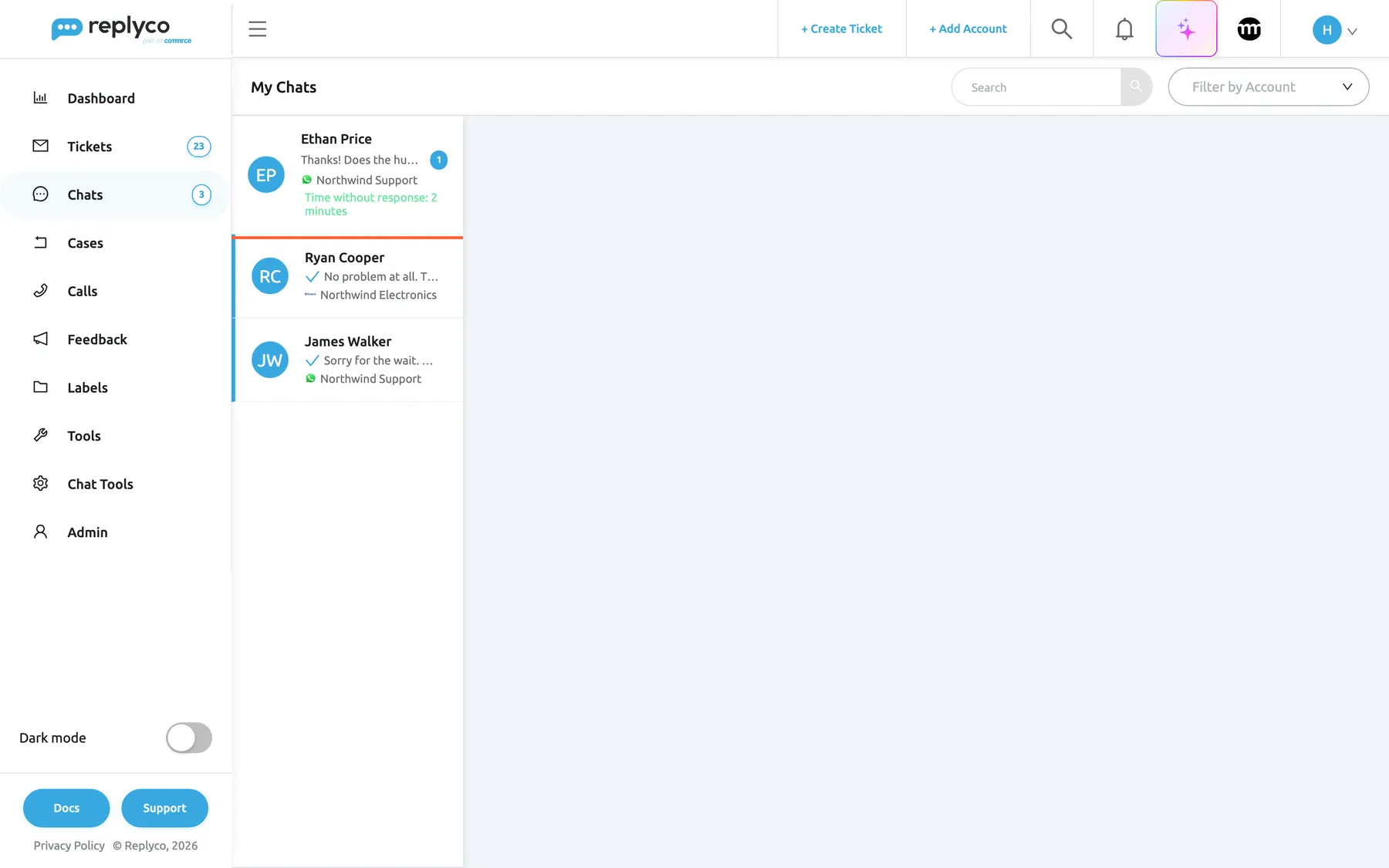
My Chats holds the open chats assigned to you; start with the one that has waited longest. What this screenshot shows
- Screen
- My Chats (/chats/myChats)
- Highlighted
- button “”, chat-list, unread. opens the chat
- Also visible
- heading My Chats; Search and Filter by Account, no user filter; 3 chats: 1 unread with time without response, 2 with a reply tick
- Purpose
- find the chat to answer
-
Read the conversation and, for a long chat, the AI Summary in the side panel.
Check Customer Details as well: if no customer is linked, the reply box is disabled and shows Select the recipient to send the message to..., so pick the customer in Select customer first. Everything in the side panel is explained in Chat list and conversations.
-
(Optional) Start from a chat template: select the form icon right of the reply box, open the list in Select Template and pick a template.
The template’s text replaces whatever is in the box. Chat templates have no placeholders, so add the customer’s name or order details yourself.
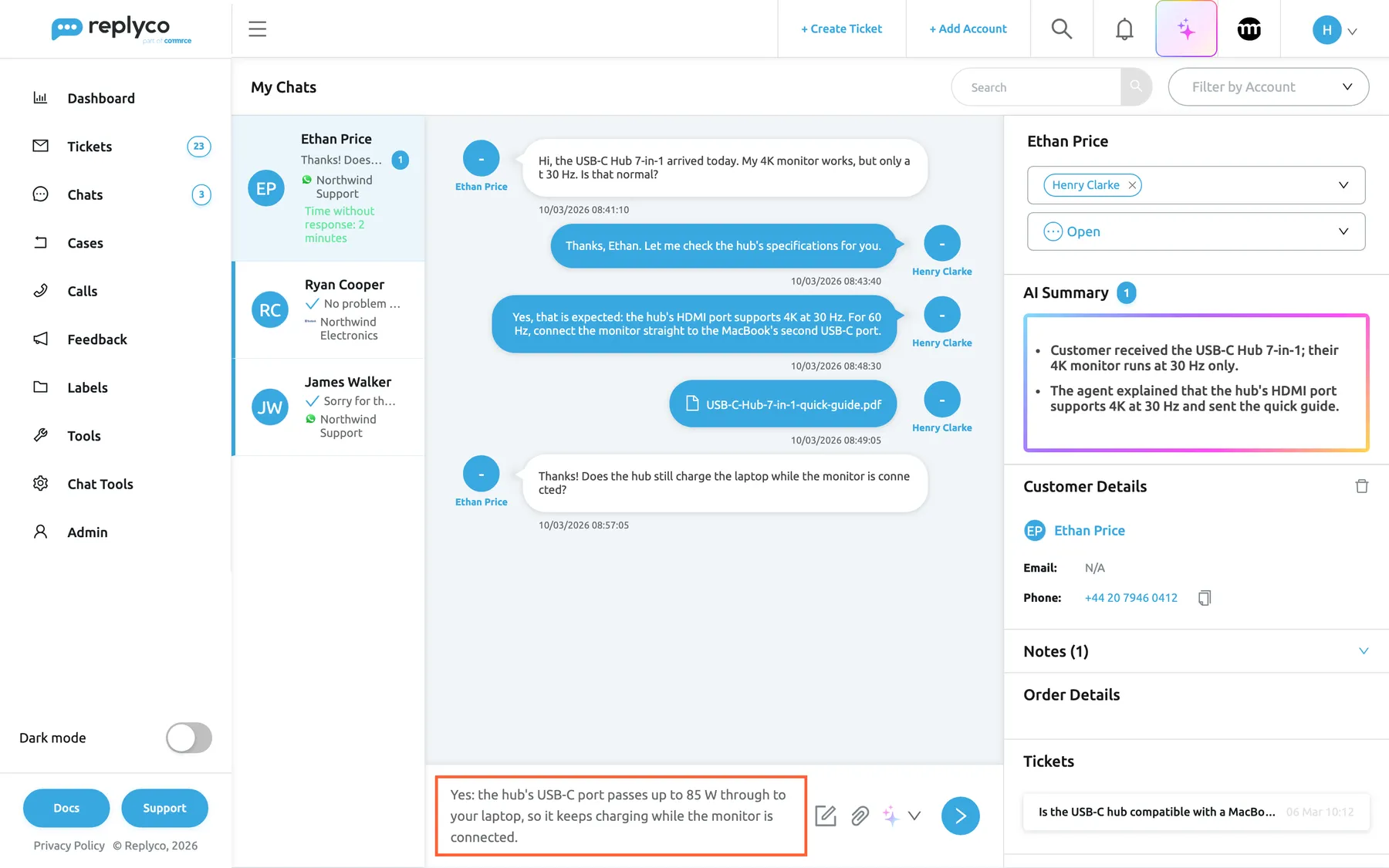
A chat template fills the text box; change what you need, then press Enter or the arrow to send. What this screenshot shows
- Screen
- My Chats (/chats/:type/:chatId)
- Highlighted
- textbox “Type your message...”, composer, filled from a template. holds the reply until it is sent
- Also visible
- customer's question about charging; template text in the box; template icon, paper clip, AI Help, send arrow
- Purpose
- write the reply
-
Write or finish your reply in the box. Shift+Enter starts a new line.
-
(Optional) Select AI Help and pick a rewrite, for example Improve Writing or Correct Spelling.
The AI’s version replaces your text in the box; read it before you send. With an empty box, AI Help does nothing.
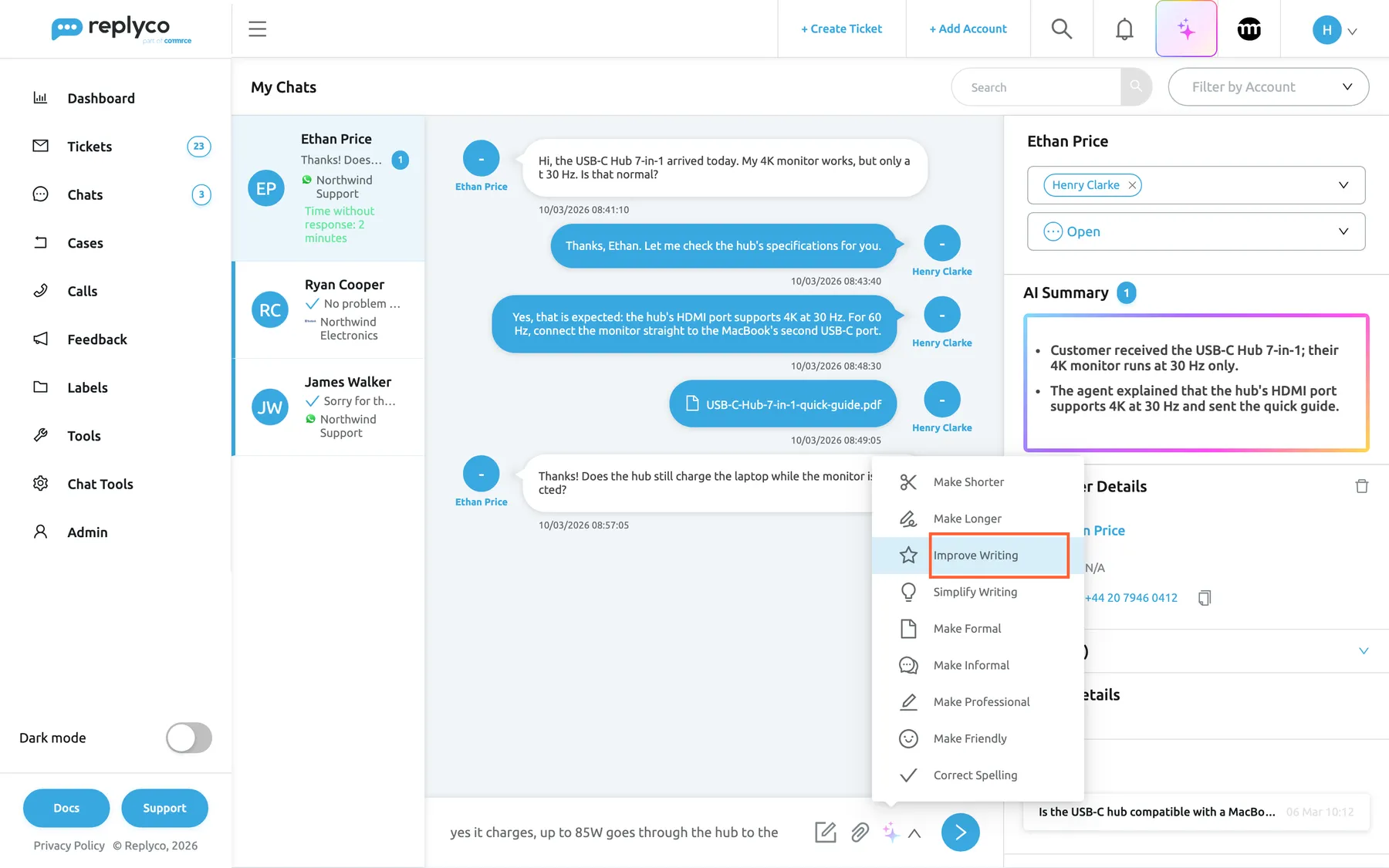
AI Help rewrites what you typed, for example to improve the writing or correct the spelling. What this screenshot shows
- Screen
- AI Help (/chats/:type/:chatId)
- Highlighted
- menuitem “Improve Writing”, composer-menu, highlighted. rewrites the text in the box
- Also visible
- draft in the text box; 9 AI Help choices
- Purpose
- polish the reply with AI
-
Press Enter or select the blue arrow to send.
-
(Optional) To send a file, select the paper clip, Add attachment, and pick it. The file goes out at once, with any text in the box, so write the text first.
What happens next
Section titled “What happens next”Your reply appears in the conversation straight away, on the right in blue with your name. In the list, the chat’s row gets a blue tick, and the red, yellow or green waiting time disappears. Replying assigns you to the chat if you were not assigned yet, so it now appears in your My Chats, and any auto-response still waiting in the chat is cancelled.
Whether the customer receives it is up to the channel. Messenger and Instagram refuse a reply outside their 24-hour window at once, with an error pop-up, and the reply is not kept. WhatsApp accepts the reply first and reports a refusal a little later: the reply then shows Error Sending in red with WhatsApp’s reason.
When the matter is settled, close the chat with the status select in the side panel. If the customer writes again, the chat reopens by itself, with you still assigned.
Channel limits
Section titled “Channel limits”| Channel | When you can reply | Files you can send | Edit and delete your message |
|---|---|---|---|
| Within 24 hours of the customer’s last message; later, WhatsApp refuses ordinary replies, and Replyco cannot send WhatsApp’s approved message templates | Pictures (.jpg, .png), videos (.mp4, .3gp), stickers (.webp), audio (.mp3, .mpeg, .amr, .ogg), anything else as a document; up to 20 MB | No | |
| Facebook Messenger | Within 24 hours of the customer’s last message | Files up to 20 MB | No |
| Within 24 hours of the customer’s last message | Pictures only (.bmp, .ico, .jpg, .jpeg, .png), up to 20 MB | No | |
| Telegram | Replyco sets no time limit | Files up to 20 MB | Yes, also in the customer’s Telegram; you can also reply to a single message |
| TikTok Shop | Replyco sets no time limit | Files up to 20 MB | Delete only, and it removes the message only in Replyco; no edit |
| Live chat | Replyco sets no time limit; the customer sees your reply in the widget | Files up to 20 MB | Yes; the widget shows the change |
On WhatsApp and Messenger, opening the chat also tells the customer that you have read their messages. WhatsApp chats never get an auto-response, unlike the other channels here, so a WhatsApp customer hears nothing until you reply.
Options
Section titled “Options”| Choice | When to pick it | Effect |
|---|---|---|
| A chat template | A common question, such as delivery times or returns | Fills the box with the template’s text |
| AI Help | Your draft is short, rough or in the wrong tone | Rewrites the text in one of nine ways, from Make Shorter to Correct Spelling |
| Reply to Message (right-click a message) | A Telegram chat where you answer an earlier question | Quotes that message above your reply |
| Edit (right-click your message) | A typo in a reply on live chat or Telegram | Puts the text back into the box; sending saves the change |
| Transcript (three-dot icon, live chat) | The customer wants the conversation in writing | Emails the chat as a new ticket; see Chat list and conversations |
| Assign a colleague | Someone else should take over | Adds them in Assigned; the chat appears in their My Chats |
If something goes wrong
Section titled “If something goes wrong”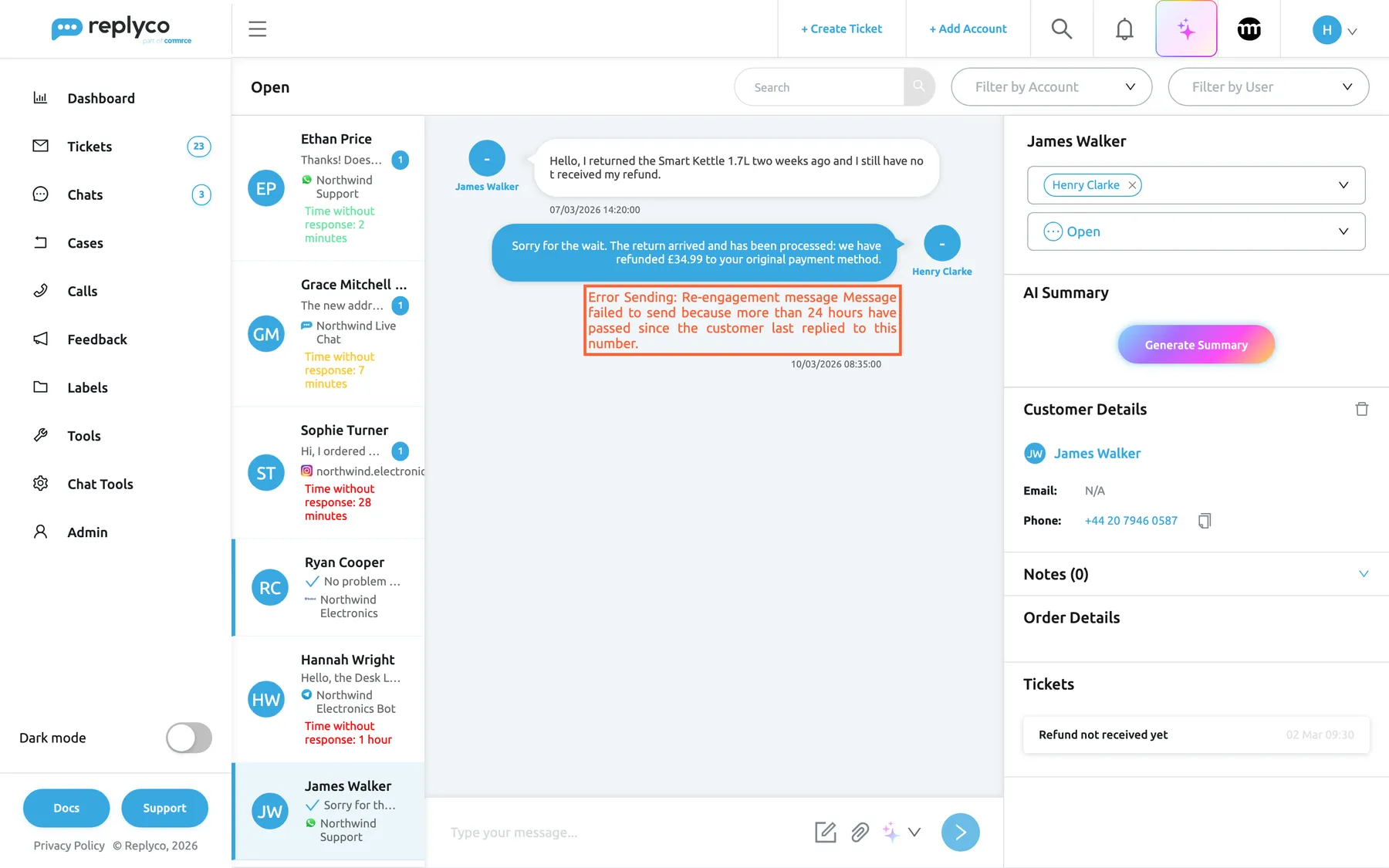
What this screenshot shows
- Screen
- Open (/chats/:type/:chatId)
- Highlighted
- paragraph “Error Sending”, conversation, failed. none; explains why WhatsApp refused the reply
- Also visible
- customer message of 07/03/2026; reply of 10/03/2026 with the WhatsApp error; Generate Summary
- Purpose
- the WhatsApp 24-hour window
| Symptom | Check | Fix |
|---|---|---|
| Error Sending with “Re-engagement message” on WhatsApp | The customer’s last message is more than 24 hours old. | WhatsApp accepts no ordinary reply until the customer writes again. Reach them another way, for example by email or on the marketplace of their order, and reply on WhatsApp within 24 hours of their next message. |
| An error pop-up beginning “2018278: You are not allowed to do any actions with chat where user was inactive more than 24hrs” on Messenger or Instagram | The customer has not written for more than 24 hours. | As for WhatsApp: the reply was not sent and not kept; contact the customer another way. |
| An error pop-up “This action is temporary unavailable according new Facebook privacy policy in Europe.” | Meta blocked the reply under its privacy rules in Europe. | The reply was not sent; contact the customer another way. |
| The reply box is greyed out with Select the recipient to send the message to... | No customer is linked to the chat. | Pick the customer in Select customer under Customer Details. |
| The reply box is greyed out without a tooltip, or Connection unstable. Retrying (attempt {{attempt}}/{{max}})... | Your browser lost its connection to Replyco’s chat service. | Check your internet connection and reload the page. |
| Failed to send message. Please check your connection., and the reply shows Error Sending with Retry | The connection failed while sending. | Select Retry under the reply once you are online again. |
| File size is more than 20MB. | The file is over 20 MB. | Send a smaller file, or a link to it. |
| The template list is empty | Your company has no chat templates yet. | Create them in Chat templates. |