

Fix a blocked or silent account
This page covers a connected account that shows Blocked on AdminAccounts, and an account that looks fine but brings in no new messages or orders. Replyco blocks an account when it can no longer sign in to the marketplace or mailbox on your behalf; a blocked account does not sync until you fix the cause, and then it catches up on its own. For every other status an account can show, see Accounts.
Availability: needs the Admin permission (see User permissions and roles).
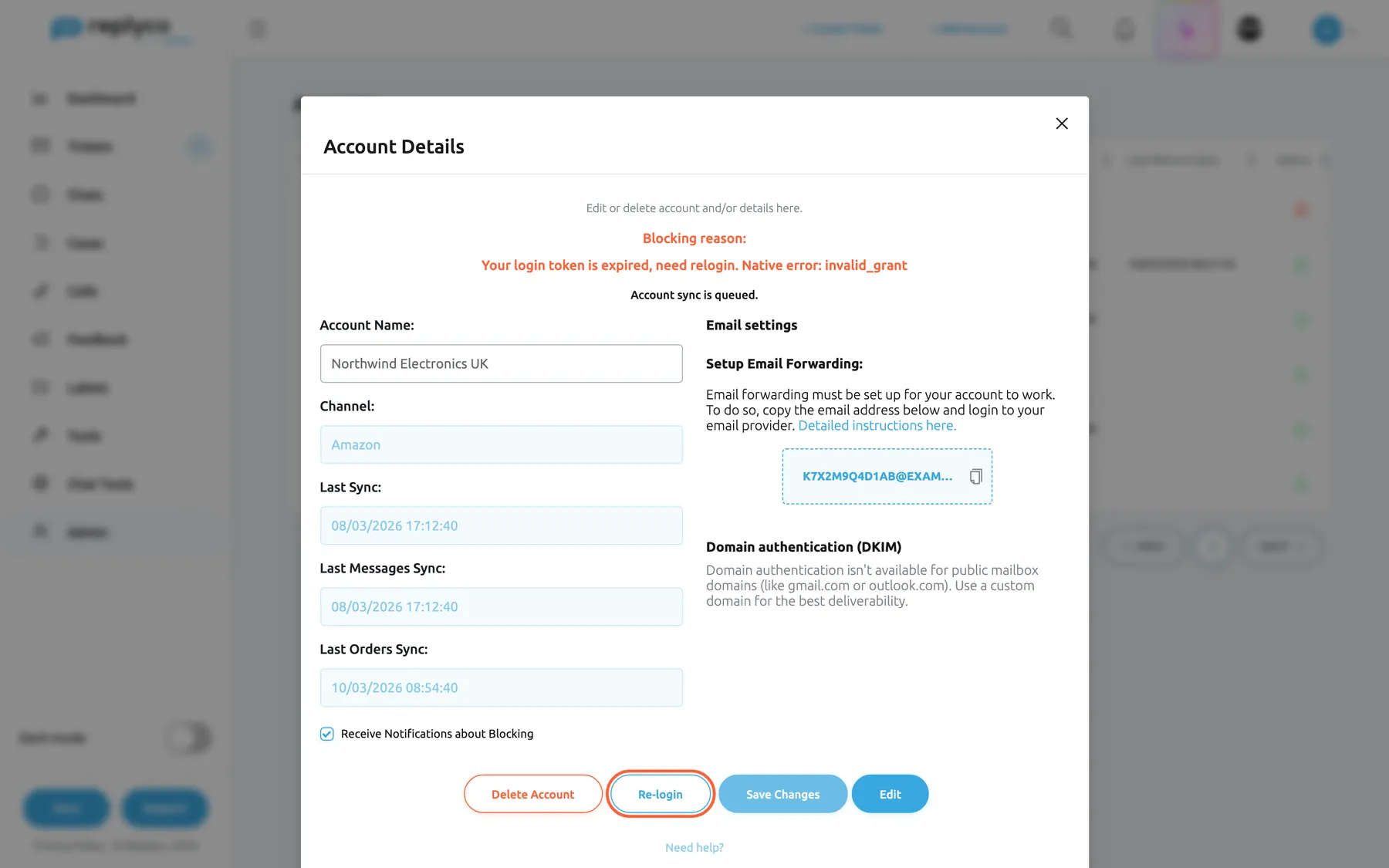
What this screenshot shows
- Screen
- Accounts (/integrations)
- Highlighted
- button “Re-login”, account-details-dialog, enabled. opens the marketplace to sign in again
- Also visible
- Blocking reason: login token expired; account name and last sync dates; Receive Notifications about Blocking check box
- Purpose
- fix an account blocked by an expired login
Symptoms
Section titled “Symptoms”| Symptom | What to check | Fix |
|---|---|---|
| The account shows Blocked in red in the Synchronization column | Open the account and read the text after Blocking reason:. A reason that mentions an expired login token means the marketplace no longer accepts Replyco’s access: you changed your password, removed Replyco’s access in the marketplace, or the access expired. | Select Re-login and sign in to the marketplace again with an account that has admin rights. The block and the reason are cleared when you come back to Replyco. |
| The account shows Blocked and the reason starts with “Error:” | The reason names the mail server that failed. A mailbox connected through your own IMAP or SMTP server is blocked after more than five failed connections, for example because the mailbox password changed. | Update the password in the account’s details and select Unblock. See Mailbox with IMAP and SMTP for the server settings. |
| The lock in the Status column is red with Account is Temporarily Blocked., but there is no Re-login button | The account was blocked for a reason a new sign-in does not fix. | Select Unblock. If it is blocked again, contact support with the blocking reason. |
| A lock with Marketplace data sync is Temporarily Blocked. in the Last Orders Sync column | Messages still arrive; only orders, feedback or returns stopped. Replyco stops fetching marketplace data after more than five failed attempts, typically when the marketplace no longer grants access to orders. | Select Re-login and approve every permission the marketplace asks for. For stores without it, such as BigCommerce and Magento, update the connection details with Edit; see Accounts. |
| The row has a red left border and the account shows You have reached the limit of accounts. Please reach out to our support | You have more accounts than your plan allows. | Contact support to lift the block; see Help and support. For what your plan includes, see What each plan includes. |
| No account is blocked, but nothing new arrives in any account | Open AdminBilling. When a payment fails or a trial ends without a subscription, Replyco pauses syncing for the whole company without marking any account. | Update the payment method; see Billing. Syncing resumes within a few minutes. |
| One account is not blocked but its last sync is old | Open the account: Account sync is queued. means the account waits for its turn; Account Sync is in progress. means it is syncing now. New messages are fetched about every five minutes. | Wait ten minutes. If the time under Last Messages Sync still does not move, contact support. |
| You were never told that an account was blocked | Open the account and look at Receive Notifications about Blocking. When it is off, Replyco sends no email or in-app notice about blocks. | Tick Receive Notifications about Blocking and save. |
Still stuck
Section titled “Still stuck”Contact support through Support in the user menu at the top right, and include:
- the account’s name as it appears in the list, and its marketplace;
- the full text after Blocking reason:;
- the time you last saw new messages from that account.
Support can see each account’s sync history and the marketplace’s last answer, and can put an account at the front of the sync queue.
Related: Accounts · Accounts and integrations FAQ · Connect Amazon