

Sign in
The sign-in screen is the way into Replyco for every user: you enter your email address and password, then the six-digit code from your authenticator app. The same screens let you get back in when something is missing: a forgotten password, or a lost phone with the authenticator on it. Replyco opens the sign-in screen whenever you are not signed in, and after you sign in it takes you to the page you wanted. Your session then stays open in that browser, without new codes, until something ends it, such as Log Out in the user menu.
Availability: every plan includes signing in and every recovery on this page. Every new user must use two-factor authentication, on every plan, and every user who has it set up is asked for a code.
What you can do here
Section titled “What you can do here”- Sign in with your password and a code. Replyco checks the password first, then asks for the code from your authenticator app, which changes every 30 seconds. Sign in · Two-factor authentication
- Get back in without your authenticator. Reset 2FA Access on the code step confirms your password and a code sent by email, then shows a new QR code to scan. Reset two-factor authentication
- Set a new password. Forgot password? emails a link that lets you set a new password once. Reset a forgotten password
- Stay signed in, and sign out. Know how long a session lasts, what ends it, and how to end it yourself. Stay signed in and sign out
- Understand a refused or blocked sign-in. Several situations show the same message; this page tells them apart. When Replyco does not let you in
The screen at a glance
Section titled “The screen at a glance”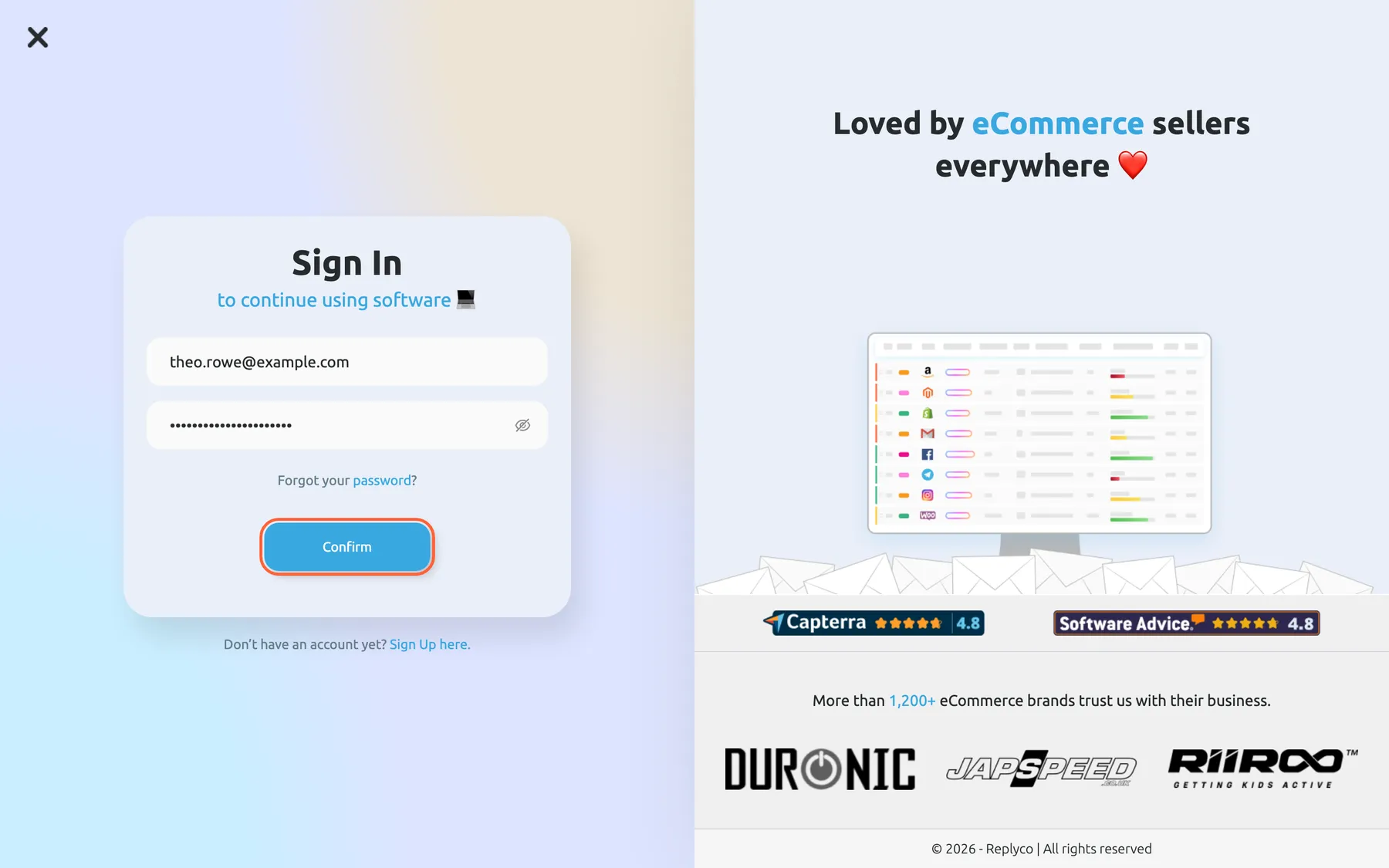
What this screenshot shows
- Screen
- Sign In (/signin)
- Highlighted
- button “Confirm”, card-bottom, enabled. checks the email address and password and asks for the two-factor code
- Also visible
- Work email filled with a sample address; Password filled and masked; Forgot your password? link; Sign Up here link
- Purpose
- first step of signing in
| Region | What it shows | What you do there |
|---|---|---|
| The sign-in card | Sign In, Work email and Password | Enter your address and password |
| Under the password | The link password | Reset a forgotten password |
| Confirm | The button that checks the password | Move on to the code step |
| Under the button, in some browsers | Continue with comrce Hub | Sign in with a linked comrce Hub account |
| Under the card | Sign Up here. | Create a new company instead |
| Top corner | A cross | Go back to the page you came from |
| The other half | Customer logos and ratings | Nothing; it is decoration |
The screen appears in German when your computer’s time zone is in Germany, Austria, Switzerland or Liechtenstein, and in English otherwise.
Sign in with your password and a code
Section titled “Sign in with your password and a code”-
Type the address of your user into Work email and your password into Password, then select Confirm or press Enter.
If a field is empty or the address is malformed, Replyco shows Please enter correct email or Please enter correct password under it. A wrong address or password gives the message “Cannot find this user or password is wrong”.
-
Replyco replaces the card’s fields with Verification code. Open your authenticator app, find the Replyco entry for your address and type its current six-digit code.
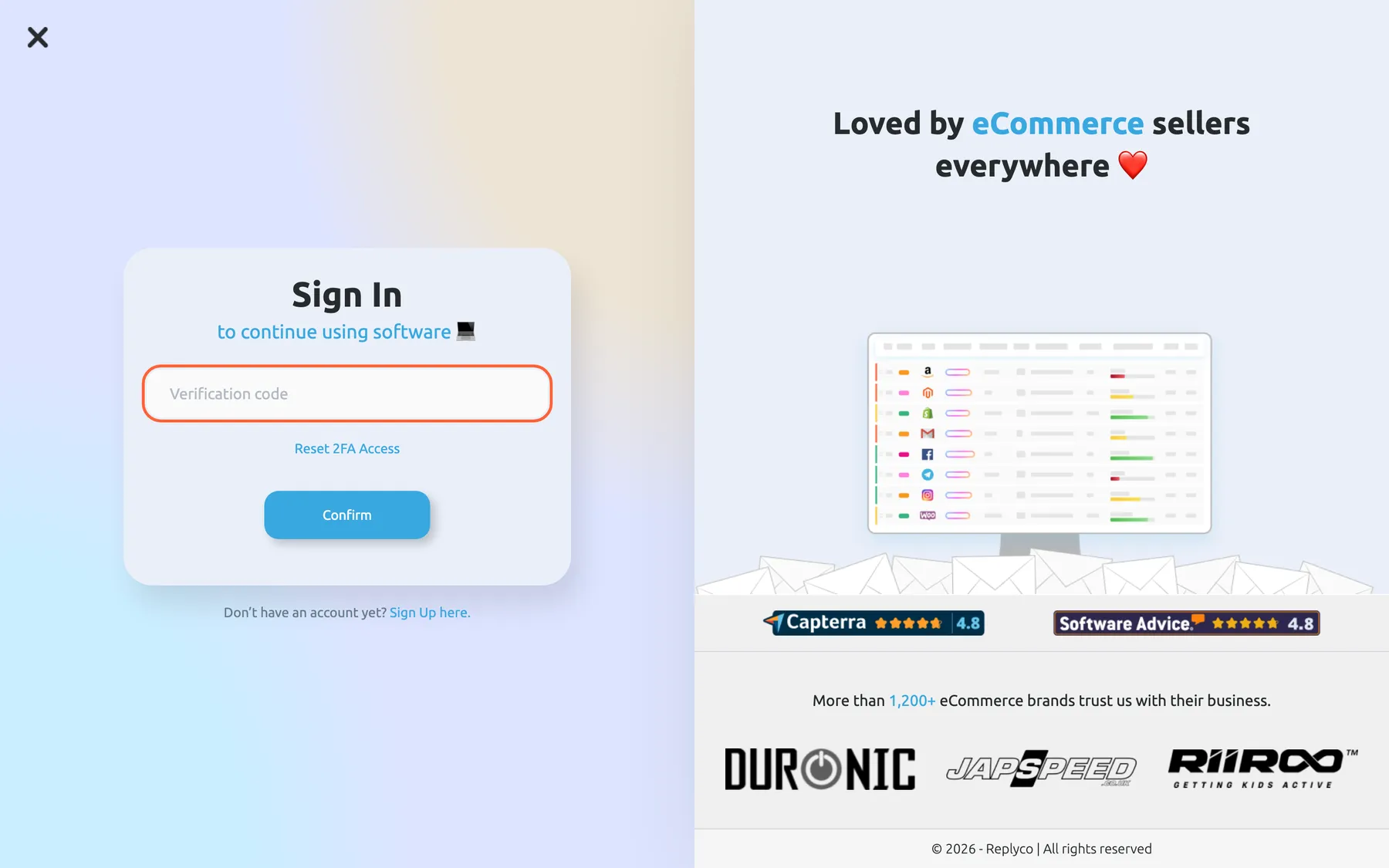
After the password, Replyco asks for the six-digit code from your authenticator app. What this screenshot shows
- Screen
- Sign In (/signin)
- Highlighted
- textbox “Verification code”, card-centre, empty. takes the six-digit code from the authenticator app
- Also visible
- Reset 2FA Access link; Confirm button
- Purpose
- second step of signing in, two-factor authentication
-
Select Confirm or press Enter.
Replyco opens the page you tried to reach, or the start screen.
The code step waits five minutes. After that, Replyco answers “Token is deprecated! Please retry login one more time” and returns to the first step with the password field empty; sign in again.
A wrong code gives Code is invalid and you can try again. Codes change every 30 seconds, and Replyco checks them against the time on your computer while your app makes them from the time on your phone, so both clocks must be right: set them to update automatically. After the fifth wrong code in a row, Replyco blocks your user and sends an email; see When Replyco does not let you in.
Users without two-factor authentication. Every new user must use two-factor authentication, on every plan: Sign up and the invitation both set it up. A user who has none set up, for example an invited colleague who used Skip 2FA for now after three wrong codes, signs in with the password alone and never sees the code step. Anyone can switch it on in Account Settings, tab Two-factor authentication; once on, it cannot be switched off there. See Two-factor authentication.
Invitations. The link in an invitation email opens a variant of the sign-in screen that says You've been invited to join! Login to finish your registration.. There you enter your address, create your password and set up two-factor authentication as in sign-up; after three wrong codes it offers Skip 2FA for now. The invitation itself is explained in Invite users and set what they can do.
Reset two-factor authentication
Section titled “Reset two-factor authentication”Use this when your authenticator app is gone: a new phone, a deleted app, a colleague’s phone that left with them. You need your email address and your password.
-
Sign in with your address and password until the code step, then select Reset 2FA Access under Verification code.
-
On the Reset 2FA Access screen, enter your address and password again and select Send Request.
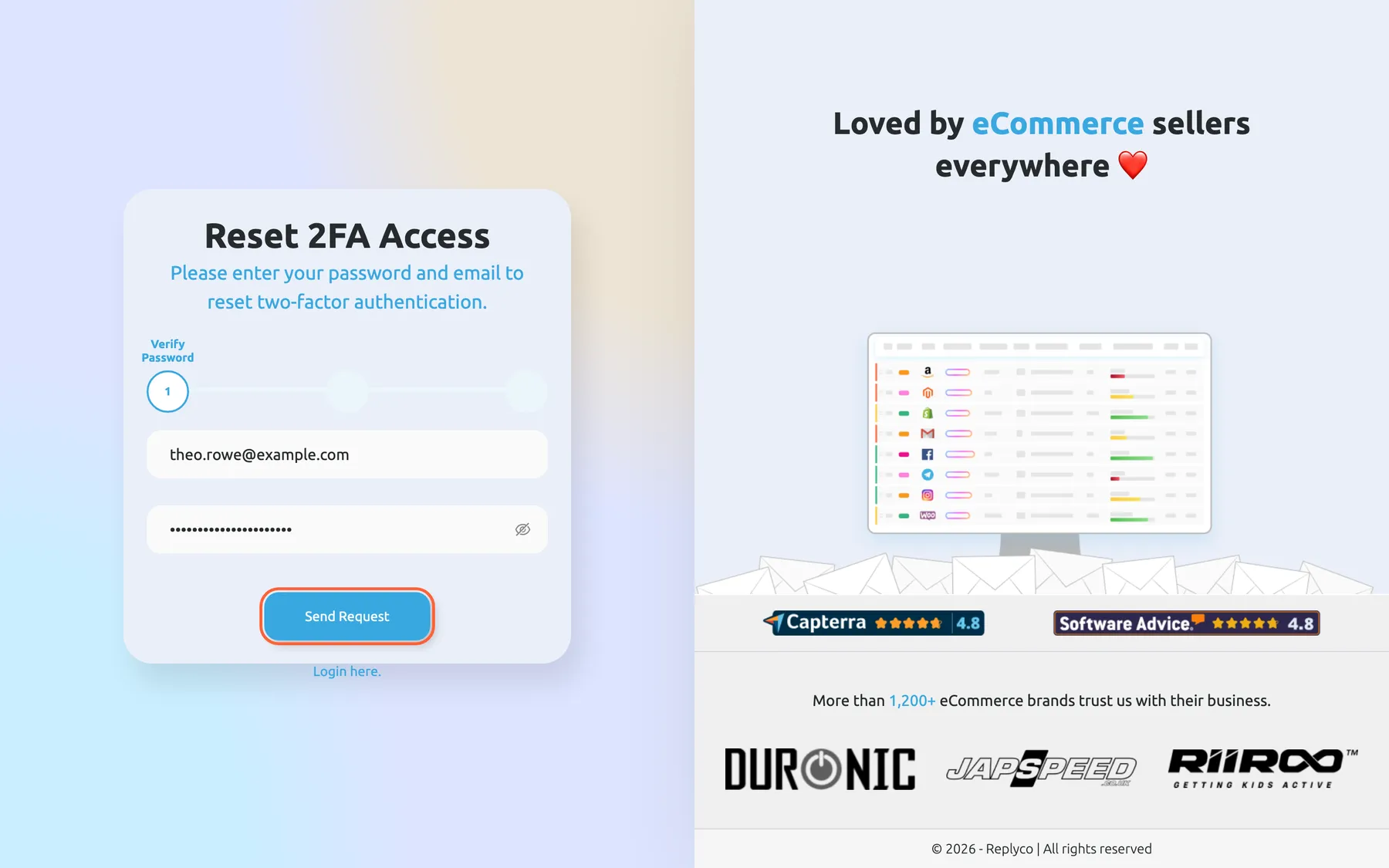
Lost your authenticator? Confirm your email address and password to receive a reset code by email. What this screenshot shows
- Screen
- Reset 2FA Access (/reset-two-factor-authentication)
- Highlighted
- button “Send Request”, card-bottom, enabled. checks the password and emails a six-digit reset code
- Also visible
- step 1 of 3, Verify Password; Work email filled; Password filled and masked; Login here link
- Purpose
- start resetting two-factor authentication without the authenticator
Replyco checks the password and emails you a six-digit code. A wrong password gives “Credentials are incorrect”; an address without a user gives “Wrong credentials”.
-
Type the code from the email into the field under An email with instructions to reset your two-factor authentication has been sent to your email address. and select Confirm.
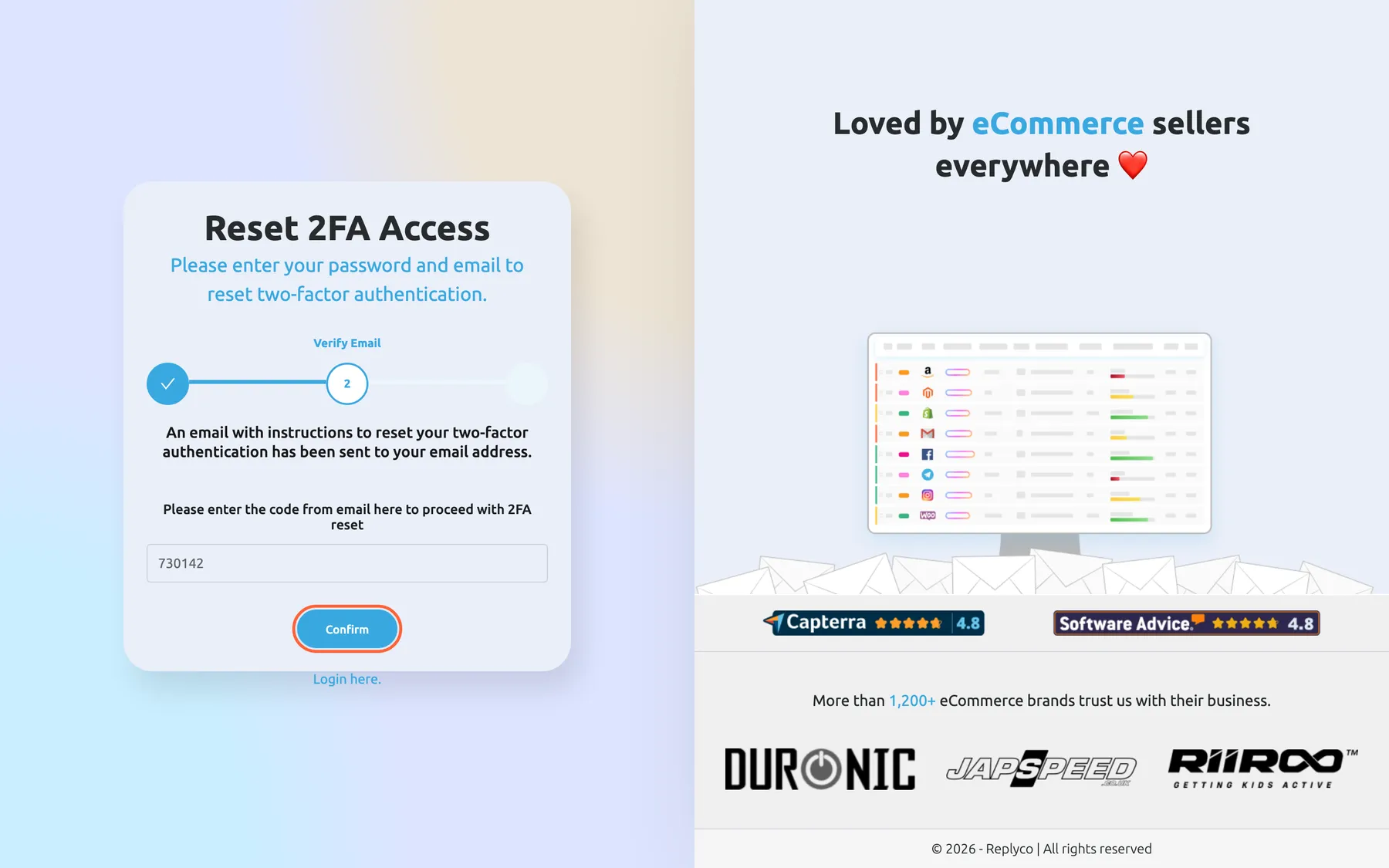
Enter the six-digit code from the email; Replyco then shows a new QR code for your authenticator app. What this screenshot shows
- Screen
- Reset 2FA Access (/reset-two-factor-authentication)
- Highlighted
- button “Confirm”, card-bottom, enabled. checks the emailed code and shows a new two-factor QR code
- Also visible
- message that the reset email was sent; code field filled with a six-digit sample code
- Purpose
- second step of resetting two-factor authentication
Replyco confirms with Two-factor authentication has been reset. Please set up your authentication app again to secure your account.. A wrong or expired code gives The code you entered is incorrect. Please try again..
-
Scan the new QR code with your authenticator app, or type the setup key into it, then select Continue and sign in with the new code.
The emailed code is valid for one day. If you are already signed in, for example on another computer, reset from Account Settings, tab Two-factor authentication, instead; see Two-factor authentication.
Reset a forgotten password
Section titled “Reset a forgotten password”-
On the sign-in screen, select password in the line under the password field.
-
Enter the address of your user into Work email and select Send Request.
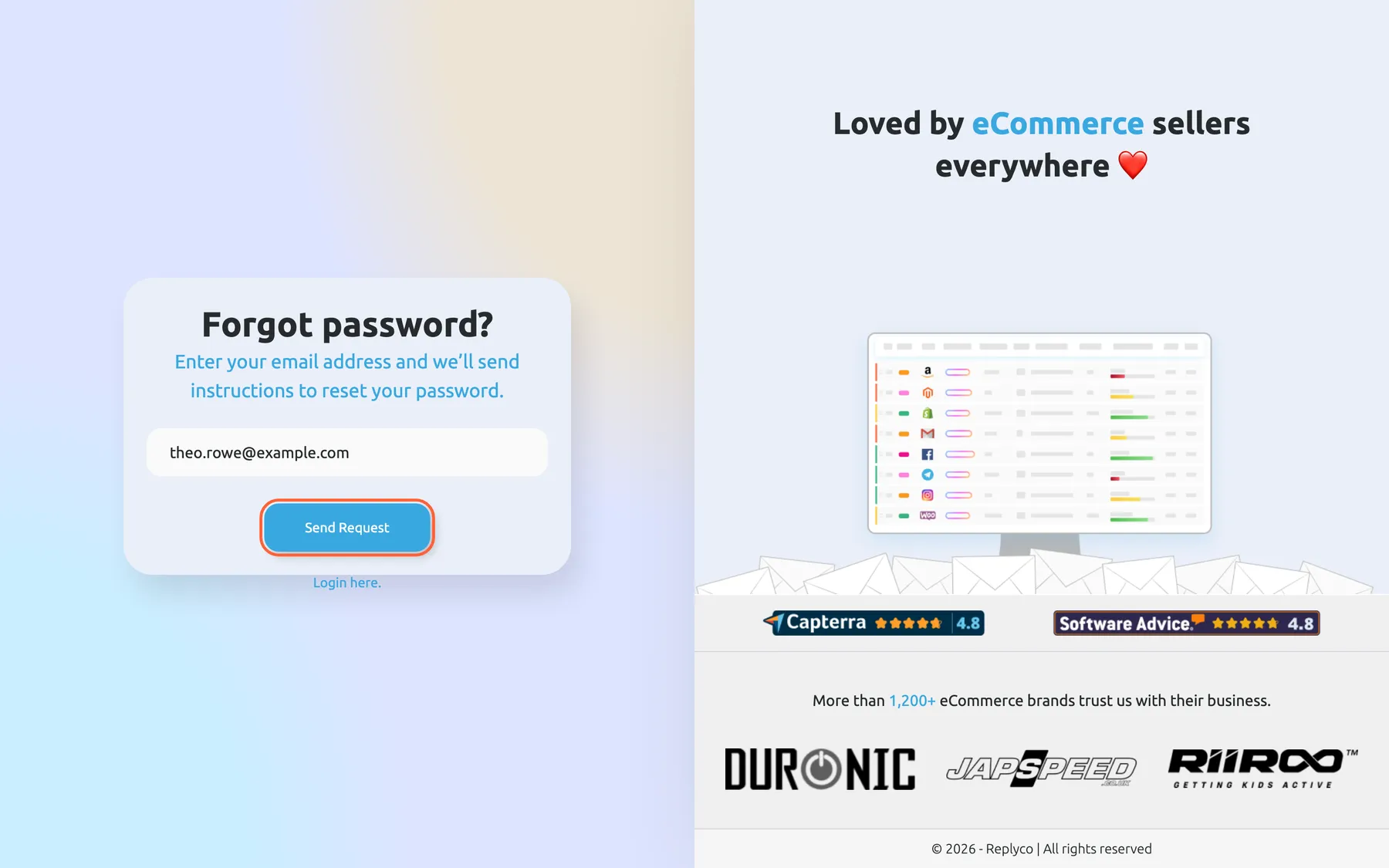
Enter the address your user signs in with; Replyco emails a link to set a new password. What this screenshot shows
- Screen
- Forgot password? (/forgotpassword)
- Highlighted
- button “Send Request”, card-bottom, enabled. emails a password reset link
- Also visible
- Work email filled with a sample address; Login here link
- Purpose
- request a password reset
Replyco shows Instructions to reset your Password have been sent to your email.. It shows this message for every address, whether or not a user has it, so it does not reveal who uses Replyco.
-
Open the email and follow its link. The Reset Password screen opens.
-
Type the new password into Password and again into Confirm Password, then select Save.
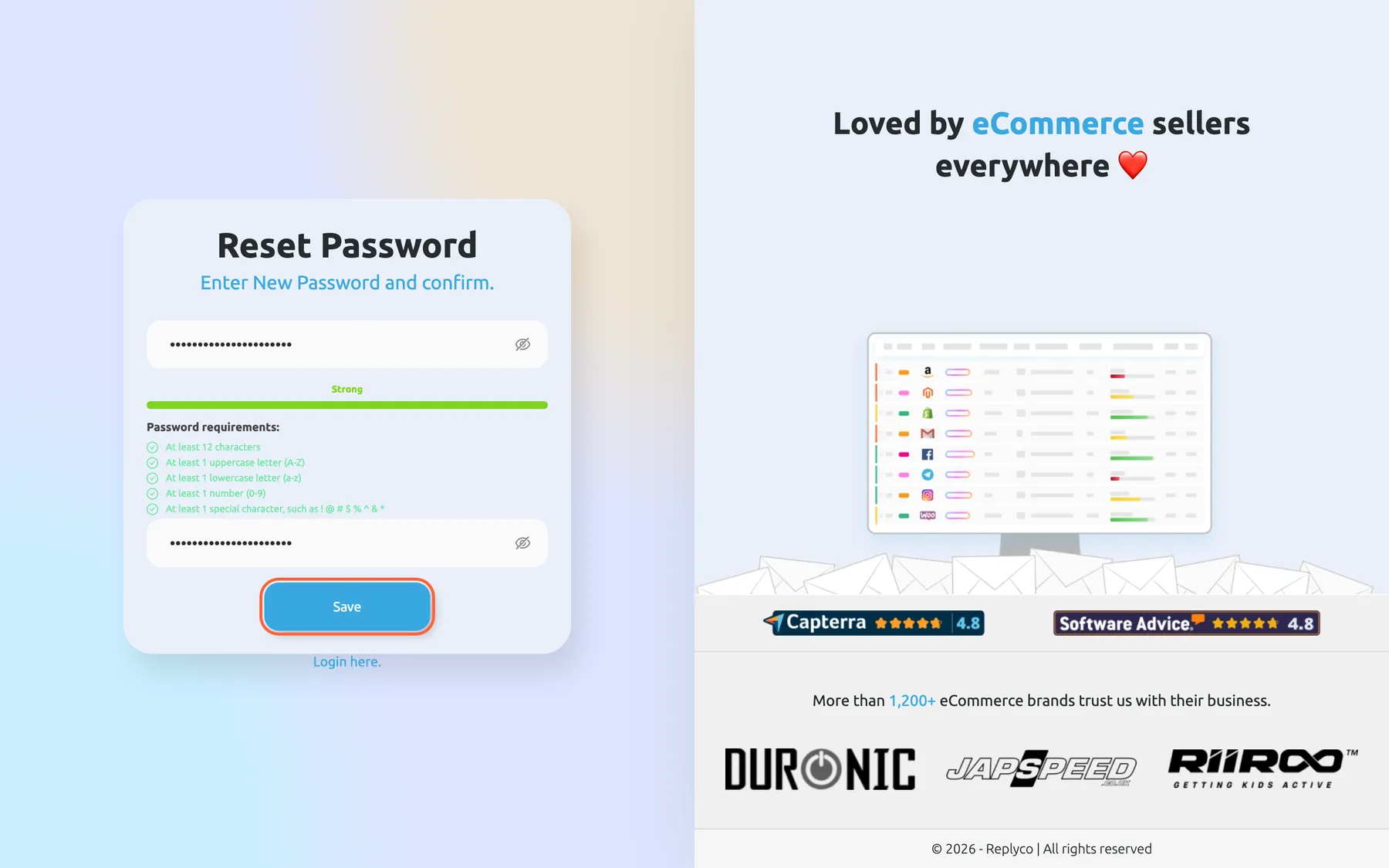
The new password must meet all five requirements; Save sets it and signs your user out everywhere. What this screenshot shows
- Screen
- Reset Password (/resetpassword/:token/:email)
- Highlighted
- button “Save”, card-bottom, enabled. sets the new password
- Also visible
- Password and Confirm Password filled and masked; strength bar Strong; five password requirements ticked; Login here link
- Purpose
- set a new password from the reset link
The password must meet the same five rules as at sign-up: at least 12 characters, an uppercase and a lowercase letter, a number and a special character. Replyco confirms with Password successfully changed..
After the reset, you are signed out everywhere. Replyco ends every session of your user, in every browser, so anyone who knew the old password is out too. Sign in with the new password and your authenticator code; the password reset does not change two-factor authentication.
The link works once and for about a day. Each request sends a new link; earlier links keep working until they are used or expire. A used, expired or damaged link shows Oops. Something appears to be wrong with the link you used. Please try again or contact us at help@replyco.com.; request a new one. If the two passwords differ, Replyco shows Confirm Password is not correct!.
Blocked users cannot reset. For a user an administrator blocked, Replyco answers “This user was blocked in Replyco” and sends nothing.
To change a password you still know, use Account Settings, tab Change Password; see Account Settings.
Stay signed in and sign out
Section titled “Stay signed in and sign out”Replyco keeps you signed in in the browser where you signed in. The sign-in is valid for 72 hours and Replyco renews it by itself while you use Replyco, without asking for a code, for up to 90 days after the last renewal. A new code is needed only when you sign in with your password again.
| What ends your session | Which browsers | What you see |
|---|---|---|
| Log Out in the user menu | This browser | The sign-in screen |
| Clearing the browser’s site data, or closing a private window | That browser | The sign-in screen at your next visit |
| Resetting the password with Forgot password? | Every browser | The sign-in screen at the next page you open |
| Changing the password on Change Password with Terminate All Sessions | Every browser, this one included | The sign-in screen |
| Changing the password on Change Password without that option | Every browser, within 72 hours | The sign-in screen when the sign-in would next be renewed |
| An administrator blocks your user | Every browser | On plans billed per user, Your session has been ended as your account was used to log in on another device. If this wasn’t you, please contact Replyco Support immediately for further assistance.; on other plans, the sign-in screen |
| On plans billed per user: signing in on another computer | The earlier computer; the mobile app is counted separately | Your session has been ended as your account was used to log in on another device. If this wasn’t you, please contact Replyco Support immediately for further assistance. |
| 90 days without using Replyco in this browser | This browser | The sign-in screen |
To sign out, open the user menu with your avatar at the right end of the top bar and select Log Out.
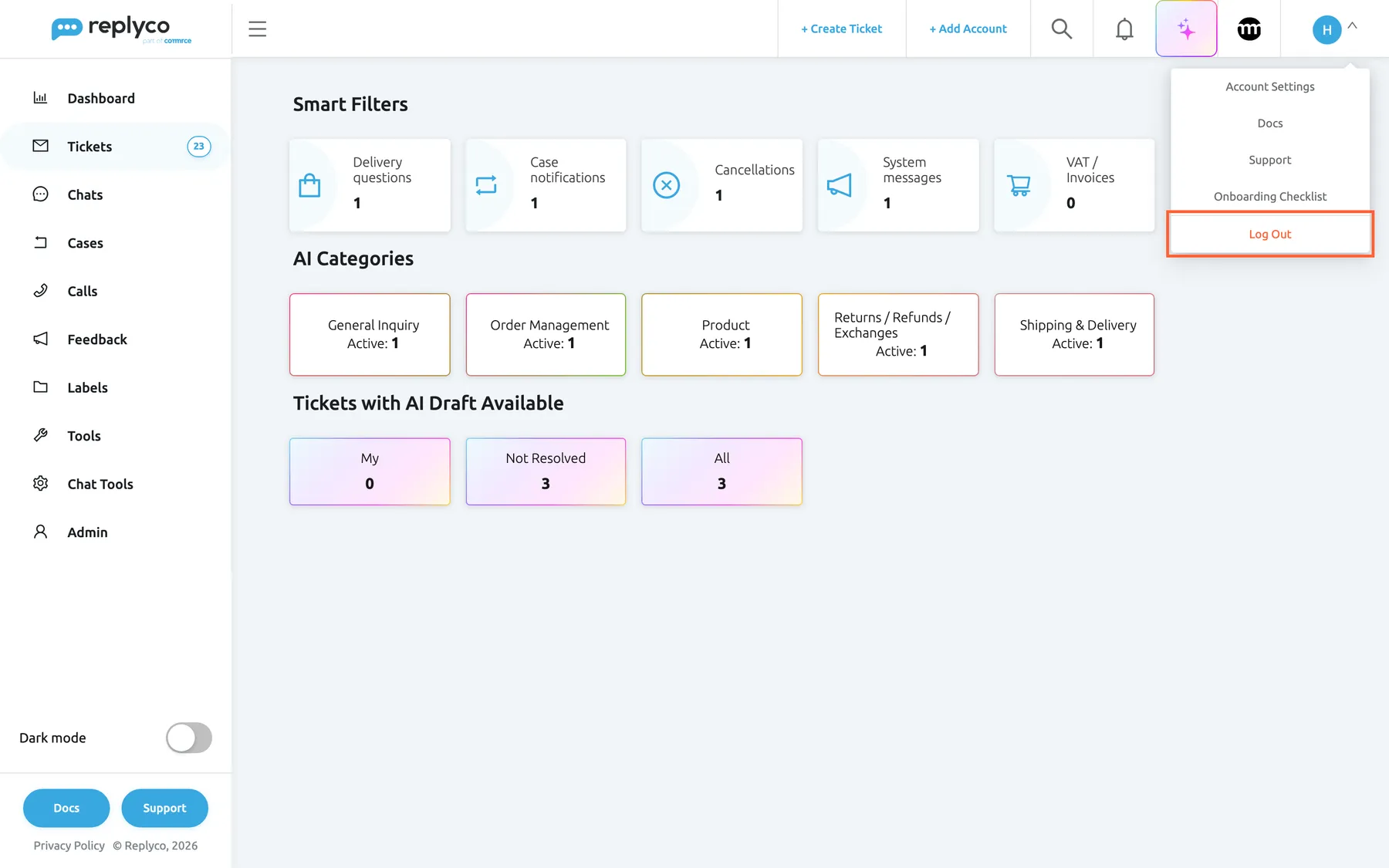
What this screenshot shows
- Screen
- Account Settings (/)
- Highlighted
- menuitem “Log Out”, top-bar-right, enabled. signs out and opens the sign-in screen
- Also visible
- user menu: Account Settings, Docs, Support, Onboarding Checklist, Log Out; start screen behind the menu
- Purpose
- sign out
Why am I asked to sign in so often? Usually a browser setting or cleaning tool deletes Replyco’s site data, a private window is used, or, on a plan billed per user, the same user signs in on a second computer. Use one browser profile per person and give every colleague their own user; see Invite users and set what they can do.
When Replyco does not let you in
Section titled “When Replyco does not let you in”Several situations look alike on the sign-in screen. Check them in this order.
| Situation | What you see | What to do |
|---|---|---|
| Wrong address or password | “Cannot find this user or password is wrong” | Check which address your user has; reset the password with password |
| Five wrong codes in a row | “Your account is blocked. Please check your email.”, an email, then “Cannot find this user or password is wrong” | Ask an administrator to select Unblock User in AdminUsers, then check your clocks before you try again |
| An administrator blocked your user | “Cannot find this user or password is wrong” | Ask an administrator to unblock you in AdminUsers |
| You were invited but never accepted | “Cannot find this user or password is wrong” | Open the link in the invitation email, or ask for a new invitation |
| The code step took longer than five minutes | “Token is deprecated! Please retry login one more time” | Sign in again from the password |
| The trial has ended and no plan was chosen | Sign-in works, but only the subscription and Help screens open | An administrator chooses a plan; see Subscribe to a plan |
Blocking and unblocking users is described in Users.
Every control, explained
Section titled “Every control, explained”Work email and Password
Section titled “Work email and Password”The two fields of the sign-in card; the eye icon at the end of Password shows what you typed.
Take the address and password of your user. Enter in Work email jumps to the password; Enter in Password signs in. Each sign-in with a password starts afresh: Replyco resets the list filters, sorting and page you had saved in this browser.
The password is the first of the two checks; the code from your app is the second.
Confirm
Section titled “Confirm”The blue button of the sign-in card, on the password step and on the code step.
On the password step it checks address and password; for a user with two-factor authentication it then shows the code step, otherwise it signs you in. On the code step it checks the code; anything but six characters gives Code is invalid without asking the server.
Two separate checks mean a stolen password alone does not open your account.
Verification code
Section titled “Verification code”The only field of the code step, after a correct password.
Takes the current six-digit code from your authenticator app. The step is valid for five minutes; the fifth wrong code in a row blocks your user.
Only the phone with your authenticator can produce this code.
Reset 2FA Access
Section titled “Reset 2FA Access”The link under Verification code on the code step; it opens a screen of the same name with three steps.
Step 1 checks your address and password with Send Request; step 2 checks the six-digit code from the email with Confirm; step 3 shows a new QR code and setup key and Continue, which returns to the sign-in screen. Confirming the emailed code replaces your old authenticator entry at once.
You can get back in after losing your phone without waiting for anyone.
password and the Forgot password? screen
Section titled “password and the Forgot password? screen”The link in the line under the password field; it opens Forgot password? with one field and Send Request.
Sends a link for a new password to the address you enter. The confirmation is the same for every address. Login here. under the card returns to the sign-in screen.
You set a new password yourself, without an administrator.
The Reset Password screen
Section titled “The Reset Password screen”Opens from the link in the reset email.
Checks the link first. Two fields, Password and Confirm Password, with the strength bar and the five password rules; Save sets the new password and signs your user out everywhere. The same screen shows Oops. Something appears to be wrong with the link you used. Please try again or contact us at help@replyco.com. when the link is used, expired or damaged.
The link proves you control the mailbox of your user.
Continue with comrce Hub
Section titled “Continue with comrce Hub”Under Confirm, only in browsers where a user with a linked comrce Hub account has signed in before.
Signs you in through your comrce Hub account instead of the Replyco password. A comrce Hub account must first be linked to your Replyco user from your account settings while you are signed in; see Account Settings.
Merchants who work in comrce Hub use one sign-in for both.
Sign Up here. and the cross
Section titled “Sign Up here. and the cross”Sign Up here. under the card; the cross in the top corner of the screen.
Sign Up here. opens the sign-up screen, which creates a new company. The cross goes back to the page you came from.
Sign up only for a new company; to join your team’s company, ask for an invitation.
Log Out
Section titled “Log Out”The last entry of the user menu, which opens from your avatar at the right end of the top bar.
Ends the session in this browser and opens the sign-in screen. Other browsers stay signed in.
Sign out on shared or public computers so the next person cannot open your tickets.
What you need to know
Section titled “What you need to know”| Topic | Fact |
|---|---|
| Two checks | Password, then a six-digit code for users with two-factor authentication |
| Code step | Valid for five minutes; codes change every 30 seconds; both the phone’s and the computer’s clocks count |
| Wrong codes | The fifth wrong code in a row blocks the user |
| Session | 72 hours, renewed automatically for up to 90 days after the last renewal; no code for renewals |
| Password reset link | Works once, for about a day; signs you out everywhere when used |
| Two-factor reset code | Sent by email, valid for one day |
| Language | The signed-out screens follow your computer’s time zone |
| Other screens after sign-in | Replyco opens the page you tried to reach before signing in |
Frequently asked questions
Section titled “Frequently asked questions”Signing in
Section titled “Signing in”Why does Replyco say it cannot find my user although the password is right?
Section titled “Why does Replyco say it cannot find my user although the password is right?”The message “Cannot find this user or password is wrong” also appears when the user is blocked, was invited but never accepted, or uses a different address. Check the address first, then ask an administrator to look at your user in AdminUsers.
My authenticator code is rejected. What should I check?
Section titled “My authenticator code is rejected. What should I check?”Replyco shows Code is invalid. Codes change every 30 seconds and are checked against your computer’s clock, while your app uses your phone’s clock. Set both to update the time automatically, pick the Replyco entry for your address in the app and type a fresh code.
Why was my user blocked after entering codes?
Section titled “Why was my user blocked after entering codes?”Replyco blocks a user after the fifth wrong code in a row and sends an email saying the account is blocked. An administrator of your company unblocks it with Unblock User in AdminUsers. Fix the clocks on phone and computer before you try again.
Why do I have to sign in again after a few minutes on the code step?
Section titled “Why do I have to sign in again after a few minutes on the code step?”The code step stays valid for five minutes. After that Replyco answers “Token is deprecated! Please retry login one more time” and returns to the password. Enter your password again and type the code promptly.
Can two-factor authentication be turned off?
Section titled “Can two-factor authentication be turned off?”No. It is mandatory for every new user, on every plan: sign-up and the invitation both set it up, and once a user has it, the tab Two-factor authentication in Account Settings only offers a reset. A user without it, such as an invited colleague who skipped it, signs in with the password alone.
Why is the sign-in screen in English although I work in German?
Section titled “Why is the sign-in screen in English although I work in German?”The signed-out screens pick their language from your computer’s time zone: German for Germany, Austria, Switzerland and Liechtenstein, English otherwise. After sign-in, Replyco uses the language of your company and your account settings.
Lost phone or password
Section titled “Lost phone or password”I have a new phone and my authenticator codes are gone. How do I get in?
Section titled “I have a new phone and my authenticator codes are gone. How do I get in?”Sign in with your password until the code step and select Reset 2FA Access. Confirm your address and password, type the code Replyco emails you, then scan the new QR code before you select Continue.
The two-factor reset email does not arrive. What can I do?
Section titled “The two-factor reset email does not arrive. What can I do?”Check your junk folder and that you used the address of your user. Replyco sends the six-digit code to the address of your user after it has checked your password, and the code is valid for one day.
How do I reset a forgotten password?
Section titled “How do I reset a forgotten password?”Select password on the sign-in screen, enter your address and select Send Request. Open the link in the email, enter the new password twice and select Save. The link works once, for about a day.
The password reset email never arrives. Why?
Section titled “The password reset email never arrives. Why?”Replyco confirms every request, even for an address without a user, so check that you typed the address of your user. Look in the junk folder. Blocked users get no email; an administrator has to unblock them in AdminUsers first.
Why am I signed out on every computer after resetting my password?
Section titled “Why am I signed out on every computer after resetting my password?”A password reset through the email link ends every session of your user in every browser, so anyone who knew the old password is locked out as well. Sign in again with the new password and your authenticator code.
Sessions
Section titled “Sessions”How long does a Replyco session last?
Section titled “How long does a Replyco session last?”A sign-in is valid for 72 hours, and Replyco renews it by itself while you keep using Replyco in that browser, for up to 90 days after the last renewal. Renewals do not ask for a code; a new sign-in with your password does.
Why am I asked to sign in and enter a code so often?
Section titled “Why am I asked to sign in and enter a code so often?”Something ends your session early: Log Out, a browser that deletes site data, a private window, a password change, or, on plans billed per user, the same user signing in on another computer. Keep one browser profile per person and one Replyco user per colleague.
What does the message about my account being used on another device mean?
Section titled “What does the message about my account being used on another device mean?”It reads Your session has been ended as your account was used to log in on another device. If this wasn’t you, please contact Replyco Support immediately for further assistance.. It appears on plans billed per user, when an administrator blocks your user or when your user signs in on another computer. On other plans, a user an administrator blocks returns to the sign-in screen without this message. If neither was you or your administrator, change your password and contact Replyco support.
Can I be signed in on two computers at the same time?
Section titled “Can I be signed in on two computers at the same time?”On plans billed per user, no: signing in on a second computer ends the session on the first, while the mobile app counts separately. On other plans each browser keeps its own session. Every colleague should have their own user rather than sharing one.
Does signing out in one browser sign me out everywhere?
Section titled “Does signing out in one browser sign me out everywhere?”No. Log Out ends the session in the browser where you select it. To end all sessions, change your password on Change Password in Account Settings with Terminate All Sessions.
Troubleshooting
Section titled “Troubleshooting”| Symptom | What to check |
|---|---|
| “Cannot find this user or password is wrong” | The address of your user; the password; whether an administrator blocked you or your invitation is still open, in AdminUsers |
| Code is invalid on every code | Automatic time on phone and computer; the right entry in the authenticator app; a fresh code |
| “Your account is blocked. Please check your email.” | Five wrong codes in a row; an administrator unblocks you with Unblock User |
| “Token is deprecated! Please retry login one more time” | The code step took longer than five minutes; sign in again from the password |
| No authenticator any more | Reset 2FA Access on the code step |
| The code you entered is incorrect. Please try again. | The newest email; the code typed in full; less than a day old |
| No two-factor reset email | Junk folder; the address of your user |
| No password reset email | The address of your user; junk folder; whether your user is blocked |
| Oops. Something appears to be wrong with the link you used. Please try again or contact us at help@replyco.com. | The link was used, is older than about a day, or was cut off; request a new one |
| Signed out often | Site data cleared, private windows, a shared user on a plan billed per user |
| Only the subscription screen opens after sign-in | The trial ended without a plan; see Subscribe to a plan |