

Connect ChannelAdvisor
Connect ChannelAdvisor and Replyco finds the ChannelAdvisor order behind each ticket: the ChannelAdvisor order number appears in the ticket’s order panel, links to the order in ChannelAdvisor, and lets agents open the full order or refresh it, with its products, without leaving the conversation. ChannelAdvisor brings no messages of its own; it adds its order data to the tickets your marketplace, shop and mailbox accounts create. You connect it by signing in to ChannelAdvisor and approving Replyco’s access to your orders and inventory.
Before you start
Section titled “Before you start”| You need | Where it lives |
|---|---|
| The Admin permission in Replyco | AdminUsers; see Invite users and set what they can do |
| A ChannelAdvisor login for the account you want to connect, allowed to grant an app access to orders and inventory | ChannelAdvisor |
| Orders in ChannelAdvisor that carry the marketplace’s order number as the Site Order ID or the Secondary Site Order ID; Replyco finds orders by these two fields | ChannelAdvisor, the order’s details |
| Your marketplace and shop accounts connected in Replyco, so there are orders to match | AdminAccounts; see Add Account |
| A free account on your plan; ChannelAdvisor counts as one | AdminBilling; see Billing |
Availability: every plan. A company connects one ChannelAdvisor account.
-
Select + Add Account in the top bar and scroll to Order Management System Accounts.
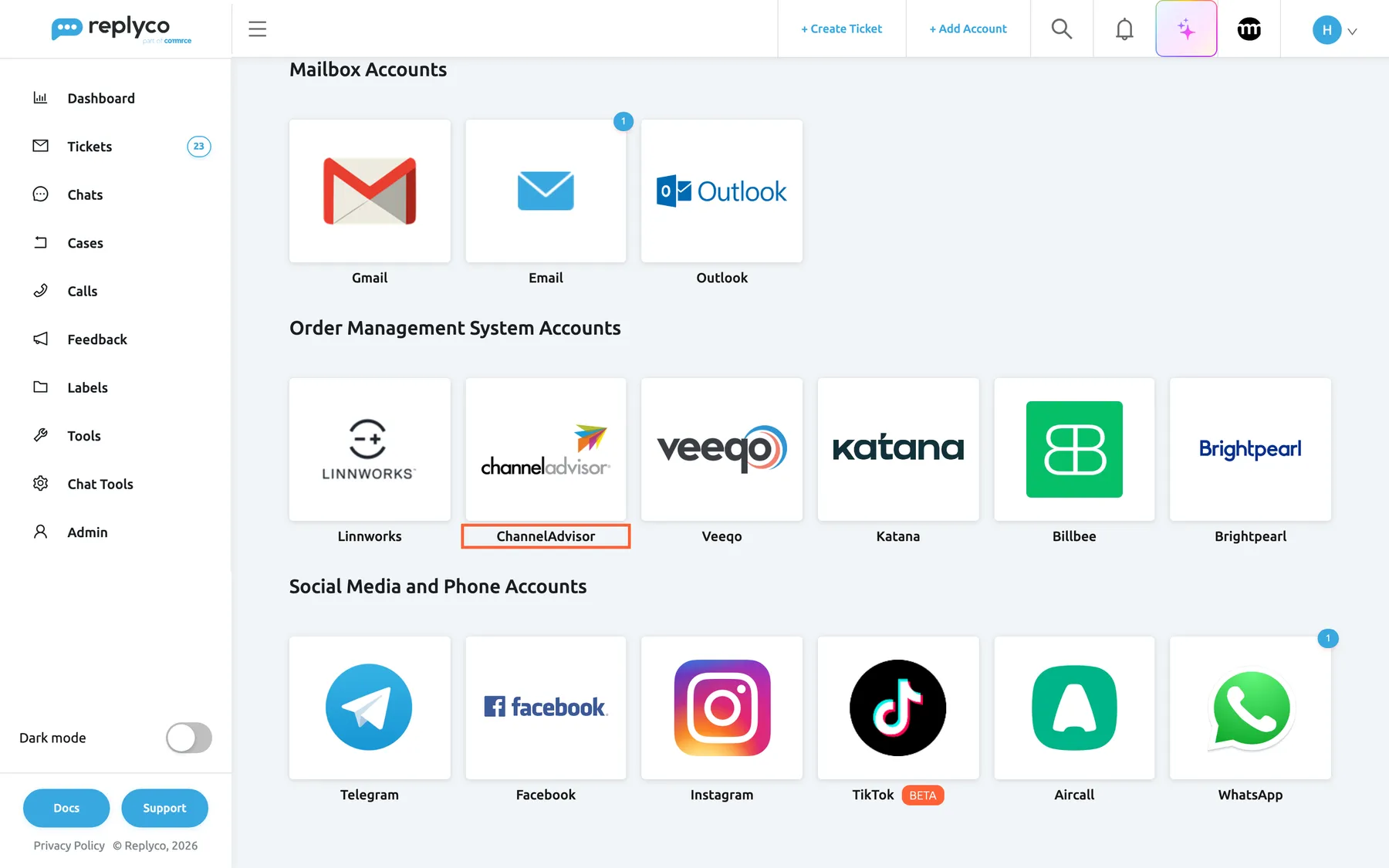
ChannelAdvisor is in the order management group of Add Account. What this screenshot shows
- Screen
- Add Account (/integrations/add)
- Highlighted
- button “”, oms-group, enabled. opens the ChannelAdvisor connection dialog
- Also visible
- Mailbox Accounts: Gmail, Email, Outlook; Order Management System Accounts: Linnworks, ChannelAdvisor, Veeqo, Katana, Billbee, Brightpearl
- Purpose
- entry point for connecting ChannelAdvisor
-
Select the ChannelAdvisor tile. The dialog Authorize Replyco to sync with ChannelAdvisor opens at AUTHORIZE. Select Authorize.
ChannelAdvisor’s sign-in opens in a new browser tab. The dialog in the tab you started from moves on to FINISH and shows Your ChannelAdvisor account is now ready., but the account is saved only when ChannelAdvisor sends you back, in the next steps.
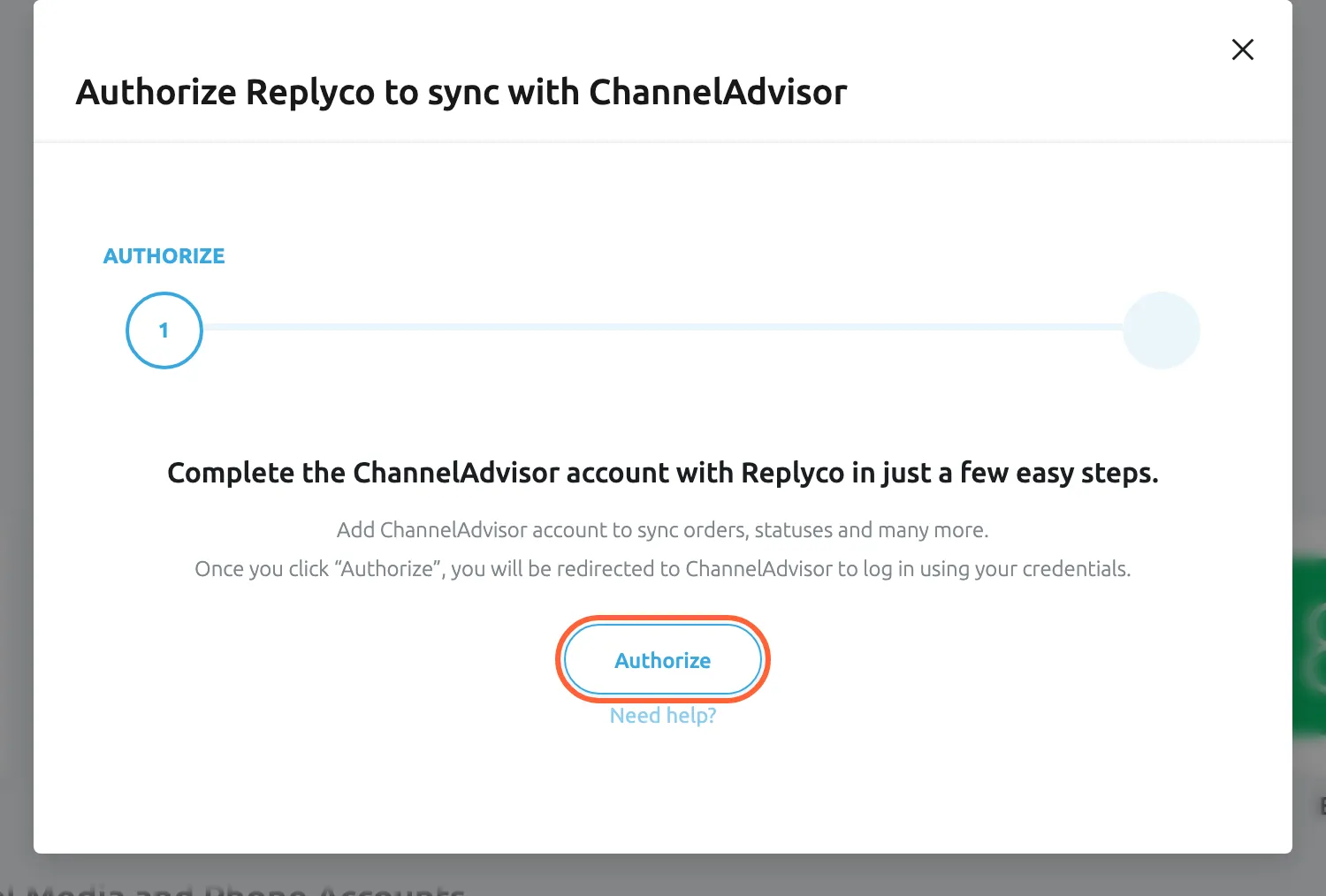
Authorize opens ChannelAdvisor's own sign-in in a new tab; approve Replyco there. What this screenshot shows
- Screen
- Add Account (/integrations/add)
- Highlighted
- button “Authorize”, dialog, enabled. opens the ChannelAdvisor sign-in in a new tab
- Also visible
- step AUTHORIZE of 2; Authorize button; Need help? link
- Purpose
- start the ChannelAdvisor sign-in
-
In the ChannelAdvisor tab, sign in, choose your client and select “Select Client”.

After signing in, choose your client and select "Select Client". What this screenshot shows
- Screen
- ()
- Highlighted
- “”, , .
- Also visible
- signed-in email; client drop-down; Remember this choice; Select Client; Log in as a different user
- Purpose
Tick the ChannelAdvisor accounts Replyco should use and select “Grant Access” to approve Replyco’s access to your orders and inventory.
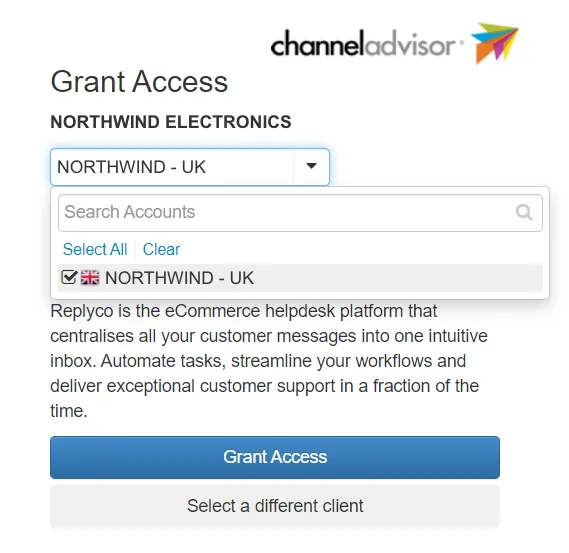
Tick your ChannelAdvisor accounts and select "Grant Access". What this screenshot shows
- Screen
- ()
- Highlighted
- “”, , .
- Also visible
- account list with Search Accounts, Select All, Clear; one account ticked; Grant Access; Select a different client
- Purpose
-
ChannelAdvisor returns you to Replyco, which saves the account and shows Almost done... with Your ChannelAdvisor account is now ready.. Select Finish; Replyco opens the home page.
Stay on the page until the dialog appears. Leaving while Replyco saves asks Are you sure you want to leave this page? You have some unsaved changes.
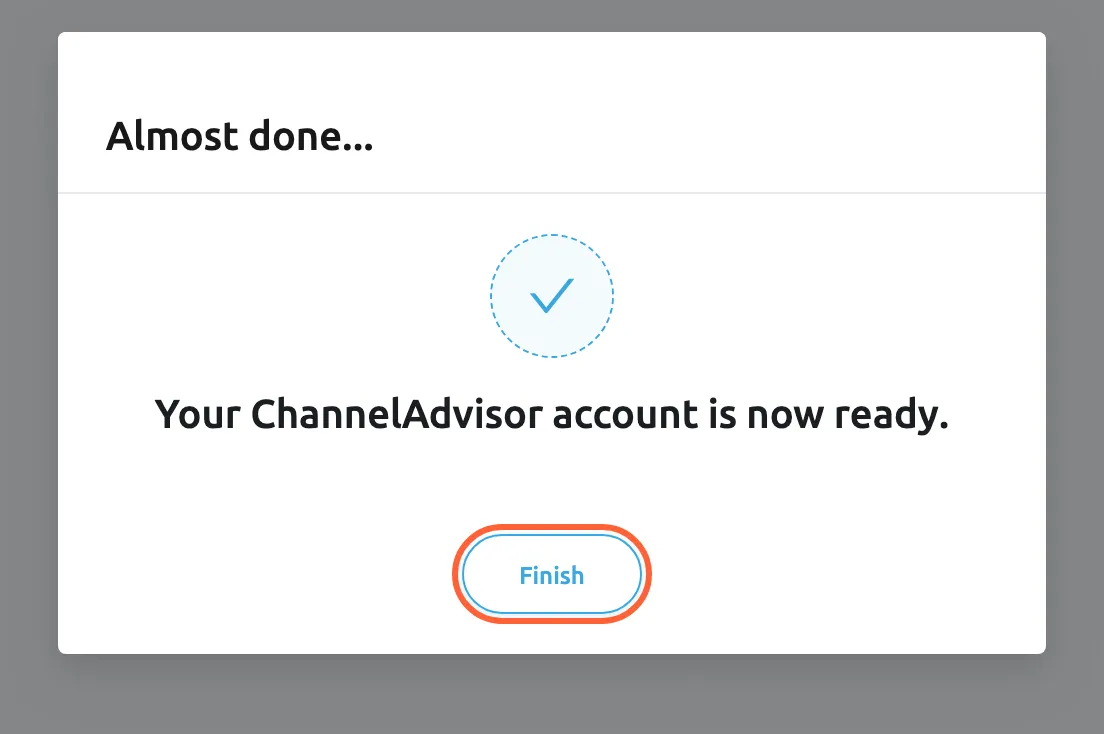
Back from ChannelAdvisor, Replyco saves the account; Finish takes you to the home page. What this screenshot shows
- Screen
- Almost done... (/integrations/channeladvisor/success)
- Highlighted
- button “Finish”, dialog-bottom, enabled. closes the dialog and opens the home page
- Also visible
- check mark; Your ChannelAdvisor account is now ready.
- Purpose
- the account is saved
What happens next
Section titled “What happens next”The account appears on AdminAccounts with the name “ChannelAdvisor”; for what the list shows, see Accounts. From now on, Replyco asks ChannelAdvisor for the order whenever it saves an order from one of your marketplaces or shops, and whenever a ticket needs its order. It looks for a ChannelAdvisor order whose Site Order ID or Secondary Site Order ID is the marketplace’s order number, with any # removed; for a ticket without an order, it uses the order-like number in the subject. When exactly one order matches, Replyco adds the ChannelAdvisor order number and the order’s products.
When ChannelAdvisor knows the order, Order Details in the ticket shows ChannelAdvisor Order ID, a link to the order in ChannelAdvisor, and two more icons: Show full ChannelAdvisor Order and Sync Order from ChannelAdvisor. If you use more than one order management system, these actions are in the panel’s ⋮ menu. When a ticket’s order has no ChannelAdvisor number, the panel offers a field for the ChannelAdvisor order ID; type the number and select the save icon in the field. The placeholder #channelAdvisor_order_id# inserts the number into replies; see Snippets and placeholders.
To check it worked, open a ticket about a recent order that is in ChannelAdvisor and look for ChannelAdvisor Order ID. If the panel does not list the field, select the gear in Order Details and move it to Visible Fields. For the order panel, see The ticket screen.
If ChannelAdvisor stops accepting Replyco’s access, the account needs a new sign-in: open it on AdminAccounts and select Re-login, which opens ChannelAdvisor’s sign-in again for the same account.
Deleting the ChannelAdvisor account removes only the connection. Tickets, orders and customers belong to your marketplace, shop and mailbox accounts, so they stay; the warning about tickets, orders and customers in the delete question applies to those accounts. To delete an account, see Accounts.
If something goes wrong
Section titled “If something goes wrong”| Symptom | Check | Fix |
|---|---|---|
| Replyco opens the home page and no ChannelAdvisor account appears | The return page was opened without ChannelAdvisor’s approval, for example from a bookmark or after you declined. | Start again from the ChannelAdvisor tile and approve Replyco in ChannelAdvisor. |
| Replyco refuses to save the account | Is a ChannelAdvisor account already on AdminAccounts? | Use the existing account; a company connects one ChannelAdvisor account. |
| “You reached your current plan maximum integrations count. Contact support for more info.” | Your plan’s number of accounts is used up. | See Add Account. |
| A ticket’s order shows no ChannelAdvisor number | In ChannelAdvisor, is the marketplace’s order number the order’s Site Order ID or Secondary Site Order ID? | Type the ChannelAdvisor order number into the ChannelAdvisor field of Order Details and select the save icon. |
| The ChannelAdvisor field shows Perform a relogin of the integration before searching for orders | ChannelAdvisor no longer accepts Replyco’s access. | Select Re-login on the account; see Fix a blocked or silent account. |