

Shipping Labels
Shipping Labels is your company’s library of return labels: the prepaid labels you give buyers who send an item back. Each entry is an image of the label and a name. When a buyer’s eBay return waits for a label, an agent opens the case, chooses Provide Shipping Label and picks one of these labels by name, instead of looking for the file. The library is kept by account owners and administrators; everyone who works on eBay cases can use it. Open it from ToolsShipping Labels.
Availability: the screen needs the Cases feature, which every plan includes, and both the Cases and the Shipping Labels permission. Adding and deleting labels needs the edit level of Shipping Labels. The ready-made Admin and Moderator roles include both permissions with editing; the User role has neither. See User permissions and roles and What each plan includes.
What you can do here
Section titled “What you can do here”- See the labels your team can send. The library shows every stored label as a card with its image and name, one library for the whole company. The screen at a glance.
- Add a return label. A label needs a JPG, JPEG or PNG image and a name; store one for each carrier and parcel size you use. Add a label.
- Change a label. Stored labels cannot be edited; you replace them. Change a label.
- Delete a label you no longer use, so agents cannot send it by mistake. Delete a label.
- Send a stored label to an eBay buyer. The labels appear under Choose Label when an agent answers a return with Provide Shipping Label. For the whole returns workflow, see the feature guide. Send a library label in an eBay return · eBay cases.
The screen at a glance
Section titled “The screen at a glance”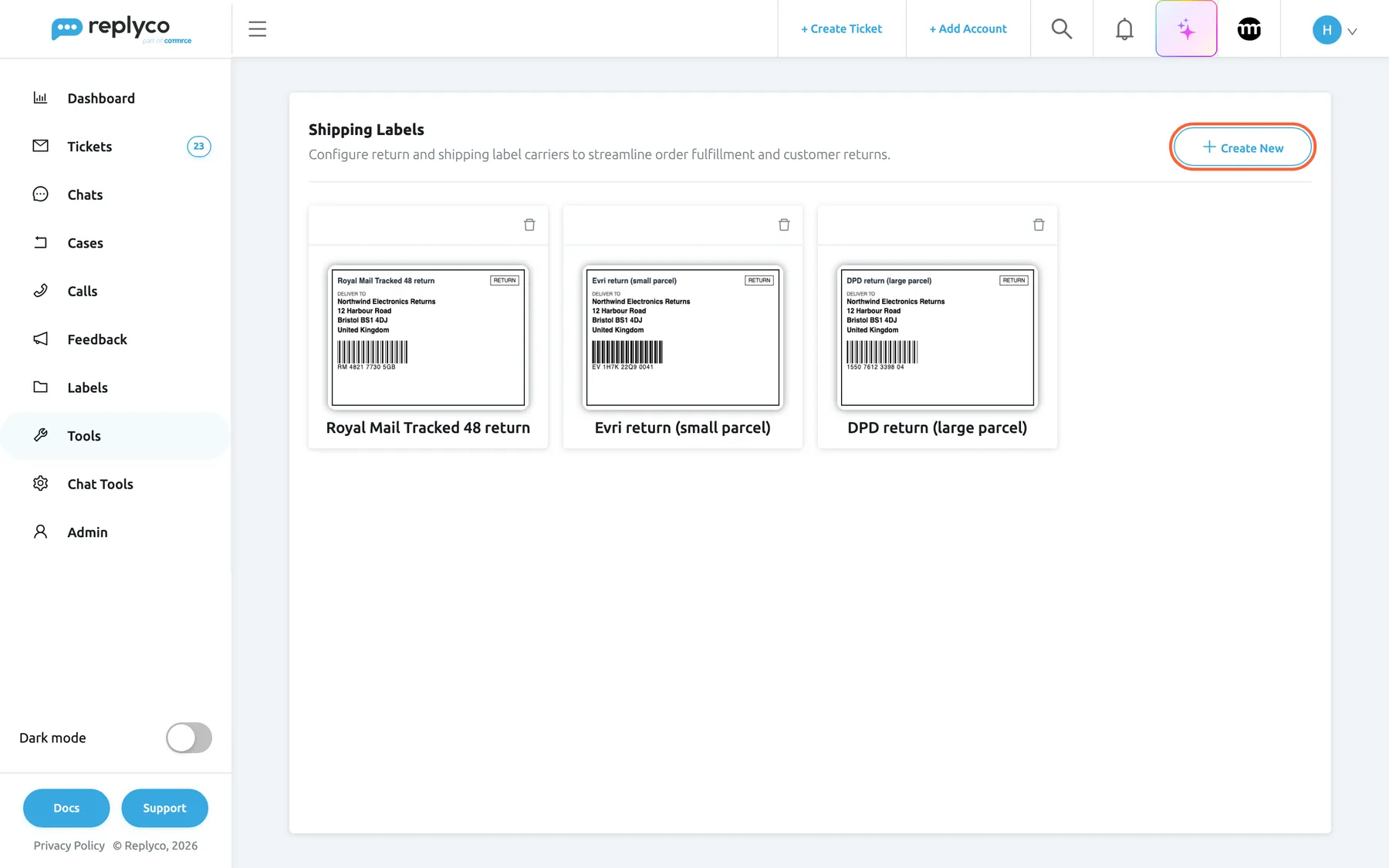
What this screenshot shows
- Screen
- Shipping Labels (/shipping-labels)
- Highlighted
- button “Create New”, header-right, enabled. adds an empty label card at the start of the library
- Also visible
- 3 label cards with image and name; bin icon on each card; heading and description of the screen
- Purpose
- the return-label library as it opens
| Region | What it shows | What you do there |
|---|---|---|
| Header, top | The heading Shipping Labels, the description Configure return and shipping label carriers to streamline order fulfillment and customer returns. and Create New | Start a new label |
| Label cards | One card per stored label: the image, the name below it and a bin icon in the top right corner | Check what agents can send; delete a label |
| New card (after Create New) | A card at the start of the grid with an image tile, the field Label Name, a tick and a cross | Pick the image, name the label, save or discard |
With no labels stored, the screen shows No shipping labels found. That is how every company starts.
Add a label
Section titled “Add a label”- Open ToolsShipping Labels and select Create New in the top right corner. A new card appears first in the grid, with an image tile and the field Label Name.
- Select the image tile. Your computer’s file picker opens and offers JPG, JPEG and PNG images. Pick the label; the card shows it straight away. To pick another image, select the image again.
- Type the name agents will choose from under Label Name, for example Parcelforce 48 return.
- Select the tick in the card’s top right corner.
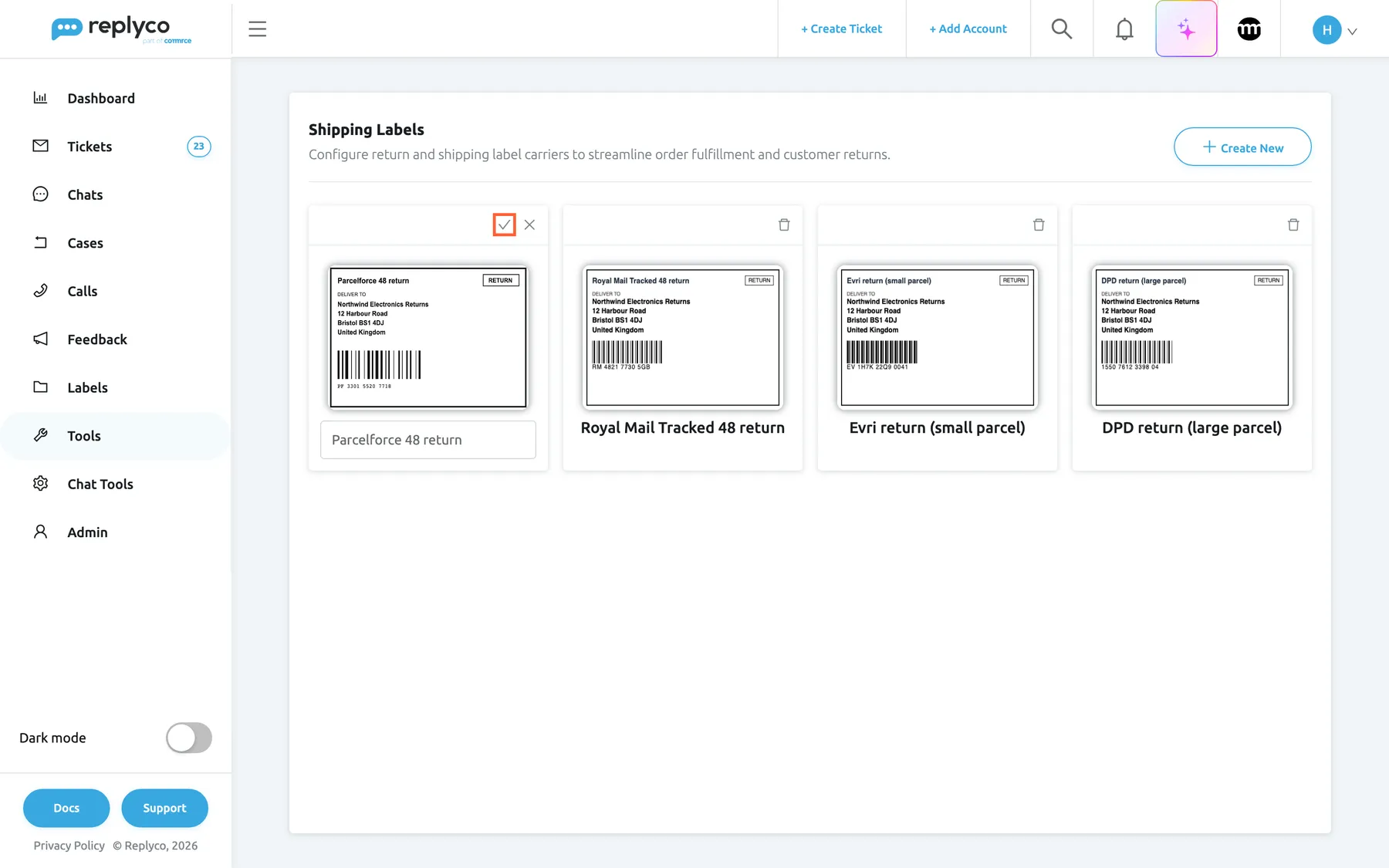
What this screenshot shows
- Screen
- Shipping Labels (/shipping-labels)
- Highlighted
- img “”, new-card-header-right, enabled. saves the new label
- Also visible
- new card first: picked label image and Label Name filled; cross next to the tick; three stored label cards
- Purpose
- add a return label to the library
The card closes, Replyco stores the label, confirms with Success and adds it at the end of the library. The cross next to the tick discards the new card without saving.
Replyco checks the card before it sends anything:
| You see | Because | Do this |
|---|---|---|
| Please upload a file | No image is picked | Select the image tile and pick the label image |
| Please enter a name for the shipping label. | The name is empty | Type a name, then select the tick again |
Example: Northwind Electronics sends heavy items back with Parcelforce. The account owner scans the prepaid Parcelforce 48 return label addressed to Northwind Electronics Returns, 12 Harbour Road, Bristol, saves it as a PNG and adds it as Parcelforce 48 return. From then on it is in the list of every agent who answers a return.
A PDF label cannot be stored here; the file picker takes images only. Send a PDF label directly from the case through Upload Label, as explained in Send a library label in an eBay return.
Change a label
Section titled “Change a label”A stored label has no edit option: its card shows only the bin icon. To change the image or the name, add the label again with Create New, then delete the old card. Nothing else in Replyco refers to the old label, so replacing it changes nothing in cases you have already answered.
Delete a label
Section titled “Delete a label”Select the bin icon in the card’s top right corner. The card shows a spinner while it is deleted, then disappears, and Success appears. There is no undo; to get the label back, add it again.
A deleted label is no longer offered in cases. Labels you have already sent to eBay stay with eBay and the buyer.
Send a library label in an eBay return
Section titled “Send a library label in an eBay return”The library is used in one place: the Provide Shipping Label action of an eBay return, which eBay offers while a return waits for your label (state Return Label Pending).
- Open the return under Cases and select Provide Shipping Label.
- Leave Action on Upload Your Own Label.
- On the tab Choose Label, pick a label from the list. The first label of the library is preselected, so check the name before you send.
- Fill in the carrier and select OK.
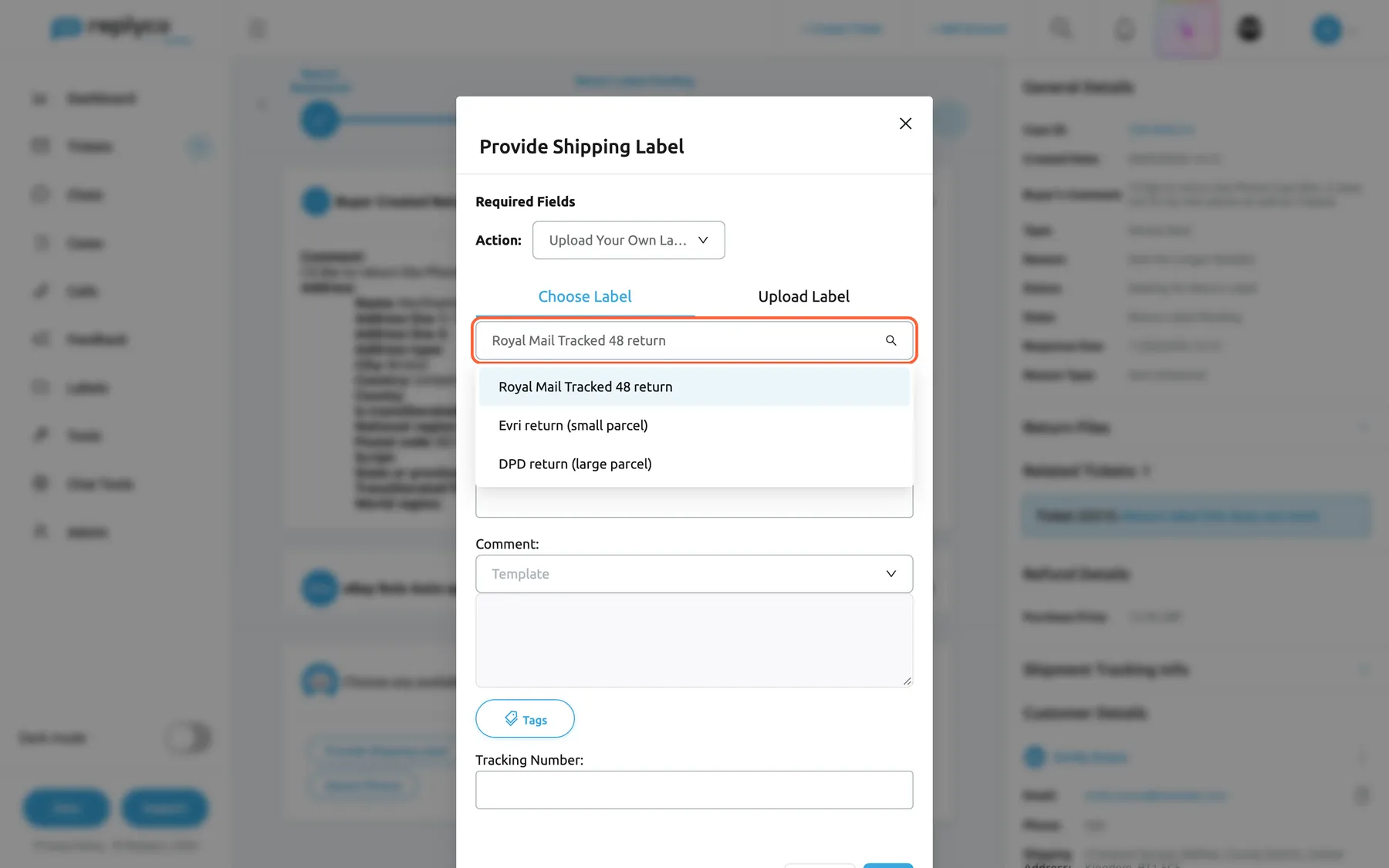
What this screenshot shows
- Screen
- Provide Shipping Label (/case/:caseId)
- Highlighted
- “Choose Label”, dialog, expanded. picks a label from the library
- Also visible
- Action Upload Your Own Label; tabs Choose Label and Upload Label; the three library labels in the open select; Comment with Template, Tags, Tracking Number below
- Purpose
- where the library is used
The list shows the labels by name only, in the order of this screen. With an empty library there is nothing to choose, and OK gives Please choose or upload a label. The tab Upload Label next to it takes one BMP, GIF, JPG, JPEG, PNG or PDF file for this case only; such a file is not added to the library. For every field of the form, see The case screen.
Every control, explained
Section titled “Every control, explained”Create New
Section titled “Create New”Top right corner of the screen, next to the heading Shipping Labels.
Adds an empty card at the start of the grid. Only one new card is open at a time; selecting the button again while it is open adds nothing. The button shows a spinner and is disabled while a new label is being saved.
Every label starts here; there is no import and no way to add a label from a case.
Image tile
Section titled “Image tile”On a new card, above the name field.
Opens your computer’s file picker for one JPG, JPEG or PNG image. The picked image replaces the tile; selecting it again picks another. Replyco stores the file as it is, without resizing. Required: saving without an image gives Please upload a file
The image is what eBay passes to the buyer, so use a clear scan or export of the whole label, address and barcode readable.
Label Name
Section titled “Label Name”On a new card, below the image.
The name agents see under Choose Label. Required: an empty field gives Please enter a name for the shipping label. Names do not have to be unique. Replyco can store up to 250 characters.
Agents choose by name while a buyer waits. A name that says carrier and parcel, such as Evri return (small parcel), is picked right the first time.
| Do | Don’t |
|---|---|
| Name the carrier and the parcel: Royal Mail Tracked 48 return | Use the file name or label1 |
| Keep one label per carrier and parcel size | Keep old labels “just in case”; the first one is preselected in every case |
| Upload a PDF label in the case through Upload Label | Convert a PDF to a blurry screenshot to fit the library |
Tick and cross
Section titled “Tick and cross”Top right corner of a new card.
The tick checks the card and saves the label; the card closes. The cross discards the new card and everything picked or typed on it.
Nothing on the card saves by itself, so you can try an image before you commit.
Label card and bin icon
Section titled “Label card and bin icon”One card per stored label; the bin icon is in its top right corner.
The card shows the stored image and the name. The bin deletes the label. A card has no edit option.
The cards show exactly what an agent will send, so you can spot an outdated label before a buyer gets it.
Who sees what
Section titled “Who sees what”| Part | What it needs |
|---|---|
| Shipping Labels under Tools | The Cases feature (every plan), the Cases permission and the Shipping Labels permission |
| Adding and deleting labels | The edit level of Shipping Labels; without it Replyco answers You don't have enough rights |
| The labels under Choose Label in a case | Everyone who can open a return’s Provide Shipping Label form, with or without Shipping Labels |
Permissions are set per user under AdminUsers, on the tab Access Rights; see Users. The company switch Enable eBay Cases does not hide this screen, so you can fill the library before you switch eBay cases on; see Company Settings.
What you need to know
Section titled “What you need to know”| Topic | Fact |
|---|---|
| Scope | One library for the whole company, shared by every eBay account |
| File types | JPG, JPEG and PNG, one image per label; PDFs only through Upload Label in a case |
| Name | Required, up to 250 characters, not unique |
| Order | Labels are not sorted; a new label is added at the end. The first label is preselected in cases |
| Editing | Not possible; add the label again and delete the old one |
| Deleting | Without undo |
| History | Adding and deleting labels is not recorded anywhere |
| Where used | Only in Provide Shipping Label on eBay returns; item-not-received inquiries have no label action |
| Buyers | See a label only when an agent sends it to eBay in a case |
Frequently asked questions
Section titled “Frequently asked questions”General
Section titled “General”What are shipping labels in Replyco for?
Section titled “What are shipping labels in Replyco for?”They are images of the prepaid return labels you give eBay buyers. You store them once under ToolsShipping Labels, and agents pick one by name when they answer an eBay return with Provide Shipping Label, instead of searching for the file.
Are shipping labels the same as ticket labels?
Section titled “Are shipping labels the same as ticket labels?”No. Ticket labels sort tickets and are managed under ToolsLabels. Shipping labels under ToolsShipping Labels are images of parcel labels for eBay returns. The two lists have nothing in common.
Can I print postage or buy a label in Replyco?
Section titled “Can I print postage or buy a label in Replyco?”No. Replyco stores label images you already have and passes them to eBay. It does not create labels, buy postage or talk to carriers. Buy the label from your carrier, save it as a JPG, JPEG or PNG image and add it under ToolsShipping Labels.
Adding and changing labels
Section titled “Adding and changing labels”Which files can I store as a label?
Section titled “Which files can I store as a label?”JPG, JPEG and PNG images, one per label. The file picker under ToolsShipping Labels offers only these types. A PDF label goes directly into the case through Upload Label, which also accepts BMP and GIF.
Why does the tick not save my new label?
Section titled “Why does the tick not save my new label?”Replyco needs both an image and a name. Without an image it shows Please upload a file, without a name Please enter a name for the shipping label. Pick the image with the image tile, type the name under Label Name and select the tick again.
How do I rename a label or change its image?
Section titled “How do I rename a label or change its image?”A stored label cannot be edited. Under ToolsShipping Labels, select Create New, add the label with the new image or name, then delete the old card with its bin icon. Cases you already answered are not affected.
Why is my new label at the end of the list?
Section titled “Why is my new label at the end of the list?”Replyco adds a new label after the existing ones and does not sort the library by name. The order matters in cases, where the first label of the library is preselected under Choose Label.
Can I store labels for different eBay accounts?
Section titled “Can I store labels for different eBay accounts?”The library is one list for the whole company, and every eBay account’s cases offer all of it. If your accounts ship from different return addresses, put the account or address in the label name, such as Royal Mail Tracked 48 return – Bristol.
Using labels in cases
Section titled “Using labels in cases”How do I send a stored label to a buyer?
Section titled “How do I send a stored label to a buyer?”Open the eBay return under Cases, select Provide Shipping Label, leave Action on Upload Your Own Label, pick the label on the tab Choose Label, fill in the carrier and select OK. Replyco sends the label to eBay for the buyer.
Why is the wrong label selected when I open the label form?
Section titled “Why is the wrong label selected when I open the label form?”The form always preselects the first label of the library under ToolsShipping Labels. It does not know which carrier fits the return. Pick the right label from the list before you select OK.
Does deleting a label affect returns I already answered?
Section titled “Does deleting a label affect returns I already answered?”No. A label you sent went to eBay at that moment and stays with eBay and the buyer. Deleting it under ToolsShipping Labels only removes it from the list offered in future cases.
Access
Section titled “Access”Who can add or delete labels?
Section titled “Who can add or delete labels?”Users with the Shipping Labels permission at edit level, who also have the Cases permission so the screen appears under Tools. The Admin and Moderator roles include both. Set permissions under AdminUsers.
Can agents who cannot manage the library still use its labels?
Section titled “Can agents who cannot manage the library still use its labels?”Yes. Everyone who can open a return’s Provide Shipping Label form sees the library’s labels under Choose Label. The Shipping Labels permission only decides who sees and changes the library under ToolsShipping Labels.
Troubleshooting
Section titled “Troubleshooting”| Symptom | What to check |
|---|---|
| Shipping Labels is missing under Tools | The user needs both the Cases and the Shipping Labels permission under AdminUsers. Your plan must include the Cases feature, which every plan does. |
| You don't have enough rights when you save or delete | The user has Shipping Labels without the edit level. An admin changes it on the tab Access Rights. |
| Please upload a file or Please enter a name for the shipping label. | The new card has no image or no name. Pick the image with the image tile and type a Label Name. |
| The file picker does not offer the file you want | The library takes JPG, JPEG and PNG only. Export the label as PNG, or upload the PDF in the case through Upload Label. |
| The new label is not in the list after the tick | Look for an error message in the top right corner; the label was not saved. Add it again. |
| A case still shows Return Label Pending after a library label was sent | Send the same file through Upload Label; a label chosen from the library may fail on eBay’s side while Replyco reports Success. |
| Please choose or upload a label in a case | The library is empty. Add labels here, or upload a file on the tab Upload Label. |