

Cases dashboard
The Cases dashboard summarises your eBay return cases: how many Replyco holds, how many buyers opened in a period, how long closing them took, and which eBay status the new ones are in now. Teams that handle returns use it to see whether a period brought more returns than usual and how many still wait for the buyer or for you. Open it from DashboardCases in the sidebar. It counts the eBay returns Replyco imports, so it fills only once Enable eBay Cases is on; see Company Settings.
What you can do here
Section titled “What you can do here”- See your returns at a glance. Three figures: Average Resolve Time, Cases In Progress and New Cases. Read the three figures · eBay cases
- See where the new returns stand. A doughnut chart splits the returns of the period by their eBay status. Read the cases by status
- Narrow to accounts, a period or working hours. Filter by eBay account and period, and count the resolve time in working hours. Filter the dashboard · Working time
- Arrange the dashboard for yourself. Move, resize, remove and bring back the two widgets. Arrange the widgets
The screen at a glance
Section titled “The screen at a glance”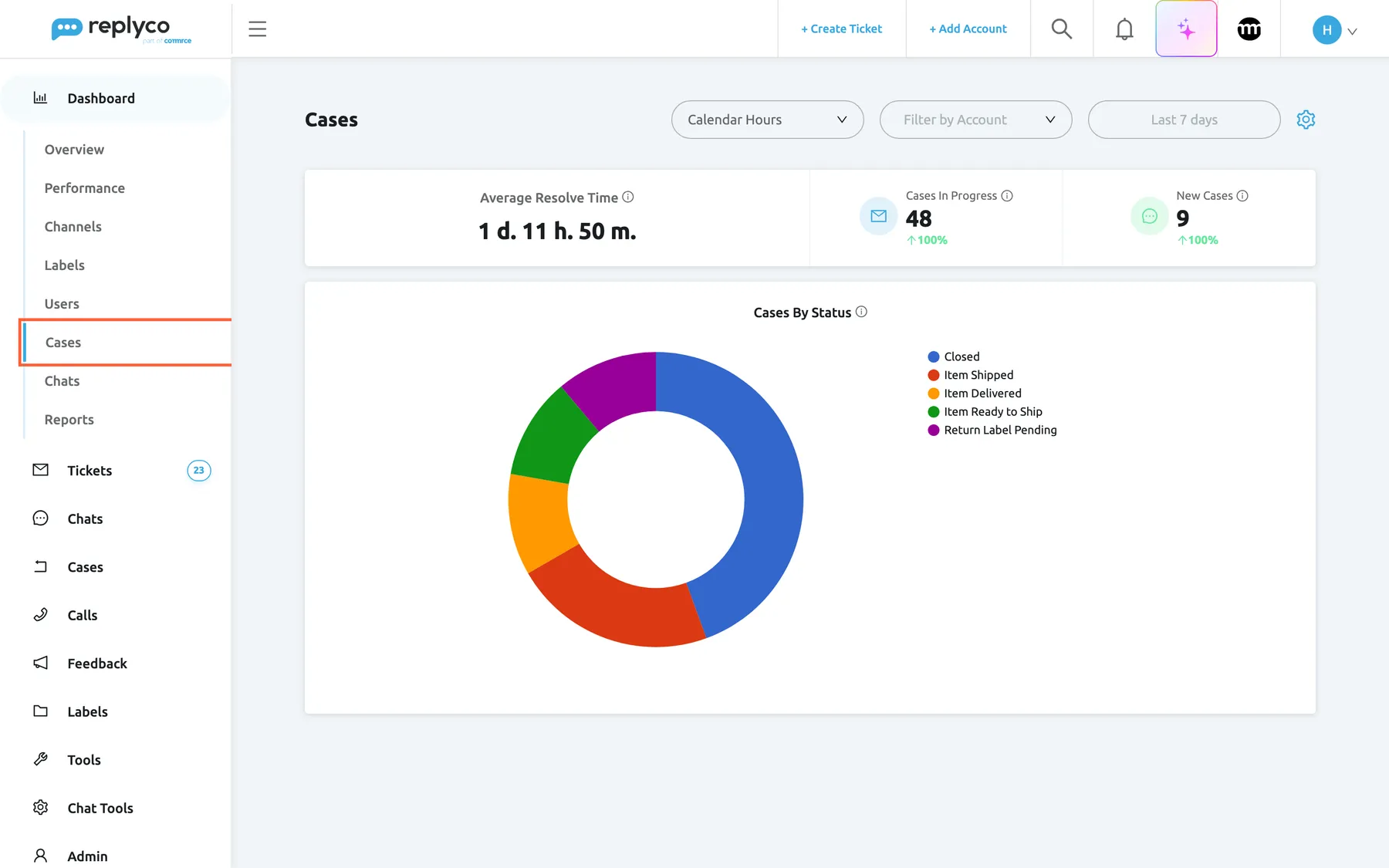
What this screenshot shows
- Screen
- Cases (/dashboard/cases)
- Highlighted
- menuitem “Cases”, sidebar-left, selected. opens the Cases dashboard
- Also visible
- Calendar Hours, Filter by Account, Last 7 days, gear icon; Average Resolve Time 1 d. 11 h. 50 m., Cases In Progress 48, New Cases 9; Cases By Status doughnut with five statuses
- Purpose
- the Cases dashboard as it opens
| Region | What it shows | What you do there |
|---|---|---|
| Cases, in the sidebar under Dashboard | The sixth dashboard of the menu | Open the dashboard |
| Hours option | Calendar Hours or Working Hours | Decide how the resolve time is counted |
| Filter by Account | Empty, or the accounts you ticked | Narrow to some eBay accounts |
| Period button | Last 7 days or your choice | Change the period |
| Gear icon | Turn ON Edit Mode and Manage Widgets | Arrange the widgets |
| General information widget | Average Resolve Time, Cases In Progress, New Cases | Read the figures |
| Cases By Status chart | The new returns by status | See where they stand |
The Cases dashboard has no links: its figures do not open a list. To work on the returns themselves, open the case list; see Case list.
Read the three figures
Section titled “Read the three figures”The first widget holds three figures, each with an info icon that explains it.
| Figure | What it shows | Filters that apply |
|---|---|---|
| Average Resolve Time | The average time returns created in the period and closed by now took from opening to closing, in days, hours and minutes | Period, account, hours option |
| Cases In Progress | Return cases that are not resolved yet | — |
| New Cases | Return cases opened in the period | Period, account |
Example. For the last 7 days the widget shows Average Resolve Time 1 d. 11 h. 50 m., Cases In Progress 48 and New Cases 9: buyers opened 9 returns this week, and 48 return cases are not resolved yet.
Read the cases by status
Section titled “Read the cases by status”The Cases By Status chart splits the return cases opened in the period by the status eBay reports for them now, one slice per status, with the names in the legend: for example Closed, Item Shipped, Item Delivered, Item Ready to Ship and Return Label Pending. Point at a slice to see its status, its number of cases and its share.
Example. Of the 9 returns of the week, 4 are closed, 2 are on their way back, 1 has been delivered to you, 1 is ready to ship and 1 waits for a return label. The slice for the missing label is the one to act on; to send a return label, see eBay cases.
When no return was opened in the period, the chart shows No data....
Filter the dashboard
Section titled “Filter the dashboard”- The hours option switches Average Resolve Time between Calendar Hours and Working Hours. With working hours only the time inside your company’s working hours counts; see Working time.
- Filter by Account keeps the returns of the ticked eBay accounts.
- The period button offers Today, Yesterday, Last 7 days, Last 30 days, Last 90 days and a custom range, and starts at Last 7 days on every visit.
Arrange the widgets
Section titled “Arrange the widgets”-
Select the gear icon at the right end of the header. It offers Turn ON Edit Mode and Manage Widgets.
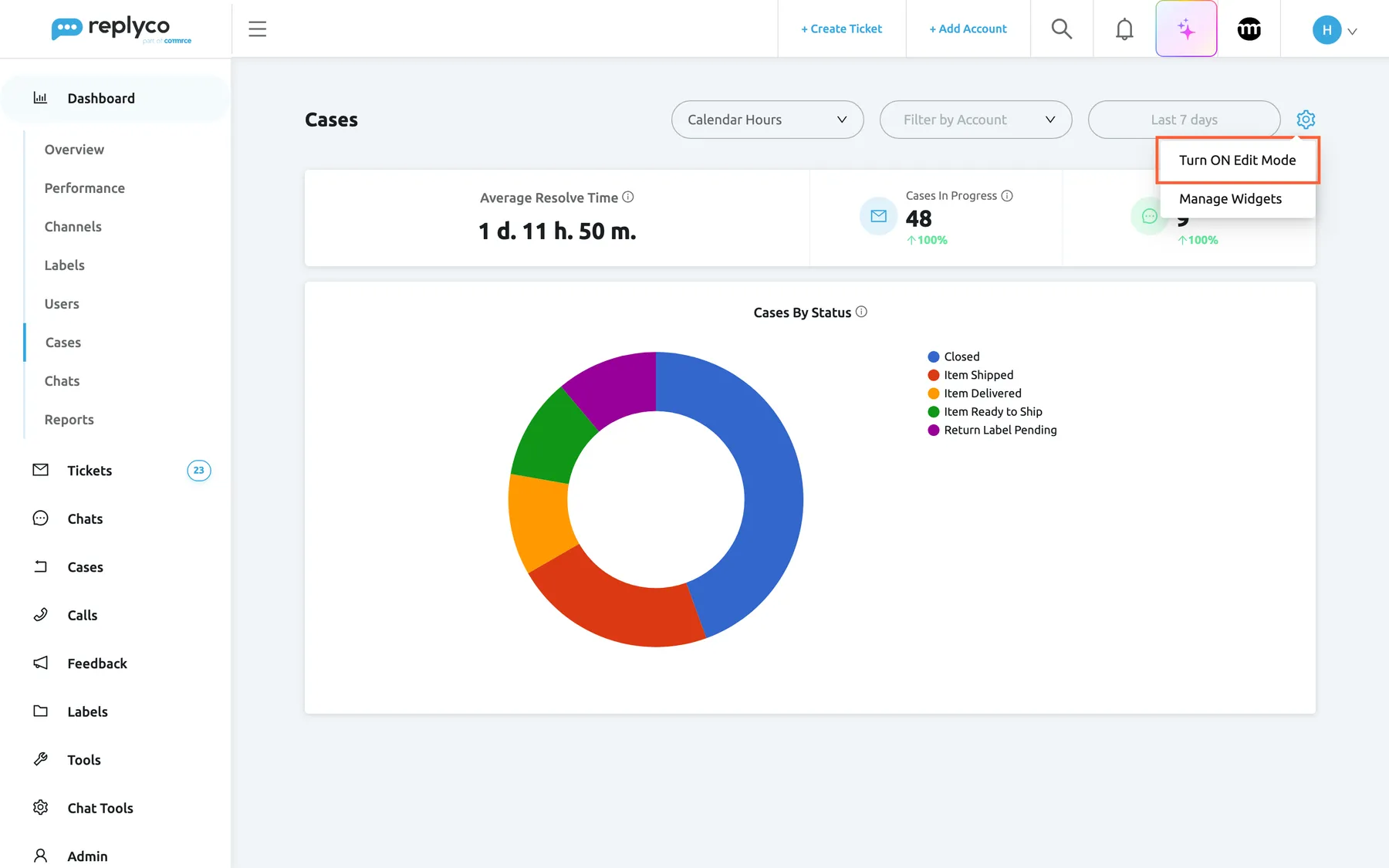
The gear icon holds edit mode and Manage Widgets; both change only your own layout. What this screenshot shows
- Screen
- Cases (/dashboard/cases)
- Highlighted
- menuitem “Turn ON Edit Mode”, top-bar-right, enabled. lets you move, resize and remove widgets
- Also visible
- gear menu: Turn ON Edit Mode, Manage Widgets; Cases widgets behind the menu
- Purpose
- arrange the widgets of a dashboard
-
Select Turn ON Edit Mode. Each widget gets a cross at its top right and a handle at its lower right; drag a widget to move it, or its handle to resize it.
-
To remove a widget, select its cross and confirm Are you sure you want to delete this Widget? with Yes.
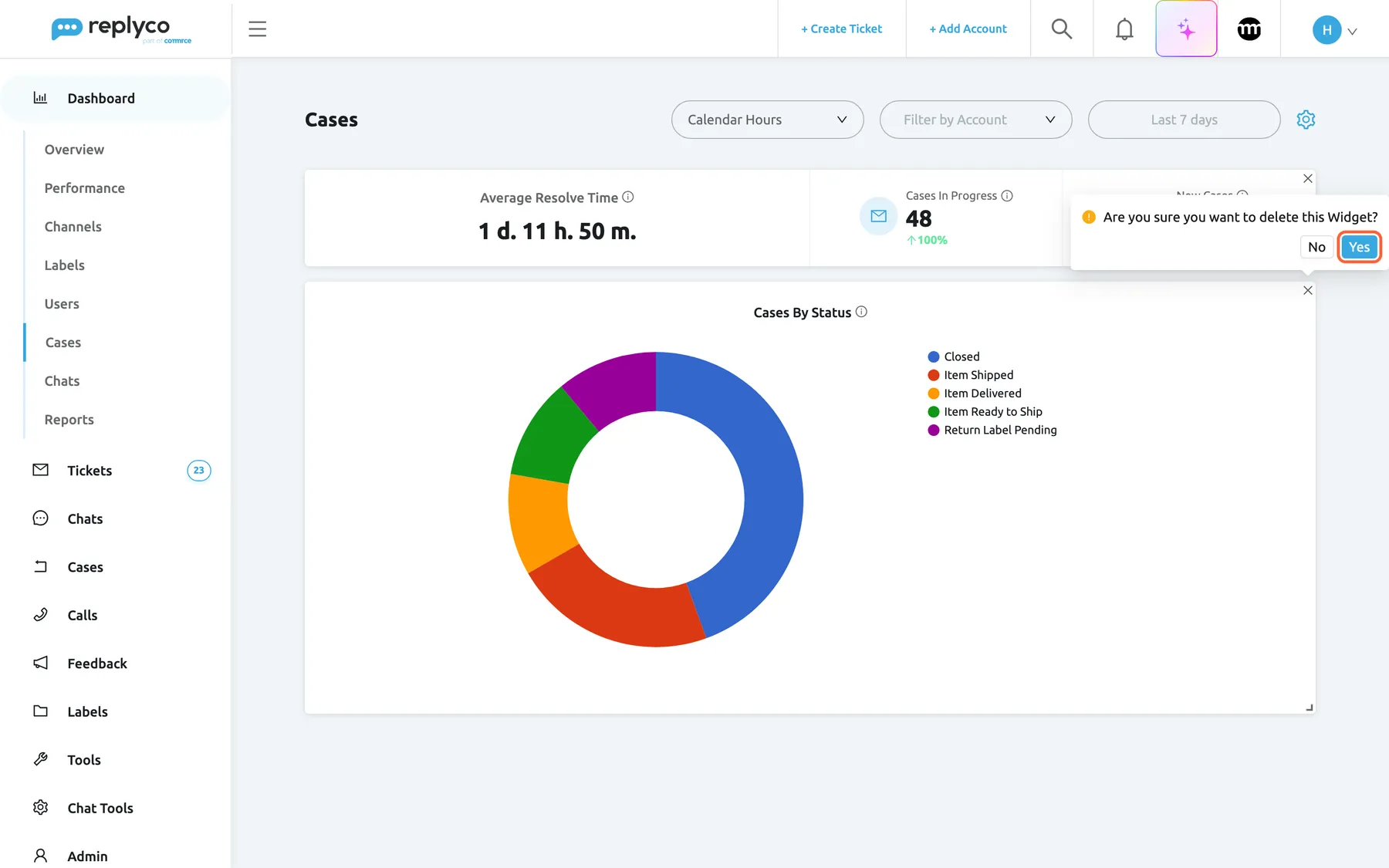
In edit mode, the cross removes a widget from your layout after one confirmation. What this screenshot shows
- Screen
- Cases (/dashboard/cases)
- Highlighted
- button “Yes”, widget-top-right, enabled. removes the widget from your layout
- Also visible
- crosses and resize handles on both widgets; confirmation: Are you sure you want to delete this Widget? No / Yes
- Purpose
- remove a widget
-
Select the gear again and Turn OFF Edit Mode when you are done.
Changes are saved at once and apply to your user only. To bring a widget back, open Manage Widgets and tick General information or Information about statuses. Removing the last widget restores the default layout.
Every control, explained
Section titled “Every control, explained”Cases in the sidebar
Section titled “Cases in the sidebar”The sidebar, under Dashboard, between Users and Chats.
Opens the Cases dashboard. Shown when an admin has ticked Cases among your dashboards. It needs Advanced Reporting and the Cases feature, which every current plan includes, and the Cases permission for your user. When your plan lacks a feature, the item is locked with Your subscription plan doesn't include this feature. Do you want to go on the billing page to unlock this feature?
Return figures matter to the people who handle returns; admins decide who sees them.
The hours option
Section titled “The hours option”The first filter at the top.
Calendar Hours or Working Hours; changes only Average Resolve Time. Starts with Use Working Hours in Dashboards from your Account Settings.
A return opened on Saturday and closed on Monday should not count a weekend against your team.
Filter by Account and the period
Section titled “Filter by Account and the period”Top right, before the gear icon.
The account filter takes several accounts, starting with Select all; the period starts at Last 7 days. Neither is remembered.
Compare the returns of two eBay accounts, or of a sales peak.
The gear icon
Section titled “The gear icon”Top right, at the end of the header.
Turn ON Edit Mode and Manage Widgets; your layout is saved at once for your user.
Make the chart larger, or keep only the figures.
Who sees what
Section titled “Who sees what”| Part of the screen | What decides whether you see it |
|---|---|
| Cases in the sidebar | The dashboards ticked for your user on Access Rights in AdminUsers |
| The data, or a lock | Advanced Reporting and Cases, which every current plan includes, and the Cases permission of your user; see What each plan includes |
| Returns in the figures | Imported only while Enable eBay Cases is on |
| Your layout | Only you |
What you need to know
Section titled “What you need to know”| Topic | Fact |
|---|---|
| What is counted | eBay return cases imported by Replyco |
| Cases In Progress | Return cases not resolved yet |
| New Cases | Return cases opened in the period, per the account filter |
| Chart | Return cases opened in the period, by their status now |
| Hours option | Affects only Average Resolve Time |
| Links | None |
| Enable eBay Cases | Hides or shows the case list menu; the dashboard stays, without new returns while the import is off |
Frequently asked questions
Section titled “Frequently asked questions”Figures
Section titled “Figures”What does the chart by status show?
Section titled “What does the chart by status show?”Cases By Status splits the return cases opened in the period by the status eBay reports for them now, one slice per status. Point at a slice to see its status, its number of cases and its share of the period’s returns.
What changes when I switch to Working Hours?
Section titled “What changes when I switch to Working Hours?”Only Average Resolve Time: with Working Hours it counts only the time inside your company’s working hours, so a return opened on Saturday and closed on Monday does not count the weekend. The two counts and the chart stay the same.
Does the Cases dashboard remember my filters?
Section titled “Does the Cases dashboard remember my filters?”No. Every time you open DashboardCases it starts with Last 7 days, no account ticked and the hours option from your Account Settings. Only the widget layout is saved for your user.
Which cases does the dashboard count?
Section titled “Which cases does the dashboard count?”eBay return cases that Replyco imported for your eBay accounts. Other case types, and marketplaces other than eBay, do not appear. The import runs only while Enable eBay Cases is on in AdminCompany Settings; see eBay cases.
Access and settings
Section titled “Access and settings”Why is the Cases dashboard locked for me?
Section titled “Why is the Cases dashboard locked for me?”The dashboard needs Advanced Reporting and the Cases feature, which every current plan includes, and the Cases permission for your user. An admin gives that permission on the Access Rights tab of your user in AdminUsers. See User permissions and roles.
I switched off the eBay cases import. Why is the Cases dashboard still there?
Section titled “I switched off the eBay cases import. Why is the Cases dashboard still there?”The company switch hides the case list from the sidebar and stops the import, but the dashboard item depends on your dashboard access, your plan and the Cases permission. The dashboard stays and keeps showing the returns imported before, with no new ones.
Can I open the cases behind a figure?
Section titled “Can I open the cases behind a figure?”No. The Cases dashboard has no links. To work on the returns, open the case list from the Cases menu in the sidebar and filter it there; see Case list.
Does removing a widget affect my colleagues?
Section titled “Does removing a widget affect my colleagues?”No. Edit mode and Manage Widgets change only your own layout of the Cases dashboard; your colleagues keep theirs. Bring a removed widget back by ticking it in Manage Widgets under the gear icon.
Troubleshooting
Section titled “Troubleshooting”| Symptom | What to check |
|---|---|
| Cases is missing from the Dashboard menu | The dashboards ticked for your user on Access Rights in AdminUsers |
| Cases shows a lock | Your plan on Billing and the Cases permission of your user |
| New Cases is 0 and the chart shows No data... | The period and the account filter; then Enable eBay Cases in AdminCompany Settings |
| Average Resolve Time looks too long after weekends | Switch the hours option to Working Hours |