

Gmail
Customers who write to your Gmail or Google Workspace address expect an answer from that address, not from a helpdesk. The Gmail account connects that mailbox to Replyco with Google’s own sign-in: customer mail arrives as tickets, your replies go out through Gmail from your address, and the labels you choose decide which mail becomes a ticket at all.
What it does
Section titled “What it does”A support mailbox in Gmail collects more than customer questions. Newsletters, invoices, shipping notices and your own sent mail sit next to the message from the customer whose parcel never arrived. Handled in Gmail alone, the team shares one inbox with no assignment, no priorities and no history per customer; forwarded into a helpdesk, the replies stop coming from your own address.
The Gmail account signs in to your mailbox with Google, so Replyco reads and sends mail through Gmail itself. Every Gmail conversation becomes one ticket, and every reply you write in Replyco is sent by Gmail into the same conversation, from your address. From there:
- You choose what becomes a ticket. Leave the folder choice empty and Replyco imports all mail except spam and bin, or pick Gmail labels such as INBOX or your own Returns label. See understanding label sync and every setting, explained.
- Your mailbox stays in step. Reading a ticket marks the conversation read in Gmail, and archiving a ticket archives the conversation in Gmail. See Gmail in your tickets and your mailbox.
- Replies come from your address, in the customer’s Gmail conversation, with the signature you keep in Replyco. See replies.
- A lost login is visible and quick to fix. When Google stops accepting Replyco’s access, the account shows Blocked with the reason, and Re-login signs in again. See reconnecting a blocked Gmail account.
Replyco keeps the time of every sync and the reason of every block on the account, in its details under AdminAccounts, so a quiet mailbox can always be traced to a date and a cause.
Before you start
Section titled “Before you start”| Requirement | Details |
|---|---|
| Plan | Gmail is part of every plan. Each Gmail account counts as one account against the number of accounts your plan allows; when it is reached, + Add Account disappears from the top bar. See What each plan includes. |
| Who can connect it | Users with the Admin permission: the Admin menu, with AdminAccounts, appears only for them. See User permissions and roles. |
| A Google account | The Google account of the mailbox, with Gmail: a Google Workspace address on your own domain or a personal Gmail address. You sign in to Google once while connecting and approve Replyco’s access. |
| Google’s permission | Google asks you to let Replyco read, send and organise the mailbox’s mail. Replyco needs all three: reading to import mail, sending to deliver your replies, organising to mark conversations read and archive them. |
| Who sees the tickets | Every user of your company gets access to the new account’s tickets. To limit an account to some users, see Users. |
Understanding label sync
Section titled “Understanding label sync”Gmail does not sort mail into folders; it puts labels on conversations. INBOX, SENT and SPAM are labels Gmail sets itself, Returns or Wholesale are labels you create. The box Sync Messages from Folders: lists every label of the mailbox, and your choice there decides what Replyco imports:
| Your choice | What Replyco imports | Typical use |
|---|---|---|
| Nothing chosen (the default) | All mail except spam and bin, including mail you sent from Gmail itself | A mailbox that only receives customer mail |
| INBOX | Mail that is in the inbox when Replyco reads it | Leave out mail that Gmail filters skip the inbox for |
| INBOX and your own label, such as Returns | Mail with either label | A filter in Gmail labels returns requests; they arrive even when archived in Gmail |
| Your own labels only | Only mail your Gmail filters label | A mixed mailbox where only filtered mail is customer mail |
| Select all | Every label in the list, SPAM and TRASH included | Rarely wanted; leave the box empty instead |
How Replyco decides
Section titled “How Replyco decides”- About every five minutes Replyco asks Gmail for new mail. A newly connected account is synced before the others.
- One ticket per Gmail conversation. A new message joins the ticket of its Gmail conversation. A customer message without one joins a ticket with the same subject from the same address, a leading Re: aside, and, if you switched it on, a recent ticket of the same customer; see Specific Account Settings.
- Labels are matched by name. Replyco looks up the labels you chose by their names on every sync. Rename a label in Gmail and choose it again in Replyco.
- Your own mail is your team’s. Mail sent from the mailbox’s address arrives as a message of your team, not of a customer, in the ticket of its conversation.
- History on connect: the last two days. On the first sync Replyco imports the mail of the last two days, then keeps up from there.
What does not get imported
Section titled “What does not get imported”- Drafts.
- Spam and bin, unless you choose the SPAM or TRASH label.
- Mail outside the labels you chose, when you chose any.
- Messages without a sender address.
- Mail older than two days before you connected the account.
- Messages that are already in Replyco; a message in two chosen labels arrives once.
Setting it up in five steps
Section titled “Setting it up in five steps”-
Open the Gmail tile. Select + Add Account in the top bar. The Add Account page opens; under Mailbox Accounts, select the Gmail tile. The dialog Authorize Replyco to sync with Gmail opens at its first step, INFO.
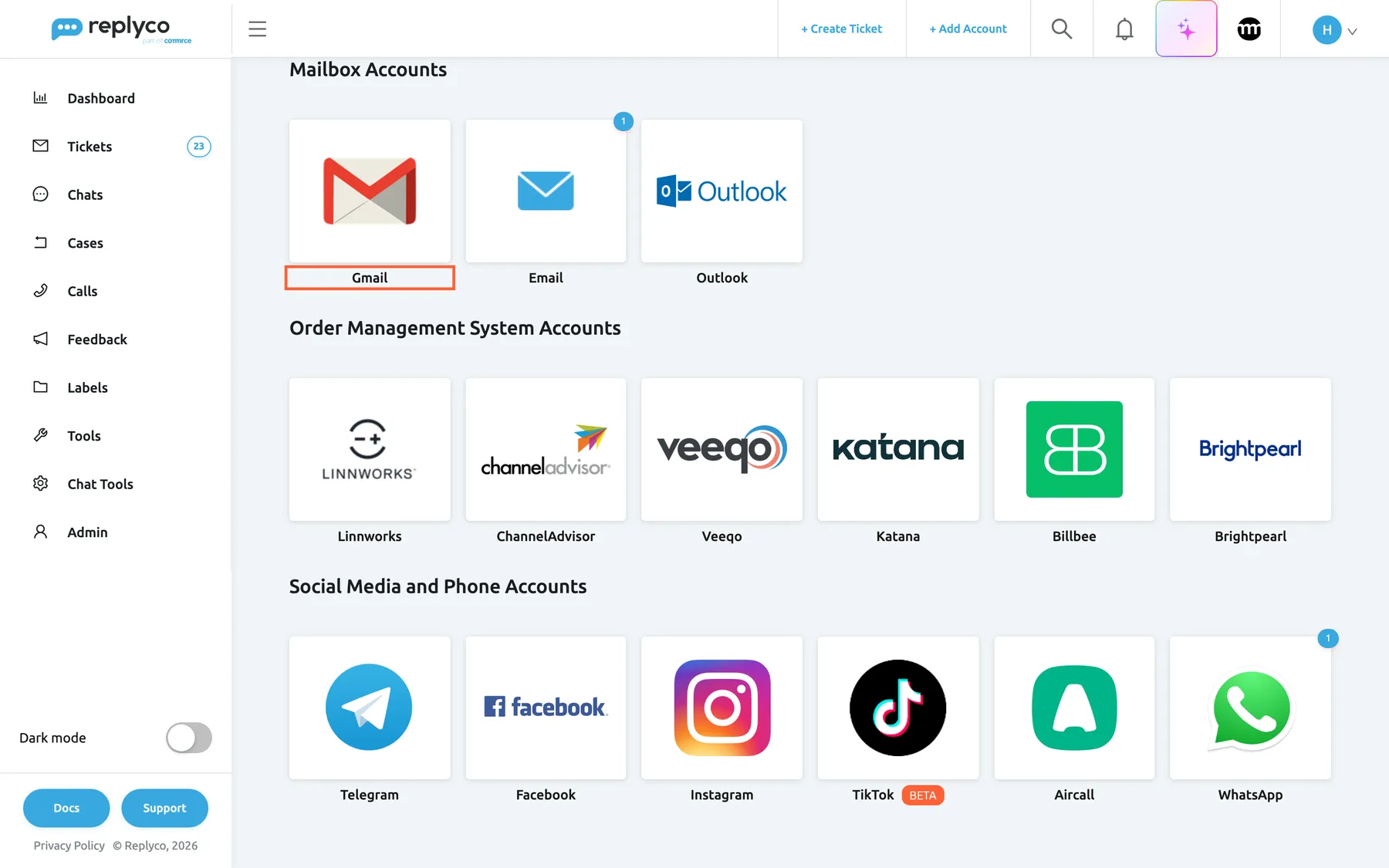
Gmail is the first tile under Mailbox Accounts on the Add Account page. What this screenshot shows
- Screen
- Add Account (/integrations/add)
- Highlighted
- button “”, mailbox-tiles, enabled. opens the Gmail connect dialog
- Also visible
- Mailbox Accounts: Gmail, Email, Outlook; Order Management System Accounts below
- Purpose
- start connecting a Gmail mailbox
-
Name the account. Type an Account Name your team will recognise, such as Northwind Orders, and optionally a name in Send Name as. Select Authorize. Replyco saves the account and moves to AUTHORIZE.
-
Sign in with Google. Select Authorize again. Google opens in a new browser tab; choose the Google account of the mailbox and approve Replyco’s access. The Replyco tab moves on to FINISH; select Finish there.
-
Choose the labels (optional). After you approve, Google returns you to Replyco, which shows Validating Gmail account... and then Almost done... with Set up Folders to Sync messages from. Pick labels in Sync Messages from Folders:, or leave the box empty to import all mail except spam and bin, and select Finish. Replyco opens its start page.
-
Check that mail arrives. Open AdminAccounts: the account shows Syncing, and a time appears under Last Messages Sync after its first sync. Send a test message to the address from another mailbox and look for the ticket in your ticket lists.
Google’s security alert
Section titled “Google’s security alert”After you allow Replyco’s access, Google emails the connected account a security alert, “Replyco was granted access to your Google Account”. It is expected: if you allowed the access yourself, the connection works without any further step. To confirm it to Google (labels of Google’s English interface):
-
In the alert, select Check activity.
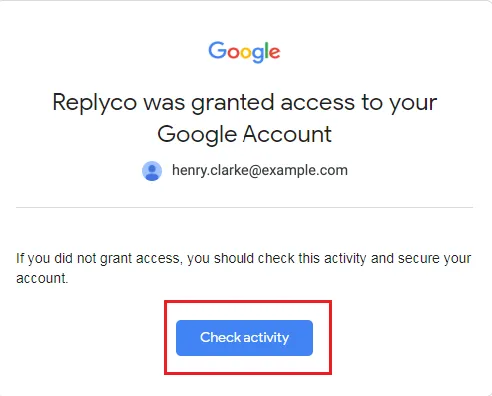
Google's security alert about Replyco's access is expected; Check activity lets you confirm it. What this screenshot shows
- Screen
- ()
- Highlighted
- “”, , .
- Also visible
- Google logo; the connected account's address; If you did not grant access, you should check this activity and secure your account.; Check activity button
- Purpose
-
Google shows the access with the app Replyco, the device and the time, and asks whether you recognise this activity. Select Yes, it was me.
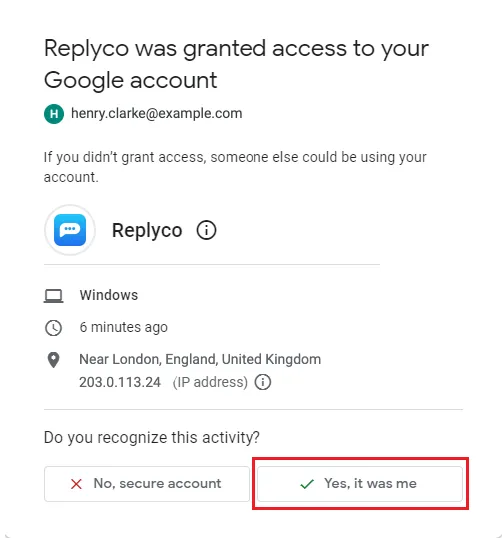
If you allowed Replyco's access yourself, select Yes, it was me. What this screenshot shows
- Screen
- ()
- Highlighted
- “”, , .
- Also visible
- app Replyco with its icon; device type and time; approximate location and IP address; Do you recognize this activity?; No, secure account; Yes, it was me
- Purpose
Every setting, explained
Section titled “Every setting, explained”Gmail has two fields in the connect dialog, the label choice after Google returns you, and the account’s details under AdminAccounts, in the order below.
Account Name, the name your team sees
Section titled “Account Name, the name your team sees”The INFO step of Authorize Replyco to sync with Gmail, the first field. Later in the account’s Account Details as Account Name:, saved with Save Changes, or with Edit › Edit Account › Save.
The name of the account in Replyco: it labels every ticket from the mailbox and names the account on the Accounts screen and in filters. It is required; with the field empty, Authorize shows You must complete ALL FIELDS in order to save this account! Two Gmail accounts cannot share a name: Replyco refuses the second with “Integration with the same name already exists”. A later rename is written onto the account’s existing tickets as well.
The mailbox address is the same for every agent; a name such as Northwind Orders tells the team at a glance which mailbox a ticket came from when several are connected.
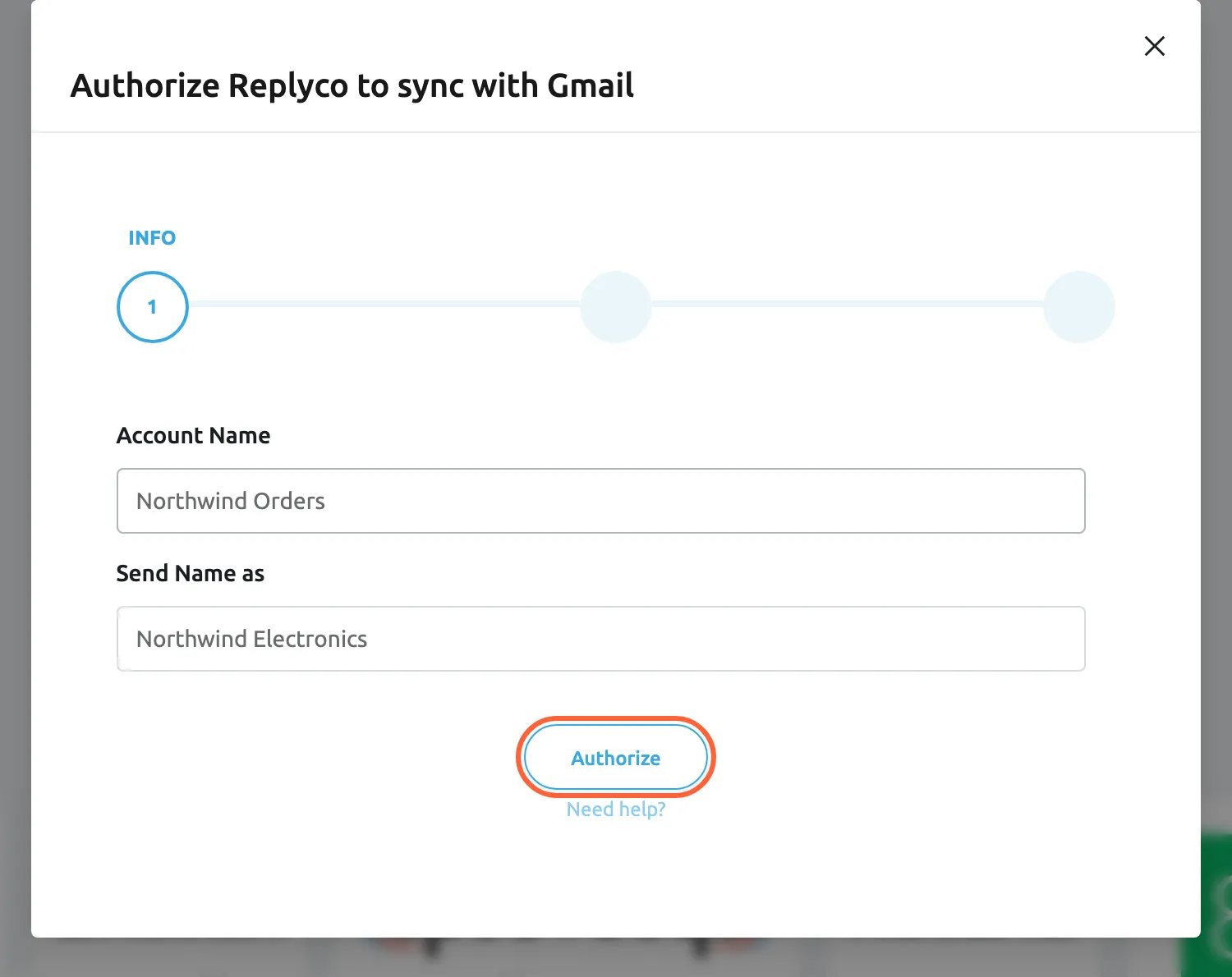
What this screenshot shows
- Screen
- Authorize Replyco to sync with {{name}} (/integrations/add)
- Highlighted
- button “Authorize”, dialog-bottom, enabled. saves the account and moves to the AUTHORIZE step
- Also visible
- step INFO of three; Account Name: Northwind Orders; Send Name as: Northwind Electronics; Need help? link
- Purpose
- enter the Gmail account details
Send Name as, a name next to your address
Section titled “Send Name as, a name next to your address”The INFO step, the second field. Later under Edit in the account’s Account Details, saved with Save.
A name Replyco writes next to the mailbox address in the replies it hands to Gmail. It is optional; leave it empty and Replyco adds no name. It never changes the address: every reply comes from the connected Gmail address, and Replyco deliberately offers no way to send from another address.
Replies that come from the address the customer wrote to stay out of spam folders, and the customer’s answer returns to the same mailbox.
Google sign-in, what Replyco may do
Section titled “Google sign-in, what Replyco may do”The AUTHORIZE step: Authorize opens Google in a new browser tab. Later, Re-login in the account’s details opens it again.
Replyco saves the account as soon as you select Authorize on the first step and shows it as Blocked until Google returns you. On Google’s page you choose the account and allow Replyco to read, send and organise its mail. When Google sends you back, Replyco links the mailbox address to the account, lifts the block and shows Account successfully saved. One Google address can be connected once: connecting it a second time is refused with “Your gmail account already exist”, and the second account is removed.
Signing in at Google means Replyco never sees your Google password, and you can withdraw its access in your Google account at any time.
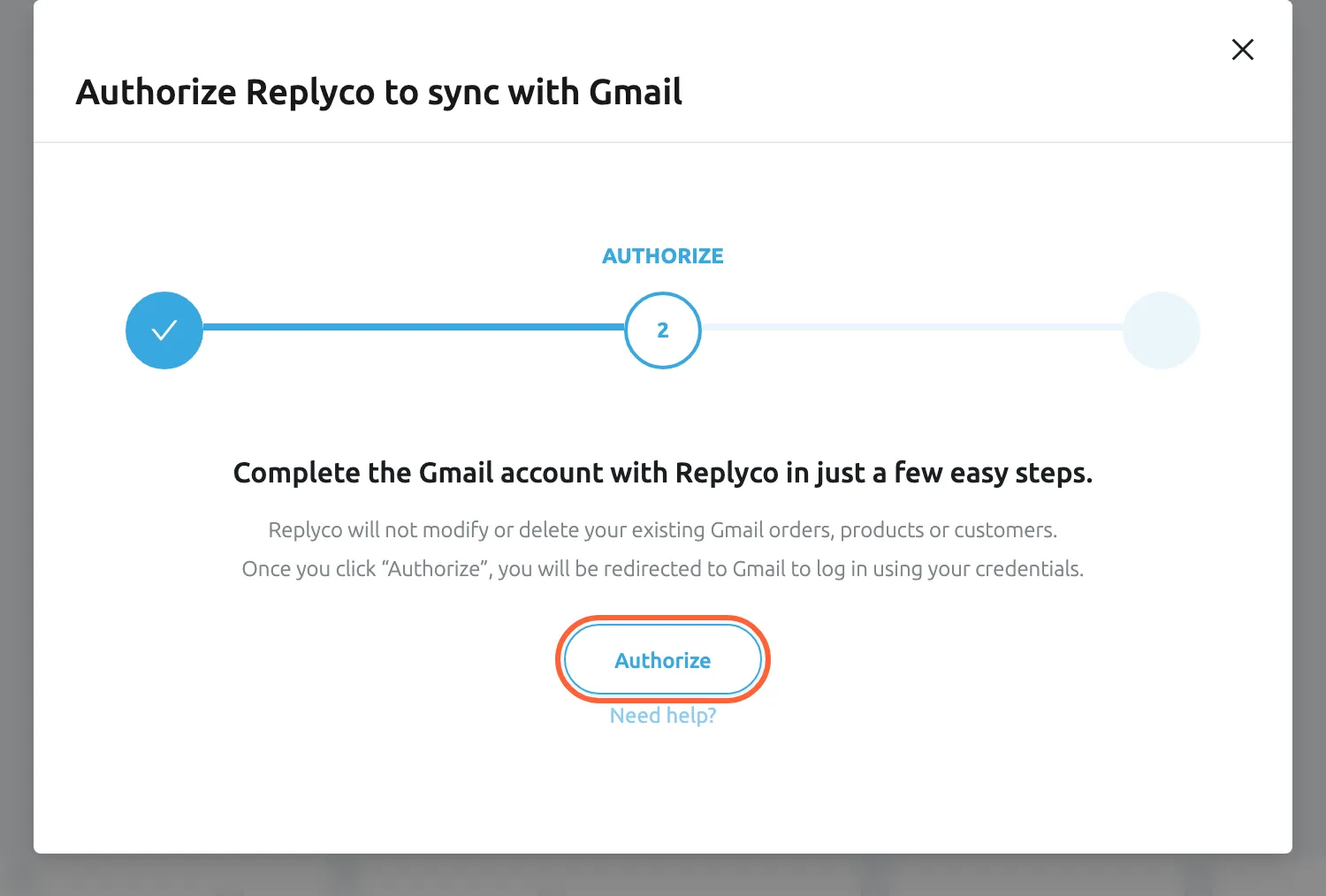
What this screenshot shows
- Screen
- Authorize Replyco to sync with {{name}} (/integrations/add)
- Highlighted
- button “Authorize”, dialog-bottom, enabled. opens Google sign-in in a new tab
- Also visible
- step AUTHORIZE of three; Need help? link
- Purpose
- send the user to Google to allow access to the mailbox
Sync Messages from Folders:, which labels are imported
Section titled “Sync Messages from Folders:, which labels are imported”First in Almost done... after Google returns you, saved with Finish; the step is optional. Later in the account’s Account Details, saved with Save Changes. The box is marked BETA.
A list of the mailbox’s labels as Gmail names them: its own labels in capitals, such as INBOX, SENT, IMPORTANT, TRASH and SPAM, and your labels as you named them. Choose one or more; Select all ticks every label and Deselect all clears them. With no label chosen, Replyco imports all mail except spam and bin; with labels chosen, only mail that carries at least one of them. A change applies from the next sync; mail already imported stays in Replyco.
A support mailbox also receives mail that is not a customer question. Choosing labels, together with Gmail filters that label customer mail, keeps newsletters and invoices out of your ticket lists.
| Do | Don’t |
|---|---|
| Leave the box empty for a mailbox that only receives customer mail | Choose Select all: it adds SPAM and TRASH |
| Choose INBOX plus the labels your Gmail filters set | Choose only your own labels while the filters are still untested |
| Choose SENT only if you want mail sent from Gmail itself in Replyco | Expect a label to keep working after you rename it in Gmail |
| Check the choice again after you reorganise labels in Gmail | Choose UNREAD: mail leaves that label as soon as someone reads it |
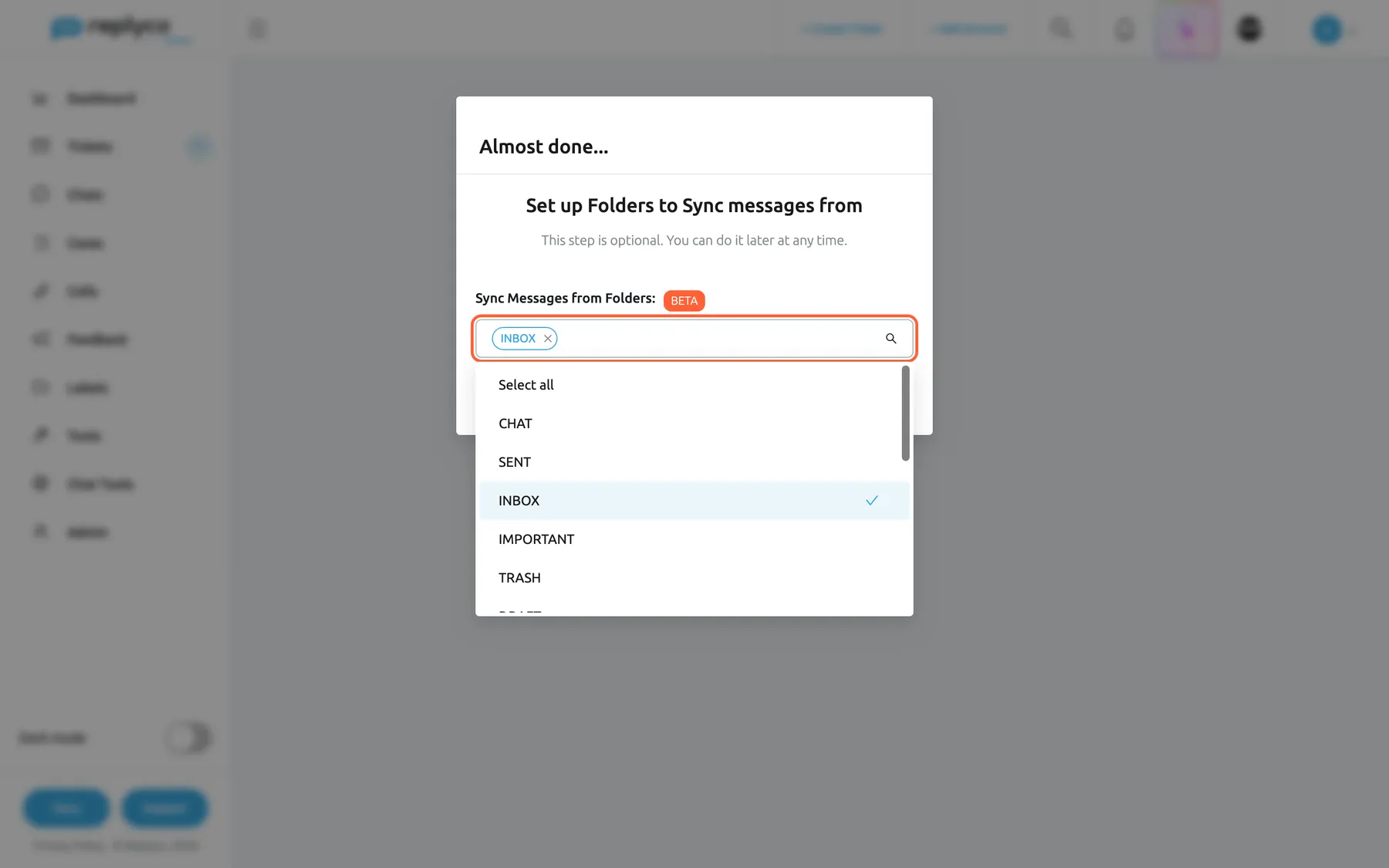
What this screenshot shows
- Screen
- Almost done... (/integrations/gmail/success)
- Highlighted
- combobox “Sync Messages from Folders:”, dialog, open. chooses the labels Replyco syncs
- Also visible
- heading Set up Folders to Sync messages from; list of Gmail labels with Select all; Finish button
- Purpose
- choose which Gmail labels are synced
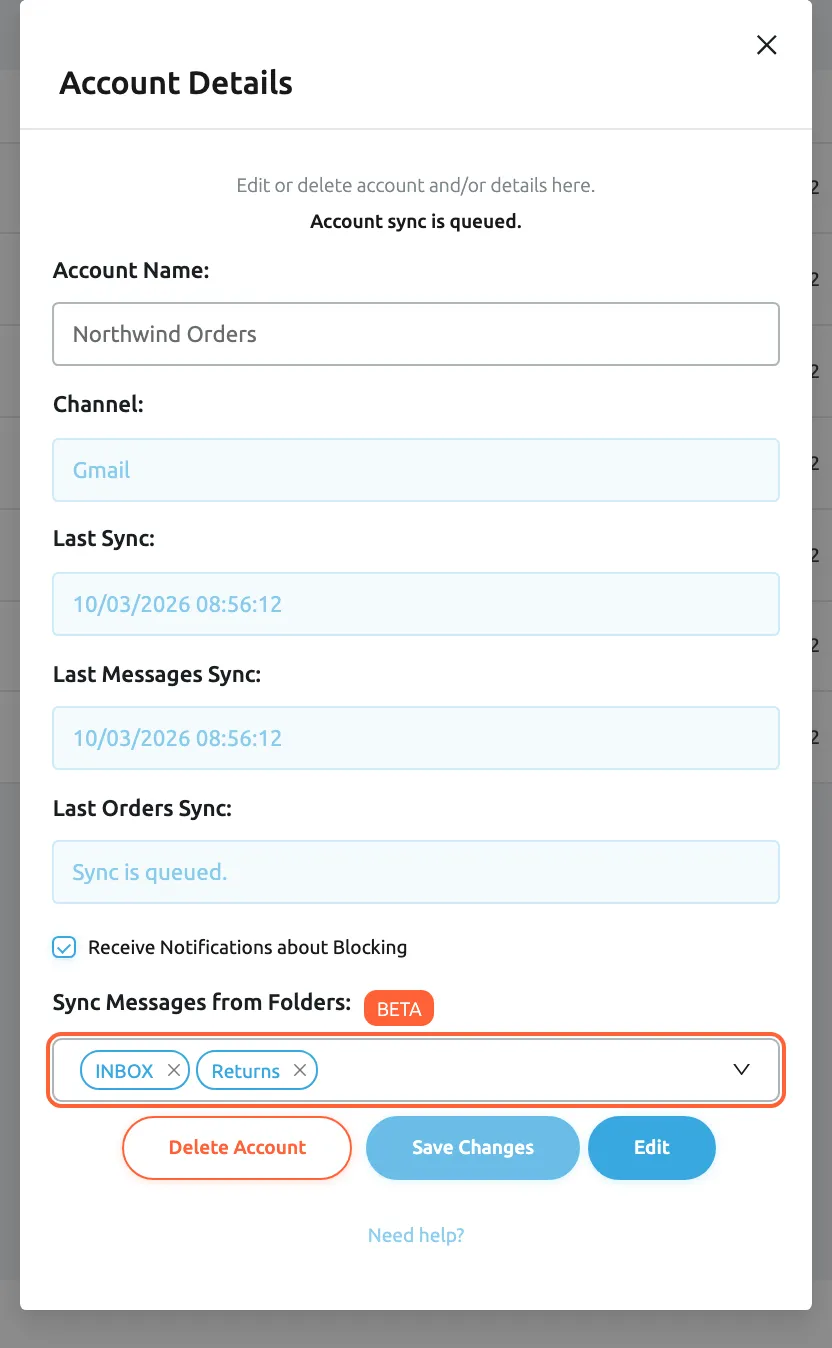
What this screenshot shows
- Screen
- Account Details (/integrations)
- Highlighted
- combobox “Sync Messages from Folders:”, dialog, INBOX and Returns chosen. changes the synced labels; Save Changes stores them
- Also visible
- Account Name: Northwind Orders; Channel: Gmail; Receive Notifications about Blocking ticked; Delete Account, Save Changes, Edit
- Purpose
- change which Gmail labels are synced
Receive Notifications about Blocking
Section titled “Receive Notifications about Blocking”The account’s Account Details, the check box above the folder box. Saved with Save Changes.
Ticked for every new Gmail account. While ticked, Replyco tells you by email and in the app when it blocks the account; cleared, no notice is sent.
A blocked mailbox brings in no mail; the notice lets you sign in again before customers wait.
How the settings combine
Section titled “How the settings combine”| Label choice | Mail you send from Gmail itself | Mail archived in Gmail |
|---|---|---|
| Nothing chosen | Imported as your team’s message | Imported |
| INBOX only | Not imported | Imported only if Replyco read it while it was still in the inbox |
| INBOX and SENT | Imported as your team’s message | Imported only if Replyco read it while it was still in the inbox |
| Your own labels | Only if a filter labels it | Imported if it carries the label |
Gmail in your tickets and your mailbox
Section titled “Gmail in your tickets and your mailbox”What you do in Replyco on a Gmail ticket, and what it changes in Gmail:
| In Replyco | In Gmail |
|---|---|
| Send a reply | Sent from the mailbox, in the same Gmail conversation; it appears under Sent |
| Open an unread ticket, or mark it read | The conversation is marked read |
| Mark a ticket unread | The conversation is marked unread |
| Archive a ticket | The conversation is archived: it leaves the inbox |
| Restore a ticket from the archive | The conversation returns to the inbox |
| Resolve, snooze, assign, label or set a priority | Nothing changes |
| Delete the Gmail account | Nothing changes; the mail stays in Gmail |
Tickets
Section titled “Tickets”Each Gmail conversation is one ticket, with the customer’s name and address taken from the sender of the message. Attachments and pictures in the message arrive with it. A reply the customer sends in the same conversation joins the same ticket. For every other part of the ticket, see The ticket screen.
Why: the ticket and the Gmail conversation stay one thing, so the conversation reads the same in both places.
Replies
Section titled “Replies”A reply you send from the ticket goes out through Gmail from the mailbox’s address, in the customer’s Gmail conversation, and Gmail files it under Sent. Replyco offers no way to replace that From address with another one, by design: mail from the account’s own address keeps clear of spam filters. Replyco sends exactly the text of its reply editor: the signature you keep for this account under Account Settings › Account Signatures is added there, while the signature you set in Gmail is not. To set one up, see Account Signatures; for templates, attachments and sending, see Answer a ticket. If Gmail does not accept a reply after several attempts, the message shows Error Sending, and Try Again sends it again.
Why: the customer gets the answer where they asked, from the address they wrote to.
Read and unread
Section titled “Read and unread”Opening an unread ticket marks it read in Replyco and marks the conversation read in Gmail; marking it unread does the reverse. A rule that marks messages as read does the same. Agents who keep Leave Tickets Unread switched on under Account Settings leave tickets unread when they open them; see Account Settings.
Why: a colleague working in Gmail sees what the team has already read in Replyco.
Archive
Section titled “Archive”Archiving a Gmail ticket also archives the conversation in Gmail, which takes it out of your inbox; restoring the ticket puts the conversation back in the inbox. For everything else about archiving, see Archived tickets.
Why: mail you have finished with in Replyco no longer crowds the Gmail inbox.
The Accounts screen
Section titled “The Accounts screen”The account appears on AdminAccounts with the Gmail icon, the name you chose and the time of its last sync under Last Messages Sync. Select it to open its Account Details: the name, the label choice, Receive Notifications about Blocking, Edit for the name and Send Name as, and Delete Account. For every column and button, see Accounts.
Why: the last sync time is the quickest check that the mailbox is still connected.
Reconnecting a blocked Gmail account
Section titled “Reconnecting a blocked Gmail account”AdminAccounts: the account shows Blocked in red under Synchronization. Select it; the Account Details show Blocking reason: and the Re-login button.
Replyco blocks the account when Google no longer accepts its access, for example after you changed the Google password, removed Replyco’s access in your Google account, or an administrator of your Google Workspace withdrew it. The reason then reads “Your login token is expired, need relogin”, and a blocked account brings in no mail. Re-login opens Google in a new tab; sign in with the same Google account and approve again. Replyco refuses a different address with “Account should be same as old”. After you approve, the block is lifted, the label choice is kept, and the next sync catches up on the mail since the block, reaching back at most two days.
Google’s access can end for reasons outside Replyco; signing in again restores it without losing the account, its tickets or its settings.
Three moments to use it:
- The account shows Blocked and the reason mentions an expired login token: select Re-login.
- You changed the password of the Google account: expect the block, and sign in again as soon as the notice arrives.
- Your Google Workspace administrator changed which apps may access mail: ask them to allow Replyco, then sign in again.
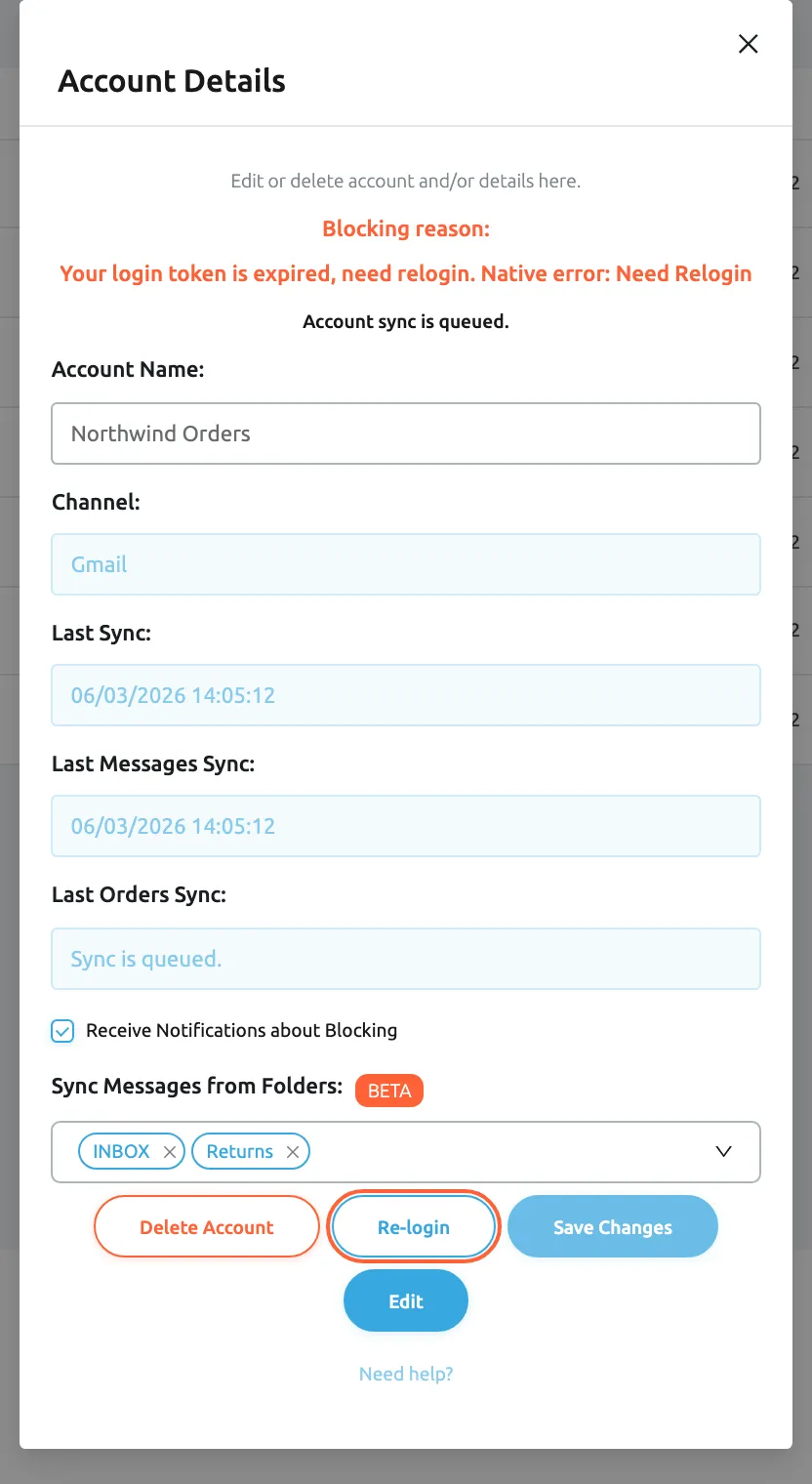
What this screenshot shows
- Screen
- Account Details (/integrations)
- Highlighted
- button “Re-login”, dialog-bottom, enabled. opens Google sign-in for this account
- Also visible
- Blocking reason: Your login token is expired, need relogin; Last Messages Sync 06/03/2026 14:05:12; labels INBOX and Returns kept
- Purpose
- reconnect a blocked Gmail account
What you need to know
Section titled “What you need to know”| Topic | Fact |
|---|---|
| Sync interval | About every five minutes; a new account is synced first. |
| History | The last two days of mail on connect; nothing older. |
| One ticket per conversation | A Gmail conversation is one ticket; replies in it join the same ticket. |
| Labels | Chosen by name from the mailbox’s labels; empty means all mail except spam and bin. |
| Mirrored to Gmail | Replies, read and unread, archive and restore. Resolve, snooze, labels and priorities stay in Replyco. |
| Signatures | Replyco’s signatures for the account are used; the Gmail signature is not. |
| One address, one account | A Google address can be connected once; two Gmail accounts cannot share a name. |
| Before sign-in | The account exists as Blocked from the first Authorize until Google returns you. |
| Blocking | When Google refuses the access; Re-login with the same Google account lifts it. |
| Deleting | Deletes the account’s tickets, orders and customers in Replyco; nothing in Gmail. |
| Access | Every user of the company gets the new account’s tickets; limit it under Users. |
| Plan | Every plan; counts against your plan’s number of accounts. |
Frequently asked questions
Section titled “Frequently asked questions”General
Section titled “General”Can I connect a Google Workspace address as well as a Gmail address?
Section titled “Can I connect a Google Workspace address as well as a Gmail address?”Yes. The Gmail account works with any Google account that has Gmail, whether an address on your own domain in Google Workspace or a personal Gmail address. You sign in with that Google account on Google’s page while connecting it under Mailbox Accounts on the Add Account page.
Should I connect Gmail natively or by forwarding?
Section titled “Should I connect Gmail natively or by forwarding?”For a Gmail or Google Workspace mailbox, use the Gmail account: replies go out through Gmail from your address, reading and archiving are mirrored, and no forwarding or DNS set-up is needed. Forwarding suits mailboxes that offer no sign-in; see Mailbox by forwarding and Mailboxes.
Does the Gmail account cost extra?
Section titled “Does the Gmail account cost extra?”No. Gmail is part of every plan. Each Gmail account counts as one account against the number of accounts your plan allows, and when that number is reached, + Add Account no longer appears in the top bar until you delete an account or change your plan.
Can I connect several Gmail mailboxes?
Section titled “Can I connect several Gmail mailboxes?”Yes. Each mailbox is its own Gmail account with its own name, labels and sync, and each counts against your plan’s number of accounts. The same Google address can be connected only once; Replyco refuses a second connection with “Your gmail account already exist”.
Who can connect a Gmail account?
Section titled “Who can connect a Gmail account?”Users with the Admin permission, because only they see the Admin menu with AdminAccounts and + Add Account in the top bar. The person who signs in on Google’s page needs the password of the Google account of the mailbox.
Why does the new Gmail account show Blocked before I finished?
Section titled “Why does the new Gmail account show Blocked before I finished?”Replyco saves the Gmail account when you select Authorize on the INFO step and keeps it Blocked until Google sends you back after you approve. Finish the sign-in in the Google tab and the block is lifted; if you gave up, delete the account and start again.
What does “Integration with the same name already exists” mean?
Section titled “What does “Integration with the same name already exists” mean?”Another Gmail account already has the Account Name you typed. Account names are unique per channel, so choose another name, such as the mailbox’s purpose, and select Authorize again in the INFO step.
How much old mail does Replyco import when I connect Gmail?
Section titled “How much old mail does Replyco import when I connect Gmail?”On the first sync Replyco imports the mail of the last two days from the labels you chose, or from the whole mailbox except spam and bin when you chose none. Older conversations stay in Gmail; a customer’s new reply in one of them opens a ticket.
Is the folder step required?
Section titled “Is the folder step required?”No. Set up Folders to Sync messages from after Google returns you is optional. Select Finish with the box empty and Replyco imports all mail except spam and bin; you can choose labels later in the account’s details under AdminAccounts.
Labels and folders
Section titled “Labels and folders”Which labels should I choose?
Section titled “Which labels should I choose?”For a mailbox that only receives customer mail, choose none. For a mixed mailbox, create Gmail filters that label customer mail, then choose INBOX and those labels in Sync Messages from Folders: under AdminAccounts and select Save Changes.
Why are the labels in capitals, like INBOX and SENT?
Section titled “Why are the labels in capitals, like INBOX and SENT?”The list shows the labels as Gmail names them. Gmail’s own labels, such as INBOX, SENT, IMPORTANT, SPAM and TRASH, have fixed English names in capitals in every language; the labels you created appear with the names you gave them.
Why do my own sent emails appear in Replyco?
Section titled “Why do my own sent emails appear in Replyco?”With no label chosen, Replyco imports all mail except spam and bin, including mail you send from Gmail itself, as your team’s messages. To keep it out, choose INBOX and your own labels, but not SENT, in Sync Messages from Folders: under AdminAccounts.
I chose labels and now nothing arrives. Why?
Section titled “I chose labels and now nothing arrives. Why?”Replyco imports only mail that carries one of the chosen labels. Check that your Gmail filters label customer mail as you expect and that the label names still match; renaming a label in Gmail means choosing it again in the account’s details under AdminAccounts.
What is the difference between ticking every label and choosing nothing?
Section titled “What is the difference between ticking every label and choosing nothing?”With nothing chosen, Replyco imports all mail except spam and bin. Select all ticks every label in Sync Messages from Folders:, SPAM and TRASH included, so spam and deleted mail can become tickets. Leave the box empty instead.
Replies and your mailbox
Section titled “Replies and your mailbox”Do replies come from our Gmail address?
Section titled “Do replies come from our Gmail address?”Yes. A reply you send from a Gmail ticket goes out through Gmail from the mailbox’s address, into the customer’s Gmail conversation, and appears under Sent in Gmail. The customer sees an ordinary email from you, not from Replyco. Replyco deliberately offers no way to send from a different From address, which keeps your replies out of spam folders.
Is our Gmail signature added to replies?
Section titled “Is our Gmail signature added to replies?”No. Replyco sends the text of its reply editor, and adds the signature you keep for this account under Account Settings › Account Signatures. Copy your Gmail signature there; see Account Signatures.
Does archiving a ticket change anything in Gmail?
Section titled “Does archiving a ticket change anything in Gmail?”Yes. Archiving a Gmail ticket archives its conversation in Gmail, taking it out of the inbox, and restoring the ticket from Archive puts the conversation back in the inbox. Resolving, snoozing, labelling and priorities stay in Replyco.
Will opening a ticket mark the email as read in Gmail?
Section titled “Will opening a ticket mark the email as read in Gmail?”Yes. Opening an unread ticket marks it read in Replyco and the conversation read in Gmail, and marking it unread does the reverse. Agents with Leave Tickets Unread switched on under Account Settings leave tickets unread when they open them.
What happens when a reply cannot be sent?
Section titled “What happens when a reply cannot be sent?”Replyco tries again several times. If Gmail still refuses the reply, the message in the ticket shows Error Sending with the reason; hover it and select Try Again to send it again once the cause is fixed, for example after a re-login.
Blocking and re-login
Section titled “Blocking and re-login”Why is my Gmail account blocked?
Section titled “Why is my Gmail account blocked?”Google no longer accepts Replyco’s access, for example after a password change, after access was removed in the Google account, or after a Google Workspace administrator restricted it. Open the account under AdminAccounts, read Blocking reason: and select Re-login.
Can I re-login with a different Google account?
Section titled “Can I re-login with a different Google account?”No. Re-login must use the same Google account the Gmail account was connected with; Replyco refuses another address with “Account should be same as old”. To move to another mailbox, connect it as a new Gmail account under Mailbox Accounts.
Do I lose mail while the account is blocked?
Section titled “Do I lose mail while the account is blocked?”A blocked account imports nothing. After Re-login, the next sync catches up on the mail since the block, reaching back at most two days. Mail older than that stays in Gmail only, so sign in again as soon as the blocking notice arrives.
Data and privacy
Section titled “Data and privacy”What does Replyco store from our mailbox?
Section titled “What does Replyco store from our mailbox?”Replyco stores the Google sign-in for the account, the mailbox address, and the messages and attachments of the labels it syncs, as tickets. Mail outside the chosen labels, spam and bin, unless chosen, is never read into Replyco. Your Google password never reaches Replyco.
What happens to our mail if we delete the Gmail account?
Section titled “What happens to our mail if we delete the Gmail account?”Deleting the account under AdminAccounts deletes its tickets, orders and customers in Replyco after a confirmation, and cannot be undone. Nothing is deleted in Gmail; the mail stays in your mailbox. See Accounts.
How do I stop Replyco from accessing the mailbox?
Section titled “How do I stop Replyco from accessing the mailbox?”Delete the Gmail account under AdminAccounts, which also deletes its tickets in Replyco, or remove Replyco’s access in your Google account, after which Replyco blocks the account at its next sync attempts and imports nothing more.
Troubleshooting
Section titled “Troubleshooting”| Symptom | What to check |
|---|---|
| The Gmail tile is missing, or + Add Account is not in the top bar | You need the Admin permission. If you have it, your plan’s number of accounts is reached: delete an account or change your plan. |
| You must complete ALL FIELDS in order to save this account! | Account Name is empty. Type a name; Send Name as may stay empty. |
| “Integration with the same name already exists” | Another Gmail account has that name. Choose a different Account Name. |
| “Your gmail account already exist” | This Google address is already connected. Use the existing account under AdminAccounts. |
| The new account shows Blocked right after you added it | The Google sign-in was not finished. Delete the account and add Gmail again, completing the sign-in in the Google tab. |
| No tickets arrive | In order: is the account Syncing? Does Last Messages Sync move? Is the mail within the chosen labels? Did a Gmail filter skip the inbox while only INBOX is chosen? Is the mail older than two days before you connected? |
| Newsletters or invoices become tickets | Nothing is chosen, so all mail is imported. Label customer mail with Gmail filters, then choose INBOX and those labels. |
| Your own sent emails appear as messages in tickets | Nothing or SENT is chosen. Choose INBOX and your own labels without SENT. |
| Spam or deleted mail becomes tickets | SPAM or TRASH is chosen, often through Select all. Remove them and select Save Changes. |
| The account shows Blocked with “Your login token is expired, need relogin” | Select Re-login and sign in with the same Google account. |
| “Account should be same as old” after re-login | You signed in with another Google address. Select Re-login again and choose the original account on Google’s page. |
| A reply shows Error Sending | Is the account blocked? Sign in again, then select Try Again on the message. |
| Replies carry no signature | Add one for this account under Account Settings › Account Signatures; the Gmail signature is not used. |