

Smart Filters
The Smart Filters screen shows at a glance where your work is waiting: one card per saved filter, one card per AI category with open tickets, and three cards for the tickets that have an AI draft waiting, each with the number of tickets behind it. Select a card and Replyco opens those tickets. Open it from TicketsSmart Filters in the sidebar; if you choose it as your start screen, Replyco also shows it when you sign in or select the Replyco logo. The screen only shows and opens tickets: to create a filter, change its conditions or its order, see Manage Smart Filters.
What you can do here
Section titled “What you can do here”- Open the tickets of a saved filter in one click. Each card is a Smart Filter, a saved set of search terms and filters such as Delivery questions or Cancellations. Selecting it opens the ticket list with those conditions already set. Open the tickets of a Smart Filter · Manage Smart Filters
- See at a glance how much work each filter holds. The number on a card counts the tickets the filter finds among the tickets you may see, fetched each time you open the screen. Read the counts
- Open the open tickets of an AI category. A card per category, such as Shipping & Delivery, shows how many unresolved tickets the AI put in it and opens exactly those. See the open tickets of an AI category · AI categories
- Work through AI drafts one after another. Three cards count the tickets with a reply the AI has written, yours, all open ones and all of them, and open a review window that moves from one draft to the next. Work through AI drafts · AI drafts
- Act on everything a filter finds. The list a card opens is an ordinary ticket list, so you can assign, label, resolve or export its tickets together. Act on the tickets a filter finds · Ticket lists
- Decide whether Replyco starts here. New users start on the list of tickets; a personal setting makes this screen your first screen instead. Choose your start screen · Account Settings
- Give each colleague the filters they need (admins). Which filters appear here is set per user. Choose who sees which filter · User permissions and roles
The screen at a glance
Section titled “The screen at a glance”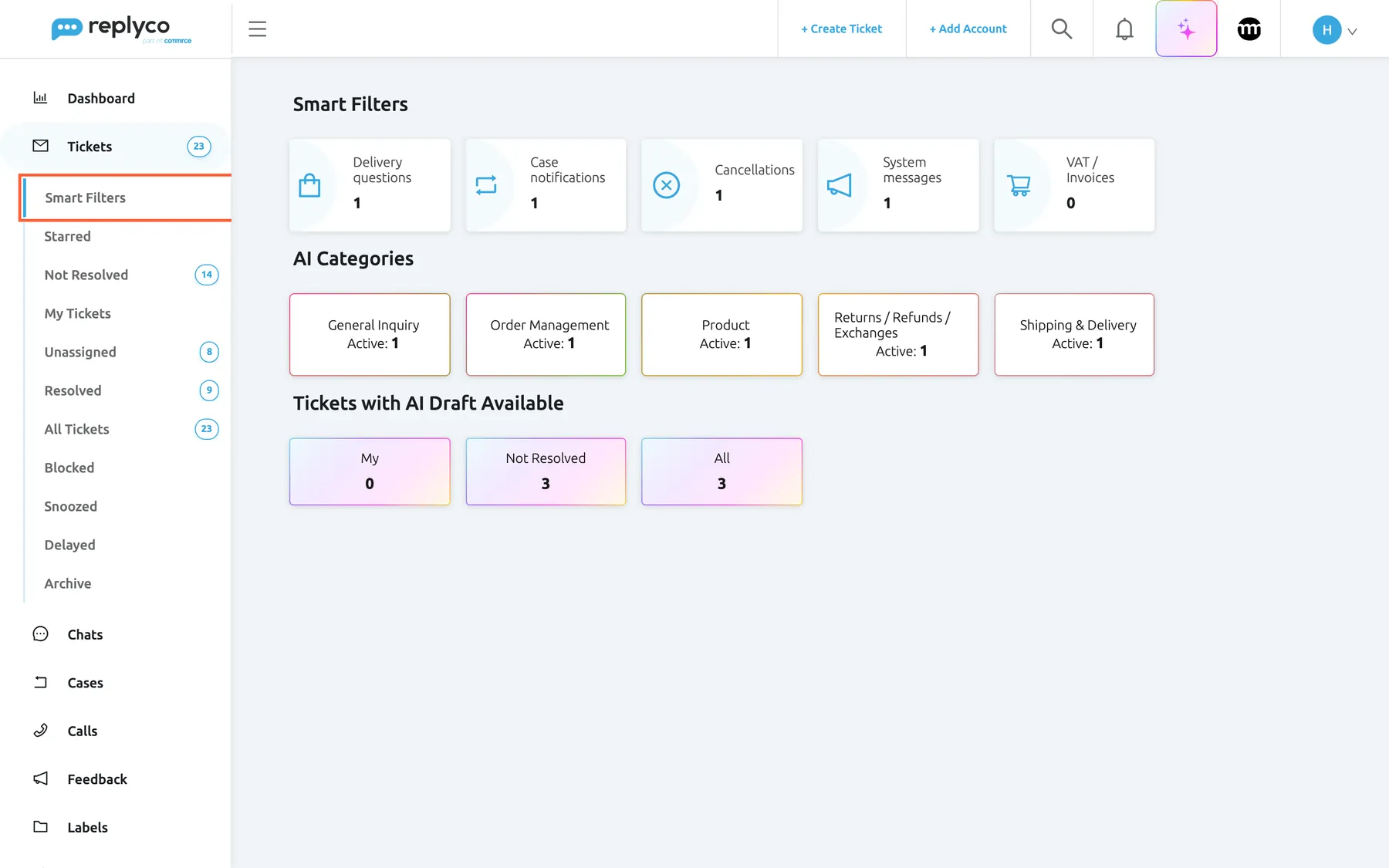
What this screenshot shows
- Screen
- Smart Filters (/ticket-smart-filters)
- Highlighted
- menuitem “Smart Filters”, sidebar-left, selected. opens the Smart Filters screen
- Also visible
- Tickets menu expanded with Smart Filters first; Smart Filters row: five cards with name, icon and ticket count; AI Categories row: five cards reading Active: 1; Tickets with AI Draft Available row: My 0, Not Resolved 3, All 3
- Purpose
- the screen as it opens, and where it lives
| Region | What it shows | What you do there |
|---|---|---|
| Smart Filters in the sidebar, first under Tickets | The entry to this screen; highlighted while you are on it | Open the screen from anywhere |
| Smart Filters row, top | One card per Smart Filter assigned to you, in the order set in Manage Smart Filters: its icon, its name and the number of tickets it finds | Open the filter’s tickets |
| AI Categories row, middle | One card per AI category that has at least one open ticket, framed in the category’s colours, with Active and the number | Open the category’s open tickets |
| Tickets with AI Draft Available row, bottom | My, Not Resolved and All, each with the number of tickets that have an AI draft | Open the review window on the first of those tickets |
The screen has no buttons, filters or settings of its own. A row is missing when it has nothing to show you: the Smart Filter row when no filter is assigned to your user, and the draft row when your company has AI auto-drafts switched off.
Open the tickets of a Smart Filter
Section titled “Open the tickets of a Smart Filter”-
Open TicketsSmart Filters in the sidebar.
The cards load with their counts. A grey bar stands in for a number while it is being counted.
-
Select the card of the filter you want, for example Delivery questions.
Replyco opens All Tickets with the filter’s conditions set as filters. They appear as tags under the heading Tickets, and the list shows the first page of the tickets they find.
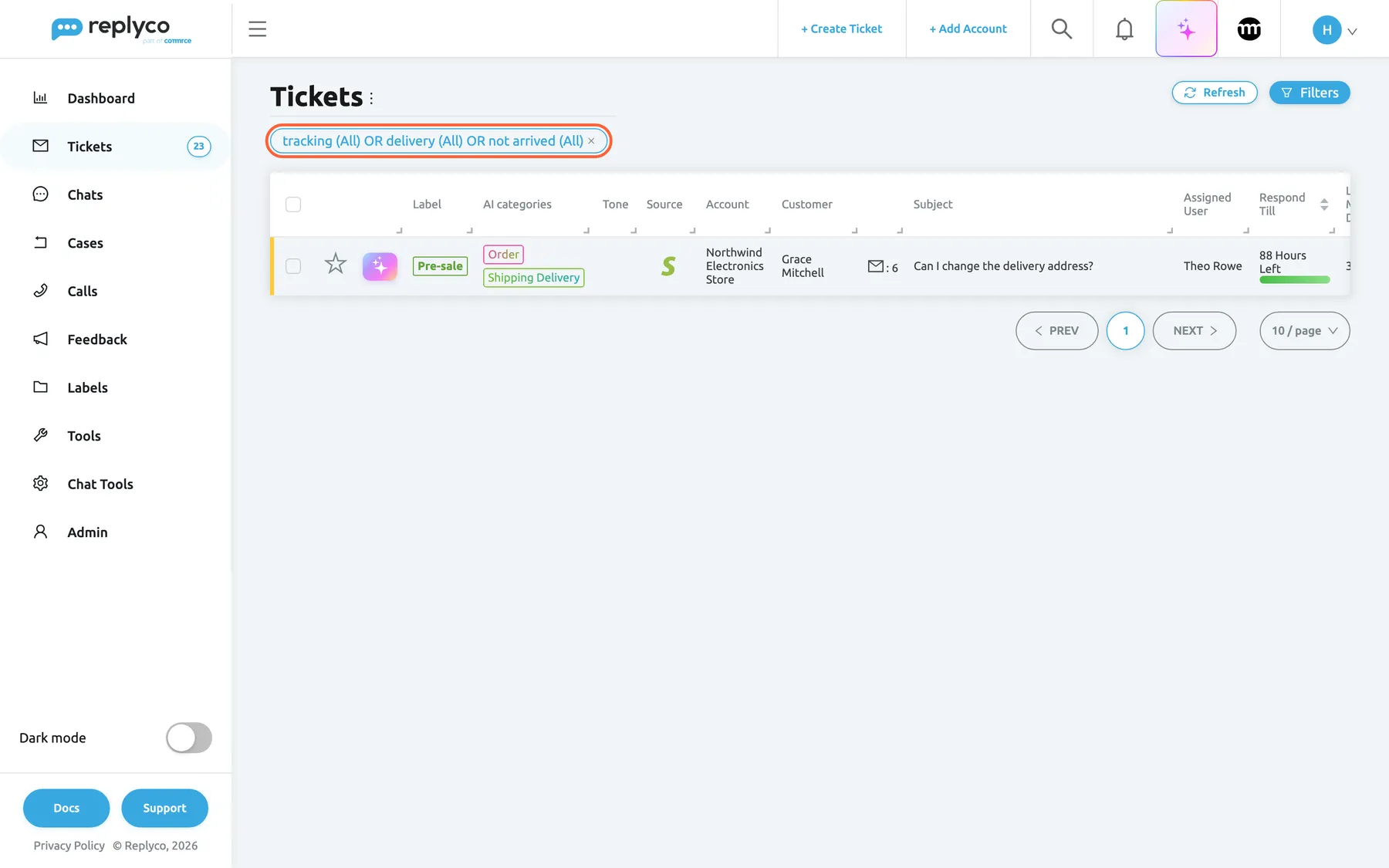
A Smart Filter card opens All Tickets with the filter's conditions set as ordinary filters; the tag shows them. What this screenshot shows
- Screen
- All Tickets (/tickets/all)
- Highlighted
- generic “”, below-heading, set. the cross removes the Smart Filter's search from the list
- Also visible
- heading Tickets with the three-dot menu; Refresh and Filters buttons; one filter tag with the advanced search; one ticket row: Can I change the delivery address?, Grace Mitchell; paging with one page
- Purpose
- what a Smart Filter card opens
-
To see or adjust the conditions, select Filters at the top right.
The filters panel shows every condition of the Smart Filter in the fields where you would have set it by hand: a search as the search box or the advanced search, and the rest in the drop-downs.
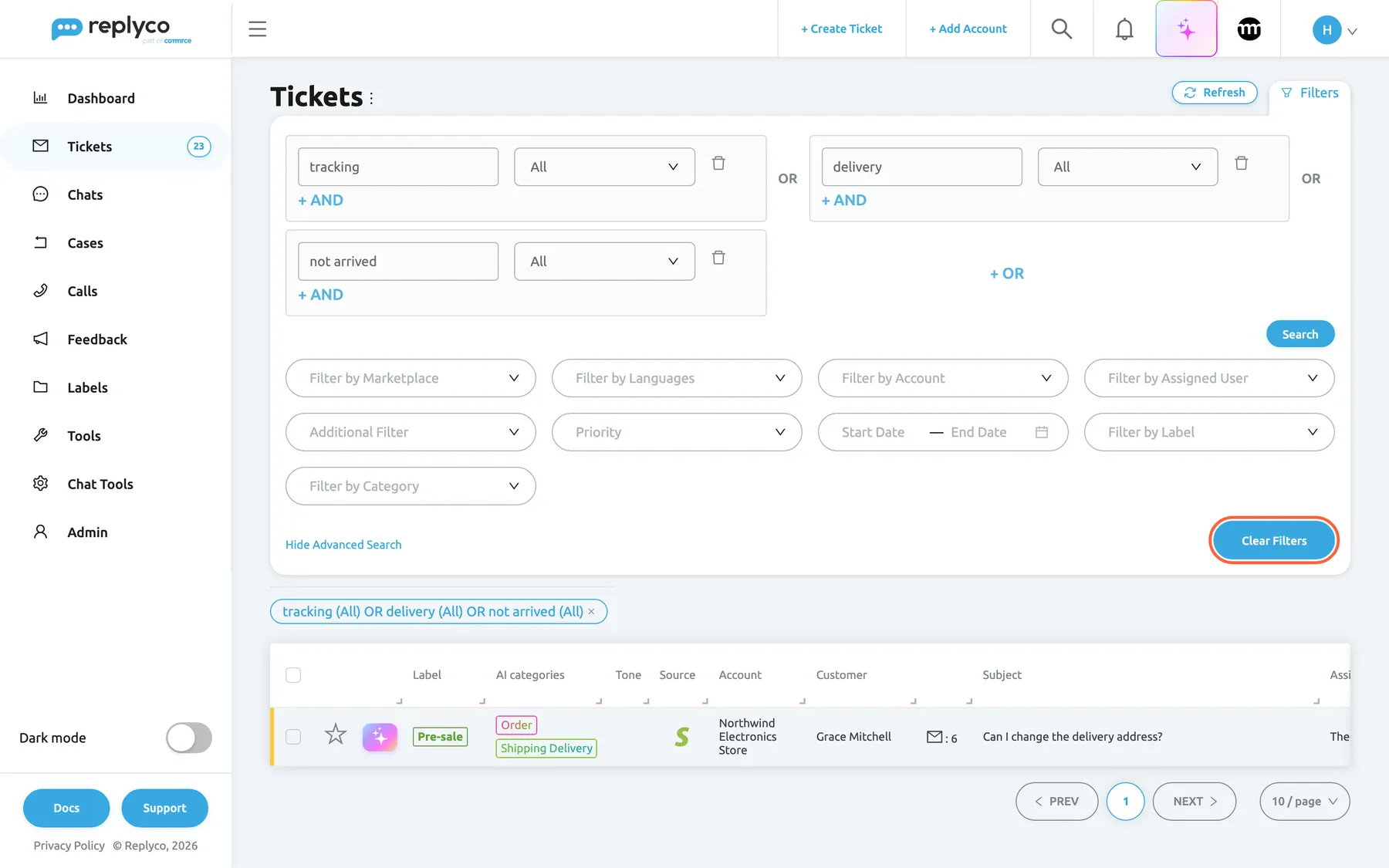
Filters shows the Smart Filter's conditions, which you can change here without changing the filter; Clear Filters removes them. What this screenshot shows
- Screen
- All Tickets (/tickets/all)
- Highlighted
- button “Clear Filters”, filters-panel-bottom-right, enabled. removes every filter from All Tickets
- Also visible
- advanced search with three OR boxes: tracking, delivery, not arrived, each in All; + AND, + OR and Search; the other filters empty; Hide Advanced Search link; filter tag and one ticket row below the panel
- Purpose
- see and adjust a Smart Filter's conditions on the list
Example. Delivery questions is an advanced search for tracking OR delivery OR not arrived, each in all fields. Selecting the card lists every ticket whose customer, subject, message text, order or tracking number contains one of those words, such as Can I change the delivery address? from Grace Mitchell.
A Smart Filter can combine a search or an advanced search with marketplaces, accounts, assigned users (including you or nobody), Additional Filter, the deadline state in Priority, a creation date range and labels; language and AI category are not part of a Smart Filter. The list uses them exactly as if you had chosen them in the filters panel; what each filter does is explained in Ticket lists.
The list is All Tickets, not a list of its own. The heading reads Tickets, the name of the Smart Filter appears nowhere, and resolved tickets are included unless the filter itself excludes them. Changing a filter on the list changes only what you see now; the Smart Filter stays as it is. To change it for good, edit it in ToolsSmart Filters; see Manage Smart Filters.
If your user may not open All Tickets, a card opens My Tickets with the same conditions, so you see only the matching tickets assigned to you, while the card still counts every matching ticket you may see. An admin decides which ticket lists you can open; see User permissions and roles.
Replyco creates six filters for every new company: one for open tickets whose response deadline has passed, and searches for delivery questions, case notifications, cancellations, system messages from the marketplaces, and VAT or invoice requests. They can be renamed, changed or deleted like any other filter.
Read the counts
Section titled “Read the counts”Every card shows a number, but the three rows count differently.
| Card | What the number counts |
|---|---|
| A Smart Filter | Tickets that match the filter’s conditions among the tickets you may see: archived tickets, snoozed tickets, tickets of blocked customers, and tickets on accounts or with labels your user may not see are left out, as on All Tickets |
| An AI category, Active | Tickets that carry the category and are not resolved, archived, snoozed or blocked |
| My | Tickets assigned to you that have an AI draft and are neither resolved nor archived |
| Not Resolved | Tickets that have an AI draft and are neither resolved nor archived |
| All | Every ticket that has an AI draft, resolved and archived ones included |
The numbers are fetched when you open the screen and do not change while you look at it. Smart Filter cards are counted four at a time as they come into view, so on a long page the lower cards show a grey bar until you scroll to them. To see new numbers, open the screen again from the sidebar.
When a Smart Filter cannot be counted, its card shows Error in red instead of a number; hover it to read the reason. Selecting the card still opens the list with the filter’s conditions; ask an admin to check the filter’s search in Manage Smart Filters.
See the open tickets of an AI category
Section titled “See the open tickets of an AI category”-
In the AI Categories row, find the category. Cards are sorted by their number, the fullest first; categories with the same number follow in alphabetical order.
-
Select the card.
Replyco opens All Tickets with two filters: Not Resolved in Additional Filter and the category in Filter by Category. Both appear as tags under the heading.
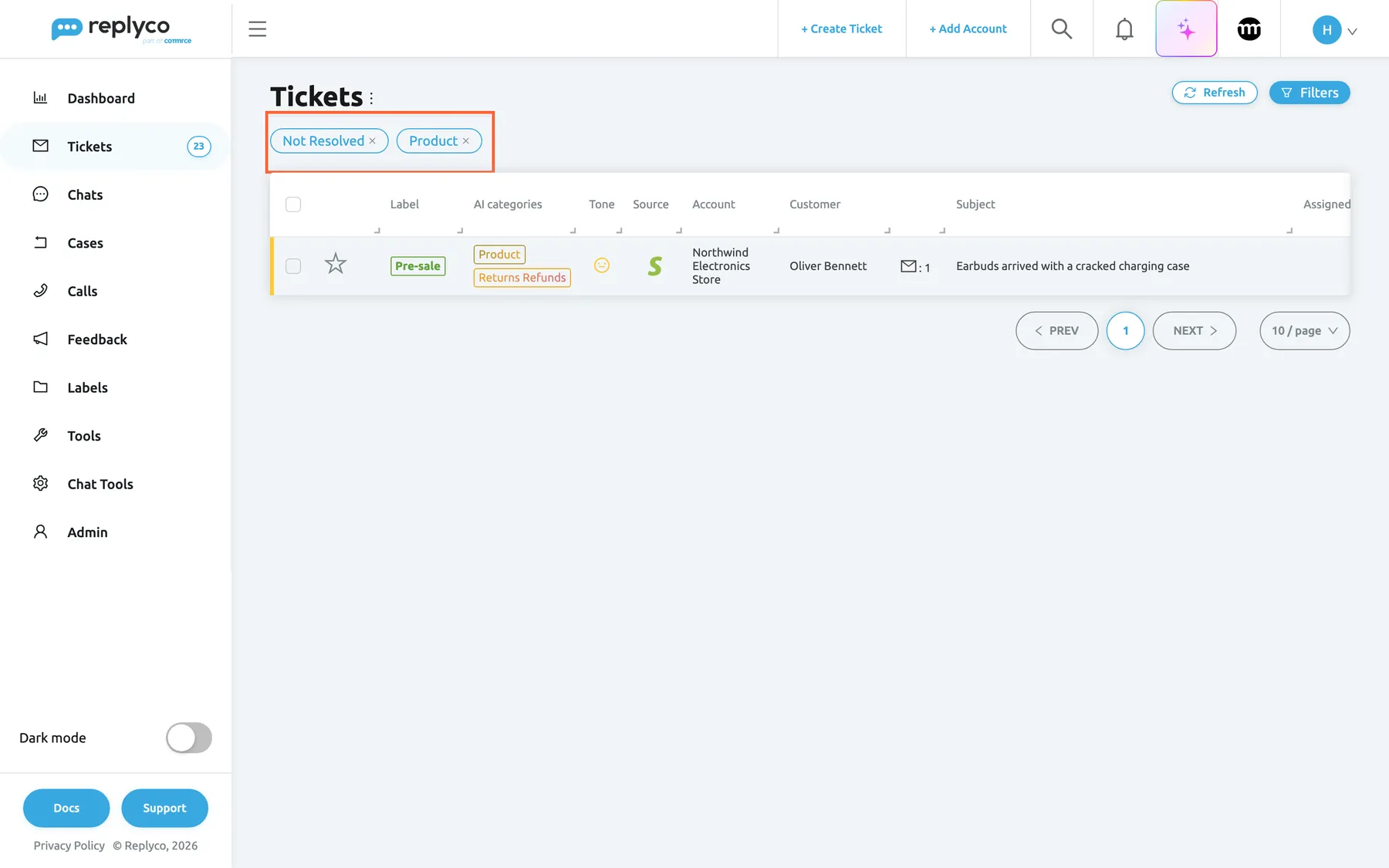
An AI category card opens All Tickets filtered to that category and to tickets that are not resolved. What this screenshot shows
- Screen
- All Tickets (/tickets/all)
- Highlighted
- generic “Not Resolved”, below-heading, set. the tags show the two filters the card set; each cross removes one
- Also visible
- filter tags Not Resolved and Product; one ticket row: Earbuds arrived with a cracked charging case, Oliver Bennett; AI categories Product and Returns Refunds on the row
- Purpose
- what an AI category card opens
Example. The card Product reads Active: 1. Selecting it lists the one unresolved ticket the AI put in that category, Earbuds arrived with a cracked charging case from Oliver Bennett.
Only categories with at least one open ticket have a card. A category the AI has not used on any open ticket is not shown, and when your company has no AI categories at all the row reads No data.... The categories themselves, and whether the AI assigns them, are set in ToolsAI Settings, which needs the Admin permission with Edit rights; see AI categories.
Work through AI drafts
Section titled “Work through AI drafts”When your company uses AI auto-drafts, the AI writes replies to incoming customer messages and keeps each one on its ticket until someone sends or rejects it; which messages get a draft is explained in AI drafts. The Tickets with AI Draft Available row lets you go through those drafts without opening each ticket.
-
Select My, Not Resolved or All.
A spinner replaces the number for a moment, then the AI Draft Response window opens on the ticket with the most recent message: its number, subject and account at the top, the customer’s latest message, the draft in an editor, and the AI summary and order details on the right.
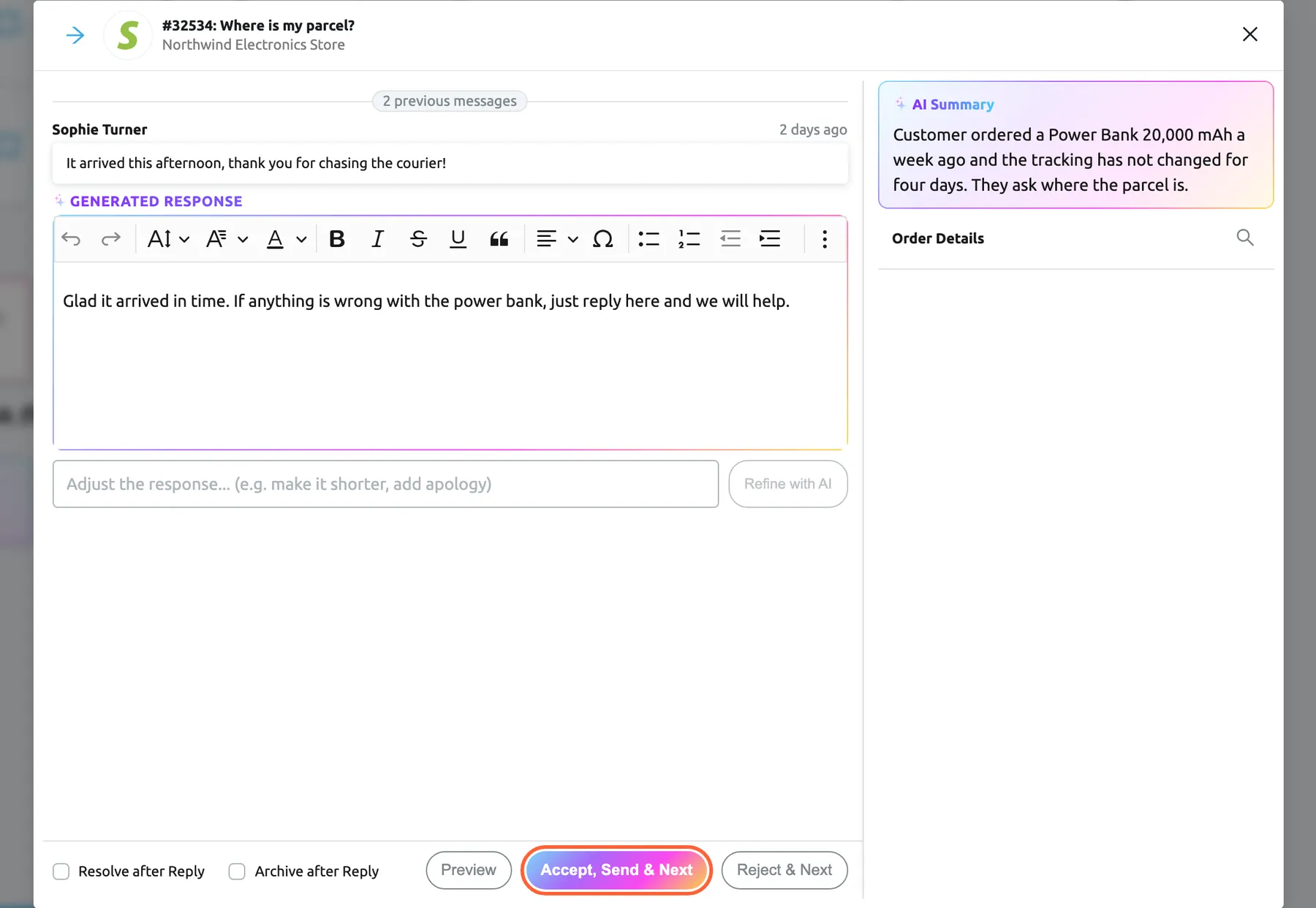
A draft card opens the review window on the latest ticket with a draft; each decision moves on to the next one. What this screenshot shows
- Screen
- Smart Filters (/ticket-smart-filters)
- Highlighted
- button “Accept, Send & Next”, dialog-footer, enabled. sends the reply through the ticket's channel and opens the next ticket's draft
- Also visible
- title: #32534 Where is my parcel?, Northwind Electronics Store, next arrow only; 2 previous messages and the customer's latest message; Generated response in an editor; Refine with AI field and button; AI Summary; Order Details empty, with a search icon; Resolve after Reply, Archive after Reply, Preview, Accept Send & Next, Reject & Next
- Purpose
- work through AI drafts from the Smart Filters screen
-
Read the draft and edit it if needed. To have the AI change it, describe the change in the field next to Refine with AI, for example make it shorter, and select Refine with AI.
-
Select Accept, Send & Next to send the reply, or Reject & Next to discard the draft. Rejecting first asks Why are you rejecting this draft?: pick a reason, add a comment if you like and select Confirm Rejection.
The window moves on to the next ticket with a draft. On the last one the buttons read Accept & Send and Reject, and the window closes after them.
-
Close the window with the cross when you want to stop. The three numbers are counted again.
The window works through the tickets in order of their latest message, newest first, and loads them twenty at a time. The arrows at the top move back and forward without deciding anything. A reply you accept goes to the customer through the ticket’s channel, exactly like a reply written in the ticket, and a ticket whose draft you accepted or rejected drops out of the counts. The same window opens from the sparkle in a ticket list; its controls are explained in Ticket lists.
A card that shows 0 does nothing when you select it. My counts only tickets assigned to you, so it stays at 0 while drafts wait on unassigned tickets; Not Resolved shows those.
Act on the tickets a filter finds
Section titled “Act on the tickets a filter finds”The list a Smart Filter or category card opens is All Tickets with filters, so everything the ticket lists offer works on it. Tick the rows, or the box in the table heading for the whole page, and use the bar at the top to assign, label, snooze, archive, resolve, merge or block them together. The ⋮ menu next to the heading exports the page you see.
Example. To hand every open cancellation to one colleague, select the Cancellations card, add Not Resolved in Additional Filter, show 100 tickets per page at the bottom right, tick the box in the table heading and choose Assign User.
The selection covers one page at a time. For every action in the bar and for the export, see Ticket lists.
Choose your start screen
Section titled “Choose your start screen”New users start on Not Resolved, the list of tickets: Replyco opens it after you sign in and when you select the Replyco logo at the top left. To start on this screen instead:
-
Open Account Settings from the menu under your avatar and select the Settings tab.
-
In Start screen, choose Smart Filters instead of List of tickets.
-
Select Save.
From then on signing in and the logo open Smart Filters, and Not Resolved stays one click away in the sidebar. The setting is personal and is offered only when your company has the Smart Filter feature. Before your company has connected its first account, the logo opens the screen for adding an account instead; see Add Account and Account Settings.
Choose who sees which filter
Section titled “Choose who sees which filter”Admins decide which filters appear on each user’s screen.
- A new Smart Filter goes to everyone who has a user at that moment.
- To change a user’s filters, open AdminUsers, select the user, open Access Rights and tick or clear the filters in the Smart Filters section. See Users and User permissions and roles.
A filter that was added or assigned to you appears after you reload Replyco in your browser. Creating, editing, reordering and deleting filters happens in ToolsSmart Filters and needs the Smart Filters permission; seeing and opening the filters assigned to you does not. See Manage Smart Filters.
Every control, explained
Section titled “Every control, explained”The controls of the Smart Filters screen, from the sidebar to the review window.
Smart Filters in the sidebar
Section titled “Smart Filters in the sidebar”Sidebar, first entry under Tickets. Also the screen behind the Replyco logo when your start screen is Smart Filters.
Opens this screen. The entry is there when at least one Smart Filter is assigned to you or your company uses AI. While you are on the screen, or on the start page that shows it, the entry is highlighted.
It is the one place where every saved view of your tickets and every waiting AI draft is counted side by side.
Smart Filter cards
Section titled “Smart Filter cards”The Smart Filters row, top of the screen, in the order set in Manage Smart Filters.
Each card shows the filter’s icon (one from the icon set or an uploaded picture), its name and the number of matching tickets you may see. Selecting it opens All Tickets with the filter’s conditions set as filters, on page 1. Error in red means the count failed; hover for the reason.
A saved filter spares you setting the same filters every morning, and the number tells you which queue needs you first.
AI category cards
Section titled “AI category cards”The AI Categories row, middle of the screen, sorted by their number.
One card per AI category with at least one open ticket, framed in the category’s colours, with its full name and Active: the number of open tickets in your company. Selecting it opens All Tickets filtered to Not Resolved and the category. No data... when your company has no categories.
Topics cut across channels and accounts; the cards show where today’s questions cluster, such as a spike in delivery questions.
Tickets with AI Draft Available
Section titled “Tickets with AI Draft Available”The bottom row, shown while Replyco has AI auto-drafts switched on for your company; see AI drafts.
My, Not Resolved and All, each with the number of tickets that have a draft. Selecting a card with a number above 0 opens the AI Draft Response window on the newest of those tickets.
Most drafts answer routine questions; sending them in a row clears a queue faster than opening every ticket.
AI Draft Response
Section titled “AI Draft Response”Opens over the screen from a draft card; the cross at the top right closes it.
The ticket’s number, subject and account, the arrows to the previous and next ticket, the customer’s latest message with the number of earlier messages, the draft in an editor with your signature for that account, Refine with AI, Resolve after Reply, Archive after Reply, Preview, Accept, Send & Next and Reject & Next, and on the right the AI Summary and the order. Closing it counts the drafts again.
Everything needed to judge a draft is in one window, and each decision leads straight to the next one. The controls are the same as from a ticket list; see Ticket lists.
Start screen
Section titled “Start screen”Account Settings, tab Settings. Shown when your company has the Smart Filter feature. Saved with Save.
List of tickets, the default for a new user, opens Not Resolved after sign-in and from the logo; Smart Filters opens this screen instead. It applies to your user only.
Team leads often start with the overview; agents who work one queue may prefer to land in it.
Who sees what
Section titled “Who sees what”| Part of the screen | What decides whether you see it |
|---|---|
| Smart Filters in the sidebar | At least one Smart Filter assigned to you, or AI for your company |
| The Smart Filter row and its cards | The filters an admin assigned to your user; every plan includes the Smart Filter feature |
| The AI Categories row | AI, part of every plan; cards only for categories with open tickets |
| The Tickets with AI Draft Available row | AI auto-drafts switched on for your company by Replyco; see AI drafts |
| The list a card opens | All Tickets if your user may open it, otherwise My Tickets; within it, only tickets of your accounts and labels |
| Start screen | The Smart Filter feature |
| Creating and editing filters (not on this screen) | The Smart Filters permission, in Manage Smart Filters |
| Changing AI categories and draft instructions (not on this screen) | The Admin permission with Edit rights, in ToolsAI Settings |
Every plan includes every feature on this screen, and during a trial every feature is on. Companies on an older plan may not have the Smart Filter feature; see What each plan includes.
What you need to know
Section titled “What you need to know”| Topic | Fact |
|---|---|
| Order of the Smart Filter cards | As set by dragging in Manage Smart Filters; the same for everyone |
| Order of the category cards | By number of open tickets, highest first; ties in alphabetical order |
| Refresh | Numbers are fetched when you open the screen; open it again for new ones |
| What a card opens | All Tickets with filters, from page 1; the filters stay on that list in this browser until cleared |
| Who counts where | Smart Filter cards: only tickets you may see (your accounts and labels). Category cards: open tickets. Draft cards: tickets with a draft waiting |
| Draft review order | Newest message first, loaded twenty at a time |
| Accepted or rejected drafts | Leave the draft counts at once |
| Date ranges in a filter | Fixed calendar days, not a rolling period such as the last seven days |
| New filters | Given to every user who exists when the filter is created |
| Names | Filter and category names show as they were typed; they are not translated |
Frequently asked questions
Section titled “Frequently asked questions”Saved filters
Section titled “Saved filters”Why does selecting a Smart Filter open the list of all tickets?
Section titled “Why does selecting a Smart Filter open the list of all tickets?”A Smart Filter is a saved set of conditions, not a list of its own. Selecting its card on TicketsSmart Filters opens All Tickets with those conditions set as filters, shown as tags under the heading. Resolved tickets are included unless the filter itself excludes them, for example with Not Resolved in Additional Filter.
Why does the list of all tickets still show the Smart Filter’s results later?
Section titled “Why does the list of all tickets still show the Smart Filter’s results later?”Replyco remembers the filters of each ticket list in your browser, and a Smart Filter card writes its conditions into the filters of All Tickets. They stay until you remove them. Open All Tickets, select Filters and then Clear Filters, or select the cross on each tag under the heading.
Does changing the filters on the list change my Smart Filter?
Section titled “Does changing the filters on the list change my Smart Filter?”No. The filters on the list apply only to what you see in this browser; the Smart Filter keeps its saved conditions and its card count does not change. To change a Smart Filter for everyone, edit it in ToolsSmart Filters, which needs the Smart Filters permission. See Manage Smart Filters.
How do I create a new Smart Filter?
Section titled “How do I create a new Smart Filter?”Not on this screen. Open ToolsSmart Filters, create the filter, give it a name and an icon and set its search and filters; it then appears as a card for every user of your company. Creating filters needs the Smart Filters permission; every plan includes the Smart Filter feature. See Manage Smart Filters.
Why is a Smart Filter missing on my screen when my colleague has it?
Section titled “Why is a Smart Filter missing on my screen when my colleague has it?”Which filters appear is set per user. A filter created after your user was added is given to you automatically. An admin can add the filter in AdminUsers, on your Access Rights, in the Smart Filters section. Reload Replyco in your browser afterwards.
Can I use bulk actions on the tickets a Smart Filter finds?
Section titled “Can I use bulk actions on the tickets a Smart Filter finds?”Yes. The card opens an ordinary ticket list, All Tickets with the filter’s conditions. Tick the rows, or the box in the table heading for the whole page, and use the bar at the top to assign, label, snooze, archive, resolve, merge or block them. Show 100 tickets per page first, because a selection covers one page. See Ticket lists.
Counts
Section titled “Counts”Why does a Smart Filter card show a different number from the list?
Section titled “Why does a Smart Filter card show a different number from the list?”The card counts the tickets that match the filter among the tickets you may see, when you open TicketsSmart Filters. The list can differ when tickets arrived or changed since then, when your user may not open All Tickets and the card opens My Tickets, or when All Tickets still had other filters set. Open the screen again for fresh numbers.
What does Error on a Smart Filter card mean?
Section titled “What does Error on a Smart Filter card mean?”Replyco could not count the tickets for that filter, so the card shows Error in red instead of a number. Hover the word to read the reason. Selecting the card still opens the list with the filter’s conditions. Ask an admin to check the filter’s search in ToolsSmart Filters.
Do the numbers update by themselves?
Section titled “Do the numbers update by themselves?”No. The numbers on TicketsSmart Filters are fetched when you open the screen and stay as they are while you look at it. The draft numbers are also counted again when you close the review window. To see new numbers, select the entry in the sidebar again.
AI categories
Section titled “AI categories”Why is one of our AI categories not on the screen?
Section titled “Why is one of our AI categories not on the screen?”The AI Categories row shows only categories that have at least one ticket that is not resolved, archived, snoozed or blocked. A category the AI has not assigned to any open ticket has no card. The categories and the switch that lets the AI assign them are in ToolsAI Settings, which users with the Admin permission with Edit rights can open; see AI categories.
Does a category card include resolved tickets?
Section titled “Does a category card include resolved tickets?”No. The number counts only tickets that are not resolved, and the card opens All Tickets with Not Resolved set in Additional Filter next to the category. To see resolved tickets of the category too, remove the Not Resolved tag under the heading.
AI drafts
Section titled “AI drafts”Why is the draft row missing?
Section titled “Why is the draft row missing?”The Tickets with AI Draft Available row appears only when your company has AI auto-drafts switched on. Replyco switches them on for your company; there is no switch for them in the app. While they are on, ToolsAI Settings shows the AI Draft Settings tab; see AI drafts. The rest of TicketsSmart Filters works without it.
Why does My show 0 when there are drafts?
Section titled “Why does My show 0 when there are drafts?”My counts only tickets that are assigned to you, have a draft and are neither resolved nor archived. Drafts on unassigned tickets or on a colleague’s tickets are counted in Not Resolved. A card that shows 0 does not open anything when you select it.
Is a draft sent when I close the review window?
Section titled “Is a draft sent when I close the review window?”No. A draft is sent only when you select Accept, Send & Next or Accept & Send, and discarded only when you reject it and select Confirm Rejection. Closing the window with the cross, or moving with the arrows, leaves every draft on its ticket, and the counts stay the same.
Why does All count resolved tickets?
Section titled “Why does All count resolved tickets?”All counts every ticket that still has a draft, including resolved and archived tickets whose draft nobody sent or rejected. Not Resolved leaves those out. Accepting or rejecting a draft in the review window removes the ticket from all three numbers.
Start page and access
Section titled “Start page and access”How do I make Replyco open on Smart Filters?
Section titled “How do I make Replyco open on Smart Filters?”Open Account Settings, select the Settings tab, choose Smart Filters in Start screen and select Save. After that, signing in and selecting the Replyco logo open TicketsSmart Filters instead of Not Resolved, where every new user starts. The setting is personal and is offered only when your company has the Smart Filter feature.
Do I need a special permission to use this screen?
Section titled “Do I need a special permission to use this screen?”No. The Smart Filters permission is needed only to create, edit, reorder or delete filters in ToolsSmart Filters. Every user sees and opens the filters assigned to them on TicketsSmart Filters, as long as the company has the Smart Filter feature, which every plan includes.
Troubleshooting
Section titled “Troubleshooting”| Symptom | What to check |
|---|---|
| Smart Filters is missing from the sidebar | No Smart Filter is assigned to your user and your company has no AI; an admin assigns filters on your Access Rights in AdminUsers |
| The screen shows no Smart Filter row | No filter is assigned to you; ask an admin. Companies on an older plan may not have the Smart Filter feature; see What each plan includes |
| A filter a colleague has is missing | It is not assigned to your user; an admin adds it on your Access Rights; then reload Replyco in your browser |
| A card shows Error | Hover it for the reason; the filter’s search could not be counted. An admin checks the search in Manage Smart Filters |
| A card opens My Tickets instead of All Tickets | Your user may not open All Tickets; an admin can add it in User permissions and roles |
| The list after a card shows fewer tickets than the card | The ticket list’s own view (My Tickets), or tickets that changed since the count; open the screen again |
| All Tickets shows only some tickets days later | The Smart Filter’s conditions are still set; select Filters, then Clear Filters |
| An AI category has no card | It has no open ticket, or the AI does not assign categories; check AI Settings |
| The row shows No data... under AI Categories | Your company has no AI categories yet; they are created in AI Settings |
| The draft row is missing | AI auto-drafts are off for your company; see AI drafts |
| Selecting a draft card does nothing | Its number is 0; try Not Resolved |
| The numbers look out of date | They are fetched when the screen opens; select Smart Filters in the sidebar again |
| The logo opens the ticket list instead of this screen | Your Start screen is List of tickets, the default; choose Smart Filters in Account Settings |