

Linnworks
A customer writes about an order, and the answer is in Linnworks: whether it was picked, which folder it sits in, what the warehouse noted. Connect Linnworks and Replyco looks each order up there, shows the Linnworks order next to the ticket, keeps the order’s notes in step, marks the order in Linnworks when the ticket is resolved, and lets your rules tag, park or lock the order without anyone leaving Replyco.
What it does
Section titled “What it does”Linnworks holds your orders from every channel, but your team answers customers in Replyco. Without a connection, every order question means a second window, a search in Linnworks, and a note copied back by hand.
When Linnworks is connected, Replyco asks Linnworks about the orders it already knows from your marketplaces, webstores and mailboxes, and adds the Linnworks order number, its folders and its notes to them. From there:
- Every ticket about a Linnworks order shows that order, with its Linnworks number, its folders and icons to open, sync and invoice it. Linnworks in your tickets.
- You decide, per channel account, which Linnworks reference fields Replyco compares with an order number. Order references per channel account.
- Rules can tag, lock or park the ticket’s Linnworks order the moment a message matches. Linnworks actions in rules.
- Linnworks shows your team which orders have an open ticket: Replyco adds an identifier and a link to the ticket. What Replyco writes to Linnworks.
Everything Replyco changes in Linnworks is visible there: the identifiers on the order, the internal note with the ticket link, and the order’s own audit trail, which you can also read from the ticket.
Before you start
Section titled “Before you start”| Requirement | Details |
|---|---|
| Plan | Every plan. Linnworks is not a paid add-on. See What each plan includes. |
| Permission | The Admin permission, to see + Add Account in the top bar and AdminLinnworks settings in the menu. See Invite users and set what they can do. Agents use the Linnworks data in tickets without it. |
| A Linnworks login that can install apps | Replyco connects through its own app in Linnworks. You sign in to Linnworks, install the app, and copy the token Linnworks shows. |
| One Linnworks account per company | Replyco connects one Linnworks account. A second attempt is refused with “Linnworks account already exist”. |
| A free account on your plan | The Linnworks account counts towards the accounts your plan allows. See Stay within your plan’s number of accounts. |
| Your channels connected in Replyco and in Linnworks | Replyco finds orders through your marketplace, webstore and mailbox accounts, then asks Linnworks about them. To connect a channel, see Add Account. |
| Cost | No charge per order or per look-up. |
Understanding order matching
Section titled “Understanding order matching”Every order in Replyco belongs to a channel account, such as your eBay or Shopify account. Linnworks adds its data to that order when Replyco can tell which Linnworks order it is. Replyco has three ways to find it:
| How the order is found | When it happens | Example |
|---|---|---|
| By the channel’s order number | Replyco saves an order from a marketplace or webstore, or finds the order of a new ticket | The Shopify order 610-0813064-3887956 is also in Linnworks with that reference; the ticket shows Linnworks order 6859628. |
| By the ticket subject and your order references | A ticket from a mailbox, or any ticket whose channel names no order | An email with the subject Order NW-10482 not arrived is matched to the Linnworks order whose reference is NW-10482. |
| By a number you type | You type into the Linnworks field of Order Details and select its save icon | You type 6859628 and the Linnworks order with that number is linked. |
How Replyco decides
Section titled “How Replyco decides”- Exactly one match, or none. When Replyco looks up a channel order number, it adds the Linnworks data only when one Linnworks order carries that number as its reference. With no match, or two or more, the order keeps only its channel data.
- The first word with a digit. For a subject, Replyco takes the first word that contains a digit, made of letters, digits,
#and-. Dates such as “March 3, 2026” and times are skipped. Symbols such as#,.,:and brackets are removed before the look-up. - Second tries. If that word contains letters, Replyco tries again with its digits only. If it has no letters but contains a dash, Replyco tries again without the dashes. For eBay accounts, an order number of two parts joined by a dash is also tried with the parts swapped and joined.
- Your order references. A subject or a typed value is compared with the reference fields you chose for the ticket’s channel account on AdminLinnworks settings: External Reference, Reference Number, Secondary Reference and Order ID. Order ID is compared only when the value is a whole number.
- The same channel. For a marketplace or webstore account, Replyco looks only at Linnworks orders that came from that channel. For a mailbox, it looks at every Linnworks order.
- A typed number. A whole number you type is looked up as a Linnworks order number first; when Linnworks has no such order, Replyco searches your order references with it.
The first-word rule decides what happens with subjects that carry more than one number:
| Ticket subject | Word Replyco uses | Next tries |
|---|---|---|
| Order #NW-10482 not arrived | NW-10482 | 10482 (digits only) |
| Parcel 206-4421-990 still missing | 206-4421-990 | 2064421990 (dashes removed) |
| Received the 4-in-1 hub, order 10482 | 4-in-1 | 41; the order number is never reached |
| March 3, 2026: order 10482 | 10482 (the date is skipped) | none needed |
What does not get matched
Section titled “What does not get matched”- Tickets from messengers: these accounts have no order references.
- Any order while the Linnworks account is blocked: Replyco leaves Linnworks out until it is unblocked.
- A channel account with every order reference switched off: Replyco does not search Linnworks by reference for it.
- A subject whose first word with a digit is not the order number, as in the 4-in-1 example.
- Orders that are not in Linnworks, for example because Linnworks does not import that channel.
Setting it up in five steps
Section titled “Setting it up in five steps”-
Open the Linnworks tile. Select + Add Account in the top bar. On Add Account, find the group Order Management System Accounts and select Linnworks. The connection dialog opens at its first step.
-
Install the Replyco app in Linnworks. Select Authorize. Linnworks opens in a new browser tab. Enter your Linnworks email and password, tick “I Agree to the terms and conditions stated below” and select “Login”.
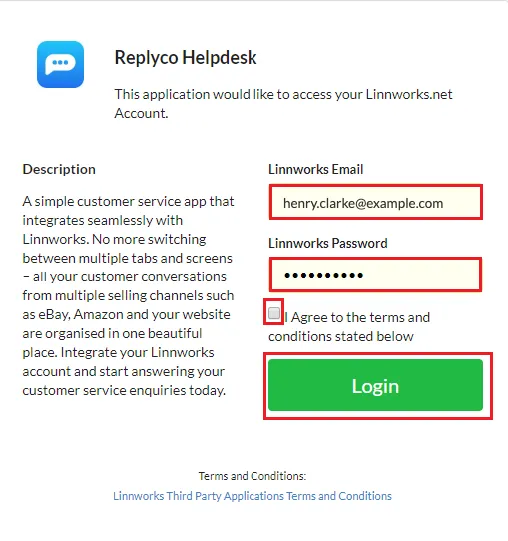
Enter your Linnworks email and password, agree to the terms and select "Login". What this screenshot shows
- Screen
- ()
- Highlighted
- “”, , .
- Also visible
- Linnworks Email; Linnworks Password; I Agree to the terms and conditions stated below; Login
- Purpose
Select “Install” to install the Replyco app.
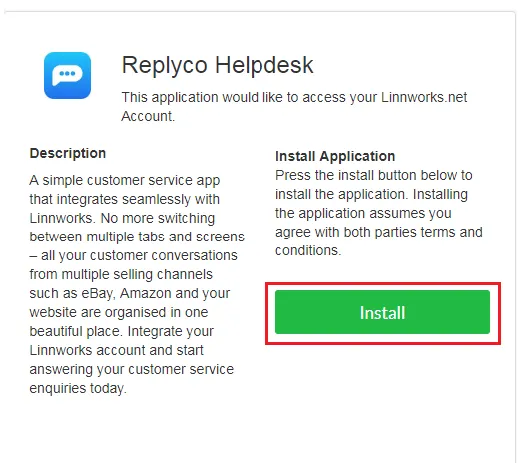
Select "Install" to install the Replyco Helpdesk app in Linnworks. What this screenshot shows
- Screen
- ()
- Highlighted
- “”, , .
- Also visible
- Install Application; Install, framed in red
- Purpose
Linnworks then shows a token for the installed app; select “Copy” to copy it. Meanwhile the Replyco tab has moved to the next step.
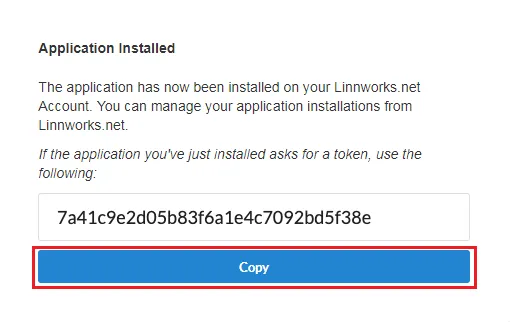
Select "Copy" to copy the token Linnworks shows for the installed app. What this screenshot shows
- Screen
- ()
- Highlighted
- “”, , .
- Also visible
- Application Installed; token box; Copy, framed in red
- Purpose
-
Paste the token. Back in Replyco, paste the token into Token and select Authorize. Replyco checks the token with Linnworks, saves the account and confirms with Account successfully saved..
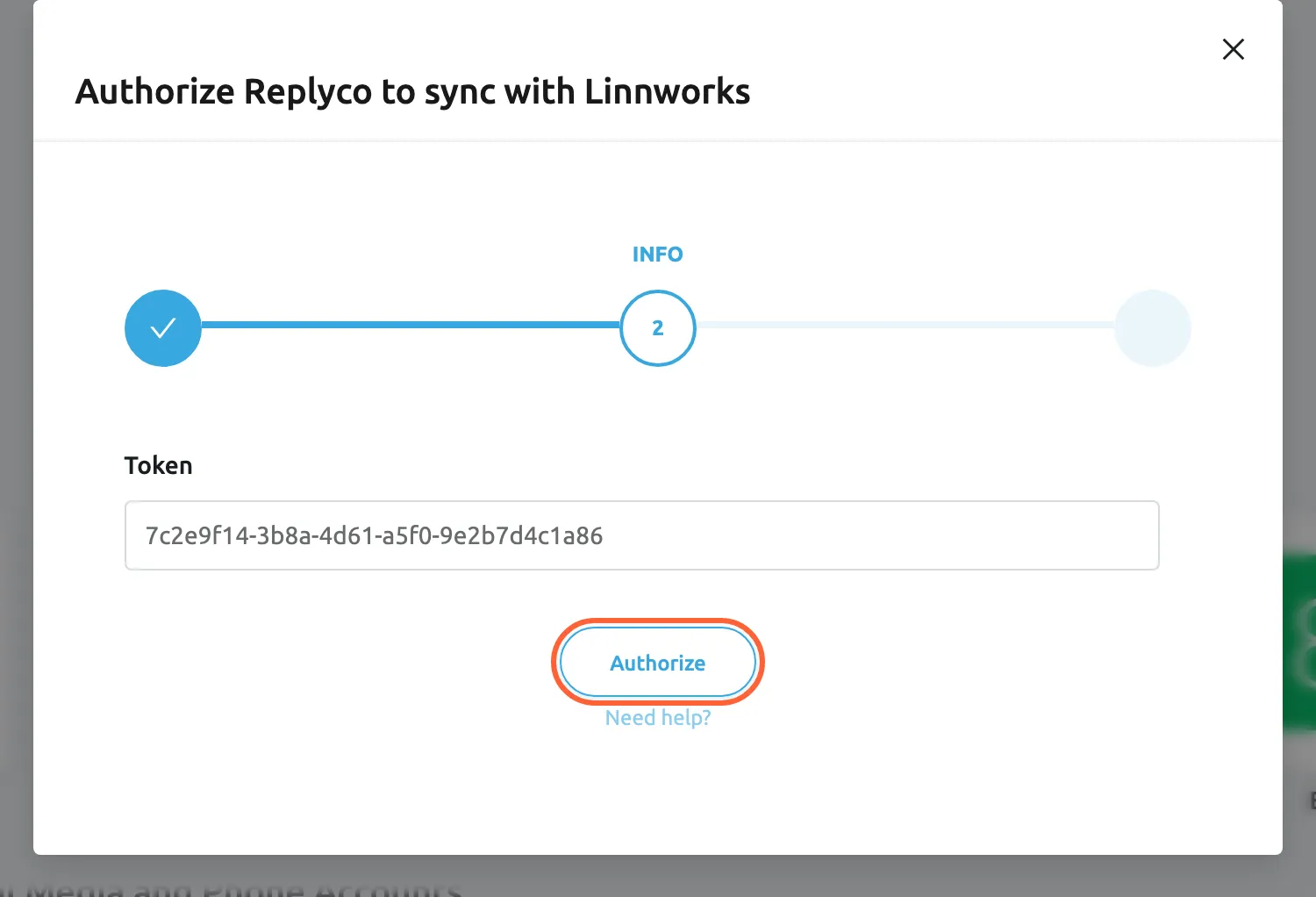
Paste the token from Linnworks into Token; Authorize checks it and saves the account. What this screenshot shows
- Screen
- Add Account (/integrations/add)
- Highlighted
- button “Authorize”, dialog-bottom, enabled. checks the token with Linnworks and saves the account
- Also visible
- step INFO; Token filled with a token
- Purpose
- the token step of connecting Linnworks
-
Finish. The dialog says Your Linnworks account is now ready.. Select Finish. AdminLinnworks settings now appears in the menu, and the Linnworks account is listed on AdminAccounts.
-
Check your order references (optional). Open AdminLinnworks settings, select each channel account and keep, or narrow, the four references Replyco compares. All four are on for every account at first. See Linnworks settings.
Every setting, explained
Section titled “Every setting, explained”The Linnworks connection has three settings: the token you connect with, the order references of each channel account, and the company switch for notes.
Token, pasted from Linnworks
Section titled “Token, pasted from Linnworks”AdminAccounts › + Add Account › Linnworks › second step, INFO. Saved with Authorize.
The token Linnworks shows after you install the Replyco app. The field is required: an empty field is refused with You must complete ALL FIELDS in order to save this account!. Replyco exchanges the token with Linnworks for a session and names the account Linnworks Account followed by the full name of the Linnworks user who installed the app. When the session expires, Replyco renews it with the same token, so you do not sign in again. When Linnworks does not accept the token, the account is not saved; copy the token again from Linnworks.
A token from the app installation lets Replyco read and update your Linnworks orders without storing your Linnworks password.
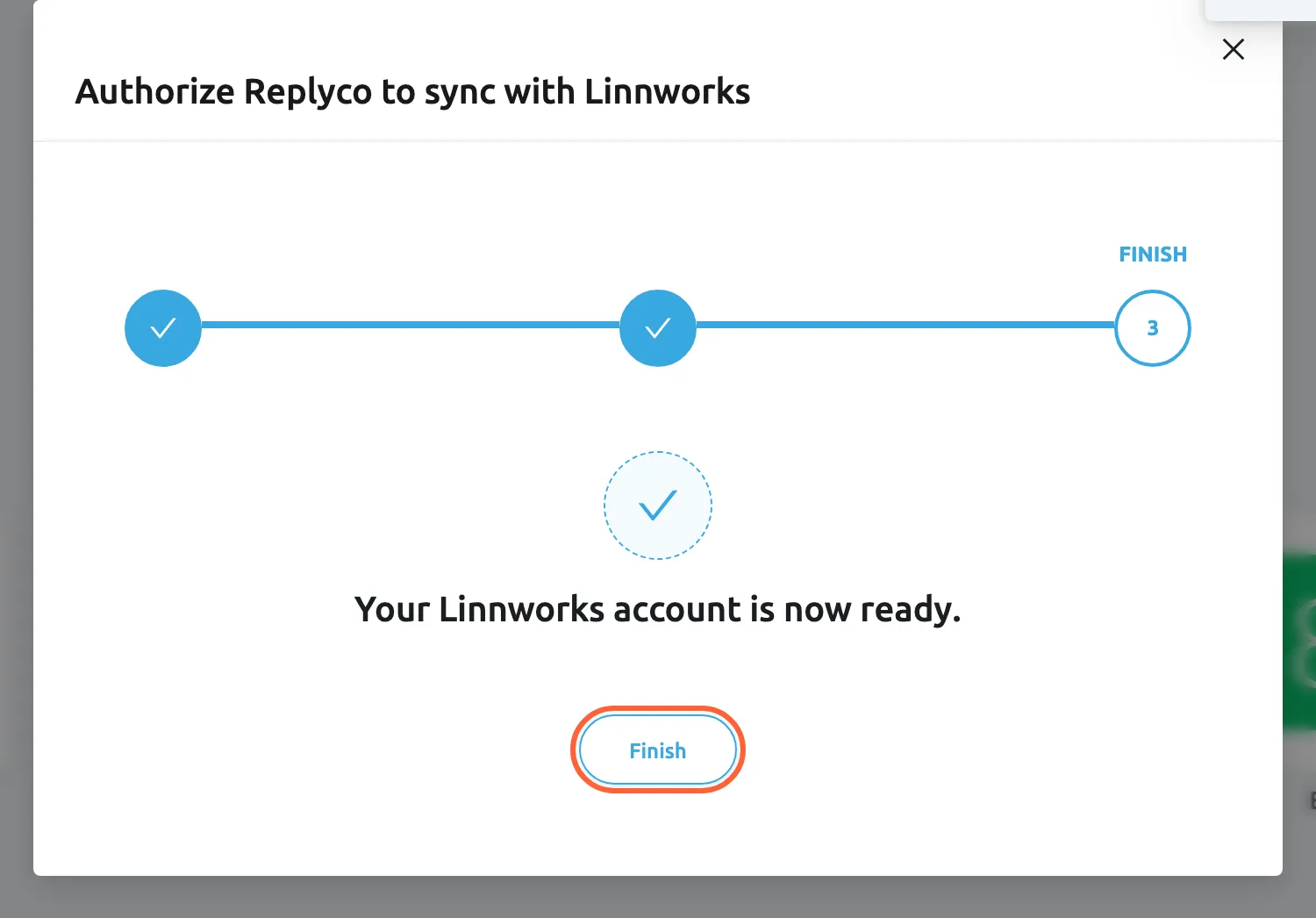
What this screenshot shows
- Screen
- Add Account (/integrations/add)
- Highlighted
- button “Finish”, dialog-bottom, enabled. closes the dialog
- Also visible
- step FINISH; message: Your Linnworks account is now ready.
- Purpose
- the result of connecting Linnworks
Order references, per channel account
Section titled “Order references, per channel account”AdminLinnworks settings. Select a channel account on the left, then the field Order references on the right. Saved with Save Changes; switching to another account before saving drops the change.
Four Linnworks reference fields, each on or off: External Reference, Reference Number, Secondary Reference and Order ID. All four are on for every account by default. Replyco compares a subject word or a typed value with every reference that is on, and uses the first Linnworks order that matches. Order ID is Linnworks’ own order number and is compared only with whole numbers. Deselect all switches all four off; with none on, Replyco does not search Linnworks by reference for that account. The screen lists your marketplace, webstore, mailbox and phone accounts; messengers and order management systems are not listed. A change applies to the next look-up; orders already linked keep their data.
Channels fill different Linnworks fields. Comparing only the field your channel fills stops a number from one field matching an unrelated order in another.
| Account’s references | Value found | Linnworks order | Result |
|---|---|---|---|
| All four on | 10482 | Reference Number 10482 | Matched |
| All four on | 10482 | Order ID 10482 | Matched |
| Only External Reference | 10482 | Reference Number 10482 | No match |
| Only Order ID | NW-10482 | Order ID 10482 | No match for NW-10482; the digits-only retry 10482 matches |
| None | any | any | No search by reference |
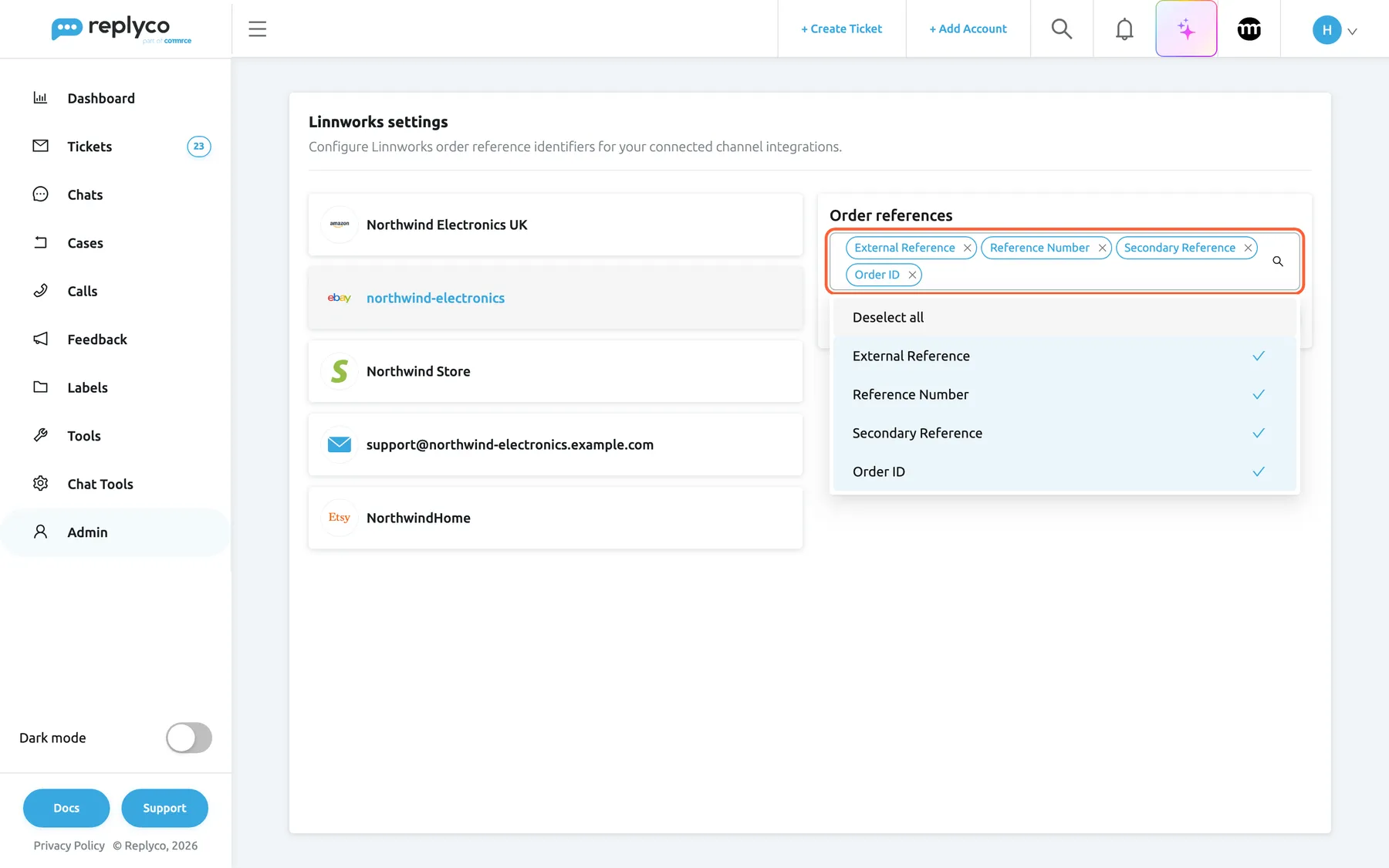
What this screenshot shows
- Screen
- Linnworks settings (/linnworks-settings)
- Highlighted
- “”, right-card, expanded. ticks or clears a reference for the selected account
- Also visible
- 5 channel accounts, eBay account selected; options Deselect all, External Reference, Reference Number, Secondary Reference, Order ID (all ticked); Save Changes button
- Purpose
- the one setting of the Linnworks connection
Auto-sync notes from order management systems, the company switch for notes
Section titled “Auto-sync notes from order management systems, the company switch for notes”AdminCompany Settings › General. The switch appears only while an order management system is connected. AdminCompany Settings needs the Admin permission with Edit rights.
On: whenever someone opens the Order notes of a ticket, Replyco syncs them with Linnworks in both directions. Off: notes sync only when someone selects Sync Notes with Linnworks. See Sync order notes with your order management system.
Your warehouse writes in Linnworks and your agents write in Replyco. The switch keeps both sides on the same page without a click.
How the settings combine
Section titled “How the settings combine”| References of the account | Account type | Result |
|---|---|---|
| At least one on | Marketplace or webstore | Subject words and typed values are compared with those fields, among Linnworks orders from that channel |
| At least one on | Mailbox | Compared with those fields, among all Linnworks orders |
| None on | Any | No search by reference; orders found by the channel’s own number still get their Linnworks data |
Linnworks in your tickets
Section titled “Linnworks in your tickets”| Where | What you see | When |
|---|---|---|
| Order Details | Linnworks Order ID as a link to the order in Linnworks, and Linnworks Folder Names | The order is known to Linnworks and the fields are turned on |
| Header of Order Details | Icons Show full Linnworks Order, Sync Order from Linnworks and Download Invoice from Linnworks | Linnworks is your only order management system with a number on this order |
| ⋮ in the same header | Sync from Linnworks, Show full Linnworks and Download Invoice from Linnworks | You have more than one order management system |
| Notes › Order | Notes from Linnworks and Sync Notes with Linnworks | The order is known to Linnworks |
The order panel
Section titled “The order panel”Order Details in the ticket’s right panel shows the order the ticket is about. When Linnworks knows it, the panel adds Linnworks Order ID, which opens the order in Linnworks, and Linnworks Folder Names, the Linnworks folders the order is in, or N/A. These two fields are hidden by default; turn them on with the gear, Edit fields visibility, for yourself or for all users. Sync Order from Linnworks fetches the order again from Linnworks, for example after the warehouse has dispatched it. To read every part of the panel, see Check the order and link another.
Why: the agent sees the warehouse’s view of the order before answering “where is my parcel?”.
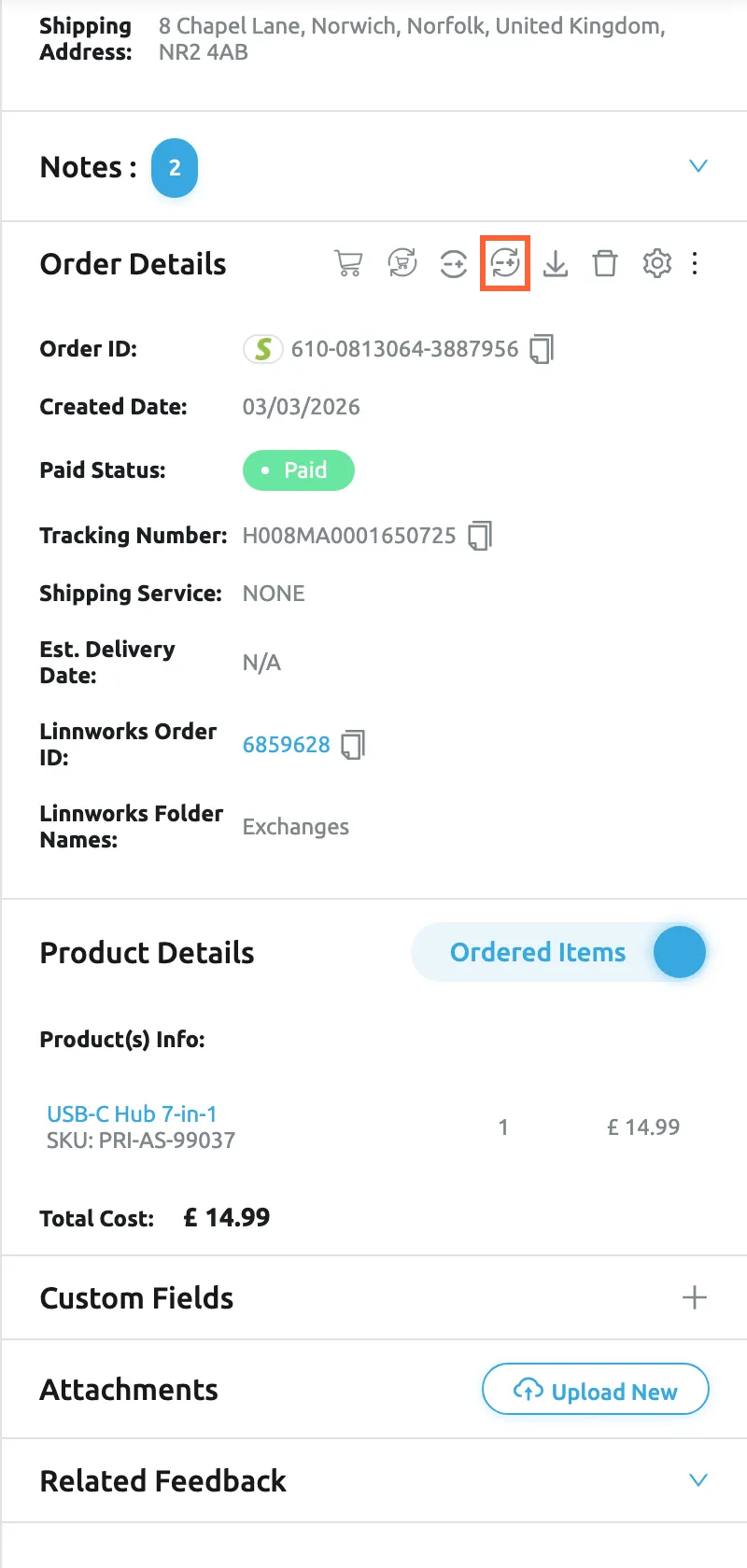
What this screenshot shows
- Screen
- Order Details (/ticket/:threadId)
- Highlighted
- “”, order-panel-header, enabled. fetches the order again from Linnworks
- Also visible
- icons: show full / sync / download invoice for Linnworks; Linnworks Order ID 6859628 (link); Linnworks Folder Names: Exchanges
- Purpose
- Linnworks in the ticket's order panel
The full Linnworks order
Section titled “The full Linnworks order”Show full Linnworks Order opens Full order details: the order exactly as Linnworks holds it, read-only, with Linnworks’ own field names in English, such as Num order id, General info, Shipping info, Customer info, Items and Totals info, and the order’s audit trail with dated entries.
Why: everything Linnworks knows, including when the order was processed and by whom, without signing in to Linnworks.
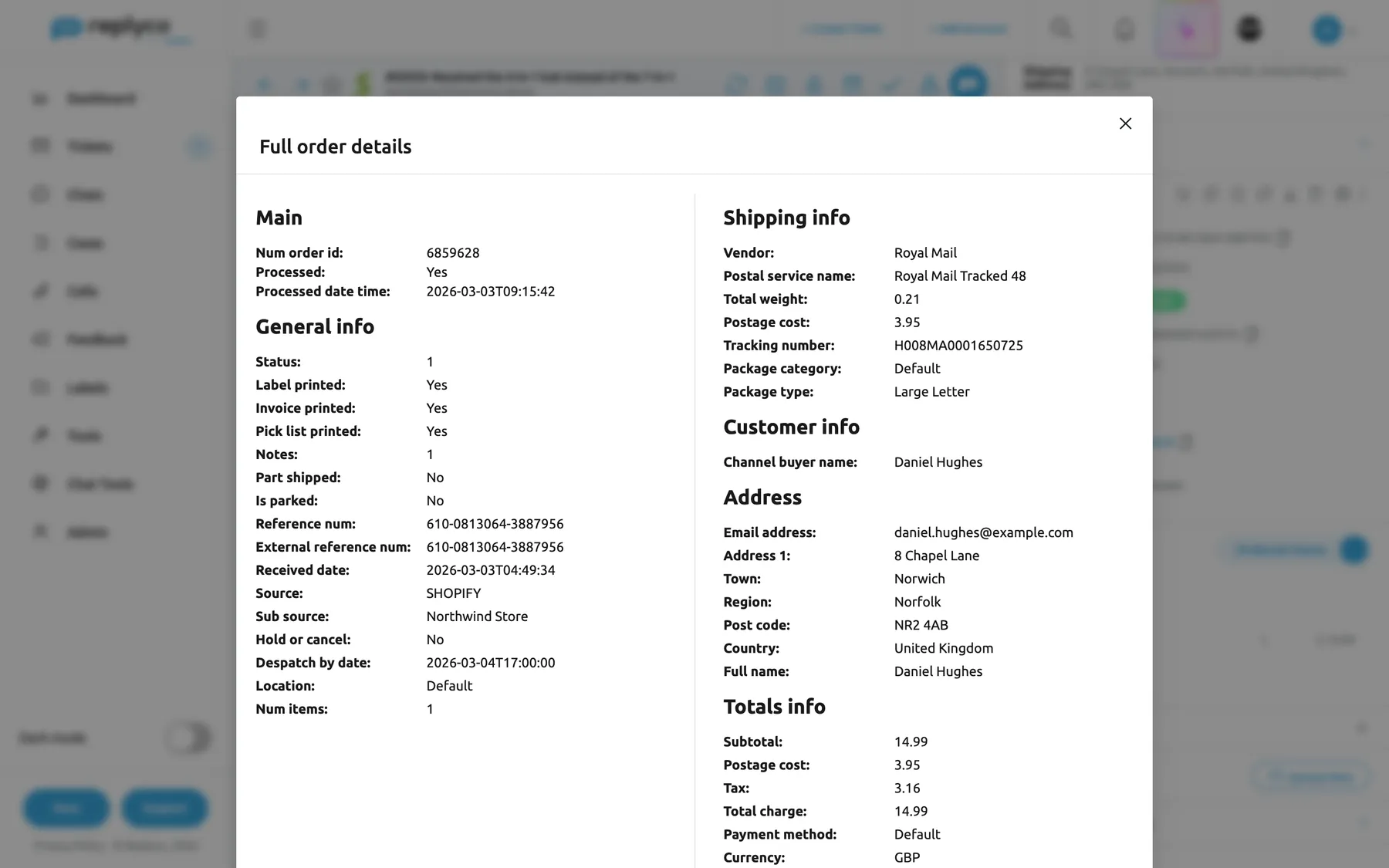
What this screenshot shows
- Screen
- Full order details (/ticket/:threadId)
- Highlighted
- dialog “Full order details”, dialog, open. shows the Linnworks order read-only
- Also visible
- Main: Num order id 6859628; General info: Source SHOPIFY; Shipping info; Customer info; Address; Totals info
- Purpose
- the full Linnworks order from the ticket
Linking a Linnworks order by hand
Section titled “Linking a Linnworks order by hand”When a ticket has no order, Order Details offers a field for each order management system. Type the Linnworks order number into the Linnworks field and select the save icon in the field. Replyco links the order, writes it to the ticket’s history, and marks the Linnworks order with the “Unresolved Ticket” identifier. A value that is not a Linnworks order number is compared with the ticket account’s order references instead. While the Linnworks account needs attention, the field is disabled and shows Perform a relogin of the integration before searching for orders.
Why: a customer who writes from a new address, or without an order number in the subject, can still be linked to the right order.
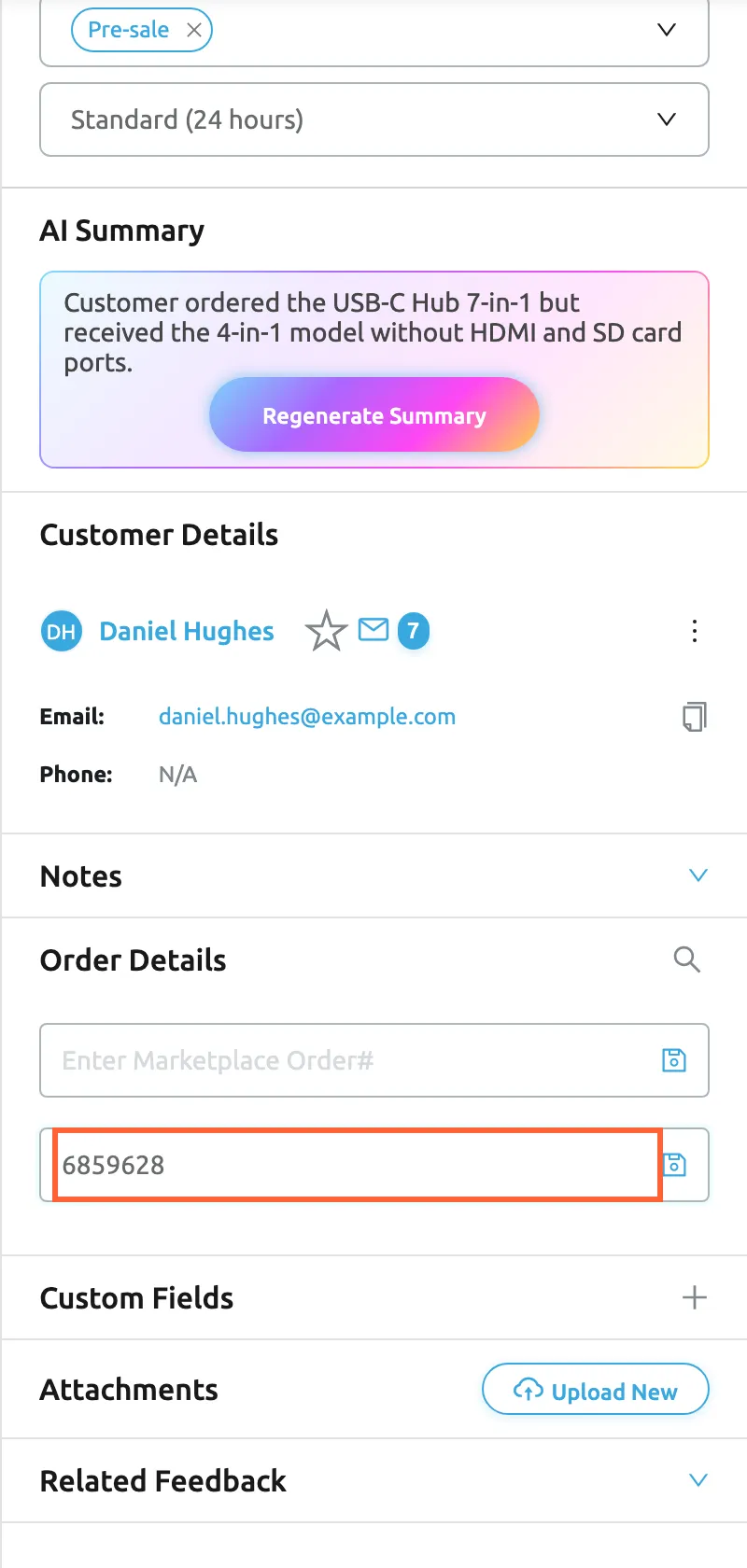
What this screenshot shows
- Screen
- Order Details (/ticket/:threadId)
- Highlighted
- textbox “”, order-panel, filled with 6859628. the save icon links the Linnworks order
- Also visible
- magnifier: Automatically search order; Enter Marketplace Order# (empty); Enter Linnworks Order ID: 6859628
- Purpose
- link a Linnworks order by hand
Order notes
Section titled “Order notes”The Order tab under Notes holds the notes of the ticket’s order. With Linnworks, the notes sync in both directions: notes written in Linnworks appear in Replyco with an info icon that reads “Synced from Linnworks”, and notes written in Replyco are added to the Linnworks order. Sync Notes with Linnworks runs the sync at once.
Why: the warehouse and the support team read the same notes, whichever system they work in.
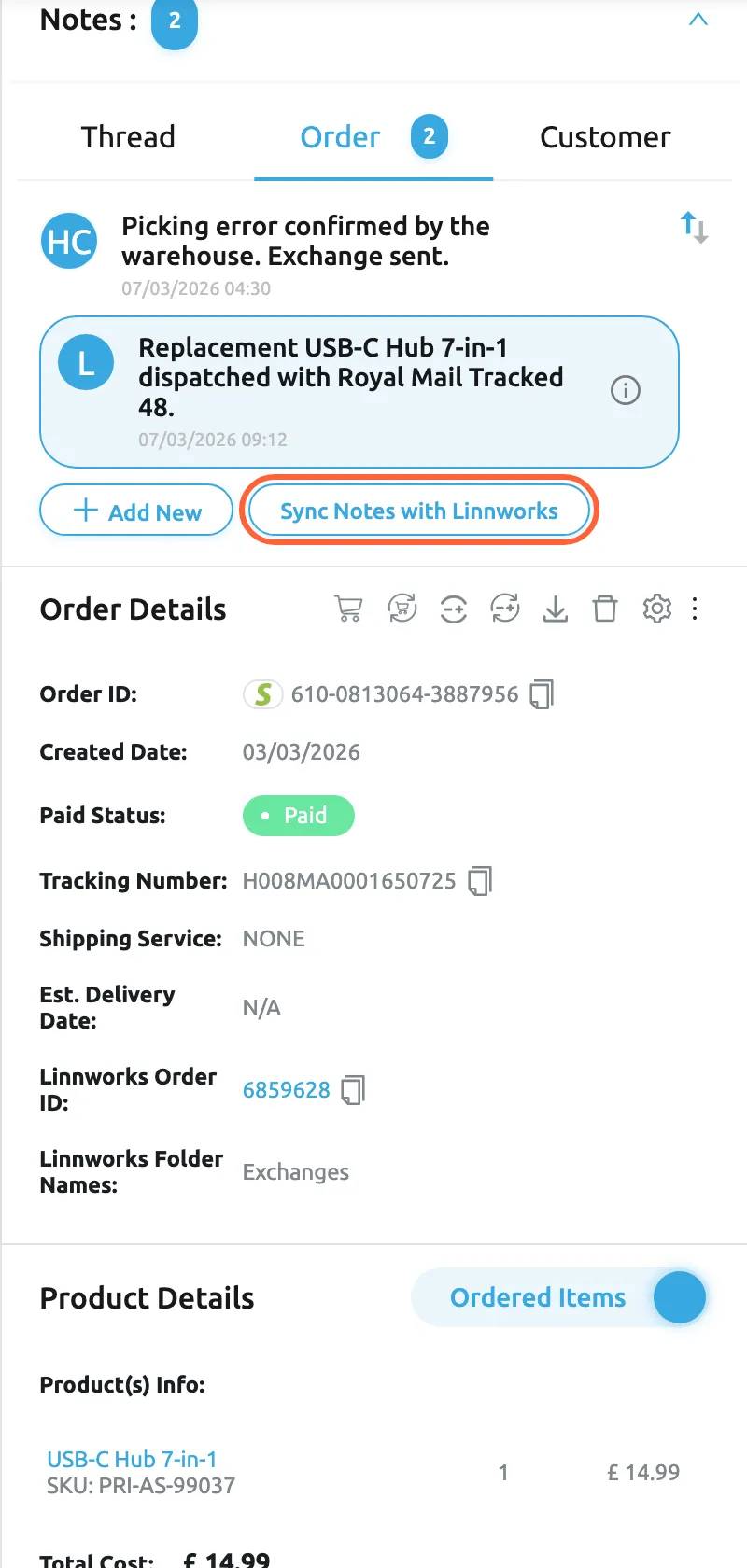
What this screenshot shows
- Screen
- Notes (/ticket/:threadId)
- Highlighted
- button “Sync Notes with Linnworks”, notes-order-tab, enabled. syncs the order's notes with Linnworks now
- Also visible
- Order tab with 2 notes; note synced from Linnworks with info icon; Add New button
- Purpose
- order notes and Linnworks
The Linnworks invoice
Section titled “The Linnworks invoice”Download Invoice from Linnworks asks Linnworks to print the order’s invoice to PDF with your Linnworks invoice template. The PDF opens in a new browser tab and is also kept under Attachments in the ticket’s right panel. A ticket keeps one invoice; downloading again replaces it when the invoice has changed. Files under Attachments are not sent to the customer; to send the invoice, attach it to your reply.
Why: customers ask for invoices often, and the template you set up in Linnworks is the one they should receive.
The Linnworks order number in replies
Section titled “The Linnworks order number in replies”The placeholder #linnworks_order_id# puts the order’s Linnworks number into a template or reply. It is offered only while Linnworks is connected. To set the text used for tickets without a Linnworks order, see Snippets and placeholders.
Beyond the ticket
Section titled “Beyond the ticket”- Orders shows Linnworks Order Number and Linnworks Folder Names for every order Linnworks knows.
- The ticket report can include Linnworks Order Id; see Reports.
What Replyco writes to Linnworks
Section titled “What Replyco writes to Linnworks”In Linnworks, on the order linked to a ticket. Nothing to switch on.
Replyco creates two identifiers in your Linnworks account the first time it needs them, “Unresolved Ticket” and “Resolved Ticket”, each with a Replyco image. A Linnworks order gets “Unresolved Ticket” when it is linked to a ticket and each time the customer writes again; it gets “Resolved Ticket” when you resolve the ticket, alone or in bulk, or when a rule resolves it. Reopening the ticket switches the order back to “Unresolved Ticket”. With the identifier, Replyco adds an internal note to the Linnworks order that links to the ticket: Ticket in Replyco https://app.replyco.com/ticket/…. The note is added once per ticket, and not when the Linnworks order already has 234 notes or more.
Warehouse staff filtering Open Orders in Linnworks see at a glance which orders have a customer waiting, and can open the conversation from the note.
- A customer asks to change the delivery address: the order shows “Unresolved Ticket”, so the warehouse knows to check the ticket before dispatch.
- The ticket is resolved after the replacement is sent: the identifier changes to “Resolved Ticket”.
- The customer writes again a week later: the order is back to “Unresolved Ticket”.
Linnworks actions in rules
Section titled “Linnworks actions in rules”ToolsAutomation › Rules, in a rule’s Actions: Change Order Tag, Change Order Lock State and Change Order Park State. They appear only while Linnworks is connected.
Change Order Tag sets tag 1 to 6 on the ticket’s Linnworks order. Change Order Lock State sets Lock or Unlock. Change Order Park State sets Park or Unpark. The actions run when the rule matches an incoming message, and when you run rules on tickets from a ticket list, after the rule’s ticket actions. They act only on tickets whose order is known to Linnworks. A rule that sets the ticket status to resolved also sets the “Resolved Ticket” identifier. To write rules, see Rules for incoming tickets.
Stop an order before it is picked, the moment a customer asks to cancel it, even at night.
- Message text contains cancel → Change Order Park State: Park.
- Message text contains wrong address → Change Order Lock State: Lock, and allocate the ticket to your orders team.
- Subject contains return → Change Order Tag: 3, the tag your warehouse uses for returns.
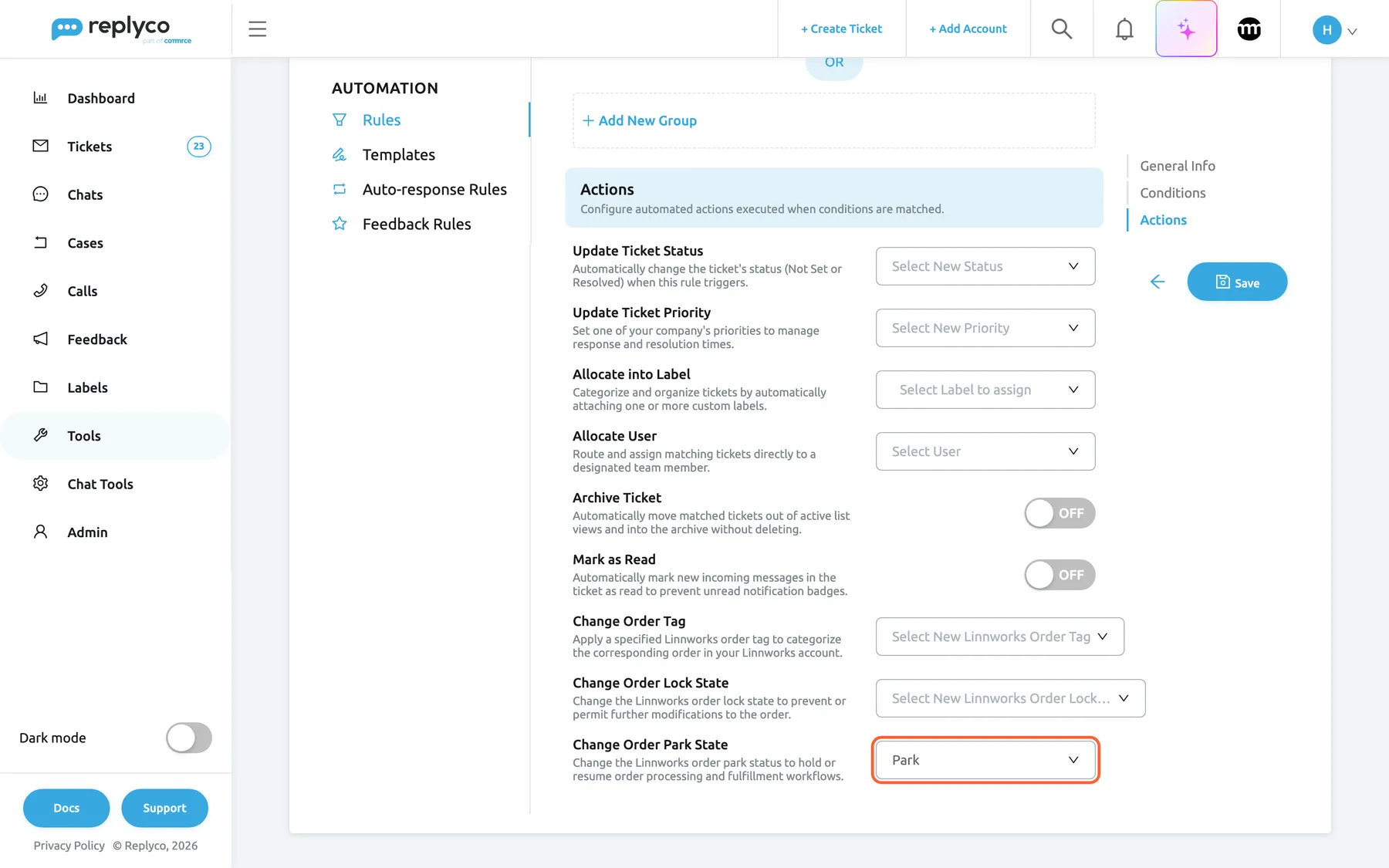
What this screenshot shows
- Screen
- Create Rule (/tickets-automation?tab=rules)
- Highlighted
- “”, actions, Park selected. parks the Linnworks order when the rule matches
- Also visible
- Change Order Tag; Change Order Lock State; Change Order Park State: Park
- Purpose
- Linnworks actions in rules
Linnworks on the Accounts screens
Section titled “Linnworks on the Accounts screens”Add Account, the Linnworks tile
Section titled “Add Account, the Linnworks tile”Linnworks is the first tile under Order Management System Accounts. Replyco connects one Linnworks account per company. To see every channel you can connect, see Add Account.
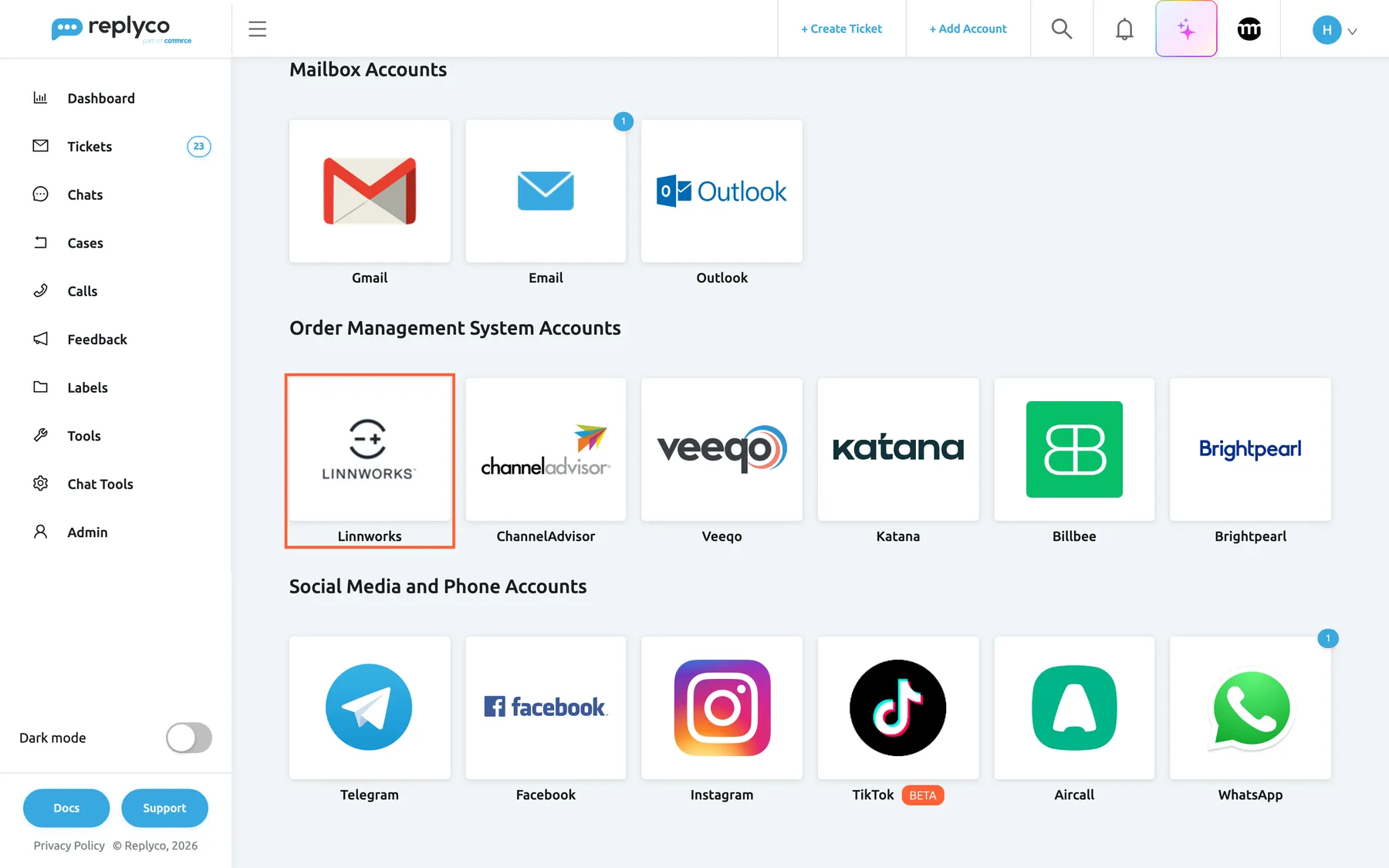
What this screenshot shows
- Screen
- Add Account (/integrations/add)
- Highlighted
- button “”, oms-group, enabled. opens the Linnworks connection dialog
- Also visible
- Mailbox Accounts: Gmail, Email, Outlook; Order Management System Accounts: Linnworks, ChannelAdvisor, Veeqo, Katana, Billbee, Brightpearl
- Purpose
- entry point of connecting Linnworks
The connection dialog
Section titled “The connection dialog”The dialog has three steps: AUTHORIZE, INFO and FINISH. The first step says Add Linnworks account to sync orders, statuses and many more.; Authorize opens the Linnworks app installation in a new tab and moves the dialog to INFO. Need help? opens help for this step.
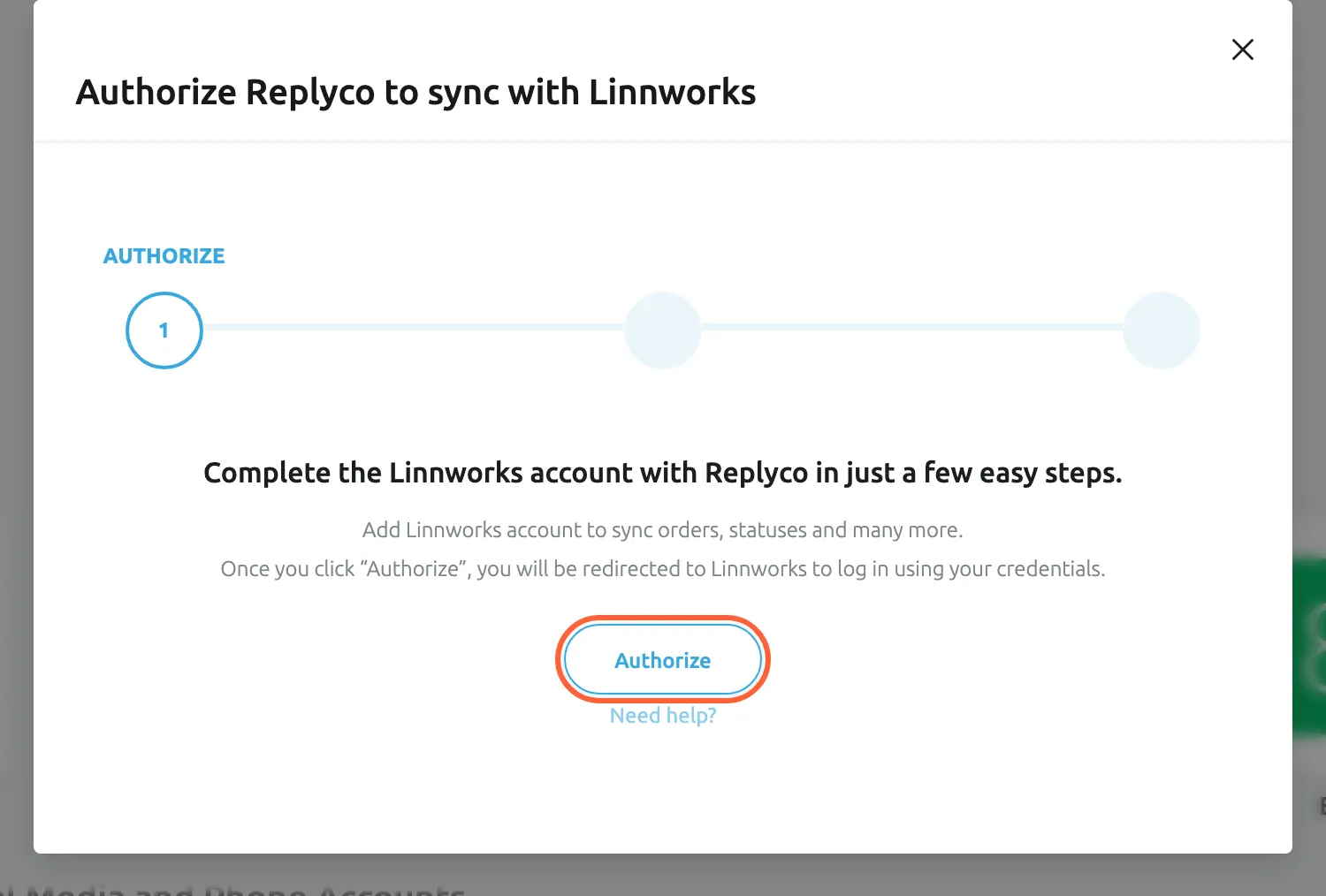
What this screenshot shows
- Screen
- Add Account (/integrations/add)
- Highlighted
- button “Authorize”, dialog, enabled. opens the Linnworks app installation in a new tab and moves the dialog to the INFO step
- Also visible
- step AUTHORIZE of 3; text: Add Linnworks account to sync orders, statuses and many more; Need help? link
- Purpose
- first step of connecting Linnworks
The Linnworks account on Accounts
Section titled “The Linnworks account on Accounts”AdminAccounts lists the Linnworks account with the others; it brings no messages of its own. When Linnworks stops accepting Replyco, the account is blocked, you receive the blocking notice by email, and Replyco leaves Linnworks out until you act: select Unblock in the account’s details. If Linnworks blocks it again, delete the account with Delete Account and connect Linnworks again with a new token. Deleting the Linnworks account keeps your tickets and orders, because they belong to your channel accounts. See Unblock an account and Delete an account.
Linnworks settings in the menu
Section titled “Linnworks settings in the menu”AdminLinnworks settings appears only while a Linnworks account is connected, and only for users with the Admin permission. The screen holds the order references of every channel account; see Linnworks settings.
What you need to know
Section titled “What you need to know”| Topic | Fact |
|---|---|
| One per company | One Linnworks account per Replyco company. |
| Plan | Every plan; the account counts towards your plan’s number of accounts. |
| Default references | All four order references are on for every channel account. |
| Tags | Rule tags 1 to 6; parking is a tag of its own in Linnworks. |
| Matching | Linnworks data is added only when exactly one Linnworks order carries the channel’s order number. |
| Subjects | Only the first word containing a digit is used. |
| Over time | Changed references apply to the next look-up; orders already linked keep their Linnworks data. |
| Blocked account | While blocked, Linnworks is left out: no new matches, identifiers or rule actions; the Linnworks order field in tickets is disabled. |
| Deleting | Removes the menu item, the rule actions and the Linnworks fields; tickets, orders and the Linnworks data already saved on orders stay. |
| Language | Linnworks data, the full order’s field names, the identifiers and the note in Linnworks are in English. |
| Customers | Customers see nothing of Linnworks unless you send #linnworks_order_id# in a reply. |
Frequently asked questions
Section titled “Frequently asked questions”General
Section titled “General”What does the Linnworks connection do in Replyco?
Section titled “What does the Linnworks connection do in Replyco?”It adds the Linnworks order number, folders and notes to orders Replyco already knows from your channels, shows the Linnworks order in each ticket, marks orders with open tickets in Linnworks, and gives rules actions to tag, lock or park the Linnworks order. It brings no messages.
Does Linnworks bring customer messages into Replyco?
Section titled “Does Linnworks bring customer messages into Replyco?”No. Linnworks is an order source only. Customer messages still arrive through your marketplace, webstore and mailbox accounts under AdminAccounts, and Linnworks adds its data to the orders those tickets are about.
Which plan do I need for Linnworks?
Section titled “Which plan do I need for Linnworks?”Every plan includes the Linnworks connection. The Linnworks account counts towards the number of accounts your plan allows, like any other account under AdminAccounts.
Can I connect two Linnworks accounts?
Section titled “Can I connect two Linnworks accounts?”No. Replyco connects one Linnworks account per company and refuses a second one with “Linnworks account already exist”. To switch to another Linnworks account, delete the first under AdminAccounts and connect again.
Who can connect Linnworks?
Section titled “Who can connect Linnworks?”Users with the Admin permission. They see + Add Account in the top bar and the Admin menu. Agents without it use the Linnworks data in their tickets but cannot connect or change the connection.
Where do I get the token for the Linnworks connection?
Section titled “Where do I get the token for the Linnworks connection?”From Linnworks. On the Linnworks tile in Add Account, select Authorize; Linnworks opens in a new tab, you install the Replyco app, and Linnworks shows a token. Copy that token into Token in Replyco and select Authorize.
Replyco says I must complete all fields. What is missing?
Section titled “Replyco says I must complete all fields. What is missing?”The token. The INFO step has one field, Token, and Replyco refuses to save with You must complete ALL FIELDS in order to save this account! while it is empty. Paste the token Linnworks showed after installing the Replyco app.
Do I have to sign in to Linnworks again later?
Section titled “Do I have to sign in to Linnworks again later?”No. Replyco keeps the token from the app installation and renews its Linnworks session with it on its own. Only if Linnworks stops accepting the token is the account blocked; then unblock it, or delete it and connect again.
What name does the Linnworks account get?
Section titled “What name does the Linnworks account get?”Replyco names it Linnworks Account followed by the full name of the Linnworks user who installed the app, for example Linnworks Account Henry Clarke. You see it under AdminAccounts.
Order matching
Section titled “Order matching”How does Replyco know which Linnworks order belongs to a ticket?
Section titled “How does Replyco know which Linnworks order belongs to a ticket?”It looks up the channel’s order number in Linnworks and uses the Linnworks order that carries it as a reference, when there is exactly one. For mailboxes it takes the first word with a digit in the subject and compares it with the order references chosen on AdminLinnworks settings.
What are order references?
Section titled “What are order references?”The four Linnworks fields Replyco compares with an order number: External Reference, Reference Number, Secondary Reference and Order ID. You choose them per channel account on AdminLinnworks settings; all four are on by default.
Why was the wrong Linnworks order linked?
Section titled “Why was the wrong Linnworks order linked?”Replyco used the first Linnworks order whose selected references matched the number it found. Narrow the account’s order references on AdminLinnworks settings to the field your channel fills, then link the right order by typing its Linnworks number into the Linnworks field of Order Details.
Why does a subject with a product name not match?
Section titled “Why does a subject with a product name not match?”Replyco uses only the first word that contains a digit. In Received the 4-in-1 hub, order 10482 that word is 4-in-1, so the order number is never looked up. Type the order number into the Linnworks field of Order Details and select its save icon.
Do changed order references update tickets I already have?
Section titled “Do changed order references update tickets I already have?”No. A change on AdminLinnworks settings applies to the next look-up. Orders already linked keep their Linnworks data; to fetch it again, select Sync Order from Linnworks in the ticket.
What happens if I switch every order reference off?
Section titled “What happens if I switch every order reference off?”Replyco no longer searches Linnworks by reference for that channel account: subject words and typed values that are not Linnworks order numbers find nothing. Orders that Replyco finds by the channel’s own order number still get their Linnworks data.
In the ticket
Section titled “In the ticket”Why don’t I see the Linnworks order number in the order panel?
Section titled “Why don’t I see the Linnworks order number in the order panel?”The field shows only while Linnworks is connected and when it is turned on in the panel; it is hidden by default. Select the gear, Edit fields visibility, in Order Details and move Linnworks Order ID and Linnworks Folder Names to the visible fields.
Why are there no Linnworks icons, only a ⋮ menu?
Section titled “Why are there no Linnworks icons, only a ⋮ menu?”The three icons show when Linnworks is your only order management system with a number on the order. With more than one system connected, the Linnworks actions move into the ⋮ menu of Order Details as Sync from Linnworks and Show full Linnworks.
Where does the downloaded invoice go?
Section titled “Where does the downloaded invoice go?”It opens as a PDF in a new browser tab and is kept under Attachments in the ticket’s right panel. It is not sent to the customer; attach it to your reply to send it. Linnworks prints it with your Linnworks invoice template.
Why is the Linnworks order field greyed out?
Section titled “Why is the Linnworks order field greyed out?”The Linnworks account is blocked, and the field shows Perform a relogin of the integration before searching for orders when you hover it. Open the account under AdminAccounts and select Unblock, or delete it and connect Linnworks again.
Can I send the Linnworks order number to a customer?
Section titled “Can I send the Linnworks order number to a customer?”Yes. Add the placeholder #linnworks_order_id# to a template or reply; Replyco replaces it with the order’s Linnworks number. Set the text used for tickets without one under ToolsFallbacks.
Why are the Linnworks actions missing from my rule?
Section titled “Why are the Linnworks actions missing from my rule?”Change Order Tag, Change Order Lock State and Change Order Park State appear under Actions only while a Linnworks account is connected. Connect Linnworks under AdminAccounts, then open the rule again to add them.
My rule matched but the Linnworks order was not parked. Why?
Section titled “My rule matched but the Linnworks order was not parked. Why?”The Linnworks actions act only on tickets whose order is known to Linnworks. Check that Linnworks Order ID shows a number in the ticket’s Order Details, and that the Linnworks account is not blocked under AdminAccounts.
Which tags can a rule set?
Section titled “Which tags can a rule set?”Tags 1 to 6, the numbered tags of Linnworks orders. Parking an order is a tag of its own in Linnworks, so a rule that parks and also sets a tag leaves the order with the tag.
In Linnworks
Section titled “In Linnworks”What are the “Resolved Ticket” and “Unresolved Ticket” identifiers?
Section titled “What are the “Resolved Ticket” and “Unresolved Ticket” identifiers?”Identifiers Replyco creates in your Linnworks account and puts on orders that are linked to tickets. “Unresolved Ticket” means a customer is waiting; “Resolved Ticket” means the ticket was resolved in Replyco. Replyco switches between them as tickets are resolved and reopened.
Why does a Linnworks order have a note “Ticket in Replyco”?
Section titled “Why does a Linnworks order have a note “Ticket in Replyco”?”Replyco adds an internal note with a link to the ticket when it marks the order with an identifier, once per ticket. It lets warehouse staff open the conversation from Linnworks. The note is not added when the order already has 234 notes or more.
Does resolving a ticket change the order in Linnworks?
Section titled “Does resolving a ticket change the order in Linnworks?”Only its identifier: the order gets “Resolved Ticket”. Replyco does not process, cancel or hold the order. To park or lock an order, use the Linnworks actions of a rule under ToolsAutomation.
Data and privacy
Section titled “Data and privacy”What does Replyco keep from Linnworks?
Section titled “What does Replyco keep from Linnworks?”The token from the app installation, the Linnworks order number and id, the order’s folder names and the notes it syncs. The full Linnworks order is read from Linnworks each time you open it and is not stored.
What happens when I delete the Linnworks account?
Section titled “What happens when I delete the Linnworks account?”The Admin menu item, the rule actions, the Linnworks fields and the icons disappear. Your tickets and orders stay, because they belong to your channel accounts, and orders keep the Linnworks data already saved. Rules keep their saved Linnworks actions, which run again only once Linnworks is connected.
Troubleshooting
Section titled “Troubleshooting”| Symptom | What to check |
|---|---|
| “Linnworks account already exist” when connecting | A Linnworks account is already connected. Look for it under AdminAccounts; delete it first if you want to connect another one. |
| You must complete ALL FIELDS in order to save this account! | Token is empty. Paste the token Linnworks showed after installing the Replyco app. |
| The account is not saved after Authorize | Is the token complete and from the Replyco app installation? Copy it again in Linnworks and paste it. Does your plan have a free account? See Stay within your plan’s number of accounts. |
| AdminLinnworks settings is missing from the menu | In order: is a Linnworks account connected under AdminAccounts? Do you have the Admin permission? |
| A ticket shows no Linnworks data | In order: is the order in Linnworks at all? Is the Linnworks account unblocked? Are Linnworks Order ID and Linnworks Folder Names turned on with the gear? Select Sync Order from Linnworks. |
| An email ticket gets no order | Is the order number the first word with a digit in the subject? Is at least one order reference on for the mailbox on AdminLinnworks settings? Type the number into the Linnworks field of the order panel. |
| The wrong Linnworks order is linked | Narrow the channel account’s order references to the field your channel fills, then type the right Linnworks number into the Linnworks field of the order panel. |
| The Linnworks order field is greyed out with Perform a relogin of the integration before searching for orders | The Linnworks account is blocked. Select Unblock in its details, or delete it and connect again. See Fix a blocked or silent account. |
| The Linnworks actions are missing from the rule form | Linnworks must be connected; reopen the rule after connecting. |
| A rule did not park, lock or tag the order | Did the ticket have a Linnworks order when the rule ran? Was the Linnworks account unblocked? Did the same rule also set a tag, which replaces the park? |
| No “Resolved Ticket” identifier in Linnworks | Was the ticket’s order known to Linnworks when you resolved it? Is the Linnworks account unblocked? |
| Notes from Linnworks do not appear | Open the Order tab and select Sync Notes with Linnworks. Check Auto-sync notes from order management systems under AdminCompany Settings. |