

Tools
Tools holds the settings that decide how Replyco handles your tickets, and the lists your team works from. Here you tell the AI how to categorise messages, judge their tone and draft replies; you write the rules that sort incoming tickets, the templates and auto-responses that answer them, and the rules that ask Amazon buyers for a review. The same menu keeps your customers and orders, the labels you give tickets, and the building blocks of a reply: snippets, the fallback texts of placeholders, tracking links and return labels. Chats have their own counterparts under Chat tools.
Select Tools in the sidebar and it unfolds into its screens. Which entries you see depends on your permissions: most screens appear only when your user has their permission, as listed under Availability below. What you set here applies to the whole company, apart from snippets you keep for yourself.
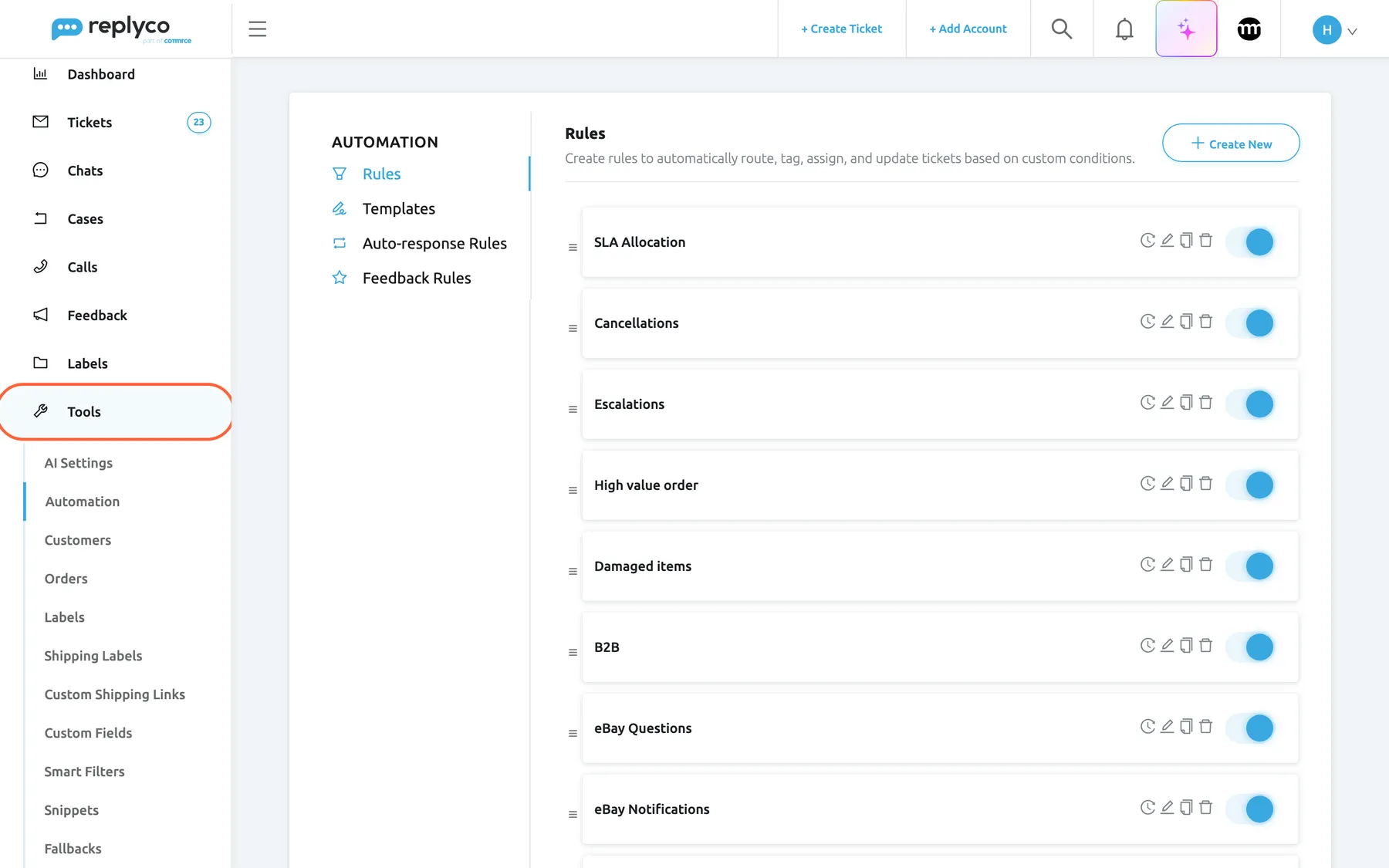
What this screenshot shows
- Screen
- Automation (/tickets-automation)
- Highlighted
- menuitem “Tools”, sidebar-left, expanded. opens or closes the list of Tools screens
- Also visible
- Tools submenu: AI Settings, Automation, Customers, Orders, Labels, Shipping Labels, Custom Shipping Links, Custom Fields, Smart Filters, Snippets, Fallbacks; Automation tabs: Rules, Templates, Auto-response Rules, Feedback Rules; Northwind's message rules with switches
- Purpose
- where the Tools screens live
The screens in this area
Section titled “The screens in this area”| Screen | Where | What it is for |
|---|---|---|
| AI Settings | ToolsAI Settings, tab General | Switch AI categories, template suggestions, summaries and tone analysis on or off, and choose the language of summaries |
| AI Settings: Categories | Tab Categories | The categories the AI sorts customer messages into |
| AI Settings: Tone | Tab Tone | How the AI reads your customers’ tone, and whether tone sets SLA priorities |
| AI Customers Blacklist | Tab AI Customers Blacklist | Senders who get no automatic AI and no auto-responses |
| AI Draft Settings | Tab AI Draft Settings, shown while AI auto-drafts are on for your company | The rules Replyco’s AI drafts follow, company-wide and per account |
| Rules | ToolsAutomation, tab Rules | Message rules that sort, label, assign and update incoming tickets, in the order they run |
| Templates | Tab Templates | Reply templates with placeholders, accounts, AI categories and files |
| Auto-response Rules | Tab Auto-response Rules | Rules that answer incoming ticket messages automatically |
| Feedback Rules | Tab Feedback Rules | Rules that ask Amazon buyers for a review after delivery |
| Customers | ToolsCustomers | Every customer in one place, with their tickets, orders, chats and notes; correct details, merge duplicates and block senders |
| Orders | ToolsOrders | The orders Replyco holds from your marketplaces and shops, filtered by order number, customer, tracking number, date or account, with their tickets, notes and review request |
| Labels | ToolsLabels | The labels your team gives tickets |
| Shipping Labels | ToolsShipping Labels | Your library of return labels for eBay returns |
| Custom Shipping Links | ToolsCustom Shipping Links | Tracking addresses for carriers Replyco does not know |
| Custom Fields | ToolsCustom Fields | Extra fields your team fills in on tickets: text, yes or no, dates, lists or numbers |
| Manage Smart Filters | ToolsSmart Filters | Create, order and share the filter views your team sees under Smart Filters in Tickets |
| Snippets | ToolsSnippets | Short texts, shared with the team or kept for yourself, that you insert with / in replies, templates and signatures |
| Fallbacks | ToolsFallbacks | The text Replyco puts in place of a placeholder when a ticket has no value for it, such as a missing tracking number |
What you can do here
Section titled “What you can do here”- Let the AI prepare the work: categories, tone, summaries and drafts, and who it leaves out. AI Settings. The AI Settings pages are in the AI features section of this guide.
- Sort incoming tickets automatically with rules that run on every new message, top to bottom. Rules for incoming tickets · Rules
- Answer faster with templates, snippets and placeholders that fill in the customer’s details. Reply templates · Snippets and placeholders
- Reply while nobody is online, with auto-responses that follow schedules and conditions. Auto-responses for tickets · Auto-response Rules
- Ask Amazon buyers for a review at the right time after delivery. Feedback Rules
- Give customers the details they ask for: working tracking links in replies and return labels for eBay returns. Custom Shipping Links · Shipping Labels
Concepts
Section titled “Concepts”- Placeholders and fallbacks. A placeholder such as
#customer_first_name#or#tracking_url#in a template, snippet or reply is filled in with the ticket’s value when the reply is sent; when the ticket has no value, Replyco uses the fallback text you set for it. See Snippets and placeholders. - Company-wide settings. Rules, templates, labels, tracking links, return labels and AI settings are shared by everyone in the company. A snippet is shared unless you clear Available for everyone to keep it for yourself.
- Tickets and chats are configured apart. Templates and auto-responses for WhatsApp, Live Chat and other chats live under Chat Tools; see Chat tools.
Availability: every plan includes Tools, and Replyco AI is part of every plan. Most screens appear only with their permission, set per user under AdminUsers: Automation needs Automation; Customers, Orders, Labels, Custom Fields, Smart Filters and Fallbacks each need the permission of the same name; Custom Shipping Links needs Custom Shipping Links; Shipping Labels needs Shipping Labels and Cases. AI Settings needs Admin with edit rights, and Snippets has no permission of its own. Every plan includes auto-response rules, snippets, custom fields and smart filters, and during a trial every feature is on; companies on an older plan may not have all of them. See User permissions and roles and What each plan includes.