

Call list
The call list shows the phone calls of your connected Aircall accounts, one row per call, newest first: who called or was called, when, for how long and how the call stands now. Anyone on the team who takes or follows up phone calls uses it to find a caller and open the call with its recording, notes, customer and tickets. Open it from Calls in the sidebar. The list fills only once an Aircall account is connected; to connect one, see Connect Aircall.
What you can do here
Section titled “What you can do here”- See your recent calls at a glance. Each row shows the number, the start time, the duration, the Aircall contact, the status and the Aircall account, ten calls to a page. The screen at a glance
- Find the calls of one caller. Search matches part of a phone number, a contact name or an e-mail address, and the account filter narrows the list to one Aircall account. Find a call
- Sort and page through the list. Sort by start time and move between pages; Replyco remembers your search, filter, sorting and page. Sort and page through the list
- Open a call. Select a row to see the call’s details, recording or voicemail, notes, customer and tickets. Open a call · The call screen
- Connect Aircall when the list is empty. The empty list links straight to the screen where you add the Aircall account. Connect Aircall to fill the list · Connect Aircall
The screen at a glance
Section titled “The screen at a glance”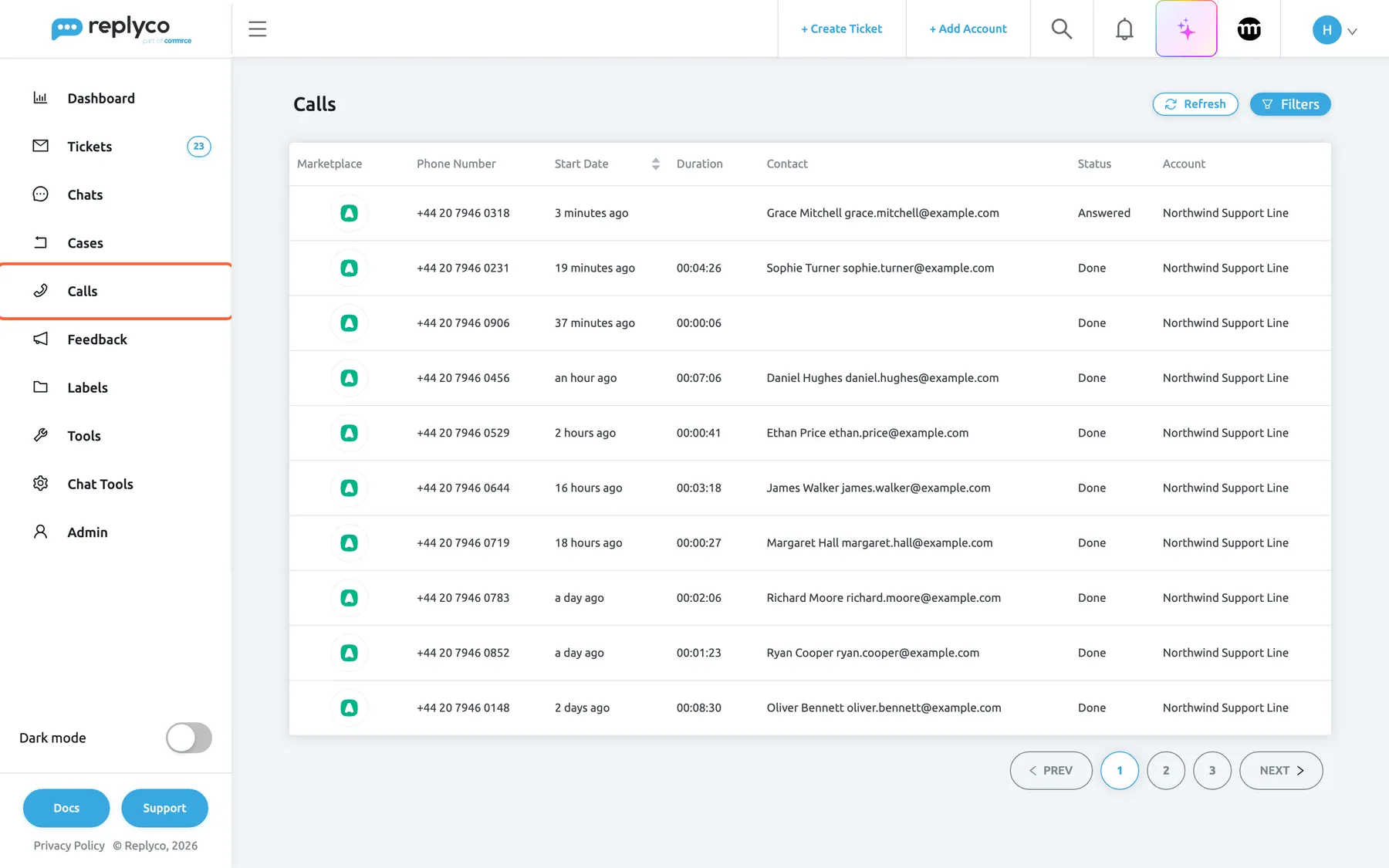
What this screenshot shows
- Screen
- Calls (/calls)
- Highlighted
- menuitem “Calls”, sidebar-left, selected. opens the call list
- Also visible
- Refresh and Filters buttons; columns Marketplace, Phone Number, Start Date, Duration, Contact, Status, Account; ten calls of Northwind Support Line, one Answered and nine Done; pages 1 to 3
- Purpose
- the call list as it opens
| Region | What it shows | What you do there |
|---|---|---|
| Calls in the sidebar | The menu item, below Cases | Open the list |
| Heading and buttons, top | Calls, Refresh and Filters | Reload the list, open the filter panel |
| Filter panel, under the heading (closed at first) | Search, Filter by Account, Clear Filters | Narrow the list |
| Filter chips, under the panel | One chip per active search or account | Remove one filter with its × |
| The table | One row per call: Marketplace, Phone Number, Start Date, Duration, Contact, Status, Account | Read, sort, open a call |
| Page buttons, below the table | PREV, the page numbers, NEXT | Move between pages |
Example. At 09:00 the list shows Grace Mitchell’s call from 3 minutes ago as Answered with no duration yet: the call is still going on. Below it, Sophie Turner’s call from 19 minutes ago lasted 00:04:26 and is Done, and a call from +44 20 7946 0906 with no contact lasted 00:00:06: someone rang off almost at once.
Find a call
Section titled “Find a call”-
Select Filters at the top right. The filter panel opens under the heading.
-
Type part of the phone number, the contact’s name or the e-mail address in Search, and press Enter or select the magnifier. The list reloads with the matching calls, and a chip with your search appears under the panel.
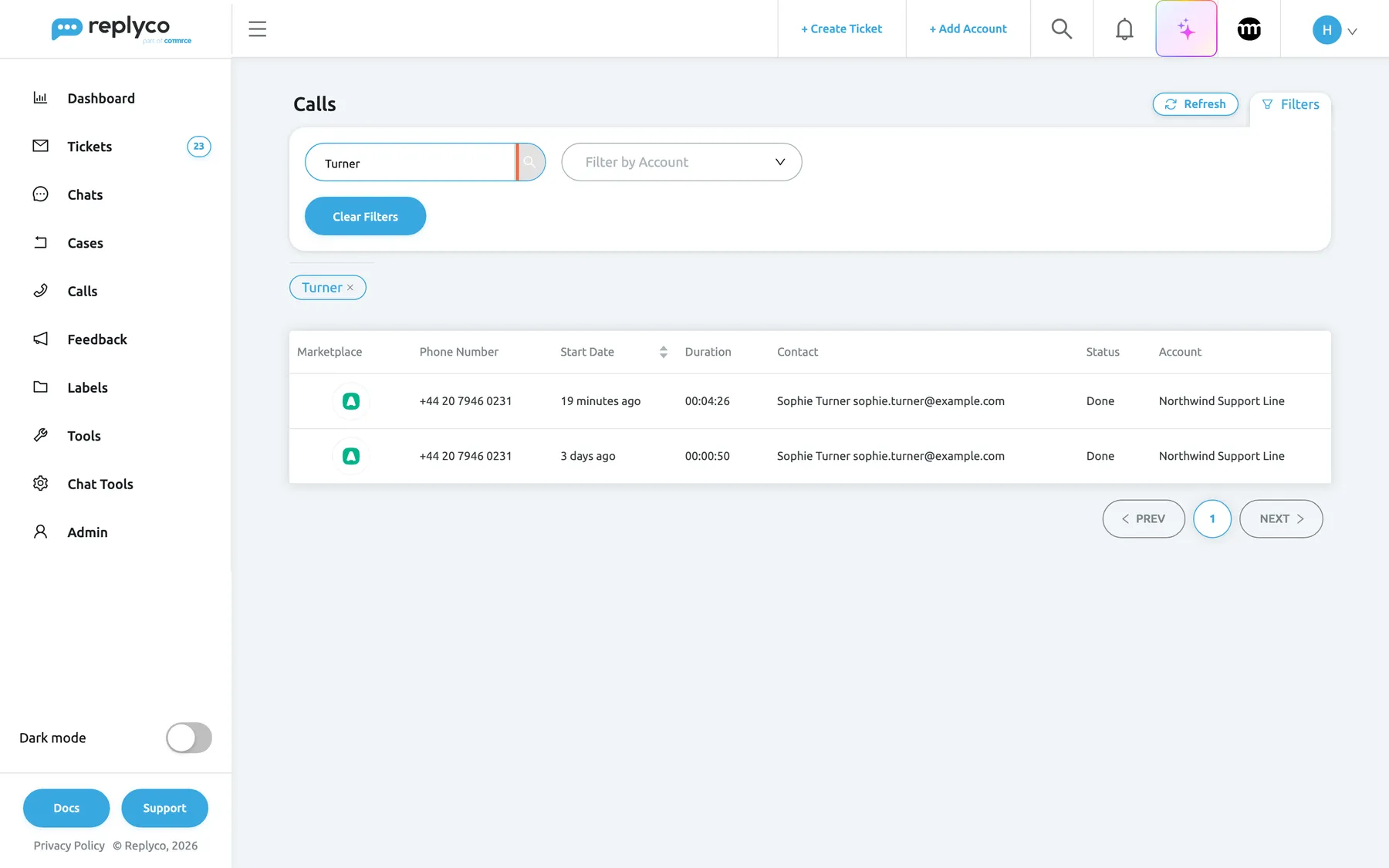
Search matches part of a phone number, a contact name or an e-mail address; each active filter shows as a chip you can remove. What this screenshot shows
- Screen
- Calls (/calls)
- Highlighted
- searchbox “Search”, filter-panel, filled. searches phone number
- Also visible
- Filter by Account select, empty; Clear Filters button; search chip with ×; two calls of one customer
- Purpose
- find the calls of one customer
-
To see the calls of one Aircall account only, pick it in Filter by Account. The list reloads at once; each account you pick gets its own chip.
-
To remove one filter, select the × on its chip. To remove all of them, select Clear Filters; this also resets the sorting and closes the panel.
Search looks at three things only: the phone number, the contact name and the contact’s e-mail address, as Aircall sent them. It ignores upper and lower case and finds the text anywhere in the value, so Turner finds Sophie Turner and 7946 0231 finds the calls of +44 20 7946 0231.
Filter by Account lists only your Aircall accounts, not your marketplaces or mailboxes, because only Aircall accounts have calls.
Sort and page through the list
Section titled “Sort and page through the list”The list starts sorted by Start Date, newest first. Select the Start Date heading to sort oldest first, and again to sort newest first. It is the only column you can sort by.
The list shows ten calls to a page. Use the page numbers, PREV and NEXT under the table to move between pages.
Replyco remembers your view in this browser. Your search, account filter, sorting and page are kept when you leave the list and come back, even after you close the tab. If the list looks shorter than you expect, check the chips under the heading and select Clear Filters in the filter panel.
New calls do not appear by themselves while the list is open. Select Refresh to reload the page you are on.
Open a call
Section titled “Open a call”Select a row to open the call screen for that call. Holding Ctrl (Cmd on a Mac) while you select the row opens the call in a new browser tab instead.
The call screen shows the call’s times, direction, the reason a call was missed, the agent who took it and its Aircall tags; it loads the recording or voicemail from Aircall when you ask, and keeps your team’s notes, the customer, their tickets and a linked order. See The call screen.
Connect Aircall to fill the list
Section titled “Connect Aircall to fill the list”Without an Aircall account the table is empty and reads No data yet... followed by the link Integrate your Aircall account now.. Select the link to open the screen where you add an account, then choose Aircall there; the steps are in Connect Aircall.
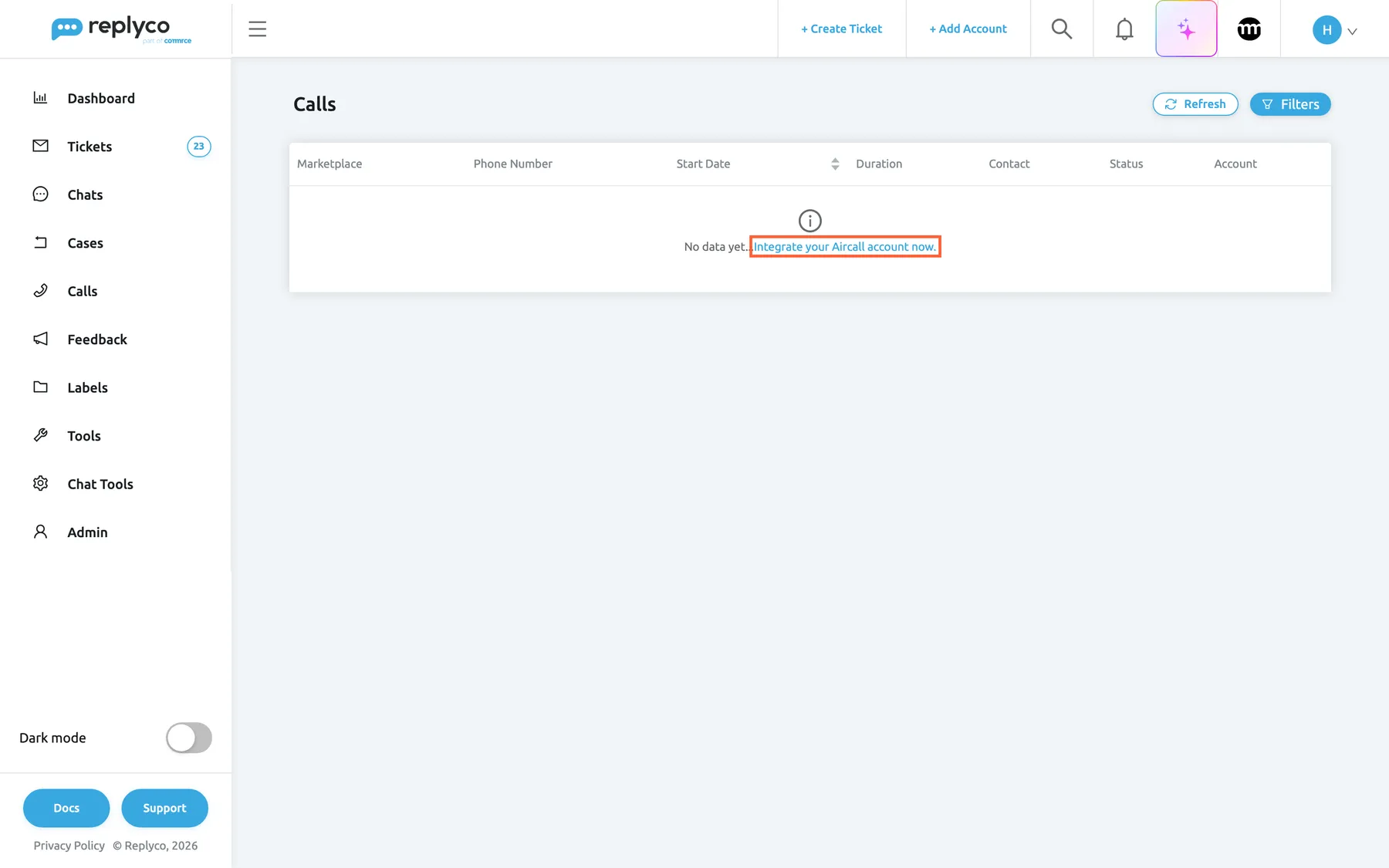
What this screenshot shows
- Screen
- Calls (/calls)
- Highlighted
- link “Integrate your Aircall account now.”, table, enabled. opens the Add Account screen
- Also visible
- empty table with column headings; No data yet...
- Purpose
- the empty state before Aircall is connected
Once Aircall is connected, Replyco receives each new call from Aircall as it starts and updates it when it is answered, ended, tagged or commented on in Aircall. Every three hours Replyco also imports the recent calls from Aircall, which fills any gap. When an Aircall account is connected but has no calls yet, the table reads No data....
Every control, explained
Section titled “Every control, explained”Calls in the sidebar
Section titled “Calls in the sidebar”The sidebar, below Cases and above Feedback. It opens the list at once; it has no submenu.
Opens the call list. Shown only when your user has the Calls permission and your company’s plan includes Calls, which every plan does.
Calls are kept apart from tickets, so the people who handle the phone have one place for them.
Refresh
Section titled “Refresh”Top right, before Filters.
Reloads the page of the list you are on, with your filters and sorting. It does not ask Aircall for new calls; it shows what Replyco has received so far.
The list does not update by itself while it is open.
Filters
Section titled “Filters”Top right, after Refresh.
Opens and closes the filter panel with Search, Filter by Account and, while a filter is active, Clear Filters. Closing the panel keeps the filters.
Keeps the list uncluttered until you need to narrow it.
Search
Section titled “Search”The filter panel, on the left.
Finds calls whose phone number, contact name or contact e-mail contains the text, ignoring case. Runs when you press Enter or select the magnifier, not while you type.
A customer who calls back tells you a name or a number; search takes you to their calls.
Filter by Account
Section titled “Filter by Account”The filter panel, beside Search.
Lists your Aircall accounts; pick one or more to see only their calls. The list reloads at once.
Useful when you run more than one Aircall account, for example one per shop or country.
Clear Filters and the filter chips
Section titled “Clear Filters and the filter chips”The button is at the bottom of the filter panel and appears only while a search or an account filter is active. The chips sit under the panel.
Clear Filters removes the search and the account filter, resets the sorting to newest first and closes the panel. The × on a chip removes only that filter.
Your filters are remembered, so you need a quick way back to all calls.
Columns
Section titled “Columns”| Column | What it shows | Why |
|---|---|---|
| Marketplace | The Aircall icon of the account | Tells calls apart from other channels at a glance |
| Phone Number | The other party’s number: the caller’s on an inbound call, the number dialled on an outbound one | Recognise a caller, call back |
| Start Date | When the call started, as a relative time such as “19 minutes ago” in your language; sortable | See how recent a call is |
| Duration | The call’s length as hours:minutes:seconds, as Aircall reports it; empty while a call is still going on | Tell a real conversation from a call that rang off |
| Contact | The Aircall contact’s name and e-mail address; empty when the number is not a contact in Aircall | Know who it was without opening the call |
| Status | The status Aircall reports; see the table below | See whether a call is still going on |
| Account | The name of the Aircall account in Replyco | Tell your phone lines apart |
Status values
Section titled “Status values”| Status | What it means |
|---|---|
| Initial | The call has started in Aircall but nobody has answered yet |
| Answered | Someone answered and the call is going on |
| Done | The call has ended, whether it was answered or missed |
A missed call is Done too. The list has no separate status for missed calls or voicemails. Open the call: a missed call has no answer date and shows the reason it was missed, and a voicemail appears when you load the recording. See The call screen.
PREV, NEXT and the page numbers
Section titled “PREV, NEXT and the page numbers”Below the table, on the right.
Move between pages of ten calls. Your page is remembered with your filters.
Older calls are a few pages back.
Who sees what
Section titled “Who sees what”| Part of the screen | What decides whether you see it |
|---|---|
| Calls in the sidebar | The Calls permission of your user, set by an admin in AdminUsers, and Calls, which every plan includes; see User permissions and roles and What each plan includes |
| The calls | Only calls of the Aircall accounts your company has connected |
| Your search, filter, sorting and page | Only you, in this browser |
What you need to know
Section titled “What you need to know”| Topic | Fact |
|---|---|
| Where calls come from | Aircall only; Replyco receives each call as it happens and imports recent calls every three hours |
| Page size | Ten calls per page |
| Default order | Newest first by start time; only the start time can be sorted |
| Search | Phone number, contact name, contact e-mail; case-insensitive; runs on Enter |
| Remembered | Search, account filter, sorting and page, per browser |
| Live updates | None while the list is open; use Refresh |
| Missed calls | Status Done; the reason is on the call screen |
| Deleting the Aircall account | Deletes its calls from Replyco |
Frequently asked questions
Section titled “Frequently asked questions”General
Section titled “General”Where do the calls in Replyco come from?
Section titled “Where do the calls in Replyco come from?”From Aircall. Once an Aircall account is connected, Replyco receives each new call from Aircall as it starts and updates it when it is answered, ended, tagged or commented on. Every three hours Replyco also imports recent calls from Aircall. Replyco does not make or take calls itself; you phone in Aircall and follow up in Calls.
Why is the call list empty?
Section titled “Why is the call list empty?”The table reads No data yet... with the link Integrate your Aircall account now. when your company has no Aircall account in Replyco. Select the link, or see Connect Aircall. If an Aircall account is connected and the table reads No data..., check the chips under the heading for a search or account filter and select Clear Filters in the filter panel.
Why don’t I see Calls in the sidebar?
Section titled “Why don’t I see Calls in the sidebar?”Calls appears only when your user has the Calls permission and your company’s plan includes Calls. Every plan includes Calls, so ask an admin to tick the permission for your user in AdminUsers; see User permissions and roles.
Finding calls
Section titled “Finding calls”How do I find all calls from one customer?
Section titled “How do I find all calls from one customer?”Open Calls, select Filters, type the customer’s last name, e-mail address or part of their number in Search and press Enter. Search looks at the phone number, the Aircall contact name and the contact’s e-mail address. For the customer’s tickets as well, open one of the calls: its right panel lists them.
Can I filter the list by missed calls or by agent?
Section titled “Can I filter the list by missed calls or by agent?”No. The call list filters by search text and by Aircall account only, and it sorts only by start time. To see why a call was missed or who took it, open the call; the call screen shows the missed reason and the agent. See The call screen.
Why does the list still show an old search when I come back?
Section titled “Why does the list still show an old search when I come back?”Replyco keeps your search, account filter, sorting and page for the call list in your browser, so you return to the same view. Select Clear Filters in the filter panel, or the × on each chip, to see all calls again.
Statuses and times
Section titled “Statuses and times”Where can I see which calls were missed?
Section titled “Where can I see which calls were missed?”The call list has no status for missed calls: a missed call ends with the status Done, like an answered one. Open the call to see it: a missed call has no answer date and shows the reason, for example Out of opening hours. A very short duration in the list, such as 00:00:06, is often a caller who rang off.
What does the status Initial mean?
Section titled “What does the status Initial mean?”Initial means the call has started in Aircall but nobody has answered yet. It changes to Answered when someone picks up and to Done when the call ends. Select Refresh to see the latest status; the list does not update by itself.
Why is the duration empty for some calls?
Section titled “Why is the duration empty for some calls?”The duration is filled in when the call ends. A call with the status Answered is still going on, so it has no duration yet; select Refresh after it has ended. A duration of 0 also shows as empty.
Why do start times show as “3 minutes ago” instead of a date?
Section titled “Why do start times show as “3 minutes ago” instead of a date?”The Start Date column shows how long ago a call started, in your language. Open the call to see the exact start, answer and end times to the second.
Data and privacy
Section titled “Data and privacy”Where does the contact name come from?
Section titled “Where does the contact name come from?”From Aircall. The Contact column shows the name and e-mail address of the Aircall contact that matches the number. When you add or change the contact in Aircall, Replyco updates its calls with that number. A number that is not an Aircall contact shows no name.
What happens to the calls if we disconnect Aircall?
Section titled “What happens to the calls if we disconnect Aircall?”Deleting the Aircall account in Replyco deletes its calls from Replyco, with the account. The calls stay in Aircall. If the Replyco integration is removed on Aircall’s side instead, Replyco marks the account as needing a new login; see Fix a blocked or silent account.
Troubleshooting
Section titled “Troubleshooting”| Symptom | What to check |
|---|---|
| Calls is missing from the sidebar | The Calls permission of your user in AdminUsers. Every plan includes Calls, but companies on an older plan may not have them; see What each plan includes. |
| The table reads No data yet... Integrate your Aircall account now. | No Aircall account is connected; see Connect Aircall |
| The table reads No data... | The chips under the heading; select Clear Filters |
| A call you just took is missing | Select Refresh; if it is still missing after a few minutes, check the Aircall account in AdminAccounts for a login problem |
| A search for a number finds nothing | Search runs on Enter or the magnifier; try part of the number, or the contact’s name or e-mail |
| The Aircall account shows as needing a new login | The integration was removed in Aircall; see Fix a blocked or silent account |