

Chat tools
Chats move fast: a customer on Instagram or in the chat window of your shop expects an answer within minutes, often to a question your team has answered a hundred times. Chat Tools in the sidebar holds everything that prepares your team for that: the ready-made texts agents insert in chats, the rules that answer by themselves, the chat window for your website, and the email that sends a customer a copy of the conversation. Agents answer the chats themselves under Chats; see Chats.
Chat tools are separate from the ticket tools. Chat templates and chat auto-response rules work only in chats, and the reply templates and auto-response rules under the Tools menu work only in tickets. The menu has three items: Automation with the tabs Templates and Auto-response Rules, Live Chat for your website widgets, and Transcripts. Each item appears only for users with the matching permission, so an agent who only answers chats may see none of them.
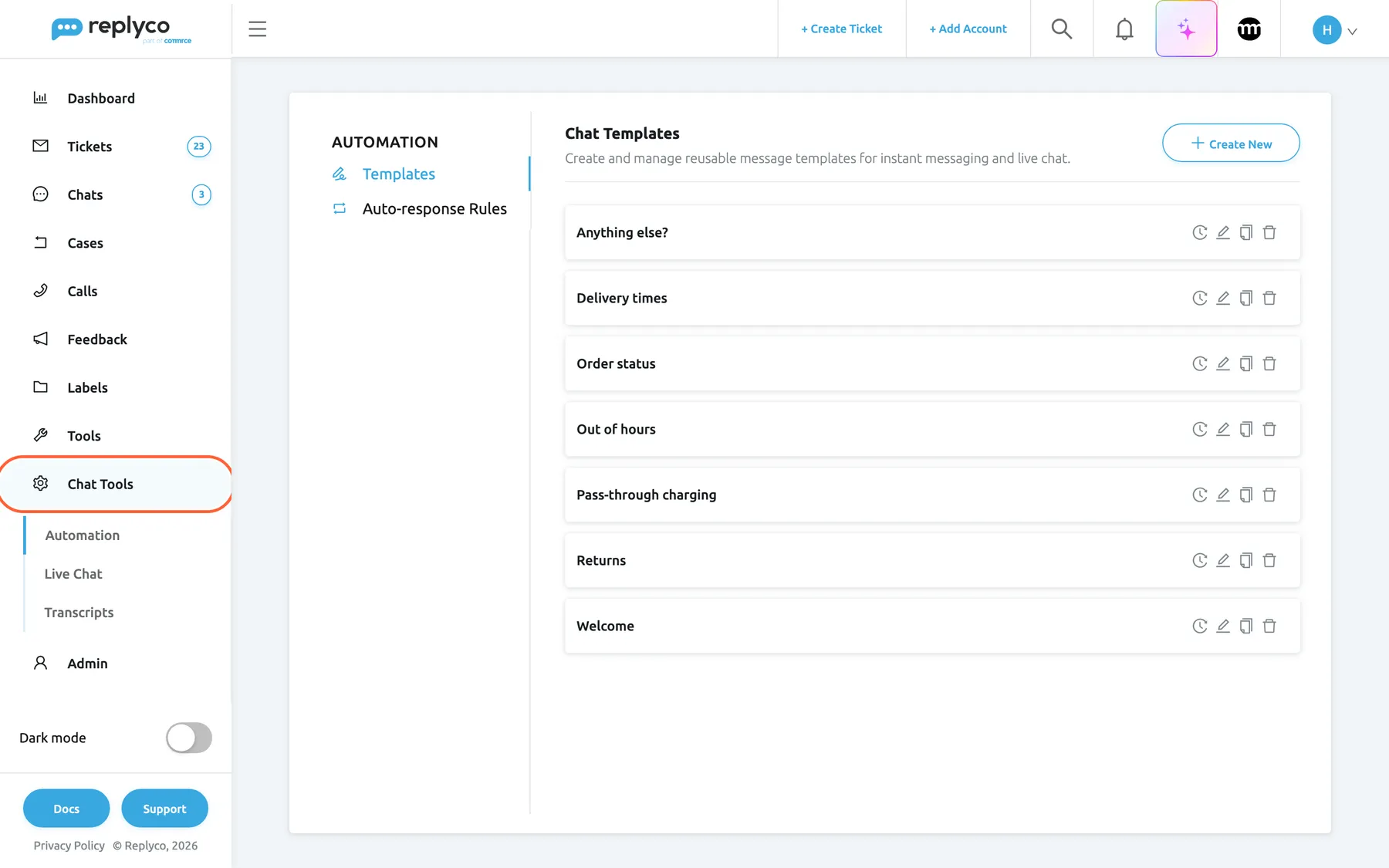
What this screenshot shows
- Screen
- Chat Tools (/instant-messages-automation?tab=templates)
- Highlighted
- menuitem “Chat Tools”, sidebar, expanded. shows Automation
- Also visible
- Chat Tools submenu: Automation, Live Chat, Transcripts; Automation tabs Templates and Auto-response Rules; 7 chat templates
- Purpose
- the Chat Tools area
The screens in this area
Section titled “The screens in this area”| Screen | What it is for |
|---|---|
| Chat templates | Chat ToolsAutomation, tab Templates: the texts agents insert in chats and rules send |
| Chat auto-response rules | Chat ToolsAutomation, tab Auto-response Rules: the rules that answer chats and live chat visitors by themselves |
| Live Chat | Chat ToolsLive Chat: create, style, schedule and install the chat widgets for your website |
| Transcripts | Chat ToolsTranscripts: the emails that send a live chat conversation to the customer |
What you can do here
Section titled “What you can do here”- Give your team ready answers for chats. Write chat templates once and insert them in any chat with a click. Chat templates
- Answer chats automatically. Greet live chat visitors, reply out of hours or answer questions about returns, on Messenger, Instagram, Telegram, TikTok Shop and the live chat. Chat auto-response rules · Auto-responses for chats
- Put a chat window on your website in your shop’s colours, with your hours, and install it with a snippet of code. Live Chat · Live chat widget
- Send customers a copy of a live chat by email, from the chat itself. Transcripts
- Answer the chats themselves with templates, files and AI help. Answer a chat
Concepts
Section titled “Concepts”- Chat template. A name and a plain text, offered in every chat and sent by chat auto-response rules; no placeholders or files. See Chat templates.
- One automatic reply per message. Chat auto-response rules answer a customer message at most once, and WhatsApp chats are not answered automatically. See Which rule answers.
- Widget. One chat window for a website, with its own look, hours and code; its conversations arrive as live chats. See Live chat widget.
- Transcript. An email setup that an agent sends from a live chat; it becomes a new ticket on the sending account. See Transcripts.
Availability: chats, WhatsApp and the live chat widget are part of every plan; companies on an older plan may not have them. Each menu item needs its own permission in the Chat Tools section of the user’s permissions: Automation for Automation, Widgets for Live Chat and Transcripts for Transcripts, each with an edit level for changes. The Admin and Moderator presets include only Widgets; an admin ticks the others for each person. See User permissions and roles and What each plan includes.
Related
Section titled “Related”- Chats
- Chat list and conversations
- Social media and phone accounts
- Templates: reply templates for tickets