

Billing
AdminBilling is where an administrator sees what the company pays for Replyco: the plan and its monthly price, what the next invoice will hold, and how much AI work Replyco has done. From here you move to a larger plan or cancel the subscription. This page covers the Subscription and AI Usage tabs; the Usage tab has its own guide, Billing: Usage, and so has the Payment tab, Billing: Payment.
Availability: needs the Admin permission, which shows the Admin menu, and the Billing permission, which adds Billing to it; see User permissions and roles. Billing appears once your company pays for a plan: during the trial, and for companies billed through Shopify, the menu has no Billing item, and you choose or manage the plan in Subscribe to a plan. To end a subscription billed through Shopify, see Cancel your subscription.
What you can do here
Section titled “What you can do here”- See your plan and what it costs. The plan line names the plan, how often it is billed and its currency, with the monthly price before tax. See your plan and its price · What each plan includes.
- Check the next invoice before it is charged. The upcoming invoice lists every line with its period, the tax and the total. Check the upcoming invoice.
- Move to a larger plan. Change Plan opens the plan comparison, and the new plan applies at once. Change your plan · Subscribe to a plan.
- Cancel the subscription. Give a reason, confirm, and the plan ends with the period you have paid for. Cancel the subscription · Cancel your subscription.
- See how much AI work Replyco does. The AI Usage tab counts every AI action by type and by user. See how much AI work Replyco does.
- Export the AI actions. A CSV file lists each AI action with its ticket, user and date. Download the AI usage report.
- Follow your ticket allowance, pay and download invoices. These live on the Usage tab, which exists only on a usage-based plan, and the Payment tab. Billing: Usage · Billing: Payment.
The screen at a glance
Section titled “The screen at a glance”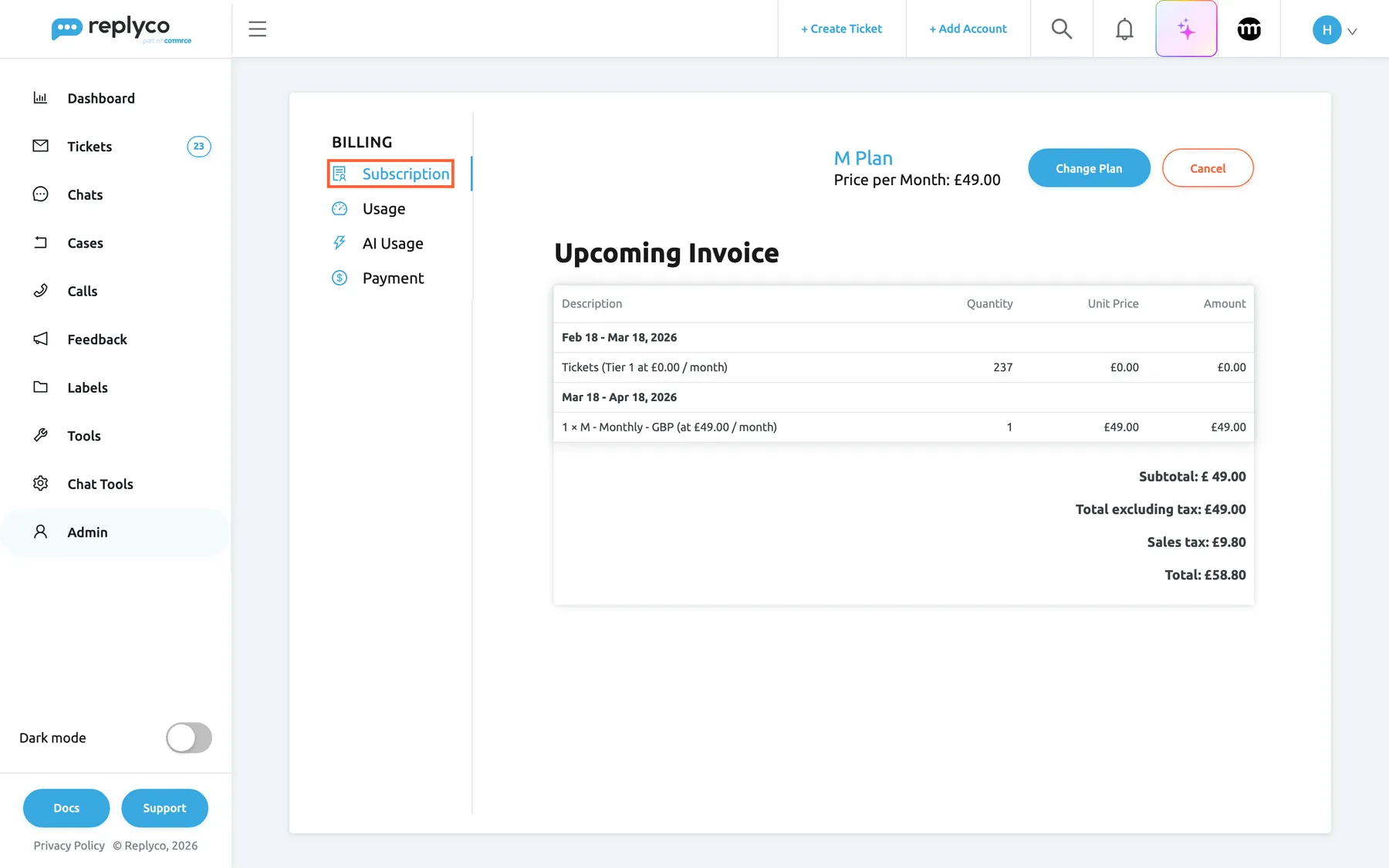
What this screenshot shows
- Screen
- Billing (/billing)
- Highlighted
- tab “Subscription”, left-tab-list, selected. shows the plan
- Also visible
- plan M Plan, Price per Month £49.00; buttons Change Plan and Cancel; Upcoming Invoice: 237 tickets at £0.00 for 18 Feb – 18 Mar 2026; M plan £49.00 for 18 Mar – 18 Apr 2026; Subtotal £49.00, Sales tax £9.80, Total £58.80
- Purpose
- the screen at a glance
| Region | What it shows | What you do there |
|---|---|---|
| Tab list, left | Billing as the title, then Subscription, Usage, AI Usage and Payment | Switch between the tabs; the address bar keeps the tab, so a link opens the same tab. Usage and AI Usage exist only on a usage-based plan |
| Plan line, top right | The plan’s name, such as M Plan, Price per Month, and after a cancellation the date the plan ends | Check which plan you pay for |
| Buttons, top right | Change Plan and Cancel | Move to another plan or cancel |
| Upcoming Invoice | One bold row per billing period with its lines, then the totals | See what the next invoice will charge |
See your plan and its price
Section titled “See your plan and its price”The plan line at the top right of the Subscription tab names your plan by its size, S, M, L or XL, as in the plan comparison, for example M Plan. Price per Month shows the plan’s price without tax, with two decimals, for example £49.00 for the M plan in pounds.
- On a user-based plan the price is the price per user multiplied by the number of users in your company. Inviting or deleting a user changes the price straight away; see Users.
- On the XL plan there is no price line, because XL is agreed with Replyco individually.
- Each plan includes a number of accounts. An account beyond that number is blocked and does not sync until support lifts the block; see Stay within your plan’s number of accounts.
What your plan includes, from tickets to features, is listed in What each plan includes. Replyco AI and Cases are part of every plan.
Check the upcoming invoice
Section titled “Check the upcoming invoice”The Upcoming Invoice table shows the invoice your payment provider will raise next, before anything is charged. Each billing period is a bold row, followed by the lines that belong to it, with Description, Quantity, Unit Price and Amount.
On a usage-based plan you usually see two periods. The plan fee is charged for the coming period, the tickets for the current one. In the screenshot, the M plan costs £49.00 for 18 March to 18 April, and the 237 conversations that received a reply between 18 February and 18 March cost £0.00 because they are within the 350 the plan includes. A conversation counts once, when the first reply goes out; see Billing: Usage for what counts.
Under the lines, the footer shows Subtotal, a discount line when a coupon applies (the coupon’s name and its percentage), Total excluding tax, Sales tax and Total.
The tax depends on your billing country: Replyco applies one rate when the billing country is the United Kingdom and another for every other country. To check the billing country, see Enter your address and billing address.
When nothing is due, for example after you have cancelled, the table shows No data....
Change your plan
Section titled “Change your plan”-
On the Subscription tab, select Change Plan. The plan comparison opens.
-
In the column of the plan you want, select Update, then confirm with Yes. The comparison offers your current plan and the larger ones.
The new plan applies at once: its features, its ticket allowance, its number of accounts and how long tickets are kept change with it, and your payment provider invoices the difference for the rest of the period pro rata. The plan comparison and all its options are explained in Subscribe to a plan.
When you have used 90 % or more of your ticket allowance, Change Plan is outlined in red, as a hint that a larger plan may cost less than the extra tickets. On a user-based plan there is no Change Plan button: the price follows the number of users.
Cancel the subscription
Section titled “Cancel the subscription”-
On the Subscription tab, select Cancel. A dialog opens with We're sad to see you go....
-
Choose the reason that fits best and write a short comment. The comment is required: without it the box turns red and shows Comment is required.
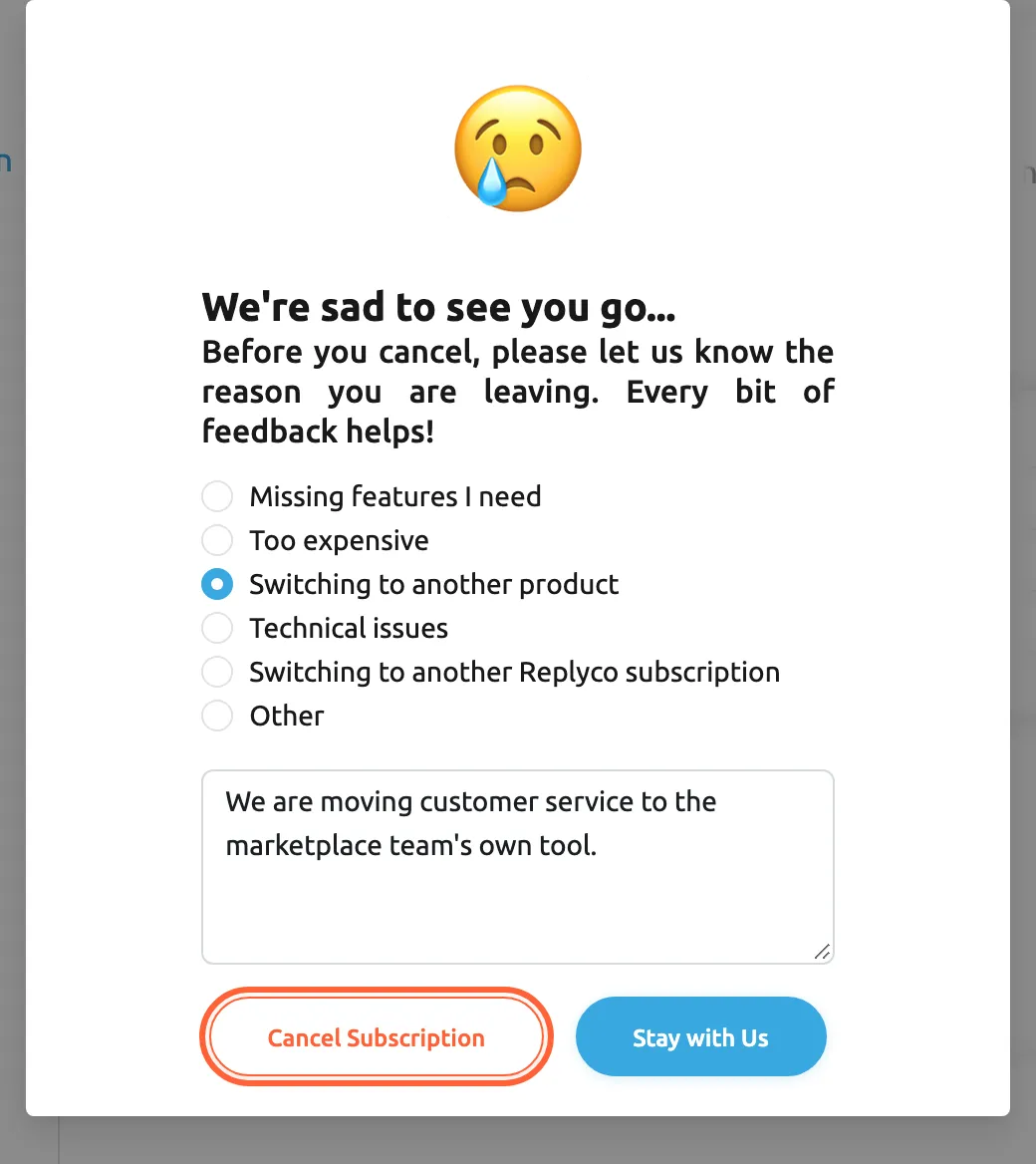
Pick a reason and write a comment; the comment is required before Cancel Subscription goes on. What this screenshot shows
- Screen
- Billing (/billing)
- Highlighted
- button “Cancel Subscription”, cancellation-dialog-bottom, enabled. moves to the 20-second countdown
- Also visible
- reason Switching to another product selected; comment filled in; Stay with Us button
- Purpose
- the first step of cancelling
-
Select Cancel Subscription. The dialog shows Your subscription will be cancelled in with a 20-second countdown. When it reaches zero, Replyco cancels the subscription and shows Subscription successfully updated.. To keep your plan, select Stay with Us before the countdown ends.
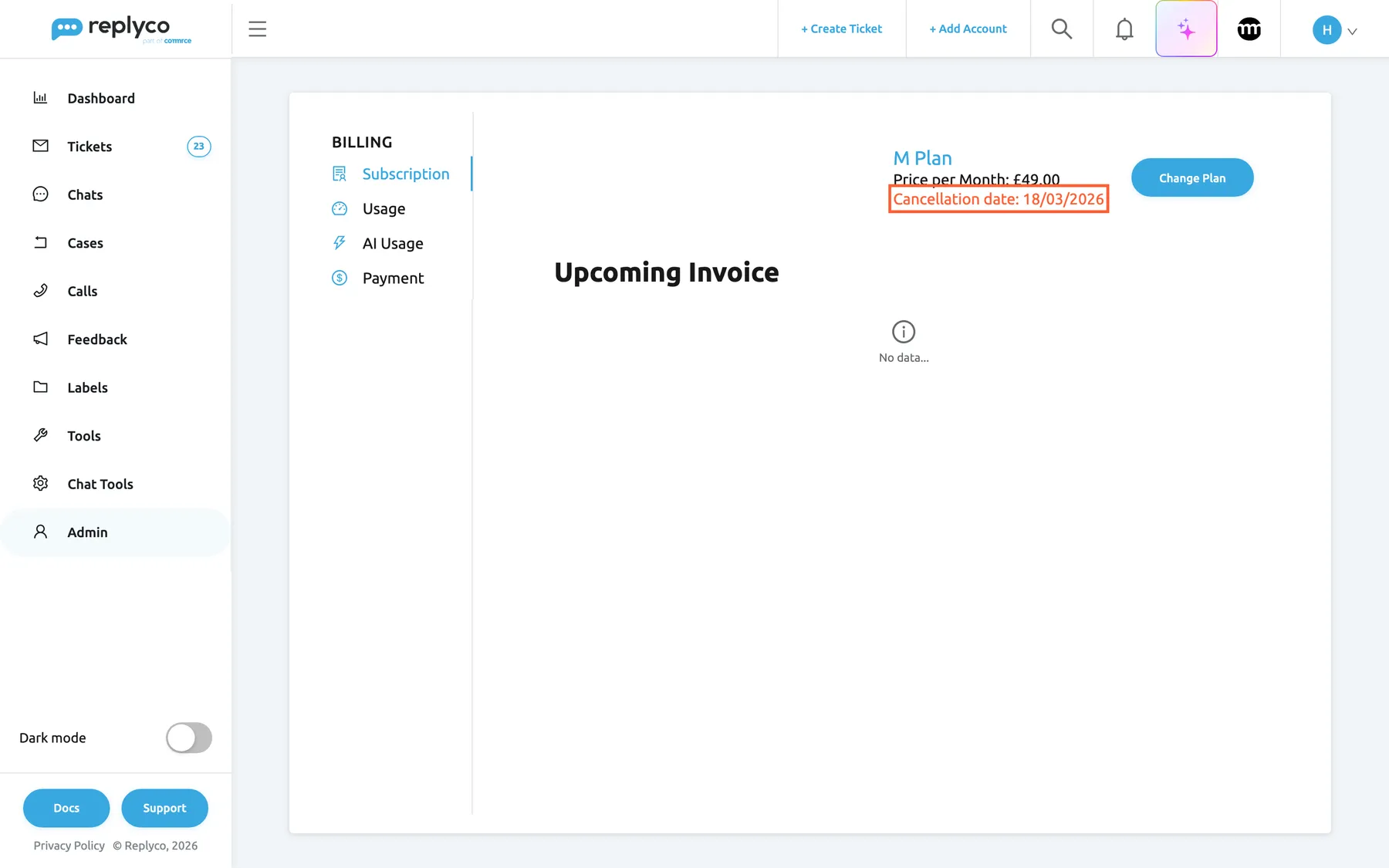
The subscription ends with the period you have already paid for. Until then everything keeps working, and the plan line shows the end date in red.
What this screenshot shows
- Screen
- Billing (/billing)
- Highlighted
- text “Cancellation date”, top-right, shown in red. none
- Also visible
- Cancellation date 18 Mar 2026; Change Plan button, no Cancel button; Upcoming Invoice: No data...
- Purpose
- the result of a cancellation
After the end date, Replyco opens only the subscription screen and the Help screen, and it stops collecting new messages. Your data is not deleted straight away: 21 days after the end, Replyco emails your company address that the account will be removed, and 45 days after the end it deletes the company with all its tickets and settings. Subscribing again before then keeps everything. The whole path, with what to do first, is in Cancel your subscription.
See how much AI work Replyco does
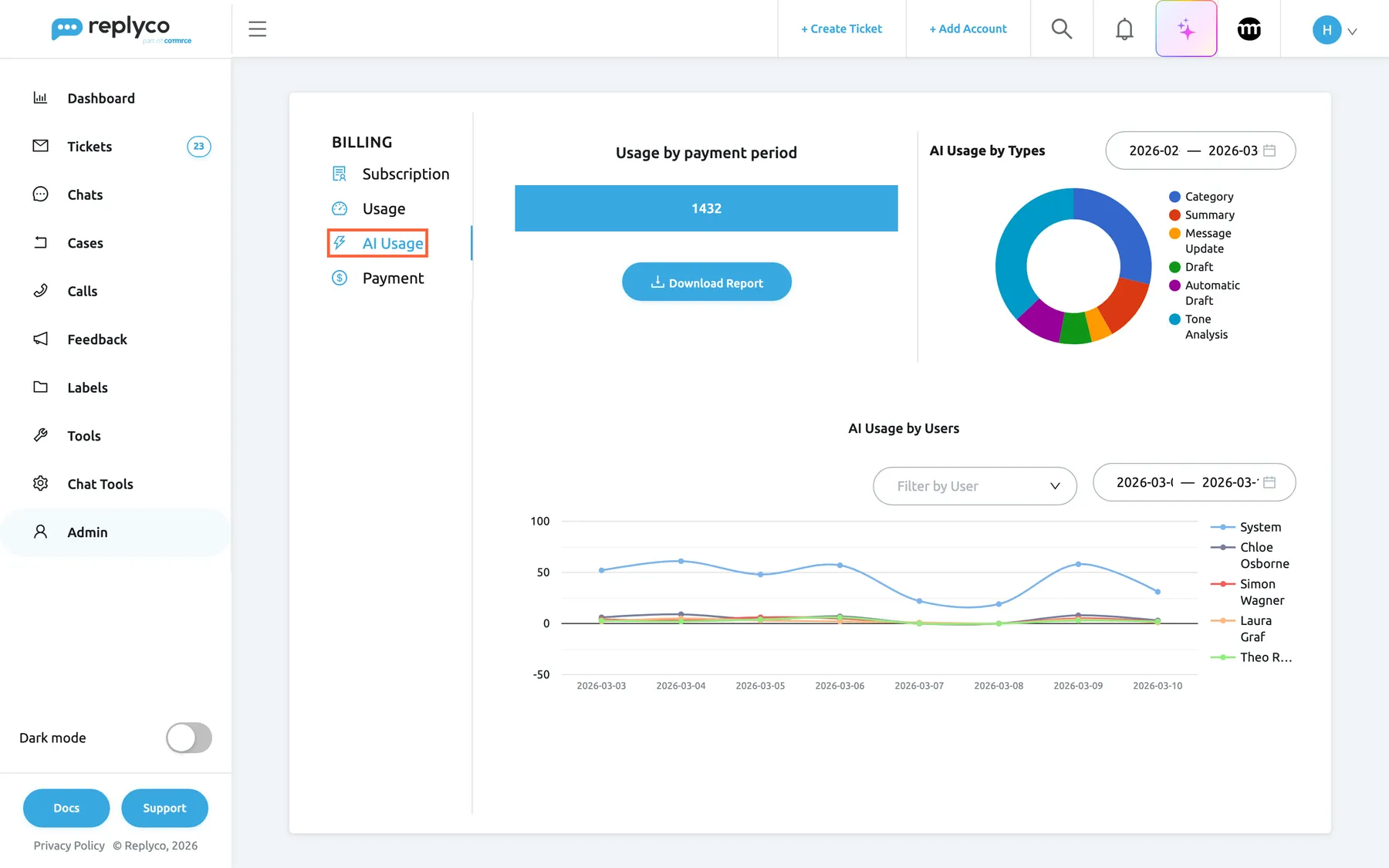
Section titled “See how much AI work Replyco does”The AI Usage tab counts every action Replyco AI performs for your company: sorting a ticket into an AI category, writing a summary, scoring the tone of a message, writing a draft, improving a reply in the editor, and more. Replyco AI is part of every plan, and AI actions do not appear as a line on your invoice; the tab shows how much AI work is done and by whom. The tab exists only for companies on a usage-based plan; a user-based plan has no AI Usage tab.
What this screenshot shows
- Screen
- Billing (/billing?tab=aiUsage)
- Highlighted
- tab “AI Usage”, left-tab-list, selected. shows the AI usage charts
- Also visible
- Usage by payment period 1432; AI Usage by Types: Category, Summary, Message Update, Draft, Automatic Draft, Tone Analysis; AI Usage by Users: System and four agents over 3–10 March 2026
- Purpose
- how much AI work Replyco did
- Usage by payment period, left: the total number of AI actions in the period chosen under AI Usage by Types. When the tab opens, that is your current payment period.
- AI Usage by Types, right: a ring chart with one part per kind of action, for example Category, Summary, Message Update, Draft, Automatic Draft and Tone Analysis. Change the dates to look at another period; the total on the left follows.
- AI Usage by Users, below: one line per user per day for the last seven days. System stands for the actions Replyco takes automatically, such as categories and tone scores of incoming messages and automatic drafts. Use Filter by User to show chosen users only.
For example, Northwind’s week shows System at 20 to 60 actions a day and each agent at under ten: most AI work happens on incoming messages, before anyone opens them. To change what Replyco AI does, see AI Settings; the individual features are explained in AI categories, AI summaries, AI drafts and Message tone analysis.
Download the AI usage report
Section titled “Download the AI usage report”-
On the AI Usage tab, select Download Report.
-
Under Select period, choose the dates. The dialog starts with the last seven days.
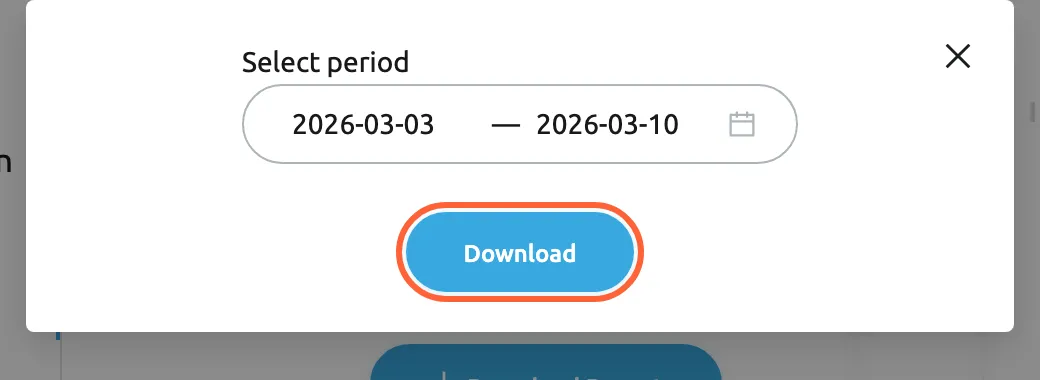
Download Report exports every AI action of the chosen period as a CSV file. What this screenshot shows
- Screen
- Billing (/billing?tab=aiUsage)
- Highlighted
- button “Download”, dialog-bottom, enabled. downloads ai_data CSV for the period
- Also visible
- Select period 2026-03-03 to 2026-03-10
- Purpose
- export AI usage
-
Select Download.
Your browser saves a CSV file named ai_data_ followed by the date. It has one row per AI action with the ticket number, the user name (or System), the date and time, the action and a link to the ticket. When the period has no AI actions, Replyco shows No data found for selected filters instead.
Every control, explained
Section titled “Every control, explained”The Subscription and AI Usage tabs of AdminBilling, in the order the screen shows them.
| Tab | What it holds | Why |
|---|---|---|
| Subscription | Plan, price, Change Plan, Cancel, the upcoming invoice | The first tab: what you pay and what comes next |
| Usage | Ticket allowance used, usage by type and by month | See Billing: Usage |
| AI Usage | AI actions by type and by user, the CSV export | Know how much AI work is done |
| Payment | Cards, charges and invoices | See Billing: Payment |
The plan line
Section titled “The plan line”Subscription tab, top right.
The plan’s size in the form M Plan, then Price per Month with the currency sign and the price before tax, with two decimals (not shown on XL). After a cancellation, a red line Cancellation date with the date the plan ends, or The subscription is cancelled when there is no end date.
Before you change anything, you know which plan you are on and what it costs.
Change Plan
Section titled “Change Plan”Subscription tab, top right, beside the plan line.
Opens the plan comparison at Subscribe to a plan. Blue normally, outlined in red from 90 % of the ticket allowance used. Not shown on user-based plans.
Moving to a larger plan is the way to more tickets, and the red outline warns you before extra tickets add up.
Cancel
Section titled “Cancel”Subscription tab, top right, a red-outlined button. Hidden once the subscription is cancelled.
Opens the cancellation dialog. Nothing is cancelled until the dialog’s countdown has run out.
Cancelling is two steps with a pause, so a slip of the mouse does not end your plan.
The cancellation dialog
Section titled “The cancellation dialog”Opened by Cancel.
First step: six reasons to choose from, Missing features I need (preselected), Too expensive, Switching to another product, Technical issues, Switching to another Replyco subscription and Other; a comment box with Anything you want to share?, which must not be empty; Cancel Subscription and Stay with Us. Second step: a 20-second countdown, the note The cancellation will take effect from the next billing cycle. Or you can and Stay with Us. When the countdown ends, Replyco cancels at the end of the paid period and stores your reason and comment with the cancellation. Stay with Us closes the dialog at either step and changes nothing.
Your reason tells Replyco what to improve, and the countdown gives you a last chance to change your mind.
Upcoming Invoice
Section titled “Upcoming Invoice”Subscription tab, below the plan line.
The next invoice as your payment provider will raise it: periods as bold rows, lines with Description, Quantity, Unit Price and Amount, then Subtotal, any coupon, Total excluding tax, Sales tax and Total. No data... when nothing is due. Line descriptions and period names come from the payment provider in English. Read each time you open the tab.
You see extra tickets and tax before they are charged, not afterwards.
Usage by payment period and Download Report
Section titled “Usage by payment period and Download Report”AI Usage tab, left.
A bar with the number of AI actions in the period set under AI Usage by Types. Download Report opens a dialog with Select period (default: the last seven days) and Download, which saves the CSV file of AI actions.
One number for the period, and the detail when you need to check a particular ticket or user.
AI Usage by Types
Section titled “AI Usage by Types”AI Usage tab, right, with its own date range.
A ring chart with one part per kind of AI action. The date range starts at your current payment period and cannot be cleared; changing it also changes the total on the left. Hover a part to see its number.
Shows which AI features do the most work, for example whether tone scores or drafts dominate.
AI Usage by Users
Section titled “AI Usage by Users”AI Usage tab, bottom, with Filter by User and a date range.
A line per user and one for System, with a point per day. The date range starts at the last seven days. Filter by User limits the chart to the users you pick; empty means everyone.
Shows who uses AI help in the editor and how much runs automatically.
Who sees what
Section titled “Who sees what”| Part | Shown when |
|---|---|
| The Admin menu | The user has the Admin permission; see User permissions and roles |
| Billing in the Admin menu | The Billing permission, a paid plan (not the trial), and billing through Replyco rather than Shopify |
| Change Plan | A usage-based plan |
| Cancel | The subscription is not cancelled yet |
| Price per Month | Any plan except XL |
| The Usage tab | A usage-based plan, not a user-based one; see Billing: Usage |
| The AI Usage tab | A usage-based plan; Replyco AI is part of every plan |
| The Payment tab | Always |
What you need to know
Section titled “What you need to know”| Topic | Fact |
|---|---|
| Payment period | Runs from your subscription day of the month to the same day of the next month; on XL it is the calendar month. |
| Plan changes | Apply at once; the difference is invoiced pro rata. The comparison offers your plan and the larger ones. |
| Cancelling | Takes effect at the end of the paid period; the dialog asks for a reason and a comment and waits 20 seconds. |
| After the end | Only the subscription and Help screens open, and new messages are no longer collected. |
| Removal | 21 days after the end Replyco emails a removal notice; 45 days after the end it deletes the company and all its data, unless you subscribe again. |
| Tax | One rate for a United Kingdom billing country, another for every other country; shown as Sales tax on the upcoming invoice. |
| AI usage | Counts AI actions, including automatic ones under System; AI is part of every plan and has no line on the invoice. |
| Company-wide | Everything on this screen is the company’s, the same for every administrator who opens it. |
Frequently asked questions
Section titled “Frequently asked questions”Plan and price
Section titled “Plan and price”Where do I see which plan we are on?
Section titled “Where do I see which plan we are on?”Open AdminBilling. The Subscription tab names the plan at the top right, for example M Plan, with Price per Month under it. What the plan includes is listed in What each plan includes.
Is the monthly price shown with or without VAT?
Section titled “Is the monthly price shown with or without VAT?”Without. Price per Month on the Subscription tab of AdminBilling is the plan’s price before tax. The Upcoming Invoice table below adds Sales tax and shows the Total you will be charged.
Why is there no price on our plan?
Section titled “Why is there no price on our plan?”Your company is on the XL plan, which is agreed with Replyco individually, so AdminBilling shows the plan name without Price per Month. The invoices of an XL plan are on the Payment tab; see Billing: Payment.
Does Replyco AI cost extra?
Section titled “Does Replyco AI cost extra?”No. Replyco AI is part of every plan, and AI actions do not appear as a line on your invoice. The AI Usage tab of AdminBilling shows how many AI actions Replyco performs, by type and by user, so you can see how much work it takes off your team.
Changing and cancelling
Section titled “Changing and cancelling”How do I move to a larger plan?
Section titled “How do I move to a larger plan?”On the Subscription tab of AdminBilling, select Change Plan, choose Update in the plan’s column and confirm with Yes. The new plan applies at once and the difference is invoiced pro rata. Details are in Subscribe to a plan.
Why is Change Plan outlined in red?
Section titled “Why is Change Plan outlined in red?”Change Plan on the Subscription tab turns red-outlined when your company has used 90 % or more of the tickets its plan includes in the current payment period. Tickets beyond the allowance are charged one by one, so check Billing: Usage and compare the plans before the period ends.
When does a cancellation take effect?
Section titled “When does a cancellation take effect?”At the end of the period you have already paid for. After the countdown in the cancellation dialog runs out, the Subscription tab of AdminBilling shows Cancellation date in red, and Replyco keeps working as before until that date. The steps are in Cancel your subscription.
Why do I have to write a comment to cancel?
Section titled “Why do I have to write a comment to cancel?”The cancellation dialog on AdminBilling needs a reason and a comment before Cancel Subscription goes on; an empty comment shows Comment is required. Replyco stores both with the cancellation to learn why customers leave. One sentence is enough.
What happens to our tickets after we cancel?
Section titled “What happens to our tickets after we cancel?”Nothing changes until the end date shown on the Subscription tab. After it, only the subscription and Help screens open and new messages are no longer collected. 21 days later Replyco emails a removal notice to your company address, and 45 days after the end date it deletes the company with all tickets and settings, unless you subscribe again in Subscribe to a plan.
Can I cancel during the free trial?
Section titled “Can I cancel during the free trial?”There is nothing to cancel. During the trial AdminBilling is not in the menu, no payment details are stored and the trial never turns into a paid plan by itself. When it ends without a plan, Replyco opens only the subscription screen and the Help screen; see Subscribe to a plan.
Invoices and usage
Section titled “Invoices and usage”What is the tickets line on the upcoming invoice?
Section titled “What is the tickets line on the upcoming invoice?”It is the metered part of a usage-based plan: every conversation that receives its first reply in the current period, counted once. Up to your plan’s allowance the line costs nothing; beyond it each ticket is charged at the plan’s extra ticket price. The count is explained in Billing: Usage.
Why does the upcoming invoice show No data...?
Section titled “Why does the upcoming invoice show No data...?”The Upcoming Invoice table on AdminBilling shows No data... when no further invoice is due, for example after you have cancelled and the plan ends with the current period. Past invoices stay on the Payment tab; see Billing: Payment.
Where are our past invoices?
Section titled “Where are our past invoices?”On the Payment tab of AdminBilling, each with its number, dates, amounts and a PDF to download. The Subscription tab shows only the next one. See Billing: Payment.
AI usage
Section titled “AI usage”What does System mean in AI Usage by Users?
Section titled “What does System mean in AI Usage by Users?”System in the AI Usage by Users chart on AdminBilling stands for the AI actions no user started: AI categories and tone scores of incoming messages, summaries and automatic drafts. The other lines are actions a user took, such as asking the AI assistant in the editor to improve a reply.
Why did the AI total change when I changed a date?
Section titled “Why did the AI total change when I changed a date?”The Usage by payment period total on the AI Usage tab adds up the actions shown in AI Usage by Types. When you change that chart’s dates, the total follows. Reopen the tab to return to the current payment period.
How can I see AI actions for one ticket?
Section titled “How can I see AI actions for one ticket?”On the AI Usage tab of AdminBilling, select Download Report, choose the dates and select Download. The CSV file has one row per AI action with the ticket number, the user or System, the date, the action and a link to the ticket; filter it by ticket number.
Troubleshooting
Section titled “Troubleshooting”| Symptom | What to check |
|---|---|
| Billing is missing from the Admin menu | You have the Admin and Billing permissions; your company is past the trial; it is not billed through Shopify. During a trial or with Shopify billing, use Subscribe to a plan |
| The AI Usage tab is missing | Your company is on a user-based plan, which has no tab for AI usage |
| Change Plan is missing | Your company is on a user-based plan, where the price follows the number of users; see Users |
| Cancel is missing | The plan line shows Cancellation date or The subscription is cancelled: the subscription is already cancelled |
| Cancel Subscription does nothing and the box turns red | The comment is empty; write a short comment, then select Cancel Subscription again |
| The upcoming invoice shows No data... | Your subscription is cancelled or nothing further is due; past invoices are on Billing: Payment |
| AI charts are empty | The chosen dates contain no AI actions; widen the date range, and check that the AI features are on in AI Settings |