

Feedback
Buyers rate your eBay and Amazon sales publicly on the marketplace. The Feedback area brings the ratings buyers leave on eBay and Amazon into Replyco, next to the tickets and orders they belong to, so your team sees a bad rating soon after it arrives and can contact the buyer from the related ticket. Replies to feedback are still written on eBay or Amazon; Replyco shows them once they are there. To connect the marketplaces, see Accounts and integrations.
The same menu holds the other side of the story: review requests for Amazon orders. Rules you set up send Amazon’s own “Request a Review” message a set number of days after delivery, skip orders with an open ticket or case, and log every request with its result. Open the area from Feedback in the sidebar; the entry Feedback List and the menu itself show how many unread negative feedback entries are waiting.
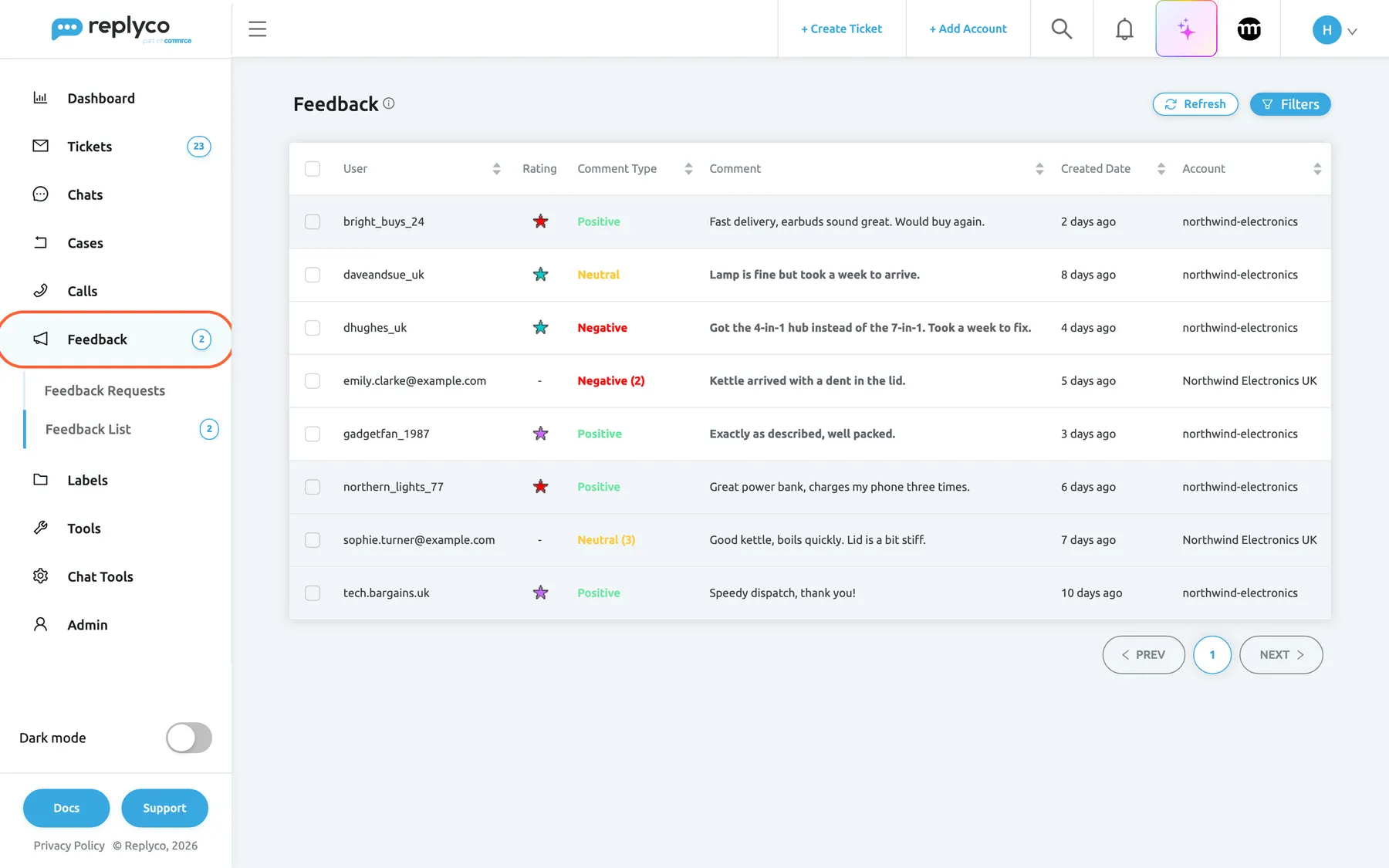
What this screenshot shows
- Screen
- Feedback (/feedbacks)
- Highlighted
- menuitem “Feedback”, sidebar-left, expanded. opens Feedback Requests and Feedback List
- Also visible
- Feedback menu with Feedback Requests and Feedback List; badge 2; eight feedback rows
- Purpose
- the Feedback area and its two screens
The screens in this area
Section titled “The screens in this area”| Screen | What it is for |
|---|---|
| Feedback Requests | The log of Amazon review requests, planned, sent, failed or cancelled, with the send date and the rule |
| Feedback List | Every eBay and Amazon feedback of your accounts, with rating, comment and read state |
| Feedback details | One feedback with the seller’s reply, the buyer’s follow-up, the related tickets, the customer and the order |
The rules that create review requests live under ToolsAutomation on the Feedback Rules tab; see Feedback Rules.
What you can do here
Section titled “What you can do here”- Ask Amazon buyers for a review automatically, a set number of days after delivery, and stop the request when the buyer has an open ticket. Automatic feedback requests.
- Check which requests went out and why one failed. Feedback Requests.
- See negative feedback soon after it arrives, through the sidebar count, the list’s colours and the neutral/negative notification. Feedback List.
- Follow up with the buyer from the ticket about the same order, and read your public reply and the buyer’s follow-up. Feedback details.
- Choose what the sidebar counts, with Feedback badge in the menu in your own settings. Account Settings.
Concepts
Section titled “Concepts”- Feedback and review requests are separate. Feedback is what buyers leave on eBay and Amazon; review requests are messages Replyco asks Amazon to send. A request can lead to feedback, but the two screens are not linked row by row. Automatic feedback requests explains the requests from rule to result.
- Amazon feedback shows its rating. Amazon’s 1–5 star rating appears in brackets after the comment type; see Feedback List.
- Read and unread are shared. One read state per feedback for the whole company; opening a feedback marks it read for everyone.
- Feedback belongs to an order. A feedback linked to an order shows that order’s tickets, and those tickets show the feedback under Related Feedback; see The ticket screen.
Availability: every current plan includes marketplace feedback and Amazon review requests, and during a trial every feature is on. Companies on an older plan may not have them; the review-request entry then shows a lock. The Feedback menu needs the Feedback permission, set per user by an admin. Feedback comes from eBay and Amazon only, and review requests are sent for Amazon orders only. See What each plan includes and User permissions and roles.