

Assign, label and merge tickets
Give every ticket one owner, sort tickets with labels so each group has its own list, and join two tickets when a customer has written twice about the same thing. You can do each of these by hand in a ticket, for many tickets at once from a ticket list, or automatically: Replyco assigns a ticket to whoever replies first, and a rule assigns and labels tickets as they arrive. Assigning and labelling can be changed at any time; merging cannot be undone.
Before you start
Section titled “Before you start”| You need | Where it lives |
|---|---|
| Tickets in a list you may open | Tickets; which lists, accounts and labels you see is set by an admin, see User permissions and roles |
| Labels, if you want to label tickets | Labels |
| The Admin permission with Edit rights, for assigning on reply | AdminCompany Settings appears only with these rights; an admin sets them, see User permissions and roles |
| Access to the rules, for assigning and labelling automatically | ToolsAutomation, tab Rules |
Availability: every plan includes assigning, labelling and merging, and limiting which lists, accounts and labels a user sees. Companies on an older plan may not have those limits; see What each plan includes.
Assign tickets
Section titled “Assign tickets”-
Assign one ticket. Open the ticket and select the person icon in its header, Assign User. In Select User to Assign, pick a colleague, or Unassigned to take the ticket off everyone, and select Save.
The right panel now names the assignee: in green when it is you, in yellow for a colleague. The ticket counts as read after the change. For the other icons in the header, see The ticket screen.
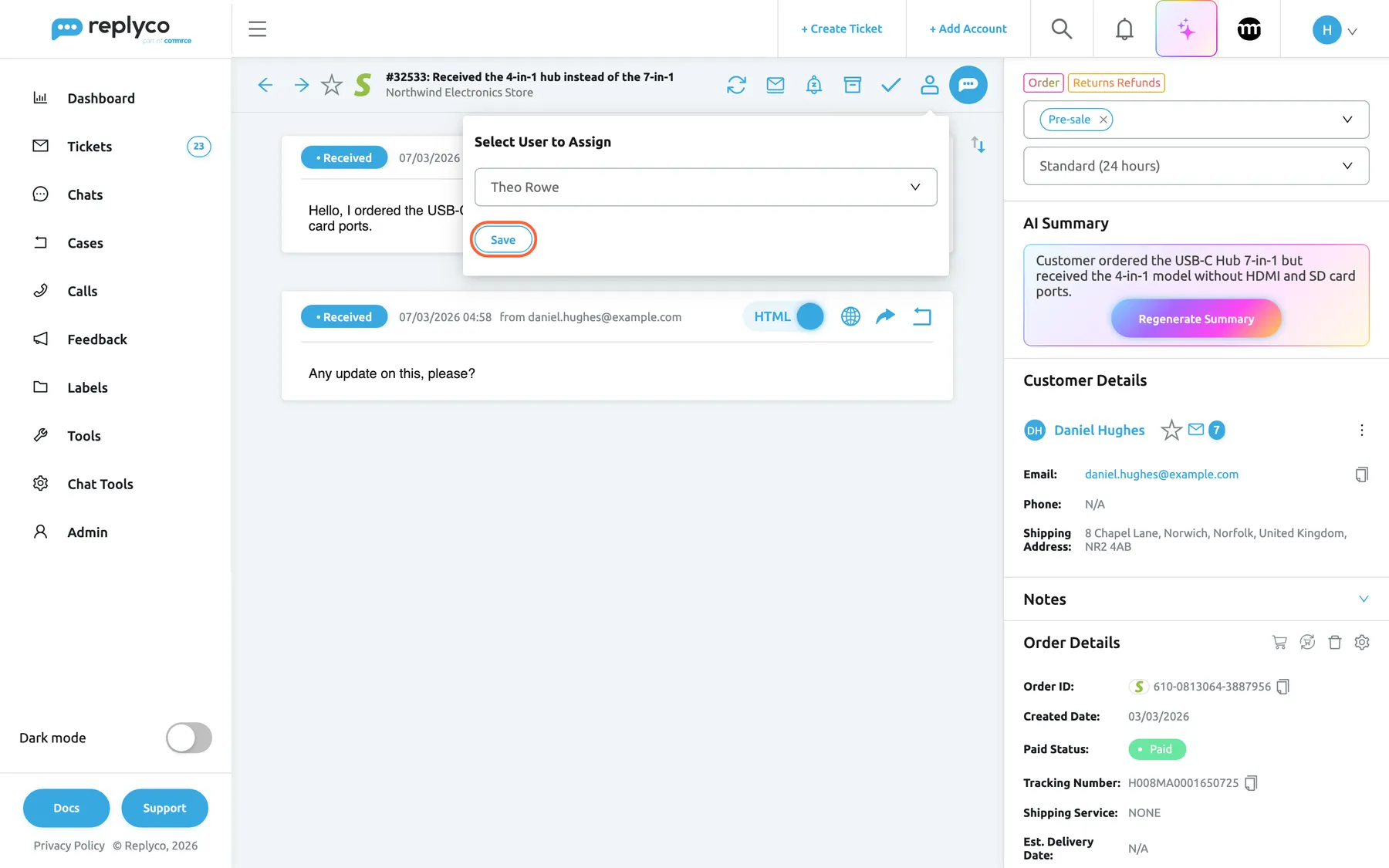
The person icon in the ticket's header assigns this one ticket; pick a colleague and save. What this screenshot shows
- Screen
- Assign User (/ticket/:threadId)
- Highlighted
- button “Save”, ticket-header-popover, enabled. assigns the ticket to the chosen user
- Also visible
- user picker showing Theo Rowe; ticket #32533 with two customer messages; right panel: label, priority, AI summary
- Purpose
- assign one ticket by hand
-
(Optional) Assign several tickets at once. In any ticket list, tick the tickets, select the person icon Assign User in the bar that appears at the top, pick a user and select Save.
Replyco confirms with The selected tickets have been assigned. and the list reloads. You can also right-click one row and choose Assign User. The selection covers the page you see, so choose 100 per page first for a large batch; see Ticket lists.
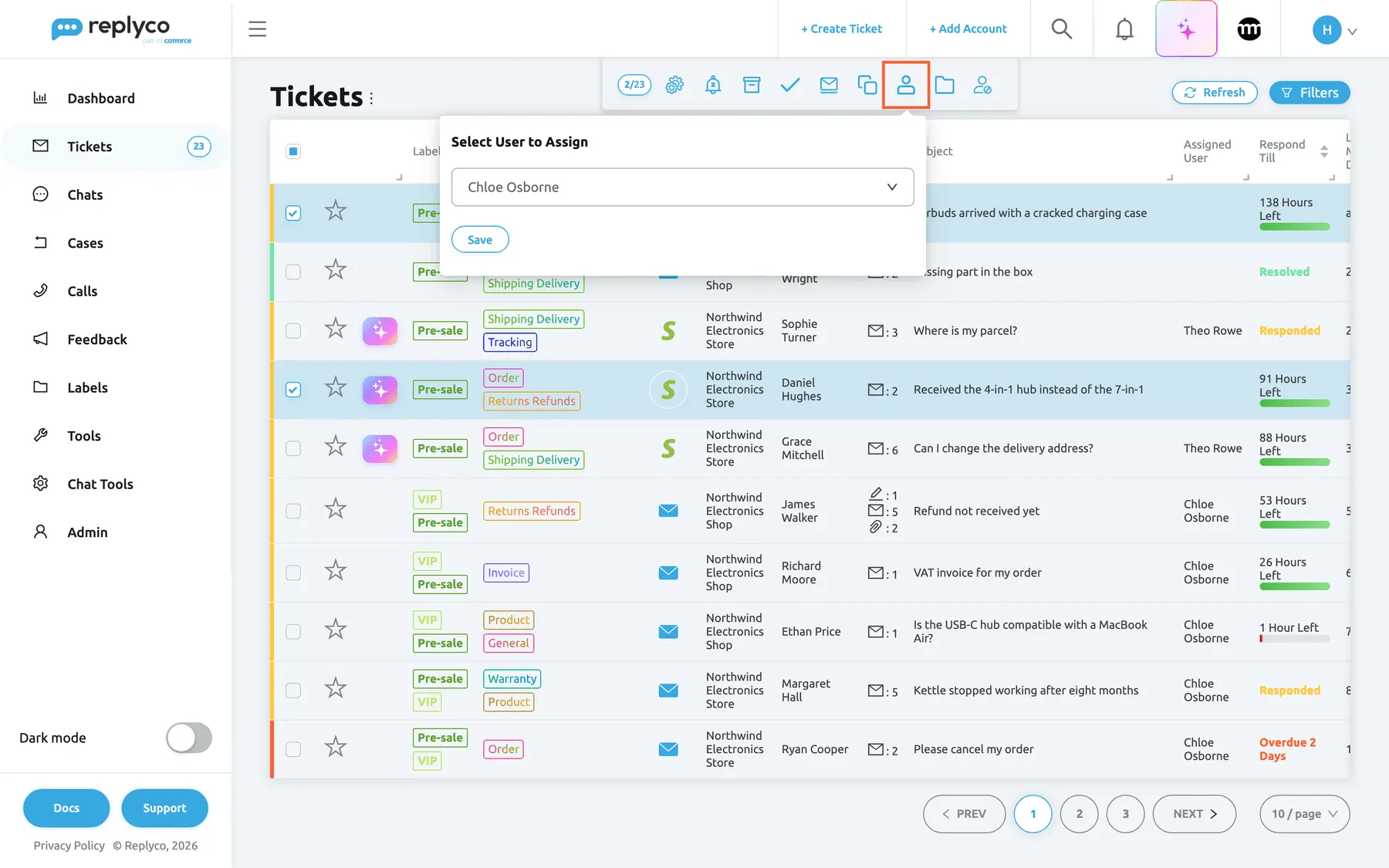
Tick several tickets and use the person icon in the bar at the top to assign them together. What this screenshot shows
- Screen
- All Tickets (/tickets/all)
- Highlighted
- button “Assign User”, bulk-action-bar, expanded. opens the user picker for the selected tickets
- Also visible
- two ticked rows; counter 2/23; user picker showing Chloe Osborne with Save
- Purpose
- assign several tickets at once
-
(Optional) Assign tickets to whoever replies first. Open AdminCompany Settings, turn on Auto-assign on Reply in the General card and select Save.
From then on, a reply in a ticket that nobody is assigned to assigns the ticket to the person who sent it. A ticket that already has an assignee keeps it. See Assign tickets to whoever replies first.
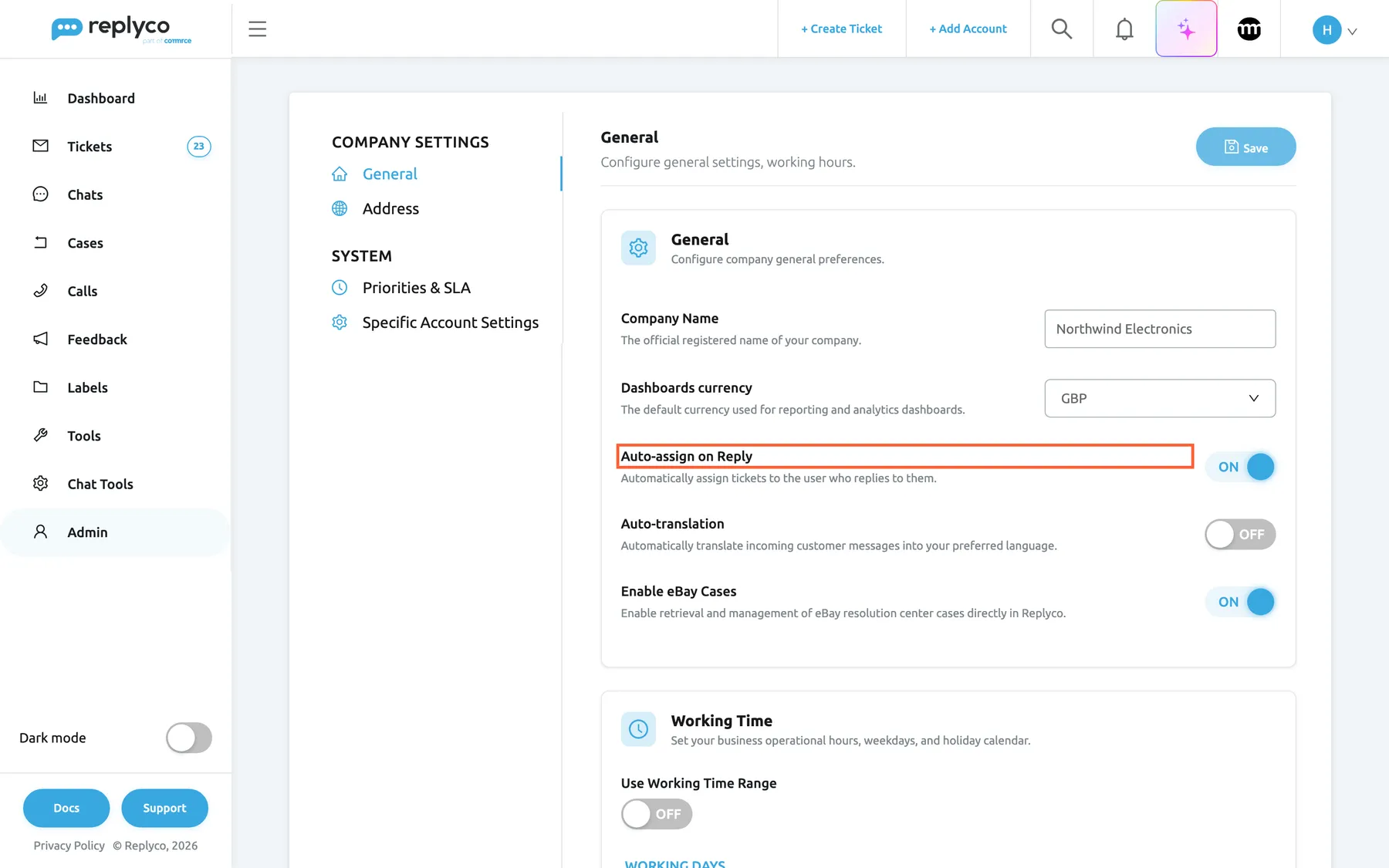
With Auto-assign on Reply on, the first person to answer an unassigned ticket becomes its assignee. What this screenshot shows
- Screen
- Company Settings (/company)
- Highlighted
- switch “Auto-assign on Reply”, general-card, on. assigns an unassigned ticket to whoever replies first
- Also visible
- Company Name Northwind Electronics; Dashboards currency GBP; Auto-translation OFF; Enable eBay Cases ON; Save disabled
- Purpose
- assign tickets automatically on reply
-
(Optional) Assign tickets as they arrive. Open ToolsAutomation, tab Rules, and select Create New. Set the conditions, for example the account or a word in the subject, choose the colleague in Allocate User and save the rule.
Every new customer message that matches the rule’s conditions assigns its ticket to that colleague. To write conditions, see Rules for incoming tickets.
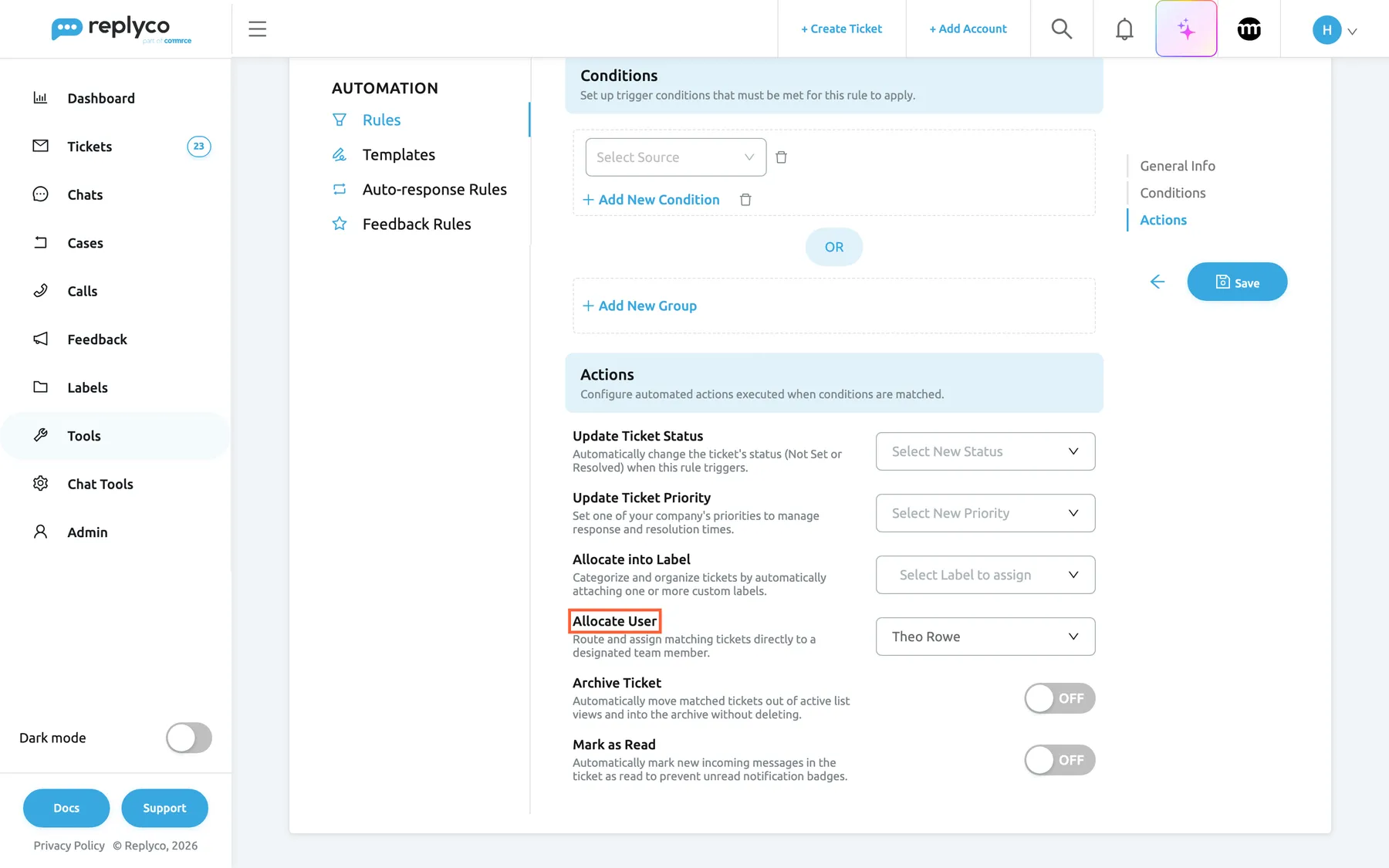
A rule assigns and labels tickets as they arrive; the actions sit at the end of the rule form. What this screenshot shows
- Screen
- Rules (/tickets-automation?tab=rules)
- Highlighted
- combobox “Allocate User”, rule-actions, set to Theo Rowe. assigns every matching incoming ticket to the user
- Also visible
- Update Ticket Status; Update Ticket Priority; Allocate into Label (empty); Archive Ticket OFF; Mark as Read OFF
- Purpose
- assign and label by rule
Label tickets
Section titled “Label tickets”-
Label one ticket. Open the ticket and pick one or more labels in the first select at the top of the right panel, Select Label to assign. Each label is added as you pick it; the × on a label removes it.
The ticket now also appears in the list of each label under Labels.
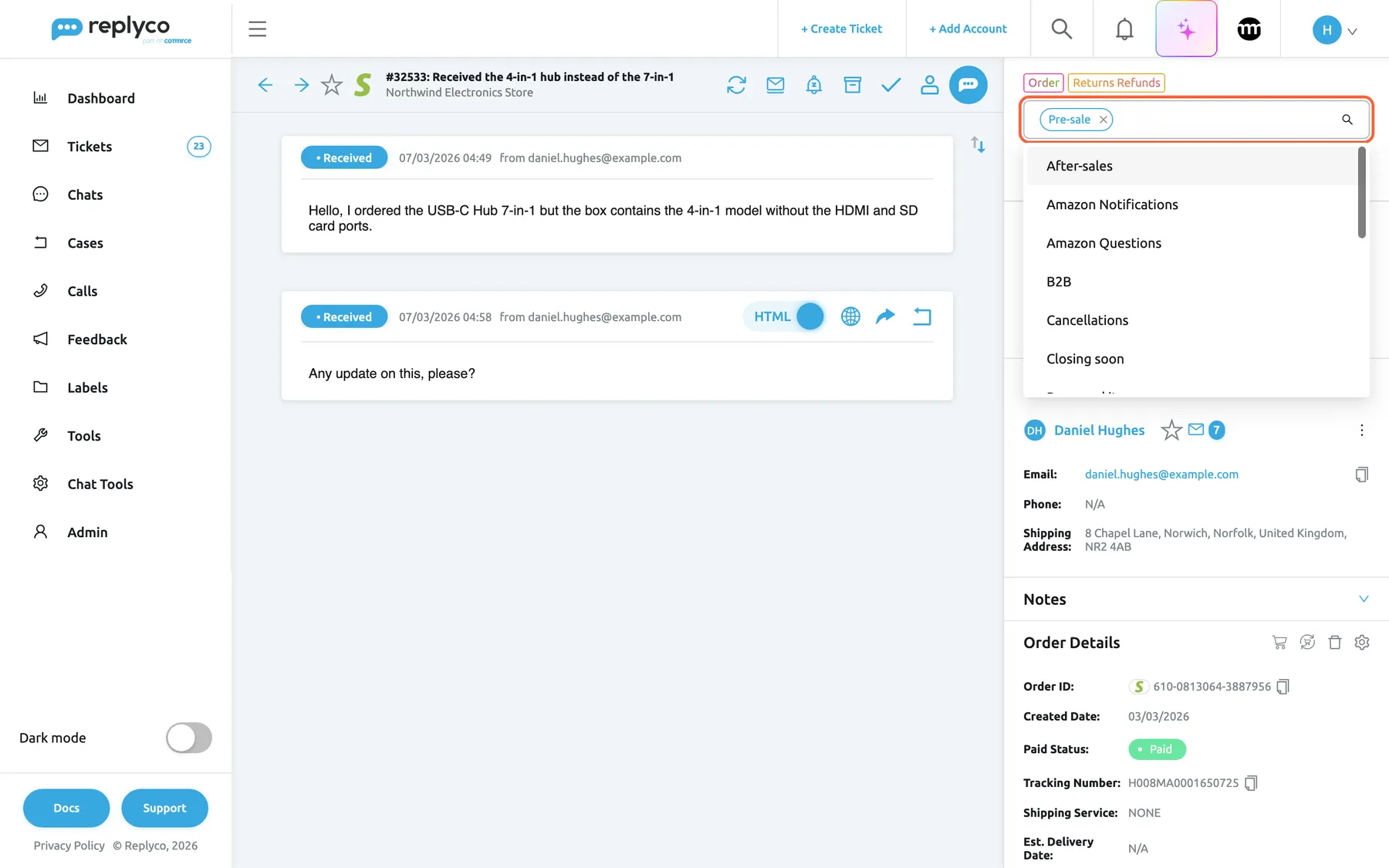
In the ticket, the label select at the top of the right panel adds and removes labels as you pick them. What this screenshot shows
- Screen
- Select Label to assign (/ticket/:threadId)
- Highlighted
- combobox “Select Label to assign”, right-panel-top, expanded. adds the picked label to the ticket
- Also visible
- Pre-sale label already on the ticket; label list in alphabetical order; AI category tags above
- Purpose
- label one ticket
-
(Optional) Label several tickets at once. In a ticket list, tick the tickets, select the folder icon Assign Labels in the bar at the top, pick the labels and select Save.
The labels you pick are added; the labels the tickets already carry stay. A short confirmation appears. To take every label off the selected tickets, pick No Label instead.
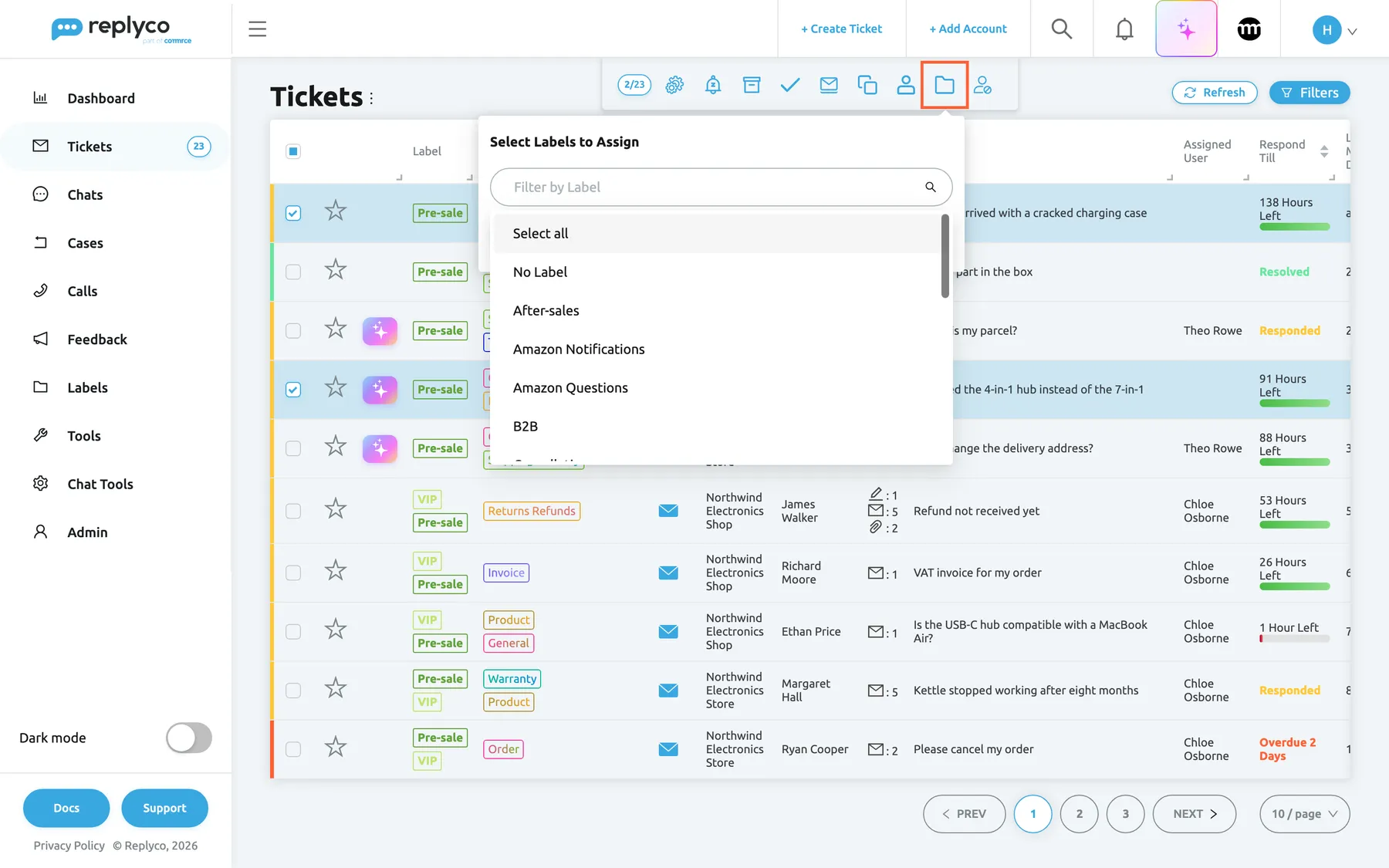
Assign Labels in the bar adds the labels you pick to every selected ticket and keeps the ones they have. What this screenshot shows
- Screen
- All Tickets (/tickets/all)
- Highlighted
- button “Assign Labels”, bulk-action-bar, expanded. opens the label picker for the selected tickets
- Also visible
- two ticked rows; counter 2/23; label list: Select all, No Label, then the labels
- Purpose
- label several tickets at once
-
(Optional) Label tickets as they arrive. In the same rule form as in the last step of assigning, choose one or more labels in Allocate into Label. A matching ticket gets the labels in addition to the ones it has.
Merge two tickets
Section titled “Merge two tickets”-
Open a list that shows both tickets, for example TicketsAll Tickets, and search for the customer if they are far apart. Both tickets must have the same customer and the same account.
-
Tick both tickets. Merge Tickets appears in the bar at the top once two or more tickets are ticked.
-
Select Merge Tickets. Replyco asks Are you sure you want to merge tickets? This action CANNOT be undone. Select Yes.
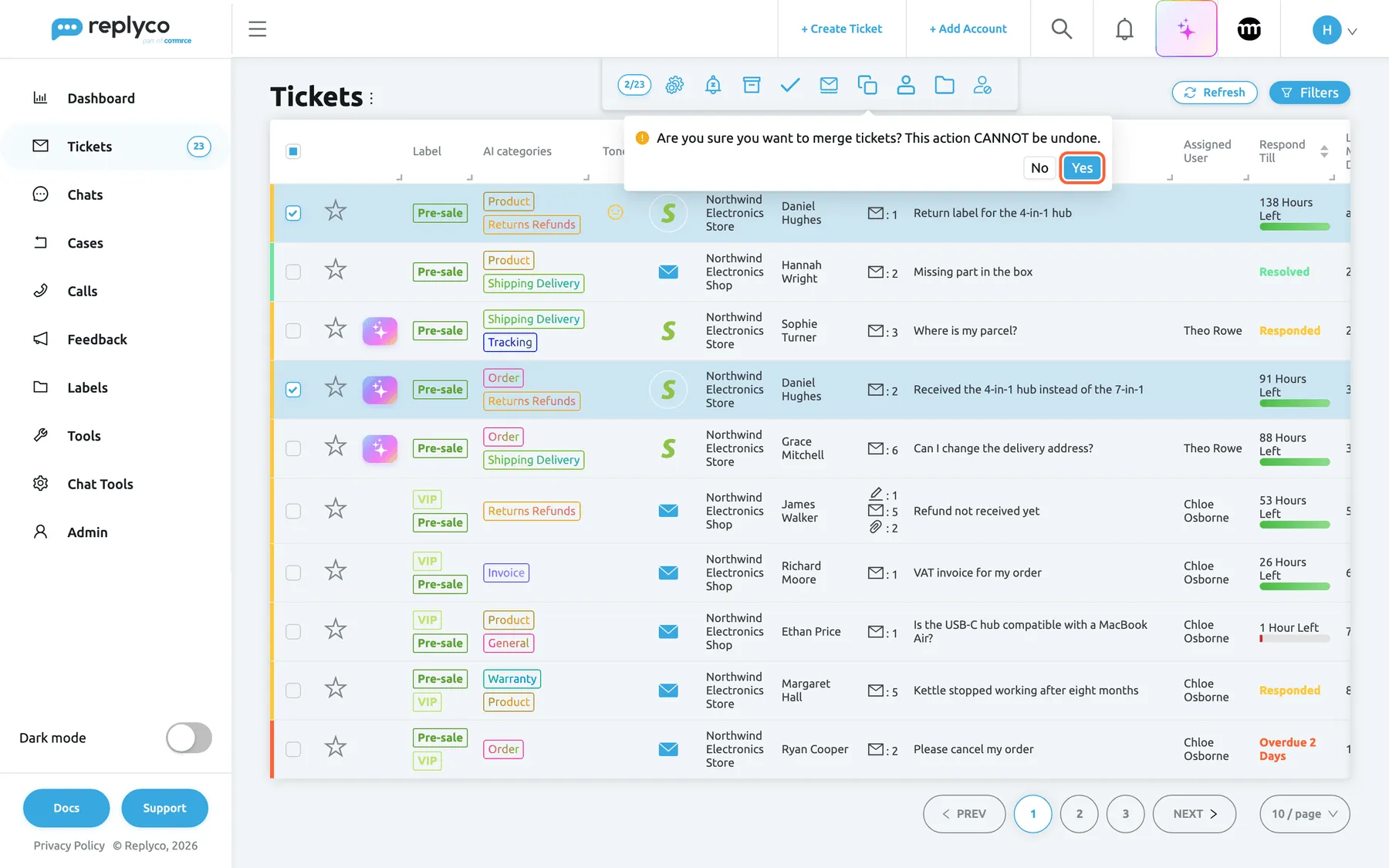
Merging asks once and cannot be undone; the older ticket keeps the conversation. What this screenshot shows
- Screen
- All Tickets (/tickets/all)
- Highlighted
- button “Yes”, bulk-action-bar-popconfirm, enabled. merges the selected tickets into the oldest one
- Also visible
- two ticked rows from the same customer and account; confirmation text; No and Yes buttons
- Purpose
- merge two tickets by hand
-
Replyco confirms with Tickets merged. and reloads the list. Open the ticket that is left and check the conversation.
A ticket created by forwarding a message shows a Child Ticket block in the original ticket, with its own Merge button that does the same for those two tickets; see The ticket screen. To have Replyco merge a customer’s new tickets by itself, see Ticket merging.
What happens next
Section titled “What happens next”Assigning. The ticket appears in the assignee’s My Tickets and leaves Unassigned. When you assign a ticket to a colleague, by hand or by a rule, the colleague is notified by the channels they switched on for Ticket Assigned to Me (manually) or Ticket Assigned to Me (by rule) in their notification settings; assigning a ticket to yourself notifies nobody. The ticket’s history records assigned ticket to with the name, and a rule adds Rule … applied.
Labelling. The label shows in the ticket list’s label column and in the right panel of the ticket, and the ticket is counted in the label’s list under Labels. Colleagues see those tickets only if the label is among the labels they may see.
Merging. Replyco keeps the ticket that was created first and moves the messages, notes, history and ticket files of the others into it. The other tickets are deleted, and the kept ticket is renamed to MERGED: followed by the subjects of all merged tickets. The kept ticket’s number, status, assignee, priority and labels stay as they were; labels of the deleted tickets are not carried over, so add them again if you need them. A merge cannot be undone.
For how the status of a ticket changes after you answer, resolve or archive it, see Resolve, snooze or archive a ticket.
Options
Section titled “Options”| Choice | When to pick it | Effect |
|---|---|---|
| Assign in the ticket | You are reading the ticket and know who should answer | One ticket, at once; the ticket counts as read |
| Assign User in the bar, or the right-click menu | Sharing out a queue, or moving a departing colleague’s tickets to someone else | All ticked tickets of the page get the same user, or nobody with Unassigned |
| Auto-assign on Reply | A shared queue where whoever answers first owns the conversation | Assigns an unassigned ticket to the person who replies; no notification is sent |
| A rule with Allocate User | Splitting work by account, marketplace, language or topic | Assigns matching tickets on every matching customer message, replacing an assignee set earlier |
| Label in the ticket | One ticket that needs a label | Adds or removes labels at once |
| Assign Labels in the bar | Tidying many tickets after a new label | Adds the labels and keeps the existing ones; No Label removes all labels |
| A rule with Allocate into Label | Every notice or question of one kind should carry a label | Adds the labels to each matching ticket as it arrives |
| Merge Tickets in the bar | A customer wrote twice instead of replying to your answer | Joins the tickets into the oldest one; cannot be undone |
| Automatic merging | Customers of an account often start new conversations | Replyco adds new messages of the same customer to their recent ticket; see Ticket merging |
If something goes wrong
Section titled “If something goes wrong”| Symptom | Check | Fix |
|---|---|---|
| You cannot merge Tickets from different Customers or Accounts. | The ticked tickets belong to different customers or came in on different accounts. A customer who writes from a second email address is a second customer. | Merge only tickets of one customer on one account. |
| Merge Tickets is not in the bar | Only one ticket is ticked. | Tick at least two tickets. |
| Please select a User to assign. or Please select a Label(s) to assign. | Nothing was picked before Save. | Pick a user or a label, then save. |
| A ticket you assigned by hand is back with another colleague | A rule with Allocate User matched the customer’s next message and assigned the ticket again. | Narrow the rule’s conditions; see Rules for incoming tickets. |
| Replying did not assign the ticket to you | Auto-assign on Reply is on and saved; the ticket had no assignee; you did not resolve it with your personal setting to remove the assignee on resolving. | Assign it by hand; see Assign tickets to whoever replies first. |
| Company Settings is missing under Admin, or its link opens the start screen | Your user lacks the Admin permission with Edit rights; the menu item and the screen appear only with them. | Ask an admin for these rights, or ask a colleague who has them to switch on Auto-assign on Reply; see User permissions and roles. |
| A colleague was not told about a ticket you assigned | Their notification settings for Ticket Assigned to Me (manually). | Ask them to switch on the channel they want. |
| Labels are missing after a merge | Labels of the deleted tickets are not carried over. | Add the labels to the kept ticket. |
| A colleague cannot see a label or its tickets | The labels allowed for their user, set by an admin. | See User permissions and roles. |
| Sending fails with “We can’t find your ticket in our system, maybe it was merged before you sent message by other user;” | A colleague merged the ticket while you were writing. | Search for the customer, open the ticket whose subject starts with MERGED: and send your reply there. |