

Your user account
Every person who works in Replyco has their own user, and Account Settings is where you set it up for yourself: your name and photo, what a reply does to a ticket, how a ticket looks, which counters the sidebar shows, your signatures, your notifications and your security. Nothing you change here affects your colleagues, and nothing a colleague changes in their own account settings affects you. Settings that apply to the whole company, such as working time or automatic assignment, are made by an administrator in Company Settings.
Open it from the user menu: select your avatar at the right end of the top bar and choose Account Settings. The screen has two groups of tabs. Under Account Settings are Information, Settings, Notifications and Account Signatures, the tabs that shape your daily work. Under Security are Two-factor authentication, Change Password and Account Activity, the tabs that keep your user safe. How you sign in, and what to do when you cannot, is explained in Sign in.
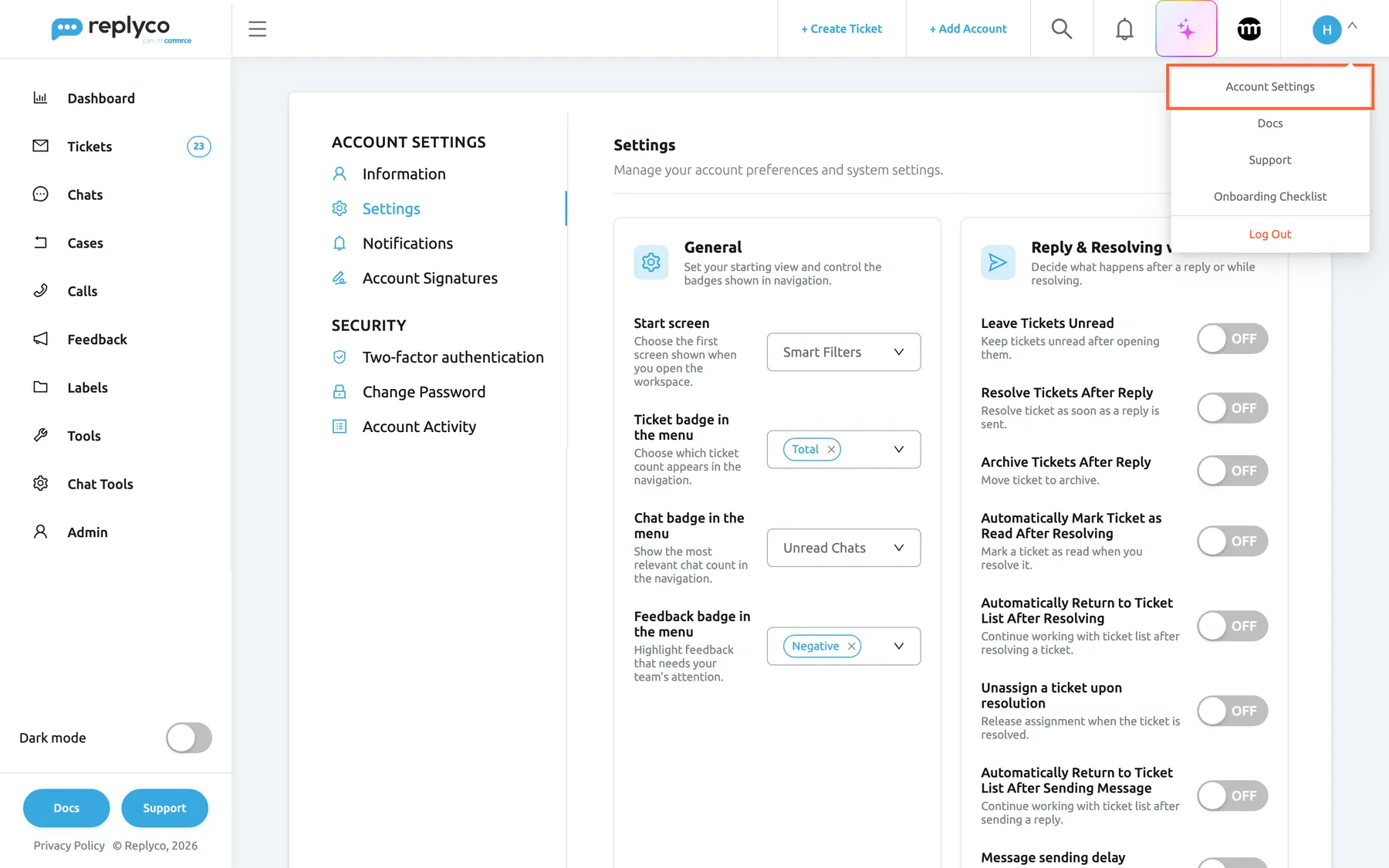
What this screenshot shows
- Screen
- Account Settings (/user-settings?tab=settings)
- Highlighted
- menuitem “Account Settings”, top-bar-right, shown. opens Account Settings
- Also visible
- user menu: Account Settings, Docs, Support, Onboarding Checklist, Log Out; tab groups Account Settings and Security; General and Reply & Resolving workflow cards
- Purpose
- where your personal settings live
The screens in this area
Section titled “The screens in this area”| Screen | What it is for |
|---|---|
| Account Settings | The Information, Settings, Notifications and Change Password tabs: profile, reply and resolve habits, ticket view, counters, message language, notifications and password |
| Account Signatures | Your signatures and the accounts each one is added to |
| Two-factor authentication | Your authenticator app: set it up, or reset it for a new phone |
| Account Activity | Every sign-in to your user, with date, IP address and browser |
What you can do here
Section titled “What you can do here”- Decide what a reply does to a ticket: resolve, archive or unassign it, go back to the list, or hold every reply for a few minutes. Account Settings · Delayed sending.
- Sign off in the right voice for each channel with a signature per account. Account Signatures.
- Hear about what needs you by email, on the mobile app or in the browser. Notifications.
- Read every customer in your language by choosing the language the translate icon uses. Account Settings · Translations.
- Protect your user with a new password and an authenticator app. Account Settings · Two-factor authentication.
- Check who signed in and shut out a sign-in that was not you. Account Activity.
Concepts
Section titled “Concepts”- Personal, not company-wide. Everything on these screens belongs to your user; the company’s own defaults are in Company Settings, and what you may see is set by an administrator in Users.
- Saved when you save. Most tabs keep your changes on screen until you select Save; see Account Settings.
Availability: every user has these settings, on every plan, including the choice of start screen, message translation and signatures per account; companies on an older plan may not have those three. Every new user must set up two-factor authentication, on every plan. See What each plan includes.