

Customers
Customers is where you look up a person instead of a conversation. Every buyer, shopper or sender who has written to one of your accounts, or bought from it, has a customer record here, and the record gathers their tickets, orders, chats, internal notes and a log of changes. Agents open it to see a customer’s history before they answer; team leads use it to correct a name, merge two records of the same person or block a sender. Open it from ToolsCustomers in the sidebar. A customer record belongs to one account, so a person who writes to your Amazon account and to your mailbox has two records.
What you can do here
Section titled “What you can do here”- Find a customer. Search by name, email address, phone number or marketplace buyer ID across the customers of every account you have access to. Find a customer
- See a customer’s whole history. One card shows the contact details; beside it are their tickets, every order, chats, notes and the log of changes. Read a customer’s details
- Correct a customer’s details. Fix a name, email address or phone number; the new name and address appear on all of their tickets at once. Edit a customer
- Add a customer by hand, for example a supplier you want to write to from Create Ticket. Add a customer · Create Ticket
- Merge two records of one person. A customer who wrote from two addresses has two records, and their tickets cannot be merged until the records are. Merge two customers · Ticket merging
- Block or unblock a sender. Blocking moves every ticket of the customer to the Blocked list and stops your rules and auto-responses for them. Block or unblock a customer · Blocked tickets
- Star a customer and keep notes about them. New tickets of a starred customer start starred; notes on a customer show on each of their tickets. Star a customer and keep notes
The screen at a glance
Section titled “The screen at a glance”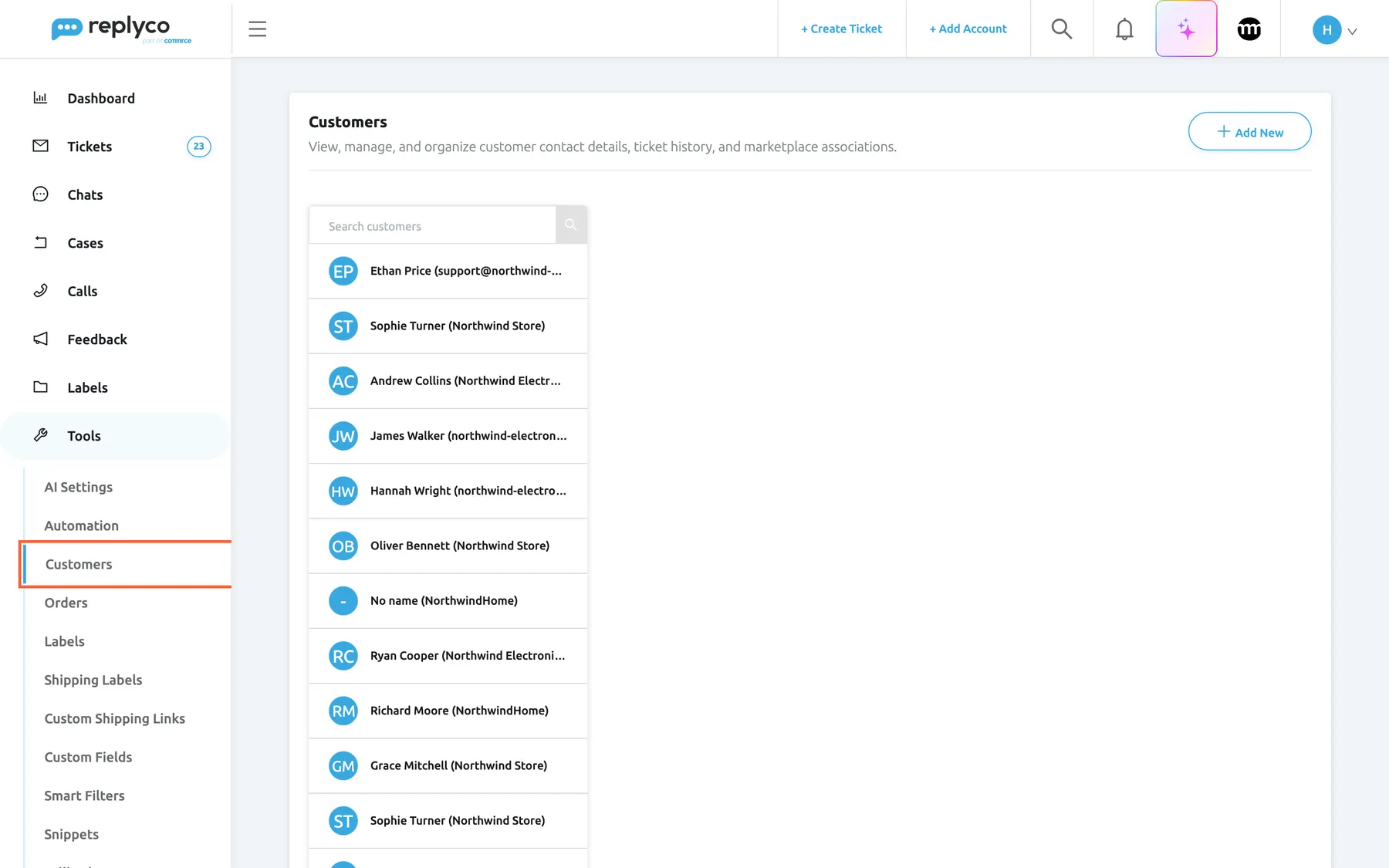
What this screenshot shows
- Screen
- Customers (/contacts)
- Highlighted
- menuitem “Customers”, sidebar-left, selected. opens the Customers screen
- Also visible
- Tools menu expanded; heading Customers with its description; Add New button, top right; Search customers box; one row per customer: initials, name, account in brackets; a customer without a name shows No name
- Purpose
- the Customers screen as it opens
| Region | What it shows | What you do there |
|---|---|---|
| Customers, in the sidebar under Tools | The screen, with a blue bar while it is open | Open the screen |
| Heading, top | Customers, a line describing the screen, and Add New at the right | Add a customer by hand |
| Search customers, top of the list | A search box and a magnifier | Search the customers |
| The list, left | One row per customer: initials, name, and the account in brackets | Select a customer to open them |
| Details card, middle | The open customer’s contact data, star, merge and edit icons, and the block button | Read, edit, merge, star, block |
| Sections, right | Tickets, Orders, Chats, Notes and Logs | Open a ticket, an order or a chat; add notes |
The list shows the customers of the accounts you have access to. An admin decides which accounts each user works with, on the user’s Access Rights in AdminUsers; see Users. The name in brackets is the account the customer belongs to, such as your Shopify store or your eBay account. A customer without a name, for example an Etsy buyer known only by their buyer ID, shows No name.
The list has no sort order you can choose and is not alphabetical. It loads more customers as you scroll down; to reach a particular person, search for them. Until you open a customer, the right side of the screen is empty.
Find a customer
Section titled “Find a customer”-
Open ToolsCustomers.
-
Type part of a name, an email address, a phone number or a marketplace buyer ID into Search customers.
-
Press Enter or select the magnifier.
The list shows only the matching customers. The search ignores capital letters and finds the text anywhere in the value, so turner finds Sophie Turner and example.org finds everyone with that email domain.
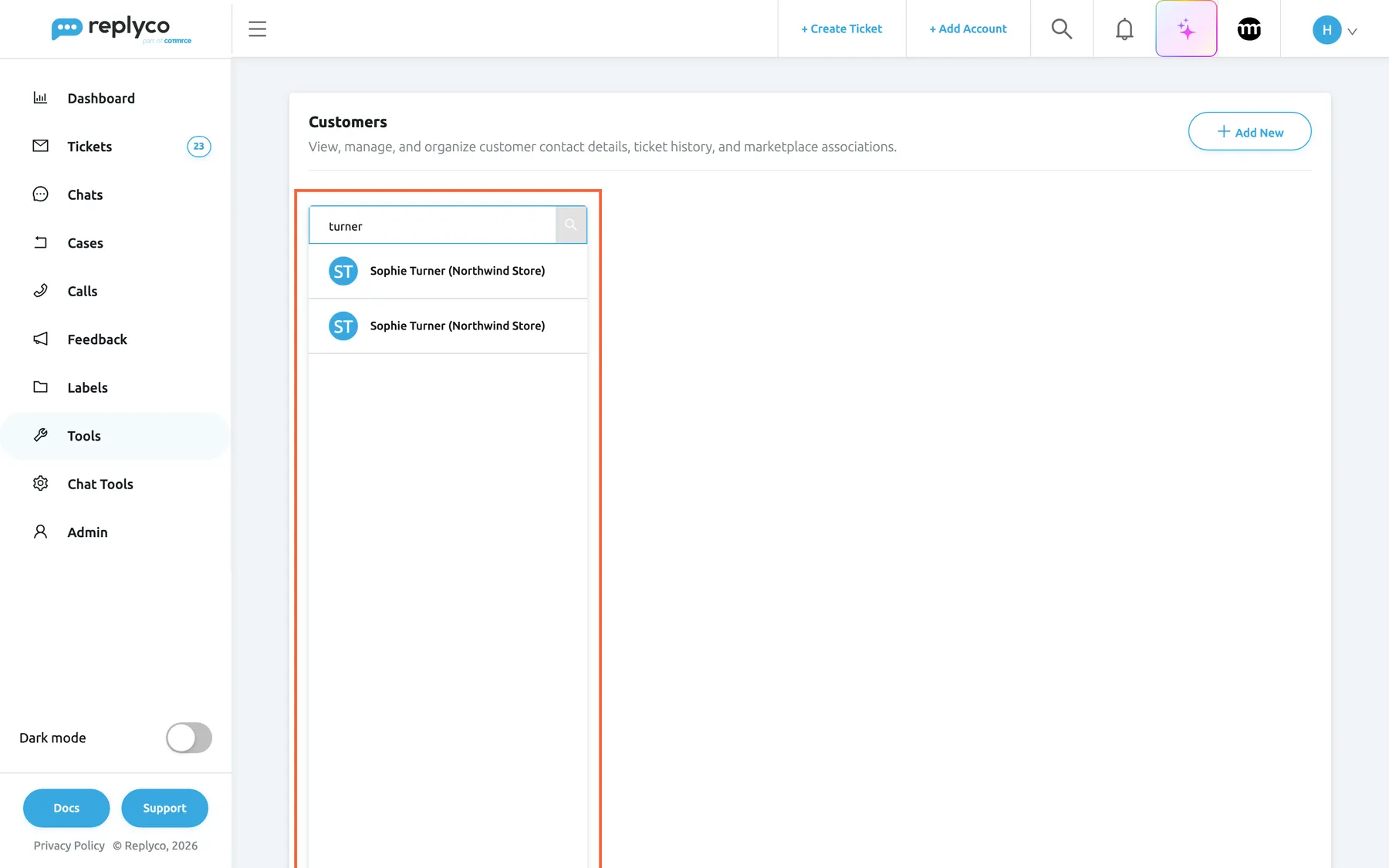
Search customers finds customers by name, email address, phone or marketplace ID; here one person appears twice. What this screenshot shows
- Screen
- Customers (/contacts)
- Highlighted
- searchbox “Search customers”, list-left, filled. searches the customers of your accounts; the whole list column is outlined
- Also visible
- search text turner; two records of the same person on the Shopify account; no customer open
- Purpose
- find a customer
-
Select a customer to open their details.
A new search closes the customer you had open, and the right side is empty again until you select someone. To see the whole list again, clear the box and press Enter.
Example. Sophie Turner complains that her parcel still has not arrived and quotes an earlier email. Search for turner: the list shows two records, both Sophie Turner (Northwind Store), because she has written from two addresses. Open each to see which tickets and orders belong to which address, then merge the two.
You can also reach a customer from a ticket: select the customer’s name under Customer Details in the ticket’s right panel, or the customer name in an order’s window. Replyco then opens that customer. The ticket’s right panel is described in The ticket screen.
Read a customer’s details
Section titled “Read a customer’s details”Select a customer in the list. The details card opens in the middle, and the customer’s records fill the right side.
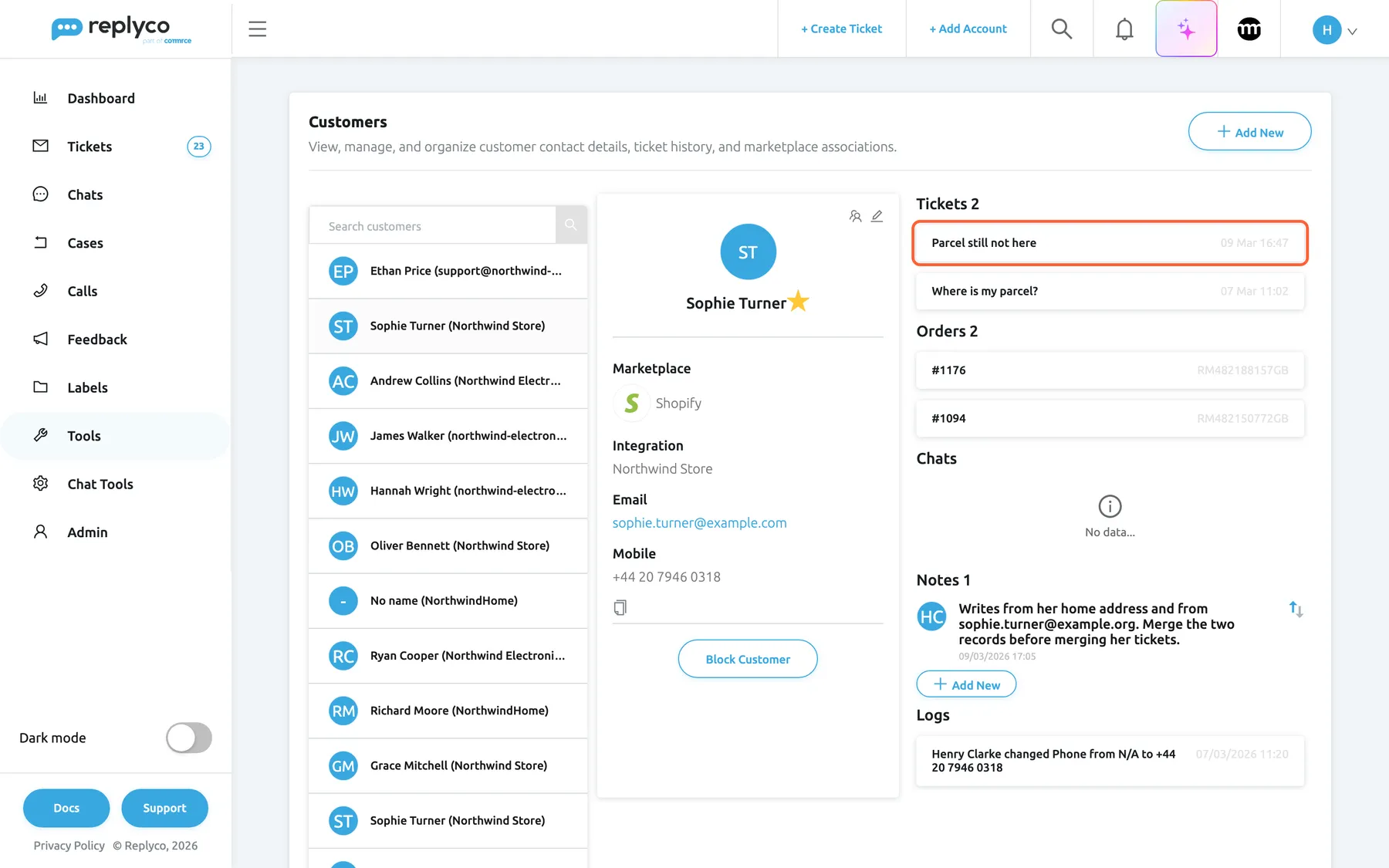
What this screenshot shows
- Screen
- Customers (/contacts)
- Highlighted
- link “”, details-right, enabled. opens the ticket
- Also visible
- details card: name with star, Marketplace, Integration, Email, Mobile, Block Customer; merge and edit icons at the top right of the card; Tickets 2 with two subjects and dates; Orders 2 with order numbers and tracking numbers; Chats: No data...; Notes 1; Logs with one change
- Purpose
- read a customer's details
The card shows the initials, the name with a star, and these fields:
| Field | What it shows |
|---|---|
| Marketplace | The channel type of the customer, with its icon, such as Shopify or eBay |
| Integration | The account the customer belongs to; missing for customers you added by hand |
| The email address; select it to start a new ticket to this address in Create Ticket | |
| Mobile | The phone number, with a copy icon beneath it |
Fields without a value are left out. The sections on the right each show a count in their heading:
| Section | What it lists | What selecting an entry does |
|---|---|---|
| Tickets | The customer’s tickets, newest first, five at a time, with Load More for the next five. Resolved and archived tickets are included | Opens the ticket |
| Orders | Every order of the customer, with the order number and, in grey, the tracking number | Opens the window Order Details, the same window as on the Orders screen; see Orders |
| Chats | The customer’s chats, such as WhatsApp or live chat conversations | Opens the chat; see Chat list and conversations |
| Notes | Internal notes about the customer, with Add New | See notes |
| Logs | Changes made on this screen and blocking, newest first, with the colleague and the time | Nothing; it is a record |
A section with nothing in it shows No data.... The log records three kinds of rows: edits made with the pencil on this screen, such as Henry Clarke changed Phone from N/A to +44 20 7946 0318; … blocked customer; and … unblocked customer. Merging and adding a customer write no row, and changes made to the customer inside a ticket are recorded in that ticket’s history instead.
Edit a customer
Section titled “Edit a customer”-
Open the customer and select the pencil at the top right of the details card.
The card turns into a form with a name box, Marketplace, Email and Mobile. The pencil becomes a cross, which closes the form without saving.
-
Change what is wrong, for example the spelling of the name.
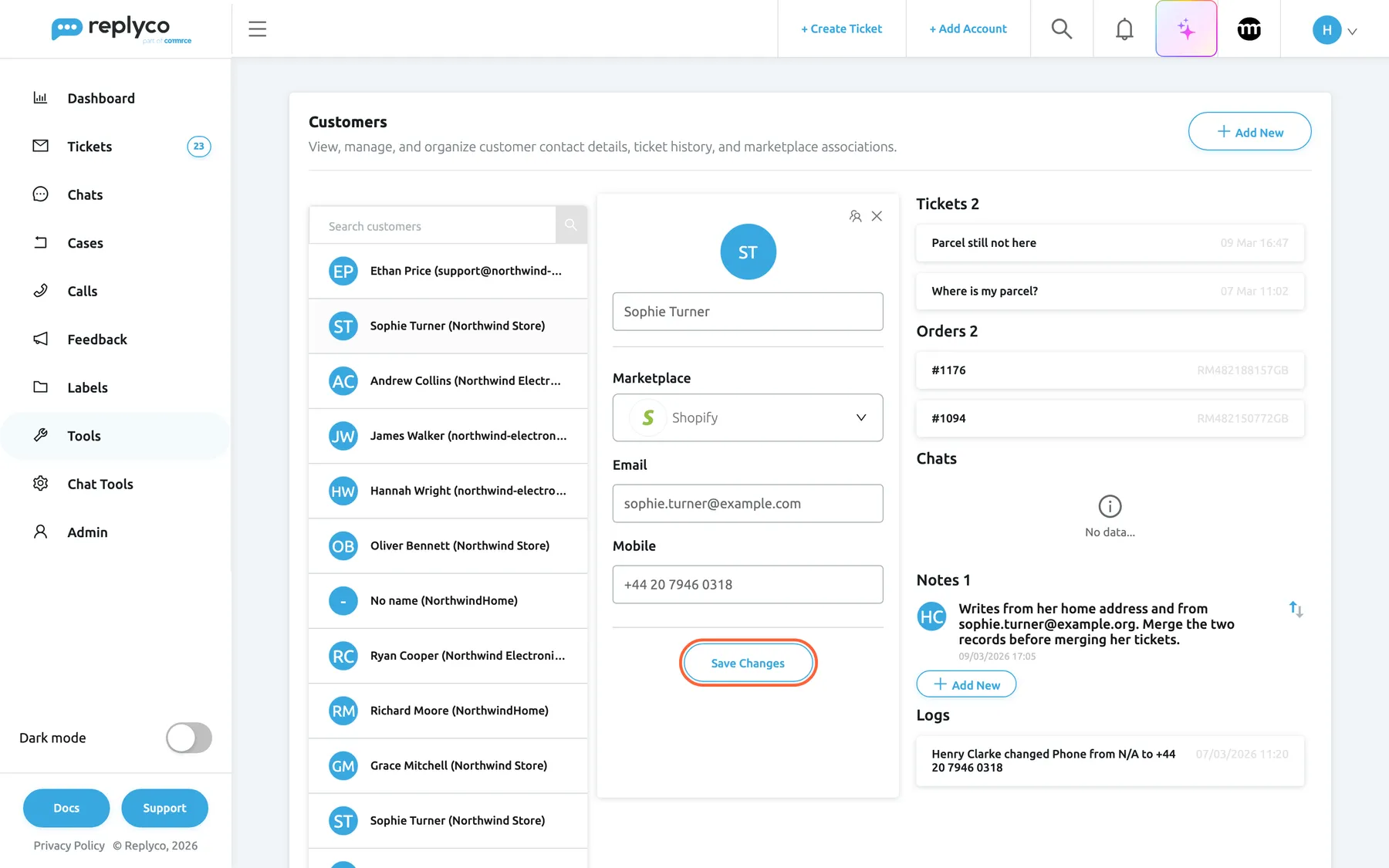
The pencil turns the card into a form; Save Changes also updates the customer's name and address on their tickets. What this screenshot shows
- Screen
- Customers (/contacts)
- Highlighted
- button “Save Changes”, details-card, enabled. saves the customer and updates their tickets
- Also visible
- name box; Marketplace drop-down: Shopify; Email box; Mobile box; cross icon to cancel
- Purpose
- correct a customer's details
-
Select Save Changes.
Replyco shows Contact successfully updated. and adds a row to Logs that lists every field you changed with its old and new value.
The new name and email address also appear on every ticket of the customer, in the ticket lists and in the ticket. Marketplace changes only the channel type shown on the card; the customer stays with their account.
Add a customer
Section titled “Add a customer”-
Select Add New at the top right of the screen.
An empty form opens in the middle. Marketplace starts at Email.
-
Type the name, the email address and, if you like, a phone number.
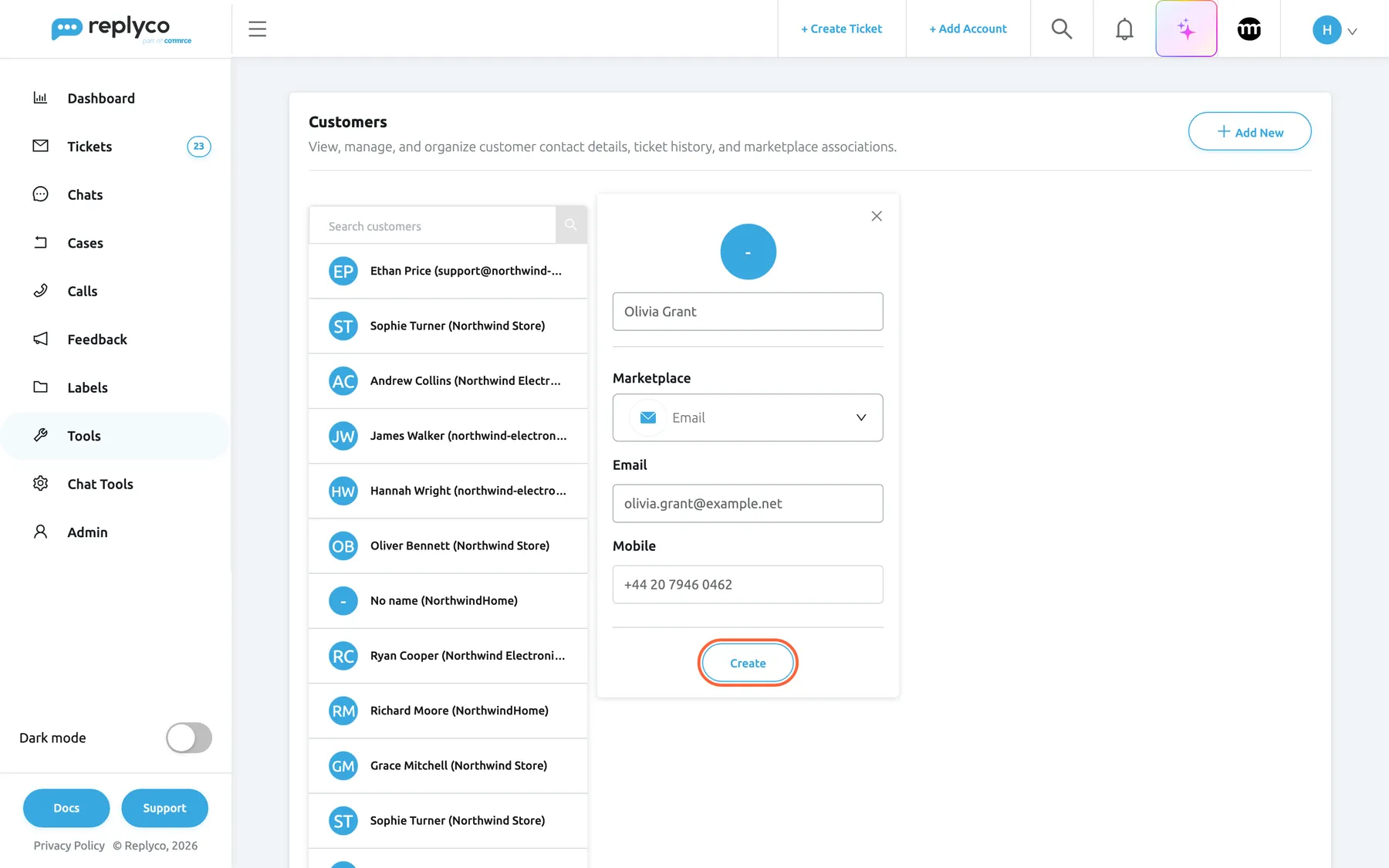
Add New opens an empty form; Create saves a customer you can write to from Create Ticket. What this screenshot shows
- Screen
- Customers (/contacts)
- Highlighted
- button “Create”, details-card, enabled. creates the customer
- Also visible
- name box filled; Marketplace default Email; Email box filled; Mobile box filled; cross to close
- Purpose
- add a customer by hand
-
Select Create.
Replyco shows Contact successfully created., the new customer appears at the top of the list, and the form closes.
A customer you add here belongs to no account. Create Ticket offers the customer as a recipient when you entered an email address, which is the main reason to add someone; see Create Ticket. The customer has no merge icon, because merging needs an account.
Example. Your warehouse partner Olivia Grant should receive your return instructions by email. Add her with her address, then open + Create Ticket in the top bar and pick her as the recipient.
Merge two customers
Section titled “Merge two customers”Use this when one person has two customer records on the same account, usually because they wrote from two email addresses. Tickets of different customer records cannot be merged, so merging the customers is the first step to merging their tickets.
-
Open the record you want to keep. Its name, email address and phone number stay as they are.
-
Select the people icon, Merge Customers, at the top right of the details card.
A small box headed Merge with... opens with the drop-down Select customer and the Merge button. The drop-down offers the other customers of the same account, as the name followed by the email address in brackets. Type in it to narrow the list.
-
Choose the other record of the person.
-
Select Merge.
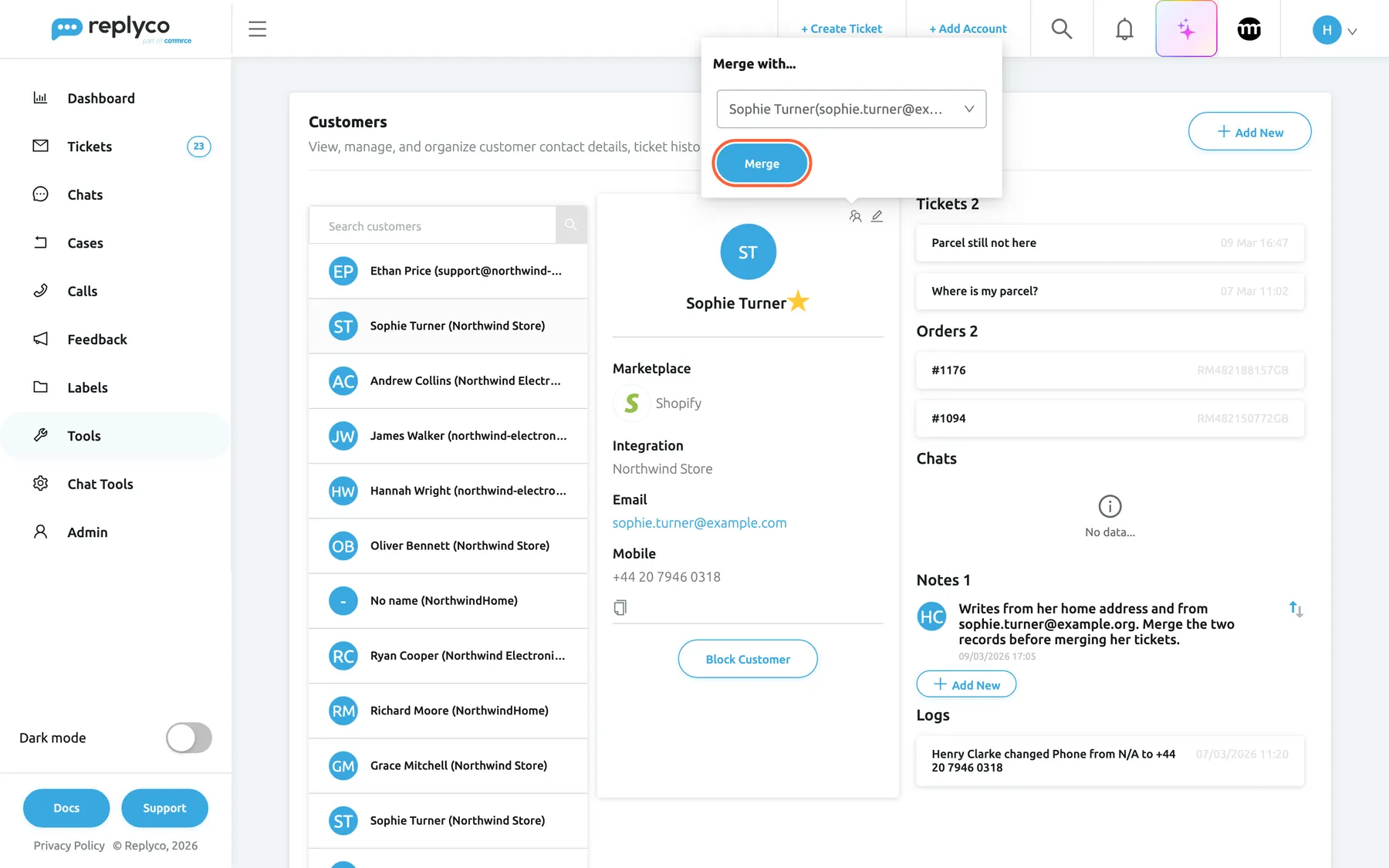
The people icon merges another customer of the same account into the one you have open. What this screenshot shows
- Screen
- Customers (/contacts)
- Highlighted
- button “Merge”, details-card-popover, enabled. merges the chosen customer into the open one and deletes the chosen record
- Also visible
- customer drop-down with the second record of the same person; open customer's tickets, orders, notes and logs behind
- Purpose
- merge two customer records
Replyco merges the records and shows Success.
What happens. The tickets, orders, notes, chats, marketplace feedback, feedback requests, eBay cases and files of the record you chose move to the record you have open, and the chosen record is deleted. The moved orders and tickets now carry the kept customer’s name and email address. The Tickets, Orders and Logs sections reload at once.
After that, the person’s tickets belong to one customer and can be merged with Merge Tickets in a ticket list, as long as they came in on the same account. How ticket merging works, and when Replyco merges tickets by itself, is described in Ticket merging.
The people icon is missing for customers you added by hand, because they have no account. Only customers of the same account are offered: a person’s Amazon record and their mailbox record cannot be merged, and their tickets never merge across accounts either.
Block or unblock a customer
Section titled “Block or unblock a customer”-
Open the customer.
-
Select Block Customer at the bottom of the details card.
Replyco asks Are you sure you want to block this customer? All their tickets will move to the Blocked list.
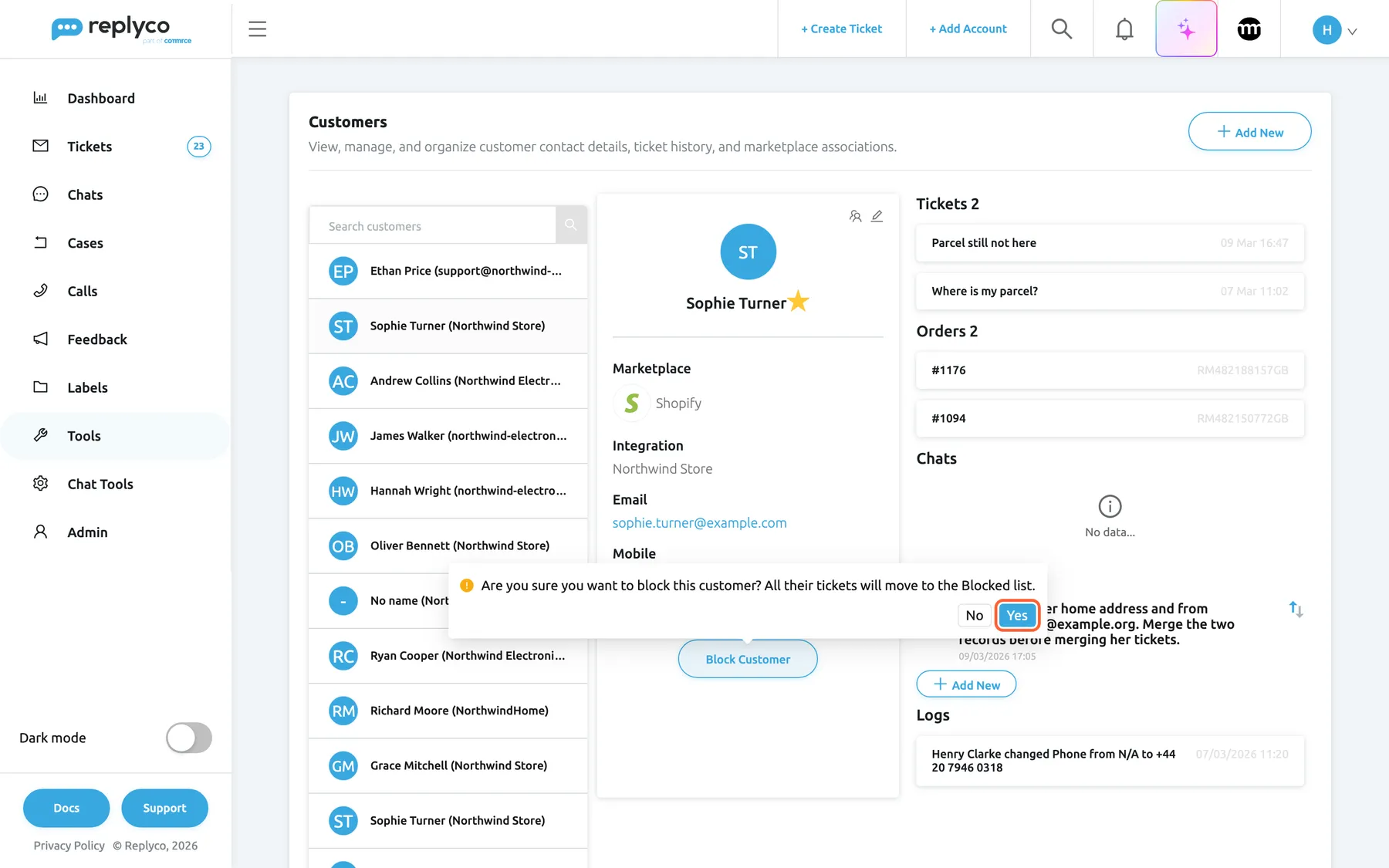
Block Customer asks once, then moves every ticket of the customer to Blocked. What this screenshot shows
- Screen
- Customers (/contacts)
- Highlighted
- button “Yes”, details-card-bottom, enabled. blocks the customer
- Also visible
- confirmation question with No and Yes; Block Customer button under the contact details
- Purpose
- block a customer from the Customers screen
-
Select Yes.
The customer is blocked, and the button now reads Unblock Customer.
Blocking moves every ticket of the customer, open, resolved, archived and snoozed, to TicketsBlocked. Their new messages keep arriving there, but your rules and auto-responses do not run on them. Nothing is deleted and the customer is not told. To reverse it, open the customer and select Unblock Customer; Replyco asks Are you sure you want to unblock this customer? Their tickets will move back to the ticket lists. and returns the tickets to the lists they belong to. You can block the same way from a ticket or from the bulk bar of a ticket list; all three ways and their effects are described in Blocked tickets.
Star a customer and keep notes
Section titled “Star a customer and keep notes”The star beside the customer’s name saves as soon as you select it. Every new ticket of a starred customer starts starred, so it appears in TicketsStarred. Tickets the customer already has keep their own star. Use it for customers who need a quick answer, such as wholesale buyers. The same star appears in the ticket’s right panel.
Notes under Notes are for your team; the customer never sees them. Select Add New, type the note under Add Note and select Save. Type @ and a colleague’s name to mention them, which notifies them. Hover a note to edit or delete it; its author can lock it with the padlock so that only they can change it, and the padlock then says This note is locked. It can be edited only by the author. The arrows beside the notes reverse their order. A customer note also appears on the Customer tab of each of the customer’s tickets; see The ticket screen.
Every control, explained
Section titled “Every control, explained”Customers in the sidebar
Section titled “Customers in the sidebar”The sidebar, under Tools, between Automation and Orders.
Opens the Customers screen. The entry is shown only to users with the Customers permission.
The one place to look up a person rather than a single conversation.
Search customers
Section titled “Search customers”The box at the top of the customer list, with the magnifier at its right.
Searches the customers of your accounts when you press Enter or select the magnifier. It matches any part of the name, email address, phone number, marketplace buyer ID or channel name, without regard to capital letters. A search closes the open customer. An empty box and Enter bring back the whole list.
The list is long and not alphabetical; the search is the quickest way to a person.
The customer list
Section titled “The customer list”The left column of the screen.
One row per customer: initials, name or No name, and the account in brackets. More rows load as you scroll. Selecting a row opens the customer; the open row is shaded. When nothing matches, the list shows No customers found.
Shows at a glance which account a person wrote to, which tells you which policy applies.
Add New
Section titled “Add New”The button at the top right of the screen.
Opens an empty customer form with a name box, Marketplace (Email by default), Email and Mobile. Create saves it and shows Contact successfully created.; the cross closes the form. The new customer belongs to no account. Needs the Customers permission with Edit rights.
Lets you write to someone who has never contacted you, through Create Ticket.
The details card
Section titled “The details card”The middle column, after you select a customer.
Shows the initials, the name, the star, Marketplace, Integration, Email (a link that starts a new ticket to the address) and Mobile (with a copy icon). The people icon and the pencil sit at the top right; Block Customer or Unblock Customer at the bottom.
Everything you need to recognise the customer and contact them.
The star
Section titled “The star”Beside the customer’s name on the details card.
Stars or unstars the customer at once. New tickets of a starred customer start starred; existing tickets are not changed. Needs Edit rights on Customers.
Brings important customers’ new conversations into Starred without a rule.
The people icon (merge)
Section titled “The people icon (merge)”The first icon at the top right of the details card; shown for customers that belong to an account.
Its name, shown when you point at it, is Merge Customers. It opens a box headed Merge with... with Select customer, listing the other customers of the same account, and Merge. Merging moves the chosen customer’s tickets, orders, notes, chats, feedback, feedback requests, cases and files to the open customer and deletes the chosen one. Needs Edit rights on Customers.
Tickets merge only within one customer record, so duplicates of one person must be merged first.
The pencil and Save Changes
Section titled “The pencil and Save Changes”The pencil is the last icon at the top right of the details card; Save Changes appears below the form it opens.
Turns the card into a form with the name, Marketplace, Email and Mobile. Save Changes saves, shows Contact successfully updated., copies the name and email address to all of the customer’s tickets and writes a log row. The cross in place of the pencil closes the form without saving. Needs Edit rights on Customers.
Marketplaces often send a buyer ID instead of a name; replacing it makes lists and replies readable.
Block Customer and Unblock Customer
Section titled “Block Customer and Unblock Customer”The button at the bottom of the details card.
Asks Are you sure you want to block this customer? All their tickets will move to the Blocked list. or Are you sure you want to unblock this customer? Their tickets will move back to the ticket lists.; Yes confirms. Blocking moves all of the customer’s tickets to Blocked and stops rules and auto-responses for them; unblocking reverses it. Needs Edit rights on Customers; without them Replyco shows You don't have enough rights. See Blocked tickets.
Useful when you look a sender up by name rather than through one of their tickets.
The sections on the right
Section titled “The sections on the right”| Section | What it shows or does | Why |
|---|---|---|
| Tickets | The customer’s tickets, newest first, five at a time; Load More adds five more; selecting one opens the ticket | See the whole conversation history before you answer |
| Orders | All orders of the customer with order and tracking number; selecting one opens Order Details | Check what they bought and where it is without leaving the screen |
| Chats | The customer’s chats; selecting one opens the chat | See whether they also wrote on WhatsApp or live chat |
| Notes | Internal notes with Add New, @mentions, edit, delete, lock and sort arrows | Keep what every colleague should know about this person |
| Logs | Edits made on this screen, blocking and unblocking, with colleague and time | Find out who changed a customer and when |
Who sees what
Section titled “Who sees what”| Part of the screen | What decides whether you see it or can use it |
|---|---|
| Customers in the sidebar | The Customers permission, set by an admin in AdminUsers |
| The customers in the list | Your user’s accounts: you see the customers of the accounts you have access to |
| Add New, the pencil, the star, the people icon, Block Customer | Shown to everyone who can open the screen; they take effect only with Edit rights on Customers, otherwise Replyco shows You don't have enough rights |
| The customer’s Orders | The Orders permission |
| The people icon | Customers that belong to an account; not those added by hand |
The Customers screen is part of every plan. The Admin, Moderator and User roles all include the Customers permission with Edit rights; see User permissions and roles.
What you need to know
Section titled “What you need to know”| Topic | Fact |
|---|---|
| One record per account | A customer record belongs to one account; the same person on two accounts has two records, which cannot be merged |
| How Replyco recognises a customer | A new conversation is matched to an existing customer by email address, or by the buyer ID on eBay, Etsy and Kaufland; a new address means a new record |
| List order | Not alphabetical and not by date; more customers load as you scroll; use the search |
| Search | Any part of name, email address, phone, marketplace buyer ID or channel name; capital letters ignored; only customers of your accounts |
| Editing | Saved at once for everyone; name and email address are copied to all of the customer’s tickets |
| Added by hand | Belongs to no account, stays available as a recipient in Create Ticket, cannot be merged |
| Merging | Cannot be undone; the open record stays, the chosen one is deleted |
| Deleting | There is no way to delete a customer on this screen; merge a duplicate into the right record instead |
| Blocking | Moves all of the customer’s tickets to Blocked; the customer is not told |
| Tickets section | Five at a time, newest first, archived tickets included |
| Log | Records edits made here and blocking; not merges, not new customers, not edits made inside a ticket |
Frequently asked questions
Section titled “Frequently asked questions”Finding customers
Section titled “Finding customers”Why can’t I find a customer in the list?
Section titled “Why can’t I find a customer in the list?”The list under ToolsCustomers shows only the customers of the accounts your user has access to. Search for part of the name, email address or buyer ID; if the customer wrote to an account you cannot see, ask an admin to add that account to your user.
What can I search for?
Section titled “What can I search for?”Search customers finds any part of a customer’s name, email address, phone number, marketplace buyer ID or channel name, such as ebay. Capital letters do not matter. Press Enter or select the magnifier to run the search; an empty box and Enter bring back the whole list.
Why is the customer list not in alphabetical order?
Section titled “Why is the customer list not in alphabetical order?”The Customers screen does not sort its list by name or date, and there is no sort control. More customers load as you scroll down. To reach a particular person, type part of their name, email address or buyer ID into Search customers and press Enter.
Why does a customer have no name?
Section titled “Why does a customer have no name?”Some channels send no name with a message or an order, only a buyer ID. The Customers list then shows No name with the account in brackets. Open the customer, select the pencil, type the name and select Save Changes; the name also appears on all of their tickets.
Editing and adding
Section titled “Editing and adding”Can I change a customer’s name or email address?
Section titled “Can I change a customer’s name or email address?”Yes, with Edit rights on the Customers permission. Open the customer under ToolsCustomers, select the pencil, change the fields and select Save Changes. Replyco copies the new name and address to every ticket of the customer and logs the change.
Can I delete a customer?
Section titled “Can I delete a customer?”No. The Customers screen has no delete control. When a person has a duplicate record on the same account, open the record you want to keep, select the people icon, choose the duplicate and select Merge; the duplicate is deleted and everything it held moves to the kept record.
I changed a customer’s email address. Why did their next message start a new customer?
Section titled “I changed a customer’s email address. Why did their next message start a new customer?”Replyco recognises the sender of a new conversation by their email address, and on eBay, Etsy and Kaufland by their buyer ID. When a customer keeps writing from the old address, Replyco no longer finds a record with it and creates a new customer. Change an address only to correct it, and merge the new record if it happened.
Merging
Section titled “Merging”Why do I have to merge customers before I can merge their tickets?
Section titled “Why do I have to merge customers before I can merge their tickets?”Replyco merges tickets only when they belong to the same customer record and came in on the same account. A person who wrote from two email addresses has two records, so Merge Tickets reports You cannot merge Tickets from different Customers or Accounts. Merge the two customers under ToolsCustomers first, then merge the tickets; see Ticket merging.
Which record is kept when I merge two customers?
Section titled “Which record is kept when I merge two customers?”The record you have open is kept, with its name, email address and phone number. The record you choose in Select customer is deleted, and its tickets, orders, notes, chats, feedback, feedback requests, cases and files move to the kept record. Open the record you want to keep before you select the people icon.
Why is the merge icon missing, or why is a customer not offered?
Section titled “Why is the merge icon missing, or why is a customer not offered?”The people icon appears only for customers that belong to an account, so customers added by hand have none. Select customer offers only customers of the same account as the open one. A person’s records on two different accounts, such as Amazon and your mailbox, cannot be merged.
Can I undo a merge?
Section titled “Can I undo a merge?”No. Merging customers under ToolsCustomers deletes the chosen record, and Replyco keeps no copy of it. Check the email address shown in Select customer before you select Merge.
Blocking and starring
Section titled “Blocking and starring”What does blocking a customer do?
Section titled “What does blocking a customer do?”Block Customer on the details card moves every ticket of the customer to TicketsBlocked, and your rules and auto-responses stop running on their new messages. Nothing is deleted and the customer is not told. Unblock Customer reverses it; see Blocked tickets.
What does the star next to a customer’s name do?
Section titled “What does the star next to a customer’s name do?”Every new ticket of a starred customer starts starred and appears in TicketsStarred. The star does not change the tickets the customer already has. Select the star on the details card under ToolsCustomers to set or remove it; it saves at once.
Data and privacy
Section titled “Data and privacy”Does the customer see our notes or learn that we merged or blocked them?
Section titled “Does the customer see our notes or learn that we merged or blocked them?”No. Notes under Notes are internal and visible only to your team. Editing, merging, starring and blocking change records inside Replyco only; nothing is sent to the customer, the marketplace, the shop or the mailbox.
Who can see the Customers screen?
Section titled “Who can see the Customers screen?”Users with the Customers permission see ToolsCustomers, and they see the customers of the accounts they have access to. Changing customers needs the permission’s Edit rights. An admin sets both in AdminUsers; see User permissions and roles.
Troubleshooting
Section titled “Troubleshooting”| Symptom | What to check |
|---|---|
| Customers is missing under Tools | Your user lacks the Customers permission; ask an admin, see User permissions and roles |
| A customer you know exists is not found | The account the customer wrote to is not among your user’s accounts; search for part of the email address or buyer ID instead of the name |
| Saving, merging, starring or blocking shows You don't have enough rights | Your user has only View rights on Customers |
| The Orders section stays empty and Replyco shows You don't have enough rights | Your user lacks the Orders permission |
| A new customer record appeared for a known person | They wrote from a new email address, or you changed their address; merge the records |