

AI Draft Settings
The AI Draft Settings tab is where you tell Replyco’s AI how your company handles the requests it drafts replies to: what to offer for a wrong item, what to ask for when something arrives damaged, how long a reply may be. One box holds the rules for every draft; each ticket account can add rules of its own, for example for eBay’s messaging rules. The AI treats your rules as exceptions it may draft for and applies them before its own guidelines. Open the tab from ToolsAI Settings and select AI Draft Settings.
Availability: the tab appears only while Replyco has AI auto-drafts switched on for your company; there is no switch for them in the app. Replyco AI is part of every plan, and drafts also need AI Categories on the General tab of AI Settings. The tab is part of ToolsAI Settings, which needs the Admin permission with edit rights, and the instructions apply to the whole company. See What each plan includes and User permissions and roles.
What you can do here
Section titled “What you can do here”- Write your company’s rules for every draft. Global Draft Instructions takes up to 1,000 characters of policy, one scenario per numbered line. Write your company’s draft instructions · AI drafts.
- Let the AI check and sharpen your text. Validate & Save refuses text that tries to take over the AI and offers a clearer version of vague rules. Write your company’s draft instructions.
- See what each account adds. The account list shows every ticket account; selecting one shows its saved rules. Read an account’s instructions.
- Add rules for one account. Each account takes up to 1,000 characters more, read after the company rules for its tickets only. Write instructions for one account.
- Learn what the AI can and cannot see. How to set up explains why rules must not depend on order or customer values. Get help writing instructions.
The screen at a glance
Section titled “The screen at a glance”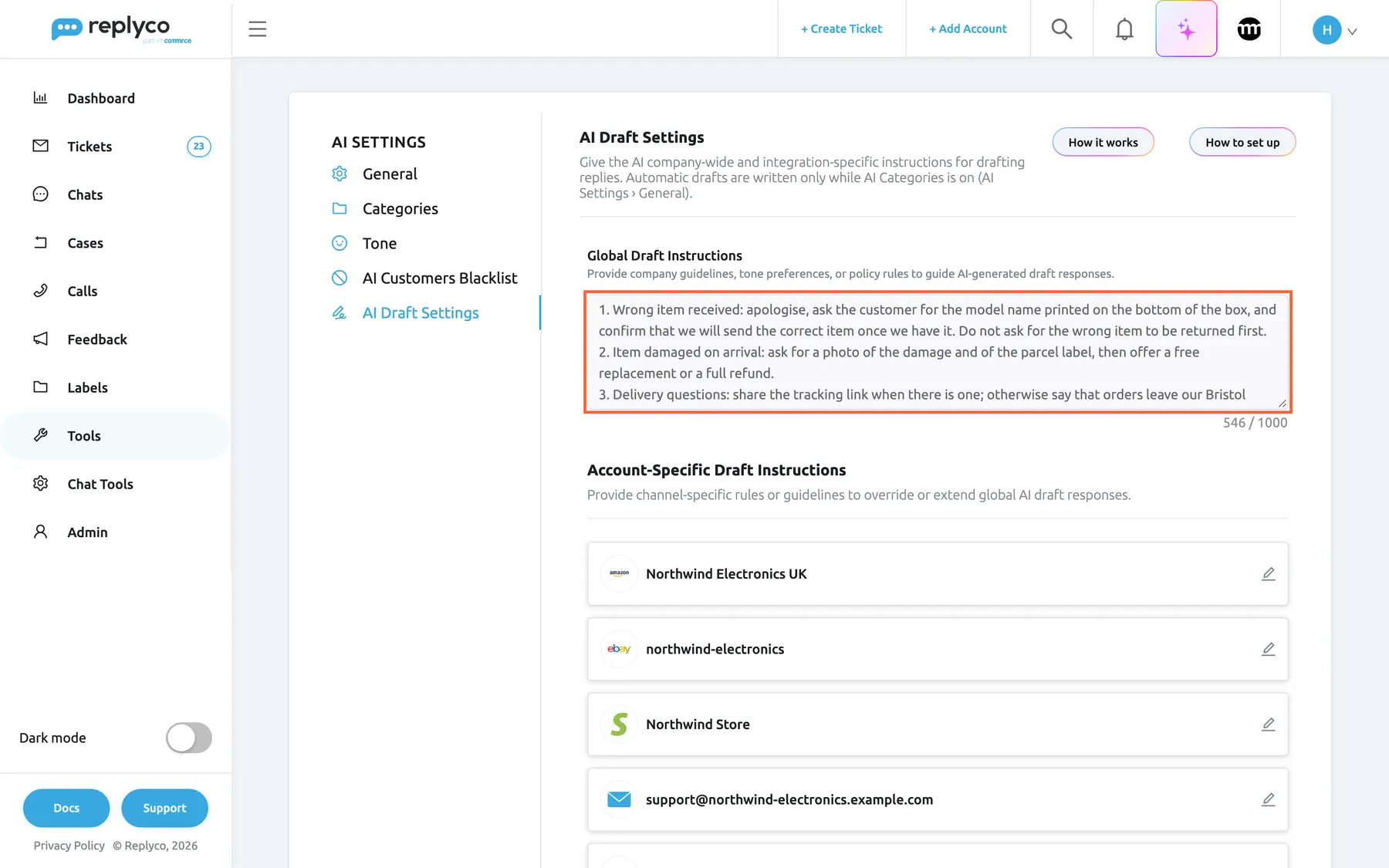
What this screenshot shows
- Screen
- AI Draft Settings (/aiSettings?tab=aiDraftSettings)
- Highlighted
- textbox “Global Draft Instructions”, tab-top, filled, 546 of 1000 characters. holds the company-wide rules for every AI draft; saved with Validate & Save
- Also visible
- How it works and How to set up buttons; four numbered company rules; Account-Specific Draft Instructions list with ticket accounts and pencil icons
- Purpose
- the AI Draft Settings tab as it opens
| Region | What it shows | What you do there |
|---|---|---|
| Tab strip, left | The tabs of AI Settings, with AI Draft Settings selected | Switch to another AI tab |
| Header, top | The heading, the description Give the AI company-wide and integration-specific instructions for drafting replies. Automatic drafts are written only while AI Categories is on (AI Settings › General). and the buttons How it works and How to set up | Open help |
| Global Draft Instructions | The company-wide rules with a character counter, and Validate & Save under the box after a change | Write and save the company rules |
| Account-Specific Draft Instructions | One card per ticket account with its logo, name and a pencil icon | Open an account’s rules |
| Details panel, right (after a click) | The account’s name and its saved rules, with Edit | Read an account’s rules |
| Account form (instead of the list) | Back, the account’s heading, Validate & Save and the text box | Write and save the account’s rules |
Write your company’s draft instructions
Section titled “Write your company’s draft instructions”- Open ToolsAI Settings › AI Draft Settings.
- Type your policies into Global Draft Instructions, one scenario per numbered line. The grey example in an empty box is one of ten, chosen at random each time the tab opens.
- Select Validate & Save, which appears under the box once the text differs from the saved one.
- Read the result under the box and act on it, as the table below shows.
| What you see | What it means | What to do |
|---|---|---|
| Success, and the button disappears | The text was safe and clear, and is saved | Nothing |
| A panel headed AI-optimized version of your instructions: | The text is safe but vague; the AI offers a sharper version | Use optimized saves that version; Keep original saves yours unchanged |
| A reason in red under the box | The check refused the text, and nothing was saved | Change the text and select Validate & Save again |
| Validation request failed. or “Validation failed.” in red | The check could not run or gave no usable answer; nothing was saved | Select Validate & Save again |
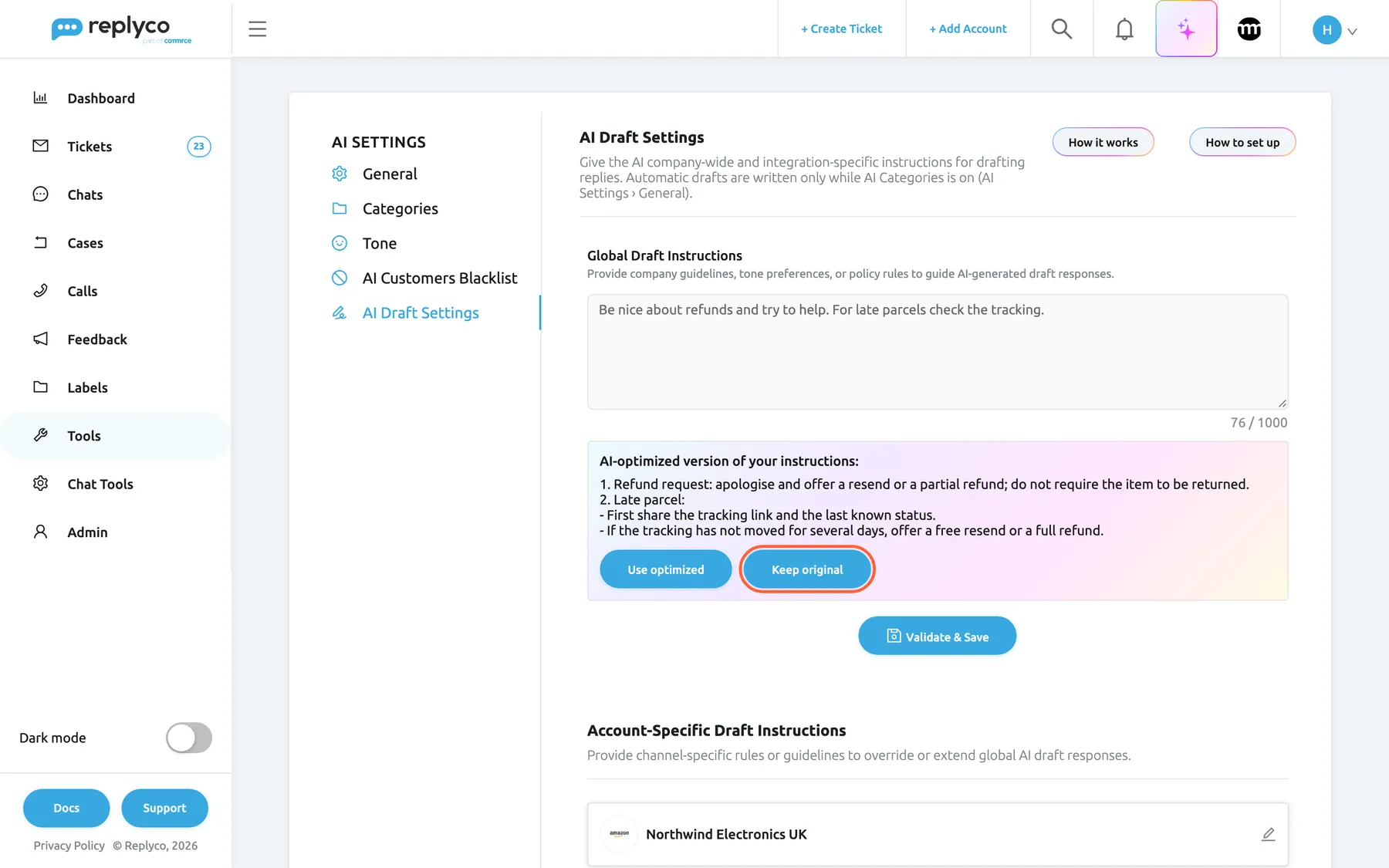
What this screenshot shows
- Screen
- AI Draft Settings (/aiSettings?tab=aiDraftSettings)
- Highlighted
- button “Keep original”, optimization-panel, enabled. saves the instructions as typed and closes the panel
- Also visible
- vague instructions in the box; AI-optimized version with numbered scenarios; Use optimized button
- Purpose
- the optimized suggestion of Validate & Save
The check refuses text that tries to take over the AI (such as “ignore previous instructions”, “you are now” or “override”), tries to reveal its instructions, tells it to deceive or harm customers, or has nothing to do with customer support policy. An empty box is saved straight away without a check and means “no company rules”. Spaces at the start and end are removed. Each check with text is one AI action, counted under AI Usage.
Example: Northwind Electronics saves four rules: 1. Wrong item received: apologise, ask for the model name printed on the bottom of the box and confirm we will send the correct item; do not ask for the wrong item back first. 2. Item damaged on arrival: ask for a photo of the damage and the parcel label, then offer a free replacement or a full refund. 3. Delivery questions: share the tracking link when there is one; otherwise say orders leave our Bristol warehouse within one working day. 4. Keep replies to three short paragraphs. From then on, a customer who received the 4-in-1 hub instead of the 7-in-1 gets a draft that asks for the model name, instead of no draft at all.
New instructions apply to drafts written after you save them; drafts already waiting on tickets keep their text. How the AI uses your rules, and which messages get a draft, is in AI drafts.
Read an account’s instructions
Section titled “Read an account’s instructions”- Scroll to Account-Specific Draft Instructions. The list shows every account that brings in tickets, with its channel’s logo.
- Select an account’s card. The details panel opens on the right with the account’s name and, under Account-Specific Draft Instructions, its saved rules, or a dash when it has none.
- Select Edit to change them, or the cross to close the panel.
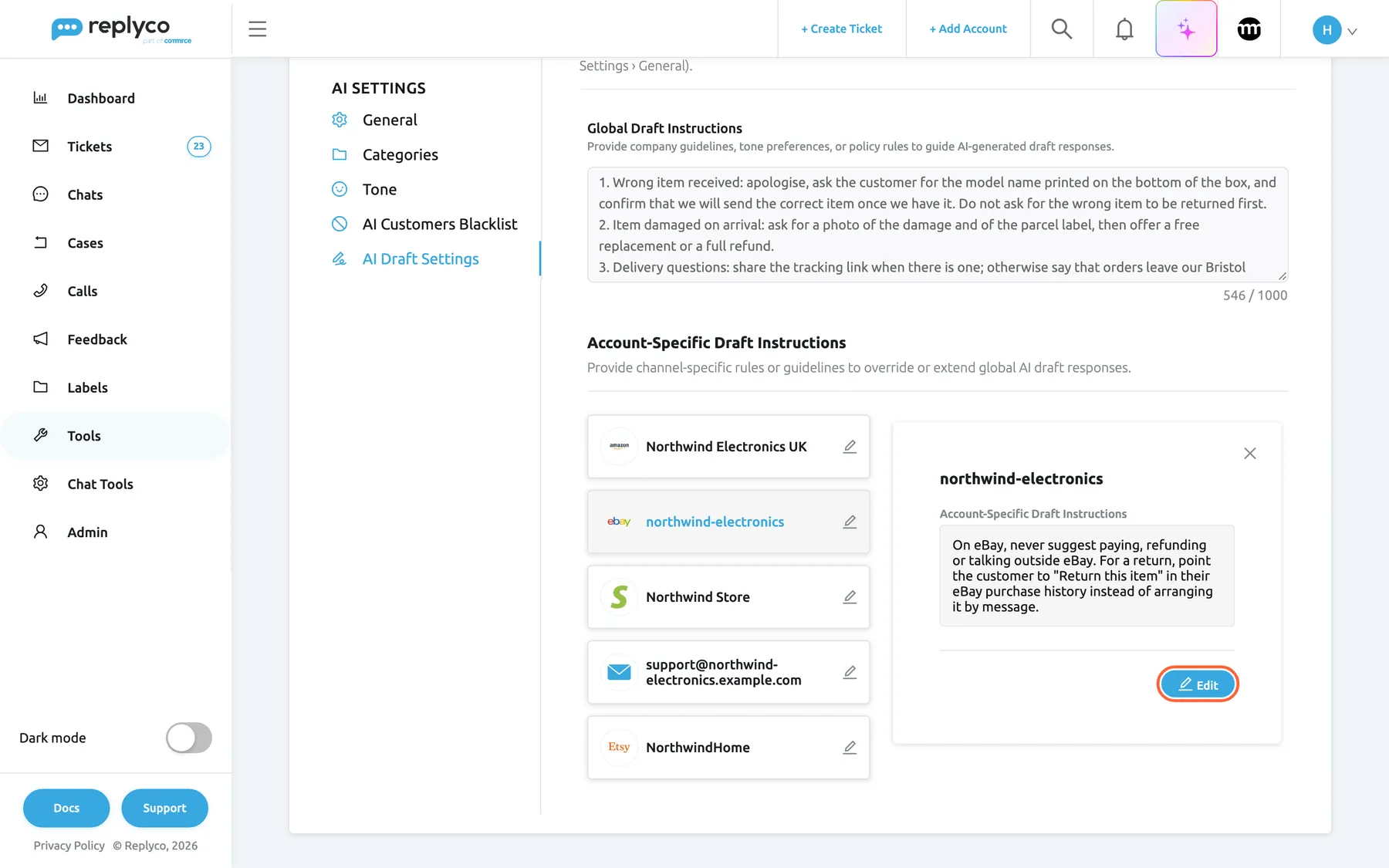
What this screenshot shows
- Screen
- Account-Specific Draft Instructions (/aiSettings?tab=aiDraftSettings)
- Highlighted
- button “Edit”, details-panel-bottom, enabled. opens the account's draft instructions for editing
- Also visible
- account list with northwind-electronics selected; details: account name and its saved rule
- Purpose
- read one account's instructions
Accounts that only bring in chats, such as WhatsApp, are not listed, because chats get no drafts. The panel has no copy or delete; to remove an account’s rules, empty its box and save.
Write instructions for one account
Section titled “Write instructions for one account”- Select the pencil icon on the account’s card, or Edit in its details panel. The account list is replaced by a form headed with the account’s name and Account-Specific Draft Instructions.
- Type only what differs for this channel, up to 1,000 characters.
- Select Validate & Save next to the heading. The same check runs as for the company rules, including the optimized version.
- Select Back to return to the account list.
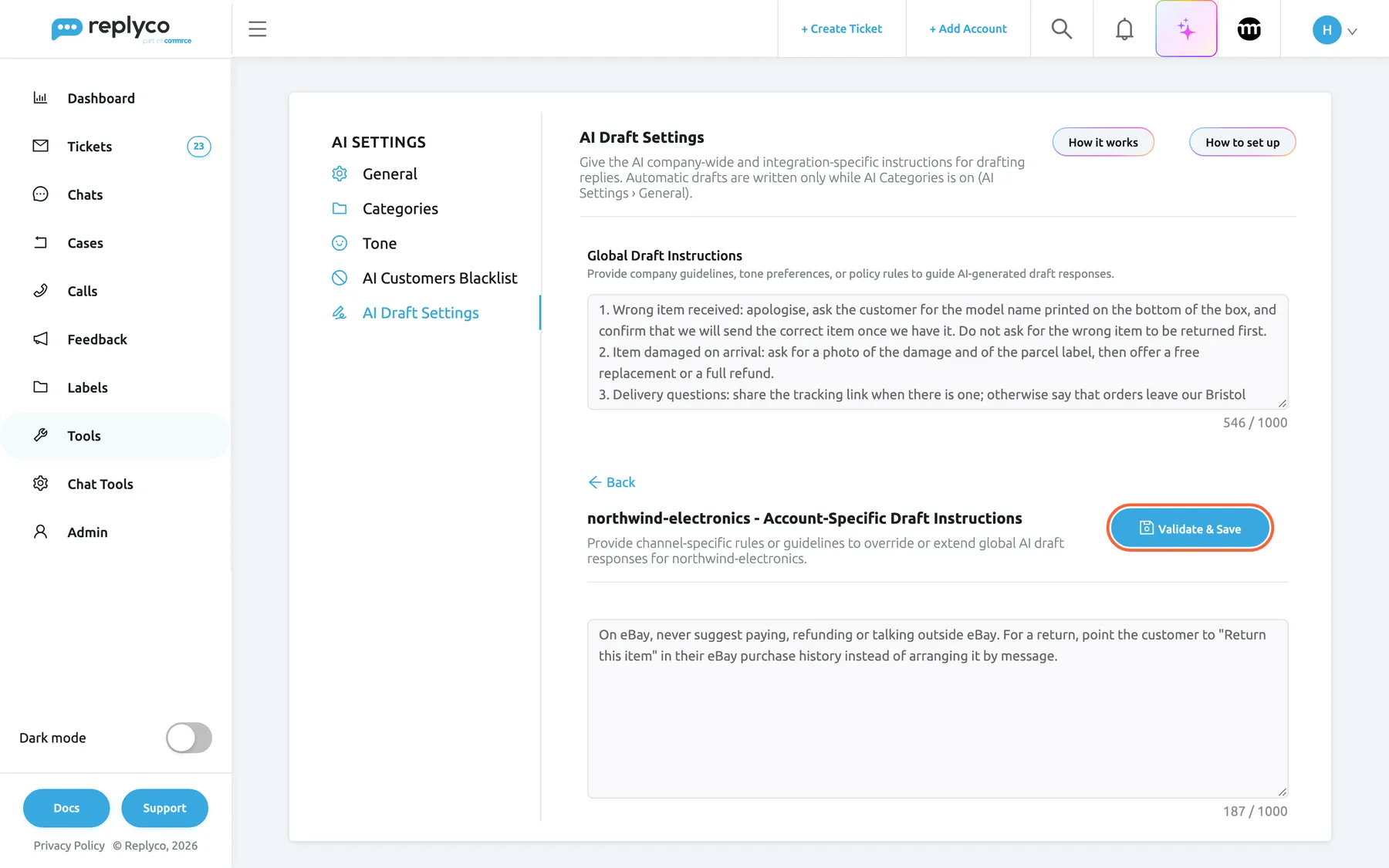
What this screenshot shows
- Screen
- Account-Specific Draft Instructions (/aiSettings?tab=aiDraftSettings)
- Highlighted
- button “Validate & Save”, form-header-right, enabled. checks the account's instructions with the AI and saves them
- Also visible
- Back link; heading with the account name; the eBay rule in the text box
- Purpose
- write instructions for one account
For a ticket from this account, the AI gets your company rules first and this account’s rules after them. Replyco does not remove a company rule that an account rule contradicts: both reach the AI, so say what replaces what. After the check refuses the text, Validate & Save stays unavailable until you change it. Back leaves without saving.
Example: for its eBay account northwind-electronics, Northwind writes On eBay, never suggest paying, refunding or talking outside eBay. For a return, point the customer to “Return this item” in their eBay purchase history instead of arranging it by message. Tickets from its Amazon account and its shop keep only the company rules.
Get help writing instructions
Section titled “Get help writing instructions”- Select How to set up at the top right. The window How to set up custom AI instructions opens.
- Read it and select Close. How it works next to it opens Replyco’s help article on AI auto-drafts in a new browser tab.
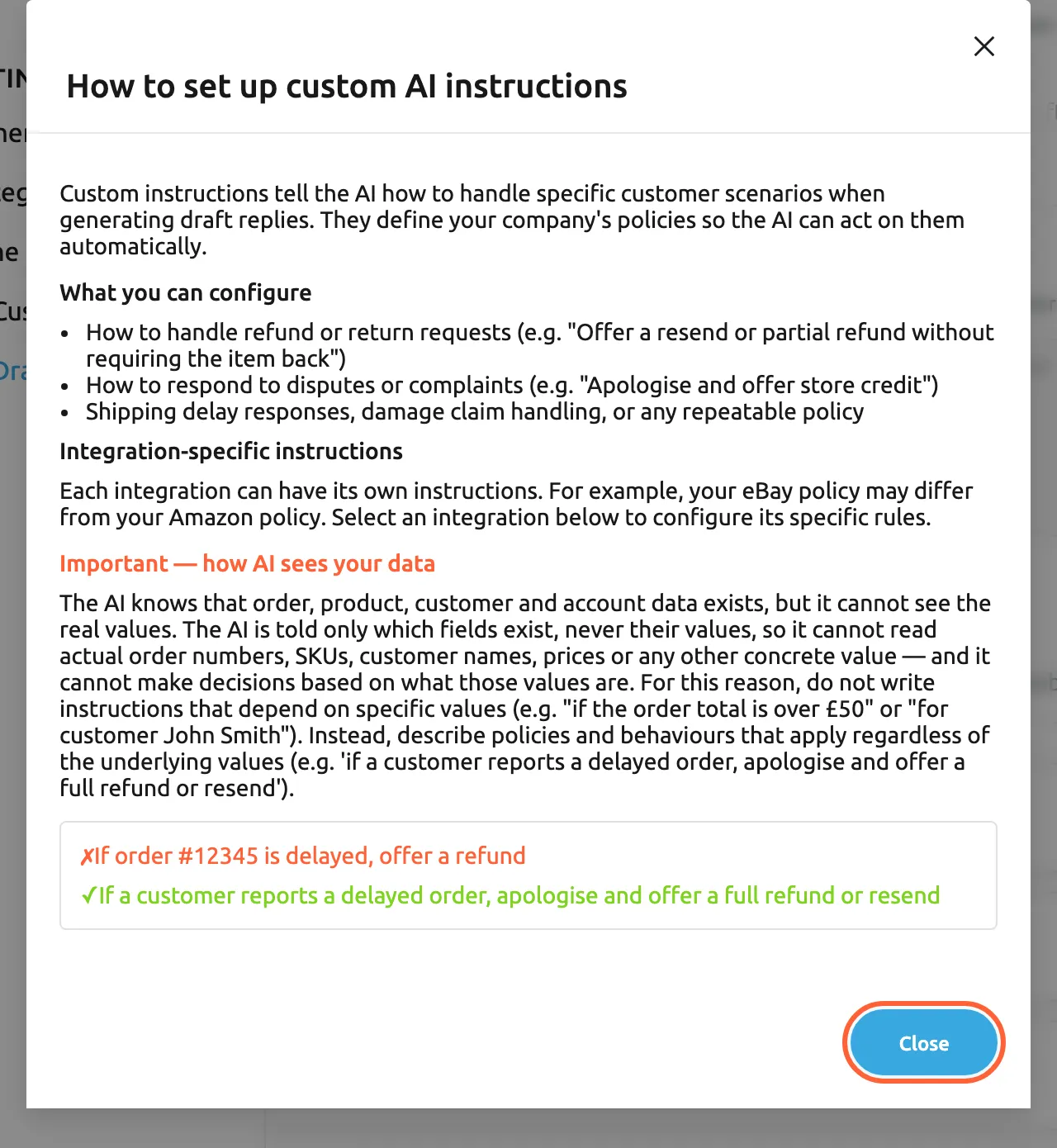
What this screenshot shows
- Screen
- How to set up custom AI instructions (/aiSettings?tab=aiDraftSettings)
- Highlighted
- button “Close”, dialog-footer, enabled. closes the dialog
- Also visible
- what instructions are for; three examples of what you can configure; integration-specific paragraph; red warning with a wrong and a correct example
- Purpose
- guidance for writing draft instructions
The window explains what instructions are for, gives examples of what you can configure, says each integration can have its own rules and ends with the warning Important — how AI sees your data: the AI knows which order, product, customer and account data exists but never sees its values. A rule such as If order #12345 is delayed, offer a refund can therefore never work; If a customer reports a delayed order, apologise and offer a full refund or resend can.
Every control, explained
Section titled “Every control, explained”AI Draft Settings tab
Section titled “AI Draft Settings tab”ToolsAI Settings, the last tab of the strip. The address ends in ?tab=aiDraftSettings.
Shown only while Replyco has AI auto-drafts switched on for your company. Without them the tab is missing. Everyone who can open AI Settings can change it.
The rules only matter while drafts are being written, so the tab appears with them.
How it works and How to set up
Section titled “How it works and How to set up”Top right of the tab, next to the heading.
How it works opens Replyco’s help article on AI auto-drafts in a new browser tab. How to set up opens the window How to set up custom AI instructions, closed with Close or its cross. Neither changes a setting.
Most first attempts fail on the same point, rules about specific orders or customers that the AI cannot see; the window explains it before you write.
Global Draft Instructions
Section titled “Global Draft Instructions”The text box at the top, described as Provide company guidelines, tone preferences, or policy rules to guide AI-generated draft responses. Saved with Validate & Save under the box.
Your company’s rules for every draft, up to 1,000 characters, with a counter under the box. Empty by default; the grey placeholder is an example, not a rule. The rules reach the check that decides whether a message gets a draft, as exceptions it may allow, and the writer, with priority over its own guidelines. They also apply to drafts written with AI Draft in the reply editor and to rewrites with Refine with AI or Improve draft.
Out of the box the AI refuses anything that needs your decision, such as a refund. A written policy turns those messages into routine drafts with your answer.
| Do | Don’t |
|---|---|
| Name the scenario, then the steps: “Damaged on arrival: ask for a photo, then offer a replacement or a refund.” | Depend on a value: “If order #12345 is late…”, “if the total is over £50” |
| One numbered line per scenario | Mix several scenarios in one sentence |
| Say what to offer and what not to ask for | Stay vague: “Be helpful with refunds.” |
| Keep to policy, tone and length | Add a sign-off; Replyco appends your signature |
Validate & Save
Section titled “Validate & Save”Centred under Global Draft Instructions, shown only while the text differs from the saved one; in an account’s form, next to its heading.
Sends non-empty text to an AI check, then saves it if it is valid, offers the optimized version if it is vague, or shows the reason in red if it is refused. Empty text is saved without a check. Shows a spinner while it works. Each check is one AI action.
Instructions go straight into every draft, so text that could mislead the AI or your customers is stopped before it is saved.
Use optimized and Keep original
Section titled “Use optimized and Keep original”In the panel AI-optimized version of your instructions:, which appears under the text box when the check finds your text vague.
Use optimized puts the optimized version into the box and saves it. Keep original saves your text unchanged. Typing in the box closes the panel without saving.
Rules that say exactly when they apply and what to do step by step are the ones the AI applies reliably.
Account cards and details panel
Section titled “Account cards and details panel”Under Account-Specific Draft Instructions, described as Provide channel-specific rules or guidelines to override or extend global AI draft responses.
One card per account that brings in tickets, with its logo, name and a pencil icon. Selecting a card opens the details panel with the saved rules under Account-Specific Draft Instructions and Edit; the pencil opens the account’s form directly.
Channels have rules of their own; keeping them per account keeps them out of your company-wide text.
Account form
Section titled “Account form”Replaces the account list after the pencil or Edit: Back, the heading with the account’s name, Validate & Save on the right and a text box.
Up to 1,000 characters for this account, checked and saved like the company rules. The button pulses once the text has changed and stays unavailable while a refusal reason is shown. Emptying the box and saving removes the account’s rules. Back returns without saving.
An account’s rules are read after the company rules for that account’s tickets, so they can add to or override them.
Who sees what
Section titled “Who sees what”| Part of the tab | What shows it |
|---|---|
| The AI Draft Settings tab | Replyco AI, and AI auto-drafts switched on for your company by Replyco; users with the Admin permission with edit rights |
| An account in the list | An account that brings in tickets; chat-only accounts are not listed |
| Validate & Save under the company box | A change to the company rules |
| The optimized panel | A check that finds the text safe but vague |
What you need to know
Section titled “What you need to know”| Topic | Fact |
|---|---|
| Limits | 1,000 characters for the company rules and for each account’s rules. |
| Order | For a ticket, company rules first, then its account’s rules; both reach the AI. |
| Timing | New rules apply to drafts written after saving; waiting drafts keep their text. |
| Check | Every save with text is checked by AI and counts as one AI action. Empty text is saved without a check. |
| Values | The AI never sees order, product or customer values; rules that depend on them cannot work. |
| Who can change it | Users with the Admin permission with edit rights, who see the tab. |
| Switching off | Only Replyco switches auto-drafts off; the tab then disappears and your rules are kept. |
| History | Changes to the instructions are not recorded anywhere you can see. |
Frequently asked questions
Section titled “Frequently asked questions”General
Section titled “General”Why can’t I find the tab for draft instructions?
Section titled “Why can’t I find the tab for draft instructions?”The AI Draft Settings tab under ToolsAI Settings appears only while Replyco has AI auto-drafts switched on for your company, and there is no switch for them in the app. Ask Replyco support to switch auto-drafts on; the tab then appears the next time you open AI Settings.
Who can change the draft instructions?
Section titled “Who can change the draft instructions?”Users with the Admin permission with edit rights, who see the AI Draft Settings tab of ToolsAI Settings, can change the company rules and every account’s rules. Agree in your team who maintains them, because they shape every draft. See User permissions and roles.
Do my instructions change drafts that are already waiting?
Section titled “Do my instructions change drafts that are already waiting?”No. Instructions apply to drafts written after you save them. A draft already waiting on a ticket keeps its text; reject it with Reject and the next customer message gets a draft that follows the new rules, or rewrite it with Refine with AI.
Writing instructions
Section titled “Writing instructions”What should I write in the global draft instructions?
Section titled “What should I write in the global draft instructions?”Your support policies as numbered scenarios, each saying when it applies and what to do, in up to 1,000 characters: “Wrong item received: apologise, ask for the model name printed on the box and send the correct item; do not ask for a return first.” Add tone and length rules too, but no sign-off, because Replyco adds your signature.
Why were my instructions rejected?
Section titled “Why were my instructions rejected?”Validate & Save refuses text that tries to take over the AI, such as “ignore previous instructions”, “you are now” or “override”, text that tries to reveal its setup, text that tells it to deceive or harm customers, and text unrelated to support policy. The reason appears in red under the box, and nothing is saved.
What is the AI-optimized version?
Section titled “What is the AI-optimized version?”When your text is safe but vague, Validate & Save shows a clearer version under AI-optimized version of your instructions:, one numbered line per scenario with the steps spelled out. Use optimized saves that version; Keep original saves your text as you typed it.
Can I write a rule for orders over a certain value?
Section titled “Can I write a rule for orders over a certain value?”No. The AI knows that order and customer data exists but never sees the values, so it cannot compare an order total, recognise a customer or check an order number. Write rules that hold whatever the values are, as the window How to set up custom AI instructions on the AI Draft Settings tab explains.
How do I remove all my instructions?
Section titled “How do I remove all my instructions?”Empty the box and select Validate & Save. An empty box is saved straight away, without a check, and means no company rules, or no rules for that account when you empty an account’s box. The AI then follows only Replyco’s own rules for drafts.
Accounts
Section titled “Accounts”How do account instructions work with the global ones?
Section titled “How do account instructions work with the global ones?”For a ticket from an account with its own rules, the AI gets your Global Draft Instructions first and the account’s rules after them. Replyco does not remove a company rule that the account rule contradicts, so write explicitly what the account does instead, for example “On eBay, instead of a refund by message, point the buyer to eBay’s return process.”
Why is our WhatsApp account missing from the list?
Section titled “Why is our WhatsApp account missing from the list?”The list under Account-Specific Draft Instructions shows only accounts that bring in tickets. Accounts that only bring in chats, such as WhatsApp, are not listed, because AI drafts are written for tickets only, never for chats.
Troubleshooting
Section titled “Troubleshooting”| Symptom | What to check |
|---|---|
| The AI Draft Settings tab is missing | AI auto-drafts are not on for your company. Ask Replyco support. |
| A red reason appears under the box and nothing is saved | The check refused the text. Remove anything that tries to change how the AI works, reveal its setup or mislead customers, or that is not about support policy. |
| The red message reads Validation request failed. or “Validation failed.” | The check could not run or gave no usable answer. Select Validate & Save again. |
| Validate & Save in an account’s form is greyed out | A refusal reason is shown. Change the text to enable it. |
| Drafts ignore an account’s rule | The rule applies only to tickets from that account, and the company rules still reach the AI. Say in the account’s rules what replaces the company rule. |
| No drafts at all | Check that AI Categories is on in AI Settings; drafts are written only for categorised messages. |
Related
Section titled “Related”- AI drafts: which messages get a draft, how drafts are written, reviewed and sent
- AI Settings · AI categories · AI Customers Blacklist
- Ticket lists · The ticket screen · Account Signatures
- Billing · What each plan includes