

Blocked tickets
The Blocked list holds every ticket of every customer your team has blocked. Blocking is how you get a sender out of your way without deleting anything: a buyer who sends abuse, a supplier’s newsletter, a marketplace robot that writes to your mailbox. Their tickets leave all your other lists at once and wait here, and their new messages keep arriving here without triggering your rules, auto-responses or Replyco AI. Open it from TicketsBlocked in the sidebar. Blocking acts on the customer, not on one ticket, so it moves all of that customer’s tickets, open and resolved.
What you can do here
Section titled “What you can do here”- Block a customer. Block from the list of tickets, from Customer Details inside a ticket, or from the customer’s page. Every ticket of that customer moves to Blocked in one step. Block a customer
- Know what still happens to their messages. New messages are imported and shown as usual, but rules, auto-responses and Replyco AI do not run on them. What happens to a blocked customer’s messages · Rules for incoming tickets · Auto-responses for tickets
- See all blocked tickets in one list. The list has the columns, filters, sorting and bulk actions of every ticket list, with a counter in the sidebar. The screen at a glance · Ticket lists
- Recognise a blocked customer inside a ticket. A red line at the top of the right panel says so. Recognise a blocked customer’s ticket
- Unblock a customer. One icon on the Blocked list, or one menu entry in the ticket, returns all of the customer’s tickets to the lists they belong to. Unblock a customer
- Work through blocked tickets like any others. Archive them, resolve them, merge them or run your rules on them from the bulk bar. Act on blocked tickets · Ticket merging
The screen at a glance
Section titled “The screen at a glance”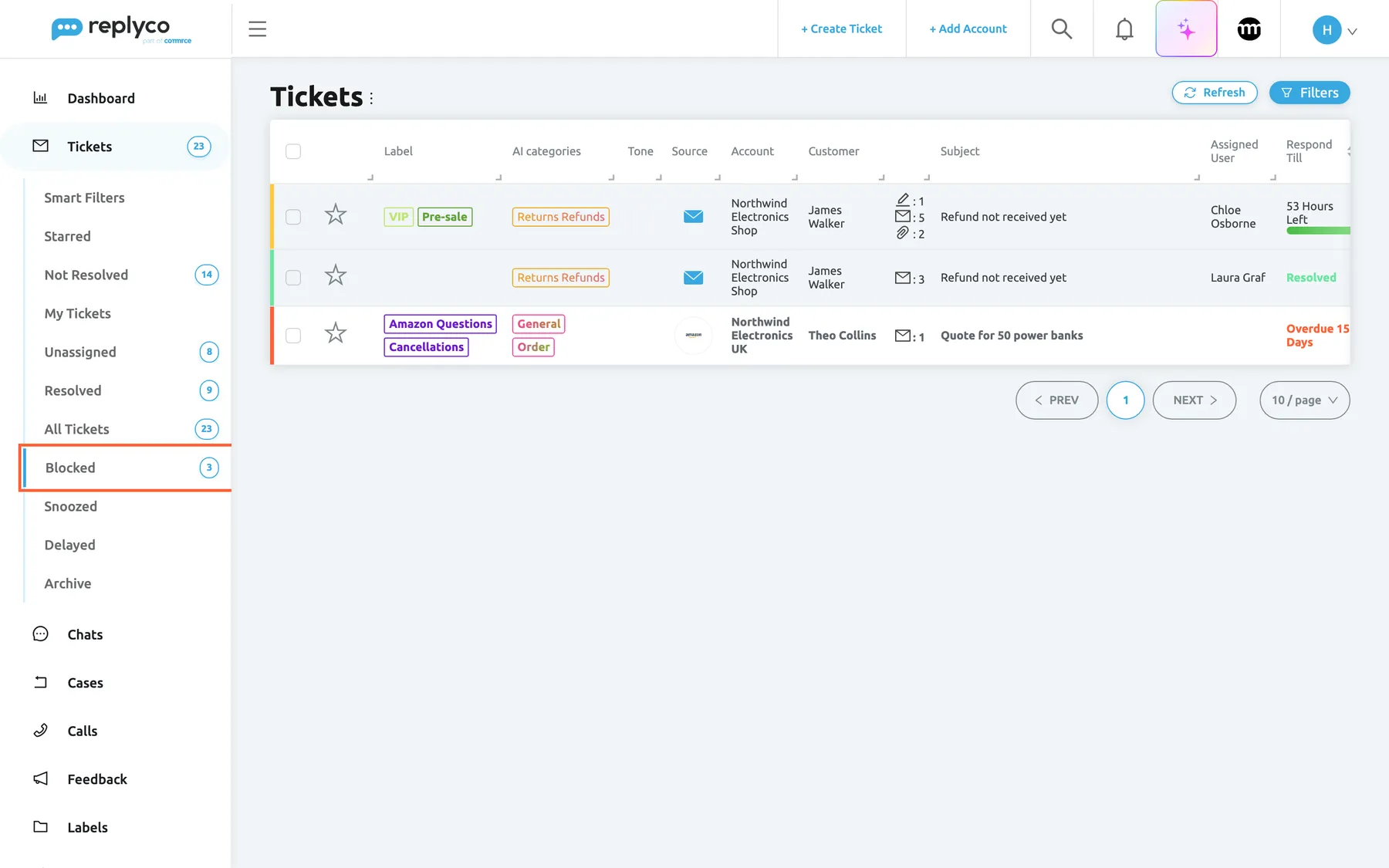
What this screenshot shows
- Screen
- Blocked (/tickets/blocked)
- Highlighted
- menuitem “Blocked”, sidebar-left, selected. shows the tickets of blocked customers
- Also visible
- Tickets menu expanded, Blocked selected with counter 3; two tickets of one customer, one open and one resolved; an unread Amazon ticket with an overdue respond-by time; Refresh and Filters buttons
- Purpose
- the Blocked list as it opens
| Region | What it shows | What you do there |
|---|---|---|
| Blocked, in the sidebar under Tickets | The view, with a counter while it holds tickets | Open the list; the selected view has a blue bar |
| Heading, top left | Tickets and the ⋮ menu for columns and export | Choose columns, export the page |
| Buttons, top right | Refresh and Filters | Reload the list; search and filter the blocked tickets |
| Bulk action bar, top centre | Appears when rows are ticked; its last icon is Unblock Customer | Unblock customers, or act on their tickets |
| The table | One row per ticket of a blocked customer, open, resolved, archived or snoozed | Open, tick, sort, right-click |
| Paging, bottom right | Page numbers and the page size | Move through pages |
The list is the same screen as every other ticket list, with the same columns, colours, badges and paging. What each of them means is explained in Ticket lists. Only the tickets in it, and the Unblock Customer icon, are its own.
A blocked customer’s tickets appear in no other view. They are missing from All Tickets, Not Resolved, Archive, Snoozed and every label’s list, whatever their status. The Blocked list, in turn, shows all of them: resolved ones, archived ones and snoozed ones included.
The counter beside Blocked works like the counters of the other lists. How the counters work, and how to show unread or unresolved tickets instead, is described in Ticket lists.
An empty list is normal. Until someone blocks a customer, the list shows No data... and the view has no counter. The same text appears when your filters match none of the blocked tickets.
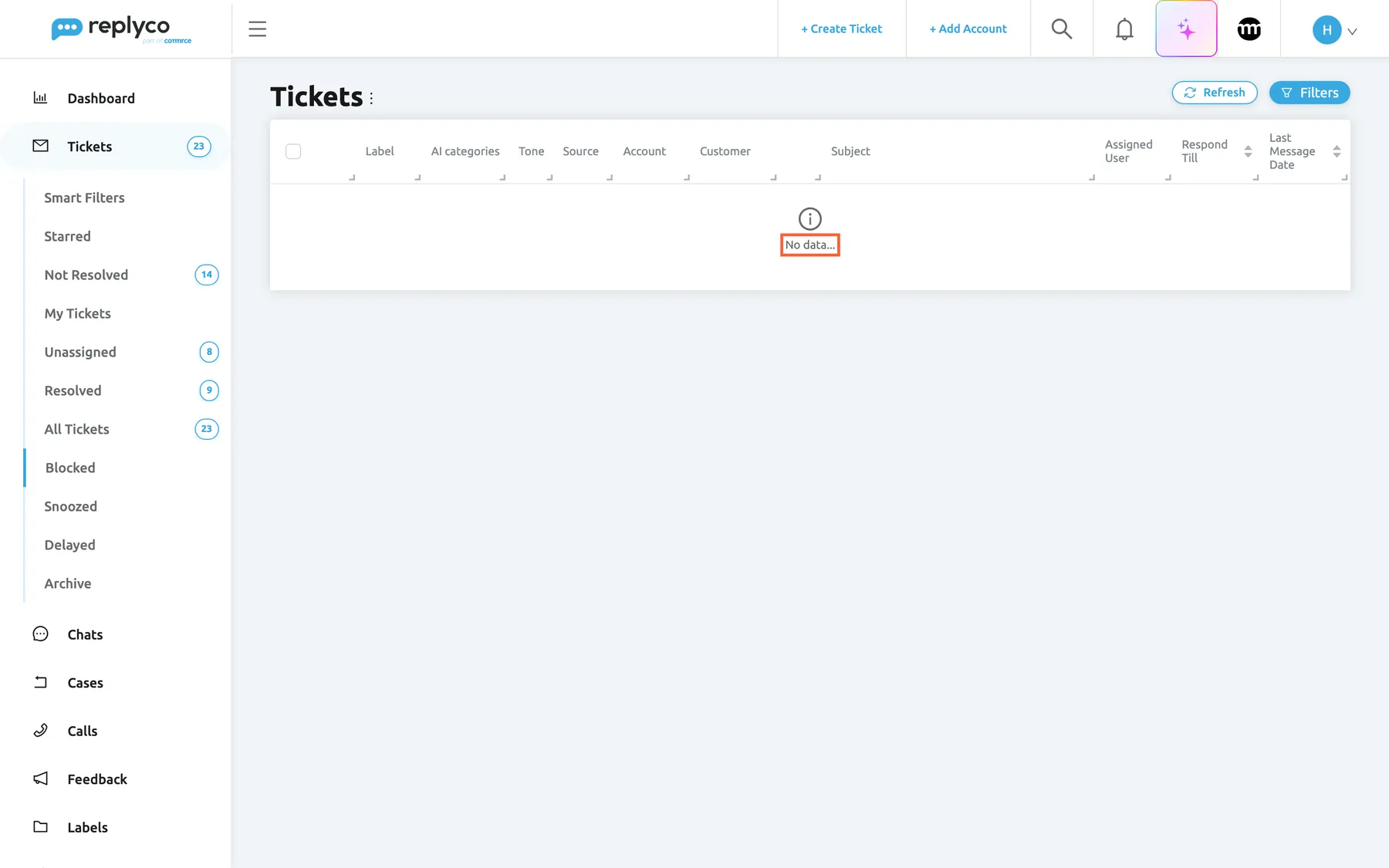
What this screenshot shows
- Screen
- Blocked (/tickets/blocked)
- Highlighted
- status “No data...”, table-body, shown. none
- Also visible
- Tickets menu expanded, Blocked selected without counter; column headings with no rows; Refresh and Filters buttons
- Purpose
- the empty state
Block a customer
Section titled “Block a customer”You can block a customer in three places. The effect is the same in each: the customer is marked as blocked, and every ticket that belongs to that customer moves to Blocked at once, including resolved, archived and snoozed ones.
From a ticket list, for one or several customers at a time:
-
In any ticket list, tick the rows of the tickets whose customers you want to block.
The bulk action bar appears at the top of the page.
-
Select Block Customer, the last icon in the bar.
Replyco blocks the customer of every ticked row, and the list reloads without their tickets.
From inside a ticket, for the customer of that ticket:
-
Open the ticket. In the right panel, select the ⋮ next to the customer’s name under Customer Details.
-
Select Block Customer.
Replyco asks Are you sure you want to block this customer? All their tickets will move to the Blocked list.
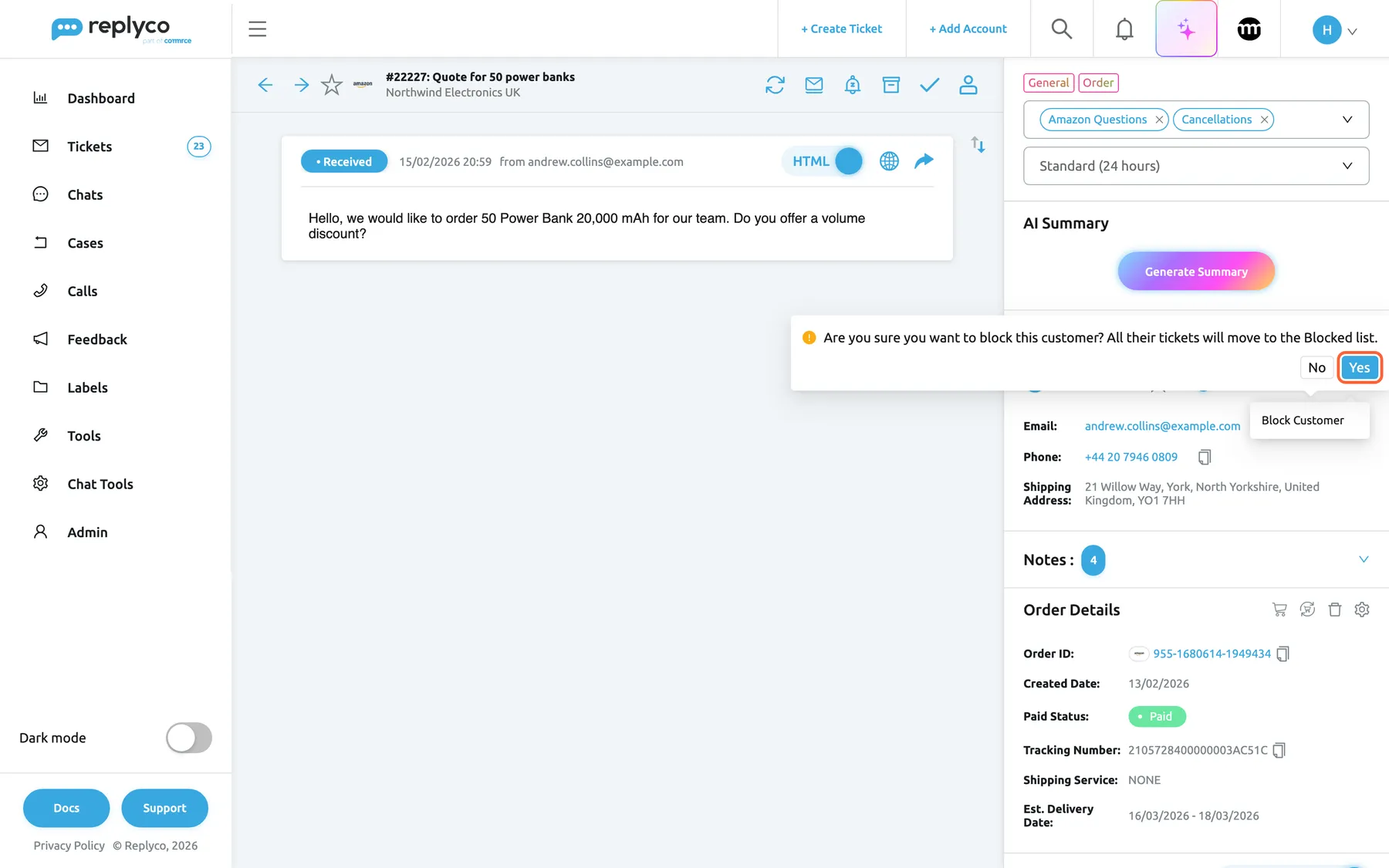
Block a customer from Customer Details in the ticket; Replyco asks once before it moves all their tickets. What this screenshot shows
- Screen
- Customer Details (/ticket/:threadId)
- Highlighted
- button “Yes”, right-panel-customer, enabled. blocks the customer and moves all their tickets to Blocked
- Also visible
- Customer Details menu open with Block Customer; confirmation question with No and Yes; ticket #22227 Quote for 50 power banks, Amazon
- Purpose
- block a customer from a ticket
-
Select Yes.
Replyco blocks the customer, marks the ticket as read and takes you back to the page you came from, usually the list.
From the customer’s page: open ToolsCustomers, open the customer and select Block Customer. Replyco asks Are you sure you want to block this customer? All their tickets will move to the Blocked list. and blocks the customer when you confirm. The Customers screen is described in Customers.
Example. A wholesaler writes to your Amazon account every week asking for bulk quotes you never offer. Open one of the tickets, block the customer from Customer Details, and every one of their tickets, the old resolved ones too, moves to Blocked. Next week’s message lands there as well, untouched by your rules and without an auto-response.
What blocking does not do. Replyco does not delete anything, does not tell the customer and does not block the customer on the marketplace or in your mailbox. It is a filter inside Replyco only. Blocking and unblocking need the Customers permission with Edit rights. Who has which rights is set by an admin, see User permissions and roles.
What happens to a blocked customer’s messages
Section titled “What happens to a blocked customer’s messages”A blocked customer can still write to you, and Replyco still imports what they send. A new message re-opens the ticket and marks it unread exactly as for any customer, and a new conversation becomes a new ticket, but both appear only in Blocked. What changes is the automation that normally runs when a message arrives.
| When a blocked customer’s message arrives | Happens? |
|---|---|
| The message is imported, the ticket re-opens and is marked unread | Yes |
| The ticket appears in Blocked, and in no other view | Yes |
| Your rules run on it (assign, label, set a priority, archive, resolve …) | No |
| Auto-responses are sent | No |
| A priority is set from the customer’s tone | No, because that step belongs to the rules |
| Replyco AI adds categories, a draft, a tone score or an automatic summary | No |
| The message is translated automatically, when your company uses auto-translation | Yes |
| The respond-by and resolve-by deadlines of the ticket’s priority are updated | Yes |
Why rules and auto-responses stop: they are the automation that would otherwise answer, assign or sort the sender’s messages for you, which is exactly what blocking is meant to prevent. Replyco AI leaves their messages alone for the same reason: they get no AI categories, AI drafts, tone scores or automatic summaries.
Recognise a blocked customer’s ticket
Section titled “Recognise a blocked customer’s ticket”When you open a ticket whose customer is blocked, a red line at the top of the right panel reads This customer is blocked. The conversation, labels, priority and order are unchanged. The ⋮ menu under Customer Details now offers Unblock Customer in place of Block Customer.
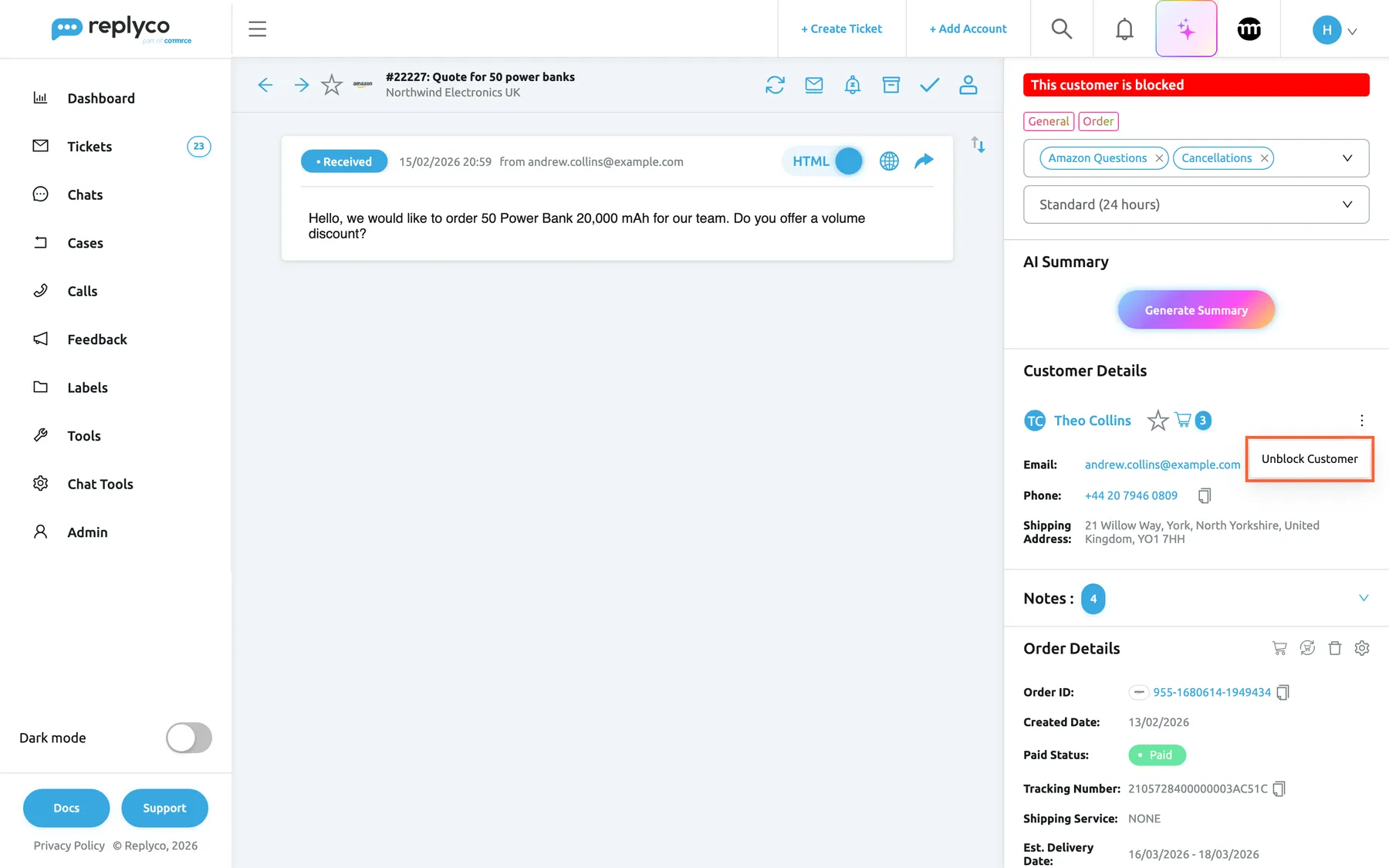
What this screenshot shows
- Screen
- Customer Details (/ticket/:threadId)
- Highlighted
- menuitem “Unblock Customer”, right-panel-customer, menu-open. asks for confirmation
- Also visible
- red bar: This customer is blocked; Customer Details for the customer with the ⋮ menu open; conversation, labels, priority and order unchanged
- Purpose
- recognise and unblock a blocked customer in a ticket
The red line is the quickest way to explain why a ticket someone mentions is missing from All Tickets: search for it with the search in the top bar, which also finds blocked tickets, and open it. See Search.
Unblock a customer
Section titled “Unblock a customer”-
Open TicketsBlocked and tick one ticket of each customer you want to unblock.
One ticket per customer is enough: unblocking acts on the customer, not on the ticket.
-
Select Unblock Customer, the last icon in the bulk bar.
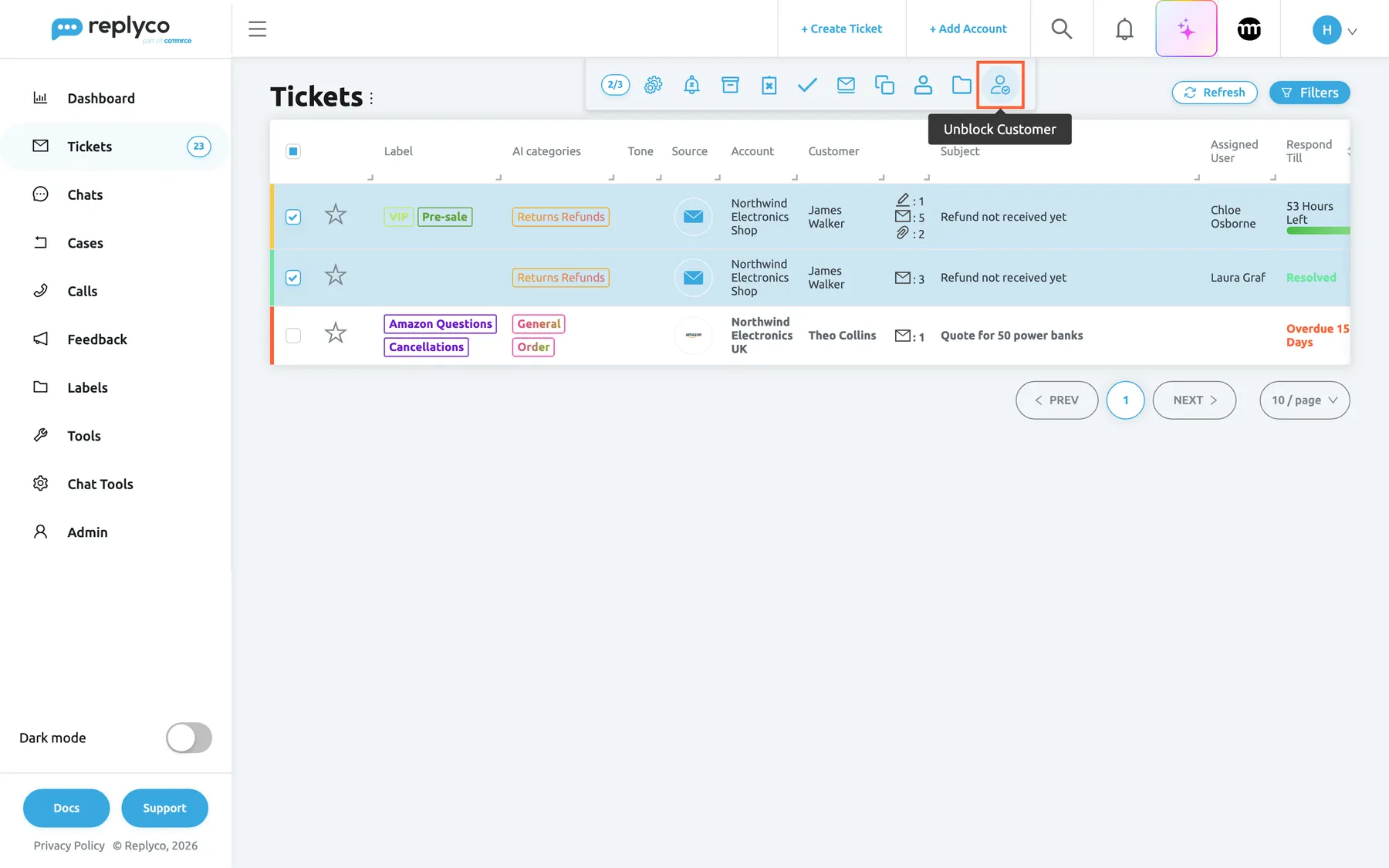
On the Blocked list the last icon of the bulk bar is Unblock Customer; it acts on the customers of the ticked rows. What this screenshot shows
- Screen
- Blocked (/tickets/blocked)
- Highlighted
- button “Unblock Customer”, top-center, hovered. unblocks the customers of the selected tickets
- Also visible
- two rows ticked; counter 2/3; bulk icons ending with Unblock Customer; tooltip Unblock Customer
- Purpose
- unblock customers from the list
-
Replyco unblocks the customers at once, without a confirmation, and the list reloads without their tickets.
Inside a ticket, the ⋮ menu under Customer Details offers Unblock Customer; Replyco asks Are you sure you want to unblock this customer? Associated tickets will be moved back to the general section. and unblocks the customer when you select Yes. On the customer’s page under ToolsCustomers, Unblock Customer asks Are you sure you want to unblock this customer? Their tickets will move back to the ticket lists..
After unblocking, every ticket of the customer goes back to the views its status puts it in: open tickets to Not Resolved, resolved ones to Resolved, archived ones to Archive, snoozed ones to Snoozed, all of them to their labels’ lists. Their next message runs through your rules and auto-responses again.
Messages that arrived while the customer was blocked stay as they are. Rules and auto-responses are not run on them afterwards. To sort those tickets with your rules, tick them after unblocking and select Run Rules in the bulk bar; auto-responses are not sent this way. See Rules for incoming tickets.
Act on blocked tickets
Section titled “Act on blocked tickets”The bulk bar of the Blocked list has every action of the other lists: Run Rules, Snooze, Archive, Mark Resolved, Mark Unresolved, marking read or unread, Merge Tickets, Assign User and Assign Labels. Only the last icon differs: Unblock Customer takes the place of Block Customer. The right-click menu on a row is the same as on the other lists. What each action does is explained in Ticket lists.
A blocked ticket you archive, resolve or snooze stays in Blocked as long as the customer is blocked, because blocking takes precedence over every other view. Archived tickets are deleted automatically after the archive’s retention time even while their customer is blocked; see Archived tickets. For how resolving, snoozing and archiving relate, see Resolve, snooze or archive a ticket.
Every control, explained
Section titled “Every control, explained”The Blocked list shares its heading, filters, columns, paging and right-click menu with every ticket list; those are explained once in Ticket lists. The controls below are the ones that block and unblock.
Blocked in the sidebar
Section titled “Blocked in the sidebar”The sidebar, under Tickets, between All Tickets and Snoozed.
Opens the list of every ticket of every blocked customer, in any status. The counter beside it follows your counter setting and disappears when there is nothing to count. The view is shown only when an admin has given your user this ticket list.
One place to check whom your team has blocked and whether a blocked sender wrote something that matters after all.
Block Customer in the bulk bar
Section titled “Block Customer in the bulk bar”The last icon of the bulk action bar on every ticket list except Blocked. Tick at least one row to see the bar; hover the icon for its name.
Blocks the customer of each ticked ticket, then reloads the list. Several ticked tickets of one customer block that customer once. Needs the Customers permission with Edit rights.
Clearing a burst of spam or notification mails from a list takes one selection instead of opening each ticket.
Unblock Customer in the bulk bar
Section titled “Unblock Customer in the bulk bar”The last icon of the bulk action bar on Blocked, in place of Block Customer.
Unblocks the customer of each ticked ticket, without a confirmation, and reloads the list. All tickets of those customers return to their usual views. Needs the Customers permission with Edit rights.
Blocking is meant to be reversible; a customer blocked by mistake is back in one step.
Block Customer and Unblock Customer in the ticket
Section titled “Block Customer and Unblock Customer in the ticket”Inside a ticket, the ⋮ next to the customer’s name under Customer Details in the right panel. The entry reads Unblock Customer when the customer is blocked.
Asks Are you sure you want to block this customer? All their tickets will move to the Blocked list. or Are you sure you want to unblock this customer? Associated tickets will be moved back to the general section.; Yes confirms and No cancels. Blocking marks the ticket as read and takes you back to the previous page; unblocking keeps the ticket open. The same menu holds the customer editing entries described in The ticket screen.
You usually decide to block while reading a message; the menu lets you do it there.
This customer is blocked
Section titled “This customer is blocked”The red line at the top of the right panel of a ticket whose customer is blocked.
Shows only while the customer is blocked. It is a notice, not a button.
It tells anyone who reaches the ticket from search or a link why it is not in their usual lists.
Block Customer and Unblock Customer on the customer’s page
Section titled “Block Customer and Unblock Customer on the customer’s page”ToolsCustomers, in the customer’s details, at the bottom.
The same blocking and unblocking, with the confirmation Are you sure you want to block this customer? All their tickets will move to the Blocked list. or Are you sure you want to unblock this customer? Their tickets will move back to the ticket lists.. The Customers screen needs the Customers permission; see Customers.
Useful when you look a customer up by name rather than through one of their tickets.
Who sees what
Section titled “Who sees what”| Part of the screen | What decides whether you see it or can use it |
|---|---|
| Blocked in the sidebar | Your user’s ticket lists, set by an admin on Access Rights in AdminUsers |
| Blocked tickets of an account, or with a label | Your user’s accounts and labels, set in the same place |
| Block Customer and Unblock Customer | The Customers permission with Edit rights. All three roles, Admin, Moderator and User, include it; an admin can remove it on the user’s Access Rights tab, see Users |
| ToolsCustomers | The Customers permission |
Every plan includes blocking. See User permissions and roles.
What you need to know
Section titled “What you need to know”| Topic | Fact |
|---|---|
| Scope | The customer and every ticket linked to them, past and future |
| Takes precedence | A blocked customer’s tickets appear in Blocked only, whatever their status, archive or snooze state |
| Counter | Follows your counter setting, like the other lists; see Ticket lists |
| New messages | Imported and shown; rules, auto-responses and Replyco AI skipped |
| The customer | Is not told and is not blocked on the marketplace or in your mailbox |
| Undo | Unblock Customer; messages received meanwhile are not re-processed |
| Shared by everyone | Blocking is company-wide: a customer blocked by one user is blocked for all |
| Search | The filters of the Blocked list search blocked tickets; the search in the top bar finds them too |
Frequently asked questions
Section titled “Frequently asked questions”Blocking
Section titled “Blocking”What happens when I block a customer?
Section titled “What happens when I block a customer?”Replyco marks the customer as blocked and moves every ticket that belongs to them, open, resolved, archived and snoozed, to TicketsBlocked. The tickets disappear from every other view and label list. Nothing is deleted, and the customer is not told.
Can I block just one ticket and not the customer?
Section titled “Can I block just one ticket and not the customer?”No. Blocking always acts on the customer, so every ticket of that customer moves to Blocked. To take a single ticket out of your lists, archive or resolve it instead; see Resolve, snooze or archive a ticket.
Does the customer find out that they are blocked?
Section titled “Does the customer find out that they are blocked?”No. Replyco sends nothing to the customer and does not change anything on the marketplace, in the shop or in your mailbox. Blocking only decides where the customer’s tickets appear in Replyco and stops your rules, auto-responses and Replyco AI for their messages.
I blocked a customer and they still write to us. Is that expected?
Section titled “I blocked a customer and they still write to us. Is that expected?”Yes. Blocking does not stop anyone from sending messages. Replyco keeps importing them into the customer’s tickets, which stay in TicketsBlocked, so your team does not see them in the working lists and no rule or auto-response reacts to them.
Does Replyco AI work on a blocked customer’s messages?
Section titled “Does Replyco AI work on a blocked customer’s messages?”No. Messages from a blocked customer get no AI categories, AI drafts, tone scores or automatic summaries. To keep a customer away from the AI while their tickets stay in your working lists, add them to the AI Customers Blacklist under ToolsAI Settings instead, which needs the Admin permission with Edit rights; blocking and the blacklist are separate settings.
The Blocked list
Section titled “The Blocked list”Why can’t I see the Blocked view in my sidebar?
Section titled “Why can’t I see the Blocked view in my sidebar?”An admin chooses which ticket lists each user sees, on the user’s Access Rights in AdminUsers. Ask your admin to add Blocked to your ticket lists; see User permissions and roles.
Can I reply to a blocked customer?
Section titled “Can I reply to a blocked customer?”Yes. Open the ticket from TicketsBlocked and reply as usual. Blocking hides the customer’s tickets from your working lists and stops automation on their messages; it does not stop you from answering them.
Unblocking
Section titled “Unblocking”How do I unblock a customer?
Section titled “How do I unblock a customer?”Open TicketsBlocked, tick one ticket of the customer and select Unblock Customer, the last icon in the bulk bar. You can also use Unblock Customer in the ⋮ menu under Customer Details inside the ticket, which asks for confirmation first.
Where do the tickets go after I unblock the customer?
Section titled “Where do the tickets go after I unblock the customer?”Each ticket returns to the views its status puts it in: open ones to Not Resolved, resolved ones to Resolved, archived ones to Archive and snoozed ones to Snoozed, plus the lists of their labels and All Tickets.
Do my rules run on the messages that arrived while the customer was blocked?
Section titled “Do my rules run on the messages that arrived while the customer was blocked?”Not by themselves. Replyco runs rules when a message arrives, and it skipped them while the customer was blocked. After unblocking, tick those tickets and select Run Rules in the bulk bar to run your rules on each ticket’s latest message. Auto-responses are not sent afterwards.
Troubleshooting
Section titled “Troubleshooting”| Symptom | What to check |
|---|---|
| A customer’s tickets are missing from every list | Open TicketsBlocked, or open one of the tickets from the search in the top bar and look for This customer is blocked in the right panel; unblock the customer if needed |
| A blocked sender’s new message did not get an auto-response or a label | Expected: rules and auto-responses do not run for blocked customers |
| After unblocking, the tickets are still unassigned and unlabelled | Rules are not run again for messages received while blocked; tick the tickets and select Run Rules |
| Blocked is not in the sidebar | Your user’s ticket lists on Access Rights in AdminUsers |
| The Blocked list shows No data... although customers are blocked | Filter tags under the heading; select Filters, then Clear Filters; then your access to the tickets’ accounts and labels |
| The same person still reaches your lists | Their new message may have come from another email address or through another channel, which Replyco can hold as a separate customer; open the ticket and block that customer too |
| After blocking from a ticket, you are back in the list | Expected: blocking from Customer Details takes you back to the previous page |
Related
Section titled “Related”- Ticket lists · The ticket screen · Archived tickets
- Resolve, snooze or archive a ticket
- Customers · AI Customers Blacklist
- Rules for incoming tickets · Auto-responses for tickets
- Message tone analysis · AI drafts · AI categories · AI summaries · Translations
- Ticket priorities and SLA · Ticket merging
- User permissions and roles · Notifications · Search
- Troubleshooting tickets