

Delayed sending
A reply sent in a hurry cannot be taken back once it reaches the customer’s inbox, and a reply written at 23:00 lands at a time nobody reads it. Delayed sending holds a reply before it goes out: every reply for a few minutes, through a personal default delay, or one reply until a time you pick. Until then it waits in the ticket and in the Delayed list, where you can send it early or cancel it.
What it does
Section titled “What it does”Mistakes in a reply show up the moment you press send: the wrong order number, a template with the wrong name, an answer meant for another ticket. Other replies are right but early: you promised the customer an answer after the warehouse checks the parcel at 14:00, or the customer is on the other side of the world.
Delayed sending gives each reply a send time instead of sending it straight away. Replyco keeps the reply in the ticket with the status Delayed and sends it through the ticket’s channel once the time comes. From there:
- You get an undo window on every reply. Set Message sending delay under Account Settings and the send button becomes Send with Delay: every reply waits that many minutes. See your default delay.
- You schedule one reply for later. The arrow next to the send button offers Choose Delaying Time: a number of minutes from 0 to 9999, or a date and time. See one reply later.
- You stay in control until it goes out. The reply shows Sending is scheduled for with the time, and the buttons Send now and Cancel. See the scheduled reply in the ticket.
- You see everything that is waiting in one place. TicketsDelayed lists every ticket with a reply still to go out, auto-responses with a delay included. See the Delayed list.
Every scheduled reply stays in its ticket with a status badge: Delayed while it waits, Sent once the channel accepts it, Cancelled if someone stopped it. The conversation itself is the record of what went out and what did not.
Before you start
Section titled “Before you start”| Requirement | Details |
|---|---|
| Plan | Every plan includes delayed sending. See What each plan includes. |
| Who can use it | Everyone who can answer a ticket. The default delay is personal: each user sets their own under Account Settings › Settings. |
| The Delayed list | Delayed appears under Tickets only if an admin gave you that list in your ticket-list permissions. See User permissions and roles. |
| A working channel | The reply goes out through the ticket’s account. An account that is blocked or needs you to sign in again holds its replies back. See Fix a blocked or silent account. |
| A verified company email | While the yellow bar Please verify your email. shows at the top of Replyco, no reply is sent at all, scheduled or not. Use the link in the bar to get the verification email again. |
Understanding the scheduled reply
Section titled “Understanding the scheduled reply”A scheduled reply is an ordinary reply with a send time. It moves through these states, each shown as a badge on the reply in the ticket:
| Badge | What it means | What you can do | Typical example |
|---|---|---|---|
| Delayed (yellow) | Waiting for its send time | Send now, Cancel | A reply to Daniel Hughes about the wrong USB-C hub, scheduled for 14:30 |
| Processing (yellow) | Due, or sent early with Send now; Replyco is handing it to the channel | Wait | The same reply a minute after 14:30 |
| Sent (green) | The channel accepted it | Nothing; it has left | The customer has the reply |
| Cancelled (red) | Stopped before it went out; never sent | Hover the badge for Try Again | You cancelled it because the customer called in the meantime |
| Error Sending (red) | The channel refused it | Hover the badge for the reason and Try Again | The marketplace rejected the message |
How Replyco decides
Section titled “How Replyco decides”- Two moments, not one. When you select the send button, Replyco saves the reply with its send time. When the time comes, it sends it. Some things happen at the first moment and some at the second; the table below says which.
- The send time is fixed when you schedule. With a default delay it is the moment you select Send with Delay plus your minutes. In the Choose delaying time window it is the moment you select Send plus the minutes, or the date and time you picked. Changing your default later does not move replies already waiting.
- Replies go out in rounds. Replyco sends due replies in rounds a couple of minutes apart, the same way it sends every reply. A scheduled reply goes out in the first round that reaches its time, which can be up to two minutes before the time shown and a few minutes after it. Send times are accurate to a few minutes, not to the second.
- A time that has already passed means now. 0 minutes, or a time earlier today, sends the reply in the next round.
- The text is final when you schedule. Placeholders such as
#customer_first_name#are filled in, your name goes into the signature and a translation is made at that moment. Nothing about the reply changes afterwards. There is no way to edit a scheduled reply; see when things change.
| What | When it happens |
|---|---|
| The reply appears in the ticket, and the ticket in Delayed | When you schedule |
| Resolve after Reply and Archive after Reply, if ticked | When you schedule |
| Auto-assign on Reply gives an unassigned ticket to you | When you schedule |
| A snoozed ticket is woken up | When you schedule |
| Auto-responses in the ticket that were about to go out immediately are cancelled | When you schedule |
| Respond Till shows Responded | When you schedule |
| The customer receives the reply | At the send time |
| The ticket’s first response time is recorded for reports | At the send time |
| The ticket leaves Delayed | When the reply is sent, sent early or cancelled |
When things change before it goes out
Section titled “When things change before it goes out”| What changed | What happens to the scheduled reply | What to do |
|---|---|---|
| Someone resolved the ticket | It still goes out at its time. | Nothing, unless the reply no longer fits; then Cancel. |
| Someone archived the ticket | It still goes out. The ticket leaves Delayed and waits in Archive. | Open it from Archive to send it early or cancel it. |
| Someone snoozed the ticket | It still goes out. The ticket leaves Delayed until the snooze ends. | Open it from Snoozed if you need it. |
| The customer wrote again | The ticket reopens as usual and comes out of the archive, and your reply still goes out at its time. | Read the new message first; Cancel and write a new reply if yours no longer fits. |
| You want to change the text or the time | A scheduled reply cannot be edited or moved. | Cancel, copy the text from the cancelled reply, and write a new one with the right time. |
| The ticket’s account was disconnected, blocked or needs a new sign-in | The reply waits. The bar keeps showing its time, even once that time has passed, and it goes out in the first round after the account works again. If the account is deleted on Accounts, its scheduled replies are never sent; they are deleted with the account. | Reconnect the account, or cancel the reply if it will be too late. See Fix a blocked or silent account. |
| The company’s subscription ended, or its email is not verified | No reply is sent until that is fixed. | Renew the subscription or verify the email; replies go out in the next round. |
| The person who wrote it left the company | Blocking or deleting their user does not touch their scheduled replies. They go out under that person’s name. | A colleague can open the ticket and cancel them. |
| The channel refused the reply | The reply shows Error Sending, and the ticket reopens and comes out of the archive even if you ticked Resolve after Reply or Archive after Reply. | Hover the badge for the reason, fix it, then Try Again. |
What does not get delayed
Section titled “What does not get delayed”Replies in chats have no delayed sending; only chat auto-responses can wait. See Answer a chat.
While an AI draft is shown, Accept & Send and Reject take the place of the send button and its arrow, so the draft itself has no Choose Delaying Time. See AI drafts.
Setting it up in three steps
Section titled “Setting it up in three steps”-
Set your default delay (optional). Open Account Settings from your name at the top right, choose the Settings tab, find Message sending delay at the bottom of the Reply & Resolving workflow card, switch it on and enter the minutes. Select Save at the bottom of the page. From now on your send button reads Send with Delay.
-
Schedule one reply. In a ticket, select Respond, write the reply, then select the arrow next to the send button and choose Choose Delaying Time. Enter minutes and select Send, or choose Pick date & time, pick the date and time and select Send. The step-by-step reply is in Answer a ticket.
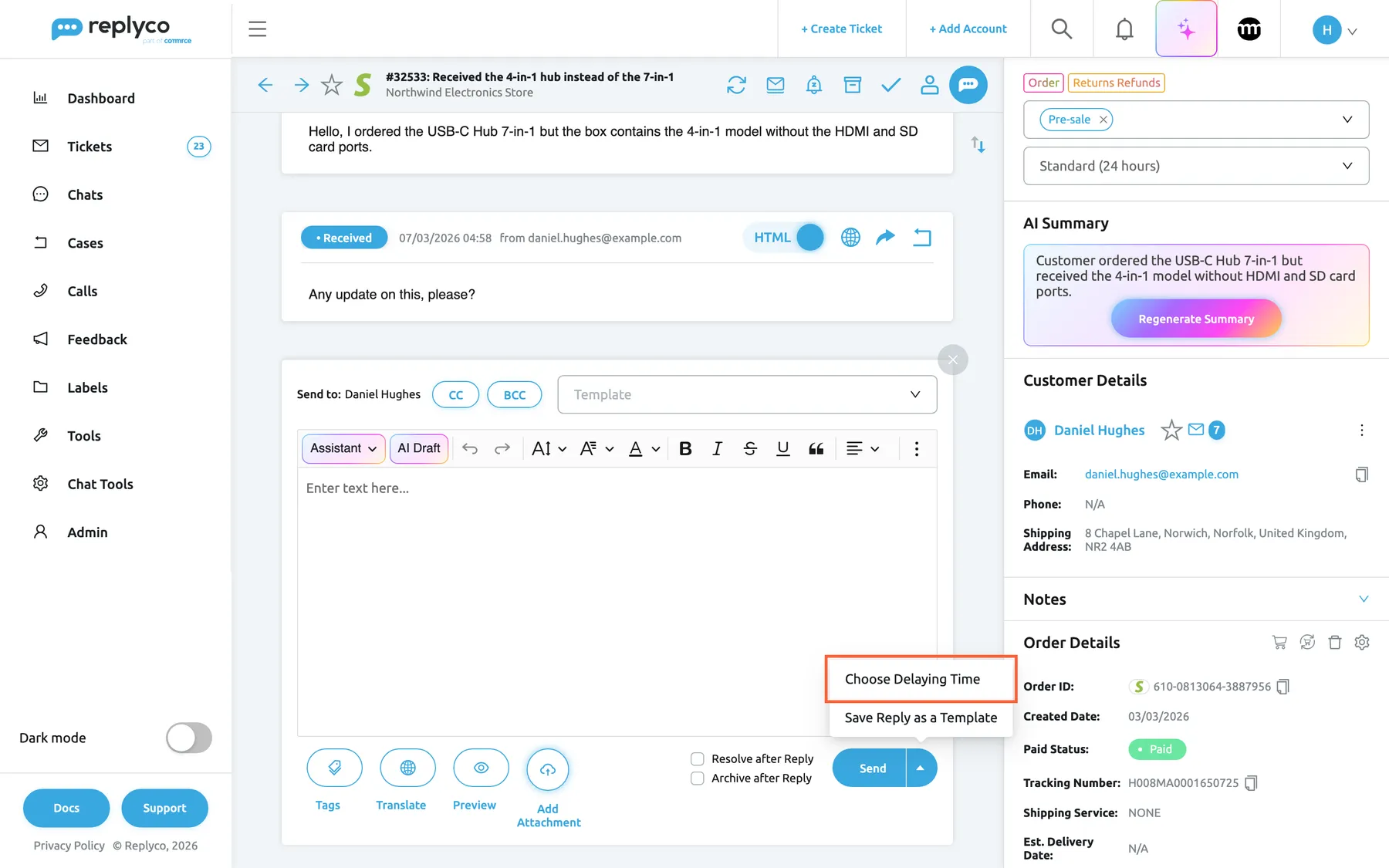
The arrow next to the send button opens Choose Delaying Time, which schedules this one reply. What this screenshot shows
- Screen
- Respond (/ticket/:threadId)
- Highlighted
- menuitem “Choose Delaying Time”, editor-bottom-right, enabled. opens the Choose delaying time window
- Also visible
- Send button with the arrow; menu: Choose Delaying Time, Save Reply as a Template; Resolve after Reply and Archive after Reply check boxes
- Purpose
- entry point for scheduling one reply
-
Check what is waiting. The reply now shows Sending is scheduled for with its time in the ticket, and the ticket is listed under TicketsDelayed. Use Send now or Cancel there until it goes out.
Every setting, explained
Section titled “Every setting, explained”Delayed sending has one personal setting under Account Settings and one menu in the reply editor, in the order below.
Message sending delay, your default delay
Section titled “Message sending delay, your default delay”Account Settings › Settings, the last row of the Reply & Resolving workflow card: a switch and, while it is on, a minutes field with minus and plus buttons. Change it, then select Save, which appears at the bottom of the page once something has changed; a confirmation follows.
Off by default. Switched on, it starts at 1 minute; the field takes whole minutes from 0 to 9999. With a value above 0, your send button reads Send with Delay, and every reply you send with it waits that many minutes from the moment you select it. The same default applies on the Create Ticket screen and when you forward a message. It is also the starting value of the minutes field in the Choose delaying time window. Switching it off, or saving 0, sends replies at once again; replies already waiting keep their time. The setting belongs to you alone: colleagues keep their own.
A few minutes are enough to notice a wrong order number, the wrong customer’s name or a reply meant for another ticket, and to take it back with Cancel before the customer ever sees it.
| Value saved | What your send button does |
|---|---|
| Switch off, or 0 | Reads Send and sends at once |
| 1 | Reads Send with Delay; each reply waits about a minute, which in practice means the next sending round or the one after |
| 5 | Each reply waits 5 minutes: selected at 09:00, it goes out at about 09:05 |
| 9999 | Each reply waits 9999 minutes, almost seven days, which is almost never what you want |
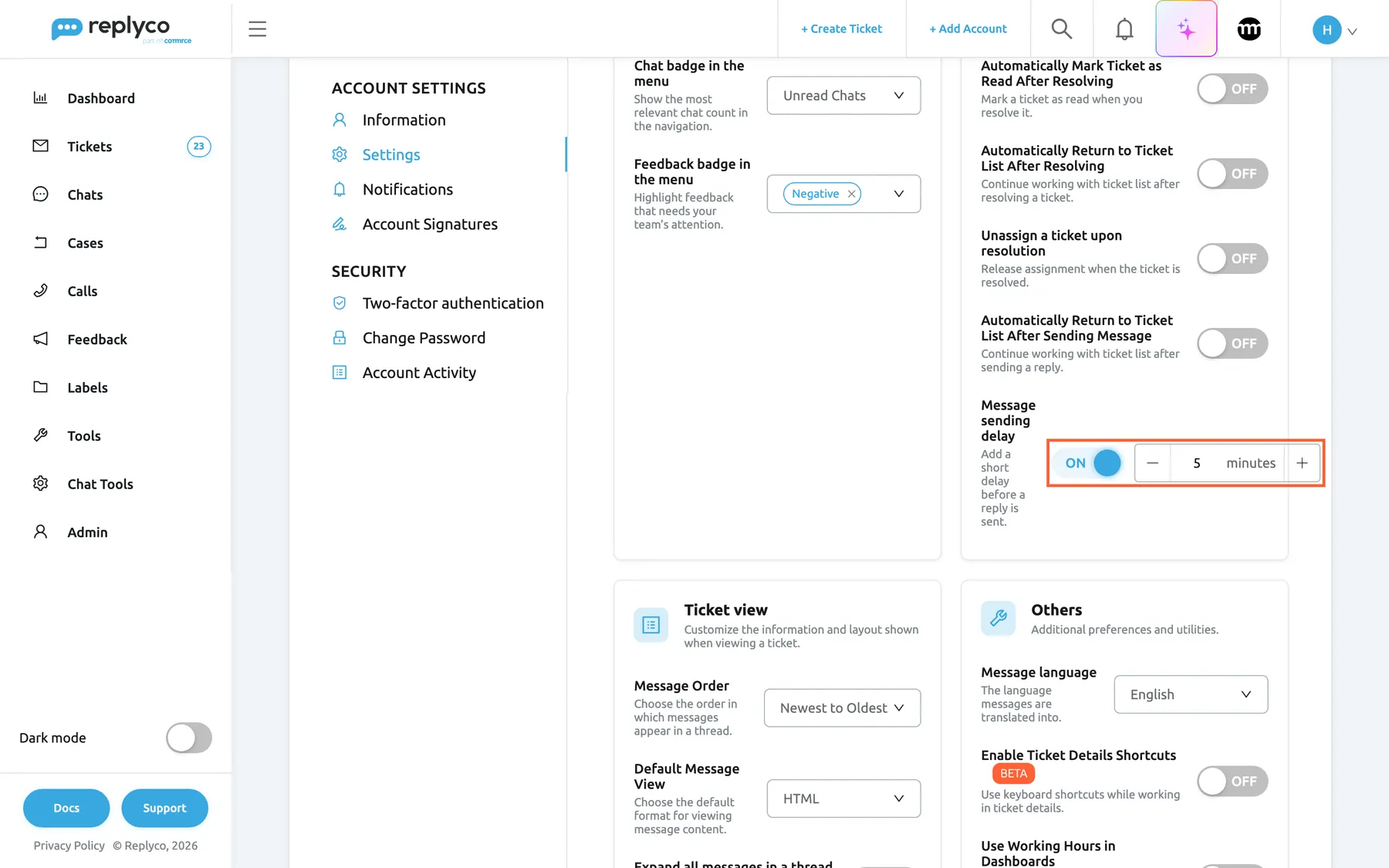
What this screenshot shows
- Screen
- Settings (/user-settings?tab=settings)
- Highlighted
- switch “Message sending delay”, reply-workflow-card-bottom, on, 5 minutes. sets the personal default delay for every reply
- Also visible
- Reply & Resolving workflow card; switches above it all off; minutes field with minus and plus buttons
- Purpose
- the personal default delay
| Do | Don’t |
|---|---|
| Keep the default short, 2 to 5 minutes, as an undo window | Use the default to hold replies until morning; schedule those one by one with Pick date & time |
| Tell colleagues you use a default, so they know why your replies show Delayed for a while | Expect your default to apply to colleagues’ replies; each user sets their own |
| Switch it off with the switch when you no longer want a delay | Expect switching it off to send replies already waiting; they keep their time |
Send with Delay, the send button with a default
Section titled “Send with Delay, the send button with a default”The blue button at the bottom right of the reply editor, when your default delay is above 0.
Selecting it schedules the reply for your default number of minutes from now; the reply appears in the ticket with Delayed. The arrow beside it still opens Choose Delaying Time for a different time. The button is greyed out while an attachment is uploading and, on eBay tickets, while the reply is over eBay’s length limit.
The label tells you, and anyone looking over your shoulder, that the reply will not leave at once.
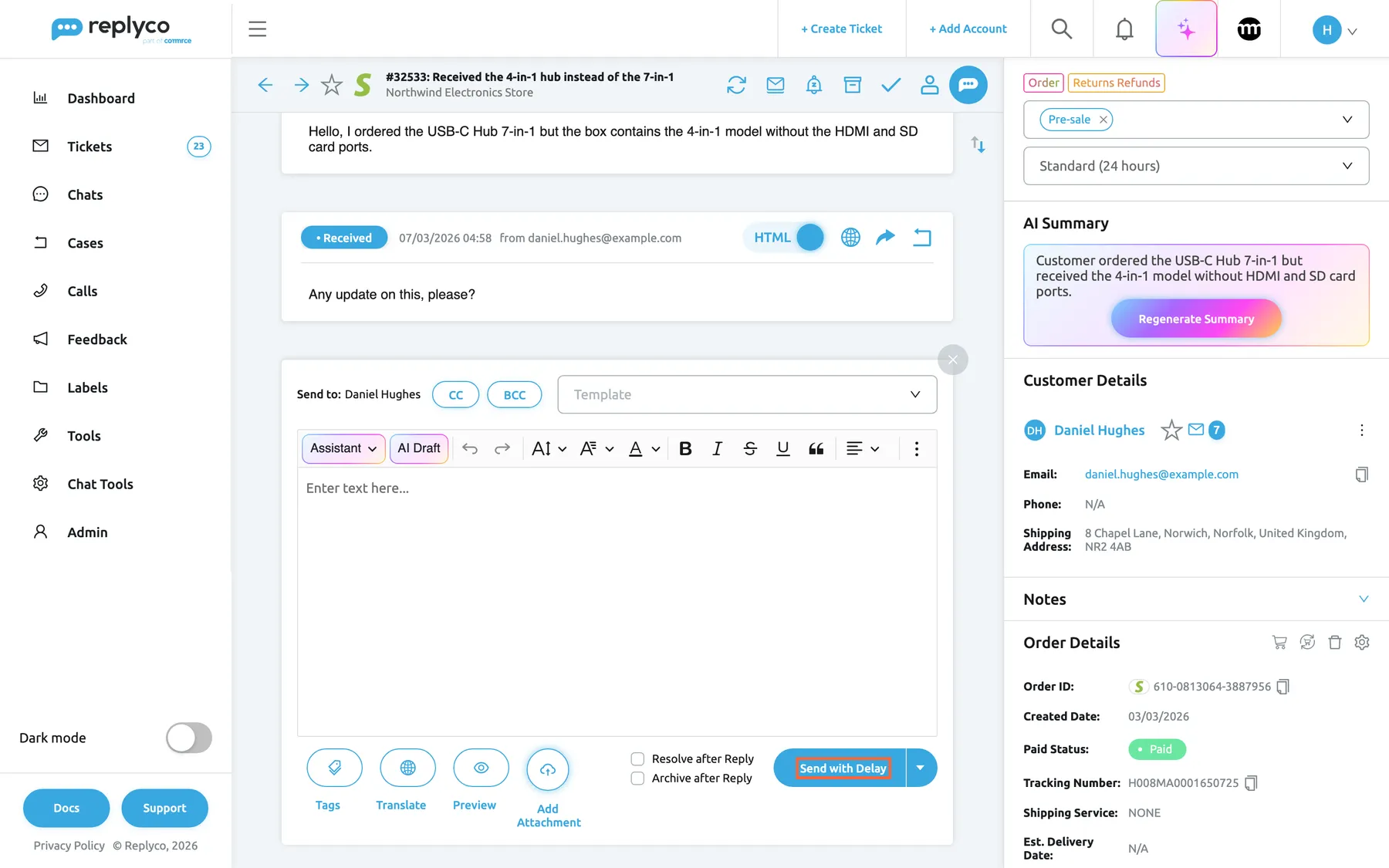
What this screenshot shows
- Screen
- Respond (/ticket/:threadId)
- Highlighted
- button “Send with Delay”, editor-bottom-right, enabled. schedules the reply after the default delay
- Also visible
- reply editor, empty; Resolve after Reply and Archive after Reply check boxes, clear; arrow next to the send button
- Purpose
- how the default delay changes the send button
Choose Delaying Time, one reply later
Section titled “Choose Delaying Time, one reply later”The arrow next to the send button in the reply editor opens a menu with Choose Delaying Time and Save Reply as a Template. Choose Delaying Time opens the Choose delaying time window. The menu is there whether or not you have a default delay, on tickets, on the Create Ticket screen and when forwarding, but not while an AI draft shows Accept & Send.
The window has two ways to set the time: a minutes field with its own Send button, and, below the line or pick a send time from the calendar, Pick date & time with a calendar icon. Whichever you use applies to this one reply only; your default delay is unchanged. Closing the window with the cross sends nothing.
Some replies should arrive at a particular moment: after the warehouse confirms, when the customer is awake, or on the first working day after a holiday.
Minutes
Section titled “Minutes”The field at the top of the Choose delaying time window, with minus and plus buttons and the word minutes. Type a number or use the buttons, then select Send next to it.
Whole minutes from 0 to 9999, starting at your default delay, or 0 if you have none. The reply is scheduled for now plus the minutes, counted from the moment you select Send. A number above 9999 is brought back to 9999.
Minutes are the quickest way to say “in an hour and a half” without working out the clock time.
| Minutes | Selected at 09:00 | Goes out |
|---|---|---|
| 0 | 09:00 | In the next sending round, like a normal reply |
| 1 | 09:00 | At about 09:01, possibly in the same round as a normal reply |
| 90 | 09:00 | At about 10:30 |
| 9999 | 09:00 | Almost seven days later, at about 07:39 |
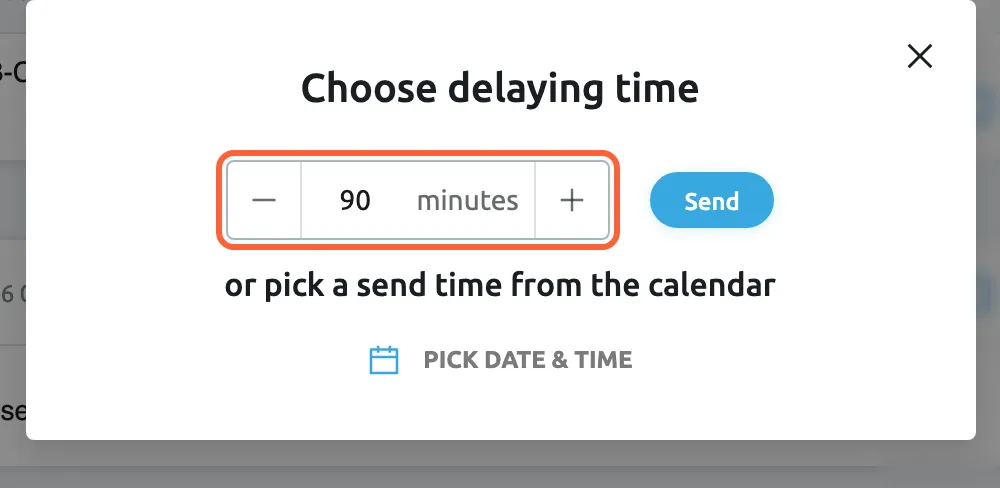
What this screenshot shows
- Screen
- Choose delaying time (/ticket/:threadId)
- Highlighted
- spinbutton “minutes”, dialog-centre, 90. sets the delay in minutes
- Also visible
- Send button next to the minutes field; line: or pick a send time from the calendar; Pick date & time with a calendar icon
- Purpose
- schedule one reply by minutes
Pick date & time, a date and time
Section titled “Pick date & time, a date and time”In the Choose delaying time window, select Pick date & time under the minutes. The window shows a date and time field; select it to open the calendar with hour, minute and AM or PM columns and an OK button. Cancel takes you back to the minutes, Send schedules the reply.
The field starts at now plus the minutes in the minutes field. Days before today are greyed out; any later day can be picked, with no upper limit. Earlier times today can still be picked, and a time that has passed sends the reply in the next round. The date and time are in your computer’s time zone: a colleague in another time zone sees the same moment in theirs. Once the reply is scheduled, the ticket shows the send time in your usual date format.
Use it for a fixed moment, such as the first working morning after a weekend, rather than counting minutes.
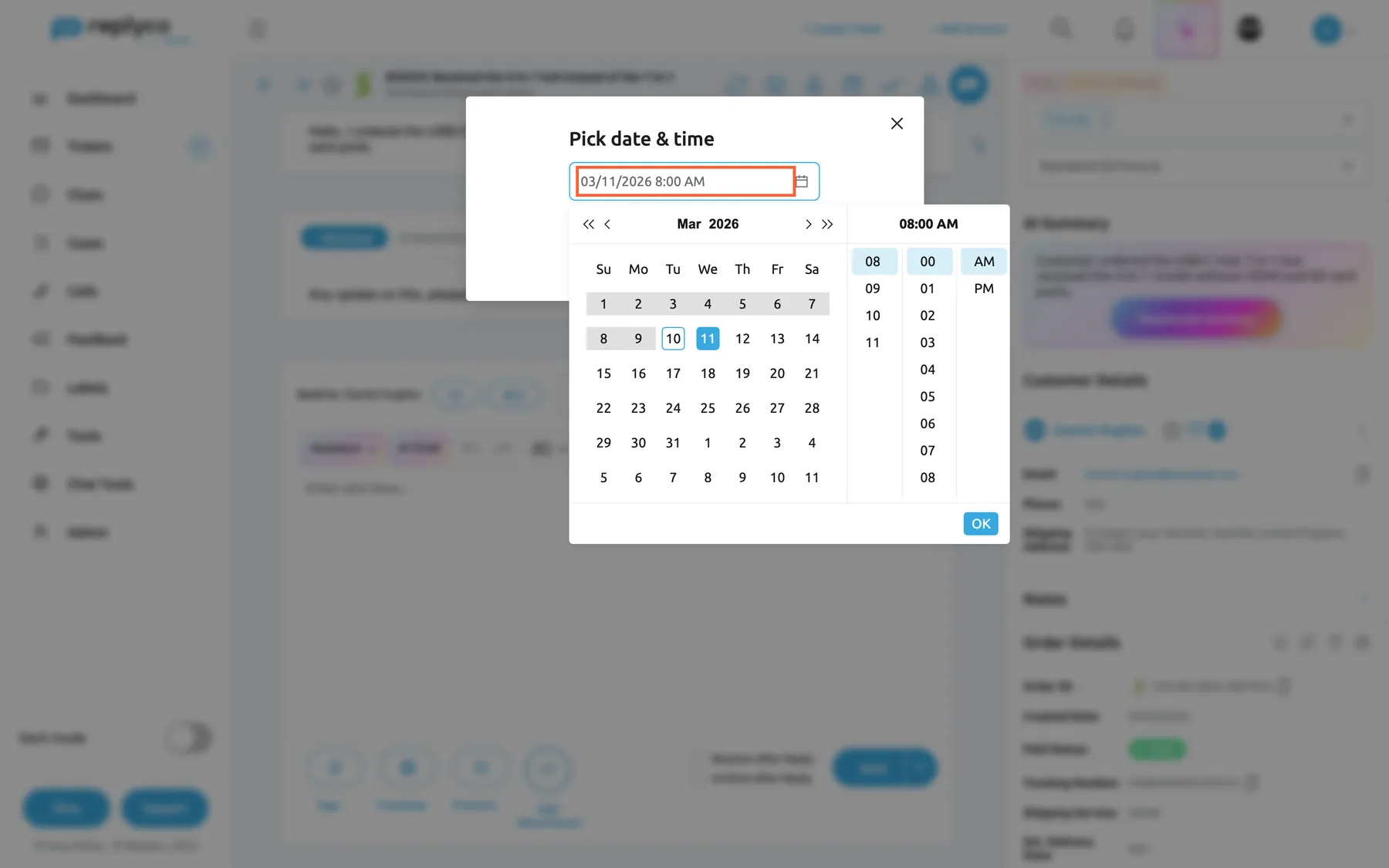
What this screenshot shows
- Screen
- Pick date & time (/ticket/:threadId)
- Highlighted
- textbox “Pick date & time”, dialog-top, 03/11/2026 8:00 AM. sets the date and time the reply is sent
- Also visible
- calendar for March 2026, days before today disabled; hour, minute and AM/PM columns; OK button
- Purpose
- schedule one reply for a date and time
How the settings combine
Section titled “How the settings combine”| Your default delay | What you select | Result |
|---|---|---|
| Off | Send | Sent in the next round |
| Off | Choose Delaying Time with minutes or a date | Waits until that time |
| 5 minutes | Send with Delay | Waits 5 minutes |
| 5 minutes | Choose Delaying Time with 90 minutes | Waits 90 minutes; the default is ignored for this reply |
| 5 minutes | Choose Delaying Time with 0 minutes | Sent in the next round |
Delayed sending in your tickets
Section titled “Delayed sending in your tickets”A scheduled reply shows in the ticket it belongs to and in the Delayed list. The badge on the reply tells its state:
| Badge | Meaning | Shown |
|---|---|---|
| Delayed, yellow | Waiting for its send time | With the bar Sending is scheduled for, Send now and Cancel |
| Processing, yellow | Being handed to the channel | Without buttons |
| Sent, green | Sent | Without buttons |
| Cancelled, red | Cancelled, never sent | Try Again when you hover the badge |
Inside the ticket, the scheduled reply
Section titled “Inside the ticket, the scheduled reply”The scheduled reply sits at its place in the conversation with the badge Delayed, the date and time it was written and the name of the person who wrote it. Under its header a grey bar shows a clock, Sending is scheduled for and the send time in your own time zone; an auto-response that waits adds auto-response in blue. On the right:
- Send now sends the reply in the next round. The badge changes to Processing and the ticket leaves Delayed.
- Cancel stops it. The badge changes to Cancelled, the bar disappears and the text stays in the ticket. If the reply had already gone out, Replyco says The message has already been sent and nothing changes.
Anyone who can open the ticket sees these buttons, not only the person who wrote the reply, and using either marks the ticket as read. For everything else on this screen, see The ticket screen.
The open ticket does not update by itself when the reply goes out. The badge and the bar stay as they were until you reload: select Refresh in the ticket’s header, or reload the page, to see Sent.
Why: the reply’s text and time are both in front of you, so you can decide to send it early or stop it without opening anything else.
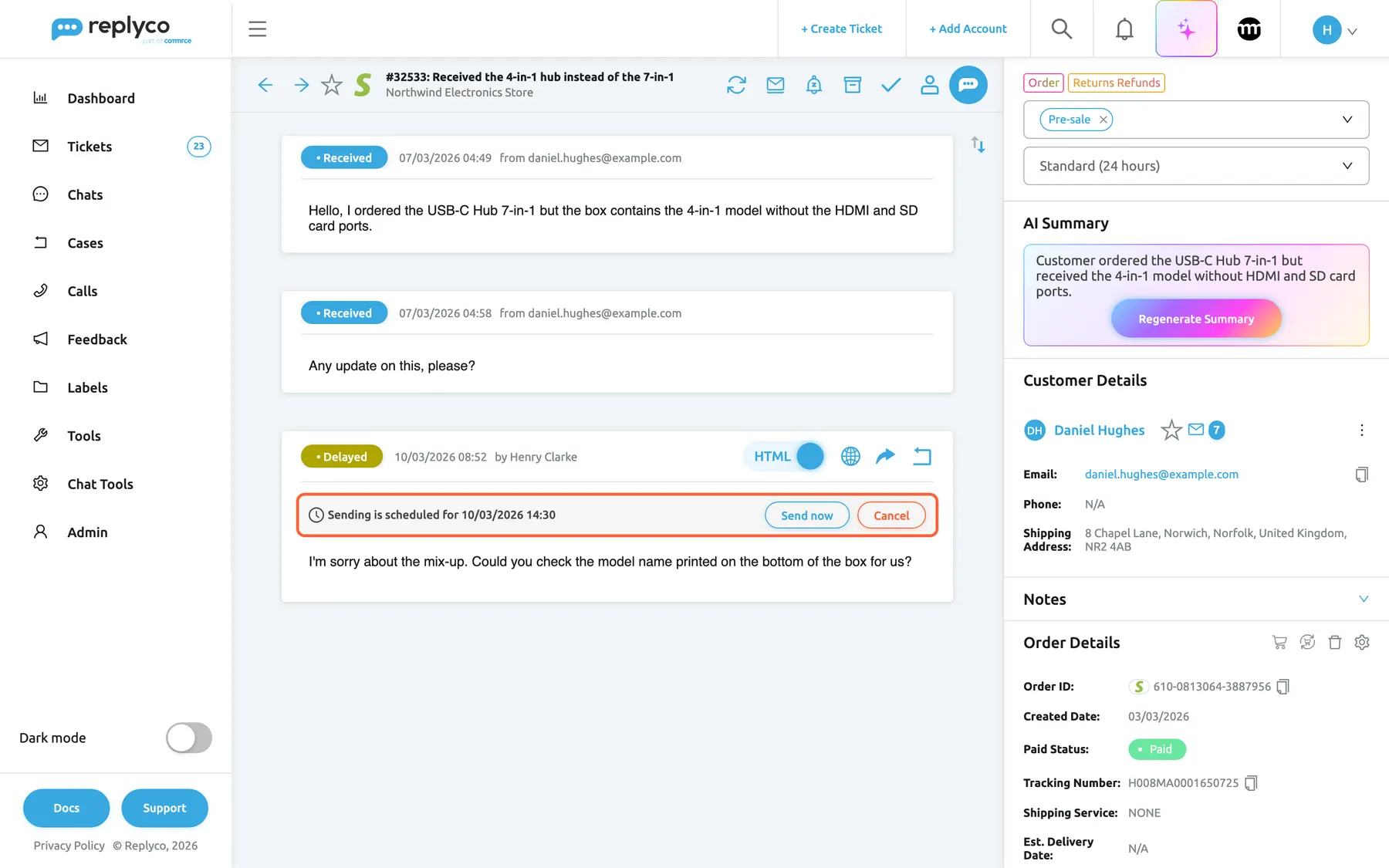
What this screenshot shows
- Screen
- Delayed (/ticket/:threadId)
- Highlighted
- group “Sending is scheduled for”, conversation-last-message, scheduled for 10/03/2026 14:30. Send now sends at once; Cancel stops the reply
- Also visible
- two customer messages marked Received; Delayed badge with the time it was written and the author; reply text
- Purpose
- what a scheduled reply looks like in the ticket
A cancelled reply
Section titled “A cancelled reply”A cancelled reply stays in the conversation with a red Cancelled badge, so you can copy its text into a new reply. Hover the badge for a small window with Try Again: if the original send time is still ahead, the reply is scheduled again for that time and the ticket returns to Delayed; if the time has passed, the reply is sent in the next round. The customer never sees a cancelled reply.
Why: cancelling is safe. A reply cancelled by mistake is one click from being back on its schedule.
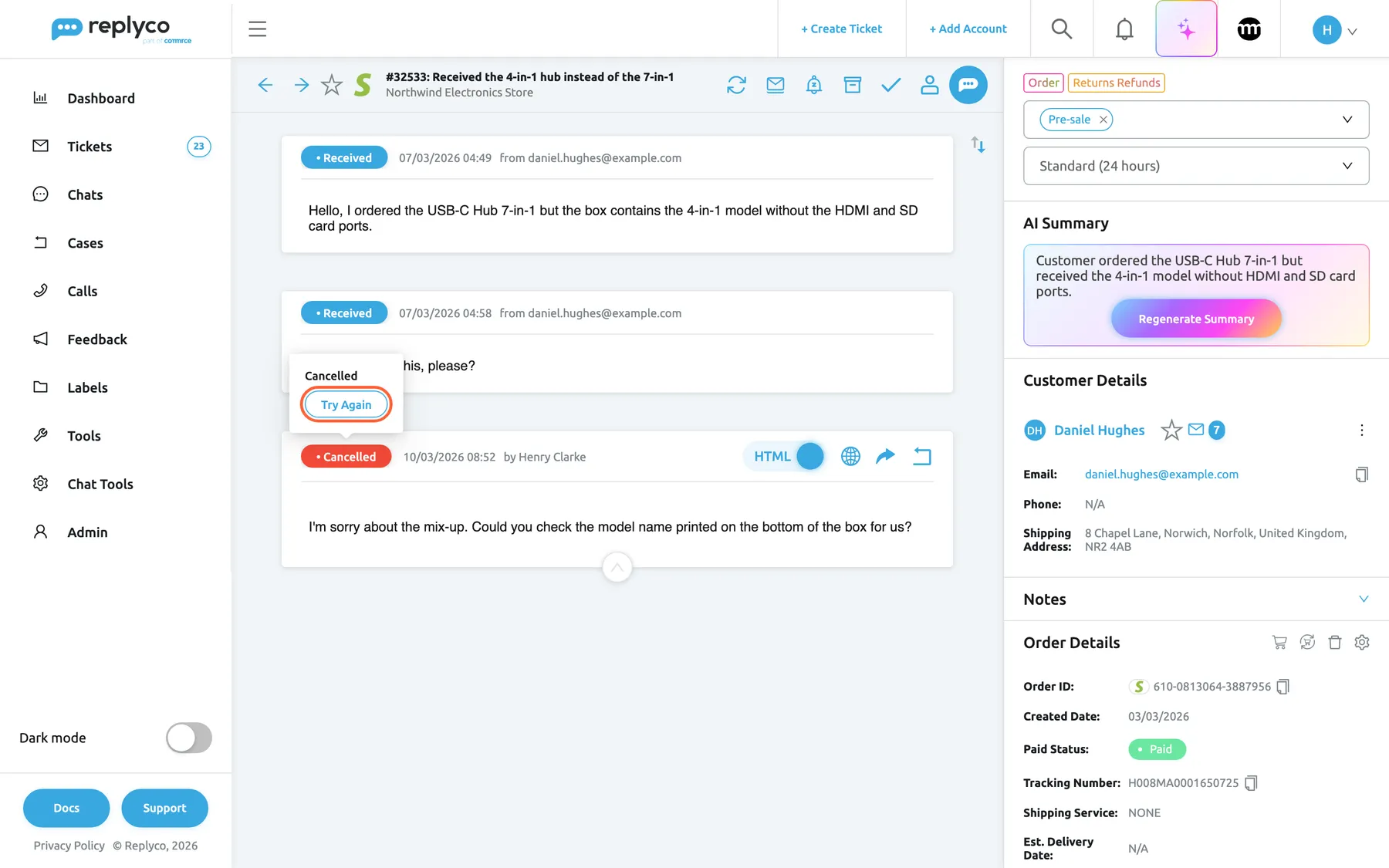
What this screenshot shows
- Screen
- Cancelled (/ticket/:threadId)
- Highlighted
- button “Try Again”, conversation-last-message-badge, enabled. schedules the reply again, or sends it now if its time has passed
- Also visible
- Cancelled badge on the reply; reply text kept; popover with the word Cancelled
- Purpose
- undoing a cancel
The Delayed list
Section titled “The Delayed list”TicketsDelayed lists every ticket that has at least one reply waiting, whether you or a colleague scheduled it, or an auto-response rule with a delay. It works like every other ticket list: the same columns, filters and bulk actions, described in Ticket lists. A ticket appears as soon as the reply is scheduled and leaves when no reply is waiting any more: sent, sent early or cancelled. Resolved tickets stay in the list; archived tickets, snoozed tickets and tickets of blocked customers do not, although their replies still go out. The counter beside Delayed follows your Ticket badge in the menu setting under Account Settings.
To see exactly when a reply goes out, open its ticket: the bar Sending is scheduled for on the reply shows the time.
In the Respond Till column, tickets with a scheduled reply already show Responded: for the response deadline, a scheduled reply counts as a response from the moment you schedule it.
Why: a scheduled reply is a promise not yet kept. The list is where a team lead checks that nothing waits longer than it should.
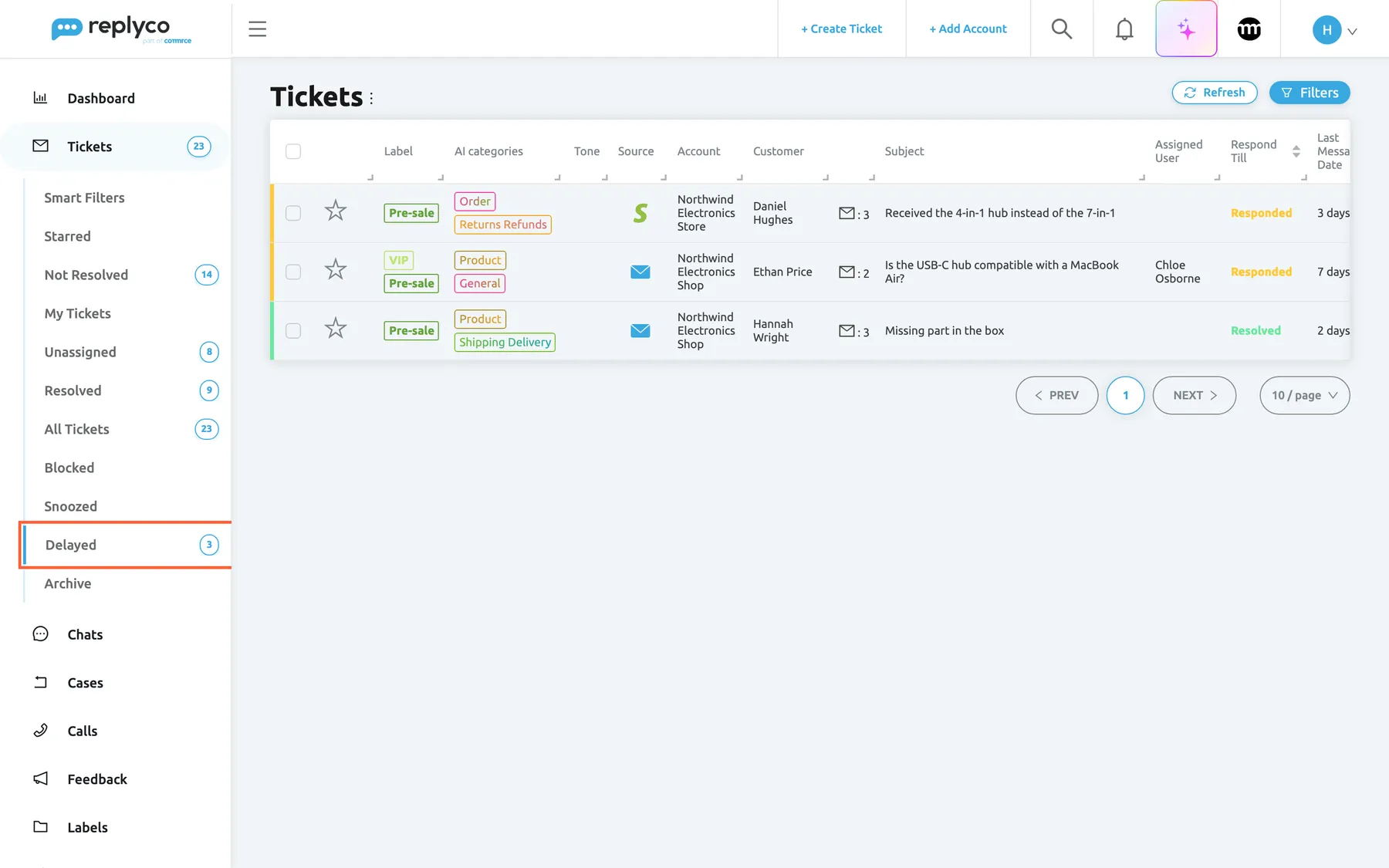
What this screenshot shows
- Screen
- Delayed (/tickets/delayed)
- Highlighted
- menuitem “Delayed”, sidebar-left, selected. shows the tickets with a scheduled reply
- Also visible
- 3 tickets; Respond Till shows Responded on the open tickets and Resolved on the resolved one; counter 3 beside Delayed
- Purpose
- the list of scheduled replies
Ticket history
Section titled “Ticket history”Delayed sending writes no history rows. Scheduling a reply, Send now, Cancel, Try Again and the send itself leave no grey row between the messages, and neither do the resolving and archiving that Resolve after Reply and Archive after Reply do. The reply’s badge, its date and its author are the record: Cancelled shows it was stopped, Sent that it went out.
Delayed sending with Resolve after Reply and Archive after Reply
Section titled “Delayed sending with Resolve after Reply and Archive after Reply”The check boxes Resolve after Reply and Archive after Reply to the left of the send button. They start ticked or clear according to Resolve Tickets After Reply and Archive Tickets After Reply in your Account Settings.
Both act when you schedule the reply, not when it is sent. With Resolve after Reply ticked, the ticket is resolved the moment you select the send button, while the reply still waits. With Archive after Reply ticked, the ticket moves to Archive at once and is not in Delayed, although the reply still goes out at its time. If the channel later refuses the reply, Replyco reopens the ticket and takes it out of the archive, so a failed reply is never hidden.
Your part of the work is done when you schedule the reply, so the ticket leaves your open lists straight away.
Three ways to use them:
- Schedule a reply for 08:00 tomorrow with Resolve after Reply: the ticket leaves Not Resolved tonight and stays in Delayed until 08:00.
- Leave both clear on replies you may still cancel, so the ticket stays in your open lists as a reminder.
- Use Archive after Reply only for replies you are sure of, because the ticket and its Cancel button are then only in Archive.
Delayed sending with auto-responses and rules
Section titled “Delayed sending with auto-responses and rules”Auto-responses are set up under ToolsAutomation › Auto-response Rules; message rules on the neighbouring tab. See Auto-responses for tickets and Rules for incoming tickets.
An auto-response rule with a delay creates a scheduled reply of its own. It shows in the ticket like yours, with Sending is scheduled for, the time and auto-response, has the same Send now and Cancel buttons and puts the ticket in Delayed.
When you reply, or schedule a reply, Replyco cancels the auto-responses in that ticket that were about to go out immediately. Message rules act on incoming customer messages only. They do not run on your replies, and they cannot schedule, send or cancel a reply.
A delayed auto-response makes an automatic acknowledgement feel less instant.
Three situations you will meet:
- A customer writes at 22:10, an auto-response rule with a 30-minute delay schedules its acknowledgement for 22:40, and the ticket appears in Delayed with auto-response.
- Before 22:40, anyone who opens the ticket can select Send now to send the acknowledgement early or Cancel to stop it.
- An auto-response without a delay is still waiting for its sending round when you reply: Replyco cancels it, and it shows Cancelled.
What you need to know
Section titled “What you need to know”| Topic | Fact |
|---|---|
| Personal, not company-wide | Each user sets Message sending delay for themselves. There is no company-wide delay for replies. |
| Limits | The minutes fields take 0 to 9999 minutes. The date picker allows today and any later day. |
| Accuracy | Replies go out in rounds a couple of minutes apart: up to two minutes before the time shown and a few minutes after it. |
| Time zones | Minutes count from now. A picked date and time is in your computer’s time zone, and every user sees the send time in their own. Replyco does not know the customer’s time zone; work out their local time yourself. |
| What is fixed when you schedule | The text, placeholders, your name, a translation, and what Resolve after Reply, Archive after Reply and Auto-assign on Reply do. |
| No editing | A scheduled reply cannot be edited or moved; cancel it and write a new one. |
| Who can stop it | Anyone who can open the ticket can use Send now and Cancel. |
| Response deadlines | The Respond Till column shows Responded from the moment you schedule; first response times in reports count from when the reply is actually sent. |
| Failures | A refused reply shows Error Sending and reopens the ticket. A reply whose account is not working waits until it works again. |
| History | No history rows; the reply’s badge is the record. |
| Chats | Replies in chats cannot be delayed; only chat auto-responses wait. |
| Customers | Customers see nothing until the reply is sent, and never see a cancelled one. |
| The open ticket | Does not update by itself when a scheduled reply goes out; reload the ticket to see its new status. |
Frequently asked questions
Section titled “Frequently asked questions”General
Section titled “General”What is delayed sending in Replyco?
Section titled “What is delayed sending in Replyco?”It gives a ticket reply a send time instead of sending it at once. You either set a personal default delay under Account Settings › Settings › Message sending delay, so every reply waits a few minutes, or choose Choose Delaying Time from the arrow next to the send button for one reply. Until it goes out, the reply shows Send now and Cancel in the ticket and the ticket is listed under Delayed.
Do I need a special plan for delayed sending?
Section titled “Do I need a special plan for delayed sending?”No. Every plan includes delayed sending. Only the Delayed list depends on your user: an admin must include it in your ticket-list permissions, or it is missing from the sidebar under Tickets.
Does my default delay apply to my colleagues?
Section titled “Does my default delay apply to my colleagues?”No. Message sending delay under Account Settings › Settings is personal. Each user’s send button reads Send with Delay only if that user set a delay, and colleagues without one send at once.
Can I delay replies in chats?
Section titled “Can I delay replies in chats?”No. The reply editor in chats has no delay menu and no default delay. Only chat auto-responses with a delay wait before they are sent.
Where do I set a default delay for all my replies?
Section titled “Where do I set a default delay for all my replies?”Open Account Settings, choose the Settings tab and, at the bottom of the Reply & Resolving workflow card, switch on Message sending delay, enter the minutes and select Save at the bottom of the page. Your send button then reads Send with Delay.
How long can the delay be?
Section titled “How long can the delay be?”The minutes fields under Account Settings and in the Choose delaying time window take 0 to 9999 minutes, just under seven days. With Pick date & time you can pick any day from today onwards, with no upper limit.
How do I switch the default delay off?
Section titled “How do I switch the default delay off?”Under Account Settings › Settings, switch off Message sending delay and select Save. Your send button reads Send again. Replies you already scheduled keep their time.
How do I schedule a single reply for tomorrow morning?
Section titled “How do I schedule a single reply for tomorrow morning?”In the ticket’s reply editor, select the arrow next to the send button, choose Choose Delaying Time, then Pick date & time. Pick tomorrow’s date and the time, select OK and then Send. The time is in your computer’s time zone.
Sending and timing
Section titled “Sending and timing”Why did my scheduled reply go out a minute early or a few minutes late?
Section titled “Why did my scheduled reply go out a minute early or a few minutes late?”Replyco sends due replies in rounds a couple of minutes apart. A scheduled reply goes out in the first round that reaches its time, which can be up to two minutes before the time shown on the Sending is scheduled for bar and a few minutes after it.
Can I change the text or the time of a scheduled reply?
Section titled “Can I change the text or the time of a scheduled reply?”No. Select Cancel on the reply in the ticket; it stays there with the badge Cancelled, so you can copy its text. Then write a new reply and schedule it with Choose Delaying Time.
I cancelled a scheduled reply by mistake. Can I get it back?
Section titled “I cancelled a scheduled reply by mistake. Can I get it back?”Yes. Hover the red Cancelled badge on the reply in the ticket and select Try Again. If its send time is still ahead, it is scheduled again for that time; if the time has passed, it goes out in the next round.
What happens if I select Cancel after the reply has already gone?
Section titled “What happens if I select Cancel after the reply has already gone?”Replyco shows The message has already been sent and nothing changes: the reply has reached the customer. Once a reply shows Processing or Sent, the Cancel button is gone.
Can I schedule an AI draft?
Section titled “Can I schedule an AI draft?”Not from the draft buttons. While the editor shows AI Suggested Response, the send button and its arrow are replaced by Accept & Send and Reject, so Choose Delaying Time is not offered for the draft.
Which time zone does the scheduled time use?
Section titled “Which time zone does the scheduled time use?”A time picked with Pick date & time is in your computer’s time zone. Replyco stores the moment itself, so a colleague in another time zone sees the same moment in their own time on the Sending is scheduled for bar. Replyco does not know the customer’s time zone.
Does a scheduled reply stop the response deadline?
Section titled “Does a scheduled reply stop the response deadline?”Yes, from the moment you schedule it. In the ticket list, Respond Till shows Responded for the ticket straight away. The first response time in reports is recorded when the reply is actually sent.
The ticket and the Delayed list
Section titled “The ticket and the Delayed list”Where do I find all replies that are waiting to be sent?
Section titled “Where do I find all replies that are waiting to be sent?”Under TicketsDelayed. The list shows every ticket with a reply still waiting, scheduled by anyone or by an auto-response rule, except archived and snoozed tickets and tickets of blocked customers. Open a ticket to see the time and to use Send now or Cancel.
I don’t see Delayed under Tickets. Why?
Section titled “I don’t see Delayed under Tickets. Why?”An admin decides which ticket lists each user sees. Ask them to add Delayed to your ticket-list permissions. Your scheduled replies still show in their tickets and still go out.
My scheduled reply is not in the Delayed list. Where is it?
Section titled “My scheduled reply is not in the Delayed list. Where is it?”The ticket was archived, most often because Archive after Reply was ticked when you scheduled the reply, or it was snoozed, or the customer is blocked. The reply still goes out at its time. Find the ticket under Archive, Snoozed or Blocked.
Can a colleague cancel or send my scheduled reply?
Section titled “Can a colleague cancel or send my scheduled reply?”Yes. Anyone who can open the ticket sees Send now and Cancel on a reply with the badge Delayed. This is also how a team stops replies scheduled by someone who has left.
Does Replyco record who cancelled a scheduled reply?
Section titled “Does Replyco record who cancelled a scheduled reply?”No. Delayed sending writes no history rows. The reply keeps the name of the person who wrote it and shows Cancelled, but not who cancelled it or when.
Resolve, archive and auto-responses
Section titled “Resolve, archive and auto-responses”Why was my ticket resolved before my scheduled reply went out?
Section titled “Why was my ticket resolved before my scheduled reply went out?”Resolve after Reply and Archive after Reply act when you schedule the reply, not when it is sent. The ticket is resolved or archived at once, and the reply goes out at its time. If the reply fails, Replyco reopens the ticket.
What happens to my scheduled reply if the customer writes again first?
Section titled “What happens to my scheduled reply if the customer writes again first?”The ticket reopens as usual, and your scheduled reply still goes out at its time. Read the new message; if your reply no longer fits, select Cancel on it in the ticket and write a new one.
What happens if the ticket is resolved or archived before the reply goes out?
Section titled “What happens if the ticket is resolved or archived before the reply goes out?”Nothing changes for the reply: it goes out at its time. Archiving takes the ticket out of Delayed, so open it from Archive if you want to send it early or cancel it.
Can a rule delay or cancel a reply?
Section titled “Can a rule delay or cancel a reply?”No. Message rules under ToolsAutomation act on incoming customer messages. Delays come from your default delay, Choose Delaying Time, or an auto-response rule with a delay.
Data and privacy
Section titled “Data and privacy”What happens to scheduled replies when someone leaves the company?
Section titled “What happens to scheduled replies when someone leaves the company?”Blocking or deleting a user does not cancel their scheduled replies; they go out under that person’s name. Check TicketsDelayed and cancel any that should not go.
Does the customer see a cancelled or scheduled reply?
Section titled “Does the customer see a cancelled or scheduled reply?”No. A scheduled reply reaches the customer only when it is sent, and a cancelled reply never does. Badges, times and buttons are only visible to your team in Replyco.
Troubleshooting
Section titled “Troubleshooting”| Symptom | What to check |
|---|---|
| The send button reads Send with Delay and you don’t want a delay | Your default delay is on. Switch off Message sending delay under Account Settings › Settings and select Save. |
| Choose Delaying Time is missing | The editor shows an AI draft: Accept & Send replaces the send button and its arrow. |
| The bar shows Sending is scheduled for with a time that has passed | In order: reload the ticket, because an open ticket does not update by itself when the reply goes out; check the yellow bar Please verify your email. at the top of Replyco; check that the ticket’s account is not blocked and does not need a new sign-in; check that the subscription is active. The reply goes out in the first round after that is fixed. |
| Replies stay Delayed or Processing for a long time | Reload the ticket first; an open ticket does not update by itself. Then check the time on the bar; a delay of 420 minutes is seven hours, not seven minutes. Then work through the row above. |
| The reply went out at the wrong hour | The picked time is in your computer’s time zone. Check the date and time on the reply’s bar before the reply goes out. |
| A scheduled reply is not in Delayed | The ticket is archived, snoozed or its customer is blocked. Look under Archive, Snoozed or Blocked. |
| Delayed is missing from the sidebar | An admin has not given you that ticket list. See User permissions and roles. |
| The ticket was resolved or archived before the reply went out | Resolve after Reply or Archive after Reply was ticked; both act when you schedule. |
| The message has already been sent when you select Cancel | The reply had already gone out; nothing can be cancelled. |
| A scheduled reply shows Error Sending and the ticket is open again | The channel refused the reply. Hover the badge for the reason, fix it, then select Try Again. |
| A colleague’s scheduled replies keep going out after they left | Blocking or deleting a user does not cancel them. Cancel them from Delayed. |