

Orders
Orders lists the orders Replyco holds from your marketplace and shop accounts, ten per page, with the customer, the number of tickets about each order, its dates, status and account. Agents use it to look up an order a customer mentions, check its tracking number and delivery date, and jump to the tickets about it; team leads use it to fetch an order Replyco does not have yet. Open it from ToolsOrders in the sidebar. Replyco fetches new orders from your accounts by itself, and an order also reaches Replyco when a customer’s message refers to it or when you look it up.
What you can do here
Section titled “What you can do here”- Browse and sort your orders. Ten orders per page, newest first, with seven sortable columns. Browse and sort the list
- Find an order by order number, customer email address, name, tracking number or postcode, date or account. Filter the list
- Fetch an order Replyco does not have, such as an order from before you connected the account, straight from the marketplace or shop. Search a marketplace for an order
- Open an order and read everything Replyco knows about it: customer, payment, shipping, delivery date, addresses and products. Open an order
- Refresh an order from its channel, or see it exactly as the channel holds it. Refresh an order from its channel
- See the tickets and internal notes of an order, and add a note. See an order’s tickets and notes
- Send, cancel or create an Amazon review request for one order. Handle an order’s feedback request · Automatic feedback requests
- Cancel, refund or return an eBay order without opening eBay. Cancel, refund or return an eBay order · eBay
- Know which orders arrive by themselves: order sync and the channels it covers. How orders reach Replyco · What each plan includes
The screen at a glance
Section titled “The screen at a glance”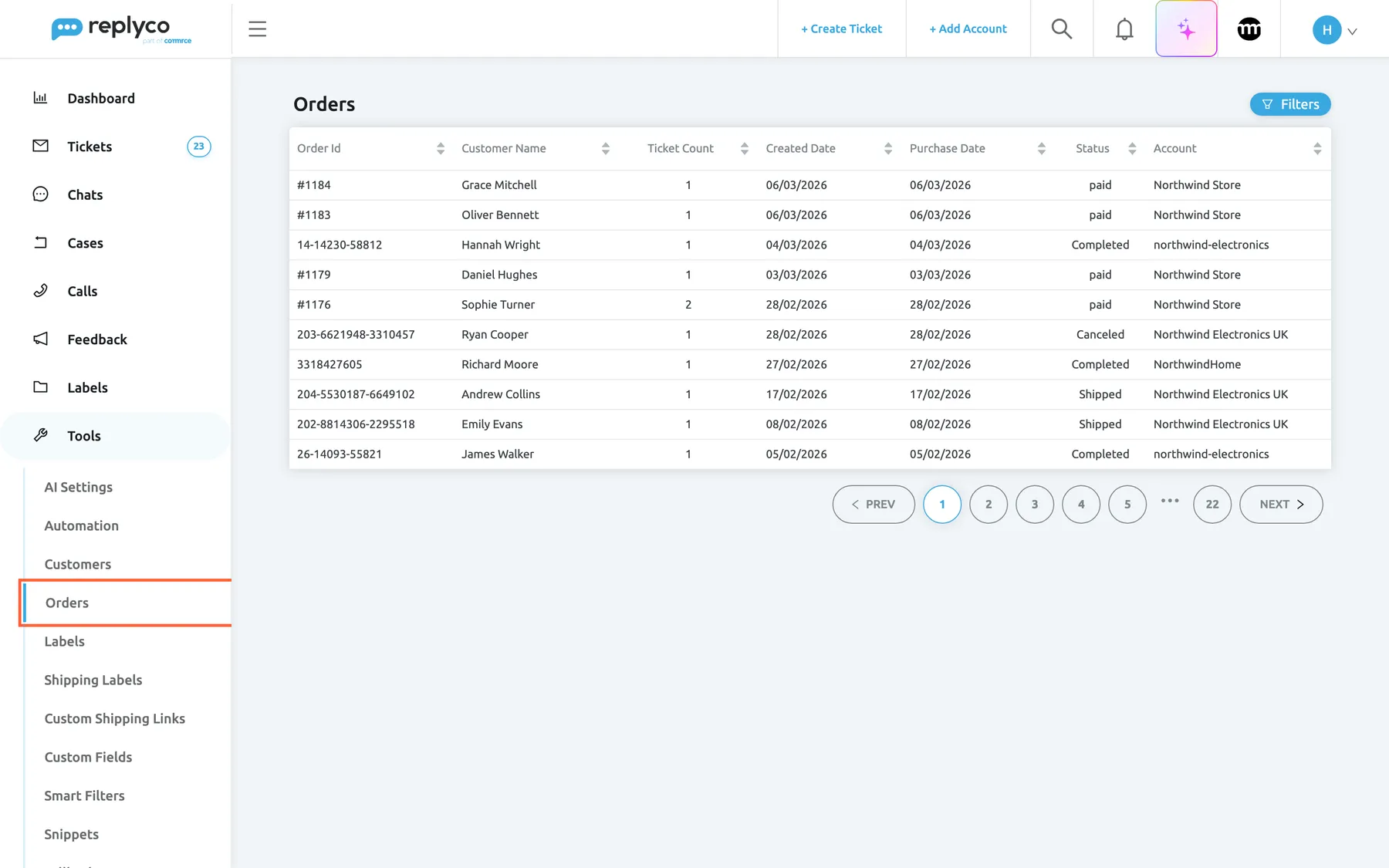
What this screenshot shows
- Screen
- Orders (/orders)
- Highlighted
- menuitem “Orders”, sidebar-left, selected. opens the Orders screen
- Also visible
- Tools menu expanded; Filters button, top right; columns Order Id, Customer Name, Ticket Count, Created Date, Purchase Date, Status, Account; ten orders from Shopify, eBay, Etsy and Amazon accounts; paging: page 1 of 22
- Purpose
- the Orders screen as it opens
| Region | What it shows | What you do there |
|---|---|---|
| Orders, in the sidebar under Tools | The screen, with a blue bar while it is open | Open the screen |
| Heading, top | Orders and, at the right, Filters | Open the filters and the marketplace search |
| Filter tags, under the heading | One tag per active filter, with a cross | Remove a filter |
| The table | One row per order, ten per page, with sort arrows in every column header | Sort, select a row to open the order |
| Paging, bottom right | PREV, page numbers and NEXT | Move through the pages |
The list shows the orders of the accounts you have access to. An admin decides which accounts each user works with, on the user’s Access Rights in AdminUsers; see Users.
Browse and sort the list
Section titled “Browse and sort the list”Each row is one order:
| Column | What it shows |
|---|---|
| Order Id | The order number as the channel shows it, such as 203-6621948-3310457 on Amazon or #1176 on Shopify |
| Customer Name | The buyer’s name from the order |
| Ticket Count | How many tickets are linked to the order, archived tickets not counted |
| Created Date | The date of the order as the channel reports it |
| Purchase Date | The purchase date as the channel reports it; for most channels the same as the created date |
| Status | The status in the channel’s own words, such as Shipped or Canceled on Amazon, Completed on eBay or paid on Shopify |
| Account | The account the order came from |
Select a column header to sort by it: once for ascending, again for descending, a third time to go back to the default, which is the newest orders first. The list shows ten orders per page; use the page numbers or NEXT below the table to go on.
The status is copied from the channel, not set by Replyco, so each channel uses its own words. Sorting by Status therefore groups them alphabetically, which mixes channels.
Filter the list
Section titled “Filter the list”-
Select Filters at the top right.
The filter panel opens under the heading.
-
Fill in what you know, for example the customer’s name in Customer Name.
-
Select Search.
The list shows only matching orders, and each filter appears as a tag under the panel.
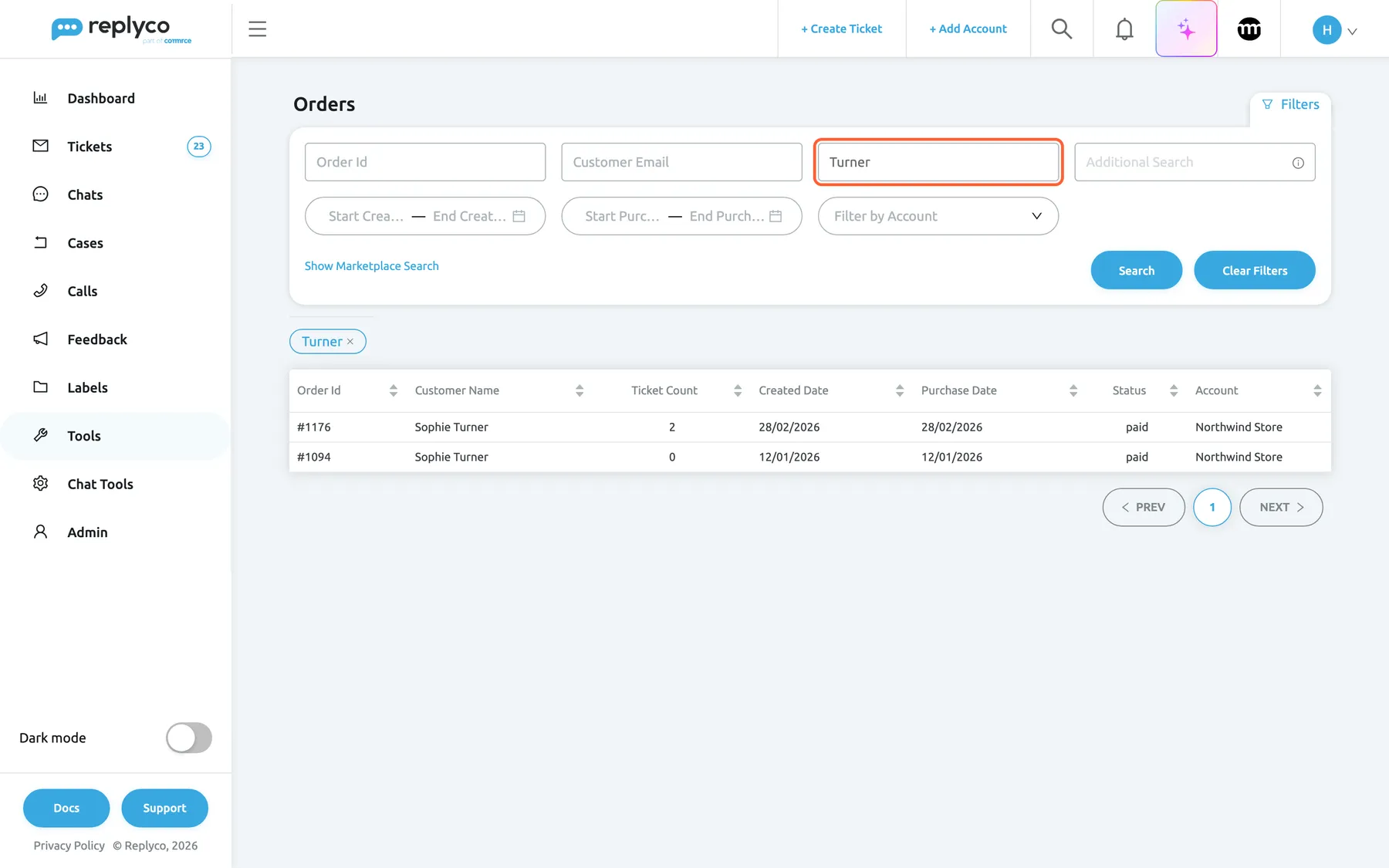
Type in a box and select Search; each active filter becomes a tag you can remove with its cross. What this screenshot shows
- Screen
- Orders (/orders)
- Highlighted
- textbox “Customer Name”, filters-panel, filled. filters the list by customer name when Search is selected
- Also visible
- boxes Order Id, Customer Email, Customer Name, Additional Search; two date ranges; Filter by Account; Show Marketplace Search link; Clear Filters and Search buttons; filter tag with a cross; two orders of one customer
- Purpose
- find orders with the filters
Two kinds of filters. The four boxes in the top row, Order Id, Customer Email, Customer Name and Additional Search, filter only when you select Search. The two date ranges and Filter by Account filter as soon as you set them. A date range needs both its first and its last day and includes both days whole.
| Filter | Finds orders whose … |
|---|---|
| Order Id | order number, or Linnworks order number, contains the text |
| Customer Email | customer email address contains the text |
| Customer Name | customer name contains the text |
| Additional Search | tracking number, buyer user ID, or shipping or billing postcode contains the text, capital letters ignored. The information icon names the tracking number, billing postcode and buyer user ID |
| Start Created Date – End Created Date | created date lies in the range |
| Start Purchase Date – End Purchase Date | purchase date lies in the range |
| Filter by Account | account is the one you choose |
Filters combine: an order must match all of them. To remove one, select the cross on its tag; Clear Filters in the panel removes them all and closes the panel. Filters belong to this visit only: when you leave the screen and come back, the list is unfiltered again.
Example. A customer writes my parcel RM482188157GB never came without an order number. Type RM482188157GB into Additional Search and select Search: the list shows order #1176, and the row opens it.
Search a marketplace for an order
Section titled “Search a marketplace for an order”Use this when the order is not in the list at all, for example an order placed long before you connected the account, which order sync does not reach back to.
-
Select Filters, then Show Marketplace Search at the bottom left of the panel.
The filter boxes make way for a search box and the drop-down Search in Marketplace.
-
In Search in Marketplace, choose the account the order belongs to.
The drop-down lists Replyco and your marketplace and shop accounts.
-
Type the complete order number into the search box and select Search.
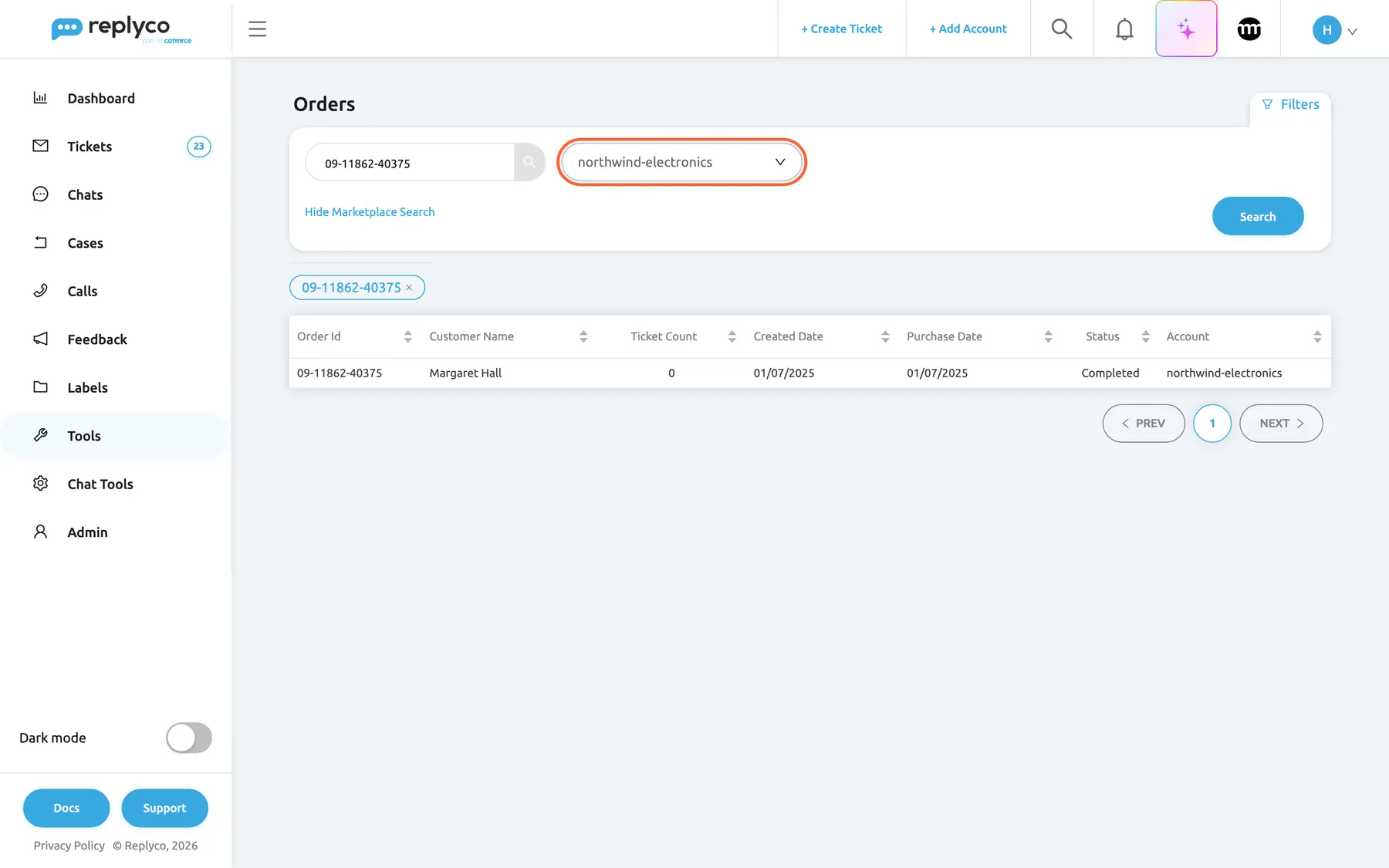
Marketplace search fetches one order by its number straight from the channel, even one Replyco never synced. What this screenshot shows
- Screen
- Orders (/orders)
- Highlighted
- combobox “Search in Marketplace”, filters-panel, showing northwind-electronics. chooses the account the order number is looked up in
- Also visible
- Search box with an eBay order number; Hide Marketplace Search link; one order in the table; tag with the order number
- Purpose
- fetch an order Replyco does not have yet
What happens. Replyco first looks for the order among the orders it already has for that account. When it is not there, Replyco asks the marketplace or shop for it, saves it, and, when an order-management system is connected, completes it from there. The list then shows only that order, and from now on it stays in Replyco like any other. The order is saved with the account you chose, so choose the right account.
- Account chosen, no number: Replyco shows Please select an account and enter an order number.
- Replyco chosen, or no account: the box searches the orders Replyco already has, by the same values as Additional Search.
Hide Marketplace Search brings the filter boxes back and clears every filter.
Example. Margaret Hall writes that the Smart Kettle she bought on eBay last July has stopped working, and gives the order number 09-11862-40375. Replyco has never synced that order. Choose your eBay account northwind-electronics, type the number and select Search: Replyco fetches the order from eBay, and you see the purchase date and the product to check the warranty.
Open an order
Section titled “Open an order”Select a row in the list. The window Order Details opens with the order.
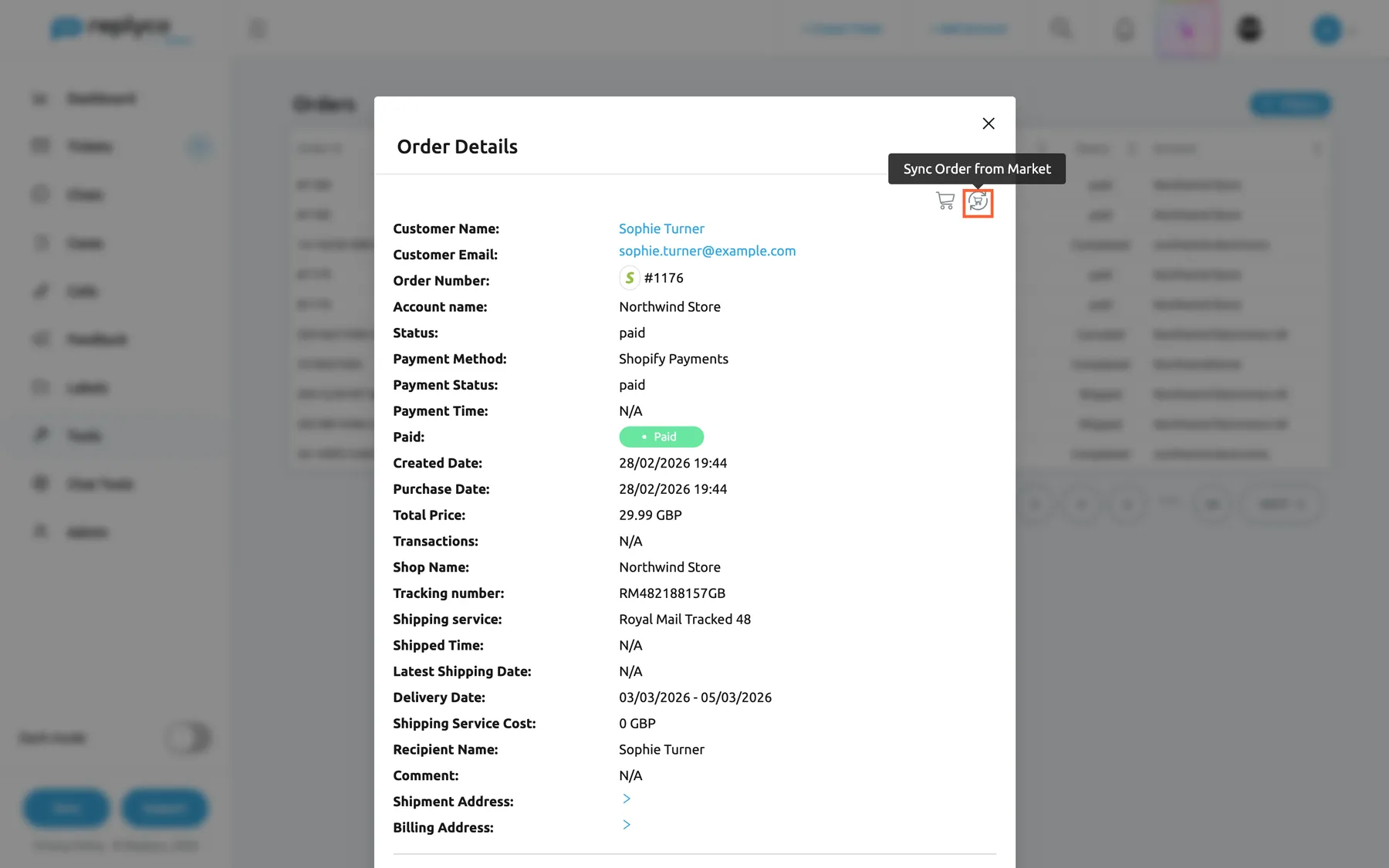
What this screenshot shows
- Screen
- Order Details (/orders)
- Highlighted
- button “Sync Order from Market”, dialog-top-right, hovered. fetches the order again from the marketplace or shop
- Also visible
- cart icon Show full Market Order; order fields from Customer Name to Billing Address; Paid badge; delivery date range
- Purpose
- read an order and refresh it
The same window opens from a customer’s Orders under ToolsCustomers and from the request log under FeedbackFeedback Requests. In a ticket, the order is shown in the right panel instead; see The ticket screen.
The window lists the order’s fields from top to bottom. A field without a value shows N/A.
| Field | What it shows |
|---|---|
| Customer Name | The buyer; a link to the customer under ToolsCustomers when Replyco knows the customer |
| Customer Email | The buyer’s email address; a link that starts a new ticket to them from the order’s account |
| Order Number | The order number with the channel’s icon; for channels such as eBay, a link to the order on the marketplace |
| Account name | The account the order came from |
| Order-management numbers | Linnworks Order Number, Linnworks Folder Names, ChannelAdvisor Order Number, Veeqo Order Number, Katana Order Number, the Brightpearl order number, Billbee Order Number and Billbee Tags, each only when that system is connected; the numbers link to the order there |
| Status, Payment Method, Payment Status, Payment Time | Status and payment as the channel reports them |
| Paid | A green Paid or a grey Not Paid badge |
| Created Date, Purchase Date | Date and time of the order |
| Total Price | The order total with its currency |
| Transactions, Shop Name | Payment transactions and the shop’s name, where the channel sends them |
| Tracking number | The tracking number; a link when the channel sends a tracking address |
| Shipping service, Shipped Time, Latest Shipping Date | Carrier or service, when it shipped, and the latest date it should ship |
| Delivery Date | The expected delivery date or range, with the delivery speed where the channel gives one |
| Shipping Service Cost, Recipient Name | Postage charged and the name on the parcel |
| Is Amazon FBA | Amazon only: whether Amazon fulfils the order |
| Comment | The buyer’s comment on the order, where the channel sends one |
| Sales Record Number | eBay only: the sales record number |
| Shipment Address, Billing Address | Folded; select the arrow to see address lines, city, state, country and postcode |
| Product(s) Info: | Each product with its title, SKU, quantity and price, and the Total Cost: |
When the channel gives the order’s web address, Order Page at the top of the window opens it. Close the window with the cross at its top right.
Refresh an order from its channel
Section titled “Refresh an order from its channel”The icons at the top right of the window act on the order:
| Icon | What it does |
|---|---|
| Cart, Show full Market Order | Opens the window Full order details with the order exactly as the marketplace or shop holds it, every field included |
| Circular arrows, Sync Order from Market | Fetches the order again from the marketplace or shop and saves the changes, such as a new status or tracking number; Replyco shows Success |
| Order-management icons | For an order that one connected system knows: show the full order there, sync it from there and, for Linnworks and Billbee, download the invoice |
| ⋮ | More actions: the eBay order actions, Billbee’s custom triggers, and the order-management actions when several systems are connected |
Hover an icon to see its name. The cart and the circular arrows are missing on Fruugo orders. Why refresh: order sync keeps updating orders it already has only on Amazon, Shopify and Wish; on other channels, the circular arrows are how you get the latest status and tracking number into Replyco. Replyco also refreshes an order when a new ticket about it comes in.
Replyco confirms with Success, and the order window shows the refreshed order. What each order-management system adds is described in Order management systems.
See an order’s tickets and notes
Section titled “See an order’s tickets and notes”Scroll down in the window, below the products.
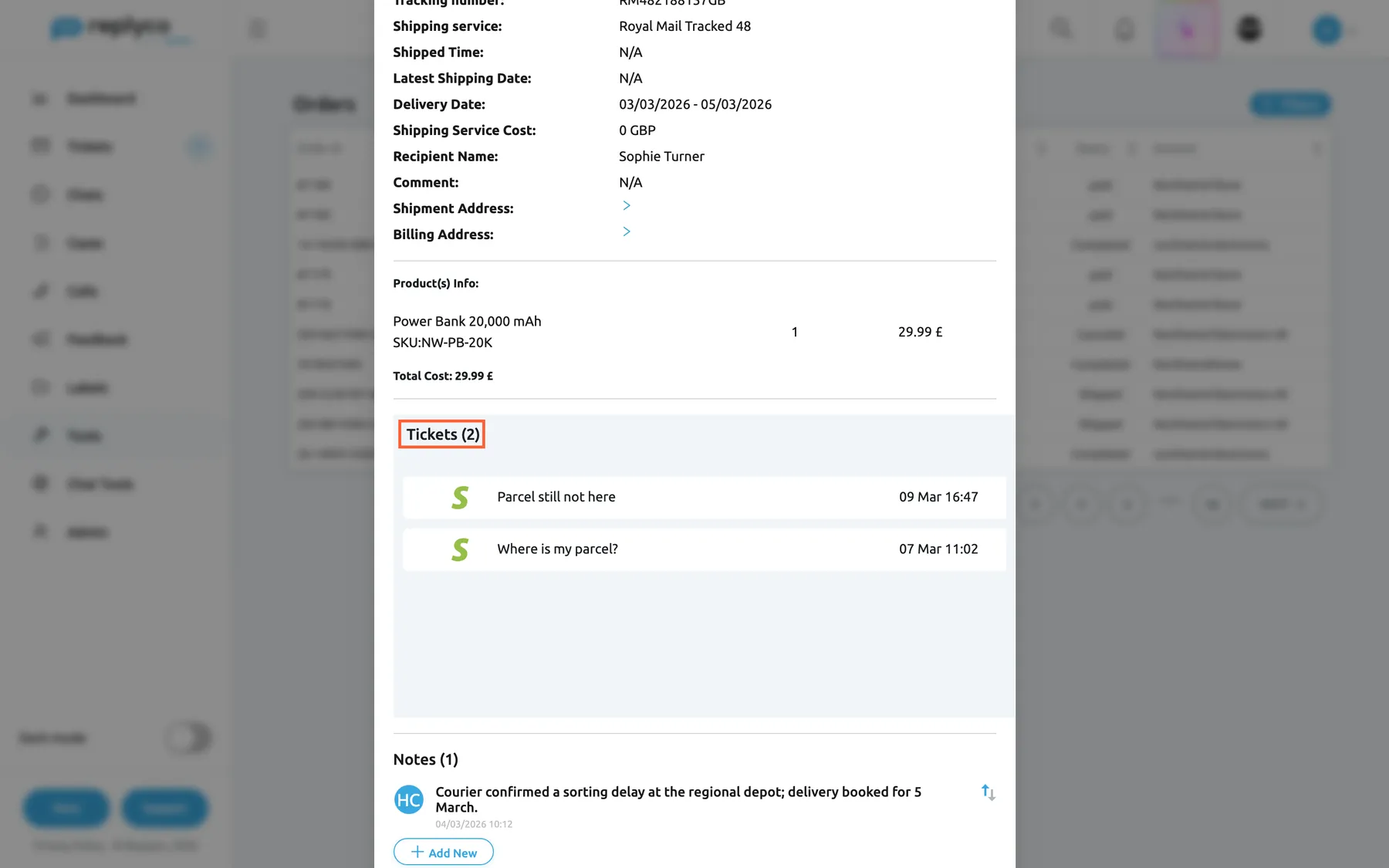
What this screenshot shows
- Screen
- Order Details (/orders)
- Highlighted
- heading “Tickets”, dialog-tickets, showing 2. lists the tickets linked to the order
- Also visible
- Product(s) Info with SKU, quantity and price; Total Cost; two ticket links with dates; Notes (1) with an order note; Add New button
- Purpose
- see the order's tickets and notes
Tickets lists the tickets linked to the order, with the channel icon, subject and date; select one to open the ticket. Archived tickets are left out, the same way as in Ticket Count. An order without tickets shows No Tickets. How an order gets linked to a ticket, and how to link another one, is described in The ticket screen.
Notes holds internal notes about the order, the same notes as the Order tab of every ticket about it. Select Add New, type the note and select Save; type @ and a name to mention a colleague. Hover a note to edit, delete or lock it. Notes from an order-management system appear here too, and deleting such a note deletes it there as well. The customer never sees notes.
Handle an order’s feedback request
Section titled “Handle an order’s feedback request”On an Amazon order, the window shows a line about the order’s review request between the products and the tickets. Replyco asks Amazon to send its review and seller feedback request when a feedback rule schedules one; the line tells you where that request stands.
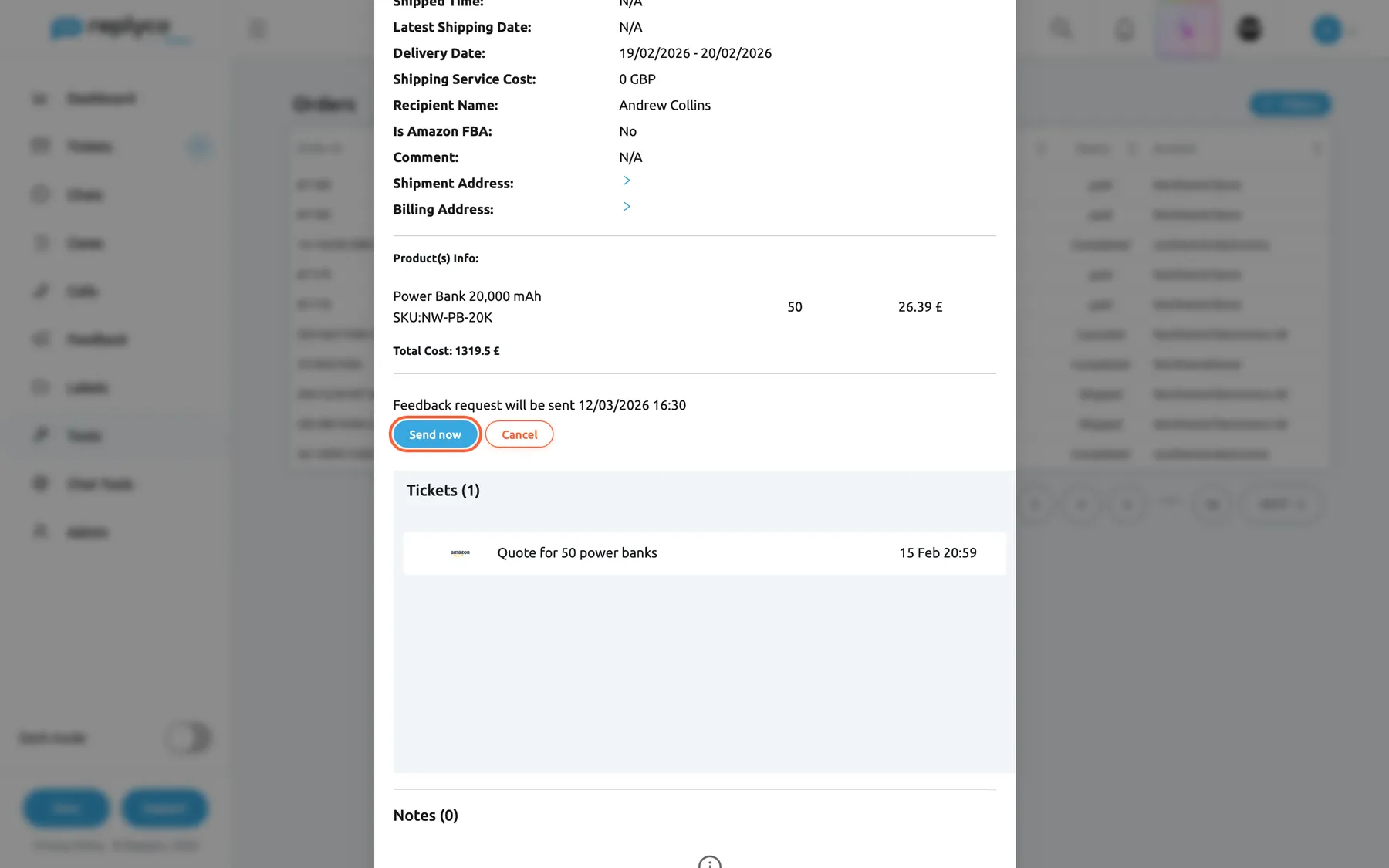
What this screenshot shows
- Screen
- Order Details (/orders)
- Highlighted
- button “Send now”, dialog-feedback-request, enabled. sends the pending review request to Amazon at once
- Also visible
- 50 × Power Bank 20,000 mAh; line: Feedback request will be sent 12/03/2026 16:30; Cancel button; Tickets (1)
- Purpose
- act on an order's feedback request
| The request is … | The line | Buttons |
|---|---|---|
| Pending | Feedback request will be sent 12/03/2026 16:30 | Send now, Cancel |
| Cancelled | Feedback request was cancelled, in red | Send now |
| Failed | Feedback request failed (…) with Amazon’s reason, in red | none |
| Sent | Feedback request was sent 06/03/2026 17:44 | none |
| Not created yet (Amazon orders) | – | Create feedback request |
Send now sends the request to Amazon at once, without the safety checks for open tickets and cases. Cancel stops a pending request. Create feedback request creates a request for an order no rule covered and sends it straight away. Amazon accepts one request per order, 5 to 30 days after delivery. The rules, the checks and every message Amazon can return are explained in Automatic feedback requests; the rules themselves live in Feedback Rules.
Cancel, refund or return an eBay order
Section titled “Cancel, refund or return an eBay order”On an order of an eBay account, the ⋮ at the top right of the window offers Cancel Order, Refund Order and Return Order.
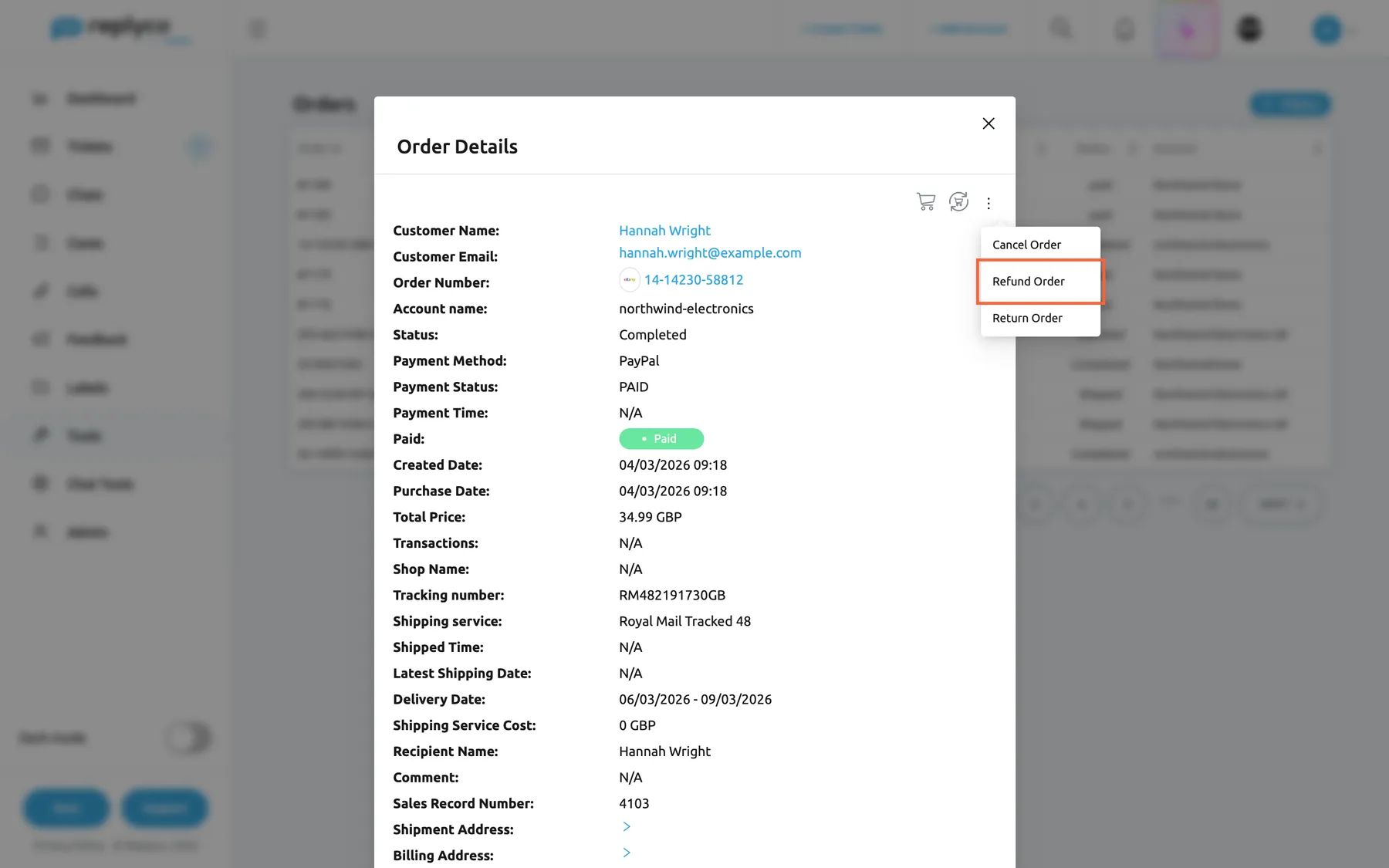
What this screenshot shows
- Screen
- Order Details (/orders)
- Highlighted
- menuitem “Refund Order”, dialog-top-right-menu, menu-open. opens the eBay refund form
- Also visible
- ⋮ menu with Cancel Order, Refund Order, Return Order; eBay order fields; Sales Record Number
- Purpose
- act on an eBay order
Each one opens a short form and sends the action to eBay, so you do not have to open Seller Hub. Cancel Order is left out once the order already has a cancellation. Every plan includes these actions; companies on an older plan may not have them. The forms, their required fields and what eBay does next are described in The ticket screen and eBay.
How orders reach Replyco
Section titled “How orders reach Replyco”Order sync, on every plan. Replyco checks each connected marketplace and shop account for new orders every few minutes and saves them, along with their products. Order sync also runs during a trial; companies on an older plan may not have it. On Amazon, Shopify and Wish the same sync also updates orders Replyco already has, such as a new status; on other channels an order is saved once and changes only when you refresh it or a new ticket about it comes in. Each sync looks back a limited number of days, so orders from long before you connected an account are not fetched by it. When order sync is on, the Accounts screen shows a column Last Orders Sync with the time of each account’s last order sync; see Accounts.
Which accounts are synced. Marketplace and shop accounts, such as Amazon, eBay, Etsy, Shopify, WooCommerce, BigCommerce, Magento, Kaufland, Otto, Fruugo and Shopline. Mailboxes and chat accounts have no orders. A blocked account, or one that needs a new login, is not synced until you fix it; see Fix a blocked or silent account.
Besides order sync, orders reach Replyco in three more ways, on every plan: when a customer’s message refers to an order, Replyco fetches that order and links it to the ticket; when you look an order up in a ticket’s Order Details; and when you use marketplace search on this screen. See What each plan includes.
Every control, explained
Section titled “Every control, explained”Orders in the sidebar
Section titled “Orders in the sidebar”The sidebar, under Tools, between Customers and Labels.
Opens the Orders screen. The entry is shown only to users with the Orders permission.
The one place to look up any order, whether or not a ticket is about it.
Filters
Section titled “Filters”The blue button at the top right of the screen.
Opens and closes the filter panel. The filters stay set while the panel is closed; their tags under the heading show what is active.
Keeps the list uncluttered until you need to narrow it.
The filter boxes
Section titled “The filter boxes”| Filter | What it does | Why |
|---|---|---|
| Order Id | Order number or Linnworks number contains the text; applies on Search | A customer quotes an order number |
| Customer Email | Customer email address contains the text; applies on Search | Find all orders of an email sender |
| Customer Name | Customer name contains the text; applies on Search | Find a customer’s orders by name |
| Additional Search | The tracking number, buyer user ID, or shipping or billing postcode contains the text; applies on Search | A customer quotes a tracking number or postcode instead of an order number |
| Start Created Date – End Created Date | Created date in the range, both days included; applies at once | Orders of a given day or week |
| Start Purchase Date – End Purchase Date | Purchase date in the range, both days included; applies at once | The same, by purchase date |
| Filter by Account | Orders of one account; applies at once | Work through one shop or marketplace |
Search and Clear Filters
Section titled “Search and Clear Filters”The buttons at the bottom right of the filter panel; Clear Filters appears once a filter is set.
Search applies the four boxes and goes back to page 1. Clear Filters removes every filter and closes the panel. The cross on a filter tag removes that filter alone.
Typing does not reload the list at every keystroke; you decide when to search.
Show Marketplace Search and Hide Marketplace Search
Section titled “Show Marketplace Search and Hide Marketplace Search”The link at the bottom left of the filter panel.
Switches the panel to a search box and Search in Marketplace, with Replyco and your marketplace and shop accounts. With an account and a complete order number, Search looks the order up in Replyco, then at the channel, saves it and shows it alone. Switching either way clears all filters.
Brings in an order Replyco never synced, such as one from before you connected the account.
The table
Section titled “The table”The main area of the screen, with paging below it.
Ten orders per page with the columns Order Id, Customer Name, Ticket Count, Created Date, Purchase Date, Status and Account. Every header sorts ascending, descending, then back to newest first. Selecting a row opens Order Details.
Shows at a glance which orders have tickets and where each one stands.
The icons of the order window
Section titled “The icons of the order window”| Icon | What it does | Why |
|---|---|---|
| Cart, Show full Market Order | Opens Full order details with every field the channel holds | See data Replyco does not show, such as item variations |
| Circular arrows, Sync Order from Market | Fetches and saves the order again; shows Success | Get a new status or tracking number now |
| Order-management icons | Show the full order in the system, sync from it, download the invoice (Linnworks, Billbee) | Work with the fulfilment data your warehouse uses |
| ⋮ | eBay cancel, refund and return; Billbee custom triggers; order-management actions when several systems are connected | Act on the order without leaving Replyco |
The sections of the order window
Section titled “The sections of the order window”| Section | What it shows or does | Why |
|---|---|---|
| Order fields | Customer, payment, dates, shipping, addresses and products | Answer a question about the order without opening the channel |
| Feedback request line (Amazon) | The review request’s status with Send now, Cancel or Create feedback request | Ask for a review, or hold one back, for this order |
| Tickets | Linked tickets that are not archived; each opens the ticket | Find the conversation about the order |
| Notes | Internal order notes with Add New, @mentions, edit, delete and lock | Keep warehouse or courier information with the order |
Who sees what
Section titled “Who sees what”| Part of the screen | What decides whether you see it or can use it |
|---|---|
| Orders in the sidebar | The Orders permission, set by an admin in AdminUsers |
| The orders in the list | Your user’s accounts: you see the orders of the accounts you have access to |
| New orders arriving by themselves | Order sync: every plan and every trial; companies on an older plan may not have it |
| Last Orders Sync on the Accounts screen | Order sync |
| Cancel Order, Refund Order, Return Order | An order of an eBay account; every plan includes these actions |
| Order-management fields and icons | A connected Linnworks, ChannelAdvisor, Veeqo, Katana, Billbee or Brightpearl that knows the order |
| The feedback request line | Amazon orders, or orders that already have a request |
| Is Amazon FBA, Sales Record Number | Amazon orders and eBay orders respectively |
The Admin, Moderator and User roles all include the Orders permission. See User permissions and roles.
What you need to know
Section titled “What you need to know”| Topic | Fact |
|---|---|
| Page size | Ten orders per page |
| Default order | Newest first; a column header sorts ascending, descending, then back |
| Ticket count | Tickets linked to the order, archived ones not counted |
| Status | The channel’s own word, not translated and not set by Replyco |
| Filters | Boxes apply on Search, dates and account at once; all filters combine; they reset when you leave the screen |
| Marketplace search | One complete order number and one account; looks in Replyco first, then at the channel, and saves what it finds |
| Order sync | Every plan and every trial; marketplace and shop accounts; every few minutes; looks back a limited number of days |
| Updates of stored orders | By the sync on Amazon, Shopify and Wish; otherwise by the circular arrows or a new ticket about the order |
| Refresh | The circular arrows fetch the latest status and tracking number from the channel |
| Deleting | There is no way to delete an order on this screen |
| Notes | Shared with the Order tab of every ticket about the order; internal only |
Frequently asked questions
Section titled “Frequently asked questions”Finding orders
Section titled “Finding orders”Why is an order missing from the Orders list?
Section titled “Why is an order missing from the Orders list?”Replyco shows only orders it has saved, for the accounts your user may access. Order sync fetches new orders but looks back only a limited number of days, and an older order arrives only when a message refers to it. Use Show Marketplace Search under Filters to fetch the order by its number from the marketplace or shop.
How do I find an order when the customer gives me only a tracking number?
Section titled “How do I find an order when the customer gives me only a tracking number?”Open Filters on ToolsOrders, type the tracking number into Additional Search and select Search. The same box also finds the buyer’s user ID and the shipping or billing postcode, and ignores capital letters.
Why doesn’t typing in the filter boxes change the list?
Section titled “Why doesn’t typing in the filter boxes change the list?”The four boxes Order Id, Customer Email, Customer Name and Additional Search apply only when you select Search in the filter panel. The date ranges and Filter by Account apply as soon as you set them. A date range needs both its first and its last day.
Why are my filters gone when I come back to the screen?
Section titled “Why are my filters gone when I come back to the screen?”The filters on ToolsOrders belong to one visit. When you leave the screen, for example to open a ticket, and come back, the list starts unfiltered with the newest orders first. Set the filters again, or open the ticket in a new browser tab to keep the filtered list.
What is the difference between the created date and the purchase date?
Section titled “What is the difference between the created date and the purchase date?”Both columns show when the order was placed, as the marketplace or shop reports it, and for most channels they are the same. They can differ for orders that reached Replyco another way, such as through an order-management system. The date filters under Filters work on each column separately.
Marketplace search
Section titled “Marketplace search”How does the marketplace search work?
Section titled “How does the marketplace search work?”It fetches one order by its number from a marketplace or shop account. Under Filters, select Show Marketplace Search, choose the account in Search in Marketplace, type the complete order number and select Search. Replyco looks in its own orders first, then asks the channel, and saves what it finds.
Does a marketplace search create anything on the marketplace?
Section titled “Does a marketplace search create anything on the marketplace?”No. Marketplace search on ToolsOrders only reads the order from the marketplace or shop and saves a copy in Replyco. Nothing is changed on the channel and nothing is sent to the customer. The saved order then stays in the Orders list like any other.
Order data
Section titled “Order data”Why is the status or tracking number of an order out of date?
Section titled “Why is the status or tracking number of an order out of date?”Order sync updates orders it already has only on Amazon, Shopify and Wish. For other channels, open the order and select the circular arrows, Sync Order from Market, at the top right of the window to fetch it again. A new ticket about the order also refreshes it.
Why does the ticket count differ from the tickets I know about?
Section titled “Why does the ticket count differ from the tickets I know about?”Ticket Count and the Tickets list in the order window count only tickets that are linked to the order and not archived. A ticket about the order that Replyco did not link to it, or an archived one, is not counted. Link the order in the ticket’s Order Details panel.
Can I delete an order or edit its data?
Section titled “Can I delete an order or edit its data?”No. The Orders screen shows order data as the marketplace, shop or order-management system sends it, and has no edit or delete control. To change an order, change it in the channel and then fetch it again with Sync Order from Market in the order window. Notes you add to an order are the exception.
Order sync and plans
Section titled “Order sync and plans”Which plan do I need for orders?
Section titled “Which plan do I need for orders?”None beyond your current plan. Every plan includes the Orders screen, marketplace search, orders linked to tickets and automatic order sync, which fetches every new order from your marketplace and shop accounts every few minutes; order sync is on during a trial too. Companies on an older plan may not have order sync; see What each plan includes.
Why don’t orders from my mailbox appear?
Section titled “Why don’t orders from my mailbox appear?”Order sync skips mailboxes, because a mailbox has no orders of its own; orders come from marketplace and shop accounts such as Amazon, eBay or Shopify. When a customer emails you about an order, Replyco looks for it among the orders it already has, or in your order-management system when one is connected, and links it to the ticket.
Actions on an order
Section titled “Actions on an order”Can I cancel or refund an eBay order from the Orders screen?
Section titled “Can I cancel or refund an eBay order from the Orders screen?”Yes, on every plan; companies on an older plan may not have these actions. Open the eBay order on ToolsOrders, select ⋮ at the top right of the window and choose Cancel Order, Refund Order or Return Order. Replyco sends the action to eBay; Cancel Order is missing once the order has a cancellation.
How do I ask an Amazon buyer for a review from the order?
Section titled “How do I ask an Amazon buyer for a review from the order?”Open the Amazon order on ToolsOrders. A pending request offers Send now; an order without a request offers Create feedback request, which sends one at once. Amazon accepts one request per order, 5 to 30 days after delivery; see Automatic feedback requests.
Troubleshooting
Section titled “Troubleshooting”| Symptom | What to check |
|---|---|
| Orders is missing under Tools | Your user lacks the Orders permission; ask an admin, see User permissions and roles |
| No new orders arrive | The account under AdminAccounts: blocked or waiting for a new login; then Last Orders Sync on the Accounts screen. Companies on an older plan may not have order sync. |
| An old order is not in the list | Orders from before the account was connected are not synced; use Show Marketplace Search |
| Please select an account and enter an order number. | An account is chosen but the search box is empty |
| Typing in a filter box does nothing | Select Search; the boxes apply only then |
| A date range does not filter | Pick both the first and the last day |
| Status or tracking number is out of date | Select Sync Order from Market in the order window; then the account’s connection |
| An order’s tickets are missing from Tickets | The tickets are archived, or not linked to the order; link it in the ticket’s Order Details |
| No eBay actions in the ⋮ menu | The order must belong to an eBay account; companies on an older plan may not have these actions |