

AI Settings: Categories
The Categories tab holds your company’s list of AI categories: the topics, such as Shipping & Delivery or Warranty, that Replyco’s AI may give a customer message. The AI chooses only from this list and reads nothing but the category names, so the list is how you teach it your topics. Here you add categories, rename and recolour them, give them the short tag your team sees on tickets, copy them and delete them. Open it from ToolsAI Settings and select the Categories tab.
Availability: the tab is part of Replyco AI, which every plan includes, and every feature is on during a trial. ToolsAI Settings appears for users with the Admin permission with edit rights, and the list applies to the whole company. Whether messages are categorised at all is decided by AI Categories on the AI Settings tab General. See What each plan includes.
What you can do here
Section titled “What you can do here”- See every topic the AI may choose. The list shows your categories sorted by name, each with its colours. Find a category and see its details · AI categories.
- Add a topic your customers write about. A new category needs only a name; Replyco then checks your reply templates and links the new category where it fits. Create a category.
- Rename, retag or recolour a category. A change reaches every ticket that already has the category, straight away. Change a category’s name, tag or colours.
- Split a broad topic. Copying a category gives you a new one with the same colours and tag to rename. Copy a category.
- Remove a topic you no longer need. Deleting takes the category off every ticket and template, with no undo. Delete a category.
The screen at a glance
Section titled “The screen at a glance”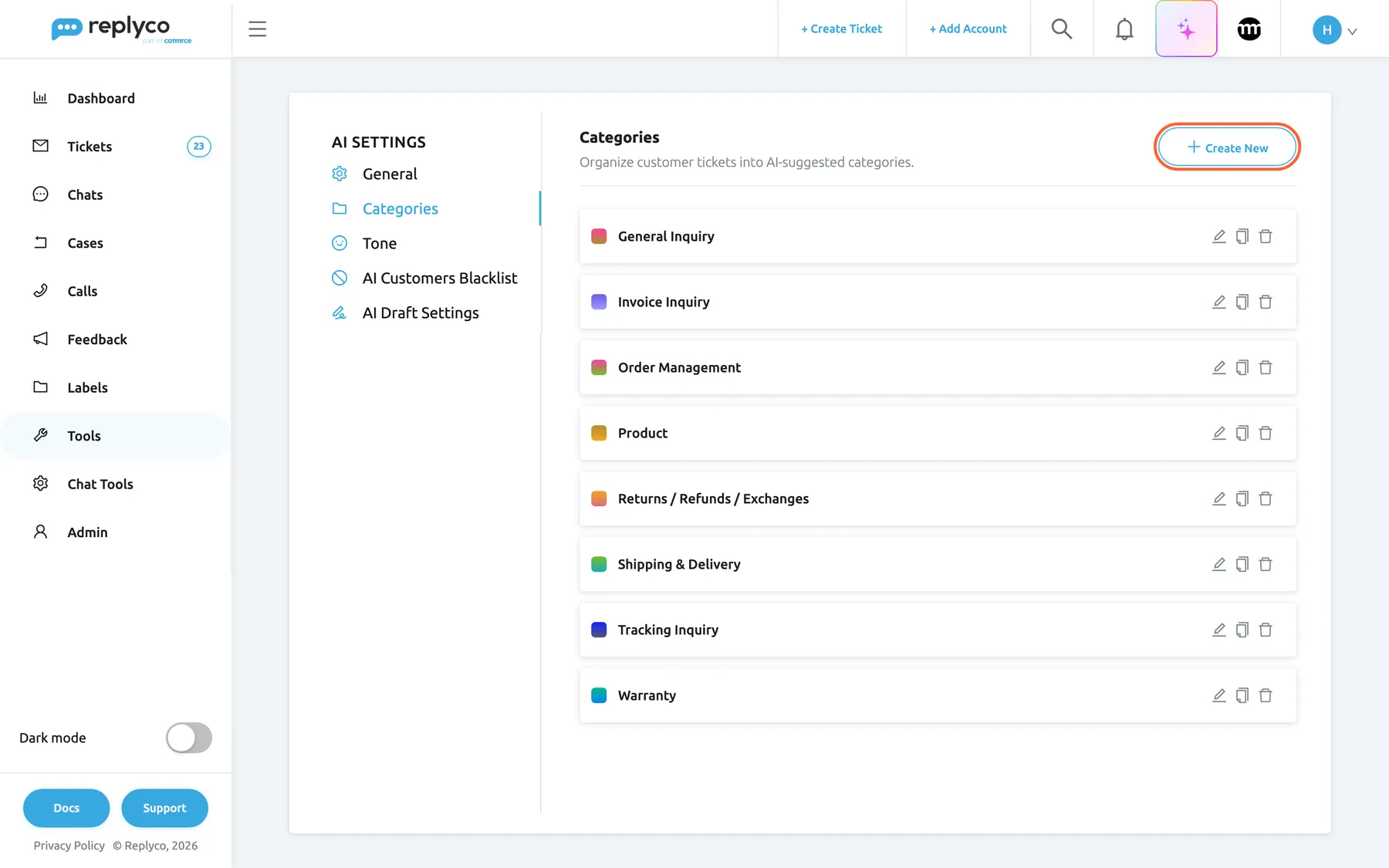
What this screenshot shows
- Screen
- Categories (/aiSettings?tab=categories)
- Highlighted
- button “Create New”, header-right, enabled. opens the New Category form
- Also visible
- 8 categories sorted by name, each with colour swatch, pencil, copy and bin icons; tab description: Organize customer tickets into AI-suggested categories.
- Purpose
- the Categories tab as it opens
| Region | What it shows | What you do there |
|---|---|---|
| Tab strip, left | The tabs of AI Settings, with Categories selected | Switch to another AI tab |
| Header, top | The heading Categories, the description Organize customer tickets into AI-suggested categories. and Create New | Start a new category |
| The list | One card per category: a colour swatch, the name, and pencil, copy and bin icons | Open, edit, copy or delete a category |
| Details panel, right (after a click) | The category’s colours, name and Tag, with Delete, Copy and Edit | Read a category, then act on it |
| Form (instead of the list) | New Category or Edit Category with Back to categories and Save | Enter the colours, the name and the tag |
A company with no categories sees an empty list with a no-data message. New companies start with seven categories, ready to use: Order Management, Shipping & Delivery, Returns / Refunds / Exchanges, Payments & Billing, Product, General Inquiry and Irrelevant / Not Related. Companies that sign up with Germany, Switzerland, Austria or Liechtenstein as their country get the same seven in German.
Find a category and see its details
Section titled “Find a category and see its details”- Open ToolsAI Settings and select the Categories tab.
- Select a category’s card. The card is outlined in blue, the list narrows to the left and the details panel opens on the right.
- Read the panel: the category’s gradient as a large swatch, its name as the heading, and Tag with the short tag, or a dash when it has none.
- Select Edit, Copy or Delete at the bottom of the panel, or the cross in its corner to close it.
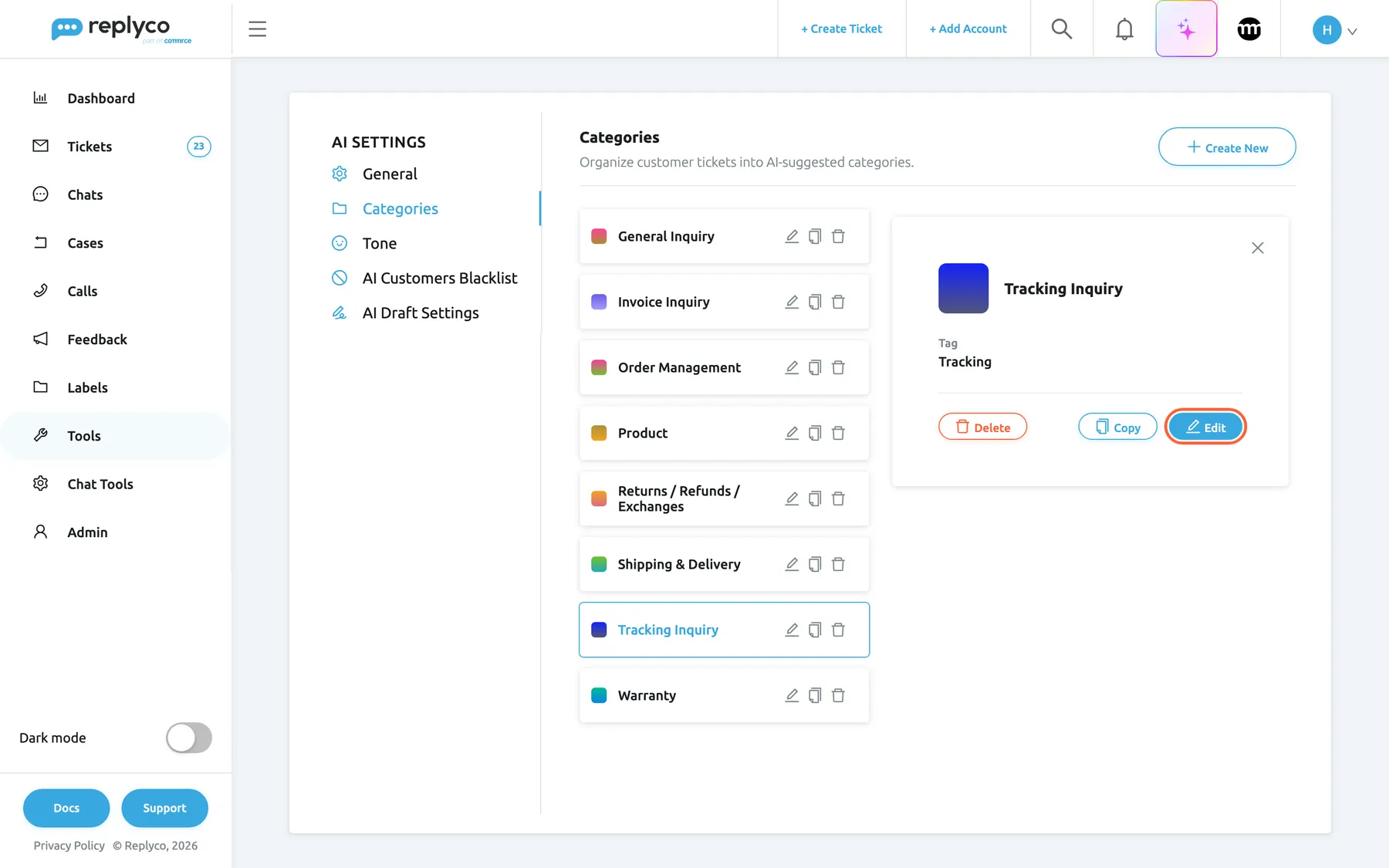
What this screenshot shows
- Screen
- Categories (/aiSettings?tab=categories)
- Highlighted
- button “Edit”, details-panel-bottom, enabled. opens the Edit Category form
- Also visible
- selected card: Tracking Inquiry; swatch and heading; Tag: Tracking; Delete and Copy buttons; close cross
- Purpose
- a category's details
Example: Northwind Electronics’ list has eight categories. Selecting Tracking Inquiry shows a blue gradient and the tag Tracking, which is what agents read on a ticket about a parcel that has not moved.
The list is sorted by name each time the tab loads. A category you create is added at the end of the list until you reload the page or open the screen again; a category you rename keeps its place until then.
Create a category
Section titled “Create a category”- On the Categories tab, select Create New in the top right corner. The form New Category replaces the list, with two random colours already chosen.
- (Optional) Select the bar Click to change color under Category color and pick the start and end colours of the gradient in the two pickers that open. Select anywhere outside them to close them.
- Under Category name, type the name of the customer’s request, for example Cancellation. This is the only thing the AI reads.
- (Optional) Under Category tag, type the short text your team sees on tickets, for example Cancel.
- Select Save in the top right corner.
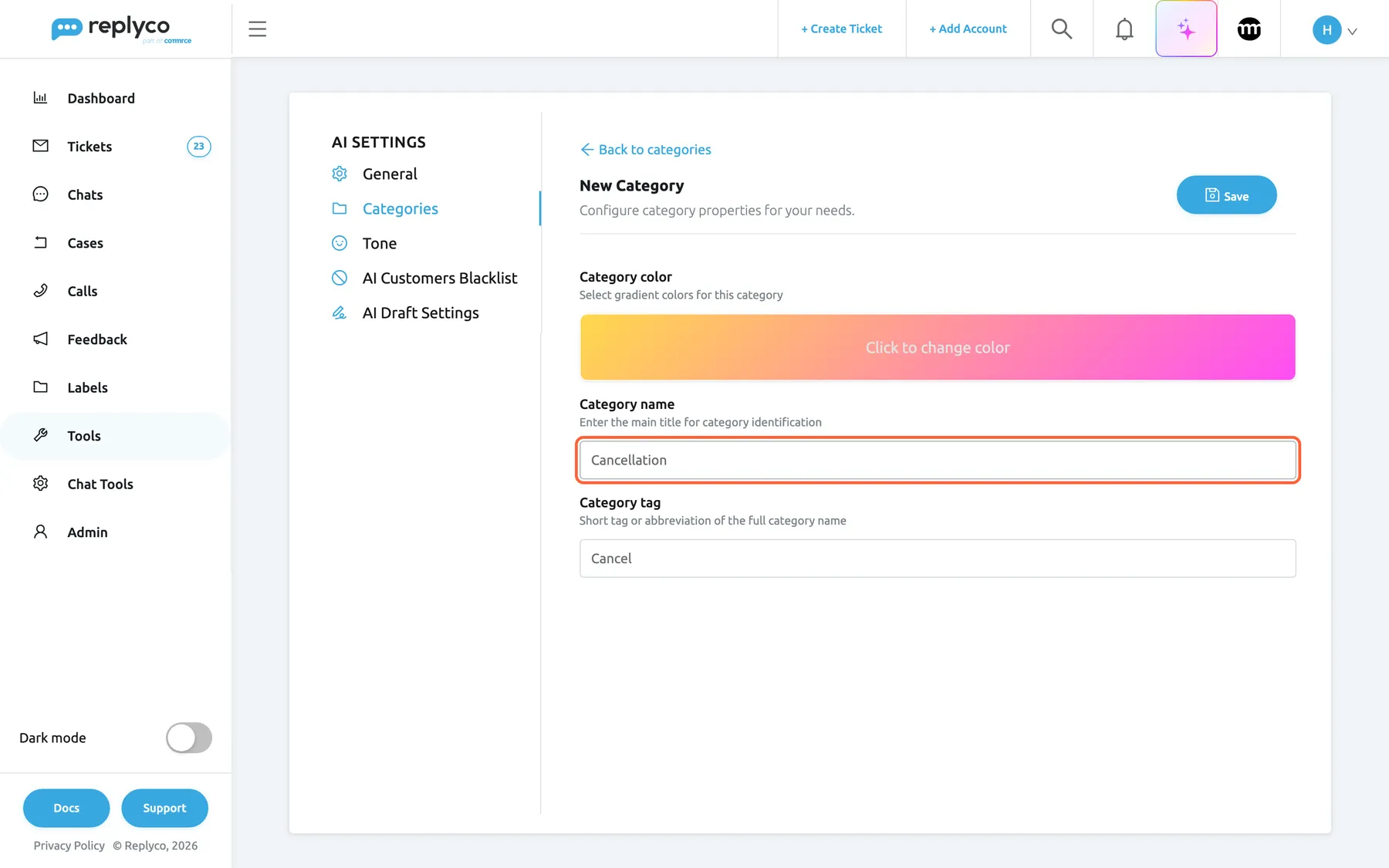
What this screenshot shows
- Screen
- New Category (/aiSettings?tab=categories)
- Highlighted
- textbox “Category name”, form-middle, Cancellation. sets the name the AI chooses by; Save stays unavailable while it is empty
- Also visible
- Back to categories; Save button; Category color gradient bar; Category tag: Cancel
- Purpose
- create a category
The form closes, the list comes back, Replyco confirms with Success, and the new category is at the end of the list. Save stays unavailable while Category name is empty.
What happens next: new customer messages can get the category from now on; tickets you already have are not categorised again. Replyco also asks the AI, once for each of your reply templates, including switched-off ones, whether the new category fits it, and links it where it does. That takes one AI action per template, counted under AI Usage, so saving a new category takes longer when you have many templates. To see or change which templates were linked, see Templates.
Change a category’s name, tag or colours
Section titled “Change a category’s name, tag or colours”- Select the pencil icon on the category’s card, or select the card and then Edit in the details panel. The form Edit Category opens with the category’s values.
- Change the colours, Category name or Category tag. The Save button pulses once something has changed.
- Select Save, or Back to categories to leave without saving.
A change reaches every ticket that already has the category: the ticket list, the ticket and the category cards under TicketsSmart Filters show the new name, tag and colours straight away. The tickets keep the category. From then on the AI chooses by the new name, so a rename can change which new messages get it.
Example: Northwind renames Tracking Inquiry to Parcel not moving to make it narrower than Shipping & Delivery. Old tickets now show the new name; new messages about a late parcel that has moved recently go to Shipping & Delivery instead.
Copy a category
Section titled “Copy a category”- Select the copy icon on the category’s card, or select the card and then Copy in the details panel.
- The form opens with the same colours and tag and the name followed by (copy).
- Rename the copy, change its colours and tag, and select Save.
Example: Shipping & Delivery collects both late parcels and address changes. Northwind copies it, renames the copy Address change and gives it its own colour. Existing tickets keep Shipping & Delivery; new messages can get either.
A copy is a new category: Replyco checks your templates for it as it does for any new one. Rename it before saving, because two categories with the same name are both assigned to every message that matches the name.
Delete a category
Section titled “Delete a category”- Select the bin icon on the category’s card, or select the card and then Delete in the details panel.
- Replyco asks Are you sure you want to delete this item? Select Yes to delete, or No to keep the category.
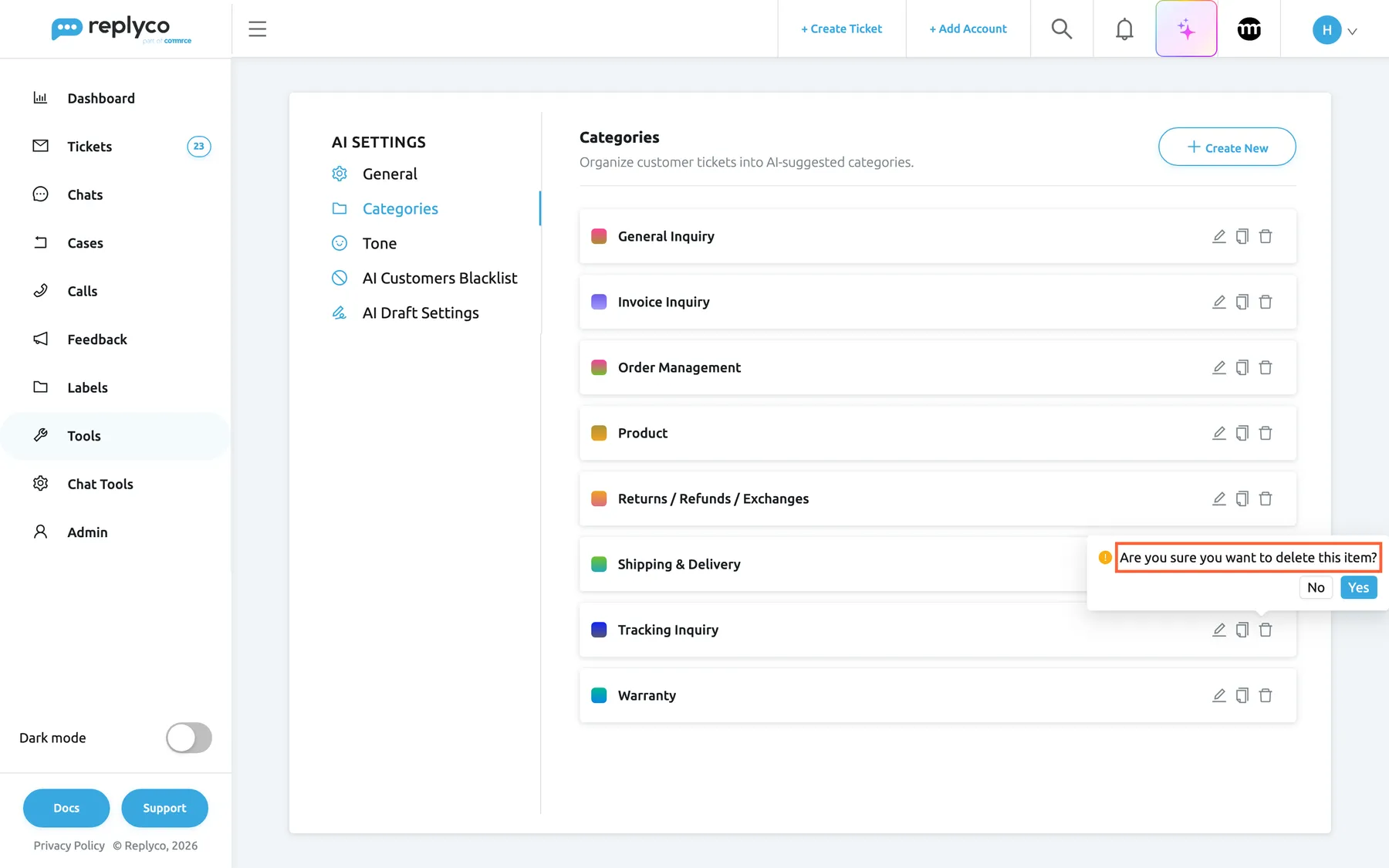
What this screenshot shows
- Screen
- Categories (/aiSettings?tab=categories)
- Highlighted
- tooltip “Are you sure you want to delete this item?”, list-card-popover, open. Yes deletes the category everywhere; No keeps it
- Also visible
- pop-up with No and Yes above the bin icon of the Tracking Inquiry card; the other categories
- Purpose
- delete a category
The category leaves the list, every ticket that has it and every template linked to it. Tickets whose only category it was then count as No Category in the category filter. Creating a category with the same name again does not bring it back to those tickets.
Every control, explained
Section titled “Every control, explained”The tab has a header, the list, a details panel that opens beside it and a form that replaces it.
Categories tab
Section titled “Categories tab”ToolsAI Settings, the second tab of the strip. The address ends in ?tab=categories.
Opens the category list. Every user of a company with Replyco AI can open and change it. The list is used whenever AI Categories on the General tab is on; you can edit it while categorisation is off, and your changes take effect when it is switched on.
The list and the switch are separate so you can prepare your topics before the AI starts using them.
Create New
Section titled “Create New”Top right corner, next to the heading. Hidden while the form is open.
Opens the empty form New Category with two random colours. Shows a spinner while a new category is being saved.
Start a category from scratch; to start from an existing one, use the copy icon.
Category card
Section titled “Category card”One per category in the list, sorted by name when the tab loads.
Shows a small swatch of the category’s gradient and its name. Selecting the card opens the details panel. The pencil opens Edit Category, the copy icon opens the form with a copy, and the bin asks Are you sure you want to delete this item? before deleting. A card shows a spinner while its change is being saved.
Everything you do to a category starts from its card.
Details panel
Section titled “Details panel”Right of the list, after selecting a card. The cross in its corner closes it.
Shows the gradient, the name as the heading and Tag (a dash when there is no tag). At the bottom: Delete, which asks Are you sure you want to delete this item?, Copy and Edit.
Check a category’s tag and colours before changing them.
Category color
Section titled “Category color”Top of the form: the bar labelled Click to change color, described as Select gradient colors for this category Selecting it opens two colour pickers, for the start and the end of the gradient.
Each picker takes a colour from its field, a hex code, red, green, blue and transparency values, or one of its swatches. The bar shows the result at once. The two colours become the swatch in the list, the text and border of the category’s tag on tickets and the frame of its card among the category cards. Optional; a new category starts with two random colours.
Colour is what the eye finds first; similar colours for related topics make a queue easier to scan.
Category name
Section titled “Category name”The text box under Category name, with the placeholder Name and the description Enter the main title for category identification
The only thing the AI reads about the category, and required: Save stays unavailable while it is empty. Up to 1,000 characters. Replyco does not stop two categories having the same name; both are then assigned. See AI categories for how the AI uses it.
A name that spells out the customer’s request, such as Returns / Refunds / Exchanges, is one the AI can apply; a name like Misc is one it has to guess.
| Do | Don’t |
|---|---|
| Name the customer’s request: Warranty, Tracking Inquiry | Name your team or process: Team B, Escalate to manager |
| Keep categories distinct: Shipping & Delivery and Tracking Inquiry | Create near-duplicates: Delivery, Deliveries |
| Keep General Inquiry and Irrelevant / Not Related under those names | Rename them Other and Spam |
| Put topics in the name | Create a mood such as Angry customer; that is what tone analysis is for |
Category tag
Section titled “Category tag”The text box under Category tag, with the placeholder Tag and the description Short tag or abbreviation of the full category name
The text on the category’s coloured tag in the ticket list and at the top of the ticket. Optional, up to 100 characters; the AI never sees it. A category without a tag shows as an empty coloured box on tickets.
The list column is narrow and tickets can have several categories; a short tag keeps them readable.
Save and Back to categories
Section titled “Save and Back to categories”Save at the top right of the form, next to the heading; Back to categories above the heading.
Save creates or updates the category, returns to the list and confirms with Success; if saving fails, an error message appears and the list is unchanged. Back to categories returns without saving.
The form covers the list, so both buttons take you back to it.
What you need to know
Section titled “What you need to know”| Topic | Fact |
|---|---|
| One list per company | Every account and channel uses the same categories. |
| Required | Only the name. Tag and colours are optional. |
| Limits | Names up to 1,000 characters, tags up to 100. No limit on the number of categories. |
| Duplicates | Allowed, and both are assigned. Keep every name unique. |
| Order | By name when the screen loads; new categories appear at the end until then. |
| Renames | Reach every ticket that already has the category. |
| New categories | Apply to new messages only; Replyco checks every template once for them. |
| Deleting | Removes the category from every ticket and template; no undo. |
| Who can change it | Users with the Admin permission with edit rights, who see ToolsAI Settings. |
| History | Creating, changing and deleting categories is not recorded anywhere you can see. |
Frequently asked questions
Section titled “Frequently asked questions”The list
Section titled “The list”Which categories does Replyco start with?
Section titled “Which categories does Replyco start with?”New companies get seven: Order Management, Shipping & Delivery, Returns / Refunds / Exchanges, Payments & Billing, Product, General Inquiry and Irrelevant / Not Related. Companies that sign up with Germany, Switzerland, Austria or Liechtenstein as their country get them in German. Change them on the Categories tab of ToolsAI Settings.
Is there a limit on the number of categories?
Section titled “Is there a limit on the number of categories?”No. Replyco sets no limit on the number of categories on the Categories tab. A shorter list of distinct topics works better, though, because the AI can confuse categories whose names overlap, and every new category costs one AI check per reply template when you create it.
Why is my new category at the bottom of the list?
Section titled “Why is my new category at the bottom of the list?”The Categories tab sorts categories by name when it loads, and a category you create is added at the end. Reload the page, or leave ToolsAI Settings and open it again, and the category is in its alphabetical place.
Who can change the categories?
Section titled “Who can change the categories?”Users with the Admin permission with edit rights, in a company with Replyco AI, can open ToolsAI Settings and add, change or delete categories. Because changes reach every ticket, agree in your team who maintains the list. See User permissions and roles.
Creating and changing
Section titled “Creating and changing”Why can’t I save a new category?
Section titled “Why can’t I save a new category?”Save stays unavailable while Category name is empty, because the name is the only required field and the only thing the AI reads. Type a name that describes the customer’s request, such as Warranty, and the button becomes available.
Will a new category be added to my existing tickets?
Section titled “Will a new category be added to my existing tickets?”No. A category you create on the Categories tab can only be given to customer messages that arrive afterwards. Replyco does check your reply templates when you save it and links the category to those whose text fits.
What happens to my tickets when I rename a category?
Section titled “What happens to my tickets when I rename a category?”Every ticket that has the category shows the new name, tag and colours straight away, in the ticket list, the ticket and the category cards. The tickets keep the category. The AI chooses by the new name from then on, so the rename can change which new messages get it.
What is the tag for, and what if I leave it empty?
Section titled “What is the tag for, and what if I leave it empty?”The tag, entered in Category tag, is the short text on the coloured tag in the ticket list and the ticket, such as Tracking for Tracking Inquiry. The AI never sees it. A category saved without a tag shows as an empty coloured box on tickets.
How do I split a broad category into two?
Section titled “How do I split a broad category into two?”Select the copy icon on the broad category’s card on the Categories tab, rename the copy, give it its own colour and select Save. Tickets that already have the original keep it; new messages can get either category. Rename the copy before saving, because two categories with the same name are both assigned to the same messages.
Deleting
Section titled “Deleting”What happens when I delete a category?
Section titled “What happens when I delete a category?”After the question Are you sure you want to delete this item? and Yes, the category is removed from the list, from every ticket that has it and from every template linked to it. Tickets whose only category it was count as No Category. There is no undo.
Can I get a deleted category back?
Section titled “Can I get a deleted category back?”No. Creating a category with the same name on the Categories tab gives you a new category that only new messages can get; the tickets that had the deleted one do not get it back. Rename a category instead of deleting it when you only want to change its topic.
Can I delete General Inquiry?
Section titled “Can I delete General Inquiry?”Yes, but the AI is told to use General Inquiry for unclear messages. Without a category of exactly that name, those messages get no category at all. Keep General Inquiry and Irrelevant / Not Related, or Allgemeine Anfrage and Irrelevant / Nicht relevant for German-language companies, under those exact names.
Troubleshooting
Section titled “Troubleshooting”| Symptom | What to check |
|---|---|
| Save is greyed out in the form | Category name is empty. Type a name. |
| New messages get no category although the list is full | AI Categories on the General tab is off. See AI Settings. |
| A new category is at the end of the list | The list sorts by name when the tab loads. Reload the page. |
| A tag on tickets is an empty coloured box | The category has no tag. Open it with the pencil icon and fill in Category tag. |
| The same topic gets two categories | Two categories share a name or overlap. Rename or delete one. |
| Vague messages get no category | General Inquiry was renamed or deleted. Add a category with exactly that name again. |
| Old tickets lost a category | It was deleted; deleting removes it from every ticket and cannot be undone. |
| Saving a new category takes long | Replyco checks every reply template for the new category. It is a one-off per new category. |
| An error message appears after Save | The category was not saved. Open it again and repeat the change. |
Related
Section titled “Related”- AI categories: how the AI chooses, where categories show and how they rank templates
- AI Settings: the switch that turns categorisation on
- Templates · Reply templates
- Smart Filters · Ticket lists
- AI drafts · AI Customers Blacklist