

Linnworks settings
Linnworks settings is where an administrator decides how Replyco recognises a Linnworks order: for each of your channel accounts, it lists the Linnworks reference fields Replyco compares with an order number from a ticket. Open it from AdminLinnworks settings; the menu item is there only while Linnworks is connected. What the Linnworks connection does as a whole, from tickets to rules, is explained in Linnworks.
What you can do here
Section titled “What you can do here”- Pick the account whose references you want to set. The screen lists your marketplace, webstore, mailbox and phone accounts, one row each; select one to see its references. Pick a channel account.
- Choose which Linnworks fields count as a match. Switch any of the four references on or off: External Reference, Reference Number, Secondary Reference and Order ID. This decides which Linnworks order a ticket subject or a typed number finds. Choose the order references · Linnworks.
- Save the references of one account. Nothing changes until you select Save Changes. Save your changes.
The screen at a glance
Section titled “The screen at a glance”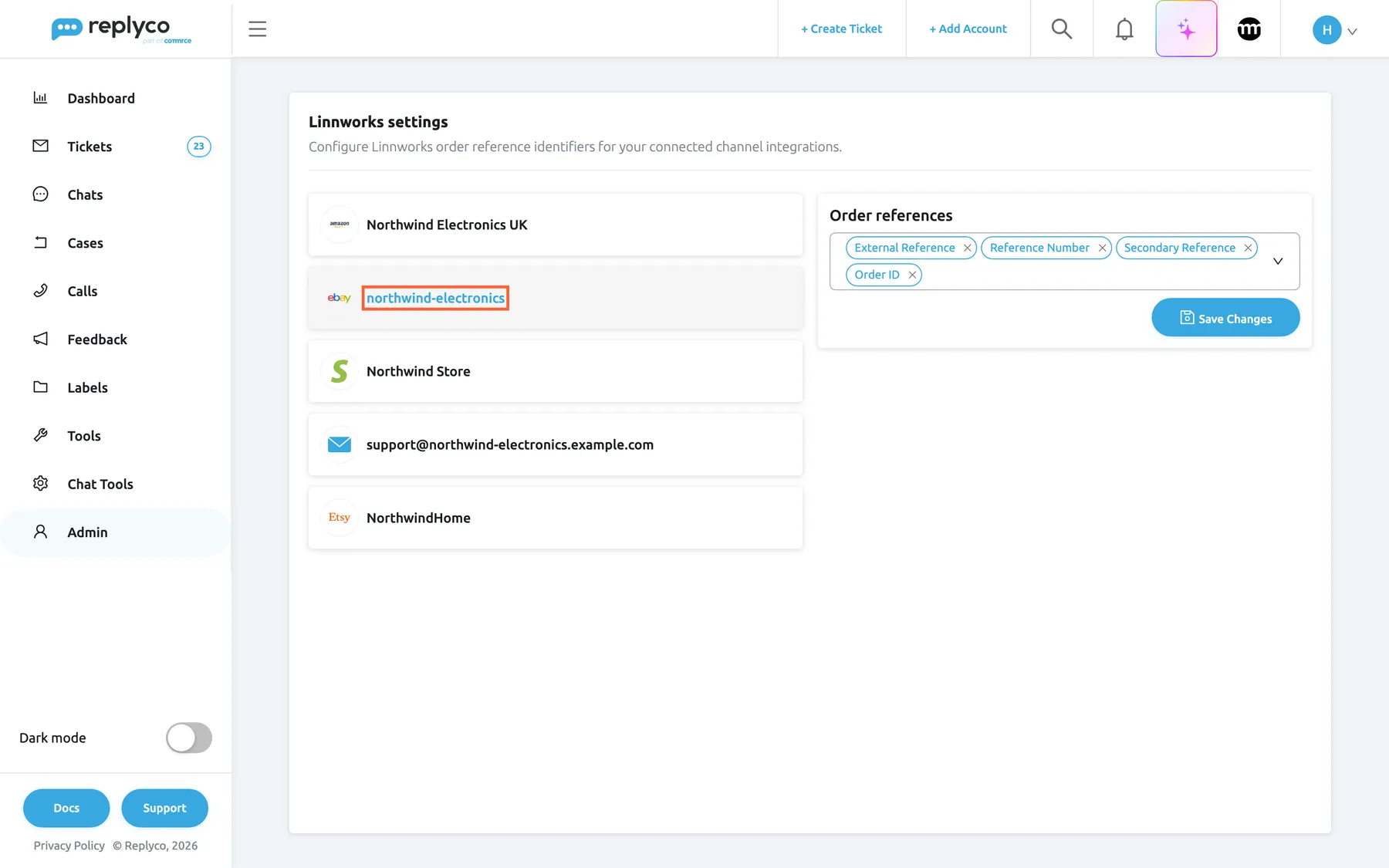
What this screenshot shows
- Screen
- Linnworks settings (/linnworks-settings)
- Highlighted
- “”, account-list, selected. shows this account's order references
- Also visible
- 5 channel accounts; Order references: External Reference, Reference Number, Secondary Reference, Order ID; Save Changes button
- Purpose
- the screen as an admin uses it
| Region | What it shows | What you do there |
|---|---|---|
| Heading, top | Linnworks settings and Configure Linnworks order reference identifiers for your connected channel integrations. | Read what the screen is for |
| Account list, left | Your channel accounts, with the channel’s icon and the account name | Select the account to set |
| Order references, right | The references switched on for the selected account, as chips | Open the field to switch references on or off |
| Save Changes, under the field | The save button | Save the selected account’s references |
Pick a channel account
Section titled “Pick a channel account”Select an account in the left column. Its name turns blue, the row is shaded, and the card Order references appears on the right with the references stored for that account. The list holds marketplace, webstore, mailbox and phone accounts, the accounts that bring tickets. Messengers and order management systems, Linnworks included, are not listed, because their tickets carry no order number to compare.
For example, Northwind Electronics keeps all four references for its Shopify store Northwind Store, but selects the eBay account northwind-electronics to narrow its references.
Selecting another account before you save drops your changes to the first one: the card then shows what is stored for the account you selected.
Choose the order references
Section titled “Choose the order references”-
Select the channel account on the left.
-
Select the field Order references. The list opens with an item that switches all four at once, Deselect all or Select all, then the four references; a tick marks each reference that is on.
-
Select a reference to switch it off or on, or remove a chip with its ×. Deselect all switches all four off; Select all switches all four on.
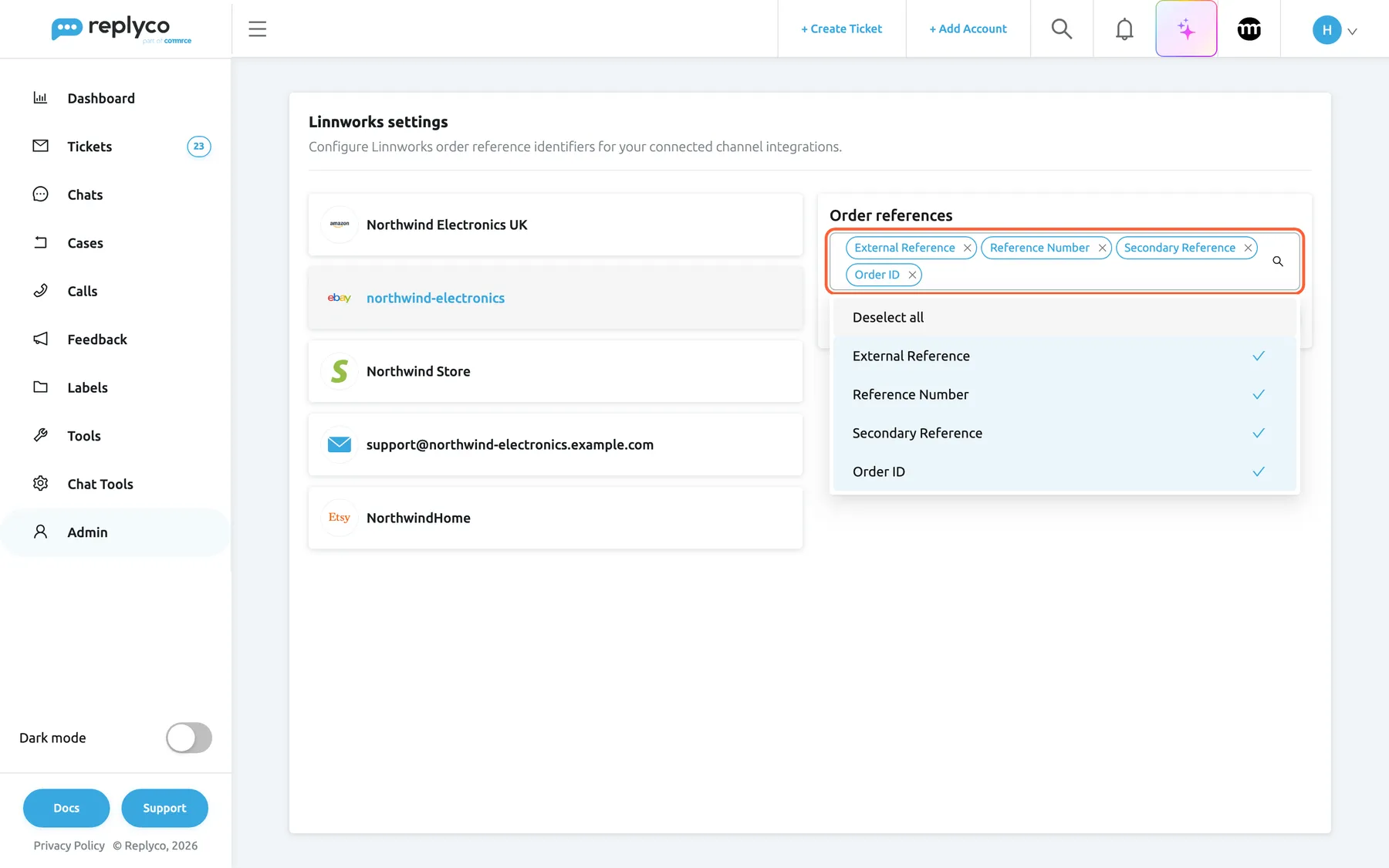
What this screenshot shows
- Screen
- Linnworks settings (/linnworks-settings)
- Highlighted
- “”, right-card, expanded. switches a reference on or off
- Also visible
- Deselect all; External Reference, Reference Number, Secondary Reference, Order ID, all ticked
- Purpose
- the reference choices
Replyco compares a word from the ticket subject, or a value typed into the ticket’s Linnworks field, with every reference that is on, and links the first Linnworks order that matches. Order ID is Linnworks’ own order number and is compared only with whole numbers. For a mailbox Replyco searches every Linnworks order; for a marketplace or webstore account only the orders that came from that channel.
For example, a customer emails support@northwind-electronics.example.com with the subject Order NW-10482 not arrived. With External Reference on for the mailbox, the Linnworks order whose external reference is NW-10482 is linked. With only Order ID on, Replyco tries 10482 and links the Linnworks order with that number.
Switching every reference off stops the search by reference for that account. Orders the channel itself names still get their Linnworks data, because Replyco looks those up by the channel’s own order number. The full matching rules are in Linnworks.
Save your changes
Section titled “Save your changes”Select Save Changes under the field. The button shows a spinner while Replyco saves, and Success confirms it. The change applies to the selected account only and to the next look-up; orders already linked to tickets keep their Linnworks data.
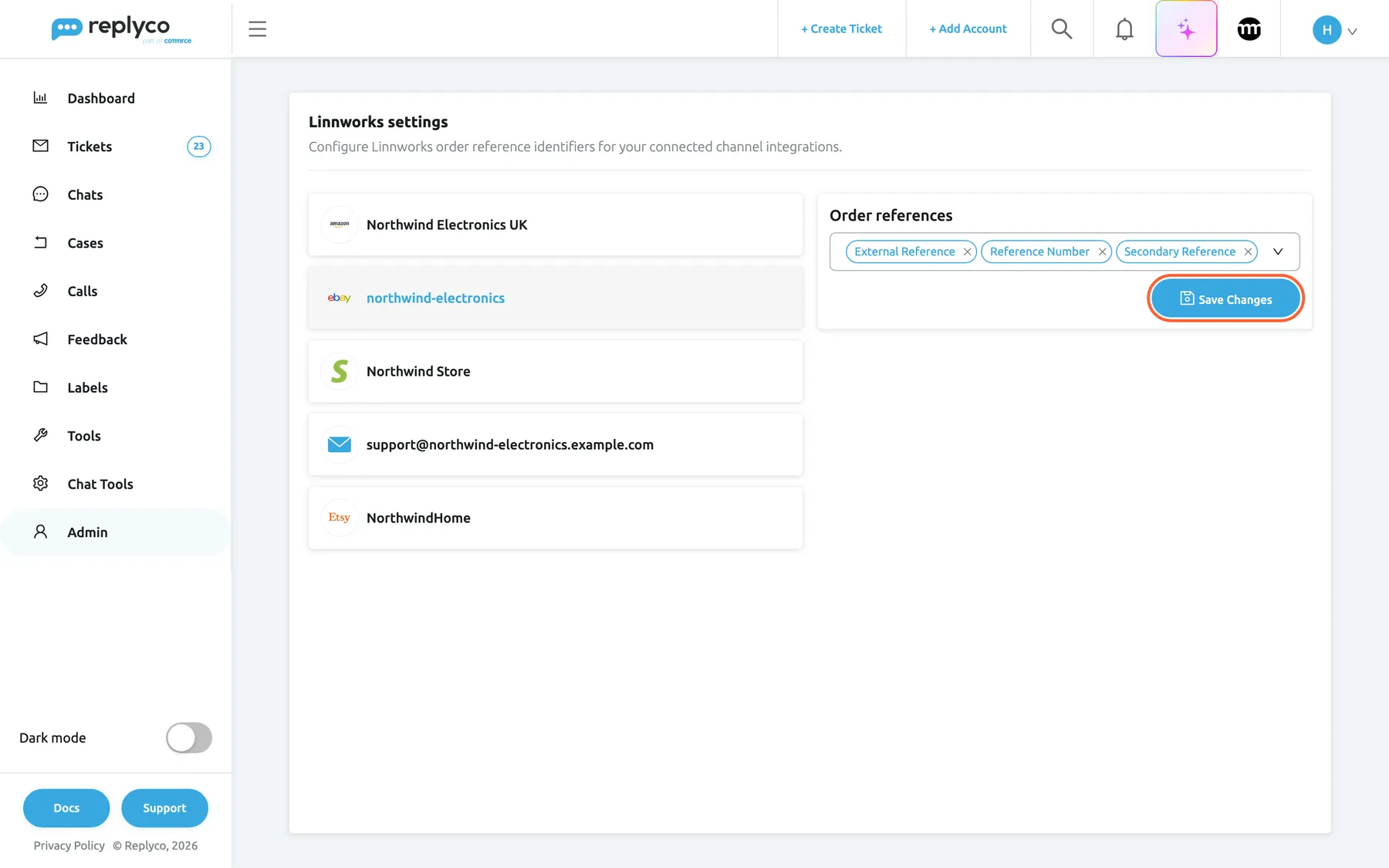
What this screenshot shows
- Screen
- Linnworks settings (/linnworks-settings)
- Highlighted
- button “Save Changes”, right-card, enabled. saves the references of the selected account
- Also visible
- Order references: External Reference, Reference Number, Secondary Reference
- Purpose
- save a changed reference set
To check the effect, open a ticket from that account and look at the Linnworks order in its order panel; if it is the wrong one, type the right Linnworks number into the panel’s Linnworks field. See Check the order and link another.
Every control, explained
Section titled “Every control, explained”Account list
Section titled “Account list”The left column of AdminLinnworks settings, one row per channel account.
Lists your marketplace, webstore, mailbox and phone accounts with the channel’s icon and the account’s name. Selecting a row shows that account’s references on the right and replaces any unsaved change of the account shown before. Nothing is selected when the screen opens.
Each channel fills Linnworks differently, so each account keeps its own references.
Order references
Section titled “Order references”The card on the right, after you select an account.
A field with the four Linnworks references: External Reference, Reference Number, Secondary Reference and Order ID. The references that are on show as chips; open the field to switch them. By default all four are on for every account. The list starts with an item that switches all four at once: Deselect all clears them, Select all switches them all on.
Comparing only the field your channel fills in Linnworks keeps a number from matching an unrelated order.
Save Changes
Section titled “Save Changes”Under the field Order references.
Saves the references of the selected account. While it saves, the button is disabled and shows a spinner; afterwards Replyco shows Success. The other accounts are not changed.
Changes are kept until you are sure, so a stray click in the list changes nothing.
Who sees what
Section titled “Who sees what”| Part | Shown when |
|---|---|
| AdminLinnworks settings in the menu | A Linnworks account is connected under AdminAccounts, and you have the Admin permission |
| Account list | You have channel accounts other than messengers and order management systems |
To give someone the Admin permission, see Invite users and set what they can do.
What you need to know
Section titled “What you need to know”| Topic | Fact |
|---|---|
| Scope | References are set per channel account and apply to everyone in the company. |
| Default | All four references are on for every account. |
| Order ID | Compared only with whole numbers. |
| Mailboxes | Search every Linnworks order; other accounts search only orders from their channel. |
| Saving | Only with Save Changes, one account at a time. |
| Over time | Changes apply to the next look-up, not to orders already linked. |
| Language | The names of the four references follow the interface language. |
Frequently asked questions
Section titled “Frequently asked questions”General
Section titled “General”Why is the Linnworks item missing from my Admin menu?
Section titled “Why is the Linnworks item missing from my Admin menu?”The menu item appears only while a Linnworks account is connected under AdminAccounts, and only for users with the Admin permission. Connect Linnworks first; see Linnworks.
What are order references?
Section titled “What are order references?”The four Linnworks fields Replyco compares with an order number from a ticket: External Reference, Reference Number, Secondary Reference and Order ID. You switch them on or off for each channel account on AdminLinnworks settings.
Which references should I keep on?
Section titled “Which references should I keep on?”Keep all four, the default, until a channel shows wrong matches. Then narrow that account to the field your channel fills in Linnworks. Mailboxes search every Linnworks order, so they gain most from a narrow set.
Why is my messenger account not in the list?
Section titled “Why is my messenger account not in the list?”The list shows accounts whose tickets can name an order: marketplaces, webstores, mailboxes and phone accounts. Messenger accounts and order management systems, Linnworks included, have no references to set.
Changing references
Section titled “Changing references”I changed the references but nothing happened. Why?
Section titled “I changed the references but nothing happened. Why?”Changes apply only after Save Changes, and only to the next look-up. Orders already linked to tickets keep their Linnworks data. Select Save Changes, then open a new ticket from that account to see the effect.
I switched to another account and my change was gone. Why?
Section titled “I switched to another account and my change was gone. Why?”Selecting another account in the list shows what is stored for it and drops unsaved changes of the account shown before. Select the first account again, make the change and select Save Changes before you move on.
What happens if I switch every reference off?
Section titled “What happens if I switch every reference off?”Replyco no longer searches Linnworks by reference for that account, so subject words and typed values that are not Linnworks order numbers find nothing. Orders named by the channel itself still get their Linnworks data through the channel’s order number.
Does Order ID match an order number with letters?
Section titled “Does Order ID match an order number with letters?”No. Order ID, Linnworks’ own order number, is compared only with whole numbers. For a value such as NW-10482, Replyco also tries the digits alone, 10482, which Order ID can match.
Troubleshooting
Section titled “Troubleshooting”| Symptom | What to check |
|---|---|
| AdminLinnworks settings is not in the menu | Is a Linnworks account connected under AdminAccounts? Do you have the Admin permission? |
| A ticket still shows the wrong Linnworks order after saving | The order was linked before the change. Type the right Linnworks number into the ticket’s Linnworks field; new tickets use the new references. |
| An email ticket finds no Linnworks order | Is at least one reference on for that mailbox? Is the order number the first word with a digit in the subject? See Linnworks. |
| The change was lost | Did you select another account before Save Changes? Select the account again, change and save. |
| An account is missing from the list | Messengers and order management systems are not listed. Is the account connected under AdminAccounts? |