

AI categories
A queue of forty tickets tells you who wrote and when, but not what they want: a cancellation, a missing parcel, a refund that has not arrived. With AI categorisation, Replyco reads every incoming customer message, puts it into one or more of your categories, such as Shipping & Delivery or Returns / Refunds / Exchanges, and shows those topics on the ticket, in the list and on cards under TicketsSmart Filters. The same topics let the reply editor put the right template first, or fill it in for you.
What it does
Section titled “What it does”Customer messages arrive in every shape: a one-line where is my parcel?, a long email about a kettle that stopped heating, a question before someone buys. Without a topic on each ticket, your team opens tickets one by one to find out what they are about, and the reply template that answers them sits somewhere in a list sorted by name.
When categorisation is on, Replyco sends each new customer message to its AI with your list of categories and stores the ones the AI picks on the ticket. A ticket collects categories as the conversation goes on. From there:
- Everyone sees the topic at a glance. The categories appear as coloured tags in the ticket list and at the top of the ticket. See categories in your tickets.
- You work through tickets by topic. The ticket list filters by category, and the Smart Filters screen under Tickets has a card per category with the number of open tickets. See filtering the list by category.
- The right template comes first. Templates you link to categories are ranked by how many categories they share with the ticket, and the single best match can be filled in for you. See categories and reply templates.
- AI drafts know the topic. Automatic drafts are written only for categorised messages, with the category as a hint, and not for vague or off-topic ones. See categories and AI drafts.
- You decide the list. You name, colour, add and remove categories yourself, and the AI may only choose from that list. See every setting, explained.
Every category on a ticket is one of yours, with the name you gave it, and each categorised message is counted as an AI action on the billing screen, so you can always see what categorisation produced and what it used.
Before you start
Section titled “Before you start”| Requirement | Details |
|---|---|
| Replyco AI | Categories are part of Replyco AI, which every plan includes; every feature is on during a trial. Without it, AI Settings does not appear under Tools. See What each plan includes. |
| Who can configure it | ToolsAI Settings, where categorisation is switched on and the category list is kept, is shown only to users with the Admin permission with Edit rights; for anyone else, a bookmarked link to it opens the start screen. Saving the switches and adding, changing or deleting a category need the same rights. Agents see the results in their tickets. See User permissions and roles. |
| A category list | New companies start with seven categories, ready to use. You find them on the Categories tab; its screen is described in AI Settings: Categories. |
| Templates, only for ranked and suggested templates | Linking categories to templates is done on the Templates tab of ToolsAutomation, which needs the Automation permission. The reply editor ranks and suggests only templates linked to the ticket’s account. See Templates. |
| AI usage | Each message sent for categorisation is one AI action, listed as Category under AdminBilling › AI Usage. See Billing. |
Understanding categories
Section titled “Understanding categories”A category is a name, a short tag and a pair of colours. The AI only ever sees the names; the tag and colours are for your team. New companies get these seven categories, which you can rename, recolour, delete or add to:
| Category | Tag on tickets | Typical customer message |
|---|---|---|
| Order Management | Order | I ordered two Travel Adapter EU/UK by mistake. Could you cancel the order before it ships? |
| Shipping & Delivery | Shipping Delivery | The tracking has not changed for four days. Where is my parcel? |
| Returns / Refunds / Exchanges | Returns Refunds | I returned the Smart Kettle 1.7L two weeks ago and I still have not received my refund. |
| Payments & Billing | PaymentsBilling | I was charged twice for my Desk Lamp Fold order. |
| Product | Product | Does the USB-C Hub 7-in-1 work with a MacBook Air M2? |
| General Inquiry | General | Hi, I have a question. |
| Irrelevant / Not Related | Irrelevant | We would like to offer you our SEO services. |
Companies that sign up with Germany, Switzerland, Austria or Liechtenstein as their country start with the same seven categories in German, such as Versand & Lieferung and Allgemeine Anfrage.
The examples in this guide use Northwind Electronics, which has tailored its list: it replaced Payments & Billing with Invoice Inquiry, removed Irrelevant / Not Related and added Tracking Inquiry and Warranty.
How Replyco decides
Section titled “How Replyco decides”- The customer’s explicit intent, in the current message. The AI classifies the message that just arrived by what the customer says they want. It uses the earlier conversation only to understand what a short reply such as still nothing refers to, and never classifies earlier messages again.
- Only your categories, by their exact names. The AI is given your list and told to answer with names from it, without inventing or changing any. Replyco keeps only answers that match one of your category names exactly, so a category the AI invents is dropped.
- One or more, but only when clearly expressed. I want a refund for the damaged item can get Returns / Refunds / Exchanges and Product. The AI is told not to assume a refund, return or exchange the customer has not asked for, so the case arrived cracked alone does not get a returns category.
- Two fallbacks. A message that has nothing to do with online selling is to be answered with Irrelevant / Not Related, and a message whose intent is unclear or fits no category with General Inquiry. For companies whose Replyco language is German, the AI is told Irrelevant / Nicht relevant and Allgemeine Anfrage. A fallback is applied only if your list has a category with exactly that name; otherwise the message gets no category.
- Categories add up. A new message can add categories to its ticket but never removes one. A ticket that starts with Please cancel my order (Order Management) and continues with It has already arrived, how do I send it back? shows Order Management and Returns / Refunds / Exchanges.
- Context, not instructions. The ticket’s AI summary, if it has one, or else up to the ten most recent messages go to the AI as background. The conversation and the message are passed as data, separate from the AI’s instructions, so text inside a customer’s email cannot change them.
- Any language. The customer’s message is read as written, without translating it first. The AI’s instructions are in German for companies whose Replyco language is German and in English for everyone else.
What does not get categorised
Section titled “What does not get categorised”- Replies from your team and any message that arrives as sent by your company. Only incoming customer messages are categorised.
- Messages from customers on your AI Customers Blacklist, which you keep under ToolsAI Settings. See AI Customers Blacklist.
- Messages from customers you have blocked. See Blocked tickets.
- Messages that arrived while categorisation was switched off. Replyco never goes back to categorise older tickets.
- Messages the AI could not categorise because it was unavailable or answered with nothing usable. The message arrives as normal; it just has no new category.
- Conversations under Chats. Categories are a ticket feature.
A message with no text, such as an email with only an attachment, is still sent to the AI, which is told to use the unclear-intent fallback when it cannot tell what the customer wants.
Setting it up in five steps
Section titled “Setting it up in five steps”-
Check the master switch. Go to ToolsAI Settings and stay on the General tab. AI Categories is on for new companies. If it is off, switch it on and select the Save button that appears. New customer messages are categorised from then on.
-
Review your category list. Open the Categories tab. Rename categories so they describe your customers’ questions, delete the ones you will never use, and add missing topics with Create New. Keep the two fallbacks, General Inquiry and Irrelevant / Not Related, under exactly those names unless you want vague or off-topic messages to get no category.
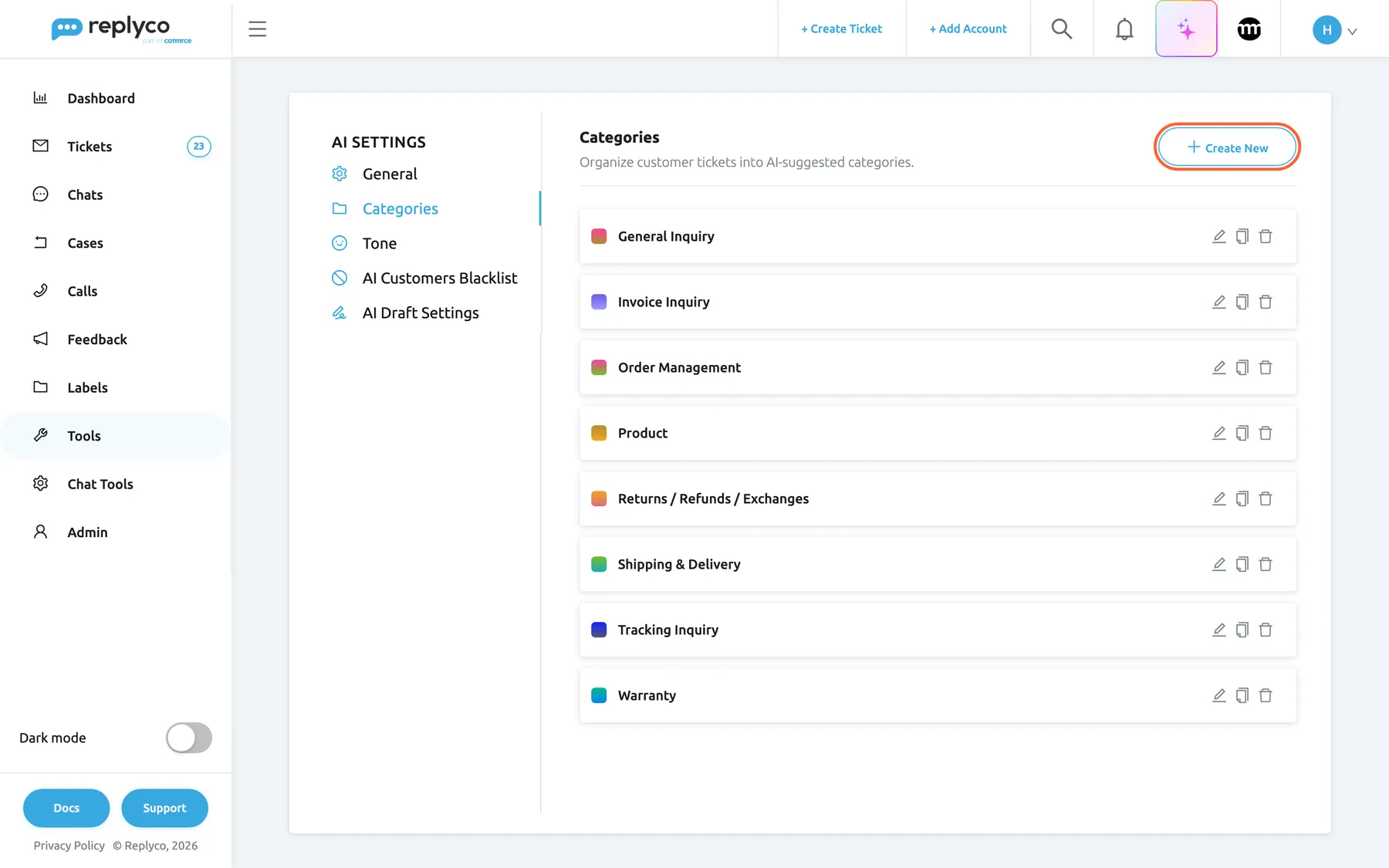
The Categories tab lists every category the AI may choose from; Create New adds one. What this screenshot shows
- Screen
- Categories (/aiSettings?tab=categories)
- Highlighted
- button “Create New”, header-right, enabled. opens the New Category form
- Also visible
- 8 categories sorted by name, each with colour swatch, edit, copy and delete icons; tab description: Organize customer tickets into AI-suggested categories.
- Purpose
- the list the AI chooses from
-
Give every category a short tag and a colour. Open each category with the pencil icon and fill in Category tag: the tag is what your team reads in the list. Pick colours that tell related topics apart, then select Save.
-
Link your templates (optional). Under ToolsAutomation › Templates, open each template you send often and choose the topics it answers in Related AI Categories. A new template saved with that field empty gets categories chosen by the AI.
-
Decide how templates are offered, and check where your team sees categories. Back on the General tab, leave AI Template Suggestion on to have the best match filled in; see how the settings combine. Then open a ticket list: the AI categories column is part of the standard columns, and anyone who changed their columns adds it back with Edit Columns.
Every setting, explained
Section titled “Every setting, explained”Categorisation has three switches on the General tab and the category list on the Categories tab of ToolsAI Settings, in the order below.
AI Categories, the master switch
Section titled “AI Categories, the master switch”ToolsAI Settings › General, the first switch on the tab, described as Automatically analyze incoming customer messages and suggest relevant categories. Change it, then select Save; the button only appears once something has changed.
On: every new incoming customer message is sent to the AI with your category names, and the categories it picks are added to the ticket. New companies start with it on.
Off:
- nothing new is categorised;
- the AI categories column leaves the ticket list;
- the two template switches below it are hidden;
- the Related AI Categories field leaves the template form;
- automatic AI drafts stop, because they are written only for categorised messages.
Categories already on tickets stay there and still show in the ticket, in the category filter and on the category cards. Your category list and the links between templates and categories are kept.
Categorisation is one AI call per customer message, so it is something each company chooses. Switching it off is also how you stop topic tagging without losing the list you built.
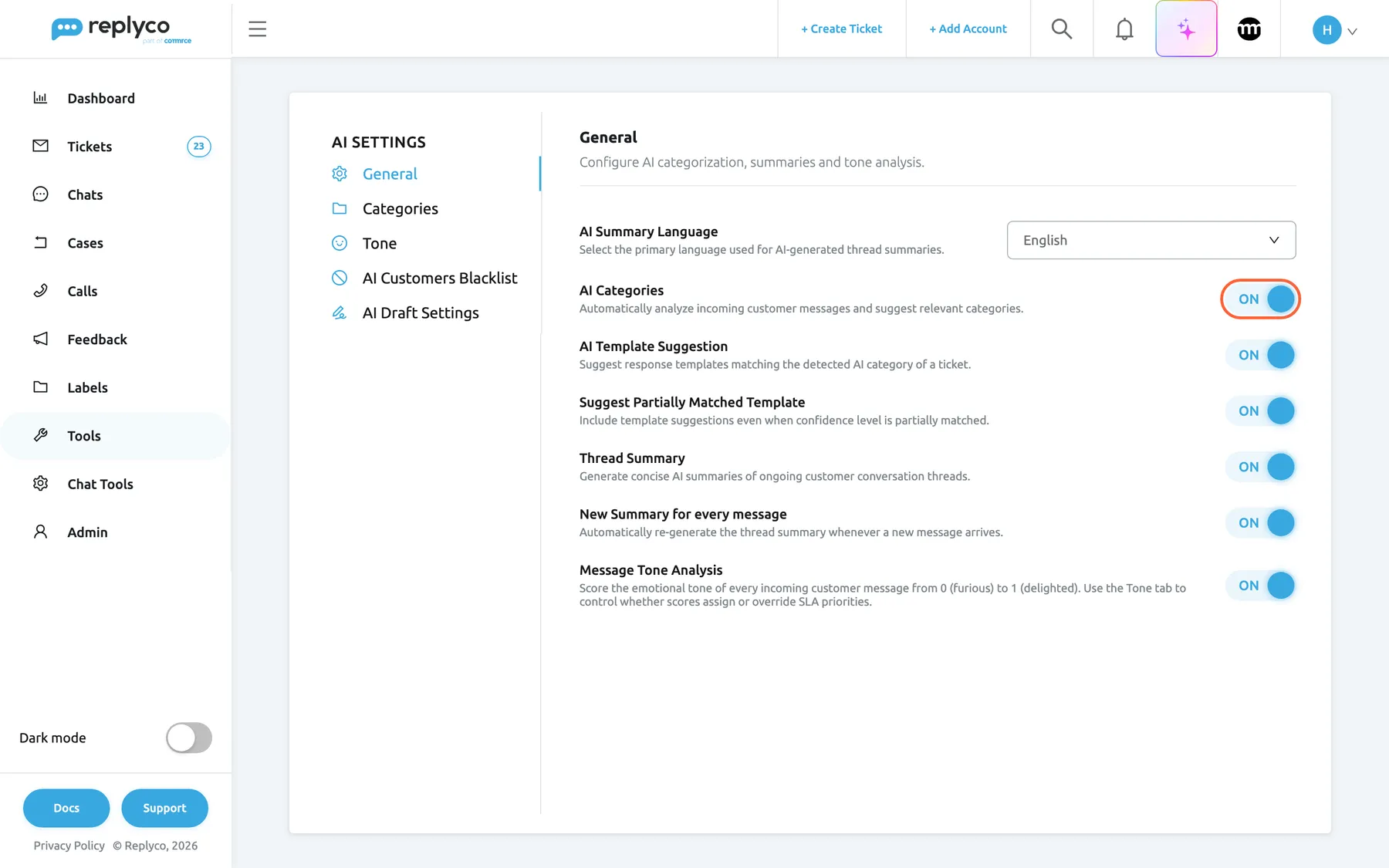
What this screenshot shows
- Screen
- General (/aiSettings?tab=general)
- Highlighted
- switch “AI Categories”, settings-list-top, on. switches categorisation of new customer messages on or off; saved with the Save button that appears
- Also visible
- AI Settings tabs: General, Categories, Tone, AI Customers Blacklist, AI Draft Settings; AI Template Suggestion: on; Suggest Partially Matched Template: on; Thread Summary, New Summary for every message, Message Tone Analysis
- Purpose
- the master switch of AI categories and the two template-suggestion switches
The category list
Section titled “The category list”ToolsAI Settings › Categories, headed Organize customer tickets into AI-suggested categories. The list is sorted by name. Select a category to see its name and tag on the right, with Delete, Copy and Edit. The pencil, copy and bin icons on each row do the same. Create New at the top right opens New Category. New and edited categories are saved with Save in the form; every change is confirmed with Success.
The list is everything the AI may choose from, and nothing else. There is no limit on the number of categories. What each change does to your tickets:
- Adding a category does not touch existing tickets; only new messages can get it. Replyco checks each of your templates, including switched-off ones, and links the new category to those whose text fits. This takes one AI check per template, so saving takes longer when you have many templates.
- Renaming or recolouring a category updates every ticket that has it: the list and the tickets show the new name, tag and colours straight away. From then on, the AI chooses by the new name.
- Deleting a category removes it from every ticket and every template. That cannot be undone; see copying and deleting a category.
The screen itself, control by control, is described in AI Settings: Categories.
Topics differ by business. A marketplace seller may need Cancellation separate from Order Management; a shop selling appliances may need Warranty. The list is how you teach the AI your topics without writing instructions.
Category name, what the AI chooses by
Section titled “Category name, what the AI chooses by”In New Category or Edit Category, the text box under Category name, described as Enter the main title for category identification
The name is the only thing the AI reads about a category, so it has to say what the customer wants. It is required: Save stays unavailable while the box is empty. Names can be up to 1,000 characters. Replyco does not stop two categories having the same name; if they do, a message that matches the name gets both.
The two fallback names are special. The AI is told to answer General Inquiry for unclear messages and Irrelevant / Not Related for messages that have nothing to do with online selling, or Allgemeine Anfrage and Irrelevant / Nicht relevant when your Replyco language is German. If you rename or delete them, those messages get no category. Automatic AI drafts are never written for messages whose only categories carry these names.
A name like Returns / Refunds / Exchanges works because it spells out the requests that belong to it. A name the AI has to guess at, such as Team B or Misc, gets guessed at.
| Do | Don’t |
|---|---|
| Name the customer’s request: Warranty, Tracking Inquiry | Name your team or process: Team B, Escalate to Jay |
| List the variants you mean: Returns / Refunds / Exchanges | Use an abbreviation only your team knows: RMA |
| Keep categories distinct: Shipping & Delivery and Tracking Inquiry | Create near-duplicates: Delivery, Deliveries, Delivery Issue |
| Keep General Inquiry and Irrelevant / Not Related under those names | Rename them to Other and Spam, which the AI is never told to use |
| Give each category a unique name | Give two categories the same name |
| Put topics in the name, moods nowhere | Create Angry customer; that is what tone analysis is for |
Category tag, what tickets show
Section titled “Category tag, what tickets show”In New Category or Edit Category, the text box under Category tag, with the placeholder Tag and the description Short tag or abbreviation of the full category name
The tag is the text on the coloured tag in the ticket list and at the top of the ticket, so Returns / Refunds / Exchanges can show as Returns Refunds. It is optional and up to 100 characters; the AI never sees it. Without a tag, tickets show the category’s name.
The list column is narrow and a ticket can have several categories. A short tag keeps them readable at a glance.
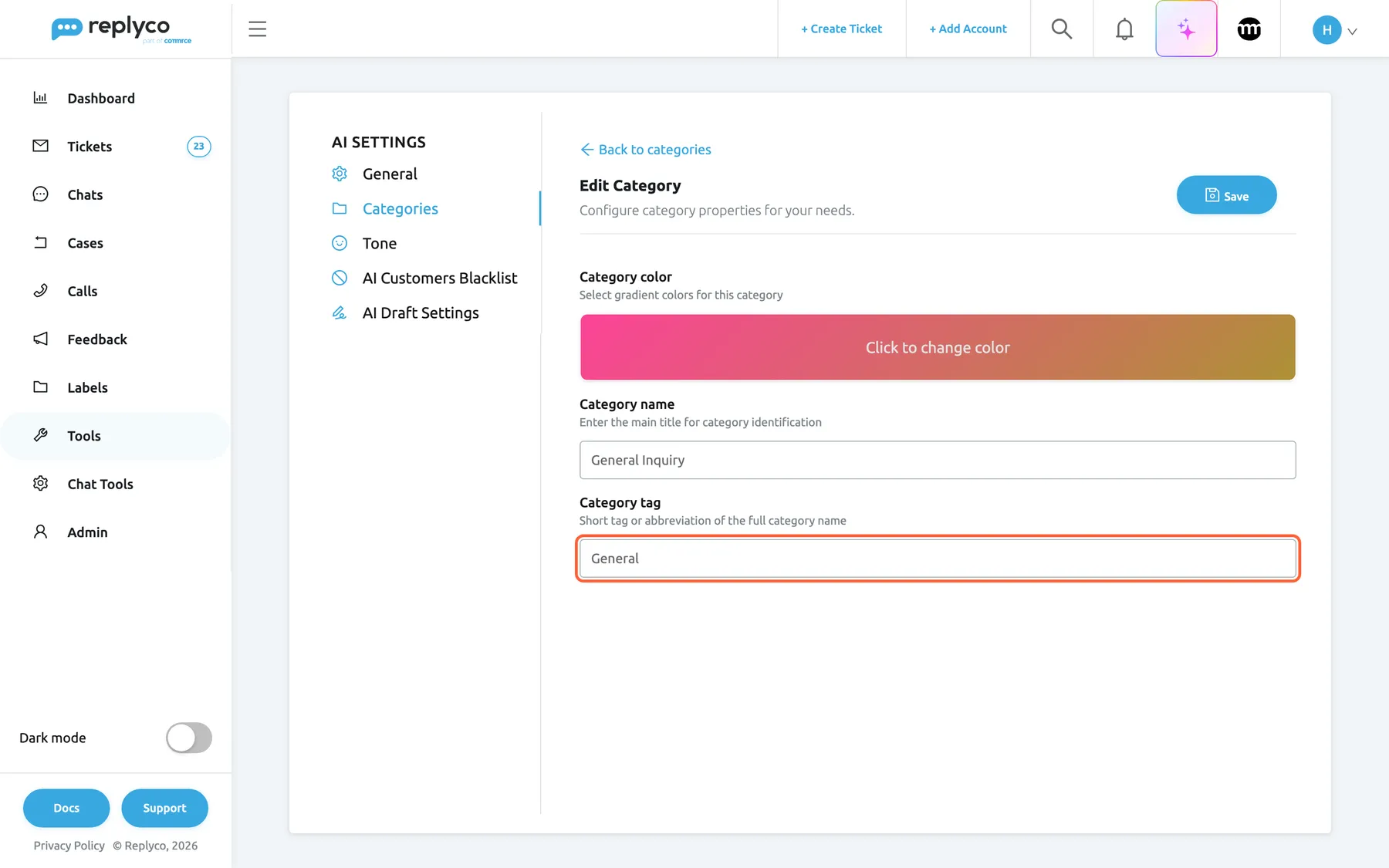
What this screenshot shows
- Screen
- Edit Category (/aiSettings?tab=categories)
- Highlighted
- textbox “Category tag”, form-bottom, General. sets the short text shown on tickets
- Also visible
- Category color: gradient bar, Click to change color; Category name: General Inquiry; Save and Back to categories
- Purpose
- create or edit a category
Category color
Section titled “Category color”At the top of New Category or Edit Category: the bar labelled Click to change color opens a picker with two colours, the start and the end of the gradient. Select outside the picker to close it.
The two colours become the gradient of the category’s swatch in the list, the text and border of its tag on tickets, and the frame of its card on the Smart Filters screen. A new category starts with two random colours from Replyco’s palette.
Colour is what the eye finds first in a long list. Similar colours for related topics, or a strong colour for the topic you answer first, make the queue easier to scan.
Copying and deleting a category
Section titled “Copying and deleting a category”On the Categories tab, the copy and bin icons on a category’s row, or Copy and Delete in its details on the right. Deleting asks Are you sure you want to delete this item? first.
Copy opens the form filled with the category’s colours, tag and name followed by (copy); Save creates a new category, and Replyco checks your templates for it as for any new category. Rename the copy before you save, because two categories with the same name are both assigned to the same messages.
Deleting removes the category from the list, from every ticket that has it and from every template linked to it. Tickets whose only category it was then count as No Category. There is no undo; creating a category with the same name again does not bring it back to those tickets.
Copying is the quick way to split a broad topic: copy Shipping & Delivery, rename the copy Tracking Inquiry and give it its own colour. Delete a category when no customer question belongs to it any more, not to clean up old tickets.
AI Template Suggestion, the editor’s suggestion
Section titled “AI Template Suggestion, the editor’s suggestion”ToolsAI Settings › General, the switch under AI Categories, described as Suggest response templates matching the detected AI category of a ticket. It is shown only while AI Categories is on. Saved with Save.
On: when someone replies to a ticket, the Template list puts templates that match the ticket’s categories first, and if exactly one template matches best, the editor fills it in by itself and shows Cancel Template Suggestion. Off: the list is sorted by name and nothing is filled in. New companies start with it on.
It works in a ticket’s reply editor, and when you forward a message from a ticket (for the account you forward from), for templates linked to the ticket’s account. The editor fills in nothing when a draft of yours is saved on the ticket or an AI suggested response is waiting. Hiding the switch by turning AI Categories off does not change its saved value, so tickets that already have categories keep getting suggestions.
Most tickets in a topic get the same answer. Offering it first saves the scroll through a long template list; filling it in saves the click as well.
Suggest Partially Matched Template
Section titled “Suggest Partially Matched Template”The switch under AI Template Suggestion, described as Include template suggestions even when confidence level is partially matched. It is shown only while both switches above it are on. Saved with Save.
Decides what counts as a match. On: a template matches when it shares at least one category with the ticket, and more shared categories rank higher. Off: a template matches only when its categories are exactly the ticket’s categories, no more and no fewer. New companies start with it on.
Tickets collect categories as the conversation goes on, and a ticket with three categories rarely has a template with exactly those three. Partial matching keeps suggestions coming for those tickets; exact matching is for teams that link templates to precise combinations and want nothing offered otherwise.
How the settings combine
Section titled “How the settings combine”For each ticket, the reply editor counts how many of the ticket’s categories each template shares, then orders the Template list:
| AI Categories | AI Template Suggestion | Suggest Partially Matched Template | A template matches when | The editor fills in a template when |
|---|---|---|---|---|
| Off | (hidden, keeps its value) | (hidden) | as the hidden switches say, for tickets that already have categories | as the hidden switches say; new tickets have no categories |
| On | Off | (hidden) | never; the list is sorted by name | never |
| On | On | Off | its categories are exactly the ticket’s categories | exactly one template matches |
| On | On | On | it shares at least one category; more shared ranks higher | exactly one template shares the most categories |
Worked example. Ticket #32537 Earbuds arrived with a cracked charging case has the categories Product and Returns / Refunds / Exchanges. Northwind’s templates: Damaged item – refund or replacement? (Returns / Refunds / Exchanges, Product), Where is my refund or replacement? (Returns / Refunds / Exchanges), Where is my order? (Shipping & Delivery, Order Management).
| Situation | Damaged item – refund or replacement? | Where is my refund or replacement? | Where is my order? | Result |
|---|---|---|---|---|
| Suggestion off | – | – | – | Sorted by name; nothing filled in |
| Suggestion on, partial off | exact match | no match (one category short) | no match | Damaged item is filled in |
| Suggestion on, partial on | 2 shared | 1 shared | 0 shared | Damaged item is filled in; Where is my refund is listed second |
| The ticket later gets Shipping & Delivery, partial off | no match (one category more on the ticket) | no match | no match | Sorted by name; nothing filled in |
| The ticket later gets Shipping & Delivery, partial on | 2 shared | 1 shared | 1 shared | Damaged item is filled in |
| A second template also has both categories | 2 shared (tie) | 1 shared | 0 shared | Both tied templates are listed first with a sparkle; nothing is filled in |
For the matching rules as seen from the template side, with a second worked example, see Templates.
Categories in your tickets
Section titled “Categories in your tickets”Once messages are categorised, the topics show in four places. The indicator is the same everywhere a ticket shows them: a tag with the category’s tag text in its gradient colours, one per category.
| What you see | What it means |
|---|---|
| A coloured tag with text, such as Returns Refunds | The ticket has that category; the text is the category’s tag |
| Two or more tags | The customer’s messages have raised several topics; categories add up and are never removed by the AI |
| No tags | No message on the ticket has been categorised, or its categories were deleted |
Ticket list, the AI categories column
Section titled “Ticket list, the AI categories column”The AI categories column shows every category of the ticket, not only those of the latest message. The column cannot be sorted. It is part of the standard columns and appears while categorisation is on. Each user chooses their own columns: open the ⋮ menu next to the list heading, choose Edit Columns, tick AI categories and save; Restore Default Settings brings back the standard set. To learn every column and filter of the list, see Ticket lists.
Why: a glance down the column tells you whether the queue is mostly delivery questions this morning or mostly returns.
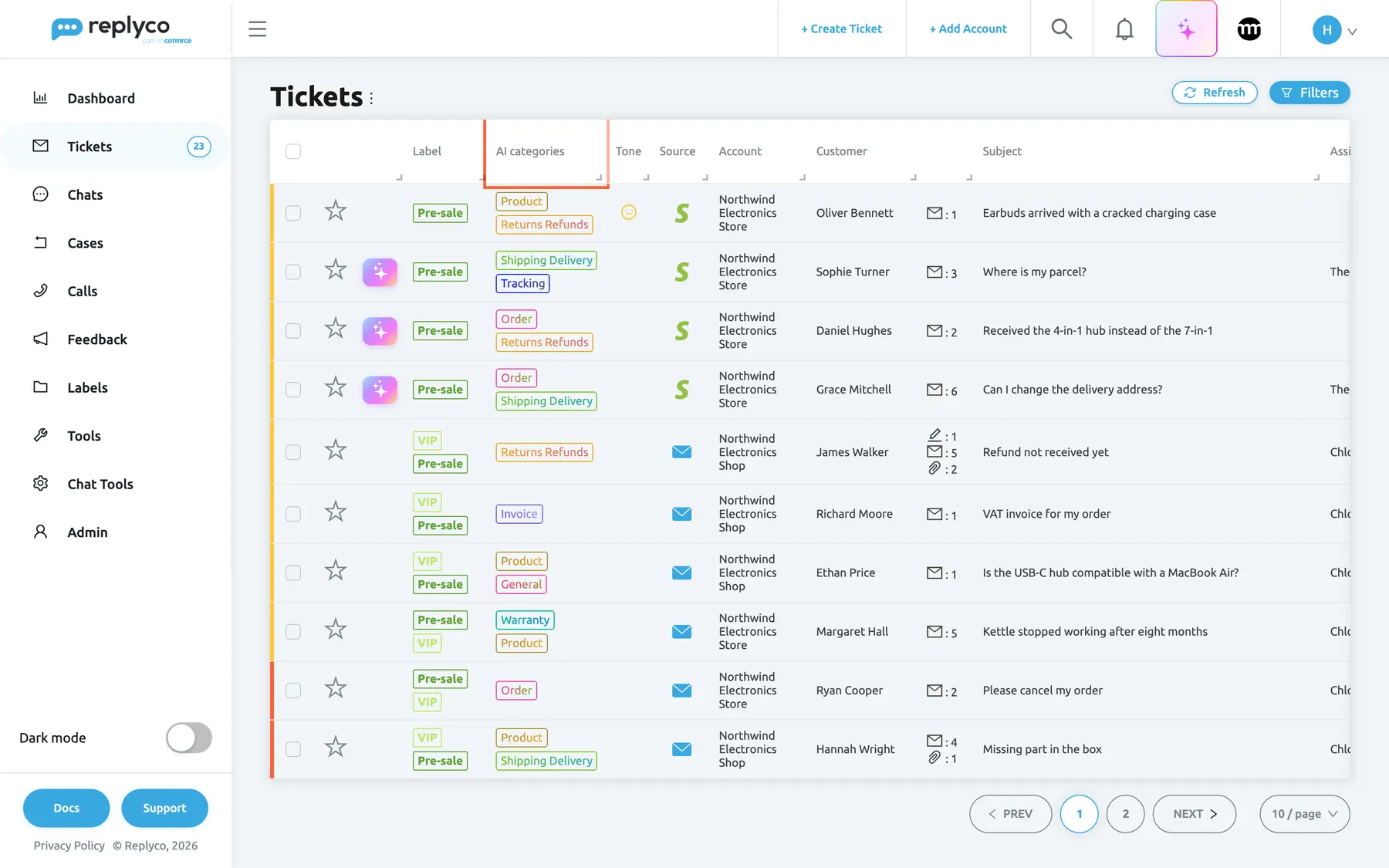
What this screenshot shows
- Screen
- Not Resolved (/tickets/notresolved)
- Highlighted
- columnheader “AI categories”, table-header, visible. the column of category tags; not sortable
- Also visible
- 10 rows with one or two category tags each; tags: Product, Returns Refunds, Shipping Delivery, Tracking, Order, Invoice, General, Warranty
- Purpose
- categories at a glance in the ticket list
Filtering the list by category
Section titled “Filtering the list by category”Select Filters above any ticket list and open Filter by Category. It lists Select all, No Category and your categories; you can type to search. Choose one or more categories and the list shows tickets that have any of them. No Category alone shows tickets without a category. The filter is offered to every company with Replyco AI, even while categorisation is switched off, so older categories stay findable.
Why: one agent can take all Warranty tickets while another works through Shipping & Delivery.
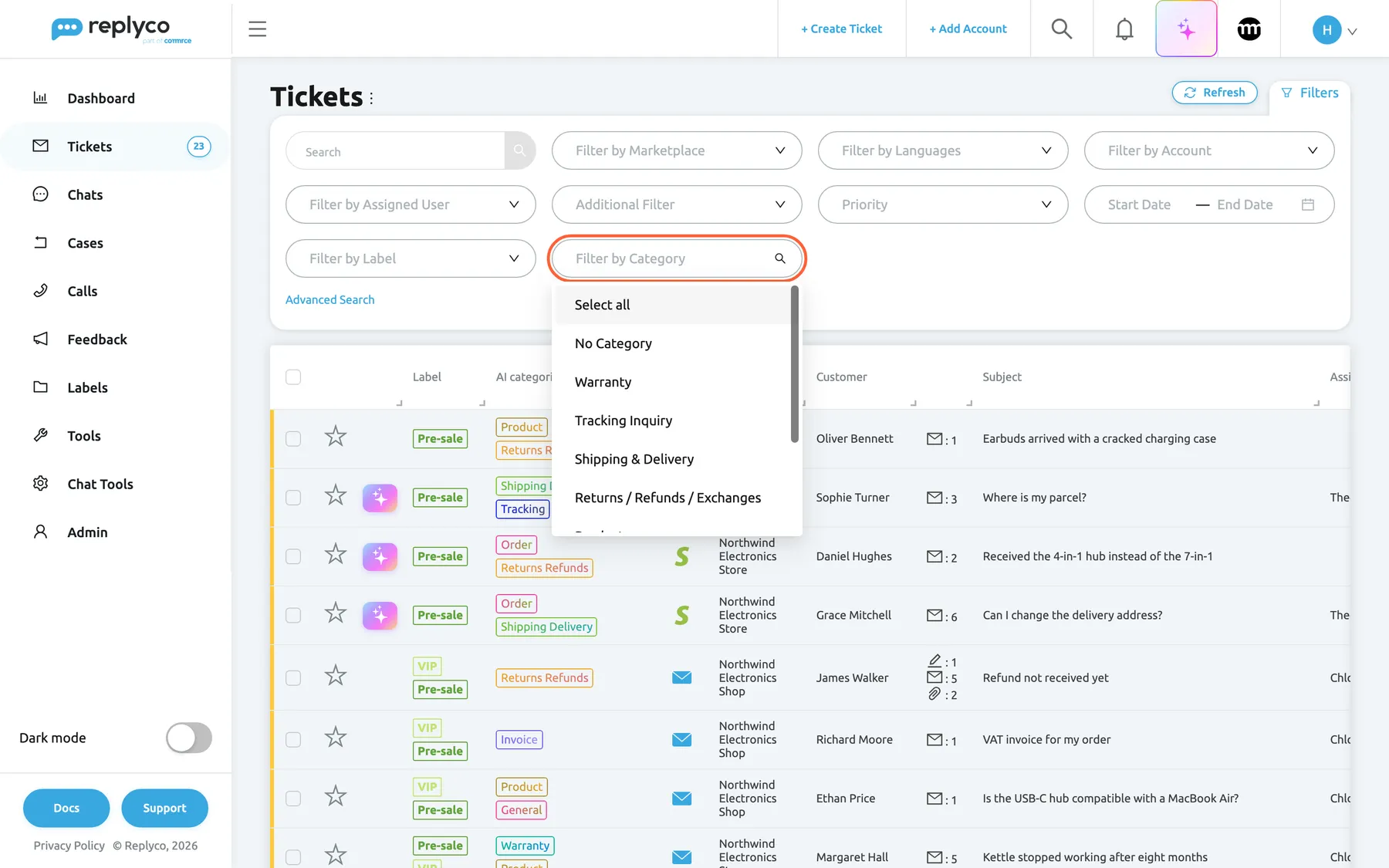
What this screenshot shows
- Screen
- Not Resolved (/tickets/notresolved)
- Highlighted
- combobox “Filter by Category”, filters-panel, expanded. filters the list by AI category
- Also visible
- Filters panel with ten filters; options: Select all, No Category, the company's categories
- Purpose
- work through tickets by topic
Inside the ticket, the right panel
Section titled “Inside the ticket, the right panel”The ticket’s categories sit at the top of the right panel, above the label and priority selects. They are read-only: the ticket screen has no control to add or remove a category, because categories come from what the customer wrote. They show for every company with Replyco AI, also after categorisation is switched off. For everything else on this screen, see The ticket screen.
Why: before reading a long thread, the agent knows whether it is about a product defect, a refund, or both.
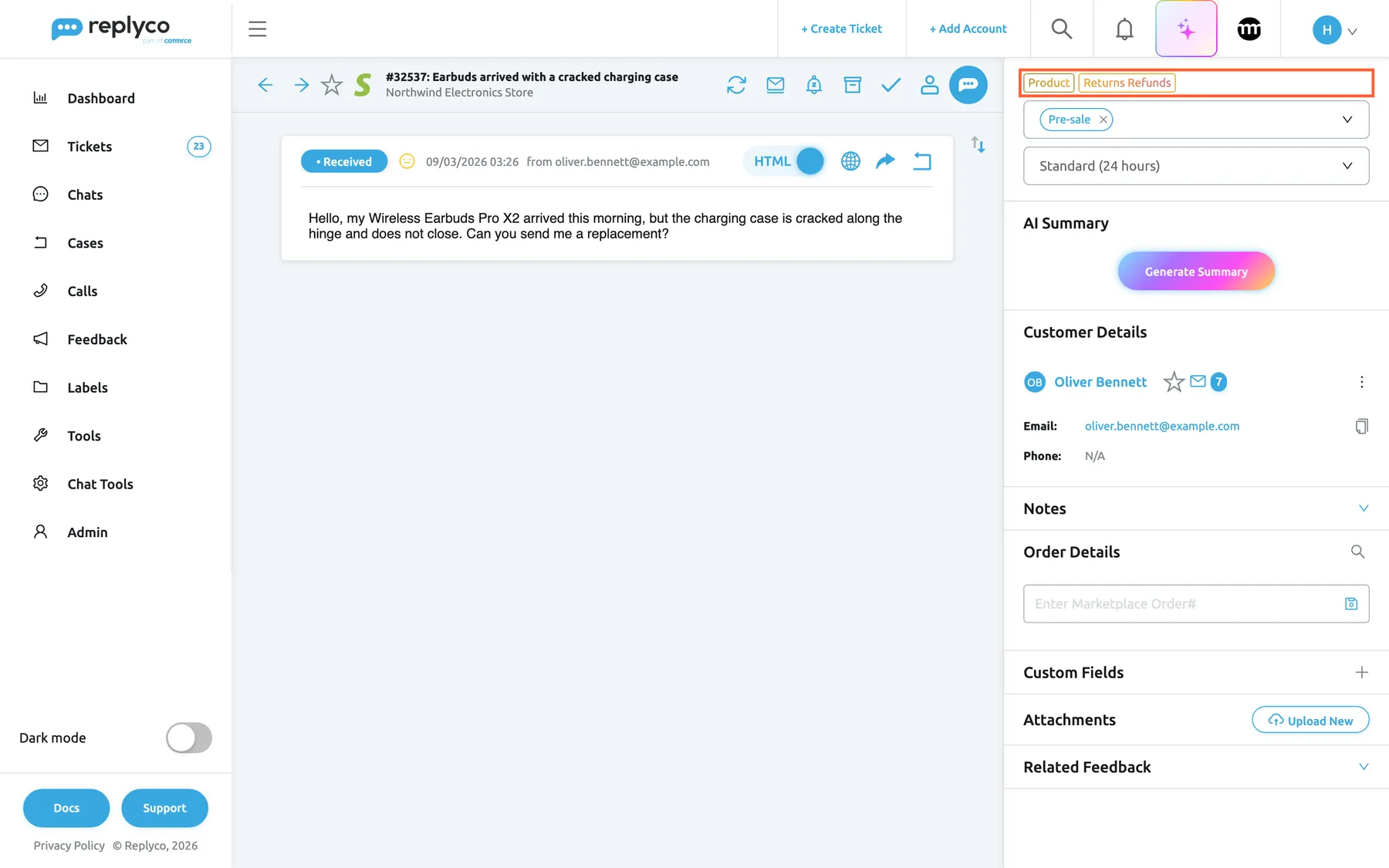
What this screenshot shows
- Screen
- Respond (/ticket/:threadId)
- Highlighted
- group “AI categories”, right-panel-top, Product, Returns Refunds. read-only; shows the ticket's AI categories
- Also visible
- label select: Pre-sale; priority select: Standard (24 hours); AI Summary, Customer Details, Notes, Order Details
- Purpose
- categories inside a ticket
Category cards on the Smart Filters screen
Section titled “Category cards on the Smart Filters screen”TicketsSmart Filters shows, under AI Categories, one card per category that has open tickets, framed in the category’s colours and ordered by count, highest first. Active counts the tickets with that category that are not resolved, not archived, not from a blocked customer and not snoozed right now. Selecting a card opens All Tickets filtered to that category and to tickets that are not resolved. A category with no open tickets has no card. If your company has no categories at all, the section says No data.... The rest of this screen is described in Smart Filters.
Why: the cards are the one-click way to a topic. A Smart Filter you define yourself under ToolsSmart Filters has no category condition, so these cards and the list filter are how you keep a topic view close; see Manage Smart Filters.
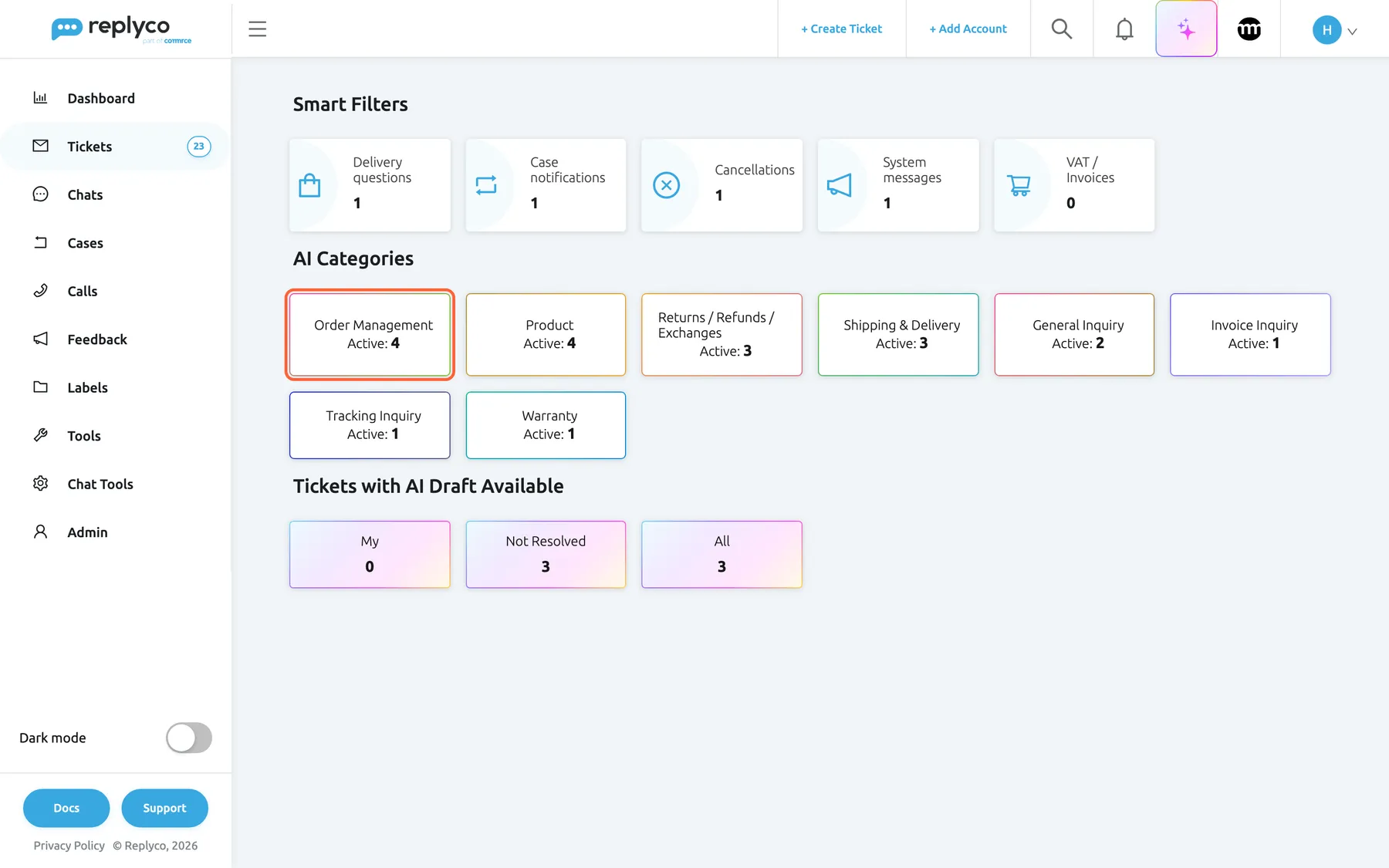
What this screenshot shows
- Screen
- Smart Filters (/ticket-smart-filters)
- Highlighted
- link “Active”, ai-categories-first-card, Order Management, Active: 4. opens All Tickets filtered to this category and to not resolved tickets
- Also visible
- Smart Filters row; 8 category cards with Active counts 4, 4, 3, 3, 2, 1, 1, 1; Tickets with AI Draft Available
- Purpose
- one click from a topic to its open tickets
Categories and reply templates
Section titled “Categories and reply templates”ToolsAutomation › Templates: open a template with Create New or Edit, and choose categories in Related AI Categories, described as Associate AI intent categories to enable smart suggested replies and automatic template matching. The field is shown while categorisation is on. The result appears in the Template list of a ticket’s reply editor.
A template’s categories say which topics it answers. In the reply editor, templates that share categories with the ticket are listed first in gradient text, and the best matches carry a sparkle; the rest follow by name. How a match is counted, and when a template is filled in by itself, depends on the two template switches described in how the settings combine.
Replyco also links categories for you:
- when you create a template and leave the field empty, the AI picks categories that fit its text;
- when you add a category, the AI checks every template and links the new category where it fits.
Editing a template saves exactly the categories in the field and asks the AI nothing. Categories chosen in the dialog that saves a reply as a template are not kept. How to write and scope templates is in Templates and the full feature in Reply templates.
The same topic usually needs the same answer. Linking templates to topics turns the category on the ticket into a ready answer in the editor.
Three ways to use it:
- Link Damaged item – refund or replacement? to Product and Returns / Refunds / Exchanges, so tickets about broken goods open with it filled in.
- Link Where is my order? to Shipping & Delivery and Order Management, and Order received to Order Management only, so a delivery question ranks the first above the second.
- Leave a generic template such as Out of office – back on Monday without categories, so it never outranks a topical answer.
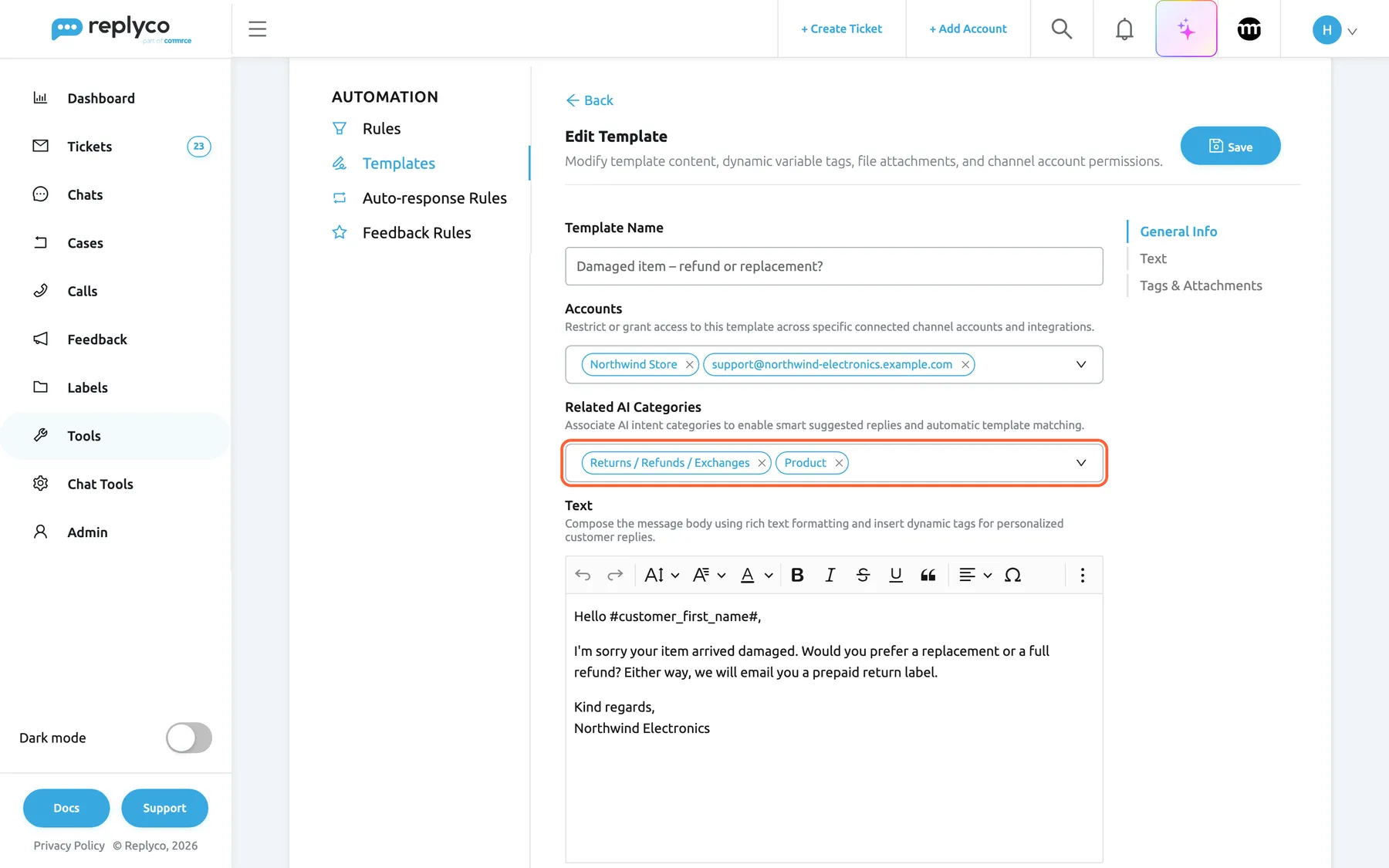
What this screenshot shows
- Screen
- Edit Template (/tickets-automation?tab=templates)
- Highlighted
- combobox “Related AI Categories”, form-general-info, Returns / Refunds / Exchanges, Product. links the template to AI categories for ranking and suggestion
- Also visible
- Template Name: Damaged item – refund or replacement?; Accounts: Northwind Store, support mailbox; Text editor with the template body; Save
- Purpose
- link templates to categories
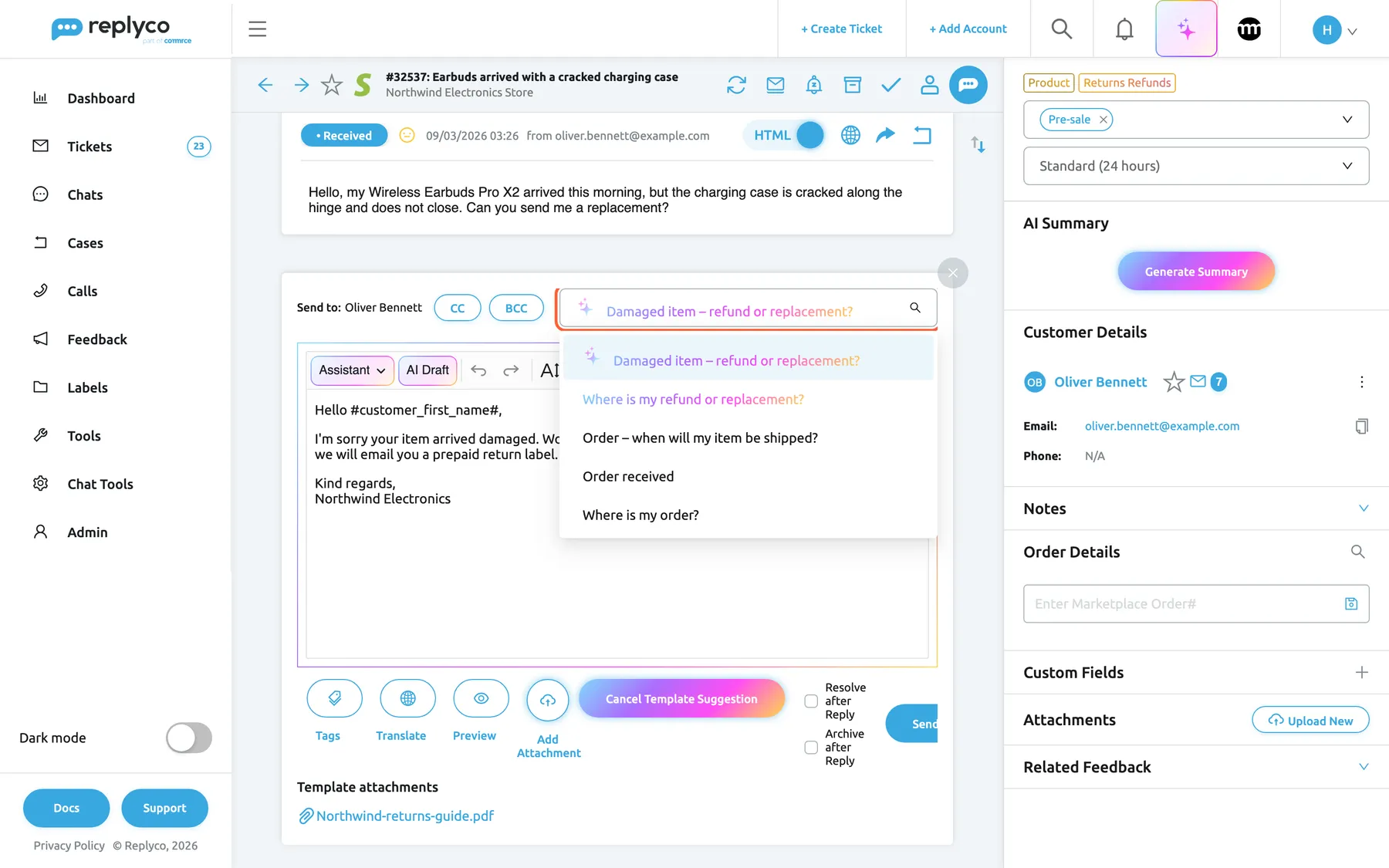
What this screenshot shows
- Screen
- Respond (/ticket/:threadId)
- Highlighted
- combobox “Template”, editor-header, expanded; Damaged item – refund or replacement? selected. lists templates, best category matches first
- Also visible
- ticket categories: Product, Returns Refunds; sparkle on the best match; gradient text on a partial match; Cancel Template Suggestion button; template attachment Northwind-returns-guide.pdf
- Purpose
- template suggestion from AI categories
Categories and AI drafts
Section titled “Categories and AI drafts”Automatic AI drafts are switched on for your company by Replyco; while they are, AI Draft Settings appears in ToolsAI Settings. They depend on AI Categories on the General tab.
Replyco writes an automatic draft only for a customer message that was categorised, right after categorising it. If every category the message got is General Inquiry or Irrelevant / Not Related (or Allgemeine Anfrage or Irrelevant / Nicht relevant), or it got none, no draft is written. Otherwise the message’s categories are passed to the draft as a hint to what the customer wants. With categorisation switched off, no automatic drafts are written at all. For everything else about drafts, see AI drafts.
A draft for Hi, I have a question or for a sales pitch would only get deleted. Using the category as a gate keeps drafts for messages the AI can actually answer.
Three examples:
- Could you cancel the order before it ships? → Order Management → a draft is written.
- Hi, I have a question. → General Inquiry only → no draft; the agent asks what the customer needs.
- Does the hub work with a MacBook Air, and can I order 50? → Product and General Inquiry → a draft is written, because Product is not a fallback.
What you need to know
Section titled “What you need to know”| Topic | Fact |
|---|---|
| One list per company | Every account and channel uses the same categories; there is no per-account list. |
| Categories add up | A ticket keeps every category any of its messages got. The AI never removes one; only deleting the category does. |
| Nothing retroactive | Only messages that arrive while categorisation is on are categorised. New or renamed categories do not re-categorise old tickets. |
| Renames reach old tickets | A new name, tag or colour shows on every ticket that already has the category. |
| Deletion cascades | Deleting a category removes it from every ticket and template, with no undo. |
| Exact names | Only answers matching a category name exactly are kept. Two categories with the same name are both assigned. |
| Limits | Names up to 1,000 characters, tags up to 100. No limit on the number of categories. |
| No manual changes | Nobody can add or remove a category on a ticket by hand. |
| Rules and saved filters | Message rules have no category condition, and a Smart Filter you define has no category field. Use the list filter and the category cards. |
| Failures | If the AI is unavailable, the message arrives and your rules run; that message adds no category and gets no automatic draft. Nothing is retried later. |
| Language | Customer messages are read in any language. The AI’s instructions follow your Replyco language, English or German. Category names are shown as you wrote them. |
| Cost | Each categorised message is one AI action, Category. Adding a category costs one AI check per template, and creating a template with no categories one more. |
| Switching off | Stops new categories and automatic drafts and hides the list column. Categories on tickets, the list and template links are kept. |
| Chats | Conversations under Chats are not categorised. |
Frequently asked questions
Section titled “Frequently asked questions”General
Section titled “General”What does AI categorisation do?
Section titled “What does AI categorisation do?”Replyco’s AI reads each incoming customer message and puts it into one or more categories from your own list, such as Shipping & Delivery or Returns / Refunds / Exchanges. The categories show as coloured tags in the ticket list and the ticket, drive a list filter and the category cards under TicketsSmart Filters, rank reply templates and decide which messages get automatic AI drafts.
Do I need a special plan for categorisation?
Section titled “Do I need a special plan for categorisation?”Categories are part of Replyco AI, which every plan includes, and every feature is on during a trial. Ranking and suggesting reply templates by category also needs templates linked to accounts, which every plan includes; companies on an older plan may not have it, see What each plan includes. Without Replyco AI, AI Settings is missing from Tools.
What is the difference between categories and labels?
Section titled “What is the difference between categories and labels?”Labels are set by your team or your rules, and anyone can add or remove them on a ticket. Categories are set only by Replyco’s AI from what the customer writes, chosen from the list under ToolsAI Settings › Categories. Nobody can change the categories of a single ticket by hand.
Does categorisation cost anything?
Section titled “Does categorisation cost anything?”Each customer message sent for categorisation is one AI action, listed as Category under AdminBilling › AI Usage. Adding a category costs one AI check per template, and creating a template without categories one more. Replies from your team and blacklisted customers are not sent.
Where do I switch categorisation on or off?
Section titled “Where do I switch categorisation on or off?”Go to ToolsAI Settings, stay on the General tab, change AI Categories and select Save. New companies start with it on. Switching it off also stops automatic AI drafts and hides the category column in the ticket list.
Who can change the categories?
Section titled “Who can change the categories?”Users with the Admin permission with Edit rights: ToolsAI Settings and its Categories tab appear only for them, in a company with Replyco AI, and only they can save a category or the switches. A bookmarked link to the screen opens the start screen for anyone else. Linking categories to templates needs the Automation permission for ToolsAutomation.
Which categories does Replyco start with?
Section titled “Which categories does Replyco start with?”New companies get seven categories: Order Management, Shipping & Delivery, Returns / Refunds / Exchanges, Payments & Billing, Product, General Inquiry and Irrelevant / Not Related. Companies that sign up with Germany, Switzerland, Austria or Liechtenstein as their country get the same seven in German. You can rename, recolour or delete them on the Categories tab.
I switched categories on, but my tickets have none. Why?
Section titled “I switched categories on, but my tickets have none. Why?”Only customer messages that arrive after the switch was saved are categorised; Replyco never goes back to older tickets. Wait for new customer messages, and check that the message came from a customer who is not on the AI Customers Blacklist, and that your category list under ToolsAI Settings › Categories is not empty.
Your category list
Section titled “Your category list”How do I add a category?
Section titled “How do I add a category?”Go to ToolsAI Settings › Categories, select Create New, pick colours, fill in Category name and a short Category tag, and select Save. New messages can get the category from then on, and Replyco links it to the templates whose text fits.
Why can’t I save a new category?
Section titled “Why can’t I save a new category?”Save stays unavailable while Category name is empty; the name is the only required field. Type a name that describes the customer’s request, such as Warranty, and the button becomes available. The tag and colours are optional.
How should I name categories?
Section titled “How should I name categories?”Name the customer’s request, because the name is the only thing the AI reads: Tracking Inquiry, Warranty, Returns / Refunds / Exchanges. Avoid team names, internal abbreviations and near-duplicates such as Delivery and Deliveries, and keep General Inquiry and Irrelevant / Not Related under those exact names, because the AI is told to use them as fallbacks.
What happens to existing tickets when I rename a category?
Section titled “What happens to existing tickets when I rename a category?”Every ticket that has the category shows the new name, tag and colours straight away, in the list, the ticket and the category cards. The tickets keep the category. From then on, the AI chooses by the new name for new messages, so a rename can change which messages get it.
What happens when I delete a category?
Section titled “What happens when I delete a category?”It is removed from the list, from every ticket that has it and from every template linked to it, after the question Are you sure you want to delete this item? on the Categories tab. Tickets whose only category it was count as No Category. There is no undo, and creating the category again does not return it to those tickets.
Will a new category be applied to my existing tickets?
Section titled “Will a new category be applied to my existing tickets?”No. A category you add on the Categories tab can only be given to messages that arrive afterwards. Replyco does check your existing templates when you add it and links the category to those whose text fits.
What is the tag for, and what if I leave it empty?
Section titled “What is the tag for, and what if I leave it empty?”The tag is the short text on the coloured tag in the ticket list and at the top of the ticket, such as Returns Refunds for Returns / Refunds / Exchanges. The AI never sees it. Without a tag, tickets show the category’s full name, so a short tag keeps a busy ticket list readable.
How messages are categorised
Section titled “How messages are categorised”How does the AI decide which category a message gets?
Section titled “How does the AI decide which category a message gets?”It classifies the message that just arrived by the customer’s explicit intent, choosing only names from your list, several only when the message clearly raises several topics. It uses the ticket’s AI summary or up to the ten most recent messages as background. Unclear messages go to General Inquiry and unrelated ones to Irrelevant / Not Related, if your list has categories with exactly those names.
Why does a ticket have several categories?
Section titled “Why does a ticket have several categories?”A message can get more than one category when it clearly raises several topics, and every new message can add categories to its ticket. Categories are never removed by the AI, so a conversation that moves from a cancellation to a return shows both Order Management and Returns / Refunds / Exchanges.
The category is wrong. Can I change it on the ticket?
Section titled “The category is wrong. Can I change it on the ticket?”No. The ticket screen has no control to change categories, and the AI never removes one. What you can change is the list under ToolsAI Settings › Categories: a clearer category name, or a new category for the topic, improves how future messages are categorised. To mark a ticket yourself, add a label.
Why do so many tickets end up in General Inquiry?
Section titled “Why do so many tickets end up in General Inquiry?”The AI is told to use General Inquiry when a message’s intent is unclear or no category fits. Many such tickets mean your list is missing a topic your customers write about. Filter the list by General Inquiry, read a few tickets, and add a category for the topic they share on the Categories tab.
Does categorisation work for messages in other languages?
Section titled “Does categorisation work for messages in other languages?”Yes. The customer’s message is read as written, without translating it first, and gets categories from your list. The AI’s instructions are in German for companies whose Replyco language is German and in English otherwise; category names show exactly as you wrote them, whatever language they are in.
Can I create a rule or Smart Filter that uses the category?
Section titled “Can I create a rule or Smart Filter that uses the category?”No. Message rules have no category condition, and a Smart Filter you define under ToolsSmart Filters has no category field. To work by topic, use Filter by Category in any ticket list or the category cards under TicketsSmart Filters.
Where categories are shown
Section titled “Where categories are shown”Why don’t I see the category column in my ticket list?
Section titled “Why don’t I see the category column in my ticket list?”The AI categories column appears only while AI Categories is on under ToolsAI Settings. If it is on, open the ⋮ menu next to the list heading, choose Edit Columns, tick the column and save, or choose Restore Default Settings.
What does the number on a category card count?
Section titled “What does the number on a category card count?”On TicketsSmart Filters, Active counts the tickets with that category that are not resolved, not archived, not from a blocked customer and not snoozed right now. Selecting the card opens those tickets in All Tickets. Categories with no such tickets have no card.
Why is a category missing from the category cards?
Section titled “Why is a category missing from the category cards?”A card appears only for a category with at least one ticket that is not resolved, not archived, not from a blocked customer and not snoozed. Resolve the last open ticket of a topic and its card disappears from TicketsSmart Filters until a new one arrives. The category is still in your list.
Templates and drafts
Section titled “Templates and drafts”Why was a template filled in when I opened the reply editor?
Section titled “Why was a template filled in when I opened the reply editor?”AI Template Suggestion is on under ToolsAI Settings, and exactly one template linked to the ticket’s account matched the ticket’s categories best. Select Cancel Template Suggestion to empty the editor, or pick another template from the Template list.
Why is no template suggested although my templates have categories?
Section titled “Why is no template suggested although my templates have categories?”The editor fills in a template only when AI Template Suggestion is on, the ticket has categories, and exactly one template matches best; with a tie it only lists the matches first. With Suggest Partially Matched Template off, the template’s categories must equal the ticket’s exactly. Suggestions also need templates linked to the ticket’s account, and never replace a saved draft or a waiting AI response.
What do the sparkle and the gradient text in the template list mean?
Section titled “What do the sparkle and the gradient text in the template list mean?”In a ticket’s Template list, templates in gradient text share at least one category with the ticket and are listed first. Those with a sparkle share the most categories. Plain templates share none and follow by name. The order depends on Suggest Partially Matched Template under ToolsAI Settings.
Where do the categories on my new template come from?
Section titled “Where do the categories on my new template come from?”When you create a template under ToolsAutomation › Templates and leave Related AI Categories empty, the AI picks categories that fit its text. Adding a new category also links it to templates whose text fits. Edit the template and change the field to correct them.
Why did a message get no AI draft?
Section titled “Why did a message get no AI draft?”Automatic drafts are written only for categorised messages. A message whose only categories are General Inquiry or Irrelevant / Not Related gets no draft, nor does one with no category, and with AI Categories off under ToolsAI Settings no drafts are written at all. Drafts have further conditions of their own.
Data and privacy
Section titled “Data and privacy”What is sent to the AI for categorisation?
Section titled “What is sent to the AI for categorisation?”The text of the new customer message, the ticket’s AI summary or the text of up to ten recent messages as background, and the names of your categories. Tags, colours, labels and your team’s notes are not sent. Customers on the AI Customers Blacklist are never sent.
Can customers see their categories?
Section titled “Can customers see their categories?”No. Categories appear only inside Replyco, to your team: in the ticket list, the ticket, the filters and the category cards. Nothing about categories is added to replies or sent to the customer’s channel, and a template’s categories stay inside Replyco.
What happens to categories if I switch the feature off?
Section titled “What happens to categories if I switch the feature off?”New messages are no longer categorised, automatic drafts stop and the list column is hidden. Categories already on tickets stay, and still show in the ticket, the category filter and the cards under TicketsSmart Filters. Your list and template links are kept for when you switch AI Categories back on.
Troubleshooting
Section titled “Troubleshooting”| Symptom | What to check |
|---|---|
| AI Settings is not under Tools, or its link opens the start screen | Your user lacks the Admin permission with Edit rights, or the company does not have Replyco AI, which every plan includes; companies on an older plan may not have it. Ask an administrator, or see What each plan includes. |
| New tickets get no categories | In order: is AI Categories on and saved? Did the message arrive after that? Is it from a customer, not your team? Is the customer on the AI Customers Blacklist or blocked? Is the category list empty? Is it a chat rather than a ticket? Was the AI unavailable at the time? |
| Vague messages get no category | General Inquiry was renamed or deleted. The AI is told to use that exact name, or Allgemeine Anfrage for German-language companies. Add a category with that name again. |
| One category collects unrelated tickets | Its name is too broad. Rename it to the request it should cover, or split it: copy it, rename the copy and give it its own colour. |
| The same topic gets two categories | Two categories overlap or have the same name. Delete or rename one so every name is distinct. |
| Save is greyed out in the category form | Category name is empty. Type a name. |
| The AI categories column is missing | AI Categories is off, or the column was removed from your layout. Add it with Edit Columns or choose Restore Default Settings. |
| A category has no card on the Smart Filters screen | It has no open tickets that are not archived, blocked or snoozed. The card returns with the next such ticket. |
| Old tickets lost their categories | The category was deleted; deletion removes it from every ticket. It cannot be restored. |
| The editor fills in no template | In order: is AI Template Suggestion on? Does the ticket have categories? Are templates linked to the ticket’s account and to categories? Do two templates tie? Is Suggest Partially Matched Template off while the ticket has more categories than any template? Is a draft saved or an AI response waiting? |
| The editor keeps filling in the wrong template | That template’s categories match the ticket best. Change its Related AI Categories on the Templates tab, or link the right template to the same categories. |
| Automatic AI drafts stopped | AI Categories was switched off; drafts need it. Or the messages were categorised only as fallbacks. |
| AI usage rose after adding a category | Adding a category checks every template once. It is a one-off per new category. |