

Automatic feedback requests
Most happy Amazon buyers never leave a review unless someone asks, and pressing the review button in Seller Central for every order does not scale. With automatic feedback requests, Replyco asks Amazon to send its own review and seller feedback request to your buyers a set number of days after delivery, holds back orders that still have an open problem, and keeps a log of every request with Amazon’s answer.
What it does
Section titled “What it does”Reviews and seller feedback drive how buyers choose between offers, yet most satisfied customers simply move on. Asking at the wrong moment has its own cost: a request that reaches a buyer while their complaint is still open invites the one-star review you wanted to avoid.
When you create a feedback rule, Replyco checks every Amazon order it syncs against your rules and schedules one request per order, 5 to 30 days after the order’s delivery date. When a request is due, Replyco checks the order for unresolved tickets and open cases, then asks Amazon to send the buyer its standard review and seller feedback request. From there:
- You decide which orders are asked and when. Rules cover Amazon accounts, a schedule in days, and optional conditions such as the product SKU, the Amazon marketplace or the order total. Every setting, explained.
- Unhappy buyers are left out. Two switches cancel the request when the order still has an unresolved ticket or an open case. Feedback requests and your tickets.
- You see every request and what Amazon said. The request log lists each order with its delivery date, send date, rule and status, and a failed request shows Amazon’s reason. Feedback requests in the log and the order window.
- You can act on one order. Send a pending request now, cancel it, or ask for a review on an order no rule covered. Per-order actions: send now, cancel, create.
Every request is kept with its order, its rule, its send date and, when Amazon refuses it, Amazon’s own words, so you can always tell why a buyer was or was not asked.
Before you start
Section titled “Before you start”| Requirement | Details |
|---|---|
| Plan | Every current plan includes feedback requests, and every feature is on during a trial. Companies on an older plan may not have them. See What each plan includes. |
| An Amazon account | Rules cover Amazon accounts only. Connect one under AdminAccounts if you have not; see Connect Amazon. The account must be working: a blocked account, or one that needs to be reconnected, sends nothing until it is fixed. |
| Order sync | Replyco schedules a request when it saves or updates an Amazon order: mainly during the order sync, and also when it fetches an order for a ticket or you use Sync Order from Market. Keep order sync on so that every order is checked. Every current plan includes order sync; companies on an older plan may not have it. See What each plan includes. |
| Permission for rules | Rules live under ToolsAutomation › Feedback Rules and need the Automation permission, with its edit level to change them. See Feedback Rules. |
| Permission for the log | The request log under FeedbackFeedback Requests needs the Feedback permission. See User permissions and roles. |
| Cost | Replyco does not charge per request, and requests use no AI actions and no quota. |
Understanding feedback request statuses
Section titled “Understanding feedback request statuses”Every request Replyco schedules has one of four statuses. The request log shows them in colour, and the order window spells them out.
| Status | Meaning | Typical example |
|---|---|---|
| Pending (yellow) | Scheduled; Replyco sends it when its date comes | Oliver Bennett’s travel adapter, delivered 6 March, is due on 13 March through the 7-day rule |
| Sent (green) | Amazon accepted the request | Harry Wilson’s Smart Kettle, delivered 20 February, was asked on 6 March through the 14-day rule |
| Cancelled (red) | Stopped: by an exclusion switch, by Cancel in the order window, or because Amazon said it was too early when you sent it by hand | Jonas Becker still had an unresolved ticket about his power bank when the request was due |
| Failed (red) | Amazon refused the request; the reason is kept | Sophie Turner’s order: You have already requested a review for this order. |
A pending request becomes sent, cancelled or failed; it never goes back to pending. A cancelled request can still be sent by hand; a failed or sent one cannot.
How Replyco decides
Section titled “How Replyco decides”When a request is scheduled. Each time Replyco syncs a new or changed Amazon order, it looks for a request to schedule:
- The order must have a delivery date. Replyco uses the latest delivery date Amazon gives for the order; if there is none, the latest ship date; if there is neither, the moment it sees the order change to Shipped. Until one of these exists, nothing is scheduled.
- The first matching rule wins. Replyco goes through the switched-on rules in alphabetical order of their names and takes the first one that covers the order’s account and whose conditions all match. See Feedback Rules.
- The send date is the delivery date plus the rule’s schedule, shifted by up to 30 minutes.
- One request per order. Once an order has a request, from a rule or created by hand, Replyco never schedules another for it. Later syncs only refresh the order number, total, currency and customer shown in the log.
When a request is sent. Replyco looks for due requests regularly, account by account, and handles up to 100 per account at a time:
- The exclusion switches are checked now, not when the request was scheduled. If the rule has Exclude orders with active tickets on and a ticket linked to the order is not resolved, or Exclude orders with open Cases on and a case for the order is not closed, the request is cancelled.
- Replyco then asks Amazon to send its review and seller feedback request for the order, on the order’s own Amazon marketplace, and records Amazon’s answer.
What Amazon allows
Section titled “What Amazon allows”Amazon decides whether a request goes out. Replyco records its answer:
- 5 to 30 days after delivery. Amazon accepts a request only in that window. If Amazon says a due request is outside it, Replyco tries again the next day, for up to 20 days after the delivery date, and then marks the request Failed with Amazon’s message: You can’t use this feature to request a review outside the 5-30 day range after the order delivery date.
- Once per order. A second request for the same order fails with You have already requested a review for this order. This happens, for example, when the review button in Seller Central was already used for the order.
- Not every order qualifies. When Amazon offers no request for an order, it fails with The requested solicitation is not available for this Amazon Order. For some reason, Amazon didn’t let us send the feedback request. or Amazon’s own wording of it.
- Amazon limits how fast requests go out. When Amazon asks Replyco to slow down, the remaining requests stay Pending and are sent on a later run.
Any other error from Amazon marks that one request Failed with Amazon’s message, and the other due requests are still sent.
What does not get a request
Section titled “What does not get a request”- Orders from channels other than Amazon. Replyco sends no feedback requests on eBay, webstores or any other channel, although eBay and Amazon feedback still arrives in the Feedback List.
- Amazon orders whose number starts with S, which are multi-channel fulfilment orders.
- Orders of accounts that no switched-on rule covers, and orders that match none of the rules’ conditions.
- Orders that already have a request, from any rule or created by hand.
- Orders with no delivery date, no ship date and no change to Shipped.
- Orders Replyco does not sync: without order sync, and while the account is blocked or needs to be reconnected. Requests already scheduled wait and are sent once the account works again.
- Orders from before you created the rule, unless Amazon reports a change to them later and Replyco syncs them again.
Setting it up in five steps
Section titled “Setting it up in five steps”-
Check the account. Under AdminAccounts, your Amazon account is connected and syncing. Order sync must be on for your company.
-
Create a catch-all rule. Go to ToolsAutomation, select the Feedback Rules tab and then Create New. Name the rule, for example Request a review after delivery, and set Schedule (days) to the number of days your buyers need to try the product.
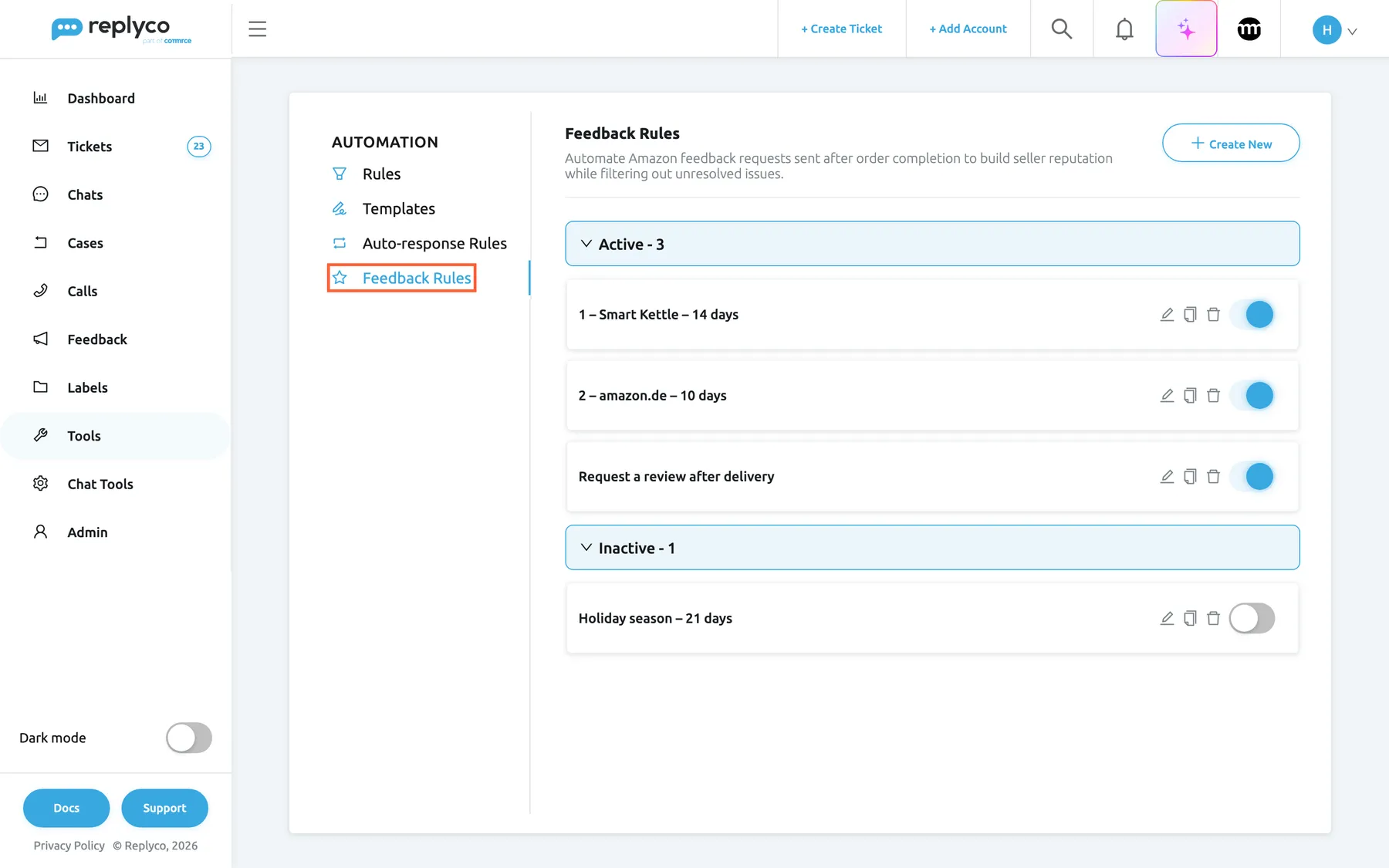
Feedback requests start on the Feedback Rules tab of Automation, one rule per group of orders. What this screenshot shows
- Screen
- Feedback Rules (/tickets-automation?tab=feedbackRules)
- Highlighted
- tab “Feedback Rules”, left-tabs, selected. opens the list of feedback rules
- Also visible
- Automation tabs: Rules, Templates, Auto-response Rules, Feedback Rules; Active - 3: three rules switched on; Inactive - 1: one rule switched off; Create New button
- Purpose
- entry point of automatic feedback requests
-
Keep the safeguards on. Leave Exclude orders with active tickets and Exclude orders with open Cases on, pick your Amazon accounts under Affected Channels and select Save. From now on, matching orders get a request scheduled.
-
Add specific rules (optional). For products or marketplaces that need a different timing, create a rule with Order Matching Conditions, and give it a name that sorts before the catch-all, such as 1 – Smart Kettle – 14 days.
-
Watch the log. Open FeedbackFeedback Requests. New requests appear as Pending with the date they are due; after that date they turn Sent, Cancelled or Failed.
Every setting, explained
Section titled “Every setting, explained”A feedback rule has these settings on the form under ToolsAutomation › Feedback Rules, in the order the form shows them, plus the switch on its card. For every button and the list itself, see Feedback Rules.
Name, the rule’s name and its place in line
Section titled “Name, the rule’s name and its place in line”First field of the form Create Feedback Rule or Edit Feedback Rule, under General Info. Saved with Save.
Required, up to 150 characters. Names do not have to be unique. The name is shown on the card, in the details panel, in the Rule column of the request log and in Filter by Feedback Rule. Replyco checks rules in alphabetical order of their names, so the name also decides which rule wins when several match.
There is no other way to order rules, so the name carries the priority. A leading number keeps it visible.
| Do | Don’t |
|---|---|
| Start specific rules with 1 –, 2 – so they sort first | Rely on the order you created the rules in |
| Say what the rule covers and when: 2 – amazon.de – 10 days | Use names such as New rule or Test |
| Keep a catch-all rule without conditions, named to sort last | Give two rules the same name; you cannot tell which one scheduled a request |
Schedule (days), when the request goes out
Section titled “Schedule (days), when the request goes out”Second field of the form, a number box with arrows. Saved with Save.
The number of days between the order’s delivery date and the request, from 5 to 30; a new rule starts at 5. A number outside the range is corrected when you leave the box. The send time is the delivery date plus these days, shifted by up to 30 minutes. Changing the schedule affects requests scheduled from then on; pending requests keep their date.
Amazon accepts review requests only 5 to 30 days after delivery. Within that window, choose the moment your buyers have used the product long enough to judge it.
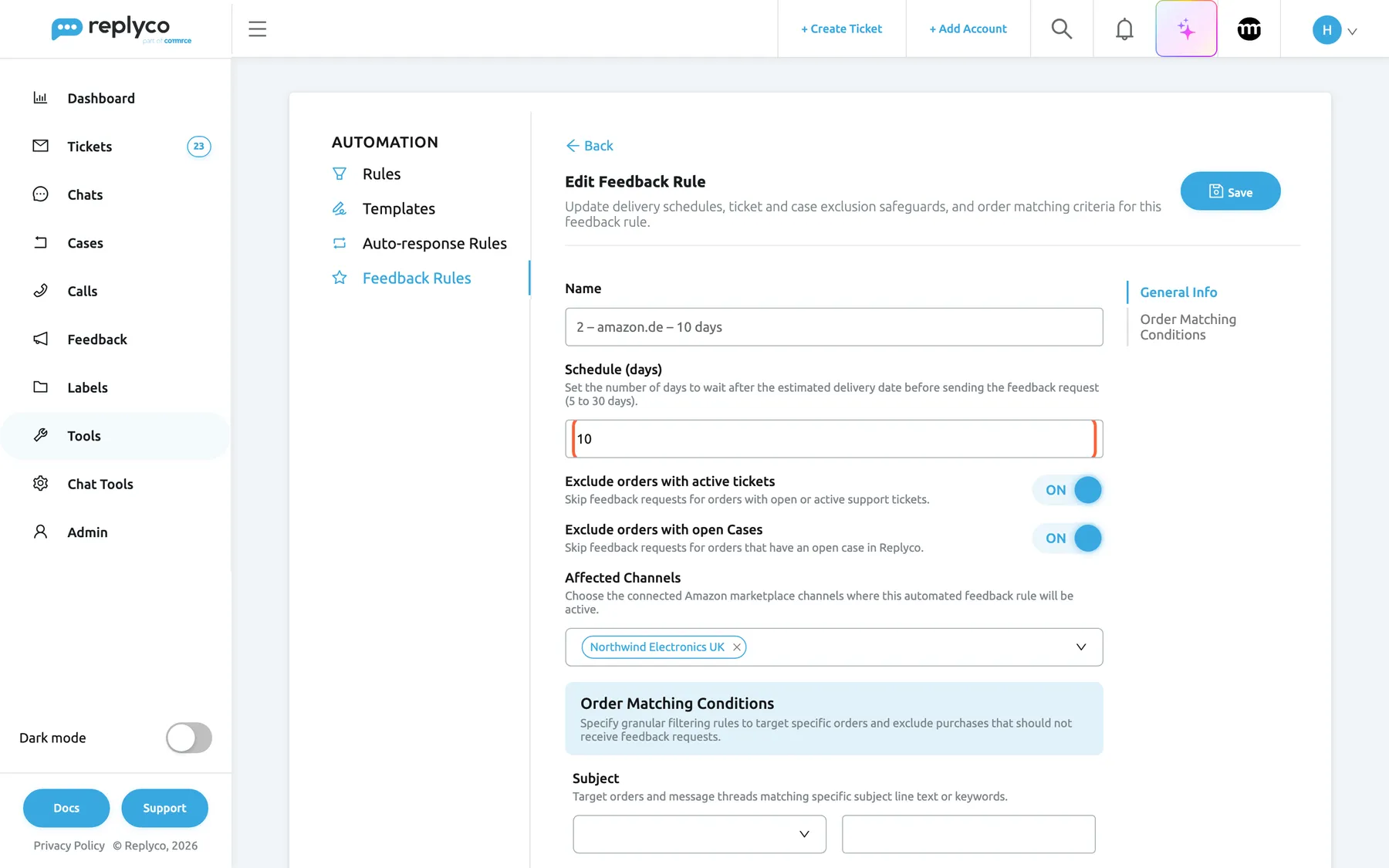
What this screenshot shows
- Screen
- Edit Feedback Rule (/tickets-automation?tab=feedbackRules)
- Highlighted
- spinbutton “Schedule (days)”, form-general-info, 10. sets the days between delivery and request
- Also visible
- Name 2 – amazon.de – 10 days; Exclude orders with active tickets ON; Exclude orders with open Cases ON; Affected Channels: Northwind Electronics UK; contents list and Save
- Purpose
- the timing and the safeguards of a rule
| Schedule (days) | Delivery date in Est. Delivery Date | Request due | What happens |
|---|---|---|---|
| 5 | 6 March, 18:00 | 11 March, around 18:00 | Earliest day Amazon allows |
| 7 | 6 March, 18:00 | 13 March, around 18:00 | Sent on the next run after it is due |
| 30 | 6 March, 18:00 | 5 April, around 18:00 | Last day Amazon allows; if the request is late, Amazon refuses it and it fails |
| 7 | none; latest ship date 4 March, 18:00 | 11 March, around 18:00 | Without a delivery date, the schedule counts from the ship date |
Exclude orders with active tickets, the ticket safeguard
Section titled “Exclude orders with active tickets, the ticket safeguard”Switch under the schedule. Saved with Save.
On by default. When a request of this rule is due, Replyco cancels it if any ticket linked to the order is not resolved: open, waiting for the customer, or archived without being resolved. Off: tickets are ignored. The switch is read when each request is due, so switching it on also protects requests already scheduled.
A buyer still waiting for your answer is the worst person to ask for a review.
Exclude orders with open Cases, the case safeguard
Section titled “Exclude orders with open Cases, the case safeguard”Switch under the ticket safeguard. Saved with Save.
On by default. When a request of this rule is due, Replyco cancels it if a case that Replyco holds for the order is not closed. Off: cases are ignored. Replyco builds cases from eBay and some webstores, not from Amazon, so for Amazon orders this switch rarely finds a case. See Cases.
An open return or dispute means the buyer’s experience is not settled.
Affected Channels, which accounts the rule covers
Section titled “Affected Channels, which accounts the rule covers”Multi-select at the end of General Info, with Select all at the top. Saved with Save.
Required. Only Amazon accounts are offered. An order is considered by a rule only when its account is in this list.
Sellers with an Amazon account per region can give each one its own timing.
Order Matching Conditions, which orders qualify
Section titled “Order Matching Conditions, which orders qualify”The second part of the form; Order Matching Conditions in the contents list on the right jumps there. Each condition has an operator list, which a cross clears, and a value box. Saved with Save.
Seven optional conditions. An order must meet every filled-in condition, and empty ones are ignored. A condition needs both an operator and a value, or neither; otherwise saving stops with All fields must be completed.. Text is compared without regard to capital letters. The conditions are checked when Replyco syncs the order, not when the request is due.
| Condition | Operators | Compares with |
|---|---|---|
| Subject | Contains, Not Contains | The order’s subject |
| Product SKU | Contains, Not Contains, Starts With, Ends With | The SKUs of the order’s products; one product is enough, except for Not Contains, which needs all of them |
| Marketplace ID | Contains, Not Contains | The Amazon marketplace ID, such as A1PA6795UKMFR9 (amazon.de) or A1F83G8C2ARO7P (amazon.co.uk) |
| Order Status | Contains, Not Contains, Starts With, Ends With | Amazon’s order status, such as Shipped or Unshipped |
| Created Date | More Than, Less Than | Days since the order was placed, at the moment of the check |
| Shipped Date | More Than, Less Than | Days since the order’s latest ship date, at the moment of the check |
| Total Price | Equals, Equals or More, Equals or Less | The order total in the order’s currency; the currency itself is not compared |
One schedule rarely fits every product. Conditions let a product line, a marketplace or a price band have its own timing, or no request at all.
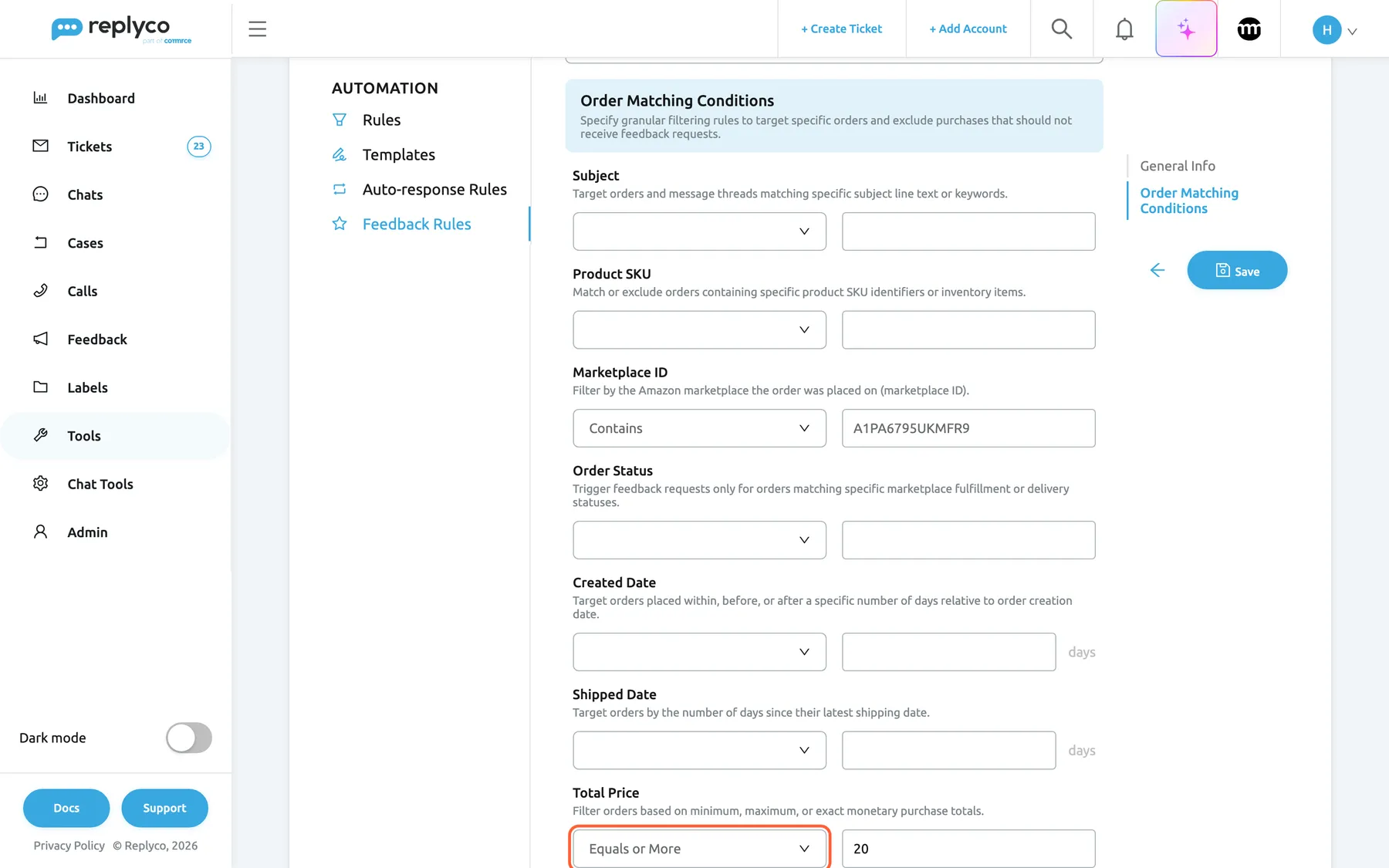
What this screenshot shows
- Screen
- Edit Feedback Rule (/tickets-automation?tab=feedbackRules)
- Highlighted
- combobox “Total Price”, form-conditions-bottom, Equals or More, 20. limits the rule by order total
- Also visible
- Marketplace ID Contains A1PA6795UKMFR9; Subject, Product SKU, Order Status, Created Date, Shipped Date empty; Total Price Equals or More 20
- Purpose
- narrow a rule to some orders
Date conditions are strict and count back from the moment Replyco checks the order. With Created Date More Than 3:
| Order placed before the check | Matches? |
|---|---|
| 71 hours | No |
| exactly 72 hours | No; the order must be older than 3 days |
| 73 hours | Yes |
| no date known | No; an order without the date never matches a date condition |
Text conditions offer four operators; Starts With suits SKUs that share a prefix per product line.
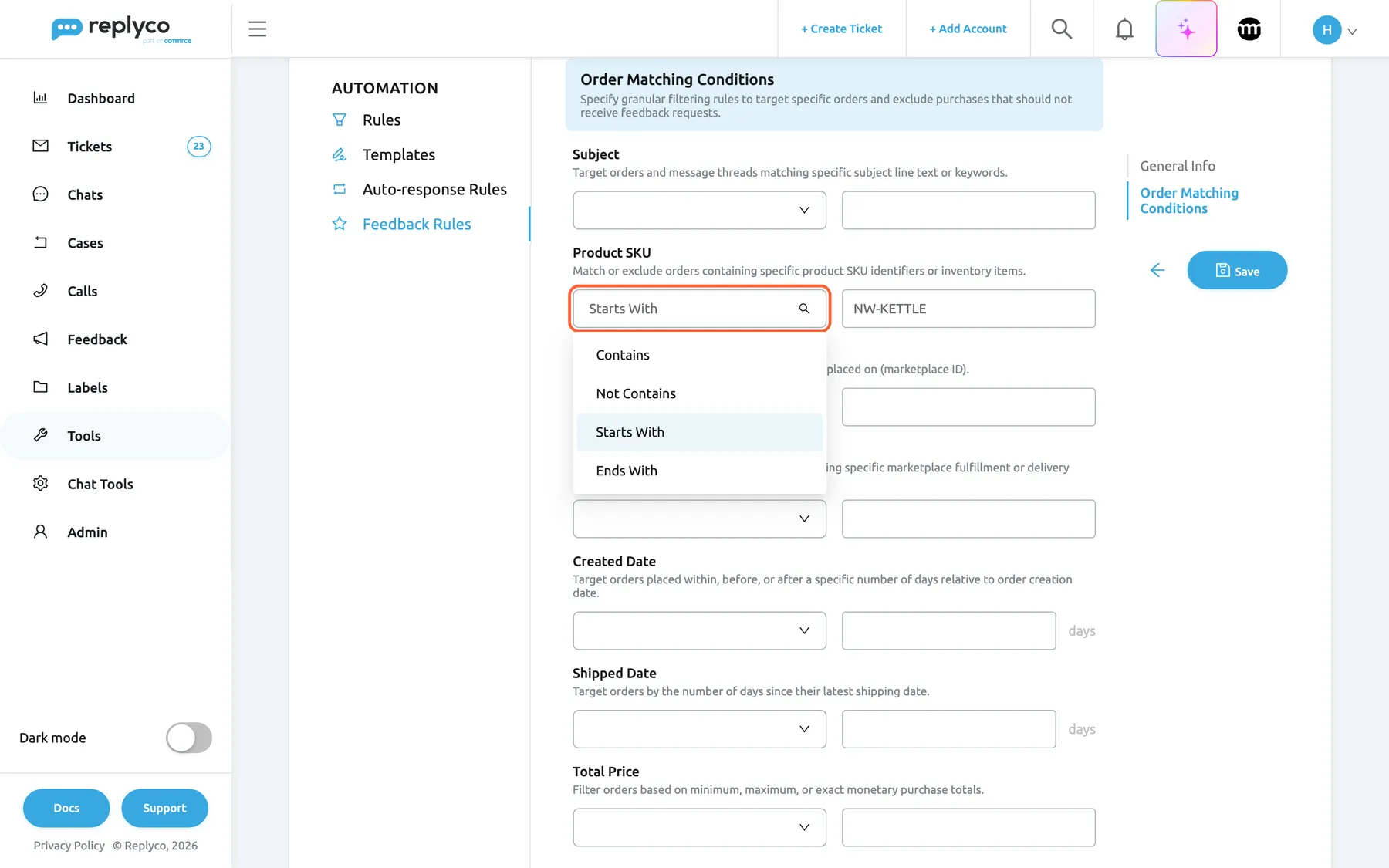
What this screenshot shows
- Screen
- Edit Feedback Rule (/tickets-automation?tab=feedbackRules)
- Highlighted
- combobox “Product SKU”, form-conditions, open, Starts With selected. picks how the SKU is compared
- Also visible
- options Contains, Not Contains, Starts With, Ends With; value NW-KETTLE; Subject empty
- Purpose
- the operators of a text condition
The switch on the rule’s card, on or off
Section titled “The switch on the rule’s card, on or off”ToolsAutomation › Feedback Rules, the switch at the right end of each card. It saves the moment you use it and shows Success.
On: the rule schedules requests for the orders Replyco checks, and its exclusion switches protect its pending requests. Off: the rule schedules nothing new and moves to the Inactive group.
Pause a rule, for example over a busy season, without losing its settings.
How the settings combine
Section titled “How the settings combine”When a request is due, the rule’s state and switches decide what happens:
| The request’s rule | Ticket safeguard | Case safeguard | The order has an unresolved ticket | The order has an open case | Result |
|---|---|---|---|---|---|
| switched on | on | on | no | no | Sent to Amazon |
| switched on | on | any | yes | any | Cancelled |
| switched on | any | on | any | yes | Cancelled |
| switched on | off | off | yes | yes | Sent to Amazon |
| none (created by hand) | – | – | any | any | Sent at once, without checks |
Feedback requests in the log and the order window
Section titled “Feedback requests in the log and the order window”Every request appears in two places: the request log, one row per request, and the order window, one line for the order’s request.
| Indicator | Meaning | Where |
|---|---|---|
| Pending in yellow | Scheduled for the date in Feedback Sent Date | Log, Status column |
| Sent in green | Amazon accepted it | Log |
| Cancelled in red | Stopped by a safeguard, by hand, or too early | Log; red line in the order window |
| Failed in red | Amazon refused; hover for the reason | Log; red line with the reason in the order window |
| Empty Rule cell | The request was created by hand from the order | Log |
The request log
Section titled “The request log”FeedbackFeedback Requests lists every request, ten per page. Each row is one request, for one order:
| Column | What it shows |
|---|---|
| Order | The Amazon order number |
| Account | The Amazon account |
| Cost | The order total with its currency, such as GBP 24.99 |
| Est. Delivery Date | The delivery date the schedule counts from |
| Customer | The buyer’s name |
| Status | The status in colour; hover Failed for Amazon’s reason |
| Feedback Sent Date | The date the request is scheduled to go out, and the date it went out once it is sent |
| Rule | The rule that scheduled it; empty for a request created by hand |
Sort by account, delivery date, customer, status or send date with the arrows in the column headers. For every control of this screen, see Feedback Requests.
Why: the log is where you see whether your rules do what you meant: what is coming, what went out, and what Amazon or your safeguards stopped.
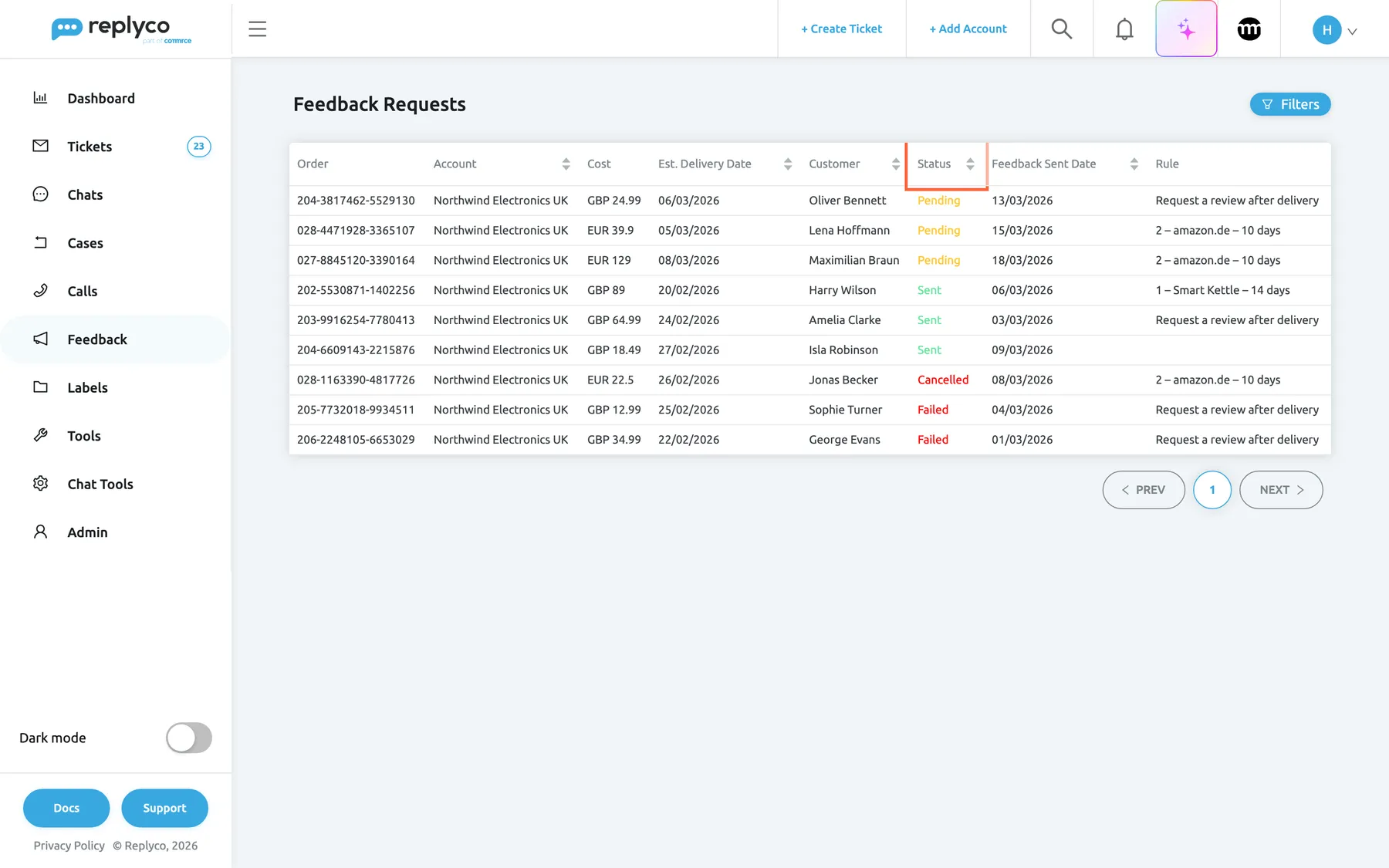
What this screenshot shows
- Screen
- Feedback Requests (/feedbacks-requests)
- Highlighted
- columnheader “Status”, table-header, sortable. sorts the requests by status
- Also visible
- 9 requests of Northwind Electronics UK; 3 Pending, 3 Sent, 1 Cancelled, 2 Failed; Rule column with rule names, one empty; Filters button
- Purpose
- the log of automatic feedback requests
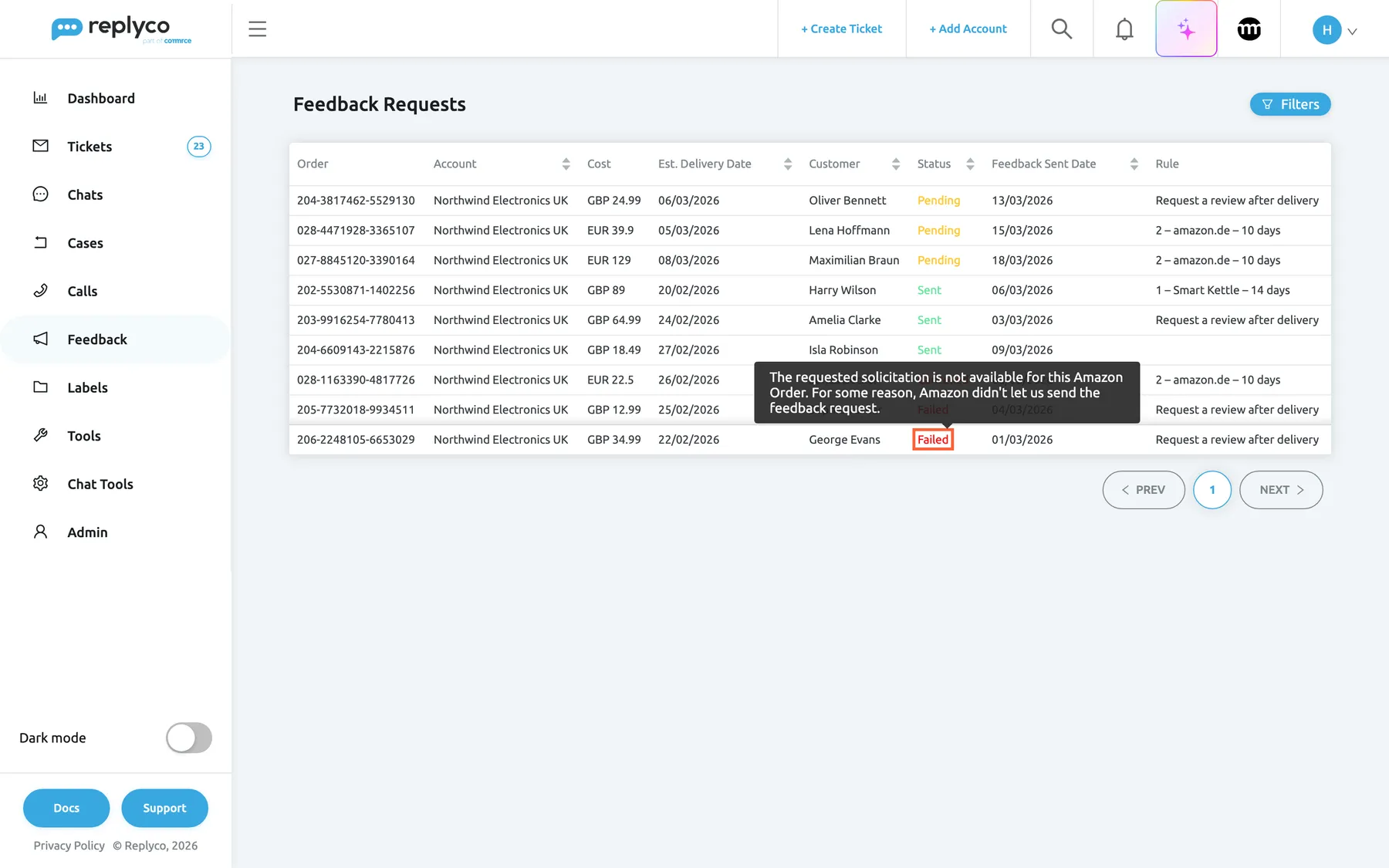
What this screenshot shows
- Screen
- Feedback Requests (/feedbacks-requests)
- Highlighted
- cell “Failed”, table-status-cell, hovered. shows Amazon's reason in a tooltip
- Also visible
- tooltip with Amazon's English message; order 206-2248105-6653029, George Evans; rule Request a review after delivery
- Purpose
- find out why a request failed
Select Filters in the top right corner to search by order number or customer name and to filter by Filter by Status, Filter by Feedback Rule or Filter by Account. The filters, the sort and the page are remembered in your browser.
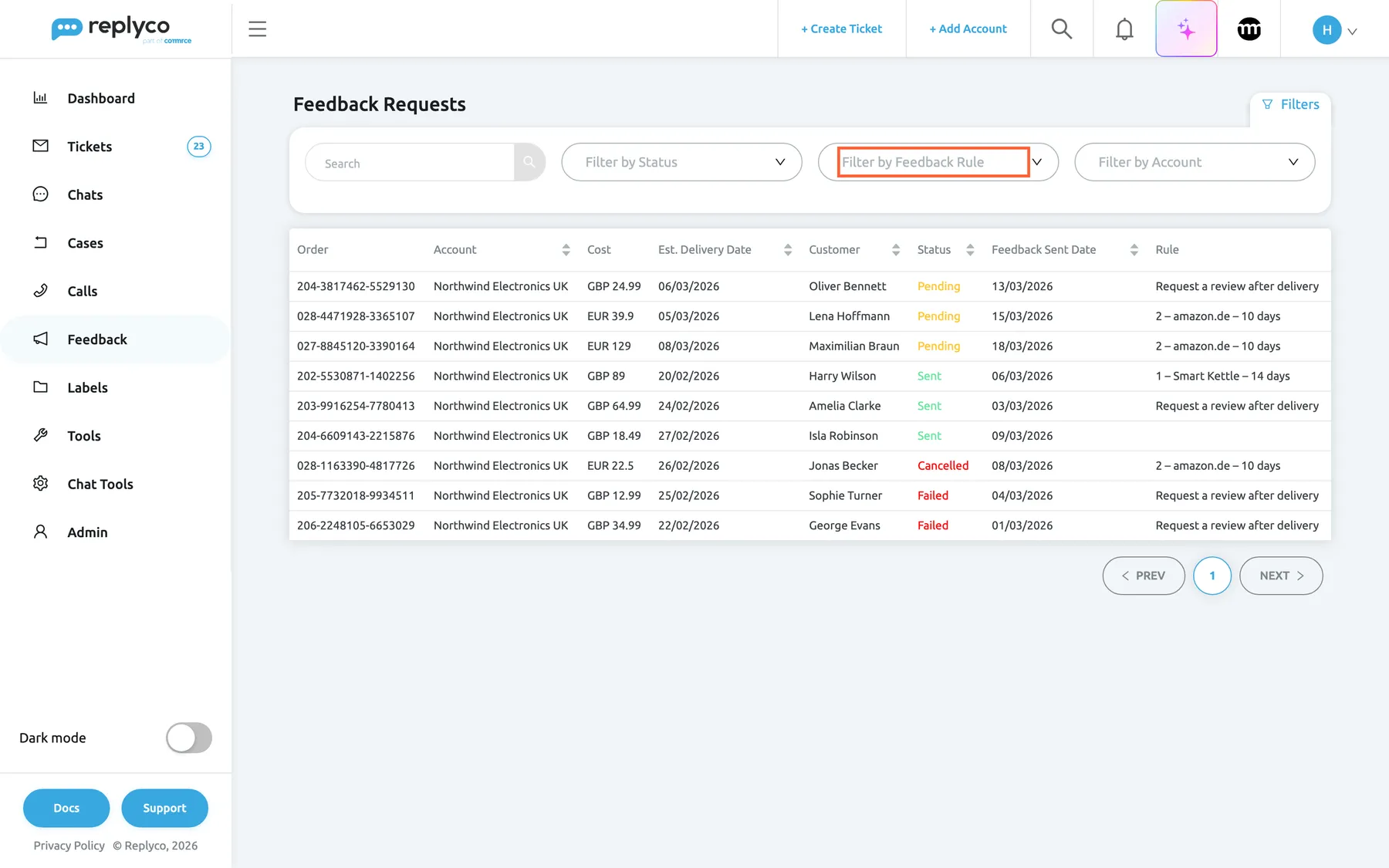
What this screenshot shows
- Screen
- Feedback Requests (/feedbacks-requests)
- Highlighted
- combobox “Filter by Feedback Rule”, filter-bar, empty. filters the requests by rule
- Also visible
- Search box; Filter by Status; Filter by Account; nine requests in the table
- Purpose
- follow up one rule
Per-order actions: send now, cancel, create
Section titled “Per-order actions: send now, cancel, create”Select a row of the log and the window Order Details opens with the order. Under the products, one line describes the order’s request and offers what you can do with it:
| Status | Line in the order window | Buttons |
|---|---|---|
| Pending | Feedback request will be sent 13/03/2026 17:48 | Send now, Cancel |
| Cancelled | Feedback request was cancelled, in red | Send now |
| Failed | Feedback request failed (You have already requested a review for this order.), in red | none |
| Sent | Feedback request was sent 06/03/2026 17:44 | none |
| No request yet, Amazon order | – | Create feedback request |
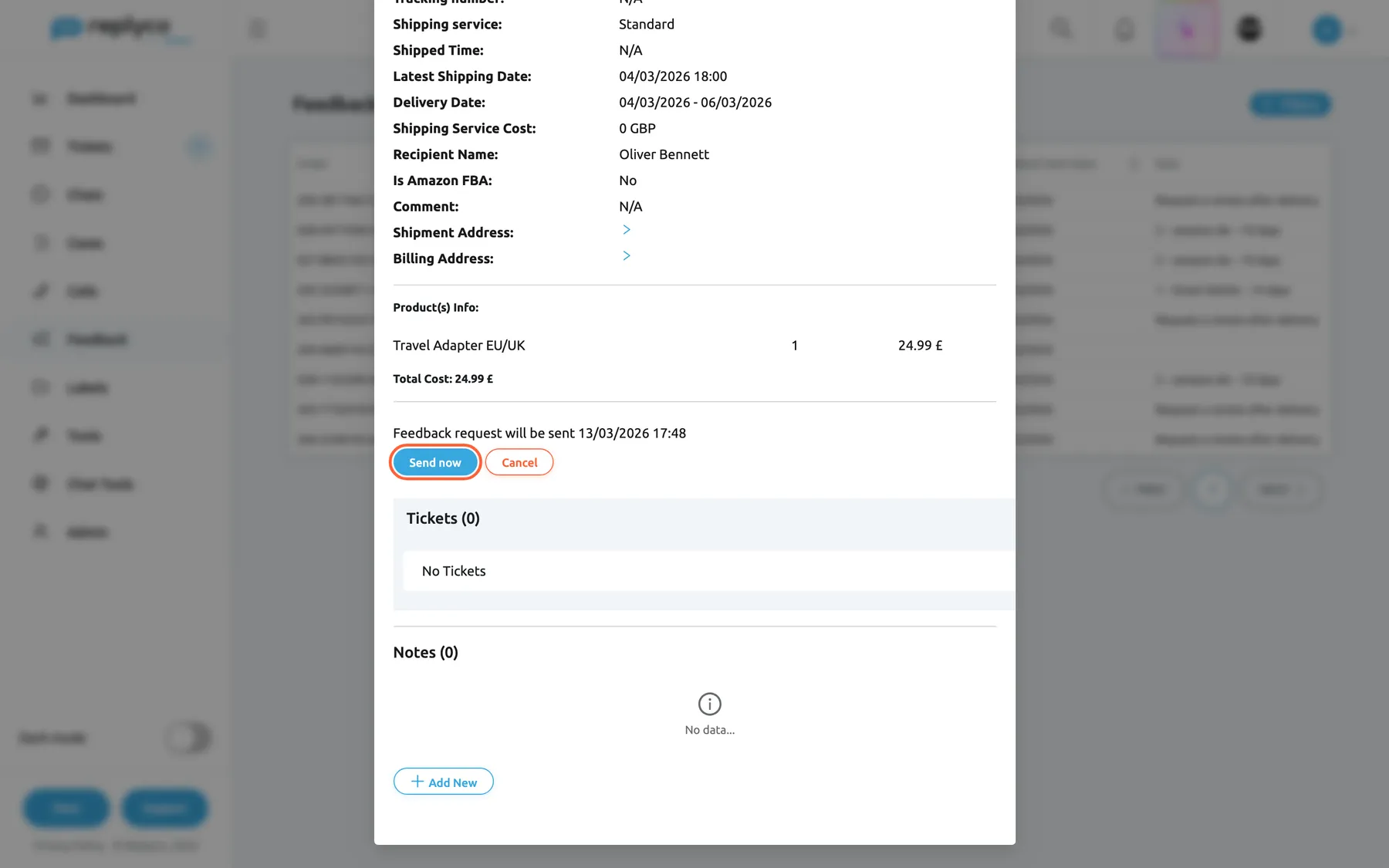
What this screenshot shows
- Screen
- Order Details (/feedbacks-requests)
- Highlighted
- button “Send now”, dialog-feedback-request, enabled. sends the request to Amazon at once
- Also visible
- request line with the scheduled date; Cancel button; product Travel Adapter EU/UK; delivery date range; Tickets (0), Notes (0)
- Purpose
- act on one order's request
- Send now sends the request to Amazon straight away, without the safeguard checks and whatever its date. Amazon accepts it: status Sent and Success. Amazon says it is too early or too late: status Cancelled and the message You can't send a feedback request yet.. Amazon refuses for another reason: status Failed and Error.
- Cancel stops a pending request: status Cancelled, nothing is sent, and Replyco never tries it again on its own. Send now remains available.
- Create feedback request appears for an Amazon order that has no request. It creates one without a rule and sends it at once. When Amazon accepts it, the request becomes Sent and Replyco shows Success. When Amazon says it is too early, the request becomes Cancelled and You can't send a feedback request yet. appears. When Amazon refuses it for another reason, the request becomes Failed and the line in the window shows Amazon’s reason.
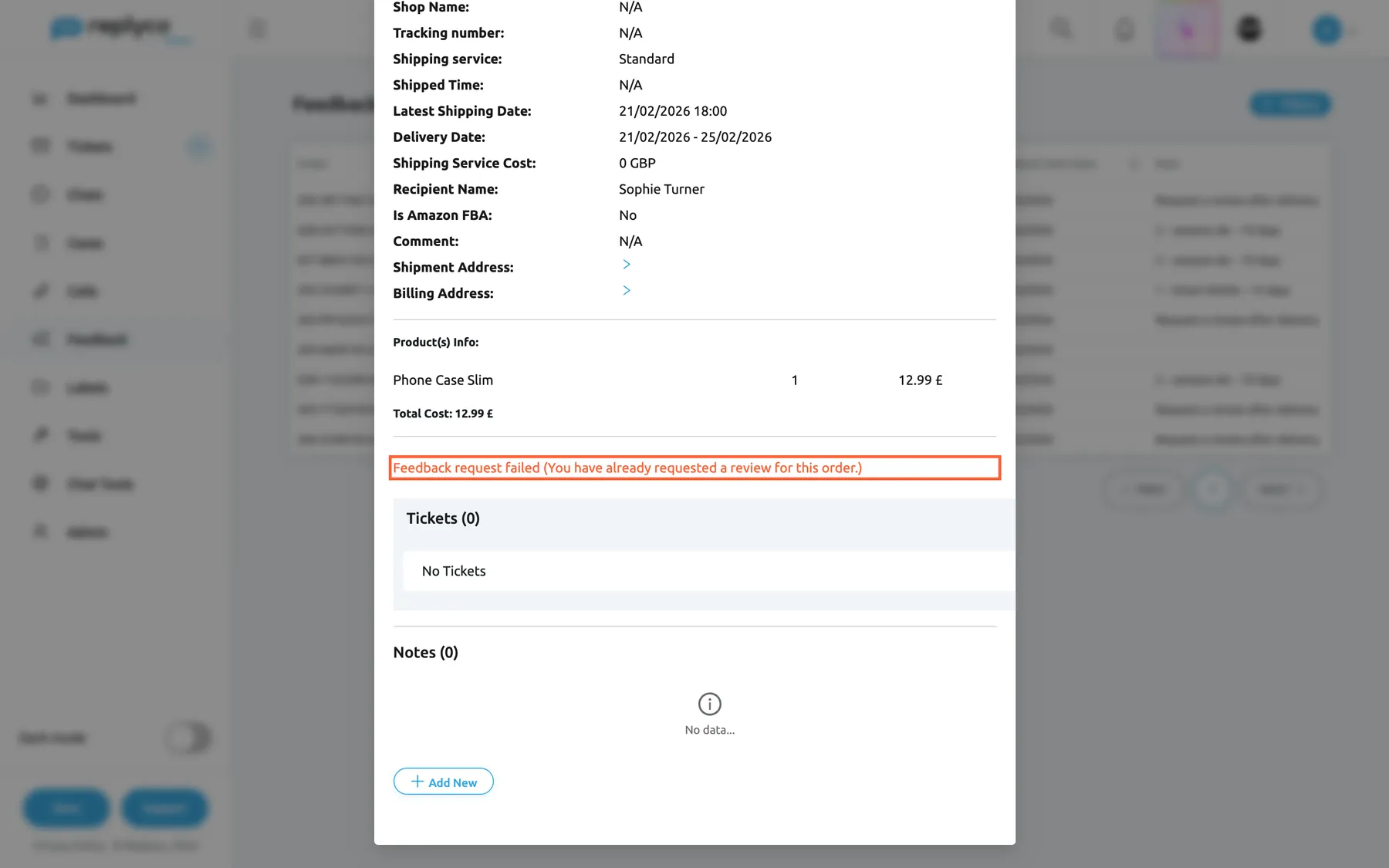
What this screenshot shows
- Screen
- Order Details (/feedbacks-requests)
- Highlighted
- paragraph “Feedback request failed ({{failMessage}})”, dialog-feedback-request, failed. shows why Amazon refused the request
- Also visible
- product Phone Case Slim, 12.99 £; no Send now or Cancel button; Tickets (0), Notes (0)
- Purpose
- read why a request failed
The order window also opens from Orders and Customers, which is where you find an Amazon order no rule covered:
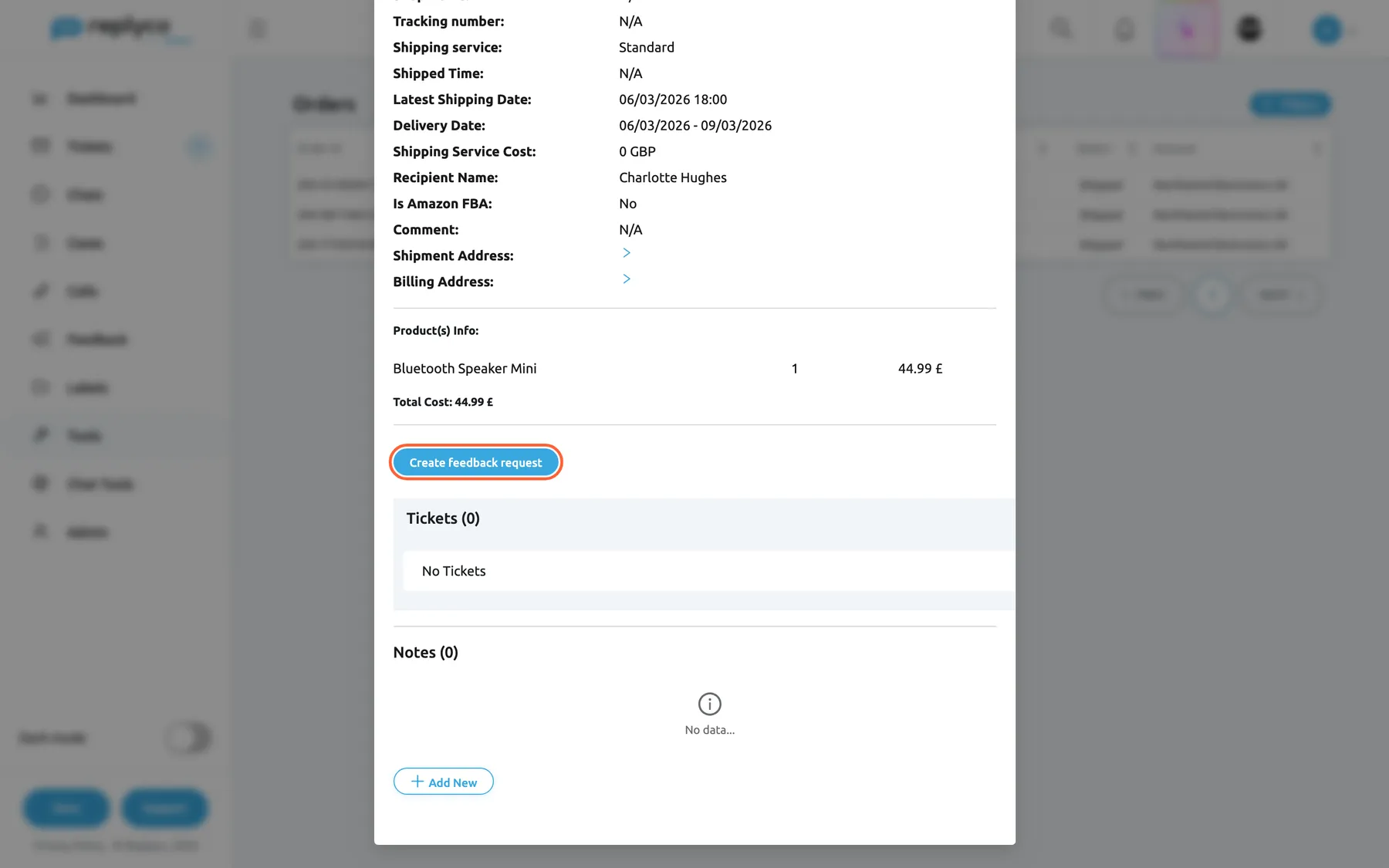
What this screenshot shows
- Screen
- Order Details (/orders)
- Highlighted
- button “Create feedback request”, dialog-feedback-request, enabled. creates a request and sends it to Amazon at once
- Also visible
- product Bluetooth Speaker Mini, 44.99 £; delivery date range; Tickets (0), Notes (0)
- Purpose
- request a review for one order by hand
Why: a buyer who just thanked you in a ticket is worth asking today, and one whose issue is still open is worth holding back; these buttons handle the exceptions your rules cannot see.
Feedback requests and your tickets
Section titled “Feedback requests and your tickets”The rule’s Exclude orders with active tickets switch under ToolsAutomation › Feedback Rules, and the ticket’s status in your ticket lists.
When a request is due, every ticket linked to the order counts. A ticket blocks the request until it is resolved, whichever list it sits in; an archived or snoozed ticket that was never resolved still blocks it. A ticket counts only when Replyco has linked it to the order, which for Amazon messages happens through the order number in the message. How to resolve a ticket: Resolve, snooze or archive a ticket.
Your inbox already knows which buyers are unhappy. Using it as the safeguard means nobody has to keep a separate list.
Three situations:
- A buyer writes the kettle leaks on day 3; the request is due on day 7 and the ticket is still open → the request is Cancelled. Once the replacement arrives and the ticket is resolved, send it by hand with Send now if the buyer is happy.
- A buyer asks a delivery question that your team answers and resolves on day 2 → the request goes out on day 7 as planned.
- A ticket was answered but left open, waiting for the customer → the request is Cancelled, although nothing is wrong. Resolve tickets when the conversation is done.
What you need to know
Section titled “What you need to know”| Topic | Fact |
|---|---|
| Channel | Amazon only. No feedback requests on eBay or other channels. |
| What the buyer gets | Amazon’s own review and seller feedback request. Replyco adds no text, template or signature. |
| One per order | Each order gets at most one request, from a rule or by hand. |
| Timing | Delivery date plus the rule’s schedule, 5 to 30 days, shifted by up to 30 minutes. |
| Rule order | By name; the first switched-on matching rule wins. |
| When conditions are checked | When Replyco syncs the order, until the order has a request. |
| When safeguards are checked | When the request is due. |
| Amazon’s window | Too early or too late: tried again daily for up to 20 days after delivery, then Failed. |
| Throughput | Up to 100 due requests per account at a time; the rest follow on the next run. |
| Failures | Each failed request keeps Amazon’s reason; other requests are not affected. |
| Account problems | A blocked account, or one that needs reconnecting, sends nothing; pending requests wait. |
| Editing rules | Affects orders checked afterwards; pending requests keep their date and rule. |
| Switching a rule off | Stops new requests. |
| Cost | No charge per request in Replyco, no AI actions, no quota. |
Frequently asked questions
Section titled “Frequently asked questions”General
Section titled “General”What are automatic feedback requests in Replyco?
Section titled “What are automatic feedback requests in Replyco?”Replyco asks Amazon to send its review and seller feedback request to your buyers a set number of days after delivery, based on the feedback rules you create under ToolsAutomation › Feedback Rules. Every request is listed with its status under FeedbackFeedback Requests.
Is this the same as Amazon’s Request a Review button?
Section titled “Is this the same as Amazon’s Request a Review button?”It sends the same kind of request: Amazon’s standard email asking the buyer for a product review and seller feedback. The difference is that Replyco sends it for you, for every order your rules match, and skips orders with unresolved tickets when the safeguard is on.
Can I write my own review request message?
Section titled “Can I write my own review request message?”No. There is no message, template or language setting, because Amazon writes and sends the request itself. Replyco only chooses the orders and the day.
Does Replyco send feedback requests on eBay?
Section titled “Does Replyco send feedback requests on eBay?”No. Feedback rules cover Amazon accounts only, and Replyco sends requests through Amazon only. Feedback left by eBay and Amazon buyers still arrives in the Feedback List under Feedback.
Does it cost anything per request?
Section titled “Does it cost anything per request?”No. Replyco does not charge per request, and feedback requests use no AI actions and count towards no quota. Feedback requests are part of every plan, and so is the order sync that schedules them automatically.
Where do I switch automatic feedback requests on?
Section titled “Where do I switch automatic feedback requests on?”There is no separate switch: create a feedback rule under ToolsAutomation › Feedback Rules with Create New, give it a name and an Amazon account under Affected Channels, and save. Matching orders get requests from then on.
I created a rule, but the log stays empty. Why?
Section titled “I created a rule, but the log stays empty. Why?”Requests are scheduled when Replyco syncs Amazon orders, so the log fills as orders arrive or change. Check that order sync is on for your company, that the Amazon account is in Affected Channels, that the account is not blocked, and that the orders have a delivery or ship date.
Will my existing orders get requests?
Section titled “Will my existing orders get requests?”Only if Amazon reports a change to them after you created the rule, so that Replyco syncs them again, and only if they have no request yet. Replyco does not go back through older orders on its own. For a single order, open it and use Create feedback request.
Who can set up feedback rules and who can see the log?
Section titled “Who can set up feedback rules and who can see the log?”Rules need the edit level of the Automation permission under ToolsAutomation; the log under FeedbackFeedback Requests needs the Feedback permission. See User permissions and roles.
Timing and rules
Section titled “Timing and rules”How many days after delivery should I ask?
Section titled “How many days after delivery should I ask?”Amazon allows 5 to 30 days after delivery, which is the range of Schedule (days). Choose the day your buyers have had the product long enough to judge it, for example 7 days for small accessories and 14 days for a kettle that needs a few uses.
Which date does the schedule count from?
Section titled “Which date does the schedule count from?”From the latest delivery date Amazon gives for the order. If Amazon gives none, Replyco uses the latest ship date, and if there is neither, the moment it saw the order change to Shipped. The log shows that date as Est. Delivery Date.
Two rules match the same order. Which one sends the request?
Section titled “Two rules match the same order. Which one sends the request?”The first in alphabetical order of their names among switched-on rules that cover the order’s account. The order gets one request, from that rule. Rename rules under ToolsAutomation › Feedback Rules, for example with 1 –, to change which comes first.
I changed a rule’s schedule. Why do pending requests keep their old date?
Section titled “I changed a rule’s schedule. Why do pending requests keep their old date?”A request’s send date is fixed when Replyco schedules it. Changes to a rule apply to orders Replyco checks afterwards; pending requests keep their date and rule. To send one earlier, open it from the log and use Send now.
Why are all requests not sent at the exact same time?
Section titled “Why are all requests not sent at the exact same time?”Replyco shifts each request’s send time by up to 30 minutes around the delivery date plus the schedule, and handles up to 100 due requests per account at a time. While a request is Pending, the log’s Feedback Sent Date shows its planned date.
Amazon’s rules
Section titled “Amazon’s rules”Why did a request fail with “You have already requested a review for this order”?
Section titled “Why did a request fail with “You have already requested a review for this order”?”Amazon allows one request per order, and one was already made, usually with the review button in Seller Central. Replyco marks the request Failed with Amazon’s message, which you can read by hovering the status in the log under FeedbackFeedback Requests.
What does “The requested solicitation is not available for this Amazon Order” mean?
Section titled “What does “The requested solicitation is not available for this Amazon Order” mean?”Amazon did not offer a review request for that order and gave no further reason. Replyco marks the request Failed with this message. Nothing in Replyco can change Amazon’s decision for that order, and other orders are not affected.
What does You can't send a feedback request yet. mean?
Section titled “What does You can't send a feedback request yet. mean?”Amazon said the order is outside its window of 5 to 30 days after delivery when you used Send now or Create feedback request. The request is set to Cancelled; try Send now again once five days have passed since delivery.
Can a failed request be sent again?
Section titled “Can a failed request be sent again?”No. A Failed request has no buttons in the order window, and Replyco never retries it. A Cancelled request, in contrast, can be sent with Send now. Amazon allows one request per order in any case.
Where it is shown
Section titled “Where it is shown”Where do I see which buyers were asked?
Section titled “Where do I see which buyers were asked?”Under FeedbackFeedback Requests. Each row shows the order, account, total, delivery date, buyer, status, planned send date and rule. Select Filters to search by order number or buyer and to filter by status, rule or account.
Why does a request in the log have no rule?
Section titled “Why does a request in the log have no rule?”It was created by hand with Create feedback request in the order window, not by a rule. Such requests are sent at once, without the safeguard checks, and the Rule column in the log under FeedbackFeedback Requests stays empty.
Tickets and cases
Section titled “Tickets and cases”Why was a request cancelled although the buyer is happy?
Section titled “Why was a request cancelled although the buyer is happy?”With Exclude orders with active tickets on, any unresolved ticket linked to the order cancels the request when it is due, even one you already answered. Resolve tickets when the conversation is finished, and send the cancelled request with Send now from the log if you still want to ask.
A buyer complained, but the request was still sent. Why?
Section titled “A buyer complained, but the request was still sent. Why?”The complaint ticket was not linked to the order, was resolved before the request was due, or the rule’s Exclude orders with active tickets switch was off. A request sent by hand with Send now also skips the safeguard checks.
Does the case safeguard work for Amazon returns?
Section titled “Does the case safeguard work for Amazon returns?”Replyco builds cases from eBay and some webstores, not from Amazon, so for Amazon orders Exclude orders with open Cases rarely finds a case to act on. The ticket safeguard is the one that protects Amazon orders: keep the buyer’s messages linked to the order and resolve the ticket when done.
Data and privacy
Section titled “Data and privacy”What does Replyco store about feedback requests?
Section titled “What does Replyco store about feedback requests?”For each request: the order number, total and currency, the delivery date, the buyer’s name, the planned send date, the rule, the status and, for a failed request, Amazon’s reason. Users with the Feedback permission see it under FeedbackFeedback Requests.
Do buyers see anything from Replyco?
Section titled “Do buyers see anything from Replyco?”No. Buyers receive only Amazon’s own review and seller feedback request. Rule names, schedules, conditions and the log stay inside Replyco.
Troubleshooting
Section titled “Troubleshooting”| Symptom | What to check |
|---|---|
| The log under FeedbackFeedback Requests stays empty | In order: a rule exists and is in the Active group; its Affected Channels hold your Amazon account; order sync is on for your company; the account is connected and not blocked; new orders have arrived since the rule was created. |
| An order you expected has no request | The order has a delivery or ship date; its account is in a switched-on rule; every filled-in condition matches; the order number does not start with S; the order has no request already. |
| The wrong rule scheduled a request | Rules are checked by name; rename the specific rule so it sorts first. |
| Many requests are Cancelled | Unresolved tickets linked to the orders when the requests were due; resolve tickets when conversations end, or send the requests with Send now. |
| A request is Failed | Hover the status in the log, or open the order from the log, and read Amazon’s reason. |
| You have already requested a review for this order. | A request was already made for the order, often from Seller Central. Nothing to fix. |
| You can’t use this feature to request a review outside the 5-30 day range after the order delivery date. | The request was more than 20 days late, for example while the account was blocked, or Amazon’s delivery date differs from the one Replyco had. |
| You can't send a feedback request yet. after Send now | Fewer than 5 days have passed since Amazon’s delivery date; try again later. |
| Pending requests are overdue | The account is blocked or needs reconnecting; see Fix a blocked or silent account. Amazon may also be slowing requests down; they follow on a later run. |
| A request went to a buyer who had complained | The ticket was not linked to the order, was already resolved, or the safeguard was off; the request may also have been sent by hand. |
Related
Section titled “Related”- Feedback Rules: create and manage the rules
- Feedback Requests: the request log, column by column
- Feedback List · Feedback details: the feedback buyers leave
- Orders · Customers: where the order window opens
- Connect Amazon · Fix a blocked or silent account
- Resolve, snooze or archive a ticket