

Two-factor authentication
With two-factor authentication, Replyco asks for a second proof when you sign in: after your password, the six-digit code that an authenticator app on your phone makes. A stolen password alone then does not open your Replyco account. The Two-factor authentication tab, under Security in Account Settings, is where you add Replyco to your authenticator app, and where you reset it when you change phones. Signing in with the code is explained in Sign in.
Availability: the tab is there for every user, on every plan. Every new user must set up two-factor authentication, on every plan, and every user who has it set up is asked for a code. See What each plan includes.
What you can do here
Section titled “What you can do here”- Switch on two-factor authentication if your user does not have it yet. Switch on two-factor authentication.
- Add Replyco to your authenticator app by scanning a QR code or typing a 32-character setup key. Scan the code or type the setup key.
- Move to a new phone. Reset with your password and a code sent by email, then scan a new QR code. Reset two-factor authentication.
- Know why there is no off switch. Once set up, two-factor authentication stays on. Why you cannot switch it off.
- Sign in with the code, and get back in without your phone, from the sign-in screen. Sign in.
The screen at a glance
Section titled “The screen at a glance”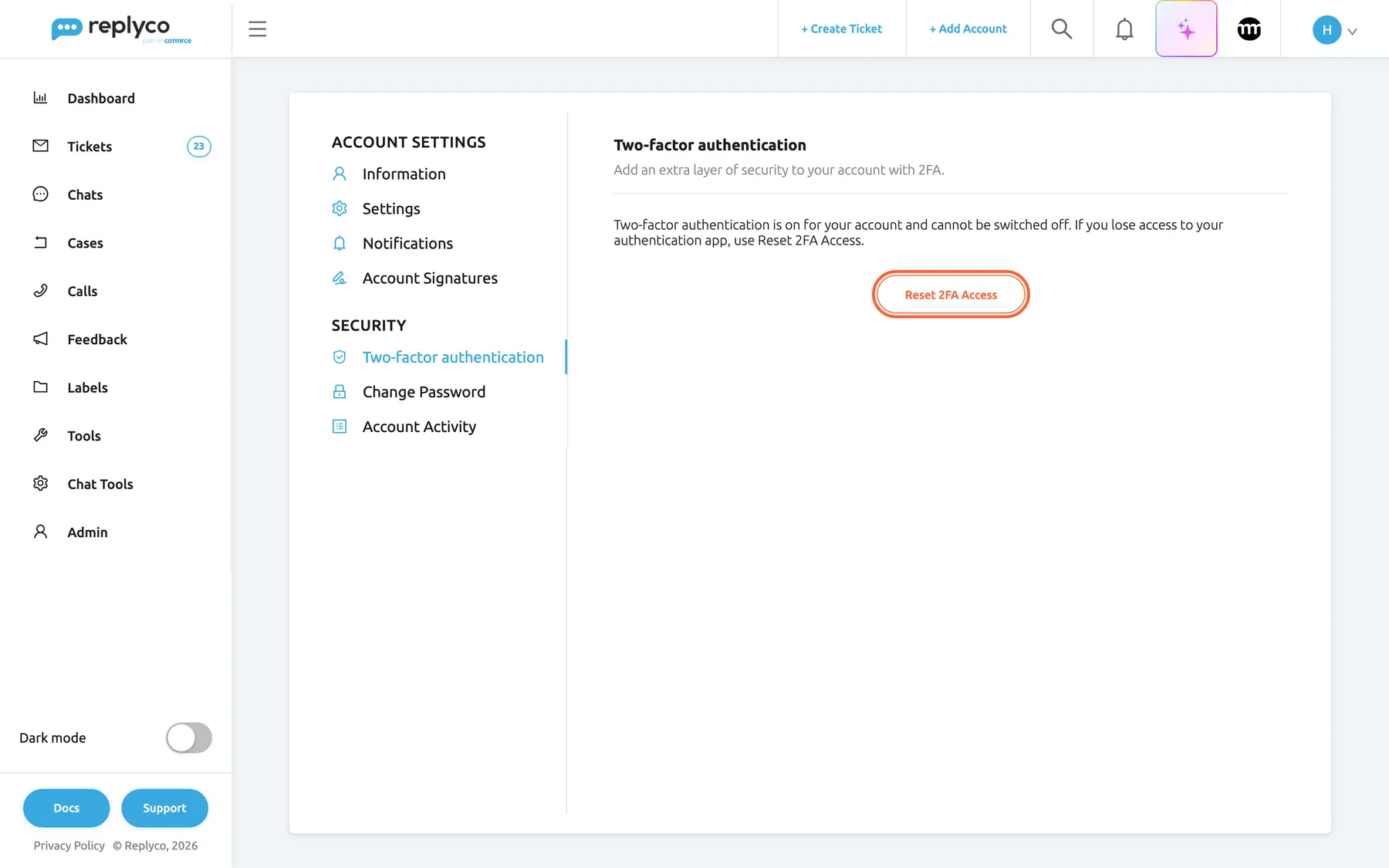
What this screenshot shows
- Screen
- Two-factor authentication (/user-settings?tab=twoFactorAuthentication)
- Highlighted
- button “Reset 2FA Access”, tab-content, enabled. starts the reset of your authenticator app
- Also visible
- text: two-factor authentication is enabled and cannot be disabled; Security group in the tab list
- Purpose
- the screen at a glance
| Region | What it shows | What you do there |
|---|---|---|
| Tab list, left | Two-factor authentication under Security, with Change Password and Account Activity | Open the tab |
| Tab header, top | Two-factor authentication and Add an extra layer of security to your account with 2FA. | Nothing; it tells you where you are |
| Status, with two-factor authentication | Two-factor authentication is on for your account and cannot be switched off. If you lose access to your authentication app, use Reset 2FA Access. and Reset 2FA Access | Start a reset |
| Status, without two-factor authentication | Two paragraphs of instructions and Enable Authentication App | Set it up |
Switch on two-factor authentication
Section titled “Switch on two-factor authentication”When your user has no two-factor authentication yet, the tab explains what to do and offers Enable Authentication App. Every new user needs two-factor authentication, on every plan, so signing up and accepting an invitation both set it up; see Sign in.
-
Install an authenticator app on your phone. Replyco recommends Google Authenticator; any app that makes time-based one-time codes works.
-
Open Account Settings, select Two-factor authentication under Security and select Enable Authentication App.
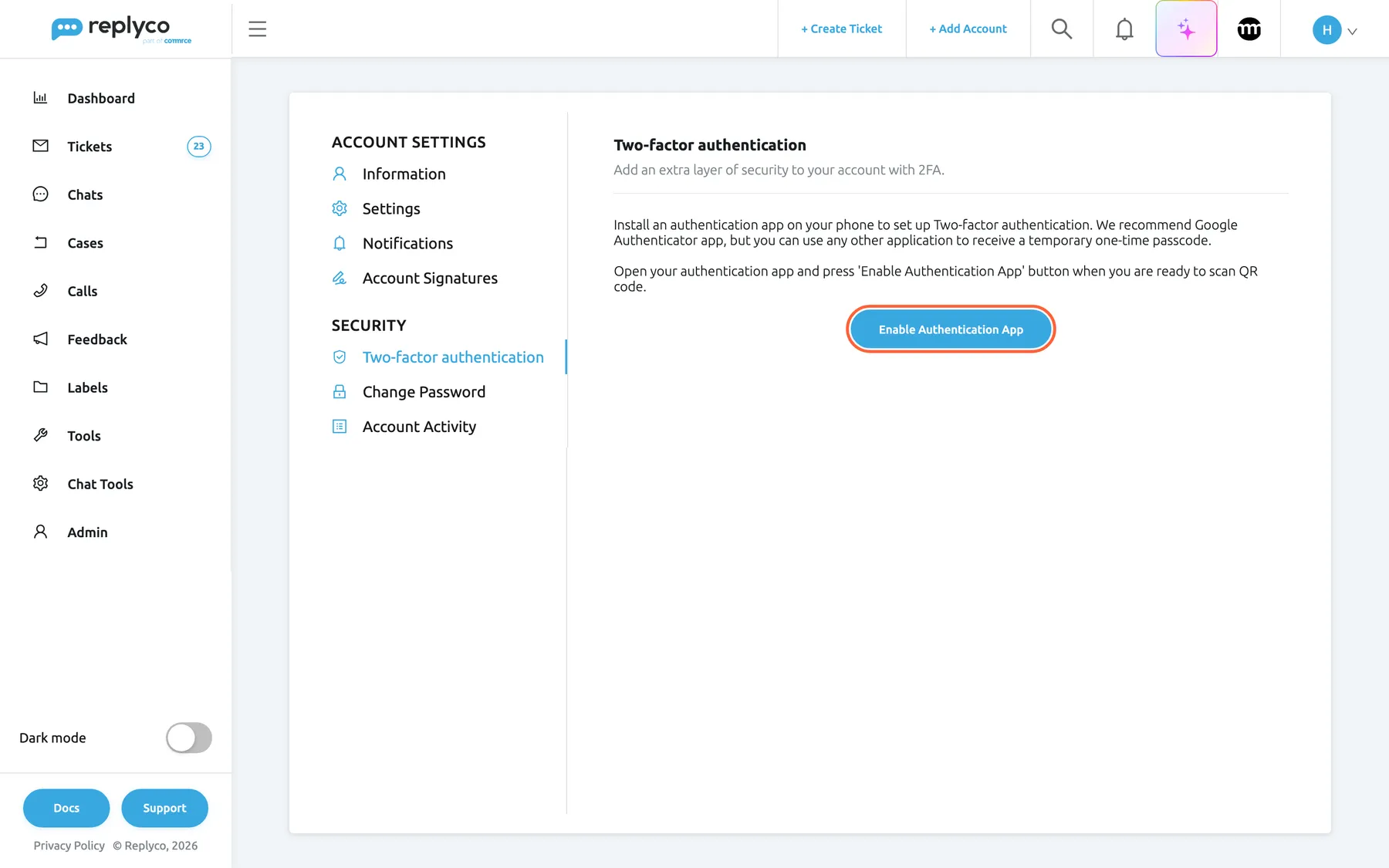
Install an authenticator app first, then select Enable Authentication App. What this screenshot shows
- Screen
- Two-factor authentication (/user-settings?tab=twoFactorAuthentication)
- Highlighted
- button “Enable Authentication App”, tab-content, enabled. asks for your password to set up two-factor authentication
- Also visible
- two paragraphs of instructions; no Reset button
- Purpose
- switch on two-factor authentication
-
Enter your Replyco password under Please enter password to enable Two-factor authentication and select Confirm.
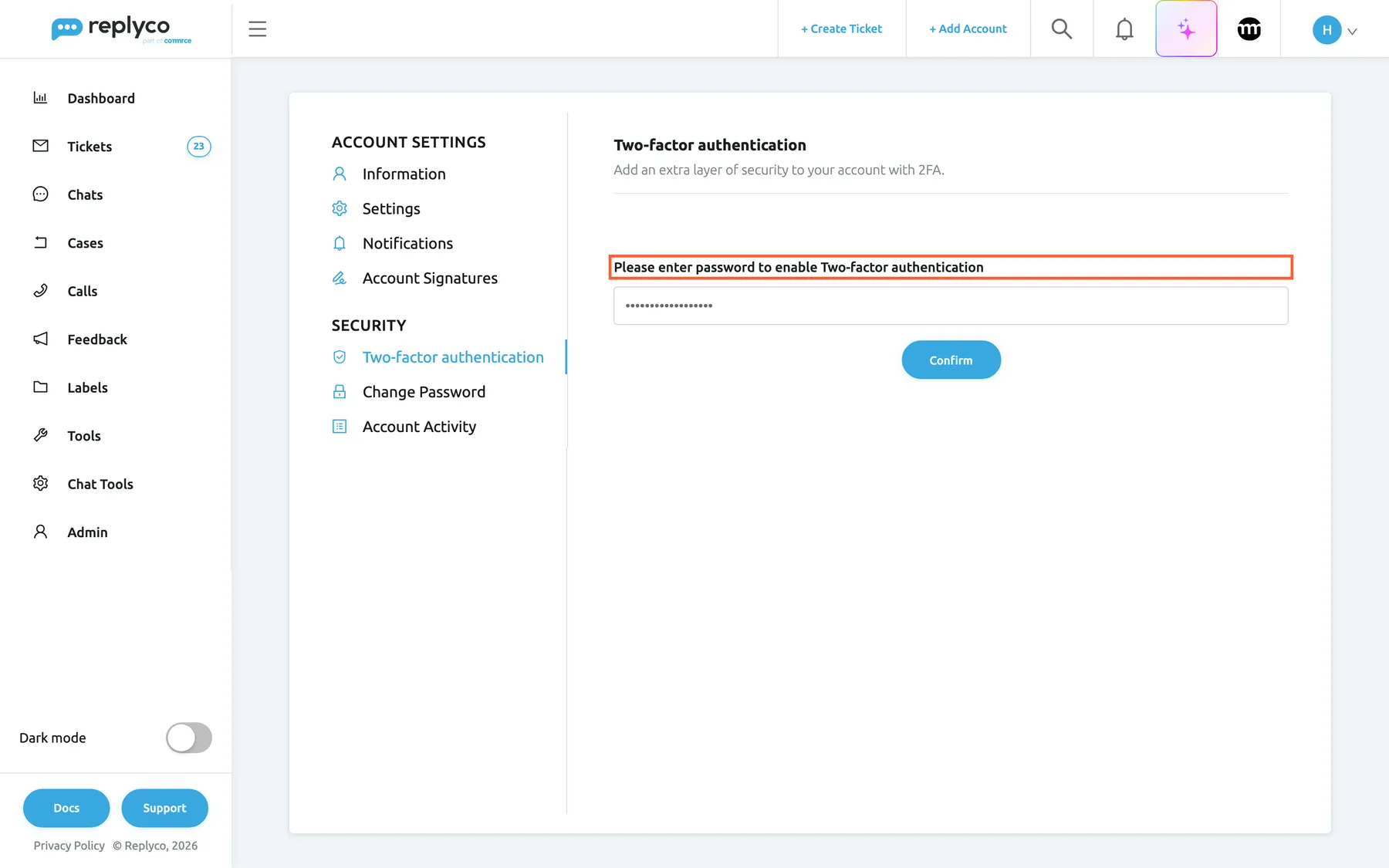
Your password confirms it is you before Replyco creates your authenticator key. What this screenshot shows
- Screen
- Two-factor authentication (/user-settings?tab=twoFactorAuthentication)
- Highlighted
- textbox “Please enter password to enable Two-factor authentication”, tab-content, filled. takes your Replyco password
- Also visible
- password field (masked); Confirm button
- Purpose
- confirm your password
An empty field gives Please fill out all required fields; a wrong password gives “Credentials are incorrect”.
-
Replyco shows a QR code and a setup key. Add Replyco to your app with one of them, as described in the next section.
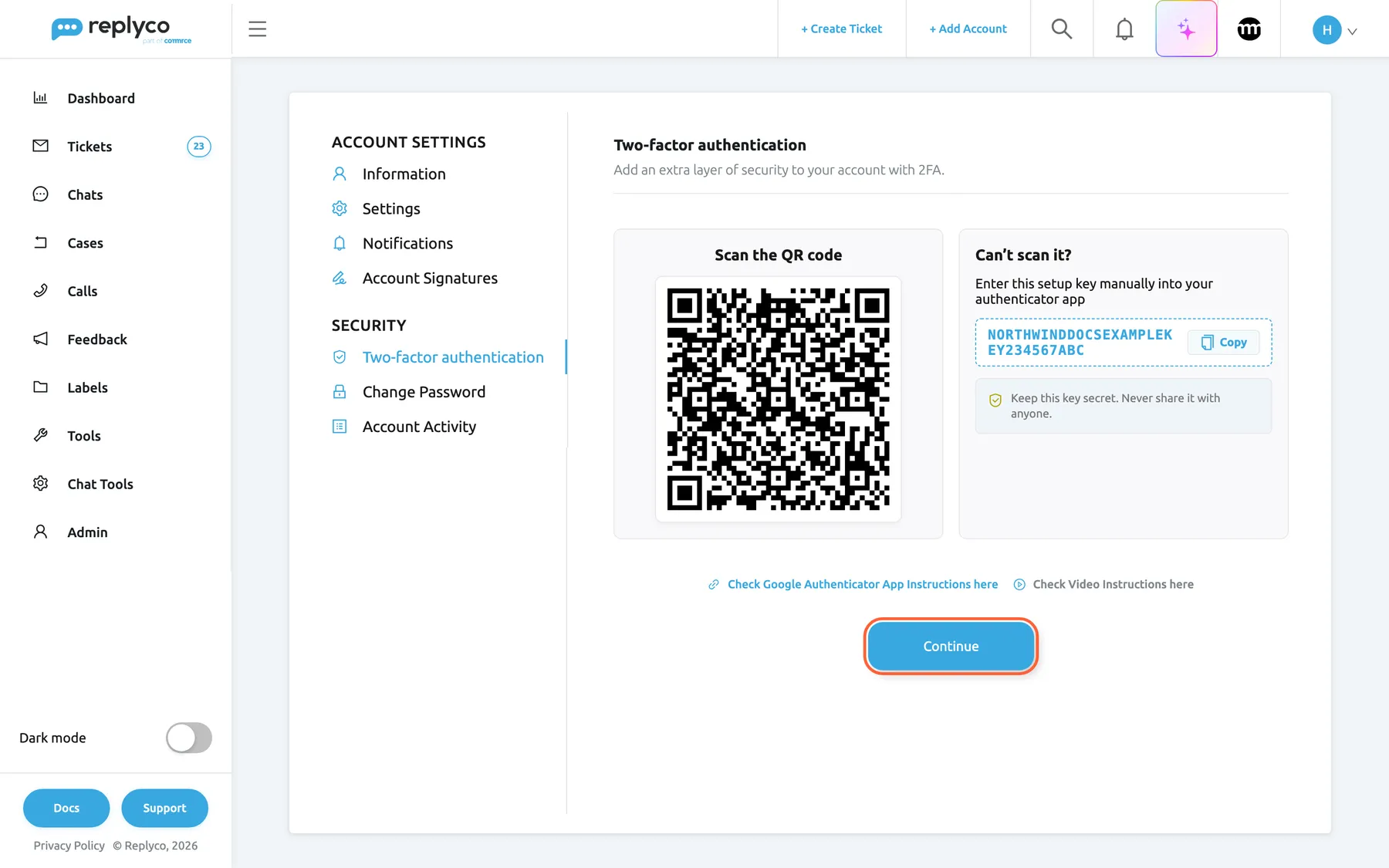
Scan the code or type the setup key into your app before you select Continue; the key is shown only now. What this screenshot shows
- Screen
- Two-factor authentication (/user-settings?tab=twoFactorAuthentication)
- Highlighted
- button “Continue”, tab-bottom, enabled. hides the QR code and setup key
- Also visible
- QR code (fictional example secret); setup key NORTHWINDDOCSEXAMPLEKEY234567ABC with Copy; Keep this key secret notice; Google Authenticator and video instruction links
- Purpose
- add Replyco to your authenticator app
-
Check that your app shows a Replyco entry with your email address, then select Continue.
Your next sign-in asks for the code from your app; this browser stays signed in. Continue hides the QR code and the setup key, and they are not shown again.
Scan the code or type the setup key
Section titled “Scan the code or type the setup key”The left panel, Scan the QR code, holds the QR code: in your app, tap the plus sign, choose to scan a QR code and point the phone at the screen. The right panel, Can’t scan it?, holds the same key as text for an app on the computer or a phone whose camera cannot scan the screen: select Copy, then paste or type it into your app’s manual entry as a time-based key.
Either way, your app shows an entry named Replyco with your email address and a six-digit code that changes every 30 seconds. That is the code the sign-in screen asks for.
Under the panels, Check Google Authenticator App Instructions here opens Google’s help for Google Authenticator in a new browser tab, and Check Video Instructions here plays a short video that shows the setup in Replyco.
Keep the key to yourself. The panel says Keep this key secret. Never share it with anyone.: anyone with the key can make your codes. Do not paste it into a ticket, a chat or a shared document.
The codes are checked against the time on the computer you sign in on, while your app makes them from your phone’s clock. Set both to update the time automatically, or the codes are refused; see Sign in.
Reset two-factor authentication
Section titled “Reset two-factor authentication”Reset when your authenticator entry is gone or about to be: a new phone, a deleted app, a phone you hand back. You need your password and access to the mailbox of your Replyco email address. While you are signed in, reset here; if you cannot sign in any more, reset from the sign-in screen instead, see Sign in.
-
On the Two-factor authentication tab, select Reset 2FA Access. A bar with three steps appears.
-
Verify Password. Enter your password and select Continue.
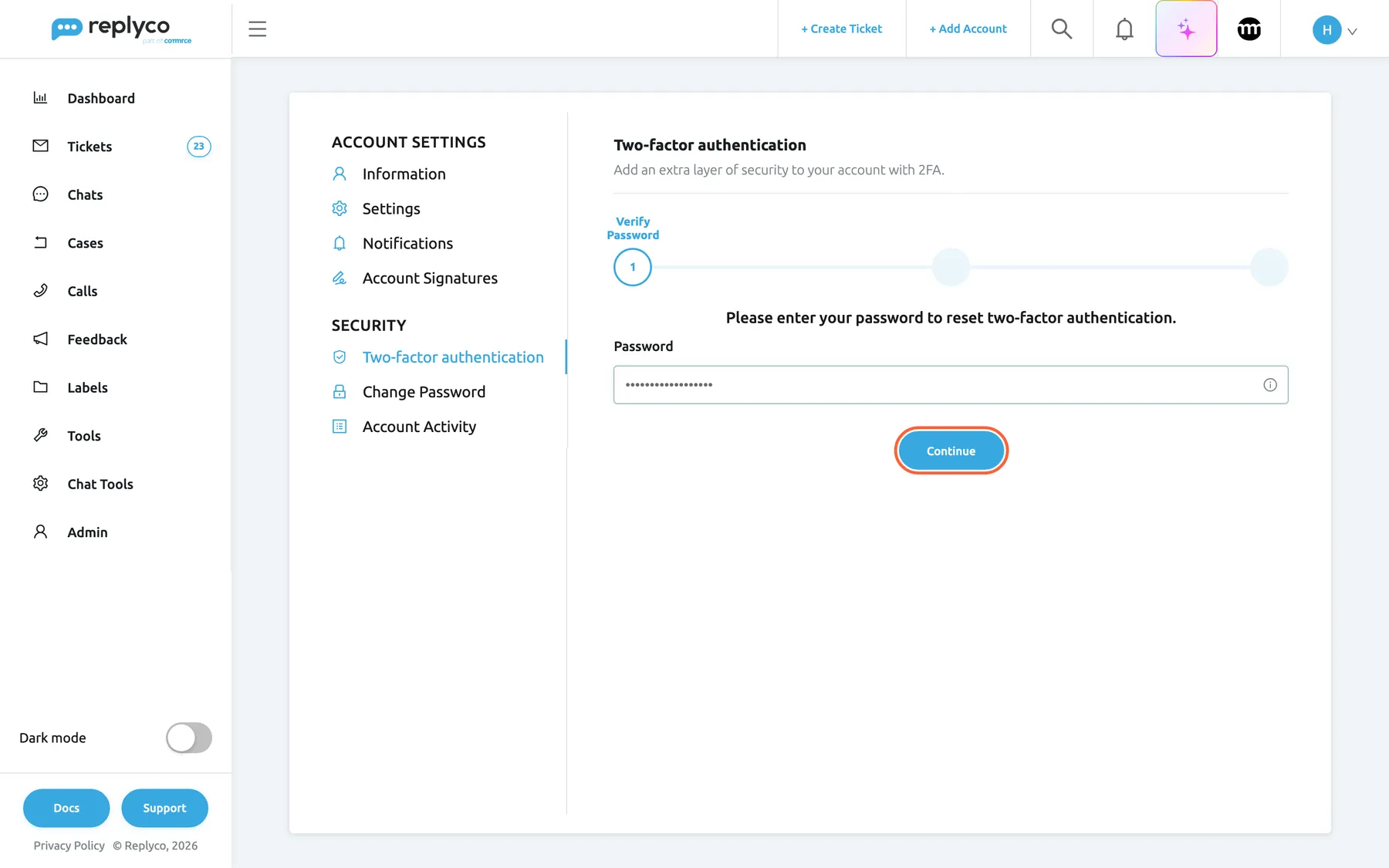
The reset starts with your password; Replyco then emails you a code. What this screenshot shows
- Screen
- Two-factor authentication (/user-settings?tab=twoFactorAuthentication)
- Highlighted
- button “Continue”, tab-content, enabled. checks the password and emails a reset code
- Also visible
- steps: Verify Password (active), 2, 3; Password field filled (masked)
- Purpose
- reset step 1
Replyco checks the password and emails you a six-digit code with the subject “Reset Two-Factor Authentication”. A wrong password gives “Credentials are incorrect”.
-
Verify Email. Type the code from the email into the field and select Confirm.
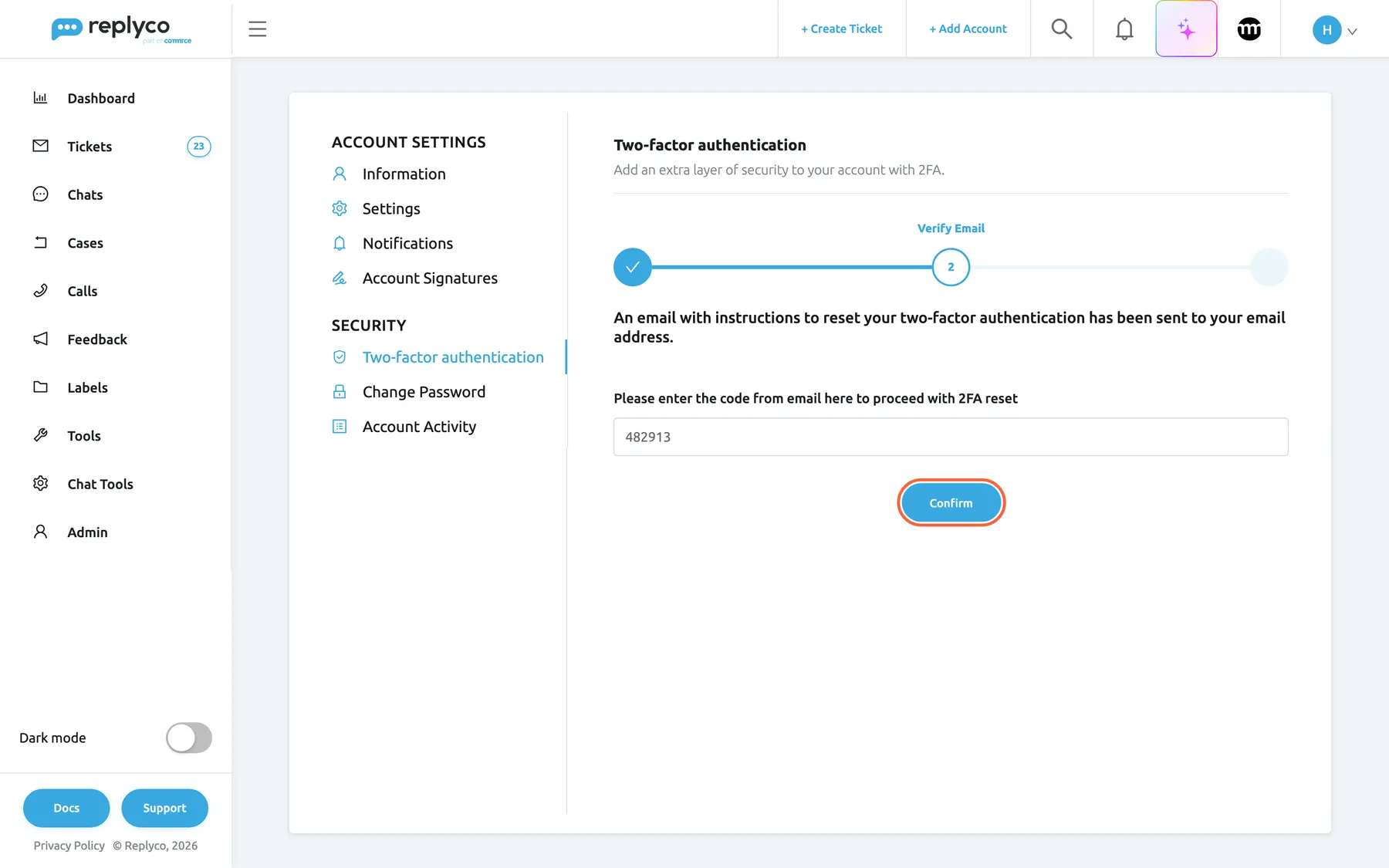
Type the six-digit code from the email; it is valid for one day. What this screenshot shows
- Screen
- Two-factor authentication (/user-settings?tab=twoFactorAuthentication)
- Highlighted
- button “Confirm”, tab-content, enabled. checks the emailed code and creates a new authenticator key
- Also visible
- steps: 1 done, Verify Email active; email sent text; code field 482913
- Purpose
- reset step 2
A wrong or expired code gives The code you entered is incorrect. Please try again..
-
Set up Two-factor authentication. Scan the new QR code or type the new setup key into your app, as in Scan the code or type the setup key. Delete the old Replyco entry from your app.
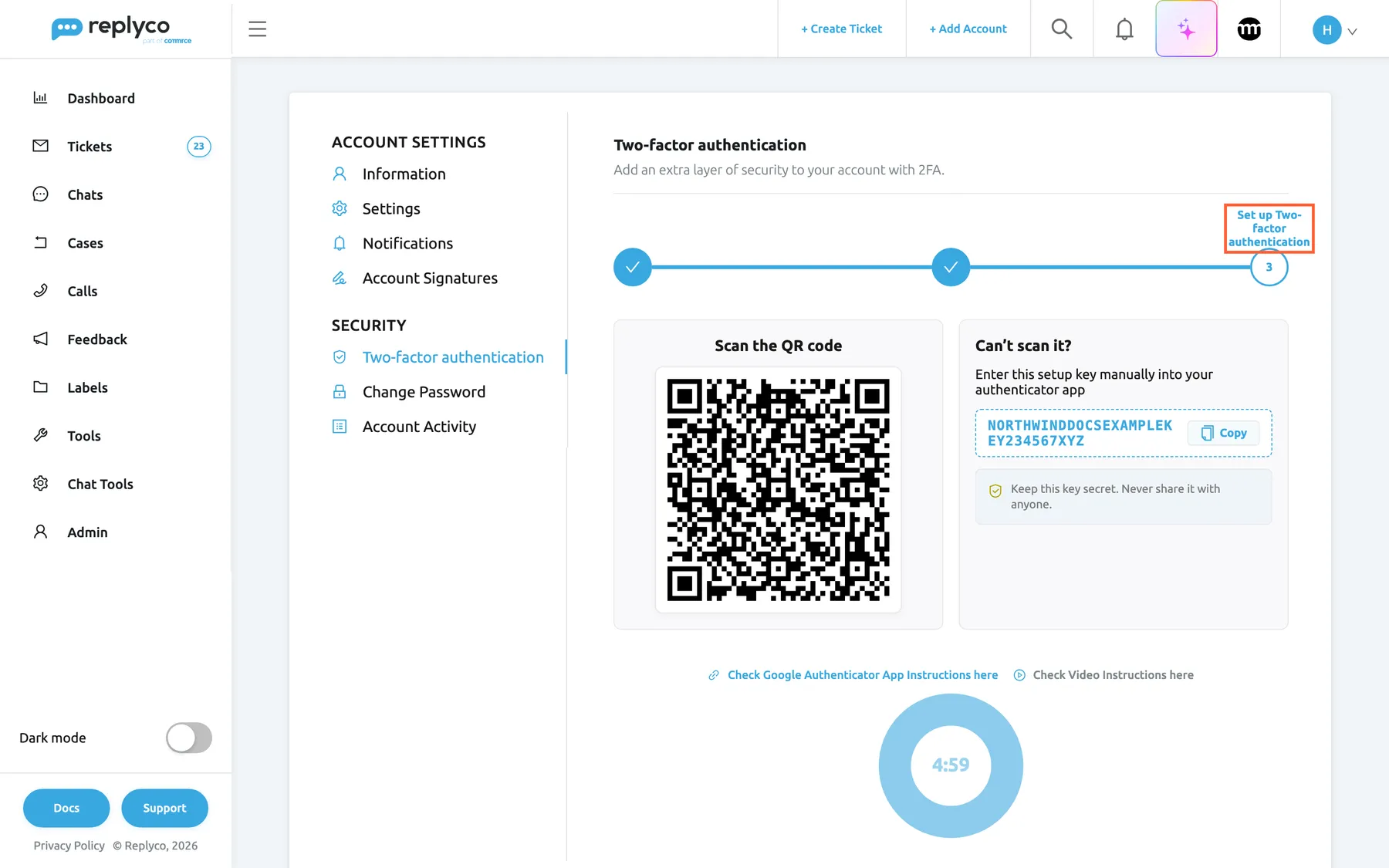
Scan the new code within five minutes; then Replyco signs you out and you sign in with it. What this screenshot shows
- Screen
- Two-factor authentication (/user-settings?tab=twoFactorAuthentication)
- Highlighted
- listitem “Set up Two-factor authentication”, progress-bar-right, active. shows the new QR code and setup key
- Also visible
- new QR code (fictional example secret); setup key NORTHWINDDOCSEXAMPLEKEY234567XYZ; countdown clock from five minutes
- Purpose
- reset step 3
-
Wait for the countdown under the code to run out, or leave the tab. Replyco signs you out, and you sign in with your password and the new code.
The emailed code is valid for one day and works once. While a reset request is open, Replyco sends no new code: selecting Reset 2FA Access again opens the tab directly on the code step, so use the email you already have.
Example: Hannah gets a new phone on Monday. Before she wipes the old one, she opens the Two-factor authentication tab on her laptop, enters her password, types the code from the email, scans the new QR code with the new phone and lets the countdown sign her out. She signs in again with the first code the new phone shows.
Why you cannot switch it off
Section titled “Why you cannot switch it off”With two-factor authentication on, the tab reads Two-factor authentication is on for your account and cannot be switched off. If you lose access to your authentication app, use Reset 2FA Access. and offers only Reset 2FA Access. Replyco’s screens have no switch that turns it off, for any user; a new phone is handled with a reset, never by switching it off. A password change does not affect it either.
Every control, explained
Section titled “Every control, explained”The Two-factor authentication tab, in the order you meet its controls.
Reset 2FA Access
Section titled “Reset 2FA Access”The red-outlined button under the status text, shown when your user has two-factor authentication.
Starts the three-step reset: Verify Password, Verify Email and Set up Two-factor authentication. When a reset request from the last day is still open, it opens on the second step.
Move to a new phone without anyone’s help.
Enable Authentication App
Section titled “Enable Authentication App”The blue button under the instructions, shown when your user has no two-factor authentication.
Replaces the instructions with Please enter password to enable Two-factor authentication, a password field and Confirm.
Protect your user with a second factor.
Please enter password to enable Two-factor authentication and Confirm
Section titled “Please enter password to enable Two-factor authentication and Confirm”The password step after Enable Authentication App.
Confirm checks your Replyco password and shows the QR code and setup key. Empty: Please fill out all required fields. Wrong: “Credentials are incorrect”.
Only you can add a second factor to your user.
Scan the QR code and Can’t scan it?
Section titled “Scan the QR code and Can’t scan it?”Two panels shown after Confirm, and in the last reset step.
The QR code on the left; on the right the same key as text with Copy and Keep this key secret. Never share it with anyone.. Both create an entry named Replyco with your email address in your app: six digits, a new code every 30 seconds.
Scanning is fastest; the key works where a camera cannot be used.
Check Google Authenticator App Instructions here and Check Video Instructions here
Section titled “Check Google Authenticator App Instructions here and Check Video Instructions here”Two links under the panels.
The first opens Google’s help for Google Authenticator in a new browser tab; the second plays a video, How to set up Google Authenticator app for Two-factor authentication (2FA) in Replyco, in a window.
Help for a first-time setup without leaving Replyco.
Continue after the QR code
Section titled “Continue after the QR code”Under the panels, after you switch two-factor authentication on.
Hides the QR code and setup key and shows the tab’s usual status, Two-factor authentication is on for your account and cannot be switched off. If you lose access to your authentication app, use Reset 2FA Access.. The code is not shown again.
Close the key once your app has it.
The reset steps
Section titled “The reset steps”The bar at the top of the tab during a reset, with a field and a button per step.
| Step | Field | Button | Result |
|---|---|---|---|
| Verify Password | Password | Continue, active once the field has text | An email with a six-digit code, valid for one day |
| Verify Email | Please enter the code from email here to proceed with 2FA reset | Confirm, active once the field has text | The old entry stops working; a new key is made |
| Set up Two-factor authentication | None | None; a five-minute countdown | Sign-out when the countdown ends or you leave the tab |
Your password and your mailbox together prove it is you.
Who sees what
Section titled “Who sees what”| Part | Shown when |
|---|---|
| The Two-factor authentication tab | Always, for every user, on every plan |
| Two-factor authentication is on for your account and cannot be switched off. If you lose access to your authentication app, use Reset 2FA Access. and Reset 2FA Access | Your user has two-factor authentication |
| The instructions and Enable Authentication App | Your user has none yet |
| The QR code and setup key | Once, right after you switch it on or confirm a reset code |
| The reset opening on its second step | A reset request from the last day is still open |
What you need to know
Section titled “What you need to know”| Topic | Fact |
|---|---|
| Codes | Six digits, a new one every 30 seconds, from any authenticator app for time-based codes |
| Clocks | The phone’s and the computer’s clocks both count; set them to update automatically |
| Switching on | Your password, then the QR code or setup key in your app; the next sign-in asks for a code |
| QR code and key | Shown once; anyone with the key can make your codes |
| Switching off | Not possible from Replyco’s screens |
| Reset code | Sent by email to your Replyco address, valid for one day, works once; no new code while a request is open |
| After a reset | The old entry stops working at once; Replyco signs you out after five minutes or when you leave the tab |
| Password | Changing or resetting the password leaves two-factor authentication as it is |
| Wrong codes at sign-in | The fifth wrong code in a row blocks your user; see Sign in |
Frequently asked questions
Section titled “Frequently asked questions”General
Section titled “General”Do I have to use two-factor authentication?
Section titled “Do I have to use two-factor authentication?”Yes. It is mandatory for every new user, on every plan: signing up and accepting an invitation both set it up, and Replyco asks for a code at each sign-in with a password. A user who does not have it yet switches it on from the Two-factor authentication tab of Account Settings. Once on, it stays on.
Can I turn two-factor authentication off?
Section titled “Can I turn two-factor authentication off?”Not from Replyco’s screens. With two-factor authentication on, the Two-factor authentication tab of Account Settings reads Two-factor authentication is on for your account and cannot be switched off. If you lose access to your authentication app, use Reset 2FA Access. and offers only Reset 2FA Access. For a new phone, use the reset.
Which authenticator app should I use?
Section titled “Which authenticator app should I use?”Replyco recommends Google Authenticator, and any app that makes time-based one-time codes works: add the entry by scanning the QR code or typing the setup key from the Two-factor authentication tab. The link Check Google Authenticator App Instructions here under the code opens Google’s own instructions.
Is two-factor authentication part of my plan?
Section titled “Is two-factor authentication part of my plan?”Yes, of every plan. It is mandatory for every new user, on every plan, and the Two-factor authentication tab is there for every user, so everyone who has it set up is asked for a code. See What each plan includes.
Setting it up
Section titled “Setting it up”How long does a code from my app stay valid?
Section titled “How long does a code from my app stay valid?”Your authenticator app shows a new six-digit code for the Replyco entry every 30 seconds. Type the code that is showing when the sign-in screen asks for it; if it changes while you type, use the new one. Codes are checked against the computer’s clock, so set your phone and computer to update the time automatically. See Sign in.
My phone cannot scan the QR code. How else can I add Replyco?
Section titled “My phone cannot scan the QR code. How else can I add Replyco?”Use the right panel, Can’t scan it?: select Copy next to the setup key and enter the key in your app’s manual entry as a time-based key. The entry works exactly like a scanned one and makes a new six-digit code every 30 seconds.
Why is my first code refused?
Section titled “Why is my first code refused?”Replyco checks codes against the computer’s clock and your app makes them from the phone’s clock. If either clock is off, the codes do not match; set both to update automatically and try a fresh code. Make sure you type the code of the Replyco entry for your email address. See Sign in.
Can I have Replyco in two authenticator apps?
Section titled “Can I have Replyco in two authenticator apps?”Yes, if you add the same key to both while it is on the screen, for example by scanning the QR code with two phones. Both then make the same codes. After a reset, both old entries stop working and you add the new key again.
Resetting
Section titled “Resetting”I have a new phone. What do I do?
Section titled “I have a new phone. What do I do?”While you are still signed in, open the Two-factor authentication tab of Account Settings, select Reset 2FA Access, enter your password, type the code from the email and scan the new QR code with the new phone. Replyco signs you out after five minutes; sign in with the new code.
The reset email does not arrive. What can I do?
Section titled “The reset email does not arrive. What can I do?”Check your junk folder and the mailbox of your Replyco email address. While a reset request is open, which lasts one day, Replyco sends no new code, and selecting Reset 2FA Access again opens the code step directly; use the email you already have.
Why was I signed out after the reset?
Section titled “Why was I signed out after the reset?”The last reset step ends in a sign-out: when the five-minute countdown under the new QR code runs out, or when you leave the tab. It makes sure you sign in with the new code while the old entry no longer works. Sign in with your password and the code your app shows now.
I lost my phone and I am signed out. How do I get back in?
Section titled “I lost my phone and I am signed out. How do I get back in?”Use the reset on the sign-in screen: sign in with your password until the code step and select Reset 2FA Access there. It asks for your address, your password and a code sent by email. See Sign in.
Security
Section titled “Security”Does changing my password change my authenticator?
Section titled “Does changing my password change my authenticator?”No. A password change on the Change Password tab, or a password reset from the sign-in screen, leaves your authenticator entry as it is. You keep signing in with the new password and the same app. See Account Settings.
What happens if someone enters wrong codes?
Section titled “What happens if someone enters wrong codes?”After the fifth wrong code in a row at sign-in, Replyco blocks the user and sends an email, and an administrator has to unblock it in Users. Entering the password again starts the count afresh. See Sign in.
Where can I see who signed in with my user?
Section titled “Where can I see who signed in with my user?”The Account Activity tab under Security in Account Settings lists your sign-ins with the date, the IP address and the browser, newest first, so you can spot one that was not you. See Account Activity.
Troubleshooting
Section titled “Troubleshooting”| Symptom | What to check |
|---|---|
| The tab shows instructions and Enable Authentication App | Your user has no two-factor authentication yet; set it up as in Switch on two-factor authentication |
| “Credentials are incorrect” | The password of your Replyco user, typed with the right case |
| The code you entered is incorrect. Please try again. | The code from the newest reset email, typed in full, less than a day old |
| No reset email | Junk folder; the mailbox of your Replyco address; an earlier request still open for up to a day |
| The reset opens on the code step | A reset request is still open; use the code from that email |
| Codes are refused at sign-in | Automatic time on phone and computer; the Replyco entry for your address; a fresh code |
| Signed out during the reset | Expected after the countdown or when you leave the tab; sign in with the new code |