

Chats dashboard
The Chats dashboard does for chats what the ticket dashboards do for tickets: it counts the WhatsApp, live chat, Telegram and other conversations that started in a period, shows how many are open or closed, which account and channel they came through, and how each user handles them, from assigned chats to the time taken to reply and to close. Open it from DashboardChats in the sidebar. Most figures count chats created in the period, 7 days by default, in their state now.
What you can do here
Section titled “What you can do here”- See the chat volume at a glance. Five cards: Recently Created, New Chats Without Response, Open Chats, Closed Chats and Unique Customers, each against the previous period. Read the chat overview · Chat list and conversations
- See when chats arrive and who answers. A line chart of messages per user and day, and a heatmap of new chats by hour. Follow activity over time
- Compare accounts and channels. Chats per account or live chat widget, and per channel. Compare accounts and channels
- Compare users on chats. Tables of assigned, unanswered, open and closed chats, messages, replies to close a chat and two average times. Compare users on chats
- Change the period or count working hours. Choose the period and the hours · Working time
- Arrange the 17 widgets for yourself. Arrange the widgets
The screen at a glance
Section titled “The screen at a glance”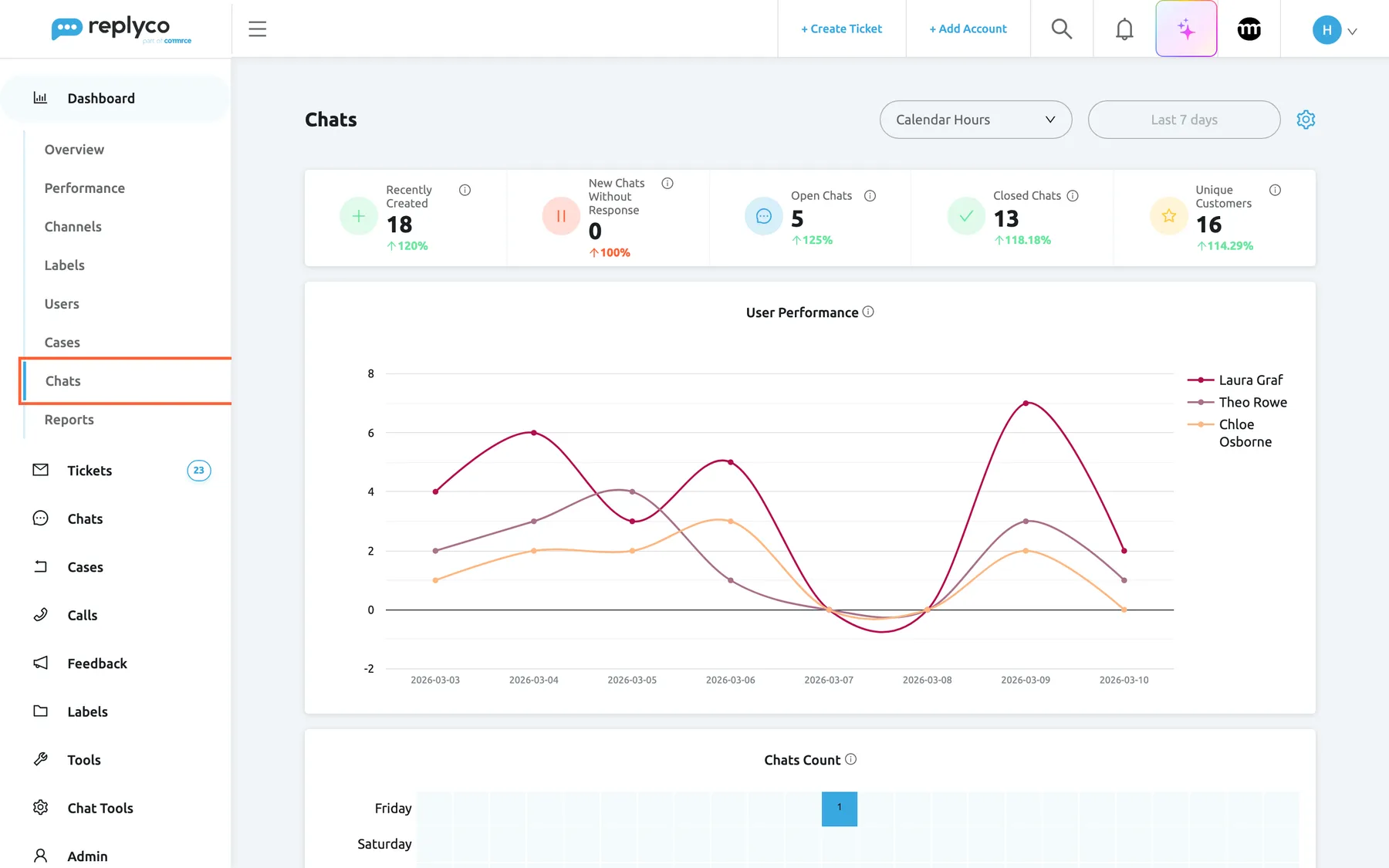
What this screenshot shows
- Screen
- Chats (/dashboard/instantMessages)
- Highlighted
- menuitem “Chats”, sidebar-left, selected. opens the Chats dashboard
- Also visible
- Calendar Hours, Last 7 days, gear icon; cards: Recently Created 18, New Chats Without Response 0, Open Chats 5, Closed Chats 13, Unique Customers 16; User Performance line chart for three users
- Purpose
- the Chats dashboard as it opens
| Region | What it shows | What you do there |
|---|---|---|
| Chats, in the sidebar under Dashboard | The seventh dashboard of the menu | Open the dashboard |
| Hours option | Calendar Hours or Working Hours | Decide how the two average times are counted |
| Period button | Last 7 days or your choice | Change the period |
| Gear icon | Turn ON Edit Mode and Manage Widgets | Arrange the widgets |
| Overview cards | Five counts with percentages | See the volume and state of chats |
| Charts and tables below | Activity, accounts, channels and users | Compare and follow up |
The Chats dashboard has no account, marketplace or user filter. For what every dashboard shares, see How the dashboards count.
Read the chat overview
Section titled “Read the chat overview”| Card | What it counts |
|---|---|
| Recently Created | Chats created in the period |
| New Chats Without Response | Of the chats created in the period, those nobody has answered that still have an unread message |
| Open Chats | Of the chats created in the period, those open now |
| Closed Chats | Of the chats created in the period, those closed now |
| Unique Customers | Different customers behind the chats created in the period |
Under each card, a percentage compares this period with the one of the same length just before: this period’s number as a share of the previous one. 18 chats after 15 reads 120% with a green arrow up; 12 after 15 would read 80% with a red arrow down. It reads 100% when the previous period had none. On New Chats Without Response the colours are reversed, because fewer unanswered chats is better.
Example. For the last 7 days: 18 chats were created, 16 different customers wrote, 13 of those chats are closed and 5 are still open.
To answer the open chats, see Chat list and conversations.
Follow activity over time
Section titled “Follow activity over time”- User Performance draws one line per user: Shows how many messages were sent by each user over a selected period of time. The data is displayed by days if the selected period is less than 30 days, by months if it is less than a year, and by years if it is more than a year.
- Chats Count is a heatmap of the chats created in the period: for up to 7 days by hour and weekday, for longer periods by weekday and week, week and month, or month and year. The darker the cell, the more chats started then.
Use the heatmap to plan who covers chats when: a dark block on weekday mornings means that is when customers write.
Compare accounts and channels
Section titled “Compare accounts and channels”The Accounts widget lists each chat account and each live chat widget with the chats created in the period: New, Open, Closed and Total, with a doughnut chart of the totals. The Marketplaces widget below counts the same chats per channel, such as WhatsApp or Telegram; chats from a live chat widget appear there as “Widget”.
Every number in both tables is a link to the chat list, filtered to that account or channel: a number under Open opens Open, a number under Closed opens Closed, and the other numbers open My Chats. How to work in the chat list is explained in Chat list and conversations.
For the live chat widget on your website, see Live chat widget.
Compare users on chats
Section titled “Compare users on chats”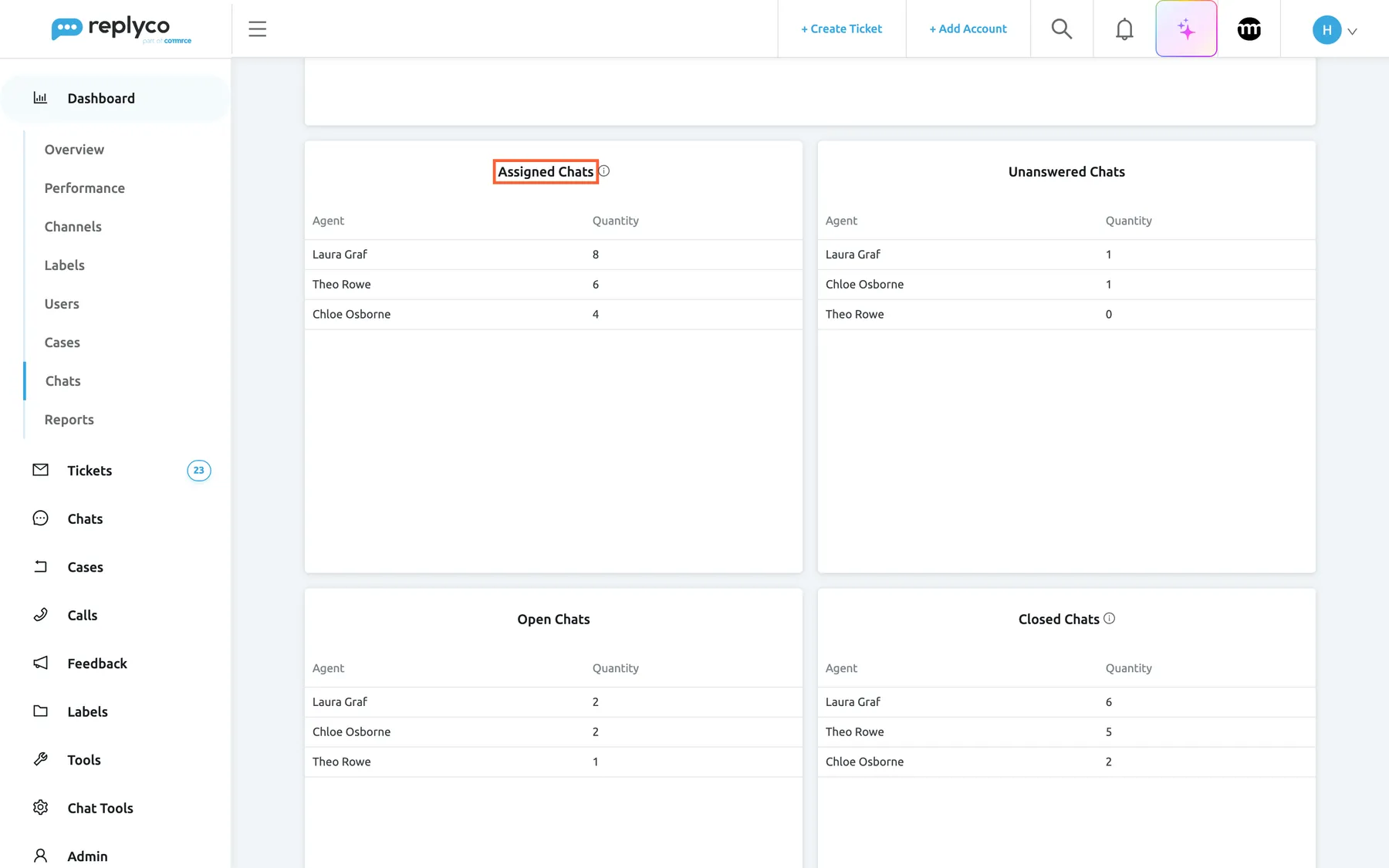
What this screenshot shows
- Screen
- Chats (/dashboard/instantMessages)
- Highlighted
- heading “Assigned Chats”, widget-title, enabled. shows chats per assigned user
- Also visible
- Assigned Chats and Unanswered Chats tables; Open Chats and Closed Chats tables
- Purpose
- compare users on chats
Each per-user widget is a small table with Agent and a number or a time, highest first. The names are not links.
| Widget | What it counts per user |
|---|---|
| Assigned Chats | Every chat created in the period that is assigned to the user, open or closed; it is the sum of Open Chats and Closed Chats |
| Unanswered Chats | Of those, chats nobody has answered and whose messages nobody has read |
| Open Chats | Assigned chats that are still open |
| Closed Chats | Assigned chats that are closed |
| Received Messages | Customer messages in the user’s chats |
| Sent Messages | Messages sent from Replyco in the user’s chats |
| Replies to Close a Chat | The user’s messages per closed chat, as a whole number |
| Average Close Time | How long, on average, from a chat’s creation until the user closed it |
| Average First Response Time | How long, on average, from a chat’s creation to the first message the user sent in it |
| Message count | A heatmap of the messages users sent in chats |
| User Action Audit Trail | How often each kind of chat action was taken, such as closing a chat or assigning a user |
| User Action Count | A line chart of the chat actions each user took per day |
Example. Laura Graf has 2 open and 6 closed chats, and 1 of her chats has not been answered or read yet. Chloe Osborne took on average 95 minutes to close a chat, Laura 38.
Choose the period and the hours
Section titled “Choose the period and the hours”- The period button offers Today, Yesterday, Last 7 days, Last 30 days, Last 90 days and a custom range, and starts at Last 7 days on every visit.
- The hours option switches the two average times between Calendar Hours and Working Hours. With working hours only the time inside your company’s working hours counts; see Working time. The default comes from Use Working Hours in Dashboards in your Account Settings.
Arrange the widgets
Section titled “Arrange the widgets”-
Select the gear icon at the right end of the header, then Manage Widgets.
-
Clear the tick box of a widget to hide it, or tick it to add it again at the bottom of the dashboard.
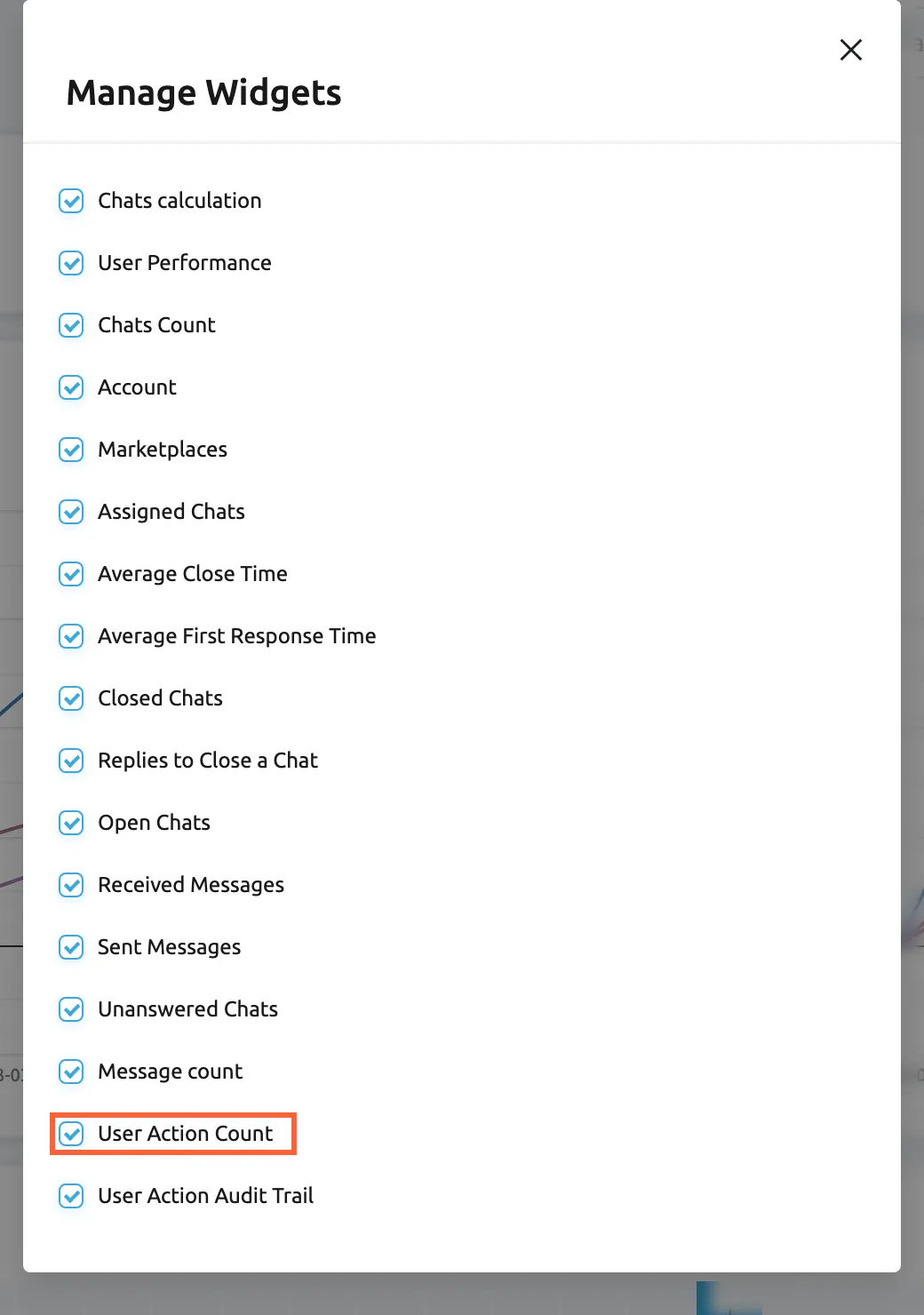
Manage Widgets switches each widget of the dashboard on or off for you alone. What this screenshot shows
- Screen
- Chats (/dashboard/instantMessages)
- Highlighted
- checkbox “User Action Count”, dialog, checked. shows or hides the User Action Count widget
- Also visible
- dialog Manage Widgets with seventeen ticked widgets
- Purpose
- choose which widgets you see
-
Close the dialog. For moving and resizing, select the gear again and Turn ON Edit Mode.
Your layout is saved at once and applies to your user only.
Every control, explained
Section titled “Every control, explained”Chats in the sidebar
Section titled “Chats in the sidebar”The sidebar, under Dashboard, between Cases and Reports.
Opens the Chats dashboard. Shown when an admin has ticked Chats among your dashboards. Locked with Your subscription plan doesn't include this feature. Do you want to go on the billing page to unlock this feature? when your plan has neither Live Chat nor WhatsApp and either lacks the Chat feature or your user lacks the Chats permission.
Chat figures matter to the people who run the chat inbox; admins decide who sees them.
The hours option and the period
Section titled “The hours option and the period”The two filters at the top.
The hours option changes only Average Close Time and Average First Response Time. The period starts at Last 7 days; neither choice is remembered.
Chats outside working hours should not make your team look slow.
The gear icon
Section titled “The gear icon”Top right, at the end of the header.
Turn ON Edit Mode to move, resize and remove widgets, and Manage Widgets to switch each of the 17 widgets on or off, for your user only.
Seventeen widgets make a long page; keep the ones you read.
Who sees what
Section titled “Who sees what”| Part of the screen | What decides whether you see it |
|---|---|
| Chats in the sidebar | The dashboards ticked for your user on Access Rights in AdminUsers; no role ticks this one, so it is always ticked by hand |
| The data, or a lock | Chat, Live Chat or WhatsApp, which every current plan includes, and the Chats permission; see What each plan includes |
| Every user’s chat figures | Everyone who can open the dashboard |
| Your layout | Only you |
What you need to know
Section titled “What you need to know”| Topic | Fact |
|---|---|
| What is counted | Chats created in the period, in their state now; messages in those chats |
| Filters | Period and hours only |
| Percentages | This period as a share of the previous one of the same length |
| Links | The account and channel numbers open the chat list; names in the per-user tables are not links |
| Live chat widget | Appears as its widget name under accounts and as “Widget” under channels |
| Layout | Per user; 17 widgets |
Frequently asked questions
Section titled “Frequently asked questions”Figures
Section titled “Figures”Which chats count as new chats without a response?
Section titled “Which chats count as new chats without a response?”New Chats Without Response counts the chats created in the period that nobody on your team has answered yet and that still have an unread message. Once someone replies in the chat, it no longer counts on this card.
What does the table of chat actions count?
Section titled “What does the table of chat actions count?”User Action Audit Trail counts how often each kind of chat action was taken in the period, such as closing a chat or assigning a user. Use it to see what your team spends its chat actions on, next to the line chart of actions per day.
Does a chat opened last week and closed today count as closed this week?
Section titled “Does a chat opened last week and closed today count as closed this week?”No. The overview cards and the account and channel tables count chats created in the period, in their state now. A chat created last week belongs to last week’s figures and shows there as closed. Only the per-user average close time looks at who closed a chat.
Why does the chats heatmap change its layout?
Section titled “Why does the chats heatmap change its layout?”Chats Count follows the length of the period: for up to 7 days it shows hours by weekday, for longer periods weekday and week, week and month, or month and year. The darker a cell, the more chats started then.
Using the dashboard
Section titled “Using the dashboard”Can I filter the Chats dashboard by account or user?
Section titled “Can I filter the Chats dashboard by account or user?”No. The Chats dashboard has only the period and the hours option. The accounts widget and the per-user tables already split the chats by account and by user, so you can compare them without a filter.
What opens when I select a number in the accounts table?
Section titled “What opens when I select a number in the accounts table?”The chat list, filtered to that account, or to that channel in the channels table. A number under Open opens Open, one under Closed opens Closed, and the others open My Chats; see Chat list and conversations.
Access
Section titled “Access”Why can an admin not see the Chats dashboard?
Section titled “Why can an admin not see the Chats dashboard?”The dashboards a user sees are ticked per user, for admins too, and the Admin and Moderator roles leave the Chats dashboard out by design. An admin who should see chat figures needs Chats ticked among the dashboards on the Access Rights tab of their user in AdminUsers. See User permissions and roles.
Why is the Chats dashboard locked?
Section titled “Why is the Chats dashboard locked?”The item is locked when your plan has neither Live Chat nor WhatsApp and either the Chat feature or your user’s chat permission is missing. Every plan includes these features, so ask an admin to check the Chats permission of your user in AdminUsers.
Troubleshooting
Section titled “Troubleshooting”| Symptom | What to check |
|---|---|
| Chats is missing from the Dashboard menu | The dashboards ticked for your user on Access Rights in AdminUsers; ask an admin |
| Chats shows a lock | The Chats permission of your user, then your plan on Billing |
| Every widget shows No data... | The period: no chat was created in it; check that a chat account or live chat widget is connected |
| The two average times look too long | The hours option: with Calendar Hours nights and weekends count; switch to Working Hours |